Google SecOps
| Version | 1.6.0 (View all) |
| Managed integration release status | GA |
| Subscription level What's this? |
Basic |
| Developed by What's this? |
Elastic |
| Ingestion method(s) | API |
| Minimum Kibana version(s) | 9.0.5 8.18.5 |
You can use this integration as an Elastic Managed integration on Elastic Cloud Hosted deployments running this version or later.
Google SecOps is a cloud-based service designed for enterprises to retain, analyze, and search large volumes of security and network telemetry. It normalizes, indexes, and correlates data to detect threats. Investigate their scope and cause, and provide remediation through pre-built integrations. The platform enables security analysts to examine aggregated security information, search across domains, and mitigate threats throughout their lifecycle.
The Google SecOps integration collects alerts using the Detection Engine API.
This module has been tested against the Google SecOps version v2.
This integration collects the following logs:
- Alerts v2 (
google_secops.alert_v2) - Retrieves YARA-L rule detections using the Chronicle APIlegacySearchDetectionsmethod. Use this data stream for new deployments. - Alerts (
google_secops.alert) - Deprecated. Retrieves alerts using the Backstory Detection Engine API. Only existing Google SecOps Backstory users can access this API. New users should use Alerts v2 instead.
Elastic Managed integrations are only supported on Elastic Cloud Serverless and Elastic Cloud Hosted deployments. An Elastic Managed integration lets you ingest data from a cloud source while avoiding the orchestration, management, and maintenance associated with standard ingest infrastructure. Elastic runs the collector for you, so you can focus on your data instead of the infrastructure that collects it.
For more information, refer to Elastic Managed integrations and the Elastic Managed integrations FAQ.
Elastic Agent must be installed. For more details, check the Elastic Agent installation instructions. You can install only one Elastic Agent per host.
- Create Google SecOps service account Steps to create.
Chronicle API must be enabled.
- Log in to the "https://console.cloud.google.com/" using valid credentials.
- Navigate to the Chronicle API.
- Click Enable.
- Open GCP Console, and go to IAM.
- In View By Main Tab, click GRANT ACCESS.
- Add Service Account name in New Principals.
- In Assign Role, select Owner.
- Click Save.
This integration will make use of the following oauth2 scope:
https://www.googleapis.com/auth/chronicle-backstory
Once Service Account credentials are downloaded as a JSON file, then the integration can be setup to collect data. For more details, please refer Google Chronicle Detection Engine API.
If installing in GCP-Cloud environment, credentials are not necessary but make sure the account linked with the VM has all the required IAM permissions. Steps to Set up Application Default Credentials.
Enable the Alerts v2 data stream to collect from the Chronicle API legacySearchDetections method. Documents ingest into the google_secops.alert_v2 data stream.
- Assign Chronicle Viewer (
roles/chronicle.viewer) to the service account in IAM. - Configure OAuth scope
https://www.googleapis.com/auth/chronicle.readonly(or another supported Chronicle scope). See Chronicle API authentication. - Note your regional Chronicle API URL, GCP project ID, location, and instance ID from Google SecOps. See Chronicle API endpoints.
- In the top search bar in Kibana, search for Integrations.
- In "Search for integrations" top bar, search for
Google SecOps. - Select the "Google SecOps" integration from the search results.
- Select "Add Google SecOps" to add the integration.
- Add all the required integration configuration parameters to enable data collection:
- For Alerts v2, enable the Alerts v2 data stream and add the regional Chronicle API URL (for example,
https://us-chronicle.googleapis.com), GCP project ID, location, instance ID, OAuth scope, Credentials Type, and Credentials. - For Alerts (deprecated; existing Backstory users only), set the URL to
https://backstory.googleapis.comand add the Credentials Type and Credentials.
- For Alerts v2, enable the Alerts v2 data stream and add the regional Chronicle API URL (for example,
- Select "Save and continue" to save the integration.
The default URL is https://us-chronicle.googleapis.com, but this may vary depending on your region. Please refer to the Documentation to find the correct URL for your region.
Deprecated: The
alertdata stream uses the Backstory Detection Engine API and is only available to existing Google SecOps Backstory users. New users should use thealert_v2data stream instead.
This is the alert dataset.
Example
{
    "@timestamp": "2025-02-01T03:23:28.000Z",
    "agent": {
        "ephemeral_id": "781dc4c4-3906-4614-9ef3-6c0e38d8f65c",
        "id": "9e093d9c-46e3-4787-af0f-b75a22101e27",
        "name": "elastic-agent-83937",
        "type": "filebeat",
        "version": "8.19.18"
    },
    "data_stream": {
        "dataset": "google_secops.alert",
        "namespace": "80492",
        "type": "logs"
    },
    "destination": {
        "user": {
            "group": {
                "id": [
                    "0"
                ]
            },
            "id": "0",
            "name": "root"
        }
    },
    "ecs": {
        "version": "8.17.0"
    },
    "elastic_agent": {
        "id": "9e093d9c-46e3-4787-af0f-b75a22101e27",
        "snapshot": true,
        "version": "8.19.18"
    },
    "event": {
        "agent_id_status": "verified",
        "created": "2025-02-01T03:12:54.177Z",
        "dataset": "google_secops.alert",
        "end": "2025-02-03T03:23:28.000Z",
        "id": "de_66bf2e94-f97e-2564-1a75-2fdbf8cb6403",
        "ingested": "2026-06-30T12:42:34Z",
        "kind": "alert",
        "original": "{\"createdTime\":\"2025-02-01T03:12:54.177084Z\",\"detection\":{\"alertState\":\"NOT_ALERTING\",\"description\":\"This rule is to generate alerts when the event_type is STATUS_UPDATE\",\"outcomes\":[{\"key\":\"risk_score\",\"value\":\"60\"}],\"riskScore\":60,\"ruleId\":\"ru_123873a9a-170d-1234-a63d-9874f33ee011\",\"ruleLabels\":[{\"key\":\"author\",\"value\":\"John\"},{\"key\":\"description\",\"value\":\"This rule is to generate alerts when the event_type is STATUS_UPDATE\"},{\"key\":\"severity\",\"value\":\"Medium\"}],\"ruleName\":\"rule_to_detect_status_update\",\"ruleType\":\"SINGLE_EVENT\",\"ruleVersion\":\"ru_123873a9a-170d-1234-a63d-9874f33ee011@v_1732873302_954607000\",\"urlBackToProduct\":\"https://example.com\",\"variables\":{\"risk_score\":{\"int64Val\":\"60\",\"type\":\"OUTCOME\",\"value\":\"60\"}}},\"detectionTime\":\"2025-02-01T03:23:28Z\",\"event\":{\"about\":[{\"labels\":[{\"key\":\"header_time_milliseconds_offset\",\"value\":\"612\"}]}],\"additional\":{\"arguments_fd\":\"8\",\"event_modifier\":\"0\",\"exec_chain_thread_uuid\":\"5AB2623F-F6EF-4A6C-B2E4-CC7E28BEB515\",\"header_time_milliseconds_offset\":\"612\",\"header_version\":\"11\",\"identity_cd_hash\":\"a70ddfe3eb75dd35005a9c863c4174d63148406c\",\"identity_signer_id\":\"com.apple.curl\",\"identity_signer_id_truncated\":\"false\",\"identity_signer_type\":\"1\",\"identity_team_id_truncated\":\"false\",\"key\":\"6CC2ABE4-385C-4444-8BC0-FD5B618BA1C1\",\"subject_audit_id\":\"4294967295\",\"subject_terminal_id_type\":\"4-IPv4\"},\"metadata\":{\"baseLabels\":{\"allowScopedAccess\":true,\"logTypes\":[\"JAMF_TELEMETRY\"]},\"enrichmentLabels\":{\"allowScopedAccess\":true},\"eventTimestamp\":\"2025-02-03T03:23:28Z\",\"eventType\":\"STATUS_UPDATE\",\"id\":\"AAAAAByuGF66kDlZ79NglQZk0cQPPPPPBgSSSSSSSSS=\",\"ingestedTimestamp\":\"2025-02-01T06:00:42.443096Z\",\"logType\":\"JAMF_TELEMETRY\",\"productEventType\":\"AUE_CONNECT-32\",\"productName\":\"JAMF_TELEMETRY\",\"vendorName\":\"JAMF\"},\"network\":{\"sessionId\":\"100001\"},\"principal\":{\"asset\":{\"hardware\":[{\"serialNumber\":\"PPX94A9874\"}],\"hostname\":\"TEST-PPX94A9874\",\"productObjectId\":\"45DE0BEE-8056-5B41-B09A-08E259E49317\",\"software\":[{\"version\":\"Version 15.2 (Build 24C101)\"}]},\"group\":{\"groupDisplayName\":\"wheel\"},\"hostname\":\"TEST-PPX94A9874\",\"ip\":[\"0.0.0.0\"],\"labels\":[{\"key\":\"arguments_fd\",\"value\":\"8\"}],\"process\":{\"file\":{\"fullPath\":\"/bin/bash\",\"md5\":\"b14dba7fe27186f216037a3b60599582\",\"sha1\":\"47bba82e8a43cfa14a1124a477090f9fbd0e026a\",\"sha256\":\"4d8b9a54a2077c1457410843a9842ef29e0f371fb4061097095758012c031809\"},\"pid\":\"47203\"},\"processAncestors\":[{\"file\":{\"fullPath\":\"/usr/bin/curl\"},\"pid\":\"47325\"}],\"user\":{\"groupIdentifiers\":[\"0\"],\"userDisplayName\":\"root\",\"userid\":\"0\"}},\"securityResult\":[{\"description\":\"0-success\",\"detectionFields\":[{\"key\":\"return_value\",\"value\":\"0\"}]}],\"target\":{\"group\":{\"groupDisplayName\":\"wheel\"},\"user\":{\"groupIdentifiers\":[\"0\"],\"userDisplayName\":\"root\",\"userid\":\"0\"}}},\"id\":\"de_66bf2e94-f97e-2564-1a75-2fdbf8cb6403\",\"label\":\"e\",\"timeWindow\":{\"endTime\":\"2025-02-03T03:23:28Z\",\"startTime\":\"2025-02-01T03:23:28Z\"},\"type\":\"RULE_DETECTION\"}",
        "risk_score": 60,
        "start": "2025-02-01T03:23:28.000Z"
    },
    "google_secops": {
        "alert": {
            "createdTime": "2025-02-01T03:12:54.177Z",
            "detection": {
                "alertState": "NOT_ALERTING",
                "description": "This rule is to generate alerts when the event_type is STATUS_UPDATE",
                "outcomes": [
                    {
                        "key": "risk_score",
                        "value": "60"
                    }
                ],
                "riskScore": 60,
                "ruleId": "ru_123873a9a-170d-1234-a63d-9874f33ee011",
                "ruleLabels": [
                    {
                        "key": "author",
                        "value": "John"
                    },
                    {
                        "key": "description",
                        "value": "This rule is to generate alerts when the event_type is STATUS_UPDATE"
                    },
                    {
                        "key": "severity",
                        "value": "Medium"
                    }
                ],
                "ruleName": "rule_to_detect_status_update",
                "ruleType": "SINGLE_EVENT",
                "ruleVersion": "ru_123873a9a-170d-1234-a63d-9874f33ee011@v_1732873302_954607000",
                "urlBackToProduct": "https://example.com",
                "variables": {
                    "risk_score": {
                        "int64Val": 60,
                        "type": "OUTCOME",
                        "value": 60
                    }
                }
            },
            "detectionTime": "2025-02-01T03:23:28.000Z",
            "event": {
                "about": [
                    {
                        "labels": [
                            {
                                "key": "header_time_milliseconds_offset",
                                "value": "612"
                            }
                        ]
                    }
                ],
                "additional": {
                    "arguments_fd": "8",
                    "event_modifier": "0",
                    "exec_chain_thread_uuid": "5AB2623F-F6EF-4A6C-B2E4-CC7E28BEB515",
                    "header_time_milliseconds_offset": "612",
                    "header_version": "11",
                    "identity_cd_hash": "a70ddfe3eb75dd35005a9c863c4174d63148406c",
                    "identity_signer_id": "com.apple.curl",
                    "identity_signer_id_truncated": "false",
                    "identity_signer_type": "1",
                    "identity_team_id_truncated": "false",
                    "key": "6CC2ABE4-385C-4444-8BC0-FD5B618BA1C1",
                    "subject_audit_id": "4294967295",
                    "subject_terminal_id_type": "4-IPv4"
                },
                "metadata": {
                    "baseLabels": {
                        "allowScopedAccess": true,
                        "logTypes": [
                            "JAMF_TELEMETRY"
                        ]
                    },
                    "enrichmentLabels": {
                        "allowScopedAccess": true
                    },
                    "eventTimestamp": "2025-02-03T03:23:28.000Z",
                    "eventType": "STATUS_UPDATE",
                    "id": "AAAAAByuGF66kDlZ79NglQZk0cQPPPPPBgSSSSSSSSS=",
                    "ingestedTimestamp": "2025-02-01T06:00:42.443Z",
                    "logType": "JAMF_TELEMETRY",
                    "productEventType": "AUE_CONNECT-32",
                    "productName": "JAMF_TELEMETRY",
                    "vendorName": "JAMF"
                },
                "network": {
                    "sessionId": "100001"
                },
                "principal": {
                    "asset": {
                        "hardware": [
                            {
                                "serialNumber": "PPX94A9874"
                            }
                        ],
                        "hostname": "TEST-PPX94A9874",
                        "productObjectId": "45DE0BEE-8056-5B41-B09A-08E259E49317",
                        "software": [
                            {
                                "version": "Version 15.2 (Build 24C101)"
                            }
                        ]
                    },
                    "group": {
                        "groupDisplayName": "wheel"
                    },
                    "hostname": "TEST-PPX94A9874",
                    "ip": [
                        "0.0.0.0"
                    ],
                    "labels": [
                        {
                            "key": "arguments_fd",
                            "value": "8"
                        }
                    ],
                    "process": {
                        "file": {
                            "fullPath": "/bin/bash",
                            "md5": "b14dba7fe27186f216037a3b60599582",
                            "sha1": "47bba82e8a43cfa14a1124a477090f9fbd0e026a",
                            "sha256": "4d8b9a54a2077c1457410843a9842ef29e0f371fb4061097095758012c031809"
                        },
                        "pid": 47203
                    },
                    "processAncestors": [
                        {
                            "file": {
                                "fullPath": "/usr/bin/curl"
                            },
                            "pid": "47325"
                        }
                    ],
                    "user": {
                        "groupIdentifiers": [
                            "0"
                        ],
                        "userDisplayName": "root",
                        "userid": "0"
                    }
                },
                "securityResult": [
                    {
                        "description": "0-success",
                        "detectionFields": [
                            {
                                "key": "return_value",
                                "value": "0"
                            }
                        ]
                    }
                ],
                "target": {
                    "group": {
                        "groupDisplayName": "wheel"
                    },
                    "user": {
                        "groupIdentifiers": [
                            "0"
                        ],
                        "userDisplayName": "root",
                        "userid": "0"
                    }
                }
            },
            "friendly_name": "rule_to_detect_status_update",
            "id": "de_66bf2e94-f97e-2564-1a75-2fdbf8cb6403",
            "label": "e",
            "timeWindow": {
                "endTime": "2025-02-03T03:23:28.000Z",
                "startTime": "2025-02-01T03:23:28.000Z"
            },
            "type": "RULE_DETECTION"
        }
    },
    "host": {
        "hostname": "TEST-PPX94A9874",
        "ip": [
            "0.0.0.0"
        ]
    },
    "input": {
        "type": "cel"
    },
    "observer": {
        "product": "JAMF_TELEMETRY",
        "vendor": "JAMF"
    },
    "process": {
        "executable": "/bin/bash",
        "hash": {
            "md5": "b14dba7fe27186f216037a3b60599582",
            "sha1": "47bba82e8a43cfa14a1124a477090f9fbd0e026a",
            "sha256": "4d8b9a54a2077c1457410843a9842ef29e0f371fb4061097095758012c031809"
        },
        "pid": 47203
    },
    "related": {
        "hash": [
            "b14dba7fe27186f216037a3b60599582",
            "47bba82e8a43cfa14a1124a477090f9fbd0e026a",
            "4d8b9a54a2077c1457410843a9842ef29e0f371fb4061097095758012c031809"
        ],
        "hosts": [
            "TEST-PPX94A9874"
        ],
        "ip": [
            "0.0.0.0"
        ],
        "user": [
            "root",
            "0"
        ]
    },
    "rule": {
        "description": "This rule is to generate alerts when the event_type is STATUS_UPDATE",
        "id": "ru_123873a9a-170d-1234-a63d-9874f33ee011",
        "name": "rule_to_detect_status_update",
        "version": "ru_123873a9a-170d-1234-a63d-9874f33ee011@v_1732873302_954607000"
    },
    "tags": [
        "preserve_original_event",
        "preserve_duplicate_custom_fields",
        "forwarded",
        "google_secops-alert"
    ],
    "user": {
        "group": {
            "id": [
                "0"
            ],
            "name": "wheel"
        },
        "id": "0",
        "name": "root"
    }
}
Exported fields
| Field | Description | Type | ||
|---|---|---|---|---|
| @timestamp | Event timestamp. | date | ||
| data_stream.dataset | Data stream dataset. | constant_keyword | ||
| data_stream.namespace | Data stream namespace. | constant_keyword | ||
| data_stream.type | Data stream type. | constant_keyword | ||
| event.dataset | Event dataset. | constant_keyword | ||
| event.module | Event module. | constant_keyword | ||
| google_secops.alert.createdTime | Time the detection was created. | date | ||
| google_secops.alert.detection.alertState | Indicates whether the rule generating this detection currently has alerting enabled or disabled. | keyword | ||
| google_secops.alert.detection.description | Description of the rule that generated the detection. This description is copied from the rule metadata's description key, if it is set. |
keyword | ||
| google_secops.alert.detection.detectionFields.key | Key for a field specified in the rule, for "MULTI_EVENT" rules. | keyword | ||
| google_secops.alert.detection.detectionFields.source | keyword | |||
| google_secops.alert.detection.detectionFields.value | Value for a field specified in the rule, for "MULTI_EVENT" rules. | keyword | ||
| google_secops.alert.detection.outcomes.key | keyword | |||
| google_secops.alert.detection.outcomes.value | keyword | |||
| google_secops.alert.detection.riskScore | long | |||
| google_secops.alert.detection.risk_score.int64Val | long | |||
| google_secops.alert.detection.risk_score.type | keyword | |||
| google_secops.alert.detection.risk_score.value | long | |||
| google_secops.alert.detection.ruleId | Identifier for the rule generating the detection. | keyword | ||
| google_secops.alert.detection.ruleLabels.key | Key for a field specified in the rule metadata. | keyword | ||
| google_secops.alert.detection.ruleLabels.value | Value for a field specified in the rule metadata. | keyword | ||
| google_secops.alert.detection.ruleName | Name of the rule generating the detection, as parsed from ruleText. |
keyword | ||
| google_secops.alert.detection.ruleType | Whether the rule generating this detection is a single event or multi-event rule ("SINGLE_EVENT" or "MULTI_EVENT"). | keyword | ||
| google_secops.alert.detection.ruleVersion | Identifier for the rule version generating the detection. | keyword | ||
| google_secops.alert.detection.urlBackToProduct | URL pointing to the Google Security Operations application page for this detection. | keyword | ||
| google_secops.alert.detection.variables.risk_score.int64Val | long | |||
| google_secops.alert.detection.variables.risk_score.type | keyword | |||
| google_secops.alert.detection.variables.risk_score.value | long | |||
| google_secops.alert.detectionTime | String representing the time period the detection was found in. | date | ||
| google_secops.alert.event.about.file.fullPath | The full path identifying the location of the file on the system. | keyword | ||
| google_secops.alert.event.about.group.groupDisplayName | Group display name. e.g. "Finance". | keyword | ||
| google_secops.alert.event.about.labels.key | The key. | keyword | ||
| google_secops.alert.event.about.labels.value | The value. | keyword | ||
| google_secops.alert.event.about.url | The URL. | keyword | ||
| google_secops.alert.event.about.user.groupIdentifiers | Product object identifiers of the group(s) the user belongs to A vendor-specific identifier to uniquely identify the group(s) the user belongs to (a GUID, LDAP OID, or similar). | keyword | ||
| google_secops.alert.event.about.user.userDisplayName | The display name of the user (e.g. "John Locke"). | keyword | ||
| google_secops.alert.event.about.user.userid | The ID of the user. | keyword | ||
| google_secops.alert.event.additional | flattened | |||
| google_secops.alert.event.extracted | flattened | |||
| google_secops.alert.event.intermediary.hostname | Client hostname or domain name field. Hostname also doubles as the domain for remote entities. | keyword | ||
| google_secops.alert.event.metadata.baseLabels.allowScopedAccess | boolean | |||
| google_secops.alert.event.metadata.baseLabels.ingestionKvLabels.key | keyword | |||
| google_secops.alert.event.metadata.baseLabels.ingestionKvLabels.value | keyword | |||
| google_secops.alert.event.metadata.baseLabels.logTypes | keyword | |||
| google_secops.alert.event.metadata.description | A human-readable unparsable description of the event. | keyword | ||
| google_secops.alert.event.metadata.enrichmentLabels.allowScopedAccess | boolean | |||
| google_secops.alert.event.metadata.enrichmentLabels.ingestionKvLabels.key | keyword | |||
| google_secops.alert.event.metadata.enrichmentLabels.ingestionKvLabels.value | keyword | |||
| google_secops.alert.event.metadata.enrichmentLabels.logTypes | keyword | |||
| google_secops.alert.event.metadata.eventTimestamp | The GMT timestamp when the event was generated. | date | ||
| google_secops.alert.event.metadata.eventType | The event type. If an event has multiple possible types, this specifies the most specific type. | keyword | ||
| google_secops.alert.event.metadata.id | ID of the UDM event. Can be used for raw and normalized event retrieval. | keyword | ||
| google_secops.alert.event.metadata.ingestedTimestamp | The GMT timestamp when the event was ingested (received) by Google Security Operations. | date | ||
| google_secops.alert.event.metadata.ingestionLabels.key | keyword | |||
| google_secops.alert.event.metadata.ingestionLabels.value | keyword | |||
| google_secops.alert.event.metadata.logType | The string value of log type. | keyword | ||
| google_secops.alert.event.metadata.productDeploymentId | The deployment identifier assigned by the vendor for a product deployment. | keyword | ||
| google_secops.alert.event.metadata.productEventType | A short, descriptive, human-readable, product-specific event name or type (for example: "Scanned X", "User account created", "process_start"). | keyword | ||
| google_secops.alert.event.metadata.productLogId | A vendor-specific event identifier to uniquely identify the event (for example: a GUID). | keyword | ||
| google_secops.alert.event.metadata.productName | The name of the product. | keyword | ||
| google_secops.alert.event.metadata.urlBackToProduct | A URL that takes the user to the source product console for this event. | keyword | ||
| google_secops.alert.event.metadata.vendorName | The name of the product vendor. | keyword | ||
| google_secops.alert.event.network.applicationProtocol | The application protocol. | keyword | ||
| google_secops.alert.event.network.dns.answers.data | The payload or response to the DNS question for all responses encoded in UTF-8 format. | keyword | ||
| google_secops.alert.event.network.dns.answers.name | The name of the owner of the resource record. | keyword | ||
| google_secops.alert.event.network.dns.answers.type | The code specifying the type of the resource record. | keyword | ||
| google_secops.alert.event.network.dns.questions.name | The domain name. | keyword | ||
| google_secops.alert.event.network.dns.questions.type | The code specifying the type of the query. | keyword | ||
| google_secops.alert.event.network.dnsDomain | DNS domain name. | keyword | ||
| google_secops.alert.event.network.email.bcc | A list of 'bcc' addresses. | keyword | ||
| google_secops.alert.event.network.email.cc | A list of 'cc' addresses. | keyword | ||
| google_secops.alert.event.network.email.from | The 'from' address. | keyword | ||
| google_secops.alert.event.network.email.replyTo | The 'reply to' address. | keyword | ||
| google_secops.alert.event.network.email.subject | The subject line(s) of the email. | keyword | ||
| google_secops.alert.event.network.email.to | A list of 'to' addresses. | keyword | ||
| google_secops.alert.event.network.ftp.command | The FTP command. | keyword | ||
| google_secops.alert.event.network.http.method | The HTTP request method (e.g. "GET", "POST", "PATCH", "DELETE"). | keyword | ||
| google_secops.alert.event.network.http.referralUrl | The URL for the HTTP referer. | keyword | ||
| google_secops.alert.event.network.http.responseCode | The response status code, for example 200, 302, 404, or 500. | long | ||
| google_secops.alert.event.network.http.userAgent | The User-Agent request header which includes the application type, operating system, software vendor or software version of the requesting software user agent. | keyword | ||
| google_secops.alert.event.network.ipProtocol | The IP protocol. | keyword | ||
| google_secops.alert.event.network.sessionId | The ID of the network session. | keyword | ||
| google_secops.alert.event.principal.asset.assetId | The asset ID. | keyword | ||
| google_secops.alert.event.principal.asset.attribute.labels.key | The key. | keyword | ||
| google_secops.alert.event.principal.asset.attribute.labels.value | The value. | keyword | ||
| google_secops.alert.event.principal.asset.hardware.serialNumber | Hardware serial number. | keyword | ||
| google_secops.alert.event.principal.asset.hostname | Asset hostname or domain name field. | keyword | ||
| google_secops.alert.event.principal.asset.ip | A list of IP addresses associated with a network connection. | ip | ||
| google_secops.alert.event.principal.asset.mac | List of MAC addresses associated with a device. | keyword | ||
| google_secops.alert.event.principal.asset.platformSoftware.platform | The platform operating system. | keyword | ||
| google_secops.alert.event.principal.asset.platformSoftware.platformPatchLevel | The platform software patch level ( e.g. "Build 17134.48", "SP1"). | keyword | ||
| google_secops.alert.event.principal.asset.platformSoftware.platformVersion | The platform software version ( e.g. "Microsoft Windows 1803"). | keyword | ||
| google_secops.alert.event.principal.asset.productObjectId | A vendor-specific identifier to uniquely identify the entity (a GUID or similar). | keyword | ||
| google_secops.alert.event.principal.asset.software.version | The version of the software. | keyword | ||
| google_secops.alert.event.principal.asset.type | The type of the asset (e.g. workstation or laptop or server). | keyword | ||
| google_secops.alert.event.principal.assetId | The asset ID. | keyword | ||
| google_secops.alert.event.principal.cloud.environment | The Cloud environment. | keyword | ||
| google_secops.alert.event.principal.file.fullPath | The full path identifying the location of the file on the system. | keyword | ||
| google_secops.alert.event.principal.file.md5 | The MD5 hash of the file, as a hex-encoded string. | keyword | ||
| google_secops.alert.event.principal.file.sha1 | The SHA1 hash of the file, as a hex-encoded string. | keyword | ||
| google_secops.alert.event.principal.file.sha256 | The SHA256 hash of the file, as a hex-encoded string. | keyword | ||
| google_secops.alert.event.principal.group.groupDisplayName | Group display name. e.g. "Finance". | keyword | ||
| google_secops.alert.event.principal.hostname | Client hostname or domain name field. Hostname also doubles as the domain for remote entities. | keyword | ||
| google_secops.alert.event.principal.ip | A list of IP addresses associated with a network connection. | ip | ||
| google_secops.alert.event.principal.ipGeoArtifact.ip | IP address of the artifact. | ip | ||
| google_secops.alert.event.principal.ipGeoArtifact.location.countryOrRegion | The country or region. | keyword | ||
| google_secops.alert.event.principal.ipGeoArtifact.location.regionCoordinates.lat | The latitude in degrees. . | double | ||
| google_secops.alert.event.principal.ipGeoArtifact.location.regionCoordinates.lon | The longitude in degrees. . | double | ||
| google_secops.alert.event.principal.ipGeoArtifact.location.state | The state. | keyword | ||
| google_secops.alert.event.principal.ipGeoArtifact.network.asn | Autonomous system number. | keyword | ||
| google_secops.alert.event.principal.ipGeoArtifact.network.carrierName | Carrier identification. | keyword | ||
| google_secops.alert.event.principal.labels.key | keyword | |||
| google_secops.alert.event.principal.labels.value | keyword | |||
| google_secops.alert.event.principal.location.countryOrRegion | The country or region. | keyword | ||
| google_secops.alert.event.principal.mac | List of MAC addresses associated with a device. | keyword | ||
| google_secops.alert.event.principal.platform | Platform. | keyword | ||
| google_secops.alert.event.principal.port | Source or destination network port number when a specific network connection is described within an event. | long | ||
| google_secops.alert.event.principal.process.commandLine | The command line command that created the process. | keyword | ||
| google_secops.alert.event.principal.process.file.fullPath | The full path identifying the location of the file on the system. | keyword | ||
| google_secops.alert.event.principal.process.file.md5 | The MD5 hash of the file, as a hex-encoded string. | keyword | ||
| google_secops.alert.event.principal.process.file.names | Names fields. | keyword | ||
| google_secops.alert.event.principal.process.file.sha1 | The SHA1 hash of the file, as a hex-encoded string. | keyword | ||
| google_secops.alert.event.principal.process.file.sha256 | The SHA256 hash of the file, as a hex-encoded string. | keyword | ||
| google_secops.alert.event.principal.process.file.signatureInfo.sigcheck.signers.name | Common name of the signers/certificate. The order of the signers matters. Each element is a higher level authority, the last being the root authority. | keyword | ||
| google_secops.alert.event.principal.process.file.signatureInfo.sigcheck.verificationMessage | Status of the certificate. Valid values are "Signed", "Unsigned" or a description of the certificate anomaly, if found. | keyword | ||
| google_secops.alert.event.principal.process.parentProcess.commandLine | The command line command that created the process. | keyword | ||
| google_secops.alert.event.principal.process.parentProcess.file.fullPath | The full path identifying the location of the file on the system. | keyword | ||
| google_secops.alert.event.principal.process.parentProcess.file.md5 | The MD5 hash of the file, as a hex-encoded string. | keyword | ||
| google_secops.alert.event.principal.process.parentProcess.file.names | Names fields. | keyword | ||
| google_secops.alert.event.principal.process.parentProcess.file.sha1 | The SHA1 hash of the file, as a hex-encoded string. | keyword | ||
| google_secops.alert.event.principal.process.parentProcess.file.sha256 | The SHA256 hash of the file, as a hex-encoded string. | keyword | ||
| google_secops.alert.event.principal.process.parentProcess.file.signatureInfo.sigcheck.signers.name | Common name of the signers/certificate. The order of the signers matters. Each element is a higher level authority, the last being the root authority. | keyword | ||
| google_secops.alert.event.principal.process.parentProcess.file.signatureInfo.sigcheck.verificationMessage | Status of the certificate. Valid values are "Signed", "Unsigned" or a description of the certificate anomaly, if found. | keyword | ||
| google_secops.alert.event.principal.process.parentProcess.parentProcess.commandLine | The command line command that created the process. | keyword | ||
| google_secops.alert.event.principal.process.parentProcess.parentProcess.file.fullPath | The full path identifying the location of the file on the system. | keyword | ||
| google_secops.alert.event.principal.process.parentProcess.parentProcess.file.md5 | The MD5 hash of the file, as a hex-encoded string. | keyword | ||
| google_secops.alert.event.principal.process.parentProcess.parentProcess.file.names | Names fields. | keyword | ||
| google_secops.alert.event.principal.process.parentProcess.parentProcess.file.sha1 | The SHA1 hash of the file, as a hex-encoded string. | keyword | ||
| google_secops.alert.event.principal.process.parentProcess.parentProcess.file.sha256 | The SHA256 hash of the file, as a hex-encoded string. | keyword | ||
| google_secops.alert.event.principal.process.parentProcess.parentProcess.file.signatureInfo.sigcheck.verificationMessage | Status of the certificate. Valid values are "Signed", "Unsigned" or a description of the certificate anomaly, if found. | keyword | ||
| google_secops.alert.event.principal.process.parentProcess.parentProcess.parentProcess.commandLine | The command line command that created the process. | keyword | ||
| google_secops.alert.event.principal.process.parentProcess.parentProcess.parentProcess.file.fullPath | The full path identifying the location of the file on the system. | keyword | ||
| google_secops.alert.event.principal.process.parentProcess.parentProcess.parentProcess.file.md5 | The MD5 hash of the file, as a hex-encoded string. | keyword | ||
| google_secops.alert.event.principal.process.parentProcess.parentProcess.parentProcess.file.names | Names fields. | keyword | ||
| google_secops.alert.event.principal.process.parentProcess.parentProcess.parentProcess.file.sha1 | The SHA1 hash of the file, as a hex-encoded string. | keyword | ||
| google_secops.alert.event.principal.process.parentProcess.parentProcess.parentProcess.file.sha256 | The SHA256 hash of the file, as a hex-encoded string. | keyword | ||
| google_secops.alert.event.principal.process.parentProcess.parentProcess.parentProcess.file.signatureInfo.sigcheck.verificationMessage | Status of the certificate. Valid values are "Signed", "Unsigned" or a description of the certificate anomaly, if found. | keyword | ||
| google_secops.alert.event.principal.process.parentProcess.parentProcess.parentProcess.parentProcess.commandLine | The command line command that created the process. | keyword | ||
| google_secops.alert.event.principal.process.parentProcess.parentProcess.parentProcess.parentProcess.file.fullPath | The full path identifying the location of the file on the system. | keyword | ||
| google_secops.alert.event.principal.process.parentProcess.parentProcess.parentProcess.parentProcess.file.md5 | The MD5 hash of the file, as a hex-encoded string. | keyword | ||
| google_secops.alert.event.principal.process.parentProcess.parentProcess.parentProcess.parentProcess.file.names | Names fields. | keyword | ||
| google_secops.alert.event.principal.process.parentProcess.parentProcess.parentProcess.parentProcess.file.sha1 | The SHA1 hash of the file, as a hex-encoded string. | keyword | ||
| google_secops.alert.event.principal.process.parentProcess.parentProcess.parentProcess.parentProcess.file.sha256 | The SHA256 hash of the file, as a hex-encoded string. | keyword | ||
| google_secops.alert.event.principal.process.parentProcess.parentProcess.parentProcess.parentProcess.file.signatureInfo.sigcheck.verificationMessage | Status of the certificate. Valid values are "Signed", "Unsigned" or a description of the certificate anomaly, if found. | keyword | ||
| google_secops.alert.event.principal.process.parentProcess.parentProcess.parentProcess.parentProcess.pid | The process ID. | keyword | ||
| google_secops.alert.event.principal.process.parentProcess.parentProcess.parentProcess.parentProcess.productSpecificProcessId | A product specific id for the parent process. Please use parentProcess.productSpecificProcessId instead. | keyword | ||
| google_secops.alert.event.principal.process.parentProcess.parentProcess.parentProcess.pid | The process ID. | keyword | ||
| google_secops.alert.event.principal.process.parentProcess.parentProcess.parentProcess.productSpecificProcessId | A product specific id for the parent process. Please use parentProcess.productSpecificProcessId instead. | keyword | ||
| google_secops.alert.event.principal.process.parentProcess.parentProcess.pid | The process ID. | keyword | ||
| google_secops.alert.event.principal.process.parentProcess.parentProcess.productSpecificProcessId | A product specific id for the parent process. Please use parentProcess.productSpecificProcessId instead. | keyword | ||
| google_secops.alert.event.principal.process.parentProcess.pid | The process ID. | long | ||
| google_secops.alert.event.principal.process.parentProcess.productSpecificProcessId | A product specific id for the parent process. Please use parentProcess.productSpecificProcessId instead. | keyword | ||
| google_secops.alert.event.principal.process.pid | The process ID. | long | ||
| google_secops.alert.event.principal.process.productSpecificProcessId | A product specific id for the parent process. Please use parentProcess.productSpecificProcessId instead. | keyword | ||
| google_secops.alert.event.principal.processAncestors.file.fullPath | The full path identifying the location of the file on the system. | keyword | ||
| google_secops.alert.event.principal.processAncestors.parentProcess.commandLine | The command line command that created the process. | keyword | ||
| google_secops.alert.event.principal.processAncestors.parentProcess.file.fullPath | The full path identifying the location of the file on the system. | keyword | ||
| google_secops.alert.event.principal.processAncestors.parentProcess.file.md5 | The MD5 hash of the file, as a hex-encoded string. | keyword | ||
| google_secops.alert.event.principal.processAncestors.parentProcess.file.names | Names fields. | keyword | ||
| google_secops.alert.event.principal.processAncestors.parentProcess.file.sha1 | The SHA1 hash of the file, as a hex-encoded string. | keyword | ||
| google_secops.alert.event.principal.processAncestors.parentProcess.file.sha256 | The SHA256 hash of the file, as a hex-encoded string. | keyword | ||
| google_secops.alert.event.principal.processAncestors.parentProcess.file.signatureInfo.sigcheck.verificationMessage | Status of the certificate. Valid values are "Signed", "Unsigned" or a description of the certificate anomaly, if found. | keyword | ||
| google_secops.alert.event.principal.processAncestors.parentProcess.pid | The process ID. | keyword | ||
| google_secops.alert.event.principal.processAncestors.parentProcess.productSpecificProcessId | A product specific id for the parent process. Please use parentProcess.productSpecificProcessId instead. | keyword | ||
| google_secops.alert.event.principal.processAncestors.pid | The process ID. | keyword | ||
| google_secops.alert.event.principal.registry.registryKey | Registry key associated with an application or system component (e.g., HKEY_, HKCU\Environment...). | keyword | ||
| google_secops.alert.event.principal.registry.registryValueName | Name of the registry value associated with an application or system component (e.g. TEMP). | keyword | ||
| google_secops.alert.event.principal.resource.attribute.cloud.project.name | The full name of the resource. For example, Google Cloud: //cloudresourcemanager.googleapis.com/projects/wombat-123, and AWS: arn:aws:iam<>123456789012:user/johndoe. | keyword | ||
| google_secops.alert.event.principal.resource.attribute.cloud.project.resourceSubtype | Resource sub-type (e.g. "BigQuery", "Bigtable"). | keyword | ||
| google_secops.alert.event.principal.resource.name | The full name of the resource. For example, Google Cloud: //cloudresourcemanager.googleapis.com/projects/wombat-123, and AWS: arn:aws:iam123456789012:user/johndoe. | keyword | ||
| google_secops.alert.event.principal.url | The URL. | keyword | ||
| google_secops.alert.event.principal.user.attribute.labels.key | keyword | |||
| google_secops.alert.event.principal.user.attribute.labels.value | keyword | |||
| google_secops.alert.event.principal.user.attribute.permissions.name | Name of the permission (e.g. chronicle.analyst.updateRule). | keyword | ||
| google_secops.alert.event.principal.user.attribute.permissions.type | Type of the permission. | keyword | ||
| google_secops.alert.event.principal.user.attribute.roles.description | System role description for user. | keyword | ||
| google_secops.alert.event.principal.user.attribute.roles.name | System role name for user. | keyword | ||
| google_secops.alert.event.principal.user.emailAddresses | Email addresses of the user. | keyword | ||
| google_secops.alert.event.principal.user.groupIdentifiers | Product object identifiers of the group(s) the user belongs to A vendor-specific identifier to uniquely identify the group(s) the user belongs to (a GUID, LDAP OID, or similar). | keyword | ||
| google_secops.alert.event.principal.user.productObjectId | A vendor-specific identifier to uniquely identify the entity (e.g. a GUID, LDAP, OID, or similar). | keyword | ||
| google_secops.alert.event.principal.user.userDisplayName | The display name of the user (e.g. "John Locke"). | keyword | ||
| google_secops.alert.event.principal.user.userid | The ID of the user. | keyword | ||
| google_secops.alert.event.principal.user.windowsSid | The Microsoft Windows SID of the user. | keyword | ||
| google_secops.alert.event.securityResult.about.resource.name | keyword | |||
| google_secops.alert.event.securityResult.about.user.attribute.roles.name | System role name for user. | keyword | ||
| google_secops.alert.event.securityResult.about.user.emailAddresses | Email addresses of the user. | keyword | ||
| google_secops.alert.event.securityResult.action | Actions taken for this event. | keyword | ||
| google_secops.alert.event.securityResult.alertState | The alerting types of this security result. | keyword | ||
| google_secops.alert.event.securityResult.category | The security category. | keyword | ||
| google_secops.alert.event.securityResult.categoryDetails | For vendor-specific categories. For web categorization, put type in here such as "gambling" or "porn". | keyword | ||
| google_secops.alert.event.securityResult.description | A human readable description (e.g. "user password was wrong").' | keyword | ||
| google_secops.alert.event.securityResult.detectionFields.key | keyword | |||
| google_secops.alert.event.securityResult.detectionFields.value | keyword | |||
| google_secops.alert.event.securityResult.firstDiscoveredTime | First time the IoC threat was discovered in the provider. | date | ||
| google_secops.alert.event.securityResult.priority | The priority of the result. | keyword | ||
| google_secops.alert.event.securityResult.priorityDetails | Vendor-specific information about the security result priority. | keyword | ||
| google_secops.alert.event.securityResult.ruleId | A vendor-specific ID and name for a rule, varying by observerer type (e.g. "08123", "5d2b44d0-5ef6-40f5-a704-47d61d3babbe"). | keyword | ||
| google_secops.alert.event.securityResult.ruleLabels.key | keyword | |||
| google_secops.alert.event.securityResult.ruleLabels.value | keyword | |||
| google_secops.alert.event.securityResult.ruleName | Name of the security rule (e.g. "BlockInboundToOracle"). | keyword | ||
| google_secops.alert.event.securityResult.ruleType | The type of security rule. | keyword | ||
| google_secops.alert.event.securityResult.severity | The severity of the result. | keyword | ||
| google_secops.alert.event.securityResult.severityDetails | Vendor-specific severity. | keyword | ||
| google_secops.alert.event.securityResult.summary | A human readable summary (e.g. "failed login occurred"). | keyword | ||
| google_secops.alert.event.securityResult.threatId | Vendor-specific ID for a threat. | keyword | ||
| google_secops.alert.event.securityResult.threatIdNamespace | The attribute threat_id_namespace qualifies threat_id with an ID namespace to get an unique ID. The attribute threat_id by itself is not unique across Google SecOps as it is a vendor specific ID. | keyword | ||
| google_secops.alert.event.securityResult.threatName | A vendor-assigned classification common across multiple customers (e.g. "W32/File-A", "Slammer"). | keyword | ||
| google_secops.alert.event.securityResult.urlBackToProduct | URL that takes the user to the source product console for this event. | keyword | ||
| google_secops.alert.event.src.asset.assetId | The asset ID. | keyword | ||
| google_secops.alert.event.src.asset.hostname | Client hostname or domain name field. Hostname also doubles as the domain for remote entities. | keyword | ||
| google_secops.alert.event.src.asset.ip | A list of IP addresses associated with a network connection. | ip | ||
| google_secops.alert.event.src.asset.mac | List of MAC addresses associated with a device. | keyword | ||
| google_secops.alert.event.src.assetId | The asset ID. | keyword | ||
| google_secops.alert.event.src.file.md5 | The MD5 hash of the file, as a hex-encoded string. | keyword | ||
| google_secops.alert.event.src.file.sha1 | The SHA1 hash of the file, as a hex-encoded string. | keyword | ||
| google_secops.alert.event.src.file.sha256 | The SHA256 hash of the file, as a hex-encoded string. | keyword | ||
| google_secops.alert.event.src.hostname | Client hostname or domain name field. Hostname also doubles as the domain for remote entities. | keyword | ||
| google_secops.alert.event.src.ip | A list of IP addresses associated with a network connection. | ip | ||
| google_secops.alert.event.src.mac | List of MAC addresses associated with a device. | keyword | ||
| google_secops.alert.event.src.process.productSpecificProcessId | A product specific id for the parent process. Please use parentProcess.productSpecificProcessId instead. | keyword | ||
| google_secops.alert.event.src.user.emailAddresses | Email addresses of the user. | keyword | ||
| google_secops.alert.event.src.user.productObjectId | A vendor-specific identifier to uniquely identify the entity (e.g. a GUID, LDAP, OID, or similar). | keyword | ||
| google_secops.alert.event.src.user.userid | The ID of the user. | keyword | ||
| google_secops.alert.event.src.user.windowsSid | The Microsoft Windows SID of the user. | keyword | ||
| google_secops.alert.event.target.application | The name of an application or service. Some SSO solutions only capture the name of a target application such as "Atlassian" or "Google". | keyword | ||
| google_secops.alert.event.target.asset.assetId | The asset ID. Value must contain the ':' character. For example, cs:abcdd23434. | keyword | ||
| google_secops.alert.event.target.asset.hostname | Asset hostname or domain name field. | keyword | ||
| google_secops.alert.event.target.asset.ip | A list of IP addresses associated with an asset. | ip | ||
| google_secops.alert.event.target.asset.mac | List of MAC addresses associated with an asset. | keyword | ||
| google_secops.alert.event.target.assetId | The asset ID. | keyword | ||
| google_secops.alert.event.target.cloud.environment | The Cloud environment. | keyword | ||
| google_secops.alert.event.target.cloud.project.name | The full name of the resource. For example, Google Cloud: //cloudresourcemanager.googleapis.com/projects/wombat-123, and AWS: arn:aws:iam<>123456789012:user/johndoe. | keyword | ||
| google_secops.alert.event.target.file.fullPath | The full path identifying the location of the file on the system. | keyword | ||
| google_secops.alert.event.target.file.lastModificationTime | Timestamp when the file was last updated. | date | ||
| google_secops.alert.event.target.file.md5 | The MD5 hash of the file, as a hex-encoded string. | keyword | ||
| google_secops.alert.event.target.file.names | Names fields. | keyword | ||
| google_secops.alert.event.target.file.sha1 | The SHA1 hash of the file, as a hex-encoded string. | keyword | ||
| google_secops.alert.event.target.file.sha256 | The SHA256 hash of the file, as a hex-encoded string. | keyword | ||
| google_secops.alert.event.target.file.size | The size of the file in bytes. | keyword | ||
| google_secops.alert.event.target.group.groupDisplayName | Group display name. e.g. "Finance". | keyword | ||
| google_secops.alert.event.target.hostname | Client hostname or domain name field. Hostname also doubles as the domain for remote entities. | keyword | ||
| google_secops.alert.event.target.ip | A list of IP addresses associated with a network connection. | ip | ||
| google_secops.alert.event.target.labels.key | keyword | |||
| google_secops.alert.event.target.labels.value | keyword | |||
| google_secops.alert.event.target.mac | List of MAC addresses associated with a device. | keyword | ||
| google_secops.alert.event.target.port | Source or destination network port number when a specific network connection is described within an event. | long | ||
| google_secops.alert.event.target.process.commandLine | The command line command that created the process. | keyword | ||
| google_secops.alert.event.target.process.file.firstSeenTime | Timestamp the file was first seen in the customer's environment. | date | ||
| google_secops.alert.event.target.process.file.fullPath | The full path identifying the location of the file on the system. | keyword | ||
| google_secops.alert.event.target.process.file.lastModificationTime | Timestamp when the file was last updated. | date | ||
| google_secops.alert.event.target.process.parentProcess.commandLine | The command line command that created the process. | keyword | ||
| google_secops.alert.event.target.process.parentProcess.file.fullPath | The full path identifying the location of the file on the system. | keyword | ||
| google_secops.alert.event.target.process.pid | The process ID. | keyword | ||
| google_secops.alert.event.target.process.productSpecificProcessId | A product specific id for the parent process. Please use parentProcess.productSpecificProcessId instead. | keyword | ||
| google_secops.alert.event.target.registry.registryKey | Registry key associated with an application or system component (e.g., HKEY_, HKCU\Environment...). | keyword | ||
| google_secops.alert.event.target.registry.registryValueData | Data associated with a registry value (e.g. %USERPROFILE%\Local Settings\Temp). | keyword | ||
| google_secops.alert.event.target.registry.registryValueName | Name of the registry value associated with an application or system component (e.g. TEMP). | keyword | ||
| google_secops.alert.event.target.resource.attribute.labels.key | keyword | |||
| google_secops.alert.event.target.resource.attribute.labels.value | keyword | |||
| google_secops.alert.event.target.resource.name | The full name of the resource. For example, Google Cloud: //cloudresourcemanager.googleapis.com/projects/wombat-123, and AWS: arn:aws:iam123456789012:user/johndoe. | keyword | ||
| google_secops.alert.event.target.resource.productObjectId | A vendor-specific identifier to uniquely identify the entity (a GUID, OID, or similar). | keyword | ||
| google_secops.alert.event.target.resource.resourceType | Resource type. | keyword | ||
| google_secops.alert.event.target.resourceAncestors.name | The full name of the resource. For example, Google Cloud: //cloudresourcemanager.googleapis.com/projects/wombat-123, and AWS: arn:aws:iam::123456789012:user/johndoe. | keyword | ||
| google_secops.alert.event.target.resourceAncestors.productObjectId | A vendor-specific identifier to uniquely identify the entity (a GUID, OID, or similar). | keyword | ||
| google_secops.alert.event.target.user.emailAddresses | Email addresses of the user. | keyword | ||
| google_secops.alert.event.target.user.groupIdentifiers | Product object identifiers of the group(s) the user belongs to A vendor-specific identifier to uniquely identify the group(s) the user belongs to (a GUID, LDAP OID, or similar). | keyword | ||
| google_secops.alert.event.target.user.productObjectId | A vendor-specific identifier to uniquely identify the entity (e.g. a GUID, LDAP, OID, or similar). | keyword | ||
| google_secops.alert.event.target.user.userDisplayName | The display name of the user (e.g. "John Locke"). | keyword | ||
| google_secops.alert.event.target.user.userid | The ID of the user. | keyword | ||
| google_secops.alert.event.target.user.windowsSid | The Microsoft Windows SID of the user. | keyword | ||
| google_secops.alert.friendly_name | Alert Rule Name. | keyword | ||
| google_secops.alert.id | Identifier for the detection. Same as "detection_id". | keyword | ||
| google_secops.alert.label | The variable a given set of UDM events belongs to. | keyword | ||
| google_secops.alert.timeWindow.endTime | String representing the end of the time window in which the detection was found, in RFC 3339 format. | date | ||
| google_secops.alert.timeWindow.startTime | String representing the start of the time window in which the detection was found, in RFC 3339 format. | date | ||
| google_secops.alert.type | Type of detection (type is always RULE_DETECTION). |
keyword | ||
| input.type | Type of Filebeat input. | keyword | ||
| log.offset | Log offset. | long | ||
| tags | User defined tags. | keyword |
This is the alert_v2 dataset.
Example
{
    "@timestamp": "2025-02-01T03:23:28.000Z",
    "agent": {
        "ephemeral_id": "7f57fb27-f703-4318-bbfc-d361053495e5",
        "id": "f1516981-56cf-42c7-80f3-d3537a2a810d",
        "name": "elastic-agent-87206",
        "type": "filebeat",
        "version": "8.18.5"
    },
    "data_stream": {
        "dataset": "google_secops.alert_v2",
        "namespace": "77854",
        "type": "logs"
    },
    "destination": {
        "user": {
            "group": {
                "id": [
                    "0"
                ]
            },
            "id": "0",
            "name": "root"
        }
    },
    "ecs": {
        "version": "8.17.0"
    },
    "elastic_agent": {
        "id": "f1516981-56cf-42c7-80f3-d3537a2a810d",
        "snapshot": false,
        "version": "8.18.5"
    },
    "event": {
        "agent_id_status": "verified",
        "category": [
            "intrusion_detection"
        ],
        "created": "2025-02-01T03:12:54.177Z",
        "dataset": "google_secops.alert_v2",
        "end": "2025-02-03T03:23:28.000Z",
        "id": "de_66bf2e94-f97e-2564-1a75-2fdbf8cb6403",
        "ingested": "2026-08-04T13:42:51Z",
        "kind": "alert",
        "original": "{\"createdTime\":\"2025-02-01T03:12:54.177084Z\",\"detection\":[{\"alertState\":\"NOT_ALERTING\",\"description\":\"This rule is to generate alerts when the event_type is STATUS_UPDATE\",\"outcomes\":[{\"key\":\"risk_score\",\"value\":\"60\"}],\"riskScore\":60,\"ruleId\":\"ru_123873a9a-170d-1234-a63d-9874f33ee011\",\"ruleLabels\":[{\"key\":\"author\",\"value\":\"John\"},{\"key\":\"description\",\"value\":\"This rule is to generate alerts when the event_type is STATUS_UPDATE\"},{\"key\":\"severity\",\"value\":\"Medium\"}],\"ruleName\":\"rule_to_detect_status_update\",\"ruleType\":\"SINGLE_EVENT\",\"ruleVersion\":\"ru_123873a9a-170d-1234-a63d-9874f33ee011@v_1732873302_954607000\",\"urlBackToProduct\":\"https://example.com\",\"variables\":{\"risk_score\":{\"int64Val\":\"60\",\"type\":\"OUTCOME\",\"value\":\"60\"}}}],\"detectionTime\":\"2025-02-01T03:23:28Z\",\"event\":{\"about\":[{\"labels\":[{\"key\":\"header_time_milliseconds_offset\",\"value\":\"612\"}]}],\"additional\":{\"arguments_fd\":\"8\",\"event_modifier\":\"0\",\"exec_chain_thread_uuid\":\"5AB2623F-F6EF-4A6C-B2E4-CC7E28BEB515\",\"header_time_milliseconds_offset\":\"612\",\"header_version\":\"11\",\"identity_cd_hash\":\"a70ddfe3eb75dd35005a9c863c4174d63148406c\",\"identity_signer_id\":\"com.apple.curl\",\"identity_signer_id_truncated\":\"false\",\"identity_signer_type\":\"1\",\"identity_team_id_truncated\":\"false\",\"key\":\"6CC2ABE4-385C-4444-8BC0-FD5B618BA1C1\",\"subject_audit_id\":\"4294967295\",\"subject_terminal_id_type\":\"4-IPv4\"},\"metadata\":{\"baseLabels\":{\"allowScopedAccess\":true,\"logTypes\":[\"JAMF_TELEMETRY\"]},\"enrichmentLabels\":{\"allowScopedAccess\":true},\"eventTimestamp\":\"2025-02-03T03:23:28Z\",\"eventType\":\"STATUS_UPDATE\",\"id\":\"AAAAAByuGF66kDlZ79NglQZk0cQPPPPPBgSSSSSSSSS=\",\"ingestedTimestamp\":\"2025-02-01T06:00:42.443096Z\",\"logType\":\"JAMF_TELEMETRY\",\"productEventType\":\"AUE_CONNECT-32\",\"productName\":\"JAMF_TELEMETRY\",\"vendorName\":\"JAMF\"},\"network\":{\"sessionId\":\"100001\"},\"principal\":{\"asset\":{\"hardware\":[{\"serialNumber\":\"PPX94A9874\"}],\"hostname\":\"TEST-PPX94A9874\",\"productObjectId\":\"45DE0BEE-8056-5B41-B09A-08E259E49317\",\"software\":[{\"version\":\"Version 15.2 (Build 24C101)\"}]},\"group\":{\"groupDisplayName\":\"wheel\"},\"hostname\":\"TEST-PPX94A9874\",\"ip\":[\"89.160.20.128\"],\"labels\":[{\"key\":\"arguments_fd\",\"value\":\"8\"}],\"process\":{\"file\":{\"fullPath\":\"/bin/bash\",\"md5\":\"b14dba7fe27186f216037a3b60599582\",\"sha1\":\"47bba82e8a43cfa14a1124a477090f9fbd0e026a\",\"sha256\":\"4d8b9a54a2077c1457410843a9842ef29e0f371fb4061097095758012c031809\"},\"pid\":\"47203\"},\"processAncestors\":[{\"file\":{\"fullPath\":\"/usr/bin/curl\"},\"pid\":\"47325\"}],\"user\":{\"groupIdentifiers\":[\"0\"],\"userDisplayName\":\"root\",\"userid\":\"0\"}},\"securityResult\":[{\"description\":\"0-success\",\"detectionFields\":[{\"key\":\"return_value\",\"value\":\"0\"}]}],\"target\":{\"group\":{\"groupDisplayName\":\"wheel\"},\"user\":{\"groupIdentifiers\":[\"0\"],\"userDisplayName\":\"root\",\"userid\":\"0\"}}},\"id\":\"de_66bf2e94-f97e-2564-1a75-2fdbf8cb6403\",\"label\":\"e\",\"timeWindow\":{\"endTime\":\"2025-02-03T03:23:28Z\",\"startTime\":\"2025-02-01T03:23:28Z\"},\"type\":\"RULE_DETECTION\"}",
        "start": "2025-02-01T03:23:28.000Z",
        "type": [
            "info"
        ]
    },
    "google_secops": {
        "alert_v2": {
            "detection": [
                {
                    "alert_state": "NOT_ALERTING",
                    "outcomes": {
                        "risk_score": "60"
                    },
                    "risk_score": 60,
                    "rule_labels": {
                        "author": "John",
                        "description": "This rule is to generate alerts when the event_type is STATUS_UPDATE",
                        "severity": "Medium"
                    },
                    "rule_type": "SINGLE_EVENT",
                    "url_back_to_product": "https://example.com",
                    "variables": {
                        "risk_score": {
                            "int64_val": 60,
                            "type": "OUTCOME",
                            "value": 60
                        }
                    }
                }
            ],
            "event": {
                "about": [
                    {
                        "labels": [
                            {
                                "key": "header_time_milliseconds_offset",
                                "value": "612"
                            }
                        ]
                    }
                ],
                "additional": {
                    "arguments_fd": "8",
                    "event_modifier": "0",
                    "exec_chain_thread_uuid": "5AB2623F-F6EF-4A6C-B2E4-CC7E28BEB515",
                    "header_time_milliseconds_offset": "612",
                    "header_version": "11",
                    "identity_cd_hash": "a70ddfe3eb75dd35005a9c863c4174d63148406c",
                    "identity_signer_id": "com.apple.curl",
                    "identity_signer_id_truncated": "false",
                    "identity_signer_type": "1",
                    "identity_team_id_truncated": "false",
                    "key": "6CC2ABE4-385C-4444-8BC0-FD5B618BA1C1",
                    "subject_audit_id": "4294967295",
                    "subject_terminal_id_type": "4-IPv4"
                },
                "metadata": {
                    "base_labels": {
                        "allow_scoped_access": true,
                        "log_types": [
                            "JAMF_TELEMETRY"
                        ]
                    },
                    "enrichment_labels": {
                        "allow_scoped_access": true
                    },
                    "event_timestamp": "2025-02-03T03:23:28.000Z",
                    "event_type": "STATUS_UPDATE",
                    "id": "AAAAAByuGF66kDlZ79NglQZk0cQPPPPPBgSSSSSSSSS=",
                    "ingested_timestamp": "2025-02-01T06:00:42.443Z",
                    "log_type": "JAMF_TELEMETRY",
                    "product_event_type": "AUE_CONNECT-32"
                },
                "network": {
                    "session_id": "100001"
                },
                "principal": {
                    "asset": {
                        "hardware": [
                            {
                                "serial_number": "PPX94A9874"
                            }
                        ],
                        "hostname": "TEST-PPX94A9874",
                        "product_object_id": "45DE0BEE-8056-5B41-B09A-08E259E49317",
                        "software": [
                            {
                                "version": "Version 15.2 (Build 24C101)"
                            }
                        ]
                    },
                    "labels": [
                        {
                            "key": "arguments_fd",
                            "value": "8"
                        }
                    ],
                    "process_ancestors": [
                        {
                            "file": {
                                "full_path": "/usr/bin/curl"
                            },
                            "pid": "47325"
                        }
                    ]
                },
                "security_result": [
                    {
                        "description": "0-success",
                        "detection_fields": [
                            {
                                "key": "return_value",
                                "value": "0"
                            }
                        ]
                    }
                ],
                "target": {
                    "group": {
                        "group_display_name": "wheel"
                    }
                }
            },
            "friendly_name": [
                "rule_to_detect_status_update"
            ],
            "label": "e",
            "type": "RULE_DETECTION"
        }
    },
    "host": {
        "hostname": "TEST-PPX94A9874",
        "ip": [
            "89.160.20.128"
        ]
    },
    "input": {
        "type": "cel"
    },
    "observer": {
        "product": "JAMF_TELEMETRY",
        "vendor": "JAMF"
    },
    "process": {
        "executable": "/bin/bash",
        "hash": {
            "md5": "b14dba7fe27186f216037a3b60599582",
            "sha1": "47bba82e8a43cfa14a1124a477090f9fbd0e026a",
            "sha256": "4d8b9a54a2077c1457410843a9842ef29e0f371fb4061097095758012c031809"
        },
        "pid": 47203
    },
    "related": {
        "hash": [
            "b14dba7fe27186f216037a3b60599582",
            "47bba82e8a43cfa14a1124a477090f9fbd0e026a",
            "4d8b9a54a2077c1457410843a9842ef29e0f371fb4061097095758012c031809"
        ],
        "hosts": [
            "TEST-PPX94A9874"
        ],
        "ip": [
            "89.160.20.128"
        ],
        "user": [
            "root",
            "0"
        ]
    },
    "rule": {
        "description": [
            "This rule is to generate alerts when the event_type is STATUS_UPDATE"
        ],
        "id": [
            "ru_123873a9a-170d-1234-a63d-9874f33ee011"
        ],
        "name": [
            "rule_to_detect_status_update"
        ],
        "version": [
            "ru_123873a9a-170d-1234-a63d-9874f33ee011@v_1732873302_954607000"
        ]
    },
    "tags": [
        "preserve_original_event",
        "forwarded",
        "google_secops-alert-v2"
    ],
    "user": {
        "group": {
            "id": [
                "0"
            ],
            "name": "wheel"
        },
        "id": "0",
        "name": "root"
    }
}
Exported fields
| Field | Description | Type | ||
|---|---|---|---|---|
| @timestamp | Date/time when the event originated. This is the date/time extracted from the event, typically representing when the event was generated by the source. If the event source has no original timestamp, this value is typically populated by the first time the event was received by the pipeline. Required field for all events. | date | ||
| data_stream.dataset | The field can contain anything that makes sense to signify the source of the data. Examples include nginx.access, prometheus, endpoint etc. For data streams that otherwise fit, but that do not have dataset set we use the value "generic" for the dataset value. event.dataset should have the same value as data_stream.dataset. Beyond the Elasticsearch data stream naming criteria noted above, the dataset value has additional restrictions: * Must not contain - * No longer than 100 characters |
constant_keyword | ||
| data_stream.namespace | A user defined namespace. Namespaces are useful to allow grouping of data. Many users already organize their indices this way, and the data stream naming scheme now provides this best practice as a default. Many users will populate this field with default. If no value is used, it falls back to default. Beyond the Elasticsearch index naming criteria noted above, namespace value has the additional restrictions: * Must not contain - * No longer than 100 characters |
constant_keyword | ||
| data_stream.type | An overarching type for the data stream. Currently allowed values are "logs" and "metrics". We expect to also add "traces" and "synthetics" in the near future. | constant_keyword | ||
| event.dataset | Name of the dataset. If an event source publishes more than one type of log or events (e.g. access log, error log), the dataset is used to specify which one the event comes from. It's recommended but not required to start the dataset name with the module name, followed by a dot, then the dataset name. | constant_keyword | ||
| event.module | Name of the module this data is coming from. If your monitoring agent supports the concept of modules or plugins to process events of a given source (e.g. Apache logs), event.module should contain the name of this module. |
constant_keyword | ||
| google_secops.alert_v2.detection.alert_state | Indicates whether the rule generating this detection currently has alerting enabled or disabled. | keyword | ||
| google_secops.alert_v2.detection.detection_fields | Fields specified in the rule for "MULTI_EVENT" rules, keyed by field name. | flattened | ||
| google_secops.alert_v2.detection.outcomes | Outcome variables from the detection rule, keyed by outcome name. | flattened | ||
| google_secops.alert_v2.detection.risk_score | Risk score from the detection rule. | long | ||
| google_secops.alert_v2.detection.rule_labels | Rule metadata labels from the detection, keyed by label name. | flattened | ||
| google_secops.alert_v2.detection.rule_type | Whether the rule generating this detection is a single event or multi-event rule ("SINGLE_EVENT" or "MULTI_EVENT"). | keyword | ||
| google_secops.alert_v2.detection.url_back_to_product | URL pointing to the Google Security Operations application page for this detection. | keyword | ||
| google_secops.alert_v2.detection.variables.risk_score.int64_val | long | |||
| google_secops.alert_v2.detection.variables.risk_score.type | keyword | |||
| google_secops.alert_v2.detection.variables.risk_score.value | long | |||
| google_secops.alert_v2.event.about.file.full_path | The full path identifying the location of the file on the system. | keyword | ||
| google_secops.alert_v2.event.about.group.group_display_name | Group display name. e.g. "Finance". | keyword | ||
| google_secops.alert_v2.event.about.labels.key | The key. | keyword | ||
| google_secops.alert_v2.event.about.labels.value | The value. | keyword | ||
| google_secops.alert_v2.event.about.url | The URL. | keyword | ||
| google_secops.alert_v2.event.about.user.group_identifiers | Product object identifiers of the group(s) the user belongs to A vendor-specific identifier to uniquely identify the group(s) the user belongs to (a GUID, LDAP OID, or similar). | keyword | ||
| google_secops.alert_v2.event.about.user.user_display_name | The display name of the user (e.g. "John Locke"). | keyword | ||
| google_secops.alert_v2.event.about.user.userid | The ID of the user. | keyword | ||
| google_secops.alert_v2.event.additional | flattened | |||
| google_secops.alert_v2.event.extracted | flattened | |||
| google_secops.alert_v2.event.intermediary.hostname | Client hostname or domain name field. Hostname also doubles as the domain for remote entities. | keyword | ||
| google_secops.alert_v2.event.metadata.base_labels.allow_scoped_access | boolean | |||
| google_secops.alert_v2.event.metadata.base_labels.ingestion_kv_labels.key | keyword | |||
| google_secops.alert_v2.event.metadata.base_labels.ingestion_kv_labels.value | keyword | |||
| google_secops.alert_v2.event.metadata.base_labels.log_types | keyword | |||
| google_secops.alert_v2.event.metadata.enrichment_labels.allow_scoped_access | boolean | |||
| google_secops.alert_v2.event.metadata.enrichment_labels.ingestion_kv_labels.key | keyword | |||
| google_secops.alert_v2.event.metadata.enrichment_labels.ingestion_kv_labels.value | keyword | |||
| google_secops.alert_v2.event.metadata.enrichment_labels.log_types | keyword | |||
| google_secops.alert_v2.event.metadata.event_timestamp | The GMT timestamp when the event was generated. | date | ||
| google_secops.alert_v2.event.metadata.event_type | The event type. If an event has multiple possible types, this specifies the most specific type. | keyword | ||
| google_secops.alert_v2.event.metadata.id | ID of the UDM event. Can be used for raw and normalized event retrieval. | keyword | ||
| google_secops.alert_v2.event.metadata.ingested_timestamp | The GMT timestamp when the event was ingested (received) by Google Security Operations. | date | ||
| google_secops.alert_v2.event.metadata.ingestion_labels.key | keyword | |||
| google_secops.alert_v2.event.metadata.ingestion_labels.value | keyword | |||
| google_secops.alert_v2.event.metadata.log_type | The string value of log type. | keyword | ||
| google_secops.alert_v2.event.metadata.product_deployment_id | The deployment identifier assigned by the vendor for a product deployment. | keyword | ||
| google_secops.alert_v2.event.metadata.product_event_type | A short, descriptive, human-readable, product-specific event name or type (for example: "Scanned X", "User account created", "process_start"). | keyword | ||
| google_secops.alert_v2.event.metadata.product_log_id | A vendor-specific event identifier to uniquely identify the event (for example: a GUID). | keyword | ||
| google_secops.alert_v2.event.metadata.url_back_to_product | A URL that takes the user to the source product console for this event. | keyword | ||
| google_secops.alert_v2.event.network.application_protocol | The application protocol. | keyword | ||
| google_secops.alert_v2.event.network.dns_domain | DNS domain name. | keyword | ||
| google_secops.alert_v2.event.network.email.subject | The subject line(s) of the email. | keyword | ||
| google_secops.alert_v2.event.network.ftp.command | The FTP command. | keyword | ||
| google_secops.alert_v2.event.network.http.referral_url | The URL for the HTTP referer. | keyword | ||
| google_secops.alert_v2.event.network.session_id | The ID of the network session. | keyword | ||
| google_secops.alert_v2.event.principal.asset.asset_id | The asset ID. | keyword | ||
| google_secops.alert_v2.event.principal.asset.attribute.labels.key | The key. | keyword | ||
| google_secops.alert_v2.event.principal.asset.attribute.labels.value | The value. | keyword | ||
| google_secops.alert_v2.event.principal.asset.hardware.serial_number | Hardware serial number. | keyword | ||
| google_secops.alert_v2.event.principal.asset.hostname | Asset hostname or domain name field. | keyword | ||
| google_secops.alert_v2.event.principal.asset.ip | A list of IP addresses associated with a network connection. | ip | ||
| google_secops.alert_v2.event.principal.asset.mac | List of MAC addresses associated with a device. | keyword | ||
| google_secops.alert_v2.event.principal.asset.platform_software.platform | The platform operating system. | keyword | ||
| google_secops.alert_v2.event.principal.asset.platform_software.platform_patch_level | The platform software patch level ( e.g. "Build 17134.48", "SP1"). | keyword | ||
| google_secops.alert_v2.event.principal.asset.platform_software.platform_version | The platform software version ( e.g. "Microsoft Windows 1803"). | keyword | ||
| google_secops.alert_v2.event.principal.asset.product_object_id | A vendor-specific identifier to uniquely identify the entity (a GUID or similar). | keyword | ||
| google_secops.alert_v2.event.principal.asset.software.version | The version of the software. | keyword | ||
| google_secops.alert_v2.event.principal.asset.type | The type of the asset (e.g. workstation or laptop or server). | keyword | ||
| google_secops.alert_v2.event.principal.asset_id | The asset ID. | keyword | ||
| google_secops.alert_v2.event.principal.cloud.environment | The Cloud environment. | keyword | ||
| google_secops.alert_v2.event.principal.ip_geo_artifact.ip | IP address associated with the geo artifact. | ip | ||
| google_secops.alert_v2.event.principal.ip_geo_artifact.location.country_or_region | The country or region. | keyword | ||
| google_secops.alert_v2.event.principal.ip_geo_artifact.location.region_coordinates | Coordinates of the region associated with the IP address. | geo_point | ||
| google_secops.alert_v2.event.principal.ip_geo_artifact.location.state | The state. | keyword | ||
| google_secops.alert_v2.event.principal.ip_geo_artifact.network.asn | Autonomous system number. | keyword | ||
| google_secops.alert_v2.event.principal.ip_geo_artifact.network.carrier_name | Carrier identification. | keyword | ||
| google_secops.alert_v2.event.principal.labels.key | keyword | |||
| google_secops.alert_v2.event.principal.labels.value | keyword | |||
| google_secops.alert_v2.event.principal.location.country_or_region | The country or region. | keyword | ||
| google_secops.alert_v2.event.principal.mac | List of MAC addresses associated with a device. | keyword | ||
| google_secops.alert_v2.event.principal.platform | Platform. | keyword | ||
| google_secops.alert_v2.event.principal.port | Source or destination network port number when a specific network connection is described within an event. | long | ||
| google_secops.alert_v2.event.principal.process.file.names | Names fields. | keyword | ||
| google_secops.alert_v2.event.principal.process.file.signature_info.sigcheck.signers.name | Common name of the signers/certificate. The order of the signers matters. Each element is a higher level authority, the last being the root authority. | keyword | ||
| google_secops.alert_v2.event.principal.process.file.signature_info.sigcheck.verification_message | Status of the certificate. Valid values are "Signed", "Unsigned" or a description of the certificate anomaly, if found. | keyword | ||
| google_secops.alert_v2.event.principal.process.parent_process.file.names | Names fields. | keyword | ||
| google_secops.alert_v2.event.principal.process.parent_process.file.signature_info.sigcheck.signers.name | Common name of the signers/certificate. The order of the signers matters. Each element is a higher level authority, the last being the root authority. | keyword | ||
| google_secops.alert_v2.event.principal.process.parent_process.file.signature_info.sigcheck.verification_message | Status of the certificate. Valid values are "Signed", "Unsigned" or a description of the certificate anomaly, if found. | keyword | ||
| google_secops.alert_v2.event.principal.process.parent_process.parent_process.command_line | The command line command that created the process. | keyword | ||
| google_secops.alert_v2.event.principal.process.parent_process.parent_process.file.full_path | The full path identifying the location of the file on the system. | keyword | ||
| google_secops.alert_v2.event.principal.process.parent_process.parent_process.file.md5 | The MD5 hash of the file, as a hex-encoded string. | keyword | ||
| google_secops.alert_v2.event.principal.process.parent_process.parent_process.file.names | Names fields. | keyword | ||
| google_secops.alert_v2.event.principal.process.parent_process.parent_process.file.sha1 | The SHA1 hash of the file, as a hex-encoded string. | keyword | ||
| google_secops.alert_v2.event.principal.process.parent_process.parent_process.file.sha256 | The SHA256 hash of the file, as a hex-encoded string. | keyword | ||
| google_secops.alert_v2.event.principal.process.parent_process.parent_process.file.signature_info.sigcheck.verification_message | Status of the certificate. Valid values are "Signed", "Unsigned" or a description of the certificate anomaly, if found. | keyword | ||
| google_secops.alert_v2.event.principal.process.parent_process.parent_process.parent_process.command_line | The command line command that created the process. | keyword | ||
| google_secops.alert_v2.event.principal.process.parent_process.parent_process.parent_process.file.full_path | The full path identifying the location of the file on the system. | keyword | ||
| google_secops.alert_v2.event.principal.process.parent_process.parent_process.parent_process.file.md5 | The MD5 hash of the file, as a hex-encoded string. | keyword | ||
| google_secops.alert_v2.event.principal.process.parent_process.parent_process.parent_process.file.names | Names fields. | keyword | ||
| google_secops.alert_v2.event.principal.process.parent_process.parent_process.parent_process.file.sha1 | The SHA1 hash of the file, as a hex-encoded string. | keyword | ||
| google_secops.alert_v2.event.principal.process.parent_process.parent_process.parent_process.file.sha256 | The SHA256 hash of the file, as a hex-encoded string. | keyword | ||
| google_secops.alert_v2.event.principal.process.parent_process.parent_process.parent_process.file.signature_info.sigcheck.verification_message | Status of the certificate. Valid values are "Signed", "Unsigned" or a description of the certificate anomaly, if found. | keyword | ||
| google_secops.alert_v2.event.principal.process.parent_process.parent_process.parent_process.parent_process.command_line | The command line command that created the process. | keyword | ||
| google_secops.alert_v2.event.principal.process.parent_process.parent_process.parent_process.parent_process.file.full_path | The full path identifying the location of the file on the system. | keyword | ||
| google_secops.alert_v2.event.principal.process.parent_process.parent_process.parent_process.parent_process.file.md5 | The MD5 hash of the file, as a hex-encoded string. | keyword | ||
| google_secops.alert_v2.event.principal.process.parent_process.parent_process.parent_process.parent_process.file.names | Names fields. | keyword | ||
| google_secops.alert_v2.event.principal.process.parent_process.parent_process.parent_process.parent_process.file.sha1 | The SHA1 hash of the file, as a hex-encoded string. | keyword | ||
| google_secops.alert_v2.event.principal.process.parent_process.parent_process.parent_process.parent_process.file.sha256 | The SHA256 hash of the file, as a hex-encoded string. | keyword | ||
| google_secops.alert_v2.event.principal.process.parent_process.parent_process.parent_process.parent_process.file.signature_info.sigcheck.verification_message | Status of the certificate. Valid values are "Signed", "Unsigned" or a description of the certificate anomaly, if found. | keyword | ||
| google_secops.alert_v2.event.principal.process.parent_process.parent_process.parent_process.parent_process.pid | The process ID. | keyword | ||
| google_secops.alert_v2.event.principal.process.parent_process.parent_process.parent_process.parent_process.product_specific_process_id | A product specific id for the parent process. Please use parentProcess.productSpecificProcessId instead. | keyword | ||
| google_secops.alert_v2.event.principal.process.parent_process.parent_process.parent_process.pid | The process ID. | keyword | ||
| google_secops.alert_v2.event.principal.process.parent_process.parent_process.parent_process.product_specific_process_id | A product specific id for the parent process. Please use parentProcess.productSpecificProcessId instead. | keyword | ||
| google_secops.alert_v2.event.principal.process.parent_process.parent_process.pid | The process ID. | keyword | ||
| google_secops.alert_v2.event.principal.process.parent_process.parent_process.product_specific_process_id | A product specific id for the parent process. Please use parentProcess.productSpecificProcessId instead. | keyword | ||
| google_secops.alert_v2.event.principal.process.parent_process.product_specific_process_id | A product specific id for the parent process. Please use parentProcess.productSpecificProcessId instead. | keyword | ||
| google_secops.alert_v2.event.principal.process.product_specific_process_id | A product specific id for the parent process. Please use parentProcess.productSpecificProcessId instead. | keyword | ||
| google_secops.alert_v2.event.principal.process_ancestors.file.full_path | The full path identifying the location of the file on the system. | keyword | ||
| google_secops.alert_v2.event.principal.process_ancestors.parent_process.command_line | The command line command that created the process. | keyword | ||
| google_secops.alert_v2.event.principal.process_ancestors.parent_process.file.full_path | The full path identifying the location of the file on the system. | keyword | ||
| google_secops.alert_v2.event.principal.process_ancestors.parent_process.file.md5 | The MD5 hash of the file, as a hex-encoded string. | keyword | ||
| google_secops.alert_v2.event.principal.process_ancestors.parent_process.file.names | Names fields. | keyword | ||
| google_secops.alert_v2.event.principal.process_ancestors.parent_process.file.sha1 | The SHA1 hash of the file, as a hex-encoded string. | keyword | ||
| google_secops.alert_v2.event.principal.process_ancestors.parent_process.file.sha256 | The SHA256 hash of the file, as a hex-encoded string. | keyword | ||
| google_secops.alert_v2.event.principal.process_ancestors.parent_process.file.signature_info.sigcheck.verification_message | Status of the certificate. Valid values are "Signed", "Unsigned" or a description of the certificate anomaly, if found. | keyword | ||
| google_secops.alert_v2.event.principal.process_ancestors.parent_process.pid | The process ID. | keyword | ||
| google_secops.alert_v2.event.principal.process_ancestors.parent_process.product_specific_process_id | A product specific id for the parent process. Please use parentProcess.productSpecificProcessId instead. | keyword | ||
| google_secops.alert_v2.event.principal.process_ancestors.pid | The process ID. | keyword | ||
| google_secops.alert_v2.event.principal.registry.registry_key | Registry key associated with an application or system component (e.g., HKEY_, HKCU\Environment...). | keyword | ||
| google_secops.alert_v2.event.principal.registry.registry_value_name | Name of the registry value associated with an application or system component (e.g. TEMP). | keyword | ||
| google_secops.alert_v2.event.principal.resource.attribute.cloud.project.name | The full name of the resource. For example, Google Cloud: //cloudresourcemanager.googleapis.com/projects/wombat-123, and AWS: arn:aws:iam<>123456789012:user/johndoe. | keyword | ||
| google_secops.alert_v2.event.principal.resource.attribute.cloud.project.resource_subtype | Resource sub-type (e.g. "BigQuery", "Bigtable"). | keyword | ||
| google_secops.alert_v2.event.principal.resource.name | The full name of the resource. For example, Google Cloud: //cloudresourcemanager.googleapis.com/projects/wombat-123, and AWS: arn:aws:iam123456789012:user/johndoe. | keyword | ||
| google_secops.alert_v2.event.principal.url | The URL. | keyword | ||
| google_secops.alert_v2.event.principal.user.attribute.labels.key | keyword | |||
| google_secops.alert_v2.event.principal.user.attribute.labels.value | keyword | |||
| google_secops.alert_v2.event.principal.user.attribute.permissions.name | Name of the permission (e.g. chronicle.analyst.updateRule). | keyword | ||
| google_secops.alert_v2.event.principal.user.attribute.permissions.type | Type of the permission. | keyword | ||
| google_secops.alert_v2.event.principal.user.attribute.roles.description | System role description for user. | keyword | ||
| google_secops.alert_v2.event.principal.user.product_object_id | A vendor-specific identifier to uniquely identify the entity (e.g. a GUID, LDAP, OID, or similar). | keyword | ||
| google_secops.alert_v2.event.principal.user.windows_sid | The Microsoft Windows SID of the user. | keyword | ||
| google_secops.alert_v2.event.security_result.about.resource.name | keyword | |||
| google_secops.alert_v2.event.security_result.about.user.attribute.roles.name | System role name for user. | keyword | ||
| google_secops.alert_v2.event.security_result.about.user.email_addresses | Email addresses of the user. | keyword | ||
| google_secops.alert_v2.event.security_result.action | Actions taken for this event. | keyword | ||
| google_secops.alert_v2.event.security_result.alert_state | The alerting types of this security result. | keyword | ||
| google_secops.alert_v2.event.security_result.attack_details.tactics.id | MITRE ATT&CK tactic ID. | keyword | ||
| google_secops.alert_v2.event.security_result.attack_details.tactics.name | MITRE ATT&CK tactic name. | keyword | ||
| google_secops.alert_v2.event.security_result.attack_details.techniques.id | MITRE ATT&CK technique ID. | keyword | ||
| google_secops.alert_v2.event.security_result.attack_details.techniques.name | MITRE ATT&CK technique name. | keyword | ||
| google_secops.alert_v2.event.security_result.category | The security category. | keyword | ||
| google_secops.alert_v2.event.security_result.category_details | For vendor-specific categories. For web categorization, put type in here such as "gambling" or "porn". | keyword | ||
| google_secops.alert_v2.event.security_result.description | A human readable description (e.g. "user password was wrong").' | keyword | ||
| google_secops.alert_v2.event.security_result.detection_fields.key | keyword | |||
| google_secops.alert_v2.event.security_result.detection_fields.value | keyword | |||
| google_secops.alert_v2.event.security_result.first_discovered_time | First time the IoC threat was discovered in the provider. | date | ||
| google_secops.alert_v2.event.security_result.priority | The priority of the result. | keyword | ||
| google_secops.alert_v2.event.security_result.priority_details | Vendor-specific information about the security result priority. | keyword | ||
| google_secops.alert_v2.event.security_result.rule_id | A vendor-specific ID and name for a rule, varying by observerer type (e.g. "08123", "5d2b44d0-5ef6-40f5-a704-47d61d3babbe"). | keyword | ||
| google_secops.alert_v2.event.security_result.rule_labels.key | keyword | |||
| google_secops.alert_v2.event.security_result.rule_labels.value | keyword | |||
| google_secops.alert_v2.event.security_result.rule_name | Name of the security rule (e.g. "BlockInboundToOracle"). | keyword | ||
| google_secops.alert_v2.event.security_result.rule_type | The type of security rule. | keyword | ||
| google_secops.alert_v2.event.security_result.severity | The severity of the result. | keyword | ||
| google_secops.alert_v2.event.security_result.severity_details | Vendor-specific severity. | keyword | ||
| google_secops.alert_v2.event.security_result.summary | A human readable summary (e.g. "failed login occurred"). | keyword | ||
| google_secops.alert_v2.event.security_result.threat_id | Vendor-specific ID for a threat. | keyword | ||
| google_secops.alert_v2.event.security_result.threat_id_namespace | The attribute threat_id_namespace qualifies threat_id with an ID namespace to get an unique ID. The attribute threat_id by itself is not unique across Google SecOps as it is a vendor specific ID. | keyword | ||
| google_secops.alert_v2.event.security_result.threat_name | A vendor-assigned classification common across multiple customers (e.g. "W32/File-A", "Slammer"). | keyword | ||
| google_secops.alert_v2.event.security_result.url_back_to_product | URL that takes the user to the source product console for this event. | keyword | ||
| google_secops.alert_v2.event.src.asset.asset_id | The asset ID. | keyword | ||
| google_secops.alert_v2.event.src.asset.hostname | Client hostname or domain name field. Hostname also doubles as the domain for remote entities. | keyword | ||
| google_secops.alert_v2.event.src.asset.ip | A list of IP addresses associated with a network connection. | ip | ||
| google_secops.alert_v2.event.src.asset.mac | List of MAC addresses associated with a device. | keyword | ||
| google_secops.alert_v2.event.src.asset_id | The asset ID. | keyword | ||
| google_secops.alert_v2.event.src.file.md5 | The MD5 hash of the file, as a hex-encoded string. | keyword | ||
| google_secops.alert_v2.event.src.file.sha1 | The SHA1 hash of the file, as a hex-encoded string. | keyword | ||
| google_secops.alert_v2.event.src.file.sha256 | The SHA256 hash of the file, as a hex-encoded string. | keyword | ||
| google_secops.alert_v2.event.src.mac | List of MAC addresses associated with a device. | keyword | ||
| google_secops.alert_v2.event.src.process.product_specific_process_id | A product specific id for the parent process. Please use parentProcess.productSpecificProcessId instead. | keyword | ||
| google_secops.alert_v2.event.src.user.product_object_id | A vendor-specific identifier to uniquely identify the entity (e.g. a GUID, LDAP, OID, or similar). | keyword | ||
| google_secops.alert_v2.event.src.user.windows_sid | The Microsoft Windows SID of the user. | keyword | ||
| google_secops.alert_v2.event.target.application | The name of an application or service. Some SSO solutions only capture the name of a target application such as "Atlassian" or "Google". | keyword | ||
| google_secops.alert_v2.event.target.asset.asset_id | The asset ID. Value must contain the ':' character. For example, cs:abcdd23434. | keyword | ||
| google_secops.alert_v2.event.target.asset.hostname | Asset hostname or domain name field. | keyword | ||
| google_secops.alert_v2.event.target.asset.ip | A list of IP addresses associated with an asset. | ip | ||
| google_secops.alert_v2.event.target.asset.mac | List of MAC addresses associated with an asset. | keyword | ||
| google_secops.alert_v2.event.target.asset_id | The asset ID. | keyword | ||
| google_secops.alert_v2.event.target.cloud.environment | The Cloud environment. | keyword | ||
| google_secops.alert_v2.event.target.file.full_path | The full path identifying the location of the file on the system. | keyword | ||
| google_secops.alert_v2.event.target.file.last_modification_time | Timestamp when the file was last updated. | date | ||
| google_secops.alert_v2.event.target.file.md5 | The MD5 hash of the file, as a hex-encoded string. | keyword | ||
| google_secops.alert_v2.event.target.file.names | Names fields. | keyword | ||
| google_secops.alert_v2.event.target.file.sha1 | The SHA1 hash of the file, as a hex-encoded string. | keyword | ||
| google_secops.alert_v2.event.target.file.sha256 | The SHA256 hash of the file, as a hex-encoded string. | keyword | ||
| google_secops.alert_v2.event.target.file.size | The size of the file in bytes. | keyword | ||
| google_secops.alert_v2.event.target.group.group_display_name | Group display name. e.g. "Finance". | keyword | ||
| google_secops.alert_v2.event.target.labels.key | keyword | |||
| google_secops.alert_v2.event.target.labels.value | keyword | |||
| google_secops.alert_v2.event.target.mac | List of MAC addresses associated with a device. | keyword | ||
| google_secops.alert_v2.event.target.process.command_line | The command line command that created the process. | keyword | ||
| google_secops.alert_v2.event.target.process.file.first_seen_time | Timestamp the file was first seen in the customer's environment. | date | ||
| google_secops.alert_v2.event.target.process.file.full_path | The full path identifying the location of the file on the system. | keyword | ||
| google_secops.alert_v2.event.target.process.file.last_modification_time | Timestamp when the file was last updated. | date | ||
| google_secops.alert_v2.event.target.process.parent_process.command_line | The command line command that created the process. | keyword | ||
| google_secops.alert_v2.event.target.process.parent_process.file.full_path | The full path identifying the location of the file on the system. | keyword | ||
| google_secops.alert_v2.event.target.process.pid | The process ID. | keyword | ||
| google_secops.alert_v2.event.target.process.product_specific_process_id | A product specific id for the parent process. Please use parentProcess.productSpecificProcessId instead. | keyword | ||
| google_secops.alert_v2.event.target.registry.registry_key | Registry key associated with an application or system component (e.g., HKEY_, HKCU\Environment...). | keyword | ||
| google_secops.alert_v2.event.target.registry.registry_value_data | Data associated with a registry value (e.g. %USERPROFILE%\Local Settings\Temp). | keyword | ||
| google_secops.alert_v2.event.target.registry.registry_value_name | Name of the registry value associated with an application or system component (e.g. TEMP). | keyword | ||
| google_secops.alert_v2.event.target.resource.attribute.labels.key | keyword | |||
| google_secops.alert_v2.event.target.resource.attribute.labels.value | keyword | |||
| google_secops.alert_v2.event.target.resource.name | The full name of the resource. For example, Google Cloud: //cloudresourcemanager.googleapis.com/projects/wombat-123, and AWS: arn:aws:iam<>123456789012:user/johndoe. | keyword | ||
| google_secops.alert_v2.event.target.resource.product_object_id | A vendor-specific identifier to uniquely identify the entity (a GUID, OID, or similar). | keyword | ||
| google_secops.alert_v2.event.target.resource.resource_type | Resource type. | keyword | ||
| google_secops.alert_v2.event.target.resource_ancestors.name | The full name of the resource. For example, Google Cloud: //cloudresourcemanager.googleapis.com/projects/wombat-123, and AWS: arn:aws:iam123456789012:user/johndoe. | keyword | ||
| google_secops.alert_v2.event.target.resource_ancestors.product_object_id | A vendor-specific identifier to uniquely identify the entity (a GUID, OID, or similar). | keyword | ||
| google_secops.alert_v2.event.target.user.product_object_id | A vendor-specific identifier to uniquely identify the entity (e.g. a GUID, LDAP, OID, or similar). | keyword | ||
| google_secops.alert_v2.event.target.user.windows_sid | The Microsoft Windows SID of the user. | keyword | ||
| google_secops.alert_v2.friendly_name | Alert Rule Name. | keyword | ||
| google_secops.alert_v2.label | The variable a given set of UDM events belongs to. | keyword | ||
| google_secops.alert_v2.type | Type of detection (type is always RULE_DETECTION). |
keyword | ||
| input.type | Type of Filebeat input. | keyword | ||
| tags | User defined tags. | keyword |
This integration includes one or more Kibana dashboards that visualizes the data collected by the integration. The screenshots below illustrate how the ingested data is displayed.
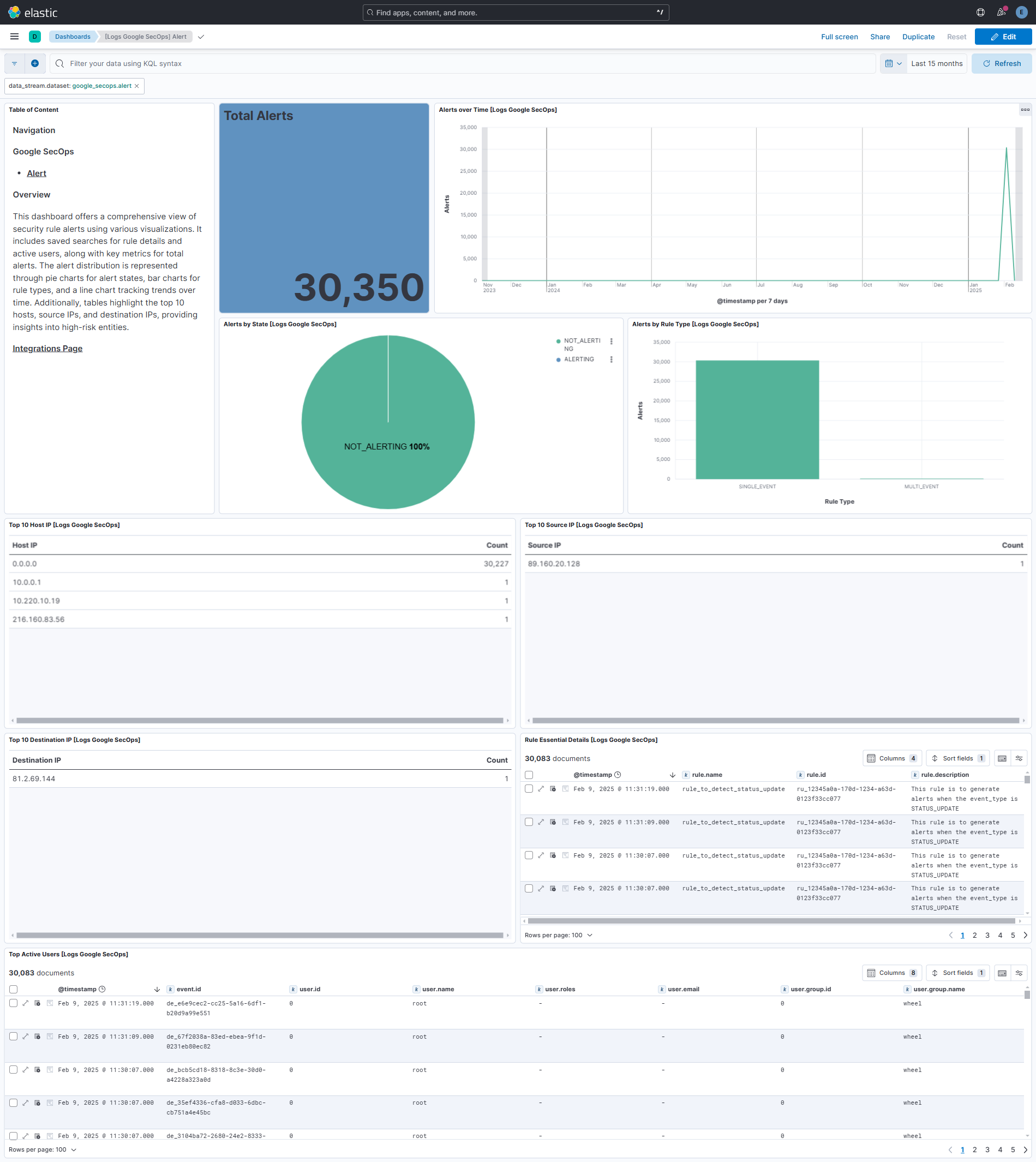
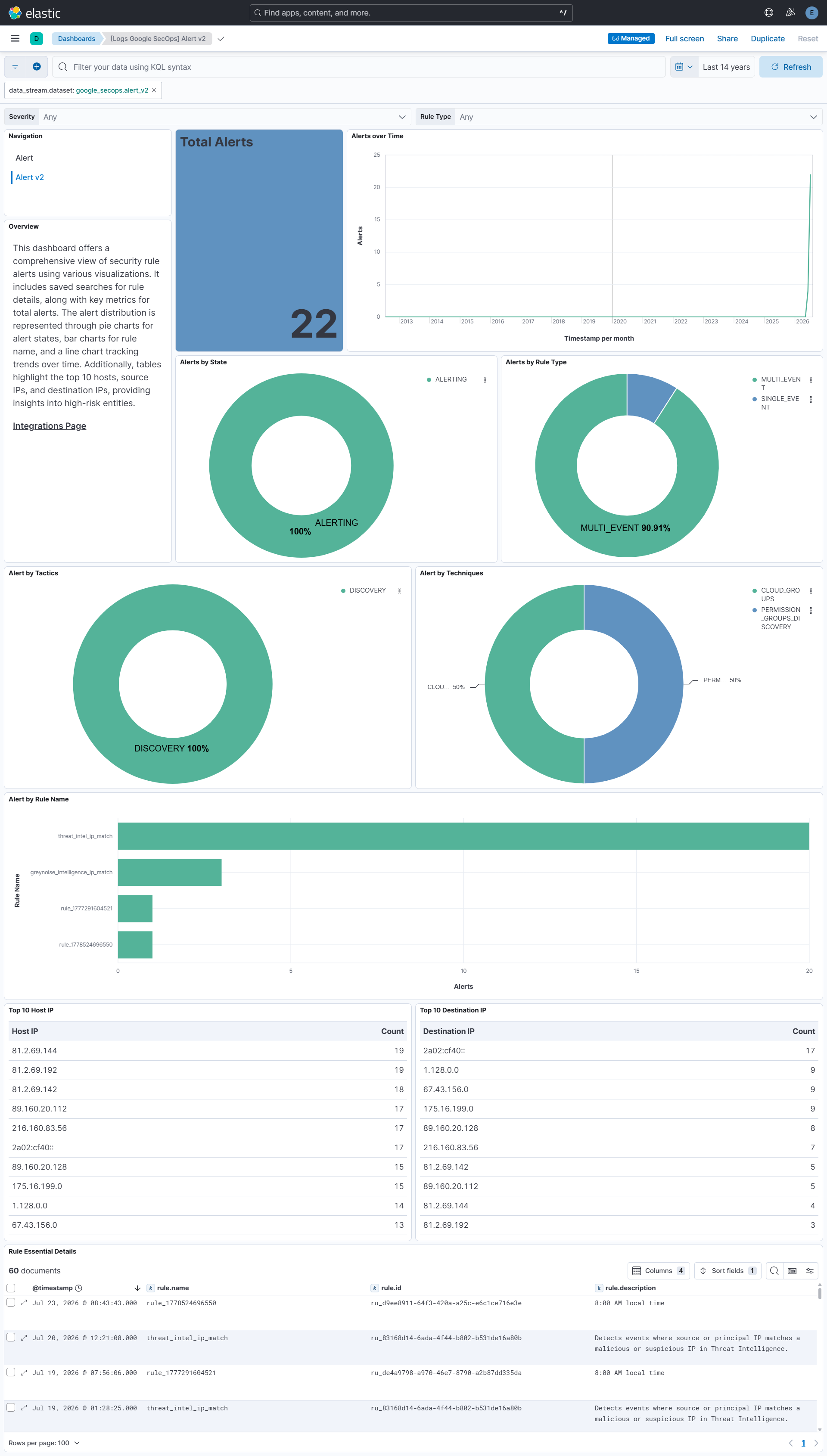
Changelog
| Version | Details | Minimum Kibana version |
|---|---|---|
| 1.6.0 | Enhancement (View pull request) Update Elastic Managed integration documentation to the current wording and docs links. |
9.0.5 8.18.5 |
| 1.5.0 | Enhancement (View pull request) Add tags to ingest pipeline processors and add preserve_original_event to pipeline-level on_failure handlers. |
9.0.5 8.18.5 |
| 1.4.0 | Enhancement (View pull request) Add support for alert v2 data stream that collects data from the Chronicle API legacySearchDetections method. The existing alert data stream has been deprecated. |
9.0.5 8.18.5 |
| 1.3.1 | Enhancement (View pull request) Set agentless deployment mode release field to ga. |
9.0.0 8.18.0 |
| 1.3.0 | Enhancement (View pull request) Use new release field for agentless deployment mode to establish as beta. |
9.0.0 8.18.0 |
| 1.2.2 | Bug fix (View pull request) Downgrade the format_version to the minimum version that supports all the necessary features for the package. |
9.0.0 8.18.0 |
| 1.2.1 | Bug fix (View pull request) Generalize install instructions and fix typo. |
9.0.0 8.18.0 |
| 1.2.0 | Enhancement (View pull request) Use terminate processor instead of fail processor to handle agent errors. |
9.0.0 8.18.0 |
| 1.1.1 | Bug fix (View pull request) Add temporary processor to remove the fields added by the Agentless policy. |
9.0.0 8.18.0 |
| 1.1.0 | Enhancement (View pull request) Remove redundant installation instructions. |
9.0.0 8.18.0 |
| 1.0.1 | Bug fix (View pull request) Fix default request trace enabled behavior. |
9.0.0 8.18.0 |
| 1.0.0 | Enhancement (View pull request) Make package GA. |
9.0.0 8.18.0 |
| 0.2.0 | Enhancement (View pull request) Updated integration logo and SIEM categorization. |
9.0.0 8.18.0 |
| 0.1.0 | Enhancement (View pull request) Initial release. |
9.0.0 8.18.0 |