Zoom Integration for Elastic
| Version | 1.29.0 (View all) |
| Managed integration release status | GA |
| Subscription level What's this? |
Basic |
| Developed by What's this? |
Elastic |
| Ingestion method(s) | API, Webhook |
| Minimum Kibana version(s) | 9.1.2 8.19.2 |
You can use this integration as an Elastic Managed integration on Elastic Cloud Hosted deployments running this version or later.
Zoom is a unified communications platform that provides meetings, webinars, phone, team chat, and Zoom Rooms. The Zoom integration for Elastic enables you to collect Zoom event and audit data so you can monitor user activity, investigate security incidents, and analyze platform usage in Elastic.
This integration collects data using two complementary methods:
- Webhook: a real-time HTTP listener that receives event notifications pushed by Zoom (meeting, webinar, recording, user, account, phone, team chat, and Zoom Room events).
- REST API: a periodic poll of the Zoom REST API to collect the sign in / sign out activity report, the operation logs report, and the meeting_activity logs report for an account.
Elastic Managed integrations are only supported on Elastic Cloud Serverless and Elastic Cloud Hosted deployments. An Elastic Managed integration lets you ingest data from a cloud source while avoiding the orchestration, management, and maintenance associated with standard ingest infrastructure. Elastic runs the collector for you, so you can focus on your data instead of the infrastructure that collects it.
When using this integration as an Elastic Managed integration, only the following data streams are available: Activity, Meeting Activity, and Operation. These data streams use inputs compatible with the Elastic Managed deployment mode. Other data streams (Zoom webhook logs) require the HTTP Endpoint input, which is not supported in the Elastic Managed deployment mode. To collect data from these data streams, use Elastic Agent.
For more information, refer to Elastic Managed integrations and the Elastic Managed integrations FAQ.
- The activity data stream uses the Zoom REST API
GET /report/activitiesendpoint and requires a Zoom Pro (or higher) plan. - The operation data stream uses the Zoom REST API
GET /report/operationlogsendpoint and requires a Zoom Pro plan or above. - The meeting_activity data stream uses the Zoom REST API
GET /report/meeting_activitiesendpoint. The meeting audit trail log feature must be enabled for the account by Zoom Support.
The webhook data stream creates an HTTP listener that accepts incoming webhook callbacks from Zoom. The Elastic Agent running this integration must be reachable from the internet so that Zoom can connect to it. Zoom requires that webhooks are delivered over HTTPS, so you must either configure the integration with a valid TLS certificate or place a reverse proxy that terminates TLS in front of the integration. Incoming events are then routed to the appropriate ingest pipeline based on the Zoom event type.
The activity, operation and meeting_activity data streams poll the Zoom REST API using Server-to-Server OAuth. On each interval, they request records within a date window (a maximum of one month per request) and paginate through the results.
The Zoom integration collects the following data:
webhook: real-time Zoom event notifications, including account, team chat (channel and message), meeting, phone, recording, user, webinar, and Zoom Room events.activity: account-wide sign in and sign out activity logs from the Zoom REST API reports endpoint. Note that the API does not provide data for failed sign-in or authentication attempts, so those logs will not be available here.operation: account-wide admin and user operation logs from the Zoom REST API reports endpoint, such as adding a user, changing account settings, or deleting a recording.meeting_activity: meeting activity logs from the Zoom REST API reports endpoint, such as a meeting being created or started, a user joining or leaving, in-meeting chat, remote control, and a meeting ending.
Integrating Zoom with Elastic SIEM provides centralized visibility into collaboration and administrative activity:
- Webhook events enable real-time monitoring across meetings, recordings, users, and account changes.
- The activity report provides an account-wide sign in / sign out audit trail for investigating user access and anomalous logins.
- The operation logs report tracks admin and user operations for auditing configuration changes and detecting unauthorized actions.
- The meeting_activity logs report provides a meeting-level audit trail of meeting lifecycle and participant activity — meetings being created, started, and ended, participants joining and leaving, in-meeting chat, and remote control — helping you reconstruct what happened in a specific meeting, monitor meeting usage, and support compliance investigations.
- Create a Webhook-only app in the Zoom App Marketplace by following the Zoom webhook documentation.
- Add the event types you want to receive and set the event notification endpoint URL to the public HTTPS address where this integration is reachable.
- Note the Secret Token generated by Zoom. It is used for CRC endpoint validation and to verify the authenticity of incoming events.
- Create a Server-to-Server OAuth app in the Zoom App Marketplace by following the Server-to-Server OAuth documentation.
- Record the app's Account ID, Client ID, and Client Secret.
- Add the
report:read:adminscope (or the granularreport:read:user_activities:admin,report:read:operation_logs:admin&report:read:meeting_activity_log:adminscopes) to the app and activate it. A Zoom Pro plan or above is required.
Elastic Agent must be installed. For more details, check the Elastic Agent installation instructions. You can install only one Elastic Agent per host.
Elastic Agent is required to receive the Zoom webhook callbacks or to poll the Zoom REST API, and to ship the data to Elastic, where the events are then processed via the integration's ingest pipelines.
In the top search bar in Kibana, search for Integrations.
In the search bar, type Zoom.
Select the Zoom integration from the search results.
Select Add Zoom to add the integration.
Enable and configure only the collection methods which you will use.
To Collect Zoom logs via Webhook, you'll need to:
- Configure the Listen Address, Listen Port, and Webhook path where the integration accepts requests.
- Optionally enable CRC validation and provide the Zoom Secret Token, and/or configure a custom header to verify incoming requests.
- Provide a valid TLS certificate (or front the integration with a TLS-terminating reverse proxy), since Zoom requires HTTPS.
To Collect Zoom logs via REST API, you'll need to:
- Configure the Account ID, Client ID, and Client Secret of your Server-to-Server OAuth app.
- Adjust the integration configuration parameters if required, including the Interval and Initial Interval (lookback), to enable data collection.
Select Save and continue to save the integration.
- In the top search bar in Kibana, search for Dashboards.
- In the search bar, type Zoom.
- Select a dashboard for the dataset you are collecting, and verify the dashboard information is populated.
For help with Elastic ingest tools, check Common problems.
The REST API data streams (activity, operation, and meeting_activity) query Zoom's Report endpoints, which are classified as Heavy APIs. Zoom enforces both a per-second (QPS) limit and a daily request quota, and both are shared across every app and user on the account, as well as across all of the Report data streams in this integration:
| Plan | Per second | Per day (shared by Heavy and Resource-intensive APIs) |
|---|---|---|
| Pro | 10 requests/second | 30,000 requests/day |
| Business+ (Business, Education, Enterprise, and Partner) | 40 requests/second | 60,000 requests/day |
To keep the Report data streams within this shared budget, each REST API data stream has client-side rate limiting enabled by default (Rate Limit and Rate Limit Burst in the data stream settings). The default values are conservative so that the streams can run together without exhausting the account quota, which matters most during the initial backfill when many requests are made.
If you hit an HTTP 429 Too Many Requests response, or you want to tune throughput, adjust these settings per data stream:
- Reduce the rate (lower the Rate Limit, for example to
0.05) if you are seeing429errors, if other applications share the same Zoom account quota, or if the daily quota is being consumed too quickly. A daily-limit429is only cleared at00:00 UTC, so it is better to run slower than to be locked out. - Increase the rate (raise the Rate Limit) if you are on a Business+ plan, run fewer Report data streams, or need the initial backfill to complete faster. Keep the combined rate of all enabled Report data streams below your plan's per-second limit.
You can also reduce the total number of requests by increasing the Page Size (up to Zoom's maximum of 300), since fewer, larger pages consume less of the shared quota.
For more information on architectures that can be used for scaling this integration, check the Ingest Architectures documentation.
This is the webhook data stream. It collects real-time event notifications pushed by Zoom over an HTTP endpoint.
Example
{
    "@timestamp": "2019-07-01T17:03:04.527Z",
    "agent": {
        "ephemeral_id": "25caa0a1-dfe6-4499-8945-78d3f7b50b5c",
        "id": "a2a6d6ce-cd38-4a30-8877-bf698b0d346b",
        "name": "docker-fleet-agent",
        "type": "filebeat",
        "version": "8.8.1"
    },
    "data_stream": {
        "dataset": "zoom.webhook",
        "namespace": "ep",
        "type": "logs"
    },
    "ecs": {
        "version": "8.11.0"
    },
    "elastic_agent": {
        "id": "a2a6d6ce-cd38-4a30-8877-bf698b0d346b",
        "snapshot": false,
        "version": "8.8.1"
    },
    "event": {
        "action": "account.updated",
        "agent_id_status": "verified",
        "category": [
            "iam"
        ],
        "dataset": "zoom.webhook",
        "ingested": "2023-06-22T16:37:08Z",
        "kind": [
            "event"
        ],
        "original": "{\"event\":\"account.updated\",\"payload\":{\"account_id\":\"abKKcd_IGRCq63yEy673lCA\",\"object\":{\"account_alias\":\"MH\",\"account_name\":\"Michael Harris\",\"id\":\"eFs_EGRCq6ByEyA73qCA\"},\"old_object\":{\"account_alias\":\"\",\"account_name\":\"Mike Harris\",\"id\":\"eFs_EGRCq6ByEyA73qCA\"},\"operator\":\"theoperatoremail@someemail.com\",\"operator_id\":\"iKoRgfbaTazDX6r2Q_eQsQL\",\"time_stamp\":1562000584527}}",
        "timezone": "+00:00",
        "type": [
            "user",
            "change"
        ]
    },
    "input": {
        "type": "http_endpoint"
    },
    "observer": {
        "product": "Webhook",
        "vendor": "Zoom"
    },
    "related": {
        "user": [
            "iKoRgfbaTazDX6r2Q_eQsQL",
            "eFs_EGRCq6ByEyA73qCA"
        ]
    },
    "tags": [
        "preserve_original_event",
        "zoom-webhook",
        "forwarded"
    ],
    "user": {
        "changes": {
            "full_name": "Michael Harris",
            "name": "MH"
        },
        "email": "theoperatoremail@someemail.com",
        "id": "iKoRgfbaTazDX6r2Q_eQsQL",
        "target": {
            "full_name": "Mike Harris",
            "id": "eFs_EGRCq6ByEyA73qCA"
        }
    },
    "zoom": {
        "account": {
            "account_alias": "MH",
            "account_name": "Michael Harris"
        },
        "master_account_id": "abKKcd_IGRCq63yEy673lCA",
        "old_values": {
            "account_name": "Mike Harris",
            "id": "eFs_EGRCq6ByEyA73qCA"
        },
        "operator": "theoperatoremail@someemail.com",
        "operator_id": "iKoRgfbaTazDX6r2Q_eQsQL",
        "sub_account_id": "eFs_EGRCq6ByEyA73qCA"
    }
}
Exported fields
| Field | Description | Type |
|---|---|---|
| @timestamp | Event timestamp. | date |
| cloud.image.id | Image ID for the cloud instance. | keyword |
| data_stream.dataset | Data stream dataset name. | constant_keyword |
| data_stream.namespace | Data stream namespace. | constant_keyword |
| data_stream.type | Data stream type. | constant_keyword |
| dataset.name | Dataset name. | constant_keyword |
| dataset.namespace | Dataset namespace. | constant_keyword |
| dataset.type | Dataset type. | constant_keyword |
| event.dataset | Event dataset | constant_keyword |
| event.module | Event module | constant_keyword |
| host.containerized | If the host is a container. | boolean |
| host.os.build | OS build information. | keyword |
| host.os.codename | OS codename, if any. | keyword |
| input.type | Input type. | keyword |
| zoom.account.account_alias | When an account alias is updated, this is the new value set | keyword |
| zoom.account.account_name | When an account name is updated, this is the new value set | keyword |
| zoom.account.account_support_email | When an account support_email is updated, this is the new value set | keyword |
| zoom.account.account_support_name | When an account support_name is updated, this is the new value set | keyword |
| zoom.account.email | Email related to the user the action was performed on | keyword |
| zoom.account.owner_email | Email of the user whose sub account was created/disassociated | keyword |
| zoom.account.owner_id | UserID of the user whose sub account was created/disassociated | keyword |
| zoom.account_id | Related accountID to the event | keyword |
| zoom.chat_channel.id | The ID of the channel that has been added/modified/deleted | keyword |
| zoom.chat_channel.name | The name of the channel that has been added/modified/deleted | keyword |
| zoom.chat_channel.type | Type of channel related to the event. Can be 1(Invite-Only), 2(Private) or 3(Public) | keyword |
| zoom.chat_message.channel_id | ChannelID related to the message | keyword |
| zoom.chat_message.channel_name | Channel name related to the message | keyword |
| zoom.chat_message.contact_email | Email address related to the user sending the message | keyword |
| zoom.chat_message.contact_id | UserID belonging to the user receiving a message | keyword |
| zoom.chat_message.id | Unique ID of the related chat message | keyword |
| zoom.chat_message.message | A string containing the full message that was sent | keyword |
| zoom.chat_message.session_id | SessionID for the channel related to the message | keyword |
| zoom.chat_message.type | Type of message, can be either "to_contact" or "to_channel" | keyword |
| zoom.creation_type | Creation type | keyword |
| zoom.master_account_id | Master Account related to a specific Sub Account | keyword |
| zoom.meeting.duration | The duration of a meeting in minutes | long |
| zoom.meeting.host_id | The UserID of the configured meeting host | keyword |
| zoom.meeting.id | Unique ID of the related meeting | keyword |
| zoom.meeting.issues | When a user reports an issue with the meeting, for example: "Unstable audio quality" | keyword |
| zoom.meeting.password | Password related to the meeting | keyword |
| zoom.meeting.start_time | Date and time the meeting started | date |
| zoom.meeting.timezone | Which timezone is used for the meeting timestamps | keyword |
| zoom.meeting.topic | Topic of the related meeting | keyword |
| zoom.meeting.type | Type of meeting created | keyword |
| zoom.meeting.uuid | The UUID of the related meeting | keyword |
| zoom.old_values | Includes the old values when updating a object like user, meeting, account or webinar | flattened |
| zoom.operator | Username/Email related to the user that triggered the event | keyword |
| zoom.operator_id | UserID that triggered the event | keyword |
| zoom.participant.email | The participant's email address. This response only returns if the participant joined the meeting by logging into Zoom. If the participant is **not** part of the host's account, this returns an empty string value, with some exceptions. See Email address display rules for details. | keyword |
| zoom.participant.id | Unique ID of the participant related to a meeting | keyword |
| zoom.participant.join_time | The date and time a participant joined a meeting | date |
| zoom.participant.leave_time | The date and time a participant left a meeting | date |
| zoom.participant.participant_user_id | The participant's universally unique ID (UUID) if logged in. Otherwise it is blank. | keyword |
| zoom.participant.participant_uuid | The participant's UUID for this specific meeting and any breakout rooms created in this meeting. This value is assigned to a participant when they join a meeting, and is only valid for the duration of that meeting. | keyword |
| zoom.participant.registrant_id | The participant's registrant ID. A host or a user with administrative permissions can require registration for Zoom meetings. | keyword |
| zoom.participant.sharing_details.content | Type of content that was shared | keyword |
| zoom.participant.sharing_details.date_time | Timestamp the sharing started | keyword |
| zoom.participant.sharing_details.file_link | The file link that was shared | keyword |
| zoom.participant.sharing_details.link_source | Method of sharing with dropbox integration | keyword |
| zoom.participant.sharing_details.source | The file source that was share | keyword |
| zoom.participant.user_id | UserID of the participant related to a meeting | keyword |
| zoom.participant.user_name | Username of the participant related to a meeting | keyword |
| zoom.phone.answer_start_time | The date and time when the call was answered | date |
| zoom.phone.call_end_time | The date and time when the call ended | date |
| zoom.phone.call_id | Unique ID of the related call | keyword |
| zoom.phone.callee.device_type | Device type used by the callee related to the call | keyword |
| zoom.phone.callee.extension_number | Extension number of the callee related to the call | keyword |
| zoom.phone.callee.extension_type | Extension type of the callee number, can be user, callQueue, autoReceptionist or shareLineGroup | keyword |
| zoom.phone.callee.id | UserID of the callee related to the voicemail/call | keyword |
| zoom.phone.callee.name | The name of the related callee | keyword |
| zoom.phone.callee.number_type | The type of number, can be 1(Internal) or 2(External) | keyword |
| zoom.phone.callee.phone_number | Phone Number of the callee related to the call | keyword |
| zoom.phone.callee.timezone | Timezone of the callee related to the call | keyword |
| zoom.phone.callee.user_id | UserID of the related callee of a voicemail/call | keyword |
| zoom.phone.caller.device_type | Device type used by the caller | keyword |
| zoom.phone.caller.extension_number | Extension number of the caller | keyword |
| zoom.phone.caller.extension_type | Extension type of the caller number, can be user, callQueue, autoReceptionist or shareLineGroup | keyword |
| zoom.phone.caller.id | UserID of the caller related to the voicemail/call | keyword |
| zoom.phone.caller.name | The name of the related callee | keyword |
| zoom.phone.caller.number_type | The type of number, can be 1(Internal) or 2(External) | keyword |
| zoom.phone.caller.phone_number | Phone Number of the caller related to the call | keyword |
| zoom.phone.caller.timezone | Timezone of the caller | keyword |
| zoom.phone.caller.user_id | UserID of the person which initiated the call | keyword |
| zoom.phone.connected_start_time | The date and time when a ringtone was established to the callee | date |
| zoom.phone.date_time | Date and time of the related phone event | date |
| zoom.phone.download_url | Download URL for the voicemail | keyword |
| zoom.phone.duration | Duration of a voicemail in minutes | long |
| zoom.phone.id | Unique ID for the phone or conversation | keyword |
| zoom.phone.ringing_start_time | The timestamp when a ringtone was established to the callee | date |
| zoom.phone.user_id | UserID for the phone owner related to a Call Log being completed | keyword |
| zoom.recording.duration | Duration of the recording in minutes | long |
| zoom.recording.host_email | Email address of the host related to the meeting that was recorded | keyword |
| zoom.recording.host_id | UserID of the host of the meeting that was recorded | keyword |
| zoom.recording.id | Unique ID of the related recording | keyword |
| zoom.recording.recording_count | Number of recording files related to the recording | long |
| zoom.recording.recording_file.recording_end | The date and time the recording finished | date |
| zoom.recording.recording_file.recording_start | The date and time the recording started | date |
| zoom.recording.share_url | The URL to access the recording | keyword |
| zoom.recording.start_time | The date and time when the recording started | date |
| zoom.recording.timezone | The timezone used for the recording date | keyword |
| zoom.recording.topic | Topic of the meeting related to the recording | keyword |
| zoom.recording.total_size | Total size of the recording in bytes | long |
| zoom.recording.type | Type of recording, can be multiple type of values, please check Zoom documentation | keyword |
| zoom.recording.uuid | UUID of the related recording | keyword |
| zoom.registrant.address | Address of the user registering to a meeting or webinar | keyword |
| zoom.registrant.city | City of the user registering to a meeting or webinar | keyword |
| zoom.registrant.comments | Comments left by the user registering to a meeting or webinar | keyword |
| zoom.registrant.country | Country of the user registering to a meeting or webinar | keyword |
| zoom.registrant.email | Email of the user registering to a meeting or webinar | keyword |
| zoom.registrant.first_name | First name of the user registering to a meeting or webinar | keyword |
| zoom.registrant.id | Unique ID of the user registering to a meeting or webinar | keyword |
| zoom.registrant.industry | Related industry of the user registering to a meeting or webinar | keyword |
| zoom.registrant.job_title | Job title of the user registering to a meeting or webinar | keyword |
| zoom.registrant.join_url | The URL that the registrant can use to join the webinar | keyword |
| zoom.registrant.last_name | Last name of the user registering to a meeting or webinar | keyword |
| zoom.registrant.no_of_employees | Number of employees choosen by the user registering to a meeting or webinar | keyword |
| zoom.registrant.org | Organization related to the user registering to a meeting or webinar | keyword |
| zoom.registrant.phone | Phone number of the user registering to a meeting or webinar | keyword |
| zoom.registrant.purchasing_time_frame | Choosen purchase timeframe of the user registering to a meeting or webinar | keyword |
| zoom.registrant.role_in_purchase_process | Choosen role in a purchase process related to the user registering to a meeting or webinar | keyword |
| zoom.registrant.state | State of the user registering to a meeting or webinar | keyword |
| zoom.registrant.status | Status of the specific user registration | keyword |
| zoom.registrant.zip | Zip code of the user registering to a meeting or webinar | keyword |
| zoom.settings | The current active settings related to a object like user, meeting, account or webinar | flattened |
| zoom.sub_account_id | Related Sub Account | keyword |
| zoom.timestamp | Timestamp related to the event | date |
| zoom.user.client_type | Type of client used by the user. Can be browser, mac, win, iphone or android | keyword |
| zoom.user.company | User company related to the user event | keyword |
| zoom.user.dept | The configured departement for the user | keyword |
| zoom.user.email | User email related to the user event | keyword |
| zoom.user.first_name | User first name related to the user event | keyword |
| zoom.user.host_key | Host key set for the user | keyword |
| zoom.user.id | UserID related to the user event | keyword |
| zoom.user.language | Language configured for the user | keyword |
| zoom.user.last_name | User last name related to the user event | keyword |
| zoom.user.login_type | keyword | |
| zoom.user.personal_notes | Personal notes for the User | keyword |
| zoom.user.phone_country | User country code related to the user event | keyword |
| zoom.user.phone_number | User phone number related to the user event | keyword |
| zoom.user.pic_url | Full URL to the profile picture used by the user | keyword |
| zoom.user.pmi | User personal meeting ID related to the user event | keyword |
| zoom.user.presence_status | Current presence status of user | keyword |
| zoom.user.role | The configured role for the user | keyword |
| zoom.user.timezone | Timezone configured for the user | keyword |
| zoom.user.type | User type related to the user event | keyword |
| zoom.user.use_pmi | If a user has PMI enabled | boolean |
| zoom.user.vanity_name | Name of the personal meeting room related to the user event | keyword |
| zoom.user.version | Version of the client used by the user | keyword |
| zoom.webinar.agenda | The configured agenda of the webinar | keyword |
| zoom.webinar.duration | Duration of the webinar in minutes | long |
| zoom.webinar.host_id | UserID for the configured host of the webinar | keyword |
| zoom.webinar.id | Unique ID for the related webinar | keyword |
| zoom.webinar.issues | Any reported issues about a webinar is reported in this field | keyword |
| zoom.webinar.join_url | The URL configured to join the webinar | keyword |
| zoom.webinar.password | Password configured to access the webinar | keyword |
| zoom.webinar.start_time | The date and time when the webinar started | date |
| zoom.webinar.timezone | Timezone used for the dates related to the webinar | keyword |
| zoom.webinar.topic | Meeting topic of the related webinar | keyword |
| zoom.webinar.type | Type of webinar created. Can be either 5(Webinar), 6(Recurring webinar without fixed time) or 9(Recurring webinar with fixed time) | keyword |
| zoom.webinar.uuid | UUID for the related webinar | keyword |
| zoom.zoomroom.alert_kind | An integer value showing if the Zoom room alert has been either 1(Triggered) or 2(Cleared) | keyword |
| zoom.zoomroom.alert_type | An integer value representing the type of alert. The list of alert types can be found in the Zoom documentation | keyword |
| zoom.zoomroom.calendar_id | Unique ID of the calendar used by the Zoom room | keyword |
| zoom.zoomroom.calendar_name | Calendar name of the Zoom room | keyword |
| zoom.zoomroom.change_key | Key used by Microsoft products integration that represents a specific version of a calendar | keyword |
| zoom.zoomroom.component | An integer value representing the type of equipment or component, The list of component types can be found in the Zoom documentation | keyword |
| zoom.zoomroom.email | Email address associated with the Zoom room itself | keyword |
| zoom.zoomroom.event_id | Unique ID of the calendar event associated with the Zoom Room | keyword |
| zoom.zoomroom.id | Unique ID of the Zoom room | keyword |
| zoom.zoomroom.issue | Any reported alerts or issues related to the Zoom room or its equipment | keyword |
| zoom.zoomroom.resource_email | Email address associated with the calendar in use by the Zoom room | keyword |
| zoom.zoomroom.room_name | The configured name of the Zoom room | keyword |
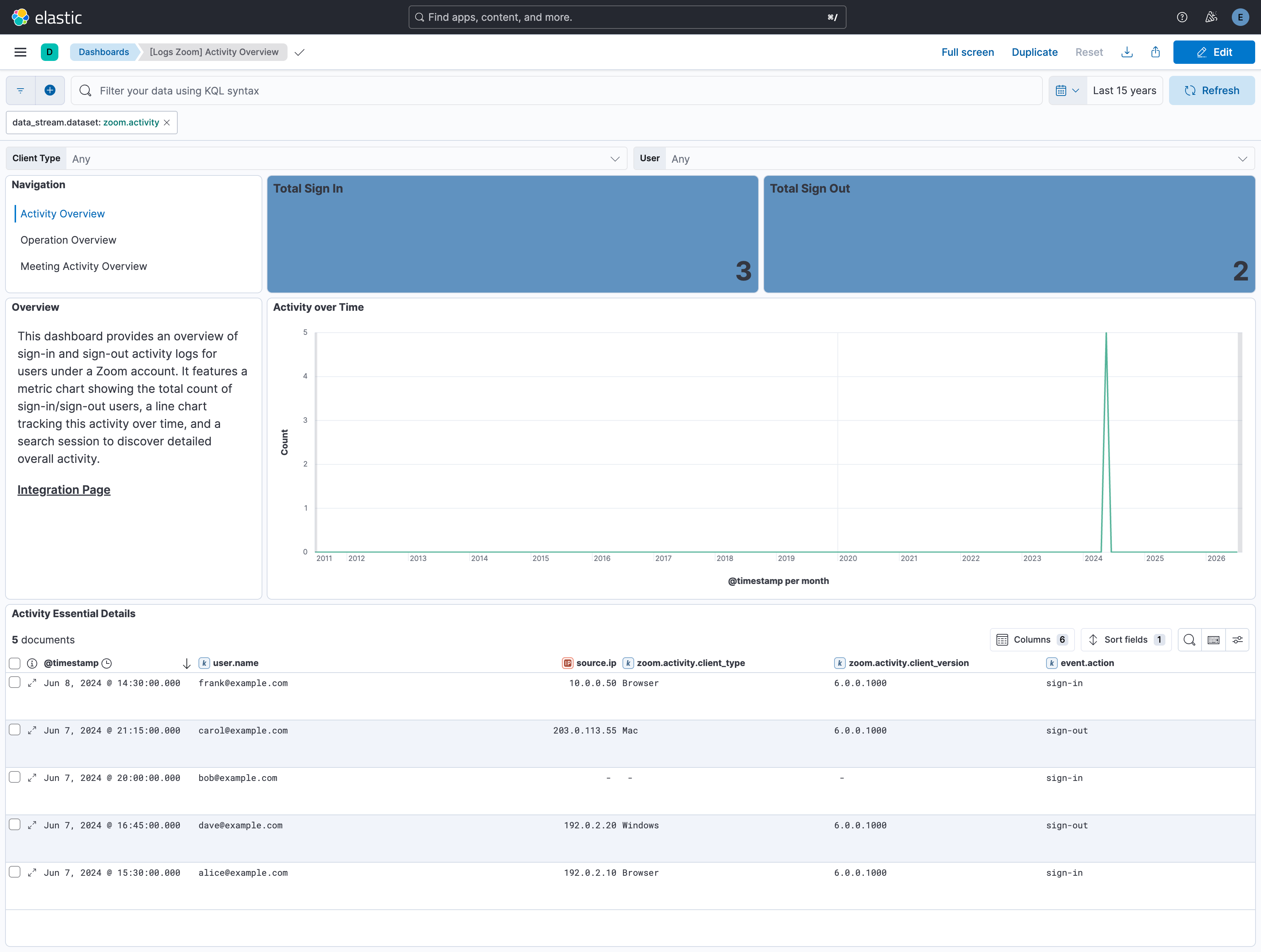
This is the activity data stream. It collects sign in / sign out activity logs from the Zoom REST API.
Example
{
    "@timestamp": "2026-07-01T10:00:00.000Z",
    "agent": {
        "ephemeral_id": "bccd735f-96cf-4486-b3dd-51ed5c2f3103",
        "id": "93a4ccfb-5f31-4449-9f9c-25acc67912b9",
        "name": "elastic-agent-61640",
        "type": "filebeat",
        "version": "8.19.0"
    },
    "data_stream": {
        "dataset": "zoom.activity",
        "namespace": "32155",
        "type": "logs"
    },
    "ecs": {
        "version": "8.11.0"
    },
    "elastic_agent": {
        "id": "93a4ccfb-5f31-4449-9f9c-25acc67912b9",
        "snapshot": false,
        "version": "8.19.0"
    },
    "event": {
        "action": "sign-in",
        "agent_id_status": "verified",
        "category": [
            "authentication",
            "session"
        ],
        "dataset": "zoom.activity",
        "ingested": "2026-07-02T14:08:25Z",
        "kind": "event",
        "outcome": "success",
        "type": [
            "start"
        ]
    },
    "input": {
        "type": "cel"
    },
    "related": {
        "ip": [
            "192.0.2.10"
        ],
        "user": [
            "alice@example.com"
        ]
    },
    "source": {
        "as": {
            "number": 64500,
            "organization": {
                "name": "Documentation ASN"
            }
        },
        "geo": {
            "city_name": "Las Vegas",
            "continent_name": "North America",
            "country_iso_code": "US",
            "country_name": "United States",
            "location": {
                "lat": 36.17497,
                "lon": -115.13722
            },
            "region_iso_code": "US-NV",
            "region_name": "Nevada"
        },
        "ip": "192.0.2.10"
    },
    "tags": [
        "forwarded",
        "zoom-activity"
    ],
    "user": {
        "email": "alice@example.com",
        "name": "alice@example.com"
    },
    "zoom": {
        "activity": {
            "client_type": "Browser",
            "client_version": "6.0.0.1000",
            "type": "Sign in"
        }
    }
}
Exported fields
| Field | Description | Type |
|---|---|---|
| @timestamp | Date/time when the event originated. This is the date/time extracted from the event, typically representing when the event was generated by the source. If the event source has no original timestamp, this value is typically populated by the first time the event was received by the pipeline. Required field for all events. | date |
| data_stream.dataset | The field can contain anything that makes sense to signify the source of the data. Examples include nginx.access, prometheus, endpoint etc. For data streams that otherwise fit, but that do not have dataset set we use the value "generic" for the dataset value. event.dataset should have the same value as data_stream.dataset. Beyond the Elasticsearch data stream naming criteria noted above, the dataset value has additional restrictions: * Must not contain - * No longer than 100 characters |
constant_keyword |
| data_stream.namespace | A user defined namespace. Namespaces are useful to allow grouping of data. Many users already organize their indices this way, and the data stream naming scheme now provides this best practice as a default. Many users will populate this field with default. If no value is used, it falls back to default. Beyond the Elasticsearch index naming criteria noted above, namespace value has the additional restrictions: * Must not contain - * No longer than 100 characters |
constant_keyword |
| data_stream.type | An overarching type for the data stream. Currently allowed values are "logs" and "metrics". We expect to also add "traces" and "synthetics" in the near future. | constant_keyword |
| event.dataset | Name of the dataset. If an event source publishes more than one type of log or events (e.g. access log, error log), the dataset is used to specify which one the event comes from. It's recommended but not required to start the dataset name with the module name, followed by a dot, then the dataset name. | constant_keyword |
| event.module | Name of the module this data is coming from. If your monitoring agent supports the concept of modules or plugins to process events of a given source (e.g. Apache logs), event.module should contain the name of this module. |
constant_keyword |
| input.type | Type of filebeat input. | keyword |
| log.offset | Log offset. | long |
| zoom.activity.client_type | The client interface type using which the activity was performed. | keyword |
| zoom.activity.client_version | Zoom client version of the user. | keyword |
| zoom.activity.type | The type of activity. | keyword |
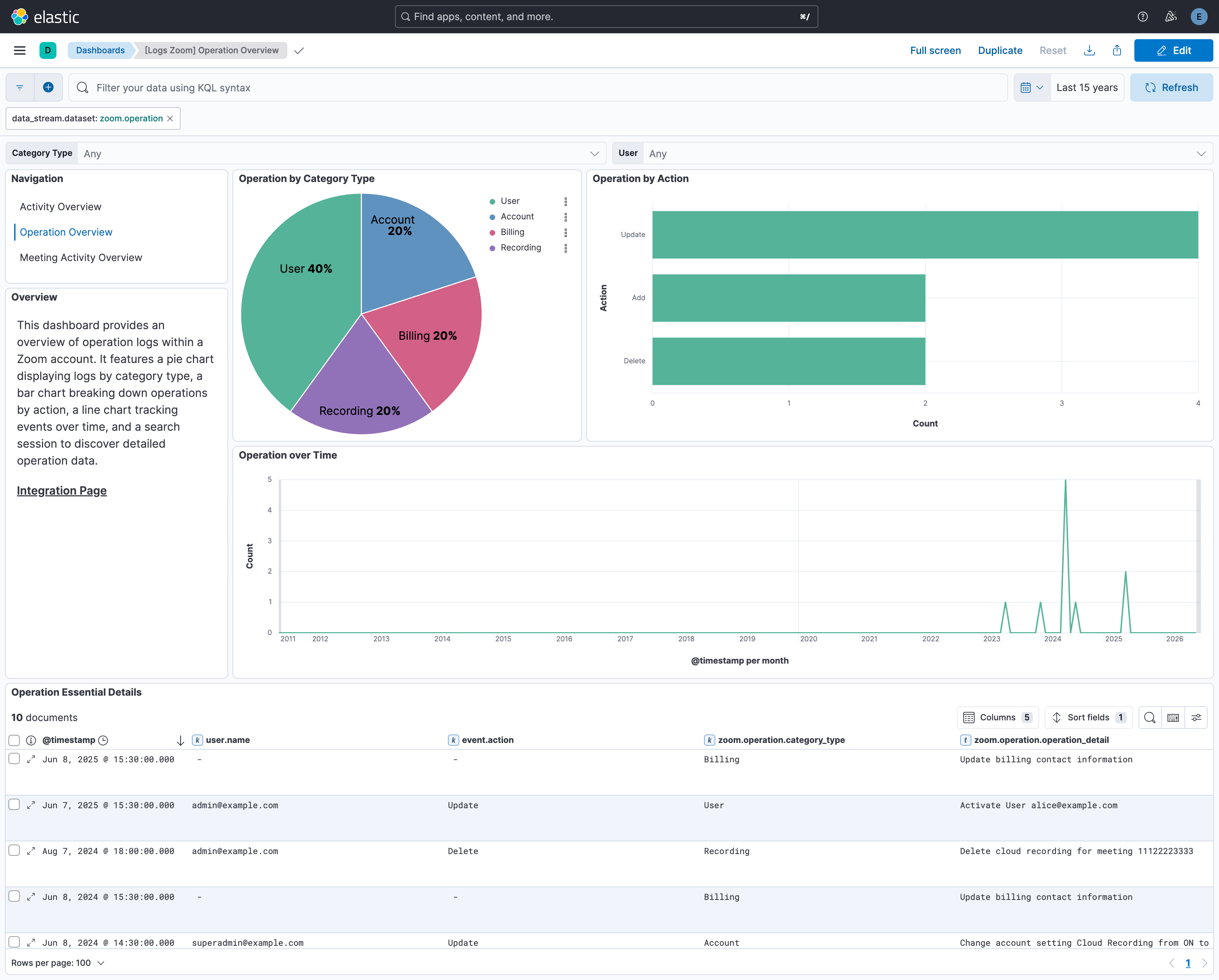
This is the operation data stream. It collects admin and user operation logs from the Zoom REST API.
Example
{
    "@timestamp": "2026-07-05T10:00:00.000Z",
    "agent": {
        "ephemeral_id": "c57755af-e69d-4f7d-ace8-918c91a349e8",
        "id": "ec73b436-1e5f-43c4-877e-870a10693449",
        "name": "elastic-agent-70306",
        "type": "filebeat",
        "version": "8.19.0"
    },
    "data_stream": {
        "dataset": "zoom.operation",
        "namespace": "85002",
        "type": "logs"
    },
    "ecs": {
        "version": "8.11.0"
    },
    "elastic_agent": {
        "id": "ec73b436-1e5f-43c4-877e-870a10693449",
        "snapshot": false,
        "version": "8.19.0"
    },
    "event": {
        "action": "Update",
        "agent_id_status": "verified",
        "category": [
            "configuration",
            "iam"
        ],
        "dataset": "zoom.operation",
        "ingested": "2026-07-06T12:16:55Z",
        "kind": "event",
        "type": [
            "change",
            "info"
        ]
    },
    "input": {
        "type": "cel"
    },
    "related": {
        "user": [
            "admin@example.com"
        ]
    },
    "tags": [
        "forwarded",
        "zoom-operation"
    ],
    "user": {
        "email": "admin@example.com",
        "name": "admin@example.com"
    },
    "zoom": {
        "operation": {
            "action": "Update",
            "category_type": "User",
            "operation_detail": "Activate User alice@example.com"
        }
    }
}
Exported fields
| Field | Description | Type |
|---|---|---|
| @timestamp | Date/time when the event originated. This is the date/time extracted from the event, typically representing when the event was generated by the source. If the event source has no original timestamp, this value is typically populated by the first time the event was received by the pipeline. Required field for all events. | date |
| data_stream.dataset | The field can contain anything that makes sense to signify the source of the data. Examples include nginx.access, prometheus, endpoint etc. For data streams that otherwise fit, but that do not have dataset set we use the value "generic" for the dataset value. event.dataset should have the same value as data_stream.dataset. Beyond the Elasticsearch data stream naming criteria noted above, the dataset value has additional restrictions: * Must not contain - * No longer than 100 characters |
constant_keyword |
| data_stream.namespace | A user defined namespace. Namespaces are useful to allow grouping of data. Many users already organize their indices this way, and the data stream naming scheme now provides this best practice as a default. Many users will populate this field with default. If no value is used, it falls back to default. Beyond the Elasticsearch index naming criteria noted above, namespace value has the additional restrictions: * Must not contain - * No longer than 100 characters |
constant_keyword |
| data_stream.type | An overarching type for the data stream. Currently allowed values are "logs" and "metrics". We expect to also add "traces" and "synthetics" in the near future. | constant_keyword |
| event.dataset | Name of the dataset. If an event source publishes more than one type of log or events (e.g. access log, error log), the dataset is used to specify which one the event comes from. It's recommended but not required to start the dataset name with the module name, followed by a dot, then the dataset name. | constant_keyword |
| event.module | Name of the module this data is coming from. If your monitoring agent supports the concept of modules or plugins to process events of a given source (e.g. Apache logs), event.module should contain the name of this module. |
constant_keyword |
| input.type | Type of filebeat input. | keyword |
| log.offset | Log offset. | long |
| zoom.operation.action | The action performed in the operation. | keyword |
| zoom.operation.category_type | The category of the operation that was performed. | keyword |
| zoom.operation.operation_detail | A detailed description of the operation that was performed. | match_only_text |
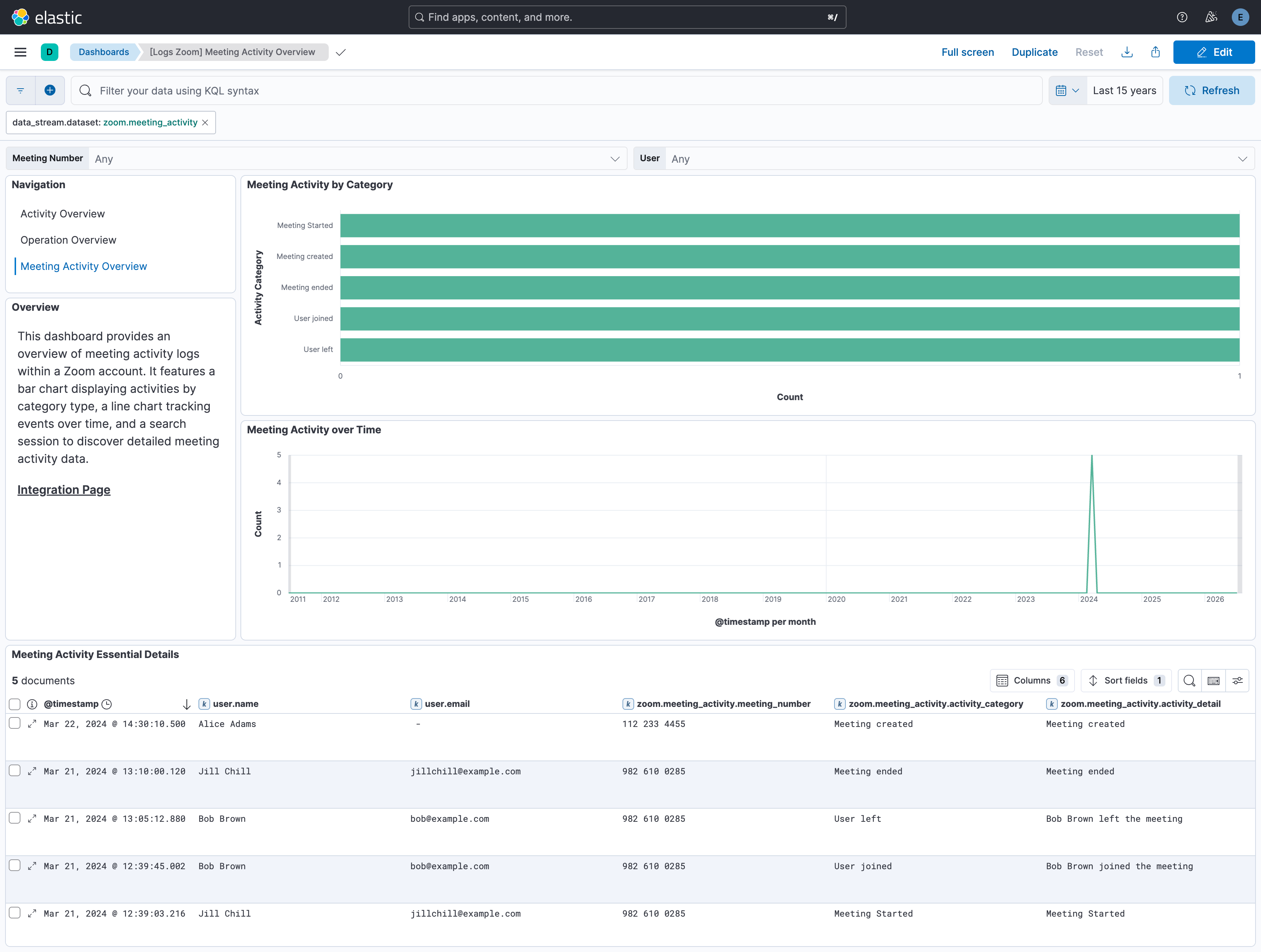
This is the meeting_activity data stream. It collects meeting activity logs from the Zoom REST API.
Example
{
    "@timestamp": "2026-07-08T07:09:03.216Z",
    "agent": {
        "ephemeral_id": "6c3d442a-6d3a-4aee-9a00-822f09a5a140",
        "id": "c719dea7-dc28-43f1-9594-ff2feb858fea",
        "name": "elastic-agent-39398",
        "type": "filebeat",
        "version": "8.19.0"
    },
    "data_stream": {
        "dataset": "zoom.meeting_activity",
        "namespace": "87490",
        "type": "logs"
    },
    "ecs": {
        "version": "8.11.0"
    },
    "elastic_agent": {
        "id": "c719dea7-dc28-43f1-9594-ff2feb858fea",
        "snapshot": false,
        "version": "8.19.0"
    },
    "event": {
        "action": "Meeting Started",
        "agent_id_status": "verified",
        "dataset": "zoom.meeting_activity",
        "ingested": "2026-07-09T14:03:16Z",
        "kind": "event",
        "type": [
            "info"
        ]
    },
    "input": {
        "type": "cel"
    },
    "related": {
        "user": [
            "jillchill@example.com",
            "Jill Chill"
        ]
    },
    "tags": [
        "forwarded",
        "zoom-meeting_activity"
    ],
    "user": {
        "email": "jillchill@example.com",
        "name": "Jill Chill"
    },
    "zoom": {
        "meeting_activity": {
            "activity_category": "Meeting Started",
            "activity_detail": "Meeting Started",
            "meeting_number": "982 610 0285"
        }
    }
}
Exported fields
| Field | Description | Type |
|---|---|---|
| @timestamp | Date/time when the event originated. This is the date/time extracted from the event, typically representing when the event was generated by the source. If the event source has no original timestamp, this value is typically populated by the first time the event was received by the pipeline. Required field for all events. | date |
| data_stream.dataset | The field can contain anything that makes sense to signify the source of the data. Examples include nginx.access, prometheus, endpoint etc. For data streams that otherwise fit, but that do not have dataset set we use the value "generic" for the dataset value. event.dataset should have the same value as data_stream.dataset. Beyond the Elasticsearch data stream naming criteria noted above, the dataset value has additional restrictions: * Must not contain - * No longer than 100 characters |
constant_keyword |
| data_stream.namespace | A user defined namespace. Namespaces are useful to allow grouping of data. Many users already organize their indices this way, and the data stream naming scheme now provides this best practice as a default. Many users will populate this field with default. If no value is used, it falls back to default. Beyond the Elasticsearch index naming criteria noted above, namespace value has the additional restrictions: * Must not contain - * No longer than 100 characters |
constant_keyword |
| data_stream.type | An overarching type for the data stream. Currently allowed values are "logs" and "metrics". We expect to also add "traces" and "synthetics" in the near future. | constant_keyword |
| event.dataset | Name of the dataset. If an event source publishes more than one type of log or events (e.g. access log, error log), the dataset is used to specify which one the event comes from. It's recommended but not required to start the dataset name with the module name, followed by a dot, then the dataset name. | constant_keyword |
| event.module | Name of the module this data is coming from. If your monitoring agent supports the concept of modules or plugins to process events of a given source (e.g. Apache logs), event.module should contain the name of this module. |
constant_keyword |
| input.type | Type of filebeat input. | keyword |
| log.offset | Log offset. | long |
| zoom.meeting_activity.activity_category | The operator's activity category. | keyword |
| zoom.meeting_activity.activity_detail | The operator's activity detail. | keyword |
| zoom.meeting_activity.meeting_number | The meeting number. | keyword |
These inputs are used in this integration:
This integration uses the following APIs:
activity: Get sign in / sign out activity report.operation: Get operation logs report.meeting_activity: Get a meeting activities report.
This integration includes one or more Kibana dashboards that visualizes the data collected by the integration. The screenshots below illustrate how the ingested data is displayed.
Changelog
| Version | Details | Minimum Kibana version |
|---|---|---|
| 1.29.0 | Enhancement (View pull request) Update Elastic Managed integration documentation to the current wording and docs links. |
9.1.2 8.19.2 |
| 1.28.0 | Enhancement (View pull request) Add tags to ingest pipeline processors and add preserve_original_event to pipeline-level on_failure handlers.Bug fix (View pull request) Remove five redundant no-op rename and set processors in the webhook data stream. |
9.1.2 8.19.2 |
| 1.27.1 | Enhancement (View pull request) Set agentless deployment mode release field to ga. |
9.1.2 8.19.2 |
| 1.27.0 | Enhancement (View pull request) Enable Agentless deployment. |
9.1.2 8.19.2 |
| 1.26.0 | Enhancement (View pull request) Add support for the meeting_activity data stream. |
9.1.0 8.19.0 |
| 1.25.0 | Enhancement (View pull request) Add support for the operation data stream.Enhancement (View pull request) Update the default values for the rate limiting and page size parameters in the activity data stream. |
9.1.0 8.19.0 |
| 1.24.0 | Enhancement (View pull request) Add support for the activity data stream. |
9.1.0 8.19.0 |
| 1.23.0 | Enhancement (View pull request) Map user.email and source.ip from available fields. |
9.0.0 8.13.0 |
| 1.22.0 | Enhancement (View pull request) Update Kibana constraint to support 9.0.0. |
9.0.0 8.13.0 |
| 1.21.0 | Enhancement (View pull request) Add "preserve_original_event" tag to documents with event.kind set to "pipeline_error". |
8.13.0 |
| 1.20.1 | Bug fix (View pull request) Use triple-brace Mustache templating when referencing variables in ingest pipelines. |
8.13.0 |
| 1.20.0 | Enhancement (View pull request) Update the kibana constraint to ^8.13.0. Modified the field definitions to remove ECS fields made redundant by the ecs@mappings component template. |
8.13.0 |
| 1.19.0 | Enhancement (View pull request) Set sensitive values as secret. |
8.12.0 |
| 1.18.1 | Bug fix (View pull request) Fix ingest pipeline conditional field handling. |
8.9.0 |
| 1.18.0 | Enhancement (View pull request) ECS version updated to 8.11.0. |
8.9.0 |
| 1.17.0 | Enhancement (View pull request) ECS version updated to 8.10.0. |
8.9.0 |
| 1.16.0 | Enhancement (View pull request) The format_version in the package manifest changed from 2.11.0 to 3.0.0. Removed dotted YAML keys from package manifest. Added 'owner.type: elastic' to package manifest. |
8.9.0 |
| 1.15.0 | Enhancement (View pull request) Add tags.yml file so that integration's dashboards and saved searches are tagged with "Security Solution" and displayed in the Security Solution UI. |
8.9.0 |
| 1.14.0 | Enhancement (View pull request) Update package to ECS 8.9.0. |
8.9.0 |
| 1.13.0 | Enhancement (View pull request) Update package to pkg-spec 2.9.0 and fix setting of event.type creation. |
8.9.0 |
| 1.12.0 | Enhancement (View pull request) Ensure event.kind is correctly set for pipeline errors. |
8.9.0 |
| 1.11.0 | Enhancement (View pull request) Update package to ECS 8.8.0. |
8.9.0 |
| 1.10.0 | Enhancement (View pull request) Make CRC validation configurable. |
8.9.0 |
| 1.9.0 | Enhancement (View pull request) Add CRC validation support. |
8.9.0 |
| 1.8.0 | Enhancement (View pull request) Update package to ECS 8.7.0. |
8.0.0 7.14.0 |
| 1.7.1 | Enhancement (View pull request) Added categories and/or subcategories. |
8.0.0 7.14.0 |
| 1.7.0 | Enhancement (View pull request) Update package to ECS 8.6.0. |
8.0.0 7.14.0 |
| 1.6.0 | Enhancement (View pull request) Update package to ECS 8.5.0. |
8.0.0 7.14.0 |
| 1.5.0 | Enhancement (View pull request) Update package to ECS 8.4.0 |
8.0.0 7.14.0 |
| 1.4.1 | Enhancement (View pull request) Update package name and description to align with standard wording |
8.0.0 7.14.0 |
| 1.4.0 | Enhancement (View pull request) Update package to ECS 8.3.0. |
8.0.0 7.14.0 |
| 1.3.1 | Bug fix (View pull request) Fix content-type handling. |
8.0.0 7.14.0 |
| 1.3.0 | Enhancement (View pull request) Update to ECS 8.2 |
— |
| 1.2.1 | Enhancement (View pull request) Add documentation for multi-fields |
8.0.0 7.14.0 |
| 1.2.0 | Enhancement (View pull request) Update to ECS 8.0 |
8.0.0 7.14.0 |
| 1.1.0 | Enhancement (View pull request) Add 8.0.0 version constraint |
8.0.0 7.14.0 |
| 1.0.3 | Enhancement (View pull request) Uniform with guidelines |
7.14.0 |
| 1.0.2 | Enhancement (View pull request) Update Title and Description. |
— |
| 1.0.1 | Bug fix (View pull request) Fix logic that checks for the 'forwarded' tag |
— |
| 1.0.0 | Enhancement (View pull request) make GA |
— |
| 0.6.0 | Enhancement (View pull request) Update to ECS 1.12.0 |
7.14.0 |
| 0.5.1 | Enhancement (View pull request) update to ECS 1.11.0 |
— |
| 0.5.0 | Enhancement (View pull request) Update integration description |
— |
| 0.4.0 | Enhancement (View pull request) Set "event.module" and "event.dataset" |
7.14.0 |
| 0.3.1 | Enhancement (View pull request) update to ECS 1.9.0 |
7.10.0 |
| 0.3.0 | Enhancement (View pull request) Add changes to use ECS 1.8 fields. |
7.10.0 |
| 0.1.0 | Enhancement (View pull request) initial release |
— |