XSOAR connector and action
The XSOAR connector uses the XSOAR REST API to create Cortex XSOAR incidents from Elastic rules, cases, and Workflows. Use the xsoar.run workflow step when a workflow needs to open an incident in XSOAR and optionally associate it with an XSOAR playbook.
Before creating the connector, prepare the following in XSOAR:
- An API key that can create or update incidents.
- For cloud instances, the API key ID, which is the unique serial number for the API key.
- Optional: an XSOAR playbook to associate with incidents created by Elastic. If you want to select playbooks in Kibana, the API key must also be able to search playbooks.
You can create connectors in Stack Management > Connectors or as needed when you're creating a rule. For example:
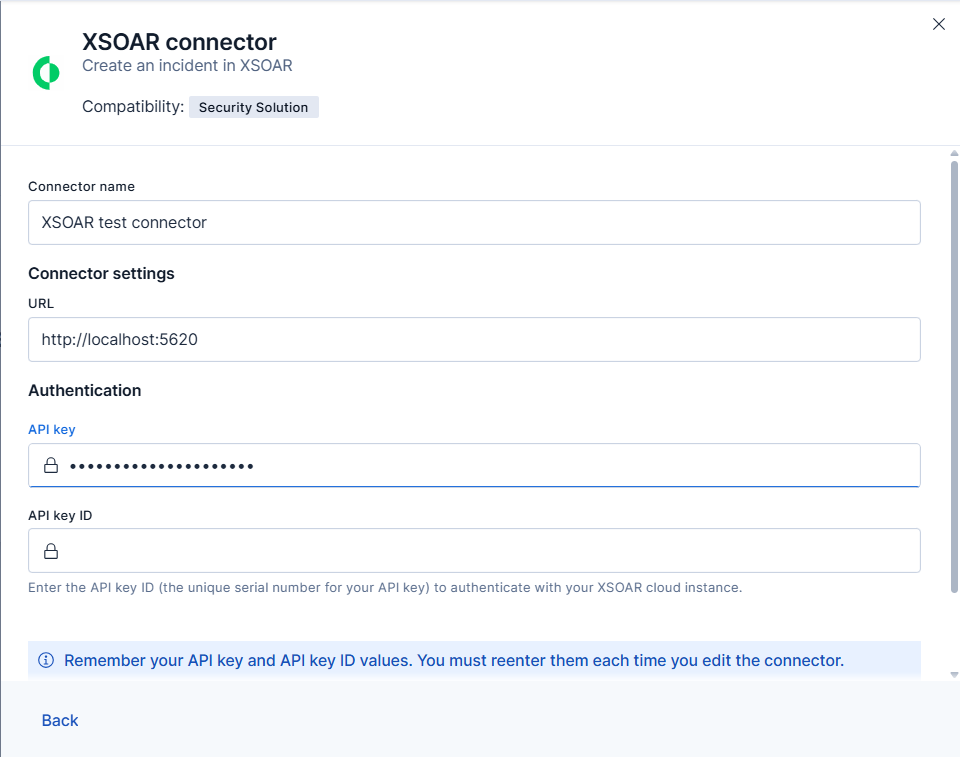
XSOAR connectors have the following configuration properties:
- Name
- The name of the connector.
- URL
- The XSOAR instance URL.
- API key
-
The XSOAR API key for authentication.
NoteIf you do not have an API key, refer to Create a new API key to make one for your XSOAR instance.
- API key ID
- The XSOAR API key ID for authentication. This value is mandatory for cloud instance users.
You can test connectors as you’re creating or editing the connector in Kibana. For example:
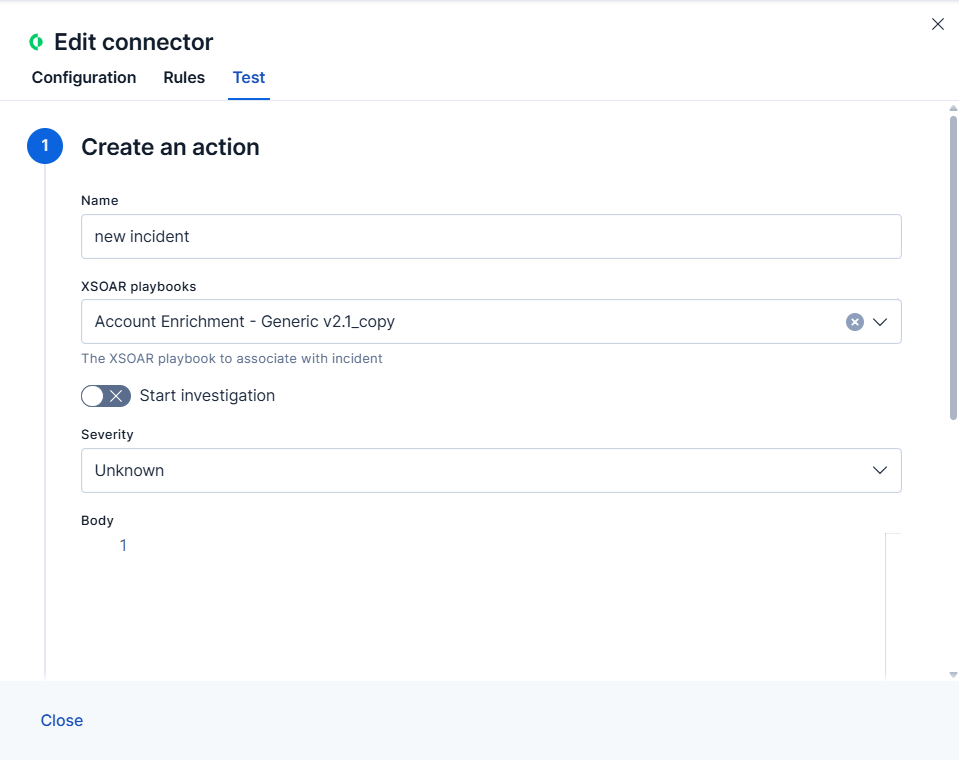
The XSOAR connector has the following actions:
- Get Playbooks
-
Retrieve the XSOAR playbooks visible to the connector. In Workflows, use step type
xsoar.getPlaybooks.- This action does not take parameters.
- The response contains
playbooks, an array of objects withidandname.
- Run
-
Create an incident in XSOAR. In Workflows, use step type
xsoar.run.name(required): Incident name.playbookId(optional): ID of the XSOAR playbook to associate with the incident. In the Kibana UI, this is selected from the XSOAR playbooks list.createInvestigation(required): Iftrue, starts the investigation process after the incident is created. The Kibana UI defaults this value tofalse.severity(required): Numeric incident severity:0for Unknown,0.5for Informational,1for Low,2for Medium,3for High, or4for Critical.isRuleSeverity(optional): Iftrueand the action runs from a rule, the incident uses the rule severity. In workflows, setseverityexplicitly.body(optional): JSON string with additional XSOAR incident fields to send in the API request. In workflow YAML, use a block scalar (|) to pass formatted JSON. For example, use it to set fields such asdetailsortype.
Dedicated action parameters, such as name, playbookId, createInvestigation, and severity, are added to the same XSOAR incident request as the JSON parsed from body. If the same field appears in both places, the dedicated action parameter takes precedence.
Create an XSOAR incident and associate it with a playbook:
steps:
  - name: create_xsoar_incident
    type: xsoar.run
    connector-id: <connector-id>
    with:
      name: Suspicious login detected
      playbookId: <xsoar-playbook-id>
      createInvestigation: true
      severity: 2
      body: |
        {
          "details": "Investigate suspicious login activity.",
          "type": "Unclassified"
        }
Use the Action configuration settings to customize connector networking configurations, such as proxies, certificates, or TLS settings. You can set configurations that apply to all your connectors or use xpack.actions.customHostSettings to set per-host configurations.