Greenhouse Integration
| Version | 0.2.1
|
| Subscription level What's this? |
Basic |
| Developed by What's this? |
Community |
| Ingestion method(s) | API |
| Minimum Kibana version(s) | 9.0.0 8.18.0 |
To use pre-release integrations, go to the Integrations page in Kibana, scroll down, and toggle on the Display beta integrations option.
The Greenhouse integration allows you to collect audit logs from Greenhouse, a popular Applicant Tracking System (ATS). Audit logs provide a record of important events from the previous 30 days, tracking who accessed or edited information in Greenhouse Recruiting.
This integration collects the following data:
- Audit Logs: Records of events including data changes, user actions, and API access.
- Greenhouse Expert subscription tier with the Audit Log add-on
- Harvest V3 (OAuth) API credentials with audit log permissions
- Optionally, a Site Admin user ID for API authorization (if not configured as a default in your OAuth credentials)
This integration uses the Greenhouse Audit Log API with Harvest V3 OAuth 2.0 Client Credentials authentication.
- Data retention: Greenhouse retains audit log data for 30 days only. Events older than 30 days are no longer available from the API. To maintain a longer history, ensure this integration is collecting data continuously.
- Rate limits: The Greenhouse Audit Log API allows 50 general requests per 10 seconds and 3 paginated requests per 30 seconds. The integration handles rate limiting automatically by respecting
HTTP 429responses and backing off before retrying.
- Log in to Greenhouse as a user with Developer permissions
- Navigate to Configure > Dev Center > API Credentials
- Click Create new API credentials
- Select Harvest V3 (OAuth) as the credential type
- Save the credential and configure the scopes your integration needs (ensure Audit Log access is enabled)
- Copy the Client ID and Client Secret - you will need these for the integration
The OAuth 2.0 Client Credentials flow can use a user_id to identify the authorizing user. This user must be a Site Admin to access audit log endpoints. If your OAuth credentials are configured with a default authorizing user, this field can be left empty.
To find a user's ID:
- In Greenhouse, navigate to Configure > Users
- Click on the Site Admin user you want to use for authorization
- Look at the URL in your browser - it will contain the numeric user ID (for example,
https://app.greenhouse.io/configure/users/12345) - Use this numeric ID in the integration configuration
- In Kibana, navigate to Integrations and search for "Greenhouse"
- Click Add Greenhouse
- Enter your OAuth credentials:
- OAuth Client ID: The Client ID from your Harvest V3 credentials
- OAuth Client Secret: The Client Secret from your Harvest V3 credentials
- Configure optional settings:
- Authorizing User ID: The numeric user ID of a Site Admin (optional if your OAuth credentials have a default user configured)
- Initial Interval: How far back to collect logs on first run (default: 24h, maximum: 30d)
- Interval: How often to poll for new events (default: 5m)
- Batch Size: Number of events per API request (100-500, default: 500)
- Performer IDs Filter: Filter by specific user IDs
- Event Types Filter: Filter by event type (data_change_update, data_change_create, data_change_destroy, harvest_access, action)
Audit logs capture the following types of events:
| Event Type | Description |
|---|---|
action |
General actions taken in Greenhouse Recruiting |
data_change_create |
New data created |
data_change_update |
Existing data modified |
data_change_destroy |
Data deleted |
harvest_access |
Data accessed using Harvest API |
If you receive "Failed to obtain OAuth access token" errors:
- Verify your Client ID and Client Secret are correct
- Ensure the OAuth credentials have audit log permissions enabled
- If using a user ID, check that it is a valid Site Admin user
If you receive 403 errors:
- Verify the authorizing user (specified by user_id) is a Site Admin
- Check that your OAuth credentials have the necessary scopes for audit log access
If no events are being collected:
- Verify your Greenhouse subscription includes the Audit Log add-on
- Check that there have been events in the last 30 days
- Review any filter settings that might be excluding events
Exported fields
| Field | Description | Type |
|---|---|---|
| @timestamp | Event timestamp. | date |
| data_stream.dataset | Data stream dataset name. | constant_keyword |
| data_stream.namespace | Data stream namespace. | constant_keyword |
| data_stream.type | Data stream type. | constant_keyword |
| event.dataset | Event dataset | constant_keyword |
| event.module | Event module | constant_keyword |
| greenhouse.audit.event.meta | The before and after values from data change events, or other relevant data for the event. | flattened |
| greenhouse.audit.event.target_id | The ID of the element that was edited or accessed. | keyword |
| greenhouse.audit.event.target_type | The resource name for data changes, Harvest access, or the event action type for other actions. | keyword |
| greenhouse.audit.event.type | The type of event: data_change_update, data_change_create, data_change_destroy, harvest_access, or action. | keyword |
| greenhouse.audit.performer.id | The Greenhouse Recruiting user ID of the person who performed the change or the API key if performed using Greenhouse API. | keyword |
| greenhouse.audit.performer.ip_address | The IP address of the person or integration that performed the change. | ip |
| greenhouse.audit.performer.meta.api_key_type | The type of API key used when performer is an API key. | keyword |
| greenhouse.audit.performer.meta.name | The name of the performer. | keyword |
| greenhouse.audit.performer.meta.username | The email address of the performer or the API key type. | keyword |
| greenhouse.audit.performer.type | The type of performer: user, api_key, or greenhouse_internal. | keyword |
| greenhouse.audit.request.id | The ID of the request. | keyword |
| greenhouse.audit.request.type | The name of the action taken in Greenhouse Recruiting, or the request URL if from Harvest API. | keyword |
| input.type | Type of Filebeat input. | keyword |
Example
{
    "@timestamp": "2023-06-02T16:06:19.217Z",
    "agent": {
        "ephemeral_id": "a1b2c3d4-e5f6-7890-abcd-ef1234567890",
        "id": "a1b2c3d4-e5f6-7890-abcd-ef1234567890",
        "name": "elastic-agent",
        "type": "filebeat",
        "version": "8.18.0"
    },
    "data_stream": {
        "dataset": "greenhouse.audit",
        "namespace": "default",
        "type": "logs"
    },
    "ecs": {
        "version": "8.11.0"
    },
    "elastic_agent": {
        "id": "a1b2c3d4-e5f6-7890-abcd-ef1234567890",
        "snapshot": false,
        "version": "8.18.0"
    },
    "event": {
        "action": "action",
        "category": [
            "configuration",
            "iam"
        ],
        "dataset": "greenhouse.audit",
        "id": "1234zID",
        "kind": "event",
        "module": "greenhouse",
        "original": "{\"request\":{\"id\":\"1234zID\",\"type\":\"email_settings#create_organization_email\"},\"performer\":{\"meta\":{\"name\":\"Allison Jamie\",\"username\":\"allison.j@omniva-corp.com\"},\"id\":12345,\"ip_address\":\"192.168.0.1\",\"type\":\"user\"},\"organization_id\":123,\"event\":{\"meta\":null,\"target_type\":\"Global Email Added\",\"type\":\"action\"},\"event_time\":\"2023-06-02T16:06:19.217Z\"}",
        "type": [
            "info"
        ]
    },
    "greenhouse": {
        "audit": {
            "event": {
                "target_type": "Global Email Added",
                "type": "action"
            },
            "performer": {
                "type": "user"
            },
            "request": {
                "id": "1234zID",
                "type": "email_settings#create_organization_email"
            }
        }
    },
    "organization": {
        "id": "123"
    },
    "related": {
        "ip": [
            "192.168.0.1"
        ],
        "user": [
            "12345",
            "allison.j@omniva-corp.com"
        ]
    },
    "source": {
        "ip": "192.168.0.1"
    },
    "tags": [
        "preserve_original_event",
        "forwarded",
        "greenhouse-audit"
    ],
    "user": {
        "email": "allison.j@omniva-corp.com",
        "full_name": "Allison Jamie",
        "id": "12345"
    }
}
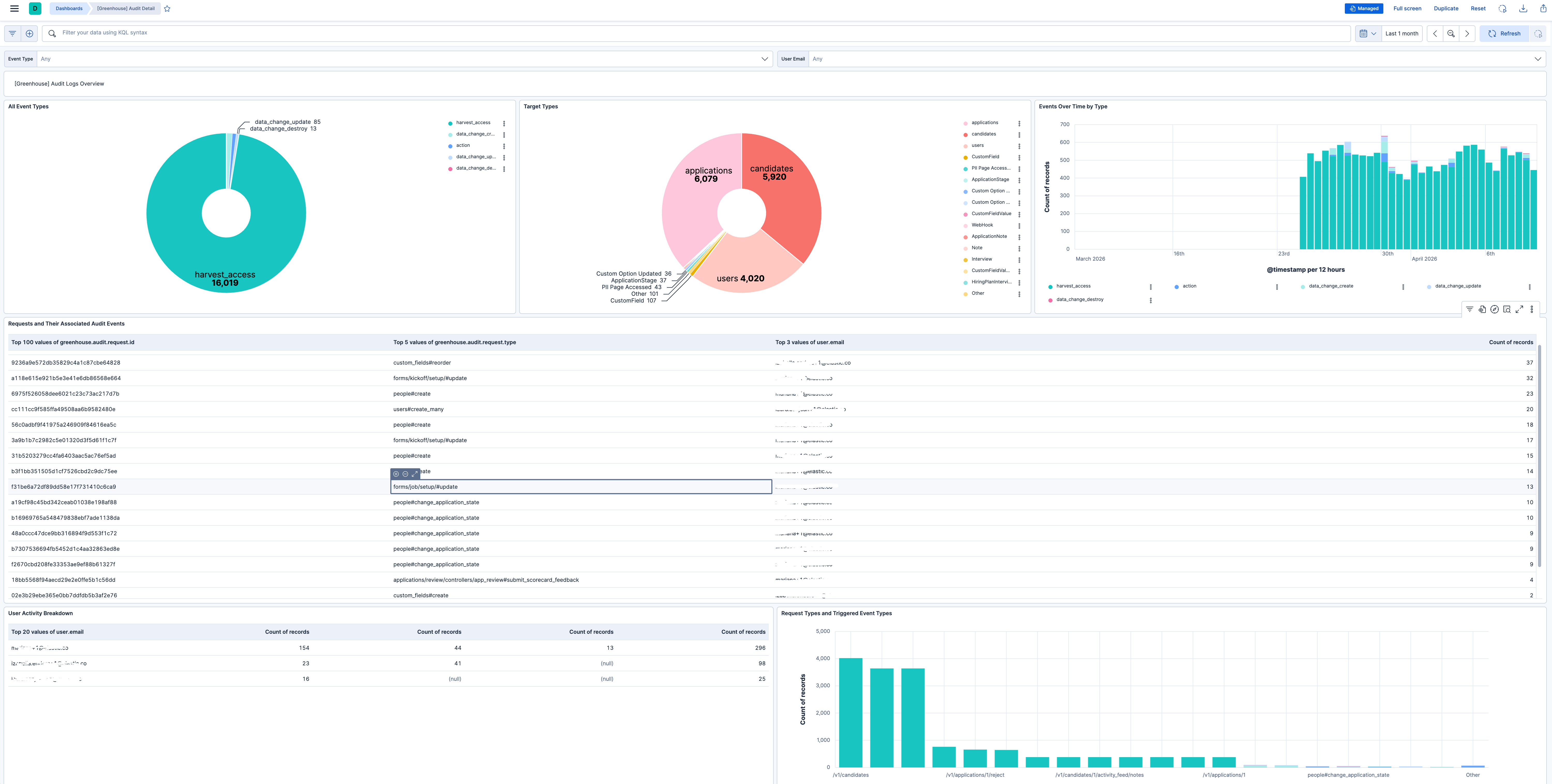
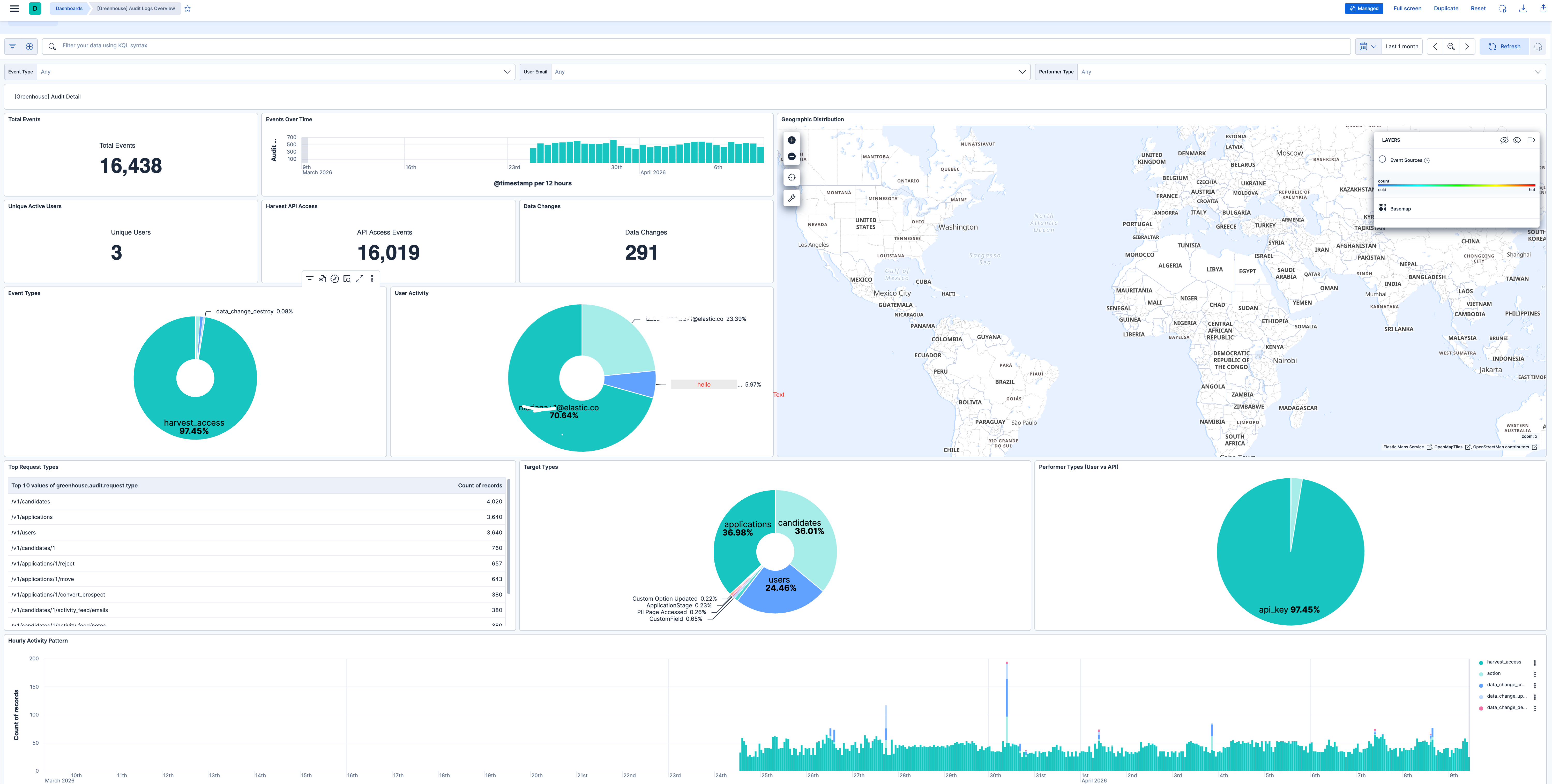
This integration includes one or more Kibana dashboards that visualizes the data collected by the integration. The screenshots below illustrate how the ingested data is displayed.
Changelog
| Version | Details | Minimum Kibana version |
|---|---|---|
| 0.2.1 | Bug fix (View pull request) Drop scalar performer.meta values that conflict with the object mapping. |
9.0.0 8.18.0 |
| 0.2.0 | Enhancement (View pull request) Add tags to ingest pipeline processors. |
9.0.0 8.18.0 |
| 0.1.0 | Enhancement (View pull request) Initial release. |
9.0.0 8.18.0 |