Lateral Movement Detection Model
| Version | 3.4.1 (View all) |
| Subscription level What's this? |
Platinum |
| Developed by What's this? |
Elastic |
| Minimum Kibana version(s) | 9.4.0 |
The Lateral movement detection model package contains assets that detect lateral movement based on file transfer activity and Windows RDP events. This package requires a Platinum subscription. Please ensure that you have a Trial, Platinum, or Enterprise subscription before proceeding. This package is licensed under Elastic License 2.0.
In versions 2.1.2 and later, this package ignores data in cold and frozen data tiers to reduce heap memory usage, avoid running on outdated data, and to follow best practices.
The following blogs provide additional context. For the most current installation instructions, always follow the steps in this guide.
- Detecting Lateral Movement activity: A new Kibana integration
- Identifying malicious Remote Desktop Protocol (RDP) connections with Elastic Security
This package leverages event logs. Prior to using this integration, you must have Elastic Endpoint via Elastic Defend, or have equivalent tools/endpoints set up. If using Elastic Defend, Elastic Defend should be installed through Elastic Agent and collecting data from hosts. See Configure endpoint protection with Elastic Defend for more information. The transform only supports Linux and Windows. The Anomaly Detection Jobs section outlines platform support for each job.
If you are running version 8.18+, the Defend integration only collects a subset of host information by default. To ensure the transform runs properly, the [linux|mac|windows].advanced.set_extended_host_information settings need to be set to true.
Upgrading: If upgrading from a version below v3.0.0, see the section v3.0.0 and beyond.
Add the Integration Package: Install the package via Management > Integrations > Add Lateral Movement Detection. Configure the integration name and agent policy. Click Save and Continue. (Note that this integration does not rely on an agent, and can be assigned to a policy without an agent.)
Check the health of the transform: The transform is scheduled to run every hour. This transform creates the index
ml-rdp-lmd_ea. To check the health of the transform go to Management > Stack Management > Data > Transforms underlogs-lmd.pivot_transform_ea-default-<FLEET-TRANSFORM-VERSION>.Create a data view for anomaly detection jobs: The anomaly detection jobs under this package rely on two indices. One has file transfer events (
logs-*), and the other index (ml-rdp-lmd_ea) collects RDP session information from a transform. The RDP session jobs use the designated index (ml-rdp-lmd_ea) populated by the transform installed above, which is already pre-assigned to those jobs. Before enabling the anomaly detection jobs, create a data view for the file transfer index pattern.Add preconfigured anomaly detection jobs: In Stack Management -> Anomaly Detection Jobs, you will see Supplied configurations.
- Select Lateral Movement Detection and click Run data recognizer.
- Next to the data view name you created in the previous step, click the link to "create jobs."
- Verify the settings for the jobs and click Create jobs to finalize job creation.
- Note: In the Machine Learning app, these configurations are available only when data exists that matches the query specified in the lmd-ml file. For example, this would be available in
logs-endpoint.events.*if you used Elastic Defend to collect events.
Data view configuration for Dashboards: For the dashboard to work as expected, the following settings need to be configured in Kibana.
- You have started the above anomaly detection jobs.
- You have read access to
.ml-anomalies-shareddata stream/index or are assigned themachine_learning_userrole. For more information on roles, please refer to Built-in roles in Elastic. Please be aware that a user who has access to the underlying machine learning results indices can see the results of all jobs in all spaces. Be mindful of granting permissions if you use Kibana spaces to control which users can see which machine learning results. For more information on machine learning privileges, refer to setup-privileges. - After enabling the jobs, go to Management > Stack Management > Kibana > Data Views. Click on Create data view with the following settings:
- Name:
.ml-anomalies-shared - Index pattern :
.ml-anomalies-shared* - Select Show Advanced settings enable Allow hidden and system indices
- Custom data view ID:
.ml-anomalies-shared
- Name:
Warning: When creating the data views for the dashboards, ensure that the
Custom data view IDis set to the value specified above and is not left empty. Omitting or misconfiguring this field may result in broken visualizations, as illustrated by the error message below.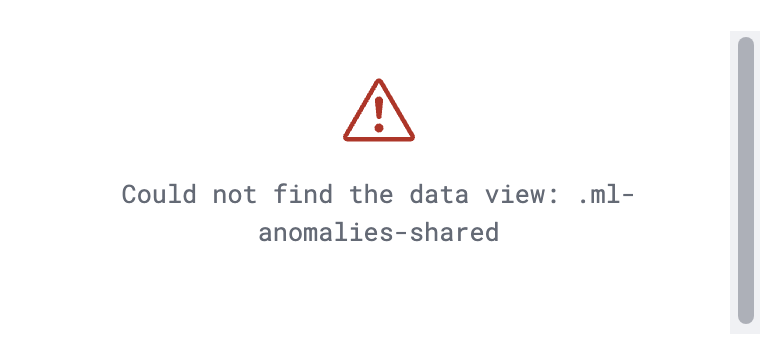
You can also enable detection rules to alert on Lateral Movement activity in your environment, based on anomalies flagged by the above ML jobs. As of version 2.0.0 of this package, these rules are available as part of the Detection Engine, and can be found using the tag Use Case: Lateral Movement Detection. See this documentation for more information on importing and enabling the rules.
- Use with Living off the Land Detection: This integration package can be used along with Living off the Land detection, see the section Install Living off the Land package to detect malicious processes.
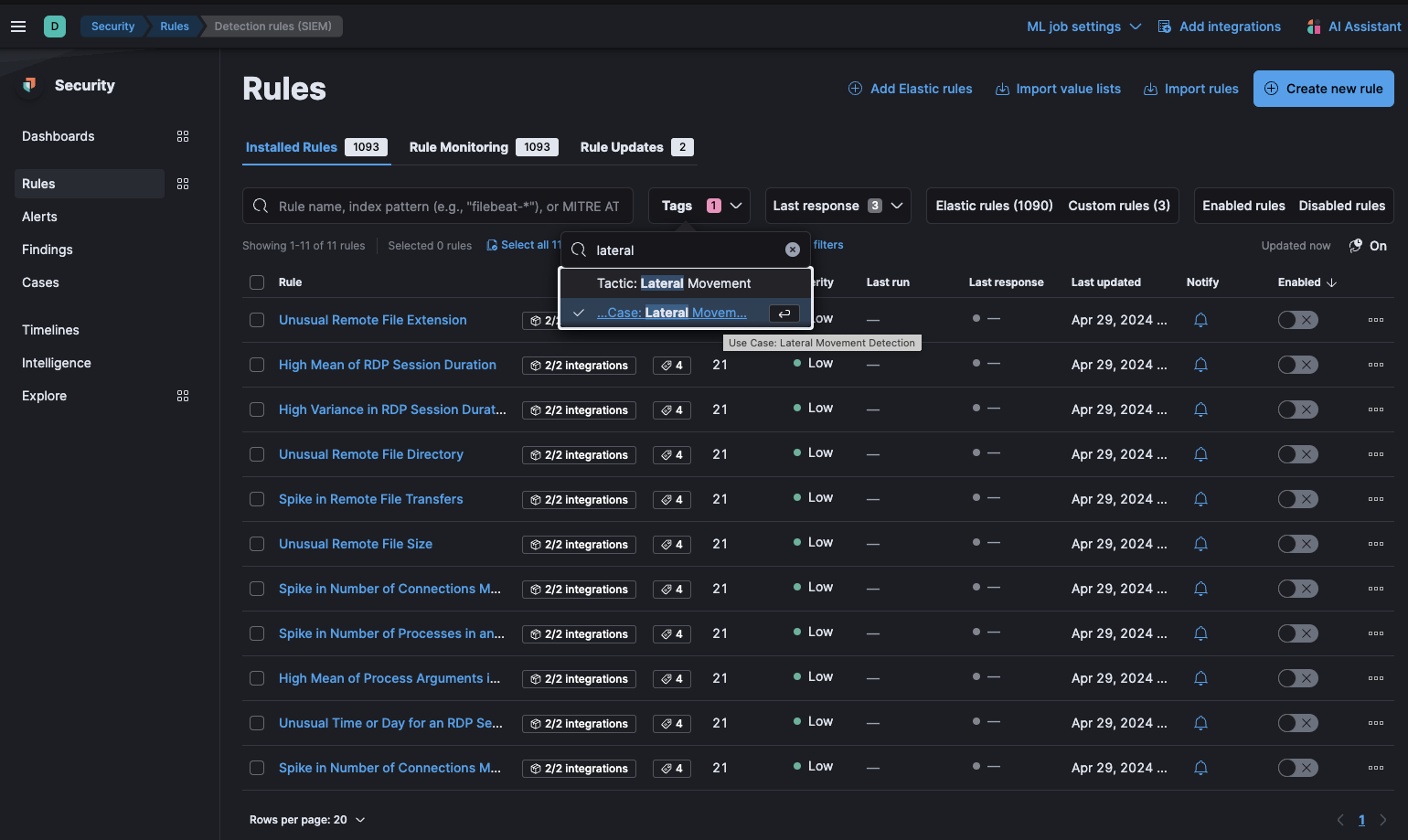 In Security > Rules, filtering with the "Use Case: Lateral Movement Detection" tag
To inspect the installed assets, you can navigate to Stack Management > Data > Transforms.
| Transform name | Purpose | Source index | Destination index | Alias | Supported Platform | Event Category |
|---|---|---|---|---|---|---|
| lmd.pivot_transform_ea | Collects RDP session information from your environment | logs-endpoint.events.process-* |
ml-rdp-lmd_ea | Windows | process |
Source index pattern: logs-endpoint.events.process-* holds endpoint process events collected by the Elastic Defend integration.
When querying the destination index (ml-rdp-lmd_ea) for RDP session logs, we advise using the destination index directly. In the event that the underlying package is upgraded, it will aid in maintaining the previous findings.
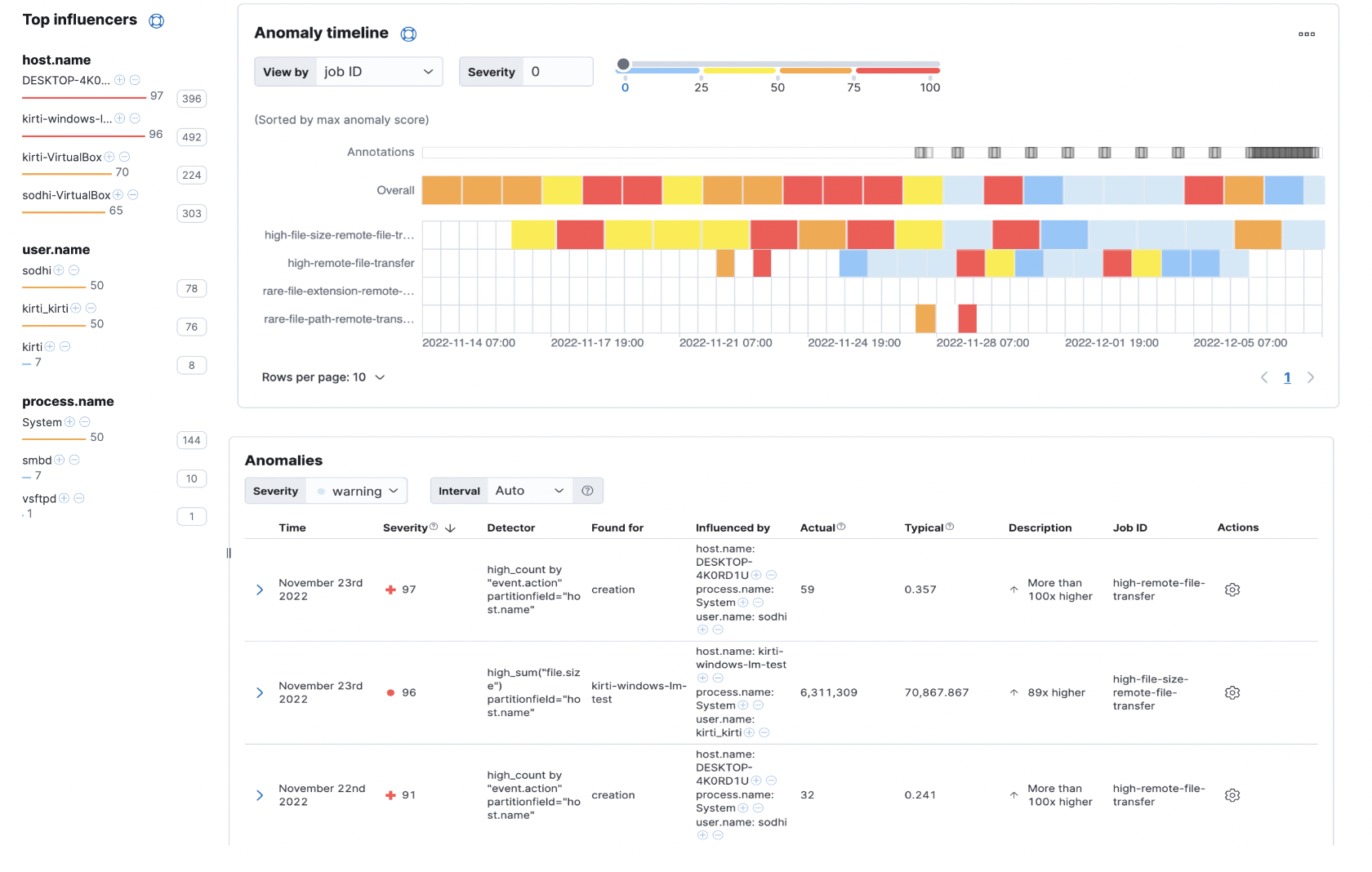
After the anomaly detectors and the data views for the dashboard are configured, the Lateral Movement Detection Dashboard is available under Analytics > Dashboard. This dashboard gives an overview of anomalies triggered for the lateral movement detection package.
To customize filters in the Lateral Movement Detection transform, follow the below steps. You can use these instructions to update basic settings or to update filters for fields such as process.name, @timestamp, and others.
- To update settings such as retention policy, frequency, or destination configuration, stop the transform, click Edit from the Actions bar, make the required changes, and start the transform again.
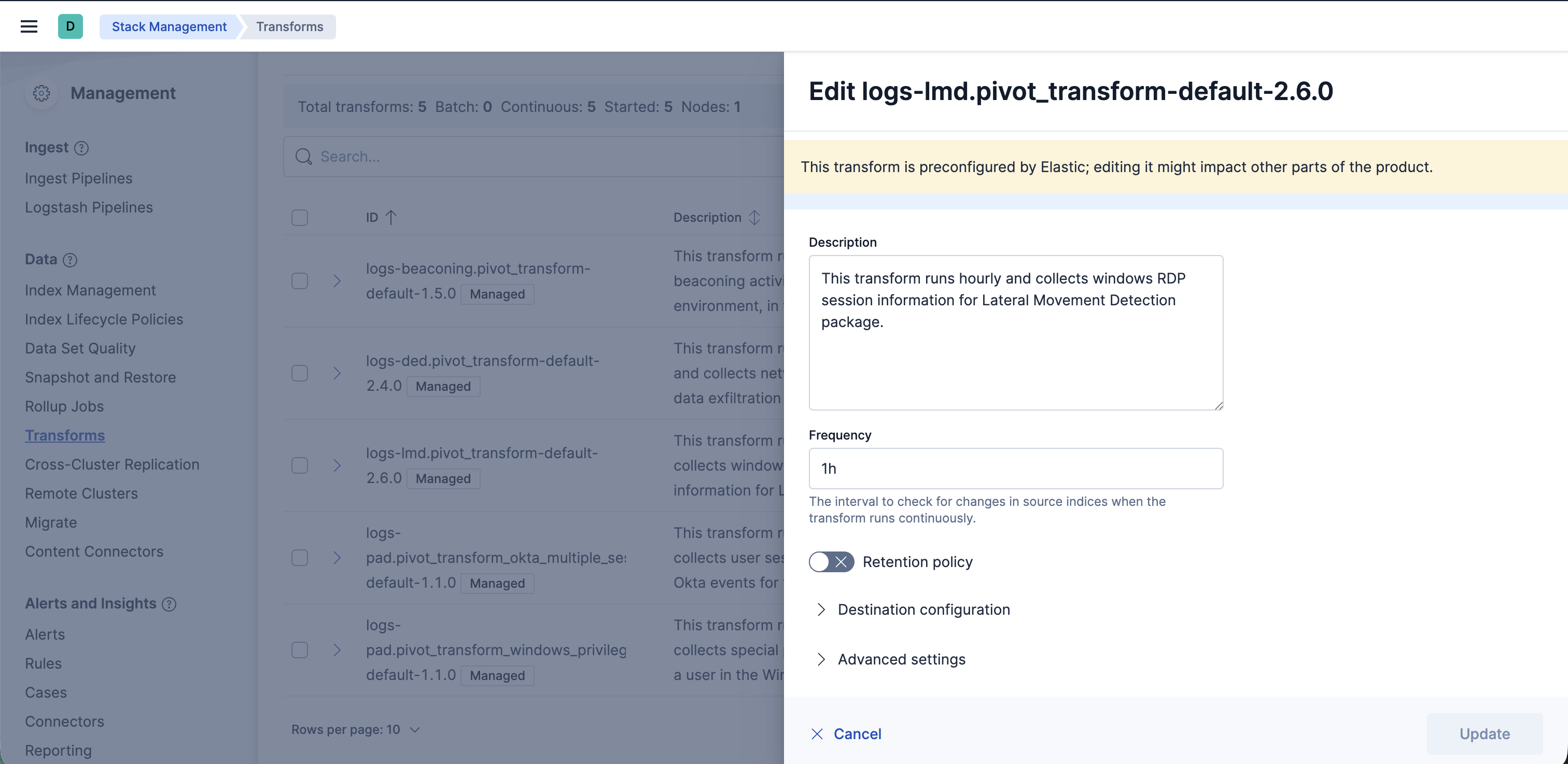
- To update the query filters, go to Stack Management > Data > Transforms >
logs-lmd.pivot_transform_ea-default-<FLEET-TRANSFORM-VERSION>. - Click on the Actions bar at the far right of the transform and select the Clone option.
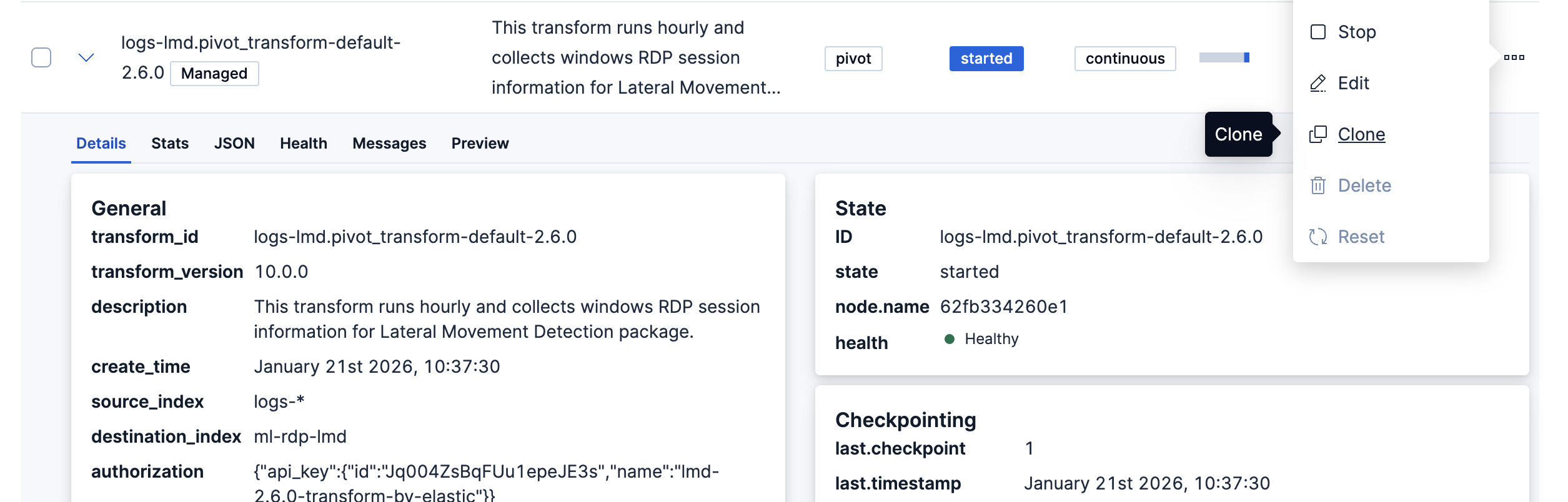
- In the new Clone transform window, go to the Search filter and update any field values you want to add or remove. Click on the Apply changes button on the right side to save these changes. Note: The image below shows an example of filtering a new
process.nameasexplorer.exe. You can follow a similar example and update the field value list based on your environment to help reduce noise and potential false positives.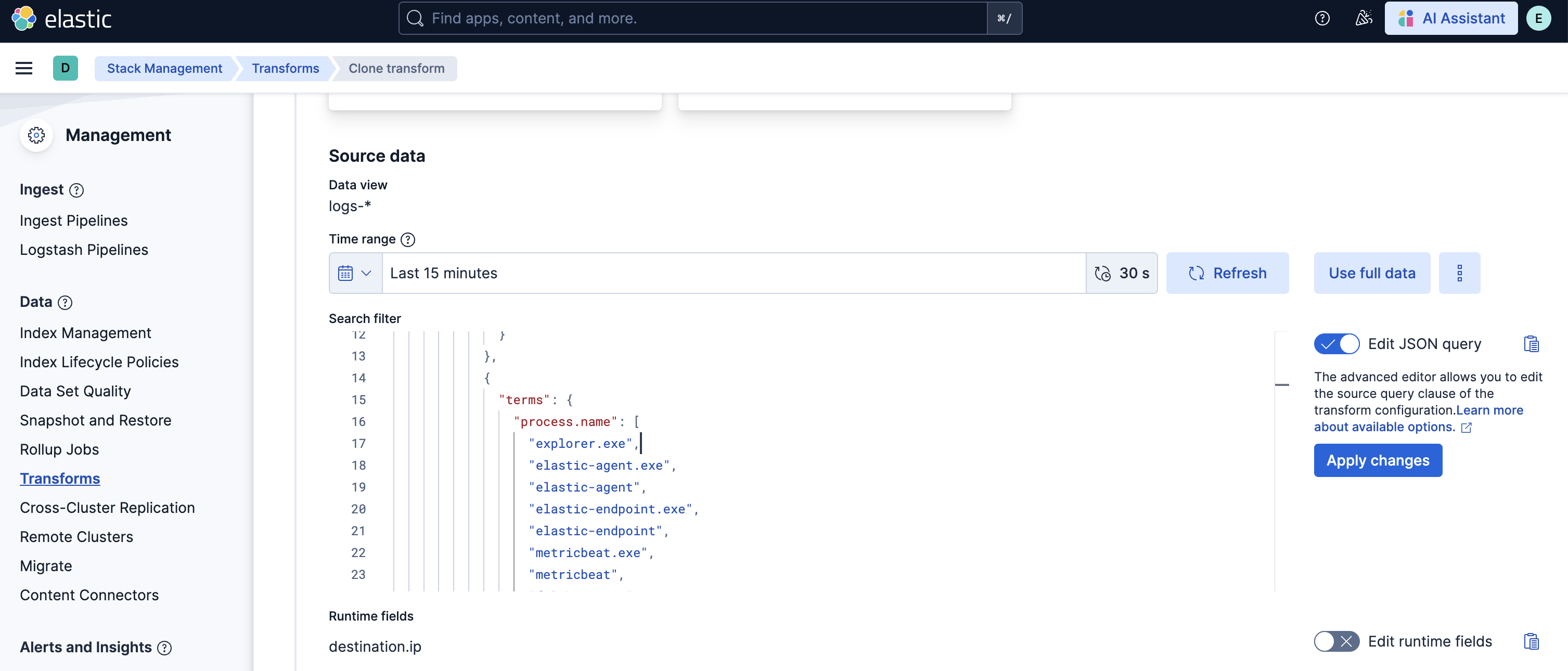
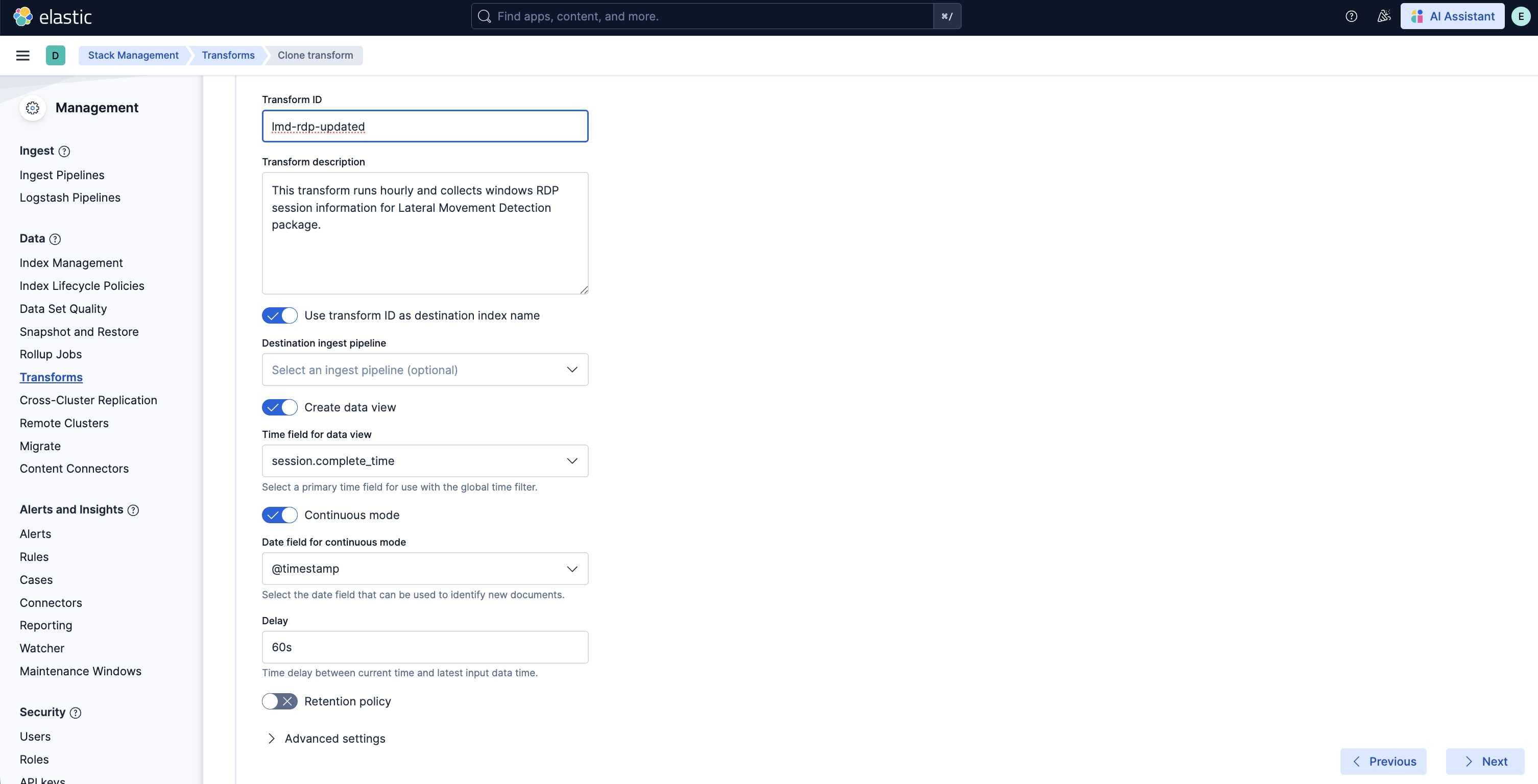
- Scroll down and select the Next button at the bottom right. Under the Transform details section, enter a new Transform ID and Destination index of your choice, then click on the Next button.
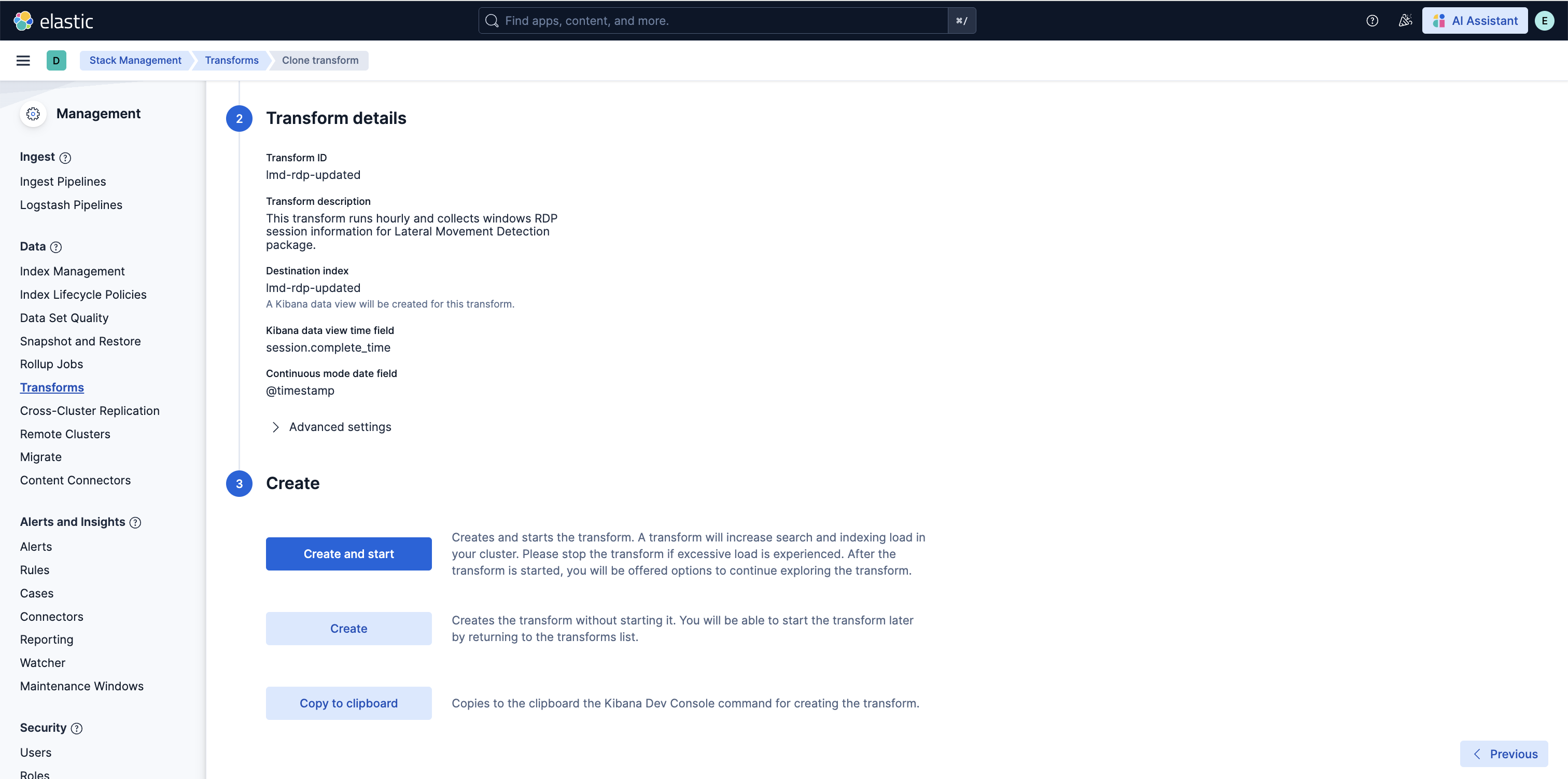
- Lastly, select the Create and Start option. Your updated transform will now start collecting data. Note: Do not forget to update your data view based on the new Destination index you have just created.
To detect malicious RDP processes started in a session, install the Living off the Land Attack (LotL) Detection package. Follow the steps under the package overview to install the related assets. Use the below filter query to examine model predictions on RDP events only.
Clone the anomaly detection jobs available under the Living off the Land Attack (LotL) Detection package and follow the below steps to customize them only to process Windows RDP events in the datafeed:
- Click on the Actions panel at the right-most corner of the anomaly detection job and then select the Edit job option.
- Under the Datafeed panel, enter the below query to filter malicious RDP processes.
{
  "bool": {
    "minimum_should_match": 1,
    "should": [
      {
        "match": {
          "problemchild.prediction": 1
        }
      },
      {
        "match": {
          "blocklist_label": 1
        }
      }
    ],
    "must_not": [
      {
        "terms": {
          "user.name": [
            "system"
          ]
        }
      }
    ],
    "filter": [
      {
        "exists": {
          "field": "process.Ext.session_info.client_address"
        }
      },
      {
        "exists": {
          "field": "process.Ext.authentication_id"
        }
      },
      {
        "exists": {
          "field": "host.ip"
        }
      },
      {
        "term": {
          "event.category": "process"
        }
      },
      {
        "term": {
          "process.Ext.session_info.logon_type": "RemoteInteractive"
        }
      }
    ]
  }
}
Detects potential lateral movement activity by identifying malicious file transfers and RDP sessions in an environment.
Before starting the these jobs, ensure you have ML nodes with enough free memory. The exact amount of memory needed can vary, but a minimum of 8GB of non-heap ML memory is the minimum required to start all the jobs.
| Job | Description | Supported Platform | Filter Field |
|---|---|---|---|
| lmd_high_count_remote_file_transfer_ea | Detects unusually high file transfers to a remote host in the network. | Linux, macOS, Windows | event.category: file |
| lmd_high_file_size_remote_file_transfer_ea | Detects unusually high size of files shared with a remote host in the network. | Linux, macOS, Windows | event.category: file |
| lmd_rare_file_extension_remote_transfer_ea | Detects rare file extensions shared with a remote host in the network. | macOS, Windows | event.category: file |
| lmd_rare_file_path_remote_transfer_ea | Detects unusual folders and directories on which a file is transferred (by a host). | macOS, Windows | event.category: file |
| lmd_high_mean_rdp_session_duration_ea | Detects unusually high mean of RDP session duration. | Windows | session.start_time exists |
| lmd_high_var_rdp_session_duration_ea | Detects unusually high variance in RDP session duration. | Windows | session.start_time exists |
| lmd_high_sum_rdp_number_of_processes_ea | Detects unusually high number of processes started in a single RDP session. | Windows | session.start_time exists |
| lmd_unusual_time_weekday_rdp_session_start_ea | Detects an RDP session started at an unusual time or weekday. | Windows | session.start_time exists |
| lmd_high_rdp_distinct_count_source_ip_for_destination_ea | Detects a high count of source IPs making an RDP connection with a single destination IP. | Windows | session.start_time exists |
| lmd_high_rdp_distinct_count_destination_ip_for_source_ea | Detects a high count of destination IPs establishing an RDP connection with a single source IP. | Windows | session.start_time exists |
| lmd_high_mean_rdp_process_args_ea | Detects unusually high number of process arguments in an RDP session. | Windows | session.start_time exists |
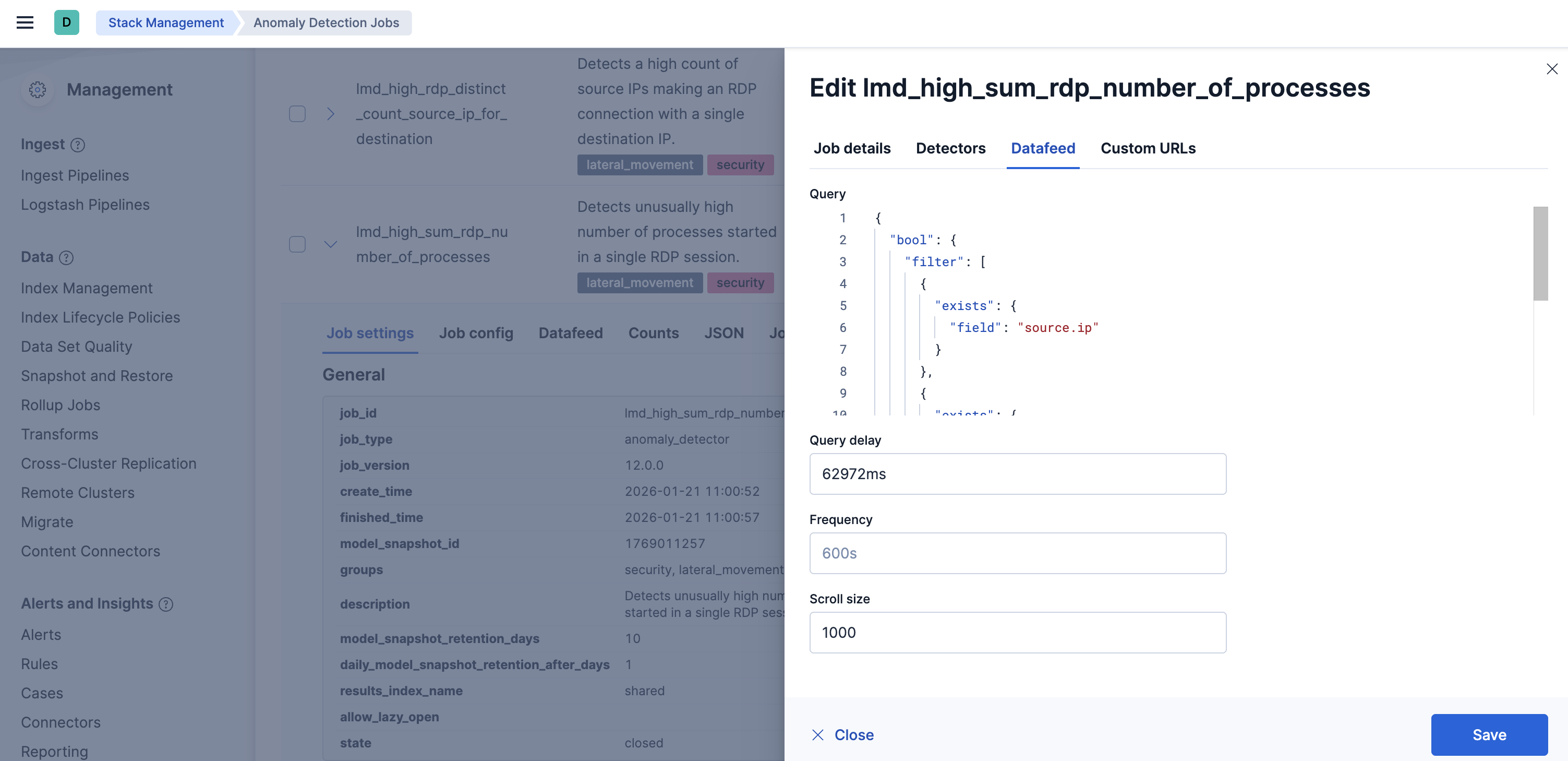
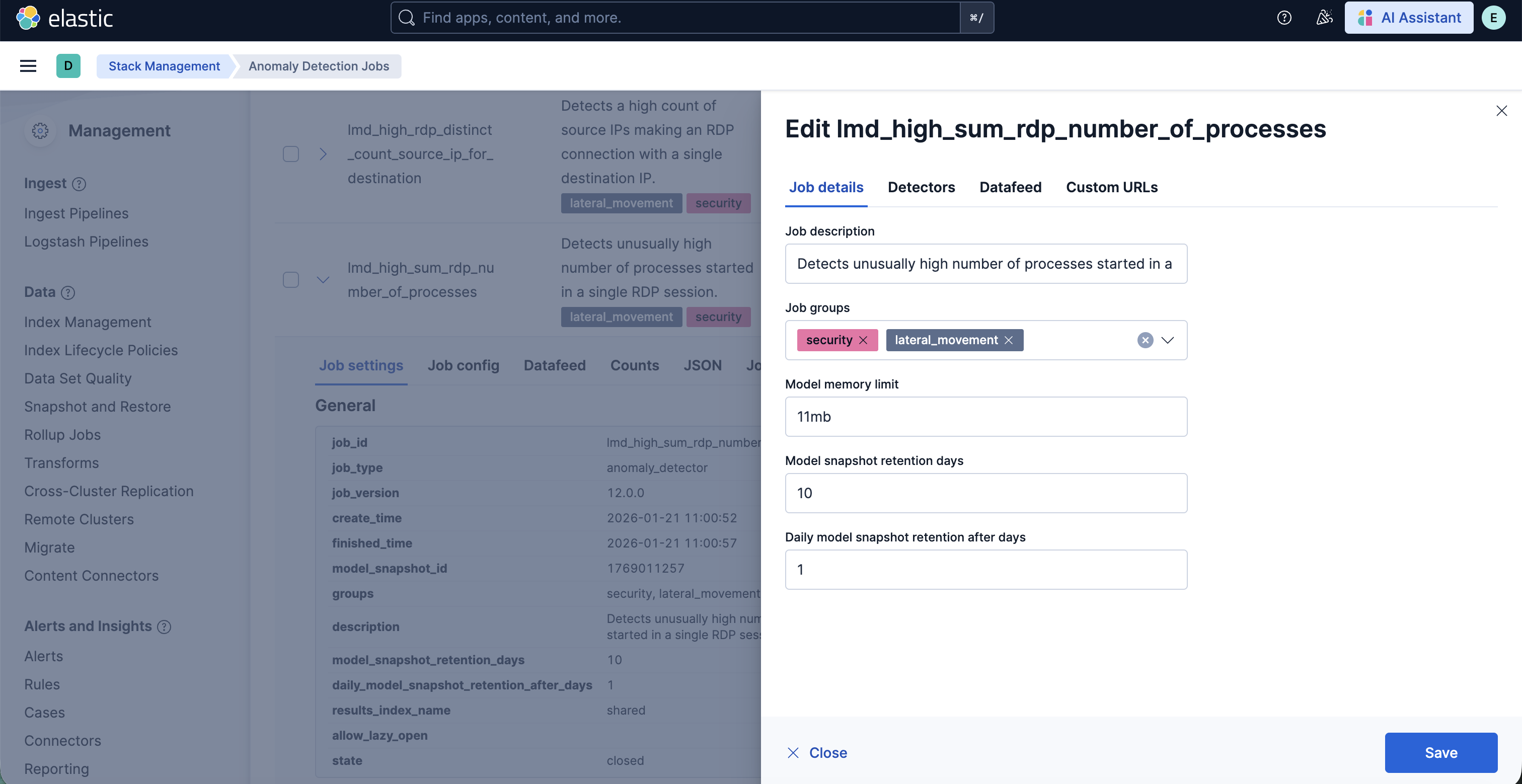
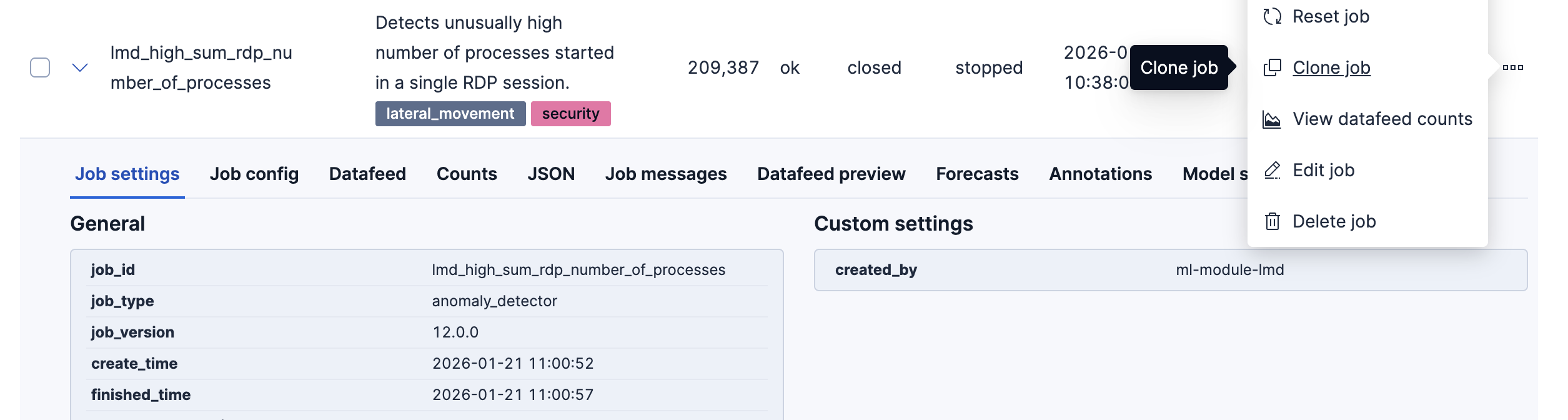
To customize the datafeed query and other settings such as model memory limit, frequency, query delay, bucket span and influencers for the Lateral Movement Detection ML jobs, follow the steps below.
- To update the datafeed query, stop the datafeed and select Edit job from the Actions menu.
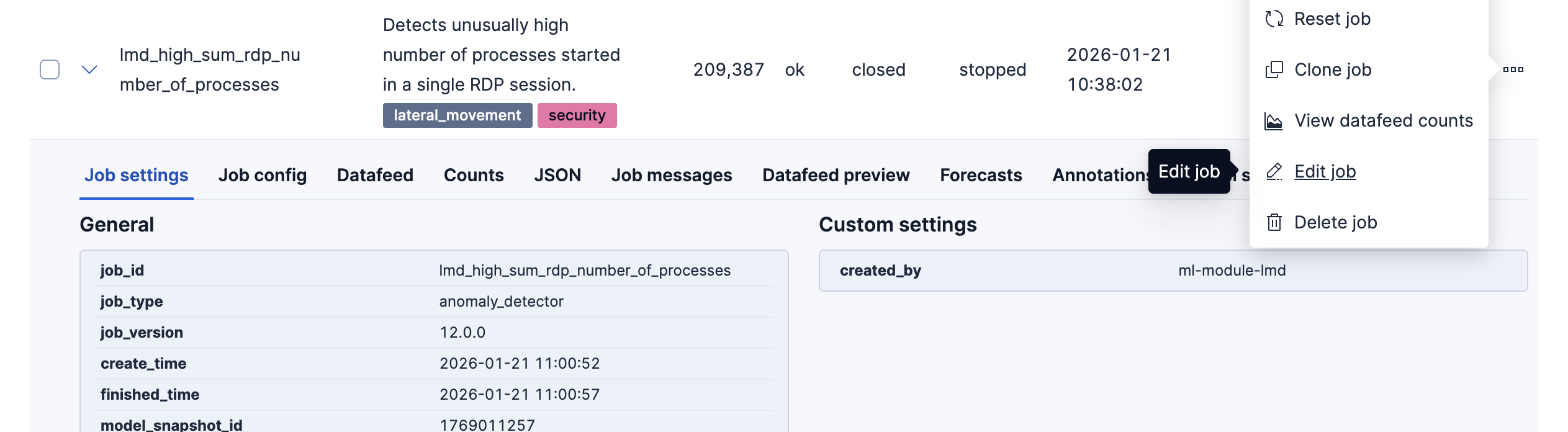
- In the Edit job window, navigate to the Datafeed section and update the query filters. You can add or remove field values to help reduce noise and false positives based on your environment.
- You may also update the model memory limit if your environment has high data volume or if the job requires additional resources. Go to the Job details section and update the Model memory limit and hit Save. For more information on resizing ML jobs, refer to the documentation.
- In order to do more advanced changes to your job, clone the job by selecting Clone job from the Actions menu.
- In the cloned job, you can update datafeed settings such as Frequency and Query delay, which help control how often data is analyzed and account for ingestion delays.
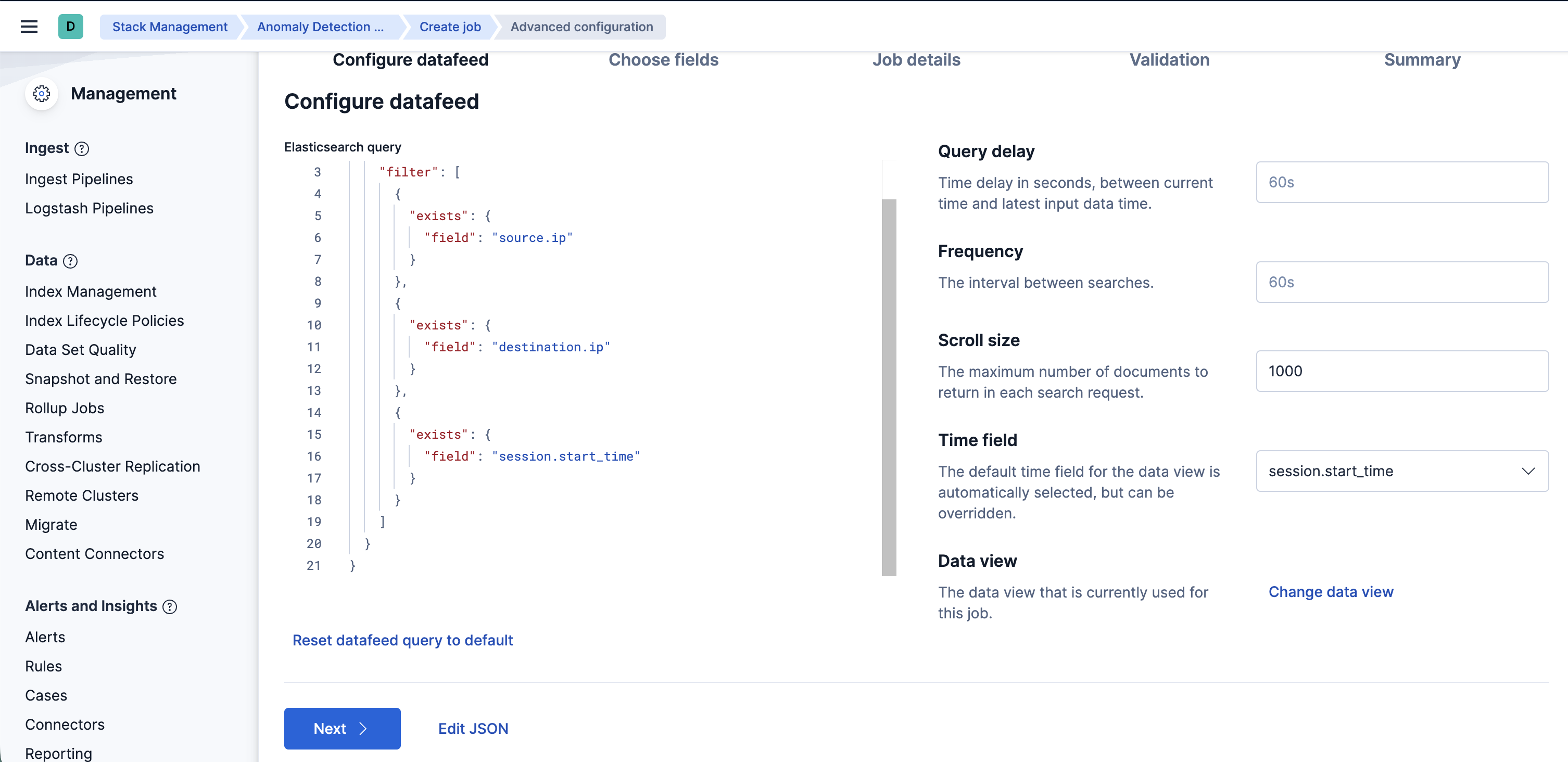
- You can also modify the job configuration by adjusting the Bucket span and by adding or removing Influencers to improve anomaly attribution.
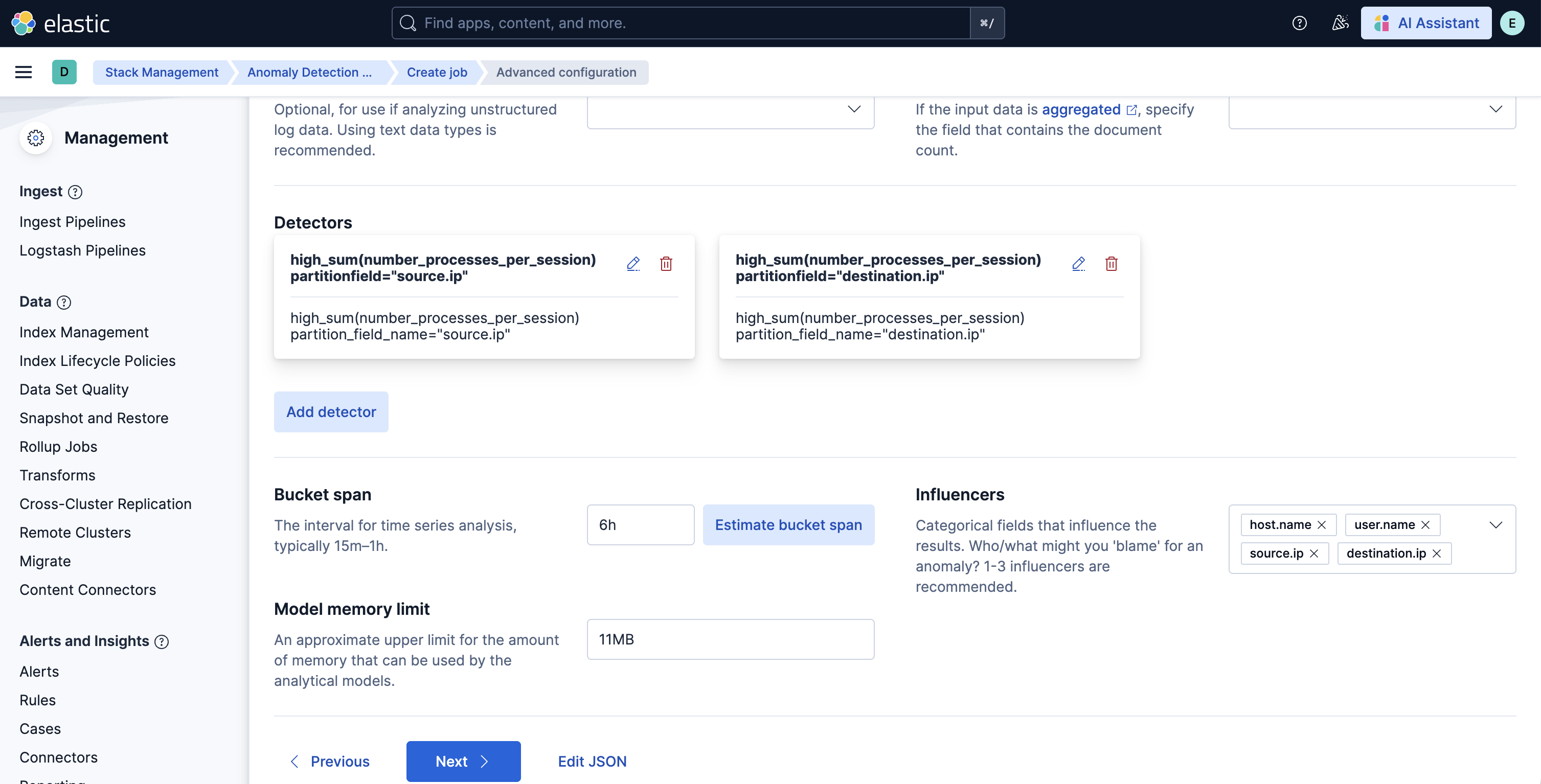
- Finally, assign a new Job ID, and click on Create job, and start the datafeed to apply the updated settings.
v3.0.0 of this package requires Elastic Stack version 9.4 or later. It introduces support for Entity Analytics (EA), adding new fields for proper entity resolution.
- This package installs new ML jobs which include
_easuffix in their names, as outlined below. New transforms and detection rules are also included. - Previously installed ML jobs, transforms, and rules will continue to run, allowing time to transition to the new Entity Analytics assets.
- Important: We recommend installing the new ML jobs and transforms and verifying that they are properly set up, collecting data, and generating anomalies before deleting the old jobs and upgrading to the new version of the detection rules available in 9.4. The new detection rules reference ML job IDs with the
_easuffix and are not compatible with older versions of the jobs. - The new Entity Analytics transforms write to separate destination indices postfixed with
_ea. Create a new data view for the Entity Analytics anomaly detection jobs using the new destination indices/aliases listed below. Do not mix old and new transform destination indices in the same data view. - New dashboards are available in this version with the suffix "(Entity Analytics)" in the title. If you are still running jobs or transforms from before this version, the original dashboards without the suffix remain available.
The new Entity Analytics ML job IDs are:
lmd_high_count_remote_file_transfer_ealmd_high_file_size_remote_file_transfer_ealmd_rare_file_extension_remote_transfer_ealmd_rare_file_path_remote_transfer_ealmd_high_mean_rdp_session_duration_ealmd_high_var_rdp_session_duration_ealmd_high_sum_rdp_number_of_processes_ealmd_unusual_time_weekday_rdp_session_start_ealmd_high_rdp_distinct_count_source_ip_for_destination_ealmd_high_rdp_distinct_count_destination_ip_for_source_ealmd_high_mean_rdp_process_args_ea
The new Entity Analytics transforms are:
lmd.pivot_transform_ea→ destination index:ml-rdp-lmd_ea
After confirming the new Entity Analytics ML jobs and transforms are running correctly, you can remove the following deprecated assets that have been superseded by the new Entity Analytics versions (Elastic stack v9.4+):
- Delete old ML jobs: Navigate to Stack Management -> Anomaly Detection Jobs and delete the following jobs:
lmd_high_count_remote_file_transferlmd_high_file_size_remote_file_transferlmd_rare_file_extension_remote_transferlmd_rare_file_path_remote_transferlmd_high_mean_rdp_session_durationlmd_high_var_rdp_session_durationlmd_high_sum_rdp_number_of_processeslmd_unusual_time_weekday_rdp_session_startlmd_high_rdp_distinct_count_source_ip_for_destinationlmd_high_rdp_distinct_count_destination_ip_for_sourcelmd_high_mean_rdp_process_args
- Delete old transforms: Navigate to Stack Management -> Data -> Transforms and delete:
lmd.pivot_transform
v2.0.0 of the package introduces breaking changes, namely deprecating detection rules from the package. To continue receiving updates to Lateral Movement Detection, we recommend upgrading to v2.0.0 after doing the following:
- Delete existing ML jobs: Navigate to Stack Management -> Anomaly Detection Jobs and delete jobs corresponding to the following IDs:
- high-count-remote-file-transfer
- high-file-size-remote-file-transfer
- rare-file-extension-remote-transfer
- rare-file-path-remote-transfer
- high-mean-rdp-session-duration
- high-var-rdp-session-duration
- high-sum-rdp-number-of-processes
- unusual-time-weekday-rdp-session-start
- high-rdp-distinct-count-source-ip-for-destination
- high-rdp-distinct-count-destination-ip-for-source
- high-mean-rdp-process-args
Depending on the version of the package you're using, you might also be able to search for the above jobs using the group lateral_movement.
- Uninstall existing rules associated with this package: Navigate to Security > Rules and delete the following rules:
- Spike in Remote File Transfers
- Unusual Remote File Size
- Unusual Remote File Directory
- Unusual Remote File Extension
- Malicious Remote File Creation
- Remote File Creation on a Sensitive Directory
- Spike in number of processes in an RDP session
- High mean of RDP session duration
- High variance in RDP session duration
- Unusually high number of process arguments in an RDP session
- Spike in number of connections made to a source IP
- Spike in number of connections made to a destination IP
- Unusual time or day for an RDP session start
Depending on the version of the package you're using, you might also be able to search for the above rules using the tag Lateral Movement.
- Upgrade the Lateral Movement Detection package to v2.0.0 using the steps here
- Install the new rules as described in the Enabling detection rules section below
Usage in production requires that you have a license key that permits use of machine learning features.
This integration includes one or more Kibana dashboards that visualizes the data collected by the integration. The screenshots below illustrate how the ingested data is displayed.
Changelog
| Version | Details | Minimum Kibana version |
|---|---|---|
| 3.4.1 | Enhancement (View pull request) Update package owner to threat-research-and-detection-engineering team. |
9.4.0 |
| 3.4.0 | Enhancement (View pull request) Add file and session influencers to ML jobs and restrict RDP transform source to Windows hosts. |
9.4.0 |
| 3.3.0 | Enhancement (View pull request) Update transform source index to scope to the relevant data streams. |
9.4.0 |
| 3.2.0 | Enhancement (View pull request) Add process signature fields as influencers to ML jobs. |
9.4.0 |
| 3.1.2 | Enhancement (View pull request) Add threat_tactics and threat_techniques to ML job custom_settings. |
9.4.0 |
| 3.1.1 | Enhancement (View pull request) Update documentation on ML jobs requirements |
9.4.0 |
| 3.1.0 | Enhancement (View pull request) Update default index pattern for ML jobs to use the transform-generated index directly |
9.4.0 |
| 3.0.0 | Enhancement (View pull request) Adds new fields for entity resolution with Entity Analytics in Elastic Stack 9.4. Includes new ML jobs, transforms, and dashboards. |
9.4.0 |
| 2.6.3 | Bug fix (View pull request) Update documentation for blogs/data views |
9.0.0 8.9.0 |
| 2.6.2 | Enhancement (View pull request) Update package docs with prerequisite steps for host.* fields |
9.0.0 8.9.0 |
| 2.6.1 | Enhancement (View pull request) Update package docs with customization steps for ML jobs and transforms |
9.0.0 8.9.0 |
| 2.6.0 | Bug fix (View pull request) Add a transform filter to exclude cold and frozen tier data |
9.0.0 8.9.0 |
| 2.5.4 | Bug fix (View pull request) Add filtering for Elastic endpoint agents |
9.0.0 8.9.0 |
| 2.5.3 | Enhancement (View pull request) Update documentation on configuring data view for dashboards |
9.0.0 8.9.0 |
| 2.5.2 | Enhancement (View pull request) Update transform mappings to use ECS |
9.0.0 8.9.0 |
| 2.5.1 | Enhancement (View pull request) Update platform support docs |
9.0.0 8.9.0 |
| 2.5.0 | Enhancement (View pull request) Remove time_of_day detector from anomaly jobs module |
9.0.0 8.9.0 |
| 2.4.0 | Enhancement (View pull request) Add exclusions for Elastic endpoint agents |
9.0.0 8.9.0 |
| 2.3.0 | Enhancement (View pull request) Add support for Kibana 9.0.0 |
9.0.0 8.9.0 |
| 2.2.0 | Bug fix (View pull request) Fix bug in the pivot transform |
8.9.0 |
| 2.1.5 | Enhancement (View pull request) Add agent policy documentation |
8.9.0 |
| 2.1.4 | Enhancement (View pull request) Remove scripted_metric aggregation from pivot transform |
8.9.0 |
| 2.1.3 | Enhancement (View pull request) Improve package installation documentation |
8.9.0 |
| 2.1.2 | Enhancement (View pull request) Add query settings to ignore frozen and cold data tiers |
8.9.0 |
| 2.1.1 | Enhancement (View pull request) Add unattended flag for Serverless |
8.9.0 |
| 2.1.0 | Enhancement (View pull request) Add serverless support |
8.9.0 |
| 2.0.0 | Enhancement (View pull request) Removing detection rules from the package |
8.9.0 |
| 1.0.2 | Enhancement (View pull request) Added additional ml jobs and security rules to the package |
8.8.0 |
| 1.0.1 | Enhancement (View pull request) Add the Advanced Analytics (UEBA) subcategory |
8.5.0 |
| 1.0.0 | Enhancement (View pull request) Added dashboard and released the package in production |
8.5.0 |
| 0.0.1 | Enhancement (View pull request) Initial release of the package |
— |