IRONSCALES Integration for Elastic
| Version | 0.2.4
|
| Managed integration release status | GA |
| Subscription level What's this? |
Basic |
| Developed by What's this? |
Elastic |
| Ingestion method(s) | API |
| Minimum Kibana version(s) | 9.3.0 9.2.2 9.1.8 8.19.8 |
You can use this integration as an Elastic Managed integration on Elastic Cloud Hosted deployments running this version or later.
To use pre-release integrations, go to the Integrations page in Kibana, scroll down, and toggle on the Display beta integrations option.
IRONSCALES is an advanced anti-phishing detection and response platform that combines human intelligence with machine learning to protect organizations from evolving email threats. It prevents, detects, and remediates phishing attacks directly at the mailbox level using a multi-layered and automated approach.
The IRONSCALES integration for Elastic allows you to collect email security event data using the IRONSCALES API, then visualize the data in Kibana.
The IRONSCALES integration is compatible with product version 25.10.1.
This integration periodically queries the IRONSCALES API to retrieve logs.
This integration collects log messages of the following type:
Incident: collect incident records from the Incident List(endpoint:/appapi/incident/{company_id}/list/) and Incident Details(endpoint:/appapi/incident/{company_id}/details/{incident_id}) endpoints, with detailed incident data enriched to provide additional context.
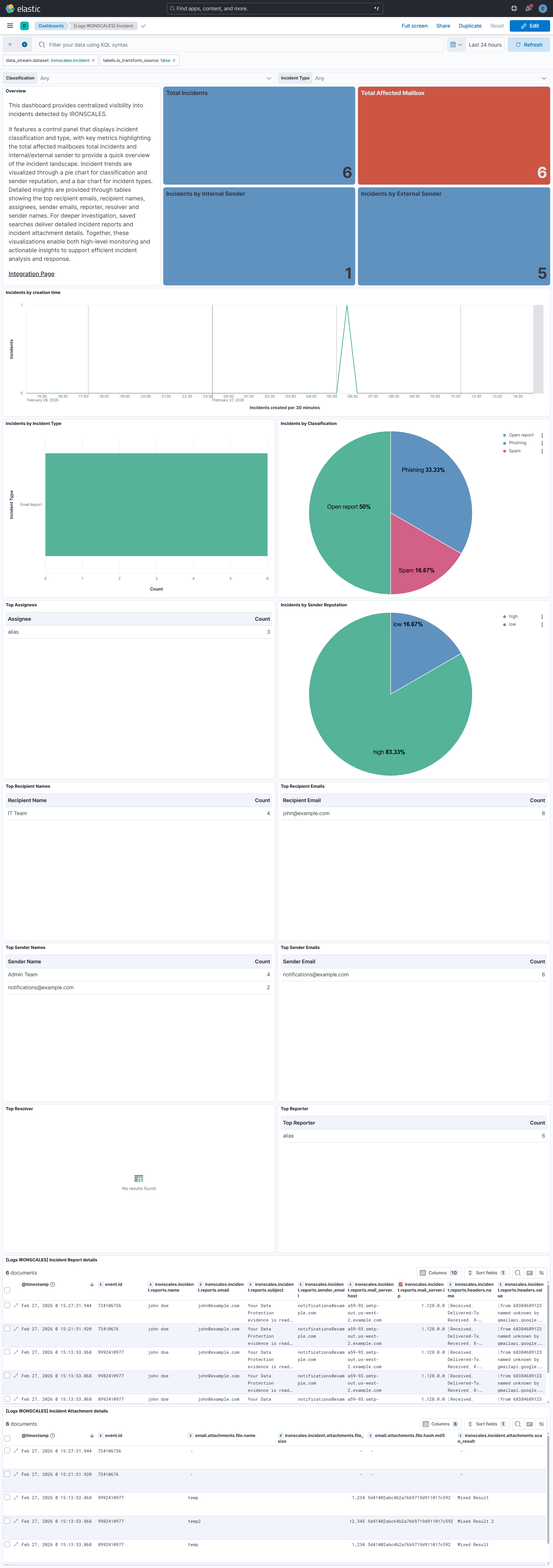
Integrating IRONSCALES with Elastic SIEM provides centralized visibility into email security incidents and their underlying context. Kibana dashboards track incident classifications and types, with key metrics highlighting the total affected mailboxes and total incidents for a quick overview of the threat landscape.
Pie and bar charts visualize incident classifications, sender reputation, and incident types, helping analysts identify emerging phishing patterns and attack sources. Tables display the top recipient emails, recipient names, assignees, sender emails, and sender names to support in-depth investigation.
Saved searches include detailed incident reports and attachment information to enrich investigations with essential context. These insights enable analysts to monitor email threat activity, identify high-risk users, and accelerate phishing detection and response workflows.
This integration installs Elastic latest transforms. For more details, check the Transform setup and requirements.
To collect data through the IRONSCALES APIs, you need to provide an API Token and Company ID. Authentication is handled using the API Token, which serves as the required credential.
- Log in to the IRONSCALES instance.
- Navigate to Settings > Account Settings > General & Security.
- Locate the APP API Token and Company ID values in this section.
- Copy both values and store them securely for use in the Integration configuration.
This integration supports both Elastic Agentless-based and Agent-based installations.
Agentless integrations allow you to collect data without having to manage Elastic Agent in your cloud. They make manual agent deployment unnecessary, so you can focus on your data instead of the agent that collects it. For more information, refer to Agentless integrations and the Agentless integrations FAQ.
Agentless deployments are only supported in Elastic Serverless and Elastic Cloud environments. This functionality is in beta and is subject to change. Beta features are not subject to the support SLA of official GA features.
Elastic Agent must be installed. For more details, check the Elastic Agent installation instructions. You can install only one Elastic Agent per host.
In the top search bar in Kibana, search for Integrations.
In the search bar, type IRONSCALES.
Select the IRONSCALES integration from the search results.
Select Add IRONSCALES to add the integration.
Enable and configure only the collection methods which you will use.
To Collect logs from IRONSCALES API, you'll need to:
- Configure URL, API Token and Company ID.
- Adjust the integration configuration parameters if required, including the Interval, Page Size etc. to enable data collection.
Select Save and continue to save the integration.
- In the top search bar in Kibana, search for Dashboards.
- In the search bar, type IRONSCALES, and verify the dashboard information is populated.
- In the top search bar in Kibana, search for Transforms.
- Select the Data / Transforms from the search results.
- In the search bar, type ironscales.
- Transform from the search results should indicate Healthy under the Health column.
For more information on architectures that can be used for scaling this integration, check the Ingest Architectures documentation.
Exported fields
| Field | Description | Type |
|---|---|---|
| @timestamp | Date/time when the event originated. This is the date/time extracted from the event, typically representing when the event was generated by the source. If the event source has no original timestamp, this value is typically populated by the first time the event was received by the pipeline. Required field for all events. | date |
| data_stream.dataset | The field can contain anything that makes sense to signify the source of the data. Examples include nginx.access, prometheus, endpoint etc. For data streams that otherwise fit, but that do not have dataset set we use the value "generic" for the dataset value. event.dataset should have the same value as data_stream.dataset. Beyond the Elasticsearch data stream naming criteria noted above, the dataset value has additional restrictions: * Must not contain - * No longer than 100 characters |
constant_keyword |
| data_stream.namespace | A user defined namespace. Namespaces are useful to allow grouping of data. Many users already organize their indices this way, and the data stream naming scheme now provides this best practice as a default. Many users will populate this field with default. If no value is used, it falls back to default. Beyond the Elasticsearch index naming criteria noted above, namespace value has the additional restrictions: * Must not contain - * No longer than 100 characters |
constant_keyword |
| data_stream.type | An overarching type for the data stream. Currently allowed values are "logs" and "metrics". We expect to also add "traces" and "synthetics" in the near future. | constant_keyword |
| email.attachments | A list of objects describing the attachment files sent along with an email message. | nested |
| email.attachments.file.hash.md5 | MD5 hash. | keyword |
| email.attachments.file.name | Name of the attachment file including the file extension. | keyword |
| event.dataset | Name of the dataset. If an event source publishes more than one type of log or events (e.g. access log, error log), the dataset is used to specify which one the event comes from. It's recommended but not required to start the dataset name with the module name, followed by a dot, then the dataset name. | constant_keyword |
| event.module | Name of the module this data is coming from. If your monitoring agent supports the concept of modules or plugins to process events of a given source (e.g. Apache logs), event.module should contain the name of this module. |
constant_keyword |
| input.type | Type of filebeat input. | keyword |
| ironscales.incident.affected_mailboxes_count | long | |
| ironscales.incident.assignee | keyword | |
| ironscales.incident.attachments.file_name | keyword | |
| ironscales.incident.attachments.file_size | long | |
| ironscales.incident.attachments.md5 | keyword | |
| ironscales.incident.attachments.scan_result | keyword | |
| ironscales.incident.attachments_count | long | |
| ironscales.incident.banner_displayed | keyword | |
| ironscales.incident.challenged_events.property1 | keyword | |
| ironscales.incident.challenged_events.property2 | keyword | |
| ironscales.incident.challenged_type | keyword | |
| ironscales.incident.classification | keyword | |
| ironscales.incident.comments_count | long | |
| ironscales.incident.company_id | keyword | |
| ironscales.incident.company_name | keyword | |
| ironscales.incident.created | date | |
| ironscales.incident.detailed_classification | keyword | |
| ironscales.incident.email_body_text | text | |
| ironscales.incident.email_subject | keyword | |
| ironscales.incident.email_subject.text | Multi-field of ironscales.incident.email_subject. |
match_only_text |
| ironscales.incident.federation.companies_affected | long | |
| ironscales.incident.federation.companies_marked_fp | long | |
| ironscales.incident.federation.companies_marked_phishing | long | |
| ironscales.incident.federation.companies_marked_spam | long | |
| ironscales.incident.federation.companies_unclassified | long | |
| ironscales.incident.federation.phishing_ratio | double | |
| ironscales.incident.first_challenged_date | date | |
| ironscales.incident.first_reported_by | keyword | |
| ironscales.incident.first_reported_date | date | |
| ironscales.incident.incident_id | keyword | |
| ironscales.incident.incident_type | keyword | |
| ironscales.incident.latest_email_date | date | |
| ironscales.incident.links.name | keyword | |
| ironscales.incident.links.scan_result | keyword | |
| ironscales.incident.links.url | keyword | |
| ironscales.incident.links_count | long | |
| ironscales.incident.mail_server.host | keyword | |
| ironscales.incident.mail_server.ip | ip | |
| ironscales.incident.original_email_body | text | |
| ironscales.incident.recipient_email | keyword | |
| ironscales.incident.recipient_name | keyword | |
| ironscales.incident.related_incidents | long | |
| ironscales.incident.release_request_count | long | |
| ironscales.incident.reply_to | keyword | |
| ironscales.incident.reported_by | keyword | |
| ironscales.incident.reported_by_end_user | boolean | |
| ironscales.incident.reporter_name | keyword | |
| ironscales.incident.reports.email | keyword | |
| ironscales.incident.reports.headers.name | keyword | |
| ironscales.incident.reports.headers.value | keyword | |
| ironscales.incident.reports.mail_server.host | keyword | |
| ironscales.incident.reports.mail_server.ip | ip | |
| ironscales.incident.reports.name | keyword | |
| ironscales.incident.reports.sender_email | keyword | |
| ironscales.incident.reports.subject | keyword | |
| ironscales.incident.resolved_by | keyword | |
| ironscales.incident.sender_email | keyword | |
| ironscales.incident.sender_is_internal | boolean | |
| ironscales.incident.sender_name | keyword | |
| ironscales.incident.sender_reputation | keyword | |
| ironscales.incident.spf_result | keyword | |
| ironscales.incident.themis_proba | double | |
| ironscales.incident.themis_verdict | keyword | |
| labels.is_transform_source | Distinguishes between documents that are a source for a transform and documents that are an output of a transform, to facilitate easier filtering. | constant_keyword |
| log.offset | Log offset. | long |
| observer.vendor | Vendor name of the observer. | constant_keyword |
Example
{
"@timestamp": "2026-02-27T10:02:14.102Z",
"agent": {
"ephemeral_id": "2ffdc98d-40b5-4b52-ba63-51297dd3c489",
"id": "43a68f84-4a93-47e9-94a0-293eb306d93b",
"name": "elastic-agent-40338",
"type": "filebeat",
"version": "8.18.0"
},
"data_stream": {
"dataset": "ironscales.incident",
"namespace": "23569",
"type": "logs"
},
"ecs": {
"version": "9.3.0"
},
"elastic_agent": {
"id": "43a68f84-4a93-47e9-94a0-293eb306d93b",
"snapshot": false,
"version": "8.18.0"
},
"email": {
"from": {
"address": [
"alias.doe@example.com"
]
},
"subject": "Action Required: Please Reset Your Password Immediately",
"to": {
"address": [
"john@example.com"
]
}
},
"event": {
"agent_id_status": "verified",
"created": "2025-10-27T07:16:07.368Z",
"dataset": "ironscales.incident",
"id": "72302028",
"ingested": "2026-02-27T10:02:17Z",
"kind": "event",
"original": "{\"affectedMailboxesCount\":4,\"affected_mailbox_count\":4,\"assignee\":null,\"attachments\":[],\"attachmentsCount\":0,\"banner_displayed\":\"First Time Sender\",\"challengedType\":null,\"challenged_events\":[],\"challenged_type\":null,\"classification\":\"Phishing\",\"commentsCount\":5,\"company_id\":341405,\"company_name\":\"example company\",\"created\":\"2025-10-27T07:16:07.368189Z\",\"detailed_classification\":\"Attack\",\"emailSubject\":\"Action Required: Please Reset Your Password Immediately\",\"email_body_text\":\"\\n\\nHi @john@example.com \\n\\nThis is a reminder to reset your account password as soon as possible to ensure continued access and maintain security compliance.\\n\\nPlease click below link to reset your password:-\\n\\nserviciosbys.com/doe.cgi.bin.get-into.herf.secure.dispatch35463256rzr321654641dsf654321874/href/href/href/secure/center/update/limit/seccure/4d7a1ff5c55825a2e632a679c2fd5353/ \\n\\nThank you for your prompt action.\\n\\nBest regards,\\n\\nDisclaimer:\\n\\nThe information contained in this electronic message and any attachments to this message are intended for the exclusive use of the addressee(s) and may contain confidential or privileged information. If you are not the intended recipient, please notify the sender at test company Systems immediately and destroy all copies of this message and any attachments.\\n\\n\",\"federation\":{\"companies_affected\":0,\"companies_marked_fp\":0,\"companies_marked_phishing\":0,\"companies_marked_spam\":0,\"companies_unclassified\":0,\"phishing_ratio\":null},\"firstChallengedDate\":null,\"first_challenged_date\":null,\"first_reported_by\":\"Automated Threat Detection\",\"first_reported_date\":\"2025-10-27T07:16:07.368189Z\",\"incidentID\":72302028,\"incidentType\":\"Email Report\",\"incident_id\":72302028,\"latestEmailDate\":\"2025-10-27T11:59:03Z\",\"links\":[{\"name\":\"serviciosbys.com/doe.cgi.bin.get-into.herf.secure.dispatch35463256rzr321654641dsf654321874/href/href/href/secure/center/update/limit/seccure/4d7a1ff5c55825a2e632a679c2fd5353/\",\"scan_result\":\"N/A\",\"url\":\"https://example.com/s/jNQwCAAowcNooI8h1uGpITM?domain=serviciosbys.com\"}],\"linksCount\":1,\"mail_server\":{\"host\":\"example.com\",\"ip\":\"1.128.0.0\"},\"original_email_body\":\"\\u003cdiv dir=\\\"ltr\\\"\\u003e\\u003cp\\u003eHi\\u003ca class=\\\"gmail_plusreply\\\" id=\\\"plusReplyChip-0\\\" href=\\\"mailto:john@example.com\\\" tabindex=\\\"-1\\\"\\u003e@john@example.com\\u003c/a\\u003e\\u003c/p\\u003e\\r\\n\\u003cp\\u003eThis is a reminder to \\u003cstrong\\u003ereset your account password as soon as possible\\u003c/strong\\u003e to ensure continued access and maintain security compliance.\\u003c/p\\u003e\\r\\n\\u003cp\\u003ePlease click below link to reset your password:-\\u003c/p\\u003e\\u003ctable border=\\\"0\\\" cellpadding=\\\"0\\\" cellspacing=\\\"0\\\" width=\\\"64\\\" style=\\\"border-collapse:collapse;width:48pt\\\"\\u003e\\r\\n \\u003ccolgroup\\u003e\\u003ccol width=\\\"64\\\" style=\\\"width:48pt\\\"\\u003e\\r\\n \\u003c/colgroup\\u003e\\u003ctbody\\u003e\\u003ctr height=\\\"19\\\" style=\\\"height:14.4pt\\\"\\u003e\\r\\n\\r\\n \\u003ctd height=\\\"19\\\" width=\\\"64\\\" style=\\\"height:14.4pt;width:48pt;padding-top:1px;padding-right:1px;padding-left:1px;color:black;font-size:11pt;font-family:\\u0026quot;Aptos Narrow\\u0026quot;,sans-serif;vertical-align:bottom;border:none\\\"\\u003e\\u003ca href=\\\"https://example.com/s/jNQwCAAowcNooI8h1uGpITM?domain=serviciosbys.com\\\"\\u003eserviciosbys.com/doe.cgi.bin.get-into.herf.secure.dispatch35463256rzr321654641dsf654321874/href/href/href/secure/center/update/limit/seccure/4d7a1ff5c55825a2e632a679c2fd5353/\\u003c/a\\u003e\\u003c/td\\u003e\\r\\n\\r\\n \\u003c/tr\\u003e\\r\\n\\u003c/tbody\\u003e\\u003c/table\\u003e\\r\\n\\u003cp\\u003eThank you for your prompt action.\\u003c/p\\u003e\\r\\n\\u003cp\\u003eBest regards,\\u003c/p\\u003e\\u003c/div\\u003e\\r\\n\\r\\n\\u003cbr\\u003e\\r\\n\\u003cdiv style=\\\"text-align:justify\\\"\\u003e\\u003cb\\u003eDisclaimer:\\u003c/b\\u003e\\u003cbr\\u003e\\u003c/div\\u003e\\u003cdiv style=\\\"text-align:justify\\\"\\u003eThe information contained in this electronic message and any attachments to this message are intended for the exclusive use of the addressee(s) and may contain confidential or privileged information. If you are not the intended recipient, please notify the sender attest company Systemsimmediately and destroy all copies of this message and any attachments.\\u003cbr\\u003e\\u003c/div\\u003e\\r\\n\",\"recipientEmail\":\"john@example.com\",\"recipientName\":null,\"related_incidents\":[],\"releaseRequestCount\":0,\"reply_to\":null,\"reportedBy\":\"Automated Threat Detection\",\"reported_by_end_user\":false,\"reporter_name\":null,\"reports\":[{\"email\":\"john@example.com\",\"headers\":[{\"name\":\"Delivered-To\",\"value\":\"john@example.com\"},{\"name\":\"Received\",\"value\":\"by 2002:a2e:a22a:0:b0:36f:ec1f:fa6 with SMTP id i10csp1047284ljm; Mon, 27 Oct 2025 00:16:01 -0700 (PDT)\"},{\"name\":\"X-Google-Smtp-Source\",\"value\":\"AGHT+IGdVUGRLbC1f1wcxpBXetkmhS/znG7DIDODhKJ7Bom9/lWBGBkLILOOfICuhBM9Y1Gf4uCG\"},{\"name\":\"X-Received\",\"value\":\"by 2002:a05:600c:3e86:b0:46e:36f8:1eb7 with SMTP id 5b1f17b1804b1-471178a3a94mr249461645e9.10.1761549361315; Mon, 27 Oct 2025 00:16:01 -0700 (PDT)\"},{\"name\":\"ARC-Seal\",\"value\":\"i=2; a=rsa-sha256; t=1761549361; cv=pass; d=google.com; s=arc-20240605; b=GVzurVLdQ84Ndb0otJczmTw0QmxP/SSq+wcTlGHgSnYkPKPOe22N2+q5dU9uxkSu7J 1LGUQO67DRAOk/TblAVkypLpnQ9YlRr/QrpNcMMz/BZtTL+bxeVhsReoZbR+kcWd4KjV M8sBb85QWUPUuB2FSTJTBbQ7vcsqaYNcapKShDmpZzrm2tCCftOKCbufpJyaW1KbCcTw jAHsPXG8H7RJJajo6d99m8ImNbwgHTmA1O9K88mhcMV5Eemw8da/H7kBz4tg/uHMZs85 CAzKoxvHekClN+gsEnLHSGDvmiVSMubvDy63ReoHp5oQr/D5ZwVVNkXe4OLkz97BF3uU TRRA==\"},{\"name\":\"ARC-Message-Signature\",\"value\":\"i=2; a=rsa-sha256; c=relaxed/relaxed; d=google.com; s=arc-20240605; h=to:subject:message-id:date:from:mime-version:dkim-signature; bh=P3hxSwjQUhejN1oiYZCO77lzH3sfUpTytUkCbWDQ/ZQ=; fh=D4JKKfXuqq2mMoC8k3e8BKECclgeeGTrYXCULNK0Jek=; b=OgeP1lX9P+a221Sm0EYY3998zZAVXEq8ISK3TzeobKOLHQfzc6ODTbR+yjGT03BnQP Yj9Nnb1ta/E/3D5Z2kwKuOOmYb18jPNtBOB8tlwlnNWZMnBUbRFjfaQ3+lHQb5k7WjaW Z8DCCpmXTe03jI4dBijYGeWDAztXFDikJtN1PbjZxG+weTYxpzzfsrfW3+GC98/0It7X 0ghYt8Io9B8pOW1FBzHSeeuiQKYpR4ICiavT+UWaP5rlkXKjYOkmRoPYW3/k6wuxwwzf 4MGLNWOWm73vePlS3QyEnJxIRdyd+68DY2X6zFCzMpz95tFIVjkfDRdr/clHcuxW+scS tlLg==; dara=google.com\"},{\"name\":\"ARC-Authentication-Results\",\"value\":\"i=2; mx.google.com; dkim=neutral (body hash did not verify) header.i=@example.com header.s=google header.b=ZsKyYZap; arc=pass (i=1 spf=pass spfdomain=example.com dkim=pass dkdomain=example.com dmarc=pass fromdomain=example.com); spf=pass (google.com: domain of alias.doe@example.com designates 1.128.0.0 as permitted sender) smtp.mailfrom=alias.doe@example.com\"},{\"name\":\"Return-Path\",\"value\":\"\\u003calias.doe@example.com\\u003e\"},{\"name\":\"Received\",\"value\":\"from eu-smtp-inbound-delivery-1.mimecast.com (eu-smtp-delivery-1.mimecast.com. [195.130.217.221]) by mx.google.com with ESMTPS id ffacd0b85a97d-429961154d8si3457011f8f.943.2025.10.27.00.16.01 for \\u003cjohn@example.com\\u003e (version=TLS1_3 cipher=TLS_AES_256_GCM_SHA384 bits=256/256); Mon, 27 Oct 2025 00:16:01 -0700 (PDT)\"},{\"name\":\"Received-SPF\",\"value\":\"pass (google.com: domain of alias.doe@example.com designates 1.128.0.0 as permitted sender) client-ip=1.128.0.0;\"},{\"name\":\"Authentication-Results\",\"value\":\"mx.google.com; dkim=neutral (body hash did not verify) header.i=@example.com header.s=google header.b=ZsKyYZap; arc=pass (i=1 spf=pass spfdomain=example.com dkim=pass dkdomain=example.com dmarc=pass fromdomain=example.com); spf=pass (google.com: domain of alias.doe@example.com designates 1.128.0.0 as permitted sender) smtp.mailfrom=alias.doe@example.com\"},{\"name\":\"ARC-Message-Signature\",\"value\":\"i=1; a=rsa-sha256; c=relaxed/relaxed; d=dkim.mimecast.com; s=201903; t=1761549361; h=from:from:reply-to:subject:subject:date:date:message-id:message-id:\\t to:to:cc:mime-version:mime-version:content-type:content-type:\\t dkim-signature; bh=P3hxSwjQUhejN1oiYZCO77lzH3sfUpTytUkCbWDQ/ZQ=; b=eIJ2mVku5i5FBj4NHMILzk65uMLrPjEAMouxbPDGJVN8OaoaJ0LvqGE7pbvVYCBNgFSlqi toN3Uo7xoiU72drSET8HkCcQmDt5590C5+TfpndH2hR4HwkrVIPC0gssKyrwKgX4WBI7F/ Rt6BVLJaebt9mK86pUjQj9cBb6kqFtv4l89FmTY+mGH9hMrpa4ReTnrIC1wt3Zkfg3vtmh fSEX4LEOtZNYunzPCq0J28Nuq8+144qQwlAkv1Zfz8TItDUZIrLaWAHsdc6ZCLUwNwvc11 Zbkmq1isWldGZyM0n4cArC5Xejp+HTehRGE/1g2n9Mab1mWbY9btUFdLUt0zsg==\"},{\"name\":\"ARC-Seal\",\"value\":\"i=1; s=201903; d=dkim.mimecast.com; t=1761549361; a=rsa-sha256; cv=none; b=n1zoyXopS0UmTrQaW8dnMsayKyEYltTO0pvp/9oEUS5JVh0v0NHE26gAj4tYX5XLL+3075 8hsrJ8AJQviomFnmhsVrBzp+gXDkHoQVeWheD5PONQCqGVx0fbE6W/2ZFi9luia79uV3ms AxQxS4YQ4AskRBNLLwMJKUQ9Wu0w5Z08jn9G4ZUejQjQjX1T9bQs78gnWjFHTN/AR6CblV o7U6gbOOWJq4KaSNDAvkEHCGO55CEGbmEo5/u0IZRcGSp26pKrahQbyvWsO4Q7T8OVYYu6 omQix9xcf880XYmcint3ZuZa0EDUS0lLlyrKCy/14gd4ZwHRRPb57gQ7jSEHvw==\"},{\"name\":\"ARC-Authentication-Results\",\"value\":\"i=1; relay.mimecast.com; dkim=pass header.d=example.com header.s=google header.b=ZsKyYZap; dmarc=pass (policy=quarantine) header.from=example.com; spf=pass (relay.mimecast.com: domain of alias.doe@example.com designates 1.128.0.0 as permitted sender) smtp.mailfrom=alias.doe@example.com\"},{\"name\":\"Authentication-Results\",\"value\":\"relay.mimecast.com; dkim=pass header.d=example.com header.s=google header.b=ZsKyYZap; dmarc=pass (policy=quarantine) header.from=example.com; spf=pass (relay.mimecast.com: domain of alias.doe@example.com designates 1.128.0.0 as permitted sender) smtp.mailfrom=alias.doe@example.com\"},{\"name\":\"Received\",\"value\":\"from example.com (example.com [1.128.0.0]) by relay.mimecast.com with ESMTP with STARTTLS (version=TLSv1.3, cipher=TLS_AES_256_GCM_SHA384) id uk-mta-330-Rl2R1njmOverTSoTlz3qNQ-1; Mon, 27 Oct 2025 06:11:38 +0000\"},{\"name\":\"X-MC-Unique\",\"value\":\"Rl2R1njmOverTSoTlz3qNQ-1\"},{\"name\":\"X-Mimecast-MFC-AGG-ID\",\"value\":\"Rl2R1njmOverTSoTlz3qNQ_1761545497\"},{\"name\":\"Received\",\"value\":\"by example.com with SMTP id 38308e7fff4ca-3615d93c3d1so2544511fa.1 for \\u003cjohn@example.com\\u003e; Sun, 26 Oct 2025 23:11:38 -0700 (PDT)\"},{\"name\":\"DKIM-Signature\",\"value\":\"v=1; a=rsa-sha256; c=relaxed/relaxed; d=example.com; s=google; t=1761545497; x=1762150297; darn=example.com; h=to:subject:message-id:date:from:mime-version:from:to:cc:subject :date:message-id:reply-to; bh=5io1sKvUTNu6tEHDlE/6x0mKoFnLR+oouD4SWYx8ASY=; b=ZsKyYZapbSPQNEN0jtNWkbgozhQROFJ5lydp5VPRsgdiHqhMy/NlrVQU3hBaGnH4YG Bvim6UxUoBR3OgpRsGT0FLbzK5dkeBVKNlB8fVXyWSjOVtUH4xd78nTmoAsByGQjIVqa gnRNVO6dxbPUqiOOiBcjb4ksK3WeMo4EMndWvBkZDovq47ZSW2Y979LAjun83smh6mwi 8YhEAtcGR4r9S37yBJj3Dyfu2cfzIRo8FI9n8dwP+npadcAINBmwol/yMnkwNr5rXEEZ wVOtAXnVuGsxvxDeP8xWT4rBCNELj7vxRfyoX1GGI2yo4z728IiyZmcF5DJgpGGv5k66 5fQA==\"},{\"name\":\"X-Google-DKIM-Signature\",\"value\":\"v=1; a=rsa-sha256; c=relaxed/relaxed; d=1e100.net; s=20230601; t=1761545497; x=1762150297; h=to:subject:message-id:date:from:mime-version:x-gm-message-state :from:to:cc:subject:date:message-id:reply-to; bh=5io1sKvUTNu6tEHDlE/6x0mKoFnLR+oouD4SWYx8ASY=; b=Grfb9JO2sZMEJhUTu9r7uDbI8ky6N2HdhOl3wrfOP9/3xvlfysbbg7o4WZaAPlxj2j PsaP/Px7UzeejT7942jlnIlYioMC9rnV0bmTxvBFWB4AQgzqyqmDKHL2gHMKyHWYtviY CePsZkFhhcGaMCnuacLF9K2AS7tDCUFqDYQNgt8EeoQLc+0Ld089+zqseDVDWIVqFCAe NUyyNiQufEwCdVGt492ynXXghxpawOXHDe0NVH4APx1Z30G/htP8YxnL/O9soBsAbD/0 bySvyZCpCc7vLbiYkBIMhgD+1ewiZR36jaDlCuTeOjtfBJl6qiO8mRojzKioeCozorQL BzGg==\"},{\"name\":\"X-Gm-Message-State\",\"value\":\"AOJu0YzyFyAmbKahTaJlpa+jKg+dFHzcH/rONvIzH2MUGh7n6404TM+1 aqRAMX9A9NEJykCt+f2QtU00ri94I8DvWG4KBfUmssHkD2Nd2o8nmNQ0+QFlz0VQiNfqOkn/5it hDWcZNyMA7zUabVYMuHKxg6gJWgLNoQg4CCwe8b3BE7cd6M3L1SU4LWXQ3y/UqsR4TaEHKpbUTe yQ/8W1FOQFCl3VeSgKSHHs/isBrktGqmFa3R/fkIM=\"},{\"name\":\"X-Gm-Gg\",\"value\":\"ASbGncvxlOdTyUYe1OvTyl0vtI8kxSabo1o/IF/OhdU0w1jbZGPU3AaFN4zebWlEsAJ EoPla871b8NF6ZzxuILin3TSxDQJyKkwpianQGWjfYM2bJE7D7ECz9G44fXrUNuuCDIq/s4+p3W N31AfTPxAdn1tqAQOte3soh6gs7FDX6HFzfU5ndimomJ/xLtJts1sIGhTBpXGKNhAijtWZVaQXH g42U0XQ86aFJ4+luA64fFWZXqyRKZaQ+zF6v8YGUS0MFCyQBRByDpgta+E=\"},{\"name\":\"X-Received\",\"value\":\"by 2002:a05:651c:19a0:b0:370:af32:f753 with SMTP id 38308e7fff4ca-377bdd83933mr49057811fa.3.1761545496872; Sun, 26 Oct 2025 23:11:36 -0700 (PDT)\"},{\"name\":\"MIME-Version\",\"value\":\"1.0\"},{\"name\":\"From\",\"value\":\"alias doe \\u003calias.doe@example.com\\u003e\"},{\"name\":\"Date\",\"value\":\"Mon, 27 Oct 2025 11:40:59 +0530\"},{\"name\":\"X-Gm-Features\",\"value\":\"AWmQ_blHe5wZKidNv_WQKDejzMUsJcNO9s4e20KvJDeZiUQq-CswN6ZsSil6y_g\"},{\"name\":\"Message-ID\",\"value\":\"\\u003cCADLATx2ZPUtFbqngvmyh6vJD1jMDAvbjuWNnWPWsr2JOn5p_fQ@mail.gmail.com\\u003e\"},{\"name\":\"Subject\",\"value\":\"Action Required: Please Reset Your Password Immediately\"},{\"name\":\"To\",\"value\":\"john@example.com\"},{\"name\":\"X-Mimecast-Spam-Score\",\"value\":\"9\"},{\"name\":\"X-Mimecast-MFC-PROC-ID\",\"value\":\"7i31cihTsIvTOQToUJwEl9Bcdt4AbRwgJyVO66F7kEQ_1761545497\"},{\"name\":\"Content-Type\",\"value\":\"multipart/alternative; boundary=\\\"00000000000098e15c06421dc534\\\"\"}],\"mail_server\":{\"host\":\"example.com\",\"ip\":\"1.128.0.0\"},\"name\":\"john doe\",\"sender_email\":\"alias.doe@example.com\",\"subject\":\"Action Required: Please Reset Your Password Immediately\"}],\"resolvedBy\":\"john .don\",\"senderEmail\":\"Alias.Doe@example.com\",\"senderName\":\"Alias Doe\",\"sender_email\":\"alias.doe@example.com\",\"sender_is_internal\":false,\"sender_reputation\":\"low\",\"spf_result\":null,\"themis_proba\":null,\"themis_verdict\":null}"
},
"host": {
"domain": "example.com",
"ip": [
"1.128.0.0"
]
},
"input": {
"type": "cel"
},
"ironscales": {
"incident": {
"affected_mailboxes_count": 4,
"attachments_count": 0,
"banner_displayed": "First Time Sender",
"classification": "Phishing",
"comments_count": 5,
"company_id": "341405",
"company_name": "example company",
"created": "2025-10-27T07:16:07.368Z",
"detailed_classification": "Attack",
"email_body_text": "\n\nHi @john@example.com \n\nThis is a reminder to reset your account password as soon as possible to ensure continued access and maintain security compliance.\n\nPlease click below link to reset your password:-\n\nserviciosbys.com/doe.cgi.bin.get-into.herf.secure.dispatch35463256rzr321654641dsf654321874/href/href/href/secure/center/update/limit/seccure/4d7a1ff5c55825a2e632a679c2fd5353/ \n\nThank you for your prompt action.\n\nBest regards,\n\nDisclaimer:\n\nThe information contained in this electronic message and any attachments to this message are intended for the exclusive use of the addressee(s) and may contain confidential or privileged information. If you are not the intended recipient, please notify the sender at test company Systems immediately and destroy all copies of this message and any attachments.\n\n",
"email_subject": "Action Required: Please Reset Your Password Immediately",
"federation": {
"companies_affected": 0,
"companies_marked_fp": 0,
"companies_marked_phishing": 0,
"companies_marked_spam": 0,
"companies_unclassified": 0
},
"first_reported_by": "Automated Threat Detection",
"first_reported_date": "2025-10-27T07:16:07.368Z",
"incident_id": "72302028",
"incident_type": "Email Report",
"latest_email_date": "2025-10-27T11:59:03.000Z",
"links": [
{
"name": "serviciosbys.com/doe.cgi.bin.get-into.herf.secure.dispatch35463256rzr321654641dsf654321874/href/href/href/secure/center/update/limit/seccure/4d7a1ff5c55825a2e632a679c2fd5353/",
"scan_result": "N/A",
"url": "https://example.com/s/jNQwCAAowcNooI8h1uGpITM?domain=serviciosbys.com"
}
],
"links_count": 1,
"mail_server": {
"host": "example.com",
"ip": "1.128.0.0"
},
"original_email_body": "<div dir=\"ltr\"><p>Hi<a class=\"gmail_plusreply\" id=\"plusReplyChip-0\" href=\"mailto:john@example.com\" tabindex=\"-1\">@john@example.com</a></p>\r\n<p>This is a reminder to <strong>reset your account password as soon as possible</strong> to ensure continued access and maintain security compliance.</p>\r\n<p>Please click below link to reset your password:-</p><table border=\"0\" cellpadding=\"0\" cellspacing=\"0\" width=\"64\" style=\"border-collapse:collapse;width:48pt\">\r\n <colgroup><col width=\"64\" style=\"width:48pt\">\r\n </colgroup><tbody><tr height=\"19\" style=\"height:14.4pt\">\r\n\r\n <td height=\"19\" width=\"64\" style=\"height:14.4pt;width:48pt;padding-top:1px;padding-right:1px;padding-left:1px;color:black;font-size:11pt;font-family:"Aptos Narrow",sans-serif;vertical-align:bottom;border:none\"><a href=\"https://example.com/s/jNQwCAAowcNooI8h1uGpITM?domain=serviciosbys.com\">serviciosbys.com/doe.cgi.bin.get-into.herf.secure.dispatch35463256rzr321654641dsf654321874/href/href/href/secure/center/update/limit/seccure/4d7a1ff5c55825a2e632a679c2fd5353/</a></td>\r\n\r\n </tr>\r\n</tbody></table>\r\n<p>Thank you for your prompt action.</p>\r\n<p>Best regards,</p></div>\r\n\r\n<br>\r\n<div style=\"text-align:justify\"><b>Disclaimer:</b><br></div><div style=\"text-align:justify\">The information contained in this electronic message and any attachments to this message are intended for the exclusive use of the addressee(s) and may contain confidential or privileged information. If you are not the intended recipient, please notify the sender attest company Systemsimmediately and destroy all copies of this message and any attachments.<br></div>\r\n",
"recipient_email": "john@example.com",
"release_request_count": 0,
"reported_by": "Automated Threat Detection",
"reported_by_end_user": false,
"reports": [
{
"email": "john@example.com",
"headers": [
{
"name": "Delivered-To",
"value": "john@example.com"
},
{
"name": "Received",
"value": "by 2002:a2e:a22a:0:b0:36f:ec1f:fa6 with SMTP id i10csp1047284ljm; Mon, 27 Oct 2025 00:16:01 -0700 (PDT)"
},
{
"name": "X-Google-Smtp-Source",
"value": "AGHT+IGdVUGRLbC1f1wcxpBXetkmhS/znG7DIDODhKJ7Bom9/lWBGBkLILOOfICuhBM9Y1Gf4uCG"
},
{
"name": "X-Received",
"value": "by 2002:a05:600c:3e86:b0:46e:36f8:1eb7 with SMTP id 5b1f17b1804b1-471178a3a94mr249461645e9.10.1761549361315; Mon, 27 Oct 2025 00:16:01 -0700 (PDT)"
},
{
"name": "ARC-Seal",
"value": "i=2; a=rsa-sha256; t=1761549361; cv=pass; d=google.com; s=arc-20240605; b=GVzurVLdQ84Ndb0otJczmTw0QmxP/SSq+wcTlGHgSnYkPKPOe22N2+q5dU9uxkSu7J 1LGUQO67DRAOk/TblAVkypLpnQ9YlRr/QrpNcMMz/BZtTL+bxeVhsReoZbR+kcWd4KjV M8sBb85QWUPUuB2FSTJTBbQ7vcsqaYNcapKShDmpZzrm2tCCftOKCbufpJyaW1KbCcTw jAHsPXG8H7RJJajo6d99m8ImNbwgHTmA1O9K88mhcMV5Eemw8da/H7kBz4tg/uHMZs85 CAzKoxvHekClN+gsEnLHSGDvmiVSMubvDy63ReoHp5oQr/D5ZwVVNkXe4OLkz97BF3uU TRRA=="
},
{
"name": "ARC-Message-Signature",
"value": "i=2; a=rsa-sha256; c=relaxed/relaxed; d=google.com; s=arc-20240605; h=to:subject:message-id:date:from:mime-version:dkim-signature; bh=P3hxSwjQUhejN1oiYZCO77lzH3sfUpTytUkCbWDQ/ZQ=; fh=D4JKKfXuqq2mMoC8k3e8BKECclgeeGTrYXCULNK0Jek=; b=OgeP1lX9P+a221Sm0EYY3998zZAVXEq8ISK3TzeobKOLHQfzc6ODTbR+yjGT03BnQP Yj9Nnb1ta/E/3D5Z2kwKuOOmYb18jPNtBOB8tlwlnNWZMnBUbRFjfaQ3+lHQb5k7WjaW Z8DCCpmXTe03jI4dBijYGeWDAztXFDikJtN1PbjZxG+weTYxpzzfsrfW3+GC98/0It7X 0ghYt8Io9B8pOW1FBzHSeeuiQKYpR4ICiavT+UWaP5rlkXKjYOkmRoPYW3/k6wuxwwzf 4MGLNWOWm73vePlS3QyEnJxIRdyd+68DY2X6zFCzMpz95tFIVjkfDRdr/clHcuxW+scS tlLg==; dara=google.com"
},
{
"name": "ARC-Authentication-Results",
"value": "i=2; mx.google.com; dkim=neutral (body hash did not verify) header.i=@example.com header.s=google header.b=ZsKyYZap; arc=pass (i=1 spf=pass spfdomain=example.com dkim=pass dkdomain=example.com dmarc=pass fromdomain=example.com); spf=pass (google.com: domain of alias.doe@example.com designates 1.128.0.0 as permitted sender) smtp.mailfrom=alias.doe@example.com"
},
{
"name": "Return-Path",
"value": "<alias.doe@example.com>"
},
{
"name": "Received",
"value": "from eu-smtp-inbound-delivery-1.mimecast.com (eu-smtp-delivery-1.mimecast.com. [195.130.217.221]) by mx.google.com with ESMTPS id ffacd0b85a97d-429961154d8si3457011f8f.943.2025.10.27.00.16.01 for <john@example.com> (version=TLS1_3 cipher=TLS_AES_256_GCM_SHA384 bits=256/256); Mon, 27 Oct 2025 00:16:01 -0700 (PDT)"
},
{
"name": "Received-SPF",
"value": "pass (google.com: domain of alias.doe@example.com designates 1.128.0.0 as permitted sender) client-ip=1.128.0.0;"
},
{
"name": "Authentication-Results",
"value": "mx.google.com; dkim=neutral (body hash did not verify) header.i=@example.com header.s=google header.b=ZsKyYZap; arc=pass (i=1 spf=pass spfdomain=example.com dkim=pass dkdomain=example.com dmarc=pass fromdomain=example.com); spf=pass (google.com: domain of alias.doe@example.com designates 1.128.0.0 as permitted sender) smtp.mailfrom=alias.doe@example.com"
},
{
"name": "ARC-Message-Signature",
"value": "i=1; a=rsa-sha256; c=relaxed/relaxed; d=dkim.mimecast.com; s=201903; t=1761549361; h=from:from:reply-to:subject:subject:date:date:message-id:message-id:\t to:to:cc:mime-version:mime-version:content-type:content-type:\t dkim-signature; bh=P3hxSwjQUhejN1oiYZCO77lzH3sfUpTytUkCbWDQ/ZQ=; b=eIJ2mVku5i5FBj4NHMILzk65uMLrPjEAMouxbPDGJVN8OaoaJ0LvqGE7pbvVYCBNgFSlqi toN3Uo7xoiU72drSET8HkCcQmDt5590C5+TfpndH2hR4HwkrVIPC0gssKyrwKgX4WBI7F/ Rt6BVLJaebt9mK86pUjQj9cBb6kqFtv4l89FmTY+mGH9hMrpa4ReTnrIC1wt3Zkfg3vtmh fSEX4LEOtZNYunzPCq0J28Nuq8+144qQwlAkv1Zfz8TItDUZIrLaWAHsdc6ZCLUwNwvc11 Zbkmq1isWldGZyM0n4cArC5Xejp+HTehRGE/1g2n9Mab1mWbY9btUFdLUt0zsg=="
},
{
"name": "ARC-Seal",
"value": "i=1; s=201903; d=dkim.mimecast.com; t=1761549361; a=rsa-sha256; cv=none; b=n1zoyXopS0UmTrQaW8dnMsayKyEYltTO0pvp/9oEUS5JVh0v0NHE26gAj4tYX5XLL+3075 8hsrJ8AJQviomFnmhsVrBzp+gXDkHoQVeWheD5PONQCqGVx0fbE6W/2ZFi9luia79uV3ms AxQxS4YQ4AskRBNLLwMJKUQ9Wu0w5Z08jn9G4ZUejQjQjX1T9bQs78gnWjFHTN/AR6CblV o7U6gbOOWJq4KaSNDAvkEHCGO55CEGbmEo5/u0IZRcGSp26pKrahQbyvWsO4Q7T8OVYYu6 omQix9xcf880XYmcint3ZuZa0EDUS0lLlyrKCy/14gd4ZwHRRPb57gQ7jSEHvw=="
},
{
"name": "ARC-Authentication-Results",
"value": "i=1; relay.mimecast.com; dkim=pass header.d=example.com header.s=google header.b=ZsKyYZap; dmarc=pass (policy=quarantine) header.from=example.com; spf=pass (relay.mimecast.com: domain of alias.doe@example.com designates 1.128.0.0 as permitted sender) smtp.mailfrom=alias.doe@example.com"
},
{
"name": "Authentication-Results",
"value": "relay.mimecast.com; dkim=pass header.d=example.com header.s=google header.b=ZsKyYZap; dmarc=pass (policy=quarantine) header.from=example.com; spf=pass (relay.mimecast.com: domain of alias.doe@example.com designates 1.128.0.0 as permitted sender) smtp.mailfrom=alias.doe@example.com"
},
{
"name": "Received",
"value": "from example.com (example.com [1.128.0.0]) by relay.mimecast.com with ESMTP with STARTTLS (version=TLSv1.3, cipher=TLS_AES_256_GCM_SHA384) id uk-mta-330-Rl2R1njmOverTSoTlz3qNQ-1; Mon, 27 Oct 2025 06:11:38 +0000"
},
{
"name": "X-MC-Unique",
"value": "Rl2R1njmOverTSoTlz3qNQ-1"
},
{
"name": "X-Mimecast-MFC-AGG-ID",
"value": "Rl2R1njmOverTSoTlz3qNQ_1761545497"
},
{
"name": "Received",
"value": "by example.com with SMTP id 38308e7fff4ca-3615d93c3d1so2544511fa.1 for <john@example.com>; Sun, 26 Oct 2025 23:11:38 -0700 (PDT)"
},
{
"name": "DKIM-Signature",
"value": "v=1; a=rsa-sha256; c=relaxed/relaxed; d=example.com; s=google; t=1761545497; x=1762150297; darn=example.com; h=to:subject:message-id:date:from:mime-version:from:to:cc:subject :date:message-id:reply-to; bh=5io1sKvUTNu6tEHDlE/6x0mKoFnLR+oouD4SWYx8ASY=; b=ZsKyYZapbSPQNEN0jtNWkbgozhQROFJ5lydp5VPRsgdiHqhMy/NlrVQU3hBaGnH4YG Bvim6UxUoBR3OgpRsGT0FLbzK5dkeBVKNlB8fVXyWSjOVtUH4xd78nTmoAsByGQjIVqa gnRNVO6dxbPUqiOOiBcjb4ksK3WeMo4EMndWvBkZDovq47ZSW2Y979LAjun83smh6mwi 8YhEAtcGR4r9S37yBJj3Dyfu2cfzIRo8FI9n8dwP+npadcAINBmwol/yMnkwNr5rXEEZ wVOtAXnVuGsxvxDeP8xWT4rBCNELj7vxRfyoX1GGI2yo4z728IiyZmcF5DJgpGGv5k66 5fQA=="
},
{
"name": "X-Google-DKIM-Signature",
"value": "v=1; a=rsa-sha256; c=relaxed/relaxed; d=1e100.net; s=20230601; t=1761545497; x=1762150297; h=to:subject:message-id:date:from:mime-version:x-gm-message-state :from:to:cc:subject:date:message-id:reply-to; bh=5io1sKvUTNu6tEHDlE/6x0mKoFnLR+oouD4SWYx8ASY=; b=Grfb9JO2sZMEJhUTu9r7uDbI8ky6N2HdhOl3wrfOP9/3xvlfysbbg7o4WZaAPlxj2j PsaP/Px7UzeejT7942jlnIlYioMC9rnV0bmTxvBFWB4AQgzqyqmDKHL2gHMKyHWYtviY CePsZkFhhcGaMCnuacLF9K2AS7tDCUFqDYQNgt8EeoQLc+0Ld089+zqseDVDWIVqFCAe NUyyNiQufEwCdVGt492ynXXghxpawOXHDe0NVH4APx1Z30G/htP8YxnL/O9soBsAbD/0 bySvyZCpCc7vLbiYkBIMhgD+1ewiZR36jaDlCuTeOjtfBJl6qiO8mRojzKioeCozorQL BzGg=="
},
{
"name": "X-Gm-Message-State",
"value": "AOJu0YzyFyAmbKahTaJlpa+jKg+dFHzcH/rONvIzH2MUGh7n6404TM+1 aqRAMX9A9NEJykCt+f2QtU00ri94I8DvWG4KBfUmssHkD2Nd2o8nmNQ0+QFlz0VQiNfqOkn/5it hDWcZNyMA7zUabVYMuHKxg6gJWgLNoQg4CCwe8b3BE7cd6M3L1SU4LWXQ3y/UqsR4TaEHKpbUTe yQ/8W1FOQFCl3VeSgKSHHs/isBrktGqmFa3R/fkIM="
},
{
"name": "X-Gm-Gg",
"value": "ASbGncvxlOdTyUYe1OvTyl0vtI8kxSabo1o/IF/OhdU0w1jbZGPU3AaFN4zebWlEsAJ EoPla871b8NF6ZzxuILin3TSxDQJyKkwpianQGWjfYM2bJE7D7ECz9G44fXrUNuuCDIq/s4+p3W N31AfTPxAdn1tqAQOte3soh6gs7FDX6HFzfU5ndimomJ/xLtJts1sIGhTBpXGKNhAijtWZVaQXH g42U0XQ86aFJ4+luA64fFWZXqyRKZaQ+zF6v8YGUS0MFCyQBRByDpgta+E="
},
{
"name": "X-Received",
"value": "by 2002:a05:651c:19a0:b0:370:af32:f753 with SMTP id 38308e7fff4ca-377bdd83933mr49057811fa.3.1761545496872; Sun, 26 Oct 2025 23:11:36 -0700 (PDT)"
},
{
"name": "MIME-Version",
"value": "1.0"
},
{
"name": "From",
"value": "alias doe <alias.doe@example.com>"
},
{
"name": "Date",
"value": "Mon, 27 Oct 2025 11:40:59 +0530"
},
{
"name": "X-Gm-Features",
"value": "AWmQ_blHe5wZKidNv_WQKDejzMUsJcNO9s4e20KvJDeZiUQq-CswN6ZsSil6y_g"
},
{
"name": "Message-ID",
"value": "<CADLATx2ZPUtFbqngvmyh6vJD1jMDAvbjuWNnWPWsr2JOn5p_fQ@mail.gmail.com>"
},
{
"name": "Subject",
"value": "Action Required: Please Reset Your Password Immediately"
},
{
"name": "To",
"value": "john@example.com"
},
{
"name": "X-Mimecast-Spam-Score",
"value": "9"
},
{
"name": "X-Mimecast-MFC-PROC-ID",
"value": "7i31cihTsIvTOQToUJwEl9Bcdt4AbRwgJyVO66F7kEQ_1761545497"
},
{
"name": "Content-Type",
"value": "multipart/alternative; boundary=\"00000000000098e15c06421dc534\""
}
],
"mail_server": {
"host": "example.com",
"ip": "1.128.0.0"
},
"name": "john doe",
"sender_email": "alias.doe@example.com",
"subject": "Action Required: Please Reset Your Password Immediately"
}
],
"resolved_by": "john .don",
"sender_email": "alias.doe@example.com",
"sender_is_internal": false,
"sender_name": "Alias Doe",
"sender_reputation": "low"
}
},
"organization": {
"id": "341405",
"name": "example company"
},
"related": {
"hosts": [
"example.com"
],
"ip": [
"1.128.0.0"
],
"user": [
"john@example.com",
"Alias Doe",
"alias.doe@example.com",
"john .don",
"john doe"
]
},
"tags": [
"preserve_original_event",
"preserve_duplicate_custom_fields",
"forwarded",
"ironscales-incident"
],
"url": {
"full": [
"https://example.com/s/jNQwCAAowcNooI8h1uGpITM?domain=serviciosbys.com"
]
}
}
These inputs can be used in this integration:
This integration dataset uses the following API:
- Incident List (endpoint:
/appapi/incident/{company_id}/list/) - Incident Details (endpoint:
/appapi/incident/{company_id}/details/{incident_id})
To facilitate incident data, source data stream-backed indices .ds-logs-ironscales.incident-* is allowed to contain duplicates from each polling interval. ILM policy logs-ironscales.incident-default_policy is added to these source indices, so it doesn't lead to unbounded growth. This means that in these source indices data will be deleted after 30 days from ingested date.
This integration includes one or more Kibana dashboards that visualizes the data collected by the integration. The screenshots below illustrate how the ingested data is displayed.
Changelog
| Version | Details | Minimum Kibana version |
|---|---|---|
| 0.2.4 | Enhancement (View pull request) Set agentless deployment mode release field to ga. |
9.3.0 9.2.2 9.1.8 8.19.8 |
| 0.2.3 | Bug fix (View pull request) Fix kibana.version constraint to use tilde ranges for intermediate version bounds. |
9.3.0 9.2.2 9.1.8 8.19.8 |
| 0.2.2 | Bug fix (View pull request) Skip incidents that return 404 or 410 instead of aborting the entire collection. |
9.3.0 9.2.2 9.1.8 8.19.8 |
| 0.2.1 | Bug fix (View pull request) Use the ECS definition for email.attachments. |
9.3.0 9.2.2 9.1.8 8.19.8 |
| 0.2.0 | Enhancement (View pull request) Use new release field for agentless deployment mode to establish as beta. |
9.3.0 9.2.2 9.1.8 8.19.8 |
| 0.1.0 | Enhancement (View pull request) Initial release. |
9.3.0 9.2.2 9.1.8 8.19.8 |