AWS Security Hub Integration for Elastic
| Version | 1.3.0 (View all) |
| Managed integration release status | GA |
| Subscription level What's this? |
Basic |
| Developed by What's this? |
Elastic |
| Ingestion method(s) | API |
| Minimum Kibana version(s) | 9.3.0 |
You can use this integration as an Elastic Managed integration on Elastic Cloud Hosted deployments running this version or later.
The AWS Security Hub integration with Elastic enables the collection of findings for monitoring and analysis. This valuable data can be leveraged within Elastic to analyze security signals from multiple sources, such as posture management, vulnerability management (Amazon Inspector), sensitive data identification (Amazon Macie), and threat detection (Amazon GuardDuty).
This integration utilizes the AWS Security Hub API to collect Findings in the OCSF format.
The AWS Security Hub integration uses the REST API. It uses the GetFindingsV2 to collect findings in OCSF format.
The finding data stream uses the /findingsv2 endpoint to gather all findings starting from the configured Initial Interval. Subsequently, it fetches the recent findings available at each specified Interval.
The AWS Security Hub integration collects logs of the following types:
Finding: Returns a list of findings in OCSF format. Refer to the GetFindingsV2 API Reference.
Integrating AWS Security Hub with Elastic SIEM provides a comprehensive view of the security state of your AWS resources. Leveraging AWS Security Hub integration helps you analyze security trends to identify and prioritize security issues across your AWS environment. It also adds support for the Elastic Cloud Security Workflow, allowing users to explore insights via the Elastic Vulnerability Findings page.
AWS Security Hub integration adds Elastic latest transforms. For more details, check the Transform setup and requirements.
Enable AWS Security Hub in your environment. For more detail, refer to the link here.
Users can authenticate using permanent security credentials, as well as temporary security credentials. They can also select Shared Credential File, Credential Profile Name to retrieve credentials. Additionally, they can use Role ARN to specify which AWS IAM role to assume for generating temporary credentials. An External ID can also be provided when assuming a role in another account.
The credentials must have permission to perform the securityhub:GetFindings action.
Elastic Agent must be installed. For more details, check the Elastic Agent installation instructions. You can install only one Elastic Agent per host.
Elastic Agent is required to stream data from the syslog or log file receiver and ship the data to Elastic, where the events will then be processed via the integration's ingest pipelines.
Elastic Managed deployments are only supported in Elastic Serverless and Elastic Cloud environments. Elastic Managed deployments provide a means to ingest data while avoiding the orchestration, management, and maintenance needs associated with standard ingest infrastructure. Using an Elastic Managed deployment makes manual agent deployment unnecessary, allowing you to focus on your data instead of the agent that collects it.
For more information, refer to Elastic Managed integrations and Elastic Managed integrations FAQ
In the top search bar in Kibana, search for Integrations.
In the search bar, type AWS Security Hub.
Select the AWS Security Hub integration from the search results.
Select Add AWS Security Hub to add the integration.
Enable and configure Collect AWS Security Hub logs via API:
- Configure AWS Authentication parameters and set the AWS Region and Top Level Domain. Adjust the integration configuration parameters as needed, including the Initial Interval, Interval, Batch Size etc. to enable data collection.
Select Save and continue to save the integration.
- In the top search bar in Kibana, search for Dashboards.
- In the search bar, type AWS Security Hub.
- Select a dashboard for the dataset you are collecting, and verify the dashboard information is populated.
- In the top search bar in Kibana, search for Transforms.
- Select the Data / Transforms from the search results.
- In the search bar, type aws_securityhub.
- All transforms from the search results should indicate Healthy under the Health column.
For help with Elastic ingest tools, check Common problems.
For more information on architectures that can be used for scaling this integration, check the Ingest Architectures documentation.
Exported fields
| Field | Description | Type |
|---|---|---|
| @timestamp | Date/time when the event originated. This is the date/time extracted from the event, typically representing when the event was generated by the source. If the event source has no original timestamp, this value is typically populated by the first time the event was received by the pipeline. Required field for all events. | date |
| aws_securityhub.finding.action | The normalized caption of action_id. | keyword |
| aws_securityhub.finding.action_id | The action taken by a control or other policy-based system leading to an outcome or disposition. | keyword |
| aws_securityhub.finding.activity_id | The normalized identifier of the finding activity. | keyword |
| aws_securityhub.finding.activity_name | The finding activity name, as defined by the activity_id. | keyword |
| aws_securityhub.finding.actor.app_name | The client application or service that initiated the activity. | keyword |
| aws_securityhub.finding.actor.app_uid | The unique identifier of the client application or service that initiated the activity. | keyword |
| aws_securityhub.finding.actor.authorizations.decision | Authorization Result/outcome. | keyword |
| aws_securityhub.finding.actor.authorizations.policy | Details about the Identity/Access management policies that are applicable. | flattened |
| aws_securityhub.finding.actor.idp.auth_factors | The Authentication Factors object describes the different types of Multi-Factor Authentication (MFA) methods and/or devices supported by the Identity Provider. | nested |
| aws_securityhub.finding.actor.idp.domain | The primary domain associated with the Identity Provider. | keyword |
| aws_securityhub.finding.actor.idp.fingerprint | The fingerprint of the X.509 certificate used by the Identity Provider. | flattened |
| aws_securityhub.finding.actor.idp.has_mfa | The Identity Provider enforces Multi Factor Authentication (MFA). | boolean |
| aws_securityhub.finding.actor.idp.issuer | The unique identifier (often a URL) used by the Identity Provider as its issuer. | keyword |
| aws_securityhub.finding.actor.idp.name | The name of the Identity Provider. | keyword |
| aws_securityhub.finding.actor.idp.protocol_name | The supported protocol of the Identity Provider. | keyword |
| aws_securityhub.finding.actor.idp.scim | The System for Cross-domain Identity Management (SCIM) resource object provides a structured set of attributes related to SCIM protocols used for identity provisioning and management across cloud-based platforms. | flattened |
| aws_securityhub.finding.actor.idp.sso | The Single Sign-On (SSO) object provides a structure for normalizing SSO attributes, configuration, and/or settings from Identity Providers. | flattened |
| aws_securityhub.finding.actor.idp.state | The configuration state of the Identity Provider, normalized to the caption of the state_id value. | keyword |
| aws_securityhub.finding.actor.idp.state_id | The normalized state ID of the Identity Provider to reflect its configuration or activation status. | keyword |
| aws_securityhub.finding.actor.idp.tenant_uid | The tenant ID associated with the Identity Provider. | keyword |
| aws_securityhub.finding.actor.idp.uid | The unique identifier of the Identity Provider. | keyword |
| aws_securityhub.finding.actor.idp.url_string | The URL for accessing the configuration or metadata of the Identity Provider. | keyword |
| aws_securityhub.finding.actor.process.ancestry | An array of Process Entities describing the extended parentage of this process object. | nested |
| aws_securityhub.finding.actor.process.auid | The audit user assigned at login by the audit subsystem. | keyword |
| aws_securityhub.finding.actor.process.cmd_line | The full command line used to launch an application, service, process, or job. | keyword |
| aws_securityhub.finding.actor.process.container | The information describing an instance of a container. | flattened |
| aws_securityhub.finding.actor.process.cpid | A unique process identifier that can be assigned deterministically by multiple system data producers. | keyword |
| aws_securityhub.finding.actor.process.created_time | The time when the process was created/started. | date |
| aws_securityhub.finding.actor.process.created_time_dt | The time when the process was created/started. | date |
| aws_securityhub.finding.actor.process.egid | The effective group under which this process is running. | keyword |
| aws_securityhub.finding.actor.process.euid | The effective user under which this process is running. | keyword |
| aws_securityhub.finding.actor.process.file | The process file object. | flattened |
| aws_securityhub.finding.actor.process.group | The group under which this process is running. | flattened |
| aws_securityhub.finding.actor.process.integrity | The process integrity level, normalized to the caption of the integrity_id value. | keyword |
| aws_securityhub.finding.actor.process.integrity_id | The normalized identifier of the process integrity level (Windows only). | keyword |
| aws_securityhub.finding.actor.process.loaded_modules | The list of loaded module names. | keyword |
| aws_securityhub.finding.actor.process.name | The friendly name of the process. | keyword |
| aws_securityhub.finding.actor.process.namespace_pid | If running under a process namespace (such as in a container), the process identifier within that process namespace. | long |
| aws_securityhub.finding.actor.process.parent_process | The parent process of this process object. | flattened |
| aws_securityhub.finding.actor.process.path | The process file path. | keyword |
| aws_securityhub.finding.actor.process.pid | The process identifier, as reported by the operating system. | long |
| aws_securityhub.finding.actor.process.sandbox | The name of the containment jail. | keyword |
| aws_securityhub.finding.actor.process.session | The user session under which this process is running. | flattened |
| aws_securityhub.finding.actor.process.terminated_time | The time when the process was terminated. | date |
| aws_securityhub.finding.actor.process.terminated_time_dt | The time when the process was terminated. | date |
| aws_securityhub.finding.actor.process.tid | The Identifier of the thread associated with the event, as returned by the operating system. | keyword |
| aws_securityhub.finding.actor.process.uid | A unique identifier for this process assigned by the producer (tool). | keyword |
| aws_securityhub.finding.actor.process.user | The user under which this process is running. | flattened |
| aws_securityhub.finding.actor.process.working_directory | The working directory of a process. | keyword |
| aws_securityhub.finding.actor.process.xattributes | An unordered collection of zero or more name/value pairs that represent a process extended attribute. | flattened |
| aws_securityhub.finding.actor.session.count | The number of identical sessions spawned from the same source IP, destination IP, application, and content/threat type seen over a period of time. | long |
| aws_securityhub.finding.actor.session.created_time | The time when the session was created. | date |
| aws_securityhub.finding.actor.session.created_time_dt | The time when the session was created. | date |
| aws_securityhub.finding.actor.session.credential_uid | The unique identifier of the user's credential. | keyword |
| aws_securityhub.finding.actor.session.expiration_reason | The reason which triggered the session expiration. | keyword |
| aws_securityhub.finding.actor.session.expiration_time | The session expiration time. | date |
| aws_securityhub.finding.actor.session.expiration_time_dt | The session expiration time. | date |
| aws_securityhub.finding.actor.session.is_mfa | Indicates whether Multi Factor Authentication was used during authentication. | boolean |
| aws_securityhub.finding.actor.session.is_remote | The indication of whether the session is remote. | boolean |
| aws_securityhub.finding.actor.session.is_vpn | The indication of whether the session is a VPN session. | boolean |
| aws_securityhub.finding.actor.session.issuer | The identifier of the session issuer. | keyword |
| aws_securityhub.finding.actor.session.terminal | The Pseudo Terminal associated with the session. | keyword |
| aws_securityhub.finding.actor.session.uid | The unique identifier of the session. | keyword |
| aws_securityhub.finding.actor.session.uid_alt | The alternate unique identifier of the session. | keyword |
| aws_securityhub.finding.actor.session.uuid | The universally unique identifier of the session. | keyword |
| aws_securityhub.finding.actor.user.account | The user's account or the account associated with the user. | flattened |
| aws_securityhub.finding.actor.user.credential_uid | The unique identifier of the user's credential. | keyword |
| aws_securityhub.finding.actor.user.display_name | The display name of the user, as reported by the product. | keyword |
| aws_securityhub.finding.actor.user.domain | The domain where the user is defined. | keyword |
| aws_securityhub.finding.actor.user.email_addr | The user's primary email address. | keyword |
| aws_securityhub.finding.actor.user.forward_addr | The user's forwarding email address. | keyword |
| aws_securityhub.finding.actor.user.full_name | The full name of the user, as reported by the product. | keyword |
| aws_securityhub.finding.actor.user.groups | The administrative groups to which the user belongs. | nested |
| aws_securityhub.finding.actor.user.has_mfa | The user has a multi-factor or secondary-factor device assigned. | boolean |
| aws_securityhub.finding.actor.user.ldap_person | The additional LDAP attributes that describe a person. | flattened |
| aws_securityhub.finding.actor.user.name | The username. | keyword |
| aws_securityhub.finding.actor.user.org | Organization and org unit related to the user. | flattened |
| aws_securityhub.finding.actor.user.phone_number | The telephone number of the user. | keyword |
| aws_securityhub.finding.actor.user.risk_level | The risk level, normalized to the caption of the risk_level_id value. | keyword |
| aws_securityhub.finding.actor.user.risk_level_id | The normalized risk level id. | keyword |
| aws_securityhub.finding.actor.user.risk_score | The risk score as reported by the event source. | long |
| aws_securityhub.finding.actor.user.type | The type of the user. | keyword |
| aws_securityhub.finding.actor.user.type_id | The account type identifier. | keyword |
| aws_securityhub.finding.actor.user.uid | The unique user identifier. | keyword |
| aws_securityhub.finding.actor.user.uid_alt | The alternate user identifier. | keyword |
| aws_securityhub.finding.anomaly_analyses.analysis_targets.name | The specific name or identifier of the analysis target, such as the username of a User Account, the name of a Kubernetes Cluster, the identifier of a Network Namespace, or the name of an Application Component. | keyword |
| aws_securityhub.finding.anomaly_analyses.analysis_targets.type | The category of the analysis target, such as User Account, Kubernetes Cluster, Network Namespace, or Application Component. | keyword |
| aws_securityhub.finding.anomaly_analyses.anomalies.observation_parameter | The specific parameter, metric or property where the anomaly was observed. | keyword |
| aws_securityhub.finding.anomaly_analyses.anomalies.observation_type | The type of analysis methodology used to detect the anomaly. | keyword |
| aws_securityhub.finding.anomaly_analyses.anomalies.observations.count | Integer representing the total number of times this specific value/event was observed across all occurrences. | long |
| aws_securityhub.finding.anomaly_analyses.anomalies.observations.observed_pattern | The specific pattern identified within the observation type. | keyword |
| aws_securityhub.finding.anomaly_analyses.anomalies.observations.timespan | The time window when the value or event was first observed. | flattened |
| aws_securityhub.finding.anomaly_analyses.anomalies.observations.value | The specific value, event, indicator or data point that was observed and recorded. | keyword |
| aws_securityhub.finding.anomaly_analyses.baselines.observation_parameter | The specific parameter, metric or property where the anomaly was observed. | keyword |
| aws_securityhub.finding.anomaly_analyses.baselines.observation_type | The type of analysis methodology used to detect the anomaly. | keyword |
| aws_securityhub.finding.anomaly_analyses.baselines.observations.count | Integer representing the total number of times this specific value/event was observed across all occurrences. | long |
| aws_securityhub.finding.anomaly_analyses.baselines.observations.observed_pattern | The specific pattern identified within the observation type. | keyword |
| aws_securityhub.finding.anomaly_analyses.baselines.observations.timespan | The time window when the value or event was first observed. | flattened |
| aws_securityhub.finding.anomaly_analyses.baselines.observations.value | The specific value, event, indicator or data point that was observed and recorded. | keyword |
| aws_securityhub.finding.api.group.desc | The group description. | keyword |
| aws_securityhub.finding.api.group.domain | The domain where the group is defined. | keyword |
| aws_securityhub.finding.api.group.name | The group name. | keyword |
| aws_securityhub.finding.api.group.privileges | The group privileges. | keyword |
| aws_securityhub.finding.api.group.type | The type of the group or account. | keyword |
| aws_securityhub.finding.api.group.uid | The unique identifier of the group. | keyword |
| aws_securityhub.finding.api.operation | Verb/Operation associated with the request. | keyword |
| aws_securityhub.finding.api.request.containers | When working with containerized applications, the set of containers which write to the standard the output of a particular logging driver. | nested |
| aws_securityhub.finding.api.request.data | The additional data that is associated with the api request. | flattened |
| aws_securityhub.finding.api.request.flags | The communication flags that are associated with the api request. | keyword |
| aws_securityhub.finding.api.request.uid | The unique request identifier. | keyword |
| aws_securityhub.finding.api.response.code | The numeric response sent to a request. | long |
| aws_securityhub.finding.api.response.containers | When working with containerized applications, the set of containers which write to the standard the output of a particular logging driver. | nested |
| aws_securityhub.finding.api.response.data | The additional data that is associated with the api response. | flattened |
| aws_securityhub.finding.api.response.error | Error Code. | keyword |
| aws_securityhub.finding.api.response.error_message | Error Message. | keyword |
| aws_securityhub.finding.api.response.flags | The communication flags that are associated with the api response. | keyword |
| aws_securityhub.finding.api.response.message | The description of the event/finding, as defined by the source. | keyword |
| aws_securityhub.finding.api.service.labels | The list of labels associated with the service. | keyword |
| aws_securityhub.finding.api.service.name | The name of the service. | keyword |
| aws_securityhub.finding.api.service.uid | The unique identifier of the service. | keyword |
| aws_securityhub.finding.api.service.version | The version of the service. | keyword |
| aws_securityhub.finding.api.version | The version of the API service. | keyword |
| aws_securityhub.finding.assignee.account.labels | The list of labels associated to the account. | keyword |
| aws_securityhub.finding.assignee.account.name | The name of the account. | keyword |
| aws_securityhub.finding.assignee.account.type | The account type, normalized to the caption of 'account_type_id'. | keyword |
| aws_securityhub.finding.assignee.account.type_id | The normalized account type identifier. | keyword |
| aws_securityhub.finding.assignee.account.uid | The unique identifier of the account. | keyword |
| aws_securityhub.finding.assignee.credential_uid | The unique identifier of the user's credential. | keyword |
| aws_securityhub.finding.assignee.display_name | The display name of the user, as reported by the product. | keyword |
| aws_securityhub.finding.assignee.domain | The domain where the user is defined. | keyword |
| aws_securityhub.finding.assignee.email_addr | The user's primary email address. | keyword |
| aws_securityhub.finding.assignee.forward_addr | The user's forwarding email address. | keyword |
| aws_securityhub.finding.assignee.full_name | The full name of the user, as reported by the product. | keyword |
| aws_securityhub.finding.assignee.groups.desc | The group privileges. | keyword |
| aws_securityhub.finding.assignee.groups.domain | The group description. | keyword |
| aws_securityhub.finding.assignee.groups.name | The domain where the group is defined. | keyword |
| aws_securityhub.finding.assignee.groups.privileges | The group name. | keyword |
| aws_securityhub.finding.assignee.groups.type | The type of the group or account. | keyword |
| aws_securityhub.finding.assignee.groups.uid | The unique identifier of the group. | keyword |
| aws_securityhub.finding.assignee.has_mfa | The user has a multi-factor or secondary-factor device assigned. | boolean |
| aws_securityhub.finding.assignee.ldap_person.cost_center | The cost center associated with the assignee. | keyword |
| aws_securityhub.finding.assignee.ldap_person.created_time | The timestamp when the user was created. | date |
| aws_securityhub.finding.assignee.ldap_person.created_time_dt | The timestamp when the user was created. | date |
| aws_securityhub.finding.assignee.ldap_person.deleted_time | The timestamp when the user was deleted. | date |
| aws_securityhub.finding.assignee.ldap_person.deleted_time_dt | The timestamp when the user was deleted. | date |
| aws_securityhub.finding.assignee.ldap_person.display_name | The display name of the LDAP person. | keyword |
| aws_securityhub.finding.assignee.ldap_person.email_addrs | A list of additional email addresses for the assignee. | keyword |
| aws_securityhub.finding.assignee.ldap_person.employee_uid | The employee identifier assigned to the user by the organization. | keyword |
| aws_securityhub.finding.assignee.ldap_person.given_name | The given or first name of the assignee. | keyword |
| aws_securityhub.finding.assignee.ldap_person.hire_time | The timestamp when the user was or will be hired by the organization. | date |
| aws_securityhub.finding.assignee.ldap_person.hire_time_dt | The timestamp when the user was or will be hired by the organization. | date |
| aws_securityhub.finding.assignee.ldap_person.job_title | The user's job title. | keyword |
| aws_securityhub.finding.assignee.ldap_person.labels | The labels associated with the assignee. | keyword |
| aws_securityhub.finding.assignee.ldap_person.last_login_time | The last time when the user logged in. | date |
| aws_securityhub.finding.assignee.ldap_person.last_login_time_dt | The last time when the user logged in. | date |
| aws_securityhub.finding.assignee.ldap_person.ldap_cn | The LDAP and X.500 commonName attribute, typically the full name of the person. | keyword |
| aws_securityhub.finding.assignee.ldap_person.ldap_dn | The X.500 Distinguished Name (DN) is a structured string that uniquely identifies an entry, such as a user, in an X.500 directory service. | keyword |
| aws_securityhub.finding.assignee.ldap_person.leave_time | The timestamp when the user left or will be leaving the organization. | date |
| aws_securityhub.finding.assignee.ldap_person.leave_time_dt | The timestamp when the user left or will be leaving the organization. | date |
| aws_securityhub.finding.assignee.ldap_person.location | The geographical location associated with a assignee. | flattened |
| aws_securityhub.finding.assignee.ldap_person.manager | The user's manager. | flattened |
| aws_securityhub.finding.assignee.ldap_person.modified_time | The timestamp when the user entry was last modified. | date |
| aws_securityhub.finding.assignee.ldap_person.modified_time_dt | The timestamp when the user entry was last modified. | date |
| aws_securityhub.finding.assignee.ldap_person.office_location | The primary office location associated with the assignee. | keyword |
| aws_securityhub.finding.assignee.ldap_person.phone_number | The telephone number of the assignee. | keyword |
| aws_securityhub.finding.assignee.ldap_person.surname | The last or family name for the assignee. | keyword |
| aws_securityhub.finding.assignee.name | The username. | keyword |
| aws_securityhub.finding.assignee.org.name | The name of the organization. | keyword |
| aws_securityhub.finding.assignee.org.ou_name | The name of an organizational unit. | keyword |
| aws_securityhub.finding.assignee.org.ou_uid | The unique identifier of an organizational unit. | keyword |
| aws_securityhub.finding.assignee.org.uid | The unique identifier of the organization. | keyword |
| aws_securityhub.finding.assignee.phone_number | The telephone number of the assignee. | keyword |
| aws_securityhub.finding.assignee.risk_level | The risk level, normalized to the caption of the risk_level_id value. | keyword |
| aws_securityhub.finding.assignee.risk_level_id | The normalized risk level id. | keyword |
| aws_securityhub.finding.assignee.risk_score | The risk score as reported by the event source. | long |
| aws_securityhub.finding.assignee.type | The type of the assignee. | keyword |
| aws_securityhub.finding.assignee.type_id | The account type identifier. | keyword |
| aws_securityhub.finding.assignee.uid | The unique user identifier. | keyword |
| aws_securityhub.finding.assignee.uid_alt | The alternate user identifier. | keyword |
| aws_securityhub.finding.assignee_group.desc | The group privileges. | keyword |
| aws_securityhub.finding.assignee_group.domain | The group description. | keyword |
| aws_securityhub.finding.assignee_group.name | The domain where the group is defined. | keyword |
| aws_securityhub.finding.assignee_group.privileges | The group name. | keyword |
| aws_securityhub.finding.assignee_group.type | The type of the group or account. | keyword |
| aws_securityhub.finding.assignee_group.uid | The unique identifier of the group. | keyword |
| aws_securityhub.finding.attacks.mitigation.countermeasures | The ATT&CK® or ATLAS™ Matrix version. | nested |
| aws_securityhub.finding.attacks.mitigation.name | The D3FEND countermeasures that are associated with the attack technique. | keyword |
| aws_securityhub.finding.attacks.mitigation.src_url | The Mitigation name that is associated with the attack technique. | keyword |
| aws_securityhub.finding.attacks.mitigation.uid | The versioned permalink of the Mitigation. | keyword |
| aws_securityhub.finding.attacks.mitigation.version | The Mitigation ID that is associated with the attack technique. | keyword |
| aws_securityhub.finding.attacks.sub_technique.name | The name of the attack sub-technique. | keyword |
| aws_securityhub.finding.attacks.sub_technique.src_url | The versioned permalink of the attack sub-technique. | keyword |
| aws_securityhub.finding.attacks.sub_technique.uid | The unique identifier of the attack sub-technique. | keyword |
| aws_securityhub.finding.attacks.tactic.name | The Tactic name that is associated with the attack technique. | keyword |
| aws_securityhub.finding.attacks.tactic.src_url | The versioned permalink of the Tactic. | keyword |
| aws_securityhub.finding.attacks.tactic.uid | The Tactic ID that is associated with the attack technique. | keyword |
| aws_securityhub.finding.attacks.technique.name | The name of the attack technique. | keyword |
| aws_securityhub.finding.attacks.technique.src_url | The versioned permalink of the attack technique. | keyword |
| aws_securityhub.finding.attacks.technique.uid | The unique identifier of the attack technique. | keyword |
| aws_securityhub.finding.attacks.version | The ATT&CK® or ATLAS™ Matrix version. | keyword |
| aws_securityhub.finding.authorizations.decision | Authorization Result/outcome. | keyword |
| aws_securityhub.finding.authorizations.policy.data | Additional data about the policy such as the underlying JSON policy itself or other details. | flattened |
| aws_securityhub.finding.authorizations.policy.desc | The description of the policy. | keyword |
| aws_securityhub.finding.authorizations.policy.group | The policy group. | flattened |
| aws_securityhub.finding.authorizations.policy.is_applied | A determination if the content of a policy was applied to a target or request, or not. | boolean |
| aws_securityhub.finding.authorizations.policy.name | The policy name. | keyword |
| aws_securityhub.finding.authorizations.policy.uid | A unique identifier of the policy instance. | keyword |
| aws_securityhub.finding.authorizations.policy.version | The policy version number. | keyword |
| aws_securityhub.finding.category_name | The event category name. | keyword |
| aws_securityhub.finding.category_uid | The category unique identifier of the event. | keyword |
| aws_securityhub.finding.class_name | The event class name. | keyword |
| aws_securityhub.finding.class_uid | The unique identifier of a class. | keyword |
| aws_securityhub.finding.cloud.account.labels | The list of labels associated to the account. | keyword |
| aws_securityhub.finding.cloud.account.name | The name of the account. | keyword |
| aws_securityhub.finding.cloud.account.type | The account type, normalized to the caption of 'account_type_id'. | keyword |
| aws_securityhub.finding.cloud.account.type_id | The normalized account type identifier. | keyword |
| aws_securityhub.finding.cloud.account.uid | The unique identifier of the account. | keyword |
| aws_securityhub.finding.cloud.cloud_partition | The canonical cloud partition name to which the region is assigned. | keyword |
| aws_securityhub.finding.cloud.org.name | The name of the organization. | keyword |
| aws_securityhub.finding.cloud.org.ou_name | The name of an organizational unit. | keyword |
| aws_securityhub.finding.cloud.org.ou_uid | The unique identifier of an organizational unit. | keyword |
| aws_securityhub.finding.cloud.org.uid | The unique identifier of the organization. | keyword |
| aws_securityhub.finding.cloud.provider | The unique name of the Cloud services provider. | keyword |
| aws_securityhub.finding.cloud.region | The name of the cloud region, as defined by the cloud provider. | keyword |
| aws_securityhub.finding.cloud.zone | The availability zone in the cloud region, as defined by the cloud provider. | keyword |
| aws_securityhub.finding.comment | A user provided comment about the finding. | keyword |
| aws_securityhub.finding.compliance.assessments.category | The category that the assessment is part of. | keyword |
| aws_securityhub.finding.compliance.assessments.desc | The description of the assessment criteria, or a description of the specific configuration or signal the assessment is targeting. | keyword |
| aws_securityhub.finding.compliance.assessments.meets_criteria | Determines whether the assessment against the specific configuration or signal meets the assessments criteria. | boolean |
| aws_securityhub.finding.compliance.assessments.name | The name of the configuration or signal being assessed. For example: Kernel Mode Code Integrity (KMCI) or publicAccessibilityState. | keyword |
| aws_securityhub.finding.compliance.assessments.policy.data | Additional data about the policy such as the underlying JSON policy itself or other details. | flattened |
| aws_securityhub.finding.compliance.assessments.policy.desc | The description of the policy. | keyword |
| aws_securityhub.finding.compliance.assessments.policy.group.desc | The group description. | keyword |
| aws_securityhub.finding.compliance.assessments.policy.is_applied | A determination if the content of a policy was applied to a target or request, or not. | boolean |
| aws_securityhub.finding.compliance.assessments.policy.name | The policy name. | keyword |
| aws_securityhub.finding.compliance.assessments.policy.uid | A unique identifier of the policy instance. | keyword |
| aws_securityhub.finding.compliance.assessments.policy.version | The policy version number. | keyword |
| aws_securityhub.finding.compliance.assessments.uid | The unique identifier of the configuration or signal being assessed. | keyword |
| aws_securityhub.finding.compliance.category | The category a control framework pertains to, as reported by the source tool, such as Asset Management or Risk Assessment. | keyword |
| aws_securityhub.finding.compliance.checks.desc | The detailed description of the compliance check, explaining the security requirement, vulnerability, or configuration being assessed. | keyword |
| aws_securityhub.finding.compliance.checks.name | The name or title of the compliance check. | keyword |
| aws_securityhub.finding.compliance.checks.severity | The severity level as defined in the source document. | keyword |
| aws_securityhub.finding.compliance.checks.severity_id | The normalized severity identifier that maps severity levels to standard severity levels. | keyword |
| aws_securityhub.finding.compliance.checks.standards | The regulatory or industry standard this check is associated with. | keyword |
| aws_securityhub.finding.compliance.checks.status | The resultant status of the compliance check normalized to the caption of the status_id value. | keyword |
| aws_securityhub.finding.compliance.checks.status_id | The normalized status identifier of the compliance check. | keyword |
| aws_securityhub.finding.compliance.checks.uid | The unique identifier of the compliance check within its standard or framework. | keyword |
| aws_securityhub.finding.compliance.checks.version | The check version. | keyword |
| aws_securityhub.finding.compliance.control | A Control is a prescriptive, actionable set of specifications that strengthens device posture. | keyword |
| aws_securityhub.finding.compliance.control_parameters | The list of control parameters evaluated in a Compliance check. | nested |
| aws_securityhub.finding.compliance.desc | The description or criteria of a control. | keyword |
| aws_securityhub.finding.compliance.requirements | The specific compliance requirements being evaluated. | keyword |
| aws_securityhub.finding.compliance.standards | The regulatory or industry standards being evaluated for compliance. | keyword |
| aws_securityhub.finding.compliance.status | The resultant status of the compliance check normalized to the caption of the status_id value. | keyword |
| aws_securityhub.finding.compliance.status_code | The resultant status code of the compliance check. | keyword |
| aws_securityhub.finding.compliance.status_details | A list of contextual descriptions of the status, status_code values. | keyword |
| aws_securityhub.finding.compliance.status_id | The normalized status identifier of the compliance check. | keyword |
| aws_securityhub.finding.confidence | The confidence, normalized to the caption of the confidence_id value. . | keyword |
| aws_securityhub.finding.confidence_id | The normalized confidence refers to the accuracy of the rule that created the finding. | keyword |
| aws_securityhub.finding.confidence_score | The confidence score as reported by the event source. | long |
| aws_securityhub.finding.count | The number of times that events in the same logical group occurred during the event Start Time to End Time period. | long |
| aws_securityhub.finding.device.agent_list.name | The name of the agent or sensor. | keyword |
| aws_securityhub.finding.device.agent_list.policies | Describes the various policies that may be applied or enforced by an agent or sensor. | nested |
| aws_securityhub.finding.device.agent_list.type | The normalized caption of the type_id value for the agent or sensor. | keyword |
| aws_securityhub.finding.device.agent_list.type_id | The normalized representation of an agent or sensor. | keyword |
| aws_securityhub.finding.device.agent_list.uid | The UID of the agent or sensor, sometimes known as a Sensor ID or aid. | keyword |
| aws_securityhub.finding.device.agent_list.uid_alt | An alternative or contextual identifier for the agent or sensor. | keyword |
| aws_securityhub.finding.device.agent_list.vendor_name | The company or author who created the agent or sensor. | keyword |
| aws_securityhub.finding.device.agent_list.version | The semantic version of the agent or sensor. | keyword |
| aws_securityhub.finding.device.autoscale_uid | The unique identifier of the cloud autoscale configuration. | keyword |
| aws_securityhub.finding.device.boot_time | The time the system was booted. | date |
| aws_securityhub.finding.device.boot_time_dt | The time the system was booted. | date |
| aws_securityhub.finding.device.boot_uid | A unique identifier of the device that changes after every reboot. | keyword |
| aws_securityhub.finding.device.container.hash | Commit hash of image created for docker or the SHA256 hash of the container. | flattened |
| aws_securityhub.finding.device.container.image | The container image used as a template to run the container. | flattened |
| aws_securityhub.finding.device.container.labels | The list of labels associated to the container. | keyword |
| aws_securityhub.finding.device.container.name | The container name. | keyword |
| aws_securityhub.finding.device.container.network_driver | The network driver used by the container. | keyword |
| aws_securityhub.finding.device.container.orchestrator | The orchestrator managing the container. | keyword |
| aws_securityhub.finding.device.container.pod_uuid | The unique identifier of the pod (or equivalent) that the container is executing on. | keyword |
| aws_securityhub.finding.device.container.runtime | The backend running the container. | keyword |
| aws_securityhub.finding.device.container.size | The size of the container image. | long |
| aws_securityhub.finding.device.container.uid | The full container unique identifier for this instantiation of the container. | keyword |
| aws_securityhub.finding.device.created_time | The time when the device was known to have been created. | date |
| aws_securityhub.finding.device.created_time_dt | The time when the device was known to have been created. | date |
| aws_securityhub.finding.device.desc | The description of the device, ordinarily as reported by the operating system. | keyword |
| aws_securityhub.finding.device.domain | The network domain where the device resides. | keyword |
| aws_securityhub.finding.device.eid | An Embedded Identity Document, is a unique serial number that identifies an eSIM-enabled device. | keyword |
| aws_securityhub.finding.device.first_seen_time | The initial discovery time of the device. | date |
| aws_securityhub.finding.device.first_seen_time_dt | The initial discovery time of the device. | date |
| aws_securityhub.finding.device.groups.desc | The group privileges. | keyword |
| aws_securityhub.finding.device.groups.domain | The group description. | keyword |
| aws_securityhub.finding.device.groups.name | The domain where the group is defined. | keyword |
| aws_securityhub.finding.device.groups.privileges | The group name. | keyword |
| aws_securityhub.finding.device.groups.type | The type of the group or account. | keyword |
| aws_securityhub.finding.device.groups.uid | The unique identifier of the group. | keyword |
| aws_securityhub.finding.device.hostname | The device hostname. | keyword |
| aws_securityhub.finding.device.hw_info.bios_date | The BIOS date. | keyword |
| aws_securityhub.finding.device.hw_info.bios_manufacturer | The BIOS manufacturer. | keyword |
| aws_securityhub.finding.device.hw_info.bios_ver | The BIOS version. | keyword |
| aws_securityhub.finding.device.hw_info.chassis | The chassis type describes the system enclosure or physical form factor. | keyword |
| aws_securityhub.finding.device.hw_info.cpu_architecture | The CPU architecture, normalized to the caption of the cpu_architecture_id value. | keyword |
| aws_securityhub.finding.device.hw_info.cpu_architecture_id | The normalized identifier of the CPU architecture. | keyword |
| aws_securityhub.finding.device.hw_info.cpu_bits | The cpu architecture, the number of bits used for addressing in memory. | long |
| aws_securityhub.finding.device.hw_info.cpu_cores | The number of processor cores in all installed processors. | long |
| aws_securityhub.finding.device.hw_info.cpu_count | The number of physical processors on a system. | long |
| aws_securityhub.finding.device.hw_info.cpu_speed | The speed of the processor in Mhz. | long |
| aws_securityhub.finding.device.hw_info.cpu_type | The processor type. | keyword |
| aws_securityhub.finding.device.hw_info.desktop_display | The desktop display affiliated with the event. | flattened |
| aws_securityhub.finding.device.hw_info.keyboard_info | The keyboard detailed information. | flattened |
| aws_securityhub.finding.device.hw_info.ram_size | The total amount of installed RAM, in Megabytes. | long |
| aws_securityhub.finding.device.hw_info.serial_number | The device manufacturer serial number. | keyword |
| aws_securityhub.finding.device.hw_info.uuid | The device manufacturer assigned universally unique hardware identifier. . | keyword |
| aws_securityhub.finding.device.hw_info.vendor_name | The device manufacturer. | keyword |
| aws_securityhub.finding.device.hypervisor | The name of the hypervisor running on the device. | keyword |
| aws_securityhub.finding.device.iccid | The Integrated Circuit Card Identification of a mobile device. | keyword |
| aws_securityhub.finding.device.image.labels | The list of labels associated to the image. | keyword |
| aws_securityhub.finding.device.image.name | The image name. | keyword |
| aws_securityhub.finding.device.image.path | The full path to the image file. | keyword |
| aws_securityhub.finding.device.image.uid | The unique image ID. | keyword |
| aws_securityhub.finding.device.imei_list | The International Mobile Equipment Identity values that are associated with the device. | keyword |
| aws_securityhub.finding.device.instance_uid | The unique identifier of a VM instance. | keyword |
| aws_securityhub.finding.device.interface_name | The name of the network interface. | keyword |
| aws_securityhub.finding.device.interface_uid | The unique identifier of the network interface. | keyword |
| aws_securityhub.finding.device.ip | The device IP address. | ip |
| aws_securityhub.finding.device.is_backed_up | Indicates whether the device or resource has a backup enabled, such as an automated snapshot or a cloud backup. | boolean |
| aws_securityhub.finding.device.is_compliant | The event occurred on a compliant device. | boolean |
| aws_securityhub.finding.device.is_managed | The event occurred on a managed device. | boolean |
| aws_securityhub.finding.device.is_mobile_account_active | Indicates whether the device has an active mobile account. | boolean |
| aws_securityhub.finding.device.is_personal | The event occurred on a personal device. | boolean |
| aws_securityhub.finding.device.is_shared | The event occurred on a shared device. | boolean |
| aws_securityhub.finding.device.is_supervised | The event occurred on a supervised device. | boolean |
| aws_securityhub.finding.device.is_trusted | The event occurred on a trusted device. | boolean |
| aws_securityhub.finding.device.last_seen_time | The most recent discovery time of the device. | date |
| aws_securityhub.finding.device.last_seen_time_dt | The most recent discovery time of the device. | date |
| aws_securityhub.finding.device.location.aerial_height | Expressed as either height above takeoff location or height above ground level (AGL) for a UAS current location. | keyword |
| aws_securityhub.finding.device.location.city | The name of the city. | keyword |
| aws_securityhub.finding.device.location.continent | The name of the continent. | keyword |
| aws_securityhub.finding.device.location.country | The ISO 3166-1 Alpha-2 country code. | keyword |
| aws_securityhub.finding.device.location.desc | The description of the geographical location. | keyword |
| aws_securityhub.finding.device.location.geodetic_altitude | The aircraft distance above or below the ellipsoid as measured along a line that passes through the aircraft and is normal to the surface of the WGS-84 ellipsoid. | keyword |
| aws_securityhub.finding.device.location.geodetic_vertical_accuracy | Provides quality/containment on geodetic altitude. | keyword |
| aws_securityhub.finding.device.location.geohash | Geohash of the geo-coordinates (latitude and longitude). | keyword |
| aws_securityhub.finding.device.location.horizontal_accuracy | Provides quality/containment on horizontal position. | keyword |
| aws_securityhub.finding.device.location.is_on_premises | The indication of whether the location is on premises. | boolean |
| aws_securityhub.finding.device.location.lat | The geographical Latitude coordinate represented in Decimal Degrees (DD). | double |
| aws_securityhub.finding.device.location.long | The geographical Longitude coordinate represented in Decimal Degrees (DD). | double |
| aws_securityhub.finding.device.location.postal_code | The postal code of the location. | keyword |
| aws_securityhub.finding.device.location.pressure_altitude | The uncorrected barometric pressure altitude (based on reference standard 29.92 inHg, 1013.25 mb) provides a reference for algorithms that utilize 'altitude deltas' between aircraft. | keyword |
| aws_securityhub.finding.device.location.provider | The provider of the geographical location data. | keyword |
| aws_securityhub.finding.device.location.region | The alphanumeric code that identifies the principal subdivision (e.g. province or state) of the country. | keyword |
| aws_securityhub.finding.device.location.value | The geographical location. | geo_point |
| aws_securityhub.finding.device.mac | The Media Access Control (MAC) address of the endpoint. | keyword |
| aws_securityhub.finding.device.meid | The Mobile Equipment Identifier. | keyword |
| aws_securityhub.finding.device.model | The model of the device. | keyword |
| aws_securityhub.finding.device.modified_time | The time when the device was last known to have been modified. | date |
| aws_securityhub.finding.device.modified_time_dt | The time when the device was last known to have been modified. | date |
| aws_securityhub.finding.device.name | The alternate device name, ordinarily as assigned by an administrator. | keyword |
| aws_securityhub.finding.device.namespace_pid | If running under a process namespace (such as in a container), the process identifier within that process namespace. | long |
| aws_securityhub.finding.device.network_interfaces.hostname | The hostname associated with the network interface. | keyword |
| aws_securityhub.finding.device.network_interfaces.ip | The IP address associated with the network interface. | ip |
| aws_securityhub.finding.device.network_interfaces.mac | The MAC address of the network interface. | keyword |
| aws_securityhub.finding.device.network_interfaces.name | The name of the network interface. | keyword |
| aws_securityhub.finding.device.network_interfaces.namespace | The namespace is useful in merger or acquisition situations. | keyword |
| aws_securityhub.finding.device.network_interfaces.subnet_prefix | The subnet prefix length determines the number of bits used to represent the network part of the IP address. | long |
| aws_securityhub.finding.device.network_interfaces.type | The type of network interface. | keyword |
| aws_securityhub.finding.device.network_interfaces.type_id | The network interface type identifier. | keyword |
| aws_securityhub.finding.device.network_interfaces.uid | The unique identifier for the network interface. | keyword |
| aws_securityhub.finding.device.org.name | The name of the organization. | keyword |
| aws_securityhub.finding.device.org.ou_name | The name of an organizational unit. | keyword |
| aws_securityhub.finding.device.org.ou_uid | The unique identifier of an organizational unit. | keyword |
| aws_securityhub.finding.device.org.uid | The unique identifier of the organization. | keyword |
| aws_securityhub.finding.device.os.build | The operating system build number. | keyword |
| aws_securityhub.finding.device.os.country | The operating system country code, as defined by the ISO 3166-1 standard (Alpha-2 code). | keyword |
| aws_securityhub.finding.device.os.cpe_name | The Common Platform Enumeration (CPE) name as described by (NIST). | keyword |
| aws_securityhub.finding.device.os.cpu_bits | The cpu architecture, the number of bits used for addressing in memory. | long |
| aws_securityhub.finding.device.os.edition | The operating system edition. | keyword |
| aws_securityhub.finding.device.os.kernel_release | The kernel release of the operating system. | keyword |
| aws_securityhub.finding.device.os.lang | The two letter lower case language codes. | keyword |
| aws_securityhub.finding.device.os.name | The operating system name. | keyword |
| aws_securityhub.finding.device.os.sp_name | The name of the latest Service Pack. | keyword |
| aws_securityhub.finding.device.os.sp_ver | The version number of the latest Service Pack. | keyword |
| aws_securityhub.finding.device.os.type | The type of the operating system. . | keyword |
| aws_securityhub.finding.device.os.type_id | The type identifier of the operating system. | keyword |
| aws_securityhub.finding.device.os.version | The version of the OS running on the device that originated the event. | keyword |
| aws_securityhub.finding.device.os_machine_uuid | The operating system assigned Machine ID. | keyword |
| aws_securityhub.finding.device.owner.account | The user's account or the account associated with the user. | flattened |
| aws_securityhub.finding.device.owner.credential_uid | The unique identifier of the user's credential. | keyword |
| aws_securityhub.finding.device.owner.display_name | The display name of the user, as reported by the product. | keyword |
| aws_securityhub.finding.device.owner.domain | The domain where the user is defined. | keyword |
| aws_securityhub.finding.device.owner.email_addr | The user's primary email address. | keyword |
| aws_securityhub.finding.device.owner.forward_addr | The user's forwarding email address. | keyword |
| aws_securityhub.finding.device.owner.full_name | The full name of the user, as reported by the product. | keyword |
| aws_securityhub.finding.device.owner.groups | The administrative groups to which the user belongs. | nested |
| aws_securityhub.finding.device.owner.has_mfa | The user has a multi-factor or secondary-factor device assigned. | boolean |
| aws_securityhub.finding.device.owner.ldap_person | The additional LDAP attributes that describe a person. | flattened |
| aws_securityhub.finding.device.owner.name | The username. | keyword |
| aws_securityhub.finding.device.owner.org | Organization and org unit related to the user. | flattened |
| aws_securityhub.finding.device.owner.phone_number | The telephone number of the user. | keyword |
| aws_securityhub.finding.device.owner.risk_level | The risk level, normalized to the caption of the risk_level_id value. | keyword |
| aws_securityhub.finding.device.owner.risk_level_id | The normalized risk level id. | keyword |
| aws_securityhub.finding.device.owner.risk_score | The risk score as reported by the event source. | long |
| aws_securityhub.finding.device.owner.type | The type of the user. | keyword |
| aws_securityhub.finding.device.owner.type_id | The account type identifier. | keyword |
| aws_securityhub.finding.device.owner.uid | The unique user identifier. | keyword |
| aws_securityhub.finding.device.owner.uid_alt | The alternate user identifier. | keyword |
| aws_securityhub.finding.device.region | The region where the virtual machine is located. | keyword |
| aws_securityhub.finding.device.risk_level | The risk level, normalized to the caption of the risk_level_id value. | keyword |
| aws_securityhub.finding.device.risk_level_id | The normalized risk level id. | keyword |
| aws_securityhub.finding.device.risk_score | The risk score as reported by the event source. | long |
| aws_securityhub.finding.device.subnet | The subnet mask. | keyword |
| aws_securityhub.finding.device.subnet_uid | The unique identifier of a virtual subnet. | keyword |
| aws_securityhub.finding.device.type | The device type. | keyword |
| aws_securityhub.finding.device.type_id | The device type ID. | keyword |
| aws_securityhub.finding.device.udid | The Apple assigned Unique Device Identifier (UDID). | keyword |
| aws_securityhub.finding.device.uid | The unique identifier of the device. | keyword |
| aws_securityhub.finding.device.uid_alt | An alternate unique identifier of the device if any. | keyword |
| aws_securityhub.finding.device.vendor_name | The vendor for the device. | keyword |
| aws_securityhub.finding.device.vlan_uid | The Virtual LAN identifier. | keyword |
| aws_securityhub.finding.device.vpc_uid | The unique identifier of the Virtual Private Cloud (VPC). | keyword |
| aws_securityhub.finding.device.zone | The network zone or LAN segment. | keyword |
| aws_securityhub.finding.disposition | The disposition name, normalized to the caption of the disposition_id value. | keyword |
| aws_securityhub.finding.disposition_id | Describes the outcome or action taken by a security control. | keyword |
| aws_securityhub.finding.duration | The event duration or aggregate time, the amount of time the event covers from start_time to end_time in milliseconds. | long |
| aws_securityhub.finding.end_time | The time of the most recent event included in the finding. | date |
| aws_securityhub.finding.end_time_dt | The time of the most recent event included in the finding. | date |
| aws_securityhub.finding.enrichments.created_time | The time when the enrichment data was generated. | date |
| aws_securityhub.finding.enrichments.created_time_dt | The time when the enrichment data was generated. | date |
| aws_securityhub.finding.enrichments.data | The enrichment data associated with the attribute and value. . | flattened |
| aws_securityhub.finding.enrichments.desc | A long description of the enrichment data. | keyword |
| aws_securityhub.finding.enrichments.name | The name of the attribute to which the enriched data pertains. | keyword |
| aws_securityhub.finding.enrichments.provider | The enrichment data provider name. | keyword |
| aws_securityhub.finding.enrichments.reputation.base_score | The reputation score as reported by the event source. | double |
| aws_securityhub.finding.enrichments.reputation.provider | The provider of the reputation information. | keyword |
| aws_securityhub.finding.enrichments.reputation.score | The reputation score, normalized to the caption of the score_id value. | keyword |
| aws_securityhub.finding.enrichments.reputation.score_id | The normalized reputation score identifier. | keyword |
| aws_securityhub.finding.enrichments.short_desc | A short description of the enrichment data. | keyword |
| aws_securityhub.finding.enrichments.src_url | The URL of the source of the enrichment data. | keyword |
| aws_securityhub.finding.enrichments.type | The enrichment type. | keyword |
| aws_securityhub.finding.enrichments.value | The value of the attribute to which the enriched data pertains. | keyword |
| aws_securityhub.finding.evidences.actor.app_name | The client application or service that initiated the activity. | keyword |
| aws_securityhub.finding.evidences.actor.app_uid | The unique identifier of the client application or service that initiated the activity. | keyword |
| aws_securityhub.finding.evidences.actor.authorizations.decision | Authorization Result/outcome. | keyword |
| aws_securityhub.finding.evidences.actor.authorizations.policy | Details about the Identity/Access management policies that are applicable. | flattened |
| aws_securityhub.finding.evidences.actor.idp.domain | The primary domain associated with the Identity Provider. | keyword |
| aws_securityhub.finding.evidences.actor.idp.fingerprint | The fingerprint of the X.509 certificate used by the Identity Provider. | flattened |
| aws_securityhub.finding.evidences.actor.idp.has_mfa | The Identity Provider enforces Multi Factor Authentication (MFA). | boolean |
| aws_securityhub.finding.evidences.actor.idp.issuer | The unique identifier (often a URL) used by the Identity Provider as its issuer. | keyword |
| aws_securityhub.finding.evidences.actor.idp.name | The name of the Identity Provider. | keyword |
| aws_securityhub.finding.evidences.actor.idp.protocol_name | The supported protocol of the Identity Provider. | keyword |
| aws_securityhub.finding.evidences.actor.idp.scim | The System for Cross-domain Identity Management (SCIM) resource object provides a structured set of attributes related to SCIM protocols used for identity provisioning and management across cloud-based platforms. | flattened |
| aws_securityhub.finding.evidences.actor.idp.sso | The Single Sign-On (SSO) object provides a structure for normalizing SSO attributes, configuration, and/or settings from Identity Providers. | flattened |
| aws_securityhub.finding.evidences.actor.idp.state | The configuration state of the Identity Provider, normalized to the caption of the state_id value. | keyword |
| aws_securityhub.finding.evidences.actor.idp.state_id | The normalized state ID of the Identity Provider to reflect its configuration or activation status. | keyword |
| aws_securityhub.finding.evidences.actor.idp.tenant_uid | The tenant ID associated with the Identity Provider. | keyword |
| aws_securityhub.finding.evidences.actor.idp.uid | The unique identifier of the Identity Provider. | keyword |
| aws_securityhub.finding.evidences.actor.idp.url_string | The URL for accessing the configuration or metadata of the Identity Provider. | keyword |
| aws_securityhub.finding.evidences.actor.process.auid | The audit user assigned at login by the audit subsystem. | keyword |
| aws_securityhub.finding.evidences.actor.process.cmd_line | The full command line used to launch an application, service, process, or job. | keyword |
| aws_securityhub.finding.evidences.actor.process.container | The information describing an instance of a container. | flattened |
| aws_securityhub.finding.evidences.actor.process.cpid | A unique process identifier that can be assigned deterministically by multiple system data producers. | keyword |
| aws_securityhub.finding.evidences.actor.process.created_time | The time when the process was created/started. | date |
| aws_securityhub.finding.evidences.actor.process.created_time_dt | The time when the process was created/started. | date |
| aws_securityhub.finding.evidences.actor.process.egid | The effective group under which this process is running. | keyword |
| aws_securityhub.finding.evidences.actor.process.euid | The effective user under which this process is running. | keyword |
| aws_securityhub.finding.evidences.actor.process.file | The process file object. | flattened |
| aws_securityhub.finding.evidences.actor.process.group | The group under which this process is running. | flattened |
| aws_securityhub.finding.evidences.actor.process.integrity | The process integrity level, normalized to the caption of the integrity_id value. | keyword |
| aws_securityhub.finding.evidences.actor.process.integrity_id | The normalized identifier of the process integrity level (Windows only). | keyword |
| aws_securityhub.finding.evidences.actor.process.loaded_modules | The list of loaded module names. | keyword |
| aws_securityhub.finding.evidences.actor.process.name | The friendly name of the process. | keyword |
| aws_securityhub.finding.evidences.actor.process.namespace_pid | If running under a process namespace (such as in a container), the process identifier within that process namespace. | long |
| aws_securityhub.finding.evidences.actor.process.parent_process | The parent process of this process object. | flattened |
| aws_securityhub.finding.evidences.actor.process.path | The process file path. | keyword |
| aws_securityhub.finding.evidences.actor.process.pid | The process identifier, as reported by the operating system. | long |
| aws_securityhub.finding.evidences.actor.process.sandbox | The name of the containment jail. | keyword |
| aws_securityhub.finding.evidences.actor.process.session | The user session under which this process is running. | flattened |
| aws_securityhub.finding.evidences.actor.process.terminated_time | The time when the process was terminated. | date |
| aws_securityhub.finding.evidences.actor.process.terminated_time_dt | The time when the process was terminated. | date |
| aws_securityhub.finding.evidences.actor.process.tid | The Identifier of the thread associated with the event, as returned by the operating system. | keyword |
| aws_securityhub.finding.evidences.actor.process.uid | A unique identifier for this process assigned by the producer (tool). | keyword |
| aws_securityhub.finding.evidences.actor.process.user | The user under which this process is running. | flattened |
| aws_securityhub.finding.evidences.actor.process.working_directory | The working directory of a process. | keyword |
| aws_securityhub.finding.evidences.actor.process.xattributes | An unordered collection of zero or more name/value pairs that represent a process extended attribute. | flattened |
| aws_securityhub.finding.evidences.actor.session.count | The number of identical sessions spawned from the same source IP, destination IP, application, and content/threat type seen over a period of time. | long |
| aws_securityhub.finding.evidences.actor.session.created_time | The time when the session was created. | date |
| aws_securityhub.finding.evidences.actor.session.created_time_dt | The time when the session was created. | date |
| aws_securityhub.finding.evidences.actor.session.credential_uid | The unique identifier of the user's credential. | keyword |
| aws_securityhub.finding.evidences.actor.session.expiration_reason | The reason which triggered the session expiration. | keyword |
| aws_securityhub.finding.evidences.actor.session.expiration_time | The session expiration time. | date |
| aws_securityhub.finding.evidences.actor.session.expiration_time_dt | The session expiration time. | date |
| aws_securityhub.finding.evidences.actor.session.is_mfa | Indicates whether Multi Factor Authentication was used during authentication. | boolean |
| aws_securityhub.finding.evidences.actor.session.is_remote | The indication of whether the session is remote. | boolean |
| aws_securityhub.finding.evidences.actor.session.is_vpn | The indication of whether the session is a VPN session. | boolean |
| aws_securityhub.finding.evidences.actor.session.issuer | The identifier of the session issuer. | keyword |
| aws_securityhub.finding.evidences.actor.session.terminal | The Pseudo Terminal associated with the session. | keyword |
| aws_securityhub.finding.evidences.actor.session.uid | The unique identifier of the session. | keyword |
| aws_securityhub.finding.evidences.actor.session.uid_alt | The alternate unique identifier of the session. | keyword |
| aws_securityhub.finding.evidences.actor.session.uuid | The universally unique identifier of the session. | keyword |
| aws_securityhub.finding.evidences.actor.user.account | The user's account or the account associated with the user. | flattened |
| aws_securityhub.finding.evidences.actor.user.credential_uid | The unique identifier of the user's credential. | keyword |
| aws_securityhub.finding.evidences.actor.user.display_name | The display name of the user, as reported by the product. | keyword |
| aws_securityhub.finding.evidences.actor.user.domain | The domain where the user is defined. | keyword |
| aws_securityhub.finding.evidences.actor.user.email_addr | The user's primary email address. | keyword |
| aws_securityhub.finding.evidences.actor.user.forward_addr | The user's forwarding email address. | keyword |
| aws_securityhub.finding.evidences.actor.user.full_name | The full name of the user, as reported by the product. | keyword |
| aws_securityhub.finding.evidences.actor.user.groups | The administrative groups to which the user belongs. | nested |
| aws_securityhub.finding.evidences.actor.user.has_mfa | The user has a multi-factor or secondary-factor device assigned. | boolean |
| aws_securityhub.finding.evidences.actor.user.ldap_person | The additional LDAP attributes that describe a person. | flattened |
| aws_securityhub.finding.evidences.actor.user.name | The username. | keyword |
| aws_securityhub.finding.evidences.actor.user.org | Organization and org unit related to the user. | flattened |
| aws_securityhub.finding.evidences.actor.user.phone_number | The telephone number of the user. | keyword |
| aws_securityhub.finding.evidences.actor.user.risk_level | The risk level, normalized to the caption of the risk_level_id value. | keyword |
| aws_securityhub.finding.evidences.actor.user.risk_level_id | The normalized risk level id. | keyword |
| aws_securityhub.finding.evidences.actor.user.risk_score | The risk score as reported by the event source. | long |
| aws_securityhub.finding.evidences.actor.user.type | The type of the user. | keyword |
| aws_securityhub.finding.evidences.actor.user.type_id | The account type identifier. | keyword |
| aws_securityhub.finding.evidences.actor.user.uid | The unique user identifier. | keyword |
| aws_securityhub.finding.evidences.actor.user.uid_alt | The alternate user identifier. | keyword |
| aws_securityhub.finding.evidences.api.group.desc | The group description. | keyword |
| aws_securityhub.finding.evidences.api.group.domain | The domain where the group is defined. | keyword |
| aws_securityhub.finding.evidences.api.group.name | The group name. | keyword |
| aws_securityhub.finding.evidences.api.group.privileges | The group privileges. | keyword |
| aws_securityhub.finding.evidences.api.group.type | The type of the group or account. | keyword |
| aws_securityhub.finding.evidences.api.group.uid | The unique identifier of the group. | keyword |
| aws_securityhub.finding.evidences.api.operation | Verb/Operation associated with the request. | keyword |
| aws_securityhub.finding.evidences.api.request.containers | When working with containerized applications, the set of containers which write to the standard the output of a particular logging driver. | nested |
| aws_securityhub.finding.evidences.api.request.data | The additional data that is associated with the api request. | flattened |
| aws_securityhub.finding.evidences.api.request.flags | The communication flags that are associated with the api request. | keyword |
| aws_securityhub.finding.evidences.api.request.uid | The unique request identifier. | keyword |
| aws_securityhub.finding.evidences.api.response.code | The numeric response sent to a request. | long |
| aws_securityhub.finding.evidences.api.response.containers | When working with containerized applications, the set of containers which write to the standard the output of a particular logging driver. | nested |
| aws_securityhub.finding.evidences.api.response.data | The additional data that is associated with the api response. | flattened |
| aws_securityhub.finding.evidences.api.response.error | Error Code. | keyword |
| aws_securityhub.finding.evidences.api.response.error_message | Error Message. | keyword |
| aws_securityhub.finding.evidences.api.response.flags | The communication flags that are associated with the api response. | keyword |
| aws_securityhub.finding.evidences.api.response.message | The description of the event/finding, as defined by the source. | keyword |
| aws_securityhub.finding.evidences.api.service.labels | The list of labels associated with the service. | keyword |
| aws_securityhub.finding.evidences.api.service.name | The name of the service. | keyword |
| aws_securityhub.finding.evidences.api.service.uid | The unique identifier of the service. | keyword |
| aws_securityhub.finding.evidences.api.service.version | The version of the service. | keyword |
| aws_securityhub.finding.evidences.api.version | The version of the API service. | keyword |
| aws_securityhub.finding.evidences.connection_info.boundary | The boundary of the connection, normalized to the caption of 'boundary_id'. | keyword |
| aws_securityhub.finding.evidences.connection_info.boundary_id | The normalized identifier of the boundary of the connection. | keyword |
| aws_securityhub.finding.evidences.connection_info.community_uid | The Community ID of the network connection. | keyword |
| aws_securityhub.finding.evidences.connection_info.direction | The direction of the initiated connection, traffic, or email, normalized to the caption of the direction_id value. | keyword |
| aws_securityhub.finding.evidences.connection_info.direction_id | The normalized identifier of the direction of the initiated connection, traffic, or email. | keyword |
| aws_securityhub.finding.evidences.connection_info.flag_history | The Connection Flag History summarizes events in a network connection. | keyword |
| aws_securityhub.finding.evidences.connection_info.protocol_name | The IP protocol name in lowercase, as defined by the Internet Assigned Numbers Authority (IANA). | keyword |
| aws_securityhub.finding.evidences.connection_info.protocol_num | The IP protocol number, as defined by the Internet Assigned Numbers Authority (IANA). | long |
| aws_securityhub.finding.evidences.connection_info.protocol_ver | The Internet Protocol version. | keyword |
| aws_securityhub.finding.evidences.connection_info.protocol_ver_id | The Internet Protocol version identifier. | keyword |
| aws_securityhub.finding.evidences.connection_info.session | The authenticated user or service session. | flattened |
| aws_securityhub.finding.evidences.connection_info.tcp_flags | The network connection TCP header flags (i.e., control bits). | long |
| aws_securityhub.finding.evidences.connection_info.uid | The unique identifier of the connection. | keyword |
| aws_securityhub.finding.evidences.container | Describes details about the container associated to the activity that triggered the detection. | flattened |
| aws_securityhub.finding.evidences.data | Additional evidence data that is not accounted for in the specific evidence attributes. | flattened |
| aws_securityhub.finding.evidences.database | Describes details about the database associated to the activity that triggered the detection. | flattened |
| aws_securityhub.finding.evidences.databucket | Describes details about the databucket associated to the activity that triggered the detection. | flattened |
| aws_securityhub.finding.evidences.device | An addressable device, computer system or host associated to the activity that triggered the detection. | flattened |
| aws_securityhub.finding.evidences.dst_endpoint | Describes details about the destination of the network activity that triggered the detection. | flattened |
| aws_securityhub.finding.evidences.email | The email object associated to the activity that triggered the detection. | flattened |
| aws_securityhub.finding.evidences.file | Describes details about the file associated to the activity that triggered the detection. | flattened |
| aws_securityhub.finding.evidences.http_request | Describes details about the http request associated to the activity that triggered the detection. | flattened |
| aws_securityhub.finding.evidences.http_response | Describes details about the http response associated to the activity that triggered the detection. | flattened |
| aws_securityhub.finding.evidences.ja4_fingerprint_list | Describes details about the JA4+ fingerprints that triggered the detection. | nested |
| aws_securityhub.finding.evidences.job | Describes details about the scheduled job that was associated with the activity that triggered the detection. | flattened |
| aws_securityhub.finding.evidences.name | The naming convention or type identifier of the evidence associated with the security detection. | keyword |
| aws_securityhub.finding.evidences.process.ancestry | An array of Process Entities describing the extended parentage of this process object. | nested |
| aws_securityhub.finding.evidences.process.auid | The audit user assigned at login by the audit subsystem. | keyword |
| aws_securityhub.finding.evidences.process.cmd_line | The full command line used to launch an application, service, process, or job. | keyword |
| aws_securityhub.finding.evidences.process.container | The information describing an instance of a container. | flattened |
| aws_securityhub.finding.evidences.process.cpid | A unique process identifier that can be assigned deterministically by multiple system data producers. | keyword |
| aws_securityhub.finding.evidences.process.created_time | The time when the process was created/started. | date |
| aws_securityhub.finding.evidences.process.created_time_dt | The time when the process was created/started. | date |
| aws_securityhub.finding.evidences.process.egid | The effective group under which this process is running. | keyword |
| aws_securityhub.finding.evidences.process.environment_variables | Environment variables associated with the process. | nested |
| aws_securityhub.finding.evidences.process.euid | The effective user under which this process is running. | keyword |
| aws_securityhub.finding.evidences.process.file | The process file object. | flattened |
| aws_securityhub.finding.evidences.process.group | The group under which this process is running. | flattened |
| aws_securityhub.finding.evidences.process.integrity | The process integrity level, normalized to the caption of the integrity_id value. | keyword |
| aws_securityhub.finding.evidences.process.integrity_id | The normalized identifier of the process integrity level (Windows only). | keyword |
| aws_securityhub.finding.evidences.process.loaded_modules | The list of loaded module names. | keyword |
| aws_securityhub.finding.evidences.process.name | The friendly name of the process. | keyword |
| aws_securityhub.finding.evidences.process.namespace_pid | If running under a process namespace (such as in a container), the process identifier within that process namespace. | long |
| aws_securityhub.finding.evidences.process.parent_process | The parent process of this process object. | flattened |
| aws_securityhub.finding.evidences.process.path | The process file path. | keyword |
| aws_securityhub.finding.evidences.process.pid | The process identifier, as reported by the operating system. | long |
| aws_securityhub.finding.evidences.process.sandbox | The name of the containment jail. | keyword |
| aws_securityhub.finding.evidences.process.session | The user session under which this process is running. | flattened |
| aws_securityhub.finding.evidences.process.terminated_time | The time when the process was terminated. | date |
| aws_securityhub.finding.evidences.process.terminated_time_dt | The time when the process was terminated. | date |
| aws_securityhub.finding.evidences.process.tid | The Identifier of the thread associated with the event, as returned by the operating system. | keyword |
| aws_securityhub.finding.evidences.process.uid | A unique identifier for this process assigned by the producer (tool). | keyword |
| aws_securityhub.finding.evidences.process.user | The user under which this process is running. | flattened |
| aws_securityhub.finding.evidences.process.working_directory | The working directory of a process. | keyword |
| aws_securityhub.finding.evidences.process.xattributes | An unordered collection of zero or more name/value pairs that represent a process extended attribute. | flattened |
| aws_securityhub.finding.evidences.query.class | The class of resource records being queried. | keyword |
| aws_securityhub.finding.evidences.query.hostname | The hostname or domain being queried. | keyword |
| aws_securityhub.finding.evidences.query.opcode | The DNS opcode specifies the type of the query message. | keyword |
| aws_securityhub.finding.evidences.query.opcode_id | The DNS opcode ID specifies the normalized query message type as defined in RFC-5395. | keyword |
| aws_securityhub.finding.evidences.query.packet_uid | The DNS packet identifier assigned by the program that generated the query. | keyword |
| aws_securityhub.finding.evidences.query.type | The type of resource records being queried. | keyword |
| aws_securityhub.finding.evidences.reg_key | Describes details about the registry key that triggered the detection. | flattened |
| aws_securityhub.finding.evidences.reg_value | Describes details about the registry value that triggered the detection. | flattened |
| aws_securityhub.finding.evidences.resources | Describes details about the cloud resources directly related to activity that triggered the detection. | nested |
| aws_securityhub.finding.evidences.script | Describes details about the script that was associated with the activity that triggered the detection. | flattened |
| aws_securityhub.finding.evidences.src_endpoint.agent_list | A list of agent objects associated with a device, endpoint, or resource. | nested |
| aws_securityhub.finding.evidences.src_endpoint.autonomous_system | The Autonomous System details associated with an IP address. | flattened |
| aws_securityhub.finding.evidences.src_endpoint.container | The information describing an instance of a container. | flattened |
| aws_securityhub.finding.evidences.src_endpoint.domain | The name of the domain that the endpoint belongs to or that corresponds to the endpoint. | keyword |
| aws_securityhub.finding.evidences.src_endpoint.hostname | The fully qualified name of the endpoint. | keyword |
| aws_securityhub.finding.evidences.src_endpoint.hw_info | The endpoint hardware information. | flattened |
| aws_securityhub.finding.evidences.src_endpoint.instance_uid | The unique identifier of a VM instance. | keyword |
| aws_securityhub.finding.evidences.src_endpoint.interface_name | The name of the network interface (e.g. eth2). | keyword |
| aws_securityhub.finding.evidences.src_endpoint.interface_uid | The unique identifier of the network interface. | keyword |
| aws_securityhub.finding.evidences.src_endpoint.intermediate_ips | The intermediate IP Addresses. | ip |
| aws_securityhub.finding.evidences.src_endpoint.ip | The IP address of the endpoint, in either IPv4 or IPv6 format. | ip |
| aws_securityhub.finding.evidences.src_endpoint.isp | The name of the Internet Service Provider (ISP). | keyword |
| aws_securityhub.finding.evidences.src_endpoint.isp_org | The organization name of the Internet Service Provider (ISP). | keyword |
| aws_securityhub.finding.evidences.src_endpoint.location | The geographical location of the endpoint. | flattened |
| aws_securityhub.finding.evidences.src_endpoint.mac | The Media Access Control (MAC) address of the endpoint. | keyword |
| aws_securityhub.finding.evidences.src_endpoint.name | The short name of the endpoint. | keyword |
| aws_securityhub.finding.evidences.src_endpoint.namespace_pid | If running under a process namespace (such as in a container), the process identifier within that process namespace. | long |
| aws_securityhub.finding.evidences.src_endpoint.os | The endpoint operating system. | flattened |
| aws_securityhub.finding.evidences.src_endpoint.owner | The identity of the service or user account that owns the endpoint or was last logged into it. | flattened |
| aws_securityhub.finding.evidences.src_endpoint.port | The port used for communication within the network connection. | long |
| aws_securityhub.finding.evidences.src_endpoint.proxy_endpoint | The network proxy information pertaining to a specific endpoint. | flattened |
| aws_securityhub.finding.evidences.src_endpoint.subnet_uid | The unique identifier of a virtual subnet. | keyword |
| aws_securityhub.finding.evidences.src_endpoint.svc_name | The service name in service-to-service connections. | keyword |
| aws_securityhub.finding.evidences.src_endpoint.type | The network endpoint type. | keyword |
| aws_securityhub.finding.evidences.src_endpoint.type_id | The network endpoint type ID. | keyword |
| aws_securityhub.finding.evidences.src_endpoint.uid | The unique identifier of the endpoint. | keyword |
| aws_securityhub.finding.evidences.src_endpoint.vlan_uid | The Virtual LAN identifier. | keyword |
| aws_securityhub.finding.evidences.src_endpoint.vpc_uid | The unique identifier of the Virtual Private Cloud (VPC). | keyword |
| aws_securityhub.finding.evidences.src_endpoint.zone | The network zone or LAN segment. | keyword |
| aws_securityhub.finding.evidences.tls | Describes details about the Transport Layer Security (TLS) activity that triggered the detection. | flattened |
| aws_securityhub.finding.evidences.uid | The unique identifier of the evidence associated with the security detection. | keyword |
| aws_securityhub.finding.evidences.url | The URL object that pertains to the event or object associated to the activity that triggered the detection. | flattened |
| aws_securityhub.finding.evidences.user | Describes details about the user that was the target or somehow else associated with the activity that triggered the detection. | flattened |
| aws_securityhub.finding.evidences.verdict | The normalized verdict of the evidence associated with the security detection. | keyword |
| aws_securityhub.finding.evidences.verdict_id | The normalized verdict (or status) ID of the evidence associated with the security detection. | keyword |
| aws_securityhub.finding.evidences.win_service | Describes details about the Windows service that triggered the detection. | flattened |
| aws_securityhub.finding.finding_info.analytic.algorithm | The algorithm used by the underlying analytic to generate the finding. | keyword |
| aws_securityhub.finding.finding_info.analytic.category | The analytic category. | keyword |
| aws_securityhub.finding.finding_info.analytic.desc | The description of the analytic that generated the finding. | keyword |
| aws_securityhub.finding.finding_info.analytic.name | The name of the analytic that generated the finding. | keyword |
| aws_securityhub.finding.finding_info.analytic.type | The analytic type. | keyword |
| aws_securityhub.finding.finding_info.analytic.type_id | The analytic type ID. | keyword |
| aws_securityhub.finding.finding_info.analytic.uid | The unique identifier of the analytic that generated the finding. | keyword |
| aws_securityhub.finding.finding_info.analytic.version | The analytic version. | keyword |
| aws_securityhub.finding.finding_info.attacks.mitigation | The Mitigation object describes the MITRE ATT&CK® or ATLAS™ Mitigation ID and/or name that is associated to an attack. | flattened |
| aws_securityhub.finding.finding_info.attacks.sub_technique | The Sub-technique object describes the MITRE ATT&CK® or ATLAS™ Sub-technique ID and/or name associated to an attack. | flattened |
| aws_securityhub.finding.finding_info.attacks.tactic | The Tactic object describes the MITRE ATT&CK® or ATLAS™ Tactic ID and/or name that is associated to an attack. | flattened |
| aws_securityhub.finding.finding_info.attacks.technique | The Technique object describes the MITRE ATT&CK® or ATLAS™ Technique ID and/or name associated to an attack. | flattened |
| aws_securityhub.finding.finding_info.attacks.version | The ATT&CK® or ATLAS™ Matrix version. | keyword |
| aws_securityhub.finding.finding_info.created_time | The time when the finding was created. | date |
| aws_securityhub.finding.finding_info.created_time_dt | The time when the finding was created. | date |
| aws_securityhub.finding.finding_info.data_sources | A list of data sources utilized in generation of the finding. | keyword |
| aws_securityhub.finding.finding_info.desc | The description of the reported finding. | keyword |
| aws_securityhub.finding.finding_info.first_seen_time | The time when the finding was first observed. | date |
| aws_securityhub.finding.finding_info.first_seen_time_dt | The time when the finding was first observed. | date |
| aws_securityhub.finding.finding_info.kill_chain.phase | The cyber kill chain phase. | keyword |
| aws_securityhub.finding.finding_info.kill_chain.phase_id | The cyber kill chain phase identifier. | keyword |
| aws_securityhub.finding.finding_info.last_seen_time | The time when the finding was most recently observed. | date |
| aws_securityhub.finding.finding_info.last_seen_time_dt | The time when the finding was most recently observed. | date |
| aws_securityhub.finding.finding_info.modified_time | The time when the finding was last modified. | date |
| aws_securityhub.finding.finding_info.modified_time_dt | The time when the finding was last modified. | date |
| aws_securityhub.finding.finding_info.product.cpe_name | The Common Platform Enumeration (CPE) name as described by (NIST). | keyword |
| aws_securityhub.finding.finding_info.product.data_classifications | A list of Data Classification objects. | nested |
| aws_securityhub.finding.finding_info.product.feature.name | The name of the feature. | keyword |
| aws_securityhub.finding.finding_info.product.feature.uid | The unique identifier of the feature. | keyword |
| aws_securityhub.finding.finding_info.product.feature.version | The version of the feature. | keyword |
| aws_securityhub.finding.finding_info.product.lang | The two letter lower case language codes. | keyword |
| aws_securityhub.finding.finding_info.product.name | The name of the product. | keyword |
| aws_securityhub.finding.finding_info.product.path | The installation path of the product. | keyword |
| aws_securityhub.finding.finding_info.product.uid | The unique identifier of the product. | keyword |
| aws_securityhub.finding.finding_info.product.url_string | The URL pointing towards the product. | keyword |
| aws_securityhub.finding.finding_info.product.vendor_name | The name of the vendor of the product. | keyword |
| aws_securityhub.finding.finding_info.product.version | The version of the product. | keyword |
| aws_securityhub.finding.finding_info.related_analytics.algorithm | The algorithm used by the underlying analytic to generate the finding. | keyword |
| aws_securityhub.finding.finding_info.related_analytics.category | The analytic category. | keyword |
| aws_securityhub.finding.finding_info.related_analytics.desc | The description of the analytic that generated the finding. | keyword |
| aws_securityhub.finding.finding_info.related_analytics.name | The name of the analytic that generated the finding. | keyword |
| aws_securityhub.finding.finding_info.related_analytics.type | The analytic type. | keyword |
| aws_securityhub.finding.finding_info.related_analytics.type_id | The analytic type ID. | keyword |
| aws_securityhub.finding.finding_info.related_analytics.uid | The unique identifier of the analytic that generated the finding. | keyword |
| aws_securityhub.finding.finding_info.related_analytics.vendor_name | The name of the vendor of the product. | keyword |
| aws_securityhub.finding.finding_info.related_analytics.version | The analytic version. | keyword |
| aws_securityhub.finding.finding_info.related_events.attacks | An array of MITRE ATT&CK® objects describing identified tactics, techniques & sub-techniques. | nested |
| aws_securityhub.finding.finding_info.related_events.count | The number of times that activity in the same logical group occurred, as reported by the related Finding. | long |
| aws_securityhub.finding.finding_info.related_events.created_time | The time when the related event/finding was created. | date |
| aws_securityhub.finding.finding_info.related_events.created_time_dt | The time when the related event/finding was created. | date |
| aws_securityhub.finding.finding_info.related_events.desc | A description of the related event/finding. | keyword |
| aws_securityhub.finding.finding_info.related_events.first_seen_time | The time when the finding was first observed. | date |
| aws_securityhub.finding.finding_info.related_events.first_seen_time_dt | The time when the finding was first observed. | date |
| aws_securityhub.finding.finding_info.related_events.kill_chain | The Cyber Kill Chain® provides a detailed description of each phase and its associated activities within the broader context of a cyber attack. | nested |
| aws_securityhub.finding.finding_info.related_events.last_seen_time | The time when the finding was most recently observed. | date |
| aws_securityhub.finding.finding_info.related_events.last_seen_time_dt | The time when the finding was most recently observed. | date |
| aws_securityhub.finding.finding_info.related_events.modified_time | The time when the related event/finding was last modified. | date |
| aws_securityhub.finding.finding_info.related_events.modified_time_dt | The time when the related event/finding was last modified. | date |
| aws_securityhub.finding.finding_info.related_events.observables | The observables associated with the event or a finding. | nested |
| aws_securityhub.finding.finding_info.related_events.product | Details about the product that reported the related event/finding. | flattened |
| aws_securityhub.finding.finding_info.related_events.severity | The event/finding severity, normalized to the caption of the severity_id value. | keyword |
| aws_securityhub.finding.finding_info.related_events.severity_id | The normalized identifier of the event/finding severity. | keyword |
| aws_securityhub.finding.finding_info.related_events.title | A title or a brief phrase summarizing the related event/finding. | keyword |
| aws_securityhub.finding.finding_info.related_events.traits | The list of key traits or characteristics extracted from the related event/finding that influenced or contributed to the overall finding's outcome. | nested |
| aws_securityhub.finding.finding_info.related_events.type | The type of the related event/finding. | keyword |
| aws_securityhub.finding.finding_info.related_events.type_name | The type of the related OCSF event, as defined by type_uid. | keyword |
| aws_securityhub.finding.finding_info.related_events.type_uid | The unique identifier of the related OCSF event type. | keyword |
| aws_securityhub.finding.finding_info.related_events.uid | The unique identifier of the related event/finding. | keyword |
| aws_securityhub.finding.finding_info.related_events_count | Number of related events or findings. | long |
| aws_securityhub.finding.finding_info.src_url | The URL pointing to the source of the finding. | keyword |
| aws_securityhub.finding.finding_info.title | A title or a brief phrase summarizing the reported finding. | keyword |
| aws_securityhub.finding.finding_info.traits.category | The high-level grouping or classification this trait belongs to. | keyword |
| aws_securityhub.finding.finding_info.traits.name | The name of the trait. | keyword |
| aws_securityhub.finding.finding_info.traits.type | The type of the trait. | keyword |
| aws_securityhub.finding.finding_info.traits.uid | The unique identifier of the trait. | keyword |
| aws_securityhub.finding.finding_info.traits.values | The values of the trait. | keyword |
| aws_securityhub.finding.finding_info.types | One or more types of the reported finding. | keyword |
| aws_securityhub.finding.finding_info.uid | The unique identifier of the reported finding. | keyword |
| aws_securityhub.finding.finding_info.uid_alt | The alternative unique identifier of the reported finding. | keyword |
| aws_securityhub.finding.firewall_rule.category | The rule category. | keyword |
| aws_securityhub.finding.firewall_rule.condition | The rule trigger condition for the rule. | keyword |
| aws_securityhub.finding.firewall_rule.desc | The description of the rule that generated the event. | keyword |
| aws_securityhub.finding.firewall_rule.duration | The rule response time duration, usually used for challenge completion time. | long |
| aws_securityhub.finding.firewall_rule.match_details | The data in a request that rule matched. | keyword |
| aws_securityhub.finding.firewall_rule.match_location | The location of the matched data in the source which resulted in the triggered firewall rule. | keyword |
| aws_securityhub.finding.firewall_rule.name | The name of the rule that generated the event. | keyword |
| aws_securityhub.finding.firewall_rule.rate_limit | The rate limit for a rate-based rule. | long |
| aws_securityhub.finding.firewall_rule.sensitivity | The sensitivity of the firewall rule in the matched event. | keyword |
| aws_securityhub.finding.firewall_rule.type | The rule type. | keyword |
| aws_securityhub.finding.firewall_rule.uid | The unique identifier of the rule that generated the event. | keyword |
| aws_securityhub.finding.firewall_rule.version | The rule version. | keyword |
| aws_securityhub.finding.impact | The impact , normalized to the caption of the impact_id value. | keyword |
| aws_securityhub.finding.impact_id | The normalized impact of the incident or finding. | keyword |
| aws_securityhub.finding.impact_score | The impact as an integer value of the finding. | long |
| aws_securityhub.finding.is_alert | Indicates that the event is considered to be an alertable signal. | boolean |
| aws_securityhub.finding.is_suspected_breach | A determination based on analytics as to whether a potential breach was found. | boolean |
| aws_securityhub.finding.malware.classification_ids | The list of normalized identifiers of the malware classifications. | keyword |
| aws_securityhub.finding.malware.classifications | The list of malware classifications, normalized to the captions of the classification_ids values. | keyword |
| aws_securityhub.finding.malware.cves.created_time | The Record Creation Date identifies when the CVE ID was issued to a CVE Numbering Authority (CNA) or the CVE Record was published on the CVE List. | date |
| aws_securityhub.finding.malware.cves.created_time_dt | The Record Creation Date identifies when the CVE ID was issued to a CVE Numbering Authority (CNA) or the CVE Record was published on the CVE List. | date |
| aws_securityhub.finding.malware.cves.cvss.base_score | The CVSS base score. | double |
| aws_securityhub.finding.malware.cves.cvss.depth | The CVSS depth represents a depth of the equation used to calculate CVSS score. | keyword |
| aws_securityhub.finding.malware.cves.cvss.metrics.name | The Common Vulnerability Scoring System metrics. | keyword |
| aws_securityhub.finding.malware.cves.cvss.metrics.value | The Common Vulnerability Scoring System metrics. | keyword |
| aws_securityhub.finding.malware.cves.cvss.overall_score | The CVSS overall score, impacted by base, temporal, and environmental metrics. | double |
| aws_securityhub.finding.malware.cves.cvss.severity | The Common Vulnerability Scoring System (CVSS) Qualitative Severity Rating. | keyword |
| aws_securityhub.finding.malware.cves.cvss.src_url | The source URL for the CVSS score. | keyword |
| aws_securityhub.finding.malware.cves.cvss.vector_string | The CVSS vector string is a text representation of a set of CVSS metrics. | keyword |
| aws_securityhub.finding.malware.cves.cvss.vendor_name | The vendor that provided the CVSS score. | keyword |
| aws_securityhub.finding.malware.cves.cvss.version | The CVSS version. | keyword |
| aws_securityhub.finding.malware.cves.desc | A brief description of the CVE Record. | keyword |
| aws_securityhub.finding.malware.cves.epss | The Exploit Prediction Scoring System (EPSS) object describes the estimated probability a vulnerability will be exploited. | flattened |
| aws_securityhub.finding.malware.cves.modified_time | The Record Modified Date identifies when the CVE record was last updated. | date |
| aws_securityhub.finding.malware.cves.modified_time_dt | The Record Modified Date identifies when the CVE record was last updated. | date |
| aws_securityhub.finding.malware.cves.product | The product where the vulnerability was discovered. | flattened |
| aws_securityhub.finding.malware.cves.references | A list of reference URLs with additional information about the CVE Record. | keyword |
| aws_securityhub.finding.malware.cves.related_cwes | Describes the Common Weakness Enumeration (CWE) details related to the CVE Record. | nested |
| aws_securityhub.finding.malware.cves.title | A title or a brief phrase summarizing the CVE record. | keyword |
| aws_securityhub.finding.malware.cves.type | The vulnerability type as selected from a large dropdown menu during CVE refinement. | keyword |
| aws_securityhub.finding.malware.cves.uid | The Common Vulnerabilities and Exposures unique number assigned to a specific computer vulnerability. | keyword |
| aws_securityhub.finding.malware.files.accessed_time | The time when the file was last accessed. | date |
| aws_securityhub.finding.malware.files.accessed_time_dt | The time when the file was last accessed. | date |
| aws_securityhub.finding.malware.files.accessor | The name of the user who last accessed the object. | flattened |
| aws_securityhub.finding.malware.files.attributes | The bitmask value that represents the file attributes. | long |
| aws_securityhub.finding.malware.files.company_name | The name of the company that published the file. | keyword |
| aws_securityhub.finding.malware.files.confidentiality | The file content confidentiality, normalized to the confidentiality_id value. | keyword |
| aws_securityhub.finding.malware.files.confidentiality_id | The normalized identifier of the file content confidentiality indicator. | keyword |
| aws_securityhub.finding.malware.files.created_time | The time when the file was created. | date |
| aws_securityhub.finding.malware.files.created_time_dt | The time when the file was created. | date |
| aws_securityhub.finding.malware.files.creator | The user that created the file. | flattened |
| aws_securityhub.finding.malware.files.data_classifications | A list of Data Classification objects, that include information about data classification levels and data category types, indentified by a classifier. | nested |
| aws_securityhub.finding.malware.files.desc | The description of the file, as returned by file system. | keyword |
| aws_securityhub.finding.malware.files.drive_type | The drive type, normalized to the caption of the drive_type_id value. | keyword |
| aws_securityhub.finding.malware.files.drive_type_id | Identifies the type of a disk drive. | keyword |
| aws_securityhub.finding.malware.files.encryption_details | The encryption details of the file. | flattened |
| aws_securityhub.finding.malware.files.ext | The extension of the file, excluding the leading dot. | keyword |
| aws_securityhub.finding.malware.files.hashes | An array of hash attributes. | nested |
| aws_securityhub.finding.malware.files.internal_name | The name of the file as identified within the file itself. | keyword |
| aws_securityhub.finding.malware.files.is_deleted | Indicates if the file was deleted from the filesystem. | boolean |
| aws_securityhub.finding.malware.files.is_encrypted | Indicates if the file is encrypted. | boolean |
| aws_securityhub.finding.malware.files.is_system | The indication of whether the object is part of the operating system. | boolean |
| aws_securityhub.finding.malware.files.mime_type | The Multipurpose Internet Mail Extensions (MIME) type of the file, if applicable. | keyword |
| aws_securityhub.finding.malware.files.modified_time | The time when the file was last modified. | date |
| aws_securityhub.finding.malware.files.modified_time_dt | The time when the file was last modified. | date |
| aws_securityhub.finding.malware.files.modifier | The user that last modified the file. | flattened |
| aws_securityhub.finding.malware.files.name | The name of the file. | keyword |
| aws_securityhub.finding.malware.files.owner | The user that owns the file/object. | flattened |
| aws_securityhub.finding.malware.files.parent_folder | The parent folder in which the file resides. | keyword |
| aws_securityhub.finding.malware.files.path | The full path to the file. | keyword |
| aws_securityhub.finding.malware.files.product | The product that created or installed the file. | flattened |
| aws_securityhub.finding.malware.files.security_descriptor | The object security descriptor. | keyword |
| aws_securityhub.finding.malware.files.signature | The digital signature of the file. | flattened |
| aws_securityhub.finding.malware.files.size | The size of data, in bytes. | long |
| aws_securityhub.finding.malware.files.type | The file type. | keyword |
| aws_securityhub.finding.malware.files.type_id | The file type ID. | keyword |
| aws_securityhub.finding.malware.files.uid | The unique identifier of the file as defined by the storage system. | keyword |
| aws_securityhub.finding.malware.files.uri | The file URI. | keyword |
| aws_securityhub.finding.malware.files.url | The URL of the file. | flattened |
| aws_securityhub.finding.malware.files.version | The file version. | keyword |
| aws_securityhub.finding.malware.files.volume | The volume on the storage device where the file is located. | keyword |
| aws_securityhub.finding.malware.files.xattributes | An unordered collection of zero or more name/value pairs where each pair represents a file or folder extended attribute. | flattened |
| aws_securityhub.finding.malware.name | The malware name, as reported by the detection engine. | keyword |
| aws_securityhub.finding.malware.num_infected | The number of files that were identified to be infected by the malware. | long |
| aws_securityhub.finding.malware.provider | The name or identifier of the security solution or service that provided the malware detection information. | keyword |
| aws_securityhub.finding.malware.severity | The severity of the malware, normalized to the captions of the severity_id values. | keyword |
| aws_securityhub.finding.malware.severity_id | The normalized identifier of the malware severity. | keyword |
| aws_securityhub.finding.malware.uid | A unique identifier for the specific malware instance, as assigned by the detection engine. | keyword |
| aws_securityhub.finding.malware_scan_info.end_time | The timestamp indicating when the scan job completed execution. | date |
| aws_securityhub.finding.malware_scan_info.end_time_dt | The timestamp indicating when the scan job completed execution. | date |
| aws_securityhub.finding.malware_scan_info.name | The administrator-supplied or application-generated name of the scan. | keyword |
| aws_securityhub.finding.malware_scan_info.num_files | The total number of files analyzed during the scan. | long |
| aws_securityhub.finding.malware_scan_info.num_infected | The total number of files identified as infected with malware during the scan. | long |
| aws_securityhub.finding.malware_scan_info.num_volumes | The total number of storage volumes examined during the malware scan. | long |
| aws_securityhub.finding.malware_scan_info.size | The total size in bytes of all files that were scanned. | long |
| aws_securityhub.finding.malware_scan_info.start_time | The timestamp indicating when the scan job began execution. | date |
| aws_securityhub.finding.malware_scan_info.start_time_dt | The timestamp indicating when the scan job began execution. | date |
| aws_securityhub.finding.malware_scan_info.type | The type of scan. | keyword |
| aws_securityhub.finding.malware_scan_info.type_id | The type id of the scan. | keyword |
| aws_securityhub.finding.malware_scan_info.uid | The application-defined unique identifier assigned to an instance of a scan. | keyword |
| aws_securityhub.finding.malware_scan_info.unique_malware_count | The number of unique malware detected across all infected files. | long |
| aws_securityhub.finding.message | The description of the event/finding, as defined by the source. | keyword |
| aws_securityhub.finding.metadata.correlation_uid | The unique identifier used to correlate events. | keyword |
| aws_securityhub.finding.metadata.data_classifications.category | The name of the data classification category that data matched into. | keyword |
| aws_securityhub.finding.metadata.data_classifications.category_id | The normalized identifier of the data classification category. | keyword |
| aws_securityhub.finding.metadata.data_classifications.classifier_details | Describes details about the classifier used for data classification. | flattened |
| aws_securityhub.finding.metadata.data_classifications.confidentiality | The file content confidentiality, normalized to the confidentiality_id value. | keyword |
| aws_securityhub.finding.metadata.data_classifications.confidentiality_id | The normalized identifier of the file content confidentiality indicator. | keyword |
| aws_securityhub.finding.metadata.data_classifications.discovery_details | Details about the data discovered by classification job. | nested |
| aws_securityhub.finding.metadata.data_classifications.policy | Details about the data policy that governs data handling and security measures related to classification. | flattened |
| aws_securityhub.finding.metadata.data_classifications.size | Size of the data classified. | long |
| aws_securityhub.finding.metadata.data_classifications.src_url | The source URL pointing towards the full classifcation job details. | keyword |
| aws_securityhub.finding.metadata.data_classifications.status | The resultant status of the classification job normalized to the caption of the status_id value. | keyword |
| aws_securityhub.finding.metadata.data_classifications.status_details | The contextual description of the status, status_id value. | keyword |
| aws_securityhub.finding.metadata.data_classifications.status_id | The normalized status identifier of the classification job. | keyword |
| aws_securityhub.finding.metadata.data_classifications.total | The total count of discovered entities, by the classification job. | long |
| aws_securityhub.finding.metadata.data_classifications.uid | The unique identifier of the classification job. | keyword |
| aws_securityhub.finding.metadata.debug | Debug information about non-fatal issues with this OCSF event. | keyword |
| aws_securityhub.finding.metadata.event_code | The Event ID, Code, or Name that the product uses to primarily identify the event. | keyword |
| aws_securityhub.finding.metadata.extensions.name | The schema extension name. | keyword |
| aws_securityhub.finding.metadata.extensions.uid | The schema extension unique identifier. | keyword |
| aws_securityhub.finding.metadata.extensions.version | The schema extension version. | keyword |
| aws_securityhub.finding.metadata.labels | The list of labels attached to the event. | keyword |
| aws_securityhub.finding.metadata.log_level | The audit level at which an event was generated. | keyword |
| aws_securityhub.finding.metadata.log_name | The event log name. | keyword |
| aws_securityhub.finding.metadata.log_provider | The logging provider or logging service that logged the event. | keyword |
| aws_securityhub.finding.metadata.log_version | The event log schema version that specifies the format of the original event. For example syslog version or Cisco Log Schema Version. | keyword |
| aws_securityhub.finding.metadata.logged_time | The time when the logging system collected and logged the event. | date |
| aws_securityhub.finding.metadata.logged_time_dt | The time when the logging system collected and logged the event. | date |
| aws_securityhub.finding.metadata.loggers.device | The device where the events are logged. | flattened |
| aws_securityhub.finding.metadata.loggers.event_uid | The unique identifier of the event assigned by the logger. | keyword |
| aws_securityhub.finding.metadata.loggers.log_level | The audit level at which an event was generated. | keyword |
| aws_securityhub.finding.metadata.loggers.log_name | The event log name. | keyword |
| aws_securityhub.finding.metadata.loggers.log_provider | The logging provider or logging service that logged the event. | keyword |
| aws_securityhub.finding.metadata.loggers.log_version | The event log schema version that specifies the format of the original event. | keyword |
| aws_securityhub.finding.metadata.loggers.logged_time | The time when the logging system collected and logged the event. | date |
| aws_securityhub.finding.metadata.loggers.logged_time_dt | The time when the logging system collected and logged the event. | date |
| aws_securityhub.finding.metadata.loggers.name | The name of the logging product instance. | keyword |
| aws_securityhub.finding.metadata.loggers.product | The product logging the event. | flattened |
| aws_securityhub.finding.metadata.loggers.transmit_time | The time when the event was transmitted from the logging device to it's next destination. | date |
| aws_securityhub.finding.metadata.loggers.transmit_time_dt | The time when the event was transmitted from the logging device to it's next destination. | date |
| aws_securityhub.finding.metadata.loggers.uid | The unique identifier of the logging product instance. | keyword |
| aws_securityhub.finding.metadata.loggers.version | The version of the logging product. | keyword |
| aws_securityhub.finding.metadata.modified_time | The time when the event was last modified or enriched. | date |
| aws_securityhub.finding.metadata.modified_time_dt | The time when the event was last modified or enriched. | date |
| aws_securityhub.finding.metadata.original_time | The original event time as reported by the event source. | keyword |
| aws_securityhub.finding.metadata.processed_time | The event processed time. | date |
| aws_securityhub.finding.metadata.processed_time_dt | The event processed time. | date |
| aws_securityhub.finding.metadata.product.cpe_name | The Common Platform Enumeration (CPE) name as described by (NIST). | keyword |
| aws_securityhub.finding.metadata.product.data_classifications | A list of Data Classification objects. | nested |
| aws_securityhub.finding.metadata.product.feature.name | The name of the feature. | keyword |
| aws_securityhub.finding.metadata.product.feature.uid | The unique identifier of the feature. | keyword |
| aws_securityhub.finding.metadata.product.feature.version | The version of the feature. | keyword |
| aws_securityhub.finding.metadata.product.lang | The two letter lower case language codes. | keyword |
| aws_securityhub.finding.metadata.product.name | The name of the product. | keyword |
| aws_securityhub.finding.metadata.product.path | The installation path of the product. | keyword |
| aws_securityhub.finding.metadata.product.uid | The unique identifier of the product. | keyword |
| aws_securityhub.finding.metadata.product.url_string | The URL pointing towards the product. | keyword |
| aws_securityhub.finding.metadata.product.vendor_name | The name of the vendor of the product. | keyword |
| aws_securityhub.finding.metadata.product.version | The version of the product. | keyword |
| aws_securityhub.finding.metadata.profiles | The list of profiles used to create the event. | keyword |
| aws_securityhub.finding.metadata.sequence | Sequence number of the event. | long |
| aws_securityhub.finding.metadata.tenant_uid | The unique tenant identifier. | keyword |
| aws_securityhub.finding.metadata.transformation_info_list.lang | The transformation language used to transform the data. | keyword |
| aws_securityhub.finding.metadata.transformation_info_list.name | The name of the transformation or mapping. | keyword |
| aws_securityhub.finding.metadata.transformation_info_list.product | The product or instance used to make the transformation. | flattened |
| aws_securityhub.finding.metadata.transformation_info_list.time | Time of the transformation. | date |
| aws_securityhub.finding.metadata.transformation_info_list.time_dt | Time of the transformation. | date |
| aws_securityhub.finding.metadata.transformation_info_list.uid | The unique identifier of the mapping or transformation. | keyword |
| aws_securityhub.finding.metadata.transformation_info_list.url_string | The Uniform Resource Locator String where the mapping or transformation exists. | keyword |
| aws_securityhub.finding.metadata.uid | The logging system-assigned unique identifier of an event instance. | keyword |
| aws_securityhub.finding.metadata.version | The version of the OCSF schema, using Semantic Versioning Specification (SemVer). | keyword |
| aws_securityhub.finding.observables.name | The full name of the observable attribute. | keyword |
| aws_securityhub.finding.observables.reputation.base_score | The reputation score as reported by the event source. | double |
| aws_securityhub.finding.observables.reputation.provider | The provider of the reputation information. | keyword |
| aws_securityhub.finding.observables.reputation.score | The reputation score, normalized to the caption of the score_id value. | keyword |
| aws_securityhub.finding.observables.reputation.score_id | The normalized reputation score identifier. | keyword |
| aws_securityhub.finding.observables.type | The observable value type name. | keyword |
| aws_securityhub.finding.observables.type_id | The observable value type identifier. | keyword |
| aws_securityhub.finding.observables.value | The value associated with the observable attribute. | keyword |
| aws_securityhub.finding.osint.answers.class | The class of DNS data contained in this resource record. | keyword |
| aws_securityhub.finding.osint.answers.flag_ids | The list of DNS answer header flag IDs. | keyword |
| aws_securityhub.finding.osint.answers.flags | The list of DNS answer header flags. | keyword |
| aws_securityhub.finding.osint.answers.packet_uid | The DNS packet identifier assigned by the program that generated the query. | keyword |
| aws_securityhub.finding.osint.answers.rdata | The data describing the DNS resource. | keyword |
| aws_securityhub.finding.osint.answers.ttl | The time interval that the resource record may be cached. | long |
| aws_securityhub.finding.osint.answers.type | The type of data contained in this resource record. | keyword |
| aws_securityhub.finding.osint.attacks.mitigation | The Mitigation object describes the MITRE ATT&CK® or ATLAS™ Mitigation ID and/or name that is associated to an attack. | flattened |
| aws_securityhub.finding.osint.attacks.sub_technique | The Sub-technique object describes the MITRE ATT&CK® or ATLAS™ Sub-technique ID and/or name associated to an attack. | flattened |
| aws_securityhub.finding.osint.attacks.tactic | The Tactic object describes the MITRE ATT&CK® or ATLAS™ Tactic ID and/or name that is associated to an attack. | flattened |
| aws_securityhub.finding.osint.attacks.technique | The Technique object describes the MITRE ATT&CK® or ATLAS™ Technique ID and/or name associated to an attack. | flattened |
| aws_securityhub.finding.osint.attacks.version | The ATT&CK® or ATLAS™ Matrix version. | keyword |
| aws_securityhub.finding.osint.autonomous_system.name | Organization name for the Autonomous System. | keyword |
| aws_securityhub.finding.osint.autonomous_system.number | Unique number that the AS is identified by. | long |
| aws_securityhub.finding.osint.campaign.name | The name of a specific campaign associated with a cyber threat. | keyword |
| aws_securityhub.finding.osint.category | Categorizes the threat indicator based on its functional or operational role. | keyword |
| aws_securityhub.finding.osint.comment | Analyst commentary or source commentary about an indicator or OSINT analysis. | keyword |
| aws_securityhub.finding.osint.confidence | The confidence of an indicator being malicious and/or pertinent, normalized to the caption of the confidence_id value. | keyword |
| aws_securityhub.finding.osint.confidence_id | The normalized confidence refers to the accuracy of collected information related to the OSINT or how pertinent an indicator or analysis is to a specific event or finding. | keyword |
| aws_securityhub.finding.osint.created_time | The timestamp when the indicator was initially created or identified. | date |
| aws_securityhub.finding.osint.created_time_dt | The timestamp when the indicator was initially created or identified. | date |
| aws_securityhub.finding.osint.creator.account | The user's account or the account associated with the user. | flattened |
| aws_securityhub.finding.osint.creator.credential_uid | The unique identifier of the user's credential. | keyword |
| aws_securityhub.finding.osint.creator.display_name | The display name of the user, as reported by the product. | keyword |
| aws_securityhub.finding.osint.creator.domain | The domain where the user is defined. | keyword |
| aws_securityhub.finding.osint.creator.email_addr | The user's primary email address. | keyword |
| aws_securityhub.finding.osint.creator.forward_addr | The user's forwarding email address. | keyword |
| aws_securityhub.finding.osint.creator.full_name | The full name of the user, as reported by the product. | keyword |
| aws_securityhub.finding.osint.creator.groups | The administrative groups to which the user belongs. | nested |
| aws_securityhub.finding.osint.creator.has_mfa | The user has a multi-factor or secondary-factor device assigned. | boolean |
| aws_securityhub.finding.osint.creator.ldap_person | The additional LDAP attributes that describe a person. | flattened |
| aws_securityhub.finding.osint.creator.name | The username. | keyword |
| aws_securityhub.finding.osint.creator.org | Organization and org unit related to the user. | flattened |
| aws_securityhub.finding.osint.creator.phone_number | The telephone number of the user. | keyword |
| aws_securityhub.finding.osint.creator.risk_level | The risk level, normalized to the caption of the risk_level_id value. | keyword |
| aws_securityhub.finding.osint.creator.risk_level_id | The normalized risk level id. | keyword |
| aws_securityhub.finding.osint.creator.risk_score | The risk score as reported by the event source. | long |
| aws_securityhub.finding.osint.creator.type | The type of the user. | keyword |
| aws_securityhub.finding.osint.creator.type_id | The account type identifier. | keyword |
| aws_securityhub.finding.osint.creator.uid | The unique user identifier. | keyword |
| aws_securityhub.finding.osint.creator.uid_alt | The alternate user identifier. | keyword |
| aws_securityhub.finding.osint.desc | A detailed explanation of the indicator, including its context, purpose, and relevance. | keyword |
| aws_securityhub.finding.osint.detection_pattern | The specific detection pattern or signature associated with the indicator. | keyword |
| aws_securityhub.finding.osint.detection_pattern_type | The detection pattern type, normalized to the caption of the detection_pattern_type_id value. | keyword |
| aws_securityhub.finding.osint.detection_pattern_type_id | Specifies the type of detection pattern used to identify the associated threat indicator. | keyword |
| aws_securityhub.finding.osint.email.cc | The machine-readable email header Cc values. | keyword |
| aws_securityhub.finding.osint.email.cc_mailboxes | The human-readable email header Cc Mailbox values. | keyword |
| aws_securityhub.finding.osint.email.data_classifications | A list of Data Classification objects, that include information about data classification levels and data category types, indentified by a classifier. | nested |
| aws_securityhub.finding.osint.email.delivered_to_list | The machine-readable Delivered-To email header values. | keyword |
| aws_securityhub.finding.osint.email.files | The files embedded or attached to the email. | nested |
| aws_securityhub.finding.osint.email.from | The machine-readable email header From values. | keyword |
| aws_securityhub.finding.osint.email.from_mailbox | The human-readable email header From Mailbox value. | keyword |
| aws_securityhub.finding.osint.email.http_headers | Additional HTTP headers of an HTTP request or response. | nested |
| aws_securityhub.finding.osint.email.is_read | The indication of whether the email has been read. | boolean |
| aws_securityhub.finding.osint.email.message_uid | The email header Message-ID value. | keyword |
| aws_securityhub.finding.osint.email.raw_header | The email authentication header. | keyword |
| aws_securityhub.finding.osint.email.reply_to_mailboxes | The human-readable email header Reply To Mailbox values. | keyword |
| aws_securityhub.finding.osint.email.size | The size in bytes of the email, including attachments. | long |
| aws_securityhub.finding.osint.email.subject | The email header Subject value. | keyword |
| aws_securityhub.finding.osint.email.to | The machine-readable email header To values. | keyword |
| aws_securityhub.finding.osint.email.to_mailboxes | The human-readable email header To Mailbox values. | keyword |
| aws_securityhub.finding.osint.email.uid | The unique identifier of the email thread. | keyword |
| aws_securityhub.finding.osint.email.urls | The URLs embedded in the email. | nested |
| aws_securityhub.finding.osint.email.x_originating_ip | The X-Originating-IP header identifying the emails originating IP address(es). | ip |
| aws_securityhub.finding.osint.email_auth.dkim | The DomainKeys Identified Mail (DKIM) status of the email. | keyword |
| aws_securityhub.finding.osint.email_auth.dkim_domain | The DomainKeys Identified Mail (DKIM) status of the email. | keyword |
| aws_securityhub.finding.osint.email_auth.dkim_signature | The DomainKeys Identified Mail (DKIM) signature used by the sending/receiving system. | keyword |
| aws_securityhub.finding.osint.email_auth.dmarc | The Domain-based Message Authentication, Reporting and Conformance (DMARC) status of the email. | keyword |
| aws_securityhub.finding.osint.email_auth.dmarc_override | The Domain-based Message Authentication, Reporting and Conformance (DMARC) override action. | keyword |
| aws_securityhub.finding.osint.email_auth.dmarc_policy | The Domain-based Message Authentication, Reporting and Conformance (DMARC) policy status. | keyword |
| aws_securityhub.finding.osint.email_auth.spf | The Sender Policy Framework (SPF) status of the email. | keyword |
| aws_securityhub.finding.osint.expiration_time | The expiration date of the indicator, after which it is no longer considered reliable. | date |
| aws_securityhub.finding.osint.expiration_time_dt | The expiration date of the indicator, after which it is no longer considered reliable. | date |
| aws_securityhub.finding.osint.external_uid | A unique identifier assigned by an external system for cross-referencing. | keyword |
| aws_securityhub.finding.osint.file.accessed_time | The time when the file was last accessed. | date |
| aws_securityhub.finding.osint.file.accessed_time_dt | The time when the file was last accessed. | date |
| aws_securityhub.finding.osint.file.accessor | The name of the user who last accessed the object. | flattened |
| aws_securityhub.finding.osint.file.attributes | The bitmask value that represents the file attributes. | long |
| aws_securityhub.finding.osint.file.company_name | The name of the company that published the file. | keyword |
| aws_securityhub.finding.osint.file.confidentiality | The file content confidentiality, normalized to the confidentiality_id value. | keyword |
| aws_securityhub.finding.osint.file.confidentiality_id | The normalized identifier of the file content confidentiality indicator. | keyword |
| aws_securityhub.finding.osint.file.created_time | The time when the file was created. | date |
| aws_securityhub.finding.osint.file.created_time_dt | The time when the file was created. | date |
| aws_securityhub.finding.osint.file.creator | The user that created the file. | flattened |
| aws_securityhub.finding.osint.file.data_classifications | A list of Data Classification objects, that include information about data classification levels and data category types, indentified by a classifier. | nested |
| aws_securityhub.finding.osint.file.desc | The description of the file, as returned by file system. | keyword |
| aws_securityhub.finding.osint.file.drive_type | The drive type, normalized to the caption of the drive_type_id value. | keyword |
| aws_securityhub.finding.osint.file.drive_type_id | Identifies the type of a disk drive. | keyword |
| aws_securityhub.finding.osint.file.encryption_details | The encryption details of the file. | flattened |
| aws_securityhub.finding.osint.file.ext | The extension of the file, excluding the leading dot. | keyword |
| aws_securityhub.finding.osint.file.hashes | An array of hash attributes. | nested |
| aws_securityhub.finding.osint.file.internal_name | The name of the file as identified within the file itself. | keyword |
| aws_securityhub.finding.osint.file.is_deleted | Indicates if the file was deleted from the filesystem. | boolean |
| aws_securityhub.finding.osint.file.is_encrypted | Indicates if the file is encrypted. | boolean |
| aws_securityhub.finding.osint.file.is_system | The indication of whether the object is part of the operating system. | boolean |
| aws_securityhub.finding.osint.file.mime_type | The Multipurpose Internet Mail Extensions (MIME) type of the file, if applicable. | keyword |
| aws_securityhub.finding.osint.file.modified_time | The time when the file was last modified. | date |
| aws_securityhub.finding.osint.file.modified_time_dt | The time when the file was last modified. | date |
| aws_securityhub.finding.osint.file.modifier | The user that last modified the file. | flattened |
| aws_securityhub.finding.osint.file.name | The name of the file. | keyword |
| aws_securityhub.finding.osint.file.owner | The user that owns the file/object. | flattened |
| aws_securityhub.finding.osint.file.parent_folder | The parent folder in which the file resides. | keyword |
| aws_securityhub.finding.osint.file.path | The full path to the file. | keyword |
| aws_securityhub.finding.osint.file.product | The product that created or installed the file. | flattened |
| aws_securityhub.finding.osint.file.security_descriptor | The object security descriptor. | keyword |
| aws_securityhub.finding.osint.file.signature | The digital signature of the file. | flattened |
| aws_securityhub.finding.osint.file.size | The size of data, in bytes. | long |
| aws_securityhub.finding.osint.file.type | The file type. | keyword |
| aws_securityhub.finding.osint.file.type_id | The file type ID. | keyword |
| aws_securityhub.finding.osint.file.uid | The unique identifier of the file as defined by the storage system. | keyword |
| aws_securityhub.finding.osint.file.uri | The file URI. | keyword |
| aws_securityhub.finding.osint.file.url | The URL of the file. | flattened |
| aws_securityhub.finding.osint.file.version | The file version. | keyword |
| aws_securityhub.finding.osint.file.volume | The volume on the storage device where the file is located. | keyword |
| aws_securityhub.finding.osint.file.xattributes | An unordered collection of zero or more name/value pairs where each pair represents a file or folder extended attribute. | flattened |
| aws_securityhub.finding.osint.intrusion_sets | A grouping of adversarial behaviors and resources believed to be associated with specific threat actors or campaigns. | keyword |
| aws_securityhub.finding.osint.kill_chain.phase | The cyber kill chain phase. | keyword |
| aws_securityhub.finding.osint.kill_chain.phase_id | The cyber kill chain phase identifier. | keyword |
| aws_securityhub.finding.osint.labels | Tags or keywords associated with the indicator to enhance searchability. | keyword |
| aws_securityhub.finding.osint.location.aerial_height | Expressed as either height above takeoff location or height above ground level (AGL) for a UAS current location. | keyword |
| aws_securityhub.finding.osint.location.city | The name of the city. | keyword |
| aws_securityhub.finding.osint.location.continent | The name of the continent. | keyword |
| aws_securityhub.finding.osint.location.country | The ISO 3166-1 Alpha-2 country code. | keyword |
| aws_securityhub.finding.osint.location.desc | The description of the geographical location. | keyword |
| aws_securityhub.finding.osint.location.geodetic_altitude | The aircraft distance above or below the ellipsoid as measured along a line that passes through the aircraft and is normal to the surface of the WGS-84 ellipsoid. | keyword |
| aws_securityhub.finding.osint.location.geodetic_vertical_accuracy | Provides quality/containment on geodetic altitude. | keyword |
| aws_securityhub.finding.osint.location.geohash | Geohash of the geo-coordinates (latitude and longitude). | keyword |
| aws_securityhub.finding.osint.location.horizontal_accuracy | Provides quality/containment on horizontal position. | keyword |
| aws_securityhub.finding.osint.location.is_on_premises | The indication of whether the location is on premises. | boolean |
| aws_securityhub.finding.osint.location.lat | The geographical Latitude coordinate represented in Decimal Degrees (DD). | double |
| aws_securityhub.finding.osint.location.long | The geographical Longitude coordinate represented in Decimal Degrees (DD). | double |
| aws_securityhub.finding.osint.location.postal_code | The postal code of the location. | keyword |
| aws_securityhub.finding.osint.location.pressure_altitude | The uncorrected barometric pressure altitude (based on reference standard 29.92 inHg, 1013.25 mb) provides a reference for algorithms that utilize 'altitude deltas' between aircraft. | keyword |
| aws_securityhub.finding.osint.location.provider | The provider of the geographical location data. | keyword |
| aws_securityhub.finding.osint.location.region | The alphanumeric code that identifies the principal subdivision (e.g. province or state) of the country. | keyword |
| aws_securityhub.finding.osint.malware.classification_ids | The list of normalized identifiers of the malware classifications. | keyword |
| aws_securityhub.finding.osint.malware.classifications | The list of malware classifications, normalized to the captions of the classification_ids values. | keyword |
| aws_securityhub.finding.osint.malware.cves | The list of Common Vulnerabilities and Exposures (CVE) identifiers associated with the malware. | nested |
| aws_securityhub.finding.osint.malware.files | The list of file objects representing files that were identified as infected by the malware. | nested |
| aws_securityhub.finding.osint.malware.name | The malware name, as reported by the detection engine. | keyword |
| aws_securityhub.finding.osint.malware.num_infected | The number of files that were identified to be infected by the malware. | long |
| aws_securityhub.finding.osint.malware.provider | The name or identifier of the security solution or service that provided the malware detection information. | keyword |
| aws_securityhub.finding.osint.malware.severity | The severity of the malware, normalized to the captions of the severity_id values. | keyword |
| aws_securityhub.finding.osint.malware.severity_id | The normalized identifier of the malware severity. | keyword |
| aws_securityhub.finding.osint.malware.uid | A unique identifier for the specific malware instance, as assigned by the detection engine. | keyword |
| aws_securityhub.finding.osint.modified_time | The timestamp of the last modification or update to the indicator. | date |
| aws_securityhub.finding.osint.modified_time_dt | The timestamp of the last modification or update to the indicator. | date |
| aws_securityhub.finding.osint.name | The name is a pointer/reference to an attribute within the OCSF event data. | keyword |
| aws_securityhub.finding.osint.references | Provides a reference to an external source of information related to the CTI being represented. | keyword |
| aws_securityhub.finding.osint.related_analytics.algorithm | The algorithm used by the underlying analytic to generate the finding. | keyword |
| aws_securityhub.finding.osint.related_analytics.category | The analytic category. | keyword |
| aws_securityhub.finding.osint.related_analytics.desc | The description of the analytic that generated the finding. | keyword |
| aws_securityhub.finding.osint.related_analytics.name | The name of the analytic that generated the finding. | keyword |
| aws_securityhub.finding.osint.related_analytics.type | The analytic type. | keyword |
| aws_securityhub.finding.osint.related_analytics.type_id | The analytic type ID. | keyword |
| aws_securityhub.finding.osint.related_analytics.uid | The unique identifier of the analytic that generated the finding. | keyword |
| aws_securityhub.finding.osint.related_analytics.version | The analytic version. | keyword |
| aws_securityhub.finding.osint.reputation.base_score | The reputation score as reported by the event source. | double |
| aws_securityhub.finding.osint.reputation.provider | The provider of the reputation information. | keyword |
| aws_securityhub.finding.osint.reputation.score | The reputation score, normalized to the caption of the score_id value. | keyword |
| aws_securityhub.finding.osint.reputation.score_id | The normalized reputation score identifier. | keyword |
| aws_securityhub.finding.osint.risk_score | A numerical representation of the threat indicator’s risk level. | long |
| aws_securityhub.finding.osint.script.file | Present if this script is associated with a file. | flattened |
| aws_securityhub.finding.osint.script.hashes | An array of the script's cryptographic hashes. | nested |
| aws_securityhub.finding.osint.script.name | Unique identifier for the script or macro, independent of the containing file, used for tracking, auditing, and security analysis. | keyword |
| aws_securityhub.finding.osint.script.parent_uid | This attribute relates a sub-script to a parent script having the matching uid attribute. | keyword |
| aws_securityhub.finding.osint.script.script_content | The script content, normalized to UTF-8 encoding irrespective of its original encoding. | flattened |
| aws_securityhub.finding.osint.script.type | The script type, normalized to the caption of the type_id value. | keyword |
| aws_securityhub.finding.osint.script.type_id | The normalized script type ID. | keyword |
| aws_securityhub.finding.osint.script.uid | Some script engines assign a unique ID to each individual execution of a given script. | keyword |
| aws_securityhub.finding.osint.severity | Represents the severity level of the threat indicator, typically reflecting its potential impact or damage. | keyword |
| aws_securityhub.finding.osint.severity_id | The normalized severity level of the threat indicator, typically reflecting its potential impact or damage. | keyword |
| aws_securityhub.finding.osint.signatures.algorithm | The digital signature algorithm used to create the signature, normalized to the caption of 'algorithm_id'. | keyword |
| aws_securityhub.finding.osint.signatures.algorithm_id | The identifier of the normalized digital signature algorithm. | keyword |
| aws_securityhub.finding.osint.signatures.certificate | The certificate object containing information about the digital certificate. | flattened |
| aws_securityhub.finding.osint.signatures.created_time | The time when the digital signature was created. | date |
| aws_securityhub.finding.osint.signatures.created_time_dt | The time when the digital signature was created. | date |
| aws_securityhub.finding.osint.signatures.developer_uid | The developer ID on the certificate that signed the file. | keyword |
| aws_securityhub.finding.osint.signatures.digest | The message digest attribute contains the fixed length message hash representation and the corresponding hashing algorithm information. | flattened |
| aws_securityhub.finding.osint.signatures.state | The digital signature state defines the signature state, normalized to the caption of 'state_id'. | keyword |
| aws_securityhub.finding.osint.signatures.state_id | The normalized identifier of the signature state. | keyword |
| aws_securityhub.finding.osint.src_url | The source URL of an indicator or OSINT analysis. | keyword |
| aws_securityhub.finding.osint.subdomains | Any pertinent subdomain information. | keyword |
| aws_securityhub.finding.osint.subnet | A CIDR or network block related to an indicator or OSINT analysis. | keyword |
| aws_securityhub.finding.osint.threat_actor.name | The name of the threat actor. | keyword |
| aws_securityhub.finding.osint.threat_actor.type | The classification of the threat actor based on their motivations, capabilities, or affiliations. Common types include nation-state actors, cybercriminal groups, hacktivists, or insider threats. | keyword |
| aws_securityhub.finding.osint.threat_actor.type_id | The normalized datastore resource type identifier. | keyword |
| aws_securityhub.finding.osint.tlp | The Traffic Light Protocol was created to facilitate greater sharing of potentially sensitive information and more effective collaboration. | keyword |
| aws_securityhub.finding.osint.type | The OSINT indicator type. | keyword |
| aws_securityhub.finding.osint.type_id | The OSINT indicator type ID. | keyword |
| aws_securityhub.finding.osint.uid | The unique identifier for the OSINT object. | keyword |
| aws_securityhub.finding.osint.uploaded_time | The timestamp indicating when the associated indicator or intelligence was added to the system or repository. | date |
| aws_securityhub.finding.osint.uploaded_time_dt | The timestamp indicating when the associated indicator or intelligence was added to the system or repository. | date |
| aws_securityhub.finding.osint.value | The actual indicator value in scope. | keyword |
| aws_securityhub.finding.osint.vendor_name | The vendor name of a tool which generates intelligence or provides indicators. | keyword |
| aws_securityhub.finding.osint.vulnerabilities.advisory | Detail about the security advisory, that is used to publicly disclose cybersecurity vulnerabilities by a vendor. | flattened |
| aws_securityhub.finding.osint.vulnerabilities.affected_code | List of Affected Code objects that describe details about code blocks identified as vulnerable. | nested |
| aws_securityhub.finding.osint.vulnerabilities.affected_packages | List of software packages identified as affected by a vulnerability/vulnerabilities. | nested |
| aws_securityhub.finding.osint.vulnerabilities.category | The category of a vulnerability or weakness, as reported by the source tool, such as Container Security or Open Source Security. | keyword |
| aws_securityhub.finding.osint.vulnerabilities.cve | Describes the Common Vulnerabilities and Exposures (CVE) details related to the vulnerability. | flattened |
| aws_securityhub.finding.osint.vulnerabilities.cwe | Describes the Common Weakness Enumeration (CWE) details related to the vulnerability. | flattened |
| aws_securityhub.finding.osint.vulnerabilities.dependency_chain | Information about the chain of dependencies related to the issue as reported by an Application Security or Vulnerability Management tool. | keyword |
| aws_securityhub.finding.osint.vulnerabilities.desc | The description of the vulnerability. | keyword |
| aws_securityhub.finding.osint.vulnerabilities.exploit_last_seen_time | The time when the exploit was most recently observed. | date |
| aws_securityhub.finding.osint.vulnerabilities.exploit_last_seen_time_dt | The time when the exploit was most recently observed. | date |
| aws_securityhub.finding.osint.vulnerabilities.exploit_ref_url | The URL of the exploit code or Proof-of-Concept (PoC). | keyword |
| aws_securityhub.finding.osint.vulnerabilities.exploit_requirement | The requirement description related to any constraints around exploit execution. | keyword |
| aws_securityhub.finding.osint.vulnerabilities.exploit_type | The categorization or type of Exploit. | keyword |
| aws_securityhub.finding.osint.vulnerabilities.first_seen_time | The time when the vulnerability was first observed. | date |
| aws_securityhub.finding.osint.vulnerabilities.first_seen_time_dt | The time when the vulnerability was first observed. | date |
| aws_securityhub.finding.osint.vulnerabilities.fix_coverage | The fix coverage, normalized to the caption of the fix_coverage_id value. | keyword |
| aws_securityhub.finding.osint.vulnerabilities.fix_coverage_id | The normalized identifier for fix coverage, applicable to this vulnerability. | keyword |
| aws_securityhub.finding.osint.vulnerabilities.is_exploit_available | Indicates if an exploit or a PoC (proof-of-concept) is available for the reported vulnerability. | boolean |
| aws_securityhub.finding.osint.vulnerabilities.is_fix_available | Indicates if a fix is available for the reported vulnerability. | boolean |
| aws_securityhub.finding.osint.vulnerabilities.last_seen_time | The time when the vulnerability was most recently observed. | date |
| aws_securityhub.finding.osint.vulnerabilities.last_seen_time_dt | The time when the vulnerability was most recently observed. | date |
| aws_securityhub.finding.osint.vulnerabilities.references | A list of reference URLs with additional information about the vulnerability. | keyword |
| aws_securityhub.finding.osint.vulnerabilities.related_vulnerabilities | List of vulnerability IDs (e.g. CVE ID) that are related to this vulnerability. | keyword |
| aws_securityhub.finding.osint.vulnerabilities.remediation | The remediation recommendations on how to mitigate the identified vulnerability. | flattened |
| aws_securityhub.finding.osint.vulnerabilities.severity | The vendor assigned severity of the vulnerability. | keyword |
| aws_securityhub.finding.osint.vulnerabilities.title | A title or a brief phrase summarizing the discovered vulnerability. | keyword |
| aws_securityhub.finding.osint.vulnerabilities.vendor_name | The name of the vendor that identified the vulnerability. | keyword |
| aws_securityhub.finding.osint.whois.autonomous_system | The autonomous system information associated with a domain. | flattened |
| aws_securityhub.finding.osint.whois.created_time | When the domain was registered or WHOIS entry was created. | date |
| aws_securityhub.finding.osint.whois.created_time_dt | When the domain was registered or WHOIS entry was created. | date |
| aws_securityhub.finding.osint.whois.dnssec_status | The normalized value of dnssec_status_id. | keyword |
| aws_securityhub.finding.osint.whois.dnssec_status_id | Describes the normalized status of DNS Security Extensions (DNSSEC) for a domain. | keyword |
| aws_securityhub.finding.osint.whois.domain | The domain name corresponding to the WHOIS record. | keyword |
| aws_securityhub.finding.osint.whois.domain_contacts | An array of Domain Contact objects. | nested |
| aws_securityhub.finding.osint.whois.email_addr | The email address for the registrar's abuse contact. | keyword |
| aws_securityhub.finding.osint.whois.isp | The name of the Internet Service Provider (ISP). | keyword |
| aws_securityhub.finding.osint.whois.isp_org | The organization name of the Internet Service Provider (ISP). | keyword |
| aws_securityhub.finding.osint.whois.last_seen_time | When the WHOIS record was last updated or seen at. | date |
| aws_securityhub.finding.osint.whois.last_seen_time_dt | When the WHOIS record was last updated or seen at. | date |
| aws_securityhub.finding.osint.whois.name_servers | A collection of name servers related to a domain registration or other record. | keyword |
| aws_securityhub.finding.osint.whois.phone_number | The phone number for the registrar's abuse contact. | keyword |
| aws_securityhub.finding.osint.whois.registrar | The domain registrar. | keyword |
| aws_securityhub.finding.osint.whois.status | The status of a domain and its ability to be transferred. | keyword |
| aws_securityhub.finding.osint.whois.subdomains | An array of subdomain strings. | keyword |
| aws_securityhub.finding.osint.whois.subnet | The IP address block (CIDR) associated with a domain. | keyword |
| aws_securityhub.finding.policy.data | Additional data about the policy such as the underlying JSON policy itself or other details. | flattened |
| aws_securityhub.finding.policy.desc | The description of the policy. | keyword |
| aws_securityhub.finding.policy.group.desc | The group description. | keyword |
| aws_securityhub.finding.policy.group.domain | The domain where the group is defined. | keyword |
| aws_securityhub.finding.policy.group.name | The group name. | keyword |
| aws_securityhub.finding.policy.group.privileges | The group privileges. | keyword |
| aws_securityhub.finding.policy.group.type | The type of the group or account. | keyword |
| aws_securityhub.finding.policy.group.uid | The unique identifier of the group. | keyword |
| aws_securityhub.finding.policy.is_applied | A determination if the content of a policy was applied to a target or request, or not. | boolean |
| aws_securityhub.finding.policy.name | The policy name. | keyword |
| aws_securityhub.finding.policy.uid | A unique identifier of the policy instance. | keyword |
| aws_securityhub.finding.policy.version | The policy version number. | keyword |
| aws_securityhub.finding.priority | The priority, normalized to the caption of the priority_id value. | keyword |
| aws_securityhub.finding.priority_id | The normalized priority. | keyword |
| aws_securityhub.finding.raw_data | The raw event/finding data as received from the source. | keyword |
| aws_securityhub.finding.raw_data_size | The size of the raw data which was transformed into an OCSF event. | long |
| aws_securityhub.finding.remediation.cis_controls.desc | The CIS Control description. | keyword |
| aws_securityhub.finding.remediation.cis_controls.name | The CIS Control name. | keyword |
| aws_securityhub.finding.remediation.cis_controls.version | The CIS Control version. | keyword |
| aws_securityhub.finding.remediation.desc | The description of the remediation strategy. | keyword |
| aws_securityhub.finding.remediation.kb_article_list.avg_timespan | The average time to patch. | flattened |
| aws_securityhub.finding.remediation.kb_article_list.bulletin | The kb article bulletin identifier. | keyword |
| aws_securityhub.finding.remediation.kb_article_list.classification | The vendors classification of the kb article. | keyword |
| aws_securityhub.finding.remediation.kb_article_list.created_time | The date the kb article was released by the vendor. | date |
| aws_securityhub.finding.remediation.kb_article_list.created_time_dt | The date the kb article was released by the vendor. | date |
| aws_securityhub.finding.remediation.kb_article_list.install_state | The install state of the kb article. | keyword |
| aws_securityhub.finding.remediation.kb_article_list.install_state_id | The normalized install state ID of the kb article. | keyword |
| aws_securityhub.finding.remediation.kb_article_list.is_superseded | The kb article has been replaced by another. | boolean |
| aws_securityhub.finding.remediation.kb_article_list.os | The operating system the kb article applies. | flattened |
| aws_securityhub.finding.remediation.kb_article_list.product | The product details the kb article applies. | flattened |
| aws_securityhub.finding.remediation.kb_article_list.severity | The severity of the kb article. | keyword |
| aws_securityhub.finding.remediation.kb_article_list.size | The size in bytes for the kb article. | long |
| aws_securityhub.finding.remediation.kb_article_list.src_url | The kb article link from the source vendor. | keyword |
| aws_securityhub.finding.remediation.kb_article_list.title | The title of the kb article. | keyword |
| aws_securityhub.finding.remediation.kb_article_list.uid | The unique identifier for the kb article. | keyword |
| aws_securityhub.finding.remediation.references | A list of supporting URL/s, references that help describe the remediation strategy. | keyword |
| aws_securityhub.finding.resources.agent_list.name | The name of the agent or sensor. | keyword |
| aws_securityhub.finding.resources.agent_list.policies | Describes the various policies that may be applied or enforced by an agent or sensor. | nested |
| aws_securityhub.finding.resources.agent_list.type | The normalized caption of the type_id value for the agent or sensor. | keyword |
| aws_securityhub.finding.resources.agent_list.type_id | The normalized representation of an agent or sensor. | keyword |
| aws_securityhub.finding.resources.agent_list.uid | The UID of the agent or sensor, sometimes known as a Sensor ID or aid. | keyword |
| aws_securityhub.finding.resources.agent_list.uid_alt | An alternative or contextual identifier for the agent or sensor, such as a configuration, organization, or license UID. | keyword |
| aws_securityhub.finding.resources.agent_list.vendor_name | The company or author who created the agent or sensor. | keyword |
| aws_securityhub.finding.resources.agent_list.version | The semantic version of the agent or sensor. | keyword |
| aws_securityhub.finding.resources.cloud_partition | The canonical cloud partition name to which the region is assigned. | keyword |
| aws_securityhub.finding.resources.created_time | The time when the resource was created. | date |
| aws_securityhub.finding.resources.created_time_dt | The time when the resource was created. | date |
| aws_securityhub.finding.resources.criticality | The criticality of the resource as defined by the event source. | keyword |
| aws_securityhub.finding.resources.data.awsEc2InstanceDetails.iamInstanceProfileArn | keyword | |
| aws_securityhub.finding.resources.data.awsEc2InstanceDetails.imageId | keyword | |
| aws_securityhub.finding.resources.data.awsEc2InstanceDetails.ipV4Addresses | ip | |
| aws_securityhub.finding.resources.data.awsEc2InstanceDetails.launchedAt | date | |
| aws_securityhub.finding.resources.data.awsEc2InstanceDetails.platform | keyword | |
| aws_securityhub.finding.resources.data.awsEc2InstanceDetails.subnetId | keyword | |
| aws_securityhub.finding.resources.data.awsEc2InstanceDetails.type | keyword | |
| aws_securityhub.finding.resources.data.awsEc2InstanceDetails.vpcId | keyword | |
| aws_securityhub.finding.resources.data.awsLambdaFunctionDetails.architectures | keyword | |
| aws_securityhub.finding.resources.data.awsLambdaFunctionDetails.codeSha256 | keyword | |
| aws_securityhub.finding.resources.data.awsLambdaFunctionDetails.executionRoleArn | keyword | |
| aws_securityhub.finding.resources.data.awsLambdaFunctionDetails.functionName | keyword | |
| aws_securityhub.finding.resources.data.awsLambdaFunctionDetails.lastModifiedAt | date | |
| aws_securityhub.finding.resources.data.awsLambdaFunctionDetails.layers | keyword | |
| aws_securityhub.finding.resources.data.awsLambdaFunctionDetails.packageType | keyword | |
| aws_securityhub.finding.resources.data.awsLambdaFunctionDetails.runtime | keyword | |
| aws_securityhub.finding.resources.data.awsLambdaFunctionDetails.version | keyword | |
| aws_securityhub.finding.resources.data_classifications.category | The name of the data classification category that data matched into. | keyword |
| aws_securityhub.finding.resources.data_classifications.category_id | The normalized identifier of the data classification category. | keyword |
| aws_securityhub.finding.resources.data_classifications.classifier_details | Describes details about the classifier used for data classification. | flattened |
| aws_securityhub.finding.resources.data_classifications.confidentiality | The file content confidentiality, normalized to the confidentiality_id value. | keyword |
| aws_securityhub.finding.resources.data_classifications.confidentiality_id | The normalized identifier of the file content confidentiality indicator. | keyword |
| aws_securityhub.finding.resources.data_classifications.discovery_details | Details about the data discovered by classification job. | nested |
| aws_securityhub.finding.resources.data_classifications.policy | Details about the data policy that governs data handling and security measures related to classification. | flattened |
| aws_securityhub.finding.resources.data_classifications.size | Size of the data classified. | long |
| aws_securityhub.finding.resources.data_classifications.src_url | The source URL pointing towards the full classifcation job details. | keyword |
| aws_securityhub.finding.resources.data_classifications.status | The resultant status of the classification job normalized to the caption of the status_id value. | keyword |
| aws_securityhub.finding.resources.data_classifications.status_details | The contextual description of the status, status_id value. | keyword |
| aws_securityhub.finding.resources.data_classifications.status_id | The normalized status identifier of the classification job. | keyword |
| aws_securityhub.finding.resources.data_classifications.total | The total count of discovered entities, by the classification job. | long |
| aws_securityhub.finding.resources.data_classifications.uid | The unique identifier of the classification job. | keyword |
| aws_securityhub.finding.resources.group.desc | The group description. | keyword |
| aws_securityhub.finding.resources.group.domain | The domain where the group is defined. | keyword |
| aws_securityhub.finding.resources.group.name | The group name. | keyword |
| aws_securityhub.finding.resources.group.privileges | The group privileges. | keyword |
| aws_securityhub.finding.resources.group.type | The type of the group or account. | keyword |
| aws_securityhub.finding.resources.group.uid | The unique identifier of the group. | keyword |
| aws_securityhub.finding.resources.hostname | The fully qualified name of the resource. | keyword |
| aws_securityhub.finding.resources.ip | The IP address of the resource, in either IPv4 or IPv6 format. | ip |
| aws_securityhub.finding.resources.is_backed_up | Indicates whether the device or resource has a backup enabled, such as an automated snapshot or a cloud backup. | boolean |
| aws_securityhub.finding.resources.labels | The list of labels associated to the resource. | keyword |
| aws_securityhub.finding.resources.modified_time | The time when the resource was last modified. | date |
| aws_securityhub.finding.resources.modified_time_dt | The time when the resource was last modified. | date |
| aws_securityhub.finding.resources.name | The name of the resource. | keyword |
| aws_securityhub.finding.resources.namespace | The namespace is useful when similar entities exist that you need to keep separate. | keyword |
| aws_securityhub.finding.resources.owner.account | The user's account or the account associated with the user. | flattened |
| aws_securityhub.finding.resources.owner.credential_uid | The unique identifier of the user's credential. | keyword |
| aws_securityhub.finding.resources.owner.display_name | The display name of the user, as reported by the product. | keyword |
| aws_securityhub.finding.resources.owner.domain | The domain where the user is defined. | keyword |
| aws_securityhub.finding.resources.owner.email_addr | The user's primary email address. | keyword |
| aws_securityhub.finding.resources.owner.forward_addr | The user's forwarding email address. | keyword |
| aws_securityhub.finding.resources.owner.full_name | The full name of the user, as reported by the product. | keyword |
| aws_securityhub.finding.resources.owner.groups | The administrative groups to which the user belongs. | nested |
| aws_securityhub.finding.resources.owner.has_mfa | The user has a multi-factor or secondary-factor device assigned. | boolean |
| aws_securityhub.finding.resources.owner.ldap_person | The additional LDAP attributes that describe a person. | flattened |
| aws_securityhub.finding.resources.owner.name | The username. | keyword |
| aws_securityhub.finding.resources.owner.org | Organization and org unit related to the user. | flattened |
| aws_securityhub.finding.resources.owner.phone_number | The telephone number of the user. | keyword |
| aws_securityhub.finding.resources.owner.risk_level | The risk level, normalized to the caption of the risk_level_id value. | keyword |
| aws_securityhub.finding.resources.owner.risk_level_id | The normalized risk level id. | keyword |
| aws_securityhub.finding.resources.owner.risk_score | The risk score as reported by the event source. | long |
| aws_securityhub.finding.resources.owner.type | The type of the user. | keyword |
| aws_securityhub.finding.resources.owner.type_id | The account type identifier. | keyword |
| aws_securityhub.finding.resources.owner.uid | The unique user identifier. | keyword |
| aws_securityhub.finding.resources.owner.uid_alt | The alternate user identifier. | keyword |
| aws_securityhub.finding.resources.region | The cloud region of the resource. | keyword |
| aws_securityhub.finding.resources.resource_relationship.desc | The graph description - provides additional details about the graph's purpose and contents. | keyword |
| aws_securityhub.finding.resources.resource_relationship.edges | The edges/connections between nodes in the graph - contains the collection of edge objects defining relationships between nodes. | nested |
| aws_securityhub.finding.resources.resource_relationship.is_directed | Indicates if the graph is directed (true) or undirected (false). | boolean |
| aws_securityhub.finding.resources.resource_relationship.name | The graph name - a human readable identifier for the graph. | keyword |
| aws_securityhub.finding.resources.resource_relationship.nodes | The nodes/vertices of the graph - contains the collection of node objects that make up the graph. | flattened |
| aws_securityhub.finding.resources.resource_relationship.query_language | The graph query language, normalized to the caption of the query_language_id value. | keyword |
| aws_securityhub.finding.resources.resource_relationship.query_language_id | The normalized identifier of a graph query language that can be used to interact with the graph. | keyword |
| aws_securityhub.finding.resources.resource_relationship.type | The graph type. Typically useful to represent the specifc type of graph that is used. | keyword |
| aws_securityhub.finding.resources.resource_relationship.uid | Unique identifier of the graph - a unique ID to reference this specific graph. | keyword |
| aws_securityhub.finding.resources.tags.* | The list of tags. | object |
| aws_securityhub.finding.resources.type | The resource type as defined by the event source. | keyword |
| aws_securityhub.finding.resources.uid | The unique identifier of the resource. | keyword |
| aws_securityhub.finding.resources.uid_alt | The alternative unique identifier of the resource. | keyword |
| aws_securityhub.finding.resources.version | The version of the resource. | keyword |
| aws_securityhub.finding.resources.zone | The specific availability zone within a cloud region where the resource is located. | keyword |
| aws_securityhub.finding.risk_details | Describes the risk associated with the finding. | keyword |
| aws_securityhub.finding.risk_level | The risk level, normalized to the caption of the risk_level_id value. | keyword |
| aws_securityhub.finding.risk_level_id | The normalized risk level id. | keyword |
| aws_securityhub.finding.risk_score | The risk score as reported by the event source. | long |
| aws_securityhub.finding.severity | The event/finding severity, normalized to the caption of the severity_id value. | keyword |
| aws_securityhub.finding.severity_id | The normalized identifier of the event/finding severity. | keyword |
| aws_securityhub.finding.src_url | A Url link used to access the original incident. | keyword |
| aws_securityhub.finding.start_time | The time of the least recent event included in the finding. | date |
| aws_securityhub.finding.start_time_dt | The time of the least recent event included in the finding. | date |
| aws_securityhub.finding.status | The normalized status of the Finding set by the consumer normalized to the caption of the status_id value. | keyword |
| aws_securityhub.finding.status_code | The event status code, as reported by the event source. | keyword |
| aws_securityhub.finding.status_detail | The status detail contains additional information about the event/finding outcome. | keyword |
| aws_securityhub.finding.status_id | The normalized status identifier of the Finding. | keyword |
| aws_securityhub.finding.tickets.src_url | The url of a ticket in the ticket system. | keyword |
| aws_securityhub.finding.tickets.status | The status of the ticket normalized to the caption of the status_id value. In the case of 99, this value should as defined by the source. | keyword |
| aws_securityhub.finding.tickets.status_details | A list of contextual descriptions of the status, status_id values. | keyword |
| aws_securityhub.finding.tickets.status_id | The normalized identifier for the ticket status. | keyword |
| aws_securityhub.finding.tickets.title | The title of the ticket. | keyword |
| aws_securityhub.finding.tickets.type | The linked ticket type determines whether the ticket is internal or in an external ticketing system. | keyword |
| aws_securityhub.finding.tickets.type_id | The normalized identifier for the ticket type. | keyword |
| aws_securityhub.finding.tickets.uid | Unique identifier of the ticket. | keyword |
| aws_securityhub.finding.time | The normalized event occurrence time or the finding creation time. | date |
| aws_securityhub.finding.time_dt | The normalized event occurrence time or the finding creation time. | date |
| aws_securityhub.finding.timezone_offset | The number of minutes that the reported event time is ahead or behind UTC. | long |
| aws_securityhub.finding.transform_unique_id | keyword | |
| aws_securityhub.finding.type_name | The event/finding type name, as defined by the type_uid. | keyword |
| aws_securityhub.finding.type_uid | The event/finding type ID. | keyword |
| aws_securityhub.finding.unmapped | The attributes that are not mapped to the event schema. | flattened |
| aws_securityhub.finding.vendor_attributes.severity | The finding severity, as reported by the Vendor. | keyword |
| aws_securityhub.finding.vendor_attributes.severity_id | The finding severity ID, as reported by the Vendor. | keyword |
| aws_securityhub.finding.verdict | The verdict assigned to an Incident finding. | keyword |
| aws_securityhub.finding.verdict_id | The normalized verdict of an Incident. | keyword |
| aws_securityhub.finding.vulnerabilities.advisory.avg_timespan | The average time to patch. | flattened |
| aws_securityhub.finding.vulnerabilities.advisory.bulletin | The Advisory bulletin identifier. | keyword |
| aws_securityhub.finding.vulnerabilities.advisory.classification | The vendors classification of the Advisory. | keyword |
| aws_securityhub.finding.vulnerabilities.advisory.created_time | The time when the Advisory record was created. | date |
| aws_securityhub.finding.vulnerabilities.advisory.created_time_dt | The time when the Advisory record was created. | date |
| aws_securityhub.finding.vulnerabilities.advisory.desc | A brief description of the Advisory Record. | keyword |
| aws_securityhub.finding.vulnerabilities.advisory.install_state | The install state of the Advisory. | keyword |
| aws_securityhub.finding.vulnerabilities.advisory.install_state_id | The normalized install state ID of the Advisory. | keyword |
| aws_securityhub.finding.vulnerabilities.advisory.is_superseded | The Advisory has been replaced by another. | boolean |
| aws_securityhub.finding.vulnerabilities.advisory.modified_time | The time when the Advisory record was last updated. | date |
| aws_securityhub.finding.vulnerabilities.advisory.modified_time_dt | The time when the Advisory record was last updated. | date |
| aws_securityhub.finding.vulnerabilities.advisory.os | The operating system the Advisory applies to. | flattened |
| aws_securityhub.finding.vulnerabilities.advisory.product | The product where the vulnerability was discovered. | flattened |
| aws_securityhub.finding.vulnerabilities.advisory.references | A list of reference URLs with additional information about the vulnerabilities disclosed in the Advisory. | keyword |
| aws_securityhub.finding.vulnerabilities.advisory.related_cves | A list of Common Vulnerabilities and Exposures (CVE) identifiers related to the vulnerabilities disclosed in the Advisory. | nested |
| aws_securityhub.finding.vulnerabilities.advisory.related_cwes | A list of Common Weakness Enumeration (CWE) identifiers related to the vulnerabilities disclosed in the Advisory. | nested |
| aws_securityhub.finding.vulnerabilities.advisory.size | The size in bytes for the Advisory. Usually populated for a KB Article patch. | long |
| aws_securityhub.finding.vulnerabilities.advisory.src_url | The Advisory link from the source vendor. | keyword |
| aws_securityhub.finding.vulnerabilities.advisory.title | A title or a brief phrase summarizing the Advisory. | keyword |
| aws_securityhub.finding.vulnerabilities.advisory.uid | The unique identifier assigned to the advisory or disclosed vulnerability. | keyword |
| aws_securityhub.finding.vulnerabilities.affected_code.end_column | The column number of the last part of the assessed code identified as vulnerable. | long |
| aws_securityhub.finding.vulnerabilities.affected_code.end_line | The line number of the last line of code block identified as vulnerable. | long |
| aws_securityhub.finding.vulnerabilities.affected_code.file | Details about the file that contains the affected code block. | flattened |
| aws_securityhub.finding.vulnerabilities.affected_code.owner | Details about the user that owns the affected file. | flattened |
| aws_securityhub.finding.vulnerabilities.affected_code.remediation | Describes the recommended remediation steps to address identified issue(s). | flattened |
| aws_securityhub.finding.vulnerabilities.affected_code.rule | Details about the specific rule. | flattened |
| aws_securityhub.finding.vulnerabilities.affected_code.start_column | The column number of the first part of the assessed code identified as vulnerable. | long |
| aws_securityhub.finding.vulnerabilities.affected_code.start_line | The line number of the first line of code block identified as vulnerable. | long |
| aws_securityhub.finding.vulnerabilities.affected_packages.architecture | Architecture is a shorthand name describing the type of computer hardware the packaged software is meant to run on. | keyword |
| aws_securityhub.finding.vulnerabilities.affected_packages.cpe_name | The Common Platform Enumeration (CPE) name as described by (NIST). | keyword |
| aws_securityhub.finding.vulnerabilities.affected_packages.epoch | The software package epoch. Epoch is a way to define weighted dependencies based on version numbers. | long |
| aws_securityhub.finding.vulnerabilities.affected_packages.fixed_in_version | The software package version in which a reported vulnerability was patched/fixed. | keyword |
| aws_securityhub.finding.vulnerabilities.affected_packages.hash | Cryptographic hash to identify the binary instance of a software component. | flattened |
| aws_securityhub.finding.vulnerabilities.affected_packages.license | The software license applied to this package. | keyword |
| aws_securityhub.finding.vulnerabilities.affected_packages.license_url | The URL pointing to the license applied on package or software. | keyword |
| aws_securityhub.finding.vulnerabilities.affected_packages.name | The software package name. | keyword |
| aws_securityhub.finding.vulnerabilities.affected_packages.package_manager | The software packager manager utilized to manage a package on a system. | keyword |
| aws_securityhub.finding.vulnerabilities.affected_packages.package_manager_url | The URL of the package or library at the package manager, or the specific URL or URI of an internal package manager link. | keyword |
| aws_securityhub.finding.vulnerabilities.affected_packages.path | The installation path of the affected package. | keyword |
| aws_securityhub.finding.vulnerabilities.affected_packages.purl | A purl is a URL keyword used to identify and locate a software package in a mostly universal and uniform way across programming languages, package managers, packaging conventions, tools, APIs and databases. | keyword |
| aws_securityhub.finding.vulnerabilities.affected_packages.release | Release is the number of times a version of the software has been packaged. | keyword |
| aws_securityhub.finding.vulnerabilities.affected_packages.remediation | Describes the recommended remediation steps to address identified issue(s). | flattened |
| aws_securityhub.finding.vulnerabilities.affected_packages.src_url | The link to the specific library or package such as within GitHub, this is different from the link to the package manager where the library or package is hosted. | keyword |
| aws_securityhub.finding.vulnerabilities.affected_packages.type | The type of software package, normalized to the caption of the type_id value. | keyword |
| aws_securityhub.finding.vulnerabilities.affected_packages.type_id | The type of software package. | keyword |
| aws_securityhub.finding.vulnerabilities.affected_packages.uid | A unique identifier for the package or library reported by the source tool. | keyword |
| aws_securityhub.finding.vulnerabilities.affected_packages.vendor_name | The name of the vendor who published the software package. | keyword |
| aws_securityhub.finding.vulnerabilities.affected_packages.version | The software package version. | keyword |
| aws_securityhub.finding.vulnerabilities.category | The category of a vulnerability or weakness, as reported by the source tool, such as Container Security or Open Source Security. | keyword |
| aws_securityhub.finding.vulnerabilities.cve.created_time | The Record Creation Date identifies when the CVE ID was issued to a CVE Numbering Authority (CNA) or the CVE Record was published on the CVE List. | date |
| aws_securityhub.finding.vulnerabilities.cve.created_time_dt | The Record Creation Date identifies when the CVE ID was issued to a CVE Numbering Authority (CNA) or the CVE Record was published on the CVE List. | date |
| aws_securityhub.finding.vulnerabilities.cve.cvss.base_score | The CVSS base score. | double |
| aws_securityhub.finding.vulnerabilities.cve.cvss.depth | The CVSS depth represents a depth of the equation used to calculate CVSS score. | keyword |
| aws_securityhub.finding.vulnerabilities.cve.cvss.metrics.name | The Common Vulnerability Scoring System metrics. | keyword |
| aws_securityhub.finding.vulnerabilities.cve.cvss.metrics.value | The Common Vulnerability Scoring System metrics. | keyword |
| aws_securityhub.finding.vulnerabilities.cve.cvss.overall_score | The CVSS overall score, impacted by base, temporal, and environmental metrics. | double |
| aws_securityhub.finding.vulnerabilities.cve.cvss.severity | The Common Vulnerability Scoring System (CVSS) Qualitative Severity Rating. | keyword |
| aws_securityhub.finding.vulnerabilities.cve.cvss.src_url | The source URL for the CVSS score. | keyword |
| aws_securityhub.finding.vulnerabilities.cve.cvss.vector_string | The CVSS vector string is a text representation of a set of CVSS metrics. | keyword |
| aws_securityhub.finding.vulnerabilities.cve.cvss.vendor_name | The vendor that provided the CVSS score. | keyword |
| aws_securityhub.finding.vulnerabilities.cve.cvss.version | The CVSS version. | keyword |
| aws_securityhub.finding.vulnerabilities.cve.desc | A brief description of the CVE Record. | keyword |
| aws_securityhub.finding.vulnerabilities.cve.epss.created_time | The timestamp indicating when the EPSS score was calculated. | date |
| aws_securityhub.finding.vulnerabilities.cve.epss.created_time_dt | The timestamp indicating when the EPSS score was calculated. | date |
| aws_securityhub.finding.vulnerabilities.cve.epss.percentile | The EPSS score's percentile representing relative importance and ranking of the score in the larger EPSS dataset. | double |
| aws_securityhub.finding.vulnerabilities.cve.epss.score | The EPSS score representing the probability [0-1] of exploitation in the wild in the next 30 days (following score publication). | keyword |
| aws_securityhub.finding.vulnerabilities.cve.epss.version | The version of the EPSS model used to calculate the score. | keyword |
| aws_securityhub.finding.vulnerabilities.cve.modified_time | The Record Modified Date identifies when the CVE record was last updated. | date |
| aws_securityhub.finding.vulnerabilities.cve.modified_time_dt | The Record Modified Date identifies when the CVE record was last updated. | date |
| aws_securityhub.finding.vulnerabilities.cve.product | The product where the vulnerability was discovered. | flattened |
| aws_securityhub.finding.vulnerabilities.cve.references | A list of reference URLs with additional information about the CVE Record. | keyword |
| aws_securityhub.finding.vulnerabilities.cve.related_cwes | Describes the Common Weakness Enumeration (CWE) details related to the CVE Record. | nested |
| aws_securityhub.finding.vulnerabilities.cve.title | A title or a brief phrase summarizing the CVE record. | keyword |
| aws_securityhub.finding.vulnerabilities.cve.type | The vulnerability type as selected from a large dropdown menu during CVE refinement. | keyword |
| aws_securityhub.finding.vulnerabilities.cve.uid | The Common Vulnerabilities and Exposures unique number assigned to a specific computer vulnerability. | keyword |
| aws_securityhub.finding.vulnerabilities.cwe.caption | The caption assigned to the Common Weakness Enumeration unique identifier. | keyword |
| aws_securityhub.finding.vulnerabilities.cwe.src_url | URL pointing to the CWE Specification. For more information see CWE. | keyword |
| aws_securityhub.finding.vulnerabilities.cwe.uid | The Common Weakness Enumeration unique number assigned to a specific weakness. | keyword |
| aws_securityhub.finding.vulnerabilities.dependency_chain | Information about the chain of dependencies related to the issue as reported by an Application Security or Vulnerability Management tool. | keyword |
| aws_securityhub.finding.vulnerabilities.desc | The description of the vulnerability. | keyword |
| aws_securityhub.finding.vulnerabilities.exploit_last_seen_time | The time when the exploit was most recently observed. | date |
| aws_securityhub.finding.vulnerabilities.exploit_last_seen_time_dt | The time when the exploit was most recently observed. | date |
| aws_securityhub.finding.vulnerabilities.exploit_ref_url | The URL of the exploit code or Proof-of-Concept (PoC). | keyword |
| aws_securityhub.finding.vulnerabilities.exploit_requirement | The requirement description related to any constraints around exploit execution. | keyword |
| aws_securityhub.finding.vulnerabilities.exploit_type | The categorization or type of Exploit. | keyword |
| aws_securityhub.finding.vulnerabilities.first_seen_time | The time when the vulnerability was first observed. | date |
| aws_securityhub.finding.vulnerabilities.first_seen_time_dt | The time when the vulnerability was first observed. | date |
| aws_securityhub.finding.vulnerabilities.fix_coverage | The fix coverage, normalized to the caption of the fix_coverage_id value. | keyword |
| aws_securityhub.finding.vulnerabilities.fix_coverage_id | The normalized identifier for fix coverage, applicable to this vulnerability. | keyword |
| aws_securityhub.finding.vulnerabilities.is_exploit_available | Indicates if an exploit or a PoC (proof-of-concept) is available for the reported vulnerability. | boolean |
| aws_securityhub.finding.vulnerabilities.is_fix_available | Indicates if a fix is available for the reported vulnerability. | boolean |
| aws_securityhub.finding.vulnerabilities.last_seen_time | The time when the vulnerability was most recently observed. | date |
| aws_securityhub.finding.vulnerabilities.last_seen_time_dt | The time when the vulnerability was most recently observed. | date |
| aws_securityhub.finding.vulnerabilities.references | A list of reference URLs with additional information about the vulnerability. | keyword |
| aws_securityhub.finding.vulnerabilities.related_vulnerabilities | List of vulnerability IDs (e.g. CVE ID) that are related to this vulnerability. | keyword |
| aws_securityhub.finding.vulnerabilities.remediation.cis_controls | An array of Center for Internet Security (CIS) Controls that can be optionally mapped to provide additional remediation details. | nested |
| aws_securityhub.finding.vulnerabilities.remediation.desc | The description of the remediation strategy. | keyword |
| aws_securityhub.finding.vulnerabilities.remediation.kb_article_list | A list of KB articles or patches related to an endpoint. A KB Article contains metadata that describes the patch or an update. | nested |
| aws_securityhub.finding.vulnerabilities.remediation.references | A list of supporting URL/s, references that help describe the remediation strategy. | keyword |
| aws_securityhub.finding.vulnerabilities.severity | The vendor assigned severity of the vulnerability. | keyword |
| aws_securityhub.finding.vulnerabilities.title | A title or a brief phrase summarizing the discovered vulnerability. | keyword |
| aws_securityhub.finding.vulnerabilities.vendor_name | The name of the vendor that identified the vulnerability. | keyword |
| data_stream.dataset | The field can contain anything that makes sense to signify the source of the data. Examples include nginx.access, prometheus, endpoint etc. For data streams that otherwise fit, but that do not have dataset set we use the value "generic" for the dataset value. event.dataset should have the same value as data_stream.dataset. Beyond the Elasticsearch data stream naming criteria noted above, the dataset value has additional restrictions: * Must not contain - * No longer than 100 characters |
constant_keyword |
| data_stream.namespace | A user defined namespace. Namespaces are useful to allow grouping of data. Many users already organize their indices this way, and the data stream naming scheme now provides this best practice as a default. Many users will populate this field with default. If no value is used, it falls back to default. Beyond the Elasticsearch index naming criteria noted above, namespace value has the additional restrictions: * Must not contain - * No longer than 100 characters |
constant_keyword |
| data_stream.type | An overarching type for the data stream. Currently allowed values are "logs" and "metrics". We expect to also add "traces" and "synthetics" in the near future. | constant_keyword |
| event.dataset | Name of the dataset. If an event source publishes more than one type of log or events (e.g. access log, error log), the dataset is used to specify which one the event comes from. It's recommended but not required to start the dataset name with the module name, followed by a dot, then the dataset name. | constant_keyword |
| event.module | Name of the module this data is coming from. If your monitoring agent supports the concept of modules or plugins to process events of a given source (e.g. Apache logs), event.module should contain the name of this module. |
constant_keyword |
| input.type | Type of filebeat input. | keyword |
| labels.is_transform_source | Distinguishes between documents that are a source for a transform and documents that are an output of a transform, to facilitate easier filtering. | constant_keyword |
| log.offset | Log offset. | long |
| observer.vendor | Vendor name of the observer. | constant_keyword |
| package.fixed_version | In which version of the package the vulnerability was fixed. | keyword |
| resource.id | The ID of the resource. | keyword |
| resource.name | The name of the resource. | keyword |
| resource.type | The type of the resource. | keyword |
| result.evaluation | The result of the evaluation. | keyword |
| rule.remediation | The remediation actions for the rule. | keyword |
| vulnerability.cve | The CVE id of the vulnerability. | keyword |
| vulnerability.published_date | When the vulnerability was published. | date |
| vulnerability.scanner.vendor | The name of the vulnerability scanner vendor. | constant_keyword |
| vulnerability.title | The human readable title of the vulnerability. | keyword |
Example
{
    "@timestamp": "2025-09-19T09:17:19.594Z",
    "agent": {
        "ephemeral_id": "c45f4e44-9ac2-40ea-a80c-30f7fe97c1e8",
        "id": "39f82ac2-bf82-49f2-bb71-600abb0389ad",
        "name": "elastic-agent-45310",
        "type": "filebeat",
        "version": "9.3.0"
    },
    "aws_securityhub": {
        "finding": {
            "activity_id": "1",
            "category_name": "Findings",
            "category_uid": "2",
            "class_name": "Compliance Finding",
            "class_uid": "2003",
            "cloud": {
                "provider": "AWS",
                "region": "us-east-2"
            },
            "compliance": {
                "control": "SQS.3",
                "standards": "standards/aws-foundational-security-best-practices/v/1.0.0",
                "status": "Pass",
                "status_id": "1"
            },
            "finding_info": {
                "analytic": {
                    "category": "AWS::Config::ConfigRule",
                    "name": "securityhub-sqs-queue-no-public-access-abcdef12",
                    "type": "Rule",
                    "type_id": "1"
                },
                "created_time": "2025-09-19T09:17:19.594Z",
                "created_time_dt": "2025-09-19T09:17:19.594Z",
                "first_seen_time": "2025-09-19T09:17:17.503Z",
                "first_seen_time_dt": "2025-09-19T09:17:17.503Z",
                "last_seen_time": "2025-09-19T09:17:17.503Z",
                "last_seen_time_dt": "2025-09-19T09:17:17.503Z",
                "modified_time": "2025-09-19T09:17:19.594Z",
                "types": [
                    "Software and Configuration Checks/Industry and Regulatory Standards",
                    "Posture Management"
                ]
            },
            "metadata": {
                "product": {
                    "name": "Security Hub",
                    "uid": "arn:aws:securityhub:us-east-2::productv2/aws/securityhub"
                },
                "profiles": [
                    "cloud",
                    "datetime"
                ],
                "uid": "d1bc4b01234567890123456789abcdefabcdefabcdefabcdef123456",
                "version": "1.6.0"
            },
            "remediation": {
                "desc": "For information on how to correct this issue, consult the AWS Security Hub controls documentation.",
                "references": "https://docs.aws.amazon.com/console/securityhub/SQS.3/remediation"
            },
            "resources": {
                "cloud_partition": "aws",
                "owner": {
                    "account": {
                        "uid": "123456789012"
                    }
                },
                "region": "us-east-2",
                "type": "AWS::SQS::Queue",
                "uid": "https://sqs.us-east-2.amazonaws.com/123456789012/securityhubfinding",
                "uid_alt": "arn:aws:sqs:us-east-2:123456789012:securityhubfinding"
            },
            "severity": "Informational",
            "severity_id": "1",
            "status": "Resolved",
            "status_id": "4",
            "time": "2025-09-19T09:17:19.594Z",
            "type_name": "Compliance Finding: Create",
            "type_uid": "200301",
            "vendor_attributes": {
                "severity": "Informational",
                "severity_id": "1"
            }
        }
    },
    "cloud": {
        "account": {
            "id": "123456789012"
        },
        "provider": "aws",
        "region": "us-east-2",
        "service": {
            "name": "AWS::SQS::Queue"
        }
    },
    "data_stream": {
        "dataset": "aws_securityhub.finding",
        "namespace": "89285",
        "type": "logs"
    },
    "ecs": {
        "version": "9.2.0"
    },
    "elastic_agent": {
        "id": "39f82ac2-bf82-49f2-bb71-600abb0389ad",
        "snapshot": true,
        "version": "9.3.0"
    },
    "event": {
        "action": "Create",
        "agent_id_status": "verified",
        "created": "2025-09-19T09:17:19.594Z",
        "dataset": "aws_securityhub.finding",
        "id": "arn:aws:securityhub:us-east-2:123456789012:security-control/SQS.3/finding/7abcdef4-abcd-1234-5678-501234567894",
        "ingested": "2025-12-12T06:11:20Z",
        "kind": "state",
        "module": "aws_securityhub",
        "original": "{\"activity_id\":1,\"activity_name\":\"Create\",\"category_name\":\"Findings\",\"category_uid\":2,\"class_name\":\"Compliance Finding\",\"class_uid\":2003,\"cloud\":{\"account\":{\"uid\":\"123456789012\"},\"provider\":\"AWS\",\"region\":\"us-east-2\"},\"compliance\":{\"control\":\"SQS.3\",\"standards\":[\"standards/aws-foundational-security-best-practices/v/1.0.0\"],\"status\":\"Pass\",\"status_id\":1},\"finding_info\":{\"analytic\":{\"category\":\"AWS::Config::ConfigRule\",\"name\":\"securityhub-sqs-queue-no-public-access-abcdef12\",\"type\":\"Rule\",\"type_id\":1},\"created_time\":1758273439594,\"created_time_dt\":\"2025-09-19T09:17:19.594Z\",\"desc\":\"This controls checks whether an Amazon SQS access policy allows public access to an SQS queue. The control fails if an SQS access policy allows public access to the queue.\",\"first_seen_time\":1758273437503,\"first_seen_time_dt\":\"2025-09-19T09:17:17.503Z\",\"last_seen_time\":1758273437503,\"last_seen_time_dt\":\"2025-09-19T09:17:17.503Z\",\"modified_time\":1758273439594,\"modified_time_dt\":\"2025-09-19T09:17:19.594Z\",\"title\":\"SQS queue access policies should not allow public access\",\"types\":[\"Software and Configuration Checks/Industry and Regulatory Standards\",\"Posture Management\"],\"uid\":\"arn:aws:securityhub:us-east-2:123456789012:security-control/SQS.3/finding/7abcdef4-abcd-1234-5678-501234567894\"},\"metadata\":{\"product\":{\"name\":\"Security Hub\",\"uid\":\"arn:aws:securityhub:us-east-2::productv2/aws/securityhub\",\"vendor_name\":\"AWS\"},\"profiles\":[\"cloud\",\"datetime\"],\"uid\":\"d1bc4b01234567890123456789abcdefabcdefabcdefabcdef123456\",\"version\":\"1.6.0\"},\"remediation\":{\"desc\":\"For information on how to correct this issue, consult the AWS Security Hub controls documentation.\",\"references\":[\"https://docs.aws.amazon.com/console/securityhub/SQS.3/remediation\"]},\"resources\":[{\"cloud_partition\":\"aws\",\"owner\":{\"account\":{\"uid\":\"123456789012\"}},\"region\":\"us-east-2\",\"type\":\"AWS::SQS::Queue\",\"uid\":\"https://sqs.us-east-2.amazonaws.com/123456789012/securityhubfinding\",\"uid_alt\":\"arn:aws:sqs:us-east-2:123456789012:securityhubfinding\"}],\"severity\":\"Informational\",\"severity_id\":1,\"status\":\"Resolved\",\"status_id\":4,\"time\":1758273439594,\"time_dt\":\"2025-09-19T09:17:19.594Z\",\"type_name\":\"Compliance Finding: Create\",\"type_uid\":200301,\"vendor_attributes\":{\"severity\":\"Informational\",\"severity_id\":1}}",
        "outcome": "success",
        "provider": "AWS",
        "severity": 21,
        "type": [
            "info"
        ]
    },
    "input": {
        "type": "cel"
    },
    "labels": {
        "is_transform_source": "true"
    },
    "observer": {
        "vendor": "AWS Security Hub"
    },
    "organization": {
        "name": "AWS"
    },
    "resource": {
        "id": "https://sqs.us-east-2.amazonaws.com/123456789012/securityhubfinding",
        "type": "AWS::SQS::Queue"
    },
    "result": {
        "evaluation": "passed"
    },
    "rule": {
        "description": "This controls checks whether an Amazon SQS access policy allows public access to an SQS queue. The control fails if an SQS access policy allows public access to the queue.",
        "id": "SQS.3",
        "name": "SQS queue access policies should not allow public access",
        "reference": "https://docs.aws.amazon.com/console/securityhub/SQS.3/remediation",
        "remediation": "For information on how to correct this issue, consult the AWS Security Hub controls documentation.\nhttps://docs.aws.amazon.com/console/securityhub/SQS.3/remediation"
    },
    "tags": [
        "preserve_original_event",
        "forwarded",
        "aws_securityhub-finding"
    ],
    "vulnerability": {
        "scanner": {
            "vendor": "Inspector"
        }
    }
}
These inputs are used in this integration:
This integration dataset uses the following APIs:
Finding: AWS Security Hub REST API.
This integration includes one or more Kibana dashboards that visualizes the data collected by the integration. The screenshots below illustrate how the ingested data is displayed.
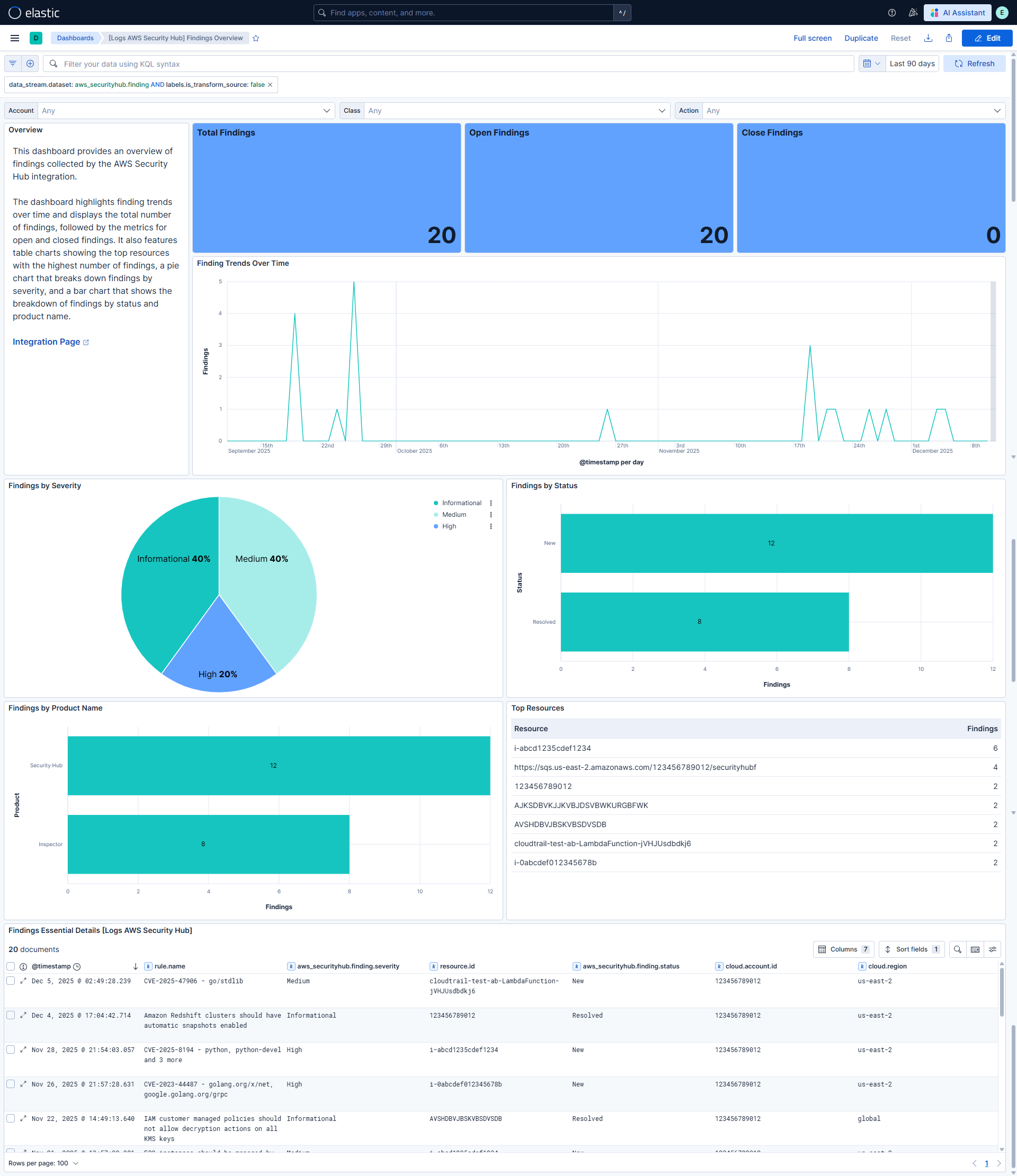
Changelog
| Version | Details | Minimum Kibana version |
|---|---|---|
| 1.3.0 | Enhancement (View pull request) Add tags to ingest pipeline processors. |
9.3.0 |
| 1.2.2 | Bug fix (View pull request) Raise finding and transform destination total_fields.limit from 2000 to 5000 to prevent transform failures as dynamic resource fields grow.Bug fix (View pull request) Bump transform versions and destination index names so the new field limit is applied on upgrade. |
9.3.0 |
| 1.2.1 | Enhancement (View pull request) Set agentless deployment mode release field to ga. |
9.3.0 |
| 1.2.0 | Enhancement (View pull request) Publish Agentless to Elastic Managed integrations name change. |
9.3.0 |
| 1.1.0 | Enhancement (View pull request) Use new release field for agentless deployment mode to establish as beta. |
9.3.0 |
| 1.0.1 | Bug fix (View pull request) Change page_size/batch_size variable type from text to integer for Fleet input validation. |
9.3.0 |
| 1.0.0 | Enhancement (View pull request) Promote integration to GA. |
9.3.0 |
| 0.3.0 | Enhancement (View pull request) Add timestamp range filter and storage tier exclusion to latest transform source queries to reduce scan scope and improve performance. |
9.3.0 |
| 0.2.1 | Bug fix (View pull request) Use triple-brace Mustache templating when referencing variables in ingest pipelines. |
9.3.0 |
| 0.2.0 | Enhancement (View pull request) Removed ECS field definitions from CDR transform destinations, now covered by ecs@mappings component template. Renamed overridden ECS fields files to ecs-overridden.yml. |
9.3.0 |
| 0.1.0 | Enhancement (View pull request) Initial release. |
9.3.0 |