Cloudflare Logpush Integration for Elastic
| Version | 2.2.0 (View all) |
| Subscription level What's this? |
Basic |
| Developed by What's this? |
Elastic |
| Ingestion method(s) | AWS S3, Azure Blob Storage, Google Cloud Storage, Webhook |
| Minimum Kibana version(s) | 9.0.0 8.17.1 |
The Cloudflare Logpush integration allows you to monitor Access Request, Audit, CASB, Device Posture, DLP Forensic Copies, DNS, DNS Firewall, Email Security Alerts, Firewall Event, Gateway DNS, Gateway HTTP, Gateway Network, HTTP Request, Magic IDS, NEL Report, Network Analytics, Page Shield, Sinkhole HTTP, Spectrum Event, WARP Config Changes, WARP Toggle Changes, Zero Trust Network Session, and Workers Trace Events logs.
Cloudflare is a content delivery network and DDoS mitigation company. Cloudflare provides a network designed to make everything you connect to the Internet secure, private, fast, and reliable; secure your websites, APIs, and Internet applications; protect corporate networks, employees, and devices; and write and deploy code that runs on the network edge.
This integration follows the log schemas and field definitions published in the Cloudflare Log fields reference.
Cloudflare Logpush supports delivering logs to the following destinations, which can all be consumed by this integration:
- HTTP destinations
- Amazon S3
- S3-compatible endpoints (including Cloudflare R2)
- Google Cloud Storage
- Microsoft Azure Blob Storage
Cloudflare Logpush pushes logs to the destination of your choice. Elastic Agent then reads those logs and ships them to Elasticsearch, where they are processed through each data stream's ingest pipeline.
The integration supports the following collection modes:
- HTTP Endpoint mode — Cloudflare pushes logs directly to an HTTP endpoint hosted by your Elastic Agent.
- AWS S3 polling mode — Cloudflare writes logs to an S3 bucket and Elastic Agent polls the bucket by listing its contents and reading new files.
- AWS S3 SQS mode — Cloudflare writes logs to S3; S3 publishes object-created notifications to an SQS queue; Elastic Agent receives those notifications from SQS and reads the corresponding S3 objects. This mode supports horizontal scaling across multiple agents.
- S3-compatible (Cloudflare R2) polling mode — Cloudflare writes logs to an R2 or other S3-compatible bucket and Elastic Agent polls the bucket using the S3 API.
- Azure Blob Storage polling mode — Cloudflare writes logs to an Azure Blob Storage container and Elastic Agent polls the container by listing its contents and reading new files.
- Google Cloud Storage polling mode — Cloudflare writes logs to a GCS bucket and Elastic Agent polls the bucket by listing its contents and reading new files.
The Cloudflare Logpush integration collects logs for the following Cloudflare datasets. Data streams are grouped by whether the underlying dataset is classified as a Cloudflare Zero Trust dataset or a non Zero Trust dataset.
access_request: HTTP requests to sites protected by Cloudflare Access. See Access Requests schema.audit: Authentication events through Cloudflare Access, plus account-level configuration and administrative actions. See Audit Logs schema.casb: Security issues detected by Cloudflare CASB in connected SaaS applications. See CASB Findings schema.device_posture: Device posture status from the Cloudflare One Client (WARP). See Device Posture Results schema.gateway_dns: DNS queries inspected by Cloudflare Gateway. See Gateway DNS schema.gateway_http: HTTP requests inspected by Cloudflare Gateway. See Gateway HTTP schema.gateway_network: Network packets inspected by Cloudflare Gateway. See Gateway Network schema.network_session: Network session logs for traffic proxied by Cloudflare Gateway. See Zero Trust Network Session schema.warp_config_changes: WARP configuration switch events from the Cloudflare One Client (WARP), recording the account and configuration a device switched from and to. See WARP Config Changes schema.warp_toggle_changes: WARP on/off toggle events from the Cloudflare One Client (WARP) per device. See WARP Toggle Changes schema.
dns: Zone-scoped authoritative DNS query logs. See DNS logs schema.dns_firewall: Cloudflare DNS Firewall query and response logs. See DNS Firewall logs schema.dlp_forensic_copies: Data Loss Prevention forensic copies of content that matched a DLP profile. See DLP Forensic Copies schema.email_security_alerts: Cloudflare Email Security alerts for phishing, malware, and other email-based threats. See Email Security Alerts schema.firewall_event: Zone-level Firewall events for requests mitigated by Cloudflare security products (WAF, Rate Limiting, Firewall Rules, etc.). See Firewall Events schema.http_request: HTTP/HTTPS request logs served at the Cloudflare edge. See HTTP Requests schema.magic_ids: Magic Network Monitoring IDS detection logs. See Magic IDS Detections schema.nel_report: Network Error Logging (NEL) reports collected from end-user browsers. See NEL Reports schema.network_analytics: Network Analytics (Magic Transit / Magic WAN packet-sampled flow) logs. See Network Analytics Logs schema.page_shield_events: Page Shield events reporting changes to scripts and connections observed on protected zones. See Page Shield Events schema.sinkhole_http: HTTP traffic captured by Cloudflare sinkholes. See Sinkhole HTTP logs schema.spectrum_event: Cloudflare Spectrum events for TCP/UDP applications proxied through Cloudflare. See Spectrum Events schema.workers_trace: Cloudflare Workers Trace Events with execution logs and exceptions for Workers scripts. See Workers Trace Events schema.
Integrating Cloudflare Logpush with Elastic provides centralized visibility across Cloudflare's edge, Zero Trust, and network-layer products. Common use cases include:
- Investigating traffic, WAF, and DDoS-mitigation events from the Cloudflare edge (
http_request,firewall_event,network_analytics). - Monitoring Zero Trust user activity, policy decisions, and device posture (
gateway_http,gateway_dns,gateway_network,access_request,device_posture,network_session,warp_config_changes,warp_toggle_changes). - Detecting data exfiltration and SaaS misconfigurations (
dlp_forensic_copies,casb,email_security_alerts). - Auditing administrative activity on the Cloudflare account (
audit). - Troubleshooting DNS and client-side performance issues (
dns,dns_firewall,nel_report,workers_trace).
You need Elasticsearch for storing and searching your data and Kibana for visualizing and managing it. You can use our hosted Elasticsearch Service on Elastic Cloud, which is recommended, or self-manage the Elastic Stack on your own hardware.
To use this integration, you must be able to create and manage Cloudflare Logpush jobs for the datasets you want to collect.
Permissions
Creating and managing Logpush jobs requires an API token or user role with the Logs Write permission (or a role that includes it, such as Super Administrator, Administrator, or Log Share with edit permissions). Refer to Cloudflare Logpush permissions for details.
- Zone-scoped datasets (for example,
http_requests,firewall_events,dns_logs,spectrum_events,nel_reports,page_shield_events) require a zone-scoped token. - Account-scoped datasets (for example,
audit_logs,access_requests,casb_findings,device_posture_results,dlp_forensic_copies,email_security_alerts,gateway_*,dns_firewall_logs,magic_ids_detections,network_analytics_logs,sinkhole_http_logs,workers_trace_events,zero_trust_network_sessions) require an account-scoped token. - Zero Trust datasets (Access, Gateway, DEX) additionally require
Zero Trust: PII Read.
Destination-specific credentials
Depending on the delivery destination, you also need:
- AWS S3 / S3-compatible — an S3 bucket (or Cloudflare R2 bucket) and credentials (Access Key ID / Secret Access Key, or an IAM role) that Elastic Agent can use to list and read objects. For SQS-based delivery, an SQS queue subscribed to S3 object-created events.
- Google Cloud Storage — a GCS bucket and a service account key (JSON) with read access to the bucket.
- Azure Blob Storage — a storage account, a blob container, and either a shared access key, a connection string, or OAuth2 client credentials with read access to the container.
- HTTP Endpoint — a reachable HTTPS endpoint exposed by Elastic Agent. Cloudflare requires a valid TLS certificate on the destination.
This integration supports Elastic Agent-based installations.
Elastic Agent must be installed. For more details, check the Elastic Agent installation instructions. You can install only one Elastic Agent per host.
Configure one of the following delivery pipelines before enabling the integration in Elastic.
Configure Cloudflare Logpush to Amazon S3 to send Cloudflare's data to an AWS S3 bucket.
The default values of the Bucket Prefix are listed below. However, users can set the parameter Bucket Prefix according to their requirements.
Data Stream Name Bucket Prefix Access Request access_request Audit Logs audit_logs CASB findings casb Device Posture Results device_posture DLP Forensic Copies dlp_forensic_copies DNS dns DNS Firewall dns_firewall Email Security Alerts email_security_alerts Firewall Event firewall_event Gateway DNS gateway_dns Gateway HTTP gateway_http Gateway Network gateway_network HTTP Request http_request Magic IDS magic_ids NEL Report nel_report Network Analytics network_analytics_logs Page Shield Events page_shield_events Zero Trust Network Session network_session Sinkhole HTTP sinkhole_http Spectrum Event spectrum_event WARP Config Changes warp_config_changes WARP Toggle Changes warp_toggle_changes Workers Trace Events workers_trace
- If Logpush forwarding to an AWS S3 Bucket hasn't been configured, then first setup an AWS S3 Bucket as mentioned in the above documentation.
- Follow the steps below for each Logpush data stream that has been enabled:
- Create an SQS queue
- To setup an SQS queue, follow "Step 1: Create an Amazon SQS queue" mentioned in the Amazon documentation.
- While creating an SQS Queue, please provide the same bucket ARN that has been generated after creating an AWS S3 Bucket.
- Setup event notification from the S3 bucket using the instructions here. Use the following settings:
- Event type:
All object create events(s3:ObjectCreated:*) - Destination: SQS Queue
- Prefix (filter): enter the prefix for this Logpush data stream, e.g.
audit_logs/ - Select the SQS queue that has been created for this data stream
- Event type:
- Create an SQS queue
Note:
- A separate SQS queue and S3 bucket notification is required for each enabled data stream.
- Permissions for the above AWS S3 bucket and SQS queues should be configured according to the Filebeat S3 input documentation.
- Credentials for the above AWS S3 and SQS input types should be configured using the link.
- Data collection via AWS S3 Bucket and AWS SQS are mutually exclusive in this case.
- It is recommended to use AWS SQS for Cloudflare Logpush.
- Configure Cloudflare Logpush to Cloudflare R2 (or another S3-compatible endpoint) to push logs into an R2 bucket.
Note:
- To obtain the Access Key ID and Secret Access Key, create an R2 API token by following the R2 authentication documentation. Once the token is created successfully, Cloudflare will display the Access Key ID and Secret Access Key values. Use these credentials to authenticate the integration.
- When creating the R2 API token, make sure it has Admin permissions. This is needed to list buckets and view bucket configuration.
When configuring the integration to read from S3-Compatible Buckets such as Cloudflare R2, the following steps are required:
- Enable the Collect logs via S3 Bucket toggle.
- Set the S3-Compatible Bucket Name (shown as
[Global][S3] S3-Compatible Bucket Namein the UI) to the R2 bucket name. - Set the Endpoint field to the API endpoint shown in the bucket details. It must be a full URI used as the API endpoint of the service. For Cloudflare R2 buckets, the URI is typically of the form
https://<accountid>.r2.cloudflarestorage.com. - Set the Region field to
auto. This is required for all non-AWS S3-compatible buckets on Elastic Agent 8.19.12 and later. For Cloudflare R2, the region is alwaysautoper the R2 S3 API documentation. - Bucket Prefix is optional for each data stream.
- Configure Cloudflare Logpush to Google Cloud Storage to ingest data into a GCS bucket.
- Configure the GCS bucket names and credentials along with the required configurations under the "Collect Cloudflare Logpush logs via Google Cloud Storage" section.
- Make sure the service account and authentication being used has proper levels of access to the GCS bucket. Refer to Manage Service Account Keys for more details.
Note:
- The GCS input currently does not support fetching of buckets using bucket prefixes, so the bucket names have to be configured manually for each data stream.
- The GCS input accepts a service account JSON key or a service account JSON file for authentication.
- The GCS input supports JSON/NDJSON data.
- Configure Cloudflare Logpush to Microsoft Azure to ingest data into Azure Blob Storage containers.
- Configure Azure Blob Storage container names and credentials along with the required configurations under the "Collect Cloudflare Logpush logs via Azure Blob Storage" section.
- Make sure the storage account and authentication being used has proper levels of access to the Azure Blob Storage Container. Follow the documentation here for more details.
- If you want to use RBAC for your account, follow the documentation here.
Note:
- The Azure Blob Storage input does not support fetching from containers using container prefixes, so the containers' names must be configured manually for each data stream.
- The Azure Blob Storage input accepts a service account key (shared credentials key), service account URI (connection string) and OAuth2 credentials for authentication.
- The Azure Blob Storage input only supports JSON/NDJSON data.
- Refer to Enable HTTP destination for Cloudflare Logpush.
- Add the same custom header along with its value on both sides (Cloudflare job and Elastic Agent HTTP input) for additional security.
- For example, while creating a job along with a header and value for a particular dataset:
curl --location --request POST 'https://api.cloudflare.com/client/v4/zones/<ZONE ID>/logpush/jobs' \
--header 'X-Auth-Key: <X-AUTH-KEY>' \
--header 'X-Auth-Email: <X-AUTH-EMAIL>' \
--header 'Authorization: <BASIC AUTHORIZATION>' \
--header 'Content-Type: application/json' \
--data-raw '{
"name":"<public domain>",
"destination_conf": "https://<public domain>:<public port>/<dataset path>?header_Content-Type=application/json&header_<secret_header>=<secret_value>",
"dataset": "audit",
"logpull_options": "fields=RayID,EdgeStartTimestamp×tamps=rfc3339"
}'
Note:
- The
destination_confparameter inside the request data should set theContent-Typeheader toapplication/json. This is the content type that the HTTP endpoint expects for incoming events. - Default port for the HTTP Endpoint is
9560. - When using the same port for more than one dataset, be sure to specify different dataset paths.
- To enable request ACKing, add a
wait_for_completion_timeoutrequest query with the timeout for an ACK. See the HTTP Endpoint documentation for details.
In the top search bar in Kibana, search for Integrations.
In the search bar, type Cloudflare Logpush.
Select the Cloudflare Logpush integration from the search results.
Select Add Cloudflare Logpush to add the integration.
Enable and configure only the collection methods which you will use.
- To Collect Cloudflare Logpush logs via HTTP Endpoint, you'll need to:
- Configure the Listen Address and, per data stream, the Listen Port and URL.
- Optionally configure Secret Header / Secret Value and SSL Configuration to secure the endpoint.
- To Collect Cloudflare Logpush logs via AWS S3, AWS SQS, or S3-Compatible Buckets, you'll need to:
- Enable the Collect logs via S3 Bucket toggle when polling an S3 or S3-compatible bucket directly. Leave it disabled to consume S3 object-created events from an SQS queue.
- For direct polling, configure the [S3] Bucket ARN, the [S3] Access Point ARN, or the [Global][S3] S3-Compatible Bucket Name (for Cloudflare R2 and other S3-compatible providers). For S3-compatible buckets also set Endpoint and Region.
- Configure credentials using any of: Access Key ID / Secret Access Key (plus an optional Session Token), a Role ARN, or a Shared Credential File / Credential Profile Name.
- For each enabled data stream, set the [SQS] Queue URL (when using SQS) or the [S3] Bucket Prefix (when polling an S3 / S3-compatible bucket). For R2 / S3-compatible buckets you may also override the bucket name per data stream using the [<Dataset>][S3] S3-Compatible Bucket Name field.
- Tune throughput with [S3/SQS] Number of Workers and [S3] Interval (polling mode) or [SQS] Visibility Timeout / [SQS] API Timeout (SQS mode).
- To Collect Cloudflare Logpush logs via Google Cloud Storage, you'll need to:
- Configure Project Id and either JSON Credentials key or JSON Credentials file path.
- For each data stream, configure the Buckets list and optionally tune Maximum number of workers, Polling, Polling interval, and Bucket Timeout.
- To Collect Cloudflare Logpush logs via Azure Blob Storage, you'll need to:
- Configure Account Name and (optionally) Storage URL, and authenticate using either a Service Account Key, a Service Account URI, or by enabling Collect logs using OAuth2 authentication and supplying Client ID (OAuth2), Client Secret (OAuth2), and Tenant ID (OAuth2).
- For each data stream, configure the Containers list and optionally tune Maximum number of workers, Polling, and Polling interval.
- To Collect Cloudflare Logpush logs via HTTP Endpoint, you'll need to:
Select Save and continue to save the integration.
- In the top search bar in Kibana, search for Dashboards.
- In the search bar, type Cloudflare Logpush.
- Select a dashboard for the dataset you are collecting, and verify the dashboard information is populated.
- For help with Elastic ingest tools, check Common problems.
- For Cloudflare-side troubleshooting and delivery status, refer to the Logpush health dashboard and the relevant destination-specific troubleshooting guide.
- When collecting from Cloudflare R2 via the AWS S3 input, the error
failed to get AWS region for bucket: operation error S3: GetBucketLocationusually indicates a credentials or permissions problem. Inspect the full API error response to identify the underlying issue. - When using Azure Blob Storage, SAS tokens must have the Write-only permission, the service set to Blob-only (
ss=b), and the resource type set to Object-only (srt=o). Set an expiration of at least five years to avoid unexpected token expiry. Refer to Troubleshooting Azure destinations for details. - When using the HTTP Endpoint input, ensure the Elastic Agent endpoint is reachable over HTTPS with a trusted certificate and that any
secret.header/secret.valuepair configured on the agent matches theheader_*parameter defined in the Logpush job'sdestination_conf.
For more information on architectures that can be used for scaling this integration, check the Ingest Architectures documentation.
Additional considerations:
- For high-volume zones, AWS SQS mode is recommended because it distributes work across multiple Elastic Agents without requiring bucket polling.
- Tune
max_upload_bytes,max_upload_records, andmax_upload_interval_secondson the Logpush job to match the throughput your agents and destination can handle. - For each input, adjust the worker count and polling interval to balance latency against API calls / egress costs. The relevant fields are [S3/SQS] Number of Workers and [S3] Interval for the AWS S3 input, and Maximum number of workers with Polling interval for the Google Cloud Storage and Azure Blob Storage inputs.
- Use Cloudflare Logpush sampling and filters to reduce the volume of low-value events at the source.
This is the access_request dataset.
Example
{
    "@timestamp": "2023-05-23T17:18:33.000Z",
    "agent": {
        "ephemeral_id": "056ec563-a195-426e-9567-24bbfabae21f",
        "id": "b7ff516b-300e-4aa7-9b17-86fb55c9b5c3",
        "name": "elastic-agent-10661",
        "type": "filebeat",
        "version": "8.17.1"
    },
    "client": {
        "as": {
            "number": 35908
        },
        "geo": {
            "continent_name": "Asia",
            "country_iso_code": "BT",
            "country_name": "Bhutan",
            "location": {
                "lat": 27.5,
                "lon": 90.5
            }
        },
        "ip": "67.43.156.93"
    },
    "cloudflare_logpush": {
        "access_request": {
            "action": "login",
            "allowed": true,
            "app": {
                "domain": "partner-zt-logs.cloudflareaccess.com/warp",
                "uuid": "123e4567-e89b-12d3-a456-426614174000"
            },
            "client": {
                "ip": "67.43.156.93"
            },
            "connection": "onetimepin",
            "country": "us",
            "ray": {
                "id": "00c0ffeeabc12345"
            },
            "request": {
                "prompt": "Please provide your reason for accessing the application.",
                "response": "I need to access the application for work purposes."
            },
            "temp_access": {
                "approvers": [
                    "approver1@example.com",
                    "approver2@example.com"
                ],
                "duration": 7200
            },
            "timestamp": "2023-05-23T17:18:33.000Z",
            "user": {
                "email": "user@example.com",
                "id": "166befbb-00e3-5e20-bd6e-27245333949f"
            }
        }
    },
    "data_stream": {
        "dataset": "cloudflare_logpush.access_request",
        "namespace": "60239",
        "type": "logs"
    },
    "ecs": {
        "version": "9.3.0"
    },
    "elastic_agent": {
        "id": "b7ff516b-300e-4aa7-9b17-86fb55c9b5c3",
        "snapshot": false,
        "version": "8.17.1"
    },
    "event": {
        "action": "login",
        "agent_id_status": "verified",
        "category": [
            "network"
        ],
        "dataset": "cloudflare_logpush.access_request",
        "id": "00c0ffeeabc12345",
        "ingested": "2026-05-11T12:48:12Z",
        "kind": "event",
        "original": "{\"Action\":\"login\",\"Allowed\":true,\"AppDomain\":\"partner-zt-logs.cloudflareaccess.com/warp\",\"AppUUID\":\"123e4567-e89b-12d3-a456-426614174000\",\"Connection\":\"onetimepin\",\"Country\":\"us\",\"CreatedAt\":1684862313000000000,\"Email\":\"user@example.com\",\"IPAddress\":\"67.43.156.93\",\"PurposeJustificationPrompt\":\"Please provide your reason for accessing the application.\",\"PurposeJustificationResponse\":\"I need to access the application for work purposes.\",\"RayID\":\"00c0ffeeabc12345\",\"TemporaryAccessApprovers\":[\"approver1@example.com\",\"approver2@example.com\"],\"TemporaryAccessDuration\":7200,\"UserUID\":\"166befbb-00e3-5e20-bd6e-27245333949f\"}",
        "type": [
            "access",
            "allowed"
        ]
    },
    "input": {
        "type": "http_endpoint"
    },
    "related": {
        "ip": [
            "67.43.156.93"
        ],
        "user": [
            "166befbb-00e3-5e20-bd6e-27245333949f",
            "user@example.com",
            "approver1@example.com",
            "approver2@example.com"
        ]
    },
    "tags": [
        "preserve_original_event",
        "preserve_duplicate_custom_fields",
        "forwarded",
        "cloudflare_logpush-access_request"
    ],
    "url": {
        "domain": "partner-zt-logs.cloudflareaccess.com/warp"
    },
    "user": {
        "email": "user@example.com",
        "id": "166befbb-00e3-5e20-bd6e-27245333949f"
    }
}
Exported fields
| Field | Description | Type | |
|---|---|---|---|
| @timestamp | Date/time when the event originated. This is the date/time extracted from the event, typically representing when the event was generated by the source. If the event source has no original timestamp, this value is typically populated by the first time the event was received by the pipeline. Required field for all events. | date | |
| aws.s3.bucket.arn | The AWS S3 bucket ARN. | keyword | |
| aws.s3.bucket.name | The AWS S3 bucket name. | keyword | |
| aws.s3.object.key | The AWS S3 Object key. | keyword | |
| azure.storage.blob.content_type | The content type of the Azure Blob Storage blob object | keyword | |
| azure.storage.blob.name | The name of the Azure Blob Storage blob object | keyword | |
| azure.storage.container.name | The name of the Azure Blob Storage container | keyword | |
| cloudflare_logpush.access_request.action | What type of record is this. login | logout. | keyword |
| cloudflare_logpush.access_request.allowed | If request was allowed or denied. | boolean | |
| cloudflare_logpush.access_request.app.domain | The domain of the Application that Access is protecting. | keyword | |
| cloudflare_logpush.access_request.app.uuid | Access Application UUID. | keyword | |
| cloudflare_logpush.access_request.client.ip | The IP address of the client. | ip | |
| cloudflare_logpush.access_request.connection | Identity provider used for the login. | keyword | |
| cloudflare_logpush.access_request.country | Request’s country of origin. | keyword | |
| cloudflare_logpush.access_request.ray.id | Identifier of the request. | keyword | |
| cloudflare_logpush.access_request.request.prompt | Message prompted to the client when accessing the application. | keyword | |
| cloudflare_logpush.access_request.request.response | Justification given by the client when accessing the application. | keyword | |
| cloudflare_logpush.access_request.temp_access.approvers | List of approvers for this access request. | keyword | |
| cloudflare_logpush.access_request.temp_access.duration | Approved duration for this access request. | long | |
| cloudflare_logpush.access_request.timestamp | The date and time the corresponding access request was made. | date | |
| cloudflare_logpush.access_request.user.email | Email of the user who logged in. | keyword | |
| cloudflare_logpush.access_request.user.id | The uid of the user who logged in. | keyword | |
| data_stream.dataset | The field can contain anything that makes sense to signify the source of the data. Examples include nginx.access, prometheus, endpoint etc. For data streams that otherwise fit, but that do not have dataset set we use the value "generic" for the dataset value. event.dataset should have the same value as data_stream.dataset. Beyond the Elasticsearch data stream naming criteria noted above, the dataset value has additional restrictions: * Must not contain - * No longer than 100 characters |
constant_keyword | |
| data_stream.namespace | A user defined namespace. Namespaces are useful to allow grouping of data. Many users already organize their indices this way, and the data stream naming scheme now provides this best practice as a default. Many users will populate this field with default. If no value is used, it falls back to default. Beyond the Elasticsearch index naming criteria noted above, namespace value has the additional restrictions: * Must not contain - * No longer than 100 characters |
constant_keyword | |
| data_stream.type | An overarching type for the data stream. Currently allowed values are "logs" and "metrics". We expect to also add "traces" and "synthetics" in the near future. | constant_keyword | |
| event.dataset | Name of the dataset. If an event source publishes more than one type of log or events (e.g. access log, error log), the dataset is used to specify which one the event comes from. It's recommended but not required to start the dataset name with the module name, followed by a dot, then the dataset name. | constant_keyword | |
| event.module | Name of the module this data is coming from. If your monitoring agent supports the concept of modules or plugins to process events of a given source (e.g. Apache logs), event.module should contain the name of this module. |
constant_keyword | |
| gcs.storage.bucket.name | The name of the Google Cloud Storage Bucket. | keyword | |
| gcs.storage.object.content_type | The content type of the Google Cloud Storage object. | keyword | |
| gcs.storage.object.json_data | When parse_json is true, the resulting JSON data is stored in this field. | keyword | |
| gcs.storage.object.name | The content type of the Google Cloud Storage object. | keyword | |
| input.type | Input type | keyword | |
| log.offset | Log offset | long | |
| log.source.address | Source address from which the log event was read / sent from. | keyword |
This is the audit dataset.
Example
{
    "@timestamp": "2021-11-30T20:19:48.000Z",
    "agent": {
        "ephemeral_id": "7caa446a-60b4-42bd-a8be-01eab6c59082",
        "id": "c5ea9366-b921-478c-88a3-2d6437c654b2",
        "name": "elastic-agent-70377",
        "type": "filebeat",
        "version": "8.17.1"
    },
    "cloudflare_logpush": {
        "audit": {
            "action": {
                "result": "success",
                "type": "token_create"
            },
            "actor": {
                "email": "user@example.com",
                "id": "enl3j9du8rnx2swwd9l32qots7l54t9s",
                "ip": "81.2.69.142",
                "type": "user"
            },
            "id": "73fd39ed-5aab-4a2a-b93c-c9a4abf0c425",
            "interface": "UI",
            "metadata": {
                "token_name": "test",
                "token_tag": "b7261c49a793a82678d12285f0bc1401"
            },
            "new_value": {
                "key1": "value1",
                "key2": "value2"
            },
            "old_value": {
                "key3": "value4",
                "key4": "value4"
            },
            "owner": {
                "id": "enl3j9du8rnx2swwd9l32qots7l54t9s"
            },
            "resource": {
                "id": "enl3j9du8rnx2swwd9l32qots7l54t9s",
                "type": "account"
            },
            "timestamp": "2021-11-30T20:19:48.000Z"
        }
    },
    "data_stream": {
        "dataset": "cloudflare_logpush.audit",
        "namespace": "70305",
        "type": "logs"
    },
    "ecs": {
        "version": "9.3.0"
    },
    "elastic_agent": {
        "id": "c5ea9366-b921-478c-88a3-2d6437c654b2",
        "snapshot": false,
        "version": "8.17.1"
    },
    "event": {
        "action": "token_create",
        "agent_id_status": "verified",
        "category": [
            "authentication"
        ],
        "dataset": "cloudflare_logpush.audit",
        "id": "73fd39ed-5aab-4a2a-b93c-c9a4abf0c425",
        "ingested": "2026-05-18T06:36:56Z",
        "kind": "event",
        "original": "{\"ActionResult\":true,\"ActionType\":\"token_create\",\"ActorEmail\":\"user@example.com\",\"ActorID\":\"enl3j9du8rnx2swwd9l32qots7l54t9s\",\"ActorIP\":\"81.2.69.142\",\"ActorType\":\"user\",\"ID\":\"73fd39ed-5aab-4a2a-b93c-c9a4abf0c425\",\"Interface\":\"UI\",\"Metadata\":{\"token_name\":\"test\",\"token_tag\":\"b7261c49a793a82678d12285f0bc1401\"},\"NewValue\":{\"key1\":\"value1\",\"key2\":\"value2\"},\"OldValue\":{\"key3\":\"value4\",\"key4\":\"value4\"},\"OwnerID\":\"enl3j9du8rnx2swwd9l32qots7l54t9s\",\"ResourceID\":\"enl3j9du8rnx2swwd9l32qots7l54t9s\",\"ResourceType\":\"account\",\"When\":\"2021-11-30T20:19:48Z\"}",
        "outcome": "success",
        "provider": "UI",
        "type": [
            "info"
        ]
    },
    "input": {
        "type": "http_endpoint"
    },
    "related": {
        "ip": [
            "81.2.69.142"
        ],
        "user": [
            "enl3j9du8rnx2swwd9l32qots7l54t9s",
            "user@example.com"
        ]
    },
    "source": {
        "ip": "81.2.69.142"
    },
    "tags": [
        "preserve_original_event",
        "preserve_duplicate_custom_fields",
        "forwarded",
        "cloudflare_logpush-audit"
    ],
    "user": {
        "email": "user@example.com",
        "id": "enl3j9du8rnx2swwd9l32qots7l54t9s"
    }
}
Exported fields
| Field | Description | Type |
|---|---|---|
| @timestamp | Date/time when the event originated. This is the date/time extracted from the event, typically representing when the event was generated by the source. If the event source has no original timestamp, this value is typically populated by the first time the event was received by the pipeline. Required field for all events. | date |
| aws.s3.bucket.arn | The AWS S3 bucket ARN. | keyword |
| aws.s3.bucket.name | The AWS S3 bucket name. | keyword |
| aws.s3.object.key | The AWS S3 Object key. | keyword |
| azure.storage.blob.content_type | The content type of the Azure Blob Storage blob object | keyword |
| azure.storage.blob.name | The name of the Azure Blob Storage blob object | keyword |
| azure.storage.container.name | The name of the Azure Blob Storage container | keyword |
| cloudflare_logpush.audit.action.result | Whether the action was successful. | keyword |
| cloudflare_logpush.audit.action.type | Type of action taken. | keyword |
| cloudflare_logpush.audit.actor.email | Email of the actor. | keyword |
| cloudflare_logpush.audit.actor.id | Unique identifier of the actor in Cloudflare system. | keyword |
| cloudflare_logpush.audit.actor.ip | Physical network address of the actor. | ip |
| cloudflare_logpush.audit.actor.type | Type of user that started the audit trail. | keyword |
| cloudflare_logpush.audit.id | Unique identifier of an audit log. | keyword |
| cloudflare_logpush.audit.interface | Entry point or interface of the audit log. | text |
| cloudflare_logpush.audit.metadata | Additional audit log-specific information, Metadata is organized in key:value pairs, Key and Value formats can vary by ResourceType. | flattened |
| cloudflare_logpush.audit.new_value | Contains the new value for the audited item. | flattened |
| cloudflare_logpush.audit.old_value | Contains the old value for the audited item. | flattened |
| cloudflare_logpush.audit.owner.id | The identifier of the user that was acting or was acted on behalf of. | keyword |
| cloudflare_logpush.audit.resource.id | Unique identifier of the resource within Cloudflare system. | keyword |
| cloudflare_logpush.audit.resource.type | The type of resource that was changed. | keyword |
| cloudflare_logpush.audit.timestamp | When the change happened. | date |
| data_stream.dataset | The field can contain anything that makes sense to signify the source of the data. Examples include nginx.access, prometheus, endpoint etc. For data streams that otherwise fit, but that do not have dataset set we use the value "generic" for the dataset value. event.dataset should have the same value as data_stream.dataset. Beyond the Elasticsearch data stream naming criteria noted above, the dataset value has additional restrictions: * Must not contain - * No longer than 100 characters |
constant_keyword |
| data_stream.namespace | A user defined namespace. Namespaces are useful to allow grouping of data. Many users already organize their indices this way, and the data stream naming scheme now provides this best practice as a default. Many users will populate this field with default. If no value is used, it falls back to default. Beyond the Elasticsearch index naming criteria noted above, namespace value has the additional restrictions: * Must not contain - * No longer than 100 characters |
constant_keyword |
| data_stream.type | An overarching type for the data stream. Currently allowed values are "logs" and "metrics". We expect to also add "traces" and "synthetics" in the near future. | constant_keyword |
| event.dataset | Name of the dataset. If an event source publishes more than one type of log or events (e.g. access log, error log), the dataset is used to specify which one the event comes from. It's recommended but not required to start the dataset name with the module name, followed by a dot, then the dataset name. | constant_keyword |
| event.module | Name of the module this data is coming from. If your monitoring agent supports the concept of modules or plugins to process events of a given source (e.g. Apache logs), event.module should contain the name of this module. |
constant_keyword |
| gcs.storage.bucket.name | The name of the Google Cloud Storage Bucket. | keyword |
| gcs.storage.object.content_type | The content type of the Google Cloud Storage object. | keyword |
| gcs.storage.object.json_data | When parse_json is true, the resulting JSON data is stored in this field. | keyword |
| gcs.storage.object.name | The content type of the Google Cloud Storage object. | keyword |
| input.type | Input type | keyword |
| log.offset | Log offset | long |
| log.source.address | Source address from which the log event was read / sent from. | keyword |
This is the casb dataset.
Example
{
    "@timestamp": "2023-05-16T10:00:00.000Z",
    "agent": {
        "ephemeral_id": "9565fcd4-e907-4a0c-a16c-3607fde347e3",
        "id": "c7197566-06bc-44aa-884f-c2e78db6d462",
        "name": "elastic-agent-22768",
        "type": "filebeat",
        "version": "8.17.1"
    },
    "cloudflare_logpush": {
        "casb": {
            "asset": {
                "id": "0051N000004mG2LAAA",
                "metadata": {
                    "Address": {
                        "city": "Singapore",
                        "country": "Singapore",
                        "countryCode": "SG"
                    },
                    "Alias": "JDoe",
                    "BannerPhotoUrl": "/profilephoto/001",
                    "CommunityNickname": "Doe.John",
                    "CompanyName": "MyCompany",
                    "DefaultGroupNotificationFrequency": "N",
                    "Department": "521",
                    "DigestFrequency": "D",
                    "Email": "user@example.com",
                    "EmailEncodingKey": "UTF-8",
                    "EmailPreferencesAutoBcc": true,
                    "EmployeeNumber": "18124",
                    "FirstName": "John",
                    "ForecastEnabled": false,
                    "FullPhotoUrl": "https://photos.com/profilephoto/001",
                    "Id": "0051N000004mG2LAAA",
                    "IsActive": false,
                    "IsProfilePhotoActive": false,
                    "LanguageLocaleKey": "en_US",
                    "LastLoginDate": "2021-10-06T06:32:09.000+0000",
                    "LastName": "Doe",
                    "LocaleSidKey": "en_SG",
                    "MediumBannerPhotoUrl": "/profilephoto/001/E",
                    "Name": "John Doe",
                    "Phone": "+3460000000",
                    "ReceivesAdminInfoEmails": true,
                    "ReceivesInfoEmails": true,
                    "SenderEmail": "sender@example.com",
                    "SmallBannerPhotoUrl": "/profilephoto/001/D",
                    "SmallPhotoUrl": "https://photos.com/photo/001",
                    "TimeZoneSidKey": "Asia/Singapore",
                    "Title": "Customer Solutions Engineer",
                    "UserPermissionsCallCenterAutoLogin": false,
                    "UserPermissionsInteractionUser": true,
                    "UserPermissionsMarketingUser": false,
                    "UserPermissionsOfflineUser": false,
                    "UserPermissionsSupportUser": false,
                    "UserRoleId": "00E2G000001E",
                    "UserType": "Standard",
                    "attributes": {
                        "type": "User",
                        "url": "/services/data/userID"
                    }
                },
                "name": "John Doe",
                "url": "https://example.com/resource"
            },
            "finding": {
                "id": "6b187be4-2dd5-42c5-a37b-111111111111",
                "type": {
                    "id": "a2790c4f-03f5-449f-b209-5f4447f417aa",
                    "name": "Salesforce User Sending Email with Different Email Address",
                    "severity": "Medium"
                }
            },
            "integration": {
                "id": "c772678d-5cf1-4c73-bf3f-111111111111",
                "name": "Salesforce Testing",
                "policy_vendor": "Salesforce Connection"
            },
            "timestamp": "2023-05-16T10:00:00.000Z"
        }
    },
    "data_stream": {
        "dataset": "cloudflare_logpush.casb",
        "namespace": "37356",
        "type": "logs"
    },
    "ecs": {
        "version": "9.3.0"
    },
    "elastic_agent": {
        "id": "c7197566-06bc-44aa-884f-c2e78db6d462",
        "snapshot": false,
        "version": "8.17.1"
    },
    "event": {
        "agent_id_status": "verified",
        "category": [
            "network"
        ],
        "dataset": "cloudflare_logpush.casb",
        "id": "6b187be4-2dd5-42c5-a37b-111111111111",
        "ingested": "2026-05-21T11:22:13Z",
        "kind": "event",
        "original": "{\"AssetDisplayName\":\"John Doe\",\"AssetExternalID\":\"0051N000004mG2LAAA\",\"AssetLink\":\"https://example.com/resource\",\"AssetMetadata\":{\"AccountId\":null,\"Address\":{\"city\":\"Singapore\",\"country\":\"Singapore\",\"countryCode\":\"SG\",\"geocodeAccuracy\":null,\"latitude\":null,\"longitude\":null,\"postalCode\":null,\"state\":null,\"stateCode\":null,\"street\":null},\"Alias\":\"JDoe\",\"BadgeText\":\"\",\"BannerPhotoUrl\":\"/profilephoto/001\",\"CallCenterId\":null,\"CommunityNickname\":\"Doe.John\",\"CompanyName\":\"MyCompany\",\"ContactId\":null,\"DefaultGroupNotificationFrequency\":\"N\",\"Department\":\"521\",\"DigestFrequency\":\"D\",\"Division\":null,\"Email\":\"user@example.com\",\"EmailEncodingKey\":\"UTF-8\",\"EmailPreferencesAutoBcc\":true,\"EmployeeNumber\":\"18124\",\"Extension\":null,\"Fax\":null,\"FederationIdentifier\":null,\"FirstName\":\"John\",\"ForecastEnabled\":false,\"FullPhotoUrl\":\"https://photos.com/profilephoto/001\",\"Id\":\"0051N000004mG2LAAA\",\"IsActive\":false,\"IsProfilePhotoActive\":false,\"LanguageLocaleKey\":\"en_US\",\"LastLoginDate\":\"2021-10-06T06:32:09.000+0000\",\"LastName\":\"Doe\",\"LastReferencedDate\":null,\"LastViewedDate\":null,\"LocaleSidKey\":\"en_SG\",\"MediumBannerPhotoUrl\":\"/profilephoto/001/E\",\"MobilePhone\":null,\"Name\":\"John Doe\",\"OfflineTrialExpirationDate\":null,\"Phone\":\"+3460000000\",\"ReceivesAdminInfoEmails\":true,\"ReceivesInfoEmails\":true,\"SenderEmail\":\"sender@example.com\",\"SenderName\":null,\"Signature\":null,\"SmallBannerPhotoUrl\":\"/profilephoto/001/D\",\"SmallPhotoUrl\":\"https://photos.com/photo/001\",\"TimeZoneSidKey\":\"Asia/Singapore\",\"Title\":\"Customer Solutions Engineer\",\"UserPermissionsCallCenterAutoLogin\":false,\"UserPermissionsInteractionUser\":true,\"UserPermissionsMarketingUser\":false,\"UserPermissionsOfflineUser\":false,\"UserPermissionsSupportUser\":false,\"UserRoleId\":\"00E2G000001E\",\"UserType\":\"Standard\",\"attributes\":{\"type\":\"User\",\"url\":\"/services/data/userID\"}},\"DetectedTimestamp\":\"2023-05-16T10:00:00Z\",\"FindingTypeDisplayName\":\"Salesforce User Sending Email with Different Email Address\",\"FindingTypeID\":\"a2790c4f-03f5-449f-b209-5f4447f417aa\",\"FindingTypeSeverity\":\"Medium\",\"InstanceID\":\"6b187be4-2dd5-42c5-a37b-111111111111\",\"IntegrationDisplayName\":\"Salesforce Testing\",\"IntegrationID\":\"c772678d-5cf1-4c73-bf3f-111111111111\",\"IntegrationPolicyVendor\":\"Salesforce Connection\"}",
        "severity": 47,
        "type": [
            "access"
        ]
    },
    "input": {
        "type": "http_endpoint"
    },
    "tags": [
        "preserve_original_event",
        "preserve_duplicate_custom_fields",
        "forwarded",
        "cloudflare_logpush-casb"
    ],
    "url": {
        "domain": "example.com",
        "original": "https://example.com/resource",
        "path": "/resource",
        "scheme": "https"
    }
}
Exported fields
| Field | Description | Type |
|---|---|---|
| @timestamp | Date/time when the event originated. This is the date/time extracted from the event, typically representing when the event was generated by the source. If the event source has no original timestamp, this value is typically populated by the first time the event was received by the pipeline. Required field for all events. | date |
| aws.s3.bucket.arn | The AWS S3 bucket ARN. | keyword |
| aws.s3.bucket.name | The AWS S3 bucket name. | keyword |
| aws.s3.object.key | The AWS S3 Object key. | keyword |
| azure.storage.blob.content_type | The content type of the Azure Blob Storage blob object | keyword |
| azure.storage.blob.name | The name of the Azure Blob Storage blob object | keyword |
| azure.storage.container.name | The name of the Azure Blob Storage container | keyword |
| cloudflare_logpush.casb.asset.id | Unique identifier for an asset of this type. Format will vary by policy vendor. | keyword |
| cloudflare_logpush.casb.asset.metadata | Metadata associated with the asset. Structure will vary by policy vendor. | flattened |
| cloudflare_logpush.casb.asset.name | Asset display name. | keyword |
| cloudflare_logpush.casb.asset.url | URL to the asset. This may not be available for some policy vendors and asset types. | keyword |
| cloudflare_logpush.casb.finding.id | UUID of the finding in Cloudflare´s system. | keyword |
| cloudflare_logpush.casb.finding.type.id | UUID of the finding type in Cloudflare´s system. | keyword |
| cloudflare_logpush.casb.finding.type.name | Human-readable name of the finding type. | keyword |
| cloudflare_logpush.casb.finding.type.severity | Severity of the finding type. | keyword |
| cloudflare_logpush.casb.integration.id | UUID of the integration in Cloudflare´s system. | keyword |
| cloudflare_logpush.casb.integration.name | Human-readable name of the integration. | keyword |
| cloudflare_logpush.casb.integration.policy_vendor | Human-readable vendor name of the integration´s policy. | keyword |
| cloudflare_logpush.casb.timestamp | Date and time the finding was first identified. | date |
| data_stream.dataset | The field can contain anything that makes sense to signify the source of the data. Examples include nginx.access, prometheus, endpoint etc. For data streams that otherwise fit, but that do not have dataset set we use the value "generic" for the dataset value. event.dataset should have the same value as data_stream.dataset. Beyond the Elasticsearch data stream naming criteria noted above, the dataset value has additional restrictions: * Must not contain - * No longer than 100 characters |
constant_keyword |
| data_stream.namespace | A user defined namespace. Namespaces are useful to allow grouping of data. Many users already organize their indices this way, and the data stream naming scheme now provides this best practice as a default. Many users will populate this field with default. If no value is used, it falls back to default. Beyond the Elasticsearch index naming criteria noted above, namespace value has the additional restrictions: * Must not contain - * No longer than 100 characters |
constant_keyword |
| data_stream.type | An overarching type for the data stream. Currently allowed values are "logs" and "metrics". We expect to also add "traces" and "synthetics" in the near future. | constant_keyword |
| event.dataset | Name of the dataset. If an event source publishes more than one type of log or events (e.g. access log, error log), the dataset is used to specify which one the event comes from. It's recommended but not required to start the dataset name with the module name, followed by a dot, then the dataset name. | constant_keyword |
| event.module | Name of the module this data is coming from. If your monitoring agent supports the concept of modules or plugins to process events of a given source (e.g. Apache logs), event.module should contain the name of this module. |
constant_keyword |
| gcs.storage.bucket.name | The name of the Google Cloud Storage Bucket. | keyword |
| gcs.storage.object.content_type | The content type of the Google Cloud Storage object. | keyword |
| gcs.storage.object.json_data | When parse_json is true, the resulting JSON data is stored in this field. | keyword |
| gcs.storage.object.name | The content type of the Google Cloud Storage object. | keyword |
| input.type | Input type | keyword |
| log.offset | Log offset | long |
| log.source.address | Source address from which the log event was read / sent from. | keyword |
This is the device_posture dataset.
Example
{
    "@timestamp": "2023-05-17T12:00:00.000Z",
    "agent": {
        "ephemeral_id": "a37046a3-9b2f-4b9d-916d-28fc59e71dee",
        "id": "99140cdd-ebf8-451d-bda0-e3e77001b75b",
        "name": "elastic-agent-57256",
        "type": "filebeat",
        "version": "8.17.1"
    },
    "cloudflare_logpush": {
        "device_posture": {
            "eval": {
                "expected": {
                    "operator": "==",
                    "os_distro_name": "ubuntu",
                    "os_distro_revision": "20.04",
                    "version": "5.15.0-1025-gcp"
                },
                "received": {
                    "operator": "==",
                    "os_distro_name": "ubuntu",
                    "os_distro_revision": "20.04",
                    "version": "5.15.0-1025-gcp"
                },
                "result": true
            },
            "host": {
                "id": "083a8354-d56c-11ed-9771-111111111",
                "manufacturer": "Google Compute Engine",
                "model": "Google Compute Engine",
                "name": "zt-test-vm1",
                "os": {
                    "family": "linux",
                    "version": "5.15.0"
                },
                "serial": "GoogleCloud-ABCD1234567890"
            },
            "rule": {
                "category": "os_version",
                "id": "policy-abcdefgh",
                "name": "Ubuntu"
            },
            "timestamp": "2023-05-17T12:00:00.000Z",
            "user": {
                "email": "user@example.com",
                "id": "user-abcdefgh"
            },
            "version": "2023.3.258"
        }
    },
    "data_stream": {
        "dataset": "cloudflare_logpush.device_posture",
        "namespace": "78609",
        "type": "logs"
    },
    "device": {
        "id": "083a8354-d56c-11ed-9771-111111111",
        "manufacturer": "Google Compute Engine",
        "model": {
            "name": "Google Compute Engine"
        },
        "serial_number": "GoogleCloud-ABCD1234567890",
        "type": "linux"
    },
    "ecs": {
        "version": "9.3.0"
    },
    "elastic_agent": {
        "id": "99140cdd-ebf8-451d-bda0-e3e77001b75b",
        "snapshot": false,
        "version": "8.17.1"
    },
    "event": {
        "agent_id_status": "verified",
        "category": [
            "host"
        ],
        "dataset": "cloudflare_logpush.device_posture",
        "ingested": "2026-05-18T06:37:57Z",
        "kind": "event",
        "original": "{\"ClientVersion\":\"2023.3.258\",\"DeviceID\":\"083a8354-d56c-11ed-9771-111111111\",\"DeviceManufacturer\":\"Google Compute Engine\",\"DeviceModel\":\"Google Compute Engine\",\"DeviceName\":\"zt-test-vm1\",\"DeviceSerialNumber\":\"GoogleCloud-ABCD1234567890\",\"DeviceType\":\"linux\",\"Email\":\"user@example.com\",\"OSVersion\":\"5.15.0\",\"PolicyID\":\"policy-abcdefgh\",\"PostureCheckName\":\"Ubuntu\",\"PostureCheckType\":\"os_version\",\"PostureEvaluatedResult\":true,\"PostureExpectedJSON\":{\"operator\":\"==\",\"os_distro_name\":\"ubuntu\",\"os_distro_revision\":\"20.04\",\"version\":\"5.15.0-1025-gcp\"},\"PostureReceivedJSON\":{\"operator\":\"==\",\"os_distro_name\":\"ubuntu\",\"os_distro_revision\":\"20.04\",\"version\":\"5.15.0-1025-gcp\"},\"Timestamp\":\"2023-05-17T12:00:00Z\",\"UserUID\":\"user-abcdefgh\"}",
        "outcome": "success",
        "type": [
            "info"
        ]
    },
    "host": {
        "id": "083a8354-d56c-11ed-9771-111111111",
        "name": "zt-test-vm1",
        "os": {
            "family": "linux",
            "version": "5.15.0"
        }
    },
    "input": {
        "type": "http_endpoint"
    },
    "related": {
        "hosts": [
            "083a8354-d56c-11ed-9771-111111111",
            "zt-test-vm1"
        ],
        "user": [
            "user-abcdefgh",
            "user@example.com"
        ]
    },
    "rule": {
        "category": "os_version",
        "id": "policy-abcdefgh",
        "name": "Ubuntu"
    },
    "tags": [
        "preserve_original_event",
        "preserve_duplicate_custom_fields",
        "forwarded",
        "cloudflare_logpush-device_posture"
    ],
    "user": {
        "email": "user@example.com",
        "id": "user-abcdefgh"
    },
    "user_agent": {
        "version": "2023.3.258"
    }
}
Exported fields
| Field | Description | Type |
|---|---|---|
| @timestamp | Date/time when the event originated. This is the date/time extracted from the event, typically representing when the event was generated by the source. If the event source has no original timestamp, this value is typically populated by the first time the event was received by the pipeline. Required field for all events. | date |
| aws.s3.bucket.arn | The AWS S3 bucket ARN. | keyword |
| aws.s3.bucket.name | The AWS S3 bucket name. | keyword |
| aws.s3.object.key | The AWS S3 Object key. | keyword |
| azure.storage.blob.content_type | The content type of the Azure Blob Storage blob object | keyword |
| azure.storage.blob.name | The name of the Azure Blob Storage blob object | keyword |
| azure.storage.container.name | The name of the Azure Blob Storage container | keyword |
| cloudflare_logpush.device_posture.eval.expected | JSON object of what the posture check expects from the Zero Trust client. | flattened |
| cloudflare_logpush.device_posture.eval.received | JSON object of what the Zero Trust client actually uploads. | flattened |
| cloudflare_logpush.device_posture.eval.result | Whether this posture upload passes the associated posture check, given the requirements posture check at the time of the timestamp. | boolean |
| cloudflare_logpush.device_posture.host.id | The device ID that performed the posture upload. | keyword |
| cloudflare_logpush.device_posture.host.manufacturer | The manufacturer of the device that the Zero Trust client is running on. | keyword |
| cloudflare_logpush.device_posture.host.model | The model of the device that the Zero Trust client is running on. | keyword |
| cloudflare_logpush.device_posture.host.name | The name of the device that the Zero Trust client is running on. | keyword |
| cloudflare_logpush.device_posture.host.os.family | The Zero Trust client operating system type. | keyword |
| cloudflare_logpush.device_posture.host.os.version | The operating system version at the time of upload. | keyword |
| cloudflare_logpush.device_posture.host.serial | The serial number of the device that the Zero Trust client is running on. | keyword |
| cloudflare_logpush.device_posture.registration_id | The UUID of the device registration associated with this posture result. | keyword |
| cloudflare_logpush.device_posture.rule.category | The type of the Zero Trust client check or service provider check. | keyword |
| cloudflare_logpush.device_posture.rule.id | The posture check ID associated with this device posture result. | keyword |
| cloudflare_logpush.device_posture.rule.name | The name of the posture check associated with this device posture result. | keyword |
| cloudflare_logpush.device_posture.timestamp | The date and time the corresponding device posture upload was performed. | date |
| cloudflare_logpush.device_posture.user.email | The email used to register the device with the Zero Trust client. | keyword |
| cloudflare_logpush.device_posture.user.id | The uid of the user who registered the device. | keyword |
| cloudflare_logpush.device_posture.version | The Zero Trust client version at the time of upload. | keyword |
| data_stream.dataset | The field can contain anything that makes sense to signify the source of the data. Examples include nginx.access, prometheus, endpoint etc. For data streams that otherwise fit, but that do not have dataset set we use the value "generic" for the dataset value. event.dataset should have the same value as data_stream.dataset. Beyond the Elasticsearch data stream naming criteria noted above, the dataset value has additional restrictions: * Must not contain - * No longer than 100 characters |
constant_keyword |
| data_stream.namespace | A user defined namespace. Namespaces are useful to allow grouping of data. Many users already organize their indices this way, and the data stream naming scheme now provides this best practice as a default. Many users will populate this field with default. If no value is used, it falls back to default. Beyond the Elasticsearch index naming criteria noted above, namespace value has the additional restrictions: * Must not contain - * No longer than 100 characters |
constant_keyword |
| data_stream.type | An overarching type for the data stream. Currently allowed values are "logs" and "metrics". We expect to also add "traces" and "synthetics" in the near future. | constant_keyword |
| event.dataset | Name of the dataset. If an event source publishes more than one type of log or events (e.g. access log, error log), the dataset is used to specify which one the event comes from. It's recommended but not required to start the dataset name with the module name, followed by a dot, then the dataset name. | constant_keyword |
| event.module | Name of the module this data is coming from. If your monitoring agent supports the concept of modules or plugins to process events of a given source (e.g. Apache logs), event.module should contain the name of this module. |
constant_keyword |
| gcs.storage.bucket.name | The name of the Google Cloud Storage Bucket. | keyword |
| gcs.storage.object.content_type | The content type of the Google Cloud Storage object. | keyword |
| gcs.storage.object.json_data | When parse_json is true, the resulting JSON data is stored in this field. | keyword |
| gcs.storage.object.name | The content type of the Google Cloud Storage object. | keyword |
| input.type | Input type | keyword |
| log.offset | Log offset | long |
| log.source.address | Source address from which the log event was read / sent from. | keyword |
This is the dlp_forensic_copies dataset.
Example
{
    "@timestamp": "2023-05-04T11:29:14.000Z",
    "agent": {
        "ephemeral_id": "08b12760-d0b3-4f02-9502-40d5d09bf6ba",
        "id": "c029e4ac-be30-488b-a5f8-ea95b6088bd8",
        "name": "elastic-agent-65147",
        "type": "filebeat",
        "version": "8.17.1"
    },
    "cloudflare_logpush": {
        "dlp_forensic_copies": {
            "account_id": "acc-id",
            "datetime": "2023-05-04T11:29:14.000Z",
            "forensic_copy_id": "copy-id",
            "gateway_request_id": "req-id",
            "headers": {
                "key1": "val1",
                "key2": "val2"
            },
            "payload": "Tm90aGluZyB0byBzZWUgaGVyZS4gTW92ZSBhbG9uZy4K",
            "phase": "request",
            "triggered_rule_id": "9"
        }
    },
    "data_stream": {
        "dataset": "cloudflare_logpush.dlp_forensic_copies",
        "namespace": "93378",
        "type": "logs"
    },
    "ecs": {
        "version": "9.3.0"
    },
    "elastic_agent": {
        "id": "c029e4ac-be30-488b-a5f8-ea95b6088bd8",
        "snapshot": false,
        "version": "8.17.1"
    },
    "event": {
        "agent_id_status": "verified",
        "category": [
            "network"
        ],
        "dataset": "cloudflare_logpush.dlp_forensic_copies",
        "ingested": "2026-07-07T13:20:36Z",
        "kind": "event",
        "original": "{\"AccountID\":\"acc-id\",\"Datetime\":\"2023-05-04T11:29:14Z\",\"ForensicCopyID\":\"copy-id\",\"GatewayRequestID\":\"req-id\",\"Headers\":{\"key1\":\"val1\",\"key2\":\"val2\"},\"Payload\":\"Tm90aGluZyB0byBzZWUgaGVyZS4gTW92ZSBhbG9uZy4K\",\"Phase\":\"request\",\"TriggeredRuleID\":\"9\"}",
        "type": [
            "info"
        ]
    },
    "input": {
        "type": "http_endpoint"
    },
    "rule": {
        "id": "9"
    },
    "tags": [
        "preserve_original_event",
        "preserve_duplicate_custom_fields",
        "forwarded",
        "cloudflare_logpush-dlp_forensic_copies"
    ]
}
Exported fields
| Field | Description | Type |
|---|---|---|
| @timestamp | Date/time when the event originated. This is the date/time extracted from the event, typically representing when the event was generated by the source. If the event source has no original timestamp, this value is typically populated by the first time the event was received by the pipeline. Required field for all events. | date |
| aws.s3.bucket.arn | The AWS S3 bucket ARN. | keyword |
| aws.s3.bucket.name | The AWS S3 bucket name. | keyword |
| aws.s3.object.key | The AWS S3 Object key. | keyword |
| azure.storage.blob.content_type | The content type of the Azure Blob Storage blob object | keyword |
| azure.storage.blob.name | The name of the Azure Blob Storage blob object | keyword |
| azure.storage.container.name | The name of the Azure Blob Storage container | keyword |
| cloudflare_logpush.dlp_forensic_copies.account_id | Cloudflare account ID. | keyword |
| cloudflare_logpush.dlp_forensic_copies.datetime | The date and time the corresponding HTTP request was made. | date |
| cloudflare_logpush.dlp_forensic_copies.forensic_copy_id | The unique ID for this particular forensic copy. | keyword |
| cloudflare_logpush.dlp_forensic_copies.gateway_request_id | Cloudflare request ID, as found in Gateway logs. | keyword |
| cloudflare_logpush.dlp_forensic_copies.headers.* | keyword | |
| cloudflare_logpush.dlp_forensic_copies.payload | Captured request/response data, base64-encoded. | keyword |
| cloudflare_logpush.dlp_forensic_copies.phase | Phase of the HTTP request this forensic copy was captured from (i.e. "request" or "response"). | keyword |
| cloudflare_logpush.dlp_forensic_copies.triggered_rule_id | The ID of the Gateway firewall rule that triggered this forensic copy. | keyword |
| data_stream.dataset | The field can contain anything that makes sense to signify the source of the data. Examples include nginx.access, prometheus, endpoint etc. For data streams that otherwise fit, but that do not have dataset set we use the value "generic" for the dataset value. event.dataset should have the same value as data_stream.dataset. Beyond the Elasticsearch data stream naming criteria noted above, the dataset value has additional restrictions: * Must not contain - * No longer than 100 characters |
constant_keyword |
| data_stream.namespace | A user defined namespace. Namespaces are useful to allow grouping of data. Many users already organize their indices this way, and the data stream naming scheme now provides this best practice as a default. Many users will populate this field with default. If no value is used, it falls back to default. Beyond the Elasticsearch index naming criteria noted above, namespace value has the additional restrictions: * Must not contain - * No longer than 100 characters |
constant_keyword |
| data_stream.type | An overarching type for the data stream. Currently allowed values are "logs" and "metrics". We expect to also add "traces" and "synthetics" in the near future. | constant_keyword |
| event.dataset | Name of the dataset. If an event source publishes more than one type of log or events (e.g. access log, error log), the dataset is used to specify which one the event comes from. It's recommended but not required to start the dataset name with the module name, followed by a dot, then the dataset name. | constant_keyword |
| event.module | Name of the module this data is coming from. If your monitoring agent supports the concept of modules or plugins to process events of a given source (e.g. Apache logs), event.module should contain the name of this module. |
constant_keyword |
| gcs.storage.bucket.name | The name of the Google Cloud Storage Bucket. | keyword |
| gcs.storage.object.content_type | The content type of the Google Cloud Storage object. | keyword |
| gcs.storage.object.json_data | When parse_json is true, the resulting JSON data is stored in this field. | keyword |
| gcs.storage.object.name | The content type of the Google Cloud Storage object. | keyword |
| input.type | Input type | keyword |
| log.offset | Log offset | long |
| log.source.address | Source address from which the log event was read / sent from. | keyword |
This is the dns dataset.
Example
{
    "@timestamp": "2022-05-26T09:23:54.000Z",
    "agent": {
        "ephemeral_id": "febee18c-196d-47c3-9fb9-0f4191565696",
        "id": "081ee046-57fb-4297-a029-60c2d9f90b72",
        "name": "elastic-agent-54850",
        "type": "filebeat",
        "version": "8.17.1"
    },
    "cloud": {
        "provider": "google cloud"
    },
    "cloudflare_logpush": {
        "dns": {
            "colo": {
                "code": "MRS"
            },
            "edns": {
                "subnet": "1.128.0.0",
                "subnet_length": 0
            },
            "query": {
                "name": "example.com",
                "type": 65535
            },
            "response": {
                "cached": false,
                "code": 0
            },
            "source": {
                "ip": "175.16.199.0"
            },
            "timestamp": "2022-05-26T09:23:54.000Z"
        }
    },
    "data_stream": {
        "dataset": "cloudflare_logpush.dns",
        "namespace": "91364",
        "type": "logs"
    },
    "dns": {
        "question": {
            "name": "example.com"
        },
        "response_code": "NoError"
    },
    "ecs": {
        "version": "9.3.0"
    },
    "elastic_agent": {
        "id": "081ee046-57fb-4297-a029-60c2d9f90b72",
        "snapshot": false,
        "version": "8.17.1"
    },
    "event": {
        "agent_id_status": "verified",
        "category": [
            "network"
        ],
        "dataset": "cloudflare_logpush.dns",
        "ingested": "2026-10-26T05:32:34Z",
        "kind": "event",
        "original": "{\"ColoCode\":\"MRS\",\"EDNSSubnet\":\"1.128.0.0\",\"EDNSSubnetLength\":0,\"QueryName\":\"example.com\",\"QueryType\":65535,\"ResponseCached\":false,\"ResponseCode\":0,\"SourceIP\":\"175.16.199.0\",\"Timestamp\":\"2022-05-26T09:23:54Z\"}",
        "type": [
            "info"
        ]
    },
    "gcs": {
        "storage": {
            "bucket": {
                "name": "testbucket"
            },
            "object": {
                "content_type": "application/json",
                "name": "dns.log"
            }
        }
    },
    "input": {
        "type": "gcs"
    },
    "log": {
        "file": {
            "path": "gs://testbucket/dns.log"
        },
        "offset": 0
    },
    "related": {
        "hosts": [
            "example.com"
        ],
        "ip": [
            "175.16.199.0",
            "1.128.0.0"
        ]
    },
    "source": {
        "ip": "175.16.199.0"
    },
    "tags": [
        "preserve_original_event",
        "preserve_duplicate_custom_fields",
        "forwarded",
        "cloudflare_logpush-dns"
    ]
}
Exported fields
| Field | Description | Type |
|---|---|---|
| @timestamp | Date/time when the event originated. This is the date/time extracted from the event, typically representing when the event was generated by the source. If the event source has no original timestamp, this value is typically populated by the first time the event was received by the pipeline. Required field for all events. | date |
| aws.s3.bucket.arn | The AWS S3 bucket ARN. | keyword |
| aws.s3.bucket.name | The AWS S3 bucket name. | keyword |
| aws.s3.object.key | The AWS S3 Object key. | keyword |
| azure.storage.blob.content_type | The content type of the Azure Blob Storage blob object | keyword |
| azure.storage.blob.name | The name of the Azure Blob Storage blob object | keyword |
| azure.storage.container.name | The name of the Azure Blob Storage container | keyword |
| cloudflare_logpush.dns.colo.code | IATA airport code of data center that received the request. | keyword |
| cloudflare_logpush.dns.edns.subnet | EDNS Client Subnet (IPv4 or IPv6). | ip |
| cloudflare_logpush.dns.edns.subnet_length | EDNS Client Subnet length. | long |
| cloudflare_logpush.dns.query.name | Name of the query that was sent. | keyword |
| cloudflare_logpush.dns.query.type | Integer value of query type. | long |
| cloudflare_logpush.dns.response.cached | Whether the response was cached or not. | boolean |
| cloudflare_logpush.dns.response.code | Integer value of response code. | long |
| cloudflare_logpush.dns.source.ip | IP address of the client (IPv4 or IPv6). | ip |
| cloudflare_logpush.dns.timestamp | Timestamp at which the query occurred. | date |
| data_stream.dataset | The field can contain anything that makes sense to signify the source of the data. Examples include nginx.access, prometheus, endpoint etc. For data streams that otherwise fit, but that do not have dataset set we use the value "generic" for the dataset value. event.dataset should have the same value as data_stream.dataset. Beyond the Elasticsearch data stream naming criteria noted above, the dataset value has additional restrictions: * Must not contain - * No longer than 100 characters |
constant_keyword |
| data_stream.namespace | A user defined namespace. Namespaces are useful to allow grouping of data. Many users already organize their indices this way, and the data stream naming scheme now provides this best practice as a default. Many users will populate this field with default. If no value is used, it falls back to default. Beyond the Elasticsearch index naming criteria noted above, namespace value has the additional restrictions: * Must not contain - * No longer than 100 characters |
constant_keyword |
| data_stream.type | An overarching type for the data stream. Currently allowed values are "logs" and "metrics". We expect to also add "traces" and "synthetics" in the near future. | constant_keyword |
| event.dataset | Name of the dataset. If an event source publishes more than one type of log or events (e.g. access log, error log), the dataset is used to specify which one the event comes from. It's recommended but not required to start the dataset name with the module name, followed by a dot, then the dataset name. | constant_keyword |
| event.module | Name of the module this data is coming from. If your monitoring agent supports the concept of modules or plugins to process events of a given source (e.g. Apache logs), event.module should contain the name of this module. |
constant_keyword |
| gcs.storage.bucket.name | The name of the Google Cloud Storage Bucket. | keyword |
| gcs.storage.object.content_type | The content type of the Google Cloud Storage object. | keyword |
| gcs.storage.object.json_data | When parse_json is true, the resulting JSON data is stored in this field. | keyword |
| gcs.storage.object.name | The content type of the Google Cloud Storage object. | keyword |
| input.type | Input type | keyword |
| log.offset | Log offset | long |
| log.source.address | Source address from which the log event was read / sent from. | keyword |
This is the dns_firewall dataset.
Example
{
    "@timestamp": "2023-09-19T12:30:00.000Z",
    "agent": {
        "ephemeral_id": "fd39493c-4678-460f-b087-894d13ac31d4",
        "id": "110af927-35c9-4b98-b61e-1eb31afb656a",
        "name": "elastic-agent-31841",
        "type": "filebeat",
        "version": "8.17.1"
    },
    "cloudflare_logpush": {
        "dns_firewall": {
            "cluster_id": "CLUSTER-001",
            "colo": {
                "code": "SFO"
            },
            "edns": {
                "subnet": "67.43.156.0",
                "subnet_length": 24
            },
            "question": {
                "dnssec_ok": true,
                "name": "example.com",
                "recursion_desired": true,
                "size": 60,
                "tcp": false,
                "type": 1
            },
            "response": {
                "cached": true,
                "cached_stale": false,
                "code": "0"
            },
            "source": {
                "ip": "67.43.156.2"
            },
            "timestamp": "2023-09-19T12:30:00.000Z",
            "upstream": {
                "ip": "81.2.69.144",
                "response_code": "0",
                "response_time_ms": 30
            }
        }
    },
    "data_stream": {
        "dataset": "cloudflare_logpush.dns_firewall",
        "namespace": "13103",
        "type": "logs"
    },
    "destination": {
        "geo": {
            "city_name": "London",
            "continent_name": "Europe",
            "country_iso_code": "GB",
            "country_name": "United Kingdom",
            "location": {
                "lat": 51.5142,
                "lon": -0.0931
            },
            "region_iso_code": "GB-ENG",
            "region_name": "England"
        },
        "ip": "81.2.69.144"
    },
    "dns": {
        "question": {
            "name": "example.com",
            "type": "A"
        },
        "response_code": "NoError"
    },
    "ecs": {
        "version": "9.3.0"
    },
    "elastic_agent": {
        "id": "110af927-35c9-4b98-b61e-1eb31afb656a",
        "snapshot": false,
        "version": "8.17.1"
    },
    "event": {
        "agent_id_status": "verified",
        "category": [
            "network"
        ],
        "dataset": "cloudflare_logpush.dns_firewall",
        "ingested": "2026-07-07T13:21:32Z",
        "kind": "event",
        "original": "{\"ClientResponseCode\":0,\"ClusterID\":\"CLUSTER-001\",\"ColoCode\":\"SFO\",\"EDNSSubnet\":\"67.43.156.0\",\"EDNSSubnetLength\":24,\"QueryDO\":true,\"QueryName\":\"example.com\",\"QueryRD\":true,\"QuerySize\":60,\"QueryTCP\":false,\"QueryType\":1,\"ResponseCached\":true,\"ResponseCachedStale\":false,\"SourceIP\":\"67.43.156.2\",\"Timestamp\":\"2023-09-19T12:30:00Z\",\"UpstreamIP\":\"81.2.69.144\",\"UpstreamResponseCode\":0,\"UpstreamResponseTimeMs\":30}",
        "type": [
            "info"
        ]
    },
    "input": {
        "type": "http_endpoint"
    },
    "network": {
        "transport": "udp"
    },
    "related": {
        "ip": [
            "67.43.156.2",
            "67.43.156.0",
            "81.2.69.144"
        ]
    },
    "source": {
        "as": {
            "number": 35908
        },
        "geo": {
            "continent_name": "Asia",
            "country_iso_code": "BT",
            "country_name": "Bhutan",
            "location": {
                "lat": 27.5,
                "lon": 90.5
            }
        },
        "ip": "67.43.156.2"
    },
    "tags": [
        "preserve_original_event",
        "preserve_duplicate_custom_fields",
        "forwarded",
        "cloudflare_logpush-dns_firewall"
    ]
}
Exported fields
| Field | Description | Type |
|---|---|---|
| @timestamp | Date/time when the event originated. This is the date/time extracted from the event, typically representing when the event was generated by the source. If the event source has no original timestamp, this value is typically populated by the first time the event was received by the pipeline. Required field for all events. | date |
| aws.s3.bucket.arn | The AWS S3 bucket ARN. | keyword |
| aws.s3.bucket.name | The AWS S3 bucket name. | keyword |
| aws.s3.object.key | The AWS S3 Object key. | keyword |
| azure.storage.blob.content_type | The content type of the Azure Blob Storage blob object | keyword |
| azure.storage.blob.name | The name of the Azure Blob Storage blob object | keyword |
| azure.storage.container.name | The name of the Azure Blob Storage container | keyword |
| cloudflare_logpush.dns_firewall.cluster_id | The ID of the cluster which handled this request. | keyword |
| cloudflare_logpush.dns_firewall.colo.code | IATA airport code of data center that received the request. | keyword |
| cloudflare_logpush.dns_firewall.edns.subnet | EDNS Client Subnet (IPv4 or IPv6). | ip |
| cloudflare_logpush.dns_firewall.edns.subnet_length | EDNS Client Subnet length. | long |
| cloudflare_logpush.dns_firewall.question.dnssec_ok | Indicates if the client is capable of handling a signed response (DNSSEC answer OK). | boolean |
| cloudflare_logpush.dns_firewall.question.name | Name of the query that was sent. | keyword |
| cloudflare_logpush.dns_firewall.question.recursion_desired | Indicates if the client means a recursive query (Recursion Desired). | boolean |
| cloudflare_logpush.dns_firewall.question.size | The size of the query sent from the client in bytes. | long |
| cloudflare_logpush.dns_firewall.question.tcp | Indicates if the query from the client was made via TCP (if false, then UDP). | boolean |
| cloudflare_logpush.dns_firewall.question.type | Integer value of query type. | long |
| cloudflare_logpush.dns_firewall.response.cached | Whether the response was cached or not. | boolean |
| cloudflare_logpush.dns_firewall.response.cached_stale | Whether the response was cached stale. In other words, the TTL had expired and the upstream nameserver was not reachable. | boolean |
| cloudflare_logpush.dns_firewall.response.code | DNS response code. | keyword |
| cloudflare_logpush.dns_firewall.response.reason | Short descriptions with more context around the final DNS Firewall response. See Cloudflare docs for details. | keyword |
| cloudflare_logpush.dns_firewall.source.ip | The source IP address of the request. | ip |
| cloudflare_logpush.dns_firewall.timestamp | Timestamp at which the query occurred. | date |
| cloudflare_logpush.dns_firewall.upstream.ip | IP of the upstream nameserver (IPv4 or IPv6). | ip |
| cloudflare_logpush.dns_firewall.upstream.response_code | Response code from the upstream nameserver. | keyword |
| cloudflare_logpush.dns_firewall.upstream.response_time_ms | Upstream response time in milliseconds. | long |
| data_stream.dataset | The field can contain anything that makes sense to signify the source of the data. Examples include nginx.access, prometheus, endpoint etc. For data streams that otherwise fit, but that do not have dataset set we use the value "generic" for the dataset value. event.dataset should have the same value as data_stream.dataset. Beyond the Elasticsearch data stream naming criteria noted above, the dataset value has additional restrictions: * Must not contain - * No longer than 100 characters |
constant_keyword |
| data_stream.namespace | A user defined namespace. Namespaces are useful to allow grouping of data. Many users already organize their indices this way, and the data stream naming scheme now provides this best practice as a default. Many users will populate this field with default. If no value is used, it falls back to default. Beyond the Elasticsearch index naming criteria noted above, namespace value has the additional restrictions: * Must not contain - * No longer than 100 characters |
constant_keyword |
| data_stream.type | An overarching type for the data stream. Currently allowed values are "logs" and "metrics". We expect to also add "traces" and "synthetics" in the near future. | constant_keyword |
| event.dataset | Name of the dataset. If an event source publishes more than one type of log or events (e.g. access log, error log), the dataset is used to specify which one the event comes from. It's recommended but not required to start the dataset name with the module name, followed by a dot, then the dataset name. | constant_keyword |
| event.module | Name of the module this data is coming from. If your monitoring agent supports the concept of modules or plugins to process events of a given source (e.g. Apache logs), event.module should contain the name of this module. |
constant_keyword |
| gcs.storage.bucket.name | The name of the Google Cloud Storage Bucket. | keyword |
| gcs.storage.object.content_type | The content type of the Google Cloud Storage object. | keyword |
| gcs.storage.object.json_data | When parse_json is true, the resulting JSON data is stored in this field. | keyword |
| gcs.storage.object.name | The content type of the Google Cloud Storage object. | keyword |
| input.type | Input type | keyword |
| log.offset | Log offset | long |
| log.source.address | Source address from which the log event was read / sent from. | keyword |
This is the email_security_alerts dataset.
Example
{
    "@timestamp": "2024-08-28T15:32:35.000Z",
    "agent": {
        "ephemeral_id": "9fe4a665-f928-4dfa-92c4-780cee1d74f9",
        "id": "36b125a2-8f42-4f77-b3e7-a7090bcf1c63",
        "name": "elastic-agent-56850",
        "type": "filebeat",
        "version": "8.17.1"
    },
    "cloudflare_logpush": {
        "email_security_alerts": {
            "alert_id": "4WtWkr6nlBz9sNH-2024-08-28T15:32:35",
            "alert_reasons": [
                "because",
                "said-so"
            ],
            "attachments": [
                {
                    "ContentTypeComputed": "application/x-msi",
                    "ContentTypeProvided": "image/gif",
                    "Decrypted": true,
                    "Encrypted": true,
                    "Md5": "91f073bd208689ddbd248e8989ecae90",
                    "Name": "attachment.gif",
                    "Sha1": "62b77e14e2c43049c45b5725018e78d0f9986930",
                    "Sha256": "3b57505305e7162141fd898ed87d08f92fc42579b5047495859e56b3275a6c06",
                    "Ssdeep": "McAQ8tPlH25e85Q2OiYpD08NvHmjJ97UfPMO47sekO:uN9M553OiiN/OJ9MM+e3"
                }
            ],
            "cc": [
                "firstlast+cc@cloudflare.com"
            ],
            "cc_name": [
                "First Last (cc)"
            ],
            "final_disposition": "malicious",
            "from": "firstlast+from@cloudflare.com",
            "from_name": "First Last (from)",
            "links": [
                "https://example.com"
            ],
            "message_delivery_mode": "unset",
            "message_id": "<Message-ID>",
            "origin": "unset",
            "original_sender": "firstlast+origin@cloudflare.com",
            "reply_to": "firstlast+reply@cloudflare.com",
            "reply_to_name": "First Last (reply)",
            "smtp_envelope_from": "firstlast+env_from@cloudflare.com",
            "smtp_envelope_to": [
                "firstlast+env_to@cloudflare.com"
            ],
            "smtp_helo_server_ip": "81.2.69.144",
            "smtp_helo_server_ip_as_name": "asn",
            "smtp_helo_server_ip_as_number": "42",
            "smtp_helo_server_ip_geo": "US/NV/Las Vegas",
            "smtp_helo_server_name": "servername",
            "subject": "innocuous message: please read",
            "threat_categories": [
                "CredentialHarvester",
                "Dropper"
            ],
            "timestamp": "2024-08-28T15:32:35.000Z",
            "to": "firstlast+to@cloudflare.com",
            "to_name": "First Last (to)"
        }
    },
    "data_stream": {
        "dataset": "cloudflare_logpush.email_security_alerts",
        "namespace": "29526",
        "type": "logs"
    },
    "ecs": {
        "version": "9.3.0"
    },
    "elastic_agent": {
        "id": "36b125a2-8f42-4f77-b3e7-a7090bcf1c63",
        "snapshot": false,
        "version": "8.17.1"
    },
    "email": {
        "attachments": [
            {
                "file": {
                    "hash": {
                        "md5": "91f073bd208689ddbd248e8989ecae90",
                        "sha1": "62b77e14e2c43049c45b5725018e78d0f9986930",
                        "sha256": "3b57505305e7162141fd898ed87d08f92fc42579b5047495859e56b3275a6c06",
                        "ssdeep": "McAQ8tPlH25e85Q2OiYpD08NvHmjJ97UfPMO47sekO:uN9M553OiiN/OJ9MM+e3"
                    },
                    "mime_type": "application/x-msi",
                    "name": "attachment.gif"
                }
            }
        ],
        "cc": {
            "address": [
                "firstlast+cc@cloudflare.com"
            ]
        },
        "from": {
            "address": [
                "firstlast+from@cloudflare.com"
            ]
        },
        "message_id": "<Message-ID>",
        "reply_to": {
            "address": [
                "firstlast+reply@cloudflare.com"
            ]
        },
        "subject": "innocuous message: please read",
        "to": {
            "address": [
                "firstlast+to@cloudflare.com"
            ]
        }
    },
    "event": {
        "agent_id_status": "verified",
        "category": [
            "email",
            "network"
        ],
        "dataset": "cloudflare_logpush.email_security_alerts",
        "ingested": "2026-05-18T07:00:14Z",
        "kind": "alert",
        "original": "{\"AlertID\":\"4WtWkr6nlBz9sNH-2024-08-28T15:32:35\",\"AlertReasons\":[\"because\",\"said-so\"],\"Attachments\":[{\"ContentTypeComputed\":\"application/x-msi\",\"ContentTypeProvided\":\"image/gif\",\"Decrypted\":true,\"Encrypted\":true,\"Md5\":\"91f073bd208689ddbd248e8989ecae90\",\"Name\":\"attachment.gif\",\"Sha1\":\"62b77e14e2c43049c45b5725018e78d0f9986930\",\"Sha256\":\"3b57505305e7162141fd898ed87d08f92fc42579b5047495859e56b3275a6c06\",\"Ssdeep\":\"McAQ8tPlH25e85Q2OiYpD08NvHmjJ97UfPMO47sekO:uN9M553OiiN/OJ9MM+e3\"}],\"CC\":[\"firstlast+cc@cloudflare.com\"],\"CCName\":[\"First Last (cc)\"],\"FinalDisposition\":\"malicious\",\"From\":\"firstlast+from@cloudflare.com\",\"FromName\":\"First Last (from)\",\"Links\":[\"https://example.com\"],\"MessageDeliveryMode\":\"unset\",\"MessageID\":\"\\u003cMessage-ID\\u003e\",\"Origin\":\"unset\",\"OriginalSender\":\"firstlast+origin@cloudflare.com\",\"ReplyTo\":\"firstlast+reply@cloudflare.com\",\"ReplyToName\":\"First Last (reply)\",\"SMTPEnvelopeFrom\":\"firstlast+env_from@cloudflare.com\",\"SMTPEnvelopeTo\":[\"firstlast+env_to@cloudflare.com\"],\"SMTPHeloServerIP\":\"81.2.69.144\",\"SMTPHeloServerIPAsName\":\"asn\",\"SMTPHeloServerIPAsNumber\":\"42\",\"SMTPHeloServerIPGeo\":\"US/NV/Las Vegas\",\"SMTPHeloServerName\":\"servername\",\"Subject\":\"innocuous message: please read\",\"ThreatCategories\":[\"CredentialHarvester\",\"Dropper\"],\"Timestamp\":\"2024-08-28T15:32:35Z\",\"To\":\"firstlast+to@cloudflare.com\",\"ToName\":\"First Last (to)\"}",
        "type": [
            "info"
        ]
    },
    "file": [
        {
            "hash": {
                "md5": "91f073bd208689ddbd248e8989ecae90",
                "sha1": "62b77e14e2c43049c45b5725018e78d0f9986930",
                "sha256": "3b57505305e7162141fd898ed87d08f92fc42579b5047495859e56b3275a6c06",
                "ssdeep": "McAQ8tPlH25e85Q2OiYpD08NvHmjJ97UfPMO47sekO:uN9M553OiiN/OJ9MM+e3"
            },
            "mime_type": "application/x-msi",
            "name": "attachment.gif"
        }
    ],
    "input": {
        "type": "http_endpoint"
    },
    "related": {
        "hash": [
            "3b57505305e7162141fd898ed87d08f92fc42579b5047495859e56b3275a6c06",
            "62b77e14e2c43049c45b5725018e78d0f9986930",
            "McAQ8tPlH25e85Q2OiYpD08NvHmjJ97UfPMO47sekO:uN9M553OiiN/OJ9MM+e3",
            "91f073bd208689ddbd248e8989ecae90"
        ],
        "hosts": [
            "servername",
            "cloudflare.com",
            "example.com"
        ],
        "ip": [
            "81.2.69.144"
        ],
        "user": [
            "firstlast+from@cloudflare.com",
            "First Last (from)",
            "firstlast+env_from@cloudflare.com",
            "firstlast+origin@cloudflare.com",
            "First Last (reply)",
            "firstlast+reply@cloudflare.com",
            "firstlast+env_to@cloudflare.com",
            "firstlast+cc@cloudflare.com",
            "First Last (cc)"
        ]
    },
    "server": {
        "address": "servername",
        "domain": "servername",
        "geo": {
            "city_name": "London",
            "continent_name": "Europe",
            "country_iso_code": "GB",
            "country_name": "United Kingdom",
            "location": {
                "lat": 51.5142,
                "lon": -0.0931
            },
            "region_iso_code": "GB-ENG",
            "region_name": "England"
        },
        "ip": "81.2.69.144"
    },
    "tags": [
        "preserve_original_event",
        "preserve_duplicate_custom_fields",
        "forwarded",
        "cloudflare_logpush-email_security_alerts"
    ]
}
Exported fields
| Field | Description | Type |
|---|---|---|
| @timestamp | Date/time when the event originated. This is the date/time extracted from the event, typically representing when the event was generated by the source. If the event source has no original timestamp, this value is typically populated by the first time the event was received by the pipeline. Required field for all events. | date |
| aws.s3.bucket.arn | The AWS S3 bucket ARN. | keyword |
| aws.s3.bucket.name | The AWS S3 bucket name. | keyword |
| aws.s3.object.key | The AWS S3 Object key. | keyword |
| azure.storage.blob.content_type | The content type of the Azure Blob Storage blob object | keyword |
| azure.storage.blob.name | The name of the Azure Blob Storage blob object | keyword |
| azure.storage.container.name | The name of the Azure Blob Storage container | keyword |
| cloudflare_logpush.email_security_alerts.alert_id | The canonical ID for an Email Security Alert. | keyword |
| cloudflare_logpush.email_security_alerts.alert_reasons | Human-readable list of findings which contributed to this message's final disposition. | keyword |
| cloudflare_logpush.email_security_alerts.attachments.* | Metadata of attachments contained in this message. | keyword |
| cloudflare_logpush.email_security_alerts.attachments.Decrypted | Whether the attachment was decrypted. | boolean |
| cloudflare_logpush.email_security_alerts.attachments.Encrypted | Whether the attachment was encrypted. | boolean |
| cloudflare_logpush.email_security_alerts.cc | Email address portions of the CC header provided by the sender. | keyword |
| cloudflare_logpush.email_security_alerts.cc_name | Name portions of the CC header provided by the sender. | keyword |
| cloudflare_logpush.email_security_alerts.final_disposition | Final disposition attributed to the message. Possible values are (unset, malicious, suspicious, spoof, spam, and bulk). | keyword |
| cloudflare_logpush.email_security_alerts.from | Email address portion of the From header provided by the sender. | keyword |
| cloudflare_logpush.email_security_alerts.from_name | Name portion of the From header provided by the sender. | keyword |
| cloudflare_logpush.email_security_alerts.links | List of links detected in this message, benign or otherwise; limited to 100 in total. | keyword |
| cloudflare_logpush.email_security_alerts.message_delivery_mode | The message's mode of transport to Email Security. Possible values are (unset, api, direct, bcc, journal, and retroScan). | keyword |
| cloudflare_logpush.email_security_alerts.message_id | Value of the Message-ID header provided by the sender. | keyword |
| cloudflare_logpush.email_security_alerts.origin | The origin of the message. Possible values are (unset, internal, external, secondPartyInternal, thirdPartyInternal, and outbound). | keyword |
| cloudflare_logpush.email_security_alerts.original_sender | The original sender address as determined by Email Security mail processing. | keyword |
| cloudflare_logpush.email_security_alerts.reply_to | Email address portion of the Reply-To header provided by the sender. | keyword |
| cloudflare_logpush.email_security_alerts.reply_to_name | Name portion of the Reply-To header provided by the sender. | keyword |
| cloudflare_logpush.email_security_alerts.smtp_envelope_from | Value of the SMTP MAIL FROM command provided by the sender. | keyword |
| cloudflare_logpush.email_security_alerts.smtp_envelope_to | Values of the SMTP RCPT TO command provided by the sender. | keyword |
| cloudflare_logpush.email_security_alerts.smtp_helo_server_ip | IPv4/v6 of the SMTP HELO server. | ip |
| cloudflare_logpush.email_security_alerts.smtp_helo_server_ip_as_name | Autonomous System Name of the SMTP HELO server's IP. | keyword |
| cloudflare_logpush.email_security_alerts.smtp_helo_server_ip_as_number | Autonomous System Number of the SMTP HELO server's IP. | keyword |
| cloudflare_logpush.email_security_alerts.smtp_helo_server_ip_geo | SMTP HELO server geolocation info (for example, 'US/NV/Las Vegas'). | keyword |
| cloudflare_logpush.email_security_alerts.smtp_helo_server_name | Hostname provided by the SMTP HELO server. | keyword |
| cloudflare_logpush.email_security_alerts.subject | Value of the Subject header provided by the sender. | keyword |
| cloudflare_logpush.email_security_alerts.threat_categories | Threat categories attributed by Email Security processing. | keyword |
| cloudflare_logpush.email_security_alerts.timestamp | Start time of message processing. | date |
| cloudflare_logpush.email_security_alerts.to | Email address portions of the To header provided by the sender. | keyword |
| cloudflare_logpush.email_security_alerts.to_name | Name portions of the To header provided by the sender. | keyword |
| data_stream.dataset | The field can contain anything that makes sense to signify the source of the data. Examples include nginx.access, prometheus, endpoint etc. For data streams that otherwise fit, but that do not have dataset set we use the value "generic" for the dataset value. event.dataset should have the same value as data_stream.dataset. Beyond the Elasticsearch data stream naming criteria noted above, the dataset value has additional restrictions: * Must not contain - * No longer than 100 characters |
constant_keyword |
| data_stream.namespace | A user defined namespace. Namespaces are useful to allow grouping of data. Many users already organize their indices this way, and the data stream naming scheme now provides this best practice as a default. Many users will populate this field with default. If no value is used, it falls back to default. Beyond the Elasticsearch index naming criteria noted above, namespace value has the additional restrictions: * Must not contain - * No longer than 100 characters |
constant_keyword |
| data_stream.type | An overarching type for the data stream. Currently allowed values are "logs" and "metrics". We expect to also add "traces" and "synthetics" in the near future. | constant_keyword |
| email.attachments | A list of objects describing the attachment files sent along with an email message. | nested |
| email.attachments.file.hash.md5 | MD5 hash. | keyword |
| email.attachments.file.hash.sha1 | SHA1 hash. | keyword |
| email.attachments.file.hash.sha256 | SHA256 hash. | keyword |
| email.attachments.file.hash.ssdeep | SSDEEP hash. | keyword |
| email.attachments.file.mime_type | The MIME media type of the attachment. This value will typically be extracted from the Content-Type MIME header field. |
keyword |
| email.attachments.file.name | Name of the attachment file including the file extension. | keyword |
| event.dataset | Name of the dataset. If an event source publishes more than one type of log or events (e.g. access log, error log), the dataset is used to specify which one the event comes from. It's recommended but not required to start the dataset name with the module name, followed by a dot, then the dataset name. | constant_keyword |
| event.module | Name of the module this data is coming from. If your monitoring agent supports the concept of modules or plugins to process events of a given source (e.g. Apache logs), event.module should contain the name of this module. |
constant_keyword |
| gcs.storage.bucket.name | The name of the Google Cloud Storage Bucket. | keyword |
| gcs.storage.object.content_type | The content type of the Google Cloud Storage object. | keyword |
| gcs.storage.object.json_data | When parse_json is true, the resulting JSON data is stored in this field. | keyword |
| gcs.storage.object.name | The content type of the Google Cloud Storage object. | keyword |
| input.type | Input type | keyword |
| log.offset | Log offset | long |
| log.source.address | Source address from which the log event was read / sent from. | keyword |
This is the firewall_event dataset.
Example
{
    "@timestamp": "2022-05-31T05:23:43.000Z",
    "agent": {
        "ephemeral_id": "59ac2e94-d18d-446d-aaca-d5f33b2de2d7",
        "id": "deb4d2d8-8dff-4e82-8ae3-f917de372242",
        "name": "elastic-agent-80603",
        "type": "filebeat",
        "version": "8.17.1"
    },
    "cloudflare_logpush": {
        "firewall_event": {
            "action": "block",
            "client": {
                "asn": {
                    "description": "CLOUDFLARENET",
                    "value": 15169
                },
                "country": "us",
                "ip": "175.16.199.0",
                "ip_class": "searchEngine",
                "referer": {
                    "host": "abc.example.com",
                    "path": "/abc/checkout",
                    "query": "?sourcerer=(default%3A(id%3A!n%2CselectedPatterns%3A!(eqldemo%2C%27logs-endpoint.*-eqldemo%27%2C%27logs-system.*-eqldemo%27%2C%27logs-windows.*-eqldemo%27%2Cmetricseqldemo)))&timerange=(global%3A(linkTo%3A!()%2Ctimerange%3A(from%3A%272022-04-05T00%3A00%3A01.199Z%27%2CfromStr%3Anow-24h%2Ckind%3Arelative%2Cto%3A%272022-04-06T00%3A00%3A01.200Z%27%2CtoStr%3Anow))%2Ctimeline%3A(linkTo%3A!()%2Ctimerange%3A(from%3A%272022-04-05T00%3A00%3A01.201Z%27%2CfromStr%3Anow-24h%2Ckind%3Arelative%2Cto%3A%272022-04-06T00%3A00%3A01.202Z%27%2CtoStr%3Anow)))",
                    "scheme": "referer URL scheme"
                },
                "request": {
                    "host": "xyz.example.com",
                    "method": "GET",
                    "path": "/abc/checkout",
                    "protocol": "HTTP/1.1",
                    "query": "?sourcerer=(default%3A(id%3A!n%2CselectedPatterns%3A!(eqldemo%2C%27logs-endpoint.*-eqldemo%27%2C%27logs-system.*-eqldemo%27%2C%27logs-windows.*-eqldemo%27%2Cmetricseqldemo)))&timerange=(global%3A(linkTo%3A!()%2Ctimerange%3A(from%3A%272022-04-05T00%3A00%3A01.199Z%27%2CfromStr%3Anow-24h%2Ckind%3Arelative%2Cto%3A%272022-04-06T00%3A00%3A01.200Z%27%2CtoStr%3Anow))%2Ctimeline%3A(linkTo%3A!()%2Ctimerange%3A(from%3A%272022-04-05T00%3A00%3A01.201Z%27%2CfromStr%3Anow-24h%2Ckind%3Arelative%2Cto%3A%272022-04-06T00%3A00%3A01.202Z%27%2CtoStr%3Anow)))",
                    "scheme": "https",
                    "user": {
                        "agent": "Mozilla/5.0 (Linux; Android 6.0.1; Nexus 5X Build/MMB29P) AppleWebKit/537.36 (KHTML, like Gecko) Chrome/101.0.4951.64 Mobile Safari/537.36 (compatible; Googlebot/2.1; +http://www.google.com/bot.html)"
                    }
                }
            },
            "edge": {
                "colo": {
                    "code": "IAD"
                },
                "response": {
                    "status": 403
                }
            },
            "kind": "firewall",
            "match_index": 1,
            "meta_data": {
                "filter": "1ced07e066a34abf8b14f2a99593bc8d",
                "type": "customer"
            },
            "origin": {
                "ray": {
                    "id": "00"
                },
                "response": {
                    "status": 0
                }
            },
            "ray": {
                "id": "713d477539b55c29"
            },
            "rule": {
                "id": "7dc666e026974dab84884c73b3e2afe1"
            },
            "source": "firewallrules",
            "timestamp": "2022-05-31T05:23:43.000Z"
        }
    },
    "data_stream": {
        "dataset": "cloudflare_logpush.firewall_event",
        "namespace": "23958",
        "type": "logs"
    },
    "ecs": {
        "version": "9.3.0"
    },
    "elastic_agent": {
        "id": "deb4d2d8-8dff-4e82-8ae3-f917de372242",
        "snapshot": false,
        "version": "8.17.1"
    },
    "event": {
        "action": "block",
        "agent_id_status": "verified",
        "category": [
            "network"
        ],
        "dataset": "cloudflare_logpush.firewall_event",
        "id": "713d477539b55c29",
        "ingested": "2026-05-11T12:52:16Z",
        "kind": "event",
        "original": "{\"Action\":\"block\",\"ClientASN\":15169,\"ClientASNDescription\":\"CLOUDFLARENET\",\"ClientCountry\":\"us\",\"ClientIP\":\"175.16.199.0\",\"ClientIPClass\":\"searchEngine\",\"ClientRefererHost\":\"abc.example.com\",\"ClientRefererPath\":\"/abc/checkout\",\"ClientRefererQuery\":\"?sourcerer=(default%3A(id%3A!n%2CselectedPatterns%3A!(eqldemo%2C%27logs-endpoint.*-eqldemo%27%2C%27logs-system.*-eqldemo%27%2C%27logs-windows.*-eqldemo%27%2Cmetricseqldemo)))\\u0026timerange=(global%3A(linkTo%3A!()%2Ctimerange%3A(from%3A%272022-04-05T00%3A00%3A01.199Z%27%2CfromStr%3Anow-24h%2Ckind%3Arelative%2Cto%3A%272022-04-06T00%3A00%3A01.200Z%27%2CtoStr%3Anow))%2Ctimeline%3A(linkTo%3A!()%2Ctimerange%3A(from%3A%272022-04-05T00%3A00%3A01.201Z%27%2CfromStr%3Anow-24h%2Ckind%3Arelative%2Cto%3A%272022-04-06T00%3A00%3A01.202Z%27%2CtoStr%3Anow)))\",\"ClientRefererScheme\":\"referer URL scheme\",\"ClientRequestHost\":\"xyz.example.com\",\"ClientRequestMethod\":\"GET\",\"ClientRequestPath\":\"/abc/checkout\",\"ClientRequestProtocol\":\"HTTP/1.1\",\"ClientRequestQuery\":\"?sourcerer=(default%3A(id%3A!n%2CselectedPatterns%3A!(eqldemo%2C%27logs-endpoint.*-eqldemo%27%2C%27logs-system.*-eqldemo%27%2C%27logs-windows.*-eqldemo%27%2Cmetricseqldemo)))\\u0026timerange=(global%3A(linkTo%3A!()%2Ctimerange%3A(from%3A%272022-04-05T00%3A00%3A01.199Z%27%2CfromStr%3Anow-24h%2Ckind%3Arelative%2Cto%3A%272022-04-06T00%3A00%3A01.200Z%27%2CtoStr%3Anow))%2Ctimeline%3A(linkTo%3A!()%2Ctimerange%3A(from%3A%272022-04-05T00%3A00%3A01.201Z%27%2CfromStr%3Anow-24h%2Ckind%3Arelative%2Cto%3A%272022-04-06T00%3A00%3A01.202Z%27%2CtoStr%3Anow)))\",\"ClientRequestScheme\":\"https\",\"ClientRequestUserAgent\":\"Mozilla/5.0 (Linux; Android 6.0.1; Nexus 5X Build/MMB29P) AppleWebKit/537.36 (KHTML, like Gecko) Chrome/101.0.4951.64 Mobile Safari/537.36 (compatible; Googlebot/2.1; +http://www.google.com/bot.html)\",\"Datetime\":\"2022-05-31T05:23:43Z\",\"EdgeColoCode\":\"IAD\",\"EdgeResponseStatus\":403,\"Kind\":\"firewall\",\"MatchIndex\":1,\"Metadata\":{\"filter\":\"1ced07e066a34abf8b14f2a99593bc8d\",\"type\":\"customer\"},\"OriginResponseStatus\":0,\"OriginatorRayID\":\"00\",\"RayID\":\"713d477539b55c29\",\"RuleID\":\"7dc666e026974dab84884c73b3e2afe1\",\"Source\":\"firewallrules\"}",
        "type": [
            "info"
        ]
    },
    "http": {
        "request": {
            "method": "GET"
        },
        "response": {
            "status_code": 403
        },
        "version": "1.1"
    },
    "input": {
        "type": "http_endpoint"
    },
    "network": {
        "protocol": "http"
    },
    "related": {
        "hosts": [
            "abc.example.com",
            "xyz.example.com"
        ],
        "ip": [
            "175.16.199.0"
        ]
    },
    "rule": {
        "id": "7dc666e026974dab84884c73b3e2afe1"
    },
    "source": {
        "as": {
            "number": 15169
        },
        "geo": {
            "country_iso_code": "US"
        },
        "ip": "175.16.199.0"
    },
    "tags": [
        "preserve_original_event",
        "preserve_duplicate_custom_fields",
        "forwarded",
        "cloudflare_logpush-firewall_event"
    ],
    "url": {
        "domain": "xyz.example.com",
        "path": "/abc/checkout",
        "query": "sourcerer=(default%3A(id%3A!n%2CselectedPatterns%3A!(eqldemo%2C%27logs-endpoint.*-eqldemo%27%2C%27logs-system.*-eqldemo%27%2C%27logs-windows.*-eqldemo%27%2Cmetricseqldemo)))&timerange=(global%3A(linkTo%3A!()%2Ctimerange%3A(from%3A%272022-04-05T00%3A00%3A01.199Z%27%2CfromStr%3Anow-24h%2Ckind%3Arelative%2Cto%3A%272022-04-06T00%3A00%3A01.200Z%27%2CtoStr%3Anow))%2Ctimeline%3A(linkTo%3A!()%2Ctimerange%3A(from%3A%272022-04-05T00%3A00%3A01.201Z%27%2CfromStr%3Anow-24h%2Ckind%3Arelative%2Cto%3A%272022-04-06T00%3A00%3A01.202Z%27%2CtoStr%3Anow)))",
        "scheme": "https"
    },
    "user_agent": {
        "device": {
            "name": "Spider"
        },
        "name": "Googlebot",
        "original": "Mozilla/5.0 (Linux; Android 6.0.1; Nexus 5X Build/MMB29P) AppleWebKit/537.36 (KHTML, like Gecko) Chrome/101.0.4951.64 Mobile Safari/537.36 (compatible; Googlebot/2.1; +http://www.google.com/bot.html)",
        "os": {
            "full": "Android 6.0.1",
            "name": "Android",
            "version": "6.0.1"
        },
        "version": "2.1"
    }
}
Exported fields
| Field | Description | Type | ||||
|---|---|---|---|---|---|---|
| @timestamp | Date/time when the event originated. This is the date/time extracted from the event, typically representing when the event was generated by the source. If the event source has no original timestamp, this value is typically populated by the first time the event was received by the pipeline. Required field for all events. | date | ||||
| aws.s3.bucket.arn | The AWS S3 bucket ARN. | keyword | ||||
| aws.s3.bucket.name | The AWS S3 bucket name. | keyword | ||||
| aws.s3.object.key | The AWS S3 Object key. | keyword | ||||
| azure.storage.blob.content_type | The content type of the Azure Blob Storage blob object | keyword | ||||
| azure.storage.blob.name | The name of the Azure Blob Storage blob object | keyword | ||||
| azure.storage.container.name | The name of the Azure Blob Storage container | keyword | ||||
| cloudflare_logpush.firewall_event.action | The code of the first-class action the Cloudflare Firewall took on this request. | keyword | ||||
| cloudflare_logpush.firewall_event.client.asn.description | The ASN of the visitor as string. | keyword | ||||
| cloudflare_logpush.firewall_event.client.asn.value | The ASN number of the visitor. | long | ||||
| cloudflare_logpush.firewall_event.client.country | Country from which request originated. | keyword | ||||
| cloudflare_logpush.firewall_event.client.ip | The visitor IP address (IPv4 or IPv6). | ip | ||||
| cloudflare_logpush.firewall_event.client.ip_class | The classification of the visitor IP address, possible values are:- 'unknown', 'badHost', 'searchEngine', 'allowlist', 'monitoringService', 'noRecord', 'scan' and 'tor'. | keyword | ||||
| cloudflare_logpush.firewall_event.client.referer.host | The referer host. | keyword | ||||
| cloudflare_logpush.firewall_event.client.referer.path | The referer path requested by visitor. | text | ||||
| cloudflare_logpush.firewall_event.client.referer.query | The referer query-string was requested by the visitor. | keyword | ||||
| cloudflare_logpush.firewall_event.client.referer.scheme | The referer URL scheme requested by the visitor. | text | ||||
| cloudflare_logpush.firewall_event.client.request.host | The HTTP hostname requested by the visitor. | keyword | ||||
| cloudflare_logpush.firewall_event.client.request.method | The HTTP method used by the visitor. | keyword | ||||
| cloudflare_logpush.firewall_event.client.request.path | The path requested by visitor. | text | ||||
| cloudflare_logpush.firewall_event.client.request.protocol | The version of HTTP protocol requested by the visitor. | keyword | ||||
| cloudflare_logpush.firewall_event.client.request.query | The query-string was requested by the visitor. | keyword | ||||
| cloudflare_logpush.firewall_event.client.request.scheme | The URL scheme requested by the visitor. | text | ||||
| cloudflare_logpush.firewall_event.client.request.user.agent | Visitor's user-agent string. | text | ||||
| cloudflare_logpush.firewall_event.content_scan.results | List of content scan results. | keyword | ||||
| cloudflare_logpush.firewall_event.content_scan.sizes | List of content object sizes. | long | ||||
| cloudflare_logpush.firewall_event.content_scan.types | List of content types. | keyword | ||||
| cloudflare_logpush.firewall_event.edge.colo.code | The airport code of the Cloudflare datacenter that served this request. | keyword | ||||
| cloudflare_logpush.firewall_event.edge.response.status | HTTP response status code returned to browser. | long | ||||
| cloudflare_logpush.firewall_event.fraud.user_id | A unique identifier generated by the Fraud Detection system for each user. | keyword | ||||
| cloudflare_logpush.firewall_event.kind | The kind of event, currently only possible values are. | keyword | ||||
| cloudflare_logpush.firewall_event.leaked_credential_check | Result of the check for leaked credentials. Possible results are: password_leaked | username_and_password_leaked | username_password_similar | username_leaked | clean. | keyword |
| cloudflare_logpush.firewall_event.match_index | Rules match index in the chain. | long | ||||
| cloudflare_logpush.firewall_event.meta_data | Additional product-specific information. | flattened | ||||
| cloudflare_logpush.firewall_event.origin.ray.id | The RayID of the request that issued the challenge/jschallenge. | keyword | ||||
| cloudflare_logpush.firewall_event.origin.response.status | HTTP origin response status code returned to browser. | long | ||||
| cloudflare_logpush.firewall_event.ray.id | The RayID of the request. | keyword | ||||
| cloudflare_logpush.firewall_event.ref | The user-defined identifier for the rule triggered by this request. | keyword | ||||
| cloudflare_logpush.firewall_event.rule.description | The Cloudflare security product-specific Description of the rule triggered by this request. | keyword | ||||
| cloudflare_logpush.firewall_event.rule.id | The Cloudflare security product-specific RuleID triggered by this request. | keyword | ||||
| cloudflare_logpush.firewall_event.source | The Cloudflare security product triggered by this request. | keyword | ||||
| cloudflare_logpush.firewall_event.timestamp | The date and time the event occurred at the edge. | date | ||||
| cloudflare_logpush.firewall_event.zone.name | The human-readable name of the zone. | keyword | ||||
| data_stream.dataset | The field can contain anything that makes sense to signify the source of the data. Examples include nginx.access, prometheus, endpoint etc. For data streams that otherwise fit, but that do not have dataset set we use the value "generic" for the dataset value. event.dataset should have the same value as data_stream.dataset. Beyond the Elasticsearch data stream naming criteria noted above, the dataset value has additional restrictions: * Must not contain - * No longer than 100 characters |
constant_keyword | ||||
| data_stream.namespace | A user defined namespace. Namespaces are useful to allow grouping of data. Many users already organize their indices this way, and the data stream naming scheme now provides this best practice as a default. Many users will populate this field with default. If no value is used, it falls back to default. Beyond the Elasticsearch index naming criteria noted above, namespace value has the additional restrictions: * Must not contain - * No longer than 100 characters |
constant_keyword | ||||
| data_stream.type | An overarching type for the data stream. Currently allowed values are "logs" and "metrics". We expect to also add "traces" and "synthetics" in the near future. | constant_keyword | ||||
| event.dataset | Name of the dataset. If an event source publishes more than one type of log or events (e.g. access log, error log), the dataset is used to specify which one the event comes from. It's recommended but not required to start the dataset name with the module name, followed by a dot, then the dataset name. | constant_keyword | ||||
| event.module | Name of the module this data is coming from. If your monitoring agent supports the concept of modules or plugins to process events of a given source (e.g. Apache logs), event.module should contain the name of this module. |
constant_keyword | ||||
| gcs.storage.bucket.name | The name of the Google Cloud Storage Bucket. | keyword | ||||
| gcs.storage.object.content_type | The content type of the Google Cloud Storage object. | keyword | ||||
| gcs.storage.object.json_data | When parse_json is true, the resulting JSON data is stored in this field. | keyword | ||||
| gcs.storage.object.name | The content type of the Google Cloud Storage object. | keyword | ||||
| input.type | Input type | keyword | ||||
| log.offset | Log offset | long | ||||
| log.source.address | Source address from which the log event was read / sent from. | keyword |
This is the gateway_dns dataset.
Example
{
    "@timestamp": "2023-05-02T22:49:53.000Z",
    "agent": {
        "ephemeral_id": "bddb69af-e548-447a-9e6e-2f6d1d649036",
        "id": "d2b67947-1c13-4335-9ffa-7a79805a4c57",
        "name": "elastic-agent-83651",
        "type": "filebeat",
        "version": "8.17.1"
    },
    "cloudflare_logpush": {
        "gateway_dns": {
            "answers": [
                {
                    "data": "CHNlY3VyaXR5BnVidW50dQMjb20AAAEAAQAAAAgABLl9vic=",
                    "type": "1"
                },
                {
                    "data": "CHNlY3VyaXR5BnVidW50dQNjb20AAAEAABAAAAgABLl9viQ=",
                    "type": "1"
                },
                {
                    "data": "CHNlT3VyaXR5BnVidW50dQNjb20AAAEAAQAAAAgABFu9Wyc=",
                    "type": "1"
                }
            ],
            "application_id": "0",
            "colo": {
                "code": "ORD",
                "id": 14
            },
            "destination": {
                "ip": "89.160.20.129",
                "port": 443
            },
            "host": {
                "id": "083a8354-d56c-11ed-9771-6a842b111aaa",
                "name": "zt-test-vm1"
            },
            "location": {
                "id": "f233bd67-78c7-4050-9aff-ad63cce25732",
                "name": "GCP default"
            },
            "matched": {
                "category": {
                    "ids": [
                        "7",
                        "163"
                    ],
                    "names": [
                        "Photography",
                        "Weather"
                    ]
                }
            },
            "policy": {
                "id": "1412",
                "name": "7bdc7a9c-81d3-4816-8e56-de1acad3dec5"
            },
            "protocol": "https",
            "question": {
                "category": {
                    "ids": [
                        "26",
                        "155"
                    ],
                    "names": [
                        "Technology",
                        "Technology"
                    ]
                },
                "name": "security.ubuntu.com",
                "reversed": "com.ubuntu.security",
                "size": 48,
                "type": "A",
                "type_id": 1
            },
            "resolved_ip_details": {
                "ips": [
                    "67.43.156.1",
                    "67.43.156.2",
                    "67.43.156.3"
                ]
            },
            "resolver_decision": "allowedOnNoPolicyMatch",
            "response_code": "0",
            "source": {
                "ip": "67.43.156.2",
                "port": 0
            },
            "timestamp": "2023-05-02T22:49:53.000Z",
            "timezone": "UTC",
            "timezone_inferred_method": "fromLocalTime",
            "user": {
                "email": "user@example.com",
                "id": "166befbb-00e3-5e20-bd6e-27245000000"
            }
        }
    },
    "data_stream": {
        "dataset": "cloudflare_logpush.gateway_dns",
        "namespace": "45531",
        "type": "logs"
    },
    "destination": {
        "as": {
            "number": 29518,
            "organization": {
                "name": "Bredband2 AB"
            }
        },
        "geo": {
            "city_name": "Linköping",
            "continent_name": "Europe",
            "country_iso_code": "SE",
            "country_name": "Sweden",
            "location": {
                "lat": 58.4167,
                "lon": 15.6167
            },
            "region_iso_code": "SE-E",
            "region_name": "Östergötland County"
        },
        "ip": "89.160.20.129",
        "port": 443
    },
    "device": {
        "id": "083a8354-d56c-11ed-9771-6a842b111aaa"
    },
    "dns": {
        "answers": [
            {
                "data": "CHNlY3VyaXR5BnVidW50dQMjb20AAAEAAQAAAAgABLl9vic=",
                "type": "1"
            },
            {
                "data": "CHNlY3VyaXR5BnVidW50dQNjb20AAAEAABAAAAgABLl9viQ=",
                "type": "1"
            },
            {
                "data": "CHNlT3VyaXR5BnVidW50dQNjb20AAAEAAQAAAAgABFu9Wyc=",
                "type": "1"
            }
        ],
        "question": {
            "name": "security.ubuntu.com",
            "type": "A"
        },
        "resolved_ip": [
            "67.43.156.1",
            "67.43.156.2",
            "67.43.156.3"
        ],
        "response_code": "NoError"
    },
    "ecs": {
        "version": "9.3.0"
    },
    "elastic_agent": {
        "id": "d2b67947-1c13-4335-9ffa-7a79805a4c57",
        "snapshot": false,
        "version": "8.17.1"
    },
    "event": {
        "agent_id_status": "verified",
        "category": [
            "network"
        ],
        "dataset": "cloudflare_logpush.gateway_dns",
        "ingested": "2026-07-10T10:21:13Z",
        "kind": "event",
        "original": "{\"ApplicationID\":0,\"ColoCode\":\"ORD\",\"ColoID\":14,\"Datetime\":\"2023-05-02T22:49:53Z\",\"DeviceID\":\"083a8354-d56c-11ed-9771-6a842b111aaa\",\"DeviceName\":\"zt-test-vm1\",\"DstIP\":\"89.160.20.129\",\"DstPort\":443,\"Email\":\"user@example.com\",\"Location\":\"GCP default\",\"LocationID\":\"f233bd67-78c7-4050-9aff-ad63cce25732\",\"MatchedCategoryIDs\":[7,163],\"MatchedCategoryNames\":[\"Photography\",\"Weather\"],\"Policy\":\"7bdc7a9c-81d3-4816-8e56-de1acad3dec5\",\"PolicyID\":\"1412\",\"Protocol\":\"https\",\"QueryCategoryIDs\":[26,155],\"QueryCategoryNames\":[\"Technology\",\"Technology\"],\"QueryName\":\"security.ubuntu.com\",\"QueryNameReversed\":\"com.ubuntu.security\",\"QuerySize\":48,\"QueryType\":1,\"QueryTypeName\":\"A\",\"RCode\":0,\"RData\":[{\"data\":\"CHNlY3VyaXR5BnVidW50dQMjb20AAAEAAQAAAAgABLl9vic=\",\"type\":\"1\"},{\"data\":\"CHNlY3VyaXR5BnVidW50dQNjb20AAAEAABAAAAgABLl9viQ=\",\"type\":\"1\"},{\"data\":\"CHNlT3VyaXR5BnVidW50dQNjb20AAAEAAQAAAAgABFu9Wyc=\",\"type\":\"1\"}],\"ResolvedIPs\":[\"67.43.156.1\",\"67.43.156.2\",\"67.43.156.3\"],\"ResolverDecision\":\"allowedOnNoPolicyMatch\",\"SrcIP\":\"67.43.156.2\",\"SrcPort\":0,\"TimeZone\":\"UTC\",\"TimeZoneInferredMethod\":\"fromLocalTime\",\"UserID\":\"166befbb-00e3-5e20-bd6e-27245000000\"}",
        "outcome": "success",
        "timezone": "UTC",
        "type": [
            "info"
        ]
    },
    "host": {
        "id": "083a8354-d56c-11ed-9771-6a842b111aaa",
        "name": "zt-test-vm1"
    },
    "input": {
        "type": "http_endpoint"
    },
    "network": {
        "protocol": "https"
    },
    "related": {
        "hosts": [
            "083a8354-d56c-11ed-9771-6a842b111aaa",
            "zt-test-vm1",
            "security.ubuntu.com"
        ],
        "ip": [
            "67.43.156.2",
            "89.160.20.129",
            "67.43.156.1",
            "67.43.156.3"
        ],
        "user": [
            "166befbb-00e3-5e20-bd6e-27245000000",
            "user@example.com"
        ]
    },
    "source": {
        "as": {
            "number": 35908
        },
        "geo": {
            "continent_name": "Asia",
            "country_iso_code": "BT",
            "country_name": "Bhutan",
            "location": {
                "lat": 27.5,
                "lon": 90.5
            }
        },
        "ip": "67.43.156.2",
        "port": 0
    },
    "tags": [
        "preserve_original_event",
        "preserve_duplicate_custom_fields",
        "forwarded",
        "cloudflare_logpush-gateway_dns"
    ],
    "user": {
        "email": "user@example.com",
        "id": "166befbb-00e3-5e20-bd6e-27245000000"
    }
}
Exported fields
| Field | Description | Type |
|---|---|---|
| @timestamp | Date/time when the event originated. This is the date/time extracted from the event, typically representing when the event was generated by the source. If the event source has no original timestamp, this value is typically populated by the first time the event was received by the pipeline. Required field for all events. | date |
| aws.s3.bucket.arn | The AWS S3 bucket ARN. | keyword |
| aws.s3.bucket.name | The AWS S3 bucket name. | keyword |
| aws.s3.object.key | The AWS S3 Object key. | keyword |
| azure.storage.blob.content_type | The content type of the Azure Blob Storage blob object | keyword |
| azure.storage.blob.name | The name of the Azure Blob Storage blob object | keyword |
| azure.storage.container.name | The name of the Azure Blob Storage container | keyword |
| cloudflare_logpush.gateway_dns.account_id | Cloudflare account ID. | keyword |
| cloudflare_logpush.gateway_dns.answers | The response data objects. | flattened |
| cloudflare_logpush.gateway_dns.application_id | ID of the application the domain belongs to. | keyword |
| cloudflare_logpush.gateway_dns.application_name | Name of the application the domain belongs to. | keyword |
| cloudflare_logpush.gateway_dns.authoritative_name_server_ip | The IPs of the authoritative nameservers that provided the answers, if any. | ip |
| cloudflare_logpush.gateway_dns.cname | Resolved intermediate cname domains. | keyword |
| cloudflare_logpush.gateway_dns.cname_category.ids | ID or IDs of category that the intermediate cname domains belongs to. | keyword |
| cloudflare_logpush.gateway_dns.cname_category.names | Name or names of category that the intermediate cname domains belongs to. | keyword |
| cloudflare_logpush.gateway_dns.cname_reversed | Resolved intermediate cname domains in reverse. | keyword |
| cloudflare_logpush.gateway_dns.colo.code | The name of the colo that received the DNS query. | keyword |
| cloudflare_logpush.gateway_dns.colo.id | The ID of the colo that received the DNS query. | long |
| cloudflare_logpush.gateway_dns.custom_resolver.address | IP and port combo used to resolve the custom dns resolver query, if any. | keyword |
| cloudflare_logpush.gateway_dns.custom_resolver.duration_milli | The time it took for the custom resolver to respond in milliseconds. | long |
| cloudflare_logpush.gateway_dns.custom_resolver.policy.ids | Custom resolver policy UUIDs, if matched. | keyword |
| cloudflare_logpush.gateway_dns.custom_resolver.policy.names | Custom resolver policy name, if matched. | keyword |
| cloudflare_logpush.gateway_dns.custom_resolver.response | Status of the custom resolver response. | keyword |
| cloudflare_logpush.gateway_dns.destination.ip | The destination IP address the DNS query was made to. | ip |
| cloudflare_logpush.gateway_dns.destination.port | The destination port used at the edge. The port changes based on the protocol used by the DNS query. | long |
| cloudflare_logpush.gateway_dns.doh_subdomain | The destination DoH subdomain the DNS query was made to. | keyword |
| cloudflare_logpush.gateway_dns.dot_subdomain | The destination DoT subdomain the DNS query was made to. | keyword |
| cloudflare_logpush.gateway_dns.extended_dns_error_codes | List of returned Extended DNS Error Codes. | keyword |
| cloudflare_logpush.gateway_dns.host.id | UUID of the device where the HTTP request originated from. | keyword |
| cloudflare_logpush.gateway_dns.host.name | The name of the device where the HTTP request originated from. | keyword |
| cloudflare_logpush.gateway_dns.initial_category.ids | ID or IDs of category that the queried domains belongs to. | keyword |
| cloudflare_logpush.gateway_dns.initial_category.names | Name or names of category that the queried domains belongs to. | keyword |
| cloudflare_logpush.gateway_dns.initial_resolved_ips | The IPs used to correlate existing FQDN matching policy between Gateway DNS and Gateway proxy. | ip |
| cloudflare_logpush.gateway_dns.internal_dns.duration_ms | The time it took for the internal DNS to respond. | long |
| cloudflare_logpush.gateway_dns.internal_dns.fallback_strategy | The fallback strategy applied over the internal DNS response. | keyword |
| cloudflare_logpush.gateway_dns.internal_dns.rcode | The return code sent back by the internal DNS service. | long |
| cloudflare_logpush.gateway_dns.internal_dns.view_id | The DNS internal view identifier that was sent to the internal DNS service. | keyword |
| cloudflare_logpush.gateway_dns.internal_dns.zone_id | The DNS zone identifier returned by the internal DNS service. | keyword |
| cloudflare_logpush.gateway_dns.is_response_cached | Response comes from cache or not. | boolean |
| cloudflare_logpush.gateway_dns.location.id | UUID of the location the DNS request is coming from. | keyword |
| cloudflare_logpush.gateway_dns.location.name | Name of the location the DNS request is coming from. | keyword |
| cloudflare_logpush.gateway_dns.matched.category.ids | ID or IDs of category that the domain was matched with the policy. | keyword |
| cloudflare_logpush.gateway_dns.matched.category.names | Name or names of category that the domain was matched with the policy. | keyword |
| cloudflare_logpush.gateway_dns.matched.indicator_feed.ids | ID or IDs of indicator feed(s) that the domain was matched with the policy. | keyword |
| cloudflare_logpush.gateway_dns.matched.indicator_feed.names | Name or names of indicator feed(s) that the domain was matched with the policy. | keyword |
| cloudflare_logpush.gateway_dns.policy.id | ID of the policy/rule that was applied (if any). | keyword |
| cloudflare_logpush.gateway_dns.policy.name | Name of the policy that was applied (if any). | keyword |
| cloudflare_logpush.gateway_dns.protocol | The protocol used for the DNS query by the client. | keyword |
| cloudflare_logpush.gateway_dns.question.application.ids | ID or IDs of applications the queried domain belongs to. | keyword |
| cloudflare_logpush.gateway_dns.question.application.names | Name or names of applications the queried domain belongs to. | keyword |
| cloudflare_logpush.gateway_dns.question.category.ids | ID or IDs of category that the domain belongs to. | keyword |
| cloudflare_logpush.gateway_dns.question.category.names | Name or names of category that the domain belongs to. | keyword |
| cloudflare_logpush.gateway_dns.question.id | Globally unique identifier of the query. | keyword |
| cloudflare_logpush.gateway_dns.question.indicator_feed.ids | ID or IDs of indicator feed(s) that the domain belongs to. | keyword |
| cloudflare_logpush.gateway_dns.question.indicator_feed.names | Name or names of indicator feed(s) that the domain belongs to. | keyword |
| cloudflare_logpush.gateway_dns.question.name | The query name. | keyword |
| cloudflare_logpush.gateway_dns.question.reversed | Query name in reverse. | keyword |
| cloudflare_logpush.gateway_dns.question.size | The size of the DNS request in bytes. | long |
| cloudflare_logpush.gateway_dns.question.type | The type of DNS query. | keyword |
| cloudflare_logpush.gateway_dns.question.type_id | ID of the type of DNS query. | long |
| cloudflare_logpush.gateway_dns.redirect_target_uri | Custom URI to which the user was redirected, if any. | keyword |
| cloudflare_logpush.gateway_dns.registration_id | The UUID of the device registration from which the HTTP request originated. | keyword |
| cloudflare_logpush.gateway_dns.request_context_category.ids | ID or IDs of the category that was sent to gateway in the EDNS request for filtering. | keyword |
| cloudflare_logpush.gateway_dns.request_context_category.names | Name or names of the category that was sent to gateway in the EDNS request for filtering. | keyword |
| cloudflare_logpush.gateway_dns.resolved_ip_details.category.ids | ID or IDs of category that the IPs in the response belongs to. | keyword |
| cloudflare_logpush.gateway_dns.resolved_ip_details.category.names | Name or names of category that the IPs in the response belongs to. | keyword |
| cloudflare_logpush.gateway_dns.resolved_ip_details.continent_codes | Continent code of each resolved IP, if any. | keyword |
| cloudflare_logpush.gateway_dns.resolved_ip_details.country_codes | Country code of each resolved IP, if any. | keyword |
| cloudflare_logpush.gateway_dns.resolved_ip_details.ips | The resolved IPs in the response, if any. | ip |
| cloudflare_logpush.gateway_dns.resolver.policy.ids | Resolver policy UUIDs, if any matched. | keyword |
| cloudflare_logpush.gateway_dns.resolver.policy.names | Resolver policy name, if any matched. | keyword |
| cloudflare_logpush.gateway_dns.resolver_decision | Result of the DNS query. | keyword |
| cloudflare_logpush.gateway_dns.resource_records.json | String that represents the JSON array with the returned resource records. | match_only_text |
| cloudflare_logpush.gateway_dns.resource_records.object | The rdata objects. | flattened |
| cloudflare_logpush.gateway_dns.response_code | The return code sent back by the DNS resolver. | keyword |
| cloudflare_logpush.gateway_dns.source.ip | The source IP address making the DNS query. | ip |
| cloudflare_logpush.gateway_dns.source.port | The port used by the client when they sent the DNS request. | long |
| cloudflare_logpush.gateway_dns.source_id.continent_code | Continent code of the source IP address making the DNS query. | keyword |
| cloudflare_logpush.gateway_dns.source_id.country_code | Country code of the source IP address making the DNS query. | keyword |
| cloudflare_logpush.gateway_dns.timestamp | The date and time the corresponding DNS request was made. | date |
| cloudflare_logpush.gateway_dns.timezone | Time zone used to calculate the current time, if a matched rule was scheduled with it. | keyword |
| cloudflare_logpush.gateway_dns.timezone_inferred_method | Method used to pick the time zone for the schedule. | keyword |
| cloudflare_logpush.gateway_dns.user.email | Email used to authenticate the client. | keyword |
| cloudflare_logpush.gateway_dns.user.id | User identity where the HTTP request originated from. | keyword |
| data_stream.dataset | The field can contain anything that makes sense to signify the source of the data. Examples include nginx.access, prometheus, endpoint etc. For data streams that otherwise fit, but that do not have dataset set we use the value "generic" for the dataset value. event.dataset should have the same value as data_stream.dataset. Beyond the Elasticsearch data stream naming criteria noted above, the dataset value has additional restrictions: * Must not contain - * No longer than 100 characters |
constant_keyword |
| data_stream.namespace | A user defined namespace. Namespaces are useful to allow grouping of data. Many users already organize their indices this way, and the data stream naming scheme now provides this best practice as a default. Many users will populate this field with default. If no value is used, it falls back to default. Beyond the Elasticsearch index naming criteria noted above, namespace value has the additional restrictions: * Must not contain - * No longer than 100 characters |
constant_keyword |
| data_stream.type | An overarching type for the data stream. Currently allowed values are "logs" and "metrics". We expect to also add "traces" and "synthetics" in the near future. | constant_keyword |
| event.dataset | Name of the dataset. If an event source publishes more than one type of log or events (e.g. access log, error log), the dataset is used to specify which one the event comes from. It's recommended but not required to start the dataset name with the module name, followed by a dot, then the dataset name. | constant_keyword |
| event.module | Name of the module this data is coming from. If your monitoring agent supports the concept of modules or plugins to process events of a given source (e.g. Apache logs), event.module should contain the name of this module. |
constant_keyword |
| gcs.storage.bucket.name | The name of the Google Cloud Storage Bucket. | keyword |
| gcs.storage.object.content_type | The content type of the Google Cloud Storage object. | keyword |
| gcs.storage.object.json_data | When parse_json is true, the resulting JSON data is stored in this field. | keyword |
| gcs.storage.object.name | The content type of the Google Cloud Storage object. | keyword |
| input.type | Input type | keyword |
| log.offset | Log offset | long |
| log.source.address | Source address from which the log event was read / sent from. | keyword |
This is the gateway_http dataset.
Example
{
    "@timestamp": "2023-05-03T20:55:05.000Z",
    "agent": {
        "ephemeral_id": "98292628-0303-45ca-9bac-d90748334c62",
        "id": "394fc28d-22f9-40df-a561-7df47fb341ab",
        "name": "elastic-agent-29642",
        "type": "filebeat",
        "version": "8.17.1"
    },
    "cloudflare_logpush": {
        "gateway_http": {
            "account_id": "e1836771179f98aabb828da5ea69a348",
            "action": "block",
            "blocked_file": {
                "hash": "91dc1db739a705105e1c763bfdbdaa84c0de8",
                "name": "downloaded_test",
                "reason": "malware",
                "size": 43,
                "type": "bin"
            },
            "destination": {
                "ip": "89.160.20.129",
                "port": 443
            },
            "downloaded_files": [
                "downloaded_file",
                "downloaded_test"
            ],
            "file_info": {
                "files": [
                    {
                        "name": "downloaded_file",
                        "size": 43
                    },
                    {
                        "name": "downloaded_test",
                        "size": 341
                    }
                ]
            },
            "host": {
                "id": "083a8354-d56c-11ed-9771-6a842b100cff",
                "name": "zt-test-vm1"
            },
            "isolated": false,
            "policy": {
                "id": "85063bec-74cb-4546-85a3-e0cde2cdfda2",
                "name": "Block Yahoo"
            },
            "request": {
                "host": "guce.yahoo.com",
                "method": "GET",
                "referrer": "https://www.example.com/",
                "version": "HTTP/2"
            },
            "request_id": "1884fec9b600007fb06a299400000001",
            "response": {
                "status_code": 302
            },
            "source": {
                "internal_ip": "192.168.1.123",
                "ip": "67.43.156.2",
                "port": 47924
            },
            "timestamp": "2023-05-03T20:55:05.000Z",
            "untrusted_certificate_action": "none",
            "uploaded_files": [
                "uploaded_file",
                "uploaded_test"
            ],
            "url": "https://example.com",
            "user": {
                "email": "user@example.com",
                "id": "166befbb-00e3-5e20-bd6e-27245723949f"
            },
            "user_agent": "Mozilla/5.0 (X11; Ubuntu; Linux x86_64) Firefox/112.0"
        }
    },
    "data_stream": {
        "dataset": "cloudflare_logpush.gateway_http",
        "namespace": "33063",
        "type": "logs"
    },
    "destination": {
        "as": {
            "number": 29518,
            "organization": {
                "name": "Bredband2 AB"
            }
        },
        "geo": {
            "city_name": "Linköping",
            "continent_name": "Europe",
            "country_iso_code": "SE",
            "country_name": "Sweden",
            "location": {
                "lat": 58.4167,
                "lon": 15.6167
            },
            "region_iso_code": "SE-E",
            "region_name": "Östergötland County"
        },
        "ip": "89.160.20.129",
        "port": 443
    },
    "device": {
        "id": "083a8354-d56c-11ed-9771-6a842b100cff"
    },
    "ecs": {
        "version": "9.3.0"
    },
    "elastic_agent": {
        "id": "394fc28d-22f9-40df-a561-7df47fb341ab",
        "snapshot": false,
        "version": "8.17.1"
    },
    "event": {
        "action": "block",
        "agent_id_status": "verified",
        "category": [
            "network"
        ],
        "dataset": "cloudflare_logpush.gateway_http",
        "ingested": "2026-07-07T13:23:32Z",
        "kind": "event",
        "original": "{\"AccountID\":\"e1836771179f98aabb828da5ea69a348\",\"Action\":\"block\",\"BlockedFileHash\":\"91dc1db739a705105e1c763bfdbdaa84c0de8\",\"BlockedFileName\":\"downloaded_test\",\"BlockedFileReason\":\"malware\",\"BlockedFileSize\":43,\"BlockedFileType\":\"bin\",\"Datetime\":\"2023-05-03T20:55:05Z\",\"DestinationIP\":\"89.160.20.129\",\"DestinationPort\":443,\"DeviceID\":\"083a8354-d56c-11ed-9771-6a842b100cff\",\"DeviceName\":\"zt-test-vm1\",\"DownloadedFileNames\":[\"downloaded_file\",\"downloaded_test\"],\"Email\":\"user@example.com\",\"FileInfo\":{\"files\":[{\"name\":\"downloaded_file\",\"size\":43},{\"name\":\"downloaded_test\",\"size\":341}]},\"HTTPHost\":\"guce.yahoo.com\",\"HTTPMethod\":\"GET\",\"HTTPStatusCode\":302,\"HTTPVersion\":\"HTTP/2\",\"IsIsolated\":false,\"PolicyID\":\"85063bec-74cb-4546-85a3-e0cde2cdfda2\",\"PolicyName\":\"Block Yahoo\",\"Referer\":\"https://www.example.com/\",\"RequestID\":\"1884fec9b600007fb06a299400000001\",\"SourceIP\":\"67.43.156.2\",\"SourceInternalIP\":\"192.168.1.123\",\"SourcePort\":47924,\"URL\":\"https://example.com\",\"UntrustedCertificateAction\":\"none\",\"UploadedFileNames\":[\"uploaded_file\",\"uploaded_test\"],\"UserAgent\":\"Mozilla/5.0 (X11; Ubuntu; Linux x86_64) Firefox/112.0\",\"UserID\":\"166befbb-00e3-5e20-bd6e-27245723949f\"}",
        "type": [
            "info",
            "denied"
        ]
    },
    "file": {
        "extension": "bin",
        "hash": {
            "sha256": "91dc1db739a705105e1c763bfdbdaa84c0de8"
        },
        "name": "downloaded_test",
        "size": 43
    },
    "host": {
        "id": "083a8354-d56c-11ed-9771-6a842b100cff",
        "name": "zt-test-vm1"
    },
    "http": {
        "request": {
            "method": "GET",
            "referrer": "https://www.example.com/"
        },
        "response": {
            "status_code": 302
        },
        "version": "HTTP/2"
    },
    "input": {
        "type": "http_endpoint"
    },
    "related": {
        "hash": [
            "91dc1db739a705105e1c763bfdbdaa84c0de8"
        ],
        "hosts": [
            "083a8354-d56c-11ed-9771-6a842b100cff",
            "zt-test-vm1",
            "guce.yahoo.com"
        ],
        "ip": [
            "67.43.156.2",
            "89.160.20.129",
            "192.168.1.123"
        ],
        "user": [
            "166befbb-00e3-5e20-bd6e-27245723949f",
            "user@example.com"
        ]
    },
    "source": {
        "as": {
            "number": 35908
        },
        "geo": {
            "continent_name": "Asia",
            "country_iso_code": "BT",
            "country_name": "Bhutan",
            "location": {
                "lat": 27.5,
                "lon": 90.5
            }
        },
        "ip": "67.43.156.2",
        "port": 47924
    },
    "tags": [
        "preserve_original_event",
        "preserve_duplicate_custom_fields",
        "forwarded",
        "cloudflare_logpush-gateway_http"
    ],
    "url": {
        "domain": "example.com",
        "original": "https://example.com",
        "scheme": "https"
    },
    "user": {
        "email": "user@example.com",
        "id": "166befbb-00e3-5e20-bd6e-27245723949f"
    },
    "user_agent": {
        "original": "Mozilla/5.0 (X11; Ubuntu; Linux x86_64) Firefox/112.0"
    }
}
Exported fields
| Field | Description | Type |
|---|---|---|
| @timestamp | Date/time when the event originated. This is the date/time extracted from the event, typically representing when the event was generated by the source. If the event source has no original timestamp, this value is typically populated by the first time the event was received by the pipeline. Required field for all events. | date |
| aws.s3.bucket.arn | The AWS S3 bucket ARN. | keyword |
| aws.s3.bucket.name | The AWS S3 bucket name. | keyword |
| aws.s3.object.key | The AWS S3 Object key. | keyword |
| azure.storage.blob.content_type | The content type of the Azure Blob Storage blob object | keyword |
| azure.storage.blob.name | The name of the Azure Blob Storage blob object | keyword |
| azure.storage.container.name | The name of the Azure Blob Storage container | keyword |
| cloudflare_logpush.gateway_http.account_id | Cloudflare account tag. | keyword |
| cloudflare_logpush.gateway_http.action | Action performed by gateway on the HTTP request. | keyword |
| cloudflare_logpush.gateway_http.app_control_info | Information about application control operations, APIs, and groups that matched the HTTP request. | flattened |
| cloudflare_logpush.gateway_http.application.ids | IDs of the applications that matched the session parameters. | keyword |
| cloudflare_logpush.gateway_http.application.names | Names of the applications that matched the session parameters. | keyword |
| cloudflare_logpush.gateway_http.application.statuses | Statuses of the applications that matched the HTTP request parameters. | keyword |
| cloudflare_logpush.gateway_http.blocked_file.hash | Hash of the file blocked in the response, if any. | keyword |
| cloudflare_logpush.gateway_http.blocked_file.name | File name blocked in the request, if any. | keyword |
| cloudflare_logpush.gateway_http.blocked_file.reason | Reason file was blocked in the response, if any. | keyword |
| cloudflare_logpush.gateway_http.blocked_file.size | File size(bytes) blocked in the response, if any. | long |
| cloudflare_logpush.gateway_http.blocked_file.type | File type blocked in the response eg. exe, bin, if any. | keyword |
| cloudflare_logpush.gateway_http.category.ids | IDs of the categories that matched the session parameters. | keyword |
| cloudflare_logpush.gateway_http.category.names | Names of the categories that matched the session parameters. | keyword |
| cloudflare_logpush.gateway_http.destination.ip | Destination IP of the request. | ip |
| cloudflare_logpush.gateway_http.destination.port | Destination port of the request. | long |
| cloudflare_logpush.gateway_http.destination_ip.continent_code | Continent code of the destination IP of the network session. | keyword |
| cloudflare_logpush.gateway_http.destination_ip.country_code | Country code of the destination IP of the network session. | keyword |
| cloudflare_logpush.gateway_http.download_matched_dlp.profile_entries | List of matched DLP entries in the HTTP request. | keyword |
| cloudflare_logpush.gateway_http.download_matched_dlp.profiles | List of matched DLP profiles in the HTTP request. | keyword |
| cloudflare_logpush.gateway_http.downloaded_files | List of files downloaded in the HTTP request. | keyword |
| cloudflare_logpush.gateway_http.file_info | Information about files detected within the HTTP request. | flattened |
| cloudflare_logpush.gateway_http.forensic_copy_status | Status of any associated forensic copies that may have been captured during the request. | keyword |
| cloudflare_logpush.gateway_http.host.id | UUID of the device where the HTTP request originated from. | keyword |
| cloudflare_logpush.gateway_http.host.name | The name of the device where the HTTP request originated from. | keyword |
| cloudflare_logpush.gateway_http.isolated | If the requested was isolated with Cloudflare Browser Isolation or not. | boolean |
| cloudflare_logpush.gateway_http.policy.id | The gateway policy UUID applied to the request, if any. | keyword |
| cloudflare_logpush.gateway_http.policy.name | The name of the gateway policy applied to the request, if any. | keyword |
| cloudflare_logpush.gateway_http.private_app_aud | The private app AUD, if any. | keyword |
| cloudflare_logpush.gateway_http.proxy_endpoint | The proxy endpoint used on this network session, if any. | keyword |
| cloudflare_logpush.gateway_http.quarantined | If the request content was quarantined. | boolean |
| cloudflare_logpush.gateway_http.redirect_target_uri | Custom URI to which the user was redirected, if any. | keyword |
| cloudflare_logpush.gateway_http.registration_id | The UUID of the device registration from which the HTTP request originated. | keyword |
| cloudflare_logpush.gateway_http.request.host | Content of the host header in the HTTP request. | keyword |
| cloudflare_logpush.gateway_http.request.method | HTTP request method. | keyword |
| cloudflare_logpush.gateway_http.request.referrer | Contents of the referer header in the HTTP request. | keyword |
| cloudflare_logpush.gateway_http.request.version | Version name for the HTTP request. | keyword |
| cloudflare_logpush.gateway_http.request_id | Cloudflare request ID. | keyword |
| cloudflare_logpush.gateway_http.response.status_code | HTTP status code gateway returned to the user. Zero if nothing was returned. | long |
| cloudflare_logpush.gateway_http.session_id | The session identifier of this network session. | keyword |
| cloudflare_logpush.gateway_http.source.internal_ip | Local LAN IP of the device. Only available when connected via a GRE/IPsec tunnel on-ramp. | ip |
| cloudflare_logpush.gateway_http.source.ip | Source IP of the request. | ip |
| cloudflare_logpush.gateway_http.source.port | Source port of the request. | long |
| cloudflare_logpush.gateway_http.source_ip.continent_code | Continent code of the source IP of the network session. | keyword |
| cloudflare_logpush.gateway_http.source_ip.country_code | Country code of the source IP of the network session. | keyword |
| cloudflare_logpush.gateway_http.timestamp | The date and time the corresponding HTTP request was made. | date |
| cloudflare_logpush.gateway_http.untrusted_certificate_action | Action taken when an untrusted origin certificate error occurs. | keyword |
| cloudflare_logpush.gateway_http.upload_matched_dlp.profile_entries | List of matched DLP entries in the HTTP request. | keyword |
| cloudflare_logpush.gateway_http.upload_matched_dlp.profiles | List of matched DLP profiles in the HTTP request. | keyword |
| cloudflare_logpush.gateway_http.uploaded_files | List of files uploaded in the HTTP request. | keyword |
| cloudflare_logpush.gateway_http.url | HTTP request URL. | keyword |
| cloudflare_logpush.gateway_http.user.email | Email used to authenticate the client. | keyword |
| cloudflare_logpush.gateway_http.user.id | User identity where the HTTP request originated from. | keyword |
| cloudflare_logpush.gateway_http.user_agent | Contents of the user agent header in the HTTP request. | keyword |
| cloudflare_logpush.gateway_http.virtual_network.id | The identifier of the virtual network the device was connected to, if any. | keyword |
| cloudflare_logpush.gateway_http.virtual_network.name | The name of the virtual network the device was connected to, if any. | keyword |
| data_stream.dataset | The field can contain anything that makes sense to signify the source of the data. Examples include nginx.access, prometheus, endpoint etc. For data streams that otherwise fit, but that do not have dataset set we use the value "generic" for the dataset value. event.dataset should have the same value as data_stream.dataset. Beyond the Elasticsearch data stream naming criteria noted above, the dataset value has additional restrictions: * Must not contain - * No longer than 100 characters |
constant_keyword |
| data_stream.namespace | A user defined namespace. Namespaces are useful to allow grouping of data. Many users already organize their indices this way, and the data stream naming scheme now provides this best practice as a default. Many users will populate this field with default. If no value is used, it falls back to default. Beyond the Elasticsearch index naming criteria noted above, namespace value has the additional restrictions: * Must not contain - * No longer than 100 characters |
constant_keyword |
| data_stream.type | An overarching type for the data stream. Currently allowed values are "logs" and "metrics". We expect to also add "traces" and "synthetics" in the near future. | constant_keyword |
| event.dataset | Name of the dataset. If an event source publishes more than one type of log or events (e.g. access log, error log), the dataset is used to specify which one the event comes from. It's recommended but not required to start the dataset name with the module name, followed by a dot, then the dataset name. | constant_keyword |
| event.module | Name of the module this data is coming from. If your monitoring agent supports the concept of modules or plugins to process events of a given source (e.g. Apache logs), event.module should contain the name of this module. |
constant_keyword |
| gcs.storage.bucket.name | The name of the Google Cloud Storage Bucket. | keyword |
| gcs.storage.object.content_type | The content type of the Google Cloud Storage object. | keyword |
| gcs.storage.object.json_data | When parse_json is true, the resulting JSON data is stored in this field. | keyword |
| gcs.storage.object.name | The content type of the Google Cloud Storage object. | keyword |
| input.type | Input type | keyword |
| log.offset | Log offset | long |
| log.source.address | Source address from which the log event was read / sent from. | keyword |
This is the gateway_network dataset.
Example
{
    "@timestamp": "2023-05-18T21:12:57.058Z",
    "agent": {
        "ephemeral_id": "55567dbc-1d78-4c6d-bc37-8d760bd7a8d2",
        "id": "e7e25675-f582-4cb7-81f1-b31b9ee46789",
        "name": "elastic-agent-89432",
        "type": "filebeat",
        "version": "8.17.1"
    },
    "cloudflare_logpush": {
        "gateway_network": {
            "account_id": "e1836771179f98aabb828da5ea69a111",
            "action": "allowedOnNoRuleMatch",
            "destination": {
                "ip": "89.160.20.129",
                "port": 443
            },
            "host": {
                "id": "083a8354-d56c-11ed-9771-6a842b100cff",
                "name": "zt-test-vm1"
            },
            "override": {
                "ip": "175.16.199.4",
                "port": 8080
            },
            "policy": {
                "id": "85063bec-74cb-4546-85a3-e0cde2cdfda2",
                "name": "My policy"
            },
            "session_id": "5f2d04be-3512-11e8-b467-0ed5f89f718b",
            "sni": "www.elastic.co",
            "source": {
                "internal_ip": "192.168.1.3",
                "ip": "67.43.156.2",
                "port": 47924
            },
            "timestamp": "2023-05-18T21:12:57.058Z",
            "transport": "tcp",
            "user": {
                "email": "user@example.com",
                "id": "166befbb-00e3-5e20-bd6e-27245723949f"
            }
        }
    },
    "data_stream": {
        "dataset": "cloudflare_logpush.gateway_network",
        "namespace": "82387",
        "type": "logs"
    },
    "destination": {
        "as": {
            "number": 29518,
            "organization": {
                "name": "Bredband2 AB"
            }
        },
        "domain": "www.elastic.co",
        "geo": {
            "city_name": "Linköping",
            "continent_name": "Europe",
            "country_iso_code": "SE",
            "country_name": "Sweden",
            "location": {
                "lat": 58.4167,
                "lon": 15.6167
            },
            "region_iso_code": "SE-E",
            "region_name": "Östergötland County"
        },
        "ip": "89.160.20.129",
        "port": 443
    },
    "device": {
        "id": "083a8354-d56c-11ed-9771-6a842b100cff"
    },
    "ecs": {
        "version": "9.3.0"
    },
    "elastic_agent": {
        "id": "e7e25675-f582-4cb7-81f1-b31b9ee46789",
        "snapshot": false,
        "version": "8.17.1"
    },
    "event": {
        "action": "allowedOnNoRuleMatch",
        "agent_id_status": "verified",
        "category": [
            "network"
        ],
        "dataset": "cloudflare_logpush.gateway_network",
        "id": "5f2d04be-3512-11e8-b467-0ed5f89f718b",
        "ingested": "2026-07-07T13:24:32Z",
        "kind": "event",
        "original": "{\"AccountID\":\"e1836771179f98aabb828da5ea69a111\",\"Action\":\"allowedOnNoRuleMatch\",\"Datetime\":1684444377058000000,\"DestinationIP\":\"89.160.20.129\",\"DestinationPort\":443,\"DeviceID\":\"083a8354-d56c-11ed-9771-6a842b100cff\",\"DeviceName\":\"zt-test-vm1\",\"Email\":\"user@example.com\",\"OverrideIP\":\"175.16.199.4\",\"OverridePort\":8080,\"PolicyID\":\"85063bec-74cb-4546-85a3-e0cde2cdfda2\",\"PolicyName\":\"My policy\",\"SNI\":\"www.elastic.co\",\"SessionID\":\"5f2d04be-3512-11e8-b467-0ed5f89f718b\",\"SourceIP\":\"67.43.156.2\",\"SourceInternalIP\":\"192.168.1.3\",\"SourcePort\":47924,\"Transport\":\"tcp\",\"UserID\":\"166befbb-00e3-5e20-bd6e-27245723949f\"}",
        "type": [
            "info"
        ]
    },
    "host": {
        "id": "083a8354-d56c-11ed-9771-6a842b100cff",
        "name": "zt-test-vm1"
    },
    "input": {
        "type": "http_endpoint"
    },
    "network": {
        "transport": "tcp"
    },
    "related": {
        "hosts": [
            "www.elastic.co",
            "083a8354-d56c-11ed-9771-6a842b100cff",
            "zt-test-vm1"
        ],
        "ip": [
            "67.43.156.2",
            "89.160.20.129",
            "175.16.199.4",
            "192.168.1.3"
        ],
        "user": [
            "166befbb-00e3-5e20-bd6e-27245723949f",
            "user@example.com"
        ]
    },
    "source": {
        "as": {
            "number": 35908
        },
        "geo": {
            "continent_name": "Asia",
            "country_iso_code": "BT",
            "country_name": "Bhutan",
            "location": {
                "lat": 27.5,
                "lon": 90.5
            }
        },
        "ip": "67.43.156.2",
        "port": 47924
    },
    "tags": [
        "preserve_original_event",
        "preserve_duplicate_custom_fields",
        "forwarded",
        "cloudflare_logpush-gateway_network"
    ],
    "tls": {
        "client": {
            "server_name": "www.elastic.co"
        }
    },
    "user": {
        "email": "user@example.com",
        "id": "166befbb-00e3-5e20-bd6e-27245723949f"
    }
}
Exported fields
| Field | Description | Type |
|---|---|---|
| @timestamp | Date/time when the event originated. This is the date/time extracted from the event, typically representing when the event was generated by the source. If the event source has no original timestamp, this value is typically populated by the first time the event was received by the pipeline. Required field for all events. | date |
| aws.s3.bucket.arn | The AWS S3 bucket ARN. | keyword |
| aws.s3.bucket.name | The AWS S3 bucket name. | keyword |
| aws.s3.object.key | The AWS S3 Object key. | keyword |
| azure.storage.blob.content_type | The content type of the Azure Blob Storage blob object | keyword |
| azure.storage.blob.name | The name of the Azure Blob Storage blob object | keyword |
| azure.storage.container.name | The name of the Azure Blob Storage container | keyword |
| cloudflare_logpush.gateway_network.account_id | Cloudflare account tag. | keyword |
| cloudflare_logpush.gateway_network.action | Action performed by gateway on the session. | keyword |
| cloudflare_logpush.gateway_network.application.ids | IDs of the applications that matched the session parameters. | keyword |
| cloudflare_logpush.gateway_network.application.names | Names of the applications that matched the session parameters. | keyword |
| cloudflare_logpush.gateway_network.category.ids | IDs of the categories that matched the session parameters. | keyword |
| cloudflare_logpush.gateway_network.category.names | Names of the categories that matched the session parameters. | keyword |
| cloudflare_logpush.gateway_network.destination.ip | Destination IP of the network session. | ip |
| cloudflare_logpush.gateway_network.destination.port | Destination port of the network session. | long |
| cloudflare_logpush.gateway_network.destination_ip.continent_code | Continent code of the destination IP of the network session. | keyword |
| cloudflare_logpush.gateway_network.destination_ip.country_code | Country code of the destination IP of the network session. | keyword |
| cloudflare_logpush.gateway_network.detected_protocol | Detected traffic protocol of the network session. | keyword |
| cloudflare_logpush.gateway_network.host.id | UUID of the device where the network session originated from. | keyword |
| cloudflare_logpush.gateway_network.host.name | The name of the device where the network session originated from. | keyword |
| cloudflare_logpush.gateway_network.override.ip | Overridden IP of the network session, if any. | ip |
| cloudflare_logpush.gateway_network.override.port | Overridden port of the network session, if any. | long |
| cloudflare_logpush.gateway_network.policy.id | Identifier of the policy/rule that was applied, if any. | keyword |
| cloudflare_logpush.gateway_network.policy.name | The name of the gateway policy applied to the session, if any. | keyword |
| cloudflare_logpush.gateway_network.proxy_endpoint | The proxy endpoint used on this network session, if any. | keyword |
| cloudflare_logpush.gateway_network.registration_id | The UUID of the device registration from which the network session originated. | keyword |
| cloudflare_logpush.gateway_network.session_id | The session identifier of this network session. | keyword |
| cloudflare_logpush.gateway_network.sni | Content of the SNI (Server Name Indication) for the TLS network session, if any. | keyword |
| cloudflare_logpush.gateway_network.source.internal_ip | Local LAN IP of the device. Only available when connected via a GRE/IPsec tunnel on-ramp. | ip |
| cloudflare_logpush.gateway_network.source.ip | Source IP of the network session. | ip |
| cloudflare_logpush.gateway_network.source.port | Source port of the network session. | long |
| cloudflare_logpush.gateway_network.source_ip.continent_code | Continent code of the source IP of the network session. | keyword |
| cloudflare_logpush.gateway_network.source_ip.country_code | Country code of the source IP of the network session. | keyword |
| cloudflare_logpush.gateway_network.timestamp | The date and time the corresponding network session was made. | date |
| cloudflare_logpush.gateway_network.transport | Transport protocol used for this session. | keyword |
| cloudflare_logpush.gateway_network.user.email | Email associated with the user identity where the network session originated from. | keyword |
| cloudflare_logpush.gateway_network.user.id | User identity where the network session originated from. | keyword |
| cloudflare_logpush.gateway_network.virtual_network.id | The identifier of the virtual network the device was connected to, if any. | keyword |
| cloudflare_logpush.gateway_network.virtual_network.name | The name of the virtual network the device was connected to, if any. | keyword |
| data_stream.dataset | The field can contain anything that makes sense to signify the source of the data. Examples include nginx.access, prometheus, endpoint etc. For data streams that otherwise fit, but that do not have dataset set we use the value "generic" for the dataset value. event.dataset should have the same value as data_stream.dataset. Beyond the Elasticsearch data stream naming criteria noted above, the dataset value has additional restrictions: * Must not contain - * No longer than 100 characters |
constant_keyword |
| data_stream.namespace | A user defined namespace. Namespaces are useful to allow grouping of data. Many users already organize their indices this way, and the data stream naming scheme now provides this best practice as a default. Many users will populate this field with default. If no value is used, it falls back to default. Beyond the Elasticsearch index naming criteria noted above, namespace value has the additional restrictions: * Must not contain - * No longer than 100 characters |
constant_keyword |
| data_stream.type | An overarching type for the data stream. Currently allowed values are "logs" and "metrics". We expect to also add "traces" and "synthetics" in the near future. | constant_keyword |
| event.dataset | Name of the dataset. If an event source publishes more than one type of log or events (e.g. access log, error log), the dataset is used to specify which one the event comes from. It's recommended but not required to start the dataset name with the module name, followed by a dot, then the dataset name. | constant_keyword |
| event.module | Name of the module this data is coming from. If your monitoring agent supports the concept of modules or plugins to process events of a given source (e.g. Apache logs), event.module should contain the name of this module. |
constant_keyword |
| gcs.storage.bucket.name | The name of the Google Cloud Storage Bucket. | keyword |
| gcs.storage.object.content_type | The content type of the Google Cloud Storage object. | keyword |
| gcs.storage.object.json_data | When parse_json is true, the resulting JSON data is stored in this field. | keyword |
| gcs.storage.object.name | The content type of the Google Cloud Storage object. | keyword |
| input.type | Input type | keyword |
| log.offset | Log offset | long |
| log.source.address | Source address from which the log event was read / sent from. | keyword |
This is the http_request dataset.
Example
{
    "@timestamp": "2022-05-25T13:25:26.000Z",
    "agent": {
        "ephemeral_id": "96cc83c6-7346-4dd6-aa43-2720e6471fe7",
        "id": "08f22c71-abcf-414f-9b97-3c10af22c7c1",
        "name": "elastic-agent-20873",
        "type": "filebeat",
        "version": "8.17.1"
    },
    "cloudflare_logpush": {
        "http_request": {
            "bot": {
                "detection_ids": [
                    "7",
                    "8",
                    "9"
                ],
                "score": {
                    "src": "Verified Bot",
                    "value": 20
                },
                "tag": [
                    "bing",
                    "api"
                ]
            },
            "cache": {
                "response": {
                    "bytes": 983828,
                    "status": 200
                },
                "status": "dynamic",
                "tiered_fill": false
            },
            "client": {
                "asn": 43766,
                "country": "sa",
                "device": {
                    "type": "desktop"
                },
                "ip": "175.16.199.0",
                "ip_class": "noRecord",
                "mtls": {
                    "auth": {
                        "fingerprint": "Fingerprint",
                        "status": "unknown"
                    }
                },
                "request": {
                    "bytes": 5800,
                    "host": "xyz.example.com",
                    "method": "POST",
                    "path": "/xyz/checkout",
                    "protocol": "HTTP/1.1",
                    "referer": "https://example.com/s/example/default?sourcerer=(default:(id:!n,selectedPatterns:!(example,%27logs-endpoint.*-example%27,%27logs-system.*-example%27,%27logs-windows.*-example%27)))&timerange=(global:(linkTo:!(),timerange:(from:%272022-05-16T06:26:36.340Z%27,fromStr:now-24h,kind:relative,to:%272022-05-17T06:26:36.340Z%27,toStr:now)),timeline:(linkTo:!(),timerange:(from:%272022-04-17T22:00:00.000Z%27,kind:absolute,to:%272022-04-18T21:59:59.999Z%27)))&timeline=(activeTab:notes,graphEventId:%27%27,id:%279844bdd4-4dd6-5b22-ab40-3cd46fce8d6b%27,isOpen:!t)",
                    "scheme": "https",
                    "source": "edgeWorkerFetch",
                    "uri": "/s/example/api/telemetry/v2/clusters/_stats",
                    "user": {
                        "agent": "Mozilla/5.0 (Macintosh; Intel Mac OS X 10_10_5) AppleWebKit/537.36 (KHTML, like Gecko) Chrome/51.0.2704.103 Safari/537.36"
                    }
                },
                "src": {
                    "port": 0
                },
                "ssl": {
                    "cipher": "NONE",
                    "protocol": "TLSv1.2"
                },
                "tcp_rtt": {
                    "ms": 0
                },
                "xrequested_with": "Request With"
            },
            "cookies": {
                "key": "value"
            },
            "edge": {
                "cf_connecting_o2o": false,
                "colo": {
                    "code": "RUH",
                    "id": 339
                },
                "end_time": "2022-05-25T13:25:32.000Z",
                "pathing": {
                    "op": "wl",
                    "src": "macro",
                    "status": "nr"
                },
                "rate": {
                    "limit": {
                        "action": "unknown",
                        "id": "0"
                    }
                },
                "request": {
                    "host": "abc.example.com"
                },
                "response": {
                    "body_bytes": 980397,
                    "bytes": 981308,
                    "compression_ratio": 0,
                    "content_type": "application/json",
                    "status": 200
                },
                "server": {
                    "ip": "1.128.0.0"
                },
                "start_time": "2022-05-25T13:25:26.000Z",
                "time_to_first_byte": {
                    "ms": 5333
                }
            },
            "origin": {
                "dns_response_time": {
                    "ms": 3
                },
                "ip": "67.43.156.0",
                "request_header_send_duration": {
                    "ms": 0
                },
                "response": {
                    "bytes": 0,
                    "duration": {
                        "ms": 5319
                    },
                    "header_receive_duration": {
                        "ms": 5155
                    },
                    "http": {
                        "expires": "2022-05-27T13:25:26.000Z",
                        "last_modified": "2022-05-26T13:25:26.000Z"
                    },
                    "status": 200,
                    "time": 5232000000
                },
                "ssl_protocol": "TLSv1.2",
                "tcp_handshake_duration": {
                    "ms": 24
                },
                "tls_handshake_duration": {
                    "ms": 53
                }
            },
            "parent_ray": {
                "id": "710e98d93d50357d"
            },
            "ray": {
                "id": "710e98d9367f357d"
            },
            "security_level": "off",
            "smart_route": {
                "colo": {
                    "id": 20
                }
            },
            "upper_tier": {
                "colo": {
                    "id": 0
                }
            },
            "waf": {
                "action": "unknown",
                "flag": "0",
                "matched_var": "example",
                "profile": "unknown",
                "rule": {
                    "id": "98d93d5",
                    "message": "matchad variable message"
                },
                "score": {
                    "global": 50,
                    "rce": 1,
                    "sqli": 99,
                    "xss": 90
                }
            },
            "worker": {
                "cpu_time": 0,
                "status": "unknown",
                "subrequest": {
                    "count": 0,
                    "value": true
                }
            },
            "zone": {
                "id": "393347122",
                "name": "example.com"
            }
        }
    },
    "data_stream": {
        "dataset": "cloudflare_logpush.http_request",
        "namespace": "81207",
        "type": "logs"
    },
    "destination": {
        "ip": "67.43.156.0"
    },
    "device": {
        "type": "desktop"
    },
    "ecs": {
        "version": "9.3.0"
    },
    "elastic_agent": {
        "id": "08f22c71-abcf-414f-9b97-3c10af22c7c1",
        "snapshot": false,
        "version": "8.17.1"
    },
    "event": {
        "agent_id_status": "verified",
        "category": [
            "network"
        ],
        "dataset": "cloudflare_logpush.http_request",
        "id": "710e98d9367f357d",
        "ingested": "2026-07-08T08:10:10Z",
        "kind": "event",
        "original": "{\"BotDetectionIDs\":[7,8,9],\"BotScore\":20,\"BotScoreSrc\":\"Verified Bot\",\"BotTags\":[\"bing\",\"api\"],\"CacheCacheStatus\":\"dynamic\",\"CacheResponseBytes\":983828,\"CacheResponseStatus\":200,\"CacheTieredFill\":false,\"ClientASN\":43766,\"ClientCountry\":\"sa\",\"ClientDeviceType\":\"desktop\",\"ClientIP\":\"175.16.199.0\",\"ClientIPClass\":\"noRecord\",\"ClientMTLSAuthCertFingerprint\":\"Fingerprint\",\"ClientMTLSAuthStatus\":\"unknown\",\"ClientRequestBytes\":5800,\"ClientRequestHost\":\"xyz.example.com\",\"ClientRequestMethod\":\"POST\",\"ClientRequestPath\":\"/xyz/checkout\",\"ClientRequestProtocol\":\"HTTP/1.1\",\"ClientRequestReferer\":\"https://example.com/s/example/default?sourcerer=(default:(id:!n,selectedPatterns:!(example,%27logs-endpoint.*-example%27,%27logs-system.*-example%27,%27logs-windows.*-example%27)))\\u0026timerange=(global:(linkTo:!(),timerange:(from:%272022-05-16T06:26:36.340Z%27,fromStr:now-24h,kind:relative,to:%272022-05-17T06:26:36.340Z%27,toStr:now)),timeline:(linkTo:!(),timerange:(from:%272022-04-17T22:00:00.000Z%27,kind:absolute,to:%272022-04-18T21:59:59.999Z%27)))\\u0026timeline=(activeTab:notes,graphEventId:%27%27,id:%279844bdd4-4dd6-5b22-ab40-3cd46fce8d6b%27,isOpen:!t)\",\"ClientRequestScheme\":\"https\",\"ClientRequestSource\":\"edgeWorkerFetch\",\"ClientRequestURI\":\"/s/example/api/telemetry/v2/clusters/_stats\",\"ClientRequestUserAgent\":\"Mozilla/5.0 (Macintosh; Intel Mac OS X 10_10_5) AppleWebKit/537.36 (KHTML, like Gecko) Chrome/51.0.2704.103 Safari/537.36\",\"ClientSSLCipher\":\"NONE\",\"ClientSSLProtocol\":\"TLSv1.2\",\"ClientSrcPort\":0,\"ClientTCPRTTMs\":0,\"ClientXRequestedWith\":\"Request With\",\"Cookies\":{\"key\":\"value\"},\"EdgeCFConnectingO2O\":false,\"EdgeColoCode\":\"RUH\",\"EdgeColoID\":339,\"EdgeEndTimestamp\":\"2022-05-25T13:25:32Z\",\"EdgePathingOp\":\"wl\",\"EdgePathingSrc\":\"macro\",\"EdgePathingStatus\":\"nr\",\"EdgeRateLimitAction\":\"unknown\",\"EdgeRateLimitID\":0,\"EdgeRequestHost\":\"abc.example.com\",\"EdgeResponseBodyBytes\":980397,\"EdgeResponseBytes\":981308,\"EdgeResponseCompressionRatio\":0,\"EdgeResponseContentType\":\"application/json\",\"EdgeResponseStatus\":200,\"EdgeServerIP\":\"1.128.0.0\",\"EdgeStartTimestamp\":\"2022-05-25T13:25:26Z\",\"EdgeTimeToFirstByteMs\":5333,\"OriginDNSResponseTimeMs\":3,\"OriginIP\":\"67.43.156.0\",\"OriginRequestHeaderSendDurationMs\":0,\"OriginResponseBytes\":0,\"OriginResponseDurationMs\":5319,\"OriginResponseHTTPExpires\":\"2022-05-27T13:25:26Z\",\"OriginResponseHTTPLastModified\":\"2022-05-26T13:25:26Z\",\"OriginResponseHeaderReceiveDurationMs\":5155,\"OriginResponseStatus\":200,\"OriginResponseTime\":5232000000,\"OriginSSLProtocol\":\"TLSv1.2\",\"OriginTCPHandshakeDurationMs\":24,\"OriginTLSHandshakeDurationMs\":53,\"ParentRayID\":\"710e98d93d50357d\",\"RayID\":\"710e98d9367f357d\",\"SecurityAction\":\"unknown\",\"SecurityLevel\":\"off\",\"SecurityRuleDescription\":\"matchad variable message\",\"SecurityRuleID\":\"98d93d5\",\"SmartRouteColoID\":20,\"UpperTierColoID\":0,\"WAFAttackScore\":50,\"WAFFlags\":\"0\",\"WAFMatchedVar\":\"example\",\"WAFProfile\":\"unknown\",\"WAFRCEAttackScore\":1,\"WAFSQLiAttackScore\":99,\"WAFXSSAttackScore\":90,\"WorkerCPUTime\":0,\"WorkerStatus\":\"unknown\",\"WorkerSubrequest\":true,\"WorkerSubrequestCount\":0,\"ZoneID\":393347122,\"ZoneName\":\"example.com\"}",
        "type": [
            "info"
        ]
    },
    "http": {
        "request": {
            "bytes": 5800,
            "id": "710e98d9367f357d",
            "method": "POST",
            "referrer": "https://example.com/s/example/default?sourcerer=(default:(id:!n,selectedPatterns:!(example,%27logs-endpoint.*-example%27,%27logs-system.*-example%27,%27logs-windows.*-example%27)))&timerange=(global:(linkTo:!(),timerange:(from:%272022-05-16T06:26:36.340Z%27,fromStr:now-24h,kind:relative,to:%272022-05-17T06:26:36.340Z%27,toStr:now)),timeline:(linkTo:!(),timerange:(from:%272022-04-17T22:00:00.000Z%27,kind:absolute,to:%272022-04-18T21:59:59.999Z%27)))&timeline=(activeTab:notes,graphEventId:%27%27,id:%279844bdd4-4dd6-5b22-ab40-3cd46fce8d6b%27,isOpen:!t)"
        },
        "response": {
            "body": {
                "bytes": 980397
            },
            "bytes": 981308,
            "mime_type": "application/json",
            "status_code": 200
        },
        "version": "1.1"
    },
    "input": {
        "type": "http_endpoint"
    },
    "network": {
        "protocol": "http"
    },
    "related": {
        "hash": [
            "Fingerprint"
        ],
        "hosts": [
            "xyz.example.com",
            "abc.example.com"
        ],
        "ip": [
            "1.128.0.0",
            "175.16.199.0",
            "67.43.156.0"
        ]
    },
    "source": {
        "as": {
            "number": 43766
        },
        "geo": {
            "country_iso_code": "SA"
        },
        "ip": "175.16.199.0",
        "port": 0
    },
    "tags": [
        "preserve_original_event",
        "preserve_duplicate_custom_fields",
        "forwarded",
        "cloudflare_logpush-http_request"
    ],
    "tls": {
        "cipher": "NONE",
        "client": {
            "hash": {
                "sha256": "FINGERPRINT"
            }
        },
        "version": "1.2",
        "version_protocol": "tls"
    },
    "url": {
        "domain": "xyz.example.com",
        "original": "https://xyz.example.com/s/example/api/telemetry/v2/clusters/_stats",
        "path": "/s/example/api/telemetry/v2/clusters/_stats",
        "scheme": "https"
    },
    "user_agent": {
        "device": {
            "name": "Mac"
        },
        "name": "Chrome",
        "original": "Mozilla/5.0 (Macintosh; Intel Mac OS X 10_10_5) AppleWebKit/537.36 (KHTML, like Gecko) Chrome/51.0.2704.103 Safari/537.36",
        "os": {
            "full": "Mac OS X 10.10.5",
            "name": "Mac OS X",
            "version": "10.10.5"
        },
        "version": "51.0.2704.103"
    }
}
Exported fields
| Field | Description | Type |
|---|---|---|
| @timestamp | Date/time when the event originated. This is the date/time extracted from the event, typically representing when the event was generated by the source. If the event source has no original timestamp, this value is typically populated by the first time the event was received by the pipeline. Required field for all events. | date |
| aws.s3.bucket.arn | The AWS S3 bucket ARN. | keyword |
| aws.s3.bucket.name | The AWS S3 bucket name. | keyword |
| aws.s3.object.key | The AWS S3 Object key. | keyword |
| azure.storage.blob.content_type | The content type of the Azure Blob Storage blob object | keyword |
| azure.storage.blob.name | The name of the Azure Blob Storage blob object | keyword |
| azure.storage.container.name | The name of the Azure Blob Storage container | keyword |
| cloudflare_logpush.http_request.bot.detection_ids | List of IDs that correlate to the Bot Management Heuristic detections made on a request. Available in Logpush v2 only. | keyword |
| cloudflare_logpush.http_request.bot.detection_tags | List of tags that correlate to the Bot Management Heuristic detections made on a request. Available only for Bot Management customers. To enable this feature, contact your account team. | keyword |
| cloudflare_logpush.http_request.bot.score.src | Detection engine responsible for generating the Bot Score. Possible values are Not Computed, Heuristics, Machine Learning, Behavioral Analysis, Verified Bot, JS Fingerprinting, Cloudflare Service. | text |
| cloudflare_logpush.http_request.bot.score.value | Cloudflare Bot Score. Scores below 30 are commonly associated with automated traffic. | long |
| cloudflare_logpush.http_request.bot.tag | Type of bot traffic (if available). Available in Logpush v2 only. | text |
| cloudflare_logpush.http_request.cache.reserve_used | Cache Reserve was used to serve this request. | boolean |
| cloudflare_logpush.http_request.cache.response.bytes | Number of bytes returned by the cache. | long |
| cloudflare_logpush.http_request.cache.response.status | HTTP status code returned by the cache to the edge. | long |
| cloudflare_logpush.http_request.cache.status | Cache status. | keyword |
| cloudflare_logpush.http_request.cache.tiered_fill | Tiered Cache was used to serve this request. | boolean |
| cloudflare_logpush.http_request.client.asn | Client AS number. | long |
| cloudflare_logpush.http_request.client.city | Approximate city of the client. | keyword |
| cloudflare_logpush.http_request.client.country | Country of the client IP address. | keyword |
| cloudflare_logpush.http_request.client.device.type | Client device type. | keyword |
| cloudflare_logpush.http_request.client.ip | IP address of the client. | ip |
| cloudflare_logpush.http_request.client.ip_class | Class IP. | keyword |
| cloudflare_logpush.http_request.client.latitude | Approximate latitude of the client. | keyword |
| cloudflare_logpush.http_request.client.longitude | Approximate longitude of the client. | keyword |
| cloudflare_logpush.http_request.client.mtls.auth.fingerprint | The SHA256 fingerprint of the certificate presented by the client during mTLS authentication. | keyword |
| cloudflare_logpush.http_request.client.mtls.auth.status | The status of mTLS authentication, Only populated on the first request on an mTLS connection. | keyword |
| cloudflare_logpush.http_request.client.region_code | The ISO-3166-2 region code of the client IP address. | keyword |
| cloudflare_logpush.http_request.client.request.bytes | Number of bytes in the client request. | long |
| cloudflare_logpush.http_request.client.request.host | Host requested by the client. | keyword |
| cloudflare_logpush.http_request.client.request.method | HTTP method of client request. | text |
| cloudflare_logpush.http_request.client.request.path | URI path requested by the client. | text |
| cloudflare_logpush.http_request.client.request.protocol | HTTP protocol of client request. | keyword |
| cloudflare_logpush.http_request.client.request.referer | HTTP request referrer. | text |
| cloudflare_logpush.http_request.client.request.scheme | The URL scheme requested by the visitor. | text |
| cloudflare_logpush.http_request.client.request.source | Identifies requests as coming from an external source or another service within Cloudflare. | keyword |
| cloudflare_logpush.http_request.client.request.uri | URI requested by the client. | text |
| cloudflare_logpush.http_request.client.request.user.agent | User agent reported by the client. | text |
| cloudflare_logpush.http_request.client.src.port | Client source port. | long |
| cloudflare_logpush.http_request.client.ssl.cipher | Client SSL cipher. | text |
| cloudflare_logpush.http_request.client.ssl.protocol | Client SSL (TLS) protocol. | keyword |
| cloudflare_logpush.http_request.client.tcp_rtt.ms | The smoothed average of TCP round-trip time (SRTT), For the initial request on a connection, this is measured only during connection setup, For a subsequent request on the same connection, it is measured over the entire connection lifetime up until the time that request is received. | long |
| cloudflare_logpush.http_request.client.xrequested_with | X-Requested-With HTTP header. | text |
| cloudflare_logpush.http_request.content_scan.results | List of content scan results. | keyword |
| cloudflare_logpush.http_request.content_scan.sizes | List of content object sizes. | long |
| cloudflare_logpush.http_request.content_scan.types | List of content types. | keyword |
| cloudflare_logpush.http_request.cookies | String key-value pairs for Cookies. | flattened |
| cloudflare_logpush.http_request.datetime | Timestamp when the request was received. | date |
| cloudflare_logpush.http_request.edge.cf_connecting_o2o | True if the request looped through multiple zones on the Cloudflare edge. | boolean |
| cloudflare_logpush.http_request.edge.colo.code | IATA airport code of data center that received the request. | keyword |
| cloudflare_logpush.http_request.edge.colo.id | Cloudflare edge colo id. | long |
| cloudflare_logpush.http_request.edge.end_time | Timestamp at which the edge finished sending response to the client. | date |
| cloudflare_logpush.http_request.edge.pathing.op | Indicates what type of response was issued for this request. | text |
| cloudflare_logpush.http_request.edge.pathing.src | Details how the request was classified based on security checks. | text |
| cloudflare_logpush.http_request.edge.pathing.status | Indicates what data was used to determine the handling of this request. | text |
| cloudflare_logpush.http_request.edge.rate.limit.action | The action taken by the blocking rule; empty if no action taken. | keyword |
| cloudflare_logpush.http_request.edge.rate.limit.id | The internal rule ID of the rate-limiting rule that triggered a block (ban) or log action. | keyword |
| cloudflare_logpush.http_request.edge.request.host | Host header on the request from the edge to the origin. | keyword |
| cloudflare_logpush.http_request.edge.response.body_bytes | Size of the HTTP response body returned to clients. | long |
| cloudflare_logpush.http_request.edge.response.bytes | Number of bytes returned by the edge to the client. | long |
| cloudflare_logpush.http_request.edge.response.compression_ratio | Edge response compression ratio. | double |
| cloudflare_logpush.http_request.edge.response.content_type | Edge response Content-Type header value. | text |
| cloudflare_logpush.http_request.edge.response.status | HTTP status code returned by Cloudflare to the client. | long |
| cloudflare_logpush.http_request.edge.server.ip | IP of the edge server making a request to the origin. | ip |
| cloudflare_logpush.http_request.edge.start_time | Timestamp at which the edge received request from the client. | date |
| cloudflare_logpush.http_request.edge.time_to_first_byte.ms | Total view of Time To First Byte as measured at Cloudflare edge. | long |
| cloudflare_logpush.http_request.firewall.matches.action | Array of actions the Cloudflare firewall products performed on this request. | keyword |
| cloudflare_logpush.http_request.firewall.matches.rule_id | Array of RuleIDs of the firewall product that has matched the request. | keyword |
| cloudflare_logpush.http_request.firewall.matches.sources | The firewall products that matched the request. | keyword |
| cloudflare_logpush.http_request.fraud.attack | The primary attack or use case detected by Fraud detections. | keyword |
| cloudflare_logpush.http_request.fraud.detection_ids | List of IDs correlating to Fraud detections. | keyword |
| cloudflare_logpush.http_request.fraud.detection_tags | List of tags correlating to Fraud detections. | keyword |
| cloudflare_logpush.http_request.fraud.email_risk | Risk of a specific email address (low/medium/high). | keyword |
| cloudflare_logpush.http_request.fraud.user_id | A unique identifier generated by the Fraud Detection system. | keyword |
| cloudflare_logpush.http_request.ja3_hash | The MD5 hash of the JA3 fingerprint used to profile SSL/TLS clients. | keyword |
| cloudflare_logpush.http_request.ja4 | The JA4 fingerprint used to profile SSL/TLS clients. Available only for Bot Management customers. | keyword |
| cloudflare_logpush.http_request.ja4_signals | Inter-request statistics computed for this JA4 fingerprint. JA4Signals field is organized in key:value pairs, where values are numbers. Available only for Bot Management customers. | flattened |
| cloudflare_logpush.http_request.js_detection_passed | Whether the request passed background JS Detection (passed/failed/missing). | keyword |
| cloudflare_logpush.http_request.leaked_credential_check | Result of the check for leaked credentials. | keyword |
| cloudflare_logpush.http_request.origin.dns_response_time.ms | Time taken to receive a DNS response for an origin name. | long |
| cloudflare_logpush.http_request.origin.ip | IP of the origin server. | ip |
| cloudflare_logpush.http_request.origin.request_header_send_duration.ms | Time taken to send request headers to origin after establishing a connection. | long |
| cloudflare_logpush.http_request.origin.response.bytes | Number of bytes returned by the origin server. | long |
| cloudflare_logpush.http_request.origin.response.duration.ms | Upstream response time, measured from the first datacenter that receives a request. | long |
| cloudflare_logpush.http_request.origin.response.header_receive_duration.ms | Time taken for origin to return response headers after Cloudflare finishes sending request headers. | long |
| cloudflare_logpush.http_request.origin.response.http.expires | Value of the origin expires header in RFC1123 format. | date |
| cloudflare_logpush.http_request.origin.response.http.last_modified | Value of the origin last-modified header in RFC1123 format. | date |
| cloudflare_logpush.http_request.origin.response.status | Status returned by the origin server. | long |
| cloudflare_logpush.http_request.origin.response.time | Number of nanoseconds it took the origin to return the response to edge. | long |
| cloudflare_logpush.http_request.origin.ssl_protocol | SSL (TLS) protocol used to connect to the origin. | text |
| cloudflare_logpush.http_request.origin.tcp_handshake_duration.ms | Time taken to complete TCP handshake with origin. | long |
| cloudflare_logpush.http_request.origin.tls_handshake_duration.ms | Time taken to complete TLS handshake with origin. | long |
| cloudflare_logpush.http_request.parent_ray.id | Ray ID of the parent request if this request was made using a Worker script. | keyword |
| cloudflare_logpush.http_request.pay_per_crawl_status | Pay Per Crawl outcome. | keyword |
| cloudflare_logpush.http_request.ray.id | ID of the request. | keyword |
| cloudflare_logpush.http_request.request.headers | String key-value pairs for RequestHeaders. | flattened |
| cloudflare_logpush.http_request.response.headers | String key-value pairs for ResponseHeaders. | flattened |
| cloudflare_logpush.http_request.security_level | The security level configured at the time of this request. This is used to determine the sensitivity of the IP Reputation system. | text |
| cloudflare_logpush.http_request.smart_route.colo.id | The Cloudflare datacenter used to connect to the origin server if Argo Smart Routing is used. Available in Logpush v2 only. | long |
| cloudflare_logpush.http_request.upper_tier.colo.id | The “upper tier” datacenter that was checked for a cached copy if Tiered Cache is used. Available in Logpush v2 only. | long |
| cloudflare_logpush.http_request.verified_bot_category | The category of verified bot. | keyword |
| cloudflare_logpush.http_request.waf.action | Action taken by the WAF, if triggered. | text |
| cloudflare_logpush.http_request.waf.flag | Additional configuration flags. | text |
| cloudflare_logpush.http_request.waf.matched_var | The full name of the most-recently matched variable. | text |
| cloudflare_logpush.http_request.waf.profile | The Profile of WAF. possible values are:- 'low', 'med', 'high'. | keyword |
| cloudflare_logpush.http_request.waf.rule.id | ID of the applied WAF rule. | keyword |
| cloudflare_logpush.http_request.waf.rule.message | Rule message associated with the triggered rule. | text |
| cloudflare_logpush.http_request.waf.score.global | Overall request score generated by the WAF detection module. | long |
| cloudflare_logpush.http_request.waf.score.rce | WAF score for a Remote Code Execution (RCE) attack. | long |
| cloudflare_logpush.http_request.waf.score.sqli | WAF score for an SQL injection (SQLi) attack. | long |
| cloudflare_logpush.http_request.waf.score.xss | WAF score for a Cross-site scripting (XSS) attack. | long |
| cloudflare_logpush.http_request.web_assets.labels_managed | Cloudflare-defined labels matched for the request. | keyword |
| cloudflare_logpush.http_request.web_assets.operation_id | UUID of the matched web asset operation. | keyword |
| cloudflare_logpush.http_request.worker.cpu_time | Amount of time in microseconds spent executing a worker, if any. | long |
| cloudflare_logpush.http_request.worker.script_name | The Worker script name that made the request. | keyword |
| cloudflare_logpush.http_request.worker.status | Status returned from worker daemon. | text |
| cloudflare_logpush.http_request.worker.subrequest.count | Number of subrequests issued by a worker when handling this request. | long |
| cloudflare_logpush.http_request.worker.subrequest.value | Whether or not this request was a worker subrequest. | boolean |
| cloudflare_logpush.http_request.worker.wall_time_us | Real-time in microseconds elapsed between start and end of worker invocation. | long |
| cloudflare_logpush.http_request.zone.id | Internal zone ID. | keyword |
| cloudflare_logpush.http_request.zone.name | The human-readable name of the zone. | keyword |
| data_stream.dataset | The field can contain anything that makes sense to signify the source of the data. Examples include nginx.access, prometheus, endpoint etc. For data streams that otherwise fit, but that do not have dataset set we use the value "generic" for the dataset value. event.dataset should have the same value as data_stream.dataset. Beyond the Elasticsearch data stream naming criteria noted above, the dataset value has additional restrictions: * Must not contain - * No longer than 100 characters |
constant_keyword |
| data_stream.namespace | A user defined namespace. Namespaces are useful to allow grouping of data. Many users already organize their indices this way, and the data stream naming scheme now provides this best practice as a default. Many users will populate this field with default. If no value is used, it falls back to default. Beyond the Elasticsearch index naming criteria noted above, namespace value has the additional restrictions: * Must not contain - * No longer than 100 characters |
constant_keyword |
| data_stream.type | An overarching type for the data stream. Currently allowed values are "logs" and "metrics". We expect to also add "traces" and "synthetics" in the near future. | constant_keyword |
| event.dataset | Name of the dataset. If an event source publishes more than one type of log or events (e.g. access log, error log), the dataset is used to specify which one the event comes from. It's recommended but not required to start the dataset name with the module name, followed by a dot, then the dataset name. | constant_keyword |
| event.module | Name of the module this data is coming from. If your monitoring agent supports the concept of modules or plugins to process events of a given source (e.g. Apache logs), event.module should contain the name of this module. |
constant_keyword |
| gcs.storage.bucket.name | The name of the Google Cloud Storage Bucket. | keyword |
| gcs.storage.object.content_type | The content type of the Google Cloud Storage object. | keyword |
| gcs.storage.object.json_data | When parse_json is true, the resulting JSON data is stored in this field. | keyword |
| gcs.storage.object.name | The content type of the Google Cloud Storage object. | keyword |
| input.type | Input type | keyword |
| log.offset | Log offset | long |
| log.source.address | Source address from which the log event was read / sent from. | keyword |
This is the magic_ids dataset.
Example
{
    "@timestamp": "2023-09-11T03:02:57.000Z",
    "agent": {
        "ephemeral_id": "406029df-9cc8-47bd-a872-9ea7f8889c4b",
        "id": "a4cbce5c-7ea9-4145-a61e-95e60e15f34a",
        "name": "elastic-agent-47494",
        "type": "filebeat",
        "version": "8.17.1"
    },
    "cloudflare_logpush": {
        "magic_ids": {
            "action": "pass",
            "colo": {
                "city": "Tokyo",
                "code": "NRT"
            },
            "destination": {
                "ip": "89.160.20.129",
                "port": 80
            },
            "signature": {
                "id": "2031296",
                "message": "ET CURRENT_EVENTS [Fireeye] POSSIBLE HackTool.TCP.Rubeus.[User32LogonProcesss]",
                "revision": 1
            },
            "source": {
                "ip": "67.43.156.2",
                "port": 44667
            },
            "timestamp": "2023-09-11T03:02:57.000Z",
            "transport": "tcp"
        }
    },
    "data_stream": {
        "dataset": "cloudflare_logpush.magic_ids",
        "namespace": "69504",
        "type": "logs"
    },
    "destination": {
        "as": {
            "number": 29518,
            "organization": {
                "name": "Bredband2 AB"
            }
        },
        "geo": {
            "city_name": "Linköping",
            "continent_name": "Europe",
            "country_iso_code": "SE",
            "country_name": "Sweden",
            "location": {
                "lat": 58.4167,
                "lon": 15.6167
            },
            "region_iso_code": "SE-E",
            "region_name": "Östergötland County"
        },
        "ip": "89.160.20.129",
        "port": 80
    },
    "ecs": {
        "version": "9.3.0"
    },
    "elastic_agent": {
        "id": "a4cbce5c-7ea9-4145-a61e-95e60e15f34a",
        "snapshot": false,
        "version": "8.17.1"
    },
    "event": {
        "action": "pass",
        "agent_id_status": "verified",
        "category": [
            "network",
            "intrusion_detection"
        ],
        "dataset": "cloudflare_logpush.magic_ids",
        "ingested": "2026-07-08T08:11:15Z",
        "kind": "event",
        "original": "{\"Action\":\"pass\",\"ColoCity\":\"Tokyo\",\"ColoCode\":\"NRT\",\"DestinationIP\":\"89.160.20.129\",\"DestinationPort\":80,\"Protocol\":\"tcp\",\"SignatureID\":2031296,\"SignatureMessage\":\"ET CURRENT_EVENTS [Fireeye] POSSIBLE HackTool.TCP.Rubeus.[User32LogonProcesss]\",\"SignatureRevision\":1,\"SourceIP\":\"67.43.156.2\",\"SourcePort\":44667,\"Timestamp\":\"2023-09-11T03:02:57Z\"}",
        "type": [
            "info",
            "allowed"
        ]
    },
    "input": {
        "type": "http_endpoint"
    },
    "network": {
        "transport": "tcp"
    },
    "related": {
        "ip": [
            "89.160.20.129",
            "67.43.156.2"
        ]
    },
    "source": {
        "as": {
            "number": 35908
        },
        "geo": {
            "continent_name": "Asia",
            "country_iso_code": "BT",
            "country_name": "Bhutan",
            "location": {
                "lat": 27.5,
                "lon": 90.5
            }
        },
        "ip": "67.43.156.2",
        "port": 44667
    },
    "tags": [
        "preserve_original_event",
        "preserve_duplicate_custom_fields",
        "forwarded",
        "cloudflare_logpush-magic_ids"
    ]
}
Exported fields
| Field | Description | Type | ||
|---|---|---|---|---|
| @timestamp | Date/time when the event originated. This is the date/time extracted from the event, typically representing when the event was generated by the source. If the event source has no original timestamp, this value is typically populated by the first time the event was received by the pipeline. Required field for all events. | date | ||
| aws.s3.bucket.arn | The AWS S3 bucket ARN. | keyword | ||
| aws.s3.bucket.name | The AWS S3 bucket name. | keyword | ||
| aws.s3.object.key | The AWS S3 Object key. | keyword | ||
| azure.storage.blob.content_type | The content type of the Azure Blob Storage blob object | keyword | ||
| azure.storage.blob.name | The name of the Azure Blob Storage blob object | keyword | ||
| azure.storage.container.name | The name of the Azure Blob Storage container | keyword | ||
| cloudflare_logpush.magic_ids.action | What action was taken on the packet. Possible values are pass | block. | keyword | |
| cloudflare_logpush.magic_ids.colo.city | The city where the detection occurred. | keyword | ||
| cloudflare_logpush.magic_ids.colo.code | The IATA airport code corresponding to where the detection occurred. | keyword | ||
| cloudflare_logpush.magic_ids.destination.ip | The destination IP of the packet which triggered the detection. | ip | ||
| cloudflare_logpush.magic_ids.destination.port | The destination port of the packet which triggered the detection. It is set to 0 if the protocol field is set to any. | long | ||
| cloudflare_logpush.magic_ids.signature.id | The signature ID of the detection. | keyword | ||
| cloudflare_logpush.magic_ids.signature.message | The signature message of the detection. Describes what the packet is attempting to do. | keyword | ||
| cloudflare_logpush.magic_ids.signature.revision | The signature revision of the detection. | long | ||
| cloudflare_logpush.magic_ids.source.ip | The source IP of packet which triggered the detection. | ip | ||
| cloudflare_logpush.magic_ids.source.port | The source port of the packet which triggered the detection. It is set to 0 if the protocol field is set to any. | long | ||
| cloudflare_logpush.magic_ids.timestamp | A timestamp of when the detection occurred. | date | ||
| cloudflare_logpush.magic_ids.transport | The layer 4 protocol of the packet which triggered the detection. Possible values are tcp | udp | any. Variant any means a detection occurred at a lower layer (such as IP). | keyword |
| data_stream.dataset | The field can contain anything that makes sense to signify the source of the data. Examples include nginx.access, prometheus, endpoint etc. For data streams that otherwise fit, but that do not have dataset set we use the value "generic" for the dataset value. event.dataset should have the same value as data_stream.dataset. Beyond the Elasticsearch data stream naming criteria noted above, the dataset value has additional restrictions: * Must not contain - * No longer than 100 characters |
constant_keyword | ||
| data_stream.namespace | A user defined namespace. Namespaces are useful to allow grouping of data. Many users already organize their indices this way, and the data stream naming scheme now provides this best practice as a default. Many users will populate this field with default. If no value is used, it falls back to default. Beyond the Elasticsearch index naming criteria noted above, namespace value has the additional restrictions: * Must not contain - * No longer than 100 characters |
constant_keyword | ||
| data_stream.type | An overarching type for the data stream. Currently allowed values are "logs" and "metrics". We expect to also add "traces" and "synthetics" in the near future. | constant_keyword | ||
| event.dataset | Name of the dataset. If an event source publishes more than one type of log or events (e.g. access log, error log), the dataset is used to specify which one the event comes from. It's recommended but not required to start the dataset name with the module name, followed by a dot, then the dataset name. | constant_keyword | ||
| event.module | Name of the module this data is coming from. If your monitoring agent supports the concept of modules or plugins to process events of a given source (e.g. Apache logs), event.module should contain the name of this module. |
constant_keyword | ||
| gcs.storage.bucket.name | The name of the Google Cloud Storage Bucket. | keyword | ||
| gcs.storage.object.content_type | The content type of the Google Cloud Storage object. | keyword | ||
| gcs.storage.object.json_data | When parse_json is true, the resulting JSON data is stored in this field. | keyword | ||
| gcs.storage.object.name | The content type of the Google Cloud Storage object. | keyword | ||
| input.type | Input type | keyword | ||
| log.offset | Log offset | long | ||
| log.source.address | Source address from which the log event was read / sent from. | keyword |
This is the nel_report dataset.
Example
{
    "@timestamp": "2021-07-27T00:01:07.000Z",
    "agent": {
        "ephemeral_id": "aca88611-b6b1-4170-9acb-8a54a45284e0",
        "id": "1d75344d-fd23-4a1c-82d8-b5f5ae8aa4f8",
        "name": "elastic-agent-34059",
        "type": "filebeat",
        "version": "8.17.1"
    },
    "cloudflare_logpush": {
        "nel_report": {
            "client": {
                "ip": {
                    "asn": {
                        "description": "CLOUDFLARENET",
                        "value": 13335
                    },
                    "country": "US"
                }
            },
            "error": {
                "type": "network-error"
            },
            "last_known_good": {
                "colo": {
                    "code": "SJC"
                }
            },
            "phase": "connection",
            "timestamp": "2021-07-27T00:01:07.000Z"
        }
    },
    "data_stream": {
        "dataset": "cloudflare_logpush.nel_report",
        "namespace": "45047",
        "type": "logs"
    },
    "ecs": {
        "version": "9.3.0"
    },
    "elastic_agent": {
        "id": "1d75344d-fd23-4a1c-82d8-b5f5ae8aa4f8",
        "snapshot": false,
        "version": "8.17.1"
    },
    "error": {
        "type": "network-error"
    },
    "event": {
        "agent_id_status": "verified",
        "category": [
            "network"
        ],
        "dataset": "cloudflare_logpush.nel_report",
        "ingested": "2026-05-18T06:47:51Z",
        "kind": "event",
        "original": "{\"ClientIPASN\":\"13335\",\"ClientIPASNDescription\":\"CLOUDFLARENET\",\"ClientIPCountry\":\"US\",\"LastKnownGoodColoCode\":\"SJC\",\"Phase\":\"connection\",\"Timestamp\":\"2021-07-27T00:01:07Z\",\"Type\":\"network-error\"}",
        "type": [
            "info"
        ]
    },
    "input": {
        "type": "http_endpoint"
    },
    "source": {
        "as": {
            "number": 13335,
            "organization": {
                "name": "CLOUDFLARENET"
            }
        },
        "geo": {
            "country_iso_code": "US"
        }
    },
    "tags": [
        "preserve_original_event",
        "preserve_duplicate_custom_fields",
        "forwarded",
        "cloudflare_logpush-nel_report"
    ]
}
Exported fields
| Field | Description | Type |
|---|---|---|
| @timestamp | Date/time when the event originated. This is the date/time extracted from the event, typically representing when the event was generated by the source. If the event source has no original timestamp, this value is typically populated by the first time the event was received by the pipeline. Required field for all events. | date |
| aws.s3.bucket.arn | The AWS S3 bucket ARN. | keyword |
| aws.s3.bucket.name | The AWS S3 bucket name. | keyword |
| aws.s3.object.key | The AWS S3 Object key. | keyword |
| azure.storage.blob.content_type | The content type of the Azure Blob Storage blob object | keyword |
| azure.storage.blob.name | The name of the Azure Blob Storage blob object | keyword |
| azure.storage.container.name | The name of the Azure Blob Storage container | keyword |
| cloudflare_logpush.nel_report.client.ip.asn.description | Client ASN description. | keyword |
| cloudflare_logpush.nel_report.client.ip.asn.value | Client ASN. | long |
| cloudflare_logpush.nel_report.client.ip.country | Client country. | keyword |
| cloudflare_logpush.nel_report.error.type | The type of error in the phase. | keyword |
| cloudflare_logpush.nel_report.last_known_good.colo.code | IATA airport code of colo client connected to. | keyword |
| cloudflare_logpush.nel_report.phase | The phase of connection the error occurred in. | keyword |
| cloudflare_logpush.nel_report.timestamp | Timestamp for error report. | date |
| data_stream.dataset | The field can contain anything that makes sense to signify the source of the data. Examples include nginx.access, prometheus, endpoint etc. For data streams that otherwise fit, but that do not have dataset set we use the value "generic" for the dataset value. event.dataset should have the same value as data_stream.dataset. Beyond the Elasticsearch data stream naming criteria noted above, the dataset value has additional restrictions: * Must not contain - * No longer than 100 characters |
constant_keyword |
| data_stream.namespace | A user defined namespace. Namespaces are useful to allow grouping of data. Many users already organize their indices this way, and the data stream naming scheme now provides this best practice as a default. Many users will populate this field with default. If no value is used, it falls back to default. Beyond the Elasticsearch index naming criteria noted above, namespace value has the additional restrictions: * Must not contain - * No longer than 100 characters |
constant_keyword |
| data_stream.type | An overarching type for the data stream. Currently allowed values are "logs" and "metrics". We expect to also add "traces" and "synthetics" in the near future. | constant_keyword |
| event.dataset | Name of the dataset. If an event source publishes more than one type of log or events (e.g. access log, error log), the dataset is used to specify which one the event comes from. It's recommended but not required to start the dataset name with the module name, followed by a dot, then the dataset name. | constant_keyword |
| event.module | Name of the module this data is coming from. If your monitoring agent supports the concept of modules or plugins to process events of a given source (e.g. Apache logs), event.module should contain the name of this module. |
constant_keyword |
| gcs.storage.bucket.name | The name of the Google Cloud Storage Bucket. | keyword |
| gcs.storage.object.content_type | The content type of the Google Cloud Storage object. | keyword |
| gcs.storage.object.json_data | When parse_json is true, the resulting JSON data is stored in this field. | keyword |
| gcs.storage.object.name | The content type of the Google Cloud Storage object. | keyword |
| input.type | Input type | keyword |
| log.offset | Log offset | long |
| log.source.address | Source address from which the log event was read / sent from. | keyword |
This is the network_analytics dataset.
Example
{
    "@timestamp": "2021-07-27T00:01:07.000Z",
    "agent": {
        "ephemeral_id": "82520cbc-cc66-44db-a4c3-f3cc0cd7605d",
        "id": "5bf8c237-a0c8-4d79-9fac-a4ba268ac5cf",
        "name": "elastic-agent-16464",
        "type": "filebeat",
        "version": "8.17.1"
    },
    "cloudflare_logpush": {
        "network_analytics": {
            "attack": {
                "campaign": {
                    "id": "xyz987"
                },
                "id": "abc777"
            },
            "colo": {
                "country": "AD",
                "geo_hash": "gbuun",
                "geo_location": "gbuun",
                "id": 46,
                "name": "SJC"
            },
            "destination": {
                "as": {
                    "number": {
                        "description": "asn description"
                    }
                },
                "asn": 1900,
                "country": "AD",
                "geo_hash": "gbuun",
                "geo_location": "gbuun",
                "ip": "175.16.199.0",
                "port": 0
            },
            "direction": "ingress",
            "gre": {
                "checksum": 10,
                "ether": {
                    "type": 10
                },
                "header": {
                    "length": 1024
                },
                "key": 10,
                "sequence": {
                    "number": 10
                },
                "version": 10
            },
            "icmp": {
                "checksum": 10,
                "code": 10,
                "type": 10
            },
            "ip": {
                "destination": {
                    "subnet": "/24"
                },
                "fragment": {
                    "offset": 1480
                },
                "header": {
                    "length": 20
                },
                "more": {
                    "fragments": 1480
                },
                "protocol": {
                    "name": "tcp",
                    "value": 6
                },
                "source": {
                    "subnet": "/24"
                },
                "total": {
                    "length": {
                        "buckets": 10,
                        "value": 1024
                    }
                },
                "ttl": {
                    "buckets": 2,
                    "value": 240
                }
            },
            "ipv4": {
                "checksum": 0,
                "dont_fragment": 0,
                "dscp": 46,
                "ecn": 1,
                "identification": 1,
                "options": 1
            },
            "ipv6": {
                "dscp": 46,
                "ecn": 1,
                "extension_headers": [
                    0
                ],
                "flow_label": 1,
                "identification": 1
            },
            "mitigation": {
                "reason": "BLOCKED",
                "scope": "local",
                "system": "flowtrackd"
            },
            "outcome": "success",
            "protocol_state": "OPEN",
            "rule": {
                "id": "rule1",
                "set": {
                    "id": "3b64149bfa6e4220bbbc2bd6db589552",
                    "override": {
                        "id": "id1"
                    }
                }
            },
            "sample_interval": 1,
            "source": {
                "as": {
                    "number": {
                        "description": "Source ASN Description"
                    }
                },
                "asn": 1500,
                "country": "AD",
                "geo_hash": "gbuun",
                "geo_location": "gbuun",
                "ip": "67.43.156.0",
                "port": 0
            },
            "tcp": {
                "acknowledgement_number": 1000,
                "checksum": 10,
                "dataoffset": 0,
                "flags": {
                    "string": "Human-readable flags string",
                    "value": 1
                },
                "mss": 512,
                "options": [
                    2
                ],
                "sack": {
                    "blocks": [
                        1
                    ],
                    "permitted": 1
                },
                "sequence_number": 100,
                "timestamp": {
                    "ecr": 100,
                    "value": 100
                },
                "urgent_pointer": 10,
                "window": {
                    "scale": 10,
                    "size": 10
                }
            },
            "timestamp": "2021-07-27T00:01:07.000Z",
            "udp": {
                "checksum": 10,
                "payload_length": 10
            },
            "verdict": "pass"
        }
    },
    "data_stream": {
        "dataset": "cloudflare_logpush.network_analytics",
        "namespace": "80486",
        "type": "logs"
    },
    "destination": {
        "as": {
            "number": 1900
        },
        "geo": {
            "country_iso_code": "AD"
        },
        "ip": "175.16.199.0",
        "port": 0
    },
    "ecs": {
        "version": "9.3.0"
    },
    "elastic_agent": {
        "id": "5bf8c237-a0c8-4d79-9fac-a4ba268ac5cf",
        "snapshot": false,
        "version": "8.17.1"
    },
    "event": {
        "agent_id_status": "verified",
        "category": [
            "network"
        ],
        "dataset": "cloudflare_logpush.network_analytics",
        "ingested": "2026-07-08T08:12:21Z",
        "kind": "event",
        "original": "{\"AttackCampaignID\":\"xyz987\",\"AttackID\":\"abc777\",\"ColoCountry\":\"AD\",\"ColoGeoHash\":\"gbuun\",\"ColoID\":46,\"ColoName\":\"SJC\",\"Datetime\":\"2021-07-27T00:01:07Z\",\"DestinationASN\":1900,\"DestinationASNDescription\":\"asn description\",\"DestinationCountry\":\"AD\",\"DestinationGeoHash\":\"gbuun\",\"DestinationPort\":0,\"Direction\":\"ingress\",\"GREChecksum\":10,\"GREEthertype\":10,\"GREHeaderLength\":1024,\"GREKey\":10,\"GRESequenceNumber\":10,\"GREVersion\":10,\"ICMPChecksum\":10,\"ICMPCode\":10,\"ICMPType\":10,\"IPDestinationAddress\":\"175.16.199.0\",\"IPDestinationSubnet\":\"/24\",\"IPFragmentOffset\":1480,\"IPHeaderLength\":20,\"IPMoreFragments\":1480,\"IPProtocol\":6,\"IPProtocolName\":\"tcp\",\"IPSourceAddress\":\"67.43.156.0\",\"IPSourceSubnet\":\"/24\",\"IPTotalLength\":1024,\"IPTotalLengthBuckets\":10,\"IPTtl\":240,\"IPTtlBuckets\":2,\"IPv4Checksum\":0,\"IPv4DontFragment\":0,\"IPv4Dscp\":46,\"IPv4Ecn\":1,\"IPv4Identification\":1,\"IPv4Options\":1,\"IPv6Dscp\":46,\"IPv6Ecn\":1,\"IPv6ExtensionHeaders\":\"0\",\"IPv6FlowLabel\":1,\"IPv6Identification\":1,\"MitigationReason\":\"BLOCKED\",\"MitigationScope\":\"local\",\"MitigationSystem\":\"flowtrackd\",\"Outcome\":\"pass\",\"ProtocolState\":\"OPEN\",\"RuleID\":\"rule1\",\"RulesetID\":\"3b64149bfa6e4220bbbc2bd6db589552\",\"RulesetOverrideID\":\"id1\",\"SampleInterval\":1,\"SourceASN\":1500,\"SourceASNDescription\":\"Source ASN Description\",\"SourceCountry\":\"AD\",\"SourceGeoHash\":\"gbuun\",\"SourcePort\":0,\"TCPAcknowledgementNumber\":1000,\"TCPChecksum\":10,\"TCPDataOffset\":0,\"TCPFlags\":1,\"TCPFlagsString\":\"Human-readable flags string\",\"TCPMss\":512,\"TCPOptions\":\"2\",\"TCPSackBlocks\":1,\"TCPSacksPermitted\":1,\"TCPSequenceNumber\":100,\"TCPTimestampEcr\":100,\"TCPTimestampValue\":100,\"TCPUrgentPointer\":10,\"TCPWindowScale\":10,\"TCPWindowSize\":10,\"UDPChecksum\":10,\"UDPPayloadLength\":10,\"Verdict\":\"pass\"}",
        "outcome": "success",
        "type": [
            "info"
        ]
    },
    "input": {
        "type": "http_endpoint"
    },
    "network": {
        "direction": "ingress",
        "transport": "tcp"
    },
    "related": {
        "hash": [
            "gbuun"
        ],
        "ip": [
            "67.43.156.0",
            "175.16.199.0"
        ]
    },
    "rule": {
        "id": "rule1"
    },
    "source": {
        "as": {
            "number": 1500
        },
        "geo": {
            "country_iso_code": "AD"
        },
        "ip": "67.43.156.0",
        "port": 0
    },
    "tags": [
        "preserve_original_event",
        "preserve_duplicate_custom_fields",
        "forwarded",
        "cloudflare_logpush-network_analytics"
    ],
    "threat": {
        "group": {
            "id": "xyz987"
        },
        "indicator": {
            "id": [
                "abc777"
            ]
        }
    }
}
Exported fields
| Field | Description | Type | |
|---|---|---|---|
| @timestamp | Date/time when the event originated. This is the date/time extracted from the event, typically representing when the event was generated by the source. If the event source has no original timestamp, this value is typically populated by the first time the event was received by the pipeline. Required field for all events. | date | |
| aws.s3.bucket.arn | The AWS S3 bucket ARN. | keyword | |
| aws.s3.bucket.name | The AWS S3 bucket name. | keyword | |
| aws.s3.object.key | The AWS S3 Object key. | keyword | |
| azure.storage.blob.content_type | The content type of the Azure Blob Storage blob object | keyword | |
| azure.storage.blob.name | The name of the Azure Blob Storage blob object | keyword | |
| azure.storage.container.name | The name of the Azure Blob Storage container | keyword | |
| cloudflare_logpush.network_analytics.attack.campaign.id | Unique identifier of the attack campaign that this packet was a part of, if any. | keyword | |
| cloudflare_logpush.network_analytics.attack.id | Unique identifier of the mitigation that matched the packet, if any. | keyword | |
| cloudflare_logpush.network_analytics.attack.vector | Descriptive name of the type of attack that this packet was a part of, if any. Only for packets matching rules contained within the Cloudflare L3/4 managed ruleset. | keyword | |
| cloudflare_logpush.network_analytics.colo.city | The city where the Cloudflare datacenter that received the packet is located. | keyword | |
| cloudflare_logpush.network_analytics.colo.code | The Cloudflare datacenter that received the packet (nearest IATA airport code). | keyword | |
| cloudflare_logpush.network_analytics.colo.country | The country of colo that received the packet (ISO 3166-1 alpha-2). | keyword | |
| cloudflare_logpush.network_analytics.colo.geo_hash | The Geo Hash where the colo that received the packet is located. | keyword | |
| cloudflare_logpush.network_analytics.colo.geo_location | The latitude and longitude where the colo that received the packet is located. | geo_point | |
| cloudflare_logpush.network_analytics.colo.id | The ID of the colo that received the DNS query. | long | |
| cloudflare_logpush.network_analytics.colo.name | The name of the colo that received the DNS query. | keyword | |
| cloudflare_logpush.network_analytics.destination.as.number.description | The ASN description associated with the destination IP of the packet. | text | |
| cloudflare_logpush.network_analytics.destination.as.number.name | The name of the ASN associated with the destination IP of the packet. | text | |
| cloudflare_logpush.network_analytics.destination.asn | The ASN associated with the destination IP of the packet. | long | |
| cloudflare_logpush.network_analytics.destination.country | The country where the destination IP of the packet is located. | keyword | |
| cloudflare_logpush.network_analytics.destination.geo_hash | The Geo Hash where the destination IP of the packet is located. | keyword | |
| cloudflare_logpush.network_analytics.destination.geo_location | The latitude and longitude where the destination IP of the packet is located. | geo_point | |
| cloudflare_logpush.network_analytics.destination.ip | Value of the Destination Address header field in the IPv4 or IPv6 packet. | ip | |
| cloudflare_logpush.network_analytics.destination.port | Value of the Destination Port header field in the TCP or UDP packet. | long | |
| cloudflare_logpush.network_analytics.direction | The direction in relation to customer network. | keyword | |
| cloudflare_logpush.network_analytics.dns.query.name | The DNS query name (domain) if the packet is a DNS query. | keyword | |
| cloudflare_logpush.network_analytics.dns.query.type | The DNS query type if the packet is a DNS query. | keyword | |
| cloudflare_logpush.network_analytics.gre.checksum | Value of the Checksum header field in the GRE packet. | long | |
| cloudflare_logpush.network_analytics.gre.ether.type | Value of the Ethertype header field in the GRE packet. | long | |
| cloudflare_logpush.network_analytics.gre.header.length | Length of the GRE packet header, in bytes. | long | |
| cloudflare_logpush.network_analytics.gre.key | Value of the Key header field in the GRE packet. | long | |
| cloudflare_logpush.network_analytics.gre.sequence.number | Value of the Sequence Number header field in the GRE packet. | long | |
| cloudflare_logpush.network_analytics.gre.version | Value of the Version header field in the GRE packet. | long | |
| cloudflare_logpush.network_analytics.icmp.checksum | Value of the Checksum header field in the ICMP packet. | long | |
| cloudflare_logpush.network_analytics.icmp.code | Value of the Code header field in the ICMP packet. | long | |
| cloudflare_logpush.network_analytics.icmp.type | Value of the Type header field in the ICMP packet. | long | |
| cloudflare_logpush.network_analytics.ip.destination.subnet | Computed subnet of the Destination Address header field in the IPv4 or IPv6 packet. | keyword | |
| cloudflare_logpush.network_analytics.ip.fragment.offset | Value of the Fragment Offset header field in the IPv4 or IPv6 packet. | long | |
| cloudflare_logpush.network_analytics.ip.header.length | Length of the IPv4 or IPv6 packet header, in bytes. | long | |
| cloudflare_logpush.network_analytics.ip.more.fragments | Value of the More Fragments header field in the IPv4 or IPv6 packet. | long | |
| cloudflare_logpush.network_analytics.ip.protocol.name | Name of the protocol specified by the Protocol header field in the IPv4 or IPv6 packet. | text | |
| cloudflare_logpush.network_analytics.ip.protocol.value | Value of the Protocol header field in the IPv4 or IPv6 packet. | long | |
| cloudflare_logpush.network_analytics.ip.source.subnet | Computed subnet of the Source Address header field in the IPv4 or IPv6 packet. | keyword | |
| cloudflare_logpush.network_analytics.ip.total.length.buckets | Total length of the IPv4 or IPv6 packet, in bytes, with the last two digits truncated. | long | |
| cloudflare_logpush.network_analytics.ip.total.length.value | Total length of the IPv4 or IPv6 packet, in bytes. | long | |
| cloudflare_logpush.network_analytics.ip.ttl.buckets | Value of the TTL header field in the IPv4 packet or the Hop Limit header field in the IPv6 packet, with the last digit truncated. | long | |
| cloudflare_logpush.network_analytics.ip.ttl.value | Value of the TTL header field in the IPv4 packet or the Hop Limit header field in the IPv6 packet. | long | |
| cloudflare_logpush.network_analytics.ipv4.checksum | Value of the Checksum header field in the IPv4 packet. | long | |
| cloudflare_logpush.network_analytics.ipv4.dont_fragment | Value of the Don’t Fragment header field in the IPv4 packet. | long | |
| cloudflare_logpush.network_analytics.ipv4.dscp | Value of the Differentiated Services Code Point header field in the IPv4 packet. | long | |
| cloudflare_logpush.network_analytics.ipv4.ecn | Value of the Explicit Congestion Notification header field in the IPv4 packet. | long | |
| cloudflare_logpush.network_analytics.ipv4.identification | Value of the Identification header field in the IPv4 packet. | long | |
| cloudflare_logpush.network_analytics.ipv4.options | List of Options numbers included in the IPv4 packet header. | long | |
| cloudflare_logpush.network_analytics.ipv6.dscp | Value of the Differentiated Services Code Point header field in the IPv6 packet. | long | |
| cloudflare_logpush.network_analytics.ipv6.ecn | Value of the Explicit Congestion Notification header field in the IPv6 packet. | long | |
| cloudflare_logpush.network_analytics.ipv6.extension_headers | List of Extension Header numbers included in the IPv6 packet header. | long | |
| cloudflare_logpush.network_analytics.ipv6.flow_label | Value of the Flow Label header field in the IPv6 packet. | long | |
| cloudflare_logpush.network_analytics.ipv6.identification | Value of the Identification extension header field in the IPv6 packet. | long | |
| cloudflare_logpush.network_analytics.mitigation.reason | Reason for applying a mitigation to the packet, if any. | keyword | |
| cloudflare_logpush.network_analytics.mitigation.scope | Whether the packet matched a local or global mitigation, if any. | keyword | |
| cloudflare_logpush.network_analytics.mitigation.system | Which Cloudflare system dropped the packet, if any. | keyword | |
| cloudflare_logpush.network_analytics.outcome | The action that Cloudflare systems took on the packet. | keyword | |
| cloudflare_logpush.network_analytics.pfp_custom_tag | The custom network analytics tag set by Programmable Flow Protection. | keyword | |
| cloudflare_logpush.network_analytics.protocol_state | State of the packet in the context of the protocol, if any. | keyword | |
| cloudflare_logpush.network_analytics.rule.id | Unique identifier of the rule contained with the Cloudflare L3/4 managed ruleset that this packet matched, if any. | keyword | |
| cloudflare_logpush.network_analytics.rule.name | Human-readable name of the rule contained within the Cloudflare L3/4 managed ruleset that this packet matched, if any. | text | |
| cloudflare_logpush.network_analytics.rule.set.id | Unique identifier of the Cloudflare L3/4 managed ruleset containing the rule that this packet matched, if any. | keyword | |
| cloudflare_logpush.network_analytics.rule.set.override.id | Unique identifier of the rule within the accounts root ddos_l4 phase ruleset which resulted in an override of the default sensitivity or action being applied/evaluated, if any. | keyword | |
| cloudflare_logpush.network_analytics.sample_interval | The sample interval for this log. | long | |
| cloudflare_logpush.network_analytics.source.as.number.description | The ASN description associated with the source IP of the packet. | text | |
| cloudflare_logpush.network_analytics.source.as.number.name | The name of the ASN associated with the source IP of the packet. | text | |
| cloudflare_logpush.network_analytics.source.asn | The ASN associated with the source IP of the packet. | long | |
| cloudflare_logpush.network_analytics.source.country | The country where the source IP of the packet is located. | keyword | |
| cloudflare_logpush.network_analytics.source.geo_hash | The Geo Hash where the source IP of the packet is located. | keyword | |
| cloudflare_logpush.network_analytics.source.geo_location | The latitude and longitude where the source IP of the packet is located. | geo_point | |
| cloudflare_logpush.network_analytics.source.ip | Value of the Source Address header field in the IPv4 or IPv6 packet. | ip | |
| cloudflare_logpush.network_analytics.source.port | Value of the Source Port header field in the TCP or UDP packet. | long | |
| cloudflare_logpush.network_analytics.tcp.acknowledgement_number | Value of the Acknowledgement Number header field in the TCP packet. | long | |
| cloudflare_logpush.network_analytics.tcp.checksum | Value of the Checksum header field in the TCP packet. | long | |
| cloudflare_logpush.network_analytics.tcp.dataoffset | Value of the Data Offset header field in the TCP packet. | long | |
| cloudflare_logpush.network_analytics.tcp.flags.string | Human-readable string representation of the Flags header field in the TCP packet. | text | |
| cloudflare_logpush.network_analytics.tcp.flags.value | Value of the Flags header field in the TCP packet. | long | |
| cloudflare_logpush.network_analytics.tcp.mss | Value of the MSS option header field in the TCP packet. | long | |
| cloudflare_logpush.network_analytics.tcp.options | List of Options numbers included in the TCP packet header. | long | |
| cloudflare_logpush.network_analytics.tcp.sack.blocks | Value of the SACK Blocks option header in the TCP packet. | long | |
| cloudflare_logpush.network_analytics.tcp.sack.permitted | Value of the SACK Permitted option header in the TCP packet. | long | |
| cloudflare_logpush.network_analytics.tcp.sequence_number | Value of the Sequence Number header field in the TCP packet. | long | |
| cloudflare_logpush.network_analytics.tcp.timestamp.ecr | Value of the Timestamp Echo Reply option header in the TCP packet. | long | |
| cloudflare_logpush.network_analytics.tcp.timestamp.value | Value of the Timestamp option header in the TCP packet. | long | |
| cloudflare_logpush.network_analytics.tcp.urgent_pointer | Value of the Urgent Pointer header field in the TCP packet. | long | |
| cloudflare_logpush.network_analytics.tcp.window.scale | Value of the Window Scale option header in the TCP packet. | long | |
| cloudflare_logpush.network_analytics.tcp.window.size | Value of the Window Size header field in the TCP packet. | long | |
| cloudflare_logpush.network_analytics.timestamp | The date and time the event occurred at the edge. | date | |
| cloudflare_logpush.network_analytics.udp.checksum | Value of the Checksum header field in the UDP packet. | long | |
| cloudflare_logpush.network_analytics.udp.payload_length | Value of the Payload Length header field in the UDP packet. | long | |
| cloudflare_logpush.network_analytics.verdict | The action that Cloudflare systems think should be taken on the packet (pass | drop). | keyword |
| data_stream.dataset | The field can contain anything that makes sense to signify the source of the data. Examples include nginx.access, prometheus, endpoint etc. For data streams that otherwise fit, but that do not have dataset set we use the value "generic" for the dataset value. event.dataset should have the same value as data_stream.dataset. Beyond the Elasticsearch data stream naming criteria noted above, the dataset value has additional restrictions: * Must not contain - * No longer than 100 characters |
constant_keyword | |
| data_stream.namespace | A user defined namespace. Namespaces are useful to allow grouping of data. Many users already organize their indices this way, and the data stream naming scheme now provides this best practice as a default. Many users will populate this field with default. If no value is used, it falls back to default. Beyond the Elasticsearch index naming criteria noted above, namespace value has the additional restrictions: * Must not contain - * No longer than 100 characters |
constant_keyword | |
| data_stream.type | An overarching type for the data stream. Currently allowed values are "logs" and "metrics". We expect to also add "traces" and "synthetics" in the near future. | constant_keyword | |
| event.dataset | Name of the dataset. If an event source publishes more than one type of log or events (e.g. access log, error log), the dataset is used to specify which one the event comes from. It's recommended but not required to start the dataset name with the module name, followed by a dot, then the dataset name. | constant_keyword | |
| event.module | Name of the module this data is coming from. If your monitoring agent supports the concept of modules or plugins to process events of a given source (e.g. Apache logs), event.module should contain the name of this module. |
constant_keyword | |
| gcs.storage.bucket.name | The name of the Google Cloud Storage Bucket. | keyword | |
| gcs.storage.object.content_type | The content type of the Google Cloud Storage object. | keyword | |
| gcs.storage.object.json_data | When parse_json is true, the resulting JSON data is stored in this field. | keyword | |
| gcs.storage.object.name | The content type of the Google Cloud Storage object. | keyword | |
| input.type | Input type | keyword | |
| log.offset | Log offset | long | |
| log.source.address | Source address from which the log event was read / sent from. | keyword |
This is the network_session dataset.
Example
{
    "@timestamp": "2023-05-04T11:29:14.000Z",
    "agent": {
        "ephemeral_id": "6e63fcd5-1e1f-4e3b-a49f-61fc4c2a8ac3",
        "id": "b739e1ec-b1fb-4809-97b7-0635148b839c",
        "name": "elastic-agent-12860",
        "type": "filebeat",
        "version": "8.17.1"
    },
    "cloudflare_logpush": {
        "network_session": {
            "account_id": "e1836771179f98aabb828da5ea69a111",
            "destination": {
                "bytes": 679,
                "ip": "89.160.20.129",
                "port": 80,
                "tunnel_id": "00000000-0000-0000-0000-000000000000"
            },
            "egress": {
                "colo_name": "ORD",
                "ip": "2a02:cf40::23",
                "port": 41052,
                "rule": {
                    "id": "00000000-0000-0000-0000-000000000000",
                    "name": "Egress Rule 1"
                }
            },
            "host": {
                "id": "083a8354-d56c-11ed-9771-6a842b100cff",
                "name": "zt-test-vm1"
            },
            "ingress": {
                "colo_name": "ORD"
            },
            "offramp": "INTERNET",
            "rule_evaluation": {
                "time_ms": 10
            },
            "session": {
                "end": "2023-05-04T11:29:14.000Z",
                "id": "18881f179300007fb0d06d6400000001",
                "start": "2023-05-04T11:29:14.000Z"
            },
            "source": {
                "bytes": 2333,
                "internal_ip": "1.128.0.1",
                "ip": "67.43.156.2",
                "port": 52994
            },
            "tcp": {
                "client": {
                    "handshake_time_ms": 12
                },
                "connection": {
                    "close_reason": "CLIENT_CLOSED",
                    "reuse": false
                }
            },
            "timestamp": "2023-05-04T11:29:14.000Z",
            "tls": {
                "client": {
                    "cipher": "TLS_AES_128_GCM_SHA256",
                    "handshake_time_ms": 125,
                    "version": "TLS 1.3"
                },
                "server": {
                    "certificate": {
                        "issuer": "DigiCert Inc",
                        "validation_result": "VALID"
                    },
                    "cipher": "TLS_ECDHE_RSA_WITH_AES_256_GCM_SHA384",
                    "handshake_time_ms": 130,
                    "version": "TLS 1.2"
                }
            },
            "transport": "TCP",
            "user": {
                "email": "user@example.com",
                "id": "166befbb-00e3-5e20-bd6e-27245723949f"
            },
            "vlan": {
                "id": "0ce99869-63d3-4d5d-bdaf-d4f33df964aa"
            }
        }
    },
    "data_stream": {
        "dataset": "cloudflare_logpush.network_session",
        "namespace": "93612",
        "type": "logs"
    },
    "destination": {
        "as": {
            "number": 29518,
            "organization": {
                "name": "Bredband2 AB"
            }
        },
        "bytes": 679,
        "geo": {
            "city_name": "Linköping",
            "continent_name": "Europe",
            "country_iso_code": "SE",
            "country_name": "Sweden",
            "location": {
                "lat": 58.4167,
                "lon": 15.6167
            },
            "region_iso_code": "SE-E",
            "region_name": "Östergötland County"
        },
        "ip": "89.160.20.129",
        "port": 80
    },
    "device": {
        "id": "083a8354-d56c-11ed-9771-6a842b100cff"
    },
    "ecs": {
        "version": "9.3.0"
    },
    "elastic_agent": {
        "id": "b739e1ec-b1fb-4809-97b7-0635148b839c",
        "snapshot": false,
        "version": "8.17.1"
    },
    "event": {
        "agent_id_status": "verified",
        "category": [
            "network",
            "session"
        ],
        "dataset": "cloudflare_logpush.network_session",
        "duration": 0,
        "end": "2023-05-04T11:29:14.000Z",
        "id": "18881f179300007fb0d06d6400000001",
        "ingested": "2026-05-18T06:49:50Z",
        "kind": "event",
        "original": "{\"AccountID\":\"e1836771179f98aabb828da5ea69a111\",\"BytesReceived\":679,\"BytesSent\":2333,\"ClientTCPHandshakeDurationMs\":12,\"ClientTLSCipher\":\"TLS_AES_128_GCM_SHA256\",\"ClientTLSHandshakeDurationMs\":125,\"ClientTLSVersion\":\"TLS 1.3\",\"ConnectionCloseReason\":\"CLIENT_CLOSED\",\"ConnectionReuse\":false,\"DestinationTunnelID\":\"00000000-0000-0000-0000-000000000000\",\"DeviceID\":\"083a8354-d56c-11ed-9771-6a842b100cff\",\"DeviceName\":\"zt-test-vm1\",\"EgressColoName\":\"ORD\",\"EgressIP\":\"2a02:cf40::23\",\"EgressPort\":41052,\"EgressRuleID\":\"00000000-0000-0000-0000-000000000000\",\"EgressRuleName\":\"Egress Rule 1\",\"Email\":\"user@example.com\",\"IngressColoName\":\"ORD\",\"Offramp\":\"INTERNET\",\"OriginIP\":\"89.160.20.129\",\"OriginPort\":80,\"OriginTLSCertificateIssuer\":\"DigiCert Inc\",\"OriginTLSCertificateValidationResult\":\"VALID\",\"OriginTLSCipher\":\"TLS_ECDHE_RSA_WITH_AES_256_GCM_SHA384\",\"OriginTLSHandshakeDurationMs\":130,\"OriginTLSVersion\":\"TLS 1.2\",\"Protocol\":\"TCP\",\"RuleEvaluationDurationMs\":10,\"SessionEndTime\":\"2023-05-04T11:29:14Z\",\"SessionID\":\"18881f179300007fb0d06d6400000001\",\"SessionStartTime\":\"2023-05-04T11:29:14Z\",\"SourceIP\":\"67.43.156.2\",\"SourceInternalIP\":\"1.128.0.1\",\"SourcePort\":52994,\"UserID\":\"166befbb-00e3-5e20-bd6e-27245723949f\",\"VirtualNetworkID\":\"0ce99869-63d3-4d5d-bdaf-d4f33df964aa\"}",
        "start": "2023-05-04T11:29:14.000Z",
        "type": [
            "connection"
        ]
    },
    "host": {
        "id": "083a8354-d56c-11ed-9771-6a842b100cff",
        "name": "zt-test-vm1"
    },
    "input": {
        "type": "http_endpoint"
    },
    "network": {
        "transport": "TCP",
        "vlan": {
            "id": "0ce99869-63d3-4d5d-bdaf-d4f33df964aa"
        }
    },
    "related": {
        "hosts": [
            "083a8354-d56c-11ed-9771-6a842b100cff",
            "zt-test-vm1"
        ],
        "ip": [
            "67.43.156.2",
            "89.160.20.129",
            "2a02:cf40::23",
            "1.128.0.1"
        ],
        "user": [
            "166befbb-00e3-5e20-bd6e-27245723949f",
            "user@example.com"
        ]
    },
    "source": {
        "as": {
            "number": 35908
        },
        "bytes": 2333,
        "geo": {
            "continent_name": "Asia",
            "country_iso_code": "BT",
            "country_name": "Bhutan",
            "location": {
                "lat": 27.5,
                "lon": 90.5
            }
        },
        "ip": "67.43.156.2",
        "port": 52994
    },
    "tags": [
        "preserve_original_event",
        "preserve_duplicate_custom_fields",
        "forwarded",
        "cloudflare_logpush-network_session"
    ],
    "tls": {
        "cipher": "TLS_AES_128_GCM_SHA256",
        "server": {
            "issuer": "DigiCert Inc"
        },
        "version": "1.3",
        "version_protocol": "tls"
    },
    "user": {
        "email": "user@example.com",
        "id": "166befbb-00e3-5e20-bd6e-27245723949f"
    }
}
Exported fields
| Field | Description | Type |
|---|---|---|
| @timestamp | Date/time when the event originated. This is the date/time extracted from the event, typically representing when the event was generated by the source. If the event source has no original timestamp, this value is typically populated by the first time the event was received by the pipeline. Required field for all events. | date |
| aws.s3.bucket.arn | The AWS S3 bucket ARN. | keyword |
| aws.s3.bucket.name | The AWS S3 bucket name. | keyword |
| aws.s3.object.key | The AWS S3 Object key. | keyword |
| azure.storage.blob.content_type | The content type of the Azure Blob Storage blob object | keyword |
| azure.storage.blob.name | The name of the Azure Blob Storage blob object | keyword |
| azure.storage.container.name | The name of the Azure Blob Storage container | keyword |
| cloudflare_logpush.network_session.account_id | Cloudflare account ID. | keyword |
| cloudflare_logpush.network_session.destination.bytes | The number of bytes sent from the origin to the client during the network session. | long |
| cloudflare_logpush.network_session.destination.ip | The IP of the destination (origin) for the network session. | ip |
| cloudflare_logpush.network_session.destination.port | The port of the destination origin for the network session. | long |
| cloudflare_logpush.network_session.destination.tunnel_id | Identifier of the Cloudflare One connector to which the network session was routed to, if any. | keyword |
| cloudflare_logpush.network_session.detected_protocol | Detected traffic protocol of the network session. | keyword |
| cloudflare_logpush.network_session.egress.colo_name | The name of the Cloudflare colo from which traffic egressed to the origin. | keyword |
| cloudflare_logpush.network_session.egress.ip | Source IP used when egressing traffic from Cloudflare to the origin. | ip |
| cloudflare_logpush.network_session.egress.port | Source port used when egressing traffic from Cloudflare to the origin. | long |
| cloudflare_logpush.network_session.egress.rule.id | Identifier of the egress rule that was applied by the Secure Web Gateway, if any. | keyword |
| cloudflare_logpush.network_session.egress.rule.name | The name of the egress rule that was applied by the Secure Web Gateway, if any. | keyword |
| cloudflare_logpush.network_session.host.id | Identifier of the client device which initiated the network session, if applicable. | keyword |
| cloudflare_logpush.network_session.host.name | Name of the client device which initiated the network session, if applicable. | keyword |
| cloudflare_logpush.network_session.ingress.colo_name | The name of the Cloudflare colo to which traffic ingressed. | keyword |
| cloudflare_logpush.network_session.initial_origin_ip | The IP used to correlate FQDN matching between Gateway DNS and proxy. | ip |
| cloudflare_logpush.network_session.offramp | The type of destination to which the network session was routed. | keyword |
| cloudflare_logpush.network_session.registration_id | Identifier of the client registration. | keyword |
| cloudflare_logpush.network_session.resolved_fqdn | The fully qualified domain name of the destination. | keyword |
| cloudflare_logpush.network_session.rule_evaluation.time_ms | The duration taken by Secure Web Gateway applying applicable Network, HTTP, and Egress rules to the network session in milliseconds. | long |
| cloudflare_logpush.network_session.session.end | The network session end timestamp with nanosecond precision. | date |
| cloudflare_logpush.network_session.session.id | The identifier of this network session. | keyword |
| cloudflare_logpush.network_session.session.start | The network session start timestamp with nanosecond precision. | date |
| cloudflare_logpush.network_session.sni | The server name indication (SNI) value from the TLS handshake. | keyword |
| cloudflare_logpush.network_session.source.bytes | The number of bytes sent from the client to the origin during the network session. | long |
| cloudflare_logpush.network_session.source.internal_ip | Local LAN IP of the device. Only available when connected via a GRE/IPsec tunnel on-ramp. | ip |
| cloudflare_logpush.network_session.source.ip | Source IP of the network session. | ip |
| cloudflare_logpush.network_session.source.port | Source port of the network session. | long |
| cloudflare_logpush.network_session.tcp.client.handshake_time_ms | Duration of handshaking the TCP connection between the client and Cloudflare in milliseconds. | long |
| cloudflare_logpush.network_session.tcp.connection.close_reason | The reason for closing the connection, only applicable for TCP. | keyword |
| cloudflare_logpush.network_session.tcp.connection.reuse | Whether the TCP connection was reused for multiple HTTP requests. | boolean |
| cloudflare_logpush.network_session.timestamp | The network session start timestamp with nanosecond precision. | date |
| cloudflare_logpush.network_session.tls.client.cipher | TLS cipher suite used in the connection between the client and Cloudflare. | keyword |
| cloudflare_logpush.network_session.tls.client.handshake_time_ms | Duration of handshaking the TLS connection between the client and Cloudflare in milliseconds. | long |
| cloudflare_logpush.network_session.tls.client.version | TLS protocol version used in the connection between the client and Cloudflare. | keyword |
| cloudflare_logpush.network_session.tls.server.certificate.issuer | The issuer of the origin TLS certificate. | keyword |
| cloudflare_logpush.network_session.tls.server.certificate.validation_result | The result of validating the TLS certificate of the origin. | keyword |
| cloudflare_logpush.network_session.tls.server.cipher | TLS cipher suite used in the connection between Cloudflare and the origin. | keyword |
| cloudflare_logpush.network_session.tls.server.handshake_time_ms | Duration of handshaking the TLS connection between Cloudflare and the origin in milliseconds. | long |
| cloudflare_logpush.network_session.tls.server.version | TLS protocol version used in the connection between Cloudflare and the origin. | keyword |
| cloudflare_logpush.network_session.transport | Network protocol used for this network session. | keyword |
| cloudflare_logpush.network_session.user.email | Email address associated with the user identity which initiated the network session. | keyword |
| cloudflare_logpush.network_session.user.id | User identity where the network session originated from. | keyword |
| cloudflare_logpush.network_session.vlan.id | Identifier of the virtual network configured for the client. | keyword |
| data_stream.dataset | The field can contain anything that makes sense to signify the source of the data. Examples include nginx.access, prometheus, endpoint etc. For data streams that otherwise fit, but that do not have dataset set we use the value "generic" for the dataset value. event.dataset should have the same value as data_stream.dataset. Beyond the Elasticsearch data stream naming criteria noted above, the dataset value has additional restrictions: * Must not contain - * No longer than 100 characters |
constant_keyword |
| data_stream.namespace | A user defined namespace. Namespaces are useful to allow grouping of data. Many users already organize their indices this way, and the data stream naming scheme now provides this best practice as a default. Many users will populate this field with default. If no value is used, it falls back to default. Beyond the Elasticsearch index naming criteria noted above, namespace value has the additional restrictions: * Must not contain - * No longer than 100 characters |
constant_keyword |
| data_stream.type | An overarching type for the data stream. Currently allowed values are "logs" and "metrics". We expect to also add "traces" and "synthetics" in the near future. | constant_keyword |
| event.dataset | Name of the dataset. If an event source publishes more than one type of log or events (e.g. access log, error log), the dataset is used to specify which one the event comes from. It's recommended but not required to start the dataset name with the module name, followed by a dot, then the dataset name. | constant_keyword |
| event.module | Name of the module this data is coming from. If your monitoring agent supports the concept of modules or plugins to process events of a given source (e.g. Apache logs), event.module should contain the name of this module. |
constant_keyword |
| gcs.storage.bucket.name | The name of the Google Cloud Storage Bucket. | keyword |
| gcs.storage.object.content_type | The content type of the Google Cloud Storage object. | keyword |
| gcs.storage.object.json_data | When parse_json is true, the resulting JSON data is stored in this field. | keyword |
| gcs.storage.object.name | The content type of the Google Cloud Storage object. | keyword |
| input.type | Input type | keyword |
| log.offset | Log offset | long |
| log.source.address | Source address from which the log event was read / sent from. | keyword |
This is the page_shield_events dataset.
Example
{
    "@timestamp": "2023-05-04T11:29:14.000Z",
    "agent": {
        "ephemeral_id": "c4b2e0d0-c5d3-4b55-a279-9c1036902273",
        "id": "f2246fe8-a35d-4718-8e63-2c915bdcc3b2",
        "name": "elastic-agent-20584",
        "type": "filebeat",
        "version": "8.17.1"
    },
    "cloudflare_logpush": {
        "page_shield_events": {
            "action": "log",
            "csp_directive": "directive",
            "host": "hostymchost.face",
            "page_url": "http://example.com/?query=42",
            "policy_id": "9",
            "resource_type": "other",
            "timestamp": "2023-05-04T11:29:14.000Z",
            "url": "https://example.com/?query=hog",
            "url_contains_cdn_cgi_path": true,
            "url_host": "example.com"
        }
    },
    "data_stream": {
        "dataset": "cloudflare_logpush.page_shield_events",
        "namespace": "37474",
        "type": "logs"
    },
    "ecs": {
        "version": "9.3.0"
    },
    "elastic_agent": {
        "id": "f2246fe8-a35d-4718-8e63-2c915bdcc3b2",
        "snapshot": false,
        "version": "8.17.1"
    },
    "event": {
        "action": "log",
        "agent_id_status": "verified",
        "category": [
            "network"
        ],
        "dataset": "cloudflare_logpush.page_shield_events",
        "ingested": "2026-05-18T06:50:51Z",
        "kind": "event",
        "original": "{\"Action\":\"log\",\"CSPDirective\":\"directive\",\"Host\":\"hostymchost.face\",\"PageURL\":\"http://example.com/?query=42\",\"PolicyID\":\"9\",\"ResourceType\":\"other\",\"Timestamp\":\"2023-05-04T11:29:14Z\",\"URL\":\"https://example.com/?query=hog\",\"URLContainsCDNCGIPath\":true,\"URLHost\":\"example.com\"}",
        "type": [
            "info"
        ]
    },
    "host": {
        "name": "hostymchost.face"
    },
    "input": {
        "type": "http_endpoint"
    },
    "related": {
        "hosts": [
            "hostymchost.face",
            "example.com"
        ]
    },
    "rule": {
        "id": "9"
    },
    "tags": [
        "preserve_original_event",
        "preserve_duplicate_custom_fields",
        "forwarded",
        "cloudflare_logpush-page_shield_events"
    ],
    "url": {
        "domain": "example.com",
        "original": "https://example.com/?query=hog",
        "path": "/",
        "query": "query=hog",
        "scheme": "https"
    }
}
Exported fields
| Field | Description | Type |
|---|---|---|
| @timestamp | Date/time when the event originated. This is the date/time extracted from the event, typically representing when the event was generated by the source. If the event source has no original timestamp, this value is typically populated by the first time the event was received by the pipeline. Required field for all events. | date |
| aws.s3.bucket.arn | The AWS S3 bucket ARN. | keyword |
| aws.s3.bucket.name | The AWS S3 bucket name. | keyword |
| aws.s3.object.key | The AWS S3 Object key. | keyword |
| azure.storage.blob.content_type | The content type of the Azure Blob Storage blob object | keyword |
| azure.storage.blob.name | The name of the Azure Blob Storage blob object | keyword |
| azure.storage.container.name | The name of the Azure Blob Storage container | keyword |
| cloudflare_logpush.page_shield_events.action | The action which was taken against the violation. Possible values are (log, allow). | keyword |
| cloudflare_logpush.page_shield_events.csp_directive | The violated directive in the report. | keyword |
| cloudflare_logpush.page_shield_events.host | The host where the resource was seen. | keyword |
| cloudflare_logpush.page_shield_events.page_url | The page URL the violation was seen on. | keyword |
| cloudflare_logpush.page_shield_events.policy_id | The ID of the policy which was violated. | keyword |
| cloudflare_logpush.page_shield_events.resource_type | The resource type of the violated directive. Possible values are 'script', 'connection' or 'other' for unmonitored resource types. | keyword |
| cloudflare_logpush.page_shield_events.timestamp | The timestamp for when the report was received. | date |
| cloudflare_logpush.page_shield_events.url | The resource URL. | keyword |
| cloudflare_logpush.page_shield_events.url_contains_cdn_cgi_path | Whether the resource URL contains the CDN-CGI path. (deprecated by Cloudflare) | boolean |
| cloudflare_logpush.page_shield_events.url_host | The domain host of the URL. | keyword |
| data_stream.dataset | The field can contain anything that makes sense to signify the source of the data. Examples include nginx.access, prometheus, endpoint etc. For data streams that otherwise fit, but that do not have dataset set we use the value "generic" for the dataset value. event.dataset should have the same value as data_stream.dataset. Beyond the Elasticsearch data stream naming criteria noted above, the dataset value has additional restrictions: * Must not contain - * No longer than 100 characters |
constant_keyword |
| data_stream.namespace | A user defined namespace. Namespaces are useful to allow grouping of data. Many users already organize their indices this way, and the data stream naming scheme now provides this best practice as a default. Many users will populate this field with default. If no value is used, it falls back to default. Beyond the Elasticsearch index naming criteria noted above, namespace value has the additional restrictions: * Must not contain - * No longer than 100 characters |
constant_keyword |
| data_stream.type | An overarching type for the data stream. Currently allowed values are "logs" and "metrics". We expect to also add "traces" and "synthetics" in the near future. | constant_keyword |
| event.dataset | Name of the dataset. If an event source publishes more than one type of log or events (e.g. access log, error log), the dataset is used to specify which one the event comes from. It's recommended but not required to start the dataset name with the module name, followed by a dot, then the dataset name. | constant_keyword |
| event.module | Name of the module this data is coming from. If your monitoring agent supports the concept of modules or plugins to process events of a given source (e.g. Apache logs), event.module should contain the name of this module. |
constant_keyword |
| gcs.storage.bucket.name | The name of the Google Cloud Storage Bucket. | keyword |
| gcs.storage.object.content_type | The content type of the Google Cloud Storage object. | keyword |
| gcs.storage.object.json_data | When parse_json is true, the resulting JSON data is stored in this field. | keyword |
| gcs.storage.object.name | The content type of the Google Cloud Storage object. | keyword |
| input.type | Input type | keyword |
| log.offset | Log offset | long |
| log.source.address | Source address from which the log event was read / sent from. | keyword |
This is the sinkhole_http dataset.
Example
{
    "@timestamp": "2023-09-19T12:00:00.000Z",
    "agent": {
        "ephemeral_id": "f5360237-2b8b-49e3-994a-ef98d531e736",
        "id": "ac021511-d64e-46d7-b66c-ad8a1ed2dd98",
        "name": "elastic-agent-33739",
        "type": "filebeat",
        "version": "8.17.1"
    },
    "cloudflare_logpush": {
        "sinkhole_http": {
            "account_id": "AC123456",
            "destination": {
                "ip": "89.160.20.129"
            },
            "host": {
                "name": "example.com"
            },
            "request": {
                "body": {
                    "bytes": 39,
                    "content": "{\"action\": \"login\", \"user\": \"john_doe\"}"
                },
                "headers": [
                    "Host: example.com",
                    "User-Agent: Mozilla/5.0",
                    "Accept: */*",
                    "Connection: keep-alive"
                ],
                "method": "POST",
                "password": "password123",
                "referrer": "https://example.com/",
                "uri": "/api/v1/login",
                "url": "https://example.com/api/v1/login"
            },
            "sinkhole_id": "SH001",
            "source": {
                "ip": "67.43.156.2"
            },
            "timestamp": "2023-09-19T12:00:00.000Z",
            "user": {
                "name": "john_doe"
            },
            "user_agent": "Mozilla/5.0"
        }
    },
    "data_stream": {
        "dataset": "cloudflare_logpush.sinkhole_http",
        "namespace": "85580",
        "type": "logs"
    },
    "destination": {
        "as": {
            "number": 29518,
            "organization": {
                "name": "Bredband2 AB"
            }
        },
        "geo": {
            "city_name": "Linköping",
            "continent_name": "Europe",
            "country_iso_code": "SE",
            "country_name": "Sweden",
            "location": {
                "lat": 58.4167,
                "lon": 15.6167
            },
            "region_iso_code": "SE-E",
            "region_name": "Östergötland County"
        },
        "ip": "89.160.20.129"
    },
    "ecs": {
        "version": "9.3.0"
    },
    "elastic_agent": {
        "id": "ac021511-d64e-46d7-b66c-ad8a1ed2dd98",
        "snapshot": false,
        "version": "8.17.1"
    },
    "event": {
        "agent_id_status": "verified",
        "category": [
            "network"
        ],
        "dataset": "cloudflare_logpush.sinkhole_http",
        "ingested": "2026-05-11T12:59:20Z",
        "kind": "event",
        "original": "{\"AccountID\":\"AC123456\",\"Body\":\"{\\\"action\\\": \\\"login\\\", \\\"user\\\": \\\"john_doe\\\"}\",\"BodyLength\":39,\"DestAddr\":\"89.160.20.129\",\"Headers\":\"Host: example.com\\nUser-Agent: Mozilla/5.0\\nAccept: */*\\nConnection: keep-alive\",\"Host\":\"example.com\",\"Method\":\"POST\",\"Password\":\"password123\",\"R2Path\":\"\",\"Referrer\":\"https://example.com/\",\"SinkholeID\":\"SH001\",\"SrcAddr\":\"67.43.156.2\",\"Timestamp\":\"2023-09-19T12:00:00Z\",\"URI\":\"/api/v1/login\",\"URL\":\"https://example.com/api/v1/login\",\"UserAgent\":\"Mozilla/5.0\",\"Username\":\"john_doe\"}",
        "type": [
            "info"
        ]
    },
    "host": {
        "name": "example.com"
    },
    "http": {
        "request": {
            "body": {
                "bytes": 39,
                "content": "{\"action\": \"login\", \"user\": \"john_doe\"}"
            },
            "method": "POST",
            "referrer": "https://example.com/"
        }
    },
    "input": {
        "type": "http_endpoint"
    },
    "related": {
        "hosts": [
            "example.com"
        ],
        "ip": [
            "89.160.20.129",
            "67.43.156.2"
        ],
        "user": [
            "john_doe"
        ]
    },
    "source": {
        "as": {
            "number": 35908
        },
        "geo": {
            "continent_name": "Asia",
            "country_iso_code": "BT",
            "country_name": "Bhutan",
            "location": {
                "lat": 27.5,
                "lon": 90.5
            }
        },
        "ip": "67.43.156.2"
    },
    "tags": [
        "preserve_original_event",
        "preserve_duplicate_custom_fields",
        "forwarded",
        "cloudflare_logpush-sinkhole_http"
    ],
    "url": {
        "domain": "example.com",
        "original": "https://example.com/api/v1/login",
        "path": "/api/v1/login",
        "scheme": "https"
    },
    "user": {
        "name": "john_doe"
    },
    "user_agent": {
        "device": {
            "name": "Other"
        },
        "name": "Other",
        "original": "Mozilla/5.0"
    }
}
Exported fields
| Field | Description | Type |
|---|---|---|
| @timestamp | Date/time when the event originated. This is the date/time extracted from the event, typically representing when the event was generated by the source. If the event source has no original timestamp, this value is typically populated by the first time the event was received by the pipeline. Required field for all events. | date |
| aws.s3.bucket.arn | The AWS S3 bucket ARN. | keyword |
| aws.s3.bucket.name | The AWS S3 bucket name. | keyword |
| aws.s3.object.key | The AWS S3 Object key. | keyword |
| azure.storage.blob.content_type | The content type of the Azure Blob Storage blob object | keyword |
| azure.storage.blob.name | The name of the Azure Blob Storage blob object | keyword |
| azure.storage.container.name | The name of the Azure Blob Storage container | keyword |
| cloudflare_logpush.sinkhole_http.account_id | The Account ID. | keyword |
| cloudflare_logpush.sinkhole_http.destination.ip | The destination IP address of the request. | ip |
| cloudflare_logpush.sinkhole_http.host.name | The host the request was sent to. | keyword |
| cloudflare_logpush.sinkhole_http.r2path | The path to the object within the R2 bucket linked to this sinkhole that stores overflow body and header data. Blank if neither headers nor body was larger than 256 bytes. | keyword |
| cloudflare_logpush.sinkhole_http.request.body.bytes | The length of request body. | long |
| cloudflare_logpush.sinkhole_http.request.body.content | The request body. | keyword |
| cloudflare_logpush.sinkhole_http.request.headers | The request headers. | keyword |
| cloudflare_logpush.sinkhole_http.request.method | The request method. | keyword |
| cloudflare_logpush.sinkhole_http.request.password | The request password. | keyword |
| cloudflare_logpush.sinkhole_http.request.referrer | The referrer of the request. | keyword |
| cloudflare_logpush.sinkhole_http.request.uri | The request Uniform Resource Identifier. | keyword |
| cloudflare_logpush.sinkhole_http.request.url | The request Uniform Resource Locator. | keyword |
| cloudflare_logpush.sinkhole_http.sinkhole_id | The ID of the Sinkhole that logged the HTTP Request. | keyword |
| cloudflare_logpush.sinkhole_http.source.ip | The source IP address of the request. | ip |
| cloudflare_logpush.sinkhole_http.timestamp | The date and time the sinkhole HTTP request was logged. | date |
| cloudflare_logpush.sinkhole_http.user.name | The request username. | keyword |
| cloudflare_logpush.sinkhole_http.user_agent | The request user agent. | keyword |
| data_stream.dataset | The field can contain anything that makes sense to signify the source of the data. Examples include nginx.access, prometheus, endpoint etc. For data streams that otherwise fit, but that do not have dataset set we use the value "generic" for the dataset value. event.dataset should have the same value as data_stream.dataset. Beyond the Elasticsearch data stream naming criteria noted above, the dataset value has additional restrictions: * Must not contain - * No longer than 100 characters |
constant_keyword |
| data_stream.namespace | A user defined namespace. Namespaces are useful to allow grouping of data. Many users already organize their indices this way, and the data stream naming scheme now provides this best practice as a default. Many users will populate this field with default. If no value is used, it falls back to default. Beyond the Elasticsearch index naming criteria noted above, namespace value has the additional restrictions: * Must not contain - * No longer than 100 characters |
constant_keyword |
| data_stream.type | An overarching type for the data stream. Currently allowed values are "logs" and "metrics". We expect to also add "traces" and "synthetics" in the near future. | constant_keyword |
| event.dataset | Name of the dataset. If an event source publishes more than one type of log or events (e.g. access log, error log), the dataset is used to specify which one the event comes from. It's recommended but not required to start the dataset name with the module name, followed by a dot, then the dataset name. | constant_keyword |
| event.module | Name of the module this data is coming from. If your monitoring agent supports the concept of modules or plugins to process events of a given source (e.g. Apache logs), event.module should contain the name of this module. |
constant_keyword |
| gcs.storage.bucket.name | The name of the Google Cloud Storage Bucket. | keyword |
| gcs.storage.object.content_type | The content type of the Google Cloud Storage object. | keyword |
| gcs.storage.object.json_data | When parse_json is true, the resulting JSON data is stored in this field. | keyword |
| gcs.storage.object.name | The content type of the Google Cloud Storage object. | keyword |
| input.type | Input type | keyword |
| log.offset | Log offset | long |
| log.source.address | Source address from which the log event was read / sent from. | keyword |
This is the spectrum_event dataset.
Example
{
    "@timestamp": "2022-05-26T09:24:00.000Z",
    "agent": {
        "ephemeral_id": "3cdde097-c44e-4b3a-916b-78fe2857021a",
        "id": "bf47fe17-7497-4514-a24f-4f663a35147a",
        "name": "elastic-agent-37986",
        "type": "filebeat",
        "version": "8.17.1"
    },
    "cloudflare_logpush": {
        "spectrum_event": {
            "action": "connect",
            "application": "7ef659a2f8ef4810a9bade96fdad7c75",
            "client": {
                "asn": 200391,
                "bytes": 0,
                "country": "bg",
                "ip": "67.43.156.0",
                "matched_ip_firewall": "UNKNOWN",
                "port": 40456,
                "protocol": "tcp",
                "tcp_rtt": 0,
                "tls": {
                    "cipher": "UNK",
                    "client_hello_server_name": "server name",
                    "protocol": "unknown",
                    "status": "UNKNOWN"
                }
            },
            "colo": {
                "code": "SOF"
            },
            "connect": {
                "time": "2022-05-26T09:24:00.000Z"
            },
            "disconnect": {
                "time": "1970-01-01T00:00:00.000Z"
            },
            "ip_firewall": false,
            "origin": {
                "bytes": 0,
                "ip": "175.16.199.0",
                "port": 3389,
                "protocol": "tcp",
                "tcp_rtt": 0,
                "tls": {
                    "cipher": "UNK",
                    "fingerprint": "0000000000000000000000000000000000000000000000000000000000000000.",
                    "mode": "off",
                    "protocol": "unknown",
                    "status": "UNKNOWN"
                }
            },
            "proxy": {
                "protocol": "off"
            },
            "status": 0,
            "timestamp": "2022-05-26T09:24:00.000Z"
        }
    },
    "data_stream": {
        "dataset": "cloudflare_logpush.spectrum_event",
        "namespace": "18982",
        "type": "logs"
    },
    "destination": {
        "bytes": 0,
        "ip": "175.16.199.0",
        "port": 3389
    },
    "ecs": {
        "version": "9.3.0"
    },
    "elastic_agent": {
        "id": "bf47fe17-7497-4514-a24f-4f663a35147a",
        "snapshot": false,
        "version": "8.17.1"
    },
    "event": {
        "action": "connect",
        "agent_id_status": "verified",
        "category": [
            "network"
        ],
        "dataset": "cloudflare_logpush.spectrum_event",
        "duration": -1653557040000000000,
        "end": "1970-01-01T00:00:00.000Z",
        "id": "7ef659a2f8ef4810a9bade96fdad7c75",
        "ingested": "2026-05-18T06:51:50Z",
        "kind": "event",
        "original": "{\"Application\":\"7ef659a2f8ef4810a9bade96fdad7c75\",\"ClientAsn\":200391,\"ClientBytes\":0,\"ClientCountry\":\"bg\",\"ClientIP\":\"67.43.156.0\",\"ClientMatchedIpFirewall\":\"UNKNOWN\",\"ClientPort\":40456,\"ClientProto\":\"tcp\",\"ClientTcpRtt\":0,\"ClientTlsCipher\":\"UNK\",\"ClientTlsClientHelloServerName\":\"server name\",\"ClientTlsProtocol\":\"unknown\",\"ClientTlsStatus\":\"UNKNOWN\",\"ColoCode\":\"SOF\",\"ConnectTimestamp\":\"2022-05-26T09:24:00Z\",\"DisconnectTimestamp\":\"1970-01-01T00:00:00Z\",\"Event\":\"connect\",\"IpFirewall\":false,\"OriginBytes\":0,\"OriginIP\":\"175.16.199.0\",\"OriginPort\":3389,\"OriginProto\":\"tcp\",\"OriginTcpRtt\":0,\"OriginTlsCipher\":\"UNK\",\"OriginTlsFingerprint\":\"0000000000000000000000000000000000000000000000000000000000000000.\",\"OriginTlsMode\":\"off\",\"OriginTlsProtocol\":\"unknown\",\"OriginTlsStatus\":\"UNKNOWN\",\"ProxyProtocol\":\"off\",\"Status\":0,\"Timestamp\":\"2022-05-26T09:24:00Z\"}",
        "start": "2022-05-26T09:24:00.000Z",
        "type": [
            "info"
        ]
    },
    "http": {
        "response": {
            "status_code": 0
        }
    },
    "input": {
        "type": "http_endpoint"
    },
    "network": {
        "community_id": "1:X7lywUVKlduqRq5SyCRaBj4hLP0=",
        "transport": "tcp"
    },
    "related": {
        "hash": [
            "0000000000000000000000000000000000000000000000000000000000000000."
        ],
        "ip": [
            "67.43.156.0",
            "175.16.199.0"
        ]
    },
    "source": {
        "as": {
            "number": 200391
        },
        "bytes": 0,
        "geo": {
            "country_iso_code": "BG"
        },
        "ip": "67.43.156.0",
        "port": 40456
    },
    "tags": [
        "preserve_original_event",
        "preserve_duplicate_custom_fields",
        "forwarded",
        "cloudflare_logpush-spectrum_event"
    ],
    "tls": {
        "cipher": "UNK",
        "client": {
            "server_name": "server name"
        },
        "server": {
            "hash": {
                "sha256": "0000000000000000000000000000000000000000000000000000000000000000."
            }
        }
    }
}
Exported fields
| Field | Description | Type |
|---|---|---|
| @timestamp | Date/time when the event originated. This is the date/time extracted from the event, typically representing when the event was generated by the source. If the event source has no original timestamp, this value is typically populated by the first time the event was received by the pipeline. Required field for all events. | date |
| aws.s3.bucket.arn | The AWS S3 bucket ARN. | keyword |
| aws.s3.bucket.name | The AWS S3 bucket name. | keyword |
| aws.s3.object.key | The AWS S3 Object key. | keyword |
| azure.storage.blob.content_type | The content type of the Azure Blob Storage blob object | keyword |
| azure.storage.blob.name | The name of the Azure Blob Storage blob object | keyword |
| azure.storage.container.name | The name of the Azure Blob Storage container | keyword |
| cloudflare_logpush.spectrum_event.action | Event Action. | keyword |
| cloudflare_logpush.spectrum_event.application | The unique public ID of the application on which the event occurred. | keyword |
| cloudflare_logpush.spectrum_event.client.asn | Client AS number. | long |
| cloudflare_logpush.spectrum_event.client.bytes | The number of bytes read from the client by the Spectrum service. | long |
| cloudflare_logpush.spectrum_event.client.country | Country of the client IP address. | keyword |
| cloudflare_logpush.spectrum_event.client.ip | Client IP address. | ip |
| cloudflare_logpush.spectrum_event.client.matched_ip_firewall | Whether the connection matched any IP Firewall rules. | keyword |
| cloudflare_logpush.spectrum_event.client.port | Client port. | long |
| cloudflare_logpush.spectrum_event.client.protocol | Transport protocol used by client. | keyword |
| cloudflare_logpush.spectrum_event.client.tcp_rtt | The TCP round-trip time in nanoseconds between the client and Spectrum. | long |
| cloudflare_logpush.spectrum_event.client.tls.cipher | The cipher negotiated between the client and Spectrum. | keyword |
| cloudflare_logpush.spectrum_event.client.tls.client_hello_server_name | The server name in the Client Hello message from client to Spectrum. | keyword |
| cloudflare_logpush.spectrum_event.client.tls.protocol | The TLS version negotiated between the client and Spectrum. | keyword |
| cloudflare_logpush.spectrum_event.client.tls.status | Indicates state of TLS session from the client to Spectrum. | keyword |
| cloudflare_logpush.spectrum_event.colo.code | IATA airport code of data center that received the request. | keyword |
| cloudflare_logpush.spectrum_event.connect.time | Timestamp at which both legs of the connection (client/edge, edge/origin or nexthop) were established. | date |
| cloudflare_logpush.spectrum_event.disconnect.time | Timestamp at which the connection was closed. | date |
| cloudflare_logpush.spectrum_event.ip_firewall | Whether IP Firewall was enabled at time of connection. | boolean |
| cloudflare_logpush.spectrum_event.origin.bytes | The number of bytes read from the origin by Spectrum. | long |
| cloudflare_logpush.spectrum_event.origin.ip | Origin IP address. | ip |
| cloudflare_logpush.spectrum_event.origin.port | Origin Port. | long |
| cloudflare_logpush.spectrum_event.origin.protocol | Transport protocol used by origin. | keyword |
| cloudflare_logpush.spectrum_event.origin.tcp_rtt | The TCP round-trip time in nanoseconds between Spectrum and the origin. | long |
| cloudflare_logpush.spectrum_event.origin.tls.cipher | The cipher negotiated between Spectrum and the origin. | keyword |
| cloudflare_logpush.spectrum_event.origin.tls.fingerprint | SHA256 hash of origin certificate. | keyword |
| cloudflare_logpush.spectrum_event.origin.tls.mode | If and how the upstream connection is encrypted. | keyword |
| cloudflare_logpush.spectrum_event.origin.tls.protocol | The TLS version negotiated between Spectrum and the origin. | keyword |
| cloudflare_logpush.spectrum_event.origin.tls.status | The state of the TLS session from Spectrum to the origin. | keyword |
| cloudflare_logpush.spectrum_event.proxy.protocol | Which form of proxy protocol is applied to the given connection. | keyword |
| cloudflare_logpush.spectrum_event.status | A code indicating reason for connection closure. | long |
| cloudflare_logpush.spectrum_event.timestamp | Timestamp at which the event took place. | date |
| data_stream.dataset | The field can contain anything that makes sense to signify the source of the data. Examples include nginx.access, prometheus, endpoint etc. For data streams that otherwise fit, but that do not have dataset set we use the value "generic" for the dataset value. event.dataset should have the same value as data_stream.dataset. Beyond the Elasticsearch data stream naming criteria noted above, the dataset value has additional restrictions: * Must not contain - * No longer than 100 characters |
constant_keyword |
| data_stream.namespace | A user defined namespace. Namespaces are useful to allow grouping of data. Many users already organize their indices this way, and the data stream naming scheme now provides this best practice as a default. Many users will populate this field with default. If no value is used, it falls back to default. Beyond the Elasticsearch index naming criteria noted above, namespace value has the additional restrictions: * Must not contain - * No longer than 100 characters |
constant_keyword |
| data_stream.type | An overarching type for the data stream. Currently allowed values are "logs" and "metrics". We expect to also add "traces" and "synthetics" in the near future. | constant_keyword |
| event.dataset | Name of the dataset. If an event source publishes more than one type of log or events (e.g. access log, error log), the dataset is used to specify which one the event comes from. It's recommended but not required to start the dataset name with the module name, followed by a dot, then the dataset name. | constant_keyword |
| event.module | Name of the module this data is coming from. If your monitoring agent supports the concept of modules or plugins to process events of a given source (e.g. Apache logs), event.module should contain the name of this module. |
constant_keyword |
| gcs.storage.bucket.name | The name of the Google Cloud Storage Bucket. | keyword |
| gcs.storage.object.content_type | The content type of the Google Cloud Storage object. | keyword |
| gcs.storage.object.json_data | When parse_json is true, the resulting JSON data is stored in this field. | keyword |
| gcs.storage.object.name | The content type of the Google Cloud Storage object. | keyword |
| input.type | Input type | keyword |
| log.offset | Log offset | long |
| log.source.address | Source address from which the log event was read / sent from. | keyword |
This is the warp_config_changes dataset.
Example
{
    "@timestamp": "2023-10-11T00:00:00.000Z",
    "agent": {
        "ephemeral_id": "0f7100e1-e094-4b74-844c-c6d989ebe4ed",
        "id": "731f3288-713a-459b-99c1-06cbc8c08500",
        "name": "elastic-agent-82890",
        "type": "filebeat",
        "version": "8.17.1"
    },
    "cloud": {
        "provider": "google cloud"
    },
    "cloudflare_logpush": {
        "warp_config_changes": {
            "account": {
                "from": {
                    "id": "a1b2c3d4e5f6a7b8c9d0e1f2a3b4c5d6",
                    "name": "Example Corp"
                },
                "to": {
                    "id": "b2c3d4e5f6a7b8c9d0e1f2a3b4c5d6e7",
                    "name": "Example Corp Staging"
                }
            },
            "config": {
                "from": {
                    "name": "Default"
                },
                "to": {
                    "name": "Restricted"
                }
            },
            "device": {
                "registration_id": "f174e90a-fafe-4643-bbbc-4a0ed4fc8415"
            }
        }
    },
    "data_stream": {
        "dataset": "cloudflare_logpush.warp_config_changes",
        "namespace": "21927",
        "type": "logs"
    },
    "device": {
        "id": "083a8354-d56c-11ed-9771-abcdef123456",
        "serial_number": "C02XX1ZZAB12"
    },
    "ecs": {
        "version": "9.3.0"
    },
    "elastic_agent": {
        "id": "731f3288-713a-459b-99c1-06cbc8c08500",
        "snapshot": false,
        "version": "8.17.1"
    },
    "event": {
        "action": "warp-config-change",
        "agent_id_status": "verified",
        "category": [
            "configuration"
        ],
        "dataset": "cloudflare_logpush.warp_config_changes",
        "ingested": "2026-09-25T09:57:23Z",
        "kind": "event",
        "type": [
            "change"
        ]
    },
    "gcs": {
        "storage": {
            "bucket": {
                "name": "testbucket"
            },
            "object": {
                "content_type": "application/json",
                "name": "warp_config_changes.log"
            }
        }
    },
    "host": {
        "id": "083a8354-d56c-11ed-9771-abcdef123456",
        "name": "zt-test-vm1"
    },
    "input": {
        "type": "gcs"
    },
    "log": {
        "file": {
            "path": "gs://testbucket/warp_config_changes.log"
        },
        "offset": 0
    },
    "related": {
        "hosts": [
            "083a8354-d56c-11ed-9771-abcdef123456",
            "zt-test-vm1"
        ],
        "user": [
            "user@example.com"
        ]
    },
    "tags": [
        "forwarded",
        "cloudflare_logpush-warp_config_changes"
    ],
    "user": {
        "email": "user@example.com"
    }
}
Exported fields
| Field | Description | Type |
|---|---|---|
| @timestamp | Date/time when the event originated. This is the date/time extracted from the event, typically representing when the event was generated by the source. If the event source has no original timestamp, this value is typically populated by the first time the event was received by the pipeline. Required field for all events. | date |
| aws.s3.bucket.arn | The AWS S3 bucket ARN. | keyword |
| aws.s3.bucket.name | The AWS S3 bucket name. | keyword |
| aws.s3.object.key | The AWS S3 Object key. | keyword |
| azure.storage.blob.content_type | The content type of the Azure Blob Storage blob object | keyword |
| azure.storage.blob.name | The name of the Azure Blob Storage blob object | keyword |
| azure.storage.container.name | The name of the Azure Blob Storage container | keyword |
| cloudflare_logpush.warp_config_changes.account.from.id | The Cloudflare account ID the user switched from. | keyword |
| cloudflare_logpush.warp_config_changes.account.from.name | The name of the account the user switched from. | keyword |
| cloudflare_logpush.warp_config_changes.account.to.id | The Cloudflare account ID the user switched to. | keyword |
| cloudflare_logpush.warp_config_changes.account.to.name | The name of the account the user switched to. | keyword |
| cloudflare_logpush.warp_config_changes.config.from.name | The name of the config the user switched from. | keyword |
| cloudflare_logpush.warp_config_changes.config.to.name | The name of the config the user switched to. | keyword |
| cloudflare_logpush.warp_config_changes.device.registration_id | Device registration ID. | keyword |
| data_stream.dataset | The field can contain anything that makes sense to signify the source of the data. Examples include nginx.access, prometheus, endpoint etc. For data streams that otherwise fit, but that do not have dataset set we use the value "generic" for the dataset value. event.dataset should have the same value as data_stream.dataset. Beyond the Elasticsearch data stream naming criteria noted above, the dataset value has additional restrictions: * Must not contain - * No longer than 100 characters |
constant_keyword |
| data_stream.namespace | A user defined namespace. Namespaces are useful to allow grouping of data. Many users already organize their indices this way, and the data stream naming scheme now provides this best practice as a default. Many users will populate this field with default. If no value is used, it falls back to default. Beyond the Elasticsearch index naming criteria noted above, namespace value has the additional restrictions: * Must not contain - * No longer than 100 characters |
constant_keyword |
| data_stream.type | An overarching type for the data stream. Currently allowed values are "logs" and "metrics". We expect to also add "traces" and "synthetics" in the near future. | constant_keyword |
| event.dataset | Name of the dataset. If an event source publishes more than one type of log or events (e.g. access log, error log), the dataset is used to specify which one the event comes from. It's recommended but not required to start the dataset name with the module name, followed by a dot, then the dataset name. | constant_keyword |
| event.module | Name of the module this data is coming from. If your monitoring agent supports the concept of modules or plugins to process events of a given source (e.g. Apache logs), event.module should contain the name of this module. |
constant_keyword |
| gcs.storage.bucket.name | The name of the Google Cloud Storage Bucket. | keyword |
| gcs.storage.object.content_type | The content type of the Google Cloud Storage object. | keyword |
| gcs.storage.object.json_data | When parse_json is true, the resulting JSON data is stored in this field. | keyword |
| gcs.storage.object.name | The content type of the Google Cloud Storage object. | keyword |
| input.type | Input type | keyword |
| log.offset | Log offset | long |
| log.source.address | Source address from which the log event was read / sent from. | keyword |
This is the warp_toggle_changes dataset.
Example
{
    "@timestamp": "2023-10-11T00:00:00.000Z",
    "agent": {
        "ephemeral_id": "95633d0b-a7dc-432a-9ed0-2cbbf5c16388",
        "id": "d15d1139-8c45-4d0c-a531-d1e6996cc873",
        "name": "elastic-agent-37056",
        "type": "filebeat",
        "version": "8.17.1"
    },
    "cloud": {
        "provider": "google cloud"
    },
    "cloudflare_logpush": {
        "warp_toggle_changes": {
            "account": {
                "id": "a1b2c3d4e5f6a7b8c9d0e1f2a3b4c5d6",
                "name": "Example Corp"
            },
            "device": {
                "registration_id": "f174e90a-fafe-4643-bbbc-4a0ed4fc8415"
            },
            "toggled": true
        }
    },
    "data_stream": {
        "dataset": "cloudflare_logpush.warp_toggle_changes",
        "namespace": "68415",
        "type": "logs"
    },
    "device": {
        "id": "083a8354-d56c-11ed-9771-abcdef123456",
        "serial_number": "C02XX1ZZAB12"
    },
    "ecs": {
        "version": "9.3.0"
    },
    "elastic_agent": {
        "id": "d15d1139-8c45-4d0c-a531-d1e6996cc873",
        "snapshot": false,
        "version": "8.17.1"
    },
    "event": {
        "action": "warp-toggle-change",
        "agent_id_status": "verified",
        "category": [
            "configuration"
        ],
        "dataset": "cloudflare_logpush.warp_toggle_changes",
        "ingested": "2026-09-25T09:54:10Z",
        "kind": "event",
        "type": [
            "change"
        ]
    },
    "gcs": {
        "storage": {
            "bucket": {
                "name": "testbucket"
            },
            "object": {
                "content_type": "application/json",
                "name": "warp_toggle_changes.log"
            }
        }
    },
    "host": {
        "id": "083a8354-d56c-11ed-9771-abcdef123456",
        "name": "zt-test-vm1"
    },
    "input": {
        "type": "gcs"
    },
    "log": {
        "file": {
            "path": "gs://testbucket/warp_toggle_changes.log"
        },
        "offset": 0
    },
    "related": {
        "hosts": [
            "083a8354-d56c-11ed-9771-abcdef123456",
            "zt-test-vm1"
        ],
        "user": [
            "user@example.com"
        ]
    },
    "tags": [
        "forwarded",
        "cloudflare_logpush-warp_toggle_changes"
    ],
    "user": {
        "email": "user@example.com"
    }
}
Exported fields
| Field | Description | Type |
|---|---|---|
| @timestamp | Date/time when the event originated. This is the date/time extracted from the event, typically representing when the event was generated by the source. If the event source has no original timestamp, this value is typically populated by the first time the event was received by the pipeline. Required field for all events. | date |
| aws.s3.bucket.arn | The AWS S3 bucket ARN. | keyword |
| aws.s3.bucket.name | The AWS S3 bucket name. | keyword |
| aws.s3.object.key | The AWS S3 Object key. | keyword |
| azure.storage.blob.content_type | The content type of the Azure Blob Storage blob object | keyword |
| azure.storage.blob.name | The name of the Azure Blob Storage blob object | keyword |
| azure.storage.container.name | The name of the Azure Blob Storage container | keyword |
| cloudflare_logpush.warp_toggle_changes.account.id | The Cloudflare account ID when the toggle happened. | keyword |
| cloudflare_logpush.warp_toggle_changes.account.name | The account name when the toggle happened. | keyword |
| cloudflare_logpush.warp_toggle_changes.device.registration_id | Device registration ID. | keyword |
| cloudflare_logpush.warp_toggle_changes.toggled | Indicates whether the device WARP client was toggled or not. | boolean |
| data_stream.dataset | The field can contain anything that makes sense to signify the source of the data. Examples include nginx.access, prometheus, endpoint etc. For data streams that otherwise fit, but that do not have dataset set we use the value "generic" for the dataset value. event.dataset should have the same value as data_stream.dataset. Beyond the Elasticsearch data stream naming criteria noted above, the dataset value has additional restrictions: * Must not contain - * No longer than 100 characters |
constant_keyword |
| data_stream.namespace | A user defined namespace. Namespaces are useful to allow grouping of data. Many users already organize their indices this way, and the data stream naming scheme now provides this best practice as a default. Many users will populate this field with default. If no value is used, it falls back to default. Beyond the Elasticsearch index naming criteria noted above, namespace value has the additional restrictions: * Must not contain - * No longer than 100 characters |
constant_keyword |
| data_stream.type | An overarching type for the data stream. Currently allowed values are "logs" and "metrics". We expect to also add "traces" and "synthetics" in the near future. | constant_keyword |
| event.dataset | Name of the dataset. If an event source publishes more than one type of log or events (e.g. access log, error log), the dataset is used to specify which one the event comes from. It's recommended but not required to start the dataset name with the module name, followed by a dot, then the dataset name. | constant_keyword |
| event.module | Name of the module this data is coming from. If your monitoring agent supports the concept of modules or plugins to process events of a given source (e.g. Apache logs), event.module should contain the name of this module. |
constant_keyword |
| gcs.storage.bucket.name | The name of the Google Cloud Storage Bucket. | keyword |
| gcs.storage.object.content_type | The content type of the Google Cloud Storage object. | keyword |
| gcs.storage.object.json_data | When parse_json is true, the resulting JSON data is stored in this field. | keyword |
| gcs.storage.object.name | The content type of the Google Cloud Storage object. | keyword |
| input.type | Input type | keyword |
| log.offset | Log offset | long |
| log.source.address | Source address from which the log event was read / sent from. | keyword |
This is the workers_trace dataset.
Example
{
    "@timestamp": "2023-07-20T11:35:46.804Z",
    "agent": {
        "ephemeral_id": "965be674-649c-4d4d-a517-a0b096ce6326",
        "id": "3dd2d8dc-5e48-4d17-bbf8-db7c36035fde",
        "name": "elastic-agent-85422",
        "type": "filebeat",
        "version": "8.17.1"
    },
    "cloudflare_logpush": {
        "workers_trace": {
            "dispatch_namespace": "my-worker-dispatch",
            "event": {
                "ray_id": "7e9ae7157ac0c33a",
                "request": {
                    "method": "GET",
                    "url": "http://chat-gpt-little-butterfly-0c3d.example.workers.dev/v2/_catalog"
                },
                "response": {
                    "status": 404
                }
            },
            "exceptions": [
                {
                    "message": "Uncaught TypeError: Cannot read property 'x' of undefined",
                    "stack": "TypeError: Cannot read property 'x' of undefined\n    at fetchHandler (/workers/script.js:12:27)\n    at handleRequest (/workers/script.js:6:13)"
                }
            ],
            "logs": [
                {
                    "level": "info",
                    "message": "Request received for /api/data"
                },
                {
                    "level": "error",
                    "message": "Something went wrong"
                }
            ],
            "outcome": "exception",
            "script": {
                "name": "chat-gpt-little-butterfly-0c3d",
                "tags": [
                    "api",
                    "chatgpt"
                ]
            },
            "timestamp": "2023-07-20T11:35:46.804Z",
            "type": "fetch"
        }
    },
    "data_stream": {
        "dataset": "cloudflare_logpush.workers_trace",
        "namespace": "56374",
        "type": "logs"
    },
    "ecs": {
        "version": "9.3.0"
    },
    "elastic_agent": {
        "id": "3dd2d8dc-5e48-4d17-bbf8-db7c36035fde",
        "snapshot": false,
        "version": "8.17.1"
    },
    "event": {
        "action": "fetch",
        "agent_id_status": "verified",
        "category": [
            "web"
        ],
        "dataset": "cloudflare_logpush.workers_trace",
        "id": "7e9ae7157ac0c33a",
        "ingested": "2026-04-29T03:08:36Z",
        "kind": "event",
        "original": "{\"DispatchNamespace\":\"my-worker-dispatch\",\"Event\":{\"RayID\":\"7e9ae7157ac0c33a\",\"Request\":{\"Method\":\"GET\",\"URL\":\"http://chat-gpt-little-butterfly-0c3d.example.workers.dev/v2/_catalog\"},\"Response\":{\"Status\":404}},\"EventTimestampMs\":1689852946804,\"EventType\":\"fetch\",\"Exceptions\":[{\"Message\":\"Uncaught TypeError: Cannot read property 'x' of undefined\",\"Stack\":\"TypeError: Cannot read property 'x' of undefined\\n    at fetchHandler (/workers/script.js:12:27)\\n    at handleRequest (/workers/script.js:6:13)\"}],\"Logs\":[{\"level\":\"info\",\"message\":\"Request received for /api/data\"},{\"level\":\"error\",\"message\":\"Something went wrong\"}],\"Outcome\":\"exception\",\"ScriptName\":\"chat-gpt-little-butterfly-0c3d\",\"ScriptTags\":[\"api\",\"chatgpt\"]}",
        "outcome": "failure",
        "type": [
            "error"
        ]
    },
    "http": {
        "request": {
            "method": "GET"
        },
        "response": {
            "status_code": 404
        }
    },
    "input": {
        "type": "http_endpoint"
    },
    "tags": [
        "preserve_original_event",
        "preserve_duplicate_custom_fields",
        "forwarded",
        "cloudflare_logpush-workers_trace"
    ],
    "url": {
        "domain": "chat-gpt-little-butterfly-0c3d.example.workers.dev",
        "original": "http://chat-gpt-little-butterfly-0c3d.example.workers.dev/v2/_catalog",
        "path": "/v2/_catalog",
        "scheme": "http"
    }
}
Exported fields
| Field | Description | Type | |
|---|---|---|---|
| @timestamp | Date/time when the event originated. This is the date/time extracted from the event, typically representing when the event was generated by the source. If the event source has no original timestamp, this value is typically populated by the first time the event was received by the pipeline. Required field for all events. | date | |
| aws.s3.bucket.arn | The AWS S3 bucket ARN. | keyword | |
| aws.s3.bucket.name | The AWS S3 bucket name. | keyword | |
| aws.s3.object.key | The AWS S3 Object key. | keyword | |
| azure.storage.blob.content_type | The content type of the Azure Blob Storage blob object | keyword | |
| azure.storage.blob.name | The name of the Azure Blob Storage blob object | keyword | |
| azure.storage.container.name | The name of the Azure Blob Storage container | keyword | |
| cloudflare_logpush.workers_trace.cpu_time_ms | The amount of CPU time used by the Worker script, in milliseconds. | long | |
| cloudflare_logpush.workers_trace.dispatch_namespace | The Cloudflare Worker dispatch namespace. | keyword | |
| cloudflare_logpush.workers_trace.entrypoint | The name of the entrypoint class in which the Worker began execution. | keyword | |
| cloudflare_logpush.workers_trace.event | Details about the source event. | flattened | |
| cloudflare_logpush.workers_trace.exceptions | List of uncaught exceptions during the invocation. | flattened | |
| cloudflare_logpush.workers_trace.logs | List of console messages emitted during the invocation. | flattened | |
| cloudflare_logpush.workers_trace.outcome | The outcome of the worker script invocation. Possible values are ok | exception. | keyword |
| cloudflare_logpush.workers_trace.script.name | The Cloudflare Worker script name. | keyword | |
| cloudflare_logpush.workers_trace.script.tags | A list of user-defined tags used to categorize the Worker. | keyword | |
| cloudflare_logpush.workers_trace.script.version | The version of the script that was invoked. | flattened | |
| cloudflare_logpush.workers_trace.timestamp | The timestamp of when the event was received. | date | |
| cloudflare_logpush.workers_trace.type | The event type that triggered the invocation. | keyword | |
| cloudflare_logpush.workers_trace.wall_time_ms | The elapsed wall-clock time in milliseconds for the Worker invocation. | long | |
| data_stream.dataset | The field can contain anything that makes sense to signify the source of the data. Examples include nginx.access, prometheus, endpoint etc. For data streams that otherwise fit, but that do not have dataset set we use the value "generic" for the dataset value. event.dataset should have the same value as data_stream.dataset. Beyond the Elasticsearch data stream naming criteria noted above, the dataset value has additional restrictions: * Must not contain - * No longer than 100 characters |
constant_keyword | |
| data_stream.namespace | A user defined namespace. Namespaces are useful to allow grouping of data. Many users already organize their indices this way, and the data stream naming scheme now provides this best practice as a default. Many users will populate this field with default. If no value is used, it falls back to default. Beyond the Elasticsearch index naming criteria noted above, namespace value has the additional restrictions: * Must not contain - * No longer than 100 characters |
constant_keyword | |
| data_stream.type | An overarching type for the data stream. Currently allowed values are "logs" and "metrics". We expect to also add "traces" and "synthetics" in the near future. | constant_keyword | |
| event.dataset | Name of the dataset. If an event source publishes more than one type of log or events (e.g. access log, error log), the dataset is used to specify which one the event comes from. It's recommended but not required to start the dataset name with the module name, followed by a dot, then the dataset name. | constant_keyword | |
| event.module | Name of the module this data is coming from. If your monitoring agent supports the concept of modules or plugins to process events of a given source (e.g. Apache logs), event.module should contain the name of this module. |
constant_keyword | |
| gcs.storage.bucket.name | The name of the Google Cloud Storage Bucket. | keyword | |
| gcs.storage.object.content_type | The content type of the Google Cloud Storage object. | keyword | |
| gcs.storage.object.json_data | When parse_json is true, the resulting JSON data is stored in this field. | keyword | |
| gcs.storage.object.name | The content type of the Google Cloud Storage object. | keyword | |
| input.type | Input type | keyword | |
| log.offset | Log offset | long | |
| log.source.address | Source address from which the log event was read / sent from. | keyword |
These inputs are used in this integration:
This integration includes one or more Kibana dashboards that visualizes the data collected by the integration. The screenshots below illustrate how the ingested data is displayed.
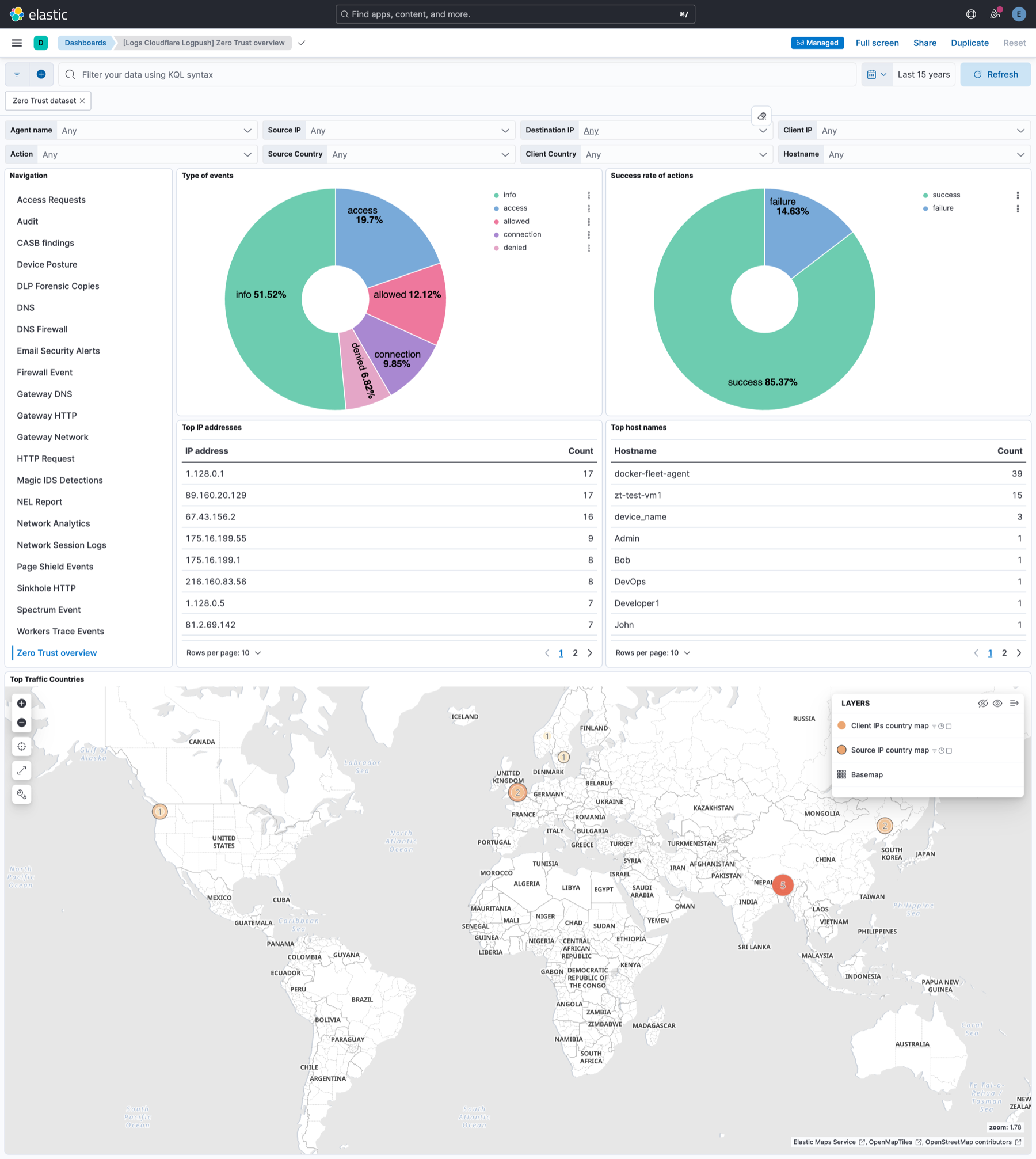
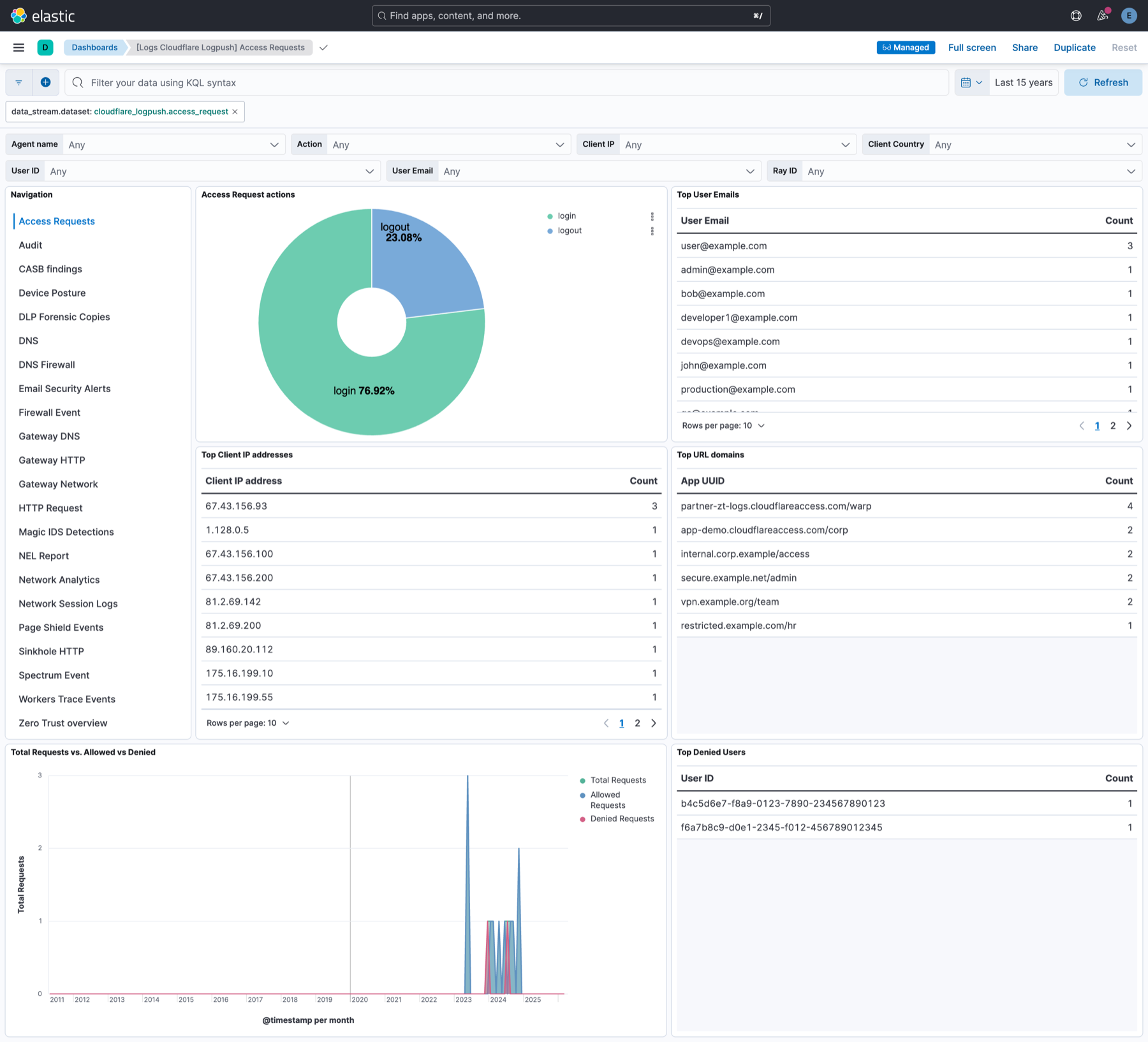
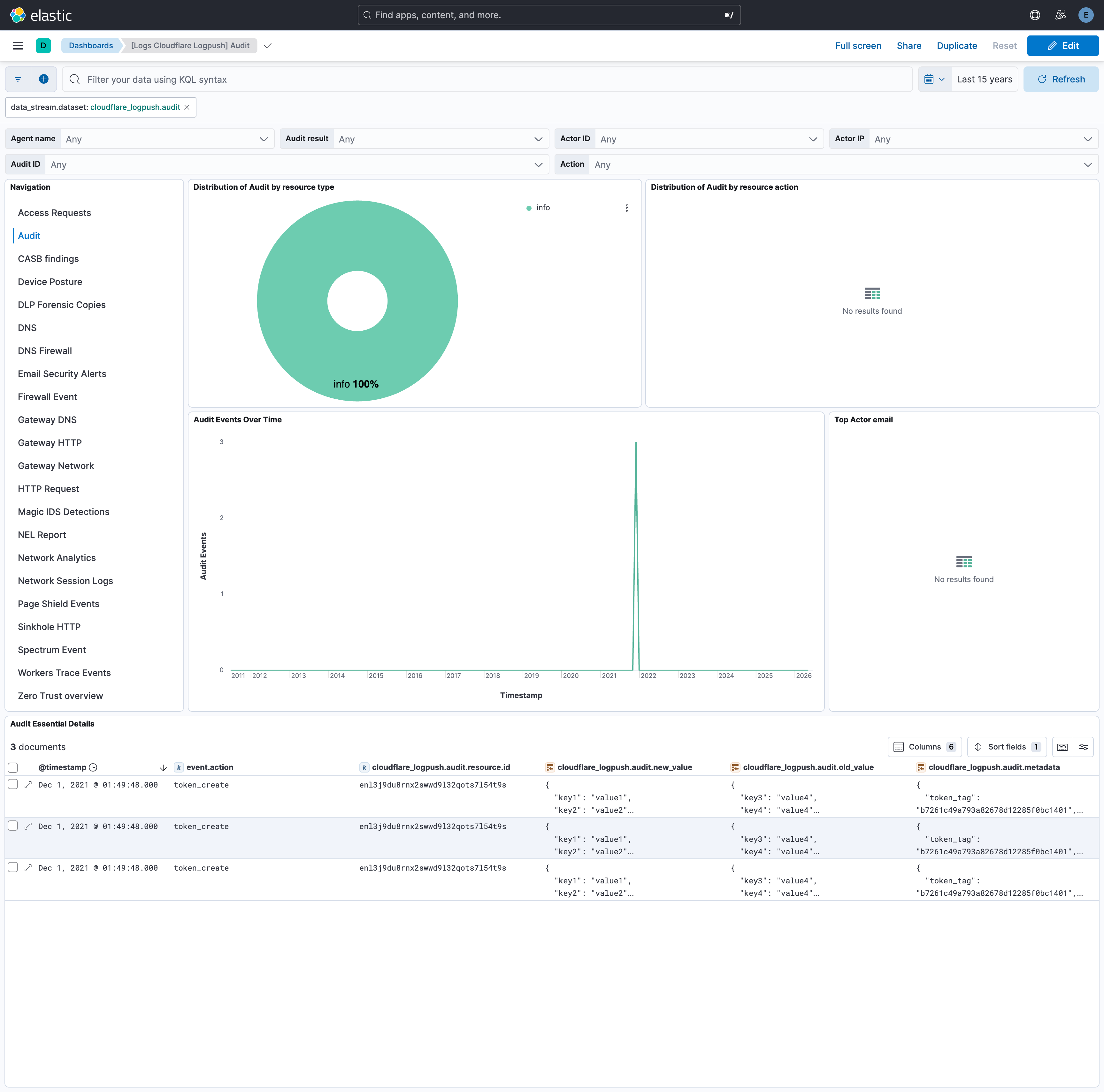
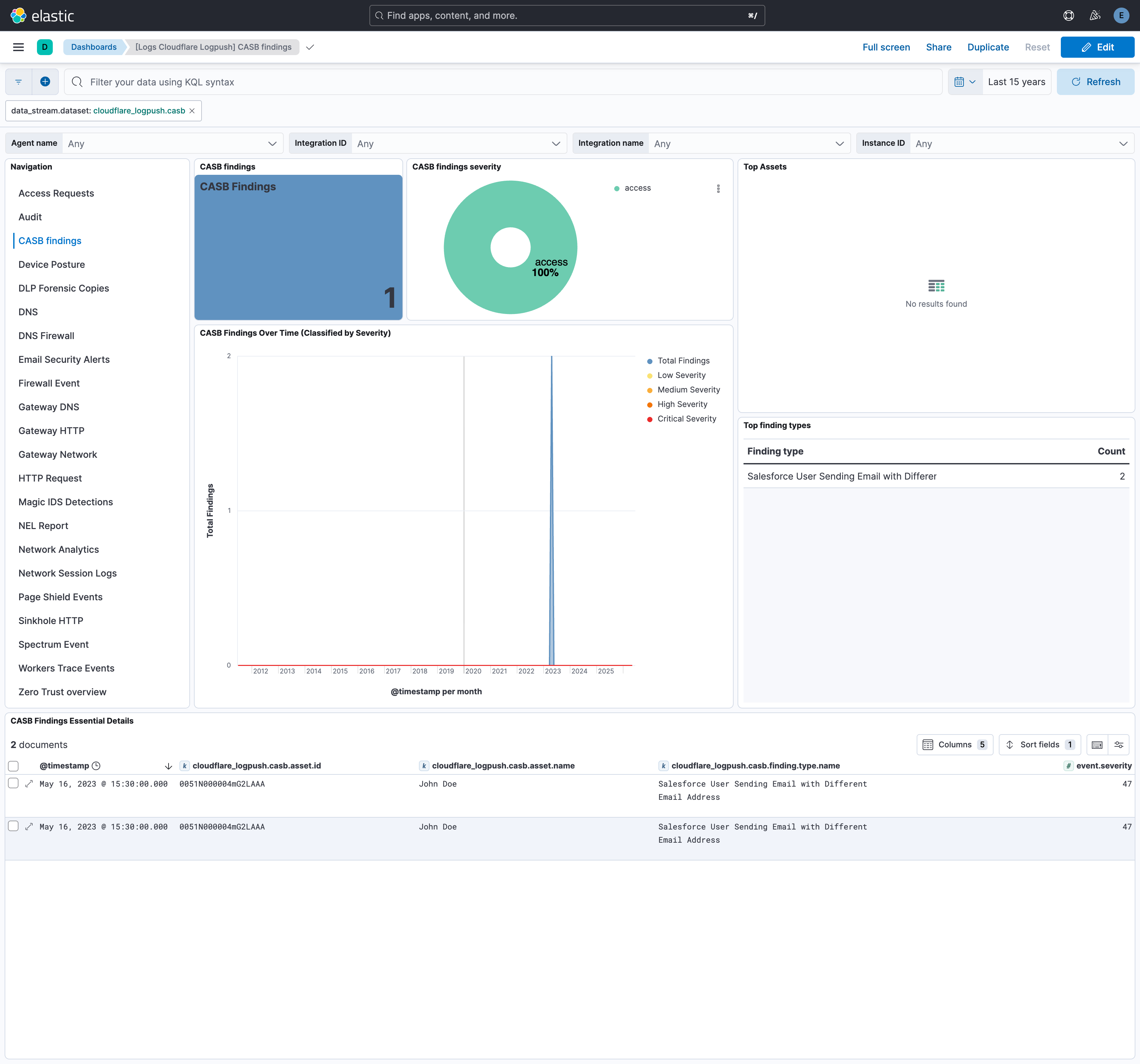
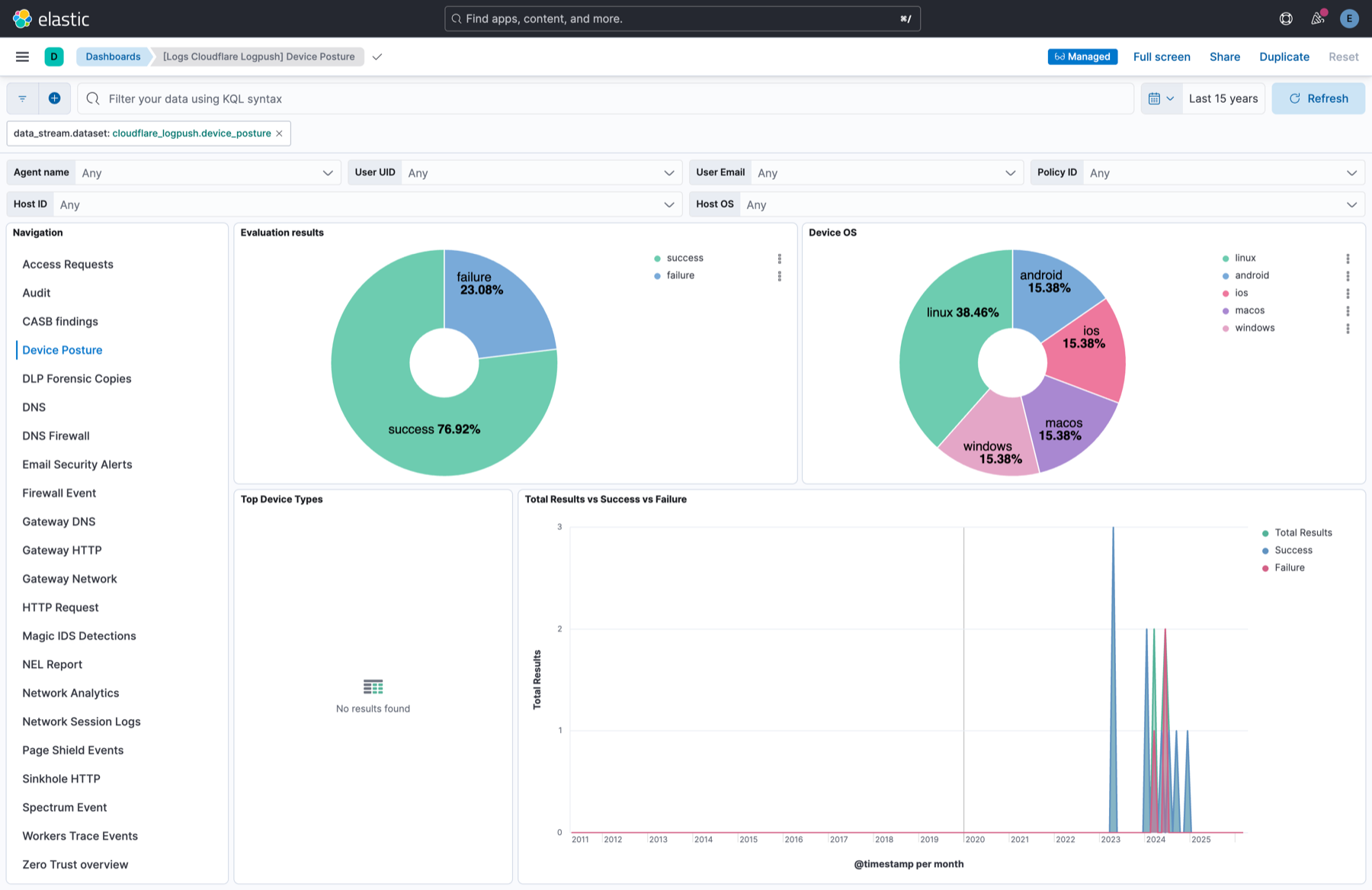
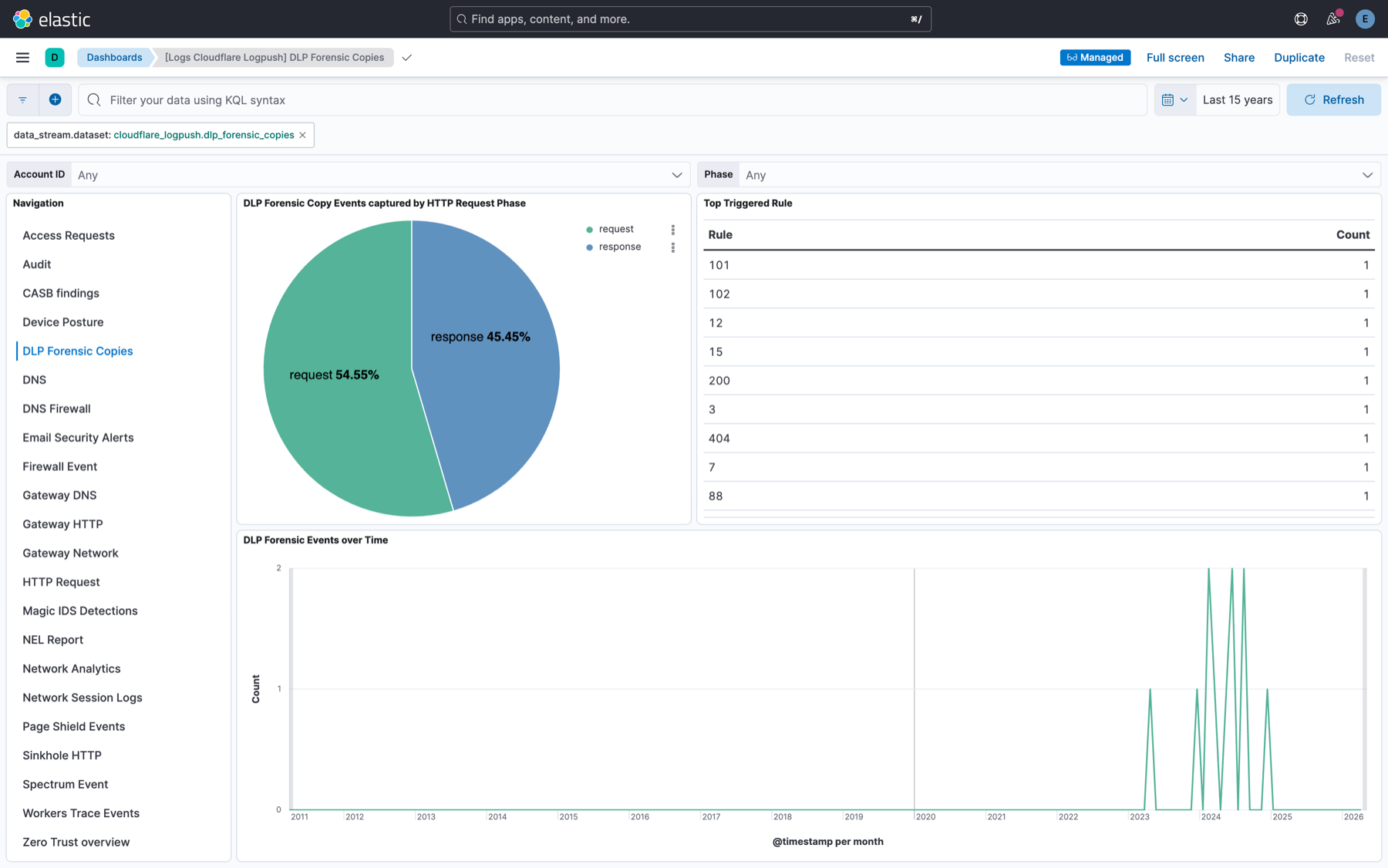
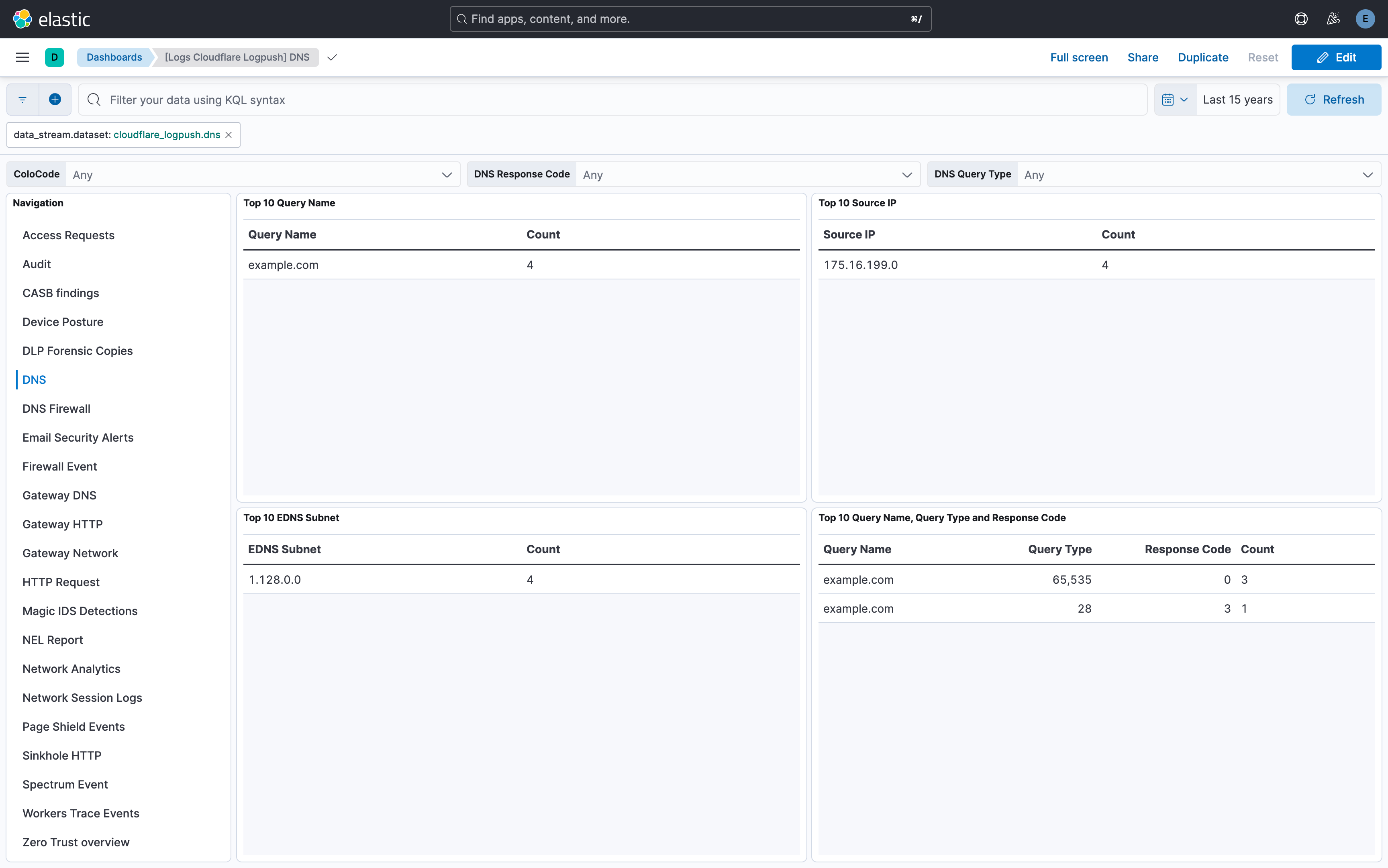
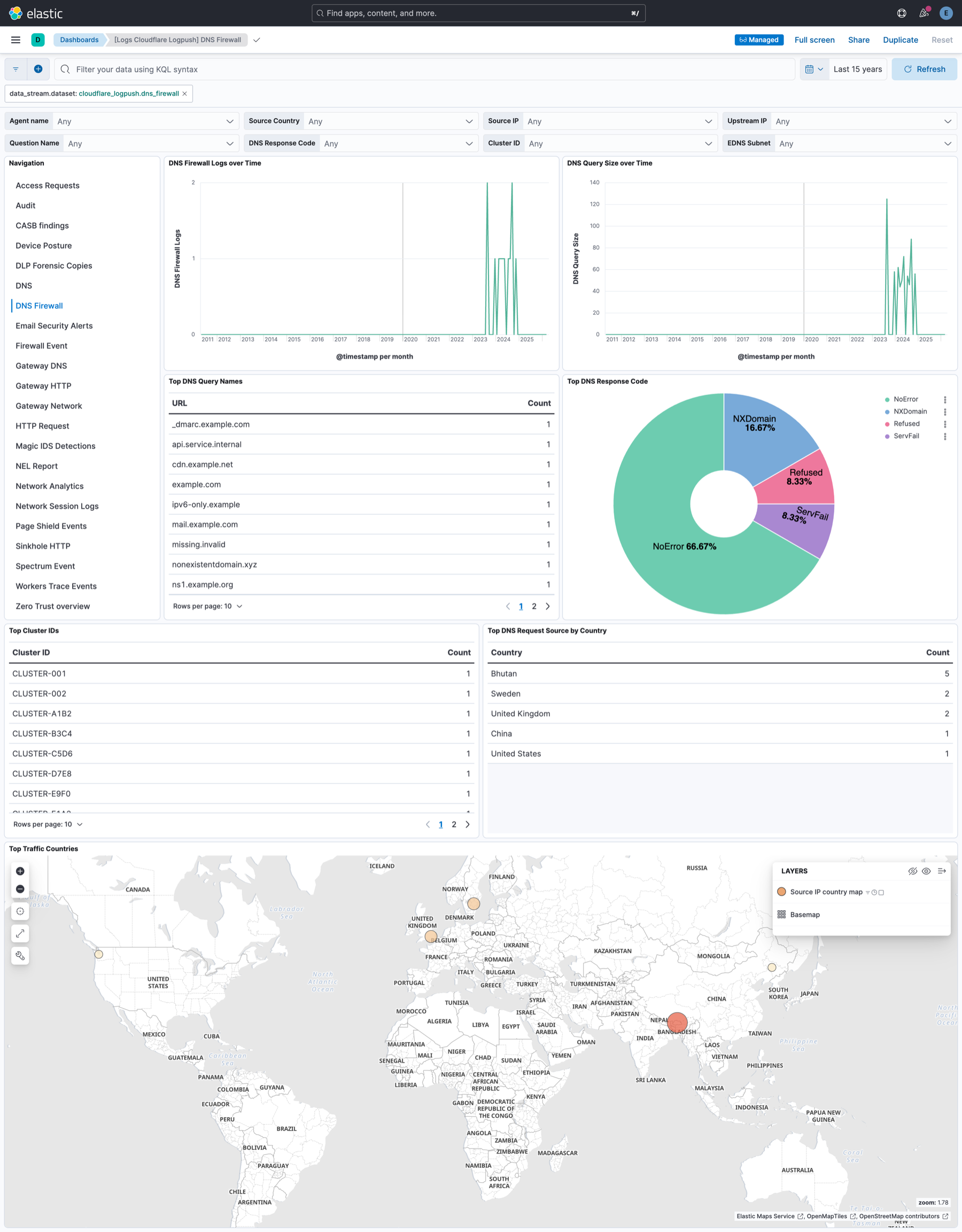
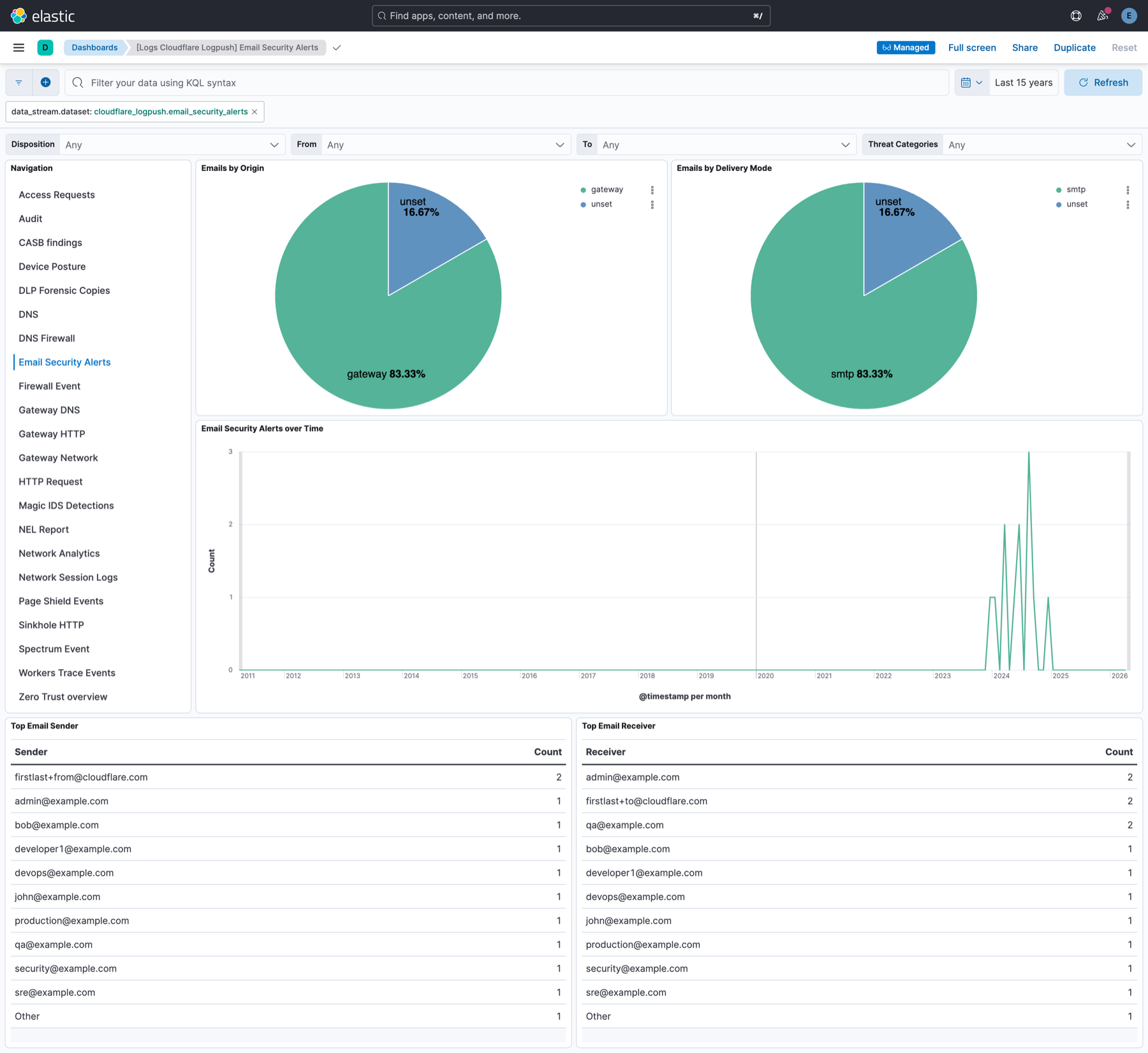
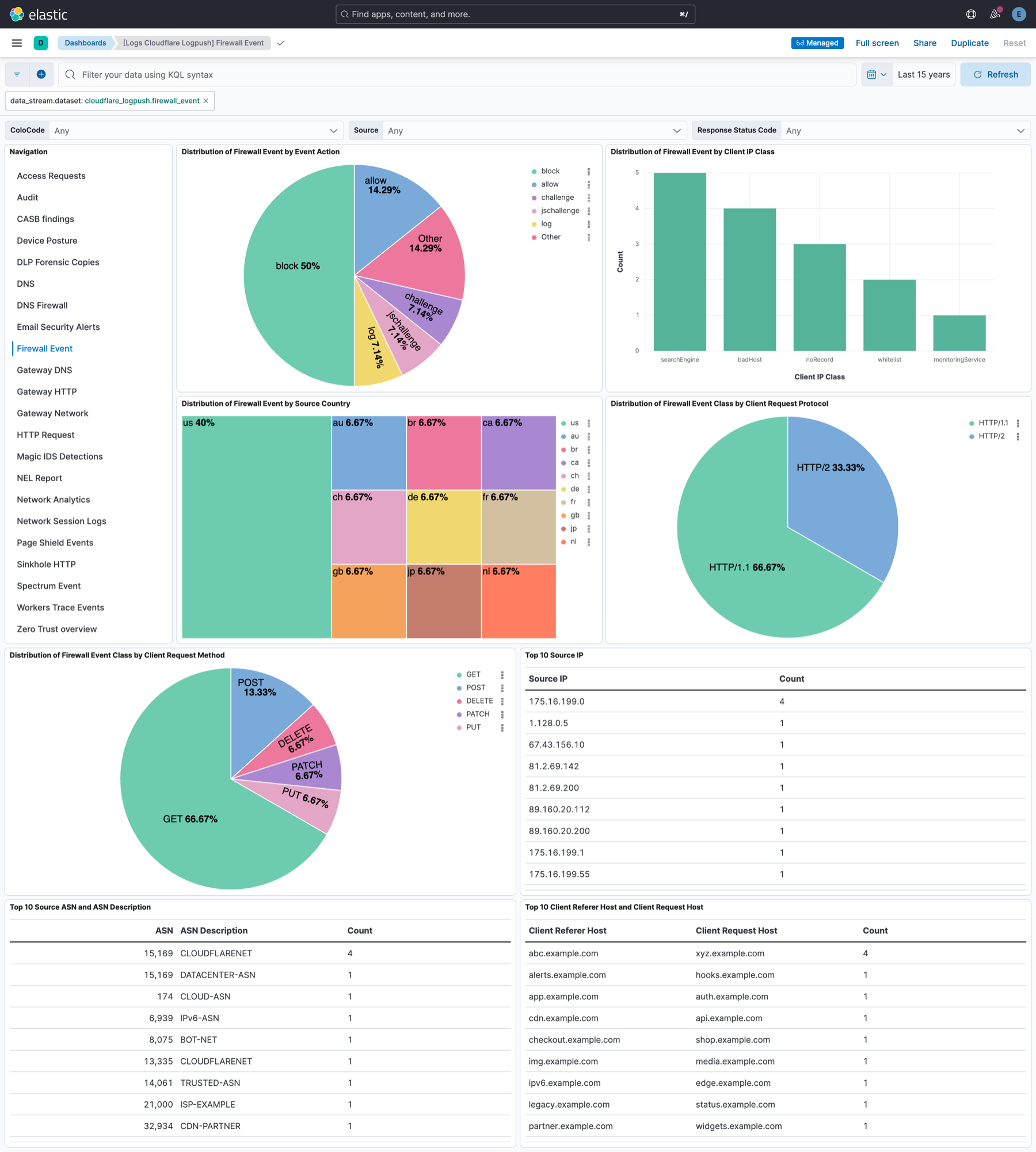
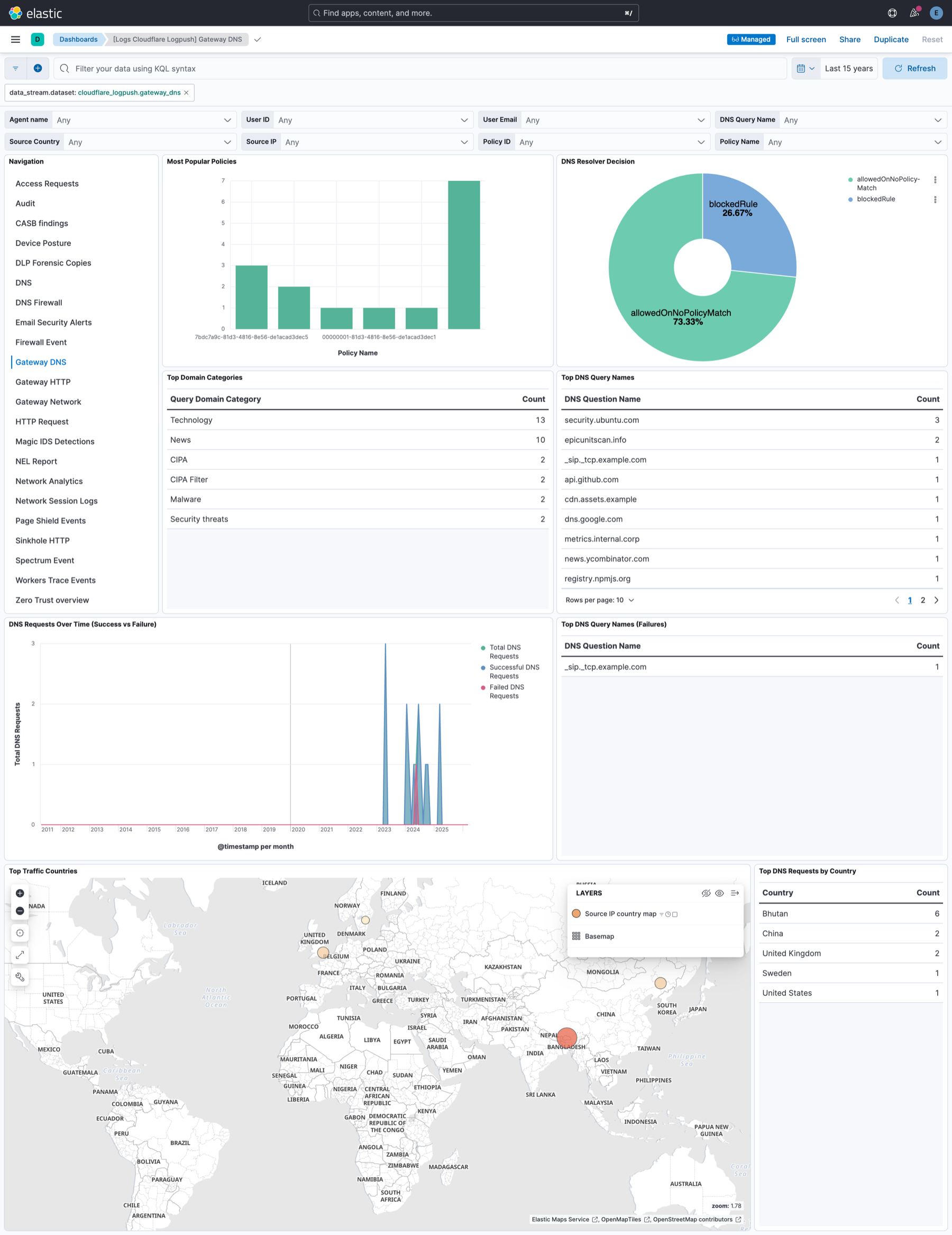
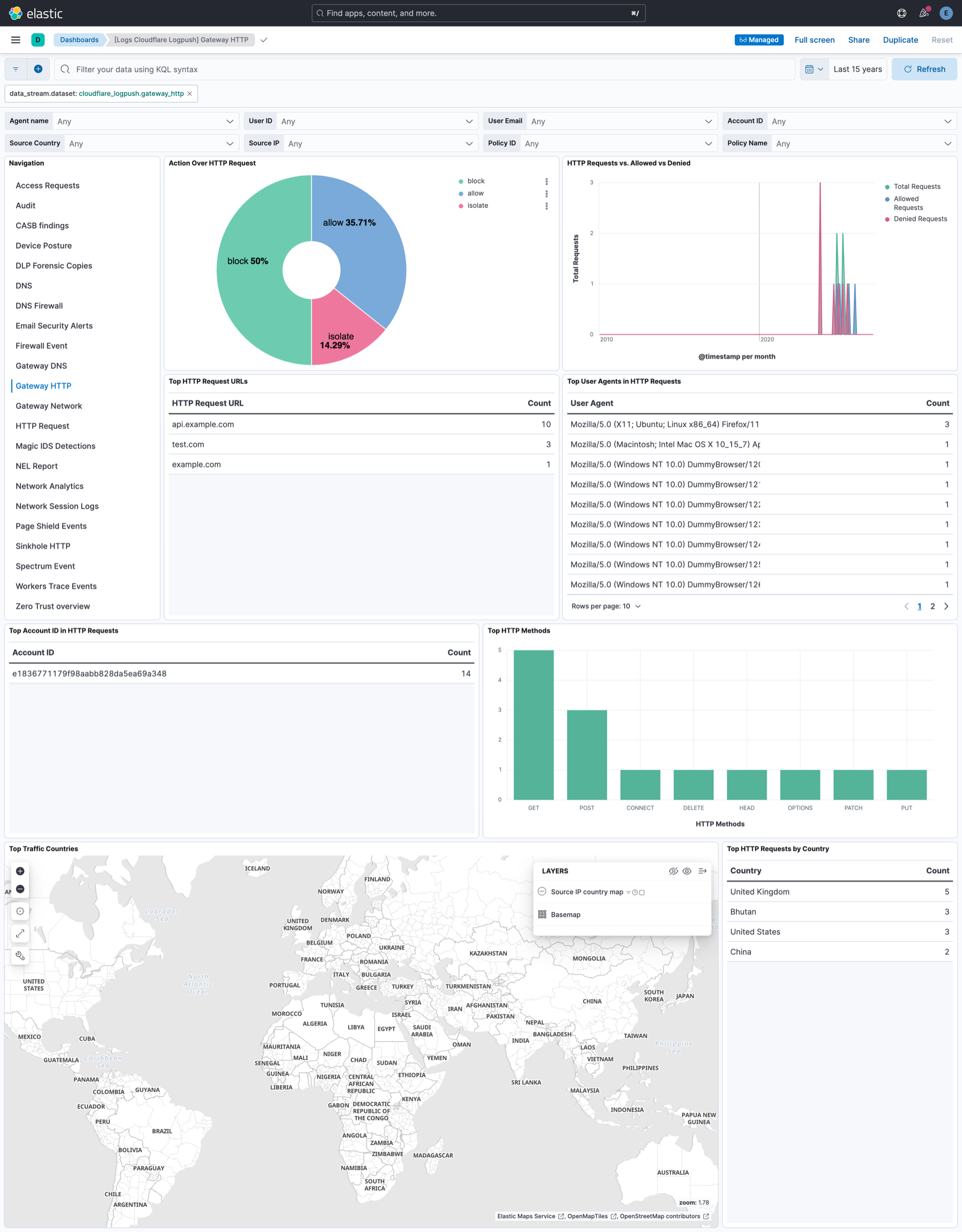
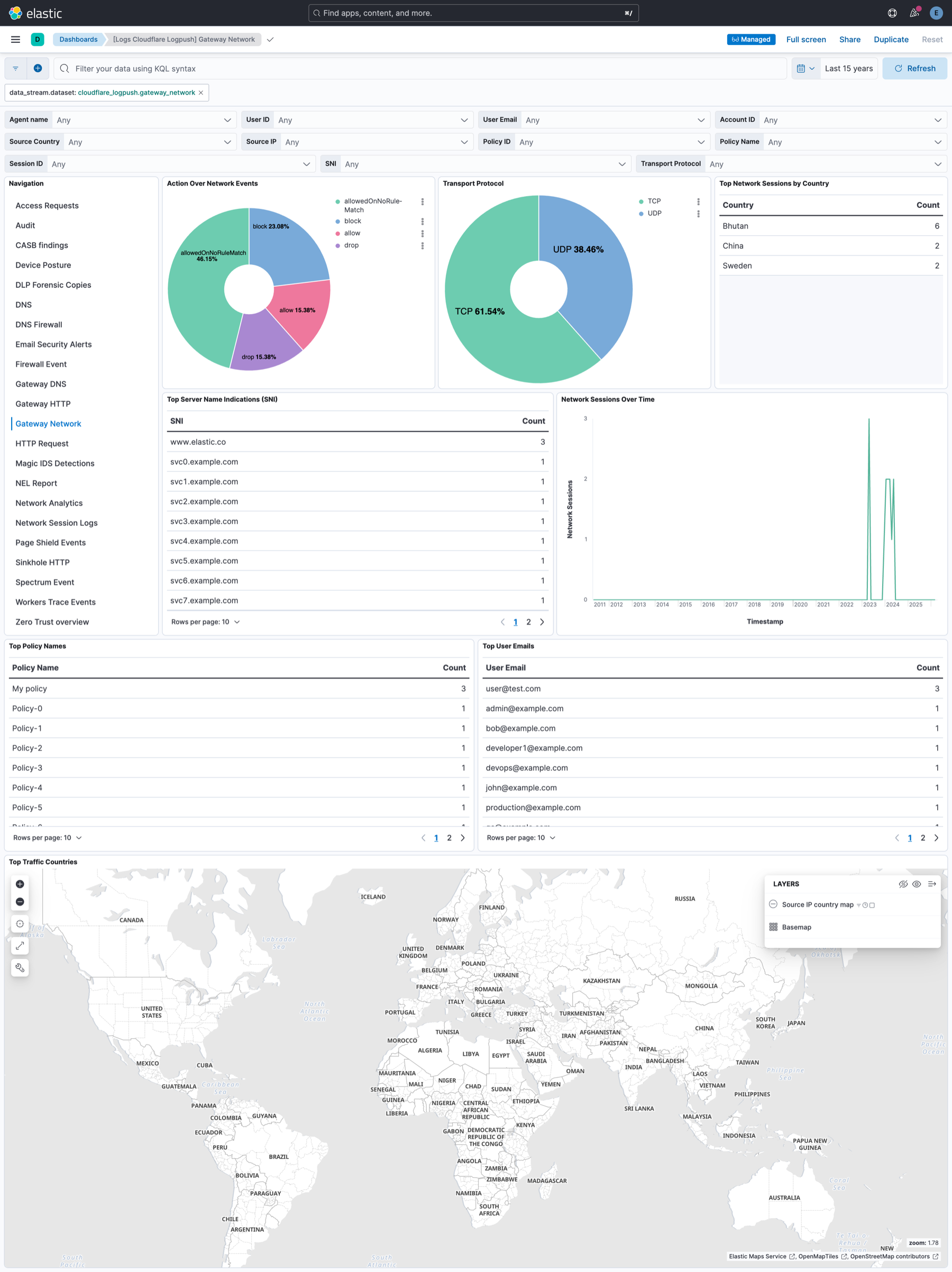
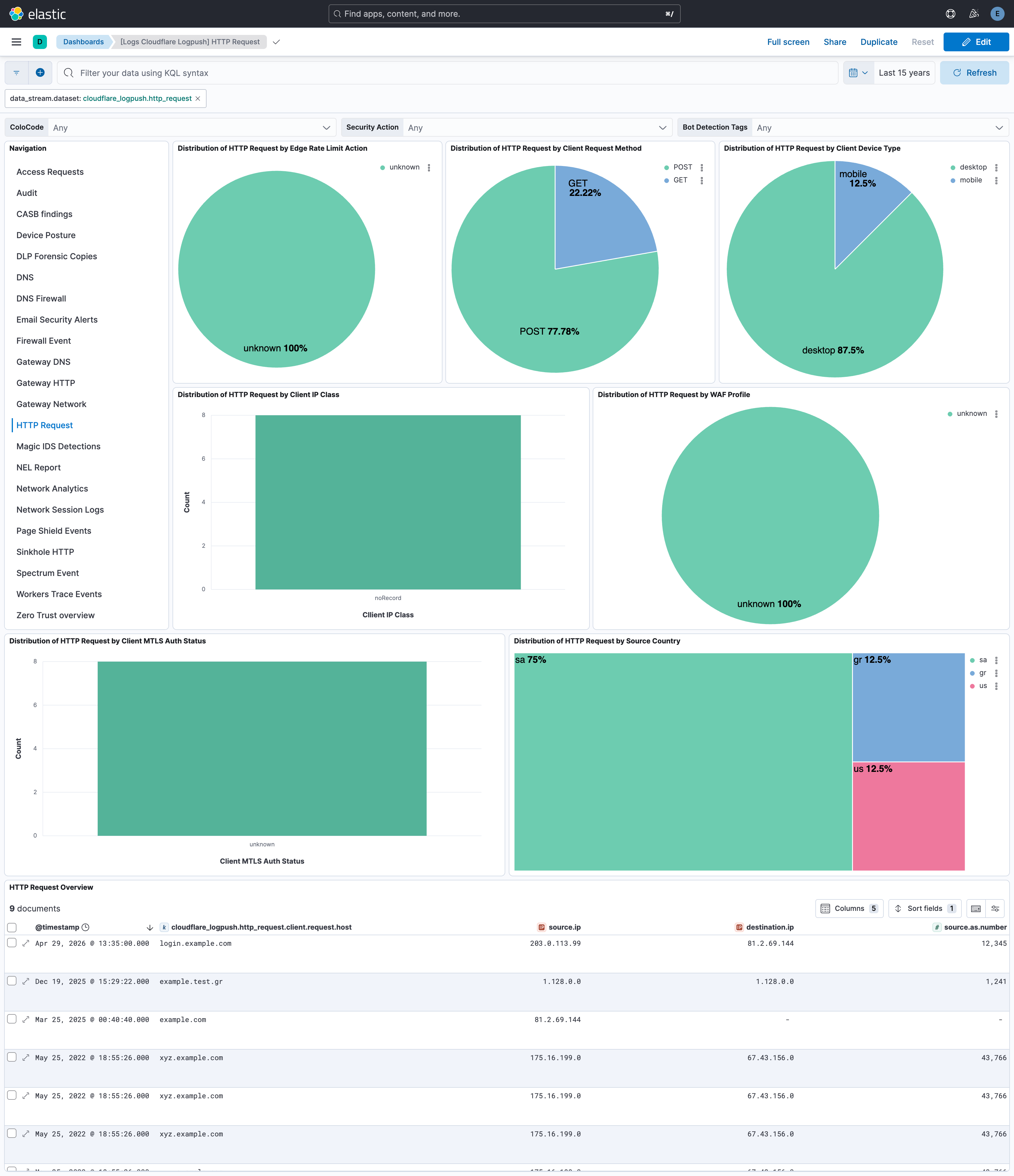
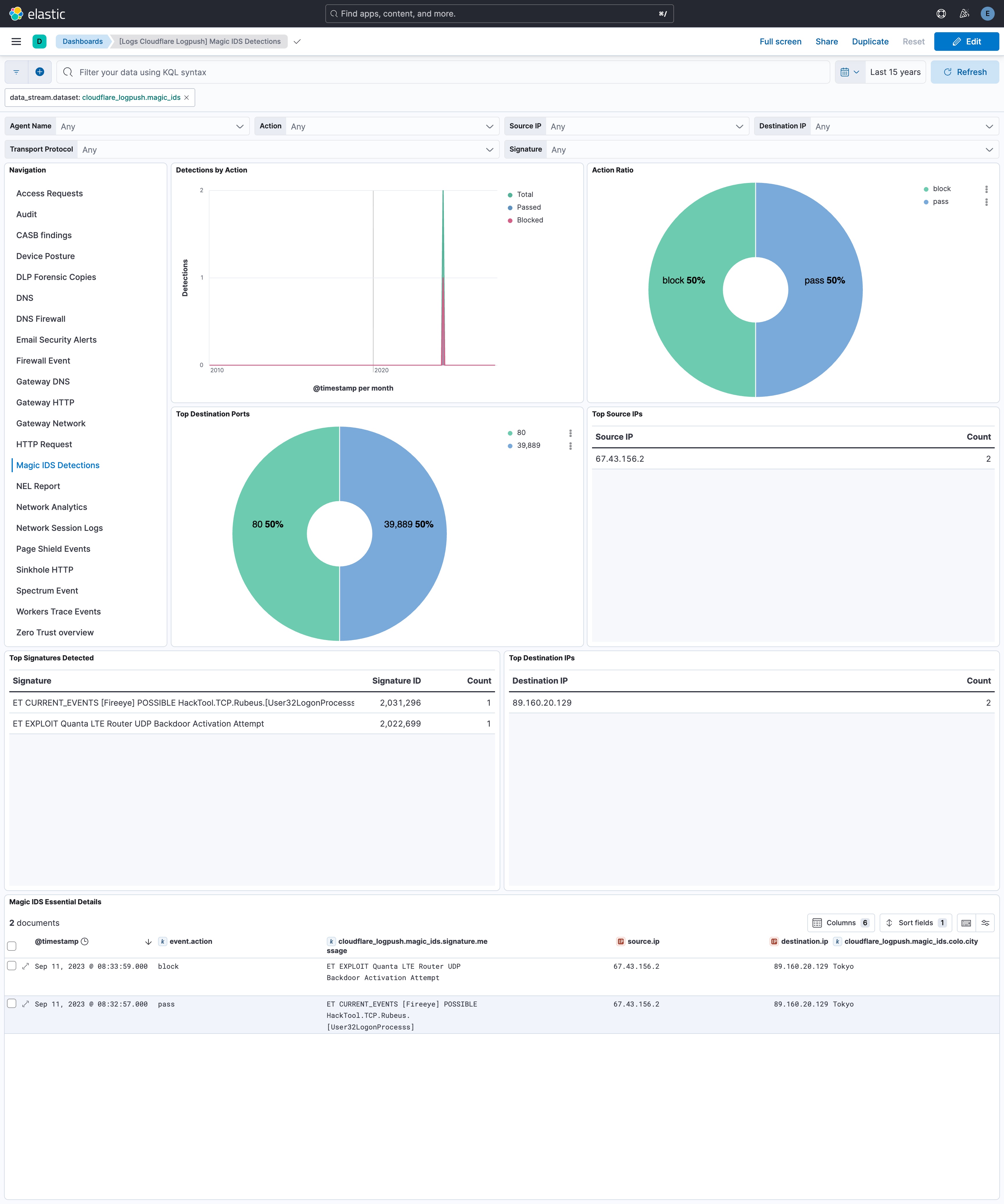
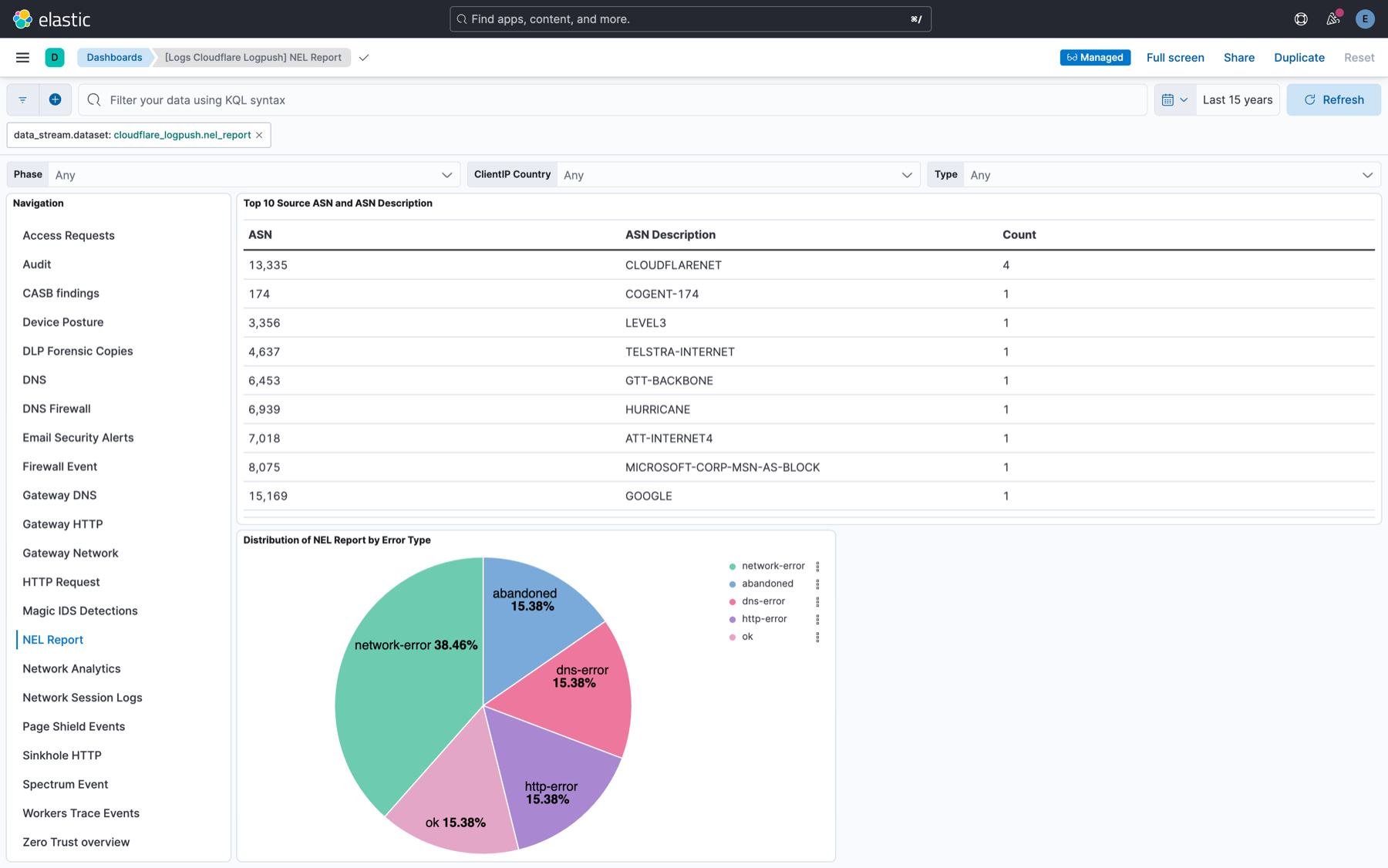
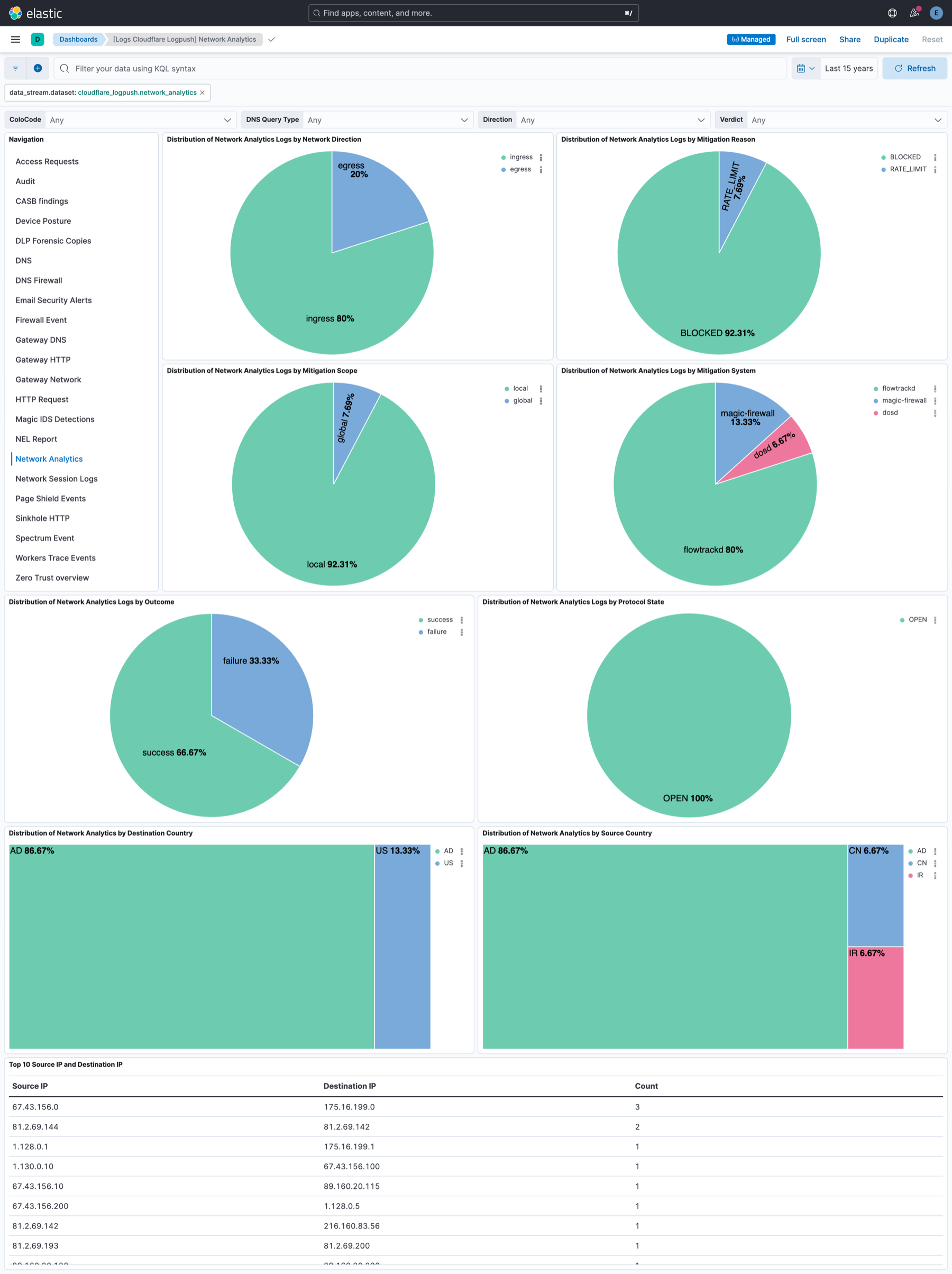
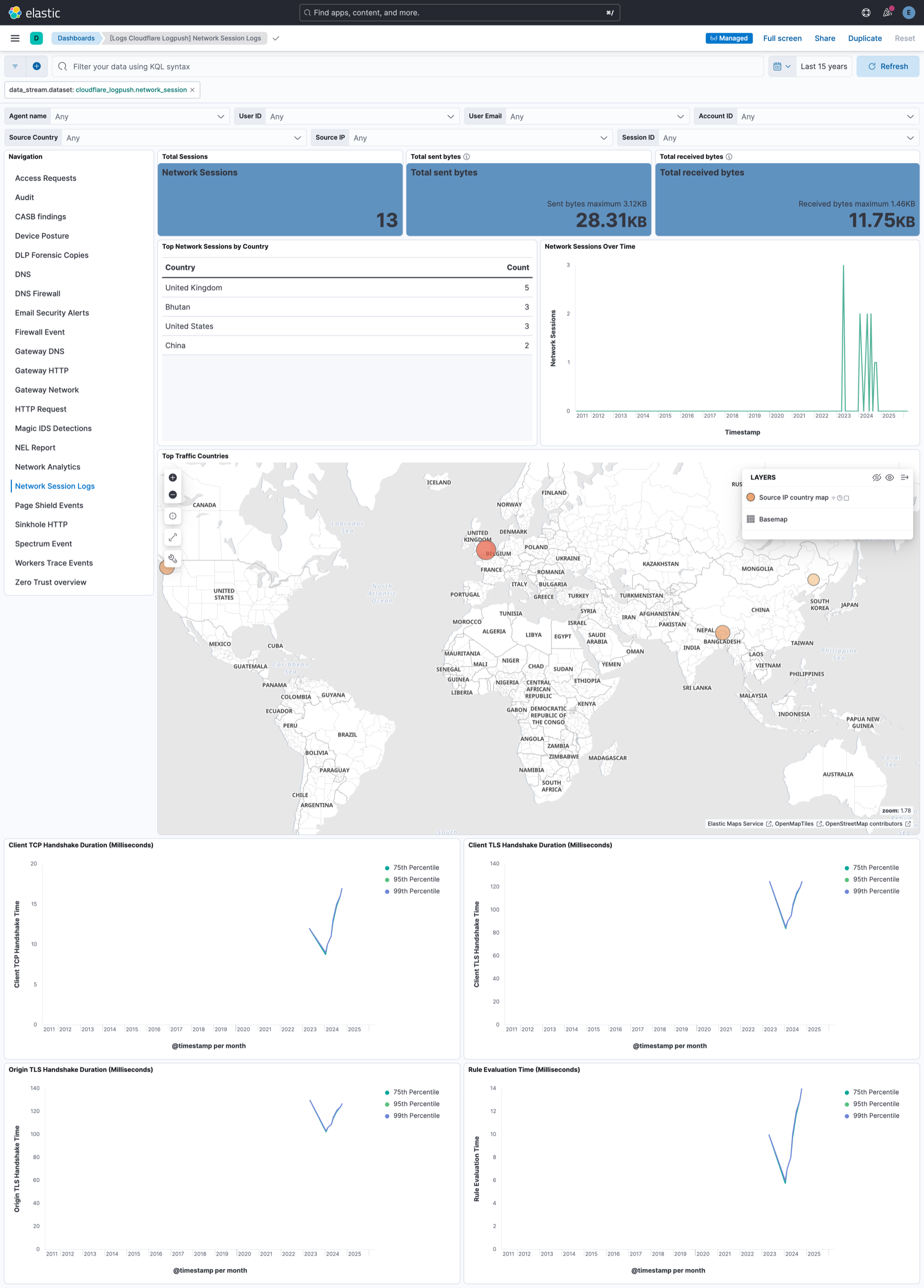
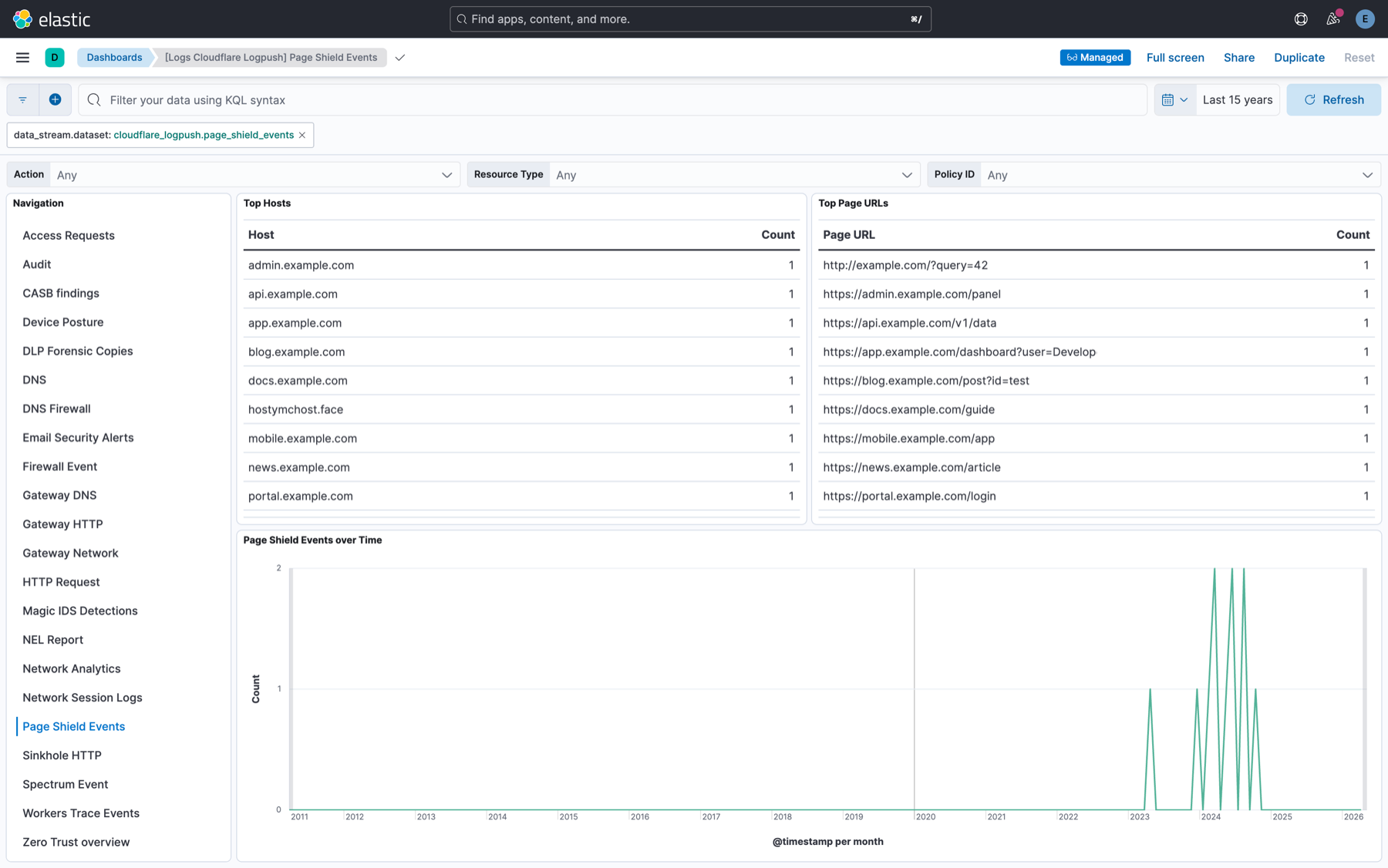
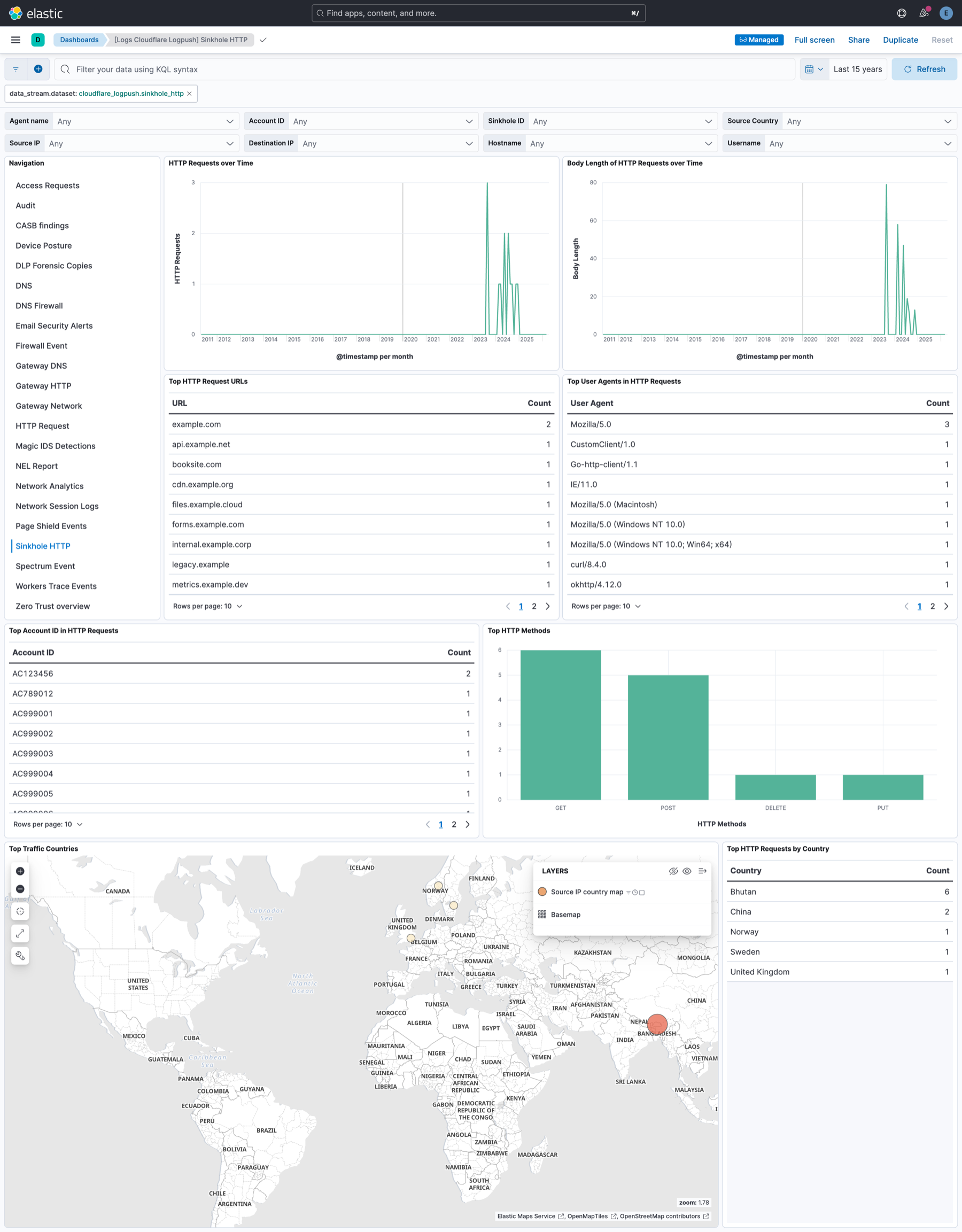
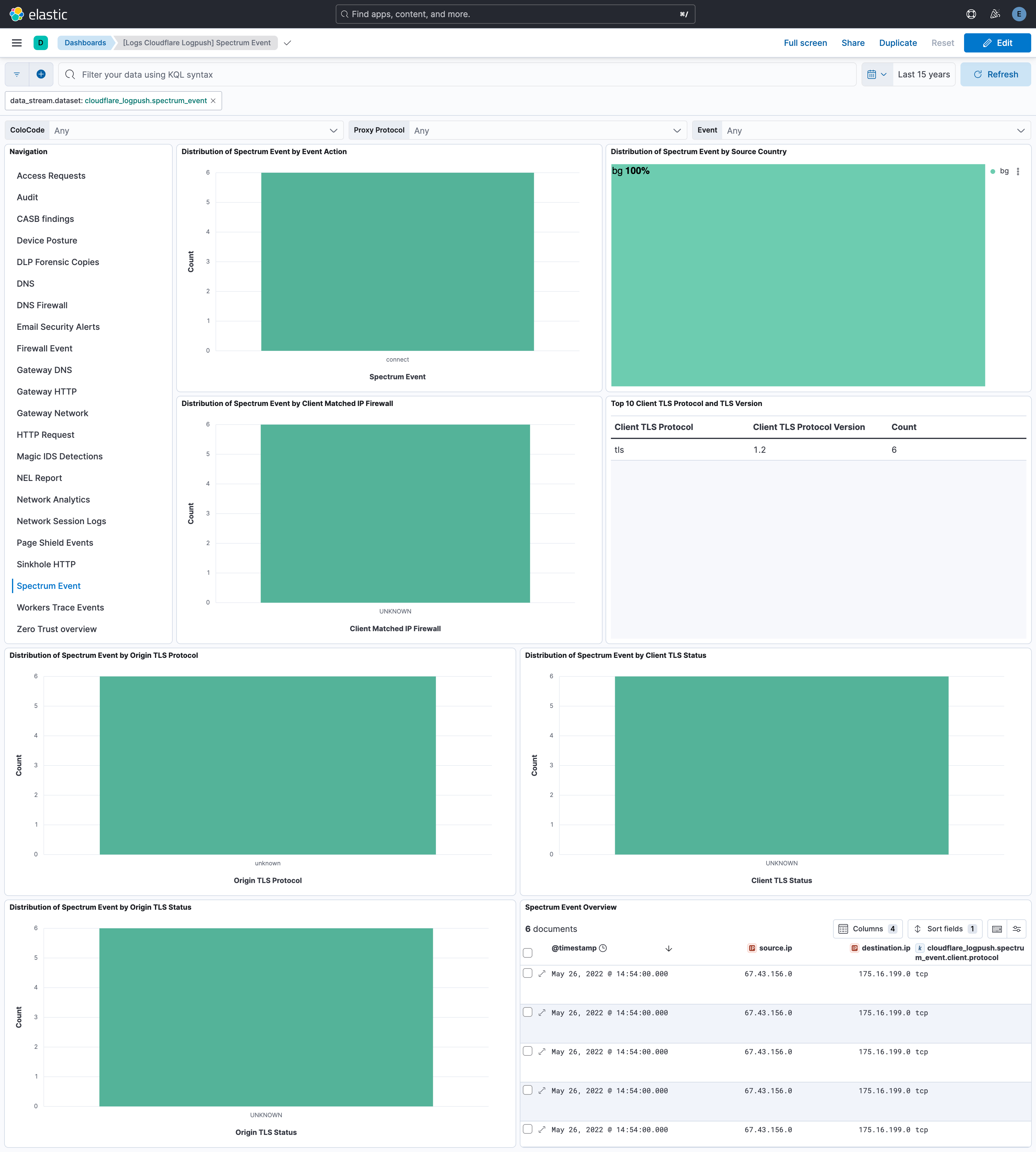
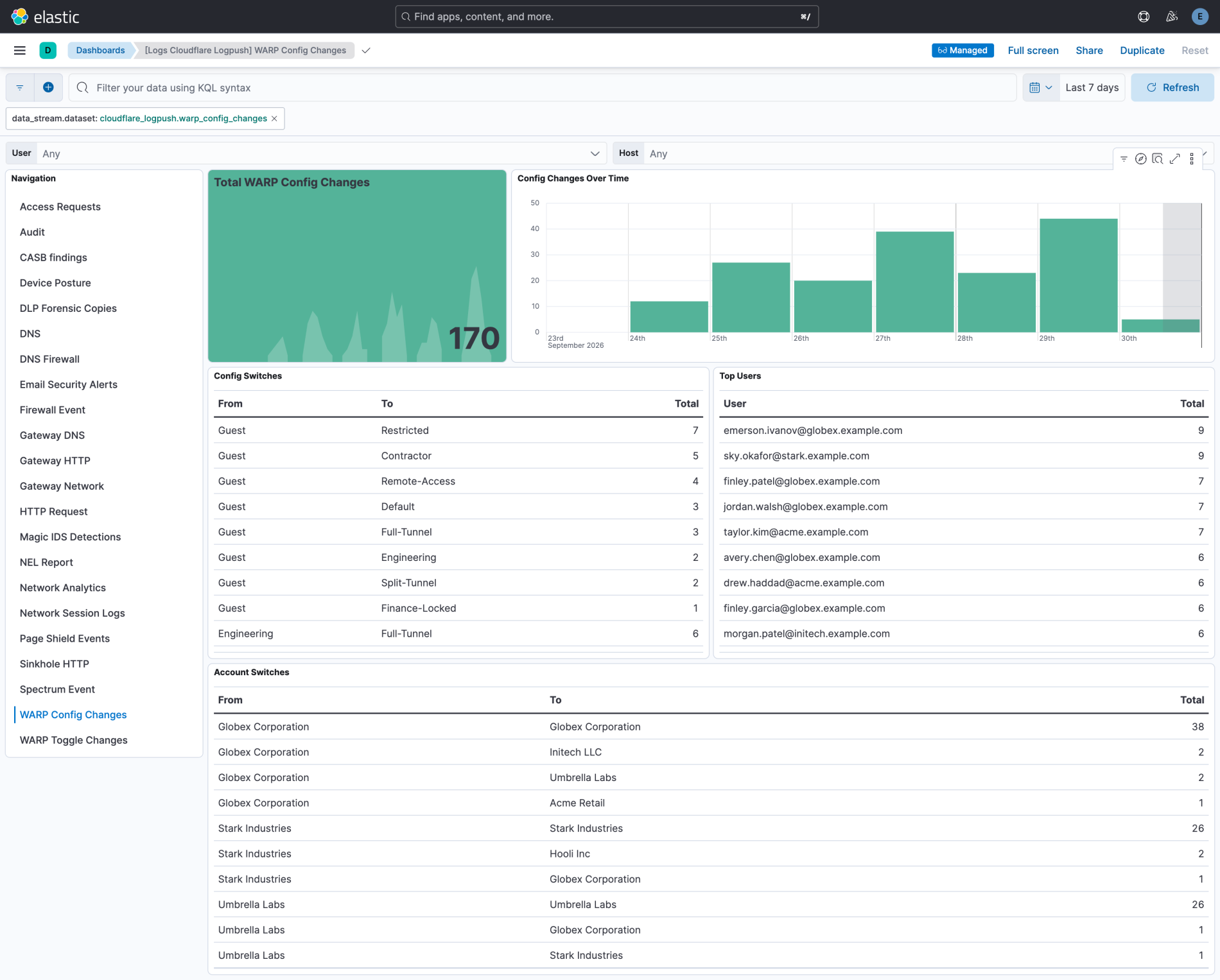
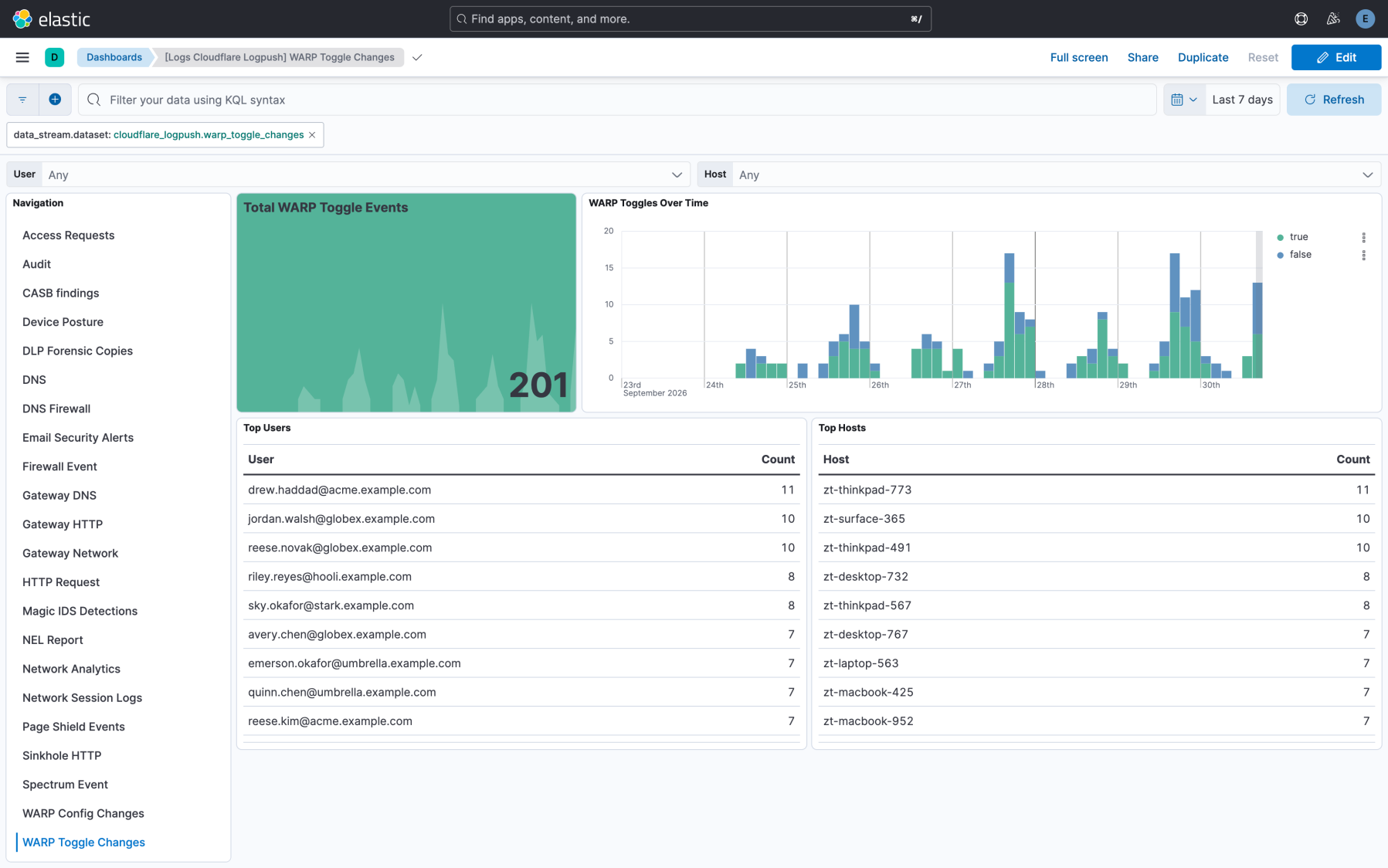
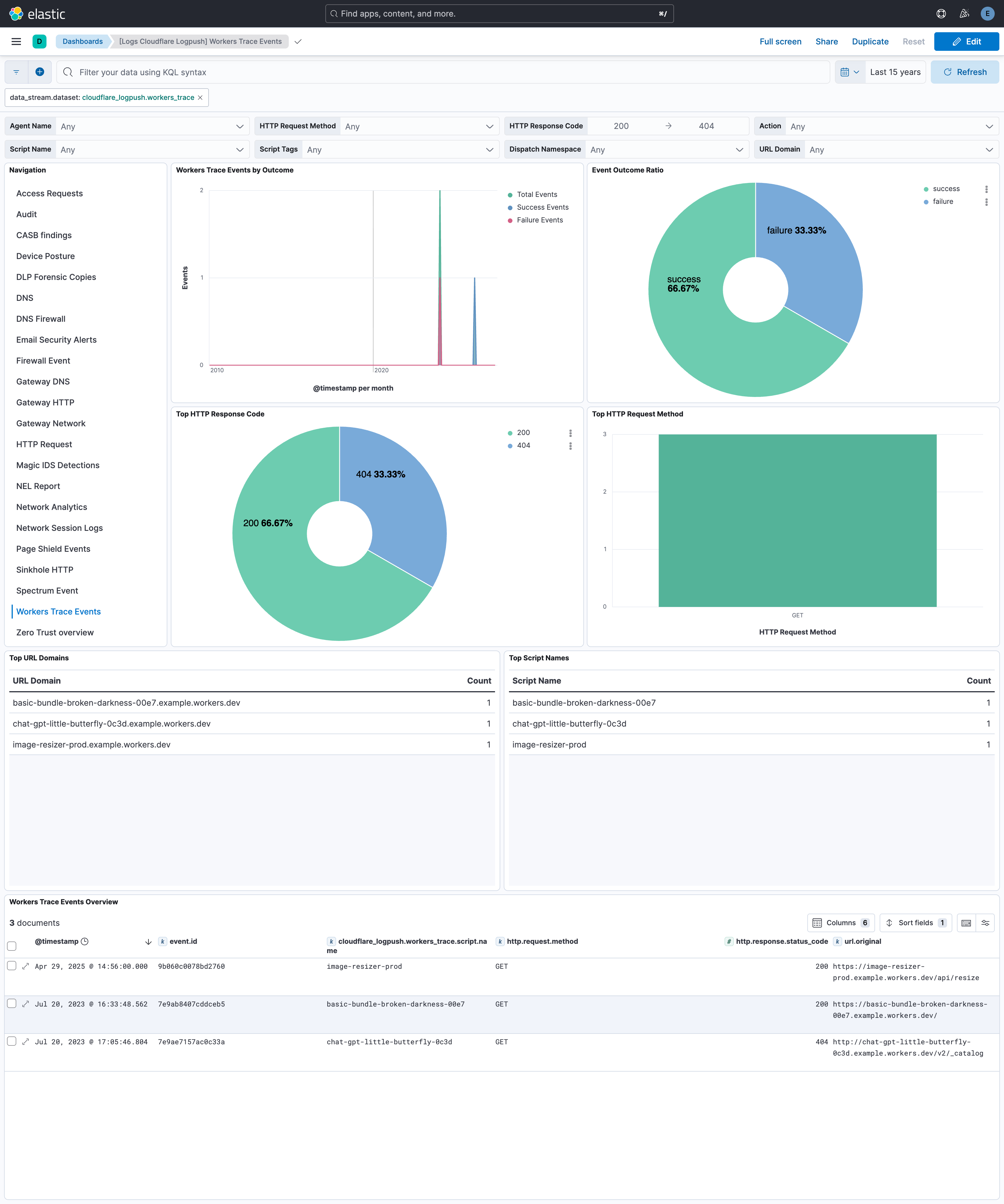
Changelog
| Version | Details | Minimum Kibana version |
|---|---|---|
| 2.2.0 | Enhancement (View pull request) Add warp_config_changes and warp_toggle_changes data streams. |
9.0.0 8.17.1 |
| 2.1.0 | Enhancement (View pull request) Add the preserve_original_event and preserve_duplicate_custom_fields options to the GCS input of all data streams. |
9.0.0 8.17.1 |
| 2.0.4 | Enhancement (View pull request) Use one GCS input template for all data streams. The previous variants differed only in whitespace. |
9.0.0 8.17.1 |
| 2.0.3 | Bug fix (View pull request) Set event.type to [error] instead of [info, error] for workers_trace events with event.outcome failure. |
9.0.0 8.17.1 |
| 2.0.2 | Bug fix (View pull request) Declare the start_timestamp and ignore_older variables for the AWS S3 input of the data streams whose stream template already renders them (device_posture, dlp_forensic_copies, dns_firewall, email_security_alerts, firewall_event, gateway_dns, gateway_http, gateway_network, http_request, page_shield_events). |
9.0.0 8.17.1 |
| 2.0.1 | Bug fix (View pull request) Uppercase source.geo.country_iso_code and destination.geo.country_iso_code so country codes match ISO 3166-1 alpha-2 and EMS boundary layers in Kibana Maps. |
9.0.0 8.17.1 |
| 2.0.0 | Bug fix (View pull request) Fix several field mapping and ingest pipeline correctness bugs across data streams: - Fix cloudflare_logpush.gateway_http.quarantined mapping by changing its type from keyword to boolean to match the actual values returned by Cloudflare.- Fix http_request HTTP header field naming by renaming header to headers to align with the field definitions and the underlying Cloudflare payload.- Fix gateway_dns resolved IP modeling by replacing the flat cloudflare_logpush.gateway_dns.resolved_ip field with the nested cloudflare_logpush.gateway_dns.resolved_ip_details.ips, so per-IP category metadata can be captured alongside the IP values.- Fix dlp_forensic_copies preserve_duplicate_custom_fields toggle so that the correct custom fields (triggered_rule_id, datetime) — which have ECS counterparts — are removed when the toggle is OFF. Previously the remove processor referenced fields the pipeline never produced, so the toggle had no effect for these fields.- Ensure identifier fields ( *ID/*IDs) are consistently mapped as keyword and stored as strings by replacing rename (and integer convert) processors with convert processors of type: string. Fields whose mapping type changes in this release are: cloudflare_logpush.gateway_dns.application_id, cloudflare_logpush.gateway_dns.matched.category.ids, cloudflare_logpush.gateway_dns.question.category.ids, and cloudflare_logpush.gateway_dns.question.indicator_feed.ids (long → keyword); cloudflare_logpush.http_request.bot.detection_ids, cloudflare_logpush.http_request.edge.rate.limit.id, and cloudflare_logpush.http_request.zone.id (long → keyword); cloudflare_logpush.magic_ids.signature.id (long → keyword); and cloudflare_logpush.network_analytics.rule.id and cloudflare_logpush.network_analytics.rule.set.override.id (text → keyword). The already-keyword *IDs fields in gateway_dns, gateway_http, and gateway_network continue to be cast to strings so their values are stored consistently rather than as the raw JSON integers Cloudflare emits.- Fix dns.response_code in the dns_firewall and gateway_dns data streams to correctly populate IANA keyword values instead of numeric representations.- Change the cloudflare_logpush.network_analytics.tcp.options and cloudflare_logpush.network_analytics.ipv6.extension_headers field types from text to long, matching Cloudflare's documented semantics (consistent with cloudflare_logpush.network_analytics.ipv4.options). Their comma-separated values continue to be parsed into numeric arrays.Breaking change (View pull request) The fixes above are user-visible breaking changes: - cloudflare_logpush.gateway_http.quarantined mapping changes from keyword to boolean. Existing indices will reject the new value type, so users must roll over the data stream (or reindex) for the new mapping to take effect.- The http_request HTTP header fields are renamed from header to headers. Saved searches, dashboards, queries, and detection rules referencing cloudflare_logpush.http_request.*.header will no longer return data and must be updated to use headers.- The cloudflare_logpush.gateway_dns.resolved_ip field is removed; resolved IPs now live under cloudflare_logpush.gateway_dns.resolved_ip_details.ips. Saved searches, dashboards, queries, and detection rules referencing the old field must be updated.- In the dlp_forensic_copies data stream, when preserve_duplicate_custom_fields is OFF (the default), cloudflare_logpush.dlp_forensic_copies.triggered_rule_id and cloudflare_logpush.dlp_forensic_copies.datetime are no longer present in documents. Users that depend on these custom fields must turn preserve_duplicate_custom_fields ON, or migrate to the corresponding ECS fields.- Identifier fields ( *ID/*IDs) are now indexed as keyword strings rather than the raw JSON integers Cloudflare emits (or text). The following fields change mapping type: cloudflare_logpush.gateway_dns.application_id, cloudflare_logpush.gateway_dns.matched.category.ids, cloudflare_logpush.gateway_dns.question.category.ids, cloudflare_logpush.gateway_dns.question.indicator_feed.ids, cloudflare_logpush.http_request.bot.detection_ids, cloudflare_logpush.http_request.edge.rate.limit.id, cloudflare_logpush.http_request.zone.id, cloudflare_logpush.magic_ids.signature.id, cloudflare_logpush.network_analytics.rule.id, and cloudflare_logpush.network_analytics.rule.set.override.id. In addition, the already-keyword *IDs fields in gateway_dns, gateway_http, and gateway_network now contain string values instead of integers. Existing indices will reject the changed value types, so users must roll over the data stream (or reindex), and queries, dashboards, and detection rules comparing these fields against numeric values must be updated to use string values.- dns.response_code in the dns_firewall and gateway_dns data streams now contains IANA keyword values instead of numeric representations. Queries, dashboards, and detection rules referencing this field must be updated to use the new keyword values.- The cloudflare_logpush.network_analytics.tcp.options and cloudflare_logpush.network_analytics.ipv6.extension_headers fields change from text to long. Existing indices will reject the new value type, so users must roll over the data stream (or reindex) for the new mapping to take effect. |
9.0.0 8.17.1 |
| 1.47.0 | Enhancement (View pull request) Updated all dashboards to follow the latest guidelines. Added new dashboards for the DLP Forensic Copies, Email Security Alerts, and Page Shield Events data streams. |
9.0.0 8.17.1 |
| 1.46.2 | Bug fix (View pull request) Fix ingestion failure for events collected via the HTTP Endpoint input by only parsing event.original when it is present. The input parses the request body into json itself, so event.original may be absent. |
9.0.0 8.17.1 |
| 1.46.1 | Bug fix (View pull request) Use the ECS definition for email.attachments. |
9.0.0 8.17.1 |
| 1.46.0 | Enhancement (View pull request) Update README documentation. |
9.0.0 8.17.1 |
| 1.45.0 | Enhancement (View pull request) Ingest pipeline improvements. Enhancement (View pull request) Normalize severity handling in CASB data stream. Enhancement (View pull request) Consolidate timestamp handling to a single script across all data streams. Enhancement (View pull request) Improve ECS mapping across multiple data streams. Enhancement (View pull request) Standardize the error message format and use the latest null-removal script. Enhancement (View pull request) Add tag key to each processor in the ingest pipelines.Enhancement (View pull request) Replace rename processors with typed convert processors for fields whose fields.yml mapping is ip, long, double, or boolean. This validates incoming values against the declared mapping and prevents off-type values from being silently indexed.Replace grok processors with dissect for simple delimiter-based pattern. Enhancement (View pull request) Update ECS to 9.3.0 and add new fields across multiple data streams. |
9.0.0 8.17.1 |
| 1.44.2 | Bug fix (View pull request) Split comma-separated values in IPv4Options, IPv6ExtensionHeaders, and TCPOptions fields from network_analytics data stream.Fix grammatical mistakes in manifest files. |
9.0.0 8.17.1 |
| 1.44.1 | Bug fix (View pull request) Fix multiple ingest pipeline and field definition bugs across data streams: - Fix incorrect field-path references and PascalCase mismatches with Cloudflare JSON keys. - Fix dns and gateway_dns to populate related.hosts and related.ip from the correct package fields.- Fix gateway_network GeoIP enrichment to tolerate missing source and destination IPs.- Fix network_analytics TCP SACK blocks split ordering and empty-string handling.- Fix swapped field descriptions in firewall_event and http_request.- Remove orphaned page_shield_events.page field that was never populated. |
9.0.0 8.17.1 |
| 1.44.0 | Enhancement (View pull request) Add SSL configuration option to the aws-s3 input. |
9.0.0 8.17.1 |
| 1.43.5 | Bug fix (View pull request) Update R2 setup documentation to require the region field instead of stating it is not needed. |
9.0.0 8.17.1 |
| 1.43.4 | Bug fix (View pull request) Add region variable to the aws-s3 input to fix compatibility with Elastic Agent 8.19.12+ when using non-AWS S3-compatible buckets such as Cloudflare R2. |
9.0.0 8.17.1 |
| 1.43.3 | Bug fix (View pull request) Use triple-brace Mustache templating when referencing variables in ingest pipelines. |
9.0.0 8.17.1 |
| 1.43.2 | Bug fix (View pull request) Fix URI parsing for URIs starting with '/' by constructing complete URIs from scheme, domain, and path components in http_request data stream. |
9.0.0 8.17.1 |
| 1.43.1 | Bug fix (View pull request) Fix uri parsing for http_request data stream. |
9.0.0 8.17.1 |
| 1.43.0 | Enhancement (View pull request) Add Enable Data Deduplication toggle for AWS S3 input. By default, it is enabled. When enabled, this setting prevents duplicates but may result in a lower indexing rate because Elasticsearch must check for existing documents before indexing. |
9.0.0 8.17.1 |
| 1.42.0 | Enhancement (View pull request) Add alternative host configuration option support in gcs input. |
9.0.0 8.17.1 |
| 1.41.0 | Enhancement (View pull request) Add Cloudflare SourceInternalIP field values to related.ip for the gateway_http and gateway_network data streams. |
9.0.0 8.17.1 |
| 1.40.0 | Enhancement (View pull request) Added support for Azure Blob Storage input for all data streams. |
9.0.0 8.17.1 |
| 1.39.2 | Bug fix (View pull request) Do not convert timestamps in spectrum_event datastream that are 0, "0" or "". |
9.0.0 8.16.5 |
| 1.39.1 | Bug fix (View pull request) Fix audit data stream null handling. |
9.0.0 8.16.5 |
| 1.39.0 | Enhancement (View pull request) Update the Cloudflare Logpush integration data streams introduction. |
9.0.0 8.16.5 |
| 1.38.3 | Bug fix (View pull request) Fix duplicate key number_of_workers inside gateway_http data stream. |
9.0.0 8.16.5 |
| 1.38.2 | Bug fix (View pull request) Fix handling of TCP SACK block lists. |
9.0.0 8.16.5 |
| 1.38.1 | Bug fix (View pull request) Fix Cloudflare source field rename handling. |
9.0.0 8.16.5 |
| 1.38.0 | Enhancement (View pull request) Add tls.cipher ECS mapping for cloudflare_logpush.http_request.client.ssl.cipher. |
9.0.0 8.16.5 |
| 1.37.4 | Bug fix (View pull request) Fix the field type of http_request.bot.detection_tags from long to keyword, aligning it with the log source type of string array. This resolves an issue where the field was being ignored due to the "ignored_malformed" index setting, making it unusable in searches. |
9.0.0 8.16.5 |
| 1.37.3 | Bug fix (View pull request) Fix default request trace enabled behavior. |
9.0.0 8.16.5 |
| 1.37.2 | Bug fix (View pull request) Fix geoip processor for gateway_dns and gateway_http when there is no source.ip or destination.ip. |
9.0.0 8.16.5 |
| 1.37.1 | Bug fix (View pull request) Fix handling of http_request events missing EdgeStartTimestamp. |
9.0.0 8.16.5 |
| 1.37.0 | Enhancement (View pull request) Add parse for missing field on Firewall Event dataset. |
9.0.0 8.16.5 |
| 1.36.0 | Enhancement (View pull request) Expand set of supported fields. Enhancement (View pull request) Add page_shield_events, dlp_forensic_copies and email_security_alerts data streams. Enhancement (View pull request) Enable request trace log removal. |
9.0.0 8.16.5 |
| 1.35.2 | Bug fix (View pull request) Fix handling of SQS worker count configuration. |
9.0.0 8.16.5 |
| 1.35.1 | Bug fix (View pull request) Fix handling of http_request events missing ClientRequestProtocol. |
9.0.0 8.16.5 |
| 1.35.0 | Enhancement (View pull request) Add support to configure start_timestamp and ignore_older configurations for AWS S3 backed inputs. |
9.0.0 8.16.5 |
| 1.34.1 | Bug fix (View pull request) Updated SSL description in package manifest.yml to be uniform and to include links to documentation. |
9.0.0 8.16.2 |
| 1.34.0 | Enhancement (View pull request) Update Kibana constraint to support 9.0.0. |
9.0.0 8.16.2 |
| 1.33.0 | Enhancement (View pull request) Reduce pipeline errors when expected fields are missing (part 2). |
8.16.2 |
| 1.32.0 | Enhancement (View pull request) Reduce pipeline errors when expected fields are missing. |
8.16.2 |
| 1.31.0 | Enhancement (View pull request) Populate the field event.id for Firewall Events and HTTP Requests. |
8.16.2 |
| 1.30.0 | Enhancement (View pull request) Provide request tracing support. |
8.16.2 |
| 1.29.0 | Enhancement (View pull request) Add support for Access Point ARN when collecting logs via the AWS S3 Bucket. |
8.16.2 |
| 1.28.0 | Enhancement (View pull request) Allow user configuration of server overload behavior for http_endpoint input. |
8.16.2 |
| 1.27.0 | Enhancement (View pull request) Add "preserve_original_event" tag to documents with event.kind set to "pipeline_error". |
8.13.0 |
| 1.26.1 | Bug fix (View pull request) Fix string literals in painless scripts. |
8.13.0 |
| 1.26.0 | Enhancement (View pull request) Generically rename non-AWS S3-compatible bucket options. |
8.13.0 |
| 1.25.0 | Enhancement (View pull request) Retain zone name for firewall events. |
8.13.0 |
| 1.24.0 | Enhancement (View pull request) Support new JA4 fields from HTTP Requests logs. |
8.13.0 |
| 1.23.0 | Enhancement (View pull request) Allow @custom pipeline access to event.original without setting preserve_original_event. |
8.13.0 |
| 1.22.0 | Bug fix (View pull request) Deprecate global SQS Queue URL to avoid data loss. |
8.13.0 |
| 1.21.0 | Enhancement (View pull request) Update the kibana constraint to ^8.13.0. Modified the field definitions to remove ECS fields made redundant by the ecs@mappings component template. |
8.13.0 |
| 1.20.0 | Enhancement (View pull request) Improve documentation on how to ingest data from Cloudflare R2. |
8.12.0 |
| 1.19.0 | Enhancement (View pull request) Support new WAF AttackScore fields from HTTP Requests logs. |
8.12.0 |
| 1.18.0 | Enhancement (View pull request) Set sensitive values as secret. |
8.12.0 |
| 1.17.4 | Enhancement (View pull request) Changed owners |
8.7.1 |
| 1.17.3 | Bug fix (View pull request) Fix logic on rename processors when handling new and old security fields in HTTP request data stream. |
8.7.1 |
| 1.17.2 | Bug fix (View pull request) Support updates to security fields in HTTP request data stream. |
8.7.1 |
| 1.17.1 | Bug fix (View pull request) Add content-type header to request in HTTP endpoint documentation. |
8.7.1 |
| 1.17.0 | Enhancement (View pull request) ECS version updated to 8.11.0. |
8.7.1 |
| 1.16.0 | Enhancement (View pull request) Expose 'non_aws_bucket_name' option for the AWS S3 input to ingest data from Cloudflare R2. |
8.7.1 |
| 1.15.0 | Enhancement (View pull request) Improve 'event.original' check to avoid errors if set. |
8.7.1 |
| 1.14.1 | Bug fix (View pull request) Include documentation and mappings for subfields of dns.answers |
8.7.1 |
| 1.14.0 | Enhancement (View pull request) Add BotDetectionIDs field for HTTP request events. |
8.7.1 |
| 1.13.0 | Enhancement (View pull request) Update the package format_version to 3.0.0. |
8.7.1 |
| 1.12.0 | Enhancement (View pull request) Add support for Magic IDS, Firewall DNS and Sinkhole HTTP logs. Enhancement (View pull request) Set the same default port 9560 for every data stream. |
8.7.1 |
| 1.11.0 | Bug fix (View pull request) Correct invalid ECS field usages at root-level. |
8.7.1 |
| 1.10.0 | Enhancement (View pull request) ECS version updated to 8.10.0. |
8.7.1 |
| 1.9.0 | Enhancement (View pull request) Add tags.yml file so that integration's dashboards and saved searches are tagged with "Security Solution" and displayed in the Security Solution UI. |
8.7.1 |
| 1.8.1 | Bug fix (View pull request) Fix handling of timestamps. |
8.7.1 |
| 1.8.0 | Enhancement (View pull request) Update package to ECS 8.9.0. |
8.7.1 |
| 1.7.0 | Enhancement (View pull request) Document duration units. |
8.7.1 |
| 1.6.0 | Enhancement (View pull request) Add support for Workers Trace Events logs. |
8.7.1 |
| 1.5.0 | Enhancement (View pull request) Add new data streams to cover all Zero Trust events. |
8.7.0 |
| 1.4.0 | Enhancement (View pull request) Update package to ECS 8.8.0. |
8.0.0 |
| 1.3.1 | Enhancement (View pull request) fixed a variable naming issue in manifest.yml files for all gcs streams. |
8.0.0 |
| 1.3.0 | Enhancement (View pull request) Added support local AWS SQS queue URLs for each data stream. |
8.0.0 |
| 1.2.1 | Bug fix (View pull request) fixed a variable naming issue in the gcs.yml.hbs files. |
8.0.0 |
| 1.2.0 | Enhancement (View pull request) Update package-spec version to 2.7.0. |
8.0.0 |
| 1.1.1 | Bug fix (View pull request) Fix collection of url fields in firewall_event and http_request datastreams. |
8.0.0 |
| 1.1.0 | Enhancement (View pull request) Update package to ECS 8.7.0. |
8.0.0 |
| 1.0.0 | Enhancement (View pull request) Release Cloudflare Logpush as GA. |
8.0.0 |
| 0.6.0 | Enhancement (View pull request) Use EdgeStartTimestamp as @timestamp time. |
8.0.0 |
| 0.5.1 | Enhancement (View pull request) Added categories and/or subcategories. |
8.0.0 |
| 0.5.0 | Enhancement (View pull request) Update package to ECS 8.6.0. |
8.0.0 |
| 0.4.0 | Enhancement (View pull request) Added support for GCS input. |
8.0.0 |
| 0.3.0 | Enhancement (View pull request) Update package to ECS 8.5.0. |
8.0.0 |
| 0.2.1 | Bug fix (View pull request) Set default endpoint to empty string |
8.0.0 |
| 0.2.0 | Enhancement (View pull request) Expose Default Region setting to UI |
8.0.0 |
| 0.1.1 | Bug fix (View pull request) Fix line endings. |
8.0.0 7.17.0 |
| 0.1.0 | Enhancement (View pull request) Initial Release. |
8.0.0 7.17.0 |