JupiterOne Integration for Elastic
| Version | 1.1.3 (View all) |
| Managed integration release status | GA |
| Subscription level What's this? |
Basic |
| Developed by What's this? |
Elastic |
| Ingestion method(s) | API |
| Minimum Kibana version(s) | 9.4.0 9.3.1 9.2.4 9.1.10 8.19.10 |
You can use this integration as an Elastic Managed integration on Elastic Cloud Hosted deployments running this version or later.
JupiterOne provides continuous monitoring to surface problems impacting critical assets and infrastructure. Secure your attack surface with continuous asset discovery and attack path analysis. Reduce risk, triage incidents, and prioritize vulnerability findings with greater clarity and 85% fewer SecOps resources.
The JupiterOne integration for Elastic allows you to collect logs using JupiterOne API, then visualise the data in Kibana.
The JupiterOne integration uses the GraphQL endpoint to collect assests.
This integration periodically queries the JupiterOne API to retrieve details for assets of class alert, vulnerability, and finding.
This integration collects assets of the following classes:
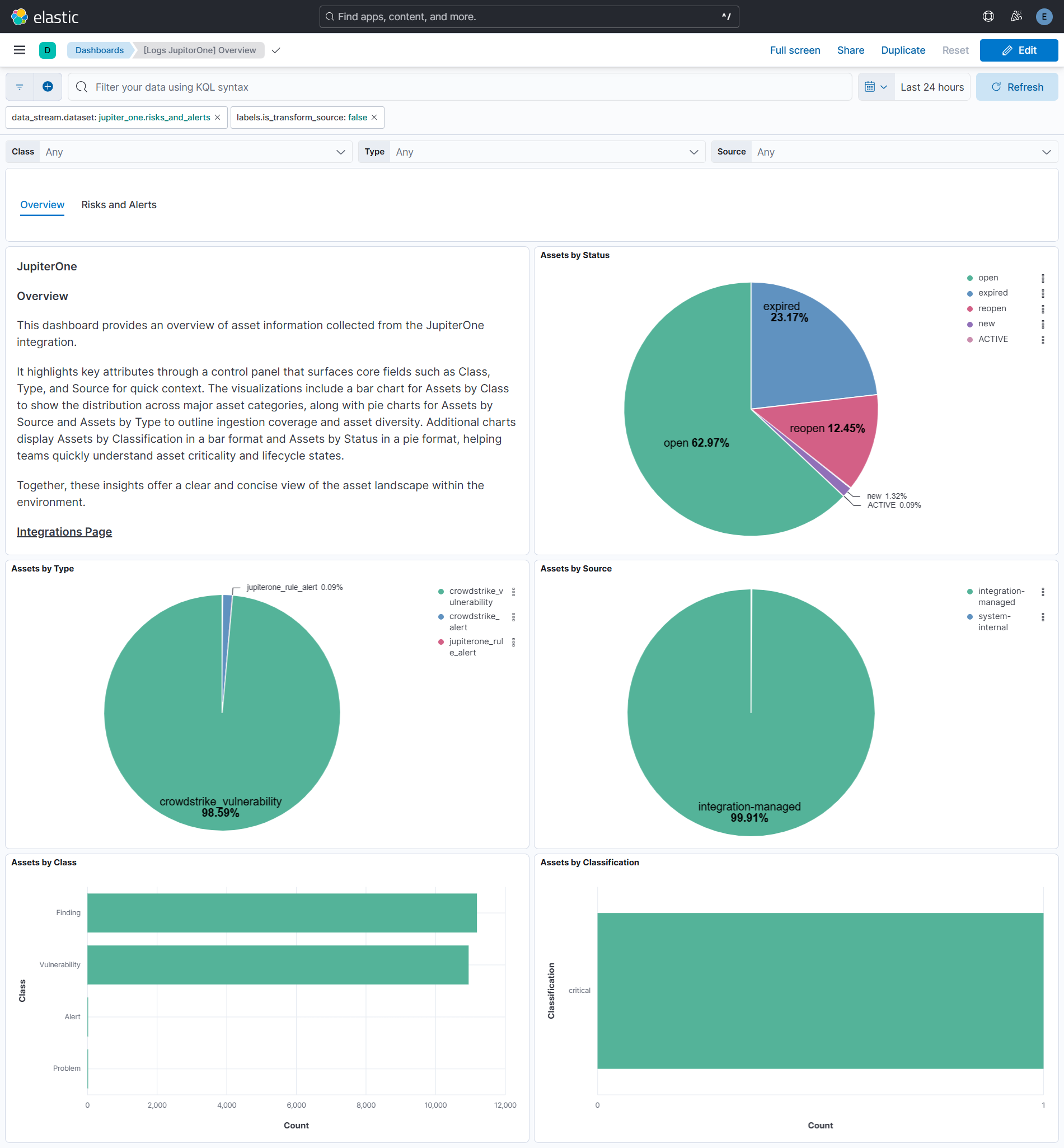
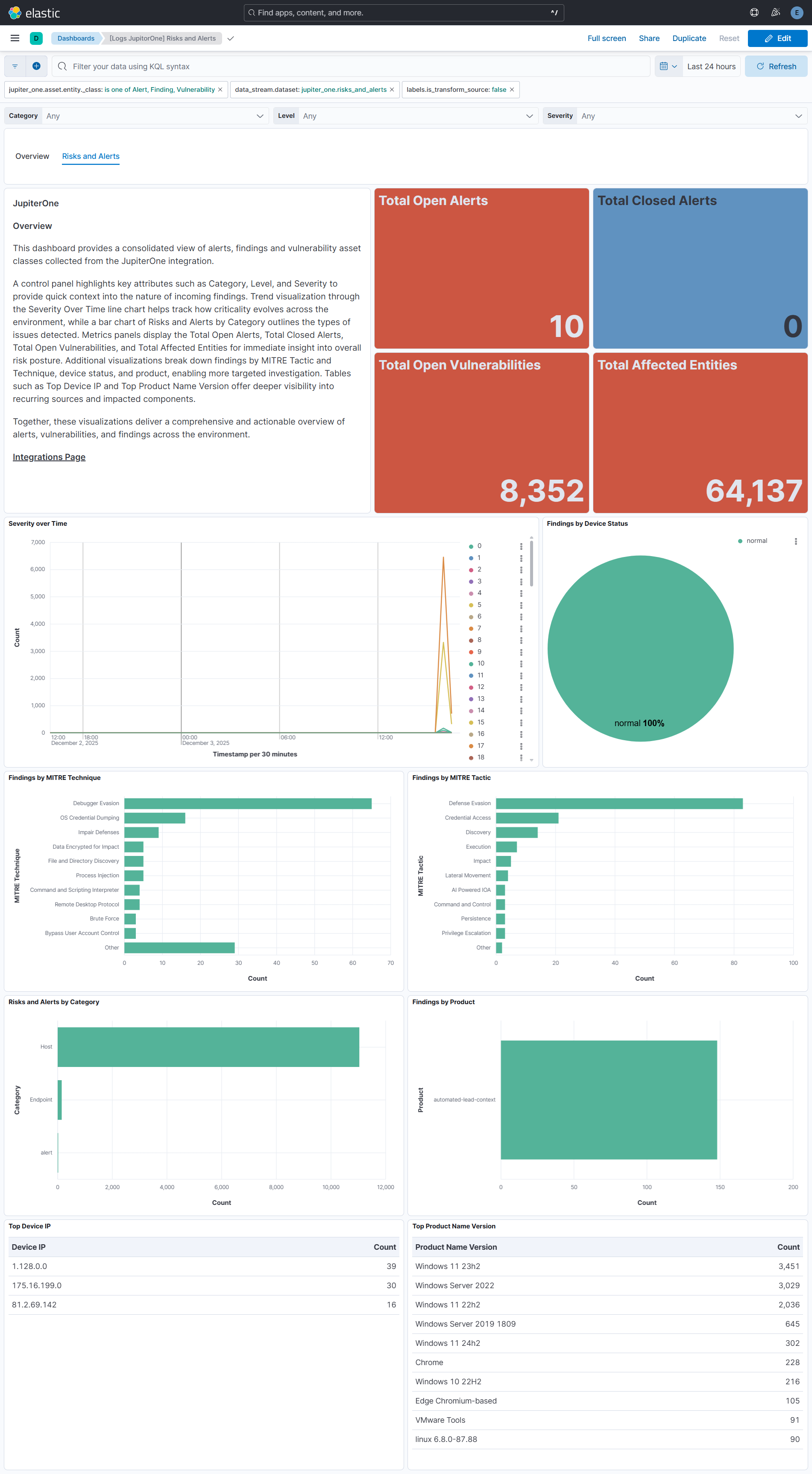
Integrating JupiterOne Alert, Finding, and Vulnerability data with SIEM dashboards delivers unified visibility into risk signals, asset classifications, and security posture across the environment. Dashboards summarize asset class, type, and source distributions, highlight classification and status trends, and surface key risk attributes such as category, level, and severity. Time-based severity trends, MITRE mappings, and product or device-based breakdowns help analysts understand threat patterns and prioritize response. Metrics for open alerts, closed alerts, open vulnerabilities, and affected entities provide quick operational insight, while tables of top device IPs and product versions add valuable investigative context. Together, these visualizations enable teams to track risks, monitor asset health, and strengthen overall detection and remediation efforts.
This integration installs Elastic latest transforms. For more details, check the Transform setup and requirements.
To collect data from JupiterOne, Authentication is handled using a API Token and Account ID, which serve as the required credentials.
- Log in to the account you want to manage.
- Go to Settings > Account Management.
- In the left panel, click the Key Icon.
- In the User API Keys page, click Add.
- In the API Keys modal, enter the name of the key and the number of days before it expires, and click Create.
For more details, check Documentation.
This integration supports both Elastic Agentless-based and Agent-based installations.
Agentless integrations allow you to collect data without having to manage Elastic Agent in your cloud. They make manual agent deployment unnecessary, so you can focus on your data instead of the agent that collects it. For more information, refer to Agentless integrations and the Agentless integrations FAQ.
Agentless deployments are only supported in Elastic Serverless and Elastic Cloud environments. This functionality is in beta and is subject to change. Beta features are not subject to the support SLA of official GA features.
Elastic Agent must be installed. For more details, check the Elastic Agent installation instructions. You can install only one Elastic Agent per host.
In the top search bar in Kibana, search for Integrations.
In the search bar, type JupiterOne.
Select the JupiterOne integration from the search results.
Select Add JupiterOne to add the integration.
Enable and configure only the collection methods which you will use.
To Collect assets from JupiterOne API, you'll need to:
- Configure URL, Account ID and API Token.
- Enable the dataset.
- Adjust the integration configuration parameters if required, including the Interval, etc. to enable data collection.
Select Save and continue to save the integration.
- In the top search bar in Kibana, search for Dashboards.
- In the search bar, type jupiter_one.
- Select a dashboard for the dataset you are collecting, and verify the dashboard information is populated.
- In the top search bar in Kibana, search for Transforms.
- Select the Data / Transforms from the search results.
- In the search bar, type jupiter_one.
- All transforms from the search results should indicate Healthy under the Health column.
For more information on architectures that can be used for scaling this integration, check the Ingest Architectures documentation.
Exported fields
| Field | Description | Type |
|---|---|---|
| @timestamp | Date/time when the event originated. This is the date/time extracted from the event, typically representing when the event was generated by the source. If the event source has no original timestamp, this value is typically populated by the first time the event was received by the pipeline. Required field for all events. | date |
| data_stream.dataset | The field can contain anything that makes sense to signify the source of the data. Examples include nginx.access, prometheus, endpoint etc. For data streams that otherwise fit, but that do not have dataset set we use the value "generic" for the dataset value. event.dataset should have the same value as data_stream.dataset. Beyond the Elasticsearch data stream naming criteria noted above, the dataset value has additional restrictions: * Must not contain - * No longer than 100 characters |
constant_keyword |
| data_stream.namespace | A user defined namespace. Namespaces are useful to allow grouping of data. Many users already organize their indices this way, and the data stream naming scheme now provides this best practice as a default. Many users will populate this field with default. If no value is used, it falls back to default. Beyond the Elasticsearch index naming criteria noted above, namespace value has the additional restrictions: * Must not contain - * No longer than 100 characters |
constant_keyword |
| data_stream.type | An overarching type for the data stream. Currently allowed values are "logs" and "metrics". We expect to also add "traces" and "synthetics" in the near future. | constant_keyword |
| event.dataset | Name of the dataset. If an event source publishes more than one type of log or events (e.g. access log, error log), the dataset is used to specify which one the event comes from. It's recommended but not required to start the dataset name with the module name, followed by a dot, then the dataset name. | constant_keyword |
| event.message | Log message optimized for viewing in a log viewer. | text |
| event.module | Name of the module this data is coming from. If your monitoring agent supports the concept of modules or plugins to process events of a given source (e.g. Apache logs), event.module should contain the name of this module. |
constant_keyword |
| input.type | Type of Filebeat input. | keyword |
| jupiter_one.asset.entity._account_id | keyword | |
| jupiter_one.asset.entity._begin_on | The timestamp when the latest version of entity/relationship was created. | date |
| jupiter_one.asset.entity._class | One or more classes conforming to a standard, abstract security data model. | keyword |
| jupiter_one.asset.entity._created_on | The timestamp the entity/relationship was first created in JupiterOne. | date |
| jupiter_one.asset.entity._deleted | Indicates whether a resource was deleted from JupiterOne graph/CMDB. | boolean |
| jupiter_one.asset.entity._end_on | The timestamp a version of the entity/relationship was deleted in JupiterOne. | date |
| jupiter_one.asset.entity._id | A globally unique identifier of the resource within JupiterOne. | keyword |
| jupiter_one.asset.entity._integration_class | keyword | |
| jupiter_one.asset.entity._integration_definition_id | Internal UUID that identifies the definition for this integration. | keyword |
| jupiter_one.asset.entity._integration_instance_id | Internal UUID that identifies the integration instance. | keyword |
| jupiter_one.asset.entity._integration_name | User-provided friendly name of the integration instance. | keyword |
| jupiter_one.asset.entity._integration_type | Type of the integration. | keyword |
| jupiter_one.asset.entity._key | An identifier of the resource unique within an integration instance or data source scope. | keyword |
| jupiter_one.asset.entity._scope | keyword | |
| jupiter_one.asset.entity._source | The source from where the resource was created. | keyword |
| jupiter_one.asset.entity._type | The specific type of the resource. | keyword |
| jupiter_one.asset.entity._version | The version number, which increments every time a change to the resource configuration/attribute is captured. | keyword |
| jupiter_one.asset.entity.display_name | Display name. | keyword |
| jupiter_one.asset.id | Identifiers of this entity assigned by the providers. | keyword |
| jupiter_one.asset.properties.active | Indicates if this entity is currently active. | boolean |
| jupiter_one.asset.properties.aggregate_id | keyword | |
| jupiter_one.asset.properties.aid | keyword | |
| jupiter_one.asset.properties.approved | If this is record has been reviewed and approved. | boolean |
| jupiter_one.asset.properties.approved_on | The timestamp (in milliseconds since epoch) when this record was approved. | date |
| jupiter_one.asset.properties.approvers | The list of approvers on the record. | keyword |
| jupiter_one.asset.properties.assessment | The name/id of the assessment that produced this finding. | keyword |
| jupiter_one.asset.properties.aws_account_id | keyword | |
| jupiter_one.asset.properties.blocking | Indicates whether this vulnerability finding is a blocking issue. | boolean |
| jupiter_one.asset.properties.blocks_production | Indicates whether this vulnerability finding is a blocking issue. | boolean |
| jupiter_one.asset.properties.category | The category of the finding. | keyword |
| jupiter_one.asset.properties.child_process_ids | keyword | |
| jupiter_one.asset.properties.cid | keyword | |
| jupiter_one.asset.properties.classification | The sensitivity of the data; should match company data classification scheme. | keyword |
| jupiter_one.asset.properties.cmdline | keyword | |
| jupiter_one.asset.properties.composite_id | keyword | |
| jupiter_one.asset.properties.content | Text content of the record/documentation. | keyword |
| jupiter_one.asset.properties.created_on | The timestamp (in milliseconds since epoch) when the entity was created at the source. | date |
| jupiter_one.asset.properties.cve_id | The Common Vulnerabilities and Exposures (CVE) identifier of the vulnerability as a string, formatted exactly as CVE-YYYY-NNNN (where YYYY is the 4-digit year and NNNN is a sequence of at least 4 digits). | keyword |
| jupiter_one.asset.properties.data_domains | keyword | |
| jupiter_one.asset.properties.description | An extended description of this entity. | keyword |
| jupiter_one.asset.properties.detected_on | date | |
| jupiter_one.asset.properties.device_external_ip | ip | |
| jupiter_one.asset.properties.device_hostname | keyword | |
| jupiter_one.asset.properties.device_id | keyword | |
| jupiter_one.asset.properties.device_local_ip | ip | |
| jupiter_one.asset.properties.device_mac_address | keyword | |
| jupiter_one.asset.properties.device_os_version | keyword | |
| jupiter_one.asset.properties.device_platform_name | keyword | |
| jupiter_one.asset.properties.device_status | keyword | |
| jupiter_one.asset.properties.exception | Indicates if this record has an applied exception. | boolean |
| jupiter_one.asset.properties.exception_reason | Reason / description of the exception. | keyword |
| jupiter_one.asset.properties.exploit_status | integer | |
| jupiter_one.asset.properties.exploitability | The exploitability score/rating. | double |
| jupiter_one.asset.properties.exprt_rating | keyword | |
| jupiter_one.asset.properties.falcon_host_link | keyword | |
| jupiter_one.asset.properties.filename | keyword | |
| jupiter_one.asset.properties.filepath | keyword | |
| jupiter_one.asset.properties.gcp_project_id | keyword | |
| jupiter_one.asset.properties.id | Identifiers of this entity assigned by the providers. | keyword |
| jupiter_one.asset.properties.impact | The impact description or rating. | double |
| jupiter_one.asset.properties.impacts | The target listing of projects, applications, repos or systems this vulnerability impacts. | keyword |
| jupiter_one.asset.properties.level | keyword | |
| jupiter_one.asset.properties.mitre_attack | keyword | |
| jupiter_one.asset.properties.name | Name of this entity. | keyword |
| jupiter_one.asset.properties.numeric_severity | long | |
| jupiter_one.asset.properties.objective | keyword | |
| jupiter_one.asset.properties.open | Indicates if this is an open vulnerability. | boolean |
| jupiter_one.asset.properties.parent_cmdline | keyword | |
| jupiter_one.asset.properties.parent_filename | keyword | |
| jupiter_one.asset.properties.priority | Priority level mapping to Severity rating. | keyword |
| jupiter_one.asset.properties.product | A product developed by the organization, such as a software product. | keyword |
| jupiter_one.asset.properties.product_name_version | keyword | |
| jupiter_one.asset.properties.production | If this is a production record. | boolean |
| jupiter_one.asset.properties.public | Indicates if this is a publicly disclosed vulnerability. | boolean |
| jupiter_one.asset.properties.published_on | date | |
| jupiter_one.asset.properties.raw_severity | keyword | |
| jupiter_one.asset.properties.recommendation | Recommendation on how to remediate/fix this finding. | keyword |
| jupiter_one.asset.properties.references | The array of links to references. | keyword |
| jupiter_one.asset.properties.remediation_actions | Recommended remediation actions or steps to address a finding, vulnerability or weakness. | keyword |
| jupiter_one.asset.properties.remediation_sla | The number of days that the Vulnerability must be remediated within, based on SLA set by the organization's internal vulnerability management program policy. | long |
| jupiter_one.asset.properties.reported_on | The timestamp (in milliseconds since epoch) when this record was reported/opened. | date |
| jupiter_one.asset.properties.reporter | The person or system that reported or created this record. | keyword |
| jupiter_one.asset.properties.scenario | keyword | |
| jupiter_one.asset.properties.score | The overall vulnerability score. | double |
| jupiter_one.asset.properties.severity | Severity rating based on impact and exploitability. | keyword |
| jupiter_one.asset.properties.severity_name | keyword | |
| jupiter_one.asset.properties.source_products | keyword | |
| jupiter_one.asset.properties.source_vendors | keyword | |
| jupiter_one.asset.properties.status | Indicates if this record is currently open. | keyword |
| jupiter_one.asset.properties.steps_to_reproduce | Steps to reproduce this finding. | keyword |
| jupiter_one.asset.properties.summary | A summary / short description of this entity. | keyword |
| jupiter_one.asset.properties.tactic | keyword | |
| jupiter_one.asset.properties.tactic_id | keyword | |
| jupiter_one.asset.properties.tag.account_name | keyword | |
| jupiter_one.asset.properties.tag.jira | keyword | |
| jupiter_one.asset.properties.tag.production | Indicates if this vulnerability is in production. | boolean |
| jupiter_one.asset.properties.target_details | Additional details about the targets. | keyword |
| jupiter_one.asset.properties.targets | The target listing of projects, applications, repos or systems this vulnerability impacts. | keyword |
| jupiter_one.asset.properties.technique | keyword | |
| jupiter_one.asset.properties.technique_id | keyword | |
| jupiter_one.asset.properties.total_number_of_affected_entities | long | |
| jupiter_one.asset.properties.updated_on | The timestamp (in milliseconds since epoch) when the entity was last updated at the source. | date |
| jupiter_one.asset.properties.user_id | keyword | |
| jupiter_one.asset.properties.user_name | keyword | |
| jupiter_one.asset.properties.validated | Indicates if this Vulnerability finding has been validated by the security team. | boolean |
| jupiter_one.asset.properties.vector | The vulnerability attack vector. | keyword |
| jupiter_one.asset.properties.vendor_advisory | keyword | |
| jupiter_one.asset.properties.web_link | Hyperlink to the location of this record. | keyword |
| labels.is_transform_source | Distinguishes between documents that are a source for a transform and documents that are an output of a transform, to facilitate easier filtering. | constant_keyword |
| log.file.path | Path to the log file. | keyword |
| log.flags | Flags for the log file. | keyword |
| log.offset | Offset of the entry in the log file. | long |
| observer.vendor | Vendor name of the observer. | constant_keyword |
| tags | User defined tags. | keyword |
These inputs can be used in this integration:
This integration dataset uses the following API:
Asset: JupiterOne API.
To facilitate user and device data, source data stream-backed indices .ds-logs-jupiter_one.risks_and_alerts-* are allowed to contain duplicates from each polling interval. ILM policy logs-jupiter_one.risks_and_alerts-default_policy is added to these source indices, so it doesn't lead to unbounded growth. This means that in these source indices data will be deleted after 30 days from ingested date.
This integration includes one or more Kibana dashboards that visualizes the data collected by the integration. The screenshots below illustrate how the ingested data is displayed.
Changelog
| Version | Details | Minimum Kibana version |
|---|---|---|
| 1.1.3 | Bug fix (View pull request) Stop links panels forwarding dashboard-level filters so that navigating between dashboards does not combine conflicting filters. |
9.4.0 9.3.1 9.2.4 9.1.10 8.19.10 |
| 1.1.2 | Enhancement (View pull request) Set agentless deployment mode release field to ga. |
9.4.0 9.3.1 9.2.4 9.1.10 8.19.10 |
| 1.1.1 | Bug fix (View pull request) Fix kibana.version constraint to use tilde ranges for intermediate version bounds. |
9.4.0 9.3.1 9.2.4 9.1.10 8.19.10 |
| 1.1.0 | Enhancement (View pull request) Use new release field for agentless deployment mode to establish as beta. |
9.4.0 9.3.1 9.2.4 9.1.10 8.19.10 |
| 1.0.0 | Enhancement (View pull request) Promote integration to GA. |
9.4.0 9.3.1 9.2.4 9.1.10 8.19.10 |
| 0.1.0 | Enhancement (View pull request) Initial release. |
9.4.0 9.3.1 9.2.4 9.1.10 8.19.10 |