Living off the Land Attack Detection
| Version | 3.2.1 (View all) |
| Subscription level What's this? |
Platinum |
| Developed by What's this? |
Elastic |
| Minimum Kibana version(s) | 9.4.0 |
The Living off the Land Attack (LotL) Detection package contains a supervised machine learning model, called ProblemChild and associated assets, which are used to detect living off the land (LotL) activity in your environment. This package requires a Platinum subscription. Please ensure that you have a Trial or Platinum level subscription installed on your cluster before proceeding. This package is licensed under Elastic License 2.0.
This package supports Windows data from Elastic Defend and Winlogbeat only, although Elastic Defend is strongly recommended. Other integrations do not capture all the process event fields used to train the ProblemChild model, which might lead to incomplete data and potentially degraded prediction quality. Before using this integration, Elastic Defend should be installed through Elastic Agent (or Winlogbeat should be enrolled) and collecting data from hosts. See Configure endpoint protection with Elastic Defend for more information.
In versions 2.1.1 and later, this package ignores data in cold and frozen data tiers to reduce heap memory usage, avoid running on outdated data, and to follow best practices.
The following blogs and webinar provide additional context. For the most current installation instructions, always follow the steps in this guide.
- Detecting Living-off-the-land attacks with new Elastic Integration
- ProblemChild: Detecting living-off-the-land attacks using the Elastic Stack
- ProblemChild: Generate alerts to detect living-off-the-land attacks
- Webinar: ProblemChild: Detecting living-off-the-land attacks using the Elastic Stack
Upgrading: If upgrading from a version below v3.0.0, see the section v3.0.0 and beyond.
Add the Integration Package: Install the package via Management > Integrations > Add Living off the Land Detection. Configure the integration name and agent policy. Click Save and Continue. (Note that this integration does not rely on an agent, and can be assigned to a policy without an agent.)
Install assets: Install the assets by clicking Settings > Install Living off the Land Detection assets.
Configure the pipeline: To configure the pipeline you can use one of the following steps:
- If using Elastic Defend, add a custom pipeline to the data stream. Go to Stack Management > Ingest Pipelines, and check if the pipeline
logs-endpoint.events.process@customexists.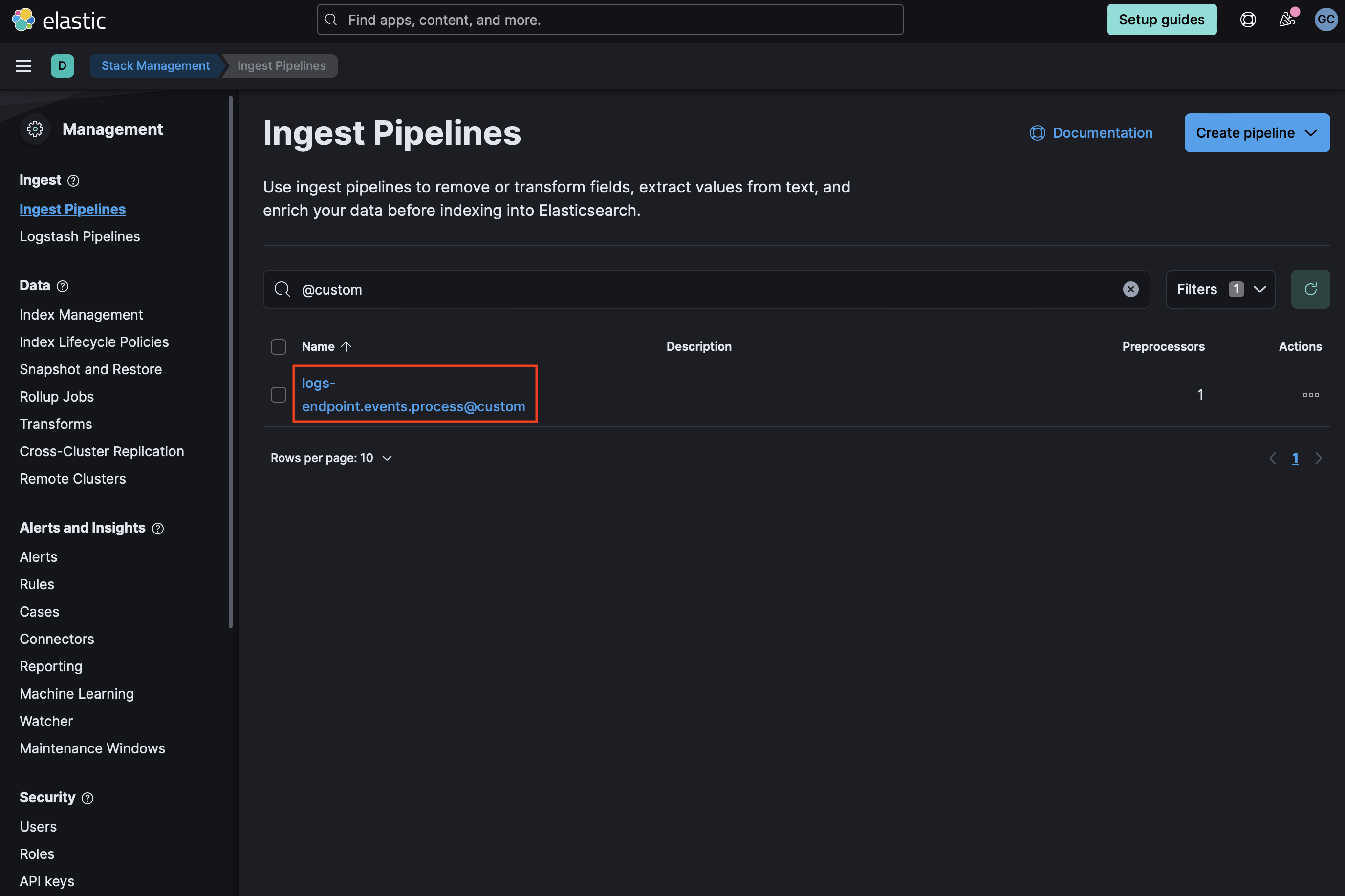 If it does not exist, you can create it by running the following command in the Dev Console. Be sure to replace
 <VERSION>with the current package version.PUT _ingest/pipeline/logs-endpoint.events.process@custom { "processors": [ { "pipeline": { "name": "<VERSION>-problem_child_ingest_pipeline", "ignore_missing_pipeline": true, "ignore_failure": true } } ] } - If
logs-endpoint.events.process@customalready exists, select the three dots next to it and choose Edit. Click Add a processor. Select Pipeline for Processor, enter<VERSION>-problem_child_ingest_pipelinefor name (replacing<VERSION>with the current package version), and check Ignore missing pipeline and Ignore failures for this processor. Select Add Processor. - If using Winlogbeat, see the next step on how to add the ingest pipeline as part of the component template
- If using Elastic Defend, add a custom pipeline to the data stream. Go to Stack Management > Ingest Pipelines, and check if the pipeline
Add the required mappings to the component template: Go to Stack Management > Index Management > Component Templates. Templates that can be edited to add custom components will be marked with a
@customsuffix. For instance, the custom component template for Elastic Defend process events islogs-endpoint.events.process@custom. Note: Do not attempt to edit the@packagetemplate if present.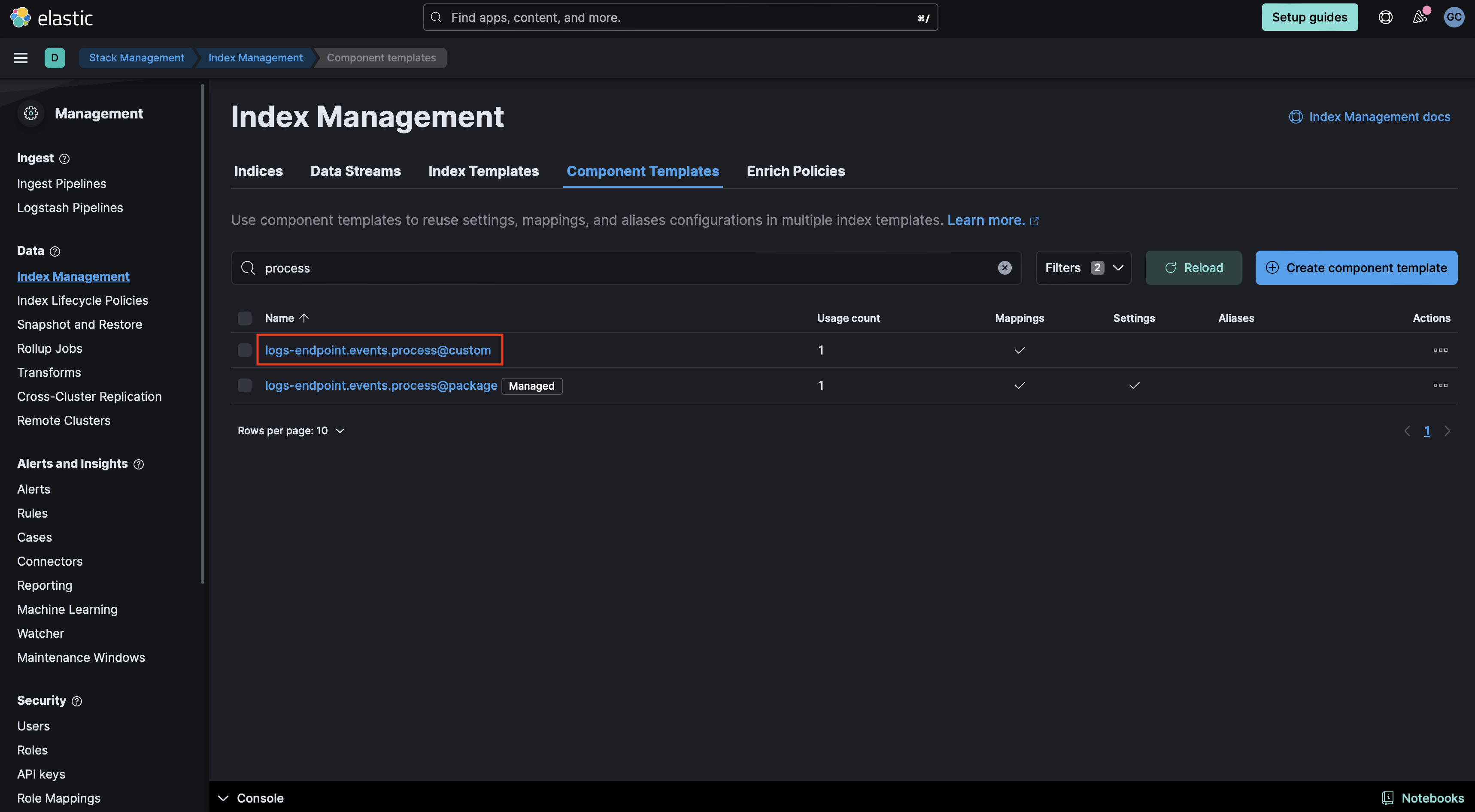
- If the
@customcomponent template does not exist, you can execute the following command in the Dev Console to create it and then continue to the Rollover section in these instructions. Be sure to change<VERSION>to the current package version.PUT _component_template/{COMPONENT_TEMPLATE_NAME}@custom { "template": { "mappings": { "properties": { "blocklist_label": { "type": "long" }, "problemchild": { "type": "object", "properties": { "prediction": { "type": "long" }, "prediction_probability": { "type": "float" } } } } } } } - If the
@customcomponent template already exists, you will need to edit it to add mappings for data to be properly enriched. Click the three dots next to it and select Edit.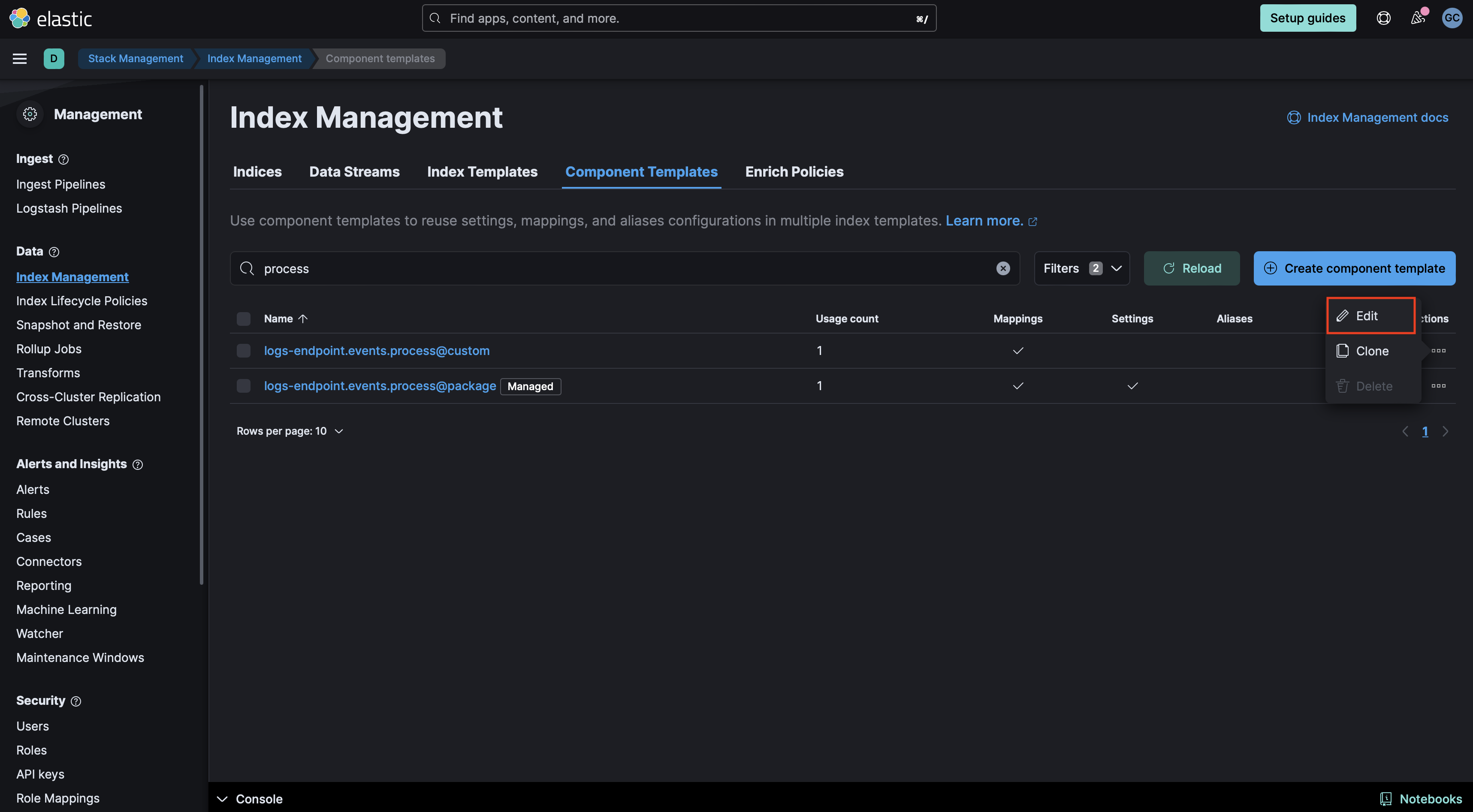
- Proceed to the mappings step in the UI. Click Add Field at the bottom of the page and create a
blocklist_labelfield of typeLong:
- Then create an
Objectfield forproblemchild.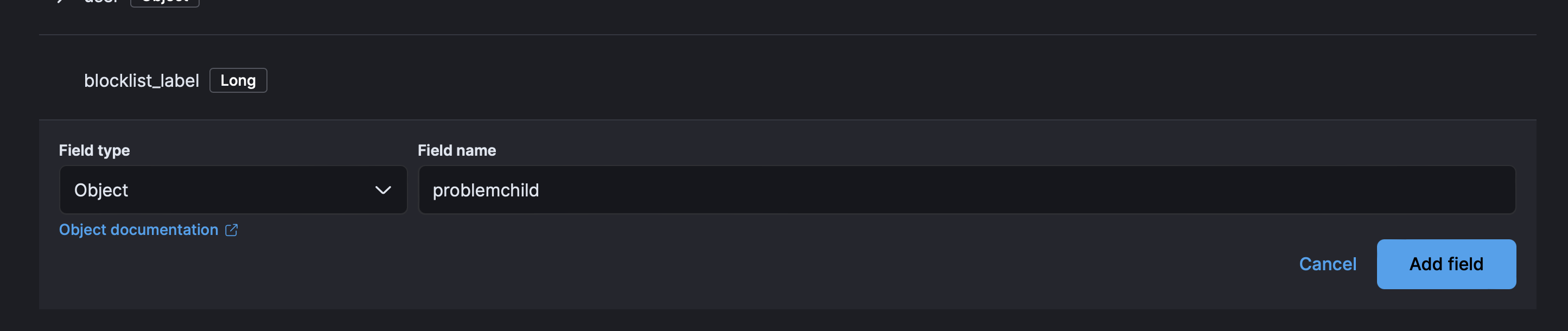
- Finally create two properties under ProblemChild.

- The first for
predictionof typeLongand then forprediction_probabilityor typeFloat.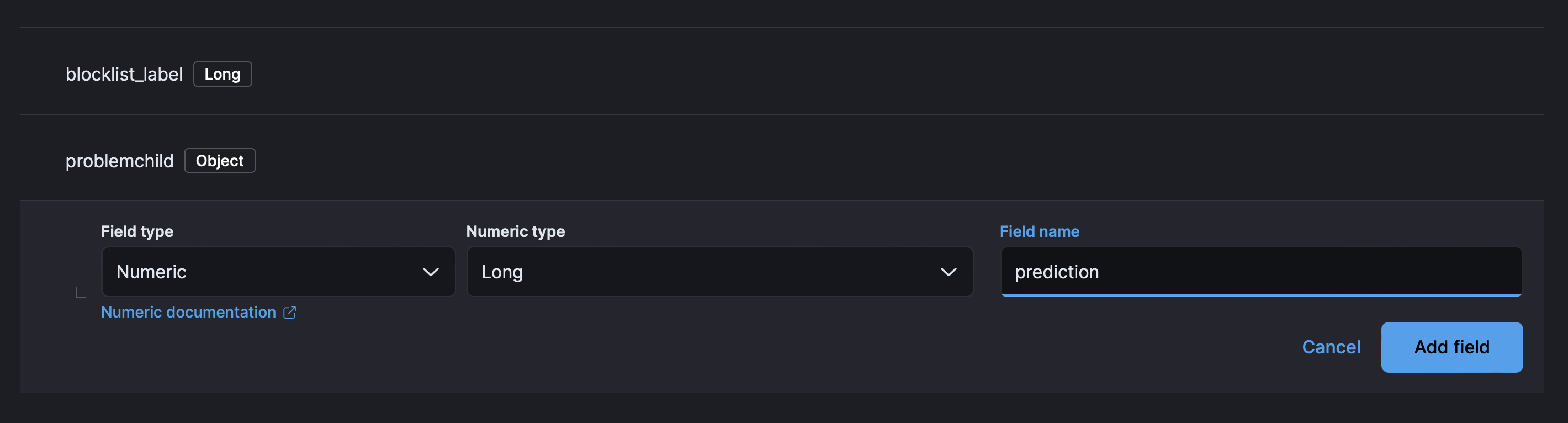
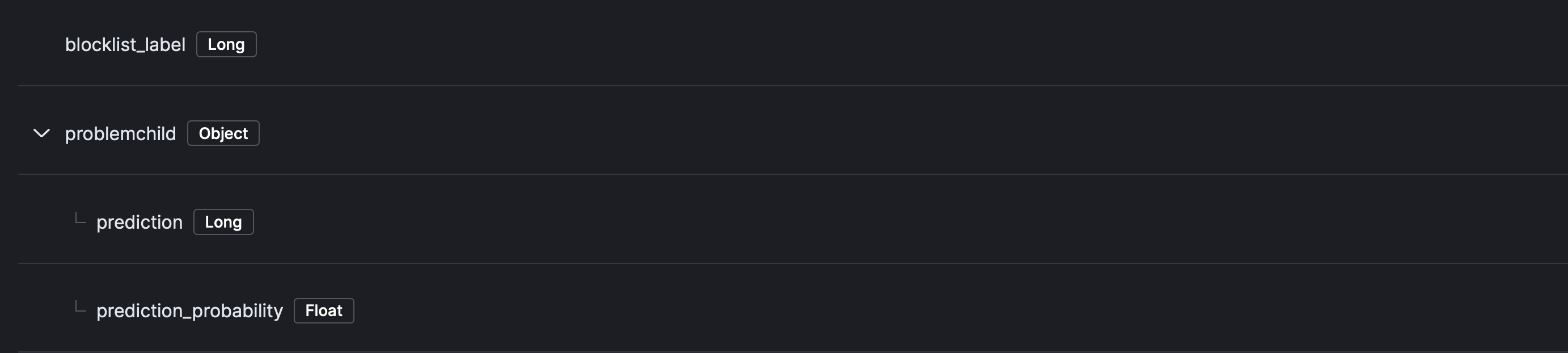
- Your component mappings should look like the following:
- Click Review then Save Component Template.
- If using an Elastic Beat such as Winlogbeat, create a new component template with a name like
winlogbeat-problemchild-<VERSION>, replacing<VERSION>with the current package version. You can do this by executing the following command in the Dev Tools:PUT _component_template/winlogbeat-problemchild-<VERSION> { "template": { "mappings": { "properties": { "blocklist_label": { "type": "long" }, "problemchild": { "type": "object", "properties": { "prediction": { "type": "long" }, "prediction_probability": { "type": "float" } } } } }, "settings": { "index": { "final_pipeline": "<VERSION>-problem_child_ingest_pipeline" } } } } - Then, after creating the component template, you will need to add it to the appropriate index template. Navigate to Stack Management > Data > Index Management > Index Templates. Find the index template
winlogbeat-{WINLOGBEAT_VERSION}for the Winlogbeat version that you are using and click Edit. Then click on Component templates. Add thewinlogbeat-problemchild-<VERSION>component template that was created in the previous step. Click Review template then Save template.
- If the
Rollover Depending on your environment, you may need to rollover in order for these mappings to get picked up. The deault index pattern for Elastic Defend is
logs-endpoint.events.process-defaultandwinlogbeat-<WINLOGBEAT_VERSION>for Winlogbeat.POST INDEX_NAME/_rollover(Optional) Create a data view specificially for your windows process logs (index pattern or data stream name)
Add preconfigured anomaly detection jobs: In Stack Management -> Anomaly Detection Jobs, you will see Select data view or saved search. Select the data view created in the previous step. Then under
Use preconfigured jobsyou will seeLiving off the Land Attack Detection. When you select the card, you will see several pre-configured anomaly detection jobs that you can create depending on what makes the most sense for your environment. Warning: if the ingest pipeline hasn't run for some reason, such as no eligible data has come in yet, or the required mapping has not been added, you won't be able to see this card yet. If that is the case, try troubleshooting the ingest pipeline, and if any predictions have been populated yet.
You can also enable detection rules to alert on LotL activity in your environment, based on anomalies flagged by the above ML jobs. As of version 2.0.0 of this package, these rules are available as part of the Detection Engine, and can be found using the tag Use Case: Living off the Land Attack Detection. See this documentation for more information on importing and enabling the rules.
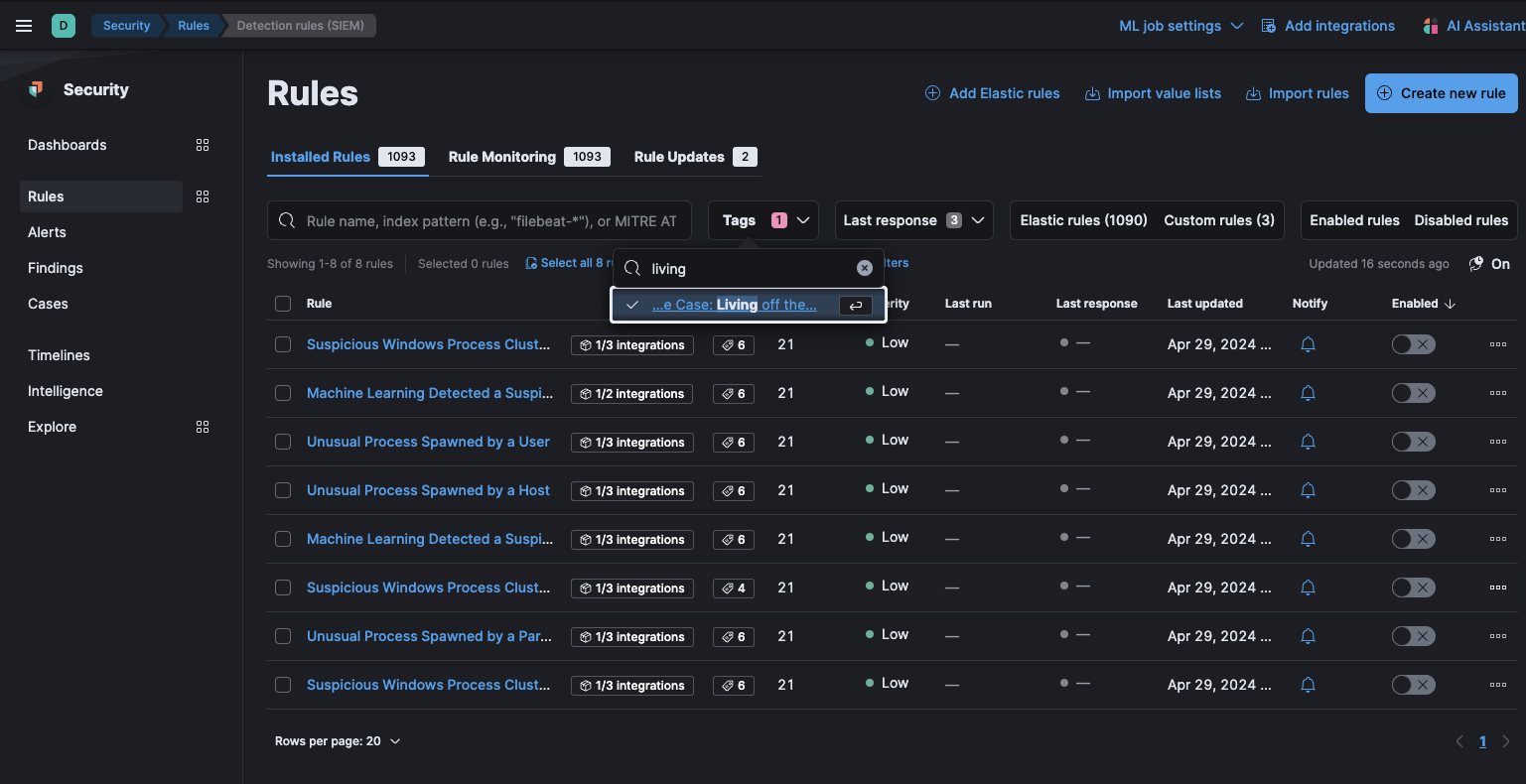 In Security > Rules, filtering with the “Use Case: Living off the Land Attack Detection” tag
Detects potential LotL activity by identifying malicious processes.
| Job | Description | Supported Platform | Event Category |
|---|---|---|---|
| problem_child_rare_process_by_host_ea | Looks for a process that has been classified as malicious on a host that does not commonly manifest malicious process activity. | Windows | process |
| problem_child_high_sum_by_host_ea | Looks for a set of one or more malicious child processes on a single host. | Windows | process |
| problem_child_rare_process_by_user_ea | Looks for a process that has been classified as malicious where the user context is unusual and does not commonly manifest malicious process activity. | Windows | process |
| problem_child_rare_process_by_parent_ea | Looks for rare malicious child processes spawned by a parent process. | Windows | process |
| problem_child_high_sum_by_user_ea | Looks for a set of one or more malicious processes, started by the same user. | Windows | process |
| problem_child_high_sum_by_parent_ea | Looks for a set of one or more malicious child processes spawned by the same parent process. | Windows | process |
To customize the datafeed query and other settings such as model memory limit, frequency, query delay, bucket span and influencers for the Living off the Land Attack Detection ML jobs, follow the steps below.
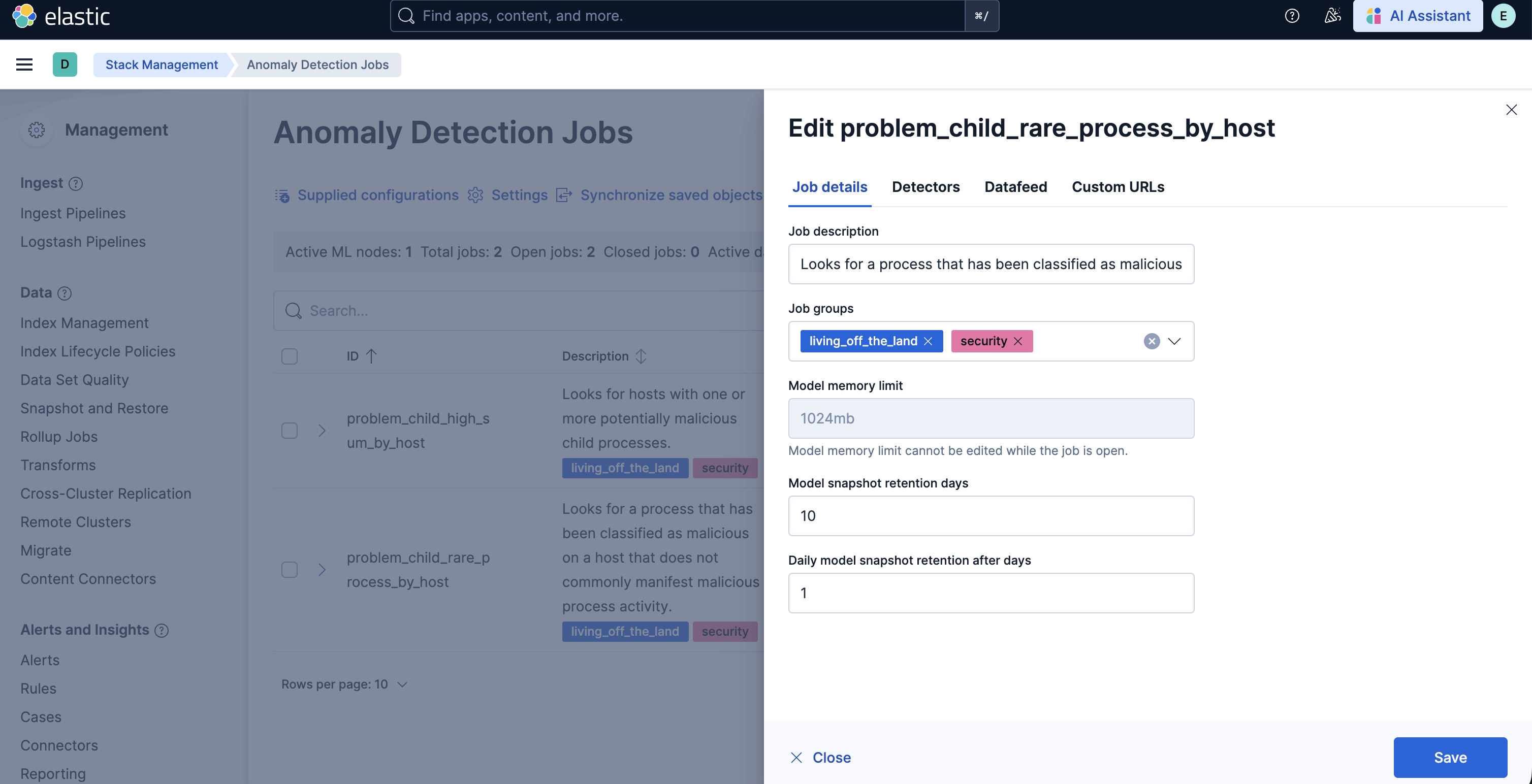
- To update the datafeed query, stop the datafeed and select Edit job from the Actions menu.

- In the Edit job window, navigate to the Datafeed section and update the query filters. You can add or remove field values to help reduce noise and false positives based on your environment.
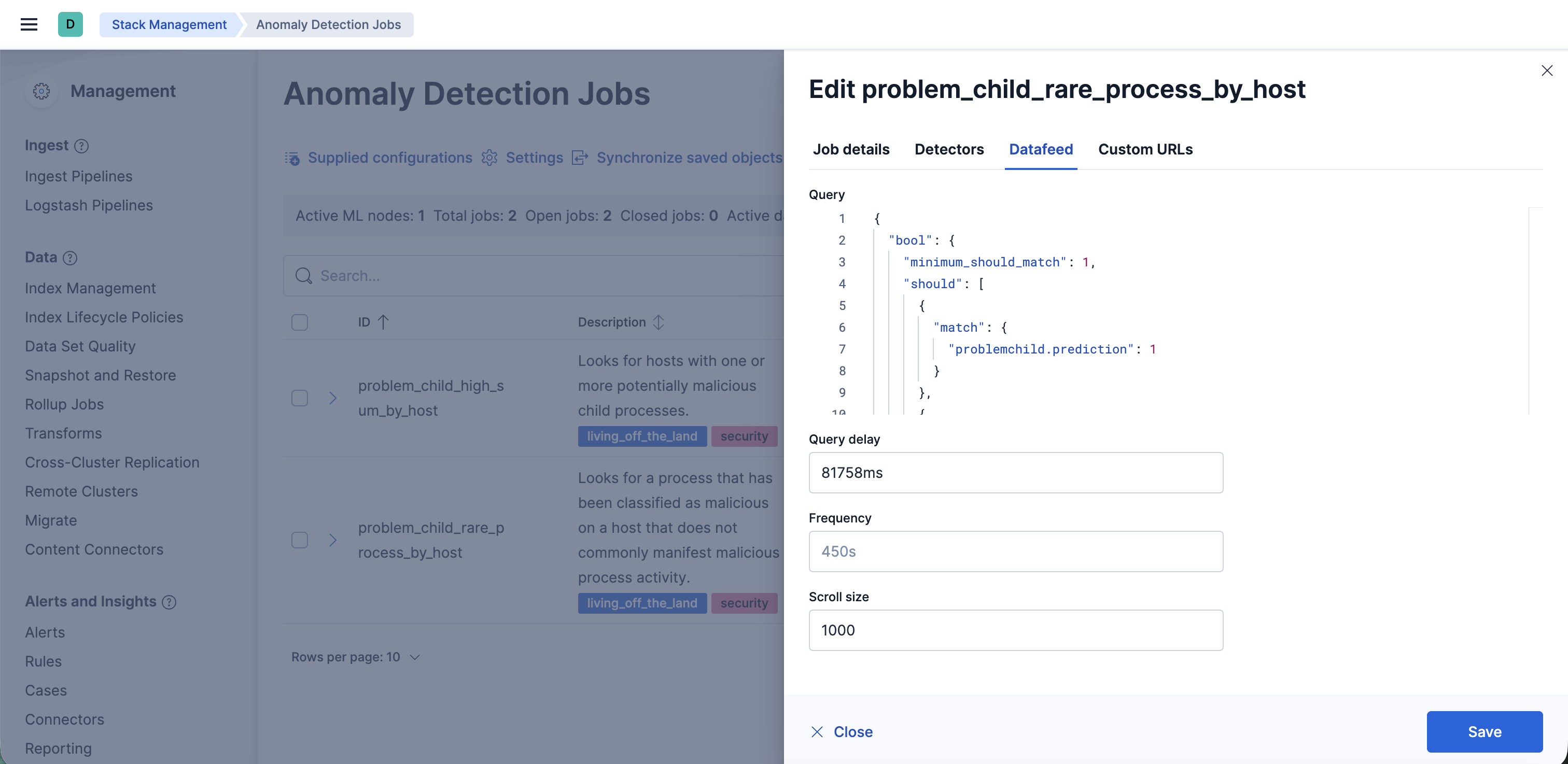
- You may also update the model memory limit if your environment has high data volume or if the job requires additional resources. Go to the Job details section and update the Model memory limit and hit Save. For more information on resizing ML jobs, refer to the documentation.
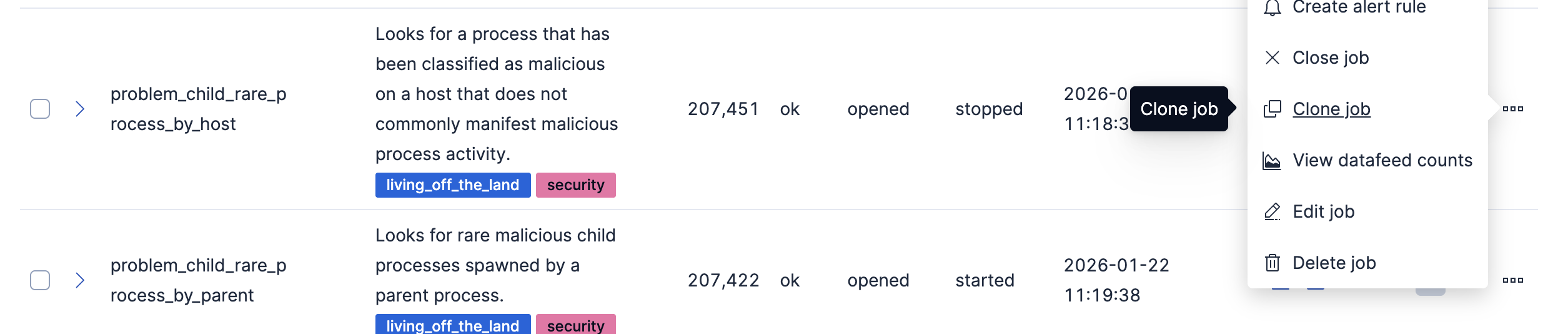
- In order to do more advanced changes to your job, clone the job by selecting Clone job from the Actions menu.
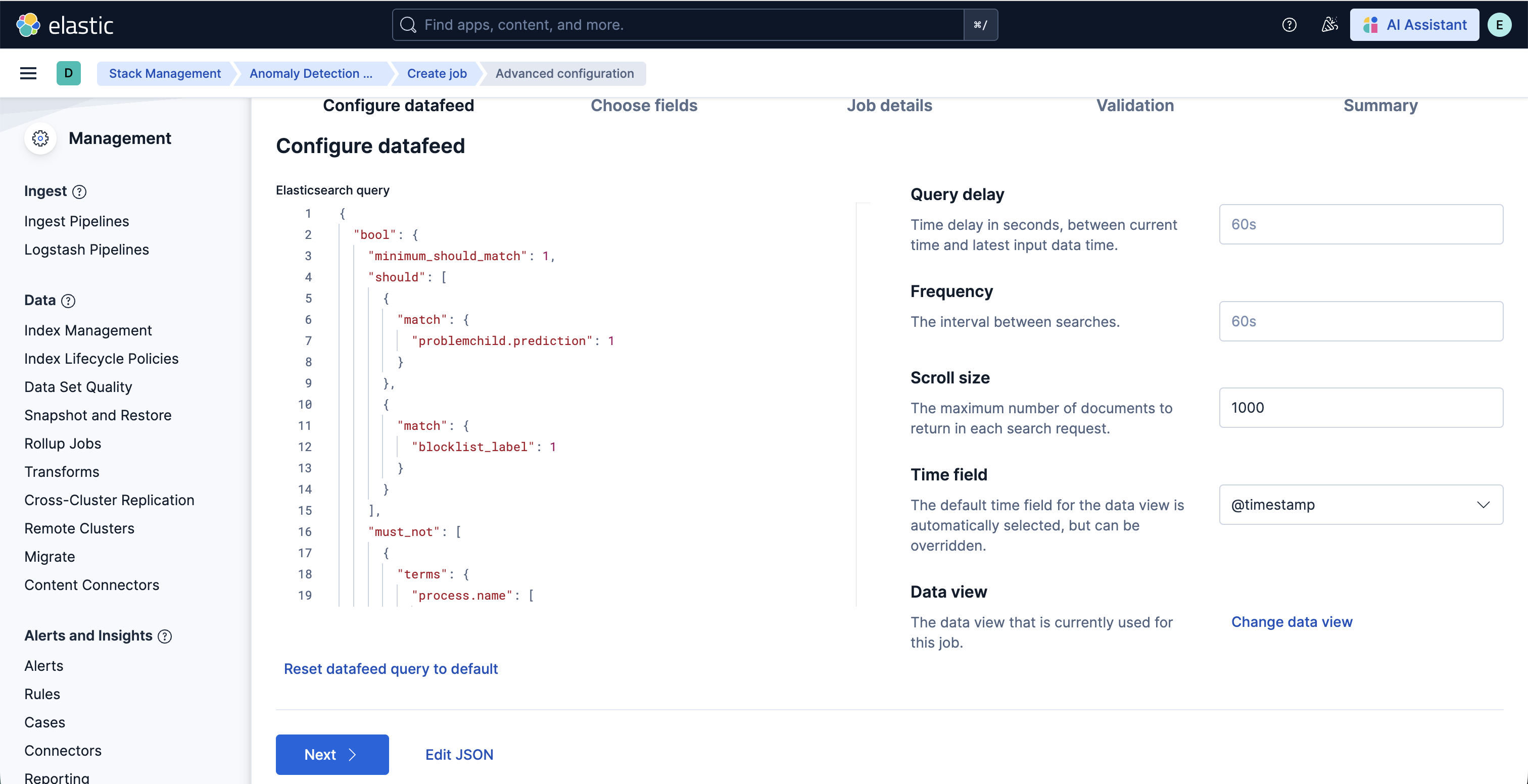
- In the cloned job, you can update datafeed settings such as Frequency and Query delay, which help control how often data is analyzed and account for ingestion delays.
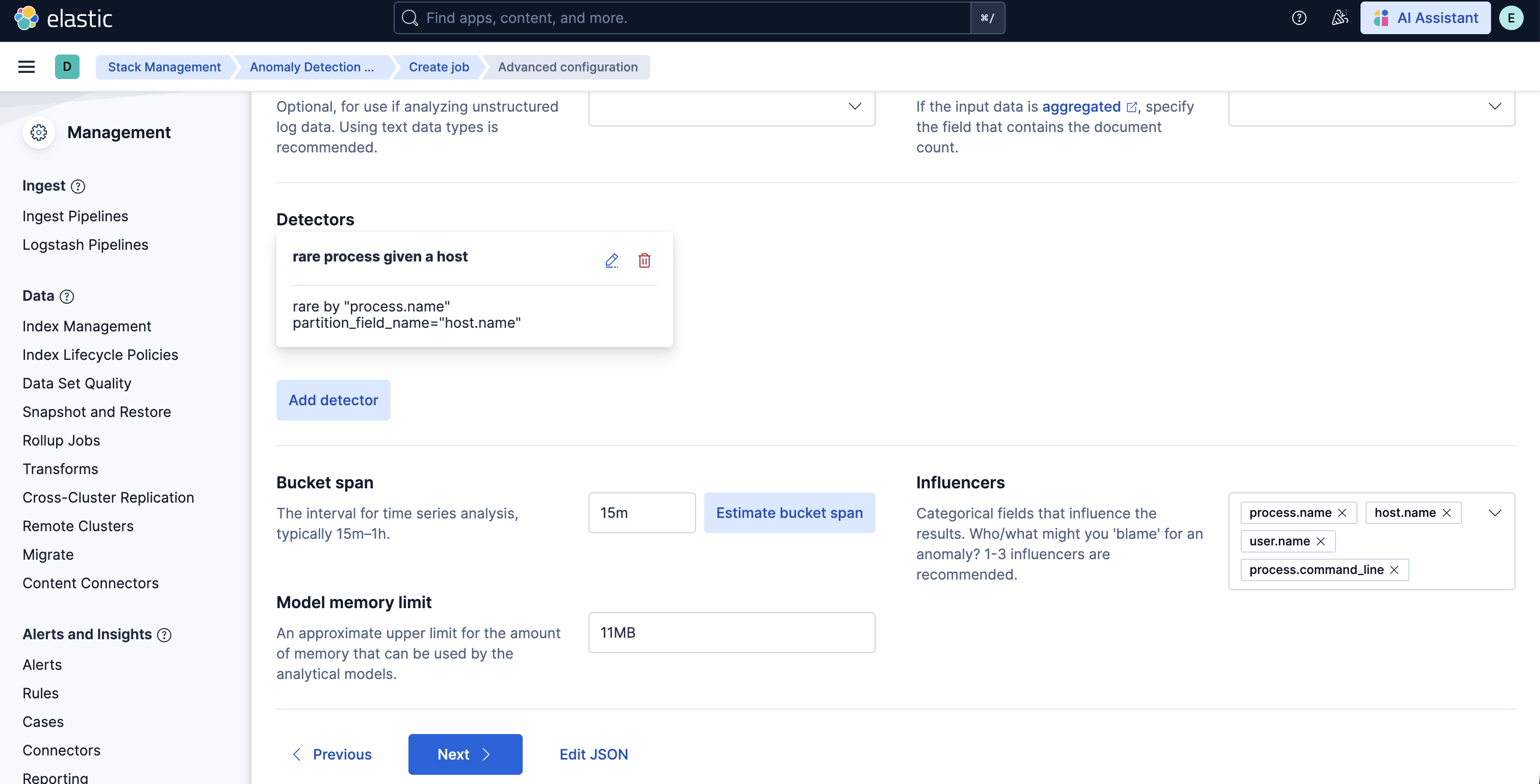
- You can also modify the job configuration by adjusting the Bucket span and by adding or removing Influencers to improve anomaly attribution.
- Finally, assign a new Job ID, and click on Create job, and start the datafeed to apply the updated settings.
v3.0.0 of this package requires Elastic Stack version 9.4 or later. It introduces support for Entity Analytics (EA), adding new fields for proper entity resolution.
- This package installs new ML jobs which include
_easuffix in their names, as outlined below. New detection rules are also included. - Previously installed ML jobs and rules will continue to run, allowing time to transition to the new Entity Analytics assets.
- Important: We recommend installing the new ML jobs and verifying that they are properly set up, collecting data, and generating anomalies before deleting the old jobs and upgrading to the new version of the detection rules available in 9.4. The new detection rules reference ML job IDs with the
_easuffix and are not compatible with older versions of the jobs.
The new Entity Analytics ML job IDs are:
problem_child_rare_process_by_host_eaproblem_child_high_sum_by_host_eaproblem_child_rare_process_by_user_eaproblem_child_rare_process_by_parent_eaproblem_child_high_sum_by_user_eaproblem_child_high_sum_by_parent_ea
After confirming the new Entity Analytics ML jobs are running correctly, you can remove the following deprecated assets that have been superseded by the new Entity Analytics versions (Elastic stack 9.4+):
- Delete old ML jobs: Navigate to Stack Management -> Anomaly Detection Jobs and delete the following jobs:
problem_child_rare_process_by_hostproblem_child_high_sum_by_hostproblem_child_rare_process_by_userproblem_child_rare_process_by_parentproblem_child_high_sum_by_userproblem_child_high_sum_by_parent
v2.0.0 of the package introduces breaking changes, namely deprecating detection rules from the package. To continue receiving updates to LotL Detection, we recommend upgrading to v2.0.0 after doing the following:
- Uninstall existing rules associated with this package: Navigate to Security > Rules and delete the following rules:
- Machine Learning Detected a Suspicious Windows Event Predicted to be Malicious Activity
- Unusual Process Spawned By a Host
- Suspicious Windows Process Cluster Spawned by a Host
- Machine Learning Detected a Suspicious Windows Event with a High Malicious Probability Score
- Suspicious Windows Process Cluster Spawned by a Parent Process
- Unusual Process Spawned By a User
- Unusual Process Spawned By a Parent Process
- Suspicious Windows Process Cluster Spawned by a User
Depending on the version of the package you're using, you might also be able to search for the above rules using the tag Living off the Land.
- Upgrade the LotL package to v2.0.0 using the steps here
- Install the new rules as described in the Enable detection rules section below
Usage in production requires that you have a license key that permits use of machine learning features.
This integration includes one or more Kibana dashboards that visualizes the data collected by the integration. The screenshots below illustrate how the ingested data is displayed.

Changelog
| Version | Details | Minimum Kibana version |
|---|---|---|
| 3.2.1 | Enhancement (View pull request) Update package owner to threat-research-and-detection-engineering team. |
9.4.0 |
| 3.2.0 | Enhancement (View pull request) Add runtime_mappings for process signature influencers on ML datafeeds. |
9.4.0 |
| 3.1.0 | Enhancement (View pull request) Add process signature fields as influencers to ML jobs. |
9.4.0 |
| 3.0.2 | Enhancement (View pull request) Add threat_tactics and threat_techniques to ML job custom_settings. |
9.4.0 |
| 3.0.1 | Enhancement (View pull request) Update documentation to clarify supported integrations |
9.4.0 |
| 3.0.0 | Enhancement (View pull request) Adds new fields for entity resolution with Entity Analytics in Elastic Stack 9.4. Includes new ML jobs. |
9.4.0 |
| 2.4.6 | Enhancement (View pull request) Update documentation for blogs |
9.0.0 8.9.0 |
| 2.4.5 | Enhancement (View pull request) Update package docs with customization steps for ML jobs and transforms |
9.0.0 8.9.0 |
| 2.4.4 | Bug fix (View pull request) Add filtering for Elastic endpoint agents |
9.0.0 8.9.0 |
| 2.4.3 | Enhancement (View pull request) Update installation instructions |
9.0.0 8.9.0 |
| 2.4.2 | Bug fix (View pull request) Remove instructions to change the default_pipeline for an index |
9.0.0 8.9.0 |
| 2.4.1 | Enhancement (View pull request) Update platform support docs |
9.0.0 8.9.0 |
| 2.4.0 | Enhancement (View pull request) Add exclusions for Elastic endpoint agents |
9.0.0 8.9.0 |
| 2.3.1 | Enhancement (View pull request) Change the description of ML jobs |
9.0.0 8.9.0 |
| 2.3.0 | Enhancement (View pull request) Add support for Kibana 9.0.0 |
9.0.0 8.9.0 |
| 2.2.1 | Enhancement (View pull request) Add agent policy documentation |
8.9.0 |
| 2.2.0 | Enhancement (View pull request) Improved notation of painless script if block in ingest pipeline |
8.9.0 |
| 2.1.5 | Bug fix (View pull request) Add fields for integration package testing |
8.9.0 |
| 2.1.4 | Bug fix (View pull request) Add mapping instructions |
8.9.0 |
| 2.1.3 | Enhancement (View pull request) Improve package installation documentation |
8.9.0 |
| 2.1.2 | Enhancement (View pull request) Remove "experimental" messaging from docs |
8.9.0 |
| 2.1.1 | Enhancement (View pull request) Add query settings to ignore frozen and cold data tiers |
8.9.0 |
| 2.1.0 | Enhancement (View pull request) Add serverless support |
8.9.0 |
| 2.0.0 | Enhancement (View pull request) Moving detection rules to the detection-rules repo, bumped license version, subscription tier |
8.9.0 |
| 1.1.2 | Enhancement (View pull request) Convert detection rules to EQL |
8.0.0 |
| 1.1.1 | Bug fix (View pull request) Update blog post link and minor bug fixes |
8.0.0 |
| 1.1.0 | Enhancement (View pull request) Ensure event.kind is correctly set for pipeline errors. |
8.0.0 |
| 1.0.1 | Enhancement (View pull request) Add the Advanced Analytics (UEBA) subcategory |
8.0.0 |
| 1.0.0 | Enhancement (View pull request) Update version number to follow GA format and to improve visibility |
8.0.0 |
| 0.0.5 | Enhancement (View pull request) Cleaning up ML job groups and rule tags, documentation updates |
8.0.0 |
| 0.0.4 | Bug fix (View pull request) Fix the ML jobs query. |
— |
| 0.0.3 | Bug fix (View pull request) Add a LotL tag to all rules, fix a script in the inference pipeline, update ML job configs. |
— |
| 0.0.2 | Bug fix (View pull request) Update ProblemChild integration Readme |
— |
| 0.0.1 | Enhancement (View pull request) Initial release of the package |
— |