Forescout Integration for Elastic
| Version | 0.1.0
|
| Subscription level What's this? |
Basic |
| Developed by What's this? |
Elastic |
| Ingestion method(s) | Network Protocol |
| Minimum Kibana version(s) | 9.0.0 8.18.0 |
To use pre-release integrations, go to the Integrations page in Kibana, scroll down, and toggle on the Display beta integrations option.
The Forescout is a leading device visibility and control platform that enables organizations to continuously identify, classify, and enforce security policies across all connected devices. It provides real-time visibility into IT, IoT, OT, and unmanaged devices across enterprise networks.
The Forescout integration for Elastic enables you to ingest host data from the Forescout eyeExtend Connect app and event data using TCP and UDP, then visualize it in Kibana.
The Forescout integration is compatible with Forescout product version 8.5.2 and the Elastic eyeExtend Connect app version 0.2.0.
This integration receives host data sent directly by the Forescout eyeExtend Connect app to Elastic, as well as real-time syslog events sent by the Forescout platform over TCP and UDP.
The Elastic Agent listens on the configured network port for syslog messages and receives host data from the eyeExtend Connect app. The integration processes the incoming data using ingest pipelines to parse, normalize, and map the information to Elastic Common Schema (ECS).
This integration collects log messages of the following type:
host: Collect host information sent by the Forescout eyeExtend Connect app from the Forescout platform.event: collect event messages forwarded by the syslog plugin from Forescout platform. These events are categorized into following groups:- NAC Events: These event messages contain information on all policy event logs.
- Threat Protection: These event messages contain information on intrusion-related activity, including bite events, scan events, lockdown events and manual events.
- System Logs and Events: These event messages contain information about the Forescout platform system events.
- User Operations: These event messages are generated when a user operation takes place, and they are included in the Audit Trail.
- Operating System Messages: These event messages are generated by the operating system.
Logs other than those from the fsservice are ingested as-is. These logs can be excluded from being ingested into Elastic, you can configure this behavior using the Syslog plugin on the Forescout platform. Refer to the configuration steps here.
Integrating Forescout with Elastic SIEM delivers centralized, real-time visibility into network access control, device posture, and security enforcement across IT, IoT, and OT environments by transforming Forescout's device intelligence and policy enforcement events into actionable SIEM data.
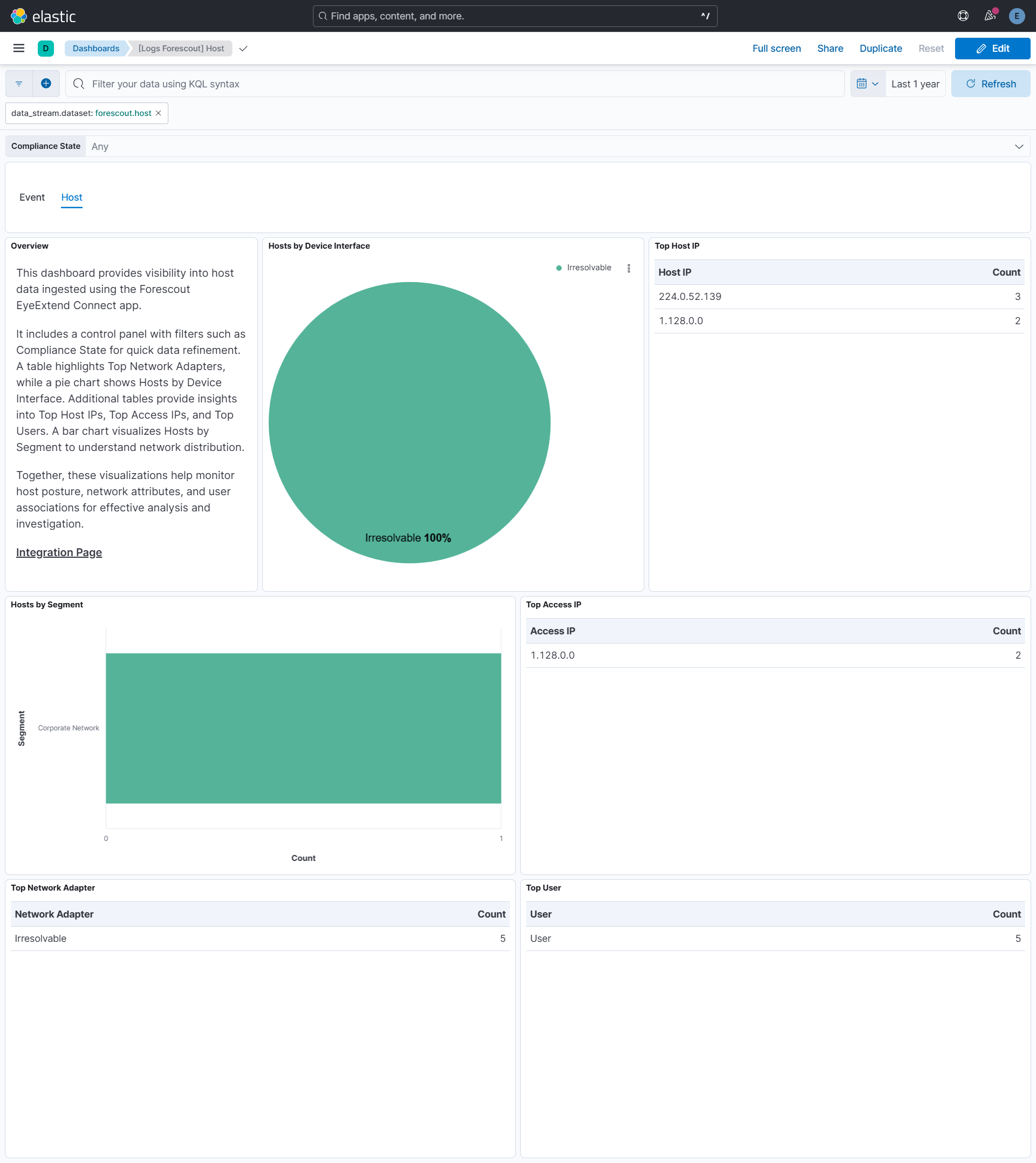
For Host Data, the dashboard provides detailed breakdowns by compliance state and network segments, enabling rapid asset discovery and inventory management across managed and unmanaged devices.
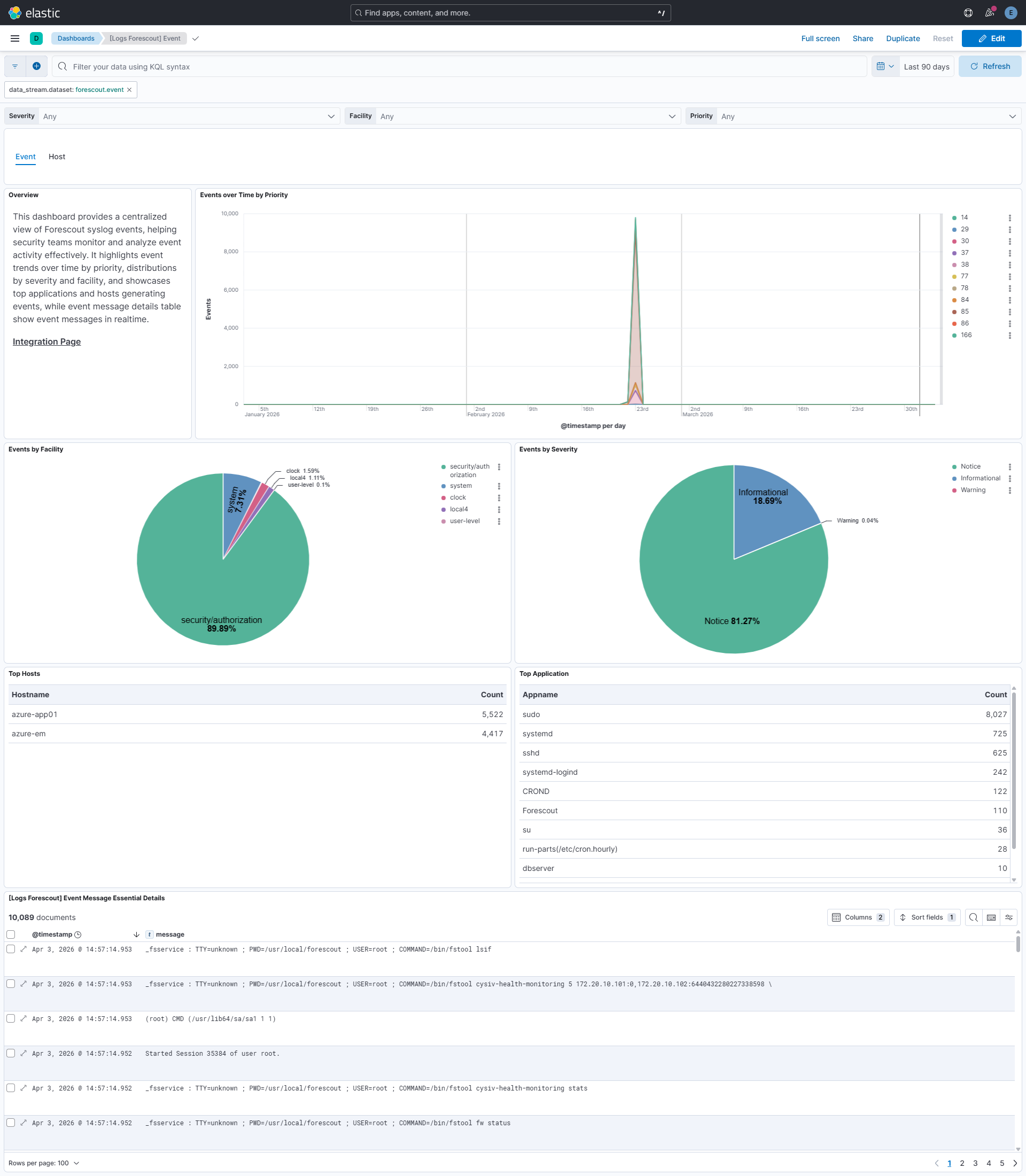
For Events, the dashboard presents key metrics with breakdowns by Severity, Facility, Priority, Hosts, and Applications, helping analysts quickly triage security events and assess risk levels.
Time-based visualizations such as Events over Time by Priority reveal trends and atypical spikes in access or security activity, supporting proactive threat detection and continuous monitoring.
Interactive filtering controls allow analysts to drill down across hosts and events, supporting streamlined investigation, threat hunting, and accelerated incident response within a unified Elastic environment.
- Elastic Stack with ingest pipelines capability to process incoming host data.
- Elastic Agent installed on a host that is reachable by the Forescout syslog sender.
- Ensure the required TCP/UDP ports are open to receive data.
- Forescout eyeExtend Connect app configured to send host data to Elastic.
- Configure the syslog plugin in Forescout to continuously send the event message over either TCP or UDP.
Elastic Agent must be installed. For more details, check the Elastic Agent installation instructions. You can install only one Elastic Agent per host.
Elastic Agent is required to stream data from the syslog or log file receiver and ship the data to Elastic, where the events will then be processed using the integration's ingest pipelines.
This integration does not include a data collector for host data. Host data is sent directly by the Forescout eyeExtend Connect app to Elastic. The integration provides the necessary ingest pipelines and Kibana dashboards for processing and visualizing both host and event data.
In the top search bar in Kibana, search for Integrations.
In the search bar, type Forescout.
Select the Forescout integration from the search results.
Select Add Forescout to add the integration.
Enable and configure only the collection methods which you will use.
To Collect Forescout events using syslog, you'll need to:
- Configure Listen Address, Listen Port.
- Additionally, Timezone, Custom TCP/UDP options and tags can be provided.
Select Save and continue to save the integration.
The configured timezone is added to the event.timezone field for each event and is used to accurately build the @timestamp for syslog messages that lack a year value. The default is UTC, and if no value is provided, the system timezone of the Elastic Agent host is used.
This integration does not include a data collector for host data. It provides ingest pipelines and Kibana dashboards to process host data sent directly by the Forescout eyeExtend Connect app to Elastic.
- In the top search bar in Kibana, search for Dashboards.
- In the search bar, type Forescout.
- Select a dashboard for the dataset you are collecting, and verify the dashboard information is populated.
For help with Elastic ingest tools, check Common problems.
If host data is not appearing in Elastic, verify that the Forescout eyeExtend Connect app is properly configured to send data to your Elastic instance.
A known data-corruption issue affects the TCP input in Elastic Stack versions 9.2.0 and 9.2.1, so these releases should be avoided for TCP-based data collection.
For more information on architectures that can be used for scaling this integration, check the Ingest Architectures documentation.
Exported fields
| Field | Description | Type |
|---|---|---|
| @timestamp | Date/time when the event originated. This is the date/time extracted from the event, typically representing when the event was generated by the source. If the event source has no original timestamp, this value is typically populated by the first time the event was received by the pipeline. Required field for all events. | date |
| data_stream.dataset | The field can contain anything that makes sense to signify the source of the data. Examples include nginx.access, prometheus, endpoint etc. For data streams that otherwise fit, but that do not have dataset set we use the value "generic" for the dataset value. event.dataset should have the same value as data_stream.dataset. Beyond the Elasticsearch data stream naming criteria noted above, the dataset value has additional restrictions: * Must not contain - * No longer than 100 characters |
constant_keyword |
| data_stream.namespace | A user defined namespace. Namespaces are useful to allow grouping of data. Many users already organize their indices this way, and the data stream naming scheme now provides this best practice as a default. Many users will populate this field with default. If no value is used, it falls back to default. Beyond the Elasticsearch index naming criteria noted above, namespace value has the additional restrictions: * Must not contain - * No longer than 100 characters |
constant_keyword |
| data_stream.type | An overarching type for the data stream. Currently allowed values are "logs" and "metrics". We expect to also add "traces" and "synthetics" in the near future. | constant_keyword |
| error.message | Error message. | match_only_text |
| event.dataset | Name of the dataset. If an event source publishes more than one type of log or events (e.g. access log, error log), the dataset is used to specify which one the event comes from. It's recommended but not required to start the dataset name with the module name, followed by a dot, then the dataset name. | constant_keyword |
| event.kind | This is one of four ECS Categorization Fields, and indicates the highest level in the ECS category hierarchy. event.kind gives high-level information about what type of information the event contains, without being specific to the contents of the event. For example, values of this field distinguish alert events from metric events. The value of this field can be used to inform how these kinds of events should be handled. They may warrant different retention, different access control, it may also help understand whether the data is coming in at a regular interval or not. |
keyword |
| event.module | Name of the module this data is coming from. If your monitoring agent supports the concept of modules or plugins to process events of a given source (e.g. Apache logs), event.module should contain the name of this module. |
constant_keyword |
| forescout.event.command | keyword | |
| forescout.event.message | match_only_text | |
| forescout.event.pwd | keyword | |
| forescout.event.service | keyword | |
| forescout.event.tty | keyword | |
| forescout.event.user | keyword | |
| input.type | Type of filebeat input. | keyword |
| log.offset | Log offset. | long |
| log.source.address | keyword | |
| log.syslog.appname | The device or application that originated the Syslog message, if available. | keyword |
| log.syslog.facility.code | The Syslog numeric facility of the log event, if available. According to RFCs 5424 and 3164, this value should be an integer between 0 and 23. | long |
| log.syslog.facility.name | The Syslog text-based facility of the log event, if available. | keyword |
| log.syslog.hostname | The hostname, FQDN, or IP of the machine that originally sent the Syslog message. This is sourced from the hostname field of the syslog header. Depending on the environment, this value may be different from the host that handled the event, especially if the host handling the events is acting as a collector. | keyword |
| log.syslog.priority | Syslog numeric priority of the event, if available. According to RFCs 5424 and 3164, the priority is 8 * facility + severity. This number is therefore expected to contain a value between 0 and 191. | long |
| log.syslog.procid | The process name or ID that originated the Syslog message, if available. | keyword |
| log.syslog.severity.code | The Syslog numeric severity of the log event, if available. If the event source publishing via Syslog provides a different numeric severity value (e.g. firewall, IDS), your source's numeric severity should go to event.severity. If the event source does not specify a distinct severity, you can optionally copy the Syslog severity to event.severity. |
long |
| log.syslog.severity.name | The Syslog numeric severity of the log event, if available. If the event source publishing via Syslog provides a different severity value (e.g. firewall, IDS), your source's text severity should go to log.level. If the event source does not specify a distinct severity, you can optionally copy the Syslog severity to log.level. |
keyword |
| message | For log events the message field contains the log message, optimized for viewing in a log viewer. For structured logs without an original message field, other fields can be concatenated to form a human-readable summary of the event. If multiple messages exist, they can be combined into one message. | match_only_text |
| observer.vendor | Vendor name of the observer. | constant_keyword |
| process.command_line | Full command line that started the process, including the absolute path to the executable, and all arguments. Some arguments may be filtered to protect sensitive information. | wildcard |
| process.command_line.text | Multi-field of process.command_line. |
match_only_text |
| process.user.name | Short name or login of the user. | keyword |
| process.user.name.text | Multi-field of process.user.name. |
match_only_text |
| process.working_directory | The working directory of the process. | keyword |
| process.working_directory.text | Multi-field of process.working_directory. |
match_only_text |
| related.hosts | All hostnames or other host identifiers seen on your event. Example identifiers include FQDNs, domain names, workstation names, or aliases. | keyword |
| related.user | All the user names or other user identifiers seen on the event. | keyword |
| user.name | Short name or login of the user. | keyword |
| user.name.text | Multi-field of user.name. |
match_only_text |
Example
{
    "@timestamp": "2026-11-22T18:31:08.000Z",
    "agent": {
        "ephemeral_id": "1d936cb6-f23d-4c04-b07f-ada119d549a5",
        "id": "a013286f-d805-4c6e-b5a3-aa506e415086",
        "name": "elastic-agent-95897",
        "type": "filebeat",
        "version": "8.18.0"
    },
    "data_stream": {
        "dataset": "forescout.event",
        "namespace": "61844",
        "type": "logs"
    },
    "ecs": {
        "version": "9.3.0"
    },
    "elastic_agent": {
        "id": "a013286f-d805-4c6e-b5a3-aa506e415086",
        "snapshot": false,
        "version": "8.18.0"
    },
    "event": {
        "agent_id_status": "verified",
        "dataset": "forescout.event",
        "ingested": "2026-04-03T10:15:37Z",
        "kind": "event",
        "original": "<85>Nov 22 18:31:08 azure-app01 sudo: _fsservice : TTY=unknown ; PWD=/usr/local/forescout ; USER=root ; COMMAND=/bin/fstool fw status"
    },
    "forescout": {
        "event": {
            "service": "_fsservice",
            "tty": "unknown"
        }
    },
    "input": {
        "type": "tcp"
    },
    "log": {
        "source": {
            "address": "192.168.241.3:37420"
        },
        "syslog": {
            "appname": "sudo",
            "facility": {
                "code": 10,
                "name": "security/authorization"
            },
            "hostname": "azure-app01",
            "priority": 85,
            "severity": {
                "code": 5,
                "name": "Notice"
            }
        }
    },
    "message": "_fsservice : TTY=unknown ; PWD=/usr/local/forescout ; USER=root ; COMMAND=/bin/fstool fw status",
    "process": {
        "command_line": "/bin/fstool fw status",
        "user": {
            "name": "root"
        },
        "working_directory": "/usr/local/forescout"
    },
    "related": {
        "hosts": [
            "azure-app01"
        ],
        "user": [
            "root"
        ]
    },
    "tags": [
        "preserve_original_event",
        "forescout-event",
        "forwarded"
    ],
    "user": {
        "name": "root"
    }
}
These inputs are used in this integration:
This integration includes one or more Kibana dashboards that visualizes the data collected by the integration. The screenshots below illustrate how the ingested data is displayed.
Changelog
| Version | Details | Minimum Kibana version |
|---|---|---|
| 0.1.0 | Enhancement (View pull request) Initial release. Enhancement (View pull request) Add support for Host Data Stream. Enhancement (View pull request) Add support for Event Data Stream. |
9.0.0 8.18.0 |