AWS WAF
| Version | 7.1.5 (View all) |
| Subscription level What's this? |
Basic |
| Ingestion method(s) | API, AWS CloudWatch, AWS S3 |
| Minimum Kibana version(s) | 9.4.0 |
The AWS WAF integration allows you to monitor AWS Web Application Firewall (WAF)—a web application firewall for protecting against common web exploits.
Use the AWS WAF integration to collect and parse logs related to firewall activity across your AWS infrastructure. Then visualize that data in Kibana, create alerts to notify you if something goes wrong, and reference logs when troubleshooting an issue.
For example, you could use the data from this integration to spot unusual SQL injection and cross-site scripting attempts on your AWS-hosted websites and web applications, in a given time period. You could also use the data to review or troubleshoot the rules that have been set up to block these web exploits. You can do this by looking at additional context in the logs, such as the source of the requests, and more.
Extra AWS charges on API requests will be generated by this integration. Check API Requests for more details.
The AWS WAF integration collects one type of data: logs.
Logs help you keep a record of events happening in AWS WAF. Logs collected by the AWS WAF integration include information on the rule that terminated a request, the source of the request, and more. See more details in the Logs reference.
The waf data stream is specifically for WAF logs.
You need Elasticsearch for storing and searching your data and Kibana for visualizing and managing it. You can use our hosted Elasticsearch Service on Elastic Cloud, which is recommended, or self-manage the Elastic Stack on your own hardware.
Before using any AWS integration you will need:
- AWS Credentials to connect with your AWS account.
- AWS Permissions to make sure the user you're using to connect has permission to share the relevant data.
For more details about these requirements, refer to the AWS integration documentation.
Use this integration if you only need to collect data from the AWS WAF service.
If you want to collect data from two or more AWS services, consider using the AWS integration. When you configure the AWS integration, you can collect data from as many AWS services as you'd like.
For step-by-step instructions on how to set up an integration, see the Getting started guide.
The CloudWatch logs input has several advanced options to fit specific use cases.
AWS CloudWatch Logs sometimes takes extra time to make the latest logs available to clients like the Agent.
The CloudWatch integration offers the latency setting to address this scenario. Latency translates the query's time range to consider the CloudWatch Logs latency. For example, a 5m latency means the integration will query CloudWatch for logs available 5 minutes ago.
If you are collecting log events from multiple log groups using log_group_name_prefix, you should review the value of the number_of_workers.
The number_of_workers setting defines the number of workers assigned to reading from log groups. Do not set number_of_workers higher than the AWS API rate limit. The CloudWatch Logs APIs (DescribeLogGroups, FilterLogEvents) are limited to 5 transactions per second (TPS) per AWS account and per region; this limit is shared across all API callers in that account and region. If you run multiple integrations or data streams that collect CloudWatch logs from the same account and region, their workers share the same 5 TPS—so even 5 workers per data stream can cause throttling when combined. Exceeding the limit causes ThrottlingException: Rate exceeded errors and may report DEGRADED status in Fleet.
Recommendation: Set number_of_workers to 5 or less and scan_frequency to 5m or more, regardless of how many log groups match log_group_name_prefix. Workers will iterate through the matching log groups within each scan interval. The default value is 1.
The waf dataset is specifically for WAF logs. Export logs from Kinesis Data Firehose to Amazon S3 bucket which has SQS notification setup already.
ECS Field Reference
Refer to the following document for detailed information on ECS fields.
Exported fields
| Field | Description | Type |
|---|---|---|
| @timestamp | Event timestamp. | date |
| aws.s3.bucket.arn | The AWS S3 bucket ARN. | keyword |
| aws.s3.bucket.name | The AWS S3 bucket name. | keyword |
| aws.s3.object.key | The AWS S3 Object key. | keyword |
| aws.waf.arn | AWS ARN of ACL | keyword |
| aws.waf.captcha_response.failure_reason | keyword | |
| aws.waf.captcha_response.response_code | long | |
| aws.waf.captcha_response.solve_timestamp | date | |
| aws.waf.challenge_response.failure_reason | keyword | |
| aws.waf.challenge_response.response_code | long | |
| aws.waf.challenge_response.solve_timestamp | date | |
| aws.waf.format_version | The format version for the log. | keyword |
| aws.waf.id | ID of ACL | keyword |
| aws.waf.ja4_fingerprint | The JA4 fingerprint of the request. | keyword |
| aws.waf.labels.name | keyword | |
| aws.waf.non_terminating_matching_rules.action | keyword | |
| aws.waf.non_terminating_matching_rules.ruleId | keyword | |
| aws.waf.non_terminating_matching_rules.ruleMatchDetails.conditionType | keyword | |
| aws.waf.non_terminating_matching_rules.ruleMatchDetails.location | keyword | |
| aws.waf.non_terminating_matching_rules.ruleMatchDetails.matchedData | keyword | |
| aws.waf.oversize_fields | The list of fields in the web request that were inspected by the protection pack (web ACL) and that are over the AWS WAF inspection limit. | keyword |
| aws.waf.rate_based_rule_list.conditionType | keyword | |
| aws.waf.rate_based_rule_list.location | keyword | |
| aws.waf.rate_based_rule_list.matchedData | keyword | |
| aws.waf.request.headers | List of request headers | flattened |
| aws.waf.request_body_size | long | |
| aws.waf.request_body_size_inspected_by_waf | long | |
| aws.waf.request_headers_inserted | The list of headers inserted for custom request handling. | flattened |
| aws.waf.response_code_sent | The response code sent with a custom response. | long |
| aws.waf.rule_group_list.nonTerminatingMatchingRules.action | keyword | |
| aws.waf.rule_group_list.nonTerminatingMatchingRules.ruleId | keyword | |
| aws.waf.rule_group_list.nonTerminatingMatchingRules.ruleMatchDetails.conditionType | keyword | |
| aws.waf.rule_group_list.nonTerminatingMatchingRules.ruleMatchDetails.location | keyword | |
| aws.waf.rule_group_list.nonTerminatingMatchingRules.ruleMatchDetails.matchedData | keyword | |
| aws.waf.rule_group_list.ruleGroupId | keyword | |
| aws.waf.rule_group_list.terminatingRule.action | keyword | |
| aws.waf.rule_group_list.terminatingRule.ruleId | keyword | |
| aws.waf.rule_group_list.terminatingRule.ruleMatchDetails.conditionType | keyword | |
| aws.waf.rule_group_list.terminatingRule.ruleMatchDetails.location | keyword | |
| aws.waf.rule_group_list.terminatingRule.ruleMatchDetails.matchedData | keyword | |
| aws.waf.source.id | The source ID. This field shows the ID of the associated resource. | keyword |
| aws.waf.source.name | The source of the request. Possible values: CF for Amazon CloudFront, APIGW for Amazon API Gateway, ALB for Application Load Balancer, and APPSYNC for AWS AppSync. | keyword |
| aws.waf.terminating_rule_match_details.conditionType | keyword | |
| aws.waf.terminating_rule_match_details.location | keyword | |
| aws.waf.terminating_rule_match_details.matchedData | keyword | |
| cloud.image.id | Image ID for the cloud instance. | keyword |
| data_stream.dataset | Data stream dataset. | constant_keyword |
| data_stream.namespace | Data stream namespace. | constant_keyword |
| data_stream.type | Data stream type. | constant_keyword |
| event.module | Event module | constant_keyword |
| host.containerized | If the host is a container. | boolean |
| host.os.build | OS build information. | keyword |
| host.os.codename | OS codename, if any. | keyword |
| input.type | Input type | keyword |
| log.offset | Log offset | long |
Example
{
    "@timestamp": "2019-12-13T23:40:12.771Z",
    "agent": {
        "ephemeral_id": "3f08e9d1-4bf2-48ac-a1c2-5f964731b310",
        "id": "43134ba7-5828-4a32-939f-51cbba764839",
        "name": "elastic-agent-83365",
        "type": "filebeat",
        "version": "8.19.4"
    },
    "aws": {
        "s3": {
            "bucket": {
                "arn": "arn:aws:s3:::elastic-package-aws-bucket-75204",
                "name": "elastic-package-aws-bucket-75204"
            },
            "object": {
                "key": "waf.log"
            }
        },
        "waf": {
            "arn": "arn:aws:wafv2:ap-southeast-2:EXAMPLE12345:regional/webacl/STMTest/1EXAMPLE-2ARN-3ARN-4ARN-123456EXAMPLE",
            "format_version": "1",
            "id": "regional/webacl/STMTest/1EXAMPLE-2ARN-3ARN-4ARN-123456EXAMPLE",
            "labels": [
                {
                    "name": "value"
                }
            ],
            "request": {
                "headers": {
                    "Accept": "*/*",
                    "Host": "localhost:1989",
                    "User-Agent": "curl/7.61.1",
                    "x-stm-test": "10 AND 1=1"
                }
            },
            "terminating_rule_match_details": [
                {
                    "conditionType": "SQL_INJECTION",
                    "location": "HEADER",
                    "matchedData": [
                        "10",
                        "AND",
                        "1"
                    ]
                }
            ]
        }
    },
    "cloud": {
        "account": {
            "id": "EXAMPLE12345"
        },
        "provider": "aws",
        "region": "ap-southeast-2",
        "service": {
            "name": "wafv2"
        }
    },
    "data_stream": {
        "dataset": "aws.waf",
        "namespace": "99205",
        "type": "logs"
    },
    "ecs": {
        "version": "8.11.0"
    },
    "elastic_agent": {
        "id": "43134ba7-5828-4a32-939f-51cbba764839",
        "snapshot": false,
        "version": "8.19.4"
    },
    "event": {
        "action": "BLOCK",
        "agent_id_status": "verified",
        "category": [
            "web",
            "network"
        ],
        "dataset": "aws.waf",
        "ingested": "2026-01-29T05:58:10Z",
        "kind": "event",
        "original": "{\"timestamp\":1576280412771,\"formatVersion\":1,\"webaclId\":\"arn:aws:wafv2:ap-southeast-2:EXAMPLE12345:regional/webacl/STMTest/1EXAMPLE-2ARN-3ARN-4ARN-123456EXAMPLE\",\"terminatingRuleId\":\"STMTest_SQLi_XSS\",\"terminatingRuleType\":\"REGULAR\",\"action\":\"BLOCK\",\"terminatingRuleMatchDetails\":[{\"conditionType\":\"SQL_INJECTION\",\"location\":\"HEADER\",\"matchedData\":[\"10\",\"AND\",\"1\"]}],\"httpSourceName\":\"-\",\"httpSourceId\":\"-\",\"ruleGroupList\":[],\"rateBasedRuleList\":[],\"nonTerminatingMatchingRules\":[],\"httpRequest\":{\"clientIp\":\"89.160.20.156\",\"country\":\"AU\",\"headers\":[{\"name\":\"Host\",\"value\":\"localhost:1989\"},{\"name\":\"User-Agent\",\"value\":\"curl/7.61.1\"},{\"name\":\"Accept\",\"value\":\"*/*\"},{\"name\":\"x-stm-test\",\"value\":\"10 AND 1=1\"}],\"uri\":\"/foo\",\"args\":\"\",\"httpVersion\":\"HTTP/1.1\",\"httpMethod\":\"GET\",\"requestId\":\"rid\"},\"labels\":[{\"name\":\"value\"}]}",
        "type": [
            "access",
            "denied"
        ]
    },
    "http": {
        "request": {
            "id": "rid",
            "method": "GET"
        },
        "version": "1.1"
    },
    "input": {
        "type": "aws-s3"
    },
    "log": {
        "file": {
            "path": "https://elastic-package-aws-bucket-75204.s3.us-east-1.amazonaws.com/waf.log"
        },
        "offset": 0
    },
    "network": {
        "protocol": "http",
        "transport": "tcp"
    },
    "related": {
        "ip": [
            "89.160.20.156"
        ]
    },
    "rule": {
        "id": "STMTest_SQLi_XSS",
        "ruleset": "REGULAR"
    },
    "source": {
        "as": {
            "number": 29518,
            "organization": {
                "name": "Bredband2 AB"
            }
        },
        "geo": {
            "city_name": "Linköping",
            "continent_name": "Europe",
            "country_iso_code": "SE",
            "country_name": "Sweden",
            "location": {
                "lat": 58.4167,
                "lon": 15.6167
            },
            "region_iso_code": "SE-E",
            "region_name": "Östergötland County"
        },
        "ip": "89.160.20.156"
    },
    "tags": [
        "preserve_original_event",
        "forwarded",
        "aws-waf"
    ],
    "url": {
        "path": "/foo"
    }
}
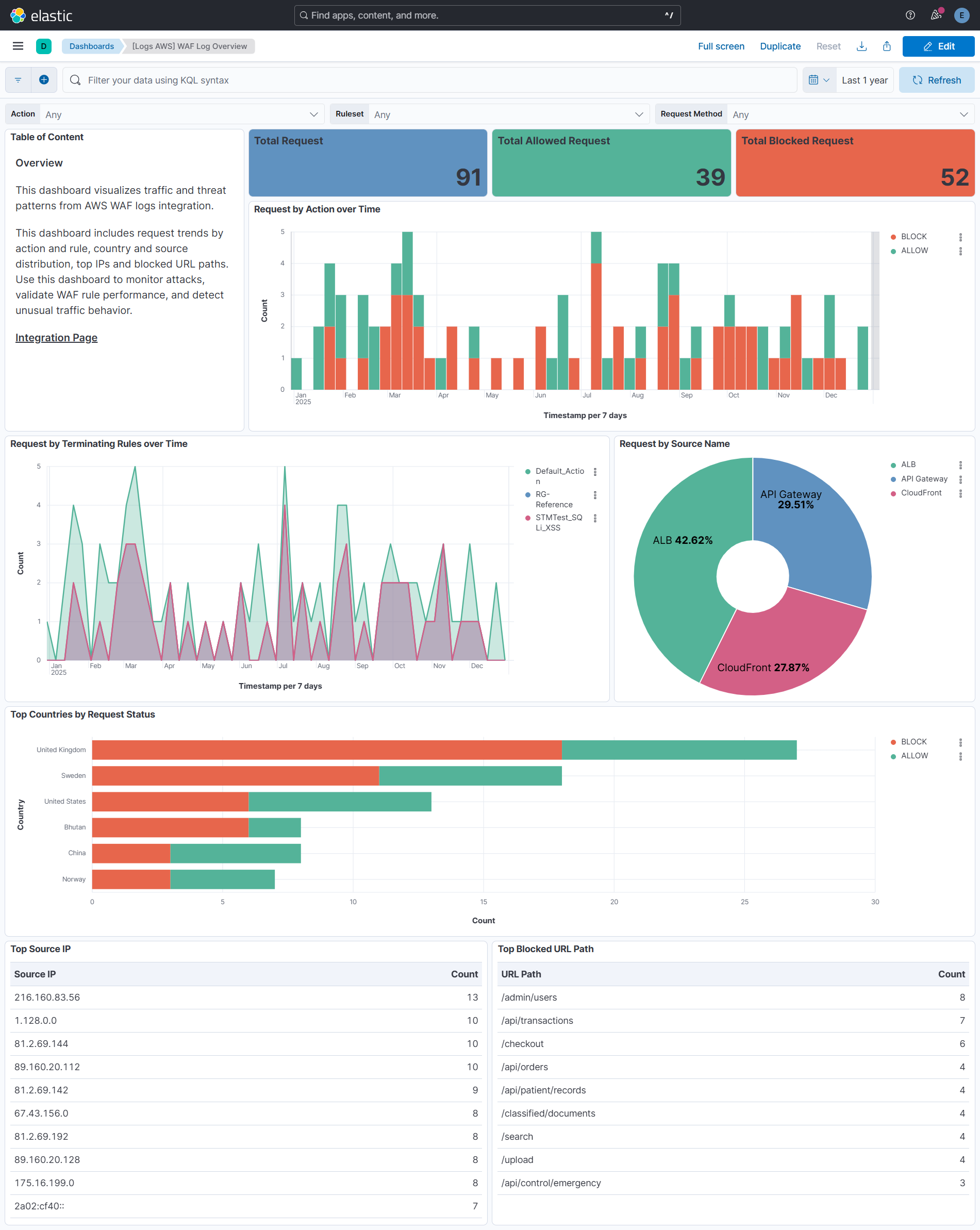
This integration includes one or more Kibana dashboards that visualizes the data collected by the integration. The screenshots below illustrate how the ingested data is displayed.
Changelog
| Version | Details | Minimum Kibana version |
|---|---|---|
| 7.1.5 | Enhancement (View pull request) The changes below apply to the Security Hub CSPM data streams ( securityhub_findings, securityhub_findings_full_posture and securityhub_insights) only.Sign requests with the native auth.aws configuration instead of a hand-rolled SigV4 template. This adds support for session tokens, shared credentials files, credential profiles and assume-role (including external_id).Migrate the Findings and Findings Full Posture data streams from the httpjson input to CEL via run_as_cel. The persisted Findings collection cursor is carried over, so collection resumes from where it stopped.Bug fix (View pull request) The fixes below apply to the Security Hub CSPM data streams only. Fix intermittent SignatureDoesNotMatch (HTTP 403) errors in the Findings, Findings Full Posture and Insights data streams caused by the hand-rolled SigV4 template evaluating now separately for the X-Amz-Date header and the Authorization signature.Fix Invalid NextToken errors (HTTP 400/403) when paginating large GetFindings result sets in the Findings data stream. The UpdatedAt window start is now pinned once per collection interval, so it cannot change between pages and invalidate the NextToken. |
9.4.0 |
| 7.1.4 | Bug fix (View pull request) Wrap the www.amazon.com:app_id and www.amazon.com:user_id examples in the user_identity.session_context.web_id_federation_data.attributes field description in backticks so they render as inline code instead of being autolinked into invalid URLs when docs are generated. |
9.4.0 |
| 7.1.3 | Enhancement (View pull request) The changes below apply to the CloudTrail data stream only. Replace every ignore_failure: true with an ignore_missing flag, a condition guard, or an explicit on_failure handler reporting to error.message, so real faults surface instead of being silently swallowed.Add support for CloudTrail fields that were previously dropped. Populate the cloud.provider, cloud.service.name and related.* ECS fields.Bug fix (View pull request) The fixes below apply to the CloudTrail data stream only. Stop populating file.hash.sha256 on digest records, where it held the hash of the previous digest file while file.path pointed at the current one. The value is still available as aws.cloudtrail.digest.previous_hash_value and in related.hash.Fix DeleteObject using event.type: delete, which is not a valid ECS value. It is now deletion.Fix Publish, SendCommand and Converse producing no event.type. They now use info, start and info respectively.Fix retain: none behaving like retain: all. It now drops both the keyword and the flattened copies as documented.Fix retain: keyword and retain: minimal discarding digest and Insights records. The setting governs API call payloads and no longer affects either record type.Fix aws.cloudtrail.service_event_details surviving retain: flattened and retain: none. It is now governed like the other payload fields. |
9.4.0 |
| 7.1.2 | Bug fix (View pull request) Add an Instance or Pod IAM Role option to the Setup Access selector so Elastic Agent can authenticate with the AWS SDK default credential chain (EC2 instance profile, EKS Pod Identity or IRSA) without entering access keys or a Role ARN. Since 7.0.0 every option required at least one credential field, which made this documented path impossible to save. |
9.4.0 |
| 7.1.1 | Bug fix (View pull request) Add data_stream.namespace to the Amazon Inspector vulnerability latest transform's unique key so findings are tracked per namespace, preventing findings ingested into non-default namespaces from being dropped or conflated in the latest index. Bump transform's destination suffix to -v2. |
9.4.0 |
| 7.1.0 | Enhancement (View pull request) Stop storing the assumed-role ARN session name in user.changes.*. The session name is now added to related.user for cross-source correlation; when it is an email, both the full email and the local-part prefix are added. user.name continues to hold the IAM role name for detection rules. |
9.4.0 |
| 7.0.0 | Enhancement (View pull request) Hide the CloudWatch, EBS, EC2, ECS, and S3 metric/log inputs when the Identity Federation setup access option is selected, since only the GuardDuty API input supports identity federation. Enhancement (View pull request) Reorganize AWS credentials configuration into a Setup Access selector with Identity Federation, Direct Access Keys, Temporary Access Keys, Assume Role, Assume Role with External ID, and Shared Credentials options. Existing access keys, role ARN, and shared credential settings continue to function and are auto-mapped to the corresponding option.Enhancement (View pull request) Switch the GuardDuty httpjson stream from manual SigV4 HMAC signing to the native auth.aws block.Breaking change (View pull request) Store the external_id variable as a secret.Enhancement (View pull request) Add assume_role_duration, assume_role_expiry_window, and supports_identity_federation variables.Breaking change (View pull request) Require Kibana and Elastic Agent ^9.4.0 (drop support for Kibana 8.x, Kibana 9.x below 9.4.0, and Elastic Agent below 9.4.0). The var_groups manifest feature and auth.aws runtime require this minimum. |
9.4.0 |
| 6.21.0 | Bug fix (View pull request) Poll Amazon Inspector findings on updatedAt instead of lastObservedAt so that findings AWS marks CLOSED or SUPPRESSED are collected and no longer remain stale in Elastic.Enhancement (View pull request) Include all Inspector finding statuses in the vulnerability latest transform and map aws.inspector.status to the vulnerability.status field (CLOSED as fixed), so remediated findings can be filtered out on the Vulnerability Findings page.Enhancement (View pull request) Add a lag_time variable to the Amazon Inspector data stream that offsets the poll cursor to tolerate delay between when a finding's updatedAt is set and when it becomes available from the API, preventing missed findings. |
9.2.1 8.19.4 |
| 6.20.4 | Bug fix (View pull request) Add security category to the Transit Gateway data stream to match its policy template categories. |
9.2.1 8.19.4 |
| 6.20.3 | Enhancement (View pull request) Add processor tags to all ingest pipeline processors to satisfy elastic-package linter requirements for format_version 3.6.0 and above. |
— |
| 6.20.2 | Bug fix (View pull request) Skip AWS service-linked Config rules when collecting compliance details so the AWS Config data stream no longer degrades on AccessDeniedException, and treat per-rule compliance errors as non-fatal so a single failing rule does not stop ingestion of the rest. |
9.2.1 8.19.4 |
| 6.20.1 | Bug fix (View pull request) Revert addition of assignment of host.id from CloudTrail target hosts. |
9.2.1 8.19.4 |
| 6.20.0 | Enhancement (View pull request) Enable agentless deployment mode for CloudWatch, EBS, EC2, ECS, and S3 policy templates. Bug fix (View pull request) Disable TSDB on the S3 daily storage data stream to avoid rejection of late-arriving daily CloudWatch metrics. |
9.2.1 8.19.4 |
| 6.19.2 | Bug fix (View pull request) Restore a stable endInclusive bound to Inspector findings filter to prevent potential nextToken invalidation. |
9.2.1 8.19.4 |
| 6.19.1 | Bug fix (View pull request) Fix aws.lambda.message flattened field handling. |
9.2.1 8.19.4 |
| 6.19.0 | Enhancement (View pull request) Use new release field for agentless deployment mode to establish as beta. |
9.2.1 8.19.4 |
| 6.18.1 | Enhancement (View pull request) Add documentation for authenticating the CloudTrail integration using AWS IAM Roles Anywhere for agents running outside AWS. |
9.2.1 8.19.4 |
| 6.18.0 | Enhancement (View pull request) Set event.kind to alert for AWS GuardDuty findings. |
9.2.1 8.19.4 |
| 6.17.1 | Bug fix (View pull request) Fix Security Hub findings collection by restoring a stable UpdatedAt end bound. |
9.2.1 8.19.4 |
| 6.17.0 | Enhancement (View pull request) Add ingest timestamp to AWS CloudWatch logs if timestamp is not present in the event. |
9.2.1 8.19.4 |
| 6.16.0 | Enhancement (View pull request) Add fail guard for unsupported VPC Flow Log formats so unrecognised records surface as pipeline errors instead of indexing silently unparsed. |
9.2.1 8.19.4 |
| 6.15.0 | Enhancement (View pull request) Add S3 polling mode performance recommendations to CloudTrail docs |
9.2.1 8.19.4 |
| 6.14.2 | Bug fix (View pull request) Fix NextToken invalidation in Security Hub, GuardDuty, and Inspector by removing the upper time bound from paginated queries. |
9.2.1 8.19.4 |
| 6.14.1 | Bug fix (View pull request) Handle null EvaluationResults in AWS Config GetComplianceDetailsByConfigRule response. |
9.2.1 8.19.4 |
| 6.14.0 | Enhancement (View pull request) Enable agentless deployment for AWS RDS metrics. |
9.2.1 8.19.4 |
| 6.13.0 | Enhancement (View pull request) Enable agentless deployment for AWS DynamoDB metrics. |
9.2.1 8.19.4 |
| 6.12.0 | Enhancement (View pull request) Enable agentless deployment for AWS SNS metrics. |
9.2.1 8.19.4 |
| 6.11.0 | Enhancement (View pull request) Enable agentless deployment for AWS Transitgateway metrics. |
9.2.1 8.19.4 |
| 6.10.0 | Enhancement (View pull request) Enable agentless deployment for AWS Billing metrics. |
9.2.1 8.19.4 |
| 6.9.0 | Enhancement (View pull request) Enable agentless deployment for AWS Health metrics. |
9.2.1 8.19.4 |
| 6.8.0 | Enhancement (View pull request) Enable agentless deployment for AWS SQS metrics. |
9.2.1 8.19.4 |
| 6.7.0 | Enhancement (View pull request) Enable agentless deployment for AWS ELB metrics. |
9.2.1 8.19.4 |
| 6.6.0 | Enhancement (View pull request) Enable agentless deployment for AWS Lambda metrics. |
9.2.1 8.19.4 |
| 6.5.1 | Bug fix (View pull request) Add credential validation to AWS Config CEL program to emit a clear error when access_key_id or secret_access_key are missing. Document that the AWS Config data stream requires static credentials and does not support Role ARN or other SDK-based credential methods. |
9.2.1 8.19.4 |
| 6.5.0 | Enhancement (View pull request) Add timestamp range filter and storage tier exclusion to latest transform source queries to reduce scan scope and improve performance. |
9.2.1 8.19.4 |
| 6.4.3 | Bug fix (View pull request) Align event.kind with ECS in securityhub_findings_full_posture data stream to avoid conflicts with ingest pipeline values. |
9.2.1 8.19.4 |
| 6.4.2 | Bug fix (View pull request) Revert event.kind from alert to event on AWS WAF. |
9.2.1 8.19.4 |
| 6.4.1 | Bug fix (View pull request) Ignore uri_parts failures on S3 access log request paths that the URI parser cannot handle. |
9.2.1 8.19.4 |
| 6.4.0 | Enhancement (View pull request) Set host.id alongside host.target.entity.id in CloudTrail pipeline for entity store host entity resolution. |
9.2.1 8.19.4 |
| 6.3.2 | Bug fix (View pull request) Fix s3access ingest pipeline to handle host headers with ports and Source region field parsing. |
9.2.1 8.19.4 |
| 6.3.1 | Bug fix (View pull request) Fix CloudTrail pipeline errors causing transient json and _conf fields to leak into indexed documents by cleaning them up in the on_failure handler, preventing dynamic mapping conflicts. |
9.2.1 8.19.4 |
| 6.3.0 | Enhancement (View pull request) Removed ECS field definitions from CDR transform destinations, now covered by ecs@mappings component template. Renamed overridden ECS fields files to ecs-overridden.yml for awsconfig and awsinspector transforms. |
9.2.1 8.19.4 |
| 6.2.0 | Enhancement (View pull request) Add support for the aws.waf.captcha_response.*, aws.waf.challenge_response.*, aws.waf.format_version, aws.waf.ja4_fingerprint, aws.waf.labels.name, aws.waf.oversize_fields, aws.waf.request_body_size, aws.waf.request_body_size_inspected_by_waf, aws.waf.response_code_sent, aws.waf.request_headers_inserted.*, host.domain, tls.client.ja3, url.fragment and url.scheme in waf data stream.aws.waf.request_headers_inserted.*, tls.client.ja3, url.registered_domain, url.fragment and url.scheme in waf data stream. |
9.2.1 8.19.4 |
| 6.1.1 | Bug fix (View pull request) Remove duplicate security-solution-default tag references |
9.2.1 8.19.4 |
| 6.1.0 | Bug fix (View pull request) Remove fixed value event.dataset mapping for lambda_logs data stream. |
9.2.1 8.19.4 |
| 6.0.0 | Breaking change (View pull request) Remove third-party pipeline for previously removed 'third-party REST API' input from 'AWS Cloudtrail'. |
9.2.1 8.19.4 |
| 5.6.1 | Bug fix (View pull request) Fix Cloudtrail's Lambda event parsing of vpcConfig.securityGroupIds and vpcConfig.subnetIds fields. |
9.2.1 8.19.4 |
| 5.6.0 | Enhancement (View pull request) Update AWS ALB Grok patterns to support the conn_trace_id field and parse malformed requests missing HTTP versions. |
9.2.1 8.19.4 |
| 5.5.1 | Bug fix (View pull request) Added support for extracting user name from AWS GovCloud STS ARNs and fixed management_event field type conversion. |
9.2.1 8.19.4 |
| 5.5.0 | Enhancement (View pull request) Add dashboards for AWS Web Application Firewall data stream. |
9.2.1 8.19.4 |
| 5.4.1 | Enhancement (View pull request) S3 Access logs, improve S3KEY regex to handle special characters. |
9.2.1 8.19.4 |
| 5.4.0 | Enhancement (View pull request) Add ec2_metrics, lambda, sqs and sns alert rule templates. |
9.2.1 8.19.4 |
| 5.3.1 | Bug fix (View pull request) Add cookies field in cloudfront logs datastream. |
9.1.4 8.19.4 |
| 5.3.0 | Enhancement (View pull request) Added rate limiting and retry configuration for AWS Config data stream. |
9.1.4 8.19.4 |
| 5.2.0 | Enhancement (View pull request) Normalize user fields for AWS CloudTrail events. |
9.1.4 8.19.4 |
| 5.1.0 | Enhancement (View pull request) Set event.kind to alert on AWS WAF events. |
9.1.4 8.19.4 |
| 5.0.0 | Breaking change (View pull request) Rebrand AWS Security Hub as AWS Security Hub CSPM to align with the vendor's current branding. This change involves updating the observer.vendor value to AWS Security Hub CSPM. |
9.1.4 8.19.4 |
| 4.7.0 | Enhancement (View pull request) Add type-specific entity fields to data stream. This enables better entity classification while maintaining backward compatibility with existing actor.entity.id and target.entity.id fields. |
9.1.4 8.19.4 |
| 4.6.0 | Enhancement (View pull request) Retain CloudTrail sessionCredentialFromConsole field as aws.cloudtrail.session_credential_from_console. |
9.1.4 8.19.4 |
| 4.5.0 | Enhancement (View pull request) Prevent updating fleet health status to degraded when the HTTPJSON template value evaluation is empty. |
9.1.4 8.19.4 |
| 4.4.0 | Enhancement (View pull request) Prefer set with copy_from. |
9.1.0 8.19.0 |
| 4.3.2 | Bug fix (View pull request) Update transform to filter out document containing an error.message from AWS Config, AWS Inspector, and AWS Security Hub latest indexes. |
9.1.0 8.19.0 |
| 4.3.1 | Bug fix (View pull request) Update the AWS CloudWatch documentation. |
9.1.0 8.19.0 |
| 4.3.0 | Enhancement (View pull request) Improve documentation to align with new guidelines. |
9.1.0 8.19.0 |
| 4.2.0 | Enhancement (View pull request) Add user.name to Cloudtrail's UserAuthentication events. |
9.1.0 8.19.0 |
| 4.1.0 | Enhancement (View pull request) Add vulnerability_workflow and misconfiguration_workflow sub category labels. |
9.1.0 8.19.0 |
| 4.0.0 | Enhancement (View pull request) Add latest transform to AWS Config and AWS Inspector.This enables support for extended protections for AWS Config and AWS Inspector.Breaking change (View pull request) The latest transforms requires transform node and necessary permissions to use the transform.The transforms stores the latest copy of vulnerabilities and misconfigurations in the destination indices, which will require additional storage. Due to change in fingeprinting on source indices, duplicates occur on source indices of AWS Config and AWS Inspector. |
9.1.0 8.19.0 |
| 3.17.2 | Bug fix (View pull request) Fix Cloudtrail's Lambda event parsing of vpcConfig.securityGroupIds and vpcConfig.subnetIds fields. |
9.0.0 8.18.0 8.17.4 8.16.6 |
| 3.17.1 | Bug fix (View pull request) Disable lastSync start_position configuration for CloudWatch as it's incompatible with versions below 9.x. |
9.0.0 8.18.0 8.17.4 8.16.6 |
| 3.17.0 | Enhancement (View pull request) Enable Agentless deployment for AWS GuardDuty. |
9.0.0 8.18.0 8.17.4 8.16.6 |
| 3.16.0 | Enhancement (View pull request) Map recipient_account_id to cloud.account.id for AWS CloudTrail. |
9.0.0 8.18.0 8.17.4 8.16.6 |
| 3.15.0 | Enhancement (View pull request) Add support for VPC Flow logs versions 6, 7, and 8. |
9.0.0 8.18.0 8.17.4 8.16.6 |
| 3.14.2 | Bug fix (View pull request) Remove unused agent files. |
9.0.0 8.18.0 8.17.4 8.16.6 |
| 3.14.1 | Bug fix (View pull request) Fixed issue where empty DescribeConfigRules responses caused 'index out of bounds' errors in AWS Config integration. |
9.0.0 8.18.0 8.17.4 8.16.6 |
| 3.14.0 | Enhancement (View pull request) Prevent logging expected agent HTTP JSON template errors. |
9.0.0 8.18.0 8.17.4 8.16.6 |
| 3.13.4 | Bug fix (View pull request) Add description on lastSync start_position configuration for CloudWatch. |
9.0.0 8.18.0 8.17.4 8.16.6 |
| 3.13.3 | Bug fix (View pull request) Remove redundant code from config data stream agent configuration. |
9.0.0 8.18.0 8.17.4 8.16.6 |
| 3.13.2 | Bug fix (View pull request) Remove Include Linked Accounts config option from AWS Health. |
9.0.0 8.18.0 8.17.4 8.16.6 |
| 3.13.1 | Bug fix (View pull request) Avoid updating fleet health status to degraded when Guardduty has no findings. |
9.0.0 8.18.0 8.17.4 8.16.6 |
| 3.13.0 | Enhancement (View pull request) Reduce unnecessary work done in cloudtrail data stream when flattened fields are not required. |
9.0.0 8.18.0 8.17.4 8.16.6 |
| 3.12.0 | Enhancement (View pull request) Mapping changes in inspector datastream for Cloud Detection and Response (CDR) vulnerability workflow.Parse and map newly introduced fields in the inspector data stream.Enable request trace log removal and Agentless deployment in the inspector data stream. |
9.0.0 8.18.0 8.17.4 8.16.6 |
| 3.11.0 | Bug fix (View pull request) Fix tlsVersion parsing when not properly defined in cloudtrail event.Enhancement (View pull request) Add empty value removal script to cloudtrail data stream ingest pipeline. |
9.0.0 8.18.0 8.17.4 8.16.6 |
| 3.10.1 | Bug fix (View pull request) Fix configuration template typo. |
9.0.0 8.18.0 8.17.4 8.16.6 |
| 3.10.0 | Enhancement (View pull request) Allow user-specification of fields to retain in the cloudtrail data stream. |
9.0.0 8.18.0 8.17.4 8.16.6 |
| 3.9.0 | Enhancement (View pull request) Ingest managed insights from Security Hub. |
9.0.0 8.18.0 8.17.4 8.16.6 |
| 3.8.2 | Bug fix (View pull request) Fix null reference in securityhub_findings* data streams when extracting host.ip. |
9.0.0 8.18.0 8.17.4 8.16.6 |
| 3.8.1 | Bug fix (View pull request) Modify the data type of event.kind from a constant_keyword to a keyword to handle pipeline errors that send event.kind as pipeline_error. |
9.0.0 8.18.0 8.17.4 8.16.6 |
| 3.8.0 | Enhancement (View pull request) Standardize user fields processing across integrations. |
9.0.0 8.18.0 8.17.4 8.16.6 |
| 3.7.1 | Bug fix (View pull request) Add temporary processor to remove the fields added by the Agentless policy. |
9.0.0 8.18.0 8.17.4 8.16.6 |
| 3.7.0 | Enhancement (View pull request) Add AWS lambda logs overview dashboard. |
9.0.0 8.18.0 8.17.4 8.16.6 |
| 3.6.0 | Enhancement (View pull request) Add AWS lambda logs dataset. |
9.0.0 8.18.0 8.17.4 8.16.6 |
| 3.5.2 | Bug fix (View pull request) Add Redshift InstanceType dimension. |
9.0.0 8.18.0 8.17.4 8.16.6 |
| 3.5.1 | Enhancement (View pull request) Change Redshift terraform node type because dc2.large is deprecated and leads to system tests fails. |
9.0.0 8.18.0 8.17.4 8.16.6 |
| 3.5.0 | Enhancement (View pull request) Add the external_id field to data streams collecting data from S3. |
9.0.0 8.18.0 8.17.4 8.16.6 |
| 3.4.0 | Enhancement (View pull request) Add new AWS Config datastream. |
9.0.0 8.18.0 8.17.4 8.16.6 |
| 3.3.3 | Enhancement (View pull request) Update README - Document ingested log types of AWS Network Firewall. |
9.0.0 8.18.0 8.17.4 8.16.6 |
| 3.3.2 | Enhancement (View pull request) Update README - EC2 Instance IAM Role for AWS Authentication |
9.0.0 8.18.0 8.17.4 8.16.6 |
| 3.3.1 | Bug fix (View pull request) Fix handling of duplicate fields in Network Firewall Logs data stream. |
9.0.0 8.18.0 8.17.4 8.16.6 |
| 3.3.0 | Enhancement (View pull request) Remove deprecated httpjson input for cloudtrail data stream. |
9.0.0 8.18.0 8.17.4 8.16.6 |
| 3.2.0 | Enhancement (View pull request) Add agentless deployment for AWS Security Hub. |
9.0.0 8.18.0 8.17.4 8.16.6 |
| 3.1.0 | Enhancement (View pull request) Enhancements for Guardduty dashboards. |
9.0.0 8.18.0 8.17.4 8.16.6 |
| 3.0.0 | Breaking change (View pull request) Add new Security Hub Findings Full Posture data stream. If you rely on Findings > Misconfigurations view, enable this new data stream. |
9.0.0 8.18.0 8.17.4 8.16.6 |
| 2.45.2 | Enhancement (View pull request) Update grok pattern for AWS S3 access ingest pipeline |
9.0.0 8.16.5 |
| 2.45.1 | Bug fix (View pull request) Fix handling of SQS worker count configuration. |
9.0.0 8.16.5 |
| 2.45.0 | Breaking change (View pull request) Update default data_stream.dataset to aws.cloudwatch_logs for cloudwatch_logs data stream. |
9.0.0 8.16.5 |
| 2.44.0 | Enhancement (View pull request) Add actor.entity.id and target.entity.id |
9.0.0 8.16.5 |
| 2.43.0 | Enhancement (View pull request) Set event.type and event.action fields in vpcflow logs. |
9.0.0 8.16.5 |
| 2.42.0 | Enhancement (View pull request) Add support to configure start_timestamp and ignore_older configurations for AWS S3 backed inputs. |
9.0.0 8.16.5 |
| 2.41.1 | Bug fix (View pull request) Updated SSL description to be uniform and to include links to documentation. |
9.0.0 8.16.2 |
| 2.41.0 | Enhancement (View pull request) Ignore long cloudtrail.request_parameters and cloudtrail.response_elements fields. |
9.0.0 8.16.2 |
| 2.40.0 | Enhancement (View pull request) Add support for Kibana 9.0.0. |
9.0.0 8.16.2 |
| 2.39.0 | Enhancement (View pull request) Allow the usage of deprecated log input and support for stack 9.0 |
8.16.2 |
| 2.38.2 | Bug fix (View pull request) Update links to getting started docs |
8.16.2 |
| 2.38.1 | Enhancement (View pull request) Add missing category. |
8.16.2 |
| 2.38.0 | Enhancement (View pull request) Add support for Access Point ARN when collecting logs via the AWS S3 Bucket. |
8.16.2 |
| 2.37.0 | Enhancement (View pull request) Map aws.dimensions as object instead of flattened in CloudWatch metrics. |
8.16.0 |
| 2.36.2 | Enhancement (View pull request) Include pipeline test examples to accommodate the new Cloudtrail format for the CreateGroup and UpdateGroup event types. |
8.16.0 |
| 2.36.1 | Enhancement (View pull request) Add SQS API calls documentation and required S3 permissions. |
8.16.0 |
| 2.36.0 | Enhancement (View pull request) Add ELB connection logs dashboards for application load balancers. |
8.16.0 |
| 2.35.0 | Enhancement (View pull request) Add the support for connection logs for AWS ELB dataset for Application Load Balancers. |
8.16.0 |
| 2.34.0 | Enhancement (View pull request) Add Lambda Event Source Mapping metrics and improve Lambda dashboard to display the new metrics. |
8.16.0 |
| 2.33.0 | Enhancement (View pull request) Add option to check linked accounts when using log group prefixes to derive matching log groups |
8.16.0 |
| 2.32.0 | Bug fix (View pull request) Implemented grok processor based parsing for ipv6 & ipv4 addresses in the AWS CloudFront logs. Enhancement (View pull request) Auto formatted various text descriptions and newlines across all data streams via elastic-package. |
8.16.0 |
| 2.31.4 | Bug fix (View pull request) Update documentation with required permissions for AWS Inspector. |
8.16.0 |
| 2.31.3 | Bug fix (View pull request) Removed the reducedTimeRange filter from the AWS Billing Total Estimated Charges lens to ensure value is displayed. |
8.16.0 |
| 2.31.2 | Bug fix (View pull request) Add the support for listeners with ALPN policy extension in ELB dataset for Network Load Balancers. |
8.16.0 |
| 2.31.1 | Bug fix (View pull request) Add cloud.provider, event.kind, and observer.vendor fields to _source as needed by CDR workflows. |
8.16.0 |
| 2.31.0 | Enhancement (View pull request) Improve support for Cloud Detection and Response (CDR) workflows in securityhub_findings data stream. |
8.16.0 |
| 2.30.3 | Enhancement (View pull request) Map aws.dimensions as object instead of flattened in CloudWatch metrics (backported from 2.37.0) |
8.15.2 |
| 2.30.2 | Bug fix (View pull request) Add the support for listeners with ALPN policy extension in ELB dataset for Network Load Balancers. |
8.15.2 |
| 2.30.1 | Bug fix (View pull request) Update the AWS dashboard panels. |
8.15.2 |
| 2.30.0 | Enhancement (View pull request) Support configuring the Owning Account |
8.15.2 |
| 2.29.0 | Enhancement (View pull request) Add mapping for the service.runtimeDetails fields in GuardDuty events. |
8.15.0 |
| 2.28.0 | Enhancement (View pull request) Add reference to AWS API requests and pricing information. |
8.15.0 |
| 2.27.0 | Enhancement (View pull request) Improve ingest pipeline error reporting. |
8.15.0 |
| 2.26.0 | Enhancement (View pull request) Add more data to related.entity field. |
8.15.0 |
| 2.26.0-preview01 | Enhancement (View pull request) Add related.entity field. |
— |
| 2.25.1 | Bug fix (View pull request) Add aws.metrics_names_fingerprint field and mark it as a dimension. |
8.14.0 |
| 2.25.0 | Enhancement (View pull request) Allow @custom pipeline access to event.original without setting preserve_original_event. |
8.14.0 |
| 2.24.3 | Bug fix (View pull request) Fix aws.metrics_names_fingerprint field. |
8.14.0 |
| 2.24.2 | Bug fix (View pull request) Add aws.metrics_names_fingerprint. |
8.14.0 |
| 2.24.1 | Bug fix (View pull request) Fixed and refactored AWS cloudfront log parsing. |
8.14.0 |
| 2.24.0 | Enhancement (View pull request) Add dot_expander processor into metrics ingest pipeline. |
8.14.0 |
| 2.23.0 | Enhancement (View pull request) Split the current AWS ELB dashboard into 3 separate dashboards, each focusing on a specific type of load balancer ELB, ALB, and NLB. |
8.14.0 |
| 2.22.1 | Bug fix (View pull request) Update max_number_of_messages parameter description |
8.14.0 |
| 2.22.0 | Enhancement (View pull request) Add global dataset filter for dashboards to improve performance. |
8.14.0 |
| 2.21.0 | Enhancement (View pull request) Fix route53 public logs grok pattern. |
8.14.0 |
| 2.20.0 | Enhancement (View pull request) Add S3 polling option to data streams use aws-s3 input |
8.14.0 |
| 2.19.0 | Enhancement (View pull request) Add a visualization panel to display the Inbound and Outbound traffic of Application load balancers. |
8.14.0 |
| 2.18.0 | Enhancement (View pull request) Add AWS Health integration. |
8.14.0 |
| 2.17.0 | Enhancement (View pull request) ECS version updated to 8.11.0. Update the kibana constraint to ^8.13.0. Modified the field definitions to remove ECS fields made redundant by the ecs@mappings component template. |
8.13.0 |
| 2.16.0 | Enhancement (View pull request) Add TargetResponseTime metric to ELB Application metrics. |
8.12.0 |
| 2.15.4 | Bug fix (View pull request) Fix AWS Network Firewall title and description. |
8.12.0 |
| 2.15.3 | Enhancement (View pull request) Add endpoint + region variables to all SQS based AWS integrations. |
8.12.0 |
| 2.15.2 | Bug fix (View pull request) Fix AWS Cloudtrail resources field processing. |
8.12.0 |
| 2.15.1 | Bug fix (View pull request) Don't index empty AWS Security Hub responses. |
8.12.0 |
| 2.15.0 | Enhancement (View pull request) Adds async event age and drops metrics, and implements sum aggregation for existing lambda metrics. |
8.12.0 |
| 2.14.2 | Bug fix (View pull request) Update aggregation function for AWS lambda invocation metric. |
8.12.0 |
| 2.14.1 | Enhancement (View pull request) Document billing data stream limitations. |
8.12.0 |
| 2.14.0 | Enhancement (View pull request) Add ability to set processors and leader election on AWS Billing. |
8.12.0 |
| 2.13.1 | Enhancement (View pull request) Update latency parameter description |
8.12.0 |
| 2.13.0 | Enhancement (View pull request) Add Amazon MSK integration |
8.12.0 |
| 2.12.2 | Bug fix (View pull request) Fix an issue were the "_id" field was being used to aggregate data in Severity Over Time dashboard. |
8.12.0 |
| 2.12.1 | Enhancement (View pull request) Add cloudsecurity_cdr sub category label. |
8.12.0 |
| 2.12.0 | Enhancement (View pull request) Enable 'secret' for the sensitive fields. |
8.12.0 |
| 2.11.3 | Bug fix (View pull request) Fix query range calculation for GuardDuty datastream. |
8.10.2 |
| 2.11.2 | Bug fix (View pull request) Remove hardcoded event.dataset field and use ecs instead. |
8.10.2 |
| 2.11.1 | Enhancement (View pull request) Improve wording on milliseconds. |
8.10.2 |
| 2.11.0 | Enhancement (View pull request) Convert Total Estimated Charges panel to new metric visualization. |
8.10.2 |
| 2.10.2 | Bug fix (View pull request) Fix dimensions fingerprint field |
8.10.2 |
| 2.10.1 | Bug fix (View pull request) Fix exclude_files pattern. |
8.10.2 |
| 2.10.0 | Enhancement (View pull request) Convert "AWS Redshift metrics overview" visualizations to new metric. |
8.10.2 |
| 2.9.1 | Bug fix (View pull request) Change SQS metrics statistic method, which includes changing ApproximateAgeOfOldestMessage from average to max, changing NumberOfMessagesDeleted, NumberOfEmptyReceives, NumberOfMessagesReceived and NumberOfMessagesSent from average to sum. |
8.9.0 |
| 2.9.0 | Enhancement (View pull request) Limit request tracer log count to five. |
8.9.0 |
| 2.8.6 | Bug fix (View pull request) Add missing fields from beats input |
8.9.0 |
| 2.8.5 | Enhancement (View pull request) Update donut charts with pie for better representation |
8.9.0 |
| 2.8.4 | Bug fix (View pull request) Remove unused aws..metrics..* and aws.s3.bucket.name |
8.9.0 |
| 2.8.3 | Bug fix (View pull request) Include documentation and mappings for subfields of dns.answers Bug fix (View pull request) Fix mapping for tags and dynamic metric fields |
8.9.0 |
| 2.8.2 | Bug fix (View pull request) Add null checks and ignore_missing checks to the rename processor |
8.9.0 |
| 2.8.1 | Bug fix (View pull request) Fix incorrect billing metrics displayed under AWS Billing overview dashboard. |
8.9.0 |
| 2.8.0 | Enhancement (View pull request) Allow configuration of TLD for guardduty, inspector, and security hub datastreams. |
8.9.0 |
| 2.7.0 | Enhancement (View pull request) Add tags.yml file so that integration's dashboards and saved searches are tagged with "Security Solution" and displayed in the Security Solution UI. Enhancement (View pull request) Upgrade package spec to 3.0.0. Bug fix (View pull request) Fix duplicated and invalid field definitions. Bug fix (View pull request) Add missing dashboard filters. |
8.9.0 |
| 2.6.1 | Bug fix (View pull request) Fix AWS API Gateway logs dashboard lens |
8.9.0 |
| 2.6.0 | Enhancement (View pull request) ECS version updated to 8.10.0. |
8.9.0 |
| 2.5.0 | Enhancement (View pull request) Update Cloudtrail datastream to support tlsDetails field |
8.9.0 |
| 2.4.1 | Bug fix (View pull request) Fix Security Hub Findings to abide by ECS allowed values. |
8.9.0 |
| 2.4.0 | Bug fix (View pull request) Add AWS API Gateway metrics dashboards for each API type and additional filters which ensure data consistency |
8.9.0 |
| 2.3.0 | Enhancement (View pull request) Change include_linked_accounts default to true |
8.9.0 |
| 2.2.1 | Bug fix (View pull request) Fix GuardDuty API call parameter. |
8.9.0 |
| 2.2.0 | Enhancement (View pull request) Add AWS API Gateway metrics dashboard Stage filter, control groups and clean up |
8.9.0 |
| 2.1.2 | Bug fix (View pull request) Fix AWS API Gateway metrics dashboard |
8.9.0 |
| 2.1.1 | Enhancement (View pull request) Improve AWS API Gateway dashboard |
8.9.0 |
| 2.1.0 | Enhancement (View pull request) Enable TSDB by default for EC2 metrics data stream. This improves storage usage and query performance. For more details, see https://www.elastic.co/guide/en/elasticsearch/reference/current/tsds.html. |
8.9.0 |
| 2.0.0 | Enhancement (View pull request) Remove deprecated option for "Cloudwatch via S3"from the AWS CloudWatch integration. If you are using it take note that logs WON'T BE ingested via this route anymore once you update. |
8.9.0 |
| 1.53.5 | Enhancement (View pull request) Set metric type in EC2 data stream fields. |
8.9.0 |
| 1.53.4 | Enhancement (View pull request) Add dimension fields to EC2 data stream. |
8.9.0 |
| 1.53.3 | Enhancement (View pull request) Add missing fields definition for ec2 |
8.9.0 |
| 1.53.2 | Bug fix (View pull request) Remove the remove processor since rename processor removes old field already. |
8.9.0 |
| 1.53.1 | Enhancement (View pull request) Disable TSDB on AWS Billing. |
8.9.0 |
| 1.53.0 | Enhancement (View pull request) Add AWS API Gateway custom acccess logging fields. |
8.9.0 |
| 1.52.1 | Enhancement (View pull request) Use default color for AWS dashboards metric charts. |
8.9.0 |
| 1.52.0 | Enhancement (View pull request) Enable TSDB by default for cloudwatch metrics data stream. This improves storage usage and query performance. For more details, see https://www.elastic.co/guide/en/elasticsearch/reference/current/tsds.html. |
8.9.0 |
| 1.51.3 | Bug fix (View pull request) Remove hardcoded event.dataset field and use ecs instead. |
8.8.1 |
| 1.51.2 | Enhancement (View pull request) Disable TSDB on AWS Billing. |
8.8.1 |
| 1.51.1 | Enhancement (View pull request) Use object metric type for the cloudwatch metrics |
8.8.1 |
| 1.51.0 | Enhancement (View pull request) Add standalone S3 option for vpcflow |
8.8.1 |
| 1.50.6 | Enhancement (View pull request) Add metric_type metadata to the cloudwatch data_stream |
8.8.1 |
| 1.50.5 | Enhancement (View pull request) Migrate AWS Security Hub dashboards to lens. |
8.8.1 |
| 1.50.4 | Enhancement (View pull request) Migrate AWS VPC dashboard visualizations to lens. |
8.8.1 |
| 1.50.3 | Enhancement (View pull request) Add EMR logs dashboard. |
8.8.1 |
| 1.50.2 | Enhancement (View pull request) Migrate AWS Billing dashboard visualizations to lens. |
8.8.1 |
| 1.50.1 | Enhancement (View pull request) Add AWS API Gateway logs dashboard. |
8.8.1 |
| 1.50.0 | Enhancement (View pull request) Add EMR logs data stream. |
8.8.1 |
| 1.49.0 | Enhancement (View pull request) Add API Gateway logs datastream |
8.8.1 |
| 1.48.0 | Enhancement (View pull request) Adding missing fields for the CloudTrail datastream - add option for standalone S3 bucket |
8.8.1 |
| 1.47.1 | Enhancement (View pull request) Migrate AWS Redshift dashboard input controls. |
8.8.1 |
| 1.47.0 | Enhancement (View pull request) Migrate AWS S3 Server Access Log Overview dashboard visualizations to lens. |
8.8.1 |
| 1.46.9 | Enhancement (View pull request) Migrate AWS Network Firewall dashboard input controls. |
8.8.1 |
| 1.46.8 | Enhancement (View pull request) Add dimensions metadata to the cloudwatch data_stream |
8.8.1 |
| 1.46.7 | Enhancement (View pull request) Enable time series data streams for the API Gateway and EMR data streams. This improves storage usage and query performance. For more details, see https://www.elastic.co/guide/en/elasticsearch/reference/current/tsds.html. |
8.8.1 |
| 1.46.6 | Enhancement (View pull request) Update metric type and set dimension fields for AWS EMR data stream. |
8.8.1 |
| 1.46.5 | Enhancement (View pull request) Fix metric type for API Gateway metric fields. |
8.8.1 |
| 1.46.4 | Enhancement (View pull request) Set dimensions fields for API Gateway data stream. |
— |
| 1.46.3 | Enhancement (View pull request) Add missing S3 fields for vpcflow |
8.8.1 |
| 1.46.2 | Enhancement (View pull request) Enable time series data streams for the S3 daily storage and S3 request datasets. This improves storage usage and query performance. For more details, see https://www.elastic.co/guide/en/elasticsearch/reference/current/tsds.html. |
8.8.1 |
| 1.46.1 | Enhancement (View pull request) Enable time series data streams for the Usage dataset. This improves storage usage and query performance. For more details, see https://www.elastic.co/guide/en/elasticsearch/reference/current/tsds.html. |
8.8.1 |
| 1.46.0 | Enhancement (View pull request) Enable time series data streams for the metrics datasets Billing, DynamoDB, EBS, ECS, ELB, Firewall, Kinesis, Lambda, NAT gateway, RDS, Redshift, S3 Storage Lens, SNS, SQS, Transit Gateway and VPN. This improves storage usage and query performance. For more details, see https://www.elastic.co/guide/en/elasticsearch/reference/current/tsds.html. |
8.8.1 |
| 1.45.9 | Enhancement (View pull request) Add new fingerprint dimension to AWS Billing. |
8.8.1 |
| 1.45.8 | Enhancement (View pull request) Add metric_type metadata to s3_daily_storage and s3_request data streams. |
8.8.1 |
| 1.45.7 | Enhancement (View pull request) Add dimension fields metadata to s3_request and s3_data_storage data streams to support TSDB |
8.8.1 |
| 1.45.6 | Enhancement (View pull request) Add metric type to S3 Storage Lens. |
8.8.1 |
| 1.45.4 | Enhancement (View pull request) Set dimension fields for S3 Storage Lens. |
8.8.1 |
| 1.45.3 | Bug fix (View pull request) Remove aws.dimensions.* from package-fields.yml |
8.8.1 |
| 1.45.2 | Enhancement (View pull request) Add AWS EMR metrics dashboard. |
8.8.1 |
| 1.45.1 | Enhancement (View pull request) Add AWS API Gateway dashboard. |
8.8.1 |
| 1.45.0 | Enhancement (View pull request) Add AWS EMR metrics data stream. |
8.8.1 |
| 1.44.4 | Enhancement (View pull request) Migrate AWS Metric Overview dashboard visualizations to lens. |
8.8.1 |
| 1.44.3 | Enhancement (View pull request) Migrate AWS ELB Access Log dashboard visualizations to lens. |
8.8.1 |
| 1.44.2 | Bug fix (View pull request) Fix image link in readme |
8.8.1 |
| 1.44.1 | Enhancement (View pull request) Migrate AWS TransitGateway metrics dashboard to lenses. |
8.8.1 |
| 1.44.0 | Enhancement (View pull request) Add permissions to reroute events to logs-- for cloudwatch_logs and ec2_logs datastream. |
8.8.1 |
| 1.43.2 | Enhancement (View pull request) Add documentation for latency parameter |
8.8.1 |
| 1.43.1 | Enhancement (View pull request) Add tags_filter and include_linked_accounts config parameter in missing metric data streams. |
8.8.1 |
| 1.43.0 | Enhancement (View pull request) Add include_linked_accounts config parameter for metrics data streams. |
8.8.1 |
| 1.42.0 | Enhancement (View pull request) Add field agent.id to be set as dimension for TSDB migration. |
8.7.1 |
| 1.41.0 | Enhancement (View pull request) Migrate AWS NATGateway metrics dashboard visualizations to lenses. |
8.7.1 |
| 1.40.9 | Enhancement (View pull request) Migrate AWS ELB metrics dashboard visualizations to lenses. |
8.7.1 |
| 1.40.8 | Enhancement (View pull request) Migrate EC2 metrics dashboard visualizations to lenses. |
8.7.1 |
| 1.40.7 | Enhancement (View pull request) Add AWS Firewall metrics dashboard input control groups. |
8.7.1 |
| 1.40.6 | Enhancement (View pull request) Migrate AWS S3 Storage Lens dashboard visualizations to lens. |
8.7.1 |
| 1.40.5 | Enhancement (View pull request) Migrate Usage Overview dashboard to lenses. |
8.7.1 |
| 1.40.4 | Enhancement (View pull request) Migrate AWS CloudTrail dashboard visualizations to lenses. |
8.7.1 |
| 1.40.3 | Enhancement (View pull request) Add fields metric type to usage, dynamoDB and ELB data streams. |
8.7.1 |
| 1.40.2 | Enhancement (View pull request) Replace aws.rds.db_instance.identifier with aws.dimensions.DBInstanceIdentifier in RDS dashboard. |
8.7.1 |
| 1.40.1 | Enhancement (View pull request) Add link to main AWS requirements in all integrations page. |
8.7.1 |
| 1.40.0 | Enhancement (View pull request) Add metric type to SNS, SQS and Billing data streams. |
8.7.1 |
| 1.39.0 | Enhancement (View pull request) Add AWS API Gateway data stream. |
8.7.1 |
| 1.38.4 | Enhancement (View pull request) Add dimension fields to billing, sns and sqs data streams. |
8.7.1 |
| 1.38.3 | Enhancement (View pull request) Add dimension fields to firewall, transit gateway and vpn data streams. |
8.7.1 |
| 1.38.2 | Enhancement (View pull request) Add metric type to vpn, firewall and transit gateway data streams. |
8.7.1 |
| 1.38.1 | Enhancement (View pull request) Add metric type to RDS data stream. |
8.7.1 |
| 1.38.0 | Enhancement (View pull request) Add dimensions to RDS data stream. |
8.7.1 |
| 1.37.3 | Bug fix (View pull request) Fix incorrect fields on multiple visualizations. |
8.7.1 |
| 1.37.2 | Enhancement (View pull request) Migrate AWS RDS metrics dashboard to lenses. |
8.7.1 |
| 1.37.1 | Enhancement (View pull request) Migrate AWS SNS dashboard visualizations to lenses. |
8.7.1 |
| 1.37.0 | Enhancement (View pull request) Migrate AWS SQS metrics dashboard visualizations to lenses. |
8.7.1 |
| 1.36.9 | Enhancement (View pull request) Migrate AWS VPN metrics dashboard to lenses. |
8.7.1 |
| 1.36.8 | Enhancement (View pull request) Add dimension fields to usage, dynamoDB and ELB data streams. |
8.7.1 |
| 1.36.7 | Enhancement (View pull request) Add dimension fields to Lambda data stream for TSDB support. |
8.7.1 |
| 1.36.6 | Enhancement (View pull request) Add metric type to natgateway data stream fields. |
8.7.1 |
| 1.36.5 | Enhancement (View pull request) Add metric type to EBS fields. |
8.7.1 |
| 1.36.4 | Enhancement (View pull request) Add support for TSDB on kinesis data stream (metric type). |
8.7.1 |
| 1.36.3 | Enhancement (View pull request) Add dimensions to Redshift data stream. |
8.7.1 |
| 1.36.2 | Enhancement (View pull request) Add metric type mapping to Redshift data stream. |
8.7.1 |
| 1.36.1 | Enhancement (View pull request) Add dimension fields to natgateway data stream. |
8.7.1 |
| 1.36.0 | Enhancement (View pull request) Add metric type to Lambda fields. |
8.7.1 |
| 1.35.1 | Bug fix (View pull request) Fix typo in field name causing erroneous timestamp detection on the s3access data stream. |
8.7.1 |
| 1.35.0 | Enhancement (View pull request) Add a new flag to enable request tracing on httpjson based input |
8.7.1 |
| 1.34.5 | Enhancement (View pull request) Migrate AWS Lambda metrics dashboard visualizations to lenses. |
8.6.0 |
| 1.34.4 | Enhancement (View pull request) Migrate AWS DynamoDB metrics dashboard visualizations to lenses. |
8.6.0 |
| 1.34.3 | Enhancement (View pull request) Add field metric type to ECS data stream. |
8.6.0 |
| 1.34.2 | Enhancement (View pull request) Add dimension fields to Kinesis datastream. |
8.6.0 |
| 1.34.1 | Enhancement (View pull request) Add dimension fields to ECS datastream for TSDB support. |
8.6.0 |
| 1.34.0 | Enhancement (View pull request) Add dimensions to EBS data stream. |
8.6.0 |
| 1.33.3 | Enhancement (View pull request) Add number_of_workers and latency to all CloudWatch Logs based integrations. |
8.6.0 |
| 1.33.2 | Bug fix (View pull request) Add missing permissions in the AWS Billing integration documentation. |
8.6.0 |
| 1.33.1 | Bug fix (View pull request) Add missing permissions in the AWS CloudWatch Logs integration documentation. |
8.6.0 |
| 1.33.0 | Enhancement (View pull request) Add latency configuration option on the CloudWatch Logs integration. |
8.6.0 |
| 1.32.2 | Bug fix (View pull request) Fix a minor documentation format issue. |
8.6.0 |
| 1.32.1 | Enhancement (View pull request) Added categories and/or subcategories. |
8.6.0 |
| 1.32.0 | Enhancement (View pull request) Migrate AWS EBS dashboard visualizations to lenses. |
8.6.0 |
| 1.31.0 | Enhancement (View pull request) Add a data stream for Amazon GuardDuty. |
8.6.0 |
| 1.30.0 | Enhancement (View pull request) Add dashboards data streams filters. |
8.6.0 |
| 1.29.1 | Bug fix (View pull request) Drop comments from CloudFront loglines |
8.6.0 |
| 1.29.0 | Enhancement (View pull request) Add data_granularity parameter and rename period title to Collection Period. |
8.6.0 |
| 1.28.3 | Bug fix (View pull request) Remove quotes from VPC flow log message field and move dot_expander processor to top |
8.4.0 |
| 1.28.2 | Bug fix (View pull request) Add dot_expander processor to expand all fields with dot into object fields Bug fix (View pull request) Support VPC flow log with message field |
8.4.0 |
| 1.28.1 | Enhancement (View pull request) Adjust kinesis integration to kinesis data stream |
8.4.0 |
| 1.28.0 | Enhancement (View pull request) Enhance S3 integration dashboard |
8.4.0 |
| 1.27.3 | Bug fix (View pull request) Support multiple forwarded IPs in cloudfront integration |
8.4.0 |
| 1.27.2 | Enhancement (View pull request) Update the pagination termination condition. |
8.4.0 |
| 1.27.1 | Enhancement (View pull request) Added a Summary Dashboard for AWS Security Hub. |
8.4.0 |
| 1.27.0 | Enhancement (View pull request) Add Inspector data stream. |
8.4.0 |
| 1.25.3 | Bug fix (View pull request) Remove duplicate fields from agent.yml and use ecs.yml for ECS fields |
8.3.0 |
| 1.25.2 | Bug fix (View pull request) Update ec2 fields.yml doc |
8.3.0 |
| 1.25.1 | Bug fix (View pull request) Remove duplicate 'content_type' config that causes errors while configurating the integration. |
8.3.0 |
| 1.25.0 | Enhancement (View pull request) Force content type where json content is expected |
8.3.0 |
| 1.24.6 | Bug fix (View pull request) Enhance Kinesis integration dashboard |
8.3.0 |
| 1.24.5 | Bug fix (View pull request) Allow adding multiple processors in cloudfront logs. |
8.3.0 |
| 1.24.4 | Bug fix (View pull request) Do not rely on dynamodb lightweight module metricset. |
8.3.0 |
| 1.24.3 | Bug fix (View pull request) Fix adding processors in cloudfront logs. |
8.3.0 |
| 1.24.2 | Bug fix (View pull request) Fix billing datastream agent template. |
8.3.0 |
| 1.24.1 | Bug fix (View pull request) Fix aws.cloudtrail.request_id parsing |
8.3.0 |
| 1.24.0 | Bug fix (View pull request) Expose Default Region setting to UI |
8.3.0 |
| 1.23.4 | Bug fix (View pull request) Set default endpoint to empty string |
8.3.0 |
| 1.23.3 | Bug fix (View pull request) Fix Billing Dashboard |
8.3.0 |
| 1.23.2 | Bug fix (View pull request) Fix EC2 dashboard |
8.3.0 |
| 1.23.1 | Enhancement (View pull request) Update all AWS documentation. |
8.1.0 |
| 1.23.0 | Bug fix (View pull request) Fix file.path field in cloudtrail data stream to use json.digestS3Object |
8.1.0 |
| 1.22.0 | Enhancement (View pull request) Update cloud.region parsing |
8.1.0 |
| 1.21.0 | Enhancement (View pull request) Add Security Hub Findings and Insights data streams |
8.1.0 |
| 1.20.0 | Enhancement (View pull request) Improve dashboards by removing individual visualizations from library |
8.1.0 |
| 1.19.5 | Enhancement (View pull request) Move ebs metrics config from beats to integrations |
8.0.0 7.15.0 |
| 1.19.4 | Bug fix (View pull request) Fix proxy URL documentation rendering. |
8.0.0 7.15.0 |
| 1.19.3 | Bug fix (View pull request) Update sample_event.json in kinesis data stream |
8.0.0 7.15.0 |
| 1.19.2 | Enhancement (View pull request) Move NATGateway metrics config from beats to integrations |
8.0.0 7.15.0 |
| 1.19.1 | Enhancement (View pull request) Move Transit Gateway metrics config from beats to integrations |
8.0.0 7.15.0 |
| 1.19.0 | Enhancement (View pull request) Add Kinesis metrics datastream |
8.0.0 7.15.0 |
| 1.18.2 | Enhancement (View pull request) Move s3_request metrics config from beats to integrations Enhancement (View pull request) Move s3_daily_storage metrics config from beats to integrations Enhancement (View pull request) Move SQS metrics config from beats to integrations Enhancement (View pull request) Move SNS metrics config from beats to integrations Enhancement (View pull request) Move lambda metrics config from beats to integrations |
8.0.0 7.15.0 |
| 1.18.1 | Enhancement (View pull request) Release AWS billing integration as GA |
8.0.0 7.15.0 |
| 1.18.0 | Enhancement (View pull request) Add ECS metricset Bug fix (View pull request) Fix incorrect fields on multiple visualizations |
8.0.0 7.15.0 |
| 1.17.5 | Enhancement (View pull request) Release Amazon Redshift integration as GA |
8.0.0 7.15.0 |
| 1.17.4 | Bug fix (View pull request) Fix data_stream.dataset indentation on cloudwatch_logs integration |
8.0.0 7.15.0 |
| 1.17.3 | Bug fix (View pull request) Add missing endpoint config to metrics datasets. Enhancement (View pull request) Move usage metrics config from beats to integrations Enhancement (View pull request) Move dynamodb metrics config from beats to integrations |
8.0.0 7.15.0 |
| 1.17.2 | Bug fix (View pull request) Improve support for event.original field from upstream forwarders. |
8.0.0 7.15.0 |
| 1.17.1 | Bug fix (View pull request) Fix misspelling of Log Stream Prefix variable in manifest for aws-cloudwatch input |
8.0.0 7.15.0 |
| 1.17.0 | Enhancement (View pull request) Added Redshift integration |
8.0.0 7.15.0 |
| 1.16.6 | Enhancement (View pull request) Update documentation with additional context for new users. |
8.0.0 7.15.0 |
| 1.16.5 | Enhancement (View pull request) Move ELB metrics config from beats to integrations |
— |
| 1.16.4 | Bug fix (View pull request) Fix ELB dataset to parse URLs with spaces Enhancement (View pull request) Upgrade ECS to 8.2.0 |
8.0.0 7.15.0 |
| 1.16.3 | Enhancement (View pull request) Move RDS metrics config from beats to integrations |
— |
| 1.16.2 | Enhancement (View pull request) Move EC2 metrics config from beats to integrations |
— |
| 1.16.1 | Bug fix (View pull request) Fix invalid values for ECS fields in vpcflow |
— |
| 1.16.0 | Enhancement (View pull request) Move VPN configuration file into integrations and add tag collection |
8.0.0 7.15.0 |
| 1.15.0 | Enhancement (View pull request) Deprecate s3 input in cloudwatch integration Enhancement (View pull request) Improve description for cloudwatch integration |
— |
| 1.14.8 | Bug fix (View pull request) Fix http.response.status_code to accept 000 |
8.0.0 7.15.0 |
| 1.14.7 | Bug fix (View pull request) Fix aws.dimensions.* for rds data stream Bug fix (View pull request) Fix aws.dimensions.* for sns data stream Bug fix (View pull request) Add aws.dimensions.* for dynamodb data stream |
8.0.0 7.15.0 |
| 1.14.6 | Enhancement (View pull request) Improve s3 integration tile title and description |
— |
| 1.14.5 | Bug fix (View pull request) Fix duplicate titles for integrations |
8.0.0 7.15.0 |
| 1.14.4 | Bug fix (View pull request) Fix cloudfront integration grok pattern |
— |
| 1.14.3 | Enhancement (View pull request) Add new pattern to VPC Flow logs including all 29 v5 fields |
— |
| 1.14.2 | Bug fix (View pull request) Fix billing dashboard. |
— |
| 1.14.1 | Enhancement (View pull request) Add documentation for multi-fields |
— |
| 1.14.0 | Enhancement (View pull request) Add configuration for max_number_of_messages to the aws.firewall_logs S3 input. |
8.0.0 7.15.0 |
| 1.13.1 | Bug fix (View pull request) Fix metricbeat- reference in dashboard |
8.0.0 7.15.0 |
| 1.13.0 | Enhancement (View pull request) Compress dashboard screenshots. |
8.0.0 7.15.0 |
| 1.12.1 | Bug fix (View pull request) Fix field mapping conflicts in the elb_logs data stream relating to ECS fields ( trace.id, source.port, and a few others). |
8.0.0 7.15.0 |
| 1.12.0 | Enhancement (View pull request) Add CloudFront Logs Datastream |
— |
| 1.11.4 | Bug fix (View pull request) Add Ingest Pipeline script to map IANA Protocol Numbers |
— |
| 1.11.3 | Bug fix (View pull request) Changing missing ecs versions to 8.0.0 |
— |
| 1.11.2 | Bug fix (View pull request) Add data_stream.dataset option for custom aws-cloudwatch log input |
— |
| 1.11.1 | Bug fix (View pull request) Update permission list |
— |
| 1.11.0 | Enhancement (View pull request) Update to ECS 8.0 |
8.0.0 7.15.0 |
| 1.10.2 | Enhancement (View pull request) Change cloudwatch metrics and logs default to false |
8.0.0 7.15.0 |
| 1.10.1 | Enhancement (View pull request) Add description of supported vpcflow formats |
— |
| 1.10.0 | Enhancement (View pull request) Add cloudwatch input into AWS package for log collection |
— |
| 1.9.0 | Enhancement (View pull request) Add Route 53 Resolver Logs Datastream |
8.0.0 7.15.0 |
| 1.8.0 | Enhancement (View pull request) Add Route 53 Public Zone Logs Datastream |
— |
| 1.7.1 | Bug fix (View pull request) Regenerate test files using the new GeoIP database |
— |
| 1.7.0 | Enhancement (View pull request) Add integration for AWS Network Firewall |
— |
| 1.6.2 | Bug fix (View pull request) Change test public IPs to the supported subset |
— |
| 1.6.1 | Enhancement (View pull request) Fix the value of event.created in CloudTrail data stream. |
8.0.0 7.15.0 |
| 1.6.0 | Enhancement (View pull request) Add max_number_of_messages config option to AWS S3 input config. |
— |
| 1.5.1 | Enhancement (View pull request) Add missing sample events |
8.0.0 7.15.0 |
| 1.5.0 | Enhancement (View pull request) Support Kibana 8.0 |
8.0.0 7.15.0 |
| 1.4.1 | Enhancement (View pull request) Add Overview dashboard for AWS S3 Storage Lens |
7.15.0 |
| 1.4.0 | Enhancement (View pull request) Add integration for AWS S3 Storage Lens |
— |
| 1.3.2 | Enhancement (View pull request) Uniform with guidelines |
— |
| 1.3.1 | Enhancement (View pull request) Add config parameter descriptions |
— |
| 1.3.0 | Enhancement (View pull request) Add WAF datastream |
— |
| 1.2.2 | Bug fix (View pull request) Prevent pipeline script error |
— |
| 1.2.1 | Bug fix (View pull request) Fix logic that checks for the 'forwarded' tag |
— |
| 1.2.0 | Enhancement (View pull request) Update to ECS 1.12.0 |
— |
| 1.1.0 | Enhancement (View pull request) vpcflow sync with filebeat fileset |
7.14.0 |
| 1.0.0 | Enhancement (View pull request) Release AWS as GA |
7.14.0 |
| 0.10.7 | Enhancement (View pull request) Add proxy config |
7.14.0 |
| 0.10.6 | Bug fix (View pull request) Fix aws.billing.EstimatedCharges field name |
— |
| 0.10.5 | Bug fix (View pull request) Add event.created field |
— |
| 0.10.4 | Enhancement (View pull request) Improve RDS dashboard |
7.14.0 |
| 0.10.3 | Enhancement (View pull request) Convert to generated ECS fields |
— |
| 0.10.2 | Enhancement (View pull request) update to ECS 1.11.0 |
— |
| 0.10.1 | Enhancement (View pull request) Escape special characters in docs |
— |
| 0.10.0 | Enhancement (View pull request) Update integration description |
— |
| 0.9.3 | Bug fix (View pull request) Fix categories for each policy template |
— |
| 0.9.2 | Enhancement (View pull request) Add linked account information into billing metricset |
— |
| 0.9.1 | Bug fix (View pull request) Fix aws.s3access pipeline when remote IP is a - |
— |
| 0.9.0 | Enhancement (View pull request) Change default credential options to access keys |
— |
| 0.8.0 | Enhancement (View pull request) Set "event.module" and "event.dataset" |
7.14.0 |
| 0.7.0 | Enhancement (View pull request) Introduce granularity using input_groups |
— |
| 0.6.4 | Enhancement (View pull request) Add support for Splunk authorization tokens |
— |
| 0.6.3 | Bug fix (View pull request) Fix bug in Third Party ingest pipeline |
— |
| 0.6.2 | Bug fix (View pull request) Removed incorrect http.request.referrer field from elb logs |
— |
| 0.6.1 | Enhancement (View pull request) Add support for CloudTrail Digest & Insight logs |
7.13.0 |
| 0.6.0 | Enhancement (View pull request) Update ECS version, add event.original and preparing for package GA |
— |
| 0.5.6 | Bug fix (View pull request) Fix stack compatability |
7.13.0 |
| 0.5.5 | Enhancement (View pull request) Allow role_arn work with access keys for AWS |
— |
| 0.5.4 | Enhancement (View pull request) Rename s3 input to aws-s3. |
— |
| 0.5.3 | Enhancement (View pull request) Add missing "geo" fields |
— |
| 0.5.2 | Enhancement (View pull request) update to ECS 1.9.0 |
— |
| 0.5.1 | Bug fix (View pull request) Ignore missing "json" field in ingest pipeline |
— |
| 0.5.0 | Enhancement (View pull request) Moving edge processors to ingest pipeline |
7.12.0 |
| 0.4.2 | Enhancement (View pull request) Updating package owner |
— |
| 0.4.1 | Bug fix (View pull request) Correct sample event file. |
— |
| 0.4.0 | Enhancement (View pull request) Add changes to use ECS 1.8 fields. |
— |
| 0.0.3 | Enhancement (View pull request) initial release |
— |