Cisco ASA Integration for Elastic
| Version | 2.46.0 (View all) |
| Subscription level What's this? |
Basic |
| Developed by What's this? |
Elastic |
| Ingestion method(s) | File, Network Protocol |
| Minimum Kibana version(s) | 9.0.0 8.11.0 |
The Cisco ASA integration for Elastic enables you to collect logs from Cisco Adaptive Security Appliance (ASA) hardware and virtual appliances. By ingesting these logs into the Elastic Stack, you can gain visibility into network traffic, monitor security events, and audit administrative actions.
This integration is compatible with Cisco ASA hardware and virtual appliances. It supports logs delivered using syslog (RFC 3164 or RFC 5424) or read from local files. It works with standard Cisco ASA syslog formats as documented in the 9.x configuration guides.
This integration is compatible with Elastic Stack version 8.11.0 or higher.
This integration collects data from Cisco ASA devices by receiving syslog messages over the network using tcp or udp, or by reading from local log files. You deploy an Elastic Agent on a host that is configured as a syslog receiver or has access to the log files. The agent processes the incoming logs, parses them into ECS-compatible fields using the log data stream, and sends them to your Elastic deployment where you can monitor or analyze them.
The Cisco ASA integration collects several categories of security and operational data from Cisco ASA devices through the log data stream. You can collect these logs using network protocols like TCP or UDP, or by reading them from local files.
The integration collects the following types of logs:
- Firewall logs: Connection establishment and teardown events, access-list (ACL) hits, and protocol-specific inspection logs.
- Security events: Threat detection events as well as authentication successes and failures.
- System logs: Resource utilization, configuration changes, and hardware health status.
- VPN logs: Remote access and site-to-site VPN connection details, including user authentication and tunnel duration.
Integrating Cisco ASA logs with Elastic provides enhanced visibility into your network security posture and operational health. You can use this integration for several key use cases:
- Security monitoring: Monitor firewall activity to detect unauthorized access attempts or suspicious traffic patterns.
- Threat detection: Leverage Elastic Security to identify potential threats based on Cisco ASA security events and threat detection logs.
- VPN auditing: Analyze VPN logs to track user access and session duration, and to troubleshoot connectivity issues for remote workers.
- Compliance and auditing: Maintain a searchable, long-term archive of firewall logs to meet regulatory compliance requirements and support security audits.
- Operational health: Track system resources and hardware status to proactively manage your Cisco ASA infrastructure.
To use this integration, you must have the following Cisco ASA prerequisites:
- High-level administrative access (Enable mode or Level 15) to the Cisco ASA CLI or ASDM GUI to configure logging settings.
- Unrestricted network paths between the Cisco ASA and the Elastic Agent host over the chosen protocol (UDP or TCP) and port (the default is
9001). - Identification of the specific ASA interface, such as
inside,management, oroutside, that you'll use to route syslog traffic to the Elastic Agent. - Sufficient CPU and memory resources on the ASA device to handle additional logging overhead during peak traffic periods.
You also need to meet these Elastic prerequisites:
- An Elastic Agent must be installed on a host and enrolled in a policy using Fleet.
- Access to Kibana's Fleet and Integrations UI to configure the Cisco ASA integration settings.
- Connectivity ensuring the Elastic Agent host is listening on the configured port and is reachable by the Cisco ASA's logging interface.
Elastic Agent must be installed. For more details, check the Elastic Agent installation instructions. You can install only one Elastic Agent per host.
Elastic Agent is required to stream data from the syslog or log file receiver and ship the data to Elastic, where the events will then be processed using the integration's ingest pipelines.
You can configure Cisco ASA to send logs to the Elastic Agent using either the ASDM (GUI) or the CLI.
- Log in to the Cisco ASDM console for your ASA device.
- Navigate to
Configuration > Device Management > Logging > Logging Setup. - Check the box for
Enable loggingand clickApply. - Navigate to
Configuration > Device Management > Logging > Syslog Server. - Click
Addto configure the Elastic Agent as a destination:Interface: Select the interface that can reach the Elastic Agent (for example,inside).IP Address: Enter the IP address of the host where the Elastic Agent is installed.Protocol: SelectUDPorTCPto match your integration input.Port: Enter the port number (for example,9001) (replace with your actual value).- Click
OK.
- Navigate to
Configuration > Device Management > Logging > Logging Filters. - Select
Syslog Serversand clickEdit. SelectFilter on severityand chooseInformational(or your preferred level). - Click
OKand thenApplyto save the changes to the running configuration.
- Log in to the Cisco ASA using SSH or a console cable.
- Enter global configuration mode:
conf t - Enable the logging subsystem:
logging enable - Define the Elastic Agent host destination (for example, using UDP on port 9001):(replace
logging host inside 192.168.1.50 udp/9001192.168.1.50and9001with your actual value) - Set the severity level for logs sent to the agent:
logging trap informational - (Optional) Enable timestamps for better event correlation:
logging timestamp - Exit and save the configuration:
write mem
This section provides links to official Cisco documentation for further reference:
To set up the integration in Kibana, perform the following:
- In Kibana, navigate to
Management > Integrations. - Search for
Cisco ASAand select the integration. - Click
Add Cisco ASA. - Configure the integration by selecting an input type and providing the necessary settings. This integration supports
TCP,UDP, andLog fileinputs.
Choose the setup instructions below that match your configuration.
This input collects logs over a TCP socket.
- Select the
Collecting logs from Cisco ASA via TCPinput type. - Configure the following fields:
Listen Address(tcp_host): The bind address to listen for TCP connections. Set to0.0.0.0(replace with your actual value) to bind to all available interfaces. Default:localhost.Listen Port(tcp_port): The TCP port number to listen on. Default:9001.Preserve original event(preserve_original_event): Preserves a raw copy of the original event, added to the fieldevent.original. Default:false.Preserve searchable message text(keep_message): Preserves the log message in a searchable field,cisco.asa.full_message. Default:false.Tags(tags): Custom tags for the events. Default:['cisco-asa', 'forwarded'].Internal Zones(internal_zones): Define internal network zones.External Zones(external_zones): Define external network zones.Processors(processors): Add custom processors to enhance or reduce event fields. This executes in the agent before the logs are parsed.SSL Configuration(ssl): Configure SSL options for encrypted communication. See the SSL documentation for details.Custom TCP Options(tcp_options): Specify custom configuration options likemax_connectionsorline_delimiter.Default Time Zone(tz_offset): IANA time zone or time offset (for example+0200) (replace with your actual value) to use when interpreting syslog timestamps without a time zone. Default:UTC.Time Zone Map(tz_map): A mapping of time zones as they appear in the Cisco ASA log mapped to a proper IANA time zone or offset.
- Save the integration and add it to an agent policy.
This input collects logs over a UDP socket.
- Select the
Collecting logs from Cisco ASA via UDPinput type. - Configure the following fields:
Listen Address(udp_host): The bind address to listen for UDP connections. Set to0.0.0.0(replace with your actual value) to bind to all available interfaces. Default:localhost.Listen Port(udp_port): The UDP port number to listen on. Default:9001.Preserve original event(preserve_original_event): Preserves a raw copy of the original event in the fieldevent.original. Default:false.Preserve searchable message text(keep_message): Preserves the log message in a searchable field,cisco.asa.full_message. Default:false.Tags(tags): Custom tags for filtering. Default:['cisco-asa', 'forwarded'].Internal Zones(internal_zones): Specify internal interface names.External Zones(external_zones): Specify external interface names.Custom UDP Options(udp_options): Specify custom configuration options likeread_buffer,max_message_size, ortimeout.Processors(processors): Metadata enhancement options that execute in the agent before parsing.Default Time Zone(tz_offset): IANA time zone for timestamp interpretation. Default:UTC.Time Zone Map(tz_map): Mapping for custom time zone strings as they appear in the ASA log.
- Save the integration and add it to an agent policy.
This input collects logs directly from log files on the host where the Elastic Agent is running.
- Select the
Collecting logs from Cisco ASA via fileinput type. - Configure the following fields:
Paths(paths): List of specific file paths to monitor (for example,/var/log/cisco-asa.log).Preserve original event(preserve_original_event): Includesevent.originalin the output. Default:false.Preserve searchable message text(keep_message): Preserves the log message in a searchable field,cisco.asa.full_message. Default:false.Internal Zones(internal_zones): List of trusted zones. Default:['trust'].External Zones(external_zones): List of untrusted zones. Default:['untrust'].Tags(tags): Identification tags. Default:['cisco-asa', 'forwarded'].Processors(processors): Agent-side processing rules for metadata.Default Time Zone(tz_offset): IANA time zone or offset. Default:UTC.Time Zone Map(tz_map): Mapping for ASA-specific time zone abbreviations.
- Save the integration and add it to an agent policy.
Follow these steps to verify that the integration is working properly and data is flowing into Elasticsearch:
- Verify the status of the Elastic Agent:
- Navigate to
Management > Fleet > Agents. - Ensure the Elastic Agent assigned to the Cisco ASA policy is in a
Healthystatus.
- Navigate to
- Trigger data flow on the Cisco ASA device:
Configuration change: Enter and exit config mode on the ASA CLI usingconf tthenexit. This generates a configuration change event.Authentication event: Log out and log back into the ASDM GUI or SSH session to trigger authentication logs.Security event: Attempt to reach a service blocked by an Access Control List (ACL) to generate a "Deny" syslog message.
- Check the data in Kibana:
- Navigate to
Discover. - Select the
logs-*data view. - Enter the KQL filter:
data_stream.dataset : "cisco_asa.log". - Verify that logs appear in the timeline with recent timestamps.
- Expand a log entry and confirm that fields like
event.dataset,source.ip,destination.ip, andmessageare present and accurate.
- Navigate to
- View the dashboard:
- Navigate to
Management > Dashboards. - Search for
Cisco ASAand select the overview dashboard to verify that visualizations are populated with data.
- Navigate to
For help with Elastic ingest tools, check Common problems.
You can resolve common configuration and ingestion issues by checking the following:
- Port binding conflicts: If the Elastic Agent fails to start the input, check if another process is already using the configured port, such as
9001(replace with your actual port). You can identify port usage on Linux by runningnetstat -tulpn. - Network firewalls: Ensure that any intermediate firewalls or host-based firewalls, like
iptablesorfirewalld, are configured to allow traffic from the Cisco ASA's IP to the Elastic Agent's port and protocol. - Incorrect interface routing: On the Cisco ASA, verify that the
logging hostcommand specifies the correct interface that has a route to the Elastic Agent. The ASA can't send logs if it can't reach the destination IP via the specified interface. - Logging level too low: If you aren't seeing expected events, verify that
logging trapis set to at leastinformational(level 6). If it's set toemergenciesorcritical, most traffic logs will be ignored. - Timestamp parsing failures: If logs appear with the wrong time, verify the
tz_offsetandtz_mapsettings in the integration. Cisco ASA logs often omit time zone offsets, leading to UTC interpretation by default. - Message format mismatches: Ensure you've enabled
logging timestampon the ASA. Without timestamps, the integration may struggle to parse the start of the syslog header correctly. - Field mapping issues: Check the
error.messagefield in Discover. If the ASA is sending non-standard or highly customized syslog formats, the agent might fail to map specific fields, resulting in tags like_grokparsefailure.
For more information on architectures that can be used for scaling this integration, check the Ingest Architectures documentation.
To ensure you get the best performance in high-volume environments, consider the following:
- Transport considerations: For high-volume environments, you'll want to use
TCPto ensure reliable delivery of log events.UDPoffers lower overhead and is suitable for environments where occasional log loss is acceptable in exchange for higher performance and reduced state tracking on the firewall. - Data volume management: To manage the volume of data sent to the Elastic Agent, you'll configure the
logging traplevel on the Cisco ASA. Setting the level toinformational(level 6) captures most relevant connection data, while setting it tonoticeorwarningcan significantly reduce volume by filtering out routine connection build/teardown events. - Elastic Agent scaling: For high-throughput environments, you can deploy multiple Elastic Agents behind a network load balancer to distribute traffic evenly. You'll want to place agents close to the data source to minimize latency. A single Elastic Agent can handle several thousand events per second depending on your hardware.
These inputs can be used with this integration:
logfile
For more details about the logfile input settings, check the Filebeat documentation.
To collect logs via logfile, select Collect logs via the logfile input and configure the following parameter:
- Paths: List of glob-based paths to crawl and fetch log files from. Supports glob patterns like
/var/log/*.logor/var/log/*/*.logfor subfolder matching. Each file found starts a separate harvester.
tcp
For more details about the TCP input settings, check the Filebeat documentation.
To collect logs via TCP, select Collect logs via TCP and configure the following parameters:
Required Settings:
- Host
- Port
Common Optional Settings:
- Max Message Size - Maximum size of incoming messages
- Max Connections - Maximum number of concurrent connections
- Timeout - How long to wait for data before closing idle connections
- Line Delimiter - Character(s) that separate log messages
To enable encrypted connections, configure the following SSL settings:
SSL Settings:
- Enable SSL - Toggle to enable SSL/TLS encryption
- Certificate - Path to the SSL certificate file (
.crtor.pem) - Certificate Key - Path to the private key file (
.key) - Certificate Authorities - Path to CA certificate file for client certificate validation (optional)
- Client Authentication - Require client certificates (
none,optional, orrequired) - Supported Protocols - TLS versions to support (e.g.,
TLSv1.2,TLSv1.3)
Example SSL Configuration:
ssl.enabled: true
ssl.certificate: "/path/to/server.crt"
ssl.key: "/path/to/server.key"
ssl.certificate_authorities: ["/path/to/ca.crt"]
ssl.client_authentication: "optional"
udp
For more details about the UDP input settings, check the Filebeat documentation.
To collect logs via UDP, select Collect logs via UDP and configure the following parameters:
Required Settings:
- Host
- Port
Common Optional Settings:
- Max Message Size - Maximum size of UDP packets to accept (default: 10KB, max: 64KB)
- Read Buffer - UDP socket read buffer size for handling bursts of messages
- Read Timeout - How long to wait for incoming packets before checking for shutdown
You can refer to the following official resource for more information about your device's logging capabilities:
The log data stream provides events from your Cisco ASA devices. It'll collect and process logs of the following types:
- System messages
- Connection and traffic logs
- Security and firewall events
Exported fields
| Field | Description | Type |
|---|---|---|
| @timestamp | Date/time when the event originated. This is the date/time extracted from the event, typically representing when the event was generated by the source. If the event source has no original timestamp, this value is typically populated by the first time the event was received by the pipeline. Required field for all events. | date |
| cisco.asa.aaa_type | The AAA operation type. One of authentication, authorization, or accounting. | keyword |
| cisco.asa.assigned_ip | The IP address assigned to a VPN client successfully connecting | ip |
| cisco.asa.assigned_ipv6 | The IPv6 address assigned to a VPN client successfully connecting | ip |
| cisco.asa.burst.avg_rate | The current average burst rate seen | keyword |
| cisco.asa.burst.configured_avg_rate | The current configured average burst rate allowed | keyword |
| cisco.asa.burst.configured_rate | The current configured burst rate | keyword |
| cisco.asa.burst.cumulative_count | The total count of burst rate hits since the object was created or cleared | keyword |
| cisco.asa.burst.current_rate | The current burst rate seen | keyword |
| cisco.asa.burst.id | The related rate ID for burst warnings | keyword |
| cisco.asa.burst.object | The related object for burst warnings | keyword |
| cisco.asa.command_line_arguments | The command line arguments logged by the local audit log | keyword |
| cisco.asa.connection_id | Unique identifier for a flow. | keyword |
| cisco.asa.connection_type | The VPN connection type | keyword |
| cisco.asa.connections_in_use | The number of connections in use. | long |
| cisco.asa.connections_most_used | The number of most used connections. | long |
| cisco.asa.dap_records | The assigned DAP records | keyword |
| cisco.asa.destination_interface | Destination interface for the flow or event. | keyword |
| cisco.asa.destination_user_security_group_tag | The Security Group Tag for the destination user. Security Group Tag are 16-bit identifiers used to represent logical group privilege. | long |
| cisco.asa.destination_user_security_group_tag_name | The name of Security Group Tag for the destination user. | keyword |
| cisco.asa.destination_username | Name of the user that is the destination for this event. | keyword |
| cisco.asa.device_type | The device type. | keyword |
| cisco.asa.full_message | The Cisco log message text. | keyword |
| cisco.asa.group_policy | The group policy name. | keyword |
| cisco.asa.icmp_code | ICMP code. | short |
| cisco.asa.icmp_type | ICMP type. | short |
| cisco.asa.interface_name | The interface name. | keyword |
| cisco.asa.mapped_destination_host | keyword | |
| cisco.asa.mapped_destination_ip | The translated destination IP address. | ip |
| cisco.asa.mapped_destination_port | The translated destination port. | long |
| cisco.asa.mapped_source_host | keyword | |
| cisco.asa.mapped_source_ip | The translated source IP address. | ip |
| cisco.asa.mapped_source_port | The translated source port. | long |
| cisco.asa.message | The message associated with SIP and Skinny VoIP events | keyword |
| cisco.asa.message_id | The Cisco ASA message identifier. | keyword |
| cisco.asa.message_repeats | The number of times the message has been repeated. | short |
| cisco.asa.original_iana_number | IANA Protocol Number of the original IP payload. | short |
| cisco.asa.peer_type | The peer type. | keyword |
| cisco.asa.pool_address | The pool address. | ip |
| cisco.asa.pool_name | The pool name. | keyword |
| cisco.asa.privilege.new | When a users privilege is changed this is the new value | keyword |
| cisco.asa.privilege.old | When a users privilege is changed this is the old value | keyword |
| cisco.asa.redundant_interface_name | The redundant interface name. | keyword |
| cisco.asa.rejection_reason | Reason for an AAA authentication rejection. | keyword |
| cisco.asa.rule_name | Name of the Access Control List rule that matched this event. | keyword |
| cisco.asa.security | Cisco FTD security event fields. | flattened |
| cisco.asa.session_id | The session id. | keyword |
| cisco.asa.session_type | Session type (for example, IPsec or UDP). | keyword |
| cisco.asa.source_interface | Source interface for the flow or event. | keyword |
| cisco.asa.source_user_security_group_tag | The Security Group Tag for the source user. Security Group Tag are 16-bit identifiers used to represent logical group privilege. | long |
| cisco.asa.source_user_security_group_tag_name | The name of Security Group Tag for the source user. | keyword |
| cisco.asa.source_username | Name of the user that is the source for this event. | keyword |
| cisco.asa.suffix | Optional suffix after %ASA identifier. | keyword |
| cisco.asa.termination_initiator | Interface name of the side that initiated the teardown | keyword |
| cisco.asa.termination_user | AAA name of user requesting termination | keyword |
| cisco.asa.threat_category | Category for the malware / botnet traffic. For example: virus, botnet, trojan, etc. | keyword |
| cisco.asa.threat_level | Threat level for malware / botnet traffic. One of very-low, low, moderate, high or very-high. | keyword |
| cisco.asa.trustpoint | The trustpoint name. | keyword |
| cisco.asa.tunnel_group | The tunnel group name. | keyword |
| cisco.asa.tunnel_type | SA type (remote access or L2L) | keyword |
| cisco.asa.username | keyword | |
| cisco.asa.webvpn.group_name | The WebVPN group name the user belongs to | keyword |
| client.address | Some event client addresses are defined ambiguously. The event will sometimes list an IP, a domain or a unix socket. You should always store the raw address in the .address field. Then it should be duplicated to .ip or .domain, depending on which one it is. |
keyword |
| client.domain | The domain name of the client system. This value may be a host name, a fully qualified domain name, or another host naming format. The value may derive from the original event or be added from enrichment. | keyword |
| client.ip | IP address of the client (IPv4 or IPv6). | ip |
| client.port | Port of the client. | long |
| client.user.name | Short name or login of the user. | keyword |
| client.user.name.text | Multi-field of client.user.name. |
match_only_text |
| cloud.account.id | The cloud account or organization id used to identify different entities in a multi-tenant environment. Examples: AWS account id, Google Cloud ORG Id, or other unique identifier. | keyword |
| cloud.availability_zone | Availability zone in which this host is running. | keyword |
| cloud.image.id | Image ID for the cloud instance. | keyword |
| cloud.instance.id | Instance ID of the host machine. | keyword |
| cloud.instance.name | Instance name of the host machine. | keyword |
| cloud.machine.type | Machine type of the host machine. | keyword |
| cloud.project.id | Name of the project in Google Cloud. | keyword |
| cloud.provider | Name of the cloud provider. Example values are aws, azure, gcp, or digitalocean. | keyword |
| cloud.region | Region in which this host is running. | keyword |
| container.id | Unique container id. | keyword |
| container.image.name | Name of the image the container was built on. | keyword |
| container.labels | Image labels. | object |
| container.name | Container name. | keyword |
| data_stream.dataset | Data stream dataset. | constant_keyword |
| data_stream.namespace | Data stream namespace. | constant_keyword |
| data_stream.type | Data stream type. | constant_keyword |
| destination.address | Some event destination addresses are defined ambiguously. The event will sometimes list an IP, a domain or a unix socket. You should always store the raw address in the .address field. Then it should be duplicated to .ip or .domain, depending on which one it is. |
keyword |
| destination.as.number | Unique number allocated to the autonomous system. The autonomous system number (ASN) uniquely identifies each network on the Internet. | long |
| destination.as.organization.name | Organization name. | keyword |
| destination.as.organization.name.text | Multi-field of destination.as.organization.name. |
match_only_text |
| destination.bytes | Bytes sent from the destination to the source. | long |
| destination.domain | The domain name of the destination system. This value may be a host name, a fully qualified domain name, or another host naming format. The value may derive from the original event or be added from enrichment. | keyword |
| destination.geo.city_name | City name. | keyword |
| destination.geo.continent_code | Two-letter code representing continent's name. | keyword |
| destination.geo.continent_name | Name of the continent. | keyword |
| destination.geo.country_iso_code | Country ISO code. | keyword |
| destination.geo.country_name | Country name. | keyword |
| destination.geo.location | Longitude and latitude. | geo_point |
| destination.geo.name | User-defined description of a location, at the level of granularity they care about. Could be the name of their data centers, the floor number, if this describes a local physical entity, city names. Not typically used in automated geolocation. | keyword |
| destination.geo.postal_code | Postal code associated with the location. Values appropriate for this field may also be known as a postcode or ZIP code and will vary widely from country to country. | keyword |
| destination.geo.region_iso_code | Region ISO code. | keyword |
| destination.geo.region_name | Region name. | keyword |
| destination.geo.timezone | The time zone of the location, such as IANA time zone name. | keyword |
| destination.ip | IP address of the destination (IPv4 or IPv6). | ip |
| destination.nat.ip | Translated ip of destination based NAT sessions (e.g. internet to private DMZ) Typically used with load balancers, firewalls, or routers. | ip |
| destination.nat.port | Port the source session is translated to by NAT Device. Typically used with load balancers, firewalls, or routers. | long |
| destination.port | Port of the destination. | long |
| destination.user.domain | Name of the directory the user is a member of. For example, an LDAP or Active Directory domain name. | keyword |
| destination.user.email | User email address. | keyword |
| destination.user.name | Short name or login of the user. | keyword |
| destination.user.name.text | Multi-field of destination.user.name. |
match_only_text |
| ecs.version | ECS version this event conforms to. ecs.version is a required field and must exist in all events. When querying across multiple indices -- which may conform to slightly different ECS versions -- this field lets integrations adjust to the schema version of the events. |
keyword |
| error.message | Error message. | match_only_text |
| event.category | This is one of four ECS Categorization Fields, and indicates the second level in the ECS category hierarchy. event.category represents the "big buckets" of ECS categories. For example, filtering on event.category:process yields all events relating to process activity. This field is closely related to event.type, which is used as a subcategory. This field is an array. This will allow proper categorization of some events that fall in multiple categories. |
keyword |
| event.code | Identification code for this event, if one exists. Some event sources use event codes to identify messages unambiguously, regardless of message language or wording adjustments over time. An example of this is the Windows Event ID. | keyword |
| event.created | event.created contains the date/time when the event was first read by an agent, or by your pipeline. This field is distinct from @timestamp in that @timestamp typically contain the time extracted from the original event. In most situations, these two timestamps will be slightly different. The difference can be used to calculate the delay between your source generating an event, and the time when your agent first processed it. This can be used to monitor your agent's or pipeline's ability to keep up with your event source. In case the two timestamps are identical, @timestamp should be used. |
date |
| event.dataset | Event dataset | constant_keyword |
| event.duration | Duration of the event in nanoseconds. If event.start and event.end are known this value should be the difference between the end and start time. |
long |
| event.end | event.end contains the date when the event ended or when the activity was last observed. |
date |
| event.ingested | Timestamp when an event arrived in the central data store. This is different from @timestamp, which is when the event originally occurred. It's also different from event.created, which is meant to capture the first time an agent saw the event. In normal conditions, assuming no tampering, the timestamps should chronologically look like this: @timestamp < event.created < event.ingested. |
date |
| event.kind | This is one of four ECS Categorization Fields, and indicates the highest level in the ECS category hierarchy. event.kind gives high-level information about what type of information the event contains, without being specific to the contents of the event. For example, values of this field distinguish alert events from metric events. The value of this field can be used to inform how these kinds of events should be handled. They may warrant different retention, different access control, it may also help understand whether the data is coming in at a regular interval or not. |
keyword |
| event.module | Event module | constant_keyword |
| event.provider | Source of the event. Event transports such as Syslog or the Windows Event Log typically mention the source of an event. It can be the name of the software that generated the event (e.g. Sysmon, httpd), or of a subsystem of the operating system (kernel, Microsoft-Windows-Security-Auditing). | keyword |
| event.severity | The numeric severity of the event according to your event source. What the different severity values mean can be different between sources and use cases. It's up to the implementer to make sure severities are consistent across events from the same source. The Syslog severity belongs in log.syslog.severity.code. event.severity is meant to represent the severity according to the event source (e.g. firewall, IDS). If the event source does not publish its own severity, you may optionally copy the log.syslog.severity.code to event.severity. |
long |
| event.start | event.start contains the date when the event started or when the activity was first observed. |
date |
| event.timezone | This field should be populated when the event's timestamp does not include timezone information already (e.g. default Syslog timestamps). It's optional otherwise. Acceptable timezone formats are: a canonical ID (e.g. "Europe/Amsterdam"), abbreviated (e.g. "EST") or an HH:mm differential (e.g. "-05:00"). | keyword |
| event.type | This is one of four ECS Categorization Fields, and indicates the third level in the ECS category hierarchy. event.type represents a categorization "sub-bucket" that, when used along with the event.category field values, enables filtering events down to a level appropriate for single visualization. This field is an array. This will allow proper categorization of some events that fall in multiple event types. |
keyword |
| file.path | Full path to the file, including the file name. It should include the drive letter, when appropriate. | keyword |
| file.path.text | Multi-field of file.path. |
match_only_text |
| host.architecture | Operating system architecture. | keyword |
| host.containerized | If the host is a container. | boolean |
| host.domain | Name of the domain of which the host is a member. For example, on Windows this could be the host's Active Directory domain or NetBIOS domain name. For Linux this could be the domain of the host's LDAP provider. | keyword |
| host.hostname | Hostname of the host. It normally contains what the hostname command returns on the host machine. |
keyword |
| host.id | Unique host id. As hostname is not always unique, use values that are meaningful in your environment. Example: The current usage of beat.name. |
keyword |
| host.ip | Host ip addresses. | ip |
| host.mac | Host mac addresses. | keyword |
| host.name | Name of the host. It can contain what hostname returns on Unix systems, the fully qualified domain name, or a name specified by the user. The sender decides which value to use. |
keyword |
| host.os.build | OS build information. | keyword |
| host.os.codename | OS codename, if any. | keyword |
| host.os.family | OS family (such as redhat, debian, freebsd, windows). | keyword |
| host.os.kernel | Operating system kernel version as a raw string. | keyword |
| host.os.name | Operating system name, without the version. | keyword |
| host.os.name.text | Multi-field of host.os.name. |
text |
| host.os.platform | Operating system platform (such centos, ubuntu, windows). | keyword |
| host.os.version | Operating system version as a raw string. | keyword |
| host.type | Type of host. For Cloud providers this can be the machine type like t2.medium. If vm, this could be the container, for example, or other information meaningful in your environment. |
keyword |
| input.type | Input type. | keyword |
| labels | Custom key/value pairs. Can be used to add meta information to events. Should not contain nested objects. All values are stored as keyword. Example: docker and k8s labels. |
object |
| log.file.path | Full path to the log file this event came from, including the file name. It should include the drive letter, when appropriate. If the event wasn't read from a log file, do not populate this field. | keyword |
| log.level | Original log level of the log event. If the source of the event provides a log level or textual severity, this is the one that goes in log.level. If your source doesn't specify one, you may put your event transport's severity here (e.g. Syslog severity). Some examples are warn, err, i, informational. |
keyword |
| log.offset | Offset of the entry in the log file. | long |
| log.source.address | Source address from which the log event was read / sent from. | keyword |
| log.syslog.facility.code | The Syslog numeric facility of the log event, if available. According to RFCs 5424 and 3164, this value should be an integer between 0 and 23. | long |
| log.syslog.priority | Syslog numeric priority of the event, if available. According to RFCs 5424 and 3164, the priority is 8 * facility + severity. This number is therefore expected to contain a value between 0 and 191. | long |
| log.syslog.severity.code | The Syslog numeric severity of the log event, if available. If the event source publishing via Syslog provides a different numeric severity value (e.g. firewall, IDS), your source's numeric severity should go to event.severity. If the event source does not specify a distinct severity, you can optionally copy the Syslog severity to event.severity. |
long |
| message | For log events the message field contains the log message, optimized for viewing in a log viewer. For structured logs without an original message field, other fields can be concatenated to form a human-readable summary of the event. If multiple messages exist, they can be combined into one message. | match_only_text |
| network.bytes | Total bytes transferred in both directions. If source.bytes and destination.bytes are known, network.bytes is their sum. |
long |
| network.community_id | A hash of source and destination IPs and ports, as well as the protocol used in a communication. This is a tool-agnostic standard to identify flows. Learn more at https://github.com/corelight/community-id-spec. | keyword |
| network.direction | Direction of the network traffic. When mapping events from a host-based monitoring context, populate this field from the host's point of view, using the values "ingress" or "egress". When mapping events from a network or perimeter-based monitoring context, populate this field from the point of view of the network perimeter, using the values "inbound", "outbound", "internal" or "external". Note that "internal" is not crossing perimeter boundaries, and is meant to describe communication between two hosts within the perimeter. Note also that "external" is meant to describe traffic between two hosts that are external to the perimeter. This could for example be useful for ISPs or VPN service providers. | keyword |
| network.iana_number | IANA Protocol Number (https://www.iana.org/assignments/protocol-numbers/protocol-numbers.xhtml). Standardized list of protocols. This aligns well with NetFlow and sFlow related logs which use the IANA Protocol Number. | keyword |
| network.inner | Network.inner fields are added in addition to network.vlan fields to describe the innermost VLAN when q-in-q VLAN tagging is present. Allowed fields include vlan.id and vlan.name. Inner vlan fields are typically used when sending traffic with multiple 802.1q encapsulations to a network sensor (e.g. Zeek, Wireshark.) | object |
| network.inner.vlan.id | VLAN ID as reported by the observer. | keyword |
| network.inner.vlan.name | Optional VLAN name as reported by the observer. | keyword |
| network.protocol | In the OSI Model this would be the Application Layer protocol. For example, http, dns, or ssh. The field value must be normalized to lowercase for querying. |
keyword |
| network.transport | Same as network.iana_number, but instead using the Keyword name of the transport layer (udp, tcp, ipv6-icmp, etc.) The field value must be normalized to lowercase for querying. | keyword |
| network.type | In the OSI Model this would be the Network Layer. ipv4, ipv6, ipsec, pim, etc The field value must be normalized to lowercase for querying. | keyword |
| observer.egress.interface.name | Interface name as reported by the system. | keyword |
| observer.egress.zone | Network zone of outbound traffic as reported by the observer to categorize the destination area of egress traffic, e.g. Internal, External, DMZ, HR, Legal, etc. | keyword |
| observer.geo.city_name | City name. | keyword |
| observer.geo.continent_code | Two-letter code representing continent's name. | keyword |
| observer.geo.continent_name | Name of the continent. | keyword |
| observer.geo.country_iso_code | Country ISO code. | keyword |
| observer.geo.country_name | Country name. | keyword |
| observer.geo.location | Longitude and latitude. | geo_point |
| observer.geo.name | User-defined description of a location, at the level of granularity they care about. Could be the name of their data centers, the floor number, if this describes a local physical entity, city names. Not typically used in automated geolocation. | keyword |
| observer.geo.postal_code | Postal code associated with the location. Values appropriate for this field may also be known as a postcode or ZIP code and will vary widely from country to country. | keyword |
| observer.geo.region_iso_code | Region ISO code. | keyword |
| observer.geo.region_name | Region name. | keyword |
| observer.geo.timezone | The time zone of the location, such as IANA time zone name. | keyword |
| observer.hostname | Hostname of the observer. | keyword |
| observer.ingress.interface.name | Interface name as reported by the system. | keyword |
| observer.ingress.zone | Network zone of incoming traffic as reported by the observer to categorize the source area of ingress traffic. e.g. internal, External, DMZ, HR, Legal, etc. | keyword |
| observer.ip | IP addresses of the observer. | ip |
| observer.name | Custom name of the observer. This is a name that can be given to an observer. This can be helpful for example if multiple firewalls of the same model are used in an organization. If no custom name is needed, the field can be left empty. | keyword |
| observer.product | The product name of the observer. | keyword |
| observer.type | The type of the observer the data is coming from. There is no predefined list of observer types. Some examples are forwarder, firewall, ids, ips, proxy, poller, sensor, APM server. |
keyword |
| observer.vendor | Vendor name of the observer. | keyword |
| observer.version | Observer version. | keyword |
| process.name | Process name. Sometimes called program name or similar. | keyword |
| process.name.text | Multi-field of process.name. |
match_only_text |
| process.pid | Process id. | long |
| related.hosts | All hostnames or other host identifiers seen on your event. Example identifiers include FQDNs, domain names, workstation names, or aliases. | keyword |
| related.ip | All of the IPs seen on your event. | ip |
| related.user | All the user names or other user identifiers seen on the event. | keyword |
| server.address | Some event server addresses are defined ambiguously. The event will sometimes list an IP, a domain or a unix socket. You should always store the raw address in the .address field. Then it should be duplicated to .ip or .domain, depending on which one it is. |
keyword |
| server.domain | The domain name of the server system. This value may be a host name, a fully qualified domain name, or another host naming format. The value may derive from the original event or be added from enrichment. | keyword |
| server.ip | IP address of the server (IPv4 or IPv6). | ip |
| server.port | Port of the server. | long |
| server.user.name | Short name or login of the user. | keyword |
| server.user.name.text | Multi-field of server.user.name. |
match_only_text |
| source.address | Some event source addresses are defined ambiguously. The event will sometimes list an IP, a domain or a unix socket. You should always store the raw address in the .address field. Then it should be duplicated to .ip or .domain, depending on which one it is. |
keyword |
| source.as.number | Unique number allocated to the autonomous system. The autonomous system number (ASN) uniquely identifies each network on the Internet. | long |
| source.as.organization.name | Organization name. | keyword |
| source.as.organization.name.text | Multi-field of source.as.organization.name. |
match_only_text |
| source.bytes | Bytes sent from the source to the destination. | long |
| source.domain | The domain name of the source system. This value may be a host name, a fully qualified domain name, or another host naming format. The value may derive from the original event or be added from enrichment. | keyword |
| source.geo.city_name | City name. | keyword |
| source.geo.continent_code | Two-letter code representing continent's name. | keyword |
| source.geo.continent_name | Name of the continent. | keyword |
| source.geo.country_iso_code | Country ISO code. | keyword |
| source.geo.country_name | Country name. | keyword |
| source.geo.location | Longitude and latitude. | geo_point |
| source.geo.name | User-defined description of a location, at the level of granularity they care about. Could be the name of their data centers, the floor number, if this describes a local physical entity, city names. Not typically used in automated geolocation. | keyword |
| source.geo.postal_code | Postal code associated with the location. Values appropriate for this field may also be known as a postcode or ZIP code and will vary widely from country to country. | keyword |
| source.geo.region_iso_code | Region ISO code. | keyword |
| source.geo.region_name | Region name. | keyword |
| source.geo.timezone | The time zone of the location, such as IANA time zone name. | keyword |
| source.ip | IP address of the source (IPv4 or IPv6). | ip |
| source.nat.ip | Translated ip of source based NAT sessions (e.g. internal client to internet) Typically connections traversing load balancers, firewalls, or routers. | ip |
| source.nat.port | Translated port of source based NAT sessions. (e.g. internal client to internet) Typically used with load balancers, firewalls, or routers. | long |
| source.port | Port of the source. | long |
| source.user.domain | Name of the directory the user is a member of. For example, an LDAP or Active Directory domain name. | keyword |
| source.user.email | User email address. | keyword |
| source.user.group.name | Name of the group. | keyword |
| source.user.name | Short name or login of the user. | keyword |
| source.user.name.text | Multi-field of source.user.name. |
match_only_text |
| tags | List of keywords used to tag each event. | keyword |
| tls.client.x509.serial_number | Unique serial number issued by the certificate authority. For consistency, this should be encoded in base 16 and formatted without colons and uppercase characters. | keyword |
| tls.client.x509.subject.common_name | List of common names (CN) of subject. | keyword |
| tls.client.x509.subject.country | List of country (C) code | keyword |
| tls.client.x509.subject.distinguished_name | Distinguished name (DN) of the certificate subject entity. | keyword |
| tls.client.x509.subject.locality | List of locality names (L) | keyword |
| tls.client.x509.subject.organization | List of organizations (O) of subject. | keyword |
| tls.client.x509.subject.organizational_unit | List of organizational units (OU) of subject. | keyword |
| tls.client.x509.subject.state_or_province | List of state or province names (ST, S, or P) | keyword |
| tls.server.x509.serial_number | Unique serial number issued by the certificate authority. For consistency, this should be encoded in base 16 and formatted without colons and uppercase characters. | keyword |
| tls.server.x509.subject.common_name | List of common names (CN) of subject. | keyword |
| tls.server.x509.subject.country | List of country (C) code | keyword |
| tls.server.x509.subject.distinguished_name | Distinguished name (DN) of the certificate subject entity. | keyword |
| tls.server.x509.subject.locality | List of locality names (L) | keyword |
| tls.server.x509.subject.organization | List of organizations (O) of subject. | keyword |
| tls.server.x509.subject.organizational_unit | List of organizational units (OU) of subject. | keyword |
| tls.server.x509.subject.state_or_province | List of state or province names (ST, S, or P) | keyword |
| tls.version | Numeric part of the version parsed from the original string. | keyword |
| tls.version_protocol | Normalized lowercase protocol name parsed from original string. | keyword |
| url.domain | Domain of the url, such as "www.elastic.co". In some cases a URL may refer to an IP and/or port directly, without a domain name. In this case, the IP address would go to the domain field. If the URL contains a literal IPv6 address enclosed by [ and ] (IETF RFC 2732), the [ and ] characters should also be captured in the domain field. |
keyword |
| url.extension | The field contains the file extension from the original request url, excluding the leading dot. The file extension is only set if it exists, as not every url has a file extension. The leading period must not be included. For example, the value must be "png", not ".png". Note that when the file name has multiple extensions (example.tar.gz), only the last one should be captured ("gz", not "tar.gz"). | keyword |
| url.fragment | Portion of the url after the #, such as "top". The # is not part of the fragment. |
keyword |
| url.full | If full URLs are important to your use case, they should be stored in url.full, whether this field is reconstructed or present in the event source. |
wildcard |
| url.full.text | Multi-field of url.full. |
match_only_text |
| url.original | Unmodified original url as seen in the event source. Note that in network monitoring, the observed URL may be a full URL, whereas in access logs, the URL is often just represented as a path. This field is meant to represent the URL as it was observed, complete or not. | wildcard |
| url.original.text | Multi-field of url.original. |
match_only_text |
| url.password | Password of the request. | keyword |
| url.path | Path of the request, such as "/search". | wildcard |
| url.port | Port of the request, such as 443. | long |
| url.query | The query field describes the query string of the request, such as "q=elasticsearch". The ? is excluded from the query string. If a URL contains no ?, there is no query field. If there is a ? but no query, the query field exists with an empty string. The exists query can be used to differentiate between the two cases. |
keyword |
| url.registered_domain | The highest registered url domain, stripped of the subdomain. For example, the registered domain for "foo.example.com" is "example.com". This value can be determined precisely with a list like the public suffix list (https://publicsuffix.org). Trying to approximate this by simply taking the last two labels will not work well for TLDs such as "co.uk". | keyword |
| url.scheme | Scheme of the request, such as "https". Note: The : is not part of the scheme. |
keyword |
| url.subdomain | The subdomain portion of a fully qualified domain name includes all of the names except the host name under the registered_domain. In a partially qualified domain, or if the the qualification level of the full name cannot be determined, subdomain contains all of the names below the registered domain. For example the subdomain portion of "www.east.example.com" is "east". If the domain has multiple levels of subdomain, such as "sub2.sub1.example.com", the subdomain field should contain "sub2.sub1", with no trailing period. | keyword |
| url.top_level_domain | The effective top level domain (eTLD), also known as the domain suffix, is the last part of the domain name. For example, the top level domain for example.com is "com". This value can be determined precisely with a list like the public suffix list (https://publicsuffix.org). Trying to approximate this by simply taking the last label will not work well for effective TLDs such as "co.uk". | keyword |
| url.username | Username of the request. | keyword |
| user.email | User email address. | keyword |
| user.name | Short name or login of the user. | keyword |
| user.name.text | Multi-field of user.name. |
match_only_text |
| user_agent.original | Unparsed user_agent string. | keyword |
| user_agent.original.text | Multi-field of user_agent.original. |
match_only_text |
Example
{
    "@timestamp": "2018-10-10T12:34:56.000Z",
    "agent": {
        "ephemeral_id": "bb12e06f-beb2-4447-82ba-7dd497fe6283",
        "id": "6a762ace-ff7a-4a1f-9fc4-cae4c2122d76",
        "name": "docker-fleet-agent",
        "type": "filebeat",
        "version": "8.13.2"
    },
    "cisco": {
        "asa": {
            "destination_interface": "outside",
            "full_message": "Built dynamic TCP translation from inside:172.31.98.44/1772 to outside:192.168.98.44/8256",
            "source_interface": "inside"
        }
    },
    "data_stream": {
        "dataset": "cisco_asa.log",
        "namespace": "ep",
        "type": "logs"
    },
    "destination": {
        "address": "192.168.98.44",
        "ip": "192.168.98.44",
        "port": 8256
    },
    "ecs": {
        "version": "8.17.0"
    },
    "elastic_agent": {
        "id": "6a762ace-ff7a-4a1f-9fc4-cae4c2122d76",
        "snapshot": false,
        "version": "8.13.2"
    },
    "event": {
        "action": "nat-slot",
        "agent_id_status": "verified",
        "category": [
            "network",
            "configuration"
        ],
        "code": "305011",
        "dataset": "cisco_asa.log",
        "ingested": "2024-04-23T19:53:14Z",
        "kind": "event",
        "original": "Oct 10 2018 12:34:56 localhost CiscoASA[999]: %ASA-6-305011: Built dynamic TCP translation from inside:172.31.98.44/1772 to outside:192.168.98.44/8256",
        "outcome": "success",
        "severity": 6,
        "timezone": "UTC",
        "type": [
            "creation"
        ]
    },
    "host": {
        "hostname": "localhost"
    },
    "input": {
        "type": "tcp"
    },
    "log": {
        "level": "informational",
        "source": {
            "address": "192.168.192.4:46208"
        }
    },
    "network": {
        "community_id": "1:5fapvb2/9FPSvoCspfD2WiW0NdQ=",
        "iana_number": "6",
        "transport": "tcp"
    },
    "observer": {
        "egress": {
            "interface": {
                "name": "outside"
            }
        },
        "hostname": "localhost",
        "ingress": {
            "interface": {
                "name": "inside"
            }
        },
        "product": "asa",
        "type": "firewall",
        "vendor": "Cisco"
    },
    "process": {
        "name": "CiscoASA",
        "pid": 999
    },
    "related": {
        "hosts": [
            "localhost"
        ],
        "ip": [
            "172.31.98.44",
            "192.168.98.44"
        ]
    },
    "source": {
        "address": "172.31.98.44",
        "ip": "172.31.98.44",
        "port": 1772
    },
    "tags": [
        "preserve_original_event",
        "keep_message",
        "cisco-asa",
        "forwarded"
    ]
}
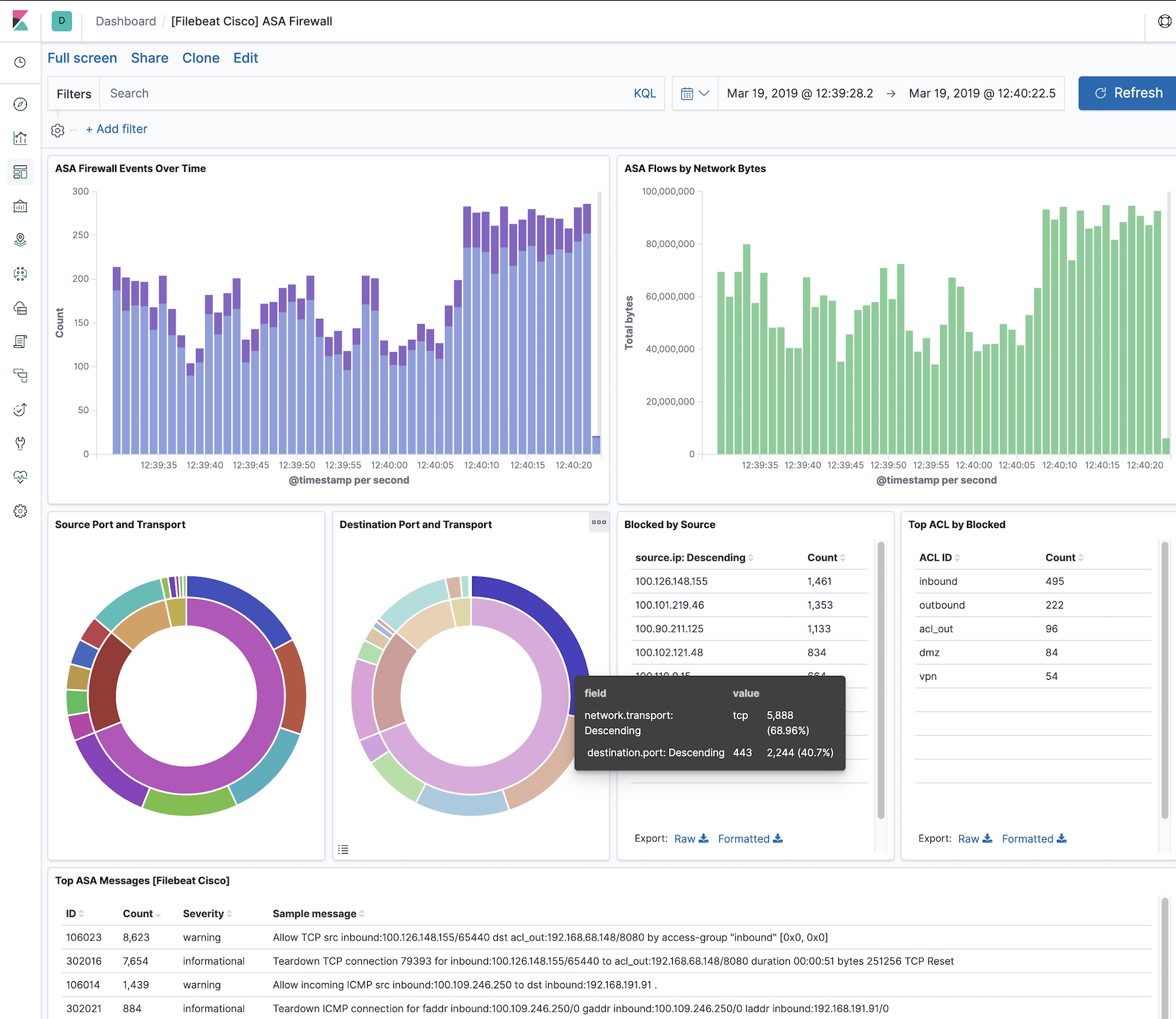
This integration includes one or more Kibana dashboards that visualizes the data collected by the integration. The screenshots below illustrate how the ingested data is displayed.
Changelog
| Version | Details | Minimum Kibana version |
|---|---|---|
| 2.46.0 | Bug fix (View pull request) Fix parse_751025 grok pattern to support UPN usernames and extract the tunnel endpoints, group policy and assigned addresses. Enhancement (View pull request) Add cisco.asa.assigned_ipv6 and append the addresses assigned to a VPN client to related.ip. |
9.0.0 8.11.0 |
| 2.45.16 | Bug fix (View pull request) Fix swapped source and destination fields for inbound ICMP connection message 302020. |
9.0.0 8.11.0 |
| 2.45.15 | Bug fix (View pull request) Fix parse_315011 grok pattern to support double-quoted SSH usernames containing spaces and apostrophes. |
9.0.0 8.11.0 |
| 2.45.14 | Bug fix (View pull request) Fix 106015 grok pattern to match ASA NAT alias names containing underscores. |
9.0.0 8.11.0 |
| 2.45.13 | Bug fix (View pull request) Fix grok pattern for message 113015 to handle the no-IP variant where user IP is absent. |
9.0.0 8.11.0 |
| 2.45.12 | Bug fix (View pull request) Fix 611101/611102 parse failure when IP address is absent by converting dissect to an anchored grok pattern with an optional IP segment. |
9.0.0 8.11.0 |
| 2.45.11 | Bug fix (View pull request) Add 'User was not found' as a valid rejection reason for ASA 113005 messages. |
9.0.0 8.11.0 |
| 2.45.10 | Enhancement (View pull request) Add grok pattern to parse_737016 to handle IPAA pool-freeing events with Session ID but without pool name. |
9.0.0 8.11.0 |
| 2.45.9 | Enhancement (View pull request) Add 'Users account has expired' to AAA rejection reasons in parse_113005 grok pattern. |
9.0.0 8.11.0 |
| 2.45.8 | Bug fix (View pull request) Fix parse_315011 grok patterns to handle missing source IP address in SSH session messages. |
9.0.0 8.11.0 |
| 2.45.7 | Bug fix (View pull request) Fix parse_750002 and parse_750003 grok pattern to handle source and destination adresses as IPs and domains. |
9.0.0 8.11.0 |
| 2.45.6 | Enhancement (View pull request) Fix parse_113015 grok pattern to handle usernames with special characters. |
9.0.0 8.11.0 |
| 2.45.5 | Enhancement (View pull request) Fix parsing of 737026 messages where pool name is absent. |
9.0.0 8.11.0 |
| 2.45.4 | Bug fix (View pull request) Add support for timezone mapping. |
9.0.0 8.11.0 |
| 2.45.3 | Bug fix (View pull request) Allow underscores in hostnames and pool names for ASA 305011 and 305012 messages. |
9.0.0 8.11.0 |
| 2.45.2 | Enhancement (View pull request) Added missing grok pattern variant for ASA 725002 client-only SSL handshake message. |
9.0.0 8.11.0 |
| 2.45.1 | Bug fix (View pull request) Remove top level note from docs |
9.0.0 8.11.0 |
| 2.45.0 | Enhancement (View pull request) Improve integration documentation |
9.0.0 8.11.0 |
| 2.44.1 | Bug fix (View pull request) Fix parsing of 717022 messages. |
9.0.0 8.11.0 |
| 2.44.0 | Enhancement (View pull request) Preserve event.original on pipeline error. |
9.0.0 8.11.0 |
| 2.43.11 | Enhancement (View pull request) Generate processor tags and normalize error handler. |
9.0.0 8.11.0 |
| 2.43.10 | Bug fix (View pull request) Parse IPv6 addresses correctly in 302020/302021 messages |
9.0.0 8.11.0 |
| 2.43.9 | Bug fix (View pull request) Allow empty access-group in message id 106023. |
9.0.0 8.11.0 |
| 2.43.8 | Bug fix (View pull request) Support special characters in interface name in 315011 messages. |
9.0.0 8.11.0 |
| 2.43.7 | Bug fix (View pull request) Support IPv6 addresses in 750002 and 750003 messages. |
9.0.0 8.11.0 |
| 2.43.6 | Enhancement (View pull request) Changed owners. |
9.0.0 8.11.0 |
| 2.43.5 | Bug fix (View pull request) Parse messages with id 751025, 717022. |
9.0.0 8.11.0 |
| 2.43.4 | Bug fix (View pull request) Parse message repeat count from "message repeated X times" string. |
9.0.0 8.11.0 |
| 2.43.3 | Bug fix (View pull request) Allow masked usernames for 315011 messages. |
9.0.0 8.11.0 |
| 2.43.2 | Bug fix (View pull request) Handle another variation of message type 315011 |
9.0.0 8.11.0 |
| 2.43.1 | Bug fix (View pull request) Update Cisco time for fraction-of-seconds support. |
9.0.0 8.11.0 |
| 2.43.0 | Enhancement (View pull request) Support stack version 9.0. |
9.0.0 8.11.0 |
| 2.42.3 | Bug fix (View pull request) Add proper parsing for previously unhandled message types |
8.11.0 |
| 2.42.2 | Bug fix (View pull request) Trim quotes from user.name field. |
8.11.0 |
| 2.42.1 | Bug fix (View pull request) Updated SSL description to be uniform and to include links to documentation. |
8.11.0 |
| 2.42.0 | Enhancement (View pull request) ECS version updated to 8.17.0. |
8.11.0 |
| 2.41.1 | Bug fix (View pull request) Fix issue with linking time zone mapping to agent config. |
8.11.0 |
| 2.41.0 | Enhancement (View pull request) Add advanced option for time zone mapping and support parsing extra timestamp in header. |
8.11.0 |
| 2.40.0 | Bug fix (View pull request) Set event.outcome to failure for all denied events. |
8.11.0 |
| 2.39.1 | Enhancement (View pull request) Handle variations of device name in event 434004. |
8.11.0 |
| 2.39.0 | Bug fix (View pull request) Fix event.outcome mapping for event IDs 106100 and 106102. |
8.11.0 |
| 2.38.3 | Bug fix (View pull request) Handles another variation of log message type 113040 that includes a Group and Terminating message. |
8.11.0 |
| 2.38.2 | Bug fix (View pull request) Add a check before a processor that consistently fails when invalid data transits the integration. |
8.11.0 |
| 2.38.1 | Bug fix (View pull request) Loosen a grok pattern to allow for IPs and hostnames |
8.11.0 |
| 2.38.0 | Enhancement (View pull request) Introduce destination.address to message IDs 725001, 725002, 725007, and 725016. |
8.11.0 |
| 2.37.0 | Enhancement (View pull request) Allow @custom pipeline access to event.original without setting preserve_original_event. |
8.11.0 |
| 2.36.4 | Bug fix (View pull request) Handle "Account has been locked out" reason parsing |
8.7.1 |
| 2.36.3 | Bug fix (View pull request) Parse empty user names in message IDs 113005, 716002, 713049 |
8.7.1 |
| 2.36.2 | Bug fix (View pull request) Add pattern for 716059. |
8.7.1 |
| 2.36.1 | Bug fix (View pull request) Fix handling IPv4 and IPv6 for ids 721016 and 721018 |
8.7.1 |
| 2.36.0 | Enhancement (View pull request) Add additional log types. |
8.7.1 |
| 2.35.3 | Bug fix (View pull request) Fix patterns for 113008, 725002. |
8.7.1 |
| 2.35.2 | Bug fix (View pull request) Loosen a grok pattern for a customer SDH. |
8.7.1 |
| 2.35.1 | Bug fix (View pull request) Extract user agent from 722055 logs to correct field. |
8.7.1 |
| 2.35.0 | Enhancement (View pull request) Add additional log types. |
8.7.1 |
| 2.34.1 | Enhancement (View pull request) Add support for spaces in group and user names. |
8.7.1 |
| 2.34.0 | Enhancement (View pull request) Improve ECS categorizations. |
8.7.1 |
| 2.33.2 | Bug fix (View pull request) Fix categorization of protocols. |
8.7.1 |
| 2.33.1 | Bug fix (View pull request) Allow apostrophes in usernames. |
8.7.1 |
| 2.33.0 | Enhancement (View pull request) Improve methods for applying ECS categorizations. |
8.7.1 |
| 2.32.1 | Bug fix (View pull request) Fix ingest pipeline regex warnings |
8.7.1 |
| 2.32.0 | Enhancement (View pull request) Update package spec to 3.0.3. |
8.7.1 |
| 2.31.0 | Enhancement (View pull request) Add message ids 722022, 722023. |
8.7.1 |
| 2.30.1 | Enhancement (View pull request) Changed owners |
8.7.1 |
| 2.30.0 | Enhancement (View pull request) Retain email address of source and destination user. |
8.7.1 |
| 2.29.0 | Bug fix (View pull request) Support spaces and special characters in usernames. Bug fix (View pull request) Add destination SGT-integer:SGT-name to 313005. |
8.7.1 |
| 2.28.1 | Bug fix (View pull request) Fix exclude_files pattern. |
8.7.1 |
| 2.28.0 | Enhancement (View pull request) ECS version updated to 8.11.0. |
8.7.1 |
| 2.27.1 | Bug fix (View pull request) Support usernames ending with "$". Bug fix (View pull request) Add "User was not found" as reason to 113015. Bug fix (View pull request) Allow source to be a domain or an IP inside 313005. Bug fix (View pull request) Create non-capturing groups for CISCO_USER GROK pattern |
8.7.1 |
| 2.27.0 | Enhancement (View pull request) Improve 'event.original' check to avoid errors if set. |
8.7.1 |
| 2.26.1 | Bug fix (View pull request) Accept SGT-integer:SGT-name as username Bug fix (View pull request) Allow usernames to end with "$" Bug fix (View pull request) Update network.inner to object as per ECS standard. |
8.7.1 |
| 2.26.0 | Enhancement (View pull request) Add support for 113015 events. Bug fix (View pull request) Accept "*****" as a valid username value. |
8.7.1 |
| 2.25.3 | Bug fix (View pull request) Fix field mapping for empty groups imported from ECS |
8.7.1 |
| 2.25.2 | Bug fix (View pull request) Fix the protocol field processing in 313005. |
8.7.1 |
| 2.25.1 | Bug fix (View pull request) Remove redundant regular expression quantifier. |
8.7.1 |
| 2.25.0 | Enhancement (View pull request) Update the package format_version to 3.0.0. |
8.7.1 |
| 2.24.0 | Enhancement (View pull request) Extend authenticaton rejection reasons that are accepted. Enhancement (View pull request) Retain the authenticaton rejection reason. |
8.7.1 |
| 2.23.0 | Enhancement (View pull request) Update package to ECS 8.10.0 and align ECS categorization fields. |
8.7.1 |
| 2.22.0 | Enhancement (View pull request) Add tags.yml file so that integration's dashboards and saved searches are tagged with "Security Solution" and displayed in the Security Solution UI. |
8.7.1 |
| 2.21.0 | Enhancement (View pull request) Update package-spec to 2.10.0. |
8.7.1 |
| 2.20.4 | Bug fix (View pull request) Add support for unspecified reason AAA user authenticaton rejection. |
8.7.1 |
| 2.20.3 | Bug fix (View pull request) Add missing geo field mappings |
8.7.1 |
| 2.20.2 | Bug fix (View pull request) Fix the processing of event 313005 when ports are missing. Bug fix (View pull request) Collect network.transport for events 722033 and 722034. |
8.7.1 |
| 2.20.1 | Bug fix (View pull request) Fix the handling of spaces in 113005 messages. |
8.7.1 |
| 2.20.0 | Enhancement (View pull request) Update package to ECS 8.9.0. |
8.7.1 |
| 2.19.0 | Enhancement (View pull request) Convert dashboard to lens. |
8.7.1 |
| 2.18.0 | Enhancement (View pull request) Ensure event.kind is correctly set for pipeline errors. |
8.1.0 |
| 2.17.1 | Bug fix (View pull request) Fix VPN event.action |
8.1.0 |
| 2.17.0 | Enhancement (View pull request) Update package to ECS 8.8.0. |
8.1.0 |
| 2.16.0 | Enhancement (View pull request) Support 722011, 722033 and 722034 messages. Bug fix (View pull request) Fix handling of 722037 and 722051 messages. |
8.1.0 |
| 2.15.0 | Enhancement (View pull request) Update package to ECS 8.7.0. |
8.1.0 |
| 2.14.1 | Enhancement (View pull request) Added categories and/or subcategories. |
8.1.0 |
| 2.14.0 | Enhancement (View pull request) Allow retention of a searchable log message. |
8.1.0 |
| 2.13.2 | Bug fix (View pull request) Support additional patterns in 113012, 113004, and 716039 messages |
8.1.0 |
| 2.13.1 | Bug fix (View pull request) Remove ignore_failure causing performance bottleneck |
8.1.0 |
| 2.13.0 | Enhancement (View pull request) Allow configuration of time zones. |
8.1.0 |
| 2.12.1 | Bug fix (View pull request) Interchange source, destination for messages 302013 & 302015 as per Cisco doc |
8.1.0 |
| 2.12.0 | Enhancement (View pull request) Update package to ECS 8.6.0. |
8.1.0 |
| 2.11.0 | Enhancement (View pull request) Add udp_options to the UDP input. |
8.1.0 |
| 2.10.1 | Enhancement (View pull request) Migrate the visualizations to by value in dashboards to minimize the saved object clutter and reduce time to load |
8.1.0 |
| 2.10.0 | Enhancement (View pull request) Allow configuration of internal/external zones |
8.0.0 7.16.0 |
| 2.9.0 | Enhancement (View pull request) Update package to ECS 8.5.0. |
8.0.0 7.16.0 |
| 2.8.0 | Enhancement (View pull request) Harmonise with pipeline with Cisco FTD. |
8.0.0 7.16.0 |
| 2.7.7 | Bug fix (View pull request) Remove duplicate fields. |
8.0.0 7.16.0 |
| 2.7.6 | Bug fix (View pull request) Remove duplicate field. |
8.0.0 7.16.0 |
| 2.7.5 | Bug fix (View pull request) Fix handling of 302020 event messages. |
8.0.0 7.16.0 |
| 2.7.4 | Enhancement (View pull request) Use ECS geo.location definition. |
8.0.0 7.16.0 |
| 2.7.3 | Bug fix (View pull request) Fix handling of non-canonical 113005 messages. |
8.0.0 7.16.0 |
| 2.7.2 | Bug fix (View pull request) Clean up grok pattern naming. |
8.0.0 7.16.0 |
| 2.7.1 | Bug fix (View pull request) Fix handling of some non-canonical log formats. |
8.0.0 7.16.0 |
| 2.7.0 | Enhancement (View pull request) Add handling of AAA operations. |
8.0.0 7.16.0 |
| 2.6.0 | Enhancement (View pull request) Update package to ECS 8.4.0 |
8.0.0 7.16.0 |
| 2.5.2 | Enhancement (View pull request) Improve TCP, SSL config description and example. |
8.0.0 7.16.0 |
| 2.5.1 | Bug fix (View pull request) Fix handling of user parsing when SGT fields are present. Bug fix (View pull request) Fix handling of user parsing for 302013 and 302015 events. |
8.0.0 7.16.0 |
| 2.5.0 | Enhancement (View pull request) Update package to ECS 8.3.0. |
8.0.0 7.16.0 |
| 2.4.2 | Bug fix (View pull request) Map syslog priority details according to ECS Bug fix (View pull request) Extract syslog facility and severity codes from syslog priority |
8.0.0 7.16.0 |
| 2.4.1 | Bug fix (View pull request) Ensure invalid event.outcome does not get recorded in event |
8.0.0 7.16.0 |
| 2.4.0 | Enhancement (View pull request) Add TCP input with TLS support |
— |
| 2.3.0 | Enhancement (View pull request) Update to ECS 8.2 |
8.0.0 7.16.0 |
| 2.2.2 | Bug fix (View pull request) Change visualizations to use event.code instead of cisco.asa.message_id. |
— |
| 2.2.1 | Enhancement (View pull request) Add documentation for multi-fields |
8.0.0 7.16.0 |
| 2.2.0 | Enhancement (View pull request) Add community_id processor, update 805001, 304001, 106023 and 602304 message parsing. elastic/beats#26879 Enhancement (View pull request) Add user.name field to ASA Security negotiation log line. elastic/beats#26975 Enhancement (View pull request) Change event.outcome and event.type handling to be more ECS compliant. elastic/beats#29698 |
8.0.0 7.16.0 |
| 2.1.0 | Enhancement (View pull request) Add parsing for event code 113029-113040 |
8.0.0 7.16.0 |
| 2.0.1 | Bug fix (View pull request) Clarify configuration option documentation |
8.0.0 7.16.0 |
| 2.0.0 | Enhancement (View pull request) Update to ECS 8.0 |
— |
| 1.3.2 | Bug fix (View pull request) Regenerate test files using the new GeoIP database |
8.0.0 7.16.0 |
| 1.3.1 | Bug fix (View pull request) Change test public IPs to the supported subset |
— |
| 1.3.0 | Enhancement (View pull request) Add 8.0.0 version constraint |
8.0.0 7.16.0 |
| 1.2.2 | Enhancement (View pull request) Update Title and Description. |
7.16.0 |
| 1.2.1 | Bug fix (View pull request) Relax time parsing and capture group and session type in Cisco ASA module |
— |
| 1.2.0 | Enhancement (View pull request) Add support for Cisco ASA SIP events |
— |
| 1.1.1 | Bug fix (View pull request) Fix logic that checks for the 'forwarded' tag |
— |
| 1.1.0 | Enhancement (View pull request) Update to ECS 1.12.0 |
— |
| 1.0.1 | Bug fix (View pull request) Adding missing ECS fields |
— |
| 1.0.0 | Enhancement (View pull request) Split Cisco ASA into its own package |
— |