Microsoft Sentinel
| Version | 1.6.0 (View all) |
| Managed integration release status | GA |
| Subscription level What's this? |
Basic |
| Developed by What's this? |
Elastic |
| Ingestion method(s) | API, Azure Event Hub |
| Minimum Kibana version(s) | 9.3.0 9.2.4 9.1.10 8.19.10 |
You can use this integration as an Elastic Managed integration on Elastic Cloud Hosted deployments running this version or later.
Microsoft Sentinel is a scalable, cloud-native security information and event management (SIEM) system that delivers an intelligent and comprehensive solution for SIEM and security orchestration, automation, and response (SOAR). Microsoft Sentinel provides cyberthreat detection, investigation, response, and proactive hunting, with a bird's-eye view across your enterprise.
Use the Microsoft Sentinel integration to collect and parse Alerts and Incidents from Microsoft Sentinel REST API and Events from the Microsoft Azure Event Hub, then visualise the data in Kibana.
Agentless integrations allow you to collect data without having to manage Elastic Agent in your cloud. They make manual agent deployment unnecessary, so you can focus on your data instead of the agent that collects it. For more information, refer to Agentless integrations and the Agentless integrations FAQ.
When using this integration as an Elastic Managed integration, only the following data streams are available: Microsoft Sentinel Alert logs and Microsoft Sentinel Incident logs. These data streams use inputs compatible with the Elastic Managed deployment mode. Other data streams (Collect Events from Microsoft Sentinel) require the Azure Event Hubs input, which is not supported in the Elastic Managed deployment mode. To collect data from these data streams, use Elastic Agent.
Agentless deployments are only supported in Elastic Serverless and Elastic Cloud environments. This functionality is in beta and is subject to change. Beta features are not subject to the support SLA of official GA features.
The Microsoft Sentinel integration collects logs for three types of events: Alert, Event and Incident.
Alert: Alert allows collecting all alerts for an incident via API.
Incident: Incident allows collecting all incidents via API.
Event: Event allows collecting all alerts for an incident streamed to an Azure Event Hub.
Unless you choose Agentless deployment, the Elastic Agent must be installed. Elastic Agent must be installed. For more details, check the Elastic Agent installation instructions. You can install only one Elastic Agent per host.
For Rest API, this module has been tested against the 2024-03-01 version.
- Navigate to Log Analytics Workspace: From the Azure Portal's navigation menu, locate and select Log Analytics workspaces.
- Select your Workspace: Choose the Log Analytics workspace associated with your Azure Sentinel deployment.
- Navigate to Data Export: Within the Log Analytics workspace, locate and select the
Data Exportoption. This is usually found in the settings menu. - New Export Rule: Within Data export click on
New export ruleto create a new rule. - Under Basic section: Provide a rule name for the data export rule.
- Under Source section: Select the tables you want to export data to storage account.
- Under Destination section: Provide the destination details like the
Subscriptionname andStorage accountname to which you want to export data. - Review + Create: In the
review + createsection, selectCreate.
- Open Azure Portal and Register a new Azure Application.
- After the application has been created, it will generate Client ID, Client Secret and Tenant ID values that are required for data collection.
- To get Workspace Name, Subscription ID, and Resource Group navigate to Microsoft Sentinel and select desired workspace among the list.
- Go to Manage > API permissions in your portal, then add the following permissions for Microsoft Graph:
- SecurityAlert.Read.All with both Application and Delegated permission types.
- User.Read with the Delegated permission type.
- In the top search bar in Kibana, search for Integrations.
- In the search bar, type Microsoft Sentinel.
- Select the Microsoft Sentinel integration and add it.
- Add all the required integration configuration parameters:
- REST API input type: URL, Login URL, Client ID, Client Secret, Tenant Id, Resource Group Name, Subscription ID, Workspace Name, Interval, and Initial Interval.
- Azure Event Hub input type: Authentication type (Connection String or Client Secret). For Connection String: Consumer Group, Connection String, Storage Account, and Storage Account Key. For Client Secret: Azure Event Hub, Consumer Group, Tenant ID, Client ID, Client Secret, Event Hub namespace, plus Storage Account (and optional container). For client secret setup and required RBAC roles, see the Azure Logs integration or Filebeat azure-eventhub input documentation.
- Save the integration.
This is the Alert dataset.
Example
{
    "@timestamp": "2020-07-20T18:21:53.615Z",
    "agent": {
        "ephemeral_id": "43726a61-c883-40f9-81a1-59fcf5aa2d49",
        "id": "6f410ffc-7532-4b54-8887-0d39af7ca4a4",
        "name": "elastic-agent-94778",
        "type": "filebeat",
        "version": "8.19.10"
    },
    "data_stream": {
        "dataset": "microsoft_sentinel.alert",
        "namespace": "54212",
        "type": "logs"
    },
    "ecs": {
        "version": "8.11.0"
    },
    "elastic_agent": {
        "id": "6f410ffc-7532-4b54-8887-0d39af7ca4a4",
        "snapshot": false,
        "version": "8.19.10"
    },
    "event": {
        "agent_id_status": "verified",
        "dataset": "microsoft_sentinel.alert",
        "duration": 86400000000000,
        "end": "2020-07-21T18:21:53.615Z",
        "id": "/subscriptions/abcdef1-111111-4647-9105-6339bfdb4e6a/resourceGroups/myRG/providers/Microsoft.OperationalInsights/workspaces/myWorkspace/providers/Microsoft.SecurityInsights/Entities/abcdef-6fde-4ab7-a093-d09f7b75c58c",
        "ingested": "2026-03-31T09:01:06Z",
        "kind": "alert",
        "original": "{\"id\":\"/subscriptions/abcdef1-111111-4647-9105-6339bfdb4e6a/resourceGroups/myRG/providers/Microsoft.OperationalInsights/workspaces/myWorkspace/providers/Microsoft.SecurityInsights/Entities/abcdef-6fde-4ab7-a093-d09f7b75c58c\",\"kind\":\"SecurityAlert\",\"name\":\"abcdef-6fde-4ab7-a093-d09f7b75c58c\",\"properties\":{\"additionalData\":{\"AlertMessageEnqueueTime\":\"2020-07-20T18:21:57.304Z\"},\"alertDisplayName\":\"myAlert\",\"alertType\":\"myAlert\",\"confidenceLevel\":\"Unknown\",\"endTimeUtc\":\"2020-07-21T18:21:53.6158361Z\",\"friendlyName\":\"myAlert\",\"processingEndTime\":\"2020-07-20T18:21:53.6158361Z\",\"productName\":\"AzureSecurityCenter\",\"resourceIdentifiers\":[{\"resourceGroup\":\"myRG\",\"subscriptionId\":\"a123456-4d29-4647-9105-6339bfdb4e6a\",\"type\":\"LogAnalytics\",\"workspaceId\":\"abcdefg-985d-4e4e-8e91-fb3466cd0e5b\"}],\"severity\":\"Low\",\"startTimeUtc\":\"2020-07-20T18:21:53.6158361Z\",\"status\":\"New\",\"systemAlertId\":\"abcdef-6fde-4ab7-a093-d09f7b75c58c\",\"tactics\":[\"abc\"],\"timeGenerated\":\"2020-07-20T18:21:53.6158361Z\",\"vendorName\":\"Microsoft\"},\"systemData\":{\"createdAt\":\"2020-07-20T18:21:57.304Z\",\"createdBy\":\"admin\",\"createdByType\":\"new\",\"lastModifiedAt\":\"2020-07-20T18:21:57.304Z\"},\"type\":\"Microsoft.SecurityInsights/Entities\"}",
        "provider": "AzureSecurityCenter",
        "severity": 21,
        "start": "2020-07-20T18:21:53.615Z"
    },
    "input": {
        "type": "cel"
    },
    "microsoft_sentinel": {
        "alert": {
            "id": "/subscriptions/abcdef1-111111-4647-9105-6339bfdb4e6a/resourceGroups/myRG/providers/Microsoft.OperationalInsights/workspaces/myWorkspace/providers/Microsoft.SecurityInsights/Entities/abcdef-6fde-4ab7-a093-d09f7b75c58c",
            "kind": "SecurityAlert",
            "name": "abcdef-6fde-4ab7-a093-d09f7b75c58c",
            "properties": {
                "additional_data": {
                    "AlertMessageEnqueueTime": "2020-07-20T18:21:57.304Z"
                },
                "alert": {
                    "display_name": "myAlert",
                    "type": "myAlert"
                },
                "confidence_level": "Unknown",
                "end_time_utc": "2020-07-21T18:21:53.615Z",
                "friendly_name": "myAlert",
                "processing_end_time": "2020-07-20T18:21:53.615Z",
                "product": {
                    "name": "AzureSecurityCenter"
                },
                "resource_identifiers": [
                    {
                        "resourceGroup": "myRG",
                        "subscriptionId": "a123456-4d29-4647-9105-6339bfdb4e6a",
                        "type": "LogAnalytics",
                        "workspaceId": "abcdefg-985d-4e4e-8e91-fb3466cd0e5b"
                    }
                ],
                "severity": "Low",
                "start_time_utc": "2020-07-20T18:21:53.615Z",
                "status": "New",
                "system_alert_id": "abcdef-6fde-4ab7-a093-d09f7b75c58c",
                "tactics": [
                    "abc"
                ],
                "time_generated": "2020-07-20T18:21:53.615Z",
                "vendor_name": "Microsoft"
            },
            "system_data": {
                "created_at": "2020-07-20T18:21:57.304Z",
                "created_by": "admin",
                "created_by_type": "new",
                "last_modified_at": "2020-07-20T18:21:57.304Z"
            },
            "type": "Microsoft.SecurityInsights/Entities"
        }
    },
    "rule": {
        "name": "myAlert"
    },
    "tags": [
        "preserve_original_event",
        "preserve_duplicate_custom_fields",
        "forwarded",
        "microsoft_sentinel-alert"
    ],
    "threat": {
        "indicator": {
            "confidence": "Not Specified"
        },
        "tactic": {
            "name": [
                "abc"
            ]
        }
    }
}
Exported fields
| Field | Description | Type |
|---|---|---|
| @timestamp | Event timestamp. | date |
| data_stream.dataset | Data stream dataset. | constant_keyword |
| data_stream.namespace | Data stream namespace. | constant_keyword |
| data_stream.type | Data stream type. | constant_keyword |
| event.dataset | Event dataset. | constant_keyword |
| event.kind | This is one of four ECS Categorization Fields, and indicates the highest level in the ECS category hierarchy. event.kind gives high-level information about what type of information the event contains, without being specific to the contents of the event. For example, values of this field distinguish alert events from metric events. The value of this field can be used to inform how these kinds of events should be handled. They may warrant different retention, different access control, it may also help understand whether the data is coming in at a regular interval or not. |
keyword |
| event.module | Event module. | constant_keyword |
| input.type | Type of filebeat input. | keyword |
| log.offset | Log offset. | long |
| microsoft_sentinel.alert.id | Fully qualified resource ID for the resource. | keyword |
| microsoft_sentinel.alert.kind | The kind of the entity. | keyword |
| microsoft_sentinel.alert.name | The name of the resource. | keyword |
| microsoft_sentinel.alert.properties.additional_data | A bag of custom fields that should be part of the entity and will be presented to the user. | flattened |
| microsoft_sentinel.alert.properties.alert.display_name | The display name of the alert. | keyword |
| microsoft_sentinel.alert.properties.alert.link | The uri link of the alert. | keyword |
| microsoft_sentinel.alert.properties.alert.type | The type name of the alert. | keyword |
| microsoft_sentinel.alert.properties.compromised_entity | Display name of the main entity being reported on. | keyword |
| microsoft_sentinel.alert.properties.confidence_level | The confidence level of this alert. | keyword |
| microsoft_sentinel.alert.properties.confidence_reasons.reason | The reason's description. | keyword |
| microsoft_sentinel.alert.properties.confidence_reasons.reason_type | The type (category) of the reason. | keyword |
| microsoft_sentinel.alert.properties.confidence_score | The confidence score of the alert. | long |
| microsoft_sentinel.alert.properties.confidence_score_status | The confidence score calculation status. | keyword |
| microsoft_sentinel.alert.properties.description | Alert description. | keyword |
| microsoft_sentinel.alert.properties.end_time_utc | The impact end time of the alert. | date |
| microsoft_sentinel.alert.properties.friendly_name | The graph item display name which is a short humanly readable description of the graph item instance. | keyword |
| microsoft_sentinel.alert.properties.intent | Holds the alert intent stage(s) mapping for this alert. | keyword |
| microsoft_sentinel.alert.properties.processing_end_time | The time the alert was made available for consumption. | date |
| microsoft_sentinel.alert.properties.product.component_name | The name of a component inside the product which generated the alert. | keyword |
| microsoft_sentinel.alert.properties.product.name | The name of the product which published this alert. | keyword |
| microsoft_sentinel.alert.properties.product.version | The version of the product generating the alert. | keyword |
| microsoft_sentinel.alert.properties.provider_alert_id | The identifier of the alert inside the product which generated the alert. | keyword |
| microsoft_sentinel.alert.properties.remediation_steps | Manual action items to take to remediate the alert. | keyword |
| microsoft_sentinel.alert.properties.resource_identifiers | The list of resource identifiers of the alert. | object |
| microsoft_sentinel.alert.properties.severity | The severity of the alert. | keyword |
| microsoft_sentinel.alert.properties.start_time_utc | The impact start time of the alert. | date |
| microsoft_sentinel.alert.properties.status | The lifecycle status of the alert. | keyword |
| microsoft_sentinel.alert.properties.system_alert_id | Holds the product identifier of the alert for the product. | keyword |
| microsoft_sentinel.alert.properties.tactics | The tactics of the alert. | keyword |
| microsoft_sentinel.alert.properties.time_generated | The time the alert was generated. | date |
| microsoft_sentinel.alert.properties.vendor_name | The name of the vendor that raise the alert. | keyword |
| microsoft_sentinel.alert.system_data.created_at | The timestamp of resource creation (UTC). | date |
| microsoft_sentinel.alert.system_data.created_by | The identity that created the resource. | keyword |
| microsoft_sentinel.alert.system_data.created_by_type | The type of identity that created the resource. | keyword |
| microsoft_sentinel.alert.system_data.last_modified_at | The timestamp of resource last modification (UTC). | date |
| microsoft_sentinel.alert.system_data.last_modified_by | The identity that last modified the resource. | keyword |
| microsoft_sentinel.alert.system_data.last_modified_by_type | The type of identity that last modified the resource. | keyword |
| microsoft_sentinel.alert.type | The type of the resource. | keyword |
| observer.product | constant_keyword | |
| observer.vendor | constant_keyword | |
| tags | User defined tags. | keyword |
This is the Event dataset.
Exported fields
| Field | Description | Type |
|---|---|---|
| @timestamp | Event timestamp. | date |
| data_stream.dataset | Data stream dataset. | constant_keyword |
| data_stream.namespace | Data stream namespace. | constant_keyword |
| data_stream.type | Data stream type. | constant_keyword |
| event.dataset | Event dataset. | constant_keyword |
| event.kind | This is one of four ECS Categorization Fields, and indicates the highest level in the ECS category hierarchy. event.kind gives high-level information about what type of information the event contains, without being specific to the contents of the event. For example, values of this field distinguish alert events from metric events. The value of this field can be used to inform how these kinds of events should be handled. They may warrant different retention, different access control, it may also help understand whether the data is coming in at a regular interval or not. |
keyword |
| event.module | Event module. | constant_keyword |
| input.type | Type of filebeat input. | keyword |
| log.offset | Log offset. | long |
| microsoft_sentinel.event.alert.link | A link to the alert in the portal of the originating product. | keyword |
| microsoft_sentinel.event.alert.name | The display name of the alert. | keyword |
| microsoft_sentinel.event.alert.severity | The severity of the alert. | keyword |
| microsoft_sentinel.event.alert.type | The type of alert. | keyword |
| microsoft_sentinel.event.compromised_entity | The display name of the main entity being alerted on. | keyword |
| microsoft_sentinel.event.confidence.level | The confidence level of this alert. | keyword |
| microsoft_sentinel.event.confidence.score | The confidence score of the alert. | double |
| microsoft_sentinel.event.description | The description of the alert. | keyword |
| microsoft_sentinel.event.display_name | The display name of the alert. | keyword |
| microsoft_sentinel.event.end_time | The end time of the impact of the alert. | date |
| microsoft_sentinel.event.entities | A list of the entities identified in the alert. | object |
| microsoft_sentinel.event.extended.links | A bag (a collection) for all links related to the alert. . | keyword |
| microsoft_sentinel.event.extended.properties | A collection of other properties of the alert, including user-defined properties. Any custom details defined in the alert, and any dynamic content in the alert details, are stored here. | object |
| microsoft_sentinel.event.internal_workspace_resource_id | keyword | |
| microsoft_sentinel.event.is_incident | Always set to false. | boolean |
| microsoft_sentinel.event.item_id | keyword | |
| microsoft_sentinel.event.processing_end_time | The time of the alert's publishing. | date |
| microsoft_sentinel.event.product.component_name | The name of the component of the product that generated the alert. | keyword |
| microsoft_sentinel.event.product.name | The name of the product that generated the alert. | keyword |
| microsoft_sentinel.event.provider_name | The name of the alert provider (the service within the product) that generated the alert. | keyword |
| microsoft_sentinel.event.remediation_steps | A list of action items to take to remediate the alert. | keyword |
| microsoft_sentinel.event.resource_id | A unique identifier for the resource that is the subject of the alert. | keyword |
| microsoft_sentinel.event.source.computer_id | Was the agent ID on the server that created the alert. | keyword |
| microsoft_sentinel.event.source.system | Always populated with the string "Detection". | keyword |
| microsoft_sentinel.event.start_time | The start time of the impact of the alert. | date |
| microsoft_sentinel.event.status | The status of the alert within the life cycle. | keyword |
| microsoft_sentinel.event.system_alert_id | The internal unique ID for the alert in Microsoft Sentinel. | keyword |
| microsoft_sentinel.event.tactics | A comma-delineated list of MITRE ATT&CK tactics associated with the alert. | keyword |
| microsoft_sentinel.event.techniques | A comma-delineated list of MITRE ATT&CK techniques associated with the alert. | keyword |
| microsoft_sentinel.event.tenant_id | The unique ID of the tenant. | keyword |
| microsoft_sentinel.event.time_generated | The time the alert was generated (in UTC). | date |
| microsoft_sentinel.event.type | The constant ('SecurityAlert'). | keyword |
| microsoft_sentinel.event.vendor.name | The vendor of the product that produced the alert. | keyword |
| microsoft_sentinel.event.vendor.original_id | Unique ID for the specific alert instance, set by the originating product. | keyword |
| microsoft_sentinel.event.workspace.resource_group | keyword | |
| microsoft_sentinel.event.workspace.subscription_id | keyword | |
| tags | User defined tags. | keyword |
This is the Incident dataset.
Example
{
    "@timestamp": "2024-10-23T13:15:30.000Z",
    "agent": {
        "ephemeral_id": "7f776865-943f-4de9-b24d-71ba1af66c30",
        "id": "8934f226-4b75-4d8d-a372-c099d4b05dd2",
        "name": "elastic-agent-79439",
        "type": "filebeat",
        "version": "8.19.10"
    },
    "data_stream": {
        "dataset": "microsoft_sentinel.incident",
        "namespace": "85060",
        "type": "logs"
    },
    "ecs": {
        "version": "8.11.0"
    },
    "elastic_agent": {
        "id": "8934f226-4b75-4d8d-a372-c099d4b05dd2",
        "snapshot": false,
        "version": "8.19.10"
    },
    "event": {
        "agent_id_status": "verified",
        "created": "2019-01-01T13:15:30.000Z",
        "dataset": "microsoft_sentinel.incident",
        "id": "/subscriptions/d0cfe6b2-9ac0-4464-9919-dccaee2e48c0/resourceGroups/myRg/providers/Microsoft.OperationalInsights/workspaces/myWorkspace/providers/Microsoft.SecurityInsights/incidents/aaaaaa-5cd7-4139-a149-9f2736ff2ab5",
        "ingested": "2026-03-31T09:02:05Z",
        "kind": "alert",
        "original": "{\"etag\":\"\\\"bbbbbbbb-0000-0000-0000-5c37296e0000\\\"\",\"id\":\"/subscriptions/d0cfe6b2-9ac0-4464-9919-dccaee2e48c0/resourceGroups/myRg/providers/Microsoft.OperationalInsights/workspaces/myWorkspace/providers/Microsoft.SecurityInsights/incidents/aaaaaa-5cd7-4139-a149-9f2736ff2ab5\",\"name\":\"aaaaaaa-5cd7-4139-a149-9f2736ff2ab5\",\"properties\":{\"additionalData\":{\"alertProductNames\":[],\"alertsCount\":0,\"bookmarksCount\":0,\"commentsCount\":3,\"tactics\":[\"InitialAccess\",\"Persistence\"]},\"classification\":\"FalsePositive\",\"classificationComment\":\"Notamaliciousactivity\",\"classificationReason\":\"InaccurateData\",\"createdTimeUtc\":\"2019-01-01T13:15:30Z\",\"description\":\"Thisisademoincident\",\"firstActivityTimeUtc\":\"2019-01-01T13:00:30Z\",\"incidentNumber\":3177,\"incidentUrl\":\"https://portal.azure.com/#asset/Microsoft_Azure_Security_Insights/Incident/subscriptions/d0cfe6b2-9ac0-4464-9919-dccaee2e48c0/resourceGroups/myRg/providers/Microsoft.OperationalInsights/workspaces/myWorkspace/providers/Microsoft.SecurityInsights/incidents/73e01a99-5cd7-4139-a149-9f2736ff2ab5\",\"labels\":[],\"lastActivityTimeUtc\":\"2019-01-01T13:05:30Z\",\"lastModifiedTimeUtc\":\"2024-10-23T13:15:30Z\",\"owner\":{\"assignedTo\":\"johndoe\",\"email\":\"john.doe@example.com\",\"objectId\":\"abcdefghij-040d-4a46-9e2b-91c2941bfa70\",\"userPrincipalName\":\"john@example.com\"},\"providerIncidentId\":\"3177\",\"providerName\":\"AzureSentinel\",\"relatedAnalyticRuleIds\":[\"/subscriptions/abc12345678-9ac0-4464-9919-dccaee2e48c0/resourceGroups/myRg/providers/Microsoft.OperationalInsights/workspaces/myWorkspace/providers/Microsoft.SecurityInsights/alertRules/fab3d2d4-747f-46a7-8ef0-9c0be8112bf7\"],\"severity\":\"High\",\"status\":\"Closed\",\"title\":\"Myincident\"},\"type\":\"Microsoft.SecurityInsights/incidents\"}",
        "severity": 3,
        "url": "https://portal.azure.com/#asset/Microsoft_Azure_Security_Insights/Incident/subscriptions/d0cfe6b2-9ac0-4464-9919-dccaee2e48c0/resourceGroups/myRg/providers/Microsoft.OperationalInsights/workspaces/myWorkspace/providers/Microsoft.SecurityInsights/incidents/73e01a99-5cd7-4139-a149-9f2736ff2ab5"
    },
    "input": {
        "type": "cel"
    },
    "message": "Thisisademoincident",
    "microsoft_sentinel": {
        "incident": {
            "etag": "\"bbbbbbbb-0000-0000-0000-5c37296e0000\"",
            "id": "/subscriptions/d0cfe6b2-9ac0-4464-9919-dccaee2e48c0/resourceGroups/myRg/providers/Microsoft.OperationalInsights/workspaces/myWorkspace/providers/Microsoft.SecurityInsights/incidents/aaaaaa-5cd7-4139-a149-9f2736ff2ab5",
            "name": "aaaaaaa-5cd7-4139-a149-9f2736ff2ab5",
            "properties": {
                "additional_data": {
                    "alerts": {
                        "count": 0
                    },
                    "bookmarks_count": 0,
                    "comments_count": 3,
                    "tactics": [
                        "InitialAccess",
                        "Persistence"
                    ]
                },
                "classification": "FalsePositive",
                "classification_comment": "Notamaliciousactivity",
                "classification_reason": "InaccurateData",
                "created_time_utc": "2019-01-01T13:15:30.000Z",
                "description": "Thisisademoincident",
                "first_activity_time_utc": "2019-01-01T13:00:30.000Z",
                "incident": {
                    "number": 3177,
                    "url": "https://portal.azure.com/#asset/Microsoft_Azure_Security_Insights/Incident/subscriptions/d0cfe6b2-9ac0-4464-9919-dccaee2e48c0/resourceGroups/myRg/providers/Microsoft.OperationalInsights/workspaces/myWorkspace/providers/Microsoft.SecurityInsights/incidents/73e01a99-5cd7-4139-a149-9f2736ff2ab5"
                },
                "last_activity_time_utc": "2019-01-01T13:05:30.000Z",
                "last_modified_time_utc": "2024-10-23T13:15:30.000Z",
                "owner": {
                    "assigned_to": "johndoe",
                    "email": "john.doe@example.com",
                    "object_id": "abcdefghij-040d-4a46-9e2b-91c2941bfa70",
                    "user_principal_name": "john@example.com"
                },
                "provider": {
                    "incident_id": "3177",
                    "name": "AzureSentinel"
                },
                "related_analytic_rule_ids": [
                    "/subscriptions/abc12345678-9ac0-4464-9919-dccaee2e48c0/resourceGroups/myRg/providers/Microsoft.OperationalInsights/workspaces/myWorkspace/providers/Microsoft.SecurityInsights/alertRules/fab3d2d4-747f-46a7-8ef0-9c0be8112bf7"
                ],
                "severity": "High",
                "status": "Closed",
                "title": "Myincident"
            },
            "type": "Microsoft.SecurityInsights/incidents"
        }
    },
    "related": {
        "user": [
            "johndoe",
            "john.doe@example.com",
            "john@example.com"
        ]
    },
    "rule": {
        "id": [
            "/subscriptions/abc12345678-9ac0-4464-9919-dccaee2e48c0/resourceGroups/myRg/providers/Microsoft.OperationalInsights/workspaces/myWorkspace/providers/Microsoft.SecurityInsights/alertRules/fab3d2d4-747f-46a7-8ef0-9c0be8112bf7"
        ]
    },
    "tags": [
        "preserve_original_event",
        "preserve_duplicate_custom_fields",
        "forwarded",
        "microsoft_sentinel-incident"
    ],
    "threat": {
        "tactic": {
            "name": [
                "InitialAccess",
                "Persistence"
            ]
        }
    },
    "user": {
        "domain": "example.com",
        "email": "john.doe@example.com",
        "name": "johndoe"
    }
}
Exported fields
| Field | Description | Type |
|---|---|---|
| @timestamp | Event timestamp. | date |
| data_stream.dataset | Data stream dataset. | constant_keyword |
| data_stream.namespace | Data stream namespace. | constant_keyword |
| data_stream.type | Data stream type. | constant_keyword |
| event.dataset | Event dataset. | constant_keyword |
| event.kind | This is one of four ECS Categorization Fields, and indicates the highest level in the ECS category hierarchy. event.kind gives high-level information about what type of information the event contains, without being specific to the contents of the event. For example, values of this field distinguish alert events from metric events. The value of this field can be used to inform how these kinds of events should be handled. They may warrant different retention, different access control, it may also help understand whether the data is coming in at a regular interval or not. |
keyword |
| event.module | Event module. | constant_keyword |
| input.type | Type of filebeat input. | keyword |
| labels.is_transform_source | Distinguishes between documents that are a source for a transform and documents that are an output of a transform, to facilitate easier filtering. | constant_keyword |
| log.offset | Log offset. | long |
| microsoft_sentinel.incident.etag | Etag of the azure resource. | keyword |
| microsoft_sentinel.incident.id | Fully qualified resource ID for the resource. | keyword |
| microsoft_sentinel.incident.name | The name of the resource. | keyword |
| microsoft_sentinel.incident.properties.additional_data.alert.product_names | List of product names of alerts in the incident. | keyword |
| microsoft_sentinel.incident.properties.additional_data.alerts.count | The number of alerts in the incident. | long |
| microsoft_sentinel.incident.properties.additional_data.bookmarks_count | The number of bookmarks in the incident. | long |
| microsoft_sentinel.incident.properties.additional_data.comments_count | The number of comments in the incident. | long |
| microsoft_sentinel.incident.properties.additional_data.provider_incident_url | The provider incident url to the incident in Microsoft 365 Defender portal. | keyword |
| microsoft_sentinel.incident.properties.additional_data.tactics | The tactics associated with incident. | keyword |
| microsoft_sentinel.incident.properties.classification | The reason the incident was closed. | keyword |
| microsoft_sentinel.incident.properties.classification_comment | Describes the reason the incident was closed. | keyword |
| microsoft_sentinel.incident.properties.classification_reason | The classification reason the incident was closed with. | keyword |
| microsoft_sentinel.incident.properties.created_time_utc | The time the incident was created. | date |
| microsoft_sentinel.incident.properties.description | The description of the incident. | keyword |
| microsoft_sentinel.incident.properties.first_activity_time_utc | The time of the first activity in the incident. | date |
| microsoft_sentinel.incident.properties.incident.number | A sequential number. | long |
| microsoft_sentinel.incident.properties.incident.url | The deep-link url to the incident in Azure portal. | keyword |
| microsoft_sentinel.incident.properties.labels.name | The name of the label. | keyword |
| microsoft_sentinel.incident.properties.labels.type | The type of the label. | keyword |
| microsoft_sentinel.incident.properties.last_activity_time_utc | The time of the last activity in the incident. | date |
| microsoft_sentinel.incident.properties.last_modified_time_utc | The last time the incident was updated. | date |
| microsoft_sentinel.incident.properties.owner.assigned_to | The name of the user the incident is assigned to. | keyword |
| microsoft_sentinel.incident.properties.owner.email | The email of the user the incident is assigned to. | keyword |
| microsoft_sentinel.incident.properties.owner.object_id | The object id of the user the incident is assigned to. | keyword |
| microsoft_sentinel.incident.properties.owner.type | The type of the owner the incident is assigned to. | keyword |
| microsoft_sentinel.incident.properties.owner.user_principal_name | The user principal name of the user the incident is assigned to. | keyword |
| microsoft_sentinel.incident.properties.provider.incident_id | The incident ID assigned by the incident provider. | keyword |
| microsoft_sentinel.incident.properties.provider.name | The name of the source provider that generated the incident. | keyword |
| microsoft_sentinel.incident.properties.related_analytic_rule_ids | List of resource ids of Analytic rules related to the incident. | keyword |
| microsoft_sentinel.incident.properties.severity | The severity of the incident. | keyword |
| microsoft_sentinel.incident.properties.status | The status of the incident. | keyword |
| microsoft_sentinel.incident.properties.title | The title of the incident. | keyword |
| microsoft_sentinel.incident.system_data.created_at | The timestamp of resource creation (UTC). | date |
| microsoft_sentinel.incident.system_data.created_by | The identity that created the resource. | keyword |
| microsoft_sentinel.incident.system_data.created_by_type | The type of identity that created the resource. | keyword |
| microsoft_sentinel.incident.system_data.last_modified_at | The timestamp of resource last modification (UTC). | date |
| microsoft_sentinel.incident.system_data.last_modified_by | The identity that last modified the resource. | keyword |
| microsoft_sentinel.incident.system_data.last_modified_by_type | The type of identity that last modified the resource. | keyword |
| microsoft_sentinel.incident.type | The type of the resource. | keyword |
| observer.product | constant_keyword | |
| observer.vendor | constant_keyword | |
| tags | User defined tags. | keyword |
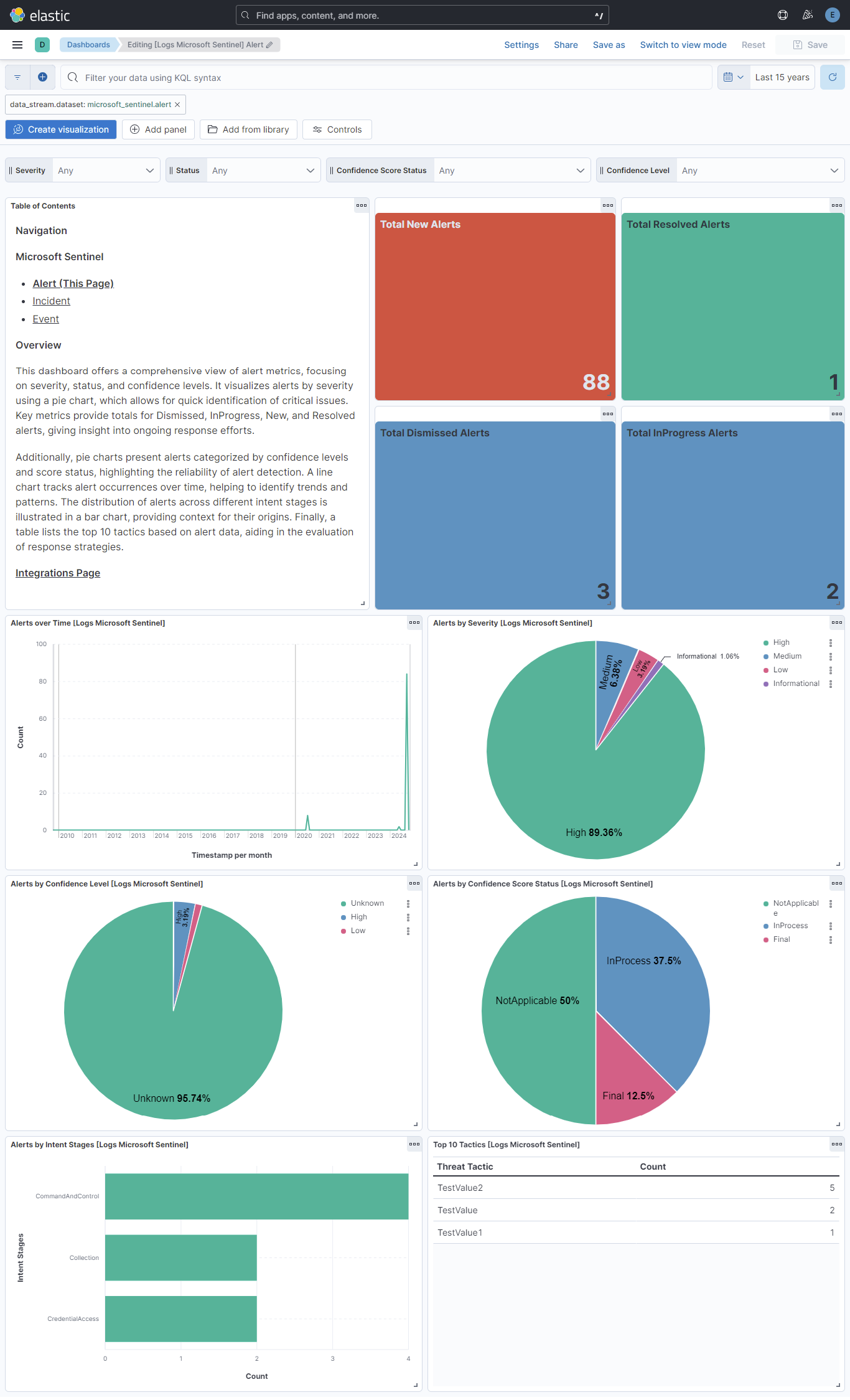
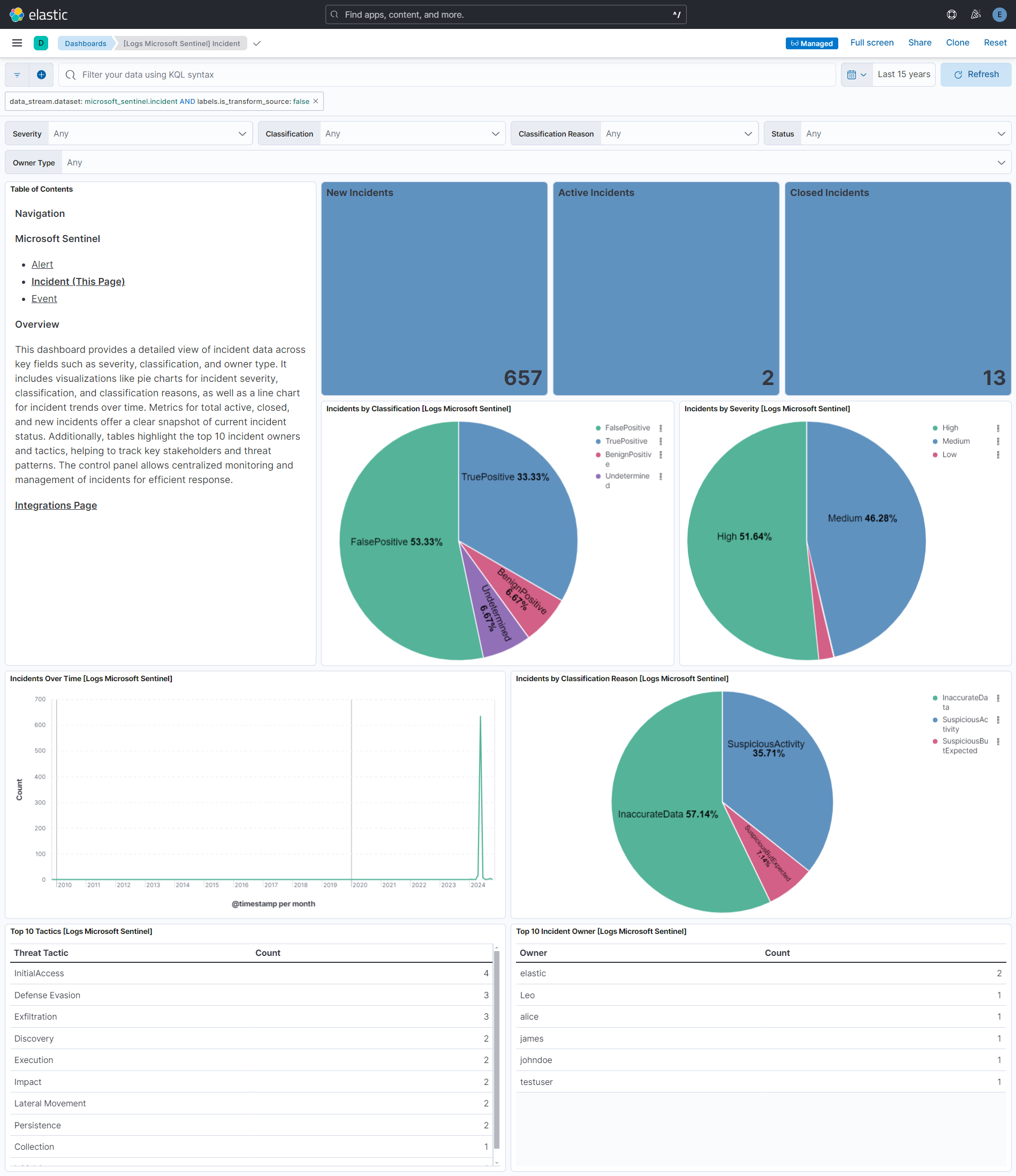
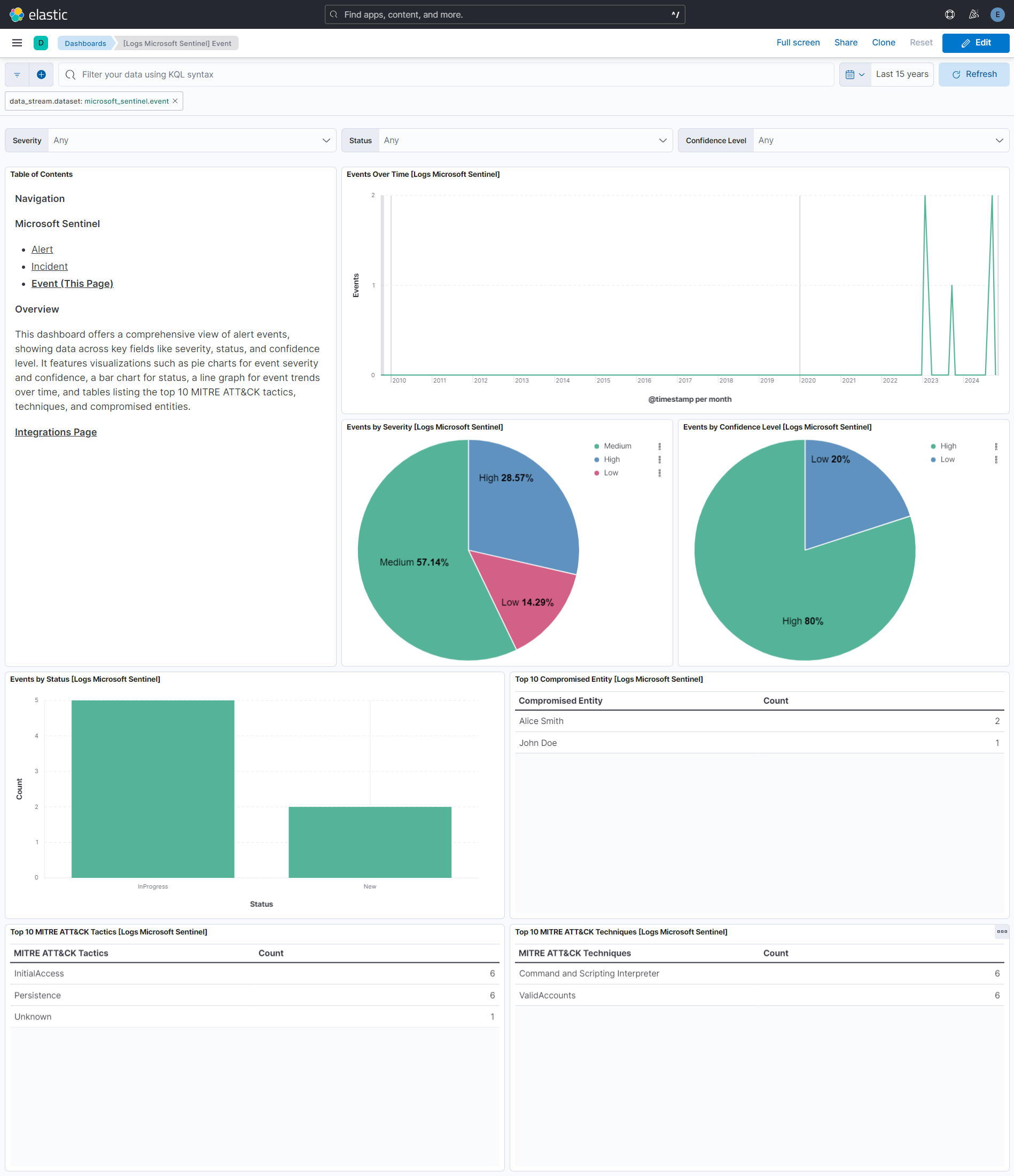
This integration includes one or more Kibana dashboards that visualizes the data collected by the integration. The screenshots below illustrate how the ingested data is displayed.
Changelog
| Version | Details | Minimum Kibana version |
|---|---|---|
| 1.6.0 | Enhancement (View pull request) Remove unused agentless tag cleanup from the event data stream. |
9.3.0 9.2.4 9.1.10 8.19.10 |
| 1.5.0 | Enhancement (View pull request) Add tags to ingest pipeline processors. |
9.3.0 9.2.4 9.1.10 8.19.10 |
| 1.4.1 | Enhancement (View pull request) Set agentless deployment mode release field to ga. |
9.3.0 9.2.4 9.1.10 8.19.10 |
| 1.4.0 | Enhancement (View pull request) Use new release field for agentless deployment mode to establish as beta. |
9.3.0 9.2.4 9.1.10 8.19.10 |
| 1.3.2 | Bug fix (View pull request) Change page_size/batch_size variable type from text to integer for Fleet input validation. |
9.3.0 9.2.4 9.1.10 8.19.10 |
| 1.3.1 | Bug fix (View pull request) Change event.kind to keyword and set alert in the ingest pipeline for alert, event, and incident data streams so pipeline_error on failure does not conflict with constant_keyword mapping. |
9.3.0 9.2.4 9.1.10 8.19.10 |
| 1.3.0 | Enhancement (View pull request) Add client secret authentication support for Azure Event Hub with RBAC. |
9.3.0 9.2.4 9.1.10 8.19.10 |
| 1.2.3 | Bug fix (View pull request) Remove duplicate security-solution-default tag references |
9.0.0 8.18.0 |
| 1.2.2 | Bug fix (View pull request) Downgrade the format_version to the minimum version that supports all the necessary features for the package. |
9.0.0 8.18.0 |
| 1.2.1 | Bug fix (View pull request) Generalize install instructions. |
9.0.0 8.18.0 |
| 1.2.0 | Enhancement (View pull request) Use terminate processor instead of fail processor to handle agent errors. |
9.0.0 8.18.0 |
| 1.1.1 | Bug fix (View pull request) Add temporary processor to remove the fields added by the Agentless policy. |
9.0.0 8.18.0 |
| 1.1.0 | Enhancement (View pull request) Remove redundant installation instructions. |
9.0.0 8.18.0 |
| 1.0.1 | Bug fix (View pull request) Fix default request trace enabled behavior. |
9.0.0 8.18.0 |
| 1.0.0 | Enhancement (View pull request) Make package GA. |
9.0.0 8.18.0 |
| 0.8.0 | Enhancement (View pull request) Updated integration logo and SIEM categorization. |
9.0.0 8.18.0 |
| 0.7.0 | Enhancement (View pull request) Enable request trace log removal. |
9.0.0 8.18.0 |
| 0.6.0 | Enhancement (View pull request) Add event.provider and rule.name ecs fields and update event.severity values. |
9.0.0 8.18.0 |
| 0.5.0 | Enhancement (View pull request) Add support for agentless deployment. |
9.0.0 8.18.0 |
| 0.4.0 | Enhancement (View pull request) Update Kibana constraint to support 9.0.0. |
9.0.0 8.14.0 |
| 0.3.1 | Bug fix (View pull request) Updated SSL description in package manifest.yml to be uniform and to include links to documentation. |
8.14.0 |
| 0.3.0 | Enhancement (View pull request) Add "preserve_original_event" tag to documents with event.kind manually set to "pipeline_error". |
8.14.0 |
| 0.2.0 | Enhancement (View pull request) Add "preserve_original_event" tag to documents with event.kind set to "pipeline_error". |
8.14.0 |
| 0.1.1 | Bug fix (View pull request) Fix string literals in painless scripts. |
8.14.0 |
| 0.1.0 | Enhancement (View pull request) Initial release. |
8.14.0 |