Iptables Integration for Elastic
| Version | 1.23.2 (View all) |
| Subscription level What's this? |
Basic |
| Developed by What's this? |
Elastic |
| Ingestion method(s) | File, Network Protocol, journald |
| Minimum Kibana version(s) | 9.0.0 8.11.0 |
The Iptables integration for Elastic enables you to collect and analyze logs from iptables and ip6tables running on Linux distributions and Ubiquiti networking equipment. It's designed to provide deep visibility into network traffic filtered by kernel firewalls, which helps you monitor allowed and denied connections across your infrastructure.
The iptables integration is compatible with the following:
iptablesandip6tableslogs from Linux distributions.- Ubiquiti firewalls that support remote syslog forwarding.
systemdjournaldfor local log collection.
This integration requires Kibana version 8.11.0 or later.
This integration collects logs from your firewall using three primary methods:
- It can receive
iptableslogs over the network using theudpinput, which is intended for logs forwarded from remote Linux hosts or Ubiquiti devices. - It can read logs directly from the local filesystem using the
logfileinput, typically from paths like/var/log/iptables.logon the host where the firewall rules are active. - It can query the local systemd journal for firewall-related events using the
journaldinput.
Once you've deployed an Elastic Agent on a host with access to these log sources, it'll forward the parsed events to your Elastic deployment, where they're available for monitoring and analysis.
The Iptables integration collects log messages from:
- Local log files: Records read from the host filesystem using the
logdata stream. - Syslog network logs: Firewall events forwarded over the network using the
udpdata stream. - Systemd journal events: Log messages retrieved directly from the systemd journal using the
journalddata stream.
Integrating Iptables logs with the Elastic Stack provides visibility into your network security and host-level traffic filtering. You'll find this integration useful for the following use cases:
- Security monitoring: You can track dropped or rejected connection attempts to identify potential scanning activity, brute-force attacks, or unauthorized access attempts.
- Network auditing: You can analyze allowed traffic patterns to verify that your firewall policies align with security requirements and to identify unexpected network behavior.
- Compliance: You can maintain a searchable history of firewall activity to meet regulatory requirements for network logging and auditing.
- Incident response: You'll be able to correlate firewall events with other security data in Elastic to investigate the source and scope of network-based threats.
- Connectivity troubleshooting: You can identify if specific firewall rules are blocking legitimate application traffic, helping you tune your rulesets without compromising security.
To use the Iptables integration, you must ensure your environment meets the following vendor and Elastic prerequisites.
Before you install the integration, ensure your environment is configured correctly:
- Root or sudo permissions are required on the Linux host to modify
iptablesrules andrsyslogconfigurations. - The
LOGtarget must be added toiptableschains to enable logging. - SSH or console access to the Ubiquiti device is required to configure remote syslog destinations.
- The
journalctlbinary must be available on the host if you're using the Journald input method.
Your Elastic Stack environment must meet these requirements:
- An active Elastic Agent must be enrolled in Fleet and running on a supported Linux host or container.
- If you're running the Agent in a container and using the Journald input, you must use the
elastic-agent-completeimage variant to provide the necessaryjournalctldependencies. - The Agent must have outbound connectivity to Elasticsearch and Kibana for data delivery and management.
You must install the Elastic Agent on a host that can receive the syslog data or has access to the log files from the iptables instance. You can install only one Elastic Agent per host.
Elastic Agent is required to stream data from the syslog or log file receiver and ship the data to Elastic, where the events will then be processed using the integration's ingest pipelines.
You can configure iptables to send logs to the Elastic Agent using the following methods.
To forward logs using rsyslog, follow these steps:
- Add logging rules: Identify the chain you want to monitor and append a rule with the
LOGtarget. Ensure this rule is positioned before anyDROPorREJECTrules.sudo iptables -I INPUT -j LOG --log-prefix "IPTABLES: " - Configure
rsyslog: Create a new configuration file in/etc/rsyslog.d/(for example,10-iptables.conf). - Define filter and destination: Add the following line to forward logs to the Elastic Agent (replace
<ELASTIC_AGENT_IP>with your actual IP address)::msg, startswith, "IPTABLES" @<ELASTIC_AGENT_IP>:9001 - Optional log suppression: To prevent these logs from filling local system logs, add a stop directive on the next line. The syntax varies by
rsyslogversion. - Restart service: Apply changes by restarting
rsyslog:sudo systemctl restart rsyslog
To configure a Ubiquiti device, follow these steps:
- Access CLI: Connect to your Ubiquiti device using SSH.
- Enter config mode: Type
configure. - Set syslog host: Direct logs to the Elastic Agent host on port
9001(replace<ELASTIC_AGENT_IP>with your actual IP address).set system syslog host <ELASTIC_AGENT_IP> port 9001 - Enable rule logging: Enable logging on the specific firewall rules you want to monitor.
set firewall name <RULESET_NAME> rule <RULE_NUMBER> log enable - Commit changes: Type
committhensaveto persist the configuration.
To set up the integration in Kibana, follow these steps:
- In Kibana, navigate to Management > Integrations and search for Iptables.
- Click Add Iptables.
- Configure the integration by selecting one or more of the supported input types below.
This input collects logs over a UDP socket. Configure the following settings:
- Syslog host (
syslog_host): The interface to listen to UDP based syslog traffic. Default islocalhost. Set this to0.0.0.0to bind to all available interfaces. - Syslog port (
syslog_port): The UDP port to listen for syslog traffic. Default is9001. - Preserve original event (
preserve_original_event): If enabled, a raw copy of the original event is added to the fieldevent.original. Default isFalse. - Tags (
tags): List of tags to append to the event. Default is['iptables-log', 'forwarded']. - Custom UDP options (
udp_options): Specify custom configuration such asread_bufferormax_message_size. - Processors (
processors): Add custom processors to reduce fields or enhance metadata before the logs are parsed.
This input collects logs directly from log files. Configure the following settings:
- Paths (
paths): Provide a list of paths to theiptableslog files. Default is['/var/log/iptables.log']. - Preserve original event (
preserve_original_event): If enabled, preserves a raw copy of the original event inevent.original. Default isFalse. - Tags (
tags): List of tags to append to the log events. Default is['iptables-log', 'forwarded']. - Processors (
processors): Define optional processors for filtering or data enhancement.
This input collects logs from the system journal. Configure the following settings:
- Journal paths (
paths): List of journal directories or files to read from. Defaults to the system journal if you leave it empty. - Tags (
tags): List of tags to append to the journal logs. Default is['iptables-log']. - Processors (
processors): Define optional processors for metadata enrichment.
After you have configured the inputs, save the integration to an Elastic Agent policy.
To verify that data is flowing correctly, follow these steps.
Perform these actions to generate test data:
- Add a test rule: On the Linux host, add a temporary rule to log ICMP traffic:
sudo iptables -I INPUT -p icmp -j LOG --log-prefix "IPTABLES_TEST: " - Generate traffic: From another machine, ping the Linux host to trigger the logging rule.
- Check local logs: Verify the log exists locally by running
dmesg | grep IPTABLES_TESTor checking the log file specified in your configuration. - Remove the test rule: Once verified, remove the test rule using:
sudo iptables -D INPUT -p icmp -j LOG --log-prefix "IPTABLES_TEST: "
Verify the data in Kibana by following these steps:
- Navigate to Discover.
- Select the
logs-*data view. - Enter the KQL filter:
data_stream.dataset : "iptables.log" - Verify that logs appear. Expand a log entry and confirm fields are populated such as:
event.datasetsource.ipevent.actionmessage
- Navigate to Dashboards and search for "Iptables" to view pre-built visualizations.
If you're having trouble collecting logs from your iptables firewall or Ubiquiti device, you can use the following troubleshooting steps to identify and resolve common problems.
If you're not seeing logs in Kibana or the integration isn't starting correctly, check these common issues:
- No data is being collected: Verify that the
LOGtarget is added to your iptables chains using rules likesudo iptables -I INPUT -j LOG --log-prefix "IPTABLES: ". - Port conflict: If the UDP input fails to start, check that port
9001isn't already in use. You can use commands likess -lnup | grep 9001ornetstat -anto check port usage. - Rsyslog filter mismatch: Ensure that the
--log-prefixstring in your iptables rules (for example,IPTABLES:) matches the filter string in your rsyslog configuration. - Network reachability: If forwarding logs from a Ubiquiti device, confirm it can reach the Elastic Agent host and that UDP traffic on port
9001is not blocked. - Journald compatibility: When running the agent in a Docker container, use the
elastic-agent-completeimage variant which includes thejournalctlbinary. - Permission denied: For log file collection, verify that the Elastic Agent user has read permissions for the specified file paths.
- Unparsed log messages: If logs appear in Discover but aren't parsed into fields like
source.iporevent.action, check theerror.messagefield for parsing failure details. - UDP data loss: In high-volume environments, you might experience dropped UDP packets. Consider adjusting Custom UDP Options such as increasing the
read_buffer.
To ensure you get the best performance from your Iptables integration in high-volume environments, consider the following strategies:
- Transport and collection: The
udpinput does not guarantee delivery. For critical environments, consider using thelogfileinput or thejournaldinput. If using UDP, you can adjust options likeread_bufferandmax_message_sizeto handle traffic spikes. - Data volume management: Configure your
iptablesrules to forward only the events you need. Use the--limitflag iniptablesto throttle log generation for noisy rules. - Elastic Agent scaling: For high-throughput environments, you can deploy multiple Elastic Agents behind a network load balancer to distribute UDP syslog traffic.
These inputs can be used with this integration:
journald
For more details about the Journald input settings, check the Filebeat documentation.
To collect logs via Journald, select Collect logs via journald and configure the following parameter:
- Condition: Condition to filter when to apply this input
logfile
For more details about the logfile input settings, check the Filebeat documentation.
To collect logs via logfile, select Collect logs via the logfile input and configure the following parameter:
- Paths: List of glob-based paths to crawl and fetch log files from. Supports glob patterns like
/var/log/*.logor/var/log/*/*.logfor subfolder matching. Each file found starts a separate harvester.
udp
For more details about the UDP input settings, check the Filebeat documentation.
To collect logs via UDP, select Collect logs via UDP and configure the following parameters:
Required Settings:
- Host
- Port
Common Optional Settings:
- Max Message Size - Maximum size of UDP packets to accept (default: 10KB, max: 64KB)
- Read Buffer - UDP socket read buffer size for handling bursts of messages
- Read Timeout - How long to wait for incoming packets before checking for shutdown
The log data stream provides events from Iptables of the following types: packet filter logs containing information about network traffic processed by the firewall.
Exported fields
| Field | Description | Type |
|---|---|---|
| @timestamp | Event timestamp. | date |
| cloud.account.id | The cloud account or organization id used to identify different entities in a multi-tenant environment. Examples: AWS account id, Google Cloud ORG Id, or other unique identifier. | keyword |
| cloud.availability_zone | Availability zone in which this host is running. | keyword |
| cloud.image.id | Image ID for the cloud instance. | keyword |
| cloud.instance.id | Instance ID of the host machine. | keyword |
| cloud.instance.name | Instance name of the host machine. | keyword |
| cloud.machine.type | Machine type of the host machine. | keyword |
| cloud.project.id | Name of the project in Google Cloud. | keyword |
| cloud.provider | Name of the cloud provider. Example values are aws, azure, gcp, or digitalocean. | keyword |
| cloud.region | Region in which this host is running. | keyword |
| container.id | Unique container id. | keyword |
| container.image.name | Name of the image the container was built on. | keyword |
| container.labels | Image labels. | object |
| container.name | Container name. | keyword |
| data_stream.dataset | Data stream dataset. | constant_keyword |
| data_stream.namespace | Data stream namespace. | constant_keyword |
| data_stream.type | Data stream type. | constant_keyword |
| destination.as.number | Unique number allocated to the autonomous system. The autonomous system number (ASN) uniquely identifies each network on the Internet. | long |
| destination.as.organization.name | Organization name. | keyword |
| destination.as.organization.name.text | Multi-field of destination.as.organization.name. |
match_only_text |
| destination.geo.city_name | City name. | keyword |
| destination.geo.continent_name | Name of the continent. | keyword |
| destination.geo.country_iso_code | Country ISO code. | keyword |
| destination.geo.country_name | Country name. | keyword |
| destination.geo.location | Longitude and latitude. | geo_point |
| destination.geo.region_iso_code | Region ISO code. | keyword |
| destination.geo.region_name | Region name. | keyword |
| destination.ip | IP address of the destination (IPv4 or IPv6). | ip |
| destination.mac | MAC address of the destination. The notation format from RFC 7042 is suggested: Each octet (that is, 8-bit byte) is represented by two [uppercase] hexadecimal digits giving the value of the octet as an unsigned integer. Successive octets are separated by a hyphen. | keyword |
| destination.port | Port of the destination. | long |
| ecs.version | ECS version this event conforms to. ecs.version is a required field and must exist in all events. When querying across multiple indices -- which may conform to slightly different ECS versions -- this field lets integrations adjust to the schema version of the events. |
keyword |
| event.created | event.created contains the date/time when the event was first read by an agent, or by your pipeline. This field is distinct from @timestamp in that @timestamp typically contain the time extracted from the original event. In most situations, these two timestamps will be slightly different. The difference can be used to calculate the delay between your source generating an event, and the time when your agent first processed it. This can be used to monitor your agent's or pipeline's ability to keep up with your event source. In case the two timestamps are identical, @timestamp should be used. |
date |
| event.dataset | Event dataset | constant_keyword |
| event.ingested | Timestamp when an event arrived in the central data store. This is different from @timestamp, which is when the event originally occurred. It's also different from event.created, which is meant to capture the first time an agent saw the event. In normal conditions, assuming no tampering, the timestamps should chronologically look like this: @timestamp < event.created < event.ingested. |
date |
| event.module | Event module | constant_keyword |
| event.outcome | This is one of four ECS Categorization Fields, and indicates the lowest level in the ECS category hierarchy. event.outcome simply denotes whether the event represents a success or a failure from the perspective of the entity that produced the event. Note that when a single transaction is described in multiple events, each event may populate different values of event.outcome, according to their perspective. Also note that in the case of a compound event (a single event that contains multiple logical events), this field should be populated with the value that best captures the overall success or failure from the perspective of the event producer. Further note that not all events will have an associated outcome. For example, this field is generally not populated for metric events, events with event.type:info, or any events for which an outcome does not make logical sense. |
keyword |
| host.architecture | Operating system architecture. | keyword |
| host.containerized | If the host is a container. | boolean |
| host.domain | Name of the domain of which the host is a member. For example, on Windows this could be the host's Active Directory domain or NetBIOS domain name. For Linux this could be the domain of the host's LDAP provider. | keyword |
| host.hostname | Hostname of the host. It normally contains what the hostname command returns on the host machine. |
keyword |
| host.id | Unique host id. As hostname is not always unique, use values that are meaningful in your environment. Example: The current usage of beat.name. |
keyword |
| host.ip | Host ip addresses. | ip |
| host.mac | Host mac addresses. | keyword |
| host.name | Name of the host. It can contain what hostname returns on Unix systems, the fully qualified domain name, or a name specified by the user. The sender decides which value to use. |
keyword |
| host.os.build | OS build information. | keyword |
| host.os.codename | OS codename, if any. | keyword |
| host.os.family | OS family (such as redhat, debian, freebsd, windows). | keyword |
| host.os.kernel | Operating system kernel version as a raw string. | keyword |
| host.os.name | Operating system name, without the version. | keyword |
| host.os.name.text | Multi-field of host.os.name. |
text |
| host.os.platform | Operating system platform (such centos, ubuntu, windows). | keyword |
| host.os.version | Operating system version as a raw string. | keyword |
| host.type | Type of host. For Cloud providers this can be the machine type like t2.medium. If vm, this could be the container, for example, or other information meaningful in your environment. |
keyword |
| hostname | Hostname from syslog header. | keyword |
| input.type | Input type | keyword |
| iptables.ether_type | Value of the ethernet type field identifying the network layer protocol. | long |
| iptables.flow_label | IPv6 flow label. | integer |
| iptables.fragment_flags | IP fragment flags. A combination of CE, DF and MF. | keyword |
| iptables.fragment_offset | Offset of the current IP fragment. | long |
| iptables.icmp.code | ICMP code. | long |
| iptables.icmp.id | ICMP ID. | long |
| iptables.icmp.parameter | ICMP parameter. | long |
| iptables.icmp.redirect | ICMP redirect address. | ip |
| iptables.icmp.seq | ICMP sequence number. | long |
| iptables.icmp.type | ICMP type. | long |
| iptables.id | Packet identifier. | long |
| iptables.incomplete_bytes | Number of incomplete bytes. | long |
| iptables.input_device | Device that received the packet. | keyword |
| iptables.length | Packet length. | long |
| iptables.output_device | Device that output the packet. | keyword |
| iptables.precedence_bits | IP precedence bits. | short |
| iptables.tcp.ack | TCP Acknowledgment number. | long |
| iptables.tcp.flags | TCP flags. | keyword |
| iptables.tcp.reserved_bits | TCP reserved bits. | short |
| iptables.tcp.seq | TCP sequence number. | long |
| iptables.tcp.window | Advertised TCP window size. | long |
| iptables.tos | IP Type of Service field. | long |
| iptables.ttl | Time To Live field. | integer |
| iptables.ubiquiti.input_zone | Input zone. | keyword |
| iptables.ubiquiti.output_zone | Output zone. | keyword |
| iptables.ubiquiti.rule_number | The rule number within the rule set. | keyword |
| iptables.ubiquiti.rule_set | The rule set name. | keyword |
| iptables.udp.length | Length of the UDP header and payload. | long |
| journald.host.boot_id | The kernel boot ID for the boot the message was generated in, formatted as a 128-bit hexadecimal string. | keyword |
| log.file.path | Full path to the log file this event came from, including the file name. It should include the drive letter, when appropriate. If the event wasn't read from a log file, do not populate this field. | keyword |
| log.offset | Log offset | long |
| log.source.address | Source address of the syslog message. | keyword |
| log.syslog.appname | The device or application that originated the Syslog message, if available. | keyword |
| log.syslog.facility.code | The Syslog numeric facility of the log event, if available. According to RFCs 5424 and 3164, this value should be an integer between 0 and 23. | long |
| log.syslog.priority | Syslog numeric priority of the event, if available. According to RFCs 5424 and 3164, the priority is 8 * facility + severity. This number is therefore expected to contain a value between 0 and 191. | long |
| log.syslog.procid | The process name or ID that originated the Syslog message, if available. | keyword |
| message | For log events the message field contains the log message, optimized for viewing in a log viewer. For structured logs without an original message field, other fields can be concatenated to form a human-readable summary of the event. If multiple messages exist, they can be combined into one message. | match_only_text |
| network.community_id | A hash of source and destination IPs and ports, as well as the protocol used in a communication. This is a tool-agnostic standard to identify flows. Learn more at https://github.com/corelight/community-id-spec. | keyword |
| network.forwarded_ip | Host IP address when the source IP address is the proxy. | ip |
| network.iana_number | IANA Protocol Number (https://www.iana.org/assignments/protocol-numbers/protocol-numbers.xhtml). Standardized list of protocols. This aligns well with NetFlow and sFlow related logs which use the IANA Protocol Number. | keyword |
| network.transport | Same as network.iana_number, but instead using the Keyword name of the transport layer (udp, tcp, ipv6-icmp, etc.) The field value must be normalized to lowercase for querying. | keyword |
| network.type | In the OSI Model this would be the Network Layer. ipv4, ipv6, ipsec, pim, etc The field value must be normalized to lowercase for querying. | keyword |
| observer.egress.zone | Network zone of outbound traffic as reported by the observer to categorize the destination area of egress traffic, e.g. Internal, External, DMZ, HR, Legal, etc. | keyword |
| observer.ingress.zone | Network zone of incoming traffic as reported by the observer to categorize the source area of ingress traffic. e.g. internal, External, DMZ, HR, Legal, etc. | keyword |
| observer.name | Custom name of the observer. This is a name that can be given to an observer. This can be helpful for example if multiple firewalls of the same model are used in an organization. If no custom name is needed, the field can be left empty. | keyword |
| process.program | Process from syslog header. | keyword |
| related.hosts | All hostnames or other host identifiers seen on your event. Example identifiers include FQDNs, domain names, workstation names, or aliases. | keyword |
| related.ip | All of the IPs seen on your event. | ip |
| rule.id | A rule ID that is unique within the scope of an agent, observer, or other entity using the rule for detection of this event. | keyword |
| rule.name | The name of the rule or signature generating the event. | keyword |
| source.as.number | Unique number allocated to the autonomous system. The autonomous system number (ASN) uniquely identifies each network on the Internet. | long |
| source.as.organization.name | Organization name. | keyword |
| source.as.organization.name.text | Multi-field of source.as.organization.name. |
match_only_text |
| source.geo.city_name | City name. | keyword |
| source.geo.continent_name | Name of the continent. | keyword |
| source.geo.country_iso_code | Country ISO code. | keyword |
| source.geo.country_name | Country name. | keyword |
| source.geo.location | Longitude and latitude. | geo_point |
| source.geo.region_iso_code | Region ISO code. | keyword |
| source.geo.region_name | Region name. | keyword |
| source.ip | IP address of the source (IPv4 or IPv6). | ip |
| source.mac | MAC address of the source. The notation format from RFC 7042 is suggested: Each octet (that is, 8-bit byte) is represented by two [uppercase] hexadecimal digits giving the value of the octet as an unsigned integer. Successive octets are separated by a hyphen. | keyword |
| source.port | Port of the source. | long |
| systemd.transport | How the entry was received by the journal service. | keyword |
| tags | List of keywords used to tag each event. | keyword |
Example
{
    "@timestamp": "2021-03-12T14:10:18.000Z",
    "agent": {
        "ephemeral_id": "9d70b3da-b816-48af-9c86-8e6c6a5bf0fb",
        "id": "4e644293-3984-48e7-a63c-00be2338b58d",
        "name": "docker-fleet-agent",
        "type": "filebeat",
        "version": "8.8.0"
    },
    "data_stream": {
        "dataset": "iptables.log",
        "namespace": "ep",
        "type": "logs"
    },
    "destination": {
        "ip": "10.4.0.5",
        "mac": "90-10-20-76-8D-20",
        "port": 443
    },
    "ecs": {
        "version": "8.17.0"
    },
    "elastic_agent": {
        "id": "4e644293-3984-48e7-a63c-00be2338b58d",
        "snapshot": true,
        "version": "8.8.0"
    },
    "event": {
        "action": "drop",
        "agent_id_status": "verified",
        "category": [
            "network"
        ],
        "created": "2023-04-25T19:13:39.793Z",
        "dataset": "iptables.log",
        "ingested": "2023-04-25T19:13:40Z",
        "kind": "event",
        "timezone": "+00:00",
        "type": [
            "denied",
            "connection"
        ]
    },
    "input": {
        "type": "udp"
    },
    "iptables": {
        "ether_type": 2048,
        "fragment_flags": [
            "DF"
        ],
        "id": 0,
        "input_device": "eth0",
        "length": 52,
        "output_device": "",
        "precedence_bits": 0,
        "tcp": {
            "flags": [
                "ACK"
            ],
            "reserved_bits": 0,
            "window": 2853
        },
        "tos": 0,
        "ttl": 63,
        "ubiquiti": {
            "input_zone": "wan",
            "output_zone": "lan",
            "rule_number": "default",
            "rule_set": "wan-lan"
        }
    },
    "log": {
        "source": {
            "address": "172.18.0.5:39990"
        },
        "syslog": {
            "priority": 6
        }
    },
    "message": "Hostname kernel: [wan-lan-default-D]IN=eth0 OUT= MAC=90:10:20:76:8d:20:90:10:65:29:b6:2a:08:00 SRC=67.43.156.15 DST=10.4.0.5 LEN=52 TOS=0x00 PREC=0x00 TTL=63 ID=0 DF PROTO=TCP SPT=38842 DPT=443 WINDOW=2853 RES=0x00 ACK URGP=0",
    "network": {
        "community_id": "1:jc/7ajWLmm0xdpLA7mOyvas9TyE=",
        "transport": "tcp",
        "type": "ipv4"
    },
    "observer": {
        "egress": {
            "zone": "lan"
        },
        "ingress": {
            "zone": "wan"
        },
        "name": "Hostname"
    },
    "related": {
        "ip": [
            "67.43.156.15",
            "10.4.0.5"
        ]
    },
    "rule": {
        "id": "default",
        "name": "wan-lan"
    },
    "source": {
        "as": {
            "number": 35908
        },
        "geo": {
            "continent_name": "Asia",
            "country_iso_code": "BT",
            "country_name": "Bhutan",
            "location": {
                "lat": 27.5,
                "lon": 90.5
            }
        },
        "ip": "67.43.156.15",
        "mac": "90-10-65-29-B6-2A",
        "port": 38842
    },
    "tags": [
        "iptables-log",
        "forwarded"
    ]
}
You can find more information about Iptables in the following resources:
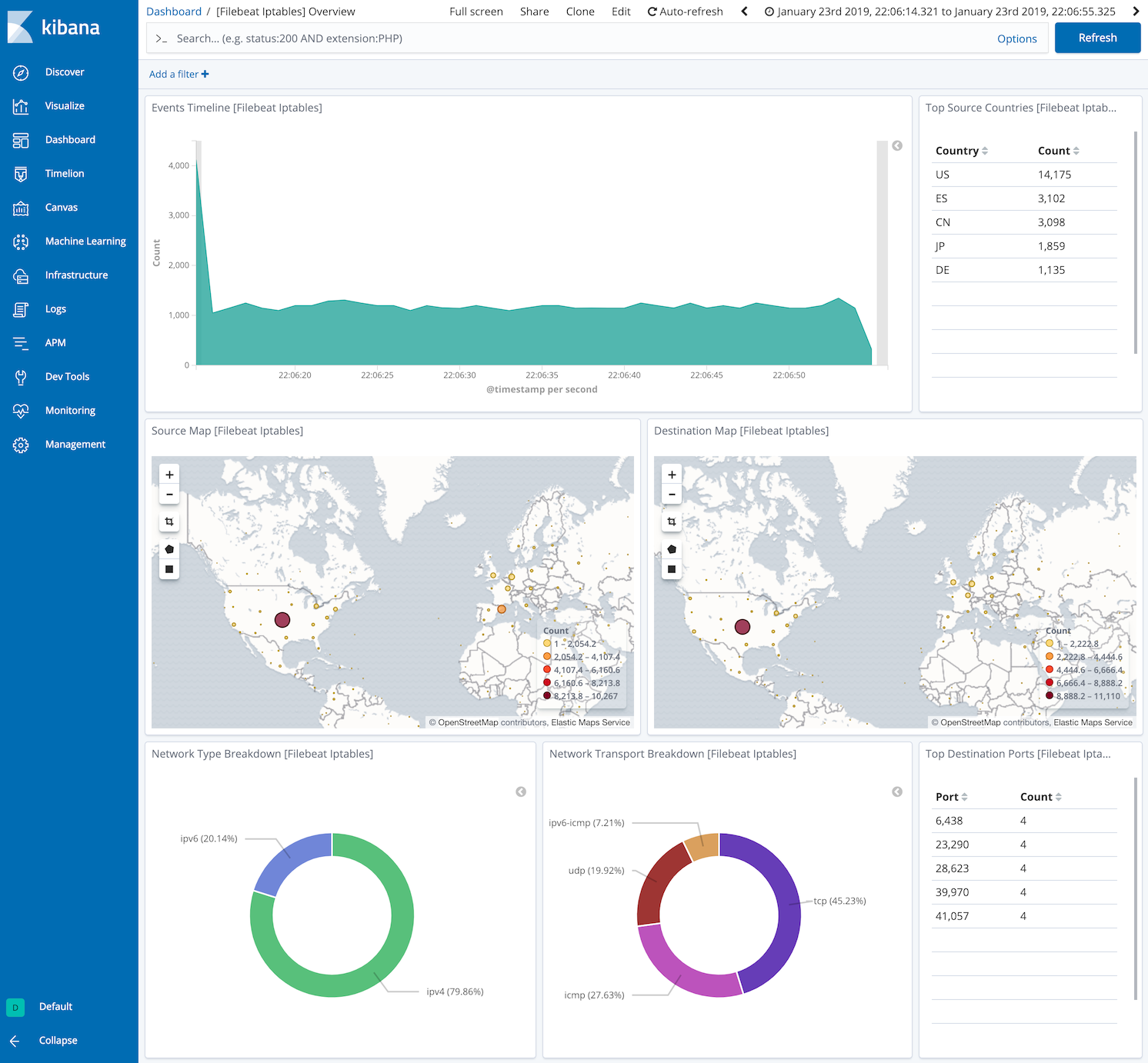
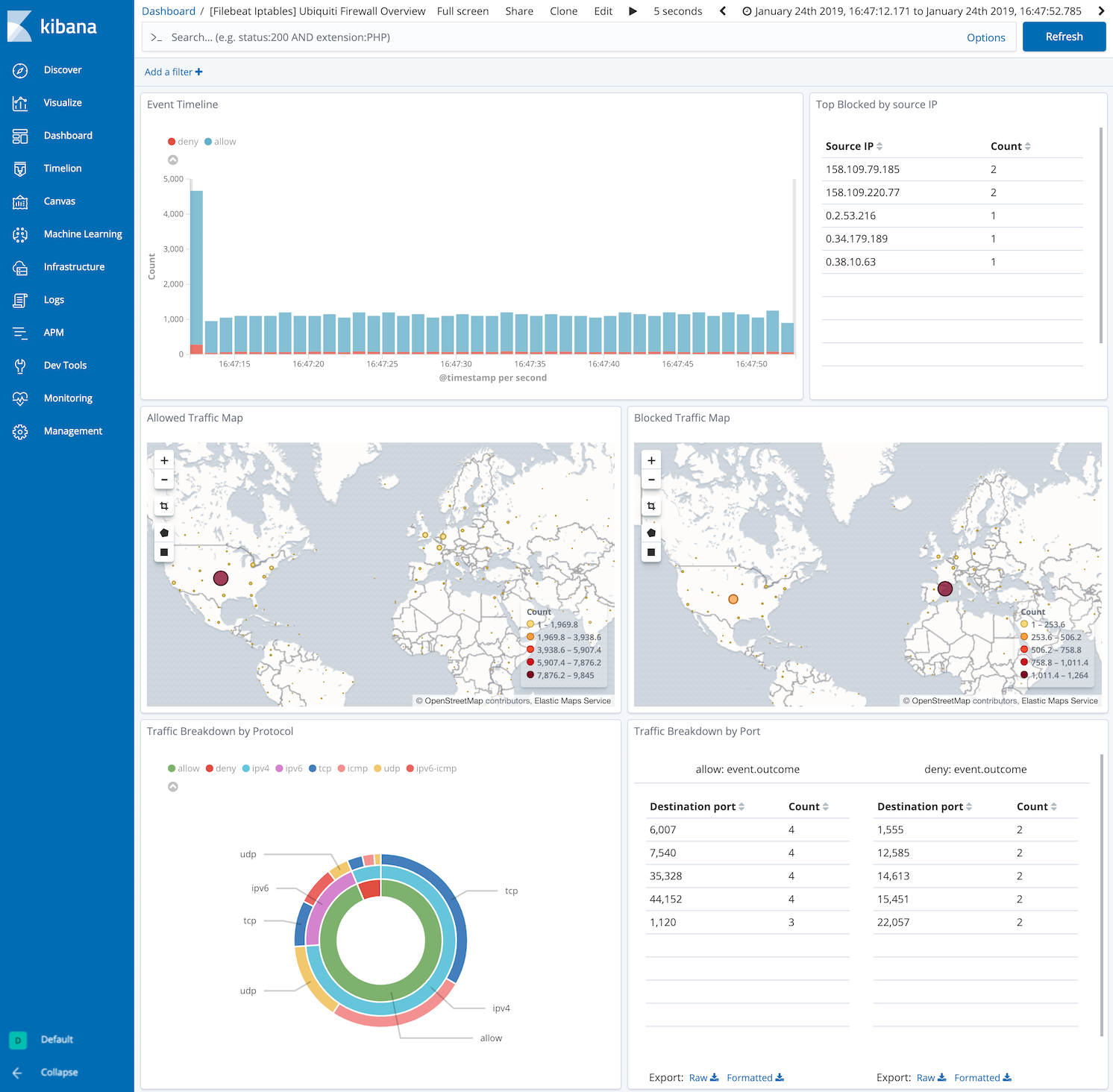
This integration includes one or more Kibana dashboards that visualizes the data collected by the integration. The screenshots below illustrate how the ingested data is displayed.
Changelog
| Version | Details | Minimum Kibana version |
|---|---|---|
| 1.23.2 | Bug fix (View pull request) Remove an unused ECS_SYSLOG_PRI pattern definition that was missing its closing brace. No change to parsing. |
9.0.0 8.11.0 |
| 1.23.1 | Bug fix (View pull request) Remove top level note from docs |
9.0.0 8.11.0 |
| 1.23.0 | Enhancement (View pull request) Update documentation. |
9.0.0 8.11.0 |
| 1.22.0 | Enhancement (View pull request) Preserve event.original on pipeline error. |
9.0.0 8.11.0 |
| 1.21.4 | Enhancement (View pull request) Generate processor tags and normalize error handler. |
9.0.0 8.11.0 |
| 1.21.3 | Bug fix (View pull request) Added optional space to properly process UBIQUITI_LABEL. Removed unneeded trailing space from grok patterns. |
9.0.0 8.11.0 |
| 1.21.2 | Enhancement (View pull request) Changed owners. |
9.0.0 8.11.0 |
| 1.21.1 | Enhancement (View pull request) Update documentation to mention the requirements for reading Journald logs. |
9.0.0 8.11.0 |
| 1.21.0 | Enhancement (View pull request) Allow @custom pipeline access to event.original without setting preserve_original_event. |
9.0.0 8.11.0 |
| 1.20.0 | Enhancement (View pull request) Support stack version 9.0. |
9.0.0 8.7.1 |
| 1.19.0 | Enhancement (View pull request) Allow the usage of deprecated log input and support for stack 9.0 |
8.7.1 |
| 1.18.0 | Enhancement (View pull request) ECS version updated to 8.17.0. |
8.7.1 |
| 1.17.0 | Enhancement (View pull request) Remove journald seqnum fields |
8.7.1 |
| 1.16.2 | Bug fix (View pull request) Use triple-brace Mustache templating when referencing variables in ingest pipelines. |
8.7.1 |
| 1.16.1 | Bug fix (View pull request) Invoke community_id processor only for supported protocols |
8.7.1 |
| 1.16.0 | Enhancement (View pull request) Update package spec to 3.0.3. |
8.7.1 |
| 1.15.2 | Enhancement (View pull request) Changed owners |
8.7.1 |
| 1.15.1 | Bug fix (View pull request) Fix exclude_files pattern. |
8.7.1 |
| 1.15.0 | Enhancement (View pull request) ECS version updated to 8.11.0. |
8.7.1 |
| 1.14.0 | Enhancement (View pull request) ECS version updated to 8.10.0. |
8.7.1 |
| 1.13.0 | Enhancement (View pull request) The format_version in the package manifest changed from 2.11.0 to 3.0.0. Removed dotted YAML keys from package manifest. Added 'owner.type: elastic' to package manifest. |
8.7.1 |
| 1.12.0 | Enhancement (View pull request) Add tags.yml file so that integration's dashboards and saved searches are tagged with "Security Solution" and displayed in the Security Solution UI. |
8.7.1 |
| 1.11.0 | Enhancement (View pull request) Update package to ECS 8.9.0. |
8.7.1 |
| 1.10.0 | Enhancement (View pull request) Convert dashboard to lens. |
8.7.1 |
| 1.9.0 | Enhancement (View pull request) Ensure event.kind is correctly set for pipeline errors. |
8.7.0 |
| 1.8.0 | Enhancement (View pull request) Update package to ECS 8.8.0. |
8.7.0 |
| 1.7.0 | Enhancement (View pull request) Update package-spec version to 2.7.0. |
8.7.0 |
| 1.6.0 | Bug fix (View pull request) Align journald syslog fields with ECS. |
8.7.0 |
| 1.5.0 | Enhancement (View pull request) Update package to ECS 8.7.0. |
8.1.0 |
| 1.4.0 | Enhancement (View pull request) Update package to ECS 8.6.0. |
8.1.0 |
| 1.3.0 | Enhancement (View pull request) Add udp_options to the UDP input. |
8.1.0 |
| 1.2.1 | Enhancement (View pull request) Migrate the visualizations to by value in dashboards to minimize the saved object clutter and reduce time to load |
8.1.0 |
| 1.2.0 | Enhancement (View pull request) Update package to ECS 8.5.0. |
8.0.0 |
| 1.1.0 | Enhancement (View pull request) Allow parsing of ulogd v2 TOS field in logs. |
8.0.0 |
| 1.0.2 | Enhancement (View pull request) Use ECS geo.location definition. |
8.0.0 |
| 1.0.1 | Enhancement (View pull request) Remove unused visualizations |
8.0.0 |
| 1.0.0 | Enhancement (View pull request) Make GA |
8.0.0 |
| 0.12.0 | Enhancement (View pull request) Update package to ECS 8.4.0 |
8.0.0 |
| 0.11.1 | Enhancement (View pull request) Update package name and description to align with standard wording |
8.0.0 |
| 0.11.0 | Enhancement (View pull request) Update package to ECS 8.3.0. |
8.0.0 |
| 0.10.1 | Bug fix (View pull request) Update sample event based on current pipeline. |
8.0.0 |
| 0.10.0 | Enhancement (View pull request) Migrate map visualisation from tile_map to map object |
8.0.0 |
| 0.9.0 | Enhancement (View pull request) Update to ECS 8.2 |
8.0.0 7.16.0 |
| 0.8.1 | Enhancement (View pull request) Add documentation for multi-fields |
8.0.0 7.16.0 |
| 0.8.0 | Enhancement (View pull request) Update to ECS 8.0 |
8.0.0 7.16.0 |
| 0.7.0 | Enhancement (View pull request) Add journald input support and change release stability to beta. Breaking change (View pull request) Format MAC addresses as RFC 7042. |
8.0.0 7.16.0 |
| 0.6.2 | Bug fix (View pull request) Regenerate test files using the new GeoIP database |
— |
| 0.6.1 | Bug fix (View pull request) Change test public IPs to the supported subset |
— |
| 0.6.0 | Enhancement (View pull request) Add 8.0.0 version constraint |
— |
| 0.5.3 | Enhancement (View pull request) Uniform with guidelines |
— |
| 0.5.2 | Enhancement (View pull request) Update Title and Description. |
— |
| 0.5.1 | Bug fix (View pull request) Fix logic that checks for the 'forwarded' tag |
— |
| 0.5.0 | Enhancement (View pull request) Update to ECS 1.12.0 |
— |
| 0.4.2 | Enhancement (View pull request) Convert to generated ECS fields |
— |
| 0.4.1 | Enhancement (View pull request) update to ECS 1.11.0 |
— |
| 0.4.0 | Enhancement (View pull request) Update integration description |
— |
| 0.3.0 | Enhancement (View pull request) Set "event.module" and "event.dataset" |
— |
| 0.2.1-next | Enhancement (View pull request) Sync ingest pipeline with Filebeat |
— |
| 0.2.0 | Enhancement (View pull request) update to ECS 1.10.0 and add event.original options |
— |
| 0.1.0 | Enhancement (View pull request) Move all processing to Ingest Node. Switch from syslog input to udp. |
— |
| 0.0.4 | Enhancement (View pull request) update to ECS 1.9.0 |
— |
| 0.0.3 | Enhancement (View pull request) Fix compatibility with Kibana |
— |
| 0.0.1 | Enhancement (View pull request) initial release |
— |