Azure Functions
| Version | 0.16.0
|
| Managed integration release status |
|
| Subscription level What's this? |
Basic |
| Developed by What's this? |
Elastic |
| Ingestion method(s) | API, Azure Event Hub |
| Minimum Kibana version(s) | 9.3.0 9.2.4 9.1.10 8.19.10 |
You can use this integration as an Elastic Managed integration on Elastic Cloud Hosted deployments running this version or later.
To use pre-release integrations, go to the Integrations page in Kibana, scroll down, and toggle on the Display beta integrations option.
When using this integration as an Elastic Managed integration, only the Azure Functions App Metrics data stream is available. This data stream uses inputs compatible with the Elastic Managed deployment mode. Other data streams (Collect Azure Functions logs) require the Azure Event Hubs input, which is not supported in the Elastic Managed deployment mode. To collect data from these data streams, use Elastic Agent.
The Azure Functions integration allows you to monitor Azure Functions. Azure Functions is an event-driven, serverless compute platform that helps you develop more efficiently using the programming language of your choice. Triggers cause a function to run. A trigger defines how a function is invoked and a function must have exactly one trigger.
Use Azure Functions to build web APIs, respond to database changes, process IoT streams, manage message queues, and more. Refer to common Azure Functions scenarios for more information.
Elastic Agent must be installed. For more details, check the Elastic Agent installation instructions. You can install only one Elastic Agent per host.
Elastic Agent is required to collect data from Azure and ship the data to Elastic, where the events will then be processed via the integration's ingest pipelines.
Elastic Managed integrations allow you to collect data without having to manage Elastic Agent in your cloud. They make manual agent deployment unnecessary, so you can focus on your data instead of the agent that collects it. For more information, refer to Elastic Managed integrations
Elastic Managed deployments are only supported in Elastic Serverless and Elastic Cloud environments. This functionality is in beta and is subject to change. Beta features are not subject to the support SLA of official GA features.
Elastic Managed deployment is currently supported for Azure Functions metrics only. Log collection is not available via Elastic Managed Integration and requires a traditional Elastic Agent deployment.
Each Azure Functions app requires a hosting plan: Consumption plan, Flex Consumption plan, Premium plan, Dedicated plan, or Container Apps. For more details on the various plans, check the Azure Functions hosting options.
These plans differ from eachother in the number of metrics they generate, which are then exported outside of Azure for other monitoring solutions like Elastic Observability. For example, metrics specific to Azure Function Apps, such as 'FunctionExecutionCount' and 'FunctionExecutionUnits', are only available for function apps operating on a Consumption (serverless) plan and are not observed in other plans. On the other hand, all other metrics are generated exclusively for Premium and Dedicated plans and are not available for the Consumption plan.
The Azure Functions integration contains two data streams: Function App Logs and Metrics
Supported log categories:
| Log Category | Description |
|---|---|
| Functionapplogs | Function app logs. |
Refer to the Azure Logs page for more information on how to set up and use this integration.
The integration supports two authentication methods: connection string (shared access key) and client secret (Microsoft Entra ID). The same method is used for both Event Hub and Storage Account.
The Elastic Agent can use a connection string to access the event hub and fetch the exported logs. The connection string contains details about the event hub and the credentials required to access it.
To get the connection string for your Event Hubs namespace:
- Visit the Event Hubs namespace you created in a previous step.
- Select Settings > Shared access policies.
Create a new Shared Access Policy (SAS):
- Select Add to open the creation panel.
- Add a Policy name (for example, "ElasticAgent").
- Select the Listen claim.
- Click Create.
When the SAS Policy is ready, select it to display the information panel.
Take note of the Connection string–primary key, which you will use later when specifying a connection_string in the integration settings.
Instead of a connection string, you can authenticate using a Microsoft Entra ID app registration (service principal) with a client secret. This uses Azure RBAC and is useful when you want to avoid shared keys or enforce role-based access.
Prerequisites: An Event Hub, a Storage Account, and a Microsoft Entra ID app registration with a client secret.
Steps:
Register an app in Microsoft Entra ID
In the Azure Portal, go to Microsoft Entra ID > App registrations > New registration. Note the Application (client) ID and Directory (tenant) ID.Create a client secret
In the app, go to Certificates & secrets > New client secret. Copy the secret value; you will need it in the integration (for exampleclient_secret). It is shown only once.Assign required permissions to the app
The service principal needs the following Azure RBAC permissions (see the Filebeat azure-eventhub input reference for the same requirements):For Azure Event Hubs:
- Azure Event Hubs Data Receiver role on the Event Hubs namespace or Event Hub, or
- A custom role with:
Microsoft.EventHub/namespaces/eventhubs/read,Microsoft.EventHub/namespaces/eventhubs/consumergroups/read
For Azure Storage Account:
- Storage Blob Data Contributor role on the Storage Account or container, or
- A custom role with:
Microsoft.Storage/storageAccounts/blobServices/containers/read,Microsoft.Storage/storageAccounts/blobServices/containers/write,Microsoft.Storage/storageAccounts/blobServices/containers/delete,Microsoft.Storage/storageAccounts/blobServices/generateUserDelegationKey/action
For detailed setup, see the Microsoft documentation: Create an Azure service principal with Azure CLI, Create an Azure AD app registration using the Azure portal, Assign Azure roles using Azure CLI, Azure Event Hubs authentication and authorization, Authorize access to blobs using Azure Active Directory.
Configure the integration
Set Authentication type to Client Secret. Provide Tenant ID, Client ID, Client Secret, and the fully qualified Event Hub namespace (for exampleyournamespace.servicebus.windows.net). Use the same Storage Account and container as for connection string authentication; the integration will use the client secret to access both Event Hubs and Storage.
By default, the integration uses AMQP ports 5671 and 5672 to communicate with Event Hubs. If these ports are blocked, set Event Hubs transport protocol to AMQP-over-WebSockets in the advanced options. This tunnels AMQP over HTTPS on port 443.
This option requires the Event Hub processor v2 (Processor version set to v2, which is the default) and Elastic Agent 8.19.10, 9.1.10, 9.2.4, or later.
Proxy support is optional and requires Event Hubs transport protocol set to AMQP-over-WebSockets.
To enable it:
- In the advanced options, set Event Hubs transport protocol to AMQP-over-WebSockets.
- Define the
HTTPS_PROXYenvironment variable for the Elastic Agent process, for exampleHTTPS_PROXY=http://proxy.example.com:8080. Elastic Agent routes both Event Hubs and Storage Account traffic through the proxy.
This requires processor v2 and Elastic Agent 8.19.10, 9.1.10, 9.2.4, or later.
auth_type :
string
Authentication method for Event Hub and Storage Account. Connection String (default): use connection_string and storage_account_key. Client Secret: use Microsoft Entra ID with tenant_id, client_id, client_secret, and eventhub_namespace (RBAC); no connection string or storage key needed.
eventhub :
string
An Event Hub is a fully managed, real-time data ingestion service. Elastic recommends using only letters, numbers, and the hyphen (-) character for Event Hub names to maximize compatibility. You can use existing Event Hubs having underscores (_) in the Event Hub name; in this case, the integration will replace underscores with hyphens (-) when it uses the Event Hub name to create dependent Azure resources behind the scenes (for example, the storage account container to store Event Hub consumer offsets). Elastic also recommends using a separate event hub for each log type as the field mappings of each log type differ.
Default value insights-operational-logs.
consumer_group :
string
The publish/subscribe mechanism of Event Hubs is enabled through consumer groups. A consumer group is a view (state, position, or offset) of an entire event hub. Consumer groups enable multiple consuming applications to each have a separate view of the event stream, and to read the stream independently at their own pace and with their own offsets.
Default value: $Default
connection_string :
string
(Required when auth_type is Connection String.) The connection string required to communicate with Event Hubs. See Get an Event Hubs connection string.
storage_account :
string
The name of the storage account where the state/offsets will be stored and updated.
storage_account_key :
string
(Required when auth_type is Connection String.) The storage account key used to authorize access to checkpoint data. Not used when auth_type is Client Secret; the integration uses the same client secret for Storage.
eventhub_namespace :
string
(Required when auth_type is Client Secret.) The fully qualified Event Hubs namespace (for example yournamespace.servicebus.windows.net). Do not use the short namespace name.
tenant_id :
string
(Required when auth_type is Client Secret.) Microsoft Entra ID (directory) tenant ID where the app is registered.
client_id :
string
(Required when auth_type is Client Secret.) Microsoft Entra ID application (client) ID. The app's service principal must have Azure Event Hubs Data Receiver on the Event Hub and Storage Blob Data Contributor on the Storage Account.
client_secret :
string
(Required when auth_type is Client Secret.) Microsoft Entra ID application client secret from the app's Certificates & secrets.
authority_host :
string
(Optional, for client secret authentication.) Microsoft Entra ID authority endpoint. Defaults to https://login.microsoftonline.com (Azure Public Cloud). Use a different endpoint for other clouds (for example Azure Government, China, Germany).
processor_version :
string
The Event Hub processor version that the integration should use. Possible values are v1 (legacy) and v2 (recommended). Defaults to v2.
processor_update_interval :
string
(Processor v2 only) How often the processor should attempt to claim partitions. Defaults to 10s.
processor_start_position :
string
(Processor v2 only) Where the processor starts processing messages for all partitions. earliest (default) starts from the last checkpoint, or the beginning of the event hub if no checkpoint is available. latest starts from the latest event and continues with new events as they arrive.
partition_receive_timeout :
string
(Processor v2 only) Maximum time to wait before processing the messages received from the event hub. The partition consumer waits up to a "receive count" or a "receive timeout," whichever comes first. Defaults to 5s.
partition_receive_count :
int
(Processor v2 only) Maximum number of messages from the event hub to wait for before processing them. The partition consumer waits up to a "receive count" or a "receive timeout," whichever comes first. Defaults to 100.
migrate_checkpoint :
bool
(Processor v2 only) Controls whether the processor migrates checkpoint information from the v1 format to the v2 format at startup, so it resumes from where v1 left off instead of reprocessing the event hub retention window. Defaults to true.
transport :
string
(Processor v2 only) The transport protocol to use when connecting to Event Hubs. amqp (default) uses ports 5671 and 5672. websocket uses AMQP-over-WebSockets on port 443 and enables proxy support through the HTTPS_PROXY environment variable.
storage_account_container :
string
The storage account container where the integration stores the checkpoint data for the consumer group. It is an advanced option to use with extreme care. You must use a dedicated storage account container for each Azure log type (activity, sign-in, audit logs, and others). Do not reuse the same container name for more than one Azure log type. Refer to Container Names for details on naming rules from Microsoft. The integration generates a default container name, if not specified.
resource_manager_endpoint :
string
Optional. By default, the integration uses the Azure public environment. To override, you can provide a specific Azure environment.
Resource manager endpoints:
# Azure ChinaCloud
https://management.chinacloudapi.cn/

# Azure GermanCloud
https://management.microsoftazure.de/

# Azure PublicCloud
https://management.azure.com/

# Azure USGovernmentCloud
https://management.usgovcloudapi.net/
Example
{
    "@timestamp": "2023-05-23T20:11:59.000Z",
    "azure": {
        "category": "FunctionAppLogs",
        "function": {
            "app_name": "test-function",
            "category": "Function.hello",
            "event_name": "FunctionStarted",
            "host_instance_id": "bb84c437-4c26-4d0b-a06d-7fc2f16976e3",
            "host_version": "4.19.2.2",
            "invocation_id": "d878e365-b3d6-4796-9292-7500acd0c677",
            "level": "Information",
            "level_id": 2,
            "message": "Executing Functions.hello (Reason=This function was programmatically called via the host APIs., Id=d878e365-b3d6-4796-9292-7500acd0c677)",
            "name": "Functions.hello",
            "process_id": 67,
            "role_instance": "54108609-638204200593759681"
        },
        "operation_name": "Microsoft.Web/sites/functions/log",
        "resource": {
            "group": "TEST-RG",
            "id": "/SUBSCRIPTIONS/12CABCB4-86E8-404F-A3D2-1DC9982F45CA/RESOURCEGROUPS/TEST-RG/PROVIDERS/MICROSOFT.WEB/SITES/TEST-FUNCTION",
            "name": "TEST-FUNCTION",
            "provider": "MICROSOFT.WEB/SITES"
        },
        "subscription_id": "12CABCB4-86E8-404F-A3D2-1DC9982F45CA"
    },
    "cloud": {
        "account": {
            "id": "12CABCB4-86E8-404F-A3D2-1DC9982F45CA"
        },
        "provider": "azure"
    },
    "ecs": {
        "version": "8.11.0"
    },
    "event": {
        "original": "{\"time\":\"2023-05-23T20:11:59Z\",\"resourceId\":\"/SUBSCRIPTIONS/12CABCB4-86E8-404F-A3D2-1DC9982F45CA/RESOURCEGROUPS/TEST-RG/PROVIDERS/MICROSOFT.WEB/SITES/TEST-FUNCTION\",\"category\":\"FunctionAppLogs\",\"operationName\":\"Microsoft.Web/sites/functions/log\",\"level\":\"Informational\",\"location\":\"East US\",\"properties\":{\"appName\":\"test-function\",\"roleInstance\":\"54108609-638204200593759681\",\"message\":\"Executing Functions.hello (Reason=This function was programmatically called via the host APIs., Id=d878e365-b3d6-4796-9292-7500acd0c677)\",\"category\":\"Function.hello\",\"hostVersion\":\"4.19.2.2\",\"functionInvocationId\":\"d878e365-b3d6-4796-9292-7500acd0c677\",\"functionName\":\"Functions.hello\",\"hostInstanceId\":\"bb84c437-4c26-4d0b-a06d-7fc2f16976e3\",\"level\":\"Information\",\"levelId\":2,\"processId\":67,\"eventId\":1,\"eventName\":\"FunctionStarted\"}}"
    },
    "observer": {
        "product": "Azure Functions",
        "type": "functions",
        "vendor": "Azure"
    },
    "tags": [
        "preserve_original_event"
    ]
}
ECS Field Reference
Check the ECS field reference for more information.
Exported fields
| Field | Description | Type |
|---|---|---|
| @timestamp | Event timestamp. | date |
| azure.category | The log category name. | keyword |
| azure.event_primary_stamp_name | The primary stamp name for the event | keyword |
| azure.event_stamp_name | The stamp name for the event | keyword |
| azure.event_stamp_type | The stamp type for the event | keyword |
| azure.function.app_name | The Function application name. | keyword |
| azure.function.category | The category of the operation. | keyword |
| azure.function.event_id | The event ID. | long |
| azure.function.event_name | The event name. | keyword |
| azure.function.exception_details | The exception details. This includes the exception type, message, and stack trace. | match_only_text |
| azure.function.exception_message | The exception message. | match_only_text |
| azure.function.exception_type | The exception type. | keyword |
| azure.function.host_instance_id | The host instance ID. | keyword |
| azure.function.host_version | The Functions host version. | keyword |
| azure.function.invocation_id | The invocation ID that logged the message. | keyword |
| azure.function.level | The log level. Valid values are Trace, Debug, Information, Warning, Error, or Critical. | keyword |
| azure.function.level_id | The integer value of the log level. Valid values are 0 (Trace), 1 (Debug), 2 (Information), 3 (Warning), 4 (Error), or 5 (Critical). | long |
| azure.function.message | The log message. | keyword |
| azure.function.name | The name of the function that logged the message. | keyword |
| azure.function.process_id | The process ID. | long |
| azure.function.role_instance | The role instance ID. | keyword |
| azure.operation_name | The operation name. | keyword |
| azure.resource.group | Azure Resource group | keyword |
| azure.resource.id | Resource ID | keyword |
| azure.resource.name | Name | keyword |
| azure.resource.provider | Resource type/namespace | keyword |
| azure.subscription_id | Azure subscription ID | keyword |
| azure.tenant_id | tenant ID | keyword |
| data_stream.dataset | Data stream dataset name. | constant_keyword |
| data_stream.namespace | Data stream namespace. | constant_keyword |
| data_stream.type | Data stream type. | constant_keyword |
| dataset.name | Dataset name. | constant_keyword |
| dataset.namespace | Dataset namespace. | constant_keyword |
| dataset.type | Dataset type. | constant_keyword |
Metrics give you insight into the performance of your Azure Function Apps. The integration includes an out-of-the-box dashboard for visualising the monitoring data generated by apps hosted in Azure Functions.
Azure App Registration: You need to set up an Azure App Registration to allow the Agent to access the Azure APIs. The App Registration requires the Monitoring Reader role to collect metrics from Function Apps. Check the Setup section for more details.
Elasticsearch and Kibana: You need Elasticsearch to store and search your data and Kibana to visualize and manage it. You can use our hosted Elasticsearch Service on Elastic Cloud, which is recommended, the Native Azure Integration, or self-manage the Elastic Stack on your hardware.
┌────────────────────┐       ┌─────────┐       ┌─-─────────────────────┐
│                    │       │         │       │    azure.functions    │
│     Azure APIs     │──────▶│  Agent  │──────▶│    <<data stream>>    │
│                    │       │         │       │                       │
└────────────────────┘       └─────────┘       └───-───────────────────┘
Elastic Agent needs an App Registration to access Azure on your behalf to collect data using the Azure REST APIs. App Registrations are required to access Azure APIs programmatically.
To start collecting data with this integration, you need to:
- Set up a new Azure app registration by registering an app, adding credentials, and assigning an appropriate role.
- Specify integration settings in Kibana, which will determine how the integration will access the Azure APIs.
To create a new app registration:
- Sign in to the Azure Portal.
- Search for and select Microsoft Entra ID.
- Under Manage, select App registrations > New registration.
- Enter a display Name for your application (for example, "elastic-agent").
- Specify who can use the application.
- Don't enter anything for Redirect URI. This is optional and the agent doesn't use it.
- Select Register to complete the initial app registration.
Take note of the Application (client) ID, which you will use later when specifying the Client ID in the integration settings.
Credentials allow your application to access Azure APIs and authenticate itself, requiring no interaction from a user at runtime.
This integration uses Client Secrets to prove its identity.
- In the Azure Portal, select the application you created in the previous section.
- Select Certificates & secrets > Client secrets > New client secret.
- Add a description (for example, "Elastic Agent client secrets").
- Select an expiration for the secret or specify a custom lifetime.
- Select Add.
Take note of the content in the Value column in the Client secrets table, which you will use later when specifying a Client Secret in the integration settings. This secret value is never displayed again after you leave this page. Record the secret's value in a safe place.
- In the Azure Portal, search for and select Subscriptions.
- Select the subscription to assign the application.
- Select Access control (IAM).
- Select Add > Add role assignment to open the Add role assignment page.
- In the Role tab, search and select the role Monitoring Reader.
- Select the Next button to move to the Members tab.
- Select Assign access to > User, group, or service principal, and select Select members. This page does not display Azure AD applications in the available options by default.
- To find your application, search by name (for example, "elastic-agent") and select it from the list.
- Click the Select button.
- Click the Review + assign button.
Take note of the following values, which you will use later when specifying settings.
Subscription ID: use the content of the "Subscription ID" you selected.Tenant ID: use the "Tenant ID" from the Azure Active Directory you use.
Your App Registration is now ready to be used with the Elastic Agent.
To learn more about this process, check the following Microsoft guides:
- Quickstart: Register an application with the Microsoft identity platform
- Use the portal to create an Azure AD application and service principal that can access resources
The Settings main section contains all the options needed to access the Azure APIs and collect the Azure Functions metrics data. You will now use all the values from App registration including:
Client ID string
: The unique identifier of the App Registration (sometimes referred to as Application ID).
Client Secret string
: The client secret for authentication.
Subscription ID string
: The unique identifier for the Azure subscription. You can provide just one subscription ID. The Agent uses this ID to access Azure APIs.
Tenant ID string
: The unique identifier of the Azure Active Directory's Tenant ID.
There are two additional advanced options:
Resource Manager Endpoint string
: Optional. By default, the integration uses the Azure public environment. To override, you can provide a specific resource manager endpoint to use a different Azure environment.
Examples:
https://management.chinacloudapi.cnfor Azure ChinaCloudhttps://management.microsoftazure.defor Azure GermanCloudhttps://management.azure.comfor Azure PublicCloudhttps://management.usgovcloudapi.netfor Azure USGovernmentCloud
Active Directory Endpoint string
: Optional. By default, the integration uses the associated Active Directory Endpoint. To override, you can provide a specific active directory endpoint to use a different Azure environment.
Examples:
https://login.chinacloudapi.cnfor Azure ChinaCloudhttps://login.microsoftonline.defor Azure GermanCloudhttps://login.microsoftonline.comfor Azure PublicCloudhttps://login.microsoftonline.usfor Azure USGovernmentCloud
Example
{
    "@timestamp": "2023-08-23T12:20:00.000Z",
    "agent": {
        "ephemeral_id": "7511408f-f109-4e34-a405-98ad479fc097",
        "id": "ae16c4cf-2550-452a-860d-cef5e5182e94",
        "name": "docker-fleet-agent",
        "type": "metricbeat",
        "version": "8.7.1"
    },
    "azure": {
        "functions": {
            "app_connections": {
                "avg": 0
            },
            "average_memory_working_set": {
                "avg": 328533059.5
            },
            "bytes_received": {
                "total": 28804
            },
            "bytes_sent": {
                "total": 8192
            },
            "function_execution_count": {
                "total": 0
            },
            "function_execution_units": {
                "total": 0
            },
            "handles": {
                "avg": 0
            },
            "http2xx": {
                "total": 16
            },
            "http3xx": {
                "total": 0
            },
            "http4xx": {
                "total": 0
            },
            "http5xx": {
                "total": 16
            },
            "http_response_time": {
                "avg": 0.02796875
            },
            "io_other_bytes_per_second": {
                "total": 0
            },
            "io_other_operations_per_second": {
                "total": 0
            },
            "io_read_bytes_per_second": {
                "total": 31879
            },
            "io_read_operations_per_second": {
                "total": 0
            },
            "io_write_bytes_per_second": {
                "total": 0
            },
            "io_write_operations_per_second": {
                "total": 0
            },
            "memory_working_set": {
                "avg": 328533059.5
            },
            "requests": {
                "total": 32
            },
            "requests_inapplication_queue": {
                "avg": 0
            },
            "total_app_domains": {
                "avg": 0
            },
            "total_app_domains_unloaded": {
                "avg": 0
            }
        },
        "namespace": "Microsoft.Web/sites",
        "resource": {
            "group": "test-rg",
            "id": "/subscriptions/12hjkls-78tyu-404f-a3d2-1dc9982f45ds/resourceGroups/test-rg/providers/Microsoft.Web/sites/return-of-the-jedi",
            "name": "return-of-the-jedi",
            "tags": {
                "hidden-link: /app-insights-resource-id": "/subscriptions/12hjkls-78tyu-404f-a3d2-1dc9982f45ds/resourceGroups/test-rg/providers/Microsoft.Insights/components/return-of-the-jedi"
            },
            "type": "Microsoft.Web/sites"
        },
        "subscription_id": "12hjkls-78tyu-404f-a3d2-1dc9982f45ds",
        "timegrain": "PT5M"
    },
    "data_stream": {
        "dataset": "azure.function",
        "namespace": "default",
        "type": "metrics"
    },
    "ecs": {
        "version": "8.11.0"
    },
    "elastic_agent": {
        "id": "ae16c4cf-2550-452a-860d-cef5e5182e94",
        "snapshot": false,
        "version": "8.7.1"
    },
    "event": {
        "agent_id_status": "verified",
        "dataset": "azure.function",
        "duration": 42827917228,
        "ingested": "2023-08-23T12:25:34Z",
        "module": "azure"
    },
    "host": {
        "architecture": "x86_64",
        "containerized": false,
        "hostname": "docker-fleet-agent",
        "id": "fd2c4b0943e444508c12855a04d117c7",
        "ip": [
            "172.19.0.9"
        ],
        "mac": [
            "02-42-AC-13-00-09"
        ],
        "name": "docker-fleet-agent",
        "os": {
            "codename": "focal",
            "family": "debian",
            "kernel": "5.15.49-linuxkit",
            "name": "Ubuntu",
            "platform": "ubuntu",
            "type": "linux",
            "version": "20.04.6 LTS (Focal Fossa)"
        }
    },
    "metricset": {
        "name": "monitor",
        "period": 300000
    },
    "service": {
        "type": "azure"
    }
}
ECS Field Reference
Check the ECS field reference for more information.
Exported fields
| Field | Description | Type | Unit | Metric Type |
|---|---|---|---|---|
| @timestamp | Event timestamp. | date | ||
| azure.application_id | The application ID | keyword | ||
| azure.dimensions.* | Azure metric dimensions. | object | ||
| azure.functions.app_connections.avg | The number of bound sockets existing in the sandbox (w3wp.exe and its child processes). A bound socket is created by calling bind()/connect() APIs and remains until said socket is closed with CloseHandle()/closesocket(). For WebApps and FunctionApps.. | long | counter | |
| azure.functions.average_memory_working_set.avg | The average amount of memory used by the app, in MiB. For WebApps and FunctionApps. | long | byte | gauge |
| azure.functions.bytes_received.total | The amount of incoming bandwidth consumed by the app, in MiB. | long | byte | gauge |
| azure.functions.bytes_sent.total | The amount of outgoing bandwidth consumed by the app, in MiB. | long | byte | gauge |
| azure.functions.current_assemblies.avg | The current number of Assemblies loaded across all AppDomains in this application. | long | gauge | |
| azure.functions.file_system_usage.avg | Percentage of filesystem quota consumed by the app. | long | byte | gauge |
| azure.functions.function_execution_count.total | Function Execution Count. For FunctionApps only. | long | counter | |
| azure.functions.function_execution_units.total | Function Execution Units. For FunctionApps only. | long | counter | |
| azure.functions.gen_0_collections.total | The number of times the generation 0 objects are garbage collected since the start of the app process. Higher generation GCs include all lower generation GCs. | long | counter | |
| azure.functions.gen_1_collections.total | The number of times the generation 1 objects are garbage collected since the start of the app process. Higher generation GCs include all lower generation GCs. | long | counter | |
| azure.functions.gen_2_collections.total | The number of times the generation 2 objects are garbage collected since the start of the app process. Higher generation GCs include all lower generation GCs. | long | counter | |
| azure.functions.handles.avg | The total number of handles currently open by the app process. | long | counter | |
| azure.functions.health_check_status.avg | Health check status. | long | gauge | |
| azure.functions.http2xx.total | The count of requests resulting in an HTTP status code >= 200 but < 300. | long | counter | |
| azure.functions.http3xx.total | The count of requests resulting in an HTTP status code >= 300 but < 400. | long | counter | |
| azure.functions.http4xx.total | The count of requests resulting in an HTTP status code >= 400 but < 500. | long | counter | |
| azure.functions.http5xx.total | The count of requests resulting in an HTTP status code >= 500 but < 600. | long | counter | |
| azure.functions.http_response_time.avg | The time taken for the app to serve requests, in seconds. | long | s | gauge |
| azure.functions.io_other_bytes_per_second.total | The rate at which the app process is issuing bytes to I/O operations that don't involve data, such as control operations. Shown as bytespersecond. | long | gauge | |
| azure.functions.io_other_operations_per_second.total | The rate at which the app process is issuing I/O operations that aren't read or write operations. Shown as bytespersecond. | long | gauge | |
| azure.functions.io_read_bytes_per_second.total | The rate at which the app process is reading bytes from I/O operations. Shown as bytespersecond. | long | gauge | |
| azure.functions.io_read_operations_per_second.total | The rate at which the app process is issuing read I/O operations. Shown as bytespersecond. | long | gauge | |
| azure.functions.io_write_bytes_per_second.total | The rate at which the app process is writing bytes to I/O operations. Shown as bytespersecond. | long | gauge | |
| azure.functions.io_write_operations_per_second.total | The rate at which the app process is issuing write I/O operations. Shown as bytespersecond. | long | gauge | |
| azure.functions.memory_working_set.avg | The current amount of memory used by the app, in MiB. | long | byte | gauge |
| azure.functions.private_bytes.avg | Private Bytes is the current size, in bytes, of memory that the app process has allocated that can't be shared with other processes. | long | byte | gauge |
| azure.functions.requests.total | The total number of requests regardless of their resulting HTTP status code. | long | counter | |
| azure.functions.requests_inapplication_queue.avg | The number of requests in the application request queue. | long | counter | |
| azure.functions.threads.avg | The number of threads currently active in the app process. | long | gauge | |
| azure.functions.total_app_domains.avg | The current number of AppDomains loaded in this application. | long | gauge | |
| azure.functions.total_app_domains_unloaded.avg | The total number of AppDomains unloaded since the start of the application. | long | gauge | |
| azure.namespace | The namespace selected | keyword | ||
| azure.resource.group | The resource group | keyword | ||
| azure.resource.id | The id of the resource | keyword | ||
| azure.resource.name | The name of the resource | keyword | ||
| azure.resource.tags.* | Azure resource tags. | object | ||
| azure.resource.type | The type of the resource | keyword | ||
| azure.subscription_id | The subscription ID | keyword | ||
| azure.timegrain | The Azure metric timegrain | keyword | ||
| cloud.image.id | Image ID for the cloud instance. | keyword | ||
| data_stream.dataset | Data stream dataset name. | constant_keyword | ||
| data_stream.namespace | Data stream namespace. | constant_keyword | ||
| data_stream.type | Data stream type. | constant_keyword | ||
| dataset.name | Dataset name. | constant_keyword | ||
| dataset.namespace | Dataset namespace. | constant_keyword | ||
| dataset.type | Dataset type. | constant_keyword | ||
| host.containerized | If the host is a container. | boolean | ||
| host.os.build | OS build information. | keyword | ||
| host.os.codename | OS codename, if any. | keyword |
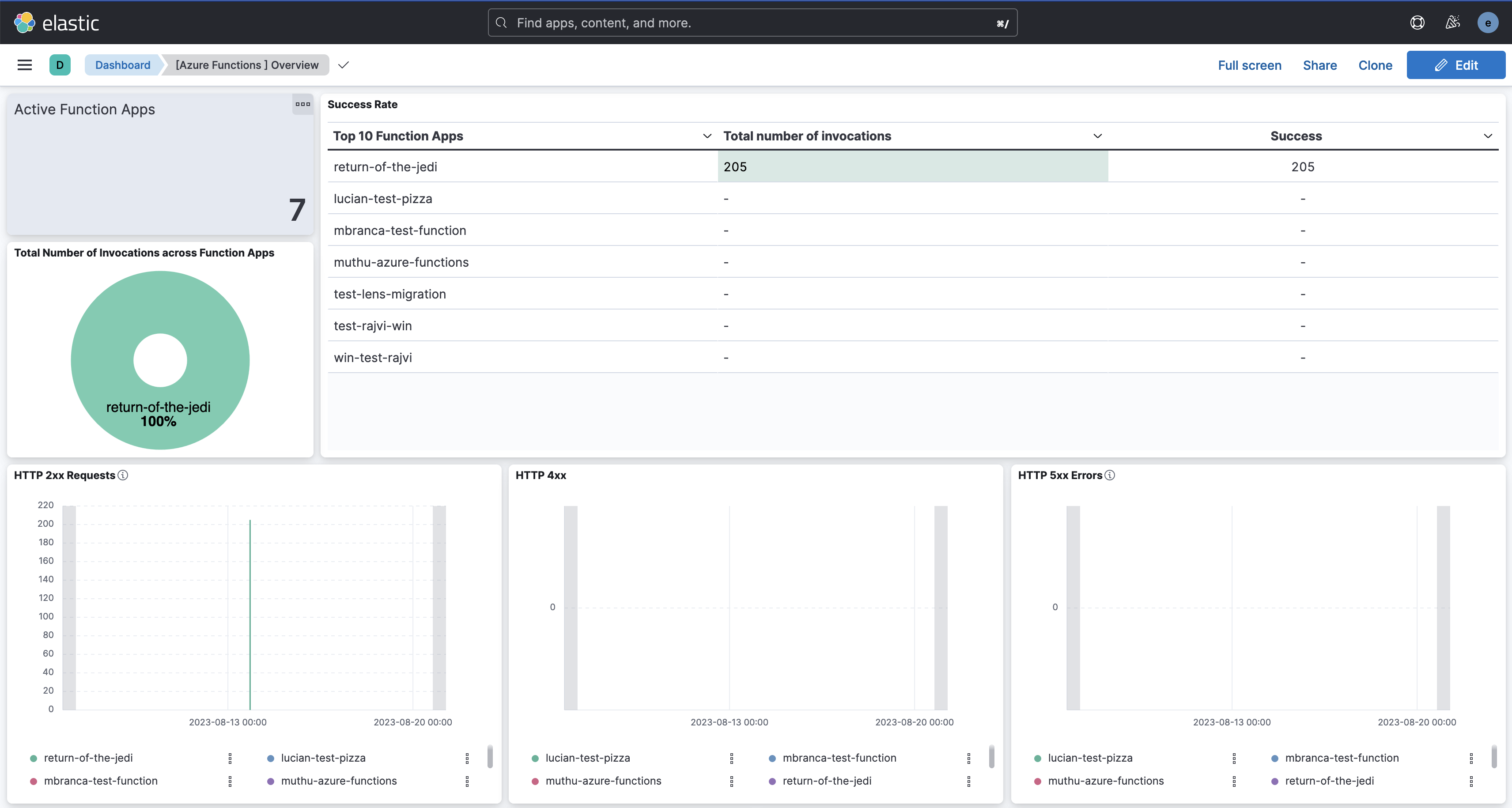
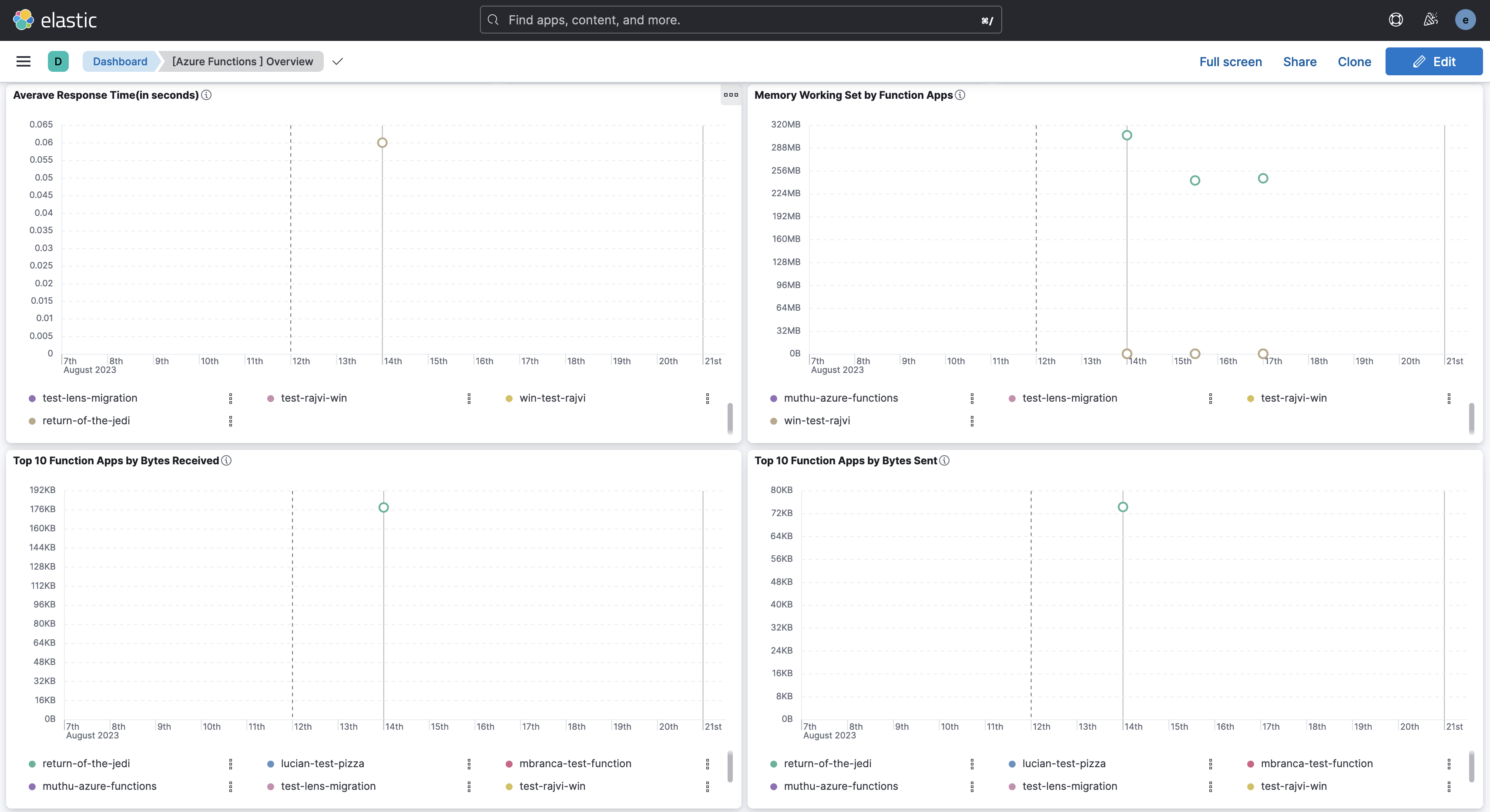
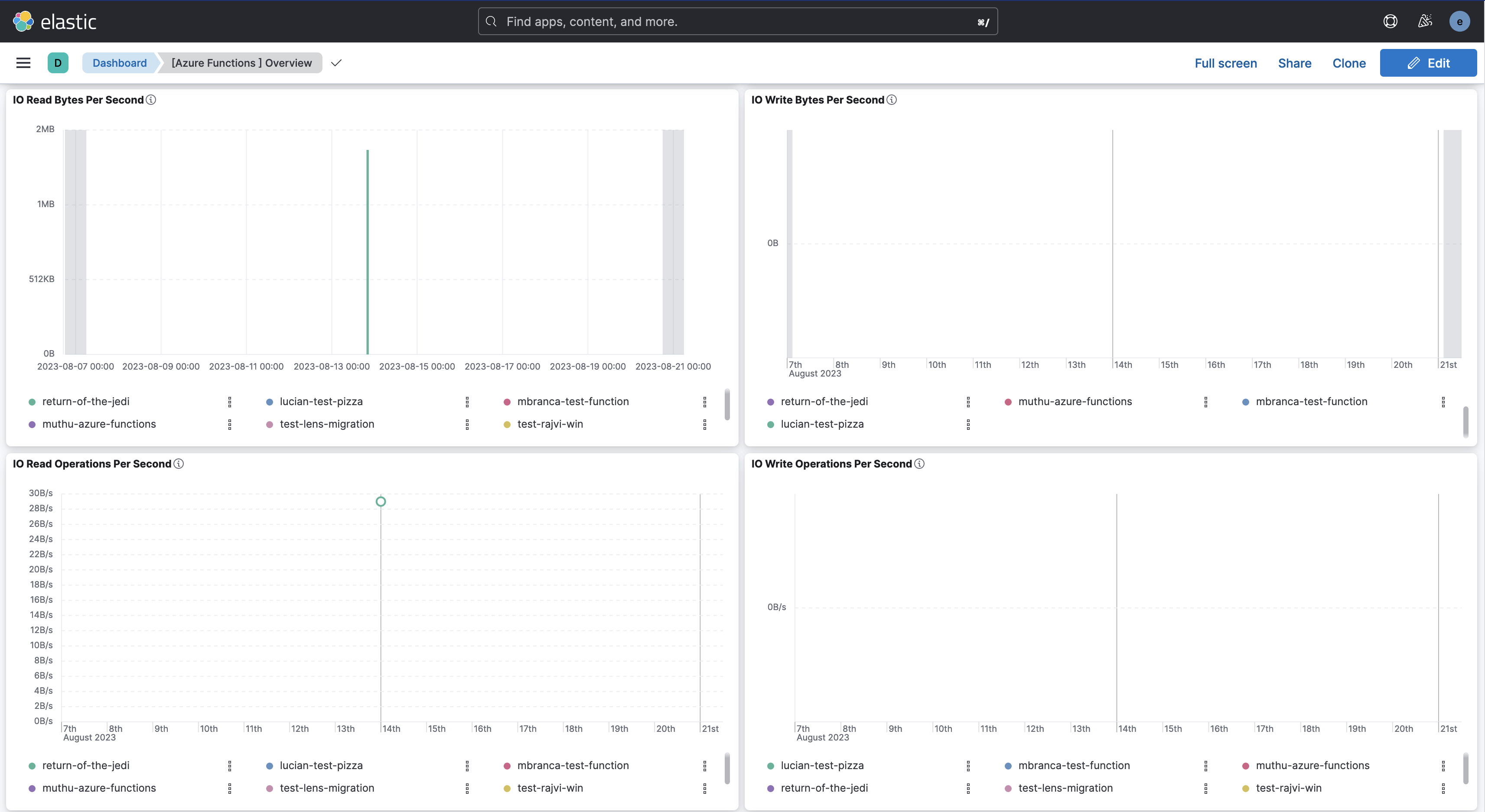
This integration includes one or more Kibana dashboards that visualizes the data collected by the integration. The screenshots below illustrate how the ingested data is displayed.
Changelog
| Version | Details | Minimum Kibana version |
|---|---|---|
| 0.16.0 | Enhancement (View pull request) Add AMQP-over-WebSockets transport, proxy support, and Event Hub processor v2 configuration options. |
9.3.0 9.2.4 9.1.10 8.19.10 |
| 0.15.0 | Enhancement (View pull request) Publish Agentless to Elastic Managed integrations name change. |
9.3.0 9.2.4 9.1.10 8.19.10 |
| 0.14.0 | Enhancement (View pull request) Use new release field for agentless deployment mode to establish as beta. |
9.3.0 9.2.4 9.1.10 8.19.10 |
| 0.13.0 | Enhancement (View pull request) Add support for agentless deployment. |
9.3.0 9.2.4 9.1.10 8.19.10 |
| 0.12.0 | Enhancement (View pull request) Add client secret authentication support for Azure Event Hub with RBAC. |
9.3.0 9.2.4 9.1.10 8.19.10 |
| 0.11.0 | Bug fix (View pull request) Update the ingest pipeline to handle properties field as JSON object or string. |
9.0.0 8.13.0 |
| 0.10.0 | Enhancement (View pull request) Add a flag fips_compatible to control whether the package is allowed in the ECH FedRAMP High environment. |
9.0.0 8.13.0 |
| 0.9.0 | Enhancement (View pull request) Add support for Kibana 9.0.0. |
9.0.0 8.13.0 |
| 0.8.1 | Enhancement (View pull request) Add observability category. |
8.13.0 |
| 0.8.0 | Enhancement (View pull request) Allow @custom pipeline access to event.original without setting preserve_original_event. |
8.13.0 |
| 0.7.0 | Enhancement (View pull request) Add processor support for metrics data stream. |
8.13.0 |
| 0.6.0 | Enhancement (View pull request) ECS version updated to 8.11.0. Update the kibana constraint to ^8.13.0. Modified the field definitions to remove ECS fields made redundant by the ecs@mappings component template. |
8.13.0 |
| 0.5.0 | Enhancement (View pull request) Add global filter for dashboards to improve performance. |
8.12.0 |
| 0.4.2 | Enhancement (View pull request) Replace Azure AD with Microsoft Entra ID. |
8.12.0 |
| 0.4.1 | Bug fix (View pull request) Remove Add Cloud Metadata flag from agent config. |
8.12.0 |
| 0.4.0 | Enhancement (View pull request) Enable secrets for sensitive fields. For more details, refer https://www.elastic.co/guide/en/fleet/current/agent-policy.html#agent-policy-secret-values |
8.12.0 |
| 0.3.1 | Bug fix (View pull request) Disable secrets for older stack versions due to errors. |
8.8.1 |
| 0.3.0 | Enhancement (View pull request) Enable 'secret' for the sensitive fields, supported from 8.12. |
8.8.1 |
| 0.2.1 | Enhancement (View pull request) Inline "by reference" visualizations |
8.8.1 |
| 0.2.0 | Enhancement (View pull request) Update the package format_version to 3.0.0. |
8.8.1 |
| 0.1.0 | Enhancement (View pull request) Add Azure Functions metrics data stream |
8.8.1 |
| 0.0.1 | Enhancement (View pull request) Add Azure Functions logs data stream |
8.8.1 |