Fortinet FortiProxy Integration for Elastic
| Version | 1.4.2 (View all) |
| Subscription level What's this? |
Basic |
| Developed by What's this? |
Elastic |
| Ingestion method(s) | File, Network Protocol |
| Minimum Kibana version(s) | 9.0.0 8.12.2 |
The Fortinet FortiProxy integration for Elastic lets you collect logs from your secure web gateway to monitor performance and security. It's designed to help you centralize data within the Elastic Stack for advanced visibility and threat detection. By ingesting these logs, you'll be able to monitor user behavior, investigate security events, and audit compliance across your network.
You can use this integration with the following:
- FortiProxy versions 7.x up to 7.4.3.
- Later versions of FortiProxy are expected to work correctly because they typically maintain backward compatibility with the default
syslogformat, but have not been tested.
You'll use the Elastic Agent to collect data from your FortiProxy device. You have several options for sending your syslog data to the agent:
- Use the
tcpinput for reliable, connection-oriented log delivery over the network. - Use the
udpinput for high-performance transmission with minimal overhead. - Use the
filestreaminput if you want to read local log files from a specific path on your host.
Once the agent receives the logs through the log data stream, it sends them to your Elastic deployment. The data is parsed and mapped to the Elastic Common Schema (ECS), making it ready for use in dashboards and security analytics.
The Fortinet FortiProxy integration collects log messages of the following types:
- Traffic logs: Records of network traffic information including source and destination IP addresses, ports, protocols, bytes transferred, and session duration.
- HTTP transaction logs: Detailed HTTP/HTTPS request and response data including full URLs, methods, status codes, browser user agents, and timing details.
- UTM (Unified Threat Management) logs: Security-related logs generated by antivirus, web filtering, application control, data loss prevention (DLP), and SSL/SSH inspection modules.
- Event logs: System-level data including administrative logins, configuration changes, user authentication events, and system performance metrics.
- Security Rating logs: Security posture assessment results, including audit scores and compliance metrics generated by the FortiProxy security fabric.
Integrating Fortinet FortiProxy logs with Elastic provides you with enhanced security posture and operational visibility. You can use this integration for the following use cases:
- Security monitoring and threat detection: Use UTM and security rating logs to identify and mitigate threats like malware infections, unauthorized application usage, or security policy violations.
- Web traffic analysis: Analyze HTTP transaction logs to monitor web usage patterns, identify high-bandwidth sites, and ensure users follow acceptable use policies.
- Auditing and compliance: Track administrative logins, configuration changes, and user authentication events to meet regulatory requirements and maintain a searchable audit trail.
- Network performance troubleshooting: Use traffic logs to visualize flow patterns and correlate network data with other security and observability sources for faster incident response.
To use this integration, you need the following vendor-specific prerequisites:
- Root or super-admin level access to the FortiProxy CLI or web-based GUI to modify logging configurations.
- Network connectivity between the FortiProxy device and the Elastic Agent host. You must ensure that intermediate firewalls allow traffic on the configured port (the default is
514). - The FortiProxy must be configured to use the
defaultlog format. This integration's parsing logic doesn't support custom or CSV formats. - A valid license that enables logging features and the Security Fabric (if you're using Security Rating logs).
You also need the following Elastic prerequisites:
- Elastic Agent installed and enrolled in Fleet on a host that's network-accessible to the FortiProxy.
- Kibana and Elasticsearch version 8.0 or later for full compatibility with integration data streams.
- The Elastic Agent must be assigned to a policy that includes the Fortinet FortiProxy integration.
- The host running the Elastic Agent must listen on the specified port (for example,
514) and can't have local firewall rules (likeiptablesor Windows Firewall) blocking incoming syslog traffic.
You'll need to install Elastic Agent. For more details, check the Elastic Agent installation instructions. You can install only one Elastic Agent per host.
Elastic Agent is required to stream data from the syslog or log file receiver and ship the data to Elastic, where the events will then be processed using the integration's ingest pipelines.
Follow these steps to configure syslog collection using the command line interface:
- Log in to the FortiProxy CLI using SSH or a console connection.
- Enter the syslog configuration context:
config log syslogd setting - Enable the syslog status and point it to your Elastic Agent's IP address (replace
<Elastic_Agent_IP>with your actual value):set status enable set server <Elastic_Agent_IP> set port 514 - Define the transport mode. Use
set mode udpfor standard delivery orset mode reliablefor TCP delivery. - Ensure the format is compatible with the integration:
set format default - Save the configuration and exit the context:
end - (Optional) Configure which logs are sent by navigating to
config log syslogd filterto set specific severity levels or event types.
Follow these steps to configure syslog collection using the web administration interface:
- Log in to the FortiProxy web administration interface.
- Navigate to Log & Report > Log Settings.
- Locate the Remote Logging and Archiving section and toggle Send Logs to Syslog to the enabled position.
- Enter the IP Address/FQDN of the host where the Elastic Agent is running.
- Set the Port to
514(or your chosen custom port). - Verify that CSV Format is disabled to ensure logs are sent in the required key-value format.
- Click Apply to commit the changes.
- Navigate to the different log type sections (Traffic, UTM, Event) in the GUI to ensure Local Log or Syslog is enabled for the specific events you wish to monitor.
You can find more information in these vendor resources:
Follow these steps to set up the integration in Kibana:
- In Kibana, navigate to Management > Integrations.
- Search for Fortinet FortiProxy and select the integration.
- Click Add Fortinet FortiProxy.
- Configure the integration by selecting an input type and providing the necessary settings.
Choose the setup instructions that match your configuration. The input type should correspond to how you configured your FortiProxy to send logs in the vendor setup steps.
This input collects logs over a TCP socket. Configure these variables:
| Setting | Description |
|---|---|
| Listen Address | The bind address to listen for TCP connections (for example, 0.0.0.0). Default: localhost. |
| Listen Port | The TCP port number to listen on. Default: 514. |
| Preserve original event | If enabled, preserves a raw copy of the original event in the event.original field. Default: false. |
Under Advanced Options, you can configure the following:
- Tags: Custom tags to append to the events (for example,
['fortinet-fortiproxy', 'forwarded']). - Processors: Add any custom processors to reduce fields or enhance metadata before the logs reach the ingest pipeline.
- SSL Configuration: Configure SSL options such as
certificateandkeyif you're using encrypted transport. - Custom TCP Options: Specify custom options such as
framing: rfc6587. This is required if you're usingset mode reliableon the FortiProxy device.
This input collects logs over a UDP socket. Configure these variables:
| Setting | Description |
|---|---|
| Listen Address | The bind address to listen for UDP connections (for example, 0.0.0.0). Default: localhost. |
| Listen Port | The UDP port number to listen on. Default: 514. |
| Preserve original event | If enabled, preserves a raw copy of the original event in the event.original field. Default: false. |
Under Advanced Options, you can configure the following:
- Tags: Custom tags to append to the events. Default:
['fortinet-fortiproxy', 'forwarded']. - Custom UDP Options: Configure options such as
read_buffer(e.g.,100MiB),max_message_size(e.g.,50KiB), andtimeout(e.g.,300s). - Processors: Add processors to filter or enhance data at the agent level.
This input collects logs directly from log files on the host where the Elastic Agent is running. Configure these variables:
| Setting | Description |
|---|---|
| Paths | List of absolute paths to the log files. Default: ['/var/log/fortinet-fortiproxy.log']. |
| Preserve original event | If enabled, preserves a raw copy of the original event in the event.original field. Default: false. |
Under Advanced Options, you can configure the following:
- Tags: Custom tags to append to the events. Default:
['fortinet-fortiproxy', 'forwarded']. - Processors: Add processors for pre-parsing logic.
After you've configured the input, save and deploy the integration to an Elastic Agent policy.
Perform these actions to trigger data flow on your Fortinet FortiProxy device:
- Generate web traffic: From a client computer protected by the FortiProxy, browse to several different websites to generate traffic and HTTP transaction logs.
- Trigger security event: Attempt to access a known blocked URL category or test a non-malicious EICAR test file to trigger UTM antivirus or web filtering logs.
- Generate administrative event: Log out and log back into the FortiProxy management GUI or CLI to create an audit or system event log.
Follow these steps to check for data in Kibana:
- Navigate to Analytics > Discover.
- Select the
logs-*data view. - Enter the KQL filter:
data_stream.dataset : "fortinet_fortiproxy.log". - Verify logs appear and expand a log entry to confirm fields like
event.dataset,source.ip,destination.ip, andevent.action. - Navigate to Analytics > Dashboards and search for Fortinet FortiProxy to view the pre-built visualizations.
For help with Elastic ingest tools, check Common problems.
If you encounter issues while collecting logs from Fortinet FortiProxy, consider the following common scenarios:
- TCP framing issues: If you use TCP transport with reliable syslog mode, you must ensure that both the FortiProxy device and the integration settings use the same framing. Set
framing: rfc6587in the integration's Custom TCP Options to match the FortiProxy configuration and prevent parsing errors or merged events. - Network port conflicts: If the Elastic Agent can't start the input, another service like a local syslog daemon might be using the configured port. You can check for port usage on Linux systems using the command
netstat -tulpn. - Firewall or connectivity problems: If logs aren't appearing in Kibana, verify that the FortiProxy device can reach the Elastic Agent host. You can use a packet capture tool like
tcpdump port 514on the Agent host to confirm that traffic is reaching the network interface. - Incorrect log format: Ensure that your FortiProxy device is configured to use the default log format with the CLI command
set format default. If the device sends logs in CSV or a custom format, the integration's ingest pipeline won't be able to parse the data correctly. - Incomplete log messages or truncation: If very large log entries, such as those from SSL inspection, are appearing cut off, you might need to increase the
max_message_sizein the integration's advanced settings for the TCP or UDP input. - Troubleshooting parsing failures: You can look for the
error.messagefield in Kibana to identify why a specific log failed to parse. To help with this, you should enable the Preserve original event option in the integration settings so you can compare the raw log inevent.originalagainst the expected format.
For more information on architectures that can be used for scaling this integration, check the Ingest Architectures documentation.
To ensure optimal performance in high-volume environments, consider these recommendations:
- If you have high-reliability requirements, use TCP transport (mode
reliable) to ensure you don't lose logs during network congestion. - When you use TCP, make sure
rfc6587framing is enabled in the configuration to handle message boundaries correctly. - For high-performance environments where you prioritize low overhead, UDP transport is recommended, though it doesn't guarantee delivery.
- You can manage data volume by configuring your FortiProxy appliance to forward only necessary events, which reduces the load on the ingest pipeline.
- Use the FortiProxy CLI command
config log syslogd filterto exclude low-priority traffic logs or limit logging to specific severity levels, likewarningand above. This minimizes processing overhead on both the FortiProxy device and the Elastic Agent. - For high-throughput environments with thousands of concurrent web sessions, you should deploy multiple Elastic Agents behind a network load balancer to distribute traffic evenly.
- Place your Agents geographically close to the data source to minimize latency and ensure the host machine has enough CPU and memory to parse complex UTM logs.
These inputs can be used with this integration:
filestream
For more details about the Filestream input settings, check the Filebeat documentation.
To collect logs via Filestream, select Collect logs via Filestream and configure the following parameters:
- Filestream paths: The full path to the related log file.
tcp
For more details about the TCP input settings, check the Filebeat documentation.
To collect logs via TCP, select Collect logs via TCP and configure the following parameters:
Required Settings:
- Host
- Port
Common Optional Settings:
- Max Message Size - Maximum size of incoming messages
- Max Connections - Maximum number of concurrent connections
- Timeout - How long to wait for data before closing idle connections
- Line Delimiter - Character(s) that separate log messages
To enable encrypted connections, configure the following SSL settings:
SSL Settings:
- Enable SSL - Toggle to enable SSL/TLS encryption
- Certificate - Path to the SSL certificate file (
.crtor.pem) - Certificate Key - Path to the private key file (
.key) - Certificate Authorities - Path to CA certificate file for client certificate validation (optional)
- Client Authentication - Require client certificates (
none,optional, orrequired) - Supported Protocols - TLS versions to support (e.g.,
TLSv1.2,TLSv1.3)
Example SSL Configuration:
ssl.enabled: true
ssl.certificate: "/path/to/server.crt"
ssl.key: "/path/to/server.key"
ssl.certificate_authorities: ["/path/to/ca.crt"]
ssl.client_authentication: "optional"
udp
For more details about the UDP input settings, check the Filebeat documentation.
To collect logs via UDP, select Collect logs via UDP and configure the following parameters:
Required Settings:
- Host
- Port
Common Optional Settings:
- Max Message Size - Maximum size of UDP packets to accept (default: 10KB, max: 64KB)
- Read Buffer - UDP socket read buffer size for handling bursts of messages
- Read Timeout - How long to wait for incoming packets before checking for shutdown
You can find more information about FortiProxy logging and configuration in the following resources:
- Fortinet Documentation Library
- Fortinet FortiProxy Documentation Library
- FortiProxy Log Message Reference
- FortiProxy Administration Guide | Log settings
The log data stream provides events from Fortinet FortiProxy appliances. This integration collects various log types to provide visibility into network traffic, security threats, and system activities.
The following types of data are collected in this data stream:
- Traffic logs that include network information such as source and destination IP addresses, ports, and protocols.
- HTTP transaction logs that contain detailed request and response data, including URLs, methods, and status codes.
- Unified Threat Management (UTM) logs generated by security modules like antivirus, web filtering, application control, and DLP.
- Event logs that capture system-level data, administrative logins, and configuration changes.
- Security Rating logs that provide assessment results and compliance metrics from the security fabric.
Exported fields
| Field | Description | Type |
|---|---|---|
| @timestamp | Event timestamp. | date |
| client.bytes | Bytes sent from the client to the server. | long |
| client.geo.city_name | City name. | keyword |
| client.geo.continent_name | Name of the continent. | keyword |
| client.geo.country_iso_code | Country ISO code. | keyword |
| client.geo.country_name | Country name. | keyword |
| client.geo.location | Longitude and latitude. | geo_point |
| client.geo.name | User-defined description of a location, at the level of granularity they care about. Could be the name of their data centers, the floor number, if this describes a local physical entity, city names. Not typically used in automated geolocation. | keyword |
| client.geo.region_iso_code | Region ISO code. | keyword |
| client.geo.region_name | Region name. | keyword |
| client.ip | IP address of the client (IPv4 or IPv6). | ip |
| client.mac | MAC address of the client. The notation format from RFC 7042 is suggested: Each octet (that is, 8-bit byte) is represented by two [uppercase] hexadecimal digits giving the value of the octet as an unsigned integer. Successive octets are separated by a hyphen. | keyword |
| client.nat.ip | Translated IP of source based NAT sessions (e.g. internal client to internet). Typically connections traversing load balancers, firewalls, or routers. | ip |
| client.nat.port | Translated port of source based NAT sessions (e.g. internal client to internet). Typically connections traversing load balancers, firewalls, or routers. | long |
| client.packets | Packets sent from the client to the server. | long |
| client.port | Port of the client. | long |
| client.user.group.name | Name of the group. | keyword |
| cloud.account.id | The cloud account or organization id used to identify different entities in a multi-tenant environment. Examples: AWS account id, Google Cloud ORG Id, or other unique identifier. | keyword |
| cloud.availability_zone | Availability zone in which this host is running. | keyword |
| cloud.image.id | Image ID for the cloud instance. | keyword |
| cloud.instance.id | Instance ID of the host machine. | keyword |
| cloud.instance.name | Instance name of the host machine. | keyword |
| cloud.machine.type | Machine type of the host machine. | keyword |
| cloud.project.id | Name of the project in Google Cloud. | keyword |
| cloud.provider | Name of the cloud provider. Example values are aws, azure, gcp, or digitalocean. | keyword |
| cloud.region | Region in which this host is running. | keyword |
| container.image.name | Name of the image the container was built on. | keyword |
| container.labels | Image labels. | object |
| container.name | Container name. | keyword |
| data_stream.dataset | Data stream dataset. | constant_keyword |
| data_stream.namespace | Data stream namespace. | constant_keyword |
| data_stream.type | Data stream type. | constant_keyword |
| destination.address | Some event destination addresses are defined ambiguously. The event will sometimes list an IP, a domain or a unix socket. You should always store the raw address in the .address field. Then it should be duplicated to .ip or .domain, depending on which one it is. |
keyword |
| destination.bytes | Bytes sent from the destination to the source. | long |
| destination.geo.city_name | City name. | keyword |
| destination.geo.continent_name | Name of the continent. | keyword |
| destination.geo.country_iso_code | Country ISO code. | keyword |
| destination.geo.country_name | Country name. | keyword |
| destination.geo.location | Longitude and latitude. | geo_point |
| destination.geo.name | User-defined description of a location, at the level of granularity they care about. Could be the name of their data centers, the floor number, if this describes a local physical entity, city names. Not typically used in automated geolocation. | keyword |
| destination.geo.region_iso_code | Region ISO code. | keyword |
| destination.geo.region_name | Region name. | keyword |
| destination.ip | IP address of the destination (IPv4 or IPv6). | ip |
| destination.mac | MAC address of the destination. The notation format from RFC 7042 is suggested: Each octet (that is, 8-bit byte) is represented by two [uppercase] hexadecimal digits giving the value of the octet as an unsigned integer. Successive octets are separated by a hyphen. | keyword |
| destination.nat.ip | Translated ip of destination based NAT sessions (e.g. internet to private DMZ) Typically used with load balancers, firewalls, or routers. | ip |
| destination.nat.port | Port the source session is translated to by NAT Device. Typically used with load balancers, firewalls, or routers. | long |
| destination.packets | Packets sent from the destination to the source. | long |
| destination.port | Port of the destination. | long |
| ecs.version | ECS version this event conforms to. ecs.version is a required field and must exist in all events. When querying across multiple indices -- which may conform to slightly different ECS versions -- this field lets integrations adjust to the schema version of the events. |
keyword |
| event.action | The action captured by the event. This describes the information in the event. It is more specific than event.category. Examples are group-add, process-started, file-created. The value is normally defined by the implementer. |
keyword |
| event.code | Identification code for this event, if one exists. Some event sources use event codes to identify messages unambiguously, regardless of message language or wording adjustments over time. An example of this is the Windows Event ID. | keyword |
| event.dataset | Name of the dataset. | constant_keyword |
| event.duration | Duration of the event in nanoseconds. If event.start and event.end are known this value should be the difference between the end and start time. |
long |
| event.module | Name of the module this data is coming from. | constant_keyword |
| event.reason | Reason why this event happened, according to the source. This describes the why of a particular action or outcome captured in the event. Where event.action captures the action from the event, event.reason describes why that action was taken. For example, a web proxy with an event.action which denied the request may also populate event.reason with the reason why (e.g. blocked site). |
keyword |
| event.start | event.start contains the date when the event started or when the activity was first observed. |
date |
| event.type | This is one of four ECS Categorization Fields, and indicates the third level in the ECS category hierarchy. event.type represents a categorization "sub-bucket" that, when used along with the event.category field values, enables filtering events down to a level appropriate for single visualization. This field is an array. This will allow proper categorization of some events that fall in multiple event types. |
keyword |
| fortinet.proxy.accessctrl | accessctrl | keyword |
| fortinet.proxy.accessproxy | accessproxy | keyword |
| fortinet.proxy.acct_stat | Accounting state (RADIUS) | keyword |
| fortinet.proxy.acktime | Alarm Acknowledge Time | keyword |
| fortinet.proxy.act | Action | keyword |
| fortinet.proxy.activity | HA activity message | keyword |
| fortinet.proxy.activitycategory | activitycategory | keyword |
| fortinet.proxy.addr | IP Address | keyword |
| fortinet.proxy.addr_type | addr_type | keyword |
| fortinet.proxy.adgroup | AD Group Name of FSSO user | keyword |
| fortinet.proxy.admin | Administrator | keyword |
| fortinet.proxy.advpnsc | advpnsc | long |
| fortinet.proxy.agent | User agent - eg. agent="Mozilla/5.0" | keyword |
| fortinet.proxy.alarmid | Alarm ID | keyword |
| fortinet.proxy.analyticscksum | The checksum of the file submitted for analytics | keyword |
| fortinet.proxy.analyticssubmit | The flag for analytics submission | keyword |
| fortinet.proxy.antiphishdc | antiphishdc | keyword |
| fortinet.proxy.antiphishrule | antiphishrule | keyword |
| fortinet.proxy.apn | Access Point Name | keyword |
| fortinet.proxy.app | Application name | keyword |
| fortinet.proxy.app-type | app-type | keyword |
| fortinet.proxy.appact | The security action from app control | keyword |
| fortinet.proxy.appid | Application ID | keyword |
| fortinet.proxy.applist | Application Control profile (name) | keyword |
| fortinet.proxy.apprisk | Application Risk Level | keyword |
| fortinet.proxy.assigned | Assigned IP Address through PPPoE | ip |
| fortinet.proxy.assignip | IPsec VPN tunnel assigned IP address | ip |
| fortinet.proxy.attachment | attachment | keyword |
| fortinet.proxy.attack | Attack Name | keyword |
| fortinet.proxy.attackcontext | The trigger patterns and the packet data with base64 encoding | keyword |
| fortinet.proxy.attackcontextid | Attack context ID / total | keyword |
| fortinet.proxy.attackid | Attack ID | keyword |
| fortinet.proxy.auditid | Security Rating ID | keyword |
| fortinet.proxy.auditreporttype | Security Rating report type | keyword |
| fortinet.proxy.auditscore | Security Rating score | keyword |
| fortinet.proxy.audittime | Security Rating time | long |
| fortinet.proxy.authalgo | authalgo | keyword |
| fortinet.proxy.authgrp | authgrp | keyword |
| fortinet.proxy.authid | authid | keyword |
| fortinet.proxy.authproto | The protocol that initiated the authentication | keyword |
| fortinet.proxy.authserver | Authentication server for the user | keyword |
| fortinet.proxy.bandwidth | Bandwidth | keyword |
| fortinet.proxy.banned_rule | NAC quarantine Banned Rule Name | keyword |
| fortinet.proxy.banned_src | NAC quarantine Banned Source IP | keyword |
| fortinet.proxy.banword | Banned word | keyword |
| fortinet.proxy.botnetdomain | Botnet domain name | keyword |
| fortinet.proxy.botnetip | Botnet IP address | ip |
| fortinet.proxy.c-bytes | Control Plane Data Bytes | long |
| fortinet.proxy.c-ggsn | Control Plane GGSN IP Address | ip |
| fortinet.proxy.c-ggsn-teid | Control Plane GGSN Tunnel Endpoint Identifier | keyword |
| fortinet.proxy.c-gsn | Control Plane GSN | ip |
| fortinet.proxy.c-pkts | Control Plane Packets | long |
| fortinet.proxy.c-sgsn | Control Plane SGSN IP Address | ip |
| fortinet.proxy.c-sgsn-teid | Control Plane SGSN Tunnel Endpoint Identifier | keyword |
| fortinet.proxy.carrier_ep | The FortiProxy Carrier end-point identification | keyword |
| fortinet.proxy.cat | Web category ID | long |
| fortinet.proxy.catdesc | Web category description | keyword |
| fortinet.proxy.category | Log category | long |
| fortinet.proxy.cc | cc | keyword |
| fortinet.proxy.ccertissuer | ccertissuer | keyword |
| fortinet.proxy.cdrcontent | cdrcontent | keyword |
| fortinet.proxy.centralnatid | central-snat-map id | keyword |
| fortinet.proxy.cert | Certificate | keyword |
| fortinet.proxy.cert-type | Certification type | keyword |
| fortinet.proxy.certdesc | certdesc | keyword |
| fortinet.proxy.certhash | certhash | keyword |
| fortinet.proxy.cfgattr | Configuration attribute | keyword |
| fortinet.proxy.cfgobj | Configuration object | keyword |
| fortinet.proxy.cfgpath | Configuration path | keyword |
| fortinet.proxy.cfgtid | Config transaction id | keyword |
| fortinet.proxy.cfseid | cfseid | keyword |
| fortinet.proxy.cfseidaddr | cfseidaddr | ip |
| fortinet.proxy.cggsn6 | cggsn6 | ip |
| fortinet.proxy.cgsn6 | cgsn6 | ip |
| fortinet.proxy.channeltype | Type of Channel: x11, shell, exec, tcp-forward, tun-forward, sftp, scp | keyword |
| fortinet.proxy.chassisid | Chassis ID | keyword |
| fortinet.proxy.checksum | The checksum of the scanned file | keyword |
| fortinet.proxy.chgheaders | Change headers | keyword |
| fortinet.proxy.cipher | cipher | keyword |
| fortinet.proxy.clashtunnelidx | clashtunnelidx | long |
| fortinet.proxy.cldobjid | cldobjid | keyword |
| fortinet.proxy.clientdeviceid | clientdeviceid | keyword |
| fortinet.proxy.clientdevicemanageable | clientdevicemanageable | keyword |
| fortinet.proxy.clientdeviceowner | clientdeviceowner | keyword |
| fortinet.proxy.clientdevicetags | clientdevicetags | keyword |
| fortinet.proxy.clientip | clientip | ip |
| fortinet.proxy.cloudaction | Action performed by cloud application | keyword |
| fortinet.proxy.clouddevice | clouddevice | keyword |
| fortinet.proxy.clouduser | User login ID detected by the Deep Application Control feature | keyword |
| fortinet.proxy.cn | cn | keyword |
| fortinet.proxy.command | command | keyword |
| fortinet.proxy.comment | Customized policy comment | keyword |
| fortinet.proxy.community | Community | keyword |
| fortinet.proxy.connection_type | FortiClient Connection Type | keyword |
| fortinet.proxy.conserve | Flag for Conserve Mode | keyword |
| fortinet.proxy.contentdisarmed | Content Disarm action- eg. disarmed, detected | keyword |
| fortinet.proxy.contentencoding | contentencoding | keyword |
| fortinet.proxy.contenttype | Content Type from HTTP header | keyword |
| fortinet.proxy.cookies | Cookie | keyword |
| fortinet.proxy.core | core | long |
| fortinet.proxy.count | Count | long |
| fortinet.proxy.countapp | Number of App Ctrl logs associated with the session | long |
| fortinet.proxy.countav | Number of AV logs associated with the session | long |
| fortinet.proxy.countcasb | countcasb | long |
| fortinet.proxy.countcifs | countcifs | long |
| fortinet.proxy.countdlp | Number of DLP logs associated with the session | long |
| fortinet.proxy.countdns | Number of DNS Query logs associated with the session | long |
| fortinet.proxy.countemail | Number of Email logs associated with the session | long |
| fortinet.proxy.countff | countff | long |
| fortinet.proxy.counticap | counticap | long |
| fortinet.proxy.countips | Number of IPS logs associated with the session | long |
| fortinet.proxy.countsctpf | countsctpf | long |
| fortinet.proxy.countssh | Number of SSH logs associated with the session | long |
| fortinet.proxy.countssl | countssl | long |
| fortinet.proxy.countwaf | Number of WAF logs associated with the session | long |
| fortinet.proxy.countweb | Number of Web Filter logs associated with the session | long |
| fortinet.proxy.cpaddr | Control Plane Address (either downlink or uplink) | ip |
| fortinet.proxy.cpaddr6 | cpaddr6 | ip |
| fortinet.proxy.cpdladdr | Control Plane Downlink IP Address | ip |
| fortinet.proxy.cpdladdr6 | cpdladdr6 | ip |
| fortinet.proxy.cpdlisraddr | Control Plane ISR Downlink IP Address | ip |
| fortinet.proxy.cpdlisraddr6 | cpdlisraddr6 | ip |
| fortinet.proxy.cpdlisrteid | control plane ISR downlink tunnel endpoint identifier | keyword |
| fortinet.proxy.cpdlteid | control plane downlink tunnel endpoint identifier | keyword |
| fortinet.proxy.cpteid | Control Plane teid (either downlink or uplink) | keyword |
| fortinet.proxy.cpu | CPU Usage | long |
| fortinet.proxy.cpuladdr | control plane uplink IP address | ip |
| fortinet.proxy.cpuladdr6 | cpuladdr6 | ip |
| fortinet.proxy.cpulteid | control plane uplink teid | keyword |
| fortinet.proxy.craction | Client Reputation Action | long |
| fortinet.proxy.criticalcount | Critical level threat count | long |
| fortinet.proxy.crl | Certificate revocation lists | keyword |
| fortinet.proxy.crlevel | Client Reputation level | keyword |
| fortinet.proxy.crscore | Client Reputation Score | long |
| fortinet.proxy.csgsn6 | csgsn6 | ip |
| fortinet.proxy.cveid | CVE ID | keyword |
| fortinet.proxy.daddr | Destination address | keyword |
| fortinet.proxy.daemon | Daemon Name | keyword |
| fortinet.proxy.datarange | Data range for reports | keyword |
| fortinet.proxy.date | Date | keyword |
| fortinet.proxy.ddnsserver | DDNS Server | ip |
| fortinet.proxy.deny_cause | Deny Cause | keyword |
| fortinet.proxy.desc | Description | keyword |
| fortinet.proxy.devintfname | HA device interface name | keyword |
| fortinet.proxy.devtype | Device Type | keyword |
| fortinet.proxy.dhcp_msg | DHCP Message | keyword |
| fortinet.proxy.dintf | Destination interface | keyword |
| fortinet.proxy.dir | Direction | keyword |
| fortinet.proxy.disk | Disk Usage | long |
| fortinet.proxy.disklograte | Disk Log Rate | long |
| fortinet.proxy.dlpextra | dlpextra | keyword |
| fortinet.proxy.dlpfilteridx | dlpfilteridx | long |
| fortinet.proxy.dlpfiltername | dlpfiltername | keyword |
| fortinet.proxy.dlpfiltertype | dlpfiltertype | keyword |
| fortinet.proxy.dlpprofile | dlpprofile | keyword |
| fortinet.proxy.dlpseverity | dlpseverity | keyword |
| fortinet.proxy.docsource | DLP fingerprint document source | keyword |
| fortinet.proxy.domainctrlauthstate | domainctrlauthstate | long |
| fortinet.proxy.domainctrlauthtype | domainctrlauthtype | long |
| fortinet.proxy.domainctrldomain | domainctrldomain | keyword |
| fortinet.proxy.domainctrlip | domainctrlip | ip |
| fortinet.proxy.domainctrlname | domainctrlname | keyword |
| fortinet.proxy.domainctrlprotocoltype | domainctrlprotocoltype | long |
| fortinet.proxy.domainctrlusername | domainctrlusername | keyword |
| fortinet.proxy.domainfilteridx | Domain Filter Index | long |
| fortinet.proxy.domainfilterlist | Domain Filter List | keyword |
| fortinet.proxy.dst_host | Destination Host | keyword |
| fortinet.proxy.dstauthserver | dstauthserver | keyword |
| fortinet.proxy.dstcity | dstcity | keyword |
| fortinet.proxy.dstdevtype | Destination Device Type | keyword |
| fortinet.proxy.dstfamily | dstfamily | keyword |
| fortinet.proxy.dsthwvendor | dsthwvendor | keyword |
| fortinet.proxy.dsthwversion | dsthwversion | keyword |
| fortinet.proxy.dstinetsvc | Internet service name for the destination | keyword |
| fortinet.proxy.dstintfrole | Destination Interface's assigned role (LAN, WAN, etc.) | keyword |
| fortinet.proxy.dstosname | Destination OS name | keyword |
| fortinet.proxy.dstregion | dstregion | keyword |
| fortinet.proxy.dstreputation | dstreputation | long |
| fortinet.proxy.dstserver | Destination Server | long |
| fortinet.proxy.dstssid | Destination SSID | keyword |
| fortinet.proxy.dstswversion | dstswversion | keyword |
| fortinet.proxy.dstthreatfeed | dstthreatfeed | keyword |
| fortinet.proxy.dstunauthuser | dstunauthuser | keyword |
| fortinet.proxy.dstunauthusersource | dstunauthusersource | keyword |
| fortinet.proxy.dstuser | dstuser | keyword |
| fortinet.proxy.dstuuid | dstuuid | keyword |
| fortinet.proxy.dtlexp | Detailed Explanation | keyword |
| fortinet.proxy.dtype | Data type for virus category | keyword |
| fortinet.proxy.duid | DHCPv6 unique identifier | keyword |
| fortinet.proxy.emsconnection | emsconnection | keyword |
| fortinet.proxy.end-usr-address | End user IP Address | ip |
| fortinet.proxy.endusraddress6 | endusraddress6 | ip |
| fortinet.proxy.epoch | epoch | long |
| fortinet.proxy.error | URL rating error message | keyword |
| fortinet.proxy.error_num | Error Number | keyword |
| fortinet.proxy.espauth | IPsec Phase2 ESP message authentication code | keyword |
| fortinet.proxy.esptransform | IPsec Phase2 ESP encryption method | keyword |
| fortinet.proxy.eventid | eventid | keyword |
| fortinet.proxy.eventsubtype | eventsubtype | keyword |
| fortinet.proxy.eventtype | Web Filter event type | keyword |
| fortinet.proxy.exch | Type of IKE messages exchanged | keyword |
| fortinet.proxy.exchange | Mail Exchanges from DNS response answer section | keyword |
| fortinet.proxy.expiry | FortiGuard override expiry timestamp | keyword |
| fortinet.proxy.failuredev | failuredev | keyword |
| fortinet.proxy.fams_pause | Fortinet Analysis and Management Service Pause | long |
| fortinet.proxy.fazlograte | FortiAnalyzer Logging Rate | long |
| fortinet.proxy.fctemsname | fctemsname | keyword |
| fortinet.proxy.fctemssn | fctemssn | keyword |
| fortinet.proxy.fctuid | FortiClient UID | keyword |
| fortinet.proxy.field | NTP date-time field | keyword |
| fortinet.proxy.file | Report file full path | keyword |
| fortinet.proxy.filefilter | The filter used to identify the affected file | keyword |
| fortinet.proxy.filehash | Used by Outbreak Prevention External Hash: the hash signature used in the detection | keyword |
| fortinet.proxy.filehashsrc | Used by Outbreak Prevention External Hash: external source that provided the hash signature | keyword |
| fortinet.proxy.filename | File name | keyword |
| fortinet.proxy.filesize | filesize | long |
| fortinet.proxy.filetype | File type | keyword |
| fortinet.proxy.filtercat | DLP filter category | keyword |
| fortinet.proxy.filteridx | DLP filter ID | long |
| fortinet.proxy.filtername | filtername | keyword |
| fortinet.proxy.filtertype | Filter type | keyword |
| fortinet.proxy.fndraction | fndraction | keyword |
| fortinet.proxy.fndrconfidence | fndrconfidence | keyword |
| fortinet.proxy.fndrfileid | fndrfileid | keyword |
| fortinet.proxy.fndrfiletype | fndrfiletype | keyword |
| fortinet.proxy.fndrseverity | fndrseverity | keyword |
| fortinet.proxy.fndrverdict | fndrverdict | keyword |
| fortinet.proxy.fortiguardresp | fortiguardresp | keyword |
| fortinet.proxy.forwardedfor | X-Forwarded-For HTTP header | keyword |
| fortinet.proxy.fqdn | Fully Qualified Domain Name | keyword |
| fortinet.proxy.freediskstorage | freediskstorage | long |
| fortinet.proxy.from | MMS-only - From/To headers from the email | keyword |
| fortinet.proxy.from4 | From | ip |
| fortinet.proxy.from6 | from6 | ip |
| fortinet.proxy.from_vcluster | Source virtual cluster number | long |
| fortinet.proxy.fsaaction | fsaaction | keyword |
| fortinet.proxy.fsafileid | fsafileid | keyword |
| fortinet.proxy.fsafiletype | fsafiletype | keyword |
| fortinet.proxy.fsaseverity | fsaseverity | keyword |
| fortinet.proxy.fsaverdict | FortiSandbox Verdict returned to FortiProxy after analysis (clean, low risk, med risk, high risk, malicious) | keyword |
| fortinet.proxy.ftlkintf | ftlkintf | keyword |
| fortinet.proxy.fwserver_name | fwserver_name | keyword |
| fortinet.proxy.gateway | Gateway ip address for PPPoE status report | ip |
| fortinet.proxy.gatewayid | gatewayid | keyword |
| fortinet.proxy.green | Green threshold for conserve mode | keyword |
| fortinet.proxy.groupid | User Group ID | keyword |
| fortinet.proxy.ha-prio | HA Priority | long |
| fortinet.proxy.ha_group | HA Group Number - can be 0 - 255 | long |
| fortinet.proxy.ha_role | The HA role in the cluster | keyword |
| fortinet.proxy.handshake | handshake | keyword |
| fortinet.proxy.hash | Hash Value of Downloaded File | keyword |
| fortinet.proxy.headerteid | Tunnel Endpoint ID Header | keyword |
| fortinet.proxy.highcount | Security Rating result failed count for high severity | long |
| fortinet.proxy.host | host | keyword |
| fortinet.proxy.hostkeystatus | hostkeystatus | keyword |
| fortinet.proxy.hseid | hseid | keyword |
| fortinet.proxy.httpcode | httpcode | long |
| fortinet.proxy.iaid | DHCPv6 Identity Association Identifier | keyword |
| fortinet.proxy.icmpcode | Destination Port of the ICMP message | keyword |
| fortinet.proxy.icmpid | Source port of the ICMP message | keyword |
| fortinet.proxy.icmptype | The type of ICMP message | keyword |
| fortinet.proxy.identifier | identifier | keyword |
| fortinet.proxy.ietype | Malformed GTP IE number | long |
| fortinet.proxy.imei-sv | IMEI(International Mobile Equipment Identity) Software Version | keyword |
| fortinet.proxy.imgdimension | imgdimension | keyword |
| fortinet.proxy.imsi | International mobile subscriber ID | keyword |
| fortinet.proxy.in_spi | SPI for incoming traffic | keyword |
| fortinet.proxy.incidentserialno | Incident serial number | long |
| fortinet.proxy.infectedfilelevel | Infected File Level (Critical,Warning etc) | long |
| fortinet.proxy.infectedfilename | Infected File Name | keyword |
| fortinet.proxy.infectedfilesize | Infected File Size | long |
| fortinet.proxy.infectedfiletype | Infected File Type | keyword |
| fortinet.proxy.infection | infection | keyword |
| fortinet.proxy.informationsource | Information Source | keyword |
| fortinet.proxy.init | init | keyword |
| fortinet.proxy.initiator | The initiator user for override | keyword |
| fortinet.proxy.interface | Interface | keyword |
| fortinet.proxy.intf | Interface | keyword |
| fortinet.proxy.ip | Source IP | ip |
| fortinet.proxy.ipaddr | IP addresses from DNS response answer section | keyword |
| fortinet.proxy.iptype | IP type | keyword |
| fortinet.proxy.issuer | issuer | keyword |
| fortinet.proxy.keyalgo | keyalgo | keyword |
| fortinet.proxy.keysize | keysize | long |
| fortinet.proxy.keyword | Keyword used for search | keyword |
| fortinet.proxy.kxcurve | kxcurve | keyword |
| fortinet.proxy.kxproto | kxproto | keyword |
| fortinet.proxy.lanin | LAN incoming traffic in bytes | long |
| fortinet.proxy.lanout | LAN outgoing traffic in bytes | long |
| fortinet.proxy.lbgrpname | lbgrpname | keyword |
| fortinet.proxy.lease | DHCP lease time | long |
| fortinet.proxy.license_limit | Maximum Number of FortiClients for the License | keyword |
| fortinet.proxy.limit | Virtual Domain Resource Limit | long |
| fortinet.proxy.linked-nsapi | Linked Netscape Server Application Programming Interface | long |
| fortinet.proxy.local | Local IP for a PPPD Connection | ip |
| fortinet.proxy.localdevcount | localdevcount | long |
| fortinet.proxy.locip | IPsec VPN local gateway IP address | ip |
| fortinet.proxy.locport | Local Port | long |
| fortinet.proxy.log | Log Name for Log Rotation | keyword |
| fortinet.proxy.login | SSH login Name | keyword |
| fortinet.proxy.logver | Log version | long |
| fortinet.proxy.lowcount | Security Rating result failed count for low severity | long |
| fortinet.proxy.mac | MAC Address | keyword |
| fortinet.proxy.masterdstmac | Destination master MAC address | keyword |
| fortinet.proxy.mastersrcmac | The master MAC address for a host that has multiple network interfaces | keyword |
| fortinet.proxy.matchfilename | matchfilename | keyword |
| fortinet.proxy.matchfiletype | matchfiletype | keyword |
| fortinet.proxy.mediumcount | Security Rating result failed count for medium severity | long |
| fortinet.proxy.mem | Memory Usage | long |
| fortinet.proxy.method | Method | keyword |
| fortinet.proxy.mitm | mitm | keyword |
| fortinet.proxy.mode | Mode | keyword |
| fortinet.proxy.module | Configuration Module Name | keyword |
| fortinet.proxy.monitor-name | Health Monitor Type | keyword |
| fortinet.proxy.monitor-type | Health Monitor Name | keyword |
| fortinet.proxy.msg-type | Message Type | long |
| fortinet.proxy.msgtypename | msgtypename | keyword |
| fortinet.proxy.msisdn | Mobile Subscriber Integrated Services Digital Network-Number (telephone # to a SIM card) | keyword |
| fortinet.proxy.mtu | Max Transmission Unit Value | long |
| fortinet.proxy.nai | nai | keyword |
| fortinet.proxy.name | Display Name of the Connection | keyword |
| fortinet.proxy.netid | netid | keyword |
| fortinet.proxy.new_status | New Status | keyword |
| fortinet.proxy.new_value | New Virtual Domain Name | keyword |
| fortinet.proxy.newchannel | New Channel Number | long |
| fortinet.proxy.newchassisid | New Chassis ID | keyword |
| fortinet.proxy.newslot | New Slot Number | long |
| fortinet.proxy.nextstat | Time interval in seconds for the next statistics | long |
| fortinet.proxy.notafter | notafter | keyword |
| fortinet.proxy.notbefore | notbefore | keyword |
| fortinet.proxy.nsapi | Netscape Server Application Programming Interface | long |
| fortinet.proxy.ocrlog | ocrlog | long |
| fortinet.proxy.old_status | Original Status | keyword |
| fortinet.proxy.old_value | Original Virtual Domain name | keyword |
| fortinet.proxy.oldchannel | Original Channel Number | long |
| fortinet.proxy.oldchassisid | Original Chassis Number | keyword |
| fortinet.proxy.oldslot | Original Slot Number | long |
| fortinet.proxy.oldsn | Security fabric upstream FGT old serial number | keyword |
| fortinet.proxy.oldwprof | Old Web Filter Profile | keyword |
| fortinet.proxy.osname | Name of the device's OS | keyword |
| fortinet.proxy.out_spi | Out SPI | keyword |
| fortinet.proxy.outintf | IPsec VPN binding interface | keyword |
| fortinet.proxy.parameters | parameters | keyword |
| fortinet.proxy.passedcount | Security Rating result passed count | long |
| fortinet.proxy.passwd | Password | keyword |
| fortinet.proxy.path | path | keyword |
| fortinet.proxy.pathname | pathname | keyword |
| fortinet.proxy.pdstport | pdstport | long |
| fortinet.proxy.peer | peer | keyword |
| fortinet.proxy.peer_notif | IPsec VPN Peer Notification | keyword |
| fortinet.proxy.phase2_name | Phase 2 Name | keyword |
| fortinet.proxy.pid | Process ID | long |
| fortinet.proxy.policymode | policymode | keyword |
| fortinet.proxy.port | Port Number | long |
| fortinet.proxy.prefetch | prefetch | long |
| fortinet.proxy.probeproto | Link Monitor Probe Protocol | keyword |
| fortinet.proxy.process | Process | keyword |
| fortinet.proxy.processtime | Process time for reports | long |
| fortinet.proxy.profile | Web Filter profile name | keyword |
| fortinet.proxy.profiletype | Profile Type | keyword |
| fortinet.proxy.protocol | protocol | keyword |
| fortinet.proxy.proxyapptype | proxyapptype | keyword |
| fortinet.proxy.psrcport | psrcport | long |
| fortinet.proxy.qclass | Query class | keyword |
| fortinet.proxy.qname | Query domain name | keyword |
| fortinet.proxy.qtype | Query type description | keyword |
| fortinet.proxy.qtypeval | Query Type Value | long |
| fortinet.proxy.quarskip | Quarantine skip explanation | keyword |
| fortinet.proxy.quotaexceeded | Quota has been exceeded | keyword |
| fortinet.proxy.quotamax | Maximum quota allowed - in seconds if time-based - in bytes if traffic-based | long |
| fortinet.proxy.quotatype | Quota type | keyword |
| fortinet.proxy.quotaused | Quota used - in seconds if time-based - in bytes if traffic-based | long |
| fortinet.proxy.rai | Routing Area Identifier | keyword |
| fortinet.proxy.rat-type | Radio Access Technology type | keyword |
| fortinet.proxy.ratemethod | ratemethod | keyword |
| fortinet.proxy.rawdata | Extended logging data including HTTP method, URL, client content type, server content type, user agent, referer, x-forwarded-for | keyword |
| fortinet.proxy.rawdataid | rawdataid | keyword |
| fortinet.proxy.rcode | rcode | long |
| fortinet.proxy.rcvddelta | Delta Received Bytes | long |
| fortinet.proxy.recipient | Email addresses from the SMTP envelope | keyword |
| fortinet.proxy.red | red | keyword |
| fortinet.proxy.ref | The URL of the FortiGuard IPS database entry for the attack | keyword |
| fortinet.proxy.referralurl | Referrer URI | keyword |
| fortinet.proxy.remip | IPsec VPN remote gateway IP address | ip |
| fortinet.proxy.remote | IP Address of the PPP Remote end | ip |
| fortinet.proxy.remotetunnelid | remotetunnelid | keyword |
| fortinet.proxy.remport | Remote Port | long |
| fortinet.proxy.reporttype | Report Type | keyword |
| fortinet.proxy.reqtime | reqtime | long |
| fortinet.proxy.reqtype | Request type | keyword |
| fortinet.proxy.respfinishtime | respfinishtime | long |
| fortinet.proxy.resptime | resptime | long |
| fortinet.proxy.resptype | resptype | keyword |
| fortinet.proxy.result | IPsec VPN negotiation result | keyword |
| fortinet.proxy.role | IPsec peer role, initator or responder | keyword |
| fortinet.proxy.rsso_key | RADIUS SSO attribute value | keyword |
| fortinet.proxy.saasapp | saasapp | keyword |
| fortinet.proxy.saasname | saasname | keyword |
| fortinet.proxy.saddr | Source Address IP | keyword |
| fortinet.proxy.san | san | keyword |
| fortinet.proxy.scantime | scantime | long |
| fortinet.proxy.scertcname | server certificate name | keyword |
| fortinet.proxy.scertissuer | server certificate issuer | keyword |
| fortinet.proxy.scope | FortiGuard Override Scope | keyword |
| fortinet.proxy.scorelist | scorelist | keyword |
| fortinet.proxy.selection | APN selection, which is one IE in gtp packet | keyword |
| fortinet.proxy.sender | Email address from the SMTP envelope | keyword |
| fortinet.proxy.sensitivity | Sensitivity for document fingerprint | keyword |
| fortinet.proxy.sentdelta | Delta Sent Bytes | long |
| fortinet.proxy.seq | Sequence | keyword |
| fortinet.proxy.seqnum | GTP packet sequence number | long |
| fortinet.proxy.serial | serial | long |
| fortinet.proxy.serialno | Serial Number | keyword |
| fortinet.proxy.server | Server IP Address | keyword |
| fortinet.proxy.serveraddr | serveraddr | keyword |
| fortinet.proxy.servername | servername | keyword |
| fortinet.proxy.session_id | Session ID | keyword |
| fortinet.proxy.sessionid | Session ID | keyword |
| fortinet.proxy.setuprate | Session Setup Rate | long |
| fortinet.proxy.severity | Severity level of shell command | keyword |
| fortinet.proxy.shapingpolicyname | shapingpolicyname | keyword |
| fortinet.proxy.sharename | sharename | keyword |
| fortinet.proxy.size | Email size in Bytes? | keyword |
| fortinet.proxy.ski | ski | keyword |
| fortinet.proxy.slot | Slot Number | long |
| fortinet.proxy.sn | sn | keyword |
| fortinet.proxy.snetwork | Source Network, it's a IE type in GTPv2 packet | keyword |
| fortinet.proxy.sni | sni | keyword |
| fortinet.proxy.spi | Security Parameter Index | keyword |
| fortinet.proxy.srccity | srccity | keyword |
| fortinet.proxy.srcdomain | srcdomain | keyword |
| fortinet.proxy.srcfamily | srcfamily | keyword |
| fortinet.proxy.srchwvendor | srchwvendor | keyword |
| fortinet.proxy.srchwversion | srchwversion | keyword |
| fortinet.proxy.srcinetsvc | Internet service name for the source | keyword |
| fortinet.proxy.srcintfrole | Source Interface's assigned role (LAN, WAN, etc.) | keyword |
| fortinet.proxy.srcmacvendor | srcmacvendor | keyword |
| fortinet.proxy.srcregion | srcregion | keyword |
| fortinet.proxy.srcreputation | srcreputation | long |
| fortinet.proxy.srcserver | Source server | long |
| fortinet.proxy.srcssid | Source SSID | keyword |
| fortinet.proxy.srcswversion | srcswversion | keyword |
| fortinet.proxy.srcuuid | srcuuid | keyword |
| fortinet.proxy.sscname | Safe Search CNAME | keyword |
| fortinet.proxy.sslaction | Action taken by ssl-ssh-profile | keyword |
| fortinet.proxy.stage | stage | long |
| fortinet.proxy.stamac | The MAC address of wifi station | keyword |
| fortinet.proxy.state | State | keyword |
| fortinet.proxy.status | Status | keyword |
| fortinet.proxy.stitch | Automation stitch name | keyword |
| fortinet.proxy.stitchaction | stitchaction | keyword |
| fortinet.proxy.subject | subject | keyword |
| fortinet.proxy.submodule | Sub-module name. For example autoupdate is sub-module in log of "config system autoupdate schedule" | keyword |
| fortinet.proxy.subservice | subservice | keyword |
| fortinet.proxy.subtype | Log subtype | keyword |
| fortinet.proxy.switchid | switchid | keyword |
| fortinet.proxy.sync_status | The sync status with the primary | keyword |
| fortinet.proxy.sync_type | The sync type with the primary | keyword |
| fortinet.proxy.sysuptime | sysuptime | long |
| fortinet.proxy.time | Time | keyword |
| fortinet.proxy.timeoutdelete | timeoutdelete | long |
| fortinet.proxy.tlsver | tlsver | keyword |
| fortinet.proxy.to | MMS-only - From/To headers from the email | keyword |
| fortinet.proxy.to4 | To | ip |
| fortinet.proxy.to6 | to6 | ip |
| fortinet.proxy.to_vcluster | Destination virtual cluster number | long |
| fortinet.proxy.total | Total | long |
| fortinet.proxy.totalsession | Total Number of Sessions | long |
| fortinet.proxy.trandisp | NAT translation type | keyword |
| fortinet.proxy.transid | Transaction ID | keyword |
| fortinet.proxy.translationid | translationid | keyword |
| fortinet.proxy.trigger | Automation trigger name | keyword |
| fortinet.proxy.trueclntip | True-Client-IP HTTP header | ip |
| fortinet.proxy.tunnel-idx | Tunnel serial number, internally assigned | long |
| fortinet.proxy.tunnelid | tunnelid | keyword |
| fortinet.proxy.tunnelip | IPsec VPN tunnel IP address | ip |
| fortinet.proxy.tunneltype | IPsec VPN tunnel type | keyword |
| fortinet.proxy.type | Log type | keyword |
| fortinet.proxy.tz | Time Zone | keyword |
| fortinet.proxy.u-bytes | User Plane Data Bytes | long |
| fortinet.proxy.u-ggsn | User plane ggsn IP address | ip |
| fortinet.proxy.u-ggsn-teid | User plane ggsn teid | keyword |
| fortinet.proxy.u-gsn | User Plane GSN | ip |
| fortinet.proxy.u-pkts | User Plane Packets | long |
| fortinet.proxy.u-sgsn | User plane sgsn IP address | ip |
| fortinet.proxy.u-sgsn-teid | User plane sgsn tunnel endpoint identifier | keyword |
| fortinet.proxy.ufseid | ufseid | keyword |
| fortinet.proxy.ufseidaddr | ufseidaddr | ip |
| fortinet.proxy.uggsn6 | uggsn6 | ip |
| fortinet.proxy.ugsn6 | ugsn6 | ip |
| fortinet.proxy.ui | User Interface | keyword |
| fortinet.proxy.uli | User Location Information | keyword |
| fortinet.proxy.ulimcc | ulimcc | long |
| fortinet.proxy.ulimnc | ulimnc | long |
| fortinet.proxy.unauthuser | Unauthenticated user | keyword |
| fortinet.proxy.unauthusersource | Unauthenticated user source | keyword |
| fortinet.proxy.unit | Unit | long |
| fortinet.proxy.upgradedevice | upgradedevice | keyword |
| fortinet.proxy.upteid | upteid | keyword |
| fortinet.proxy.url | The URL address | keyword |
| fortinet.proxy.urlfilteridx | URL filter ID | long |
| fortinet.proxy.urlfilterlist | URL filter list | keyword |
| fortinet.proxy.urlsource | URL source | keyword |
| fortinet.proxy.urltype | URL filter type | keyword |
| fortinet.proxy.used | Number of Used IPs | long |
| fortinet.proxy.used_for_type | Connection for the type | long |
| fortinet.proxy.user | User name | keyword |
| fortinet.proxy.user_data | User traffic content inside GTP-U tunnel | keyword |
| fortinet.proxy.useractivity | useractivity | keyword |
| fortinet.proxy.useralt | useralt | keyword |
| fortinet.proxy.usgsn6 | usgsn6 | ip |
| fortinet.proxy.utmaction | Security action performed by UTM | keyword |
| fortinet.proxy.utmref | utmref | keyword |
| fortinet.proxy.uuid | uuid | keyword |
| fortinet.proxy.vcluster | Virtual cluster | long |
| fortinet.proxy.vcluster_member | Virtual cluster member | long |
| fortinet.proxy.vcluster_state | Virtual cluster member state | keyword |
| fortinet.proxy.vd | Virtual domain name | keyword |
| fortinet.proxy.vdname | Virtual Domain Name | keyword |
| fortinet.proxy.vendorurl | vendorurl | keyword |
| fortinet.proxy.version | Version | keyword |
| fortinet.proxy.videocategoryid | videocategoryid | keyword |
| fortinet.proxy.videocategoryname | videocategoryname | keyword |
| fortinet.proxy.videochannelid | videochannelid | keyword |
| fortinet.proxy.videoid | videoid | keyword |
| fortinet.proxy.videoinfosource | videoinfosource | keyword |
| fortinet.proxy.violatecategory | violatecategory | keyword |
| fortinet.proxy.violatescore | violatescore | long |
| fortinet.proxy.violations | violations | keyword |
| fortinet.proxy.vip | vip | keyword |
| fortinet.proxy.virus | Virus Name | keyword |
| fortinet.proxy.viruscat | viruscat | keyword |
| fortinet.proxy.virusid | Virus ID (unique virus identifier) | keyword |
| fortinet.proxy.vpntunnel | IPsec VPN Tunnel Name | keyword |
| fortinet.proxy.vpntype | The type of the VPN tunnel | keyword |
| fortinet.proxy.vrf | Virtual router forwarding | long |
| fortinet.proxy.vulncat | Vulnerability Category | keyword |
| fortinet.proxy.vulnid | Vulnerability ID | keyword |
| fortinet.proxy.vulnname | Vulnerability name | keyword |
| fortinet.proxy.vwlname | vwlname | keyword |
| fortinet.proxy.vwlquality | Quality info of the service rule that is matched by traffic | keyword |
| fortinet.proxy.vwlservice | Application that is matched by the traffic (internet-service-app-ctrl) | keyword |
| fortinet.proxy.vwpvlanid | Virtual Wire Pair vlan id | keyword |
| fortinet.proxy.wanin | WAN incoming traffic in bytes | long |
| fortinet.proxy.waninfo | waninfo | keyword |
| fortinet.proxy.wanoptapptype | WAN Optimization Application type | keyword |
| fortinet.proxy.wanout | WAN outgoing traffic in bytes | long |
| fortinet.proxy.webmailprovider | webmailprovider | keyword |
| fortinet.proxy.wscode | wscode | long |
| fortinet.proxy.xauthgroup | IPsec VPN Xauth user group name | keyword |
| fortinet.proxy.xauthuser | IPsec VPN Xauth user name | keyword |
| fortinet.proxy.xid | Transaction ID | keyword |
| host.architecture | Operating system architecture. | keyword |
| host.containerized | If the host is a container. | boolean |
| host.domain | Name of the domain of which the host is a member. For example, on Windows this could be the host's Active Directory domain or NetBIOS domain name. For Linux this could be the domain of the host's LDAP provider. | keyword |
| host.hostname | Hostname of the host. It normally contains what the hostname command returns on the host machine. |
keyword |
| host.id | Unique host id. As hostname is not always unique, use values that are meaningful in your environment. Example: The current usage of beat.name. |
keyword |
| host.ip | Host ip addresses. | ip |
| host.mac | Host mac addresses. | keyword |
| host.name | Name of the host. It can contain what hostname returns on Unix systems, the fully qualified domain name, or a name specified by the user. The sender decides which value to use. |
keyword |
| host.os.build | OS build information. | keyword |
| host.os.codename | OS codename, if any. | keyword |
| host.os.family | OS family (such as redhat, debian, freebsd, windows). | keyword |
| host.os.kernel | Operating system kernel version as a raw string. | keyword |
| host.os.name | Operating system name, without the version. | keyword |
| host.os.name.text | Multi-field of host.os.name. |
text |
| host.os.platform | Operating system platform (such centos, ubuntu, windows). | keyword |
| host.os.version | Operating system version as a raw string. | keyword |
| host.type | Type of host. For Cloud providers this can be the machine type like t2.medium. If vm, this could be the container, for example, or other information meaningful in your environment. |
keyword |
| http.request.bytes | Total size in bytes of the request (body and headers). | long |
| http.request.method | HTTP request method. The value should retain its casing from the original event. For example, GET, get, and GeT are all considered valid values for this field. |
keyword |
| http.response.bytes | Total size in bytes of the response (body and headers). | long |
| http.response.status_code | HTTP response status code. | long |
| input.type | Input type | keyword |
| log.file.device_id | ID of the device containing the filesystem where the file resides. | keyword |
| log.file.fingerprint | The sha256 fingerprint identity of the file when fingerprinting is enabled. | keyword |
| log.file.idxhi | The high-order part of a unique identifier that is associated with a file. (Windows-only) | keyword |
| log.file.idxlo | The low-order part of a unique identifier that is associated with a file. (Windows-only) | keyword |
| log.file.inode | Inode number of the log file. | keyword |
| log.file.path | Full path to the log file this event came from, including the file name. It should include the drive letter, when appropriate. If the event wasn't read from a log file, do not populate this field. | keyword |
| log.file.vol | The serial number of the volume that contains a file. (Windows-only) | keyword |
| log.level | Original log level of the log event. If the source of the event provides a log level or textual severity, this is the one that goes in log.level. If your source doesn't specify one, you may put your event transport's severity here (e.g. Syslog severity). Some examples are warn, err, i, informational. |
keyword |
| log.offset | Log offset | long |
| log.source.address | Source address from which the log event was read / sent from. | keyword |
| log.syslog.facility.code | The Syslog numeric facility of the log event, if available. According to RFCs 5424 and 3164, this value should be an integer between 0 and 23. | long |
| log.syslog.priority | Syslog numeric priority of the event, if available. According to RFCs 5424 and 3164, the priority is 8 * facility + severity. This number is therefore expected to contain a value between 0 and 191. | long |
| log.syslog.severity.code | The Syslog numeric severity of the log event, if available. If the event source publishing via Syslog provides a different numeric severity value (e.g. firewall, IDS), your source's numeric severity should go to event.severity. If the event source does not specify a distinct severity, you can optionally copy the Syslog severity to event.severity. |
long |
| message | For log events the message field contains the log message, optimized for viewing in a log viewer. For structured logs without an original message field, other fields can be concatenated to form a human-readable summary of the event. If multiple messages exist, they can be combined into one message. | match_only_text |
| network.bytes | Total bytes transferred in both directions. If source.bytes and destination.bytes are known, network.bytes is their sum. |
long |
| network.direction | Direction of the network traffic. When mapping events from a host-based monitoring context, populate this field from the host's point of view, using the values "ingress" or "egress". When mapping events from a network or perimeter-based monitoring context, populate this field from the point of view of the network perimeter, using the values "inbound", "outbound", "internal" or "external". Note that "internal" is not crossing perimeter boundaries, and is meant to describe communication between two hosts within the perimeter. Note also that "external" is meant to describe traffic between two hosts that are external to the perimeter. This could for example be useful for ISPs or VPN service providers. | keyword |
| network.iana_number | IANA Protocol Number (https://www.iana.org/assignments/protocol-numbers/protocol-numbers.xhtml). Standardized list of protocols. This aligns well with NetFlow and sFlow related logs which use the IANA Protocol Number. | keyword |
| network.packets | Total packets transferred in both directions. If source.packets and destination.packets are known, network.packets is their sum. |
long |
| network.protocol | In the OSI Model this would be the Application Layer protocol. For example, http, dns, or ssh. The field value must be normalized to lowercase for querying. |
keyword |
| network.transport | Same as network.iana_number, but instead using the Keyword name of the transport layer (udp, tcp, ipv6-icmp, etc.) The field value must be normalized to lowercase for querying. | keyword |
| observer.egress.interface.name | Interface name as reported by the system. | keyword |
| observer.hostname | Hostname of the observer. | keyword |
| observer.ingress.interface.name | Interface name as reported by the system. | keyword |
| observer.name | Custom name of the observer. This is a name that can be given to an observer. This can be helpful for example if multiple firewalls of the same model are used in an organization. If no custom name is needed, the field can be left empty. | keyword |
| observer.product | The product name of the observer. | keyword |
| observer.serial_number | Observer serial number. | keyword |
| observer.type | The type of the observer the data is coming from. There is no predefined list of observer types. Some examples are forwarder, firewall, ids, ips, proxy, poller, sensor, APM server. |
keyword |
| observer.vendor | Vendor name of the observer. | keyword |
| rule.category | A categorization value keyword used by the entity using the rule for detection of this event. | keyword |
| rule.description | The description of the rule generating the event. | keyword |
| rule.id | A rule ID that is unique within the scope of an agent, observer, or other entity using the rule for detection of this event. | keyword |
| rule.name | The name of the rule or signature generating the event. | keyword |
| rule.ruleset | Name of the ruleset, policy, group, or parent category in which the rule used to generate this event is a member. | keyword |
| rule.uuid | A rule ID that is unique within the scope of a set or group of agents, observers, or other entities using the rule for detection of this event. | keyword |
| server.address | Some event server addresses are defined ambiguously. The event will sometimes list an IP, a domain or a unix socket. You should always store the raw address in the .address field. Then it should be duplicated to .ip or .domain, depending on which one it is. |
keyword |
| server.bytes | Bytes sent from the server to the client. | long |
| server.geo.city_name | City name. | keyword |
| server.geo.continent_name | Name of the continent. | keyword |
| server.geo.country_iso_code | Country ISO code. | keyword |
| server.geo.country_name | Country name. | keyword |
| server.geo.location | Longitude and latitude. | geo_point |
| server.geo.name | User-defined description of a location, at the level of granularity they care about. Could be the name of their data centers, the floor number, if this describes a local physical entity, city names. Not typically used in automated geolocation. | keyword |
| server.geo.region_iso_code | Region ISO code. | keyword |
| server.geo.region_name | Region name. | keyword |
| server.ip | IP address of the server (IPv4 or IPv6). | ip |
| server.mac | MAC address of the server. The notation format from RFC 7042 is suggested: Each octet (that is, 8-bit byte) is represented by two [uppercase] hexadecimal digits giving the value of the octet as an unsigned integer. Successive octets are separated by a hyphen. | keyword |
| server.nat.ip | Translated ip of destination based NAT sessions (e.g. internet to private DMZ) Typically used with load balancers, firewalls, or routers. | ip |
| server.nat.port | Translated port of destination based NAT sessions (e.g. internet to private DMZ) Typically used with load balancers, firewalls, or routers. | long |
| server.packets | Packets sent from the server to the client. | long |
| server.port | Port of the server. | long |
| source.bytes | Bytes sent from the source to the destination. | long |
| source.geo.city_name | City name. | keyword |
| source.geo.continent_name | Name of the continent. | keyword |
| source.geo.country_iso_code | Country ISO code. | keyword |
| source.geo.country_name | Country name. | keyword |
| source.geo.location | Longitude and latitude. | geo_point |
| source.geo.name | User-defined description of a location, at the level of granularity they care about. Could be the name of their data centers, the floor number, if this describes a local physical entity, city names. Not typically used in automated geolocation. | keyword |
| source.geo.region_iso_code | Region ISO code. | keyword |
| source.geo.region_name | Region name. | keyword |
| source.ip | IP address of the source (IPv4 or IPv6). | ip |
| source.mac | MAC address of the source. The notation format from RFC 7042 is suggested: Each octet (that is, 8-bit byte) is represented by two [uppercase] hexadecimal digits giving the value of the octet as an unsigned integer. Successive octets are separated by a hyphen. | keyword |
| source.nat.ip | Translated ip of source based NAT sessions (e.g. internal client to internet) Typically connections traversing load balancers, firewalls, or routers. | ip |
| source.nat.port | Translated port of source based NAT sessions. (e.g. internal client to internet) Typically used with load balancers, firewalls, or routers. | long |
| source.packets | Packets sent from the source to the destination. | long |
| source.port | Port of the source. | long |
| source.user.group.name | Name of the group. | keyword |
| tags | List of keywords used to tag each event. | keyword |
| threat.feed.name | The name of the threat feed in UI friendly format. | keyword |
| url.domain | Domain of the url, such as "www.elastic.co". In some cases a URL may refer to an IP and/or port directly, without a domain name. In this case, the IP address would go to the domain field. If the URL contains a literal IPv6 address enclosed by [ and ] (IETF RFC 2732), the [ and ] characters should also be captured in the domain field. |
keyword |
| url.extension | The field contains the file extension from the original request url, excluding the leading dot. The file extension is only set if it exists, as not every url has a file extension. The leading period must not be included. For example, the value must be "png", not ".png". Note that when the file name has multiple extensions (example.tar.gz), only the last one should be captured ("gz", not "tar.gz"). | keyword |
| url.fragment | Portion of the url after the #, such as "top". The # is not part of the fragment. |
keyword |
| url.full | If full URLs are important to your use case, they should be stored in url.full, whether this field is reconstructed or present in the event source. |
wildcard |
| url.full.text | Multi-field of url.full. |
match_only_text |
| url.original | Unmodified original url as seen in the event source. Note that in network monitoring, the observed URL may be a full URL, whereas in access logs, the URL is often just represented as a path. This field is meant to represent the URL as it was observed, complete or not. | wildcard |
| url.original.text | Multi-field of url.original. |
match_only_text |
| url.password | Password of the request. | keyword |
| url.path | Path of the request, such as "/search". | wildcard |
| url.port | Port of the request, such as 443. | long |
| url.query | The query field describes the query string of the request, such as "q=elasticsearch". The ? is excluded from the query string. If a URL contains no ?, there is no query field. If there is a ? but no query, the query field exists with an empty string. The exists query can be used to differentiate between the two cases. |
keyword |
| url.registered_domain | The highest registered url domain, stripped of the subdomain. For example, the registered domain for "foo.example.com" is "example.com". This value can be determined precisely with a list like the public suffix list (https://publicsuffix.org). Trying to approximate this by simply taking the last two labels will not work well for TLDs such as "co.uk". | keyword |
| url.scheme | Scheme of the request, such as "https". Note: The : is not part of the scheme. |
keyword |
| url.subdomain | The subdomain portion of a fully qualified domain name includes all of the names except the host name under the registered_domain. In a partially qualified domain, or if the the qualification level of the full name cannot be determined, subdomain contains all of the names below the registered domain. For example the subdomain portion of "www.east.example.com" is "east". If the domain has multiple levels of subdomain, such as "sub2.sub1.example.com", the subdomain field should contain "sub2.sub1", with no trailing period. | keyword |
| url.top_level_domain | The effective top level domain (eTLD), also known as the domain suffix, is the last part of the domain name. For example, the top level domain for example.com is "com". This value can be determined precisely with a list like the public suffix list (https://publicsuffix.org). Trying to approximate this by simply taking the last label will not work well for effective TLDs such as "co.uk". | keyword |
| url.username | Username of the request. | keyword |
| user_agent.device.name | Name of the device. | keyword |
| user_agent.name | Name of the user agent. | keyword |
| user_agent.original | Unparsed user_agent string. | keyword |
| user_agent.original.text | Multi-field of user_agent.original. |
match_only_text |
| user_agent.os.full | Operating system name, including the version or code name. | keyword |
| user_agent.os.full.text | Multi-field of user_agent.os.full. |
match_only_text |
| user_agent.os.name | Operating system name, without the version. | keyword |
| user_agent.os.name.text | Multi-field of user_agent.os.name. |
match_only_text |
| user_agent.os.version | Operating system version as a raw string. | keyword |
| user_agent.version | Version of the user agent. | keyword |
Example
{
    "@timestamp": "2024-04-11T02:56:17.000Z",
    "agent": {
        "ephemeral_id": "5bdc4789-78f8-49b0-807e-5a6c1e876d58",
        "id": "5b7ea00b-603f-4de7-b7f7-240330ab7d50",
        "name": "docker-fleet-agent",
        "type": "filebeat",
        "version": "8.13.2"
    },
    "client": {
        "bytes": 798,
        "ip": "10.0.0.3",
        "nat": {
            "ip": "10.0.128.2",
            "port": 53184
        },
        "port": 47886
    },
    "data_stream": {
        "dataset": "fortinet_fortiproxy.log",
        "namespace": "ep",
        "type": "logs"
    },
    "destination": {
        "bytes": 125800732,
        "geo": {
            "continent_name": "Asia",
            "country_iso_code": "BT",
            "country_name": "Bhutan",
            "location": {
                "lat": 27.5,
                "lon": 90.5
            }
        },
        "ip": "67.43.156.10",
        "port": 443
    },
    "ecs": {
        "version": "8.17.0"
    },
    "elastic_agent": {
        "id": "5b7ea00b-603f-4de7-b7f7-240330ab7d50",
        "snapshot": false,
        "version": "8.13.2"
    },
    "event": {
        "action": "accept",
        "agent_id_status": "verified",
        "category": [
            "network"
        ],
        "code": "0000000010",
        "dataset": "fortinet_fortiproxy.log",
        "duration": 8089000000000,
        "ingested": "2024-06-07T14:49:44Z",
        "kind": "event",
        "original": "<189>date=2024-04-10 time=19:56:17 devname=\"TEST-PXY01\" devid=\"FPXTESTPXY01\" eventtime=1712771778239212440 tz=\"-0700\" logid=\"0000000010\" type=\"traffic\" subtype=\"forward\" level=\"notice\" vd=\"root\" srcip=10.0.0.3 srcport=47886 srcintf=\"port2\" srcintfrole=\"lan\" dstcountry=\"United States\" srccountry=\"Reserved\" dstip=67.43.156.10 dstport=443 dstintf=\"port1\" dstintfrole=\"undefined\" sessionid=1781818019 service=\"HTTPS\" proxyapptype=\"web-proxy\" proto=6 action=\"accept\" policyid=1 policytype=\"proxy-policy\" poluuid=\"27b09930-033d-51ef-0c72-6c1221a8d893\" policyname=\"test-proxy\" trandisp=\"snat\" transip=10.0.128.2 transport=53184 clientip=10.0.0.3 duration=8089 wanin=125800732 rcvdbyte=125800732 wanout=632 lanin=798 sentbyte=798 lanout=125824455 appcat=\"unscanned\" utmaction=\"allow\"",
        "start": "2024-04-10T17:56:18.239Z",
        "timezone": "-0700"
    },
    "fortinet": {
        "proxy": {
            "dstintfrole": "undefined",
            "lanin": 798,
            "lanout": 125824455,
            "proxyapptype": "web-proxy",
            "sessionid": "1781818019",
            "srcintfrole": "lan",
            "subtype": "forward",
            "trandisp": "snat",
            "type": "traffic",
            "utmaction": "allow",
            "vd": "root",
            "wanin": 125800732,
            "wanout": 632
        }
    },
    "input": {
        "type": "filestream"
    },
    "log": {
        "file": {
            "device_id": "35",
            "inode": "80",
            "path": "/tmp/service_logs/fortinet-fortiproxy.log"
        },
        "level": "notice",
        "offset": 15140,
        "syslog": {
            "facility": {
                "code": 23
            },
            "priority": 189,
            "severity": {
                "code": 5
            }
        }
    },
    "network": {
        "bytes": 125801530,
        "iana_number": "6",
        "protocol": "https",
        "transport": "tcp"
    },
    "observer": {
        "egress": {
            "interface": {
                "name": "port1"
            }
        },
        "hostname": "TEST-PXY01",
        "ingress": {
            "interface": {
                "name": "port2"
            }
        },
        "product": "FortiProxy",
        "serial_number": "FPXTESTPXY01",
        "type": "proxy",
        "vendor": "Fortinet"
    },
    "rule": {
        "category": "unscanned",
        "id": "1",
        "name": "test-proxy",
        "ruleset": "proxy-policy",
        "uuid": "27b09930-033d-51ef-0c72-6c1221a8d893"
    },
    "server": {
        "bytes": 125800732,
        "geo": {
            "continent_name": "Asia",
            "country_iso_code": "BT",
            "country_name": "Bhutan",
            "location": {
                "lat": 27.5,
                "lon": 90.5
            }
        },
        "ip": "67.43.156.10",
        "port": 443
    },
    "source": {
        "bytes": 798,
        "ip": "10.0.0.3",
        "nat": {
            "ip": "10.0.128.2",
            "port": 53184
        },
        "port": 47886
    },
    "tags": [
        "preserve_original_event",
        "fortinet-fortiproxy",
        "forwarded"
    ]
}
This integration includes one or more Kibana dashboards that visualizes the data collected by the integration. The screenshots below illustrate how the ingested data is displayed.
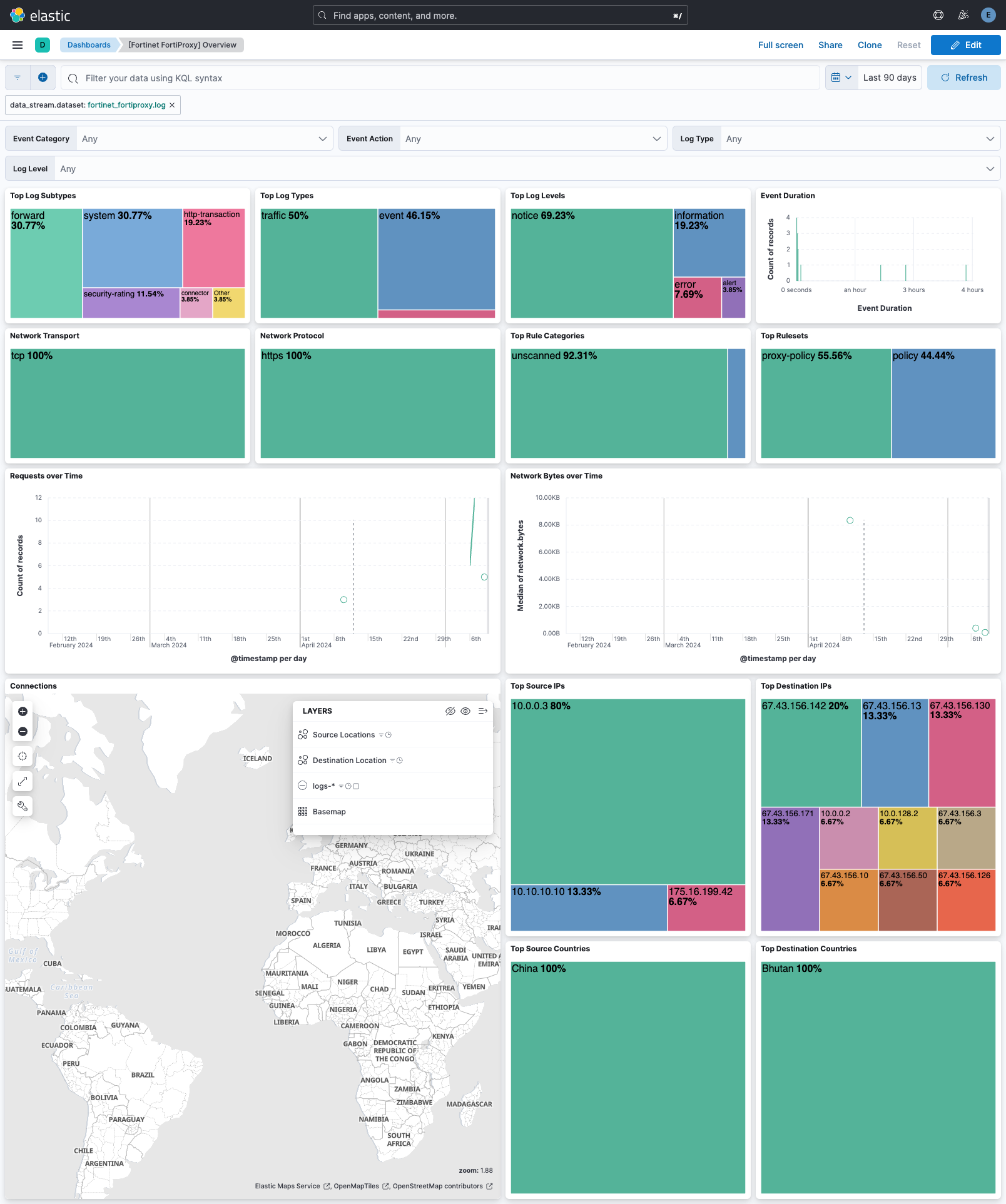
Changelog
| Version | Details | Minimum Kibana version |
|---|---|---|
| 1.4.2 | Bug fix (View pull request) Fix URI parsing failures when url field contains only a path or query string. |
9.0.0 8.12.2 |
| 1.4.1 | Bug fix (View pull request) Remove top level note from docs |
9.0.0 8.12.2 |
| 1.4.0 | Enhancement (View pull request) Update integration documentation |
9.0.0 8.12.2 |
| 1.3.0 | Enhancement (View pull request) Preserve event.original on pipeline error. |
9.0.0 8.12.2 |
| 1.2.3 | Bug fix (View pull request) add support for malformed quotes and log version field |
9.0.0 8.12.2 |
| 1.2.2 | Enhancement (View pull request) Generate processor tags and normalize error handler. |
9.0.0 8.12.2 |
| 1.2.1 | Enhancement (View pull request) Changed owners. |
9.0.0 8.12.2 |
| 1.2.0 | Enhancement (View pull request) Support stack version 9.0. |
9.0.0 8.12.2 |
| 1.1.1 | Bug fix (View pull request) Updated SSL description to be uniform and to include links to documentation. |
8.12.2 |
| 1.1.0 | Enhancement (View pull request) ECS version updated to 8.17.0. |
8.12.2 |
| 1.0.1 | Bug fix (View pull request) Tolerate existing event.timezone value. |
8.12.2 |
| 1.0.0 | Enhancement (View pull request) Release package as GA. |
8.12.2 |
| 0.3.1 | Bug fix (View pull request) Fix udp_options in UDP agent file. |
8.12.2 |
| 0.3.0 | Enhancement (View pull request) Remap devname to observer.name and process url field. |
8.12.2 |
| 0.2.0 | Enhancement (View pull request) Add tags.yml file so that integration's dashboards and saved searches are tagged with "Security Solution" and displayed in the Security Solution UI. Expanded categories. |
8.12.2 |
| 0.1.1 | Bug fix (View pull request) update documentation |
8.12.2 |
| 0.1.0 | Enhancement (View pull request) Initial draft of the package |
8.12.2 |