Get your Elasticsearch endpoint and API key
If you want to work with Elasticsearch programmatically, you need an endpoint URL and an API key. This page shows how to find the endpoint and create an API key for each deployment type.
- You need access to your deployment or project, such as an Elasticsearch Vector Database project, an Elasticsearch project, or an Elastic Cloud Hosted deployment. If you don't have one yet, refer to Get Elasticsearch running for search.
- To create an API key, you need the
manage_api_keyor themanage_own_api_keycluster privilege. If you created the deployment or project, you already have this privilege. If you sign in as a different user, an administrator needs to grant it. In this case, refer to Users and roles.
The Elasticsearch endpoint is the URL your client uses to send requests. Where you find it depends on your deployment type. The following steps show you where to copy it.
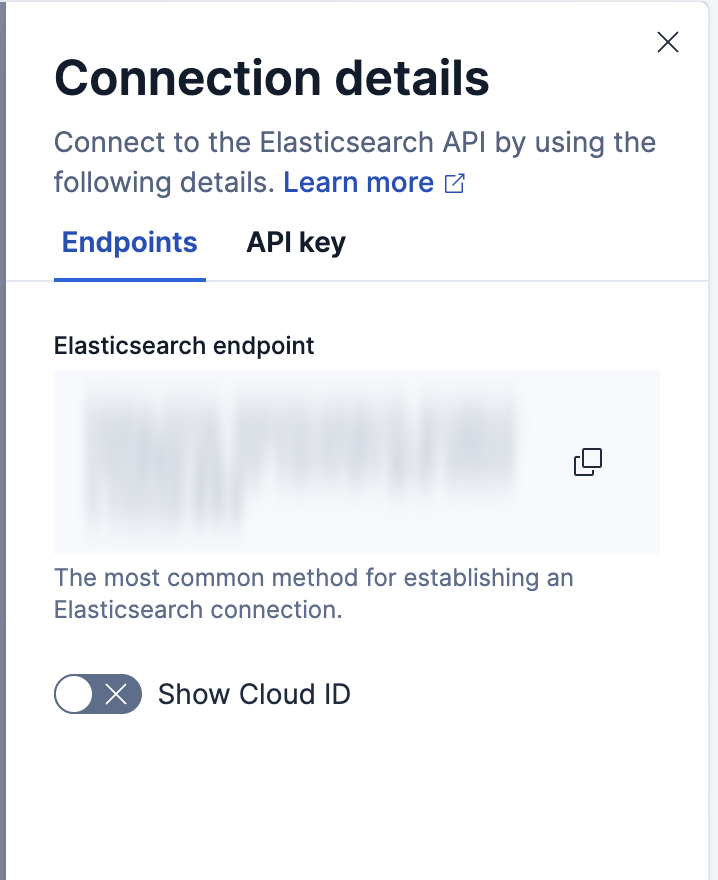
Copy the Elasticsearch endpoint for your project from the project UI or the Elastic Cloud Console.
- In the Elastic Cloud Console, find your project and select Open.
- From the Help menu or the project selector in the header, select Connection details.
- On the Endpoints tab, copy the Elasticsearch endpoint.
- In the Elastic Cloud Console, find your project and select Manage.
- Under Application endpoints, select Elasticsearch.
- Copy the Direct endpoint value.
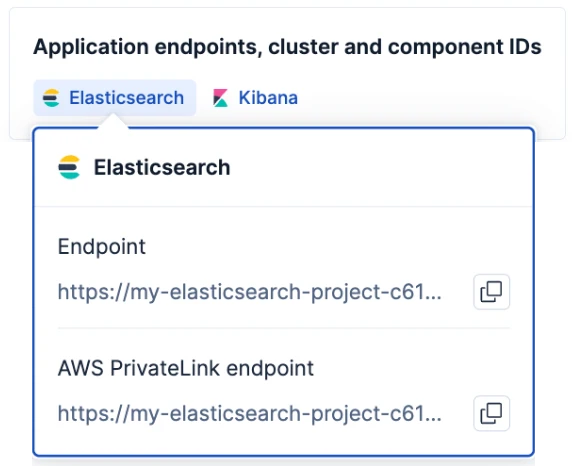
Azure and AWS also offer an endpoint you can use to connect to the deployment over a private connection. Learn more about private connectivity.
Copy the Elasticsearch endpoint for Elastic Cloud Hosted from the deployment UI or the Elastic Cloud Console.
- In the Elastic Cloud Console, find your deployment and select Open.
- From the Help menu , select Connection details.
- On the Endpoints tab, copy the Elasticsearch endpoint value.
When the space uses the Elasticsearch solution view, the Getting started page shows the endpoint directly.
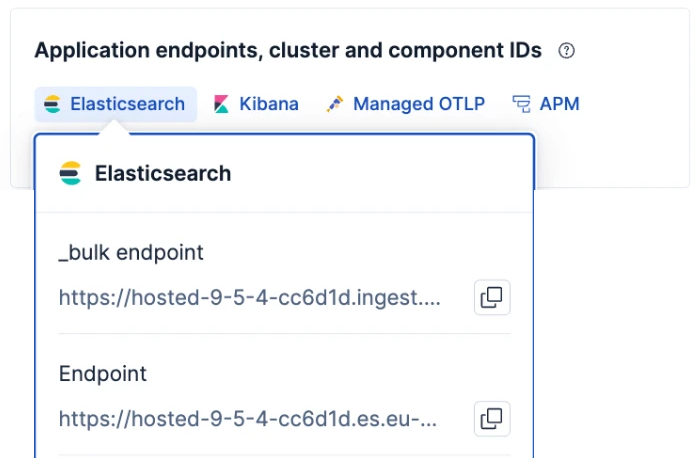
- In the Elastic Cloud Console, find your deployment and select Manage.
- Under Application endpoints, cluster and component IDs, select Elasticsearch.
- Copy the Direct endpoint value.
For Elastic Cloud Enterprise, your endpoint details are in the Connection details panel in Kibana.
- Open Kibana for your deployment.
- From the Help menu , select Connection details.
- Copy the Elasticsearch endpoint from the Endpoints tab.
When the space uses the Elasticsearch solution view, the Getting started page shows the endpoint directly.
To connect to your Elasticsearch cluster, copy the Elasticsearch endpoint from the deployment page in the Cloud UI.
For a self-managed cluster, one you install and manage, your endpoint takes the form <scheme>://<host>:<port>. Each part comes from your cluster's HTTP settings:
- Scheme:
httpswhen TLS is enabled on the HTTP layer, andhttpwhen it isn't. TLS is enabled by default on first startup through automatic security setup, unless the setup is explicitly skipped or disabled, as in the local development quickstart. - Host: The address clients use to reach the node, set by
http.hostornetwork.host. - Port: The HTTP port, set by
http.port. It defaults to the range9200-9300, and a node binds to the first free port in that range.
For example, a single-node cluster from the local development quickstart runs without TLS on the default port, so its endpoint is http://localhost:9200.
If clients reach your cluster through a load balancer, reverse proxy, or ingress, use that address rather than the node address.
The ECK operator automatically creates a service for your Elasticsearch cluster with TLS enabled. Your endpoint URL depends on where your application runs:
- Inside the same Kubernetes namespace:
https://<cluster-name>-es-http:9200 - In a different namespace:
https://<cluster-name>-es-http.<namespace>.svc:9200 - Outside the Kubernetes cluster: You need to expose the service first. Refer to Access the endpoint for setup steps.
To find your cluster name, run kubectl get svc and look for the service ending in -es-http.
A personal API key authenticates your client with your own privileges when it sends requests to Elasticsearch. The following steps show you where to create one for your deployment type.
Follow these steps to create an API key for your project.
- In the Elastic Cloud Console, find your project and select Open.
- From the Help menu , select Connection details.
- Select the API key tab.
- In the API key name field, enter a name, then select Create API key.
- Select an API key format: Encoded for Elasticsearch REST API requests, or Beats or Logstash to configure those products.
- Copy the key. It isn't available after you close the panel.
Keys created here expire in 90 days and carry your own privileges. To set an expiration or restrict privileges, select Manage API keys and create the key there instead.
You can also use an Elastic Cloud API key to access Elasticsearch. Use it when the same key needs to access more than one project, or when you use cross-project search.
Follow these steps to create an API key for Elastic Cloud Hosted.
- In the Elastic Cloud Console, find your deployment and select Open.
- From the Help menu , select Connection details.
- Select the API key tab.
- In the API key name field, enter a name, then select Create API key.
- Select an API key format: Encoded for Elasticsearch REST API requests, or Beats or Logstash to configure those products.
- Copy the key. It isn't available after you close the panel.
Keys created here expire in 90 days and carry your own privileges. To set an expiration or restrict privileges, select Manage API keys and create the key there instead.
Follow these steps to create an API key for Elastic Cloud Enterprise.
- Open Kibana for your deployment or project.
- From the Help menu , select Connection details.
- Select the API key tab.
- In the API key name field, enter a name, then select Create API key.
- Select an API key format: Encoded for Elasticsearch REST API requests, or Beats or Logstash to configure those products.
- Copy the key. It isn't available after you close the panel.
Keys created here expire in 90 days and carry your own privileges. To set an expiration or restrict privileges, select Manage API keys and create the key there instead.
Follow these steps to create an API key for a self-managed cluster, one you install and manage.
- Go to the API keys management page, using the global search field to find it.
- Select Create API key.
- Enter a name, then select Create API key.
- Copy the key. It isn't available after you leave the page.
Keys created here don't expire unless you add an expiration date.
Follow these steps to create an API key for Elastic Cloud on Kubernetes.
- Go to the API keys management page, using the global search field to find it.
- Select Create API key.
- Enter a name, then select Create API key.
- Copy the key. It isn't available after you leave the page.
Keys created here don't expire unless you add an expiration date.
For privileges and expiration options, refer to Elastic API keys.
If you just created a Serverless project, the Getting started page shows a generated API key that you can copy immediately. If you have navigated away from that page, create a new API key as described above.
After you have an endpoint and an API key, connect a language client in Connect to Elasticsearch with an SDK.