Script library
The script library provides a centralized location to upload, manage, and organize scripts for use with the runscript response action on endpoints protected by Elastic Defend. From the script library, you can upload new scripts, view script details and metadata, edit or delete existing scripts, and download scripts for offline review.
- The script library requires the appropriate subscription in Elastic Stack or the appropriate project feature tier in Serverless.
- You must have the Elastic Defend Scripts Management privilege to access this feature.
To access the script library, find Script library in the navigation menu or use the global search field.
From the Script Library page, click Upload script.
In the Upload script flyout, configure the following:
Required fields:
File: Select or drag and drop a script file. You can upload individual script files or ZIP archive files. Individual script files must use a natively supported format:
.sh,.ps1, or.bat. Scripts are run on Windows machines usingCMDand on Linux and MacOS machines usingBash.Other script formats, such as Python (
.py), are not natively supported. To run a script in an unsupported format, include it in a ZIP archive together with a supported launcher script (for example, a.ps1file that calls the Python script), then upload the archive and set the launcher as the Path to executable file.TipThe file size maximum is configurable in
kibana.ymlwith thexpack.securitySolution.maxEndpointScriptFileSizesetting. For the default value, refer to Security Solution settings in Kibana.NoteDuplicate files are not allowed. If you upload a file with the same SHA256 hash as an existing script, the upload is rejected and an error message identifies the existing script.
File type: Select the type of uploaded file — Script file or Archive. If you select Archive, you must also provide the Path to executable file, which is the relative path to the main script inside the archive (for example,
./scripts/cleanup_logs.sh).Name: Enter a display name for the script.
Operating systems: Select all the platforms that the script is compatible with (Linux, macOS, Windows).
Optional fields:
- This script requires user input: Select this option if the script prompts for or requires additional input parameters when executed.
- Categories: Classify the script using one or more predefined categories, such as Data Collection, Remediation Action, or System Inventory.
- Description: Enter a brief summary of what the script does.
- Instructions: Provide step-by-step guidance on how to run or configure the script.
- Examples: Provide one or more examples of how to use the script.
Click Upload.
The Script Library page displays all uploaded scripts. You can search by script name, description, created by, updated by, file name or file SHA256 hash, and filter by File type, Operating systems, or Categories.
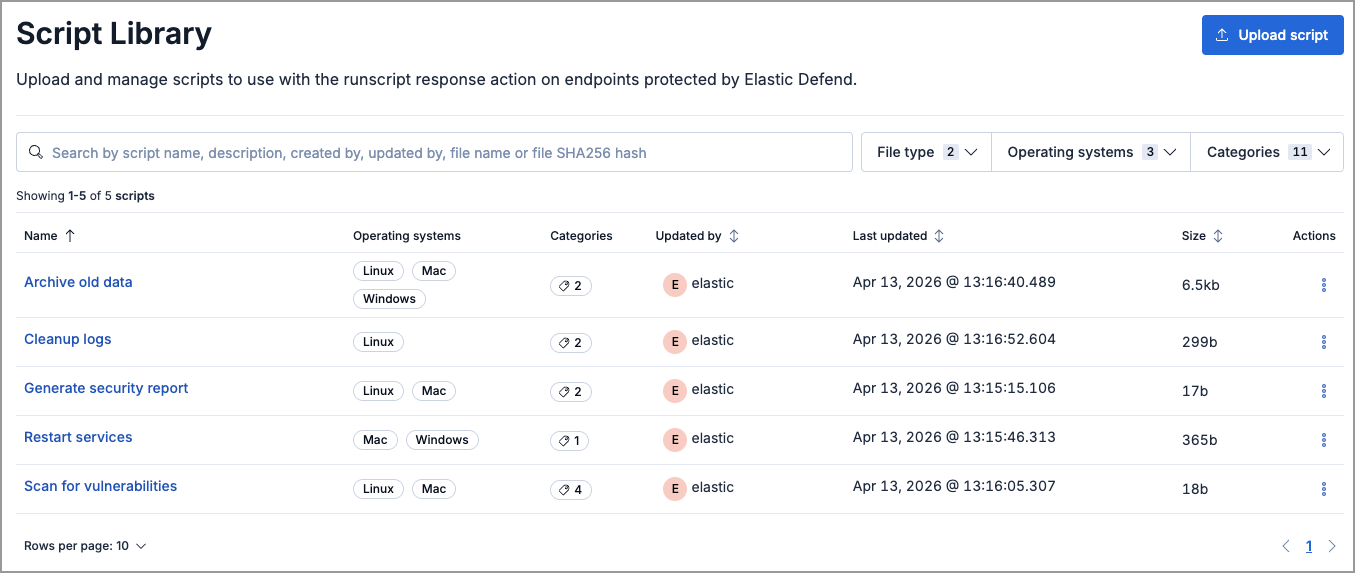
Click a script's name or select View details from the row's actions menu ( ) to open a flyout with the script's full metadata, including its description, instructions, examples, file name, path to executable file (for archives), file size, and SHA256 hash.
- Click the actions menu ( ) on the script you want to edit, then select Edit script.
- Modify the metadata or replace the script file as needed.
- Click Save.
You cannot remove an operating system from a script if a detection rule's runscript response action currently references the script for that operating system.
Click the actions menu ( ) on the script you want to download, then select Download script.
- Click the actions menu ( ) on the script you want to delete, then select Delete script.
- On the confirmation dialog, click Delete.
If you delete a script that is currently referenced by a detection rule's runscript response action, the runscript action will fail when the rule runs.