Elastic Endpoint exceptions
In Elastic Stack 9.0–9.3, Elastic Endpoint exceptions are managed through detection rules. For more information, refer to Add Elastic Endpoint exceptions.
Elastic Endpoint exceptions prevent Elastic Endpoint from generating alerts for specific conditions on your hosts. Unlike detection rule exceptions, Elastic Endpoint exceptions are enforced directly on the endpoint — Elastic Endpoint checks for exceptions before most other processing, which means matching processes are not monitored further. This can also improve performance.
To ensure you're using the right feature for your use case, review Optimize Elastic Defend to understand the differences between Elastic Endpoint exceptions and other endpoint artifacts.
You must have the Endpoint Exceptions privilege or the appropriate user role to access this feature.
By default, Elastic Endpoint exceptions apply globally across all hosts running Elastic Defend. If you opt in to per-policy behavior, you can also assign exceptions to specific Elastic Defend integration policies, so the exception applies only to hosts assigned to that policy.
Elastic Endpoint exceptions are space-aware: when you create a per-policy exception, it is associated with the space you're working in. For more information on how spaces interact with endpoint artifacts, refer to Spaces and Elastic Defend FAQ.
If you're upgrading from an earlier version, your existing Elastic Endpoint exceptions are preserved and are managed from the Artifacts page.
For deployments upgraded from an earlier version, per-policy assignment for Elastic Endpoint exceptions requires opting in. New deployments are automatically opted in to per-policy Elastic Endpoint exceptions with no action required.
If you're upgrading from an earlier version, a callout appears on the Artifacts page prompting you to opt in. You must have the superuser role in Elastic Stack, or the admin role in Serverless, to perform the opt-in.
Opting in is permanent and cannot be reversed. After opting in:
- Elastic Endpoint exceptions support per-policy assignment and are no longer evaluated by detection rules during rule execution.
- Elastic Endpoint exceptions can no longer be added to detection rules.
To opt in to per-policy Elastic Endpoint exceptions on an upgraded deployment:
- Find Artifacts in the navigation menu, then select the Endpoint exceptions tab.
- In the callout that appears, click Update details.
- Review the information in the confirmation dialog, then confirm.
You can add Elastic Endpoint exceptions from the following places:
- Artifacts page: Find Artifacts in the navigation menu, select the Endpoint exceptions tab, then click Add endpoint exception.
- Alerts table: Find Alerts in the navigation menu, go to an Elastic Endpoint alert, click the More actions menu ( ), and select Add Endpoint exception.
- Policy details page: Find Policies in the navigation menu, select an integration policy, then go to the Endpoint exceptions tab. If no exceptions are assigned yet, click Add endpoint exception to create a new one.
Elastic Endpoint exceptions affect all Elastic Endpoint alerts on matching hosts. Be careful not to unintentionally suppress useful alerts.
The Add Endpoint Exception flyout opens.
Fill in the Details section:
Name: Enter a name for the Elastic Endpoint exception.- (Optional)
Description: Enter a description.
In the Conditions section, add conditions that define when the exception applies. When the exception's conditions match, Elastic Endpoint does not generate an alert for that event.
Select operating system: Select the appropriate operating system.Field: Select a field to identify the event being filtered.Operator: Select an operator to define the condition:isis one ofmatches|does not match: Allows you to use wildcards inValue, such asC:\path\*\app.exe. Available wildcards are?(match one character) and*(match zero or more characters).
Value: Enter the value associated with theField. To enter multiple values (when usingis one oforis not one of), enter each value, then press Return.
NoteUnlike detection rule exceptions, Elastic Endpoint exceptions do not require escaping special characters. Enter file paths and values exactly as they appear on the host (for example,
C:\Windows\explorer.exe, notC:\\Windows\\explorer.exe). Refer to Exception types and value syntax for syntax details and examples.To define multiple conditions, click AND or OR and configure a new condition. You can also add nested conditions.
Select an option in the Assignment section to assign the exception to a specific integration policy:
Global: Apply the exception to all Elastic Defend integration policies.Per Policy: Apply the exception to one or more specific Elastic Defend integration policies. Select each policy where you want the exception to apply.NoteYou can also select
Per Policywithout immediately assigning a policy. This lets you create and review exception configurations before putting them into action with a policy.
(Optional) Add a comment to provide more context about the exception.
Click Add endpoint exception.
It might take longer for exceptions to be applied to hosts within larger deployments.
To add multiple exceptions at once, you can import an NDJSON file instead. Refer to Import and export Elastic Endpoint exceptions.
Some Elastic Endpoint fields require nested conditions to ensure the exception functions correctly. For details on which fields require nested conditions and an example, refer to Nested conditions.
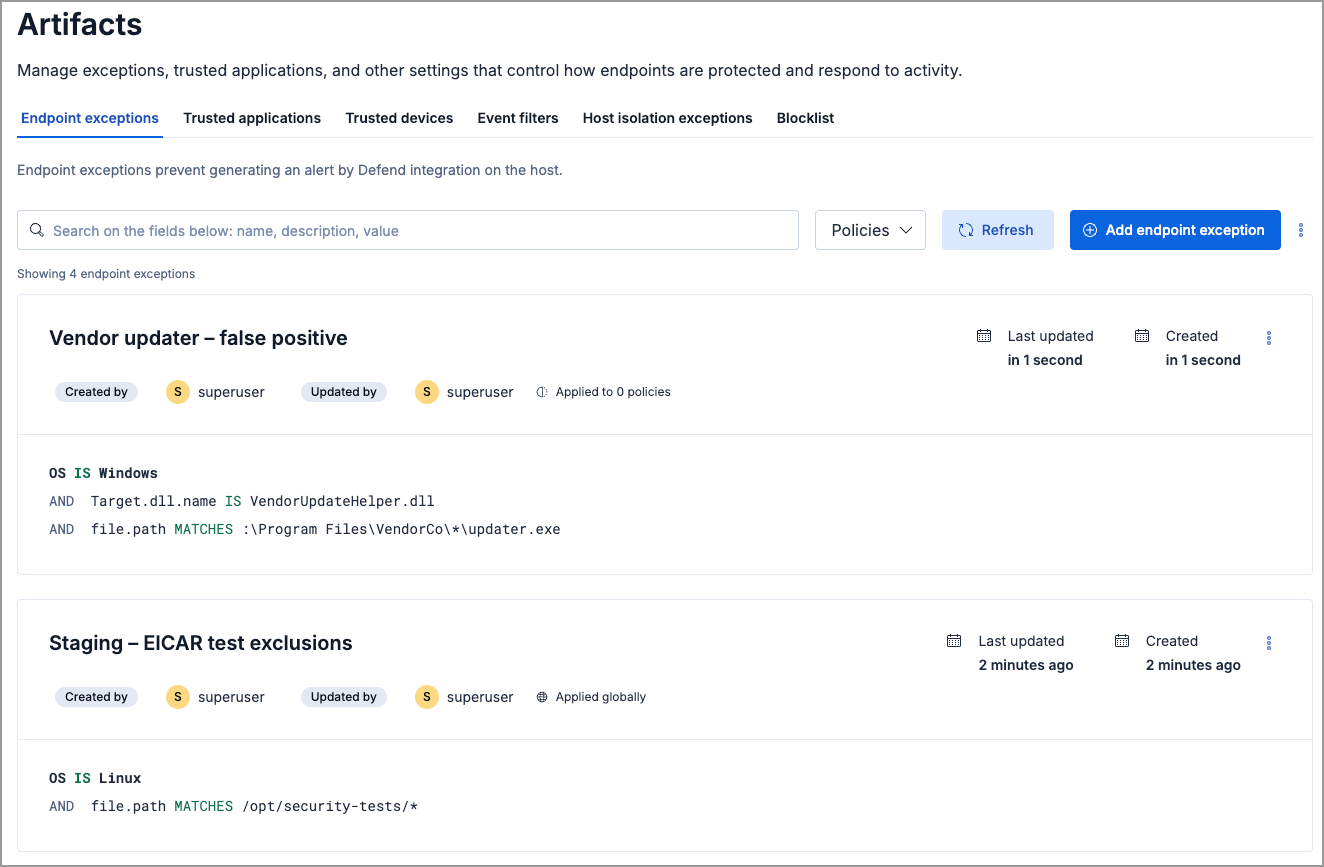
The Endpoint exceptions tab on the Artifacts page displays all Elastic Endpoint exceptions added to the Elastic Security app. To refine the list, use the search bar to search by name, description, or field value. You can also use the Policies filter to narrow the list by policy assignment:
- Select one or more policies to show only exceptions assigned to those policies.
- Under Additional filters, select Global entries to show exceptions assigned globally, or Unassigned entries to show exceptions not assigned to any policy.
- To export Elastic Endpoint exceptions, you need the Endpoint Exceptions: Read privilege.
- To import per-policy items, you need the Endpoint Exceptions: All privilege.
- To import global items, you need the Endpoint Exceptions: All and the Global artifact management: All privilege.
- To import items to a different space, you need the Global artifact management: All privilege.
You can import and export Elastic Endpoint exceptions as NDJSON files:
- When the list is empty: Click Import Endpoint exceptions.
- When the list has entries: Click the actions menu , then select Import Endpoint exceptions or Export Endpoint exceptions.
The imported file must be an NDJSON file exported from Kibana. Files exported from third-party software are not supported.
When you import an NDJSON file, the imported exceptions are appended to your existing exceptions — existing entries are not removed or overwritten.
In versions prior to 9.4, importing offered the option to remove all existing exceptions and replace them with the imported ones. Starting in 9.4, import always appends — existing exceptions are never removed. If you're upgrading from an earlier version, this applies whether or not you have opted in to per-policy exceptions.
Items are processed individually on import — per-policy items that are not visible in the current space are skipped, while the remaining items are imported.
If an imported per-policy item is assigned to a policy that doesn't exist in the current environment, the item is imported with the policy assignment removed.
To edit an Elastic Endpoint exception:
- Click the actions menu ( ) on the exception you want to edit, then select Edit endpoint exception.
- Modify details as needed.
- Click Save.
To delete an Elastic Endpoint exception:
- Click the actions menu ( ) on the exception you want to delete, then select Delete endpoint exception.
- On the confirmation dialog, click Delete. This removes the exception from all Elastic Defend integration policies.