Process your documents with Streams
Most log data arrives as unstructured text. To filter, search, and analyze it effectively, you need to extract fields from that raw content. For example, extracted fields let you filter for log messages with an ERROR log level that occurred during a specific time period to help diagnose an issue.
The Streams Processing tab provides a single place to build and manage your document processing pipeline:
-
Add processors and conditions with pipeline suggestions: Add processors and conditions in Streams without configuring pipeline JSON or Grok syntax, or let Streams analyze sample documents and suggest a pipeline for you to refine. - Generate pipeline suggestions using AI:
- Preview changes: Use the data preview to view which fields your pattern extracts per document, so you can verify field extraction before saving.
- Detect and resolve processing issues: Identify which processor or condition is causing documents to fail during processing.
- Catch mapping conflicts: Identify potential mapping conflicts before they cause cluster-wide failures. Streams simulates the indexing process end-to-end before deploying.
Streams uses Elasticsearch ingest pipelines underneath made up of processors and conditions to transform your data, without requiring you to switch interfaces and manually update pipelines.
-
Open the Processing tab
- Open Streams from the navigation menu or use the global search field.
- Select your stream from the list.
- Go to the Processing tab.
-
Add processors and conditions
Use any combination of the following options to build your processing pipeline:
- Suggest a pipeline: Let Streams analyze your sample data and generate a complete processor pipeline using AI.
- Manually add processors: Select and configure individual processors yourself when you know which transformations you need.
- Add conditions: Attach Boolean expressions to define when to run processors.
Suggest a pipelineNoteThis feature requires a Generative AI connector.
Setting up processors is generally a multi-step process. For example, you might need a Grok processor to extract fields, a date processor to convert timestamps, and a remove processor to remove temporary fields. Instead of creating individual processors manually, you can have AI suggest an entire pipeline for you:
- From the Processing tab, select Suggest a pipeline.
- Review the suggested processors, and either Accept or Reject the suggestions.
- Select Regenerate to have Streams regenerate the suggested pipeline. Change the large language model (LLM) that Streams uses to generate suggestions from the menu.
How does Suggest a pipeline work?Streams groups the samples from the Data preview table into categories of similar messages. For each category, Streams generates suggestions by sending samples to the LLM. Suggestions are then shown in the UI.
WarningThis can incur additional costs, depending on the LLM connector you are using. Typically a single iteration uses between 1000 and 5000 tokens depending on the number of identified categories and the length of the messages.
Manually add processorsIf you know which processors you want to use, you can add them manually from the Streams UI. Refer to the Streamlang reference for supported processors and configuration details.
Select Create processor. To have Streams suggest processors instead, select Suggest a pipeline.
Select a processor from the Processor menu.
NoteLet Streams suggest patterns for Grok and dissect processors by selecting Generate pattern. This feature requires a Generative AI connector.
Configure the processor, then select Create to save it.
Optional: Turn on Ignore failures if you want document processing to continue even when this processor fails.
Optional: For dissect, Grok, and rename processors, turn on Ignore missing fields if you want processing to continue when a source field is missing.
Add conditionsYou can add Boolean expressions evaluated for each document and attach processors that run only when those conditions are met.
To add a condition:
- Select Create → Create condition.
- Provide a Field, a Value, and a comparator.
- Select Create condition.
- After creating a condition, add a processor or another condition to it by selecting the icon.
Refer to Conditions in the Streamlang reference for supported operators and examples.
-
Preview changes
The Data preview table loads 100 documents from your existing data and updates automatically when you add or edit processors or conditions. To fetch new samples and rerun the simulation, select the refresh icon .
For any newly created processors and conditions, the preview results are reliable, and you can freely create and reorder processors and conditions during the preview.
If you edit the stream after saving your changes, keep the following in mind:
- Adding processors to the end of the list works as expected.
- Editing or reordering existing processors can cause inaccurate results. Because the pipeline might have already processed the documents used for sampling, Data preview cannot accurately simulate changes to existing data.
You can also adjust the which documents the preview uses:
- From the Processing tab, select the Manage data sources icon.
- Select Add data source, then Add KQL search samples.
- Add a filter using KQL syntax and adjust the time window to include the data you want to use as a sample.
The preview automatically uses your new data source.
-
Detect and resolve failures and mapping conflicts
Streams helps you catch issues before you apply your processors:
- Failures: A processor couldn't parse or transform a document, usually due to a mismatched pattern or missing field.
- Mapping conflicts: A processor produced a field type that conflicts with the existing index mapping.
Detect and resolve failuresDocuments can fail processing for various reasons. Streams helps you identify and resolve these issues before deploying changes.
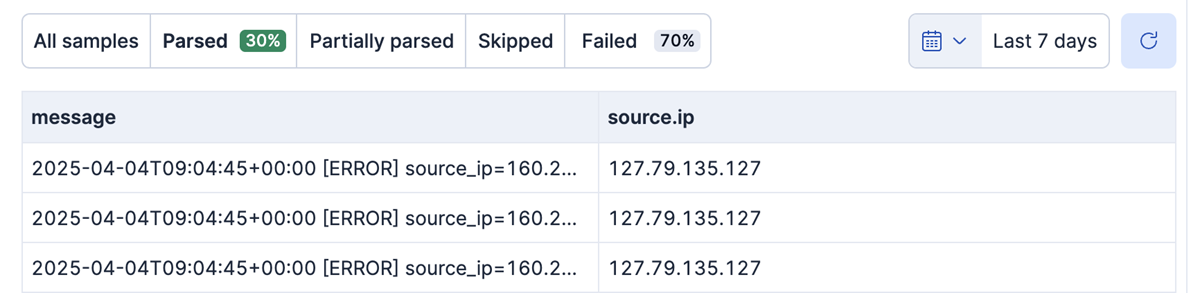
In the following screenshot, the Failed percentage indicates that some messages didn't match the provided Grok pattern:
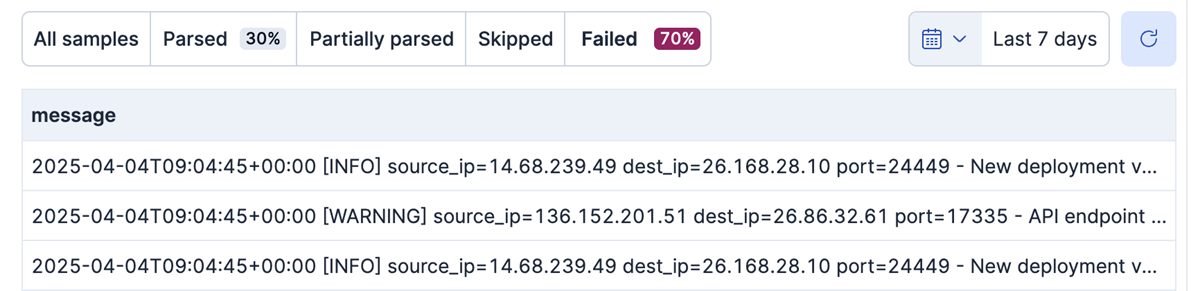
You can filter your documents by selecting Parsed or Failed on the Data preview tab. Selecting Failed shows the documents that weren't parsed correctly:
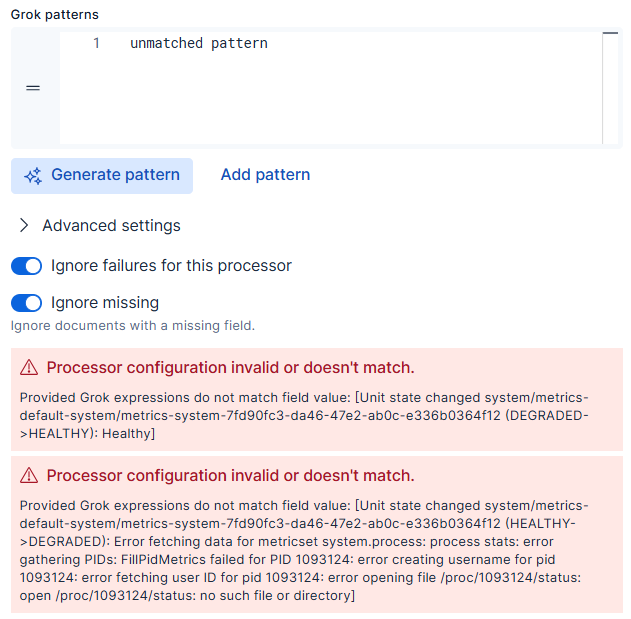
Streams displays failures at the bottom of the process editor. Some failures might require fixes, while others serve as a warning:
 Detect mapping conflicts
As part of processing, Streams also simulates your changes end-to-end to check for mapping conflicts. If it detects a conflict, Streams marks the processor as failed and displays a message like the following:
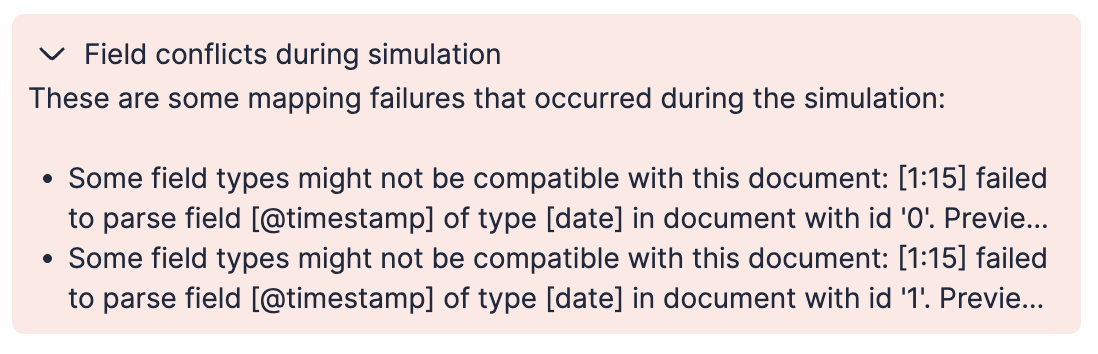
Use the information in the failure message to find and troubleshoot the mapping issues.
-
Save changes
After adding all of your processors and conditions and addressing any issues, select Save changes. Streams parses all future data ingested into the stream according to your pipeline.
NoteApplied changes aren't retroactive and only affect future ingested data.
The Streams processing UI provides an interactive mode and a YAML mode for editing processors and conditions.
To switch modes, select the appropriate tab from the top of the processing page.
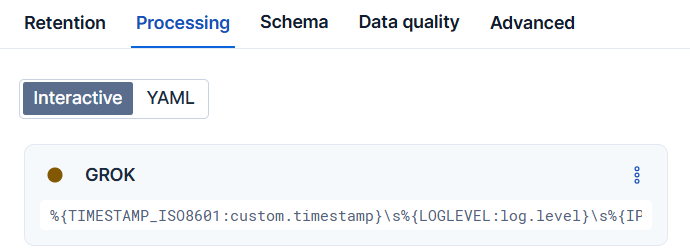
Streams defaults to interactive mode unless the configuration can't be represented in interactive mode (for example, when nesting levels are too deep).
Interactive mode provides a form-based interface for creating and editing processors. This mode works best for:
- Users who prefer a guided, visual approach
- Configurations that don't require deeply nested conditions
YAML mode provides a code editor for writing Streamlang directly. This mode works best for:
- Users who prefer working with code
- Advanced configurations with complex or deeply nested conditions
Refer to the Streamlang reference for the complete syntax, condition operators, and examples.
- Streams does not support all ingest processors. Refer to the Streamlang reference for supported processors.
- The data preview simulation might not accurately reflect the changes to the existing data when editing existing processors or re-ordering them.
- Streams can't properly handle arrays. Although it supports basic actions like appending or renaming, it can't access individual array elements. For classic streams, the workaround is to use the manual pipeline configuration that supports Painless scripting and all ingest processors.
When you save processors in the Streams UI, Streams automatically manages the underlying ingest pipeline configuration. You don't need to edit pipeline JSON directly. Streams identifies the best-matching pipeline for your data stream, appends your processing logic to it, and maintains a dedicated managed pipeline to keep your changes isolated and reproducible. Expand the following section for more detail on how Streams applies processing changes.
Implementation details: automatic pipeline management
When you save processors, Streams appends processing to the best-matching ingest pipeline for the data stream. It either chooses the best-matching pipeline ending in @custom in your data stream, or it adds one for you.
Streams identifies the appropriate @custom pipeline (for example, logs-myintegration@custom or logs@custom) by checking the default_pipeline that is set on the data stream. You can view the default pipeline on the Advanced tab under Ingest pipeline.
In this default pipeline, Streams locates the last processor that calls a pipeline ending in @custom.
- For integrations, this would result in a pipeline name like
logs-myintegration@custom. - Without an integration, the only
@custompipeline available might belogs@custom.
If no default pipeline is detected, Streams adds a default pipeline to the data stream by updating the index templates.
If a default pipeline is detected, but it does not contain a custom pipeline, Streams adds the pipeline processor directly to the pipeline.
Streams then adds a pipeline processor to the end of that @custom pipeline. This processor definition directs matching documents to a dedicated pipeline managed by Streams called <data_stream_name>@stream.processing:
// Example processor added to the relevant @custom pipeline
{
  "pipeline": {
    "name": "<data_stream_name>@stream.processing",
    "if": "ctx._index == '<data_stream_name>'",
    "ignore_missing_pipeline": true,
    "description": "Call the stream's managed pipeline - do not change this manually but instead use the Streams UI or API"
  }
}
- For example,
logs-my-app-default@stream.processing
Streams then creates and manages the <data_stream_name>@stream.processing pipeline, adding the processors you configured in the UI.
Do not manually modify the <data_stream_name>@stream.processing pipeline created by Streams.
You can still add your own processors manually to the @custom pipeline if needed. Adding processors before the pipeline processor created by Streams might cause unexpected behavior.