Get started with metrics
This page walks you through the fastest way to try metrics in Elastic. Start here to ingest metrics from a single source and use Kibana to explore and query your data. You'll use a quickstart to install Elastic Agent configured as an OTel Collector and confirm that collection, authentication, and storage work end to end before you design a larger setup.
When you're ready to add more sources and plan a production rollout, continue with Next steps.
You need:
- An Elastic deployment or project: Elastic Cloud Serverless, Elastic Cloud Hosted, or a self-managed Elastic Stack deployment.
- Access to install and run Elastic Agent where your workloads run, or an application that can export OpenTelemetry metrics.
-
Get data flowing
Follow an Elastic OpenTelemetry quickstart for your deployment type and environment. Each quickstart deploys Elastic Agent configured as an OTel Collector to collect logs, metrics, and traces. Use the row that matches your deployment and the column that matches where you run your workloads:
Deployment Kubernetes Docker Hosts or VMs Elastic Cloud Hosted Kubernetes on Elastic Cloud Hosted Docker on Elastic Cloud Hosted Hosts on Elastic Cloud Hosted Elastic Cloud Serverless Kubernetes on Serverless Docker on Serverless Hosts on Serverless Self-managed Elastic Stack Kubernetes on self-managed Docker on self-managed Hosts on self-managed To send custom application metrics instead of infrastructure metrics, follow Ingest custom metrics with Elastic OpenTelemetry.
-
Confirm your metrics are flowing
After the quickstart finishes, check that its metrics arrived in Kibana.
Find Discover in the navigation menu or use the global search field.
Select ES|QL to switch to ES|QL mode, then run:
TS metrics-*TSqueries time-series metrics.metrics-*matches your metrics data streams, including the streams from the quickstart.
Discover shows the result as a grid of charts, one for each metric in your data. If the grid includes metrics your quickstart collects, such as
system.cpu.utilization, your data is flowing.- Find Infrastructure in the navigation menu or use the global search field, then open Metrics Explorer.
- Search for a metric your quickstart collects, for example
system.cpu.utilization.
If Metrics Explorer charts values for the metric, your data is flowing.
-
Explore your metrics
With data flowing, try a few common tasks to find the metrics that matter to you and keep them at hand.
From the chart grid in Discover:
Search for a metric. Select Search metrics ( ) at the top right of the chart grid and enter part of a metric name, for example
cpu. The grid shows only the metrics whose names match, which is faster than scrolling when your sources send hundreds of them.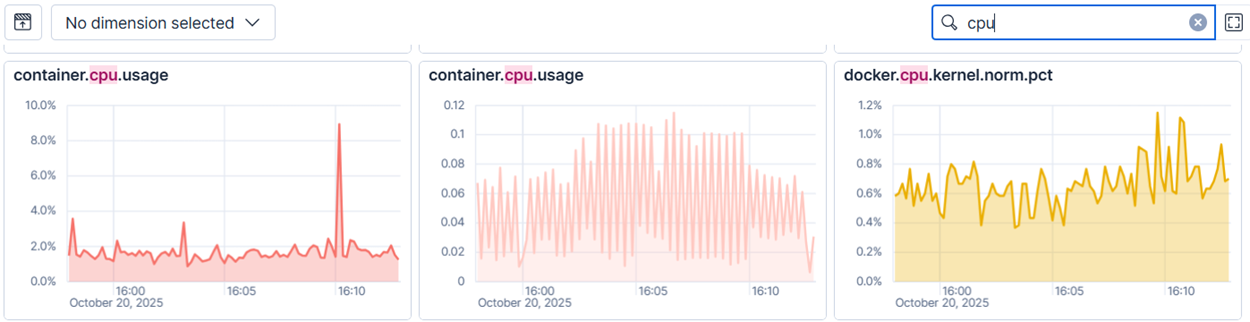
Break a metric down by a dimension. Select Dimensions and choose a dimension such as the host name. Each chart then shows a separate line for each host, so you can find the host that causes a CPU spike or uses the most memory.
View the details of a metric. On a chart, select View details ( ) to find the metric type, its dimensions, and the ES|QL query behind the chart. Use the query as a starting point for your own queries and alerts.
Add a chart to a dashboard. On a chart, select Copy to dashboard ( ) to save it to a new or existing dashboard. A dashboard keeps the chart next to related charts, so you can return to it, follow the metric over time, and share it with your team.
For more ways to explore your metrics in Discover, refer to Explore metrics data with Discover in Kibana.
In Metrics Explorer:
- Aggregate the metric. Choose an aggregation, such as Average or Max, to control how values are combined in each time bucket.
- Break the metric down by a field. From the graph per dropdown, add a field such as
host.nameto get one chart for each host, so you can compare hosts and find the one that causes a spike. - Add the chart to a dashboard. On a chart, select Actions → Open in Visualize, then save the visualization to a dashboard. A dashboard keeps the chart next to related charts, so you can return to it and share it with your team.
For the Metrics Explorer workflow, refer to Explore infrastructure metrics over time (deprecated).
To check the health of the resources you monitor instead of individual metrics, open Infrastructure inventory. It groups the resources you monitor, such as hosts, pods, and containers, and shows a metric for each one, so you can find a resource under pressure at a glance. Open Hosts to compare host metrics side by side.
For other ways to query, visualize, and alert on metrics, refer to Explore metrics.
A quickstart gets one source flowing. Before you roll metrics out across your infrastructure:
- Choose a data model. Decide whether to standardize on the OpenTelemetry schema (recommended) or Elastic Common Schema (ECS). The ingest path you use determines the schema, the schema determines your metric field names, and the field names determine which prebuilt dashboards work and how your queries and alerts are written. Changing it later means rewriting those assets, so settle it early, while you only have one source to migrate. Refer to Plan your metrics setup for more information.
- Add more sources. Send metrics using any OTLP-compatible client, Prometheus remote write, or Elastic Agent integrations for specific services such as Nginx, PostgreSQL, or Redis. For path-by-path configuration, refer to Ingest metrics.
- Migrate an existing stack. If you're moving from Prometheus or Datadog, you can run both systems side by side and switch over gradually. Refer to Migrate metrics to Elastic for more information.
- Manage storage and retention. Metrics volume grows faster than most teams expect, and cardinality is the usual cause. Before your setup becomes production-critical, set up downsampling and retention so storage costs stay predictable. Refer to Manage metrics storage for more information.