View and manage SLOs in Elastic Observability
Manage your service level objectives (SLOs) from the SLO Management page. View SLO definitions, monitor the health of your SLOs, and perform actions such as purging data, checking SLO health, and deleting SLOs.
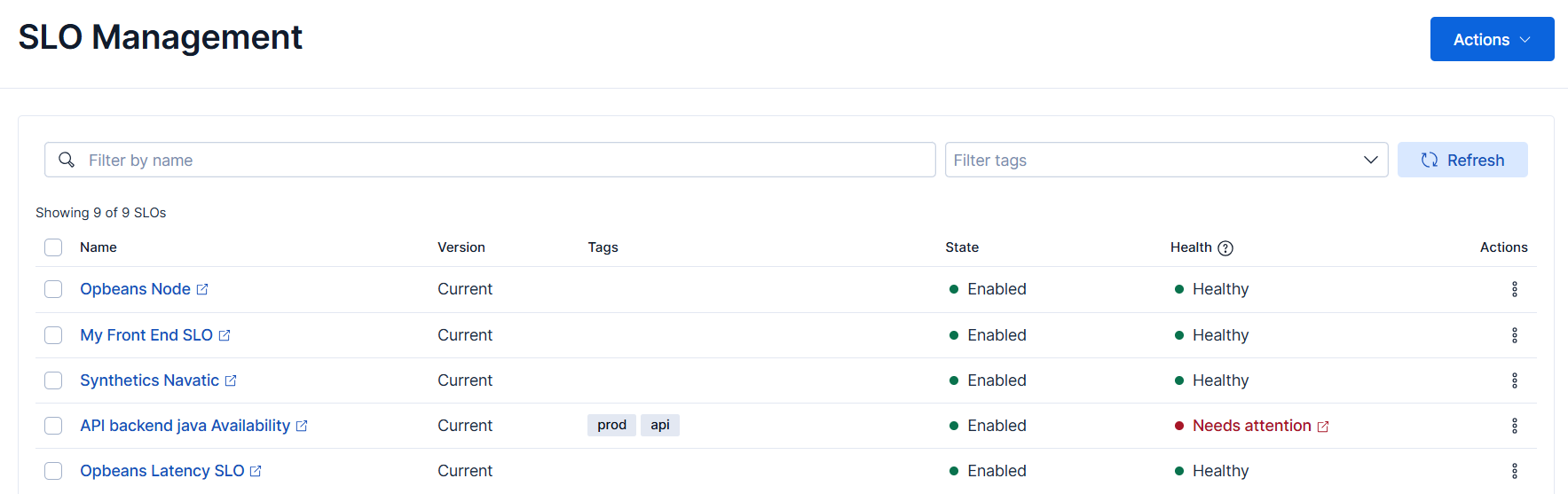
To open the SLO Management page:
- Navigate to the SLOs page in the main menu, or use the global search field.
- Select Manage SLOs.
Actions like deleting SLOs and purging SLO data require a role with edit privileges for SLOs. Users with read-only privileges can use the SLO Management page to find unhealthy SLOs that need attention.
From the SLO Management page, use the search bar to find SLOs by name. Use the Filter tags menu to include or exclude SLOs from the view based on the defined tags.
The Health column of the SLO management table shows the following:
- Healthy: the SLO transforms are operating as expected.
- Needs attention: the SLO transforms are not operating as expected and need attention.
Select Needs attention to inspect the transforms with issues.
For more on SLO transforms and troubleshooting SLO health, refer to Understanding SLO internals.
Use the SLO Management page to delete multiple SLOs at once. To bulk delete SLOs:
- From the SLO Management page, select the checkbox next to the SLOs you want to delete.
- From the Selected [number] SLO menu, select Delete.
- Select Delete.
A stale SLO instance hasn't received new data within the Stale SLOs threshold period, which you can set in the SLOs Settings page.
From the Overview on the SLOs page, you can see the number of Stale SLOs. Select the number to show your stale SLOs.
Occasionally, you might want to delete these stale instances. You can either purge all stale SLO instances at once or select SLOs from which to purge stale instances.
To purge all stale SLO instances:
- From the SLO Management page, select Actions → Purge stale instances.
- If you don't want to delete stale instances according to the predefined Stale SLOs threshold setting, you can update the Stale threshold.
- Select Purge.
To purge stale instances from individual or multiple SLOs:
- From the SLO Management page, select the checkbox next to the SLOs from which you want to purge stale instances.
- From the Selected [number] SLOs menu, select Purge stale instances.
- If you don't want to delete stale instances according to the predefined Stale SLOs threshold setting, you can update the Stale threshold.
- Select Purge.
Rollup functionality summarizes old, high-granularity data into a reduced granularity format for long-term storage. Occasionally, you might want to delete this rollup data.
To bulk purge SLO rollup data:
- From the SLO Management page, select the checkbox next to the SLOs from which you want to purge rollup data.
- From the Selected [number] SLOs menu, select Purge rollup data.
- Define which data to purge.
- Select Purge.
To purge rollup data from a specific SLO:
- Open the Actions menu ( ) for the SLO from which you want to purge rollup data.
- Select Purge rollup data.
- Define which data to purge.
- Select Purge.