Identify, investigate, and document threats
Together, Attack Discovery and Elastic Agent Builder can help you identify and mitigate threats, investigate incidents, and generate incident reports in various languages so you can monitor and protect your environment.
In this guide, you'll learn how to:
- Use Attack Discovery to identify threats
- Use Elastic Agent Builder to analyze a threat
- Document the incident in a case
- Translate incident information to a different language
If you use AI Assistant, refer to Use AI Assistant (deprecated).
Attack Discovery can detect a wide range of threats by finding relationships among alerts that may indicate a coordinated attack. This enables you to comprehend how threats move through and affect your systems. Attack Discovery generates a detailed summary of each potential threat and can highlight avenues for further investigation. Learn how to get started with Attack Discovery.
To ensure that Attack Discovery analyzes related alerts together (and can therefore identify their connections), pay attention to the alert filtering settings. This allows you to target Attack Discovery at specific groups of alerts, such as those related to a particular host, user, date and time, incident, or customer.
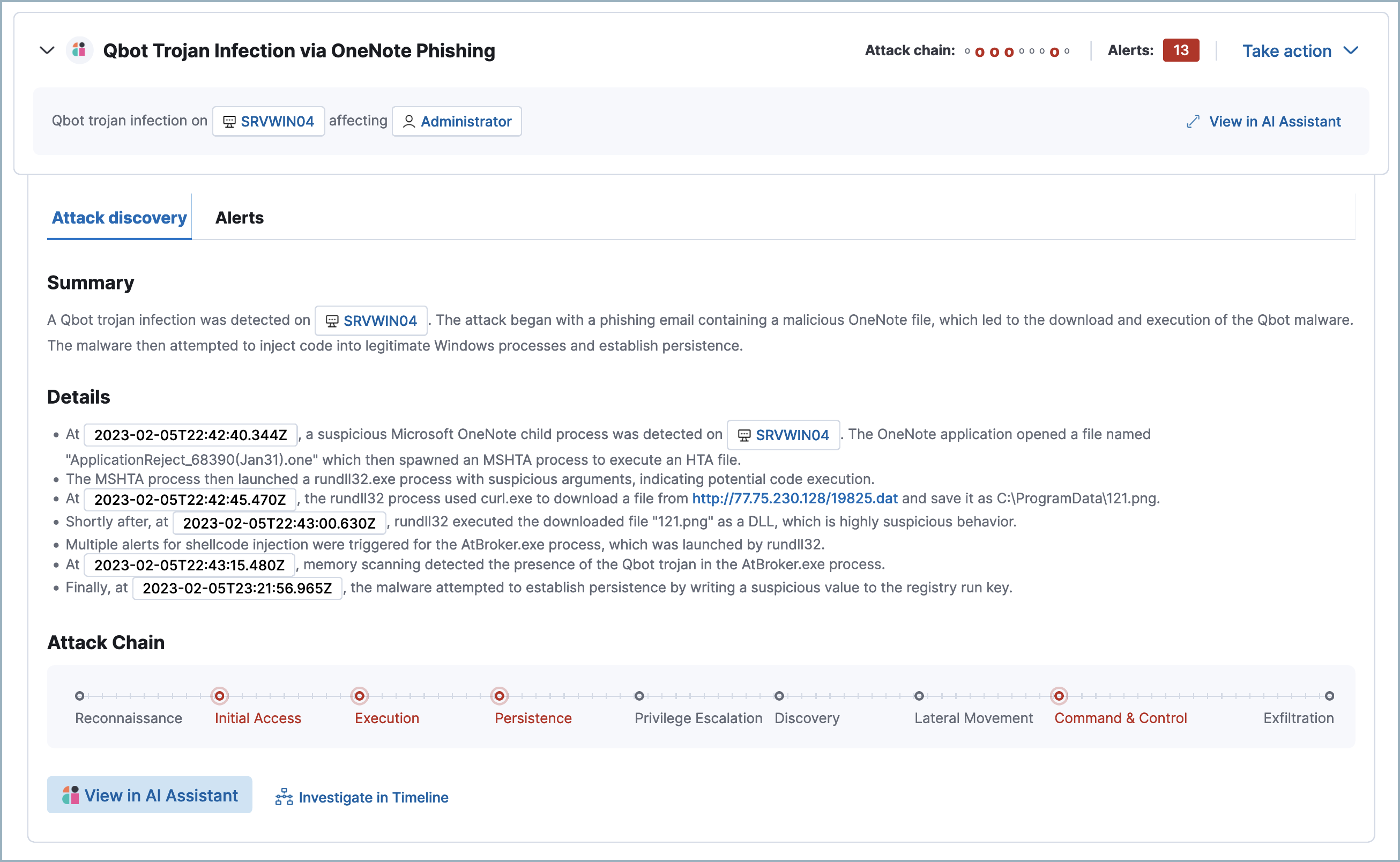
In this example, Attack Discovery found connections between thirteen alerts, and used them to identify and describe an attack chain.
After Attack Discovery outlines your threat landscape, use AI chat to analyze a threat in detail.
To start a conversation with a discovery as context, click Add to chat on a discovery on the Attack Discovery page.
The Elastic AI Agent can compile essential data and suggest next steps to help you plan an effective response. Ask it questions such as:
- "How can I remediate this threat?"
- "What ES|QL query would isolate actions taken by this user?"
- "What are the risk scores for the hosts and users involved?" (requires entity risk scoring)
The agent uses Security skills such as alert-analysis, entity-analytics, and threat-hunting to answer. To learn more about using Elastic Agent Builder for ES|QL, refer to Generate, customize, and learn about ES|QL queries.
Cases centralize relevant details in one place for easy sharing with stakeholders. To add a discovery and its alerts to a case, select Take action → Add to new case or Add to existing case on the discovery.
Ask the agent for an incident report, remediation steps, or a summary, then add them to the case.
cases-management skill.
The agent can translate its findings into other human languages, helping to enable collaboration among global security teams, and making it easier to operate within multilingual organizations.
After the agent provides information in one language, ask it to translate its response. For example, if it provides remediation steps for an incident, ask it to "Translate these remediation steps into Japanese." You can then add the translated output to a case.
All LLMs can make mistakes, so review translations before you share them.
From a discovery on the Attack Discovery page, click View in AI Assistant or Add to chat to start a chat that includes the discovery as context.
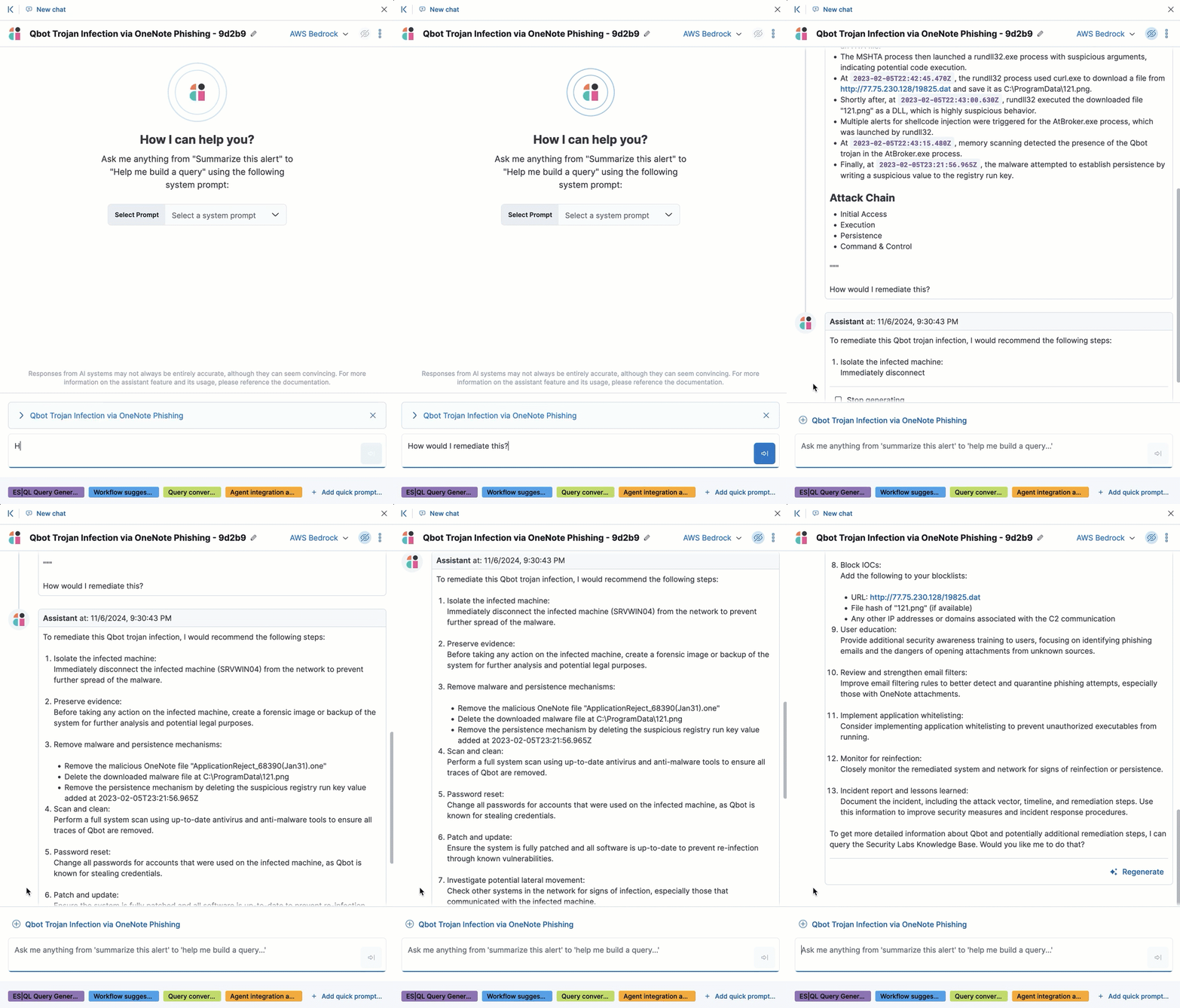
AI Assistant can quickly compile essential data and provide suggestions to help you generate an incident report and plan an effective response. You can ask it to provide relevant data or answer questions, such as “How can I remediate this threat?” or “What ES|QL query would isolate actions taken by this user?”
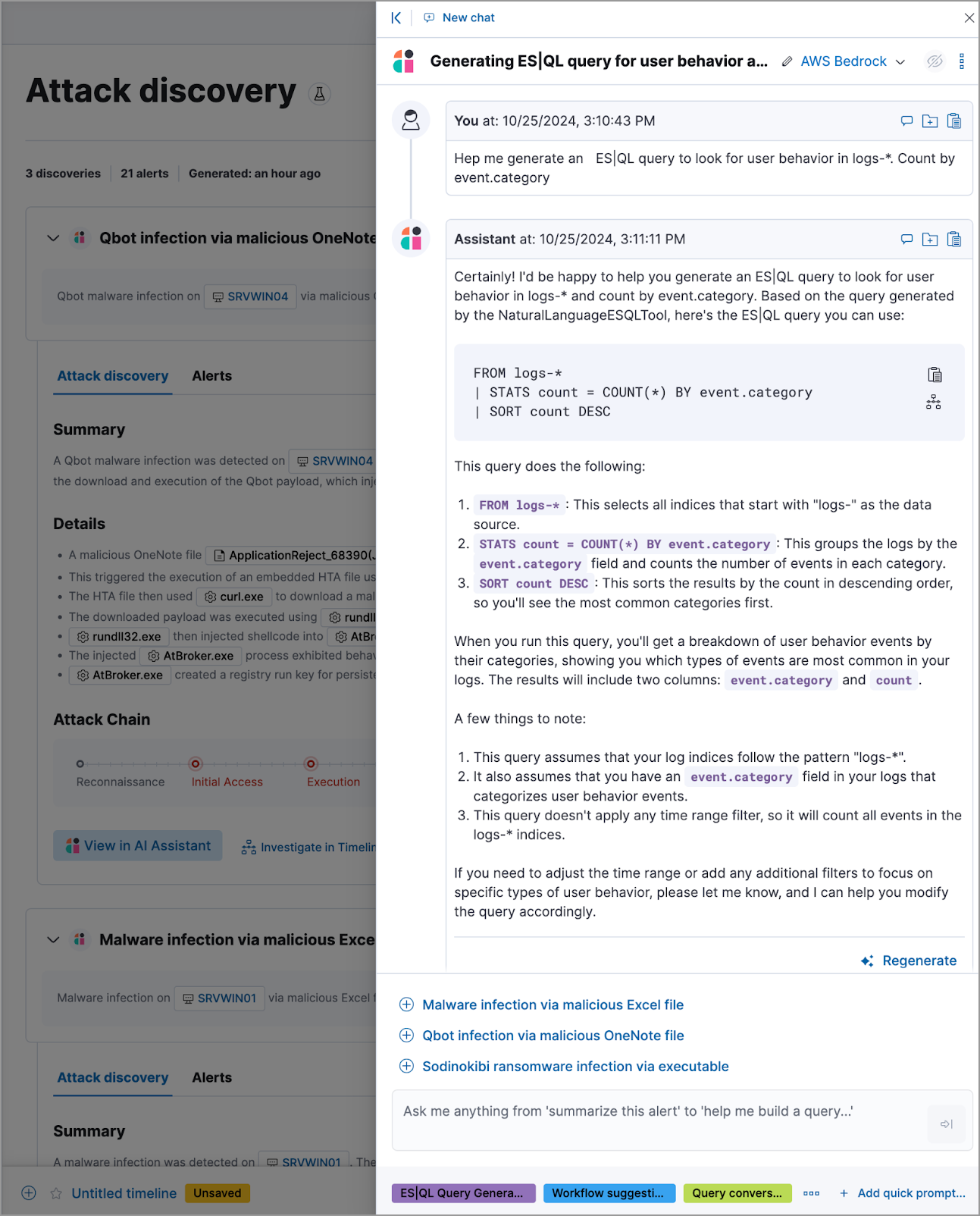
This image shows an ES|QL query generated by AI Assistant in response to a user prompt. Learn more about using AI Assistant for ES|QL.
At any point in a conversation with AI Assistant, you can add data, narrative summaries, and other information from its responses to Elastic Security's case management system to generate incident reports.
From the AI Assistant dialog window, click Add to case ( ) next to a message to add the information in that message to a case. Cases help centralize relevant details in one place for easy sharing with stakeholders.
If you add a message that contains a discovery to a case, AI Assistant automatically adds the attack summary and all associated alerts to the case. You can also add AI Assistant messages that contain remediation steps and relevant data to the case.
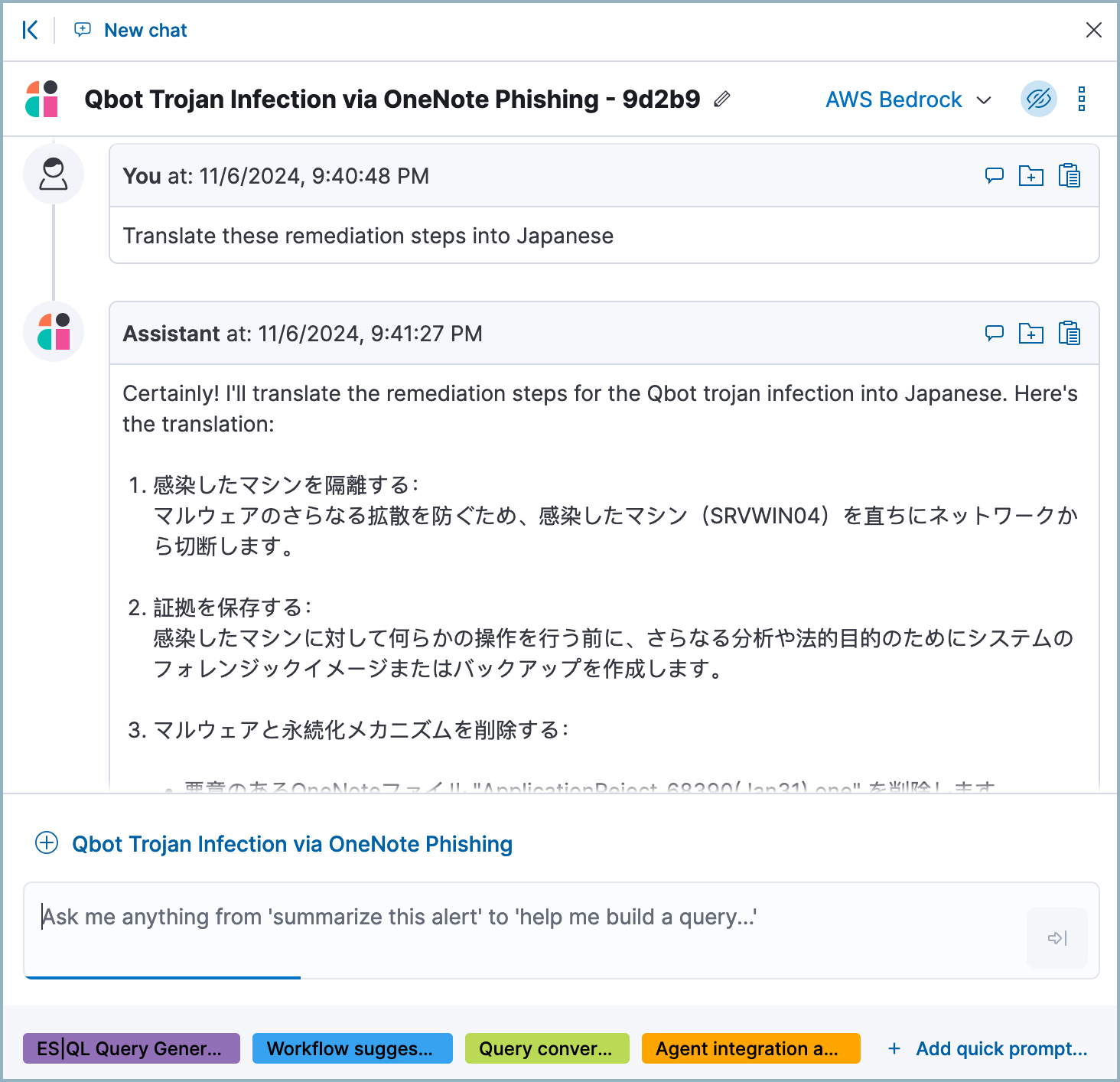
AI Assistant can translate its findings into other human languages, helping to enable collaboration among global security teams, and making it easier to operate within multilingual organizations.
After AI Assistant provides information in one language, you can ask it to translate its responses. For example, if it provides remediation steps for an incident, you can instruct it to “Translate these remediation steps into Japanese.” You can then add the translated output to a case. This can help team members receive the same information and insights regardless of their primary language.
In our internal testing, AI Assistant translations preserved the accuracy of the original content. However, all LLMs can make mistakes, so use caution.