Services
The Services inventory provides a quick, high-level overview of the health and general performance of all instrumented services.
A service only appears in the Services inventory if it has sent transactions or spans within the selected time window. Services that send only logs are not listed. If a service is missing, verify that it is sending transaction or span data and that the selected time range includes recent activity.
Active alerts for each service are prominently displayed in the service inventory table. Clicking an active alert badge brings you to the Alerts tab where you can learn more about the active alert and take action.
For Observability Serverless projects, the Editor role or higher is required to create and manage service groups. To learn more, refer to Assign user roles and privileges.
The Service grouping functionality is in beta and is subject to change. The design and code is less mature than official generally available features and is being provided as-is with no warranties.
Group services together to build meaningful views that remove noise, simplify investigations across services, and combine related alerts.
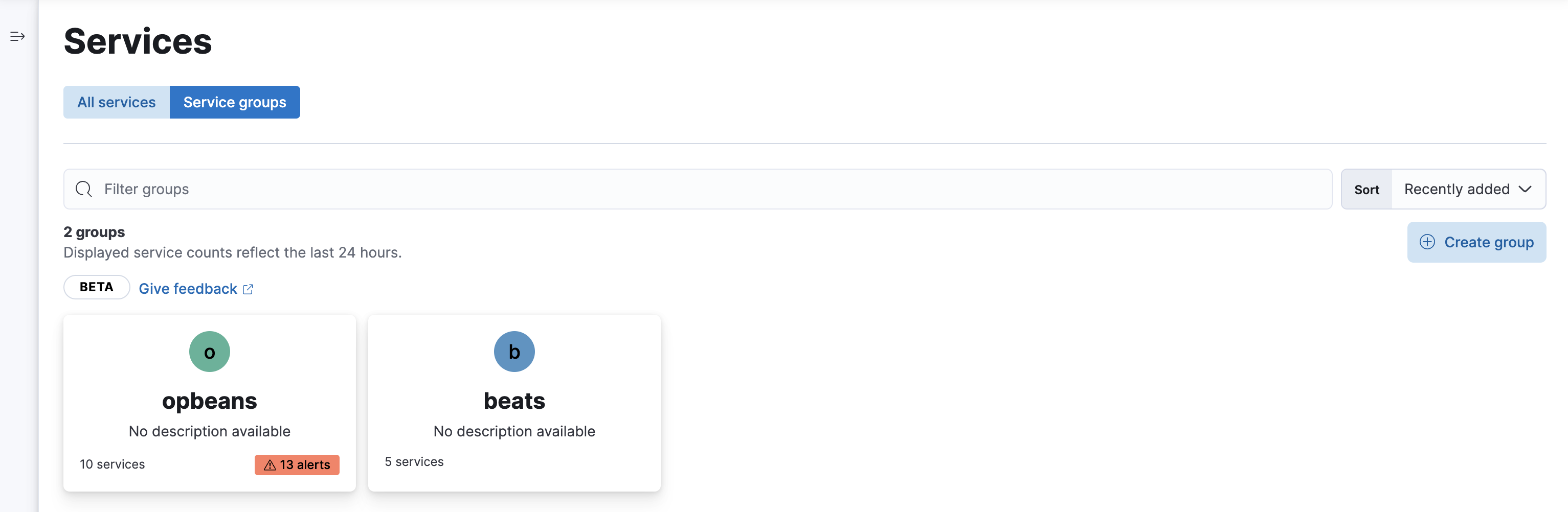
To create a service group:
- To open Service inventory, find Applications in the main menu or use the global search field.
- Switch to Service groups.
- Click Create group.
- Specify a name, color, and description.
- Click Select services.
- Specify a Kibana Query Language (KQL) query to filter services by one or more of the following dimensions:
agent.name,service.name,service.language.name,service.environment,labels.<xyz>. Services that match the query within the last 24 hours will be assigned to the group.
Not sure where to get started? Here are some sample queries you can build from:
- Group services by environment: To group "production" services, use
service.environment : "production". - Group services by name: To group all services that end in "beat", use
service.name : *beat. This will match services named "Auditbeat", "Heartbeat", "Filebeat", and so on.