Dashboard controls
Controls are interactive panels that you add to your dashboards to help viewers filter and display only the data they want to explore. Controls apply filters to relevant panels so viewers can focus on specific data segments without writing filtering queries.
You can add three kinds of controls:
Control: A filter based on a data view field. When you create it, you choose one of two types:
Options list: A dropdown that filters data by one or more selected values. Use it for fields with a limited set of distinct values, such as categories, statuses, or hostnames. For example, in the [Logs] Web Traffic dashboard from the sample web logs data, you can add an options list for the
machine.os.keywordfield to display only the logs generated fromosxandiosoperating systems.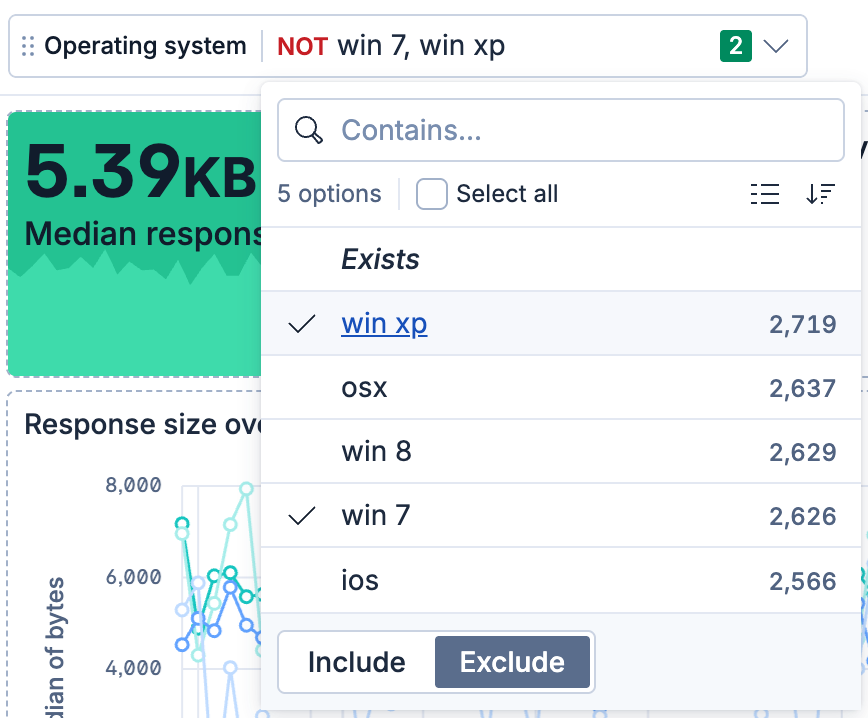
Range slider: A slider that filters data within a specified range of values. Only compatible with numeric fields. For example, in the [Logs] Web Traffic dashboard from the sample web logs data, you can add a range slider for the
bytesfield to display only the log data for responses between 6,000 and 20,000 bytes.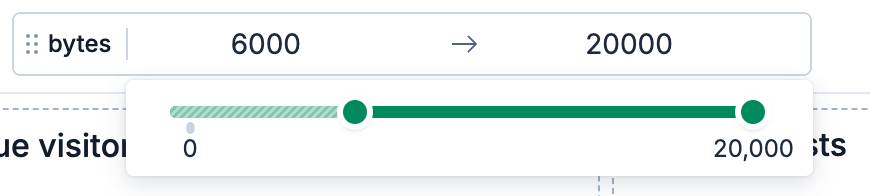
Variable control: An ES|QL-powered control that binds to variables in ES|QL visualization queries, enabling dynamic filtering, grouping, and function selection. Time slider: A time range slider that filters data within a specified time range. Advance the range backward and forward, or animate the data change across the range.
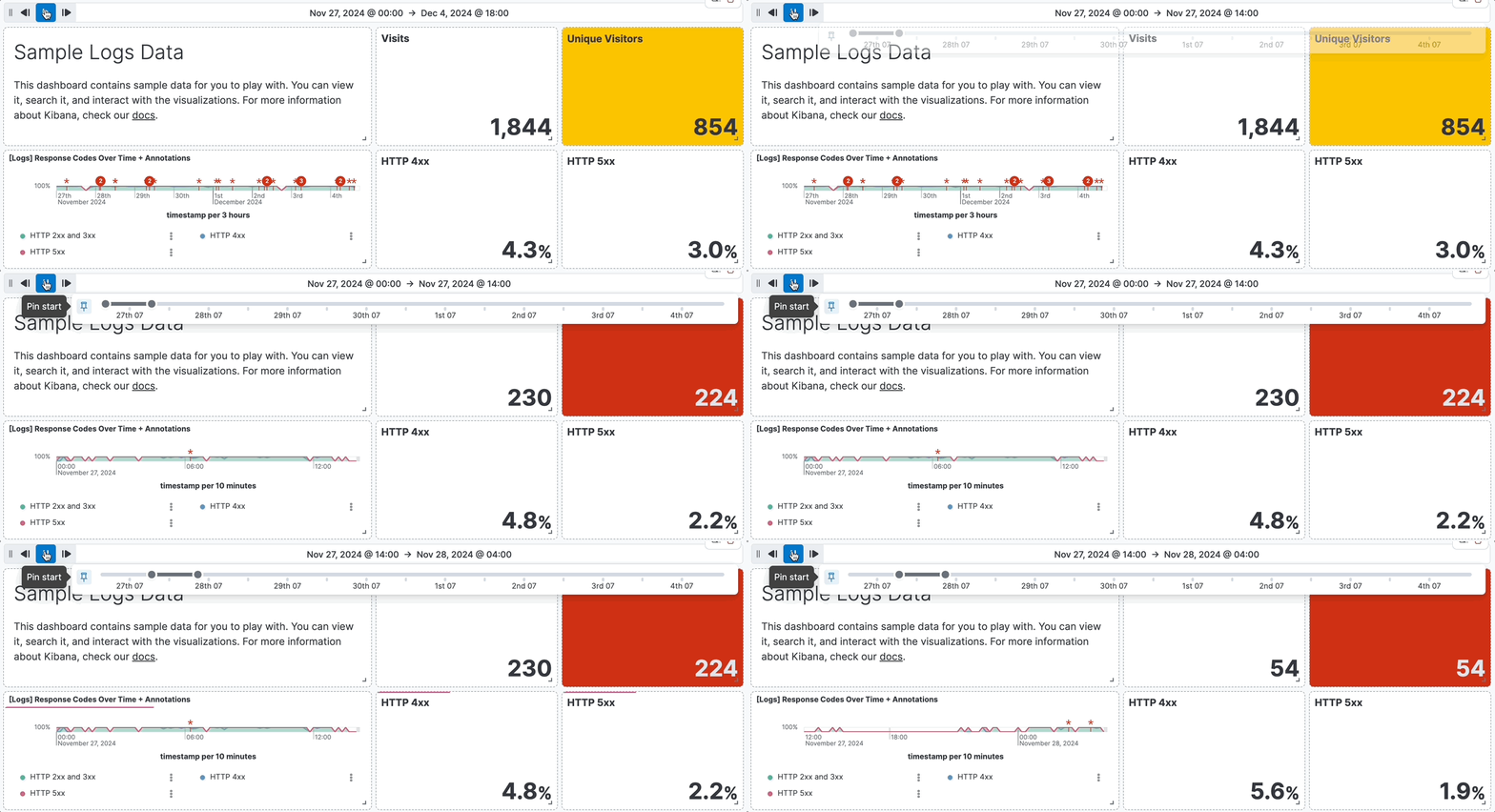
A control acts on the panels relevant to it, not the whole dashboard. And when a dashboard has several controls, their selections also narrow each other's options. What a given control affects depends on where you place it, its type, and the other controls on the dashboard.
Where you place a control determines its reach:
- Pinned controls are placed at the top of the dashboard, stay visible as you scroll, and apply across the whole dashboard. New controls are pinned by default.
-
Unpinned controls are placed in the dashboard body like any other panel, and you can move, resize, and arrange them. They apply to every panel on the dashboard they're relevant for, unless you place one inside a collapsible section, where its filters apply only to the relevant panels in that section.
Different control types target different panels:
Options list and Range slider controls filter the panels that use the control's data view field. Panels built on data that doesn't include that field aren't affected.
A Time slider narrows the dashboard's global time range, so it affects only the panels that use time-based data.
Variable controls affect only the visualizations whose query references the control's variable. They don't filter other panels. Variable controls work with:
TipTo see which panels a variable control affects, select its label while editing the dashboard. Its related panels are highlighted, and a variable control that no visualization uses shows a warning.
Chaining links controls so that a selection in one narrows the options available in another. This keeps each control's choices relevant to the current selections, so viewers can drill down without landing on combinations that return no data. Options lists and range sliders chain with each other, and variable controls chain with each other, but the two groups stay independent: a selection in an options list or range slider doesn't change a variable control's options, and a variable control's selection doesn't change theirs.
- Options list and Range slider controls chain automatically: when a dashboard has more than one, each control's options reflect the selections in the others. This is on by default. To turn it off for a control, use the Use global filters setting.
- Variable controls chain when one control's ES|QL query references another variable control's variable. For the steps, refer to Chain variable controls.
- Add controls to dashboards: Add options list and range slider controls to your dashboards.
- Add a time slider control: Add a control that filters time-based data across an adjustable range.
- Add variable controls with ES|QL: Create ES|QL-powered controls for dynamic filtering and chaining.
- Dashboard control settings: Reference for all available control settings per type and version.