Chat UI modes in Elastic Agent Builder
The Elastic Agent Builder chat UI is available in two modes:
The standalone and sidebar modes have the same functionalities and can be used interchangeably. Conversation history is preserved across both modes.
When working with dashboards and visualizations, we recommend using standalone mode. This full-page chat experience gives you more room to comfortably analyze complex charts and read detailed agent replies.
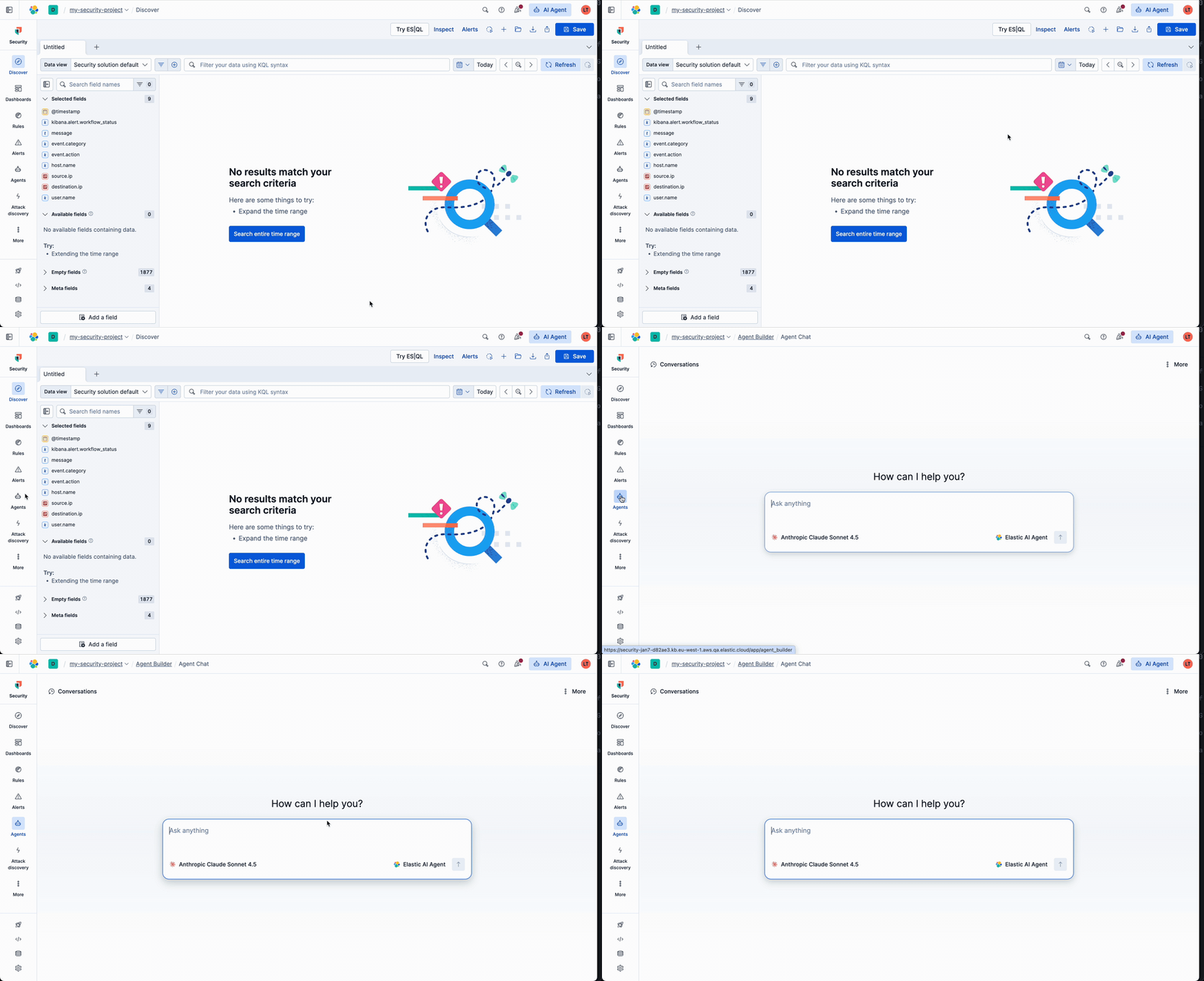
Access Agent Builder by selecting Agents in the main navigation.
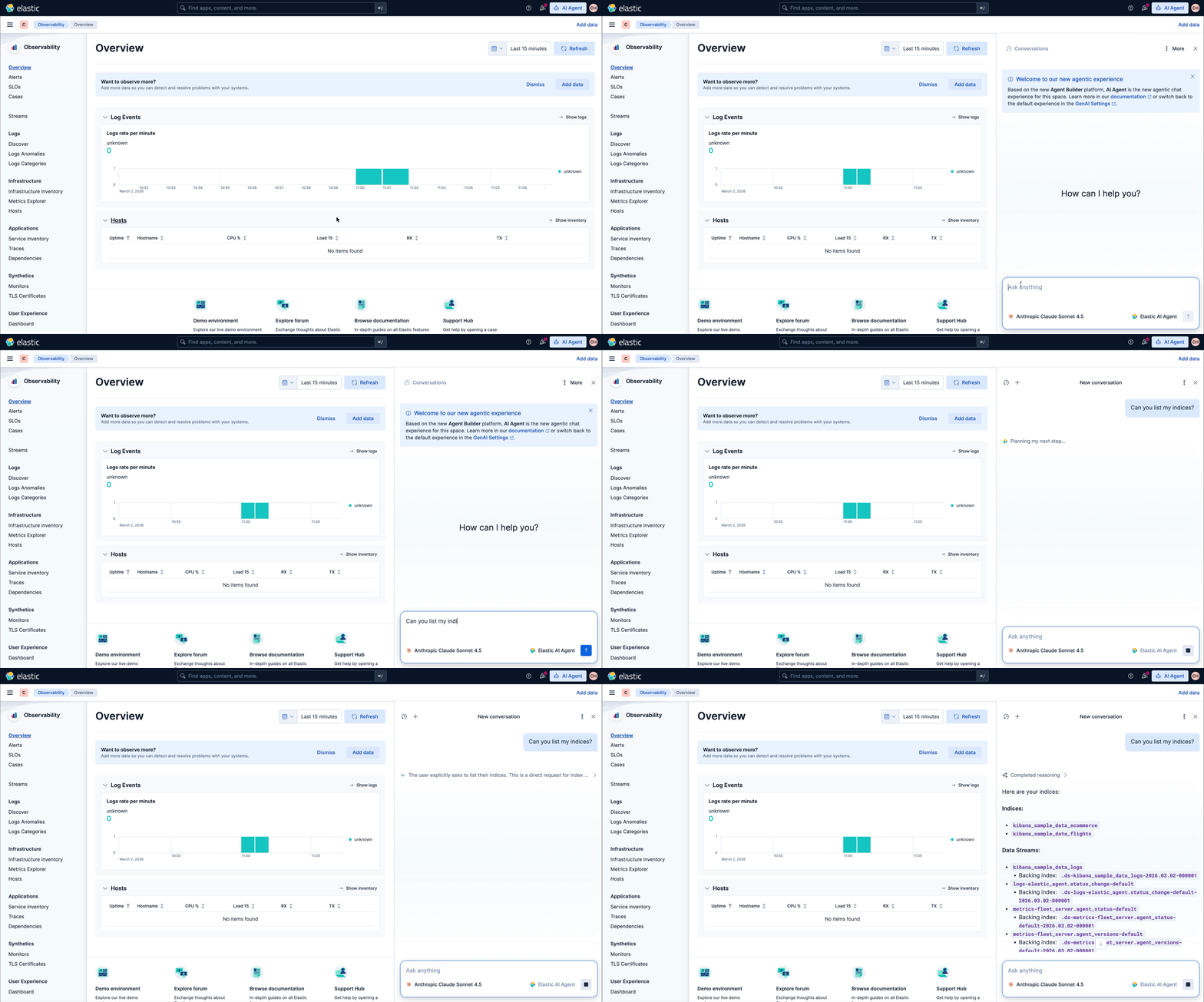
Once you switch from AI Assistant to Agent Builder, you can access the sidebar in two ways:
- Select the AI Agent button from the header bar in any page:

- Use the keyboard shortcut:
- Mac: Cmd + ;
- Windows/Linux: Ctrl + ;
You can resize the sidebar by dragging its side edge. The sidebar persists when you change pages in the main navigation.
Elastic Agent Builder is the default chat experience for all solutions. It appears in the navigation automatically.
If you need to revert to the legacy AI Assistant, you can opt out by changing your space's Chat Experience to Classic AI Assistant in the GenAI Settings. Learn more about how to switch between chat experiences.
The default chat experience varies by solution:
- Elastic Observability and Elastic Security: Each solution's classic AI Assistant is the default chat experience. You must switch between chat experiences to enable Agent Builder.
- Once enabled:
- The sidebar experience replaces the AI Assistant chat experience.
- The standalone experience is available through the Agents button in the main navigation.
- Once enabled:
- Elasticsearch: Agent Builder appears in the navigation automatically.