Duplicate a data view
Duplicating a data view creates an editable copy. Use a copy when you want to try different field formatting or a different index pattern without affecting the original, or when you need a similar data view for another use case.
- You need a role with the Data View Management Kibana privilege and the
view_index_metadataElasticsearch privilege. Refer to Defining roles. - You need an existing data view to duplicate.
Open Discover or Lens.
NoteDuplication isn't available from the Data Views management page.
In the data view menu, select the data view that you want to duplicate.
Still in the data view menu, select Manage this data view. A flyout with more details about the data view opens. For a managed data view, it indicates that you can't edit it directly.
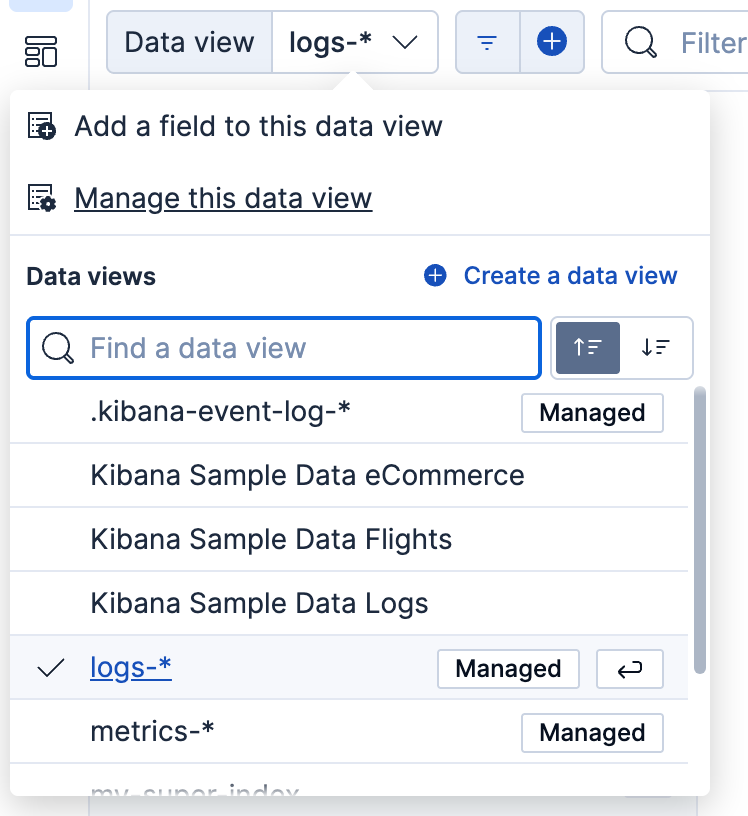
Select Duplicate. A similar flyout opens where you can adjust the settings of the new copy.
Finish your edits, then select Save data view to Kibana or Use without saving.
If you save it to Kibana, the new, editable data view appears in the data view menu and on the Data Views management page, separate from the one you duplicated.