Elastic Cloud Serverless connector for Claude
The Elastic Cloud Serverless connector is an official, Anthropic-verified Claude connector that connects Claude to the Elastic Agent Builder Model Context Protocol (MCP) server of an Elastic Cloud Serverless project. After you connect it, Claude can use Elastic Agent Builder tools to search and analyze the data in your project with your own permissions.
The connector is listed in the Claude connectors directory, so you can add it without configuring a custom connector. It authenticates with OAuth 2.1: each person authorizes access in the browser, and Claude acts with that person's permissions in the project.
After you set up the connector, you can ask Claude to work with the data in your project, for example to:
- Explore your indices and their mappings.
- Write and run ES|QL queries.
- Investigate logs and other Observability data.
- Run and monitor workflows.
The tools available to Claude are the Elastic Agent Builder tools that your project exposes through the MCP server. The exact set depends on your project type and on any custom tools you've created.
The connector and the Elastic plugin for Claude complement each other:
- The connector gives Claude access to your data in one Serverless project.
- The plugin gives Claude knowledge about Elastic, through agent skills and the Elastic Docs MCP server. The plugin doesn't connect Claude to your data.
The plugin is an add-on that you install in Claude. It doesn't need your project's URL or credentials, and it isn't installed in or connected to your Serverless project. Use it with the connector to have Claude follow Elastic best practices while working with your data.
- You need an Elastic Cloud Serverless project. The connector doesn't support Elastic Cloud Hosted deployments or self-managed clusters. For those, connect Claude to the MCP server with an API key instead.
- Each person who uses the connector needs access to the project, plus the privileges required by the tools they run. To learn more, refer to Permissions and access control in Elastic Agent Builder.
- On Claude Team and Enterprise plans, an organization Owner must set up the connector for the organization before members can connect to it. Your organization might also restrict which directory connectors members can find.
Setting up the connector means creating an OAuth client in your project and entering its credentials in Claude:
- On Claude Free, Pro, and Max plans, you set up the connector for your own account.
- On Claude Team and Enterprise plans, an organization Owner sets up the connector once for the whole organization. Members don't create OAuth clients or enter credentials. Instead, they connect to the configured connector.
-
Create an OAuth client in your project
In your Serverless project, switch to the Kibana space whose agents and tools you want Claude to use. Then create an OAuth client, and select Generate confidential MCP client (optional). The connector needs a client secret, so select this option even though it's marked optional. Add the redirect URI for the Claude app you use to set up the connector, as described in the claude.ai or Claude desktop app instructions.
Copy the Client ID, MCP client secret, and MCP server URL from the Copy server details dialog. Kibana shows the client secret only once.
-
Add the connector in Claude
Open the Elastic Cloud Serverless connector listing, and then select Connect to Claude.
You can also find the connector in Claude on the web or in the desktop app: go to Settings → Connectors, browse the connectors directory, and search for Elastic Cloud Serverless.
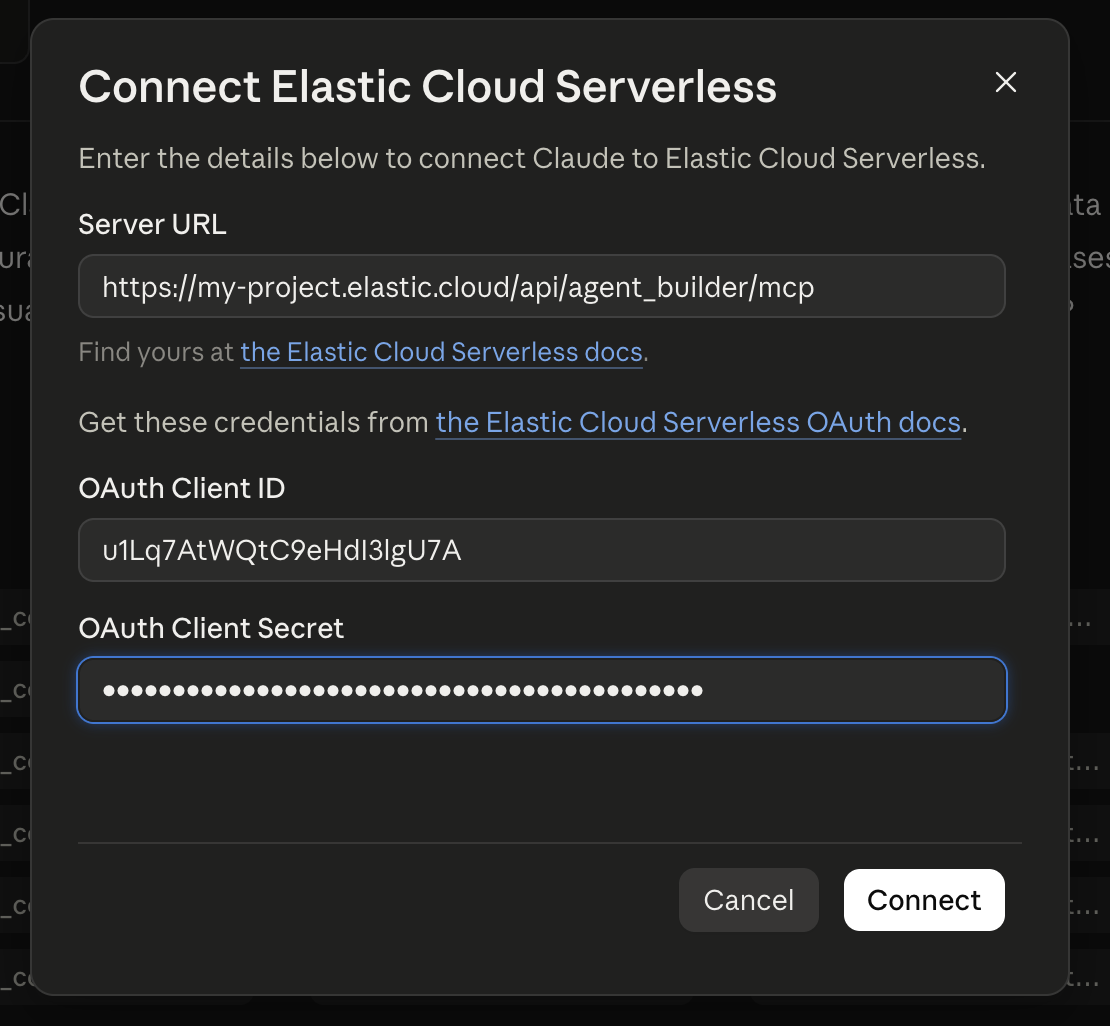
In the Connect Elastic Cloud Serverless dialog, enter the values from your OAuth client:
- Server URL: the MCP server URL
- OAuth Client ID: the client ID
- OAuth Client Secret: the client secret
Select Connect.
 Note
NoteOn Claude Team and Enterprise plans, Owners see Connect for your team instead of Connect to Claude. Connecting for your team adds the connector for everyone in the organization, but doesn't connect your own account. To use the connector yourself, connect your own account afterward, as members do. To learn more, refer to Get started with connectors in the Claude documentation.
-
Authorize the connection
Claude opens an Elastic Cloud sign-in page. Sign in, review the project that Claude is requesting access to, and then select Authorize.
To learn more about this step, refer to Authorize the connection.
After setup, check that the connector works.
On Claude Team and Enterprise plans, after an Owner sets up the connector for the organization, each member connects their own account. You don't need an OAuth client or credentials of your own.
- In Claude, go to Settings → Connectors, and find Elastic Cloud Serverless.
- Select Connect.
- Sign in to Elastic Cloud, review the project that Claude is requesting access to, and then select Authorize.
You connect to the project and space that the Owner chose, with your own Elastic Cloud account and permissions.
- In Claude, start a new conversation, and make sure that the Elastic Cloud Serverless connector is turned on for that conversation.
- Ask Claude to list the indices in your project.
- If Claude asks for your approval before it uses a tool, approve the request.
Claude lists your indices by using the Elastic Agent Builder tools in your project. To learn more about turning connectors on and approving tool use, refer to Use the connector in a conversation in the Claude documentation.
After you authorize the connection, you can manage or revoke it like any other application connection. To learn more, refer to Revoke or delete an OAuth client or connection and Manage application connections.
Each OAuth client, and therefore each connection, is scoped to a single Serverless project and to the Kibana space the client was created in. Claude supports only one configuration of a directory connector for each Claude account or organization, which means:
- On Claude Free, Pro, and Max plans, the connector connects your account to one project and space at a time.
- On Claude Team and Enterprise plans, the Owner who sets up the connector chooses the project and space for the whole organization.
This one-configuration limit comes from how Claude manages directory connectors, and might change in future Claude releases.
You don't always need another connection to work with data from several projects. If your projects are linked through cross-project search, tool calls through one connection can search the linked projects. To learn more, refer to Use tools with data from multiple projects.
To connect Claude to additional projects, or to other Kibana spaces in the same project:
- In each additional project or space, create an OAuth client.
- In Claude, add each one as a uniquely named custom connector, using its MCP server URL, client ID, and client secret.
On Team and Enterprise plans, an Owner adds custom connectors for the organization. To learn more, refer to Add a connector that isn't in the directory in the Claude documentation.