Workflow tools in Elastic Agent Builder
Workflow tools enable agents to trigger Elastic Workflows directly from a conversation and use their output. This is ideal for offloading tasks from the LLM that require a deterministic, repeatable sequence of actions.
This page explains how to trigger an existing workflow in an agent conversation. To create a new workflow from Agent Chat, refer to Create skills and workflows in chat. If you want to use an agent within a workflow step, refer to Call agents from workflows.
Before you begin:
- Familiarize yourself with the core concepts of Elastic Workflows.
- Set up workflows: Enable the Workflows feature and ensure you have the correct privileges to create and run workflows.
- Create at least one workflow.
Follow these steps to configure a workflow tool:
Navigate to the Tools page and create a new tool:
Click Manage components at the bottom of the left sidebar, select Tools, then click + New tool.
Go to Agents > More > View all tools > New tool.
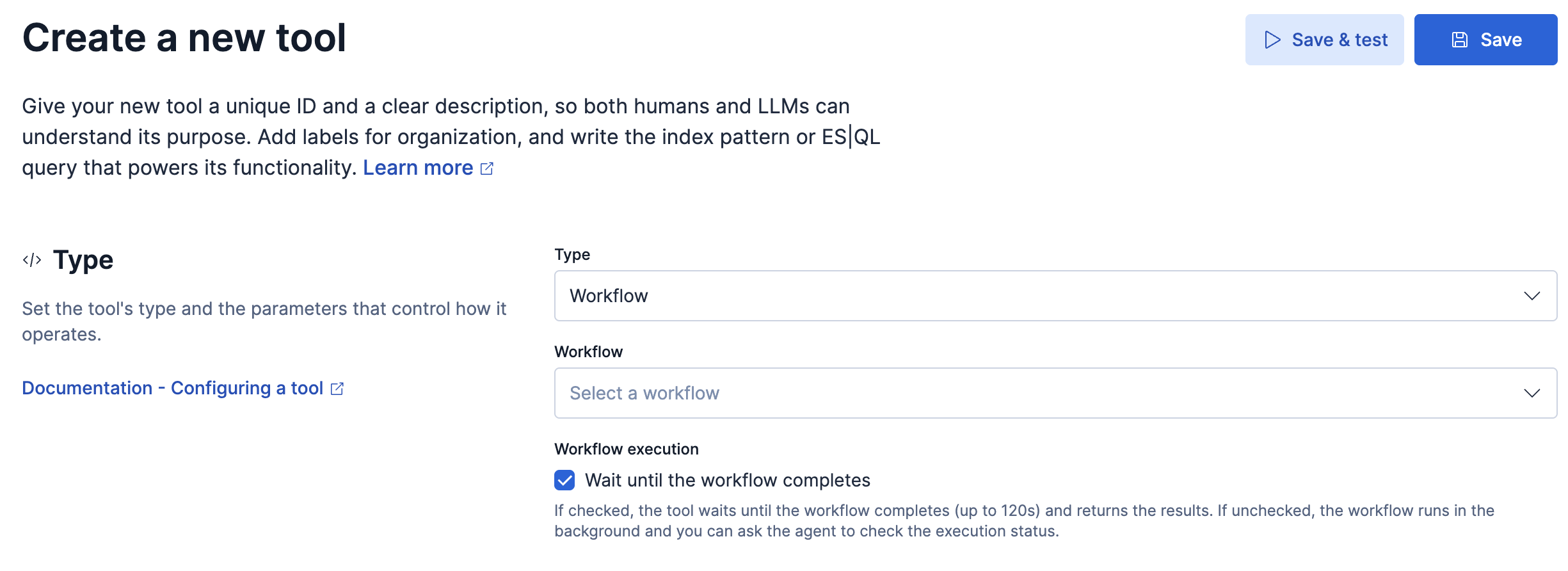
- Select Workflow as the tool type.
- Select a workflow from the drop down list.
- Fill in the configuration fields.
- Click Save.
The Workflow tools have the following configuration settings:
- Tool ID
- A unique identifier for the tool.
- Description
- A natural language explanation of what the tool does. The agent uses this description to decide when to call the tool.
- Example: "Use this tool when the user asks to investigate an alert regarding the payment service."
- Workflow
- The specific Elastic Workflow to execute. Selecting a workflow automatically pulls its definition into the tool configuration.
- Inputs
- The parameters required by the workflow. These are automatically detected from the
inputssection of the selected workflow's YAML definition. The agent tries to extract values for these inputs from the user's chat message. - Require user confirmation (Optional)
- Controls whether the agent asks you to approve a tool call before it runs. Select Never to run without a prompt, Once to prompt the first time the agent calls the tool in a conversation, or Always to prompt on every call. The default is Never.
- With Once, your response applies to every later call to the tool in the same conversation, whether you confirmed or denied the action, including retries after a failed call.
- Confirmation applies only when an agent calls the tool. Refer to Human-in-the-loop prompts.
- Labels (Optional)
- Tags used to organize and filter tools within the Elastic Agent Builder UI.
Once you've created a workflow tool, you must assign it to an agent to make it available in chat.
To assign a tool to an agent:
- Select the agent from the agent selector in the left sidebar.
- Expand the Customize accordion and select Tools.
- Click Add tool and select the workflow tool to assign.
- Navigate to Agents.
- Select your agent.
- Select More > Edit Agent > Tools.
- Assign the workflow tool by selecting the checkbox.
- Click Save.
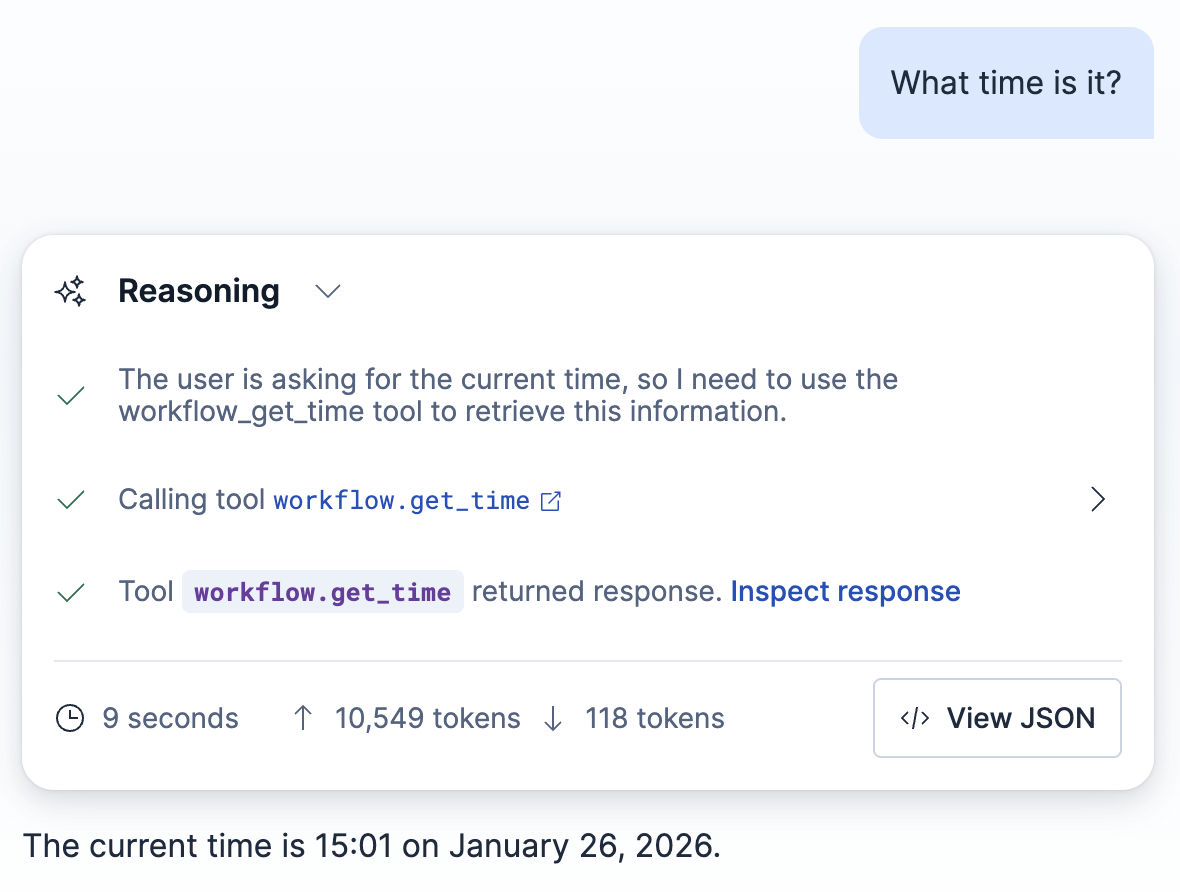
To test your workflow tool, open the Agent chat UI and ask a question that triggers the workflow.
The agent:
- extracts the necessary parameters from the conversation
- runs the workflow
- returns the workflow's final output to the chat
Review the inline reasoning events to trace the execution steps and inspect the raw workflow output.
The elastic/workflows GitHub repo contains more than 50 examples you can use as a starting point.