Manage and organize workflows
The Workflows page allows you to view and manage all your workflows. From the page, you can create, edit, duplicate, delete, and more with your workflows. To find the Workflows page, use the navigation menu or the global search field.
To use workflows, you must turn on the feature and ensure your role has the appropriate privileges. Refer to Set up Workflows for more information.
You must also have the appropriate subscription. Refer to the subscription page for Elastic Cloud and Elastic Stack/self-managed for the breakdown of available features and their associated subscription tiers.
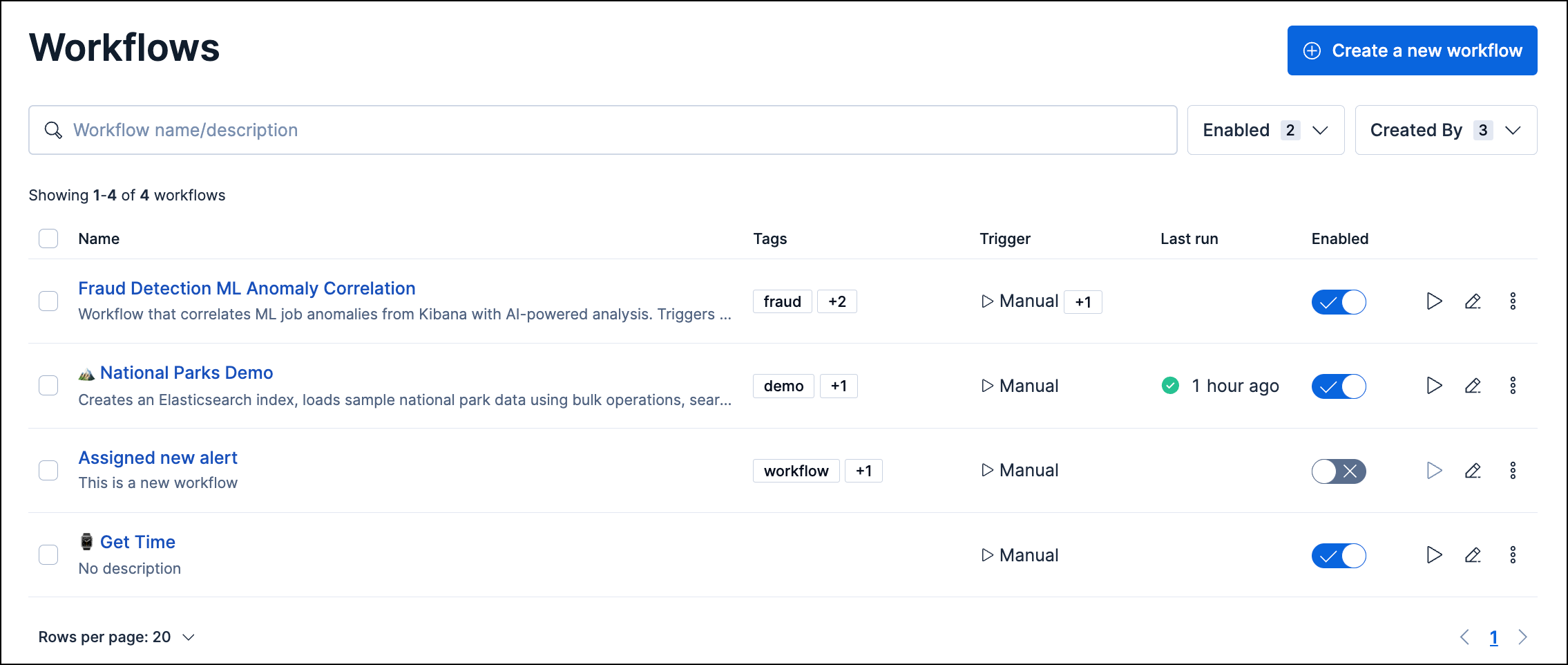
From the Workflows page, you can create new workflows, search and filter existing ones, manually trigger workflows, and more.
Click Create a new workflow to open the YAML editor. Refer to Use the YAML editor to learn how to use the editor.
Use the search bar to filter workflows by name, description, or tag. You can also use the Enabled filter to only show workflows that are turned on (enabled) or off (disabled), and the Created By filter to only show workflows created by the specified user.
To instantly run a workflow, click the Run icon for a workflow, or open the All actions menu ( ) and click Run. The workflow manually runs regardless of its specified triggers. To learn about monitoring workflow runs, refer to Monitor workflow execution.
Click the Edit icon to open the workflow in the YAML editor. Alternatively, open the All actions menu ( ), and click Edit.
Use the Enabled toggle to control whether a workflow can run:
- Enabled: The workflow responds to its configured triggers.
- Disabled: The workflow won't run, even if it's triggered.