Enhance a Kibana dashboard using AI
If a dashboard you built feels cluttered or hard to read, you can let an AI agent improve it instead of reworking it by hand. The agent looks at what your panels actually measure, then gives the dashboard clearer text, a tidier layout, and consistent chart styling. You can also let it fill the gaps, for example by adding the trends or breakdowns that your data supports. The changes stay unsaved until you review them and decide to keep them.
To enhance a dashboard, you need:
- Permission to edit dashboards: Your role must have the All privilege for the Dashboard feature.
- Access to Elastic Agent Builder, with a model configured.
- At least one panel on the dashboard that uses an ES|QL query. Otherwise, the Enhance option is disabled.
If you have unsaved edits that you want to keep, save the dashboard first. That way, you can discard the agent's changes later without losing your own work.
Open the dashboard in Edit mode.
In the application menu, next to the dashboard title, select Enhance.
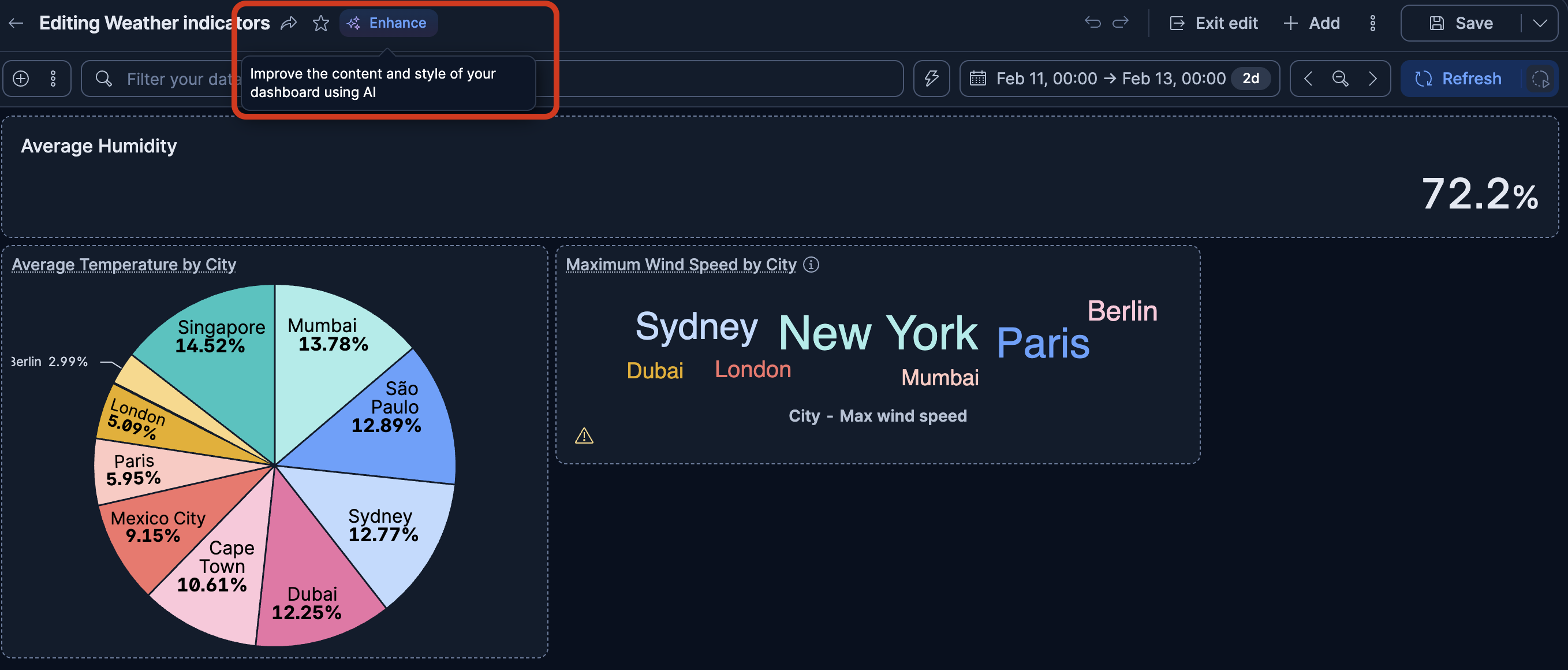
The chat opens in the sidebar in a new conversation, with your dashboard attached, and the agent starts reviewing it right away.
When the agent asks how you'd like to enhance the dashboard, select the option that fits. Each option lists the main changes the agent plans for your dashboard, so you know what to expect before you decide.
- Appearance and content improves how the dashboard looks and reads, and also lets the agent add, change, replace, or remove panels.
- Appearance only keeps your visualizations and their queries as they are, and focuses on how the dashboard looks and reads.
You can also give the agent your own instructions in the Be more specific field, for example to name panels it must keep.
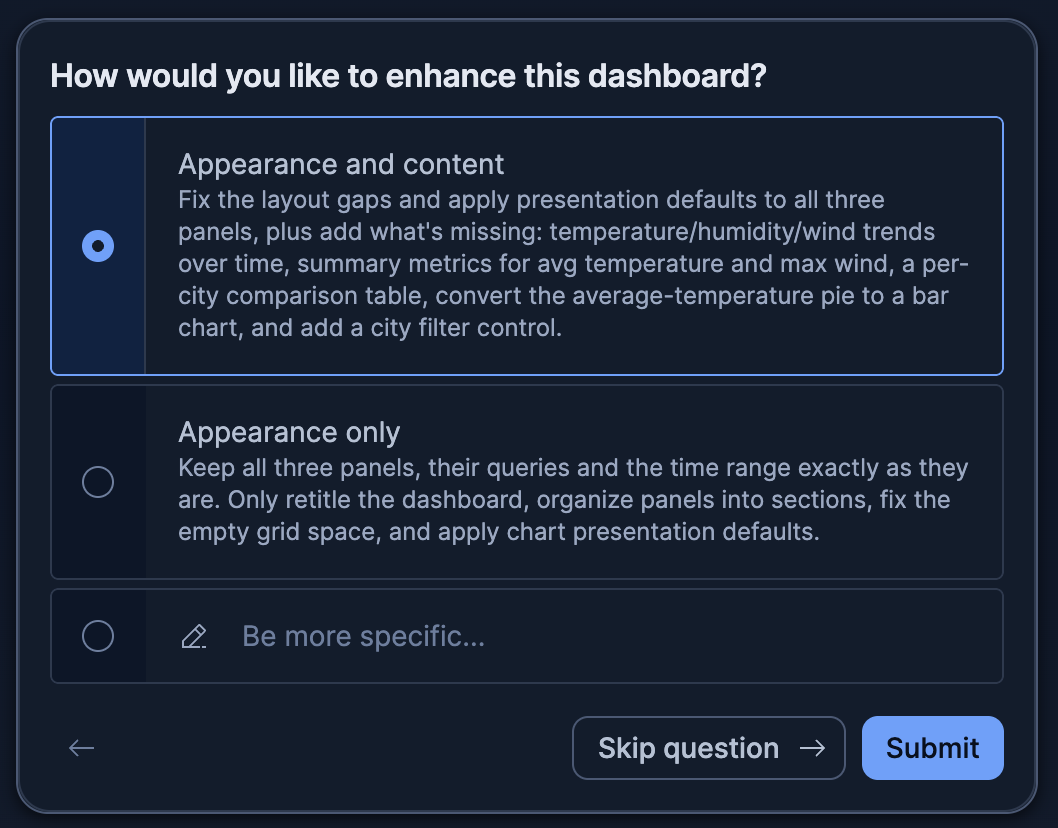
When you're ready, select Submit. If you skip the question, or your instructions don't say which option you want, the agent applies Appearance and content. To learn what the agent does to each type of panel, refer to How the agent handles each type of panel.
Wait while the agent works. When it's done, the agent summarizes its changes in the conversation, and you can see the result in the dashboard you have open.
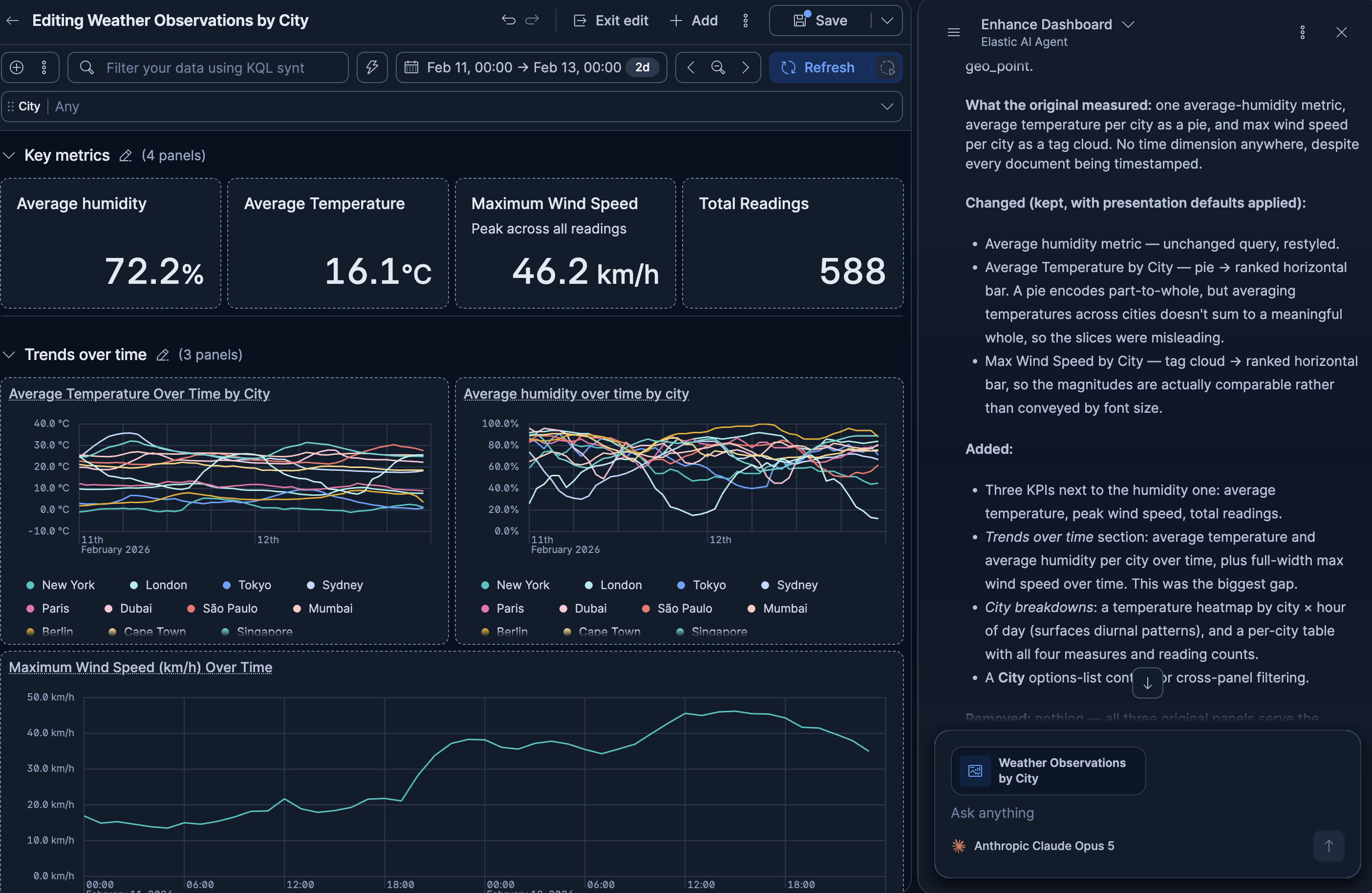
Review the dashboard. If you want something different, ask the agent for adjustments in the same conversation, for example to change a chart type or add a panel.
To keep the changes, save the dashboard. If you'd rather not keep them, discard them instead.
When you select Enhance, Elastic Agent Builder runs the dashboards skill on your dashboard. The agent then:
- Reads the dashboard and the field mappings of the indices behind its panels. This tells it what the dashboard measures, and what your data could show that the dashboard doesn't show yet.
- Proposes two sets of changes, one limited to appearance and one with a more complete content review, and asks which one you want.
- Applies the changes to the dashboard you have open.
- Checks the result against its plan, and summarizes its changes in the conversation.
Because the agent tailors its changes to each dashboard, two runs on the same dashboard can give different results.
What the agent does to a panel depends on the type of panel and the option you select:
| Panel type | Appearance only | Appearance and content |
|---|---|---|
| ES|QL visualizations | The agent applies the default chart styling, for example to chart colors, legend position, axis titles, and number formats. This replaces any custom styling. It also rewrites their titles and labels to match their queries. | Same as Appearance only. The agent can also change their query or chart type. |
| Markdown panels | The agent rewrites them to describe what the dashboard measures, or removes them when they have nothing useful left to say. | Same as Appearance only. |
| Vega visualizations and custom panels | The agent only moves or resizes them. Their look doesn't change. | Same as Appearance only. |
| Other panels, such as visualizations that don't use ES|QL, images, and links | The agent only moves or resizes them. | The agent replaces a visualization with an ES|QL visualization when it can re-create it in ES|QL. Otherwise, it only moves or resizes the panel. |
| Panels that duplicate another panel or don't fit the dashboard's purpose | The agent keeps them. | The agent removes them. |
| New panels and controls | The agent doesn't add any. | The agent adds panels that your data supports, such as a trend over time, and controls for useful fields. |
In both options, the agent also rewrites the dashboard title and description to match what the panels measure, and keeps your time range. It resizes each panel to suit its type, and arranges panels using the best practices described in Dashboard grid layout and best practices. You can apply the same practices when you arrange panels yourself.
If you'd rather not keep the agent's changes, select Reset changes from the menu next to Save, before you save. Resetting returns the dashboard to its last saved version, so it also discards any unsaved edits of your own. Once you save, the changes become part of the dashboard, and you can no longer discard them in one step.
- You can enhance the same dashboard as many times as you want. You can also open a new conversation while you edit the dashboard, and enter
/dashboardsfollowed by your request, for example/dashboards Enhance this dashboard, appearance only. If your request already says what to change, the agent skips the question and gets to work. - To fine-tune the layout yourself, refer to Organize dashboard panels.