Find your Serverless project connection details
This page is for Elastic Cloud Serverless projects. If you're using an Elastic Cloud Hosted deployment, refer to Find your Cloud ID.
When you connect clients and tools to an Elastic Cloud Serverless project, these are the main connection details you'll work with:
- Elasticsearch endpoint
- The HTTPS URL you use to send requests to your project. Most clients, SDKs, and integrations connect with this URL plus an API key.
- API key
- Authenticates the client to your project. Serverless does not support username and password authentication for these connections.
- Cloud ID
- A unique, encoded string that represents your project's Elasticsearch endpoint (and, where applicable, Kibana endpoint) in a compact form. Compatible clients can use it instead of configuring host URLs individually: the client resolves those endpoints from the Cloud ID.
You can copy your endpoint from the Elastic Cloud Console, or from Kibana. Use whichever fits your workflow: the Console route doesn't require you to open Kibana.
In the Elastic Cloud Console, select Serverless.
Find your project and select Manage.
Under Application endpoints, cluster and component IDs, select Elasticsearch.
Copy the Endpoint value.
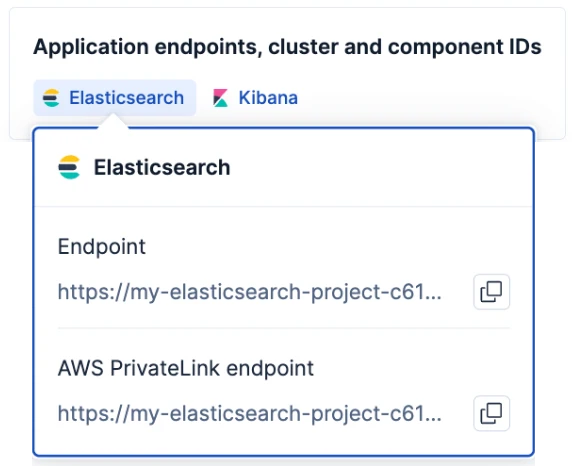
If your project runs on AWS, the panel also lists an AWS PrivateLink endpoint. Use it only when you connect through AWS PrivateLink. To learn more, refer to Private connectivity with AWS PrivateLink.
The Application endpoints, cluster and component IDs area also lists endpoints for other applications, such as Kibana and, depending on the project type, Fleet or OpenTelemetry (OTLP), along with your project ID and component IDs. To connect clients and tools to Elasticsearch, use the Elasticsearch endpoint.
Open the Connection details panel in one of these ways:
- Select the Help menu , and then select Connection details.
- Select the project selector in the header, and then select Connection details.
On the Endpoints tab, copy the Elasticsearch endpoint.
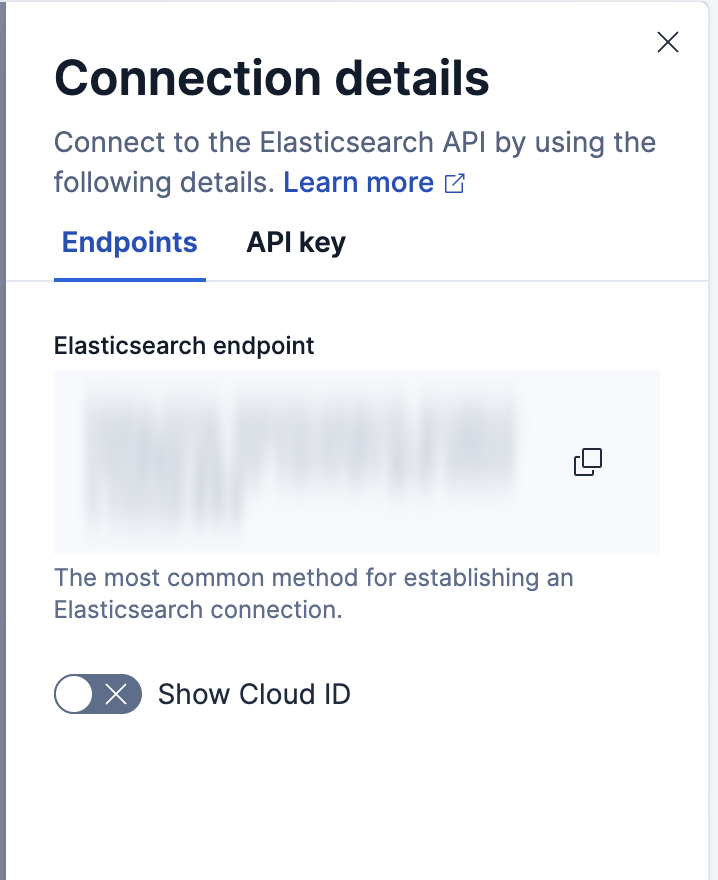
The Cloud ID is available in Kibana only. You need it only for Beats and Logstash, which can use it in place of the endpoint URL. All other clients and tools use the endpoint.
- In Kibana, open the Connection details panel from the Help menu or the project selector in the header.
- Turn on Show Cloud ID, then copy the value.
You can create an API key in the API key tab of the Connection details panel.
Alternatively, you can also create an API key from your project's API keys page, which you can access from the navigation menu or with the global search field.
For detailed steps, including how to restrict a key's privileges and how to update or delete keys, refer to Serverless project API keys.
Keys created in your project work with that project only. If you want one key to work across several projects, or to manage keys centrally, create an Elastic Cloud API key in the Elastic Cloud Console instead.
Elastic Cloud API keys manage your organization, deployments, and projects. To also use one in place of a project API key, grant it Elasticsearch and Kibana API access for the relevant projects.
After you have your project's connection details, send a test request to confirm that your endpoint and API key work, then use them to configure a client or data shipper. Explore these pages:
- Beats for Elasticsearch Serverless: Configure Beats to send logs, metrics, and other data using your Elasticsearch endpoint and API key.
- Sending data to Elasticsearch Serverless: Configure Logstash to send data to your project.
- Install Elastic Agents: Collect and ship data with Elastic Agent and Fleet.
- Elasticsearch clients: Connect applications to your project with an official client library.
- Ingest: Bring your data to Elastic: Browse other ingest options, from APIs and connectors to OpenTelemetry.