Azure Native Service troubleshooting
This page describes some scenarios that you might experience onboarding to Elastic Cloud through the Azure portal. If you're running into issues, you can always get support.
When trying to access Elastic Cloud resources such as Elasticsearch, Kibana, or APM in a deployment or project that was created by another Azure user, the following error is shown:
To access the resource [r:/<resource-type>/<resource-id>], the user must have the required authorization.
Elastic is not currently integrated with Azure user management, so sharing Elastic Cloud resources through the Cloud console with other Azure users is not possible. However, sharing direct access to these resources is possible. For details, refer to Azure user management.
When creating a new Elastic Cloud deployment or project, the resource creation might fail with a Your deployment failed error. The process results with a status message such as:
{
  "code": "DeploymentFailed",
  "message": "At least one resource deployment operation failed. Please list deployment operations for details. Please see https://aka.ms/DeployOperations for usage details.",
  "details": [
    {
      "code": "500",
      "message": "An error occurred during deployment creation. Please try again. If the problem persists, please contact support@elastic.co."
    }
  ]
One possible cause of a resource creation failure is the default network security policies. Deployments or projects fail to create if a previously created network security policy has enabled the Apply to future resources by default option. When this option is enabled, traffic to the deployment or project is blocked, including traffic that is part of the Elastic Cloud Azure Native Service. As a result, some of the integration components are not successfully provisioned and the deployment or project creation fails.
Follow these steps to resolve the problem:
- Log in to the Elastic Cloud Console.
- From the navigation menu, go to Organization → Network security.
- Edit the policy and disable the Apply to future resources by default option.
- In Azure, create a new Elastic Cloud resource.
- After the deployment has been created successfully, go back to Organization → Network security in Elastic Cloud and re-enable the Apply to future resources by default option.
If your resource still does not create successfully, contact the Elastic Support Team for assistance.
When you try to access your Elastic Cloud deployment or project using single sign-on, the access might fail due to missing permission required by your Azure environment.
You can review your user consent settings configuration following the instructions in Configure how users consent to applications. To resolve this problem, contact your Azure Administrator.
Elastic resources created using the Elastic Cloud Console, the Elasticsearch Service API, or the Elastic Cloud Terraform provider are only visible through the Elastic Cloud Console. To have the necessary metadata to be visible in the Azure portal, Elastic Cloud resources need to be created in Microsoft Azure.
Mimicking this metadata by manually adding tags to an Elastic Cloud deployment will not work around this limitation. Instead, it will prevent you from being able to delete the deployment using the Elastic Cloud Console.
- When you set up monitoring for your Azure services, if your Azure and Elastic resources are in different subscriptions, you need to make sure that the
Microsoft.Elasticresource provider is registered in the subscription in which the Azure resources exist. Check Configure log ingestion for details. - If you are using network security policies, Azure resource logs can be blocked from reaching your deployment. Contact Elastic Support or refer to ECH: Azure Native ISV Resource Logs blocked by Traffic Filters.
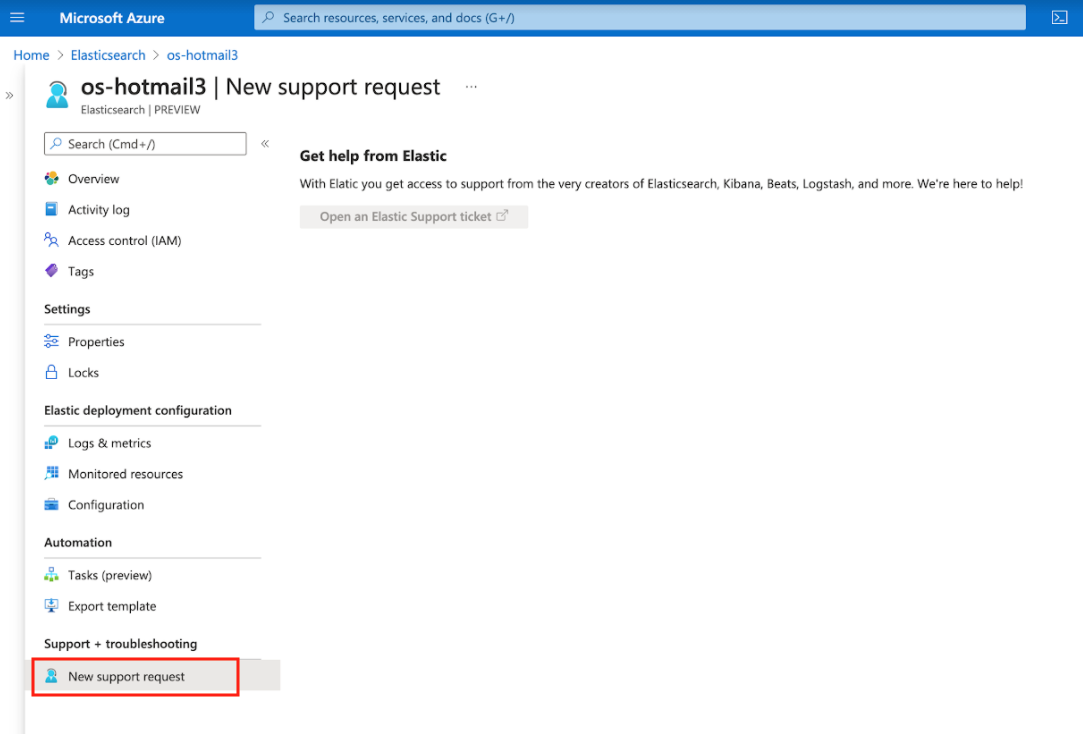
Support is provided by Elastic. To open a support case:
Navigate to the resource overview page in the Azure portal.
Click New support request from the menu.
Click the link to open the Elastic Cloud console and provide further details.
The Elastic Support team responds based on the SLA response time of your subscription.
In case your Elastic Cloud resource is not fully set up and you're not able to access the Support page, you can always send an email to support@elastic.co.