Azure Native Service logs and metrics
The Elastic Cloud Azure Native Service simplifies logging for Azure services with the Elastic Stack. This integration supports:
- Azure subscription logs
- Azure resources logs (check Supported categories for Azure Resource Logs for examples)
If you want to send platform logs to a deployment that has network security policies applied, then you need to contact the Elastic Support Team to perform additional configurations. Refer support to the article Azure++ Resource Logs blocked by Traffic Filters.
The following log types are not supported as part of this integration:
- Azure tenant logs
- Logs from Azure compute services, such as Virtual Machines
If your Azure resources and Elastic deployment or project are in different subscriptions, before creating diagnostic settings confirm that the Microsoft.Elastic resource provider is registered in the subscription in which the Azure resources exist. If not, register the resource provider following these steps:
- In Azure, navigate to Subscriptions → Resource providers.
- Search for
Microsoft.Elasticand check that it is registered.
If you already created diagnostic settings before the Microsoft.Elastic resource provider was registered, delete and add the diagnostic setting again.
In the Azure portal, configure the ingestion of Azure logs into either a new or existing Elastic Cloud deployment or project:
- When creating a new deployment or project, use the Logs & metrics tab in Azure to specify the log type and a key/value tag pair. Any Azure resources that match on the tag value automatically send log data to the Elastic Cloud deployment or project, once it's been created.
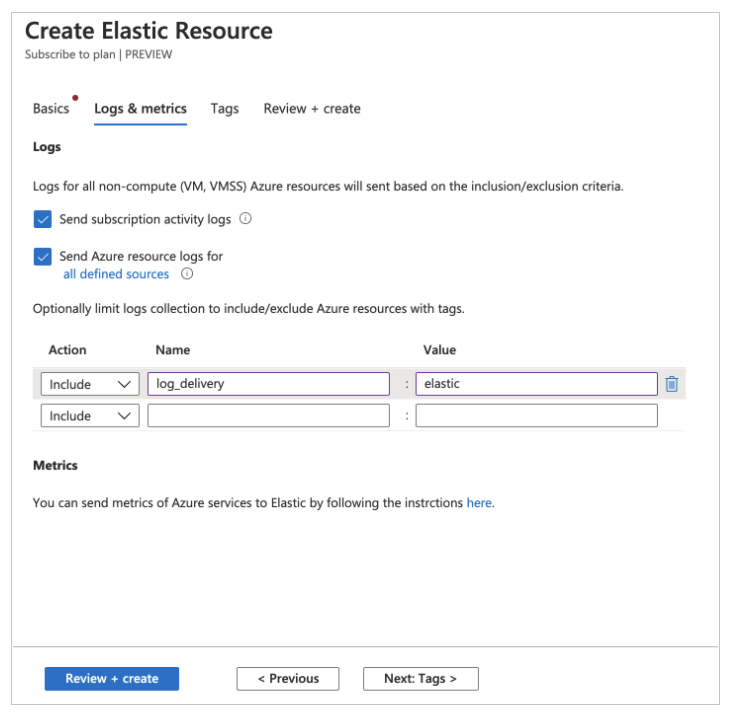
- For existing deployments or projects, configure Azure logs from the resource overview page in the Azure portal.
Note the following restrictions for logging:
Only logs from non-compute Azure services are ingested as part of the configuration detailed in this document. Logs from compute services, such as Virtual Machines, into the Elastic Stack will be added in a future release.
The Azure services must be in one of the supported regions. All regions will be supported in the future.
Your Azure logs might sometimes contain references to a user Liftr_Elastic. This user is created automatically by Azure as part of the integration with Elastic Cloud.
To check which of your Azure resources are currently being monitored, navigate to your Elasticsearch deployment or project and open the Monitored resources tab. Each resource shows one of the following status indicators:
| Status | Description |
|---|---|
| Sending | Logs are currently being sent to the Elasticsearch cluster. |
| Logs not configured | Log collection is currently not configured for the resource. Open the Edit tags link to configure which logs are collected. For details about tagging resources, check Use tags to organize your Azure resources and management hierarchy in the Azure documentation. |
| N/A | Monitoring is not available for this resource type. |
| Limit reached | Azure resources can send diagnostic data to a maximum of five outputs. Data is not being sent to the Elasticsearch cluster because the output limit has already been reached. |
| Failed | Logs are configured but failed to ship to the Elasticsearch cluster. For help resolving this problem you can contact Support. |
| Region not supported | The Azure resource must be in one of the supported regions. |
Metrics are not supported as part of the current Elastic Cloud Azure Native Service. This will be implemented in a future phase. Metrics can still be collected from all Azure services using Metricbeat. For details, check Ingest other Azure metrics using the Metricbeat Azure module.
You can monitor your Azure virtual machines by installing the Elastic Agent VM extension. Once enabled, the VM extension downloads the Elastic Agent, installs it, and enrols it to Fleet Server. The Elastic Agent will then send system related logs and metrics to the Elastic Cloud deployment or project, where you can find pre-built system dashboards showing the health and performance of your virtual machines.
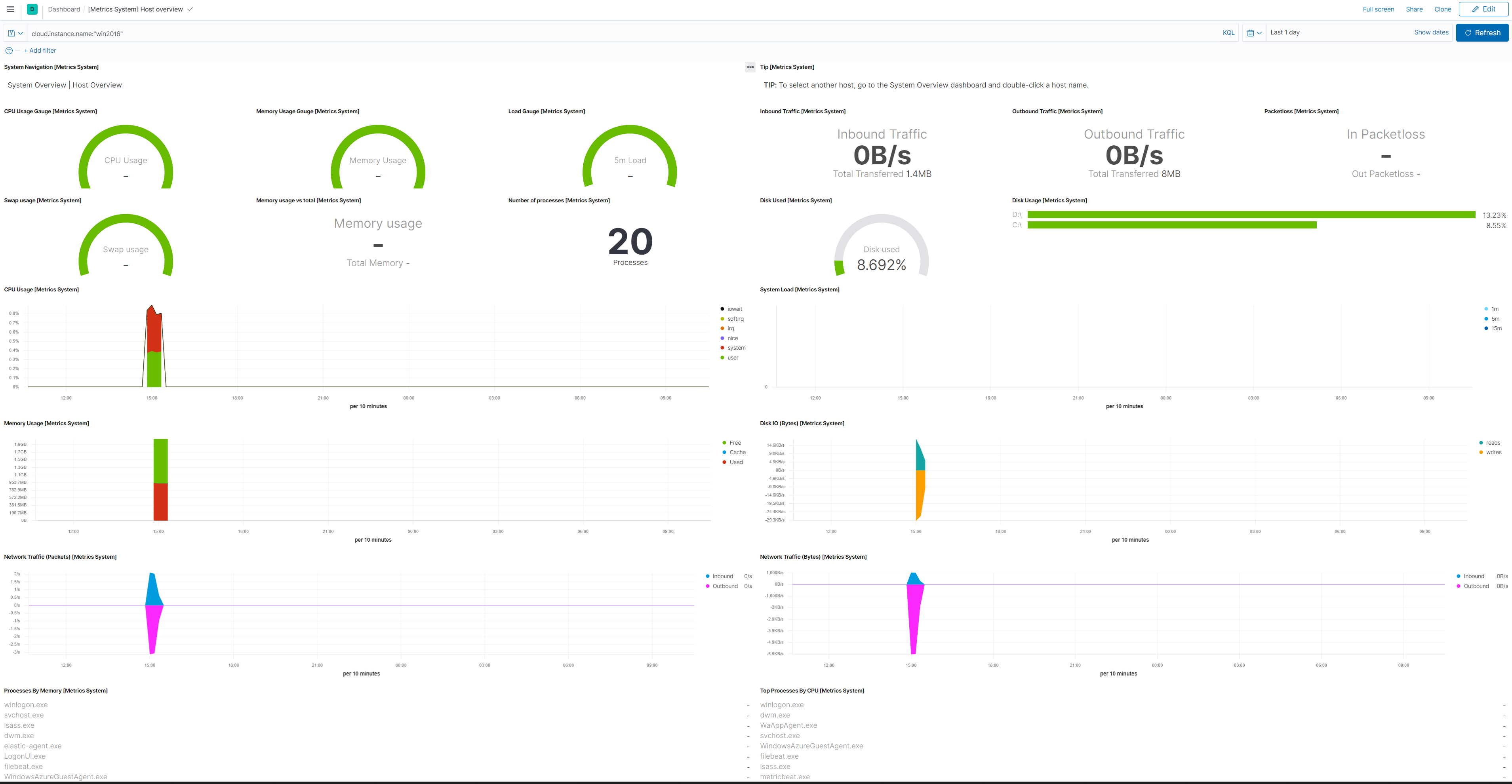
To enable or disable a VM extension:
- In Azure, navigate to your Elasticsearch deployment or project.
- Select the Virtual machines tab.
- Select one or more virtual machines.
- Choose Install Extension or Uninstall Extension.
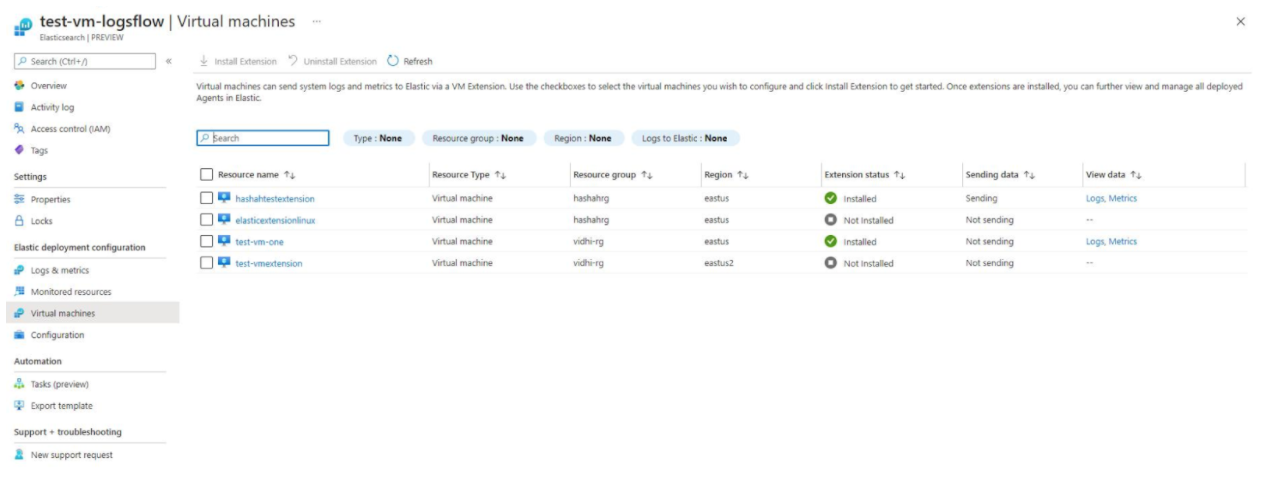
While it's possible to enable or disable a VM extension directly from the VM itself, we recommend always enabling or disabling your Elasticsearch VM extensions from within the context of your Elasticsearch deployment or project.
Once installed on the virtual machine, you can manage Elastic Agent either from Fleet or locally on the host where it's installed. We recommend managing the VM extension through Fleet, because it makes handling and upgrading the agents considerably easier. For more information on Elastic Agent, check Manage your Elastic Agents.
The Azure Elastic Agent VM extension is supported on the following operating systems:
| Platform | Version |
|---|---|
| Windows | 2008r2+ |
| CentOS | 6.10+ |
| Debian | 9,10 |
| Oracle | 6.8+ |
| RHEL | 7+ |
| Ubuntu | 16+ |