Customize TLS certificates for a self-managed Elastic Stack
This tutorial demonstrates how to replace the default certificates and keys from Install a self-managed Elastic Stack with certificates and keys you create and install yourself. You start with Elasticsearch: TLS for node-to-node transport and for the HTTP API, and you align Kibana so it trusts the cluster’s HTTP certificate authority. After that, you turn on HTTPS for browsers that open Kibana, and you configure TLS for Fleet Server and for Elastic Agent hosts that enroll through it.
To review the baseline security and TLS configuration established by Install a self-managed Elastic Stack, including Elasticsearch automatic security setup and the self-signed Fleet Server certificate from the Quick Start flow, refer to Security overview.
The tutorial is organized into the following phases:
Configure TLS certificates for the Elasticsearch transport layer
- Generate a new certificate authority (CA) for transport
- Generate transport certificates for all nodes
- Apply configuration changes and restart the nodes
Configure TLS certificates for the Elasticsearch HTTP layer
- Generate a shared HTTP CA for the Elastic Stack
- Generate HTTP certificates for Elasticsearch nodes
- Apply configuration changes and restart the cluster
- Configure Kibana client to trust Elasticsearch HTTP CA
-
- Generate server-side TLS certificates for Kibana
- Apply configuration changes and restart Kibana
Configure Fleet Server and Elastic Agent with custom certificates
- Install Fleet Server with custom TLS certificates
- Install Elastic Agent
- View your system data
Each section is independent unless otherwise noted, so you can follow only the parts relevant to your setup. Estimated completion time is 90 minutes.
This tutorial does not cover mutual TLS authentication (mTLS) for HTTP client connections to Elasticsearch. If you require client certificate authentication, refer to the following documentation:
Before starting, you must have an on-premises Elasticsearch cluster with Kibana already set up, following the steps in the tutorial Install a self-managed Elastic Stack.
As a result of the cluster installation, all your Elasticsearch nodes should contain the following files under /etc/elasticsearch/certs:
sudo ls -l /etc/elasticsearch/certs
-rw-rw----. 1 root elasticsearch  1935 ... http_ca.crt
-rw-rw----. 1 root elasticsearch 10077 ... http.p12
-rw-rw----. 1 root elasticsearch  5838 ... transport.p12
- HTTP CA, in PEM format
- HTTP keystore for the node, in PKCS#12 format, including the server certificate and key, and the HTTP CA
- Transport keystore for the node, in PKCS#12 format, including the server certificate, the key, and the transport CA
The existing elasticsearch.yml configuration in all nodes should include settings like the following:
# Enable encryption for HTTP API client connections, such as Kibana, Logstash, and Agents
xpack.security.http.ssl:
  enabled: true
  keystore.path: certs/http.p12

# Enable encryption and mutual authentication between cluster nodes
xpack.security.transport.ssl:
  enabled: true
  verification_mode: certificate
  keystore.path: certs/transport.p12
  truststore.path: certs/transport.p12
And the Elasticsearch keystore in each node should include the following secure settings:
sudo /usr/share/elasticsearch/bin/elasticsearch-keystore list
xpack.security.http.ssl.keystore.secure_password
xpack.security.transport.ssl.keystore.secure_password
xpack.security.transport.ssl.truststore.secure_password
If your setup uses different certificate files or paths, or does not have TLS configured, you might need to adapt some of the steps in this tutorial accordingly.
In this tutorial, /usr/share/elasticsearch/pki is used as a central working directory for generating and storing certificates before distributing them to the corresponding nodes.
This directory is referred to as the PKI directory, and the host where these steps are performed is referred to as the PKI host.
All CA and certificate generation steps in this tutorial use elasticsearch-certutil.
For simplicity, the examples use the first Elasticsearch node as the PKI host. In production environments, use a separate and secured host for PKI operations, keep CA private keys there, and distribute only the required certificate artifacts to each node.
You can run elasticsearch-certutil on any Linux host with access to the Elasticsearch distribution, for example from the extracted .tar.gz archive.
On the PKI host, run the following commands:
Create the PKI directory to store all generated certificates:
sudo mkdir -p /usr/share/elasticsearch/pkiInstall
unziptool, if not installed already:sudo yum install -y unzip
In this section, you create a self-signed certificate authority (CA) used to issue transport certificates for all Elasticsearch nodes in the cluster. These certificates can replace the existing ones, or can be used to enable transport TLS on clusters where it is not yet configured.
We strongly recommend using a dedicated CA per cluster for Elasticsearch transport security, not a CA used to sign certificates for other systems or purposes. Never use a public CA for the Elasticsearch transport layer. Refer to Using an external certificate authority to secure node-to-node connections for transport TLS certificate requirements.
On the host where you generate the certificates (the PKI host), run the following commands:
Create a CA. When prompted, specify a unique name for the output file, such as
transport-ca.zip:sudo /usr/share/elasticsearch/bin/elasticsearch-certutil ca -pemMove the output file to the
/usr/share/elasticsearch/pki/transportdirectory.sudo mkdir -p /usr/share/elasticsearch/pki/transport sudo mv /usr/share/elasticsearch/transport-ca.zip /usr/share/elasticsearch/pki/transport/Unzip the file:
sudo unzip -d /usr/share/elasticsearch/pki/transport/ /usr/share/elasticsearch/pki/transport/transport-ca.zipWhen the archive is unpacked, it creates a
cadirectory with the following files:/usr/share/elasticsearch/pki/transport/ └── ca/ ├── ca.crt └── ca.keyca.crt: The generated CA certificate.ca.key: The certificate authority's private key.
In the remaining steps, use this CA to generate transport certificates for all Elasticsearch nodes in the cluster. Keep the
ca.keyfile in a secure location and do not distribute it to the nodes.
In this section, you generate transport certificates for all cluster nodes using the CA created in the previous step.
Do not use publicly trusted certificates for the Elasticsearch transport layer. If you want to use a private or corporate CA, refer to Using an external certificate authority to secure node-to-node connections for transport certificate requirements and best practices.
On the host where you generate the certificates (the PKI host), and using the newly-created CA certificate and key, create certificates for all your Elasticsearch nodes:
sudo /usr/share/elasticsearch/bin/elasticsearch-certutil cert \ --ca-cert /usr/share/elasticsearch/pki/transport/ca/ca.crt \ --ca-key /usr/share/elasticsearch/pki/transport/ca/ca.key \ --multiple- Use the
--multipleoption to generate certificates for multiple Elasticsearch nodes in a single command. Inelasticsearch-certutilprompts, each node is entered as an instance name. Alternatively, run the command once per Elasticsearch node and specify a different output filename each time.
When prompted:
- Set an instance name for each node.
- Optionally set the
IP addressandFQDN namesfor each node, for additional security. - Choose an output file name (you can use the default
certificate-bundle.zip) and a password for each certificate. - Optionally, use the same password for all certificates to simplify keystore configuration in the next step.
The following is an example of the command interactions:
Enter instance name: es-node1 Enter name for directories and files of es-node1 [es-node1]: Enter IP Addresses for instance (comma-separated if more than one) []: Enter DNS names for instance (comma-separated if more than one) []: Would you like to specify another instance? Press 'y' to continue entering instance information: y Enter instance name: es-node2 Enter name for directories and files of es-node2 [es-node2]: Enter IP Addresses for instance (comma-separated if more than one) []: Enter DNS names for instance (comma-separated if more than one) []: Would you like to specify another instance? Press 'y' to continue entering instance information: y Enter instance name: es-node3 Enter name for directories and files of es-node3 [es-node3]: Enter IP Addresses for instance (comma-separated if more than one) []: Enter DNS names for instance (comma-separated if more than one) []: Would you like to specify another instance? Press 'y' to continue entering instance information: n Please enter the desired output file [certificate-bundle.zip]: Enter password for es-node2/es-node2.p12 : Enter password for es-node1/es-node1.p12 : Enter password for es-node3/es-node3.p12 : Certificates written to /usr/share/elasticsearch/certificate-bundle.zip- Use the
Move the output file to the
/usr/share/elasticsearch/pki/transportdirectory.sudo mkdir -p /usr/share/elasticsearch/pki/transport sudo mv /usr/share/elasticsearch/certificate-bundle.zip /usr/share/elasticsearch/pki/transport/Unzip the file:
sudo unzip -d /usr/share/elasticsearch/pki/transport/ /usr/share/elasticsearch/pki/transport/certificate-bundle.zipAfter extraction,
/usr/share/elasticsearch/pki/transport/matches the structure below. Theca/directory holds the transport CA you created in Step 1: Generate a new CA for the Elasticsearch transport layer./usr/share/elasticsearch/pki/transport/ ├── ca/ │ ├── ca.crt │ └── ca.key ├── es-node1/ │ └── es-node1.p12 ├── es-node2/ │ └── es-node2.p12 └── es-node3/ └── es-node3.p12List the unpacked files for a node directory:
sudo ls /usr/share/elasticsearch/pki/transport/<es-node-name><es-node-name>.p12: The generated certificate in PKCS#12 format, protected with the password you entered during certificate creation.
In this step, you copy the transport CA and node certificates to the Elasticsearch nodes. Each node receives only its own certificate and the shared CA.
This tutorial uses scp to copy files to a regular user's home directory and then mv to the Elasticsearch configuration directory. If your environment supports a more direct transfer method to the final destination, use that instead.
After completing this step, the following files should be present on each Elasticsearch node:
/etc/elasticsearch/certs/transport_ca_new.pem, containing the CA certificate in PEM format./etc/elasticsearch/certs/transport_cert_new.p12, containing the node’s transport keystore in PKCS#12 format.
From the host used to generate all certificates (the PKI host), copy the transport CA certificate and the node certificate together to each corresponding Elasticsearch node:
sudo scp /usr/share/elasticsearch/pki/transport/ca/ca.crt \
  /usr/share/elasticsearch/pki/transport/<es-node-name>/<es-node-name>.p12 \
  <user>@<node-host>:/home/user/
Repeat this command for each node, replacing
<es-node-hostname>and<es-node-host>with the corresponding values.On each Elasticsearch node, move the copied certificate files from that directory to the configuration directory:
sudo mv /home/user/ca.crt /etc/elasticsearch/certs/transport_ca_new.pem sudo mv /home/user/<es-node-name>.p12 /etc/elasticsearch/certs/transport_cert_new.p12- For consistency and operational simplicity, the same filename is used for the final certificate file on all Elasticsearch nodes. If you'd like to keep the original filenames (
<es-node-name>.p12), make sure you update the configuration accordingly when you reach the next step.
- For consistency and operational simplicity, the same filename is used for the final certificate file on all Elasticsearch nodes. If you'd like to keep the original filenames (
Ensure the certificate files have the correct ownership and permissions on each Elasticsearch node:
sudo chown -R root:elasticsearch /etc/elasticsearch/certs/
sudo sh -c 'chmod 640 /etc/elasticsearch/certs/*'
sudo chmod 750 /etc/elasticsearch/certs
There are two ways to apply the changes, depending on whether you can tolerate a short disruption of the service, or if you prefer to avoid any downtime:
- Full cluster restart: Simpler and faster, recommended for small clusters where a short downtime is acceptable. Update the configuration in all nodes, then stop and start all nodes.
- Rolling restart (no downtime): Update the truststores to temporarily include both the existing and the new CA certificates, allowing nodes to trust old and new certificates during the transition. Then update the configuration and restart each node one at a time until all nodes use the new certificates.
Choose the approach that best fits your operational requirements.
In Full cluster and rolling restart procedures, you apply changes after you shut down all nodes (full-cluster restart), or after you shut down the current node (rolling restart).
In this tutorial, those changes are made before the stop and restart steps to reduce downtime. This order is acceptable when the changes do not affect the running node and only take effect after the service restart.
When replacing the transport CA, nodes using certificates signed by a new CA are not trusted by default, so a full cluster restart is typically required unless additional steps are taken.
These steps are only needed if you want to apply the changes one node at a time, without service disruption. If you can accommodate a full cluster restart, skip directly to Nodes configuration.
To prepare the cluster to trust both existing and new certificates, perform the following steps on all Elasticsearch nodes:
Extract the original transport CA from the existing PKCS#12 truststore. The original CA will be needed in a later step.
sudo openssl pkcs12 -in /etc/elasticsearch/certs/transport.p12 \ -cacerts -nokeys \ -out /etc/elasticsearch/certs/transport_ca_old.pemtransport.p12is the name of the transport TLS truststore being used (xpack.security.transport.ssl.truststore.path).
When prompted, enter the truststore password. The command creates the
/etc/elasticsearch/certs/transport_ca_old.pemfile, containing the original CA in PEM format.TipIf you don't know the password of your original truststore, you can obtain it from the Elasticsearch secure settings with:
sudo /usr/share/elasticsearch/bin/elasticsearch-keystore show xpack.security.transport.ssl.truststore.secure_passwordImport the newly-created CA certificate into the existing Elasticsearch truststore. This step ensures that your running cluster will trust nodes presenting the new certificates:
sudo /usr/share/elasticsearch/jdk/bin/keytool -importcert -trustcacerts -noprompt \ -keystore /etc/elasticsearch/certs/transport.p12 \ -storepass <password> -alias new-transport-ca \ -file /etc/elasticsearch/certs/transport_ca_new.pemtransport.p12is the name of the transport TLS truststore being used (xpack.security.transport.ssl.truststore.path).transport_ca_new.pemis the newly-created transport CA, in PEM format.
To verify that the CA was added to the truststore, run:
sudo /usr/share/elasticsearch/jdk/bin/keytool \
  -keystore /etc/elasticsearch/certs/transport.p12 -list
In the output, confirm that the
new-transport-caalias is present.Import the original CA into the new
transport_cert_new.p12PKCS#12 file. This step ensures that reconfigured nodes can join and communicate with existing nodes that still use the original CA.sudo /usr/share/elasticsearch/jdk/bin/keytool -importcert -trustcacerts -noprompt \ -keystore /etc/elasticsearch/certs/transport_cert_new.p12 \ -storepass <password> -alias old-transport-ca \ -file /etc/elasticsearch/certs/transport_ca_old.pemtransport_cert_new.p12is the name of the new transport TLS certificate.- Use the same password you used in Step 2: Generate transport certificates.
transport_ca_old.pemis the current transport CA being used, in PEM format.
To verify that the CA was added to the truststore, run:
sudo /usr/share/elasticsearch/jdk/bin/keytool \
  -keystore /etc/elasticsearch/certs/transport_cert_new.p12 -list
In the output, confirm that the
old-transport-caalias is present.
On the first Elasticsearch node, complete the following actions to configure it to use the new certificate. The final step in this section indicates how and when to repeat the same procedure on the remaining nodes, based on the restart approach you selected.
Open the configuration file (
/etc/elasticsearch/elasticsearch.yml) in a text editor and adjust the following values to reflect the newly created certificates:# Enable encryption and mutual authentication between cluster nodes xpack.security.transport.ssl: enabled: true verification_mode: certificate keystore.path: certs/transport_cert_new.p12 truststore.path: certs/transport_cert_new.p12- If you generated individual certificates for each node that include the corresponding DNS names or IP addresses, you can set the verification mode to
full. Refer toxpack.security.transport.ssl.verification_modeparameter in TLS settings. - If you created the certificates with different names, set them accordingly in every node.
- The truststore uses the same file name because the generated PKCS#12 file includes also the CA certificate.
- If you generated individual certificates for each node that include the corresponding DNS names or IP addresses, you can set the verification mode to
Configure the passwords of the PKCS#12 files as secure settings, using the
elasticsearch-keystoreutility.From the Elasticsearch installation directory, list the configured secure settings:
sudo /usr/share/elasticsearch/bin/elasticsearch-keystore listCheck for the existence of the following settings in the output:
xpack.security.transport.ssl.keystore.secure_password
xpack.security.transport.ssl.truststore.secure_password
These secure settings contain the passwords that protect the existing PKCS#12 certificates created during the installation, and need to be replaced with the passwords of the newly-created certificates.
Remove the existing settings for the default transport keystore and truststore:
sudo /usr/share/elasticsearch/bin/elasticsearch-keystore remove xpack.security.transport.ssl.keystore.secure_password
sudo /usr/share/elasticsearch/bin/elasticsearch-keystore remove xpack.security.transport.ssl.truststore.secure_password
Add the secure settings with the password associated to the newly-created certificates. This ensures that Elasticsearch can read the new PKCS#12 files:
sudo /usr/share/elasticsearch/bin/elasticsearch-keystore add xpack.security.transport.ssl.keystore.secure_password sudo /usr/share/elasticsearch/bin/elasticsearch-keystore add xpack.security.transport.ssl.truststore.secure_password- Use the same password in both secure settings, as both
keystoreandtruststoreElasticsearch YAML settings are pointing to the same file.
- Use the same password in both secure settings, as both
To apply the changes, complete the actions that match the selected approach:
For a rolling restart: Restart the node, ensure it rejoins the cluster with the new certificates, and then repeat this procedure on the next node.
To restart a running node:
sudo systemctl restart elasticsearchConfirm that Elasticsearch is running:
sudo systemctl status elasticsearch.serviceIf needed, monitor Elasticsearch logs for startup or TLS-related errors:
sudo tail -f /var/log/elasticsearch/elasticsearch-demo.logRefer to Rolling restart for operational guidance and additional verification steps.
For a full-cluster restart: Repeat the previous steps on all nodes, and once all nodes are configured, stop and start the entire cluster:
To stop the cluster, run this on all nodes:
systemctl stop elasticsearchTo start the cluster, run this on all nodes:
systemctl start elasticsearchRefer to Full-cluster restart for operational guidance and additional verification steps.
After all Elasticsearch nodes are running with the new certificates, if you followed the rolling restart approach and prepared the nodes for a rolling restart, remove the original CA (
old-transport-ca) from the new truststore in all nodes:sudo /usr/share/elasticsearch/jdk/bin/keytool -delete \ -keystore /etc/elasticsearch/certs/transport_cert_new.p12 \ -storepass <password> \ -alias old-transport-ca
This section covers TLS configuration for Elasticsearch HTTP connections. It includes creating a shared HTTP CA that can be reused across the Elastic Stack.
Unlike the transport layer, where using a CA dedicated exclusively to the cluster is recommended for security reasons, there are multiple valid approaches for HTTP certificates. For example, you can use certificates signed by a publicly trusted CA, or certificates signed by your organization's CA.
You can also use a single shared HTTP CA across the stack (for example, for Elasticsearch, Kibana, and Fleet Server certificates), or use different CAs and certificate profiles per component to separate trust domains. Refer to Same CA and Different CA for more details about these trust models.
This section covers TLS configuration for HTTP connections across the Elastic Stack by creating a shared HTTP CA used to sign certificates for Elasticsearch, Kibana, and Fleet Server.
On the host where you generate the certificates (the PKI host), run the following commands:
Create a new self-signed CA:
sudo /usr/share/elasticsearch/bin/elasticsearch-certutil ca -pemWhen prompted, specify a unique name for the output file, such as
elastic-stack-http-ca.zip.Move the output file to the
/usr/share/elasticsearch/pki/httpdirectory.sudo mkdir -p /usr/share/elasticsearch/pki/http sudo mv /usr/share/elasticsearch/elastic-stack-http-ca.zip /usr/share/elasticsearch/pki/http/Unzip the file:
sudo unzip -d /usr/share/elasticsearch/pki/http/ /usr/share/elasticsearch/pki/http/elastic-stack-http-ca.zipWhen the archive is unpacked, it creates a
cadirectory with the following files:/usr/share/elasticsearch/pki/http/ └── ca/ ├── ca.crt └── ca.keyRename the files using descriptive names:
sudo mv /usr/share/elasticsearch/pki/http/ca/ca.crt /usr/share/elasticsearch/pki/http/ca/elastic-stack-http-ca.crt
sudo mv /usr/share/elasticsearch/pki/http/ca/ca.key /usr/share/elasticsearch/pki/http/ca/elastic-stack-http-ca.key
The resulting structure is:
/usr/share/elasticsearch/pki/http/ ├── elastic-stack-http-ca.zip └── ca/ ├── elastic-stack-http-ca.crt └── elastic-stack-http-ca.keyelastic-stack-http-ca.crt: The generated CA certificate.elastic-stack-http-ca.key: The certificate authority's private key.
In the rest of this tutorial, you use this CA to generate HTTP certificates across the stack, including Elasticsearch nodes and other components such as Kibana and Fleet Server. Keep the CA key file in a secure location and do not distribute it to nodes.
In this step, you generate certificates for the Elasticsearch nodes using the previously-created CA for HTTP.
If you already obtained HTTP certificates from your security team or certificate authority, skip this step and go directly to Step 3: Apply configuration changes and restart nodes.
On the host where you generate the certificates (the PKI host), use the
elasticsearch-certutilutility to create HTTP certificates for Elasticsearch nodes:sudo /usr/share/elasticsearch/bin/elasticsearch-certutil httpRespond to the command prompts as follows:
When asked if you want to generate a CSR, enter
n.NoteIf you want to generate CSRs to be signed by an external CA, answer
yto the CSR prompt instead.When asked if you want to use an existing CA, enter
yand provide the CA certificate and key generated in Step 1: Generate a shared HTTP CA for the Elastic Stack:/usr/share/elasticsearch/pki/http/ca/elastic-stack-http-ca.crt/usr/share/elasticsearch/pki/http/ca/elastic-stack-http-ca.key
Enter an expiration value for your certificate. You can enter the validity period in years, months, or days. For example, enter
1yfor one year.When asked if you want to generate one certificate per node, enter
y.You'll be guided through creating certificates for each node. Each certificate has its own private key and is issued for the provided hostnames and IP addresses.
NoteIf you prefer to create a single certificate for all cluster nodes, answer
nwhen prompted to generate one certificate per node, and make sure to include the IP address(es) and FQDN(s) that clients use to access the cluster.For each certificate you create, complete the following actions:
Enter a descriptive name for the node, for example
es-node1.Enter the list of hostnames to be added as
DNSnames in theSubject Alternative Name(SAN) field in your certificate.NoteIf there's a common FQDN that you want all nodes to accept, include it in all certificates. This is useful when you access the cluster through an external load balancer or reverse proxy.
When prompted, confirm that the settings are correct.
Add the network IP addresses that clients can use to connect to the node. At a minimum, include the IP address of the node the certificate is intended for, for example
203.0.113.21.NoteIf there's a common IP address used to access the cluster, include it in all certificates. This is useful when you access the cluster through an external load balancer or reverse proxy and want to allow access by its IP address.
When prompted, confirm that the settings are correct.
When prompted, choose to generate additional certificates, and then repeat the previous steps for each node in your Elasticsearch cluster.
Provide a password for the generated
http.p12keystore files.NoteAll generated PKCS#12 certificates are protected with the same password
Provide a name for the output file, or accept the default
/usr/share/elasticsearch/elasticsearch-ssl-http.zip.
The tool generates all certificates in
/usr/share/elasticsearch/elasticsearch-ssl-http.zip.Move the output file to the
/usr/share/elasticsearch/pki/httpdirectory:sudo mkdir -p /usr/share/elasticsearch/pki/http sudo mv /usr/share/elasticsearch/elasticsearch-ssl-http.zip /usr/share/elasticsearch/pki/http/Unzip the generated
elasticsearch-ssl-http.ziparchive:sudo unzip -d /usr/share/elasticsearch/pki/http/ /usr/share/elasticsearch/pki/http/elasticsearch-ssl-http.zipWhen the archive is unpacked, the certificate files are placed in separate directories for each Elasticsearch node. A
cadirectory is also created for the HTTP CA, and akibanadirectory is created so you can configure Kibana to trust that CA./usr/share/elasticsearch/pki/http/ ├── elasticsearch-ssl-http.zip ├── elasticsearch/ │ ├── es-node1/ │ │ └── http.p12 │ └── es-node2/ │ └── http.p12 │ └── ... └── kibana/ └── elasticsearch-ca.pemhttp.p12: PKCS#12 keystore for each Elasticsearch node, containing the node certificate and private key.elasticsearch-ca.pem: CA certificate in PEM format, used by Kibana and other clients to trust Elasticsearch HTTP certificates. This is the same CA aselastic-stack-http-ca.crt.
In this step, you copy the generated PKCS#12 certificates and the CA to the corresponding Elasticsearch nodes. The new keystore is stored as http_new.p12, while the existing http.p12 remains in use until you switch over in the next step.
This tutorial uses scp to copy files to a regular user's home directory and then mv to the Elasticsearch configuration directory. If your environment supports a more direct transfer method to the final destination, use that instead.
After completing this step, the following files should be present on each Elasticsearch node in /etc/elasticsearch/certs:
http.p12, containing the currently active HTTP certificate.http_new.p12, containing the new HTTP certificate for that node.elastic-stack-http-ca.crt, containing the HTTP CA certificate in PEM format.
From the host where you generate the certificates (the PKI host), copy each generated
http.p12certificate and the shared HTTP CA certificate to its corresponding node:sudo scp /usr/share/elasticsearch/pki/http/elasticsearch/<es-node-hostname>/http.p12 \ /usr/share/elasticsearch/pki/http/ca/elastic-stack-http-ca.crt \ <user>@<es-node-host>:/home/user/Repeat this command for each node, replacing
<es-node-hostname>and<es-node-host>with the corresponding values.On each Elasticsearch node, move the received files to the configuration directory and rename
http.p12tohttp_new.p12:sudo mv /home/user/http.p12 /etc/elasticsearch/certs/http_new.p12 sudo mv /home/user/elastic-stack-http-ca.crt /etc/elasticsearch/certs/elastic-stack-http-ca.crtEnsure the certificate files have the correct ownership and permissions configured on each Elasticsearch node:
sudo chown -R root:elasticsearch /etc/elasticsearch/certs/
sudo chmod 640 /etc/elasticsearch/certs/*
sudo chmod 750 /etc/elasticsearch/certs
Updating HTTP certificates in Elasticsearch clusters can be done one node at a time, following a rolling restart procedure.
Using new HTTP certificates signed by a different CA can affect client HTTP connections to the cluster, such as Kibana, Fleet Server, and Elastic Agent hosts. Clients that do not trust the new CA will fail to connect to Elasticsearch. For production environments, add the new HTTP CA to all client trust stores before applying the changes.
Complete this procedure for each node in the cluster:
Open the configuration file (
/etc/elasticsearch/elasticsearch.yml) in a text editor and update the HTTP SSL settings to point to the new certificate keystore:xpack.security.http.ssl: enabled: true keystore.path: certs/http_new.p12- Ensure this path matches the location of the new HTTP certificate deployed on each node.
Update the HTTP keystore password configured as a secure setting, using the
elasticsearch-keystoreutility:First remove the existing entry:
sudo /usr/share/elasticsearch/bin/elasticsearch-keystore remove xpack.security.http.ssl.keystore.secure_passwordAdd the secure setting again, using the password of the new HTTP certificate:
sudo /usr/share/elasticsearch/bin/elasticsearch-keystore add xpack.security.http.ssl.keystore.secure_password
Restart the Elasticsearch service for the changes to take effect:
sudo systemctl restart elasticsearch.serviceVerify that the restarted node rejoins the cluster by following the checks in the rolling restart procedure.
In the event of any problems, you can also monitor the Elasticsearch logs for any issues by tailing the Elasticsearch log file:
sudo tail -f /var/log/elasticsearch/elasticsearch-demo.logVerify that the node responds to HTTP requests with the new CA:
curl -u elastic --cacert /etc/elasticsearch/certs/elastic-stack-http-ca.crt "https://<NODE_IP>:9200/_cat/nodes?v"- Use the node IP, hostname, or FQDN according to the SAN entries you included when generating the HTTP certificates.
Continue with the next node.
When the Elasticsearch HTTP CA changes, Kibana must trust the new CA certificate to continue establishing HTTPS connections to Elasticsearch.
From the host where you generate the certificates (the PKI host), copy the Elasticsearch CA (
elastic-stack-http-ca.crt) from the PKI directory to the Kibana host machine:sudo scp /usr/share/elasticsearch/pki/http/ca/elastic-stack-http-ca.crt <user>@<kibana-host>:/home/user/elastic-stack-http-ca.crtOn the Kibana host machine, move the file to the Kibana configuration directory:
sudo mv /home/user/elastic-stack-http-ca.crt /etc/kibanaUpdate the
/etc/kibana/kibana.ymlsettings file to reflect the location of theelastic-stack-http-ca.crt:elasticsearch.ssl.certificateAuthorities: [ "/etc/kibana/elastic-stack-http-ca.crt" ]Restart the Kibana service:
sudo systemctl restart kibana.service
This section covers server-side HTTPS configuration for Kibana, so browser-to-Kibana traffic is encrypted.
Server-side SSL/TLS certificates for Kibana are strongly recommended. They are not configured automatically by default.
In this tutorial, you generate a new TLS certificate for Kibana using the Certificate Authority (CA) created in Generate a new HTTP CA for the Elastic Stack, but there are other valid options:
- If you obtain the certificates from a publicly trusted CA or from your organization's CA, copy them to your Kibana host, and skip directly to Configure Kibana SSL server and restart.
- If you prefer to create a new CA for Kibana HTTP, repeat the steps in Generate a new HTTP CA for the Elastic Stack and provide different file names.
- If you want to create a CSR and submit it to your organization, you can follow the example provided in Encrypt traffic between your browser and Kibana.
For additional guidance on Kibana security and HTTPS configuration, refer to Configure security in Kibana and Set up HTTPS.
To create a new certificate for Kibana using an existing HTTP CA, complete the following actions:
On the host where you generate the certificates (the PKI host), use the certificate utility to generate a certificate bundle for the Kibana server.
sudo /usr/share/elasticsearch/bin/elasticsearch-certutil cert --name kibana-server \ --ca-cert /usr/share/elasticsearch/pki/http/ca/elastic-stack-http-ca.crt \ --ca-key /usr/share/elasticsearch/pki/http/ca/elastic-stack-http-ca.key \ --dns <DNS name> --ip <IP address> --pem- Replace
<DNS name>and<IP address>with the name and IP address of your Kibana server host.
TipYou can include multiple
--dnsentries if you want your certificate to serve other FQDNs.When prompted, specify a unique name for the output file, such as
kibana-cert-bundle.zip.- Replace
Move the output archive to the PKI directory:
sudo mkdir -p /usr/share/elasticsearch/pki/kibana
sudo mv /usr/share/elasticsearch/kibana-cert-bundle.zip /usr/share/elasticsearch/pki/kibana/
Unzip the generated
kibana-cert-bundle.ziparchive:sudo unzip -d /usr/share/elasticsearch/pki/kibana/ /usr/share/elasticsearch/pki/kibana/kibana-cert-bundle.zipThe resulting bundle structure is similar to the following:
/usr/share/elasticsearch/pki/kibana/ ├── kibana-cert-bundle.zip └── kibana-server/ ├── kibana-server.crt └── kibana-server.keyNoteThe CA certificate associated with this new certificate is the shared HTTP CA created earlier (
/usr/share/elasticsearch/pki/http/ca/elastic-stack-http-ca.crt).
From the host where you generate the certificates (the PKI host), copy the Kibana certificate and key to your Kibana host:
sudo scp /usr/share/elasticsearch/pki/kibana/kibana-server/kibana-server.crt \
  /usr/share/elasticsearch/pki/kibana/kibana-server/kibana-server.key \
  <user>@<kibana-host>:/home/user/
Replace
<kibana-host>with the hostname or IP address of your Kibana server.From the same host, copy the CA certificate associated with the Kibana server certificate to your Kibana host. In this tutorial, that CA is the shared HTTP CA generated earlier:
sudo scp /usr/share/elasticsearch/pki/http/ca/elastic-stack-http-ca.crt <user>@<kibana-host>:/home/user/elastic-stack-http-ca.crtNoteIf you used a different CA to generate the Kibana server certificate, copy that CA certificate instead.
On the Kibana host, move the certificate files into
/etc/kibana:sudo mv /home/user/kibana-server.crt /etc/kibana/ sudo mv /home/user/kibana-server.key /etc/kibana/ sudo mv /home/user/elastic-stack-http-ca.crt /etc/kibana/Update the ownership and permissions on the certificate files. From inside the
/etc/kibanadirectory, run:sudo chown root:kibana /etc/kibana/kibana-server.crt /etc/kibana/kibana-server.key /etc/kibana/elastic-stack-http-ca.crt sudo chmod 640 /etc/kibana/kibana-server.crt /etc/kibana/kibana-server.key /etc/kibana/elastic-stack-http-ca.crt
Open
/etc/kibana/kibana.ymland make the following changes:server.ssl.certificate: /etc/kibana/kibana-server.crt server.ssl.key: /etc/kibana/kibana-server.key server.ssl.enabled: trueRestart the Kibana service:
sudo systemctl restart kibana.serviceConfirm that Kibana is running:
sudo systemctl status kibana.serviceIf everything is configured correctly, connection to Elasticsearch will be established and Kibana will start normally.
You can also view the Kibana log file to gather more detail:
tail -f /var/log/kibana/kibana.logVerify that the log file contains a Kibana is now available message.
Access Kibana from your browser using HTTPS (
https://<KIBANA-IP>:5601). Log in using theelasticuser and the password generated when you installed the first Elasticsearch node.NoteTo avoid browser security warnings and ensure secure TLS validation, client browsers must trust the CA that signed the Kibana server certificate (
elastic-stack-http-ca.crt), or a certificate chain that includes it.
Now that Kibana is up and running, you can proceed to install Fleet Server, which will manage the Elastic Agent that we'll set up in a later step.
Refer to Deploy on-premises and self-managed Fleet Server and Configure SSL/TLS for self-managed Fleet Server for more detail.
Log in to the host where the HTTP CA was generated (the PKI host) and use the certificate utility to generate a certificate bundle for Fleet Server. In the command, replace
<DNS name>and<IP address>with the name and IP address of your Fleet Server host:sudo /usr/share/elasticsearch/bin/elasticsearch-certutil cert --name fleet-server \ --ca-cert /usr/share/elasticsearch/pki/http/ca/elastic-stack-http-ca.crt \ --ca-key /usr/share/elasticsearch/pki/http/ca/elastic-stack-http-ca.key \ --dns <DNS name> --ip <IP address> --pemNoteIn this tutorial, Fleet Server uses the same CA as Kibana and Elasticsearch for HTTP. If you prefer to create a new CA for Fleet Server certificates, repeat the steps in Generate a new HTTP CA for the Elastic Stack and provide different file names.
When prompted, specify a unique name for the output file, such as
fleet-cert-bundle.zip.On your Fleet Server host, create a directory for the certificate files:
sudo mkdir /etc/fleetCopy the generated archive over to your Fleet Server host and unpack it into
/etc/fleet/:/etc/fleet/fleet-server.crt/etc/fleet/fleet-server.key
Copy the Elasticsearch CA certificate (
/usr/share/elasticsearch/pki/http/ca/elastic-stack-http-ca.crt) into the/etc/fleet/directory on the Fleet Server host and rename it toes-ca.crt:/etc/fleet/es-ca.crt
NoteIn this tutorial, the CA used for Elasticsearch HTTP is also used to generate the Fleet Server certificate. In other environments, these can be different CAs.
Update the permissions on the certificate files to ensure that they’re readable. From inside the
/etc/fleetdirectory, run:sudo chmod 640 *.crt sudo chmod 640 *.keyNow that the certificate files are in place, on the Fleet Server host create a working directory for the installation package:
mkdir fleet-install-filesChange into the new directory:
cd fleet-install-filesObtain the host IP address for your Fleet Server host (for example, by running
ifconfig). You'll need this value later.In your web browser, open Kibana Management -> Fleet, click Add Fleet Server, and select the Advanced tab.
On the Create a policy for Fleet Server step, keep the default Fleet Server policy name. Leave the option to collect system logs and metrics selected. Click Create policy. The policy takes a minute or so to create.
On the Choose a deployment mode for security step, select Production. This enables you to provide your own certificates.
On the Add your Fleet Server host step:
- Specify a name for your Fleet Server host.
- Specify the host URL where Elastic Agents will reach Fleet Server (for example,
https://203.0.113.41:8220). You can use the host IP address from the previous step, or a resolvable FQDN. Refer to Default port assignments for reference. - Click Add host.
On the Generate a service token step, generate the token and save the output. The token will also be propagated automatically to the command to install Fleet Server.
On the Install Fleet Server to a centralized host step, select the Linux Tar tab (or the tab for your host OS). TAR/ZIP packages are recommended over RPM/DEB system packages, since only the former support upgrading Fleet Server using Fleet.
In the command block shown in Kibana, run the first three preparation commands. These commands do the following:
- Download the Fleet Server package from the Elastic Artifact Registry.
- Unpack the package archive.
- Change into the directory containing the install binaries.
Before running the
elastic-agent installcommand:Update the paths to the correct file locations:
- The Elasticsearch CA file (
es-ca.crt) - The Fleet Server certificate (
fleet-server.crt) - The Fleet Server key (
fleet-server.key)
- The Elasticsearch CA file (
Update the
fleet-server-es-ca-trusted-fingerprint. Run the following command to get the correct fingerprint fromes-ca.crt:grep -v ^- /etc/fleet/es-ca.crt | base64 -d | sha256sumAlternatively, you can use:
openssl x509 -outform der -in /etc/fleet/es-ca.crt | sha256sumSave the fingerprint value. You’ll need it in a later step.
Replace the
fleet-server-es-ca-trusted-fingerprint settingwith the returned value. Your updated command should be similar to the following:sudo ./elastic-agent install --url=https://203.0.113.41:8220 \ --fleet-server-es=https://203.0.113.21:9200 \ --fleet-server-service-token=<token> \ --fleet-server-policy=fleet-server-policy \ --fleet-server-es-ca-trusted-fingerprint=<fingerprint> \ --certificate-authorities=/etc/fleet/es-ca.crt \ --fleet-server-cert=/etc/fleet/fleet-server.crt \ --fleet-server-cert-key=/etc/fleet/fleet-server.key \ --fleet-server-port=8220- Set this to the HTTPS endpoint where Elastic Agents will connect to Fleet Server (the host and port configured in the Add your Fleet Server host step, typically port
8220). - Set this to the HTTPS endpoint of your Elasticsearch cluster.
Refer to
elastic-agent installfor all options.- Set this to the HTTPS endpoint where Elastic Agents will connect to Fleet Server (the host and port configured in the Add your Fleet Server host step, typically port
Run the
elastic-agent installcommand to install Fleet Server.When prompted, confirm that Elastic Agent should run as a service. The following message displays when the installation completes successfully:
Elastic Agent has been successfully installed.TipWondering why the command refers to Elastic Agent rather than Fleet Server? Fleet Server is actually a subprocess that runs inside Elastic Agent with a special Fleet Server policy. Refer to Fleet Server to learn more.
In the Kibana Add a Fleet Server flyout, wait for confirmation that Fleet Server has connected, then close the flyout.
Fleet Server is now fully set up.
Before installing Elastic Agent, complete the following steps to update the
kibana.ymlsettings file with the Elasticsearch CA fingerprint:NoteYou can also configure this in the Fleet UI by going to Settings -> Outputs, editing the default output, and setting the CA trusted fingerprint there.
On your Kibana host, stop the Kibana service:
sudo systemctl stop kibana.serviceOpen
/etc/kibana/kibana.ymlfor editing.Find the
xpack.fleet.outputssetting.Update
ca_trusted_fingerprintto the value you captured earlier, when you ran thegrepcommand on the Elasticsearches-ca.crtfile.The updated entry in
kibana.ymlshould be like the following:xpack.fleet.outputs: [{id: fleet-default-output, name: default, is_default: true, is_default_monitoring: true, type: elasticsearch, hosts: [`https://203.0.113.21:9200`], ca_trusted_fingerprint: 92b51cf91e7fa311f8c84849224d448ca44824eb}]Save your changes.
Start Kibana:
sudo systemctl start kibana.serviceKibana is now configured with the correct fingerprint for Elastic Agent to access Elasticsearch. You’re now ready to set up Elastic Agent!
Next, we'll install Elastic Agent on another host and use the System integration to monitor system logs and metrics. See Configure SSL/TLS for self-managed Fleet Server for more detail.
Log in to the host where you'd like to set up Elastic Agent.
Create a directory for the Fleet Server CA certificate file:
sudo mkdir /etc/agentFrom the host where you generate the certificates (the PKI host), copy the CA certificate used to generate the Fleet Server certificate into
/etc/agent/on the agent host and rename it tofleet-server-ca.crt:/etc/agent/fleet-server-ca.crt
NoteElastic Agent needs to trust the CA that issued the Fleet Server certificate. In this tutorial, that CA is the same as the Elasticsearch HTTP CA (
/usr/share/elasticsearch/pki/http/ca/elastic-stack-http-ca.crt), but these can be different in other environments.Elastic Agent also needs to trust Elasticsearch, but that trust is delivered after enrollment through Fleet policies and the configured Elasticsearch outputs, including the CA fingerprint configured earlier.
Create a working directory for the installation package:
mkdir agent-install-filesChange into the new directory:
cd agent-install-filesIn Kibana, go to Management -> Fleet. On the Agents tab, you should see your new Fleet Server policy running with a healthy status.
Click Add agent, choose a policy name (e.g.
Demo Agent Policy), and leave Collect system logs and metrics enabled (this adds the System integration). Click Create policy.For the Enroll in Fleet? step, leave Enroll in Fleet selected.
On the Install Elastic Agent on your host step, select the Linux Tar tab, or use the tab matching your operating system where you're setting up Fleet Server.
As with Fleet Server, note that TAR/ZIP packages are recommended over RPM/DEB system packages, since only the former support upgrading Elastic Agent using Fleet.
In the command block shown in Kibana, run the first three preparation commands in the terminal on your Elastic Agent host. These commands do the following:
- Download the Elastic Agent package from the Elastic Artifact Registry.
- Unpack the package archive.
- Change into the directory containing the install binaries.
Before running the
elastic-agent installcommand, make the following changes:- For the
--urlparameter, confirm that the port number is8220(this is the default port for on-premises Fleet Server). - Add a
--certificate-authoritiesparameter with the full path of your CA certificate file. For example,--certificate-authorities=/etc/agent/fleet-server-ca.crt.
The result should be like the following:
sudo ./elastic-agent install \ --url=https://203.0.113.41:8220 \ --enrollment-token=<token> \ --certificate-authorities=/etc/agent/fleet-server-ca.crt- Ensure the value matches the Fleet Server URL you configured earlier.
- For the
Run the
elastic-agent installcommand. EnterYwhen prompted. Wait for the Add agent flyout to show the agent as connected and for Confirm incoming data to complete, then close the flyout.
Your new Elastic Agent is now installed and enrolled with Fleet Server.
Use the following validation steps to view your system data.
View your system log data:
- Open the Kibana menu and go to Analytics -> Dashboard.
- In the query field, search for
Logs System. - Select the
[Logs System] Syslog dashboardlink. The Kibana Dashboard opens with visualizations of Syslog events, hostnames and processes, and more.
View your system metrics data:
- Open the Kibana menu and return to Analytics -> Dashboard.
- In the query field, search for
Metrics System. - Select the
[Metrics System] Host overviewlink. The Kibana Dashboard opens with visualizations of host metrics including CPU usage, memory usage, running processes, and others.
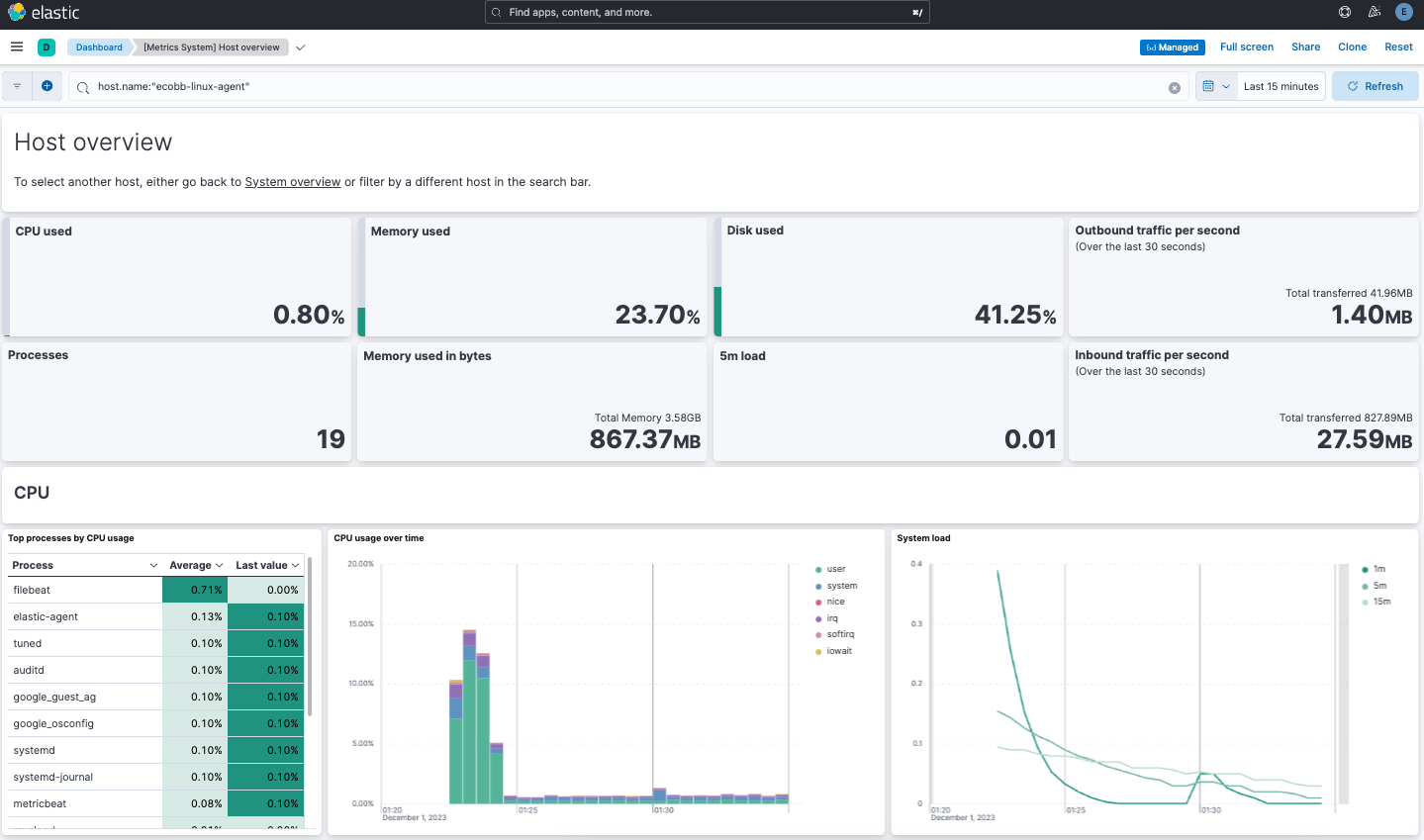
Congratulations! You've successfully configured security for Elasticsearch, Kibana, Fleet, and Elastic Agent using your own trusted CA-signed certificates.
Now that you’ve successfully installed and secured an on-premises Elastic Stack, learn how to bring in data and start exploring:
- Do you have data ready to ingest? Learn how to bring your data to Elastic.
- Use Elastic Observability to unify your logs, infrastructure metrics, uptime, and application performance data.
- Want to protect your endpoints from security threats? Try Elastic Security. Adding endpoint protection is just another integration that you add to the agent policy!