Filtering in Kibana
This page describes the common ways Kibana offers in most apps for filtering data and refining your initial search queries.
Some apps provide more options, such as Dashboards.
Display data within a specified time range when your index contains time-based events, and a time-field is configured for the selected data view. The default time range is 15 minutes, but you can customize it in Advanced Settings.
Open the time filter.
Set the time range in one of the following ways:
- For a common range, such as today or the last 15 minutes, select it under Presets.
- To reuse a range that you selected earlier, select Recent.
- If you know the range, enter it directly, such as
last 5 minutesor-12d to now, then press Enter. - To select start and end dates from a calendar, select Calendar, select the dates, then select Apply.
- To configure the start and end separately, select Custom range, set each one as Relative, Absolute, or Now, then select Apply.
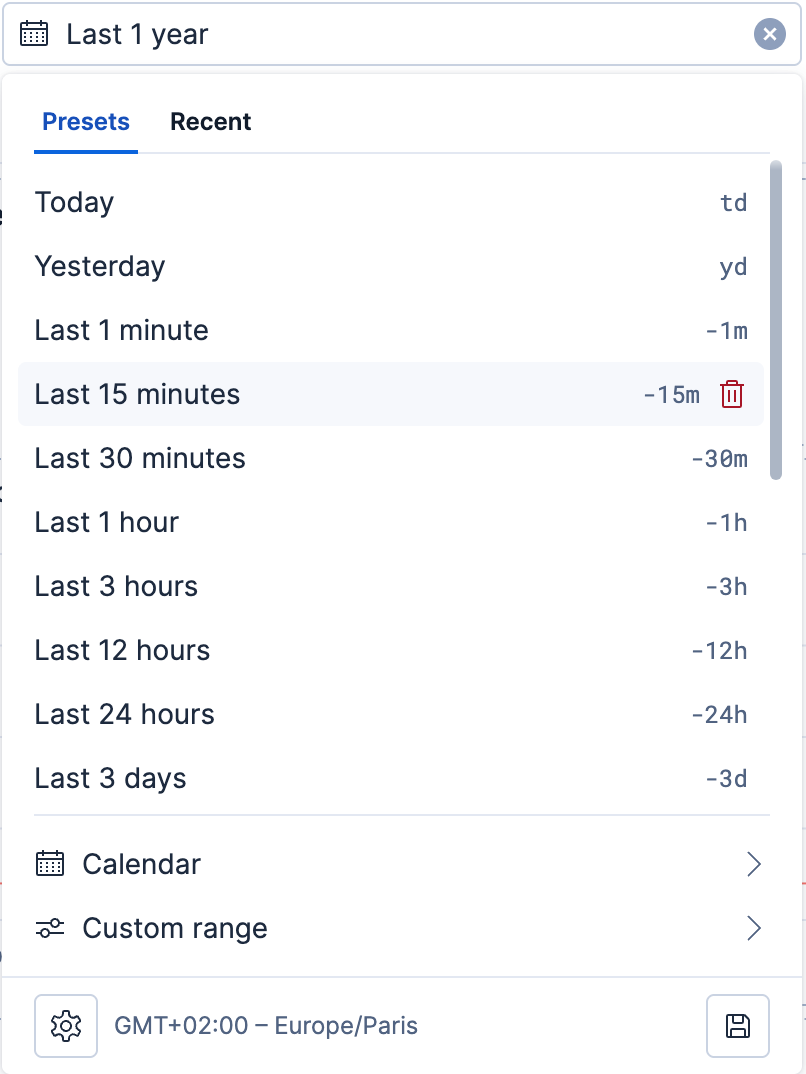
When you enter the time range as text, the time filter interprets a single value as a range relative to now, such as 3 days ago. To set the start and end explicitly, enter to or until between two values, such as yesterday to today. You can enter and combine any of the following formats:
| Format | Examples |
|---|---|
| Relative time | -15m, last 5 minutes, past 5 min, next 2 weeks, 2 hours from now. You can spell out time units or abbreviate them, for example m, min, or minutes. |
| Named ranges | today, yesterday, tomorrow, this week, this month until now, last month, next year. The mnemonics td, yd, and tmr stand for today, yesterday, and tomorrow. |
| Absolute time | Dec 1, 2025, 00:00 (default format), 2025-12-01 (ISO 8601), Fri, 1 Dec 2025 00:00:00 GMT (RFC 2822), 12/1/2025 (month/day/year), 1760665383890 (Unix timestamp in seconds or milliseconds). For example, you can paste a date or timestamp copied from a document or a log entry directly into the input. |
| Date math | now-15m, now/w, and other date math expressions. |
| Preset labels | Last 24 hours or any other range listed under Presets. |
A rounding unit makes a range start or end at the edge of a day, month, or year. For example, -1y/M starts at the beginning of the month one year ago, and the time filter adds a (rounded) suffix after the label. For more examples, refer to Round a range to whole days, months, or years.
The time filter can also give you the text for a range:
- To open the syntax reference, select Discover allowed formats and shorthands.
- To get the text equivalent of a range without typing it, select Custom range and configure the range. The Shorthand field shows the corresponding text, which you can copy and paste into the time filter whenever you need the same range again.
Optionally, you can:
Open Settings to configure automatic refresh and time display:
- Turn Refresh every on or off and set the refresh interval.
- Review Time format and zone, and select Advanced settings to change the time zone if you have access.
- Turn Round relative time ranges on or off to round relative ranges automatically.
- Under Absolute time range, select whether timestamps show Minutes, Seconds, or Milliseconds.
Save the current range as a preset for later reuse with , or select Save as preset when applying a range from the Calendar or Custom range panels. Saving a preset also applies the range, and saved ranges appear under Presets. User-created presets are personal to your user profile, and you can save up to 40. To delete a user-created preset, point to it under Presets and select Delete preset. Ranges from the Time filter quick ranges advanced setting stay in the list under the label configured for each range and cannot be deleted.
Step through time with the buttons next to the time range: Previous and Next shift the range backward or forward by its own duration, and Zoom out and Zoom in widen or narrow it.
Open the time filter.
Select one of the following:
- Quick select. Set a time based on the last or next number of seconds, minutes, hours, or other time unit.
- Commonly used. Select a time range from options such as Last 15 minutes, Today, and Week to date.
- Recently used date ranges. Use a previously selected date range.
- Refresh every. Specify an automatic refresh rate.
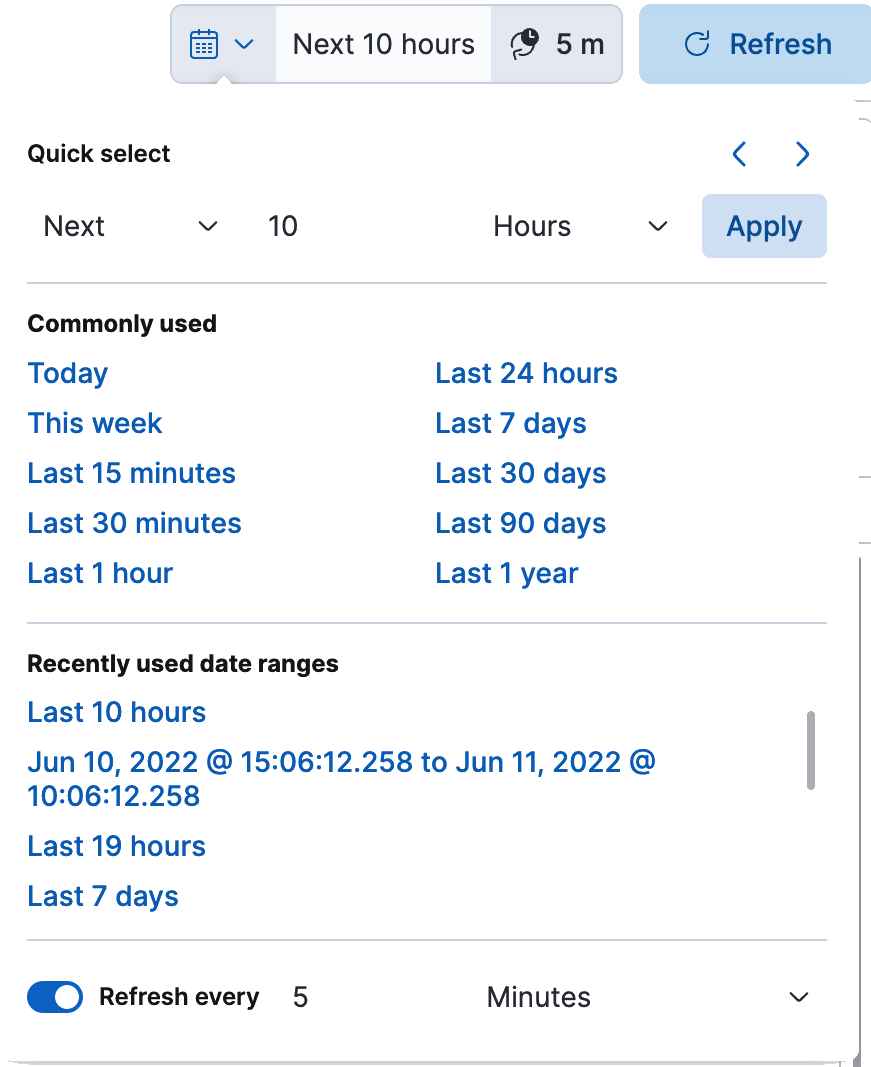
- To set start and end times, select the bar next to the time filter. In the popup, select Absolute, Relative, or Now, then specify the required options.
The global time filter limits the time range of data displayed. In most cases, the time filter applies to the time field in the data view, but some apps allow you to use a different time field.
Using the time filter, you can configure a refresh rate to periodically resubmit your searches.
To manually resubmit a search, click the Refresh button. This is useful when you use Kibana to view the underlying data.
With rounding, a relative range starts or ends at the edge of a day, month, or year instead of at an exact time.
Rounding is useful when you want whole days, weeks, months, or years instead of a window that shifts with the time you open it. If you round both ends of a range to the day, for example, the range covers the same full days whenever you open it that day.
For example, if it's October 8, 2026 at 13:09, a range that reaches back one year starts at a different point depending on how you round it:
| You enter | The range starts at |
|---|---|
-1y |
October 8, 2025, 13:09 |
-1y/d |
October 8, 2025, 00:00 |
-1y/M |
October 1, 2025, 00:00 |
-1y/y |
January 1, 2025, 00:00 |
Each of these is a relative time, as described in Time filter. Like any single value, it runs from that point to now.
A relative value such as -1y is an offset from the current date and time. If you add / and a rounding unit to an offset, a start moves back to the beginning of that unit and an end moves forward to the end of it. The time filter accepts these rounding units:
| Unit | Rounds to |
|---|---|
ms |
Millisecond |
s |
Second |
m |
Minute |
h |
Hour |
d |
Day |
w |
Week |
M |
Month |
y |
Year |
These units use date math syntax, but the time filter accepts only the units in this table. A week starts on the day set in the Day of week advanced setting.
Rounding units are case-sensitive: m is the minute and M is the month. The time filter doesn't accept words such as /mo or /month. It doesn't accept /H either, so use /h for hours. The entry that starts at the beginning of the month one year ago is -1y/M.
With to between a start and an end, you round both edges. If it's October 8, 2026, these ranges cover:
| You enter | The range covers |
|---|---|
-7d/d to -1d/d |
The last 7 full days, from October 1 at 00:00 through October 7 at 23:59 |
-1M/M to -1M/M |
The whole month before this one, September 2026 in this example |
-1y/M to -1y/M |
The whole month one year ago, October 2025 in this example |
To round relative ranges without typing a rounding unit each time, select Settings in the time filter, then turn on Round relative time ranges. The option is off by default.
When the setting is on:
- A rounding unit that you set manually stays as it is, so if you set
-7d/M, it doesn't change. - The time filter adds a rounding unit to a start or end such as
-7dor-1ythat has none. For example,-7dbecomes-7d/h, so the range starts at the beginning of the hour instead of at the exact time.
The unit that the time filter adds depends on the unit of the offset:
| Offset unit | Rounds to | Example |
|---|---|---|
| Milliseconds, seconds, or minutes | Seconds | -15m becomes -15m/s |
| Hours | Minutes | -1h becomes -1h/m |
| Days | Hours | -7d becomes -7d/h |
| Weeks, months, or years | Days | -1y becomes -1y/d |
A start or end without an offset, such as now, stays as it is.
A range label ends with (rounded) when its start or end has an offset and a rounding unit. This can happen when:
- The range comes from a preset that includes a rounding unit. In the default presets, Last 24 hours, Last 3 days, Last 7 days, Last 30 days, Last 90 days, and Last 1 year include one. Last 24 hours rounds to the hour, and the others round to the day. Presets such as Last 15 minutes don't.
- The range includes a rounding unit typed in the time filter, as in
-1y/M. - The Round relative time ranges setting added a rounding unit.
The suffix appears after the label on the time filter button and in the Presets and Recent lists. The label describes the offset, not the rounded start. For example, -1y shows Last 1 year, and -1y/y shows Last 1 year (rounded) even though, if it's October 8, 2026, it starts on January 1, 2025.
The suffix isn't a warning. It reminds you that the range doesn't start or end at the exact time its label says. To avoid it, enter the range without a rounding unit, such as -1y, and keep Round relative time ranges off.
With the setting on, the ranges you apply show the suffix in Recent, because the time filter saves them with the added rounding unit. A preset that has no rounding unit doesn't show the suffix in Presets, but the time filter button shows it after you select that preset.
Some ranges never get the suffix. Today (now/d) has a rounding unit but no offset. Yesterday (-1d/d to -1d/d) has an offset, but it covers one whole day and its label already says so. A range gets this exemption only when the start and end are identical and the offset and rounding unit use the same unit. For example, -1y/M to -1y/M still gets the suffix, because the offset uses years and the rounding uses months.
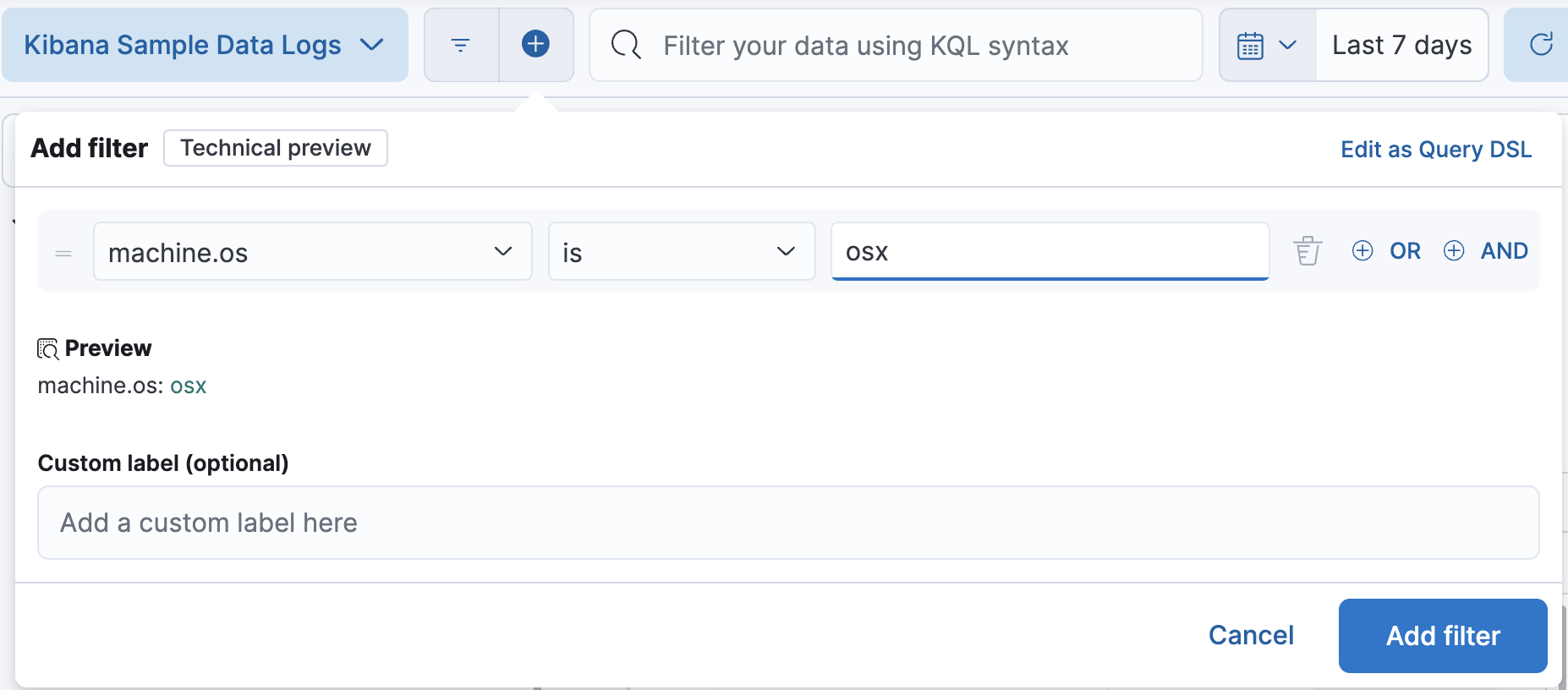
Structured filters are a more interactive way to create Elasticsearch queries, and are commonly used when building dashboards that are shared by multiple analysts. Each filter can be disabled, inverted, or pinned across all apps. Each of the structured filters is combined with AND logic on the rest of the query.