Use ES|QL in the Kibana UI
The ES|QL editor lets you write, run, and manage ES|QL queries across Kibana. Use it to query and aggregate your data, create visualizations, and set up alerts.
The ES|QL editor is available in the following areas of Kibana:
- Discover: Explore and analyze your data using ES|QL queries, visualize results, and save your findings to dashboards.
- Dashboards: Create ES|QL-powered visualization panels and interactive controls.
- Alerting: Create alerting rules based on ES|QL queries.
- Elastic Security solution: Use ES|QL for threat hunting, detection rules, and investigation workflows.
Find the complete list of supported commands, functions, and operators in the ES|QL reference.
Every ES|QL query starts with a source command that retrieves data:
FROMretrieves data from data streams, indices, or aliases.TSis optimized for querying time series data streams.
You can then chain one or more processing commands using pipe (|) characters. For example, WHERE filters rows and STATS aggregates data:
FROM kibana_sample_data_logs
| WHERE response.keyword == "200"
| STATS total_bytes = SUM(bytes) BY geo.dest
When querying many indices at once without filters, the response might be too large. If you encounter a content length error, use DROP or KEEP to limit the number of fields returned.
ES|QL keywords are case-insensitive. FROM, from, and From are all equivalent.
The ES|QL editor includes several built-in tools to help you write queries efficiently.
ES|QL features in-app help, inline suggestions, and an autocomplete menu so you can get started faster and don't have to leave the application to check syntax.
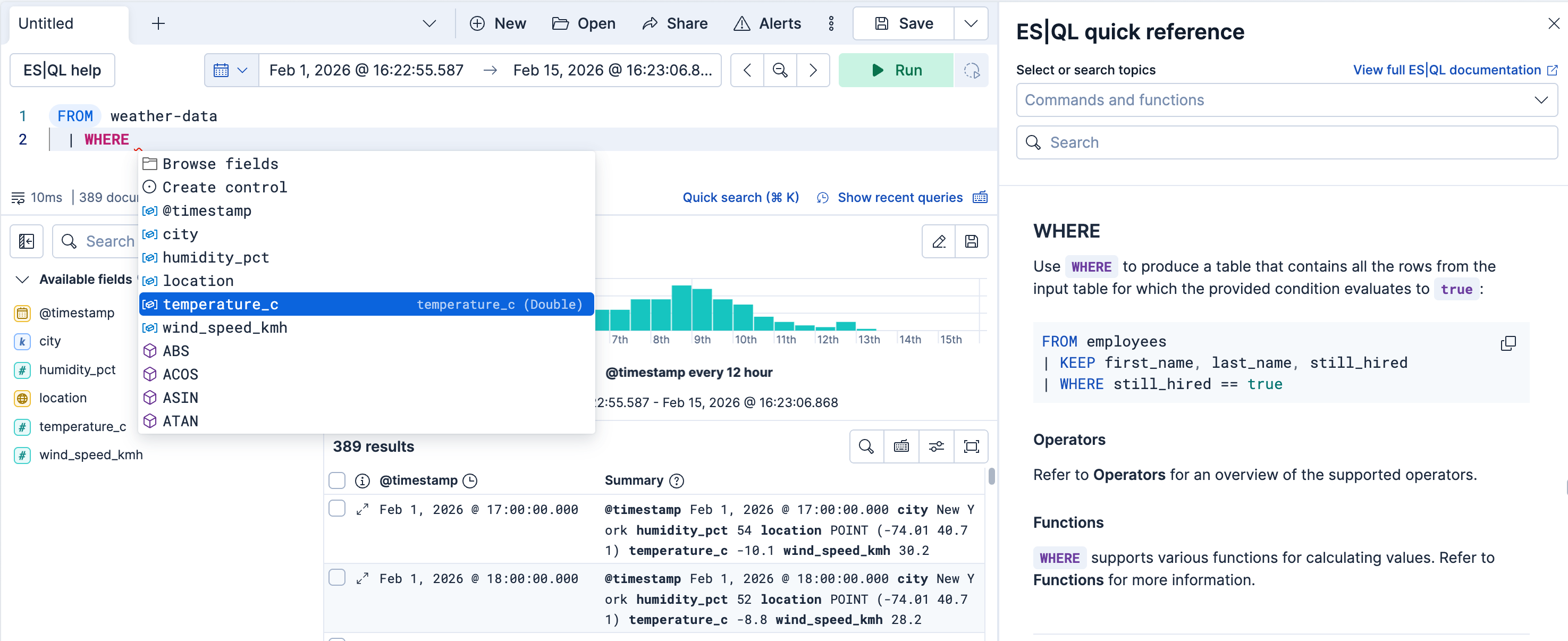
For readability, you can put each processing command on a new line and add indentation. Use the Prettify query button from the query editor's footer to format your query automatically. You can also adjust the editor's height by dragging its bottom border.

A query might result in warnings, for example when querying an unsupported field type. When that happens, the query bar displays a warning symbol. To see the detailed warning, expand the query bar, and select warnings.
| Mac | Windows/Linux | Description |
|---|---|---|
| Cmd + Enter | Ctrl + Enter | Run a query |
| Cmd + / | Ctrl + / | Comment or uncomment a line |
| Cmd + k | Ctrl + k | Open Quick search |
You can find the list of shortcuts directly from the editor. Look for the  icon.
icon.
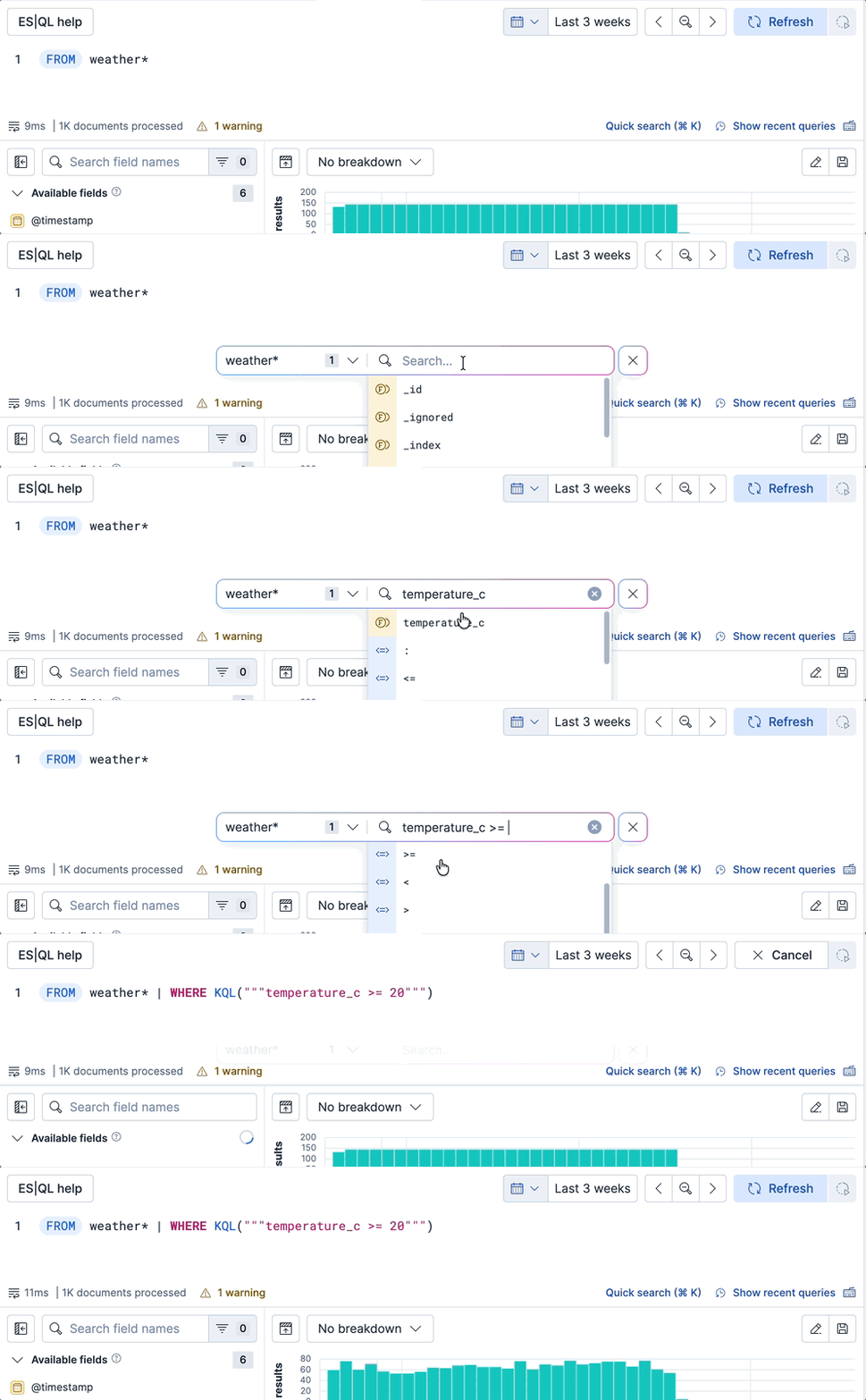
You can use the Quick search functionality of the ES|QL editor to translate a free-text or KQL search into a functioning ES|QL query with a WHERE KQL() clause. This can be useful if you're getting started with ES|QL or are familiar with KQL.
Select Quick search in the editor's footer, or press Cmd + k (Mac) or Ctrl + k (Windows/Linux) to open the Quick search bar.
Select the data sources to search.
Type the text you want to search for as free text or using KQL syntax.
Submit your search by pressing Enter. The editor generates a new ES|QL query that overwrites the current query and runs it. It includes a
FROMcommand based on the data sources you selected (orTSif the data source is a time series data stream), and aWHERE KQL()command that contains the text you typed in the search bar. The editor saves previously run queries in the query history if you need to restore them.The Quick search bar closes automatically when you press Enter, start typing in the editor or click outside of it.
Refine your query with any other ES|QL command or function that you need.
Some ES|QL commands have dedicated editor features beyond autocomplete, such as in-editor index or policy creation.
The ES|QL editor supports LOOKUP JOIN commands and suggests lookup mode indices and join condition fields.
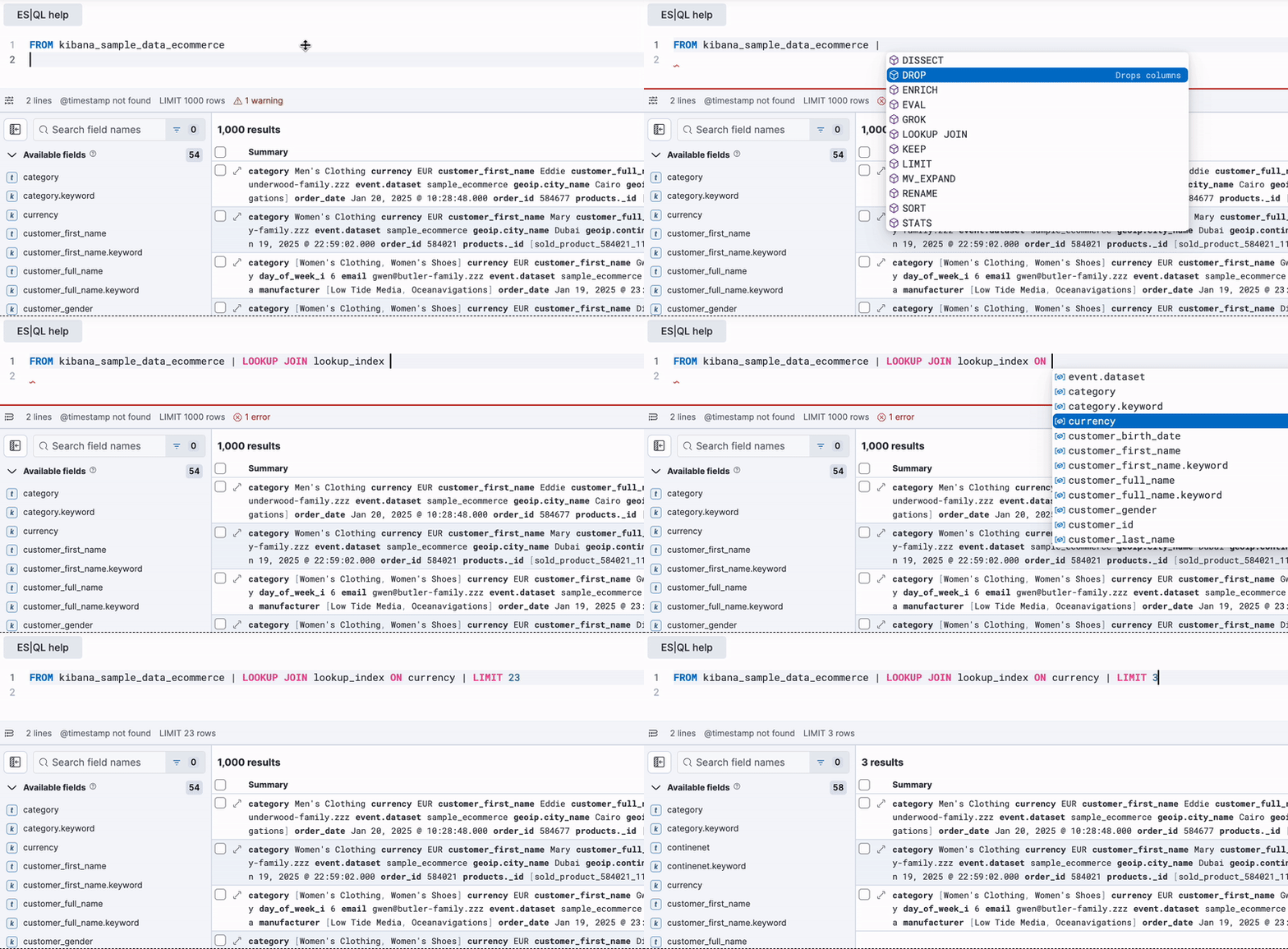
In Discover, LOOKUP JOIN commands let you create or edit lookup indices directly from the editor. Find more information in Using ES|QL > Create and edit lookup indices from queries.
The ES|QL ENRICH command enables you to enrich your query dataset with fields from another dataset. Before you can use ENRICH, you need to create and execute an enrich policy. If a policy exists, autocomplete suggests it. If not, select Click to create to create one.

For detailed steps to create an enrich policy from the editor, refer to Enrich your data.
To display data within a specified time range, you can use the standard time filter, custom time parameters, or a WHERE command.
Kibana enables the standard time filter when the indices you're querying have a field named @timestamp.
If your indices do not have a field named @timestamp, you can use the ?_tstart and ?_tend parameters to specify a time range. These parameters work with any timestamp field and automatically sync with the time filter.
FROM my_index
| WHERE custom_timestamp >= ?_tstart AND custom_timestamp < ?_tend
You can also use the ?_tstart and ?_tend parameters with the BUCKET function to create auto-incrementing time buckets in ES|QL visualizations. For example:
FROM kibana_sample_data_logs
| STATS average_bytes = AVG(bytes) BY BUCKET(@timestamp, 50, ?_tstart, ?_tend)
You can also limit the time range using the WHERE command and the NOW function. For example, if the timestamp field is called timestamp, to query the last 15 minutes of data:
FROM kibana_sample_data_logs
| WHERE timestamp > NOW() - 15minutes
ES|QL variables help you add interactive controls to your queries and make them more dynamic.
They're available for:
While you edit your ES|QL query, the autocomplete menu suggests adding a control when relevant or when you type
?in the query. Select Create control.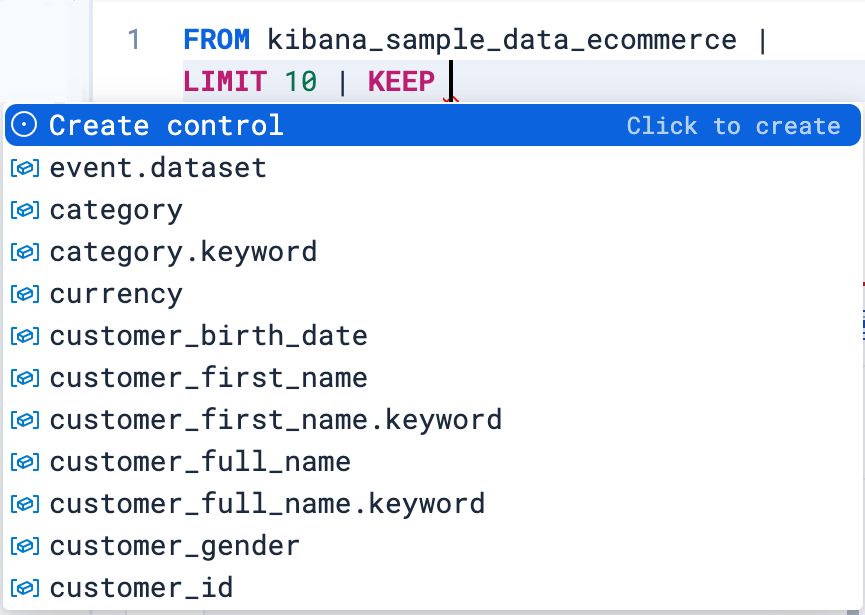
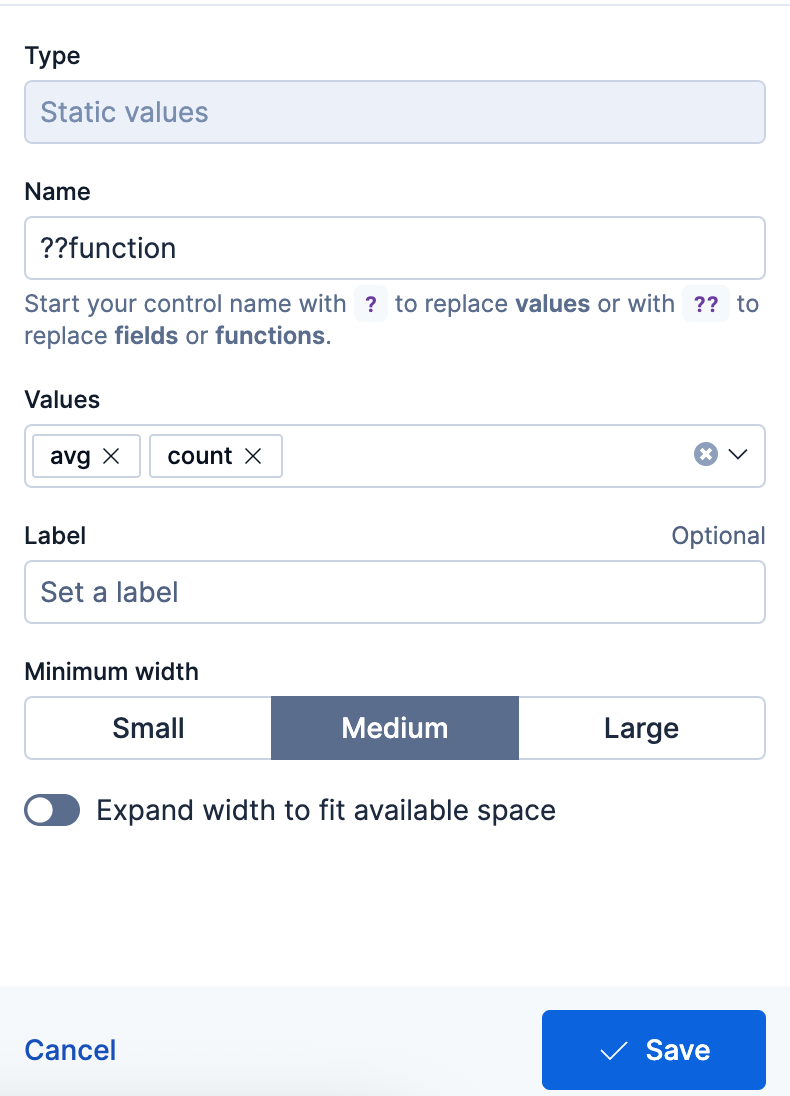
A menu opens to let you configure the control. This is where you can specify:
- The type of the control.
- For controls with Static values, enter available controls manually or select them from the dropdown list.
- For controls with Values from a query, write an ES|QL query to populate the list of options. This option is useful for dynamically retrieving control values or perform advanced actions such as defining chaining controls.
Tip - Only display values available for the selected time range
By linking the control to the global time range, the control only shows values that exist within the time range selected in the dashboard or Discover session. You can do that by specifying
WHERE @timestamp <= ?_tend AND @timestamp > ?_tstartin the control's query, or custom time parameters if your indices don't have a@timestampfield.
- The name of the control. You use this name to reference the control in ES|QL queries.
- Start the name with
?if you want the options to be simple static values. -
Start the name with ??if you want the options to be fields or functions.
- Start the name with
- The values users can select for this control. You can add multiple values from suggested fields, or type in custom values. If you selected Values from a query, you must instead write an ES|QL query at this step.
- The label of the control. This is the label displayed in Discover or in the dashboard.
- The width of the control.
- Whether the control should allow selecting a single value or multiple values. This requires using the
MV_CONTAINSfunction in your query.
- The type of the control.
Save the control.
The variable is inserted into your query, and the control appears.
Examples
Integrate filtering into your ES|QL experience
| WHERE field == ?valueFields in controls for dynamic group by
| STATS count=COUNT(*) BY ??fieldVariable time ranges? Bind function configuration settings to a control
| BUCKET(@timestamp, ?interval),Make the function itself dynamic
| STATS metric = ??function
You can create controls that let users select multiple values. To do that:
Add the
MV_CONTAINSfunction to your query, and create a variable as one of its parameters. For example:FROM logs-* | WHERE MV_CONTAINS(?values, field)NoteMulti-selection is only available for
?valuesvariables. It is not available for??fieldsand??functionsvariables.When defining the control, select the Allow multiple selections option.
Save the control.
The newly configured control becomes available and allows users to select multiple values.
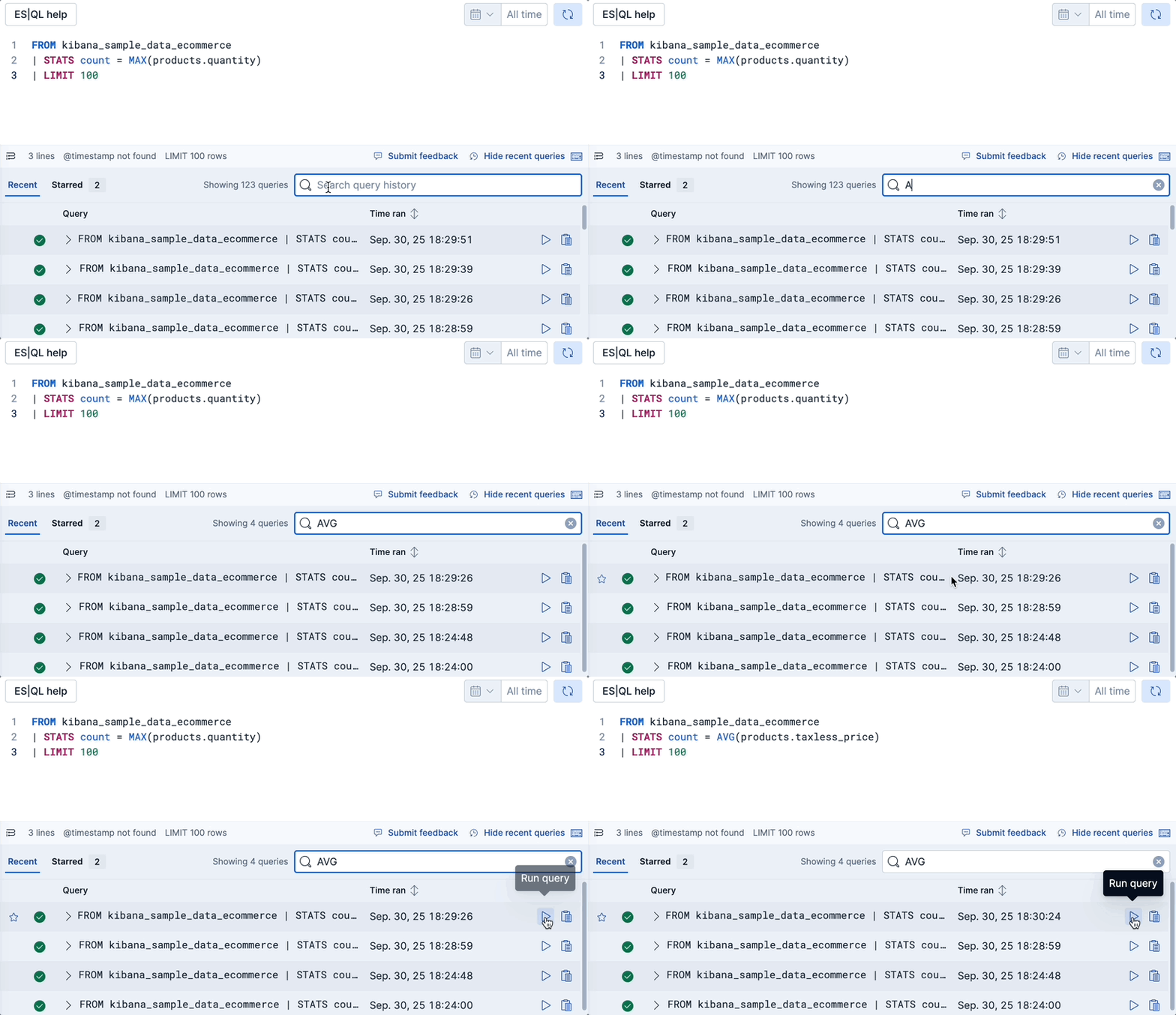
The ES|QL editor keeps track of your queries so you can reuse and organize them.
You can reuse your recent ES|QL queries in the query bar. In the query bar, select Show recent queries.
You can then:
- scroll through your most recent queries
-
search for specific queries of your history
The maximum number of queries in the history depends on the version you're using:
-
The query history can keep up to 50 KB of queries, which represents about 200 large queries, or about 300 short queries. -
The query history keeps your 20 most recent queries.
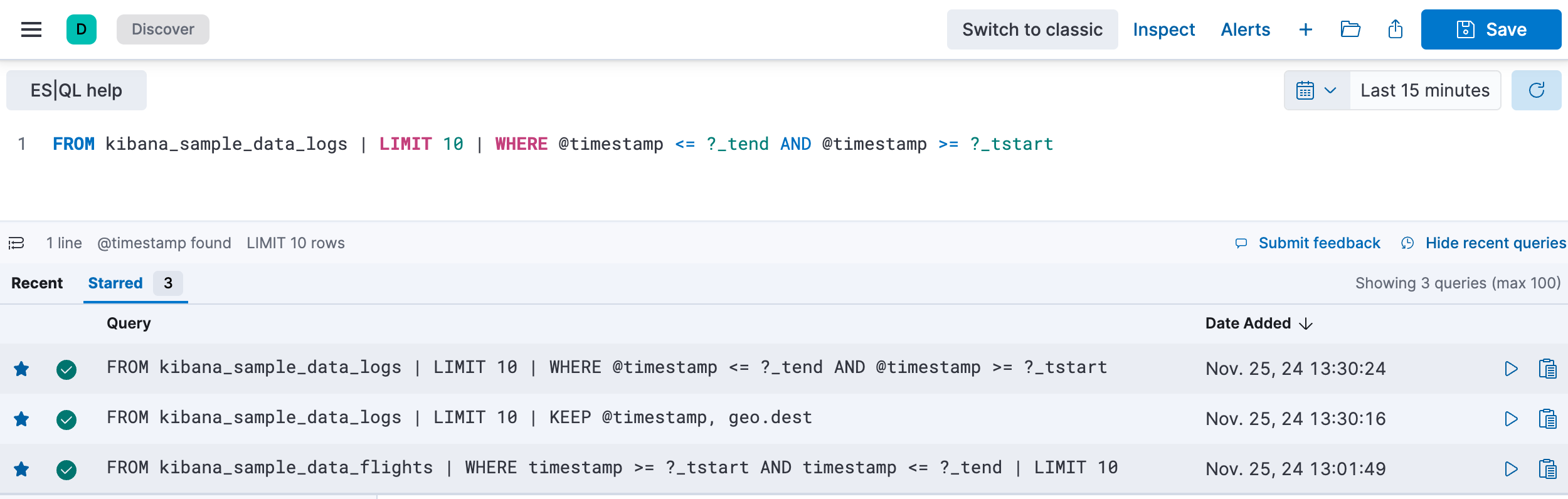
From the query history, you can mark some queries as favorite to find and access them faster later.
In the query bar, select Show recent queries.
From the Recent tab, you can star any queries you want.
In the Starred tab, find all the queries you have previously starred.
- ES|QL reference: Complete list of commands, functions, and operators.
- Using ES|QL in Discover: Hands-on tutorial and Discover-specific features like result tables, visualizations, and lookup indices.
- ES|QL for Elastic Security: Use cases and examples for threat hunting and detection rules.
- ES|QL visualizations: Create and edit ES|QL-based visualizations in dashboards.
- Dashboard controls: Add ES|QL-powered controls to dashboards.