Fix master nodes out of disk
Elasticsearch is using master nodes to coordinate the cluster. If the master or any master eligible nodes are running out of space, you need to ensure that they have enough disk space to function. If the health API reports that your master node is out of space you need to increase the disk capacity of your master nodes.
AutoOps is a monitoring tool that detects issues in your Elasticsearch cluster in real time and recommends how to resolve them and improve performance. Learn more about AutoOps.
In ECE, resizing is limited by your allocator capacity.
Log in to the Elastic Cloud console or ECE Cloud UI.
On the home page, find your deployment and select Manage.
Go to Actions > Edit deployment and then go to the Master instances section:
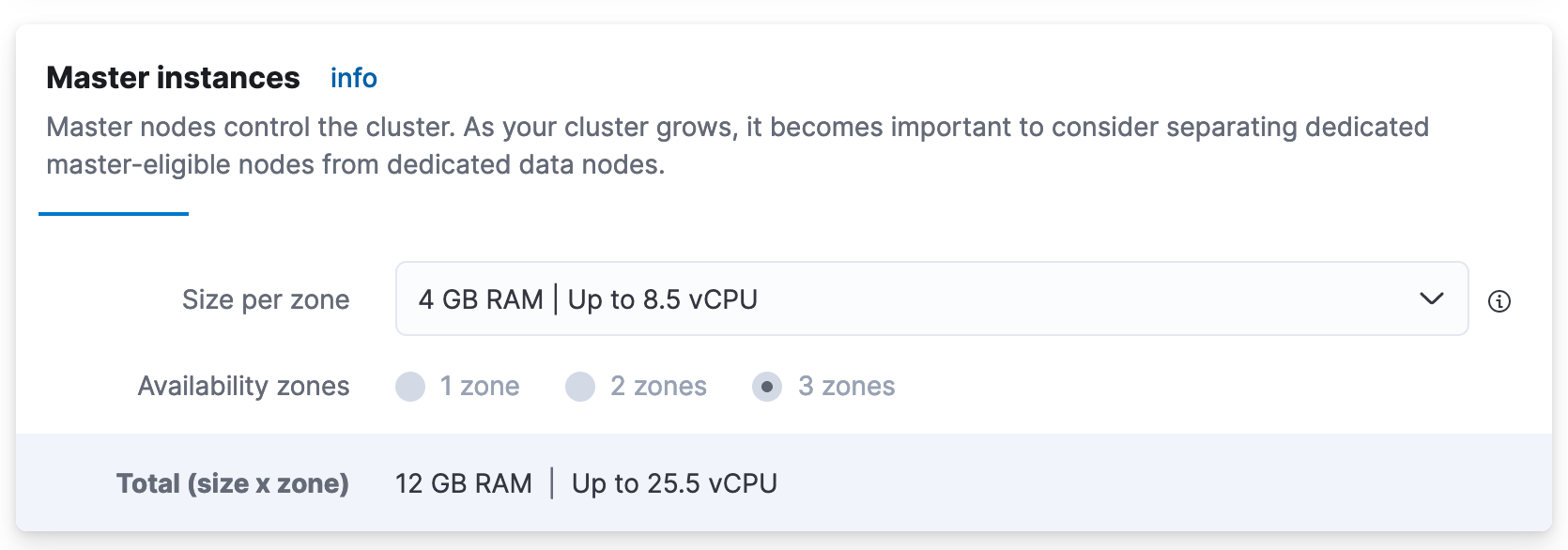
- Choose a larger than the preselected capacity configuration from the drop-down menu and click Save. Wait for the plan to be applied and the problem should be resolved.
To increase the disk capacity of a master node, you will need to replace all the master nodes with master nodes of higher disk capacity.
First, retrieve the disk threshold that indicates how much disk space is needed. The relevant threshold is the high watermark and can be retrieved using the following command:
GET _cluster/settings?include_defaults&filter_path=*.cluster.routing.allocation.disk.watermark.high*The response looks like this:
{
  "defaults": {
    "cluster": {
      "routing": {
        "allocation": {
          "disk": {
            "watermark": {
              "high": "90%",
              "high.max_headroom": "150GB"
            }
          }
        }
      }
    }
  }
This response means that, to resolve the disk shortage, you need to either drop your disk usage below the 90% or have more than 150GB available. Read more about how this threshold works.
The next step is to find out the current disk usage. This information allows you to calculate how much extra space is needed. In the following example, we show only the master nodes for readability purposes:
GET /_cat/nodes?v&h=name,master,node.role,disk.used_percent,disk.used,disk.avail,disk.totalThe response looks like this:
name                master node.role disk.used_percent disk.used disk.avail disk.total
instance-0000000000 *      m                    85.31    3.4gb     500mb       4gb
instance-0000000001 *      m                    50.02    2.1gb     1.9gb       4gb
instance-0000000002 *      m                    50.02    1.9gb     2.1gb       4gb
The goal is to reduce disk usage below the relevant threshold, in our example 90%. Consider adding some padding so that usage doesn't immediately exceed the threshold again. If you have multiple master nodes you need to ensure that all master nodes will have this capacity. Assuming you have the new nodes ready, follow the next three steps for every master node.
Bring down one of the master nodes.
Start up one of the new master nodes and wait for it to join the cluster. You can check this using the following API call:
GET /_cat/nodes?v&h=name,master,node.role,disk.used_percent,disk.used,disk.avail,disk.totalOnly after you have confirmed that your cluster has the initial number of master nodes, move forward to the next one until all the initial master nodes have been replaced.