Add or remove data tiers in Elastic Cloud Hosted or Elastic Cloud Enterprise
In Elastic Cloud Hosted and Elastic Cloud Enterprise, you add warm, cold, or frozen capacity from the deployment editor, and you remove a tier only after data can migrate away safely. The default configuration includes a shared tier for hot and content data; that tier is required and cannot be removed.
Review Elasticsearch data tiers so you choose the right tier for your workload.
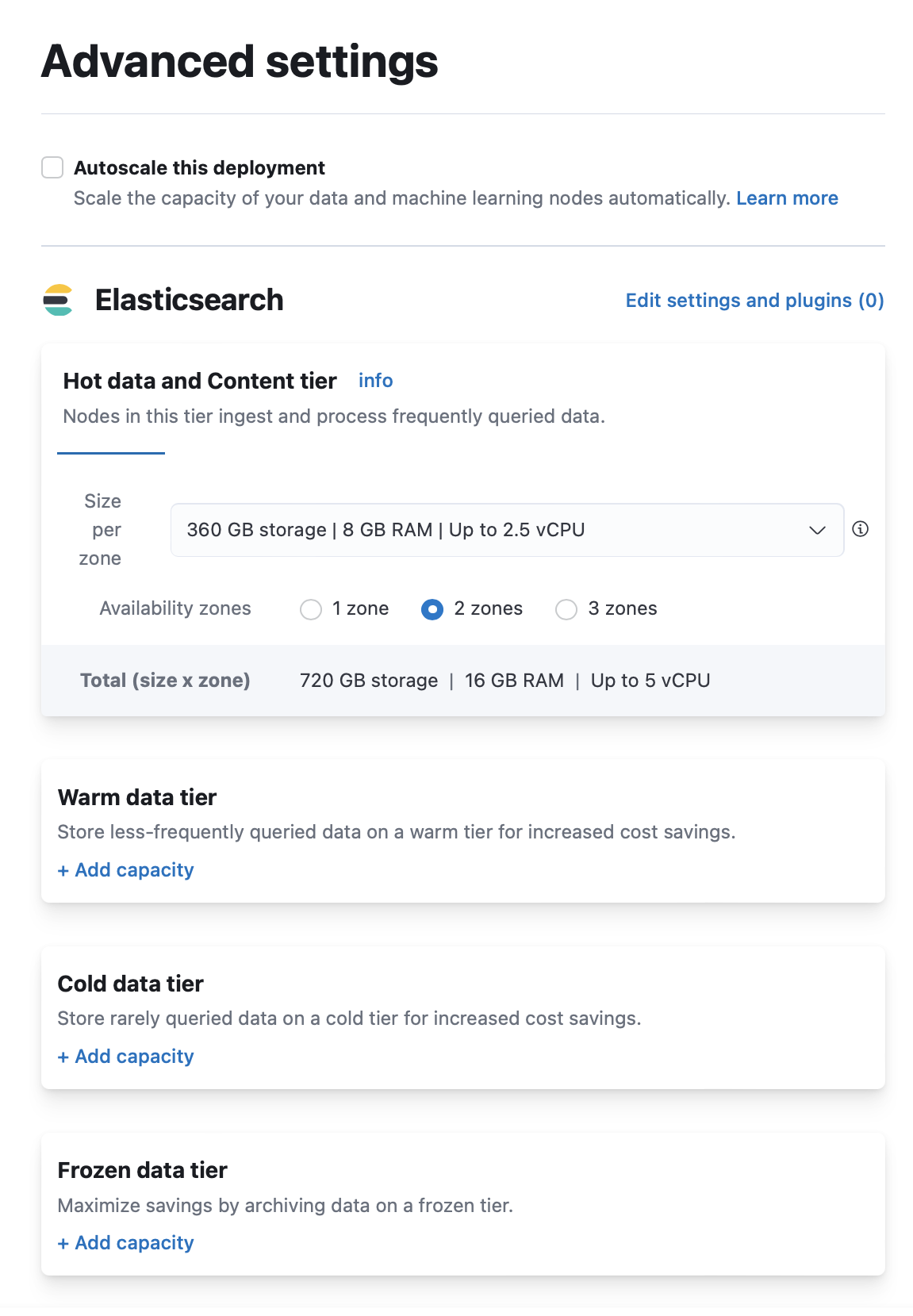
- On the Create deployment page, click Advanced Settings.
- Click + Add capacity for any data tiers to add.
- Click Create deployment at the bottom of the page to save your changes.
Log in to the Elastic Cloud Console or ECE Cloud UI.
On the home page, find your deployment.
TipIf you have many deployments, you can instead go to the Hosted deployments (Elastic Cloud Hosted) or Deployments (Elastic Cloud Enterprise) page. On that page, you can narrow your deployments by name, ID, or choose from several other filters.
Select Manage.
- From the navigation menu, select Edit.
- Click + Add capacity for any data tiers to add.
- Click Save at the bottom of the page to save your changes.
Follow this section when you need to remove a warm, cold, or frozen tier from an Elastic Cloud Hosted or Elastic Cloud Enterprise deployment. The shared hot and content tier is required and cannot be removed.
The steps differ depending on whether the tier contains regular indices or searchable snapshot indices, which are common for cold or frozen tiers when using index lifecycle management (ILM).
If you plan to remove multiple tiers, remove them one at a time in this order: frozen, cold, then warm.
Disabling a data tier, attempting to scale nodes down in size, reducing availability zones, or reverting an autoscaling change can all result in cluster instability, cluster inaccessibility, and even data corruption or loss in extreme cases.
To avoid this, especially for production environments, and in addition to making configuration changes to your indices and ILM as described in this guide:
- Review the disk size, CPU, JVM memory pressure, and other performance metrics of your deployment before attempting to perform the scaling down action.
- Make sure that you have enough resources and availability zones to handle your workloads after scaling down.
- Check that your deployment hardware profile (for Elastic Cloud Hosted) or deployment template (for Elastic Cloud Enterprise) is correct for your business use case. For example, if you need to scale due to CPU pressure increases and are using a Storage Optimized hardware profile, consider switching to a CPU Optimized configuration instead.
- Review the disk watermarks and confirm that the nodes receiving the relocated shards have enough free disk space to remain below the low disk watermark.
Read https://www.elastic.co/cloud/shared-responsibility for additional details. If in doubt, reach out to Support.
From your deployment page, filter the instance list by the data tier you want to disable and note the instance IDs.
Log in to the Elastic Cloud Console.
From the Hosted deployments page, select your deployment.
On the Hosted deployments page you can narrow your deployments by name, ID, or choose from several other filters. To customize your view, use a combination of filters, or change the format from a grid to a list.
Filter the list of instances by the data tier you want to disable.
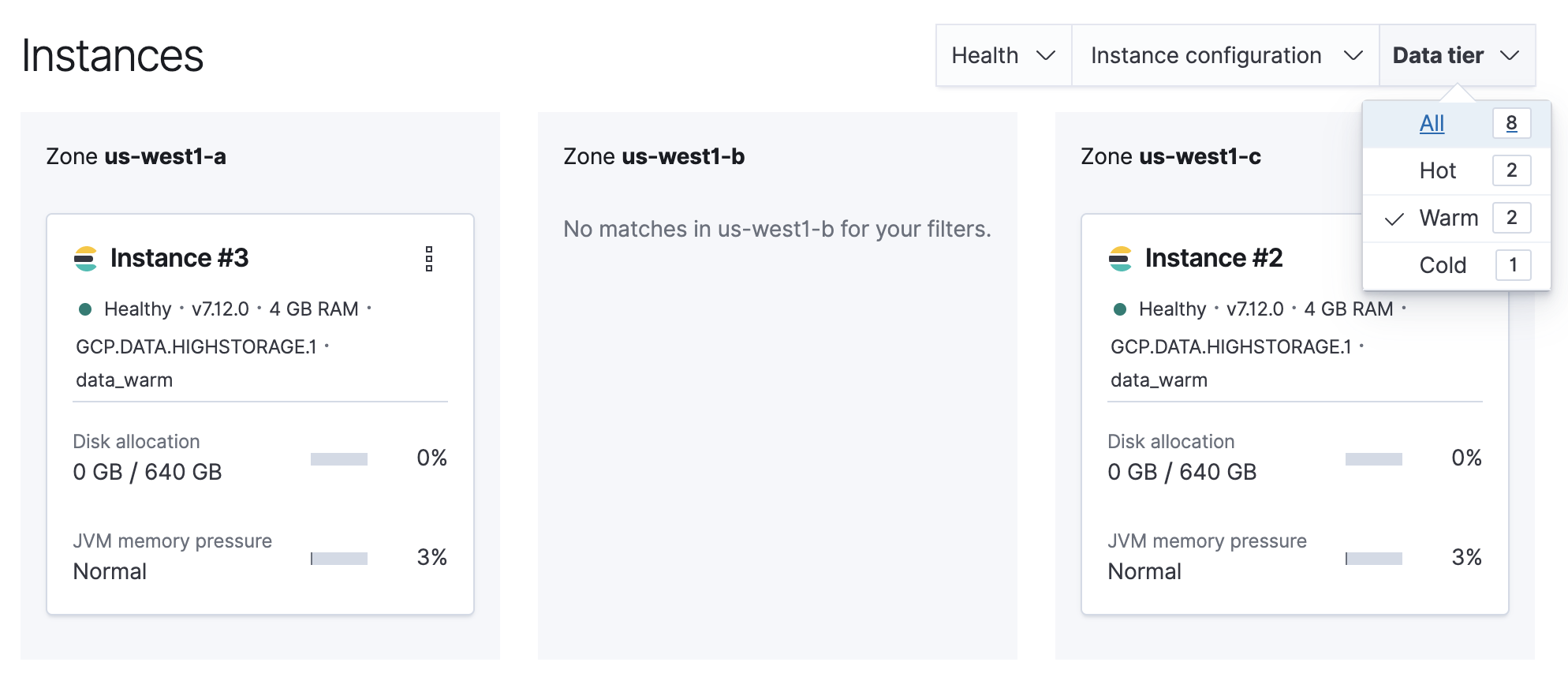
Note the listed instance IDs. In this example, they are Instance #2 and Instance #3.
From the Deployments page, select your deployment.
Narrow the list by name, ID, or choose from several other filters. To further define the list, use a combination of filters.
Filter the list of instances by the data tier you want to disable.
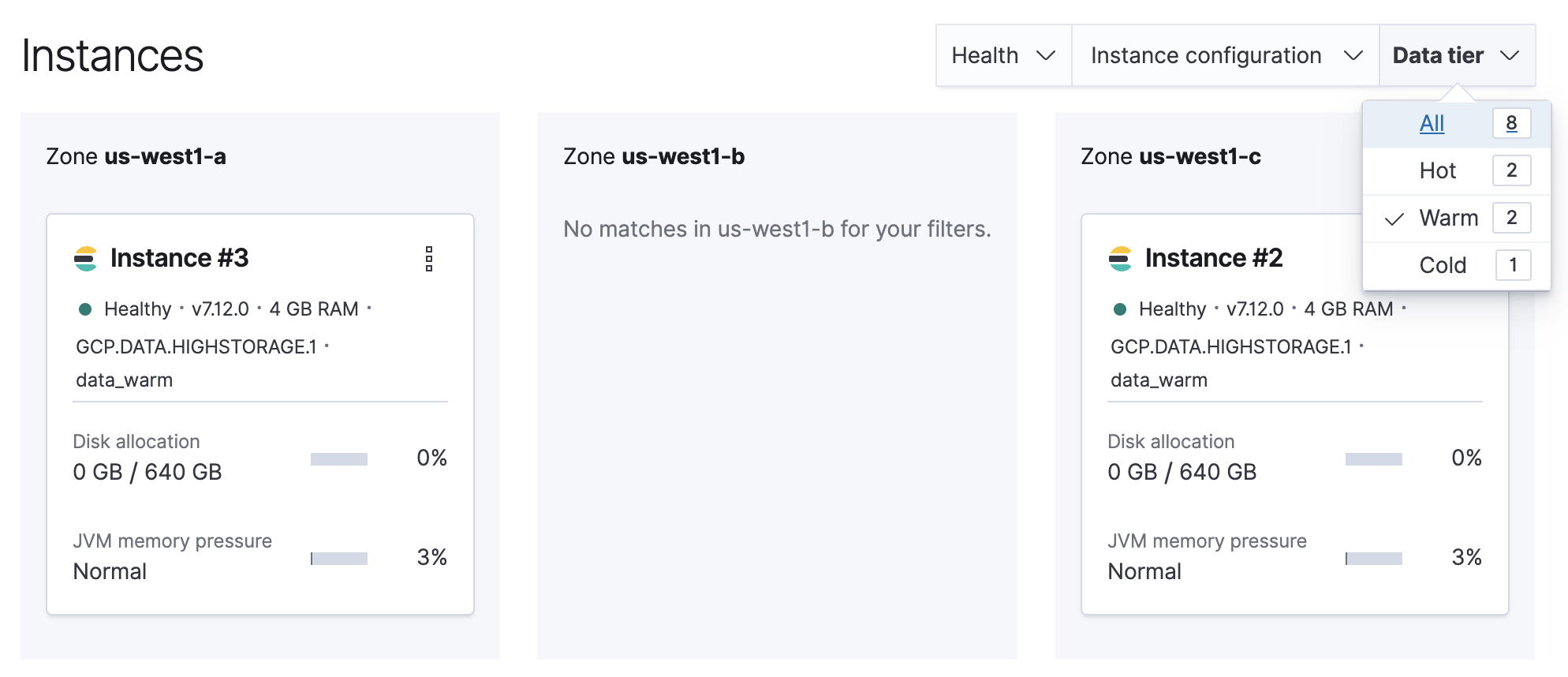
Note the listed instance IDs. In this example, they are Instance #2 and Instance #3.
Check whether the instances in the tier you are removing hold shards from regular indices, searchable snapshot indices, or both:
Warm tier: This tier typically contains regular indices unless you have manually mounted searchable snapshots on it.
Cold tier: This tier can contain regular indices or fully mounted searchable snapshots. Check for standard ILM-managed searchable snapshot indices:
GET /_cat/indices/restored-*?expand_wildcards=allFor each returned index, check its current data tier preference to determine whether it is on the tier you are removing.
Exclude any fully mounted indices associated with the hot tier from the removal inventory. The hot tier is required and is not removed by this procedure.
Frozen tier: This tier contains only partially mounted searchable snapshots. Check for standard lifecycle-managed indices:
GET /_cat/indices/partial-*,dlm-frozen-*?expand_wildcards=all
NoteManually mounted searchable snapshots might not use the standard
restored-*orpartial-*prefixes. If you mounted snapshots manually, adapt the index names or patterns in these requests to match your configuration.Review the ILM policies and index templates that can send data to the tier you are removing, and plan the changes required so that they no longer use the tier. This prevents newly created indices and future lifecycle transitions from targeting a tier that is no longer available.
Depending on your configuration, plan to:
- Remove or update ILM phases and actions that move indices to the tier.
- Remove or move any
searchable_snapshotaction that mounts indices on the tier. - If you use custom allocation filters in policies or templates, remove or update those that target the tier.
Make sure that your plan covers every affected policy and template.
To learn more about ILM or shard allocation filtering, refer to Create your index lifecycle policy, Managing the index lifecycle, and Shard allocation filters.
When you have identified the instances, determined which indices are on the tier, and planned the policy and template changes, continue with the procedure that matches that data:
- If the tier contains searchable snapshots, start with Vacate tier instances containing searchable snapshots.
- If the tier contains regular indices, or fully mounted searchable snapshots that you want to move while keeping them mounted, continue with Prepare regular indices for tier removal.
- After completing all applicable procedures, disable the data tier.
This section explains how to vacate instances in a data tier that contains searchable snapshot indices. How you proceed depends on the mount type:
- Partially mounted searchable snapshots on the frozen tier cannot remain mounted after you disable the tier. For each index, either restore its data as a regular index or delete it.
- Fully mounted searchable snapshots can remain mounted after you disable the tier. To keep them mounted, treat them like regular indices and continue to Prepare regular indices for tier removal. To restore their data as regular indices or delete them, follow the steps in this section for each index.
If any DLM-managed data stream uses frozen_after, remove this setting from the affected data stream lifecycles and index templates before disabling the frozen tier. This prevents backing indices, including restored indices, from being converted to partially mounted searchable snapshots again.
Apply the changes to ILM policies and index templates that you planned in Before you remove a data tier so that they no longer create or route searchable snapshot indices to the tier you want to disable. These changes prevent new searchable snapshots from appearing while you process the existing ones.
For each partially mounted searchable snapshot, and for each fully mounted searchable snapshot that you do not want to keep mounted, select one of the following options:
Preserve the data as a regular index: Follow Restore searchable snapshot data to a regular index. Complete the restore, validation, alias or data stream update, and mounted index cleanup for one index before proceeding to the next.
Delete the data: Record the source snapshot details before deleting the index:
GET /<searchable-snapshot-index-name>/_settings?filter_path=**.index.store.snapshot.snapshot_name,**.index.store.snapshot.repository_name&expand_wildcards=all
DELETE /<searchable-snapshot-index-name>
If you no longer need the source snapshot, delete it after confirming that it contains no other data you need and that no other mounted index in this or another cluster depends on it:
WarningAfter you delete the mounted index, deleting its source snapshot permanently removes the data if no other copy exists. Keep the source snapshot if you might need to restore the data later.
DELETE /_snapshot/<snapshot_repository_name>/<searchable_snapshot_name>
After processing all searchable snapshots, continue based on what remains on the tier:
- If the tier also contains regular indices, or fully mounted searchable snapshots that you want to move to another tier while keeping them mounted, continue to Prepare regular indices for tier removal.
- Otherwise, continue to Disable the data tier.
Use this section to update shard allocation rules for regular indices before you disable the tier. Follow the same steps for fully mounted searchable snapshots that you want to keep mounted. Those snapshots use the same shard allocation rules as regular indices.
When you update the deployment, Elastic Cloud Hosted and Elastic Cloud Enterprise try to move all data from the instances that are removed. Before applying this change, make sure that the relevant shard allocation filters allow the data to move.
If you have not already done so, apply the changes to ILM policies and index templates that you planned in Before you remove a data tier. These changes prevent newly created indices and future lifecycle transitions from targeting the tier. They do not move indices already allocated there. The remaining steps update those indices and start relocating their shards.
WarningTemporarily stopping ILM can prevent lifecycle transitions while you update the cluster configuration, but it affects every ILM-managed index in the cluster. It pauses actions such as rollover, migration, and deletion. On clusters with sustained ingestion, a long pause can cause indices on the hot tier to grow until the tier runs out of disk space.
Keep ILM running unless you understand the effect on your workload. If you stop it, monitor the hot tier and restart ILM as soon as possible. Stopping ILM does not replace updating policies, templates, and index allocation settings.
Determine which shards are allocated to the instances you want to remove.
GET /_cat/shards?v&h=index,shard,prirep,state,nodeParse the output, looking for shards allocated to the instances you identified in Before you remove a data tier.
Instance #2is shown asinstance-0000000002in the output.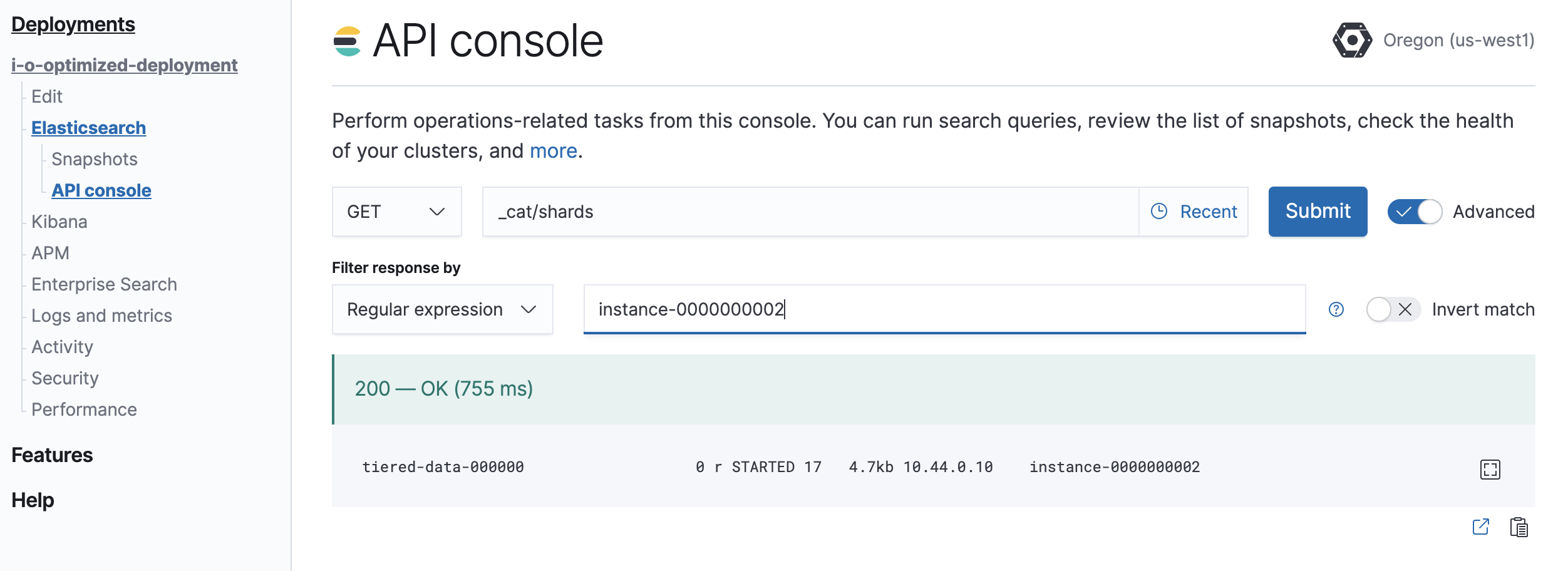
Check and update index allocation rules.
ILM and manual index configurations can use different index-level shard allocation filters to control shard placement. For every index that has shards on the instances you are removing, check its allocation settings and complete the applicable steps:
GET /my-index/_settingsUpdate
_tier_preference-based rules.Data tier-based ILM policies use
index.routing.allocation.include._tier_preferenceto express shard placement as an ordered list of preferred tiers. Elasticsearch allocates shards to the first tier in the list that has nodes in the cluster and considers later tiers only when none of the preceding tiers have any nodes.Indices using this method have settings similar to the following example:
{ ... "routing": { "allocation": { "include": { "_tier_preference": "data_warm,data_hot" } } } ... }- The example represents an index in the
warmtier.
Before disabling the tier, update
_tier_preferenceso that the tier where you want the data to move is the first available tier in the list. This change makes the destination tier preferred and starts relocating the shards before the deployment plan removes the tier.Update the setting based on where you want to move the data:
- To move the data to an existing fallback tier, remove the tier being disabled from the list. For example, when disabling the warm tier, change
data_warm,data_hottodata_hot. - To move the data to a later lifecycle tier, add that tier before the tier being disabled. For example, when disabling the warm tier, change
data_warm,data_hottodata_cold,data_warm,data_hot.
The following example moves data from warm to cold:
PUT /my-index/_settings { "routing": { "allocation": { "include": { "_tier_preference": "data_cold,data_warm,data_hot" } } } }- You can also use
data_cold,data_hot. Both values move the data to cold, but omittingdata_warmremoves that tier from the fallback sequence.
NoteDo not use the frozen tier as a fallback for regular indices or fully mounted searchable snapshots. It is reserved for partially mounted searchable snapshots.
- The example represents an index in the
Review custom allocation rules.
Some custom configurations use index-level shard allocation filters in addition to or instead of
_tier_preference. These filters userequire,include, orexcluderules with built-in or custom node attributes to control shard placement.For example, the following settings use a custom
datanode attribute to require warm nodes:{ ... "routing": { "allocation": { "require": { "data": "warm" } } } ... }A
requirerule is a hard constraint. If no nodes match it, the shard remains unassigned. To remove this requirement:PUT /my-index/_settings { "index.routing.allocation.require.data": null }- You can update the rule to target the destination nodes instead of removing it.
For each affected index, update or remove the custom filters that prevent allocation to the destination tier.
The following example removes all
_name-based allocation filters from an index:PUT /my-index/_settings { "index.routing.allocation.require._name": null, "index.routing.allocation.include._name": null, "index.routing.allocation.exclude._name": null }
ImportantIf these allocation changes start a relocation process, wait until shard allocation and recovery finish. Use
GET /_cat/allocation?v=true&s=nodeto monitor the instances that the plan will remove. Shards might remain if you only removed arequirerule because that change does not force them to move. The deployment plan relocates them when it disables the tier.If shards that you expect to move remain on the original tier, use the cluster allocation explain API to determine the cause. Refer to Using the cluster allocation API for troubleshooting for common examples. Common causes include disk watermarks or the
index.routing.allocation.total_shards_per_nodelimit on the destination nodes.
After updating the allocation rules, continue to Disable the data tier.
After completing all applicable procedures, confirm that any shard relocations triggered by the allocation changes have finished successfully. Then disable the data tier from the deployment editor.
Edit the deployment and disable the data tier.
If autoscaling is enabled, set the maximum size to
0for the data tier to ensure autoscaling does not re-enable it.Any remaining shards on the tier being disabled are re-allocated across the remaining cluster nodes while applying the deployment plan. Monitor shard allocation during the data migration phase to ensure all allocation rules have been correctly updated. If the plan fails to migrate data away from the tier, re-examine the allocation rules for the indices that remain on it.
Once the plan change completes, confirm that
GET /_cat/nodes?vshows no nodes associated with the disabled tier and thatGET /_cluster/healthreportsgreen.Verify that ILM is running and that no indices report errors related to the disabled tier:
GET /_ilm/status
GET /_all/_ilm/explain?human=true&expand_wildcards=all&only_errors=true
Confirm that
operation_modeisRUNNING. Investigate any reported errors and verify that no policy still attempts to allocate data to the disabled tier.For indices in the
ERRORstep, resolve the underlying cause first. You can then force ILM to retry the failed step immediately:POST /<affected-indexes>/_ilm/retryFor guidance, refer to Fix ILM errors.