Check out the different ways to ingest data into Elasticsearch and dive into practical examples to try something new.
Elasticsearch is packed with new features to help you build the best search solutions for your use case. Start a free cloud trial or try Elastic on your local machine now.
Elastic connectors make it easy to index and combine data from different sources to run unified searches. With the addition of Playground you can set up a knowledge base that you can chat with and ask questions.
Connectors are a type of Elastic integration that are helpful for syncing data from different sources to an Elasticsearch index.
In this article, we'll see how to index a Confluence Wiki using the Elastic connector, configure an index to run semantic queries, and then use Playground to chat with your data.
Steps
Configure the connector
In our example, our Wiki works as a centralized repository for a hospital and contains info on:
- Doctors' profiles: speciality, availability, contact info.
- Patients' files: Medical records and other relevant data.
- Hospital guidelines: Policies, emergency protocols and instructions for staff.

We'll index the content from our Wiki using the Elasticsearch-managed Confluence connector.
The first step is to get your Atlassian API Key:

Configuring the Confluence native connector
You can follow the steps here to guide you through the configuration:

- Access your Kibana instance and go to Search > Connectors
- Click on add a connector and select Confluence from the list.
- Name the new connector "hospital".
- Then click on the create new Index button.
- Click on edit configurations and, for this example, we need to modify the data source for "confluence cloud". The required fields are:
- Confluence Cloud account email
- API Key
- Confluence URL label
- Save the configuration and go to the next step.
By default, the connector will index:
- Pages
- Spaces
- Blog Posts
- Attachments
To make sure to only index the wiki, you need to use an advanced filter rule to include only pages inside the space named "Hospital Health" identified as "HH".
You can check out additional examples here.

Now, let's run a Full Content Sync to index our wiki.

Once completed, we can check the indexed documents on the tab "Documents".

Preparing the index
With what we have so far, we could run full text queries on our content. Since we want to make questions instead of looking for keywords, we now need to have semantic search.
For this purpose we will use Elasticsearch ELSER model as the embeddings provider.
To configure this, use the Elasticsearch's inference API.
Go to Kibana Dev Tools and copy this code to start the endpoint:
Now the model is loading in the background. You might get a 502 Bad Gateway error if you haven't used the ELSER model before. To make sure the model is loading, check Machine Learning > Trained Models:

Let's add a semantic_text field using the UI. Go to the connector's page, select Index mappings, and click on Add Field.
Select "Semantic text" as field type. For this example, the reference field will be "body" and the field name content_semantic. Finally, select the inference endpoint we've just configured.
Before clicking on "Add field", check that your configuration looks similar to this:

Now click on "Save mapping":

One you've ran the Full Content Sync from the UI, let's check it's ok by running a semantic query:
The response should look something like this:
Chat with your data using Playground
What is Playground?
Playground is a low code platform hosted in Kibana that allows you to easily create a RAG application and ask questions to your indices, regardless if they have embeddings.
Playground not only provides a UI chat with citations and provides full control over the queries, but also handles different LLMs to synthesize the answers.
You can read this article for a deeper insight and test the online demo to familiarize yourself with it.
Configure Playground
To begin, you only need the credentials for any of the compatible models:
- OpenAI (or any local model compatible with OpenAI API)
- Amazon Bedrock
- Google Gemini
When you open Playground, you have the option to configure the LLM provider and select the index with the documents you want to use as knowledge base.
For this example, we'll use OpenAI. You can check this link to learn how to get an API key.

Let's create our OpenAI connector by clicking Connect to an LLM > OpenAI and let's fill in the fields as in the image below:

To select the index we created using the Confluence connector, click on "Add data sources" and click on the index.
NOTE: You can select more than one index, if you want.

Now that we're done configuring, we can start making questions to the model.


Aside from choosing to include citations with the source document in your answers, you can also control which fields to send to the LLM to use in search.

The View Code window provides the python code you need to integrate this into your apps.

Conclusion
In this article, we learned that we can use connectors both to search for information in different sources as well as a knowledge base using Playground. We also learned to easily deploy a RAG application to chat with your data without leaving the Elastic environment.
자주 묻는 질문
What are Elastic Connectors?
Elastic connectors are a type of Elastic integration that are helpful for syncing data from different sources to an Elasticsearch index.
관련 콘텐츠
2026년 7월 7일
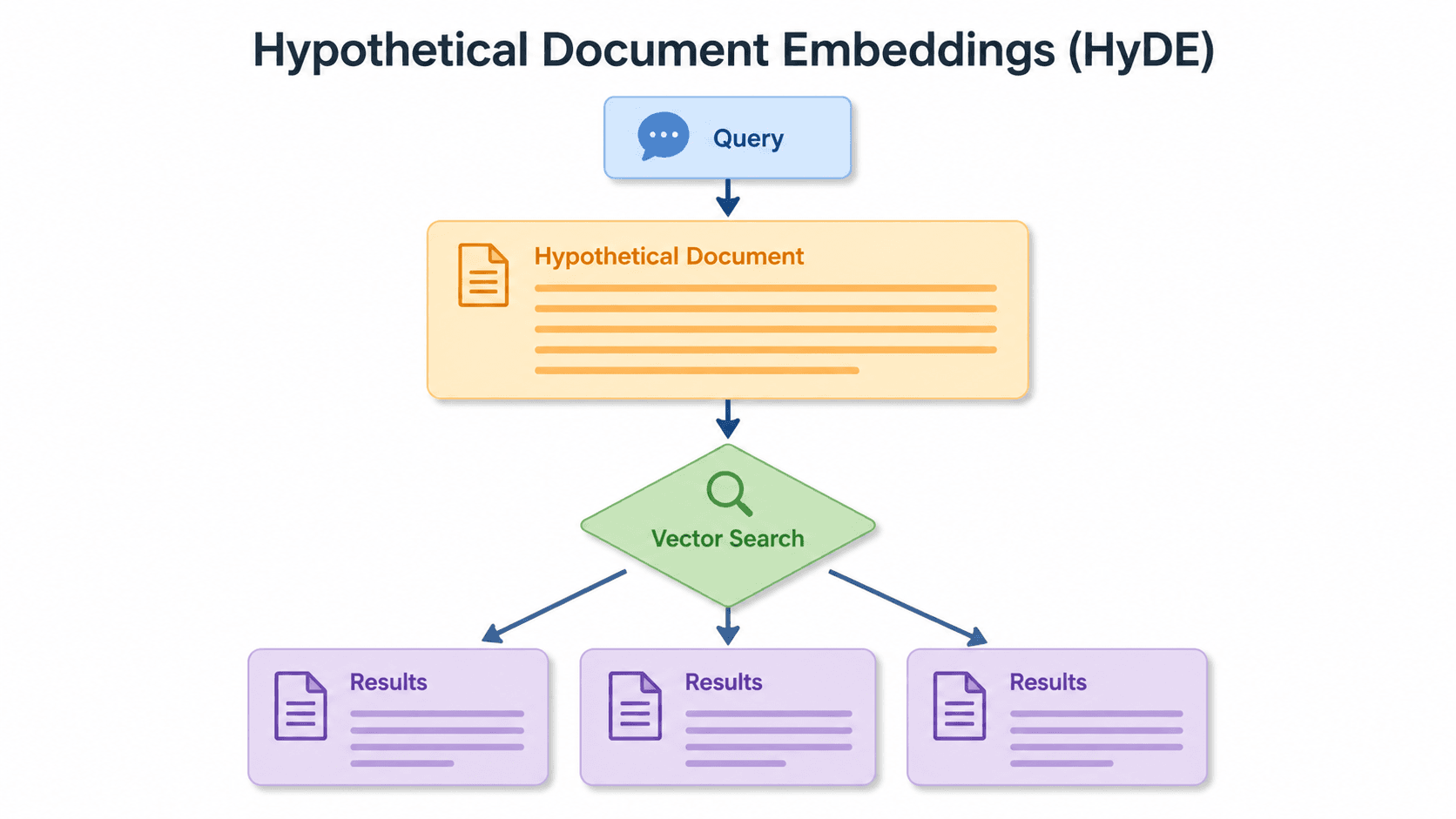
Short queries, formal documents: how HyDE improved semantic search precision by 50% in Elasticsearch
HyDE boosts semantic search precision and recall by 50% on short queries. Here's how to implement it in Elasticsearch with the Inference API and semantic_text.
2026년 6월 24일
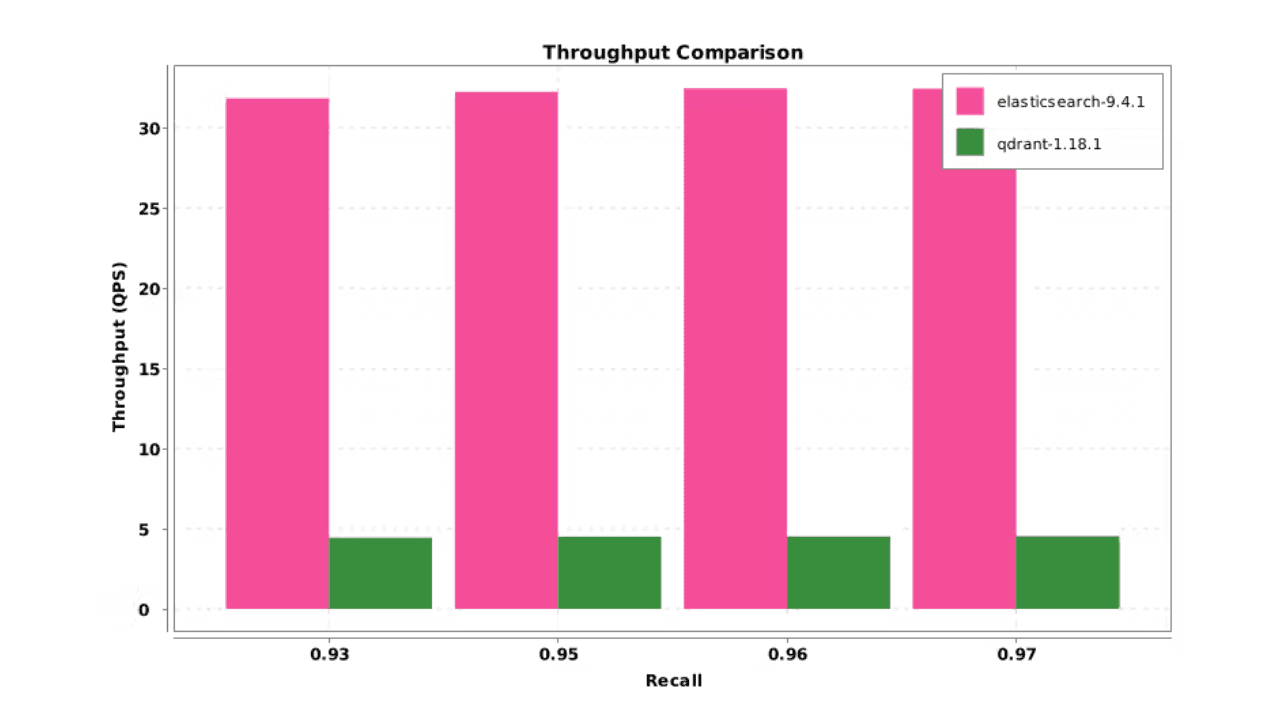
Elasticsearch DiskBBQ delivers 7x faster vector search than Qdrant on network-attached storage
Elasticsearch DiskBBQ achieves up to 7x higher vector search throughput than Qdrant at comparable recall on network-attached storage. Explore the benchmark methodology and full results.
2026년 7월 6일
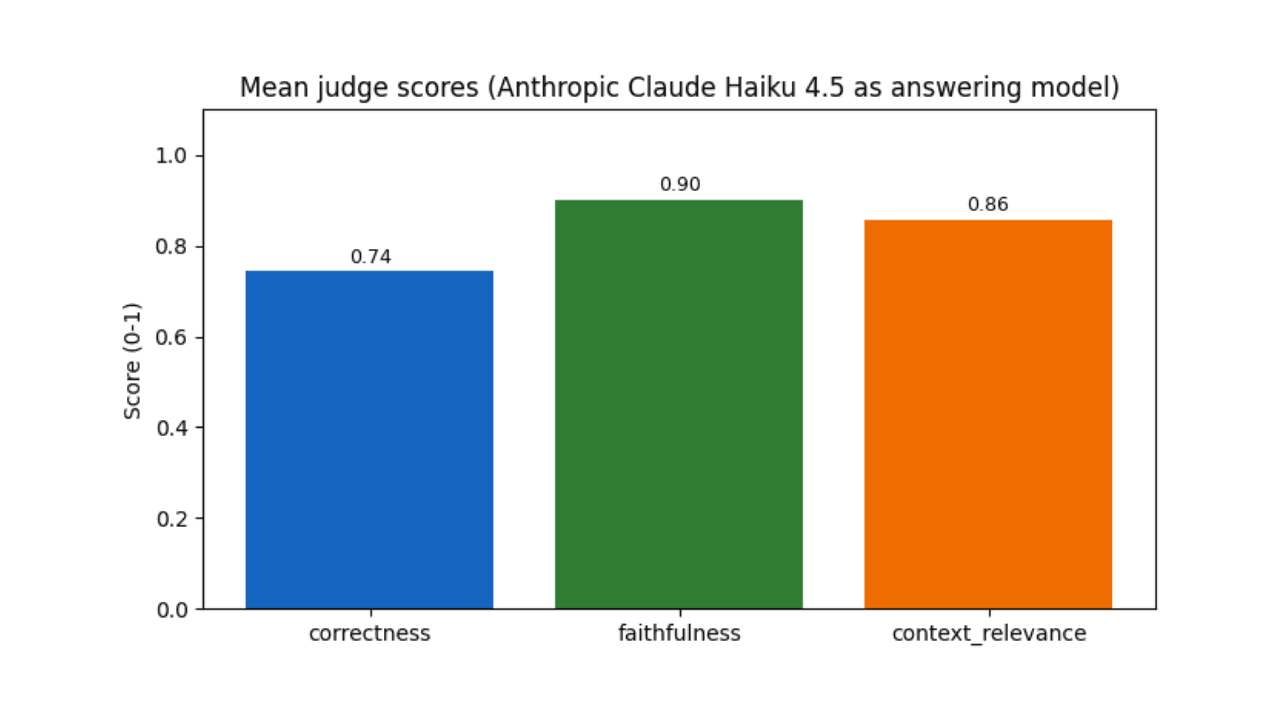
Who grades the grader? LLM-as-a-Judge inside Elasticsearch Workflows
Find out if your RAG agent is ready to ship. Score it on correctness, faithfulness and retrieval quality using only Elasticsearch Workflows and two Claude models.

2026년 6월 19일
Why your Elasticsearch cluster is hitting disk watermarks: 14 real-world causes explained
Learn how Elasticsearch disk watermarks work, why they trigger, and how to diagnose 14 of the most common scenarios Support encounters, from index bloat to ILM stalls.

2026년 6월 15일
Your search index is already an agent memory system: Persistent agent memory for Claude Code with Elasticsearch
Give your AI agent persistent cross-session memory using Elasticsearch: Hybrid recall, a knowledge graph, and cross-device handoffs. Three commands to install.