그리지 말고 설명하세요: MCP와 ES|QL을 통한 AI 네이티브 Kibana 대시보드
프롬프트부터 대시보드까지, ES|QL 쿼리를 작성하고, 대화형 차트를 생성하며, 모든 기능을 갖춘 대시보드를 Kibana로 직접 내보내는 오픈 소스 MCP 애플리케이션인 example-mcp-dashbuilder를 사용해 자연어로 Kibana 대시보드를 구축하는 방법에 대해 알아보세요.
솔루션 하나로 데이터를 관찰하고, 보호하고, 검색하세요. 애플리케이션 모니터링에서 위협 탐지에 이르기까지, Kibana는 중요한 사용 사례 전반에서 사용할 수 있는 다용도 플랫폼입니다. 지금 14일 무료 체험판을 시작하세요.
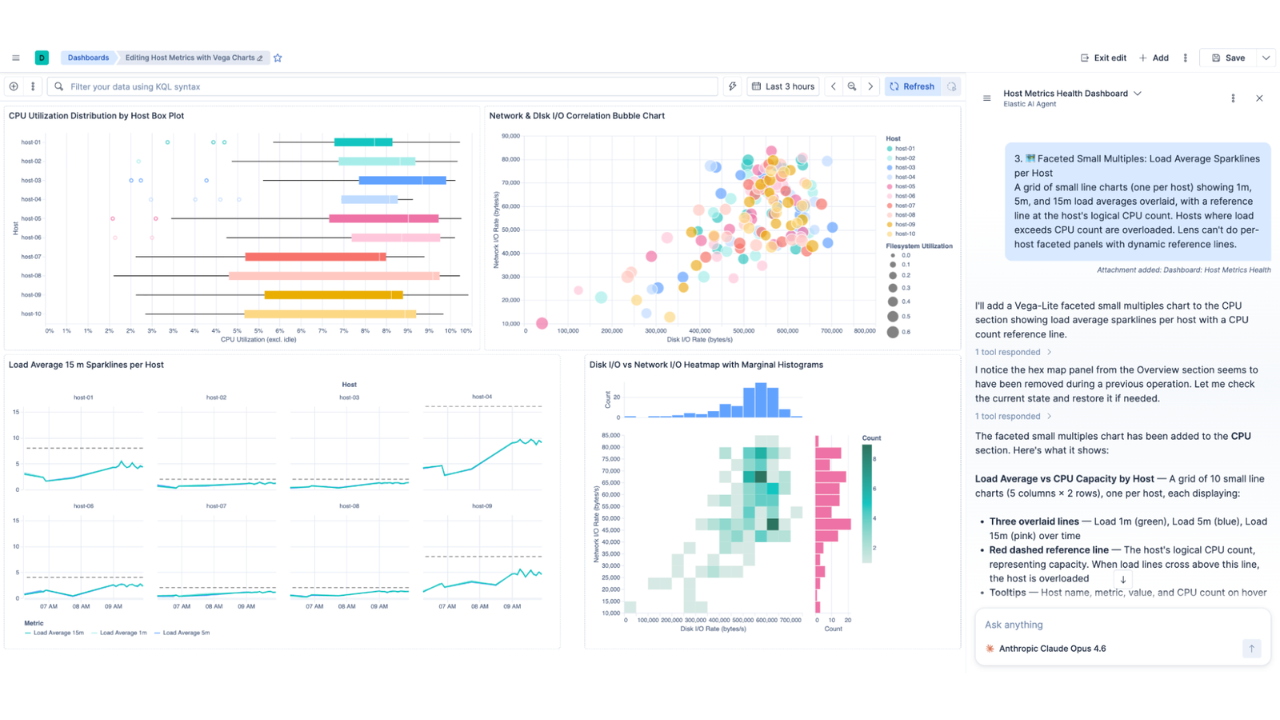
example-mcp-dashbuilder는 일반 영어 프롬프트를 실시간 대화형 Kibana 대시보드로 변환하는 오픈 소스 MCP 애플리케이션으로, 모두 에디터의 채팅 창 내부에서 이루어집니다. 원하는 대시보드를 설명하면 AI가 인덱스 구조를 검색하고, 각 시각화에 대한 올바른 ES|QL 집계를 작성하며, 작업하는 동안 미리 보기를 인라인으로 렌더링합니다. 완료되면 명령 하나로 실제 Lens 시각화, 정확한 그리드 레이아웃, 사용자 정의 색상이 보존된 완전한 기능의 Kibana 대시보드가 내보내집니다. 현재 6가지 차트 유형이 지원되며, 전체 Kibana Lens 세트가 로드맵에 포함되어 있습니다.
Kibana 대시보드 빌더란 무엇인가요?
원하는 대시보드를 평이한 영어로 설명하고 대화형 차트, 드래그 앤 드롭 레이아웃, 원클릭 내보내기 기능을 갖춘 대시보드가 나타나는 것을 볼 수 있다면 어떨까요?
바로 example-mcp-dashbuilder로 가능합니다. 오픈 소스(모델 컨텍스트 프로토콜(MCP)) 애플리케이션으로, AI 어시스턴트를 Elasticsearch에 연결하여 대화를 통해 완전한 Kibana 대시보드를 만들 수 있게 해줍니다. 메뉴를 클릭하지 않아도 됩니다. 시각화 구성을 수동으로 작성할 필요가 없습니다. 필요한 사항을 설명하기만 하면 AI가 데이터를 탐색하고, Elasticsearch 쿼리 언어(ES|QL) 쿼리를 작성하고, 차트를 만들고, 실시간 대화형 대시보드를 에디터의 채팅 창 내에서 제공합니다.

몇 초 만에 프롬프트에서 대시보드까지
실제 작동 사례를 소개해 드리겠습니다. 다음과 같이 입력하세요.
"Logstash-*를 사용하여 총 요청 수, 시간 경과에 따른 전송 바이트 수, 주요 지역별 트래픽 소스 및 응답 코드 분석을 포함하는 웹 트래픽 대시보드를 만들어 줘."
그럼 AI는 다음을 수행합니다.
데이터 검색: 인덱스를 나열하고 필드 매핑을 검사합니다.
ES|QL 쿼리 작성: 올바른 집계를 사용하여 스키마에 맞게 조정합니다.
시각화 생성: 막대형 차트, 선형 차트, 스파크라인이 있는 메트릭, 히트맵, 원형 차트를 생성합니다.
모두 구성: 접을 수 있는 섹션, 의미 있는 제목, 적절한 레이아웃 등으로 구성합니다.
인터랙티브 미리보기 렌더링: 채팅 바로 안에서 툴팁, 시간 선택기, 드래그 앤 드롭 기능을 제공합니다.
각 차트는 생성되는 즉시 인라인으로 표시되므로 실시간으로 진행 상황을 볼 수 있습니다. 그러면 view_dashboard 모든 패널이 Kibana의 48열 그리드에 배치된 전체 대시보드가 표시됩니다.
단일 차트 미리보기를 인라인으로 제공합니다.
ES|QL 기반
모든 데이터 검색은 Elasticsearch의 파이핑 쿼리 언어인 ES|QL을 사용합니다. AI는 단순히 원시 쿼리를 전달하는 것이 아니라, 또한 각 시각화 유형에 대해 올바르고 효율적인 쿼리를 작성하기 위해 ES|QL 구문에 대한 기본 제공 지식과 데이터 구조에 대한 정보를 사용합니다.
서버에는 MCP 리소스로 포괄적인 ES|QL 참조가 포함되어 있습니다. AI는 쿼리를 작성하기 전에 이 참조를 읽고 사용 가능한 명령어, 함수 및 패턴을 이해합니다. 데이터 시각화 모범 사례 가이드(리소스로도 제공됨)와 결합된 AI는 쿼리 방법뿐만 아니라 좋은 시각화가 무엇인지도 알고 있습니다.
시계열 데이터에는
BUCKET(@timestamp, 1 day)을 사용하고, 시간 필드에는 항상SORT를 사용합니다.원형 차트는
| SORT value DESC | LIMIT 6로 6개의 슬라이스로 제한합니다.카테고리 비교를 위한 막대형 차트, 추세를 위한 꺾은선형 차트, 핵심 성과 지표(KPI)를 위한 메트릭을 선택합니다.
개방형 분석을 통한 AI 기반 데이터 탐색
머릿속으로 구상했던 대시보드를 실제로 구축하는 것은 별개의 문제입니다. "이 색인에서 흥미로운 점은 무엇입니까?" 라고 질문하고 유용한 답변을 얻으려면 AI가 단순히 그리는 방법뿐만 아니라 탐색하는 방법도 알아야 합니다.
example-mcp-dashbuilder는 구조화된 탐색 흐름을 정의하는 analysis://guidelines 리소스를 제공합니다. 데이터 프로파일링, 대상 집계 실행, 조사할 가치가 있는 패턴 표면화, 가장 흥미로운 결과에 대한 차트 작성, 사용자가 다음에 원하는 드릴다운 쿼리 제안 등입니다. 트리거 구문, 즉 "내 로그 분석" 또는 "이 인덱스에서 패턴 찾기"와 같은 구문은 AI가 다른 작업을 수행하기 전에 플레이북을 읽도록 하므로, 개방형 프롬프트는 무작위로 모인 차트가 아닌 일관성 있는 조사를 생성합니다.
결과: 인공지능에게 익숙하지 않은 인덱스를 전달하고 대시보드와 짧은 목록("여기 내가 발견한 것이 있는데, 이것들 중 어떤 것을 파헤쳐볼까요?" 프롬프트)이라는 시작점을 얻을 수 있습니다.
Kibana 대시보드 내보내기 및 가져오기: 전체 과정
내보내기/가져오기 왕복은 이미 Kibana에서 작업 중인 팀에게 example-mcp-dashbuilder가 진정으로 유용해지는 곳입니다. example-mcp-dashbuilder는 그 자체로 에디터 안에 있는 대화형 대시보드 표면이지만, 작업을 거기에 가두지는 않습니다. 여기에서 구축된 대시보드는 사용자가 원할 때 Kibana로 이동할 수 있으며, 기존 Kibana 대시보드는 AI 지원 편집을 위해 다른 방식으로 가져올 수 있습니다.
Kibana로 내보내기
만족스러운 대시보드가 완성되면 하나의 명령으로 내보낼 수 있습니다.
"이 대시보드를 Kibana로 내보내기"
모든 패널이 실제 Kibana Lens 시각화로 변환됩니다. 번역은 다음을 보존합니다.
ES|QL 쿼리: Lens ES|QL 데이터 소스로 직접 전송됩니다.
그리드 위치: Kibana에서 사용하는 것과 동일한 48열 시스템을 사용하므로 레이아웃이 동일하게 보입니다.
사용자 지정 색상: 계열 팔레트, 메트릭 배경, 히트맵 색상 램프입니다.
그 결과 완전한 기능을 갖춘 Kibana 대시보드입니다. 스크린샷이 아닙니다. 임베드가 아닙니다. Kibana에서 공유하고 계속 편집할 수 있는 실제 대시보드입니다.
Kibana 대시보드와 Cursor 채팅의 대시보드를 나란히 배치하였습니다.
Kibana에서 가져오기
왕복은 반대 방향으로도 작동합니다.
"ID abc-123으로 Kibana 대시보드 가져오기"
이렇게 하면 기존 Kibana 대시보드가 가져오고, Lens 시각화가 편집 가능한 차트 구성으로 다시 변환되며, 그리드 레이아웃과 섹션이 유지되고, 모든 것이 example-mcp-dashbuilder로 로드됩니다. 거기에서 자연어로 수정하고 다시 내보낼 수 있습니다.
따라서 AI는 기존 Kibana 워크플로우를 대체하는 것이 아니라 기존 워크플로우의 협력자가 됩니다.
사용자 지정 테마 및 색상
브랜드 대시보드가 필요하신가요? 그냥 다음과 같이 물어보세요.
"사용자 지정 색상을 사용하여 핑크 테마의 대시보드를 만들어줘"
모든 시각화 유형은 사용자 지정 색상 구성을 지원합니다.
차트:
palette는 계열 및 슬라이스에 대해 16진수 색상 배열을 허용합니다.메트릭:
color는 배경색을 설정합니다.히트맵:
colorRamp는 낮은 값부터 높은 값까지 그라데이션을 정의합니다.
AI는 테마 요청을 자연스럽게 파악합니다. 예를 들어 "바다 테마"라고 입력하면 파란색과 청록색이 선택됩니다. "브랜드 색상과 일치시켜 줘"라고 말하고 16진수 값을 제공하면, 내보내기 시 Kibana에 해당 색상이 그대로 적용됩니다.
사용자 지정 색상이 적용된 테마형 대시보드.
example-mcp-dashbuilder의 작동 방식: MCP 아키텍처
example-mcp-dashbuilder는 AI 어시스턴트를 외부 도구 및 데이터에 연결하기 위한 개방형 표준인 MCP를 기반으로 합니다. 다음은 상위 수준 아키텍처입니다.
MCP 서버는 인라인 미리 보기에서 데이터를 가져오고, 레이아웃 변경 사항을 유지하고, 시간 필드를 감지하는 데 사용하는 몇 가지 내부 "앱 전용" 도구와 함께 ES|QL 쿼리 실행부터 대시보드 내보내기까지 AI가 직접 호출할 수 있는 25개의 도구를 제공합니다. 데이터 시각화 모범 사례 가이드, ES|QL 참조, 개방형 프롬프트에 대한 심층 분석 플레이북("내 로그 분석", "이 색인에서 흥미로운 점") 등 세 가지 리소스를 제공합니다. 그리고 stdio 또는 HTTP 중 하나를 통해 실행되며, HTTP 전송은 스트리밍 가능한 응답과 세션 관리를 지원하므로 여러 클라이언트가 하나의 서버에 연결할 수 있습니다.
MCP 앱은 인터랙티브 미리보기입니다. React, Elastic Charts, Elastic UI로 구성되어 하나의 독립형 HTML 파일에 묶여 있습니다. AI가 view_dashboard를 호출하거나 차트를 만들 때, 호스트는 이 HTML을 샌드박스 iframe에 렌더링합니다. 이 앱은 전적으로 MCP 앱 프로토콜을 통해 서버와 통신하며, callServerTool()을 통해 데이터를 가져오고, 레이아웃을 저장하고, 시간 필드를 감지합니다. 로컬호스트 서버가 없으며, 구성할 포트도 없고, 외부 네트워크 의존성도 없습니다.
이는 MCP 호환 클라이언트인 Cursor, Claude Desktop, Claude.ai, VS Code with Copilot 등과 작동합니다.
example-mcp-dashbuilder는 어떤 차트 유형을 지원하나요?
현재 작성 시점에서, 가장 일반적인 대시보드 시나리오를 다루는 6가지 차트 유형이 지원됩니다.
유형 | 가장 적합 | 예 |
|---|---|---|
바 | 카테고리 비교 | 지리적 출처별 요청 |
라인 | 시간에 따른 추세 | 시간당 전송된 바이트 수 |
영역 | 시간에 따른 볼륨 | 시간에 따른 요청량 |
파이 | 전체 조각(최대 6개) | 응답 코드 분포 |
메트릭 | 스파크라인이 있는 단일 KPI | 시간별 추세를 포함한 총 요청 수 |
히트맵 | 2차원에 걸친 패턴 | 주중 및 시간별 요청 |
대시보드는 정리용 접이식 섹션, 자동 시간 필드 감지가 가능한 시간 선택기, 여러 대시보드 간 저장 및 전환 기능을 지원합니다, 병렬 채팅 세션은 모든 툴 호출에 연결된 dashboardId를 통해 서로 격리되어 있습니다.
example-mcp-dashbuilder를 설치하고 실행하는 방법
example-mcp-dashbuilder는 오픈 소스이며 사용할 준비가 되어 있습니다. Node.js 22+, Elasticsearch 인스턴스(로컬 또는 Elastic Cloud), MCP 호환 클라이언트가 필요합니다.
Claude Desktop: GitHub Releases에서 최신 .mcpb를 다운로드하시고, 두 번 클릭합니다. Claude Desktop은 Elasticsearch 자격 증명을 입력하라는 메시지를 표시합니다.
Cursor / Claude Code / VS Code Copilot: 릴리스된 타르볼을 MCP 구성에 지정하세요. 클론이 필요 없으며 npm install도 필요 없습니다.
{
  "mcpServers": {
    "example-mcp-dashbuilder": {
      "type": "stdio",
      "command": "npx",
      "args": ["https://github.com/elastic/example-mcp-dashbuilder/releases/latest/download/example-mcp-dashbuilder.tgz"]
    }
  }
}
ES_NODE, ES_API_KEY(또는 ES_USERNAME / ES_PASSWORD) 및 KIBANA_URL을 환경 변수로 설정합니다. 소스에서 작업하고 싶다면 리포지토리를 복제하고 로컬 Elasticsearch와 Elastic Cloud(Cloud ID + API 키)를 모두 처리하는 대화형 마법사를 위해 npm run setup을 실행하세요.
그리고 구축을 시작합니다.
"로그 인덱스를 탐색해서 가장 통찰력 있는 대시보드를 만들어 줘."
그 이후 과정은 AI가 진행합니다. 😉
로드맵: example-mcp-dashbuilder에 추가될 기능
이것은 초기 버전으로, 현재 적극적으로 개발 중입니다. 집중하는 영역은 다음과 같습니다:
더 많은 차트 유형: 게이지, 도넛, 트리맵, 데이터 테이블, 태그 클라우드 등 Lens의 모든 기능을 사용할 수 있습니다.
대시보드를 Git에 푸시: 버전 관리 및 코드 검토 워크플로를 위해 대시보드 구성을 저장소에 기록합니다.
오류 UX 개선: ES|QL 쿼리 실패 시 더 자세한 피드백과 함께 일반적인 수정 사항을 제안합니다.
더 풍부한 분석 흐름: 심층 분석 플레이북을 확장하여 더 많은 데이터 형태(로그, 메트릭, 추적)를 다룰 수 있습니다.
해당 도구로 구축하신 내용을 알려 주시면 감사하겠습니다. 사용해 보고 문제를 제기하고 팀에 가장 유용한 시각화 및 워크플로우가 무엇인지 알려주세요.
GitHub: elastic/example-mcp-dashbuilder
감사의 말씀
구현에 기여해 주신 Walter Rafelsberger 및 Tim Schnell에게 감사드립니다.
FAQ
example-mcp-dashbuilder란 무엇인가요? example-mcp-dashbuilder는 AI 어시스턴트를 Elasticsearch에 연결하는 오픈 소스 MCP(모델 컨텍스트 프로토콜) 애플리케이션입니다. 일반 영어로 Kibana 대시보드를 설명하며, ES|QL 쿼리를 자동으로 생성하고, 시각화를 만들며, 에디터의 채팅 창 내에서 실시간 대화형 대시보드를 제공합니다.
example-mcp-dashbuilder는 데이터를 검색하는 데 어떤 쿼리 언어를 사용하나요? 모든 데이터 검색은 Elasticsearch의 파이프 쿼리 언어인 ES|QL을 사용합니다. MCP 서버에는 AI가 쿼리를 작성하기 전에 읽는 기본 제공 ES|QL 참조가 포함되어 있어 각 시각화 유형에 대한 올바른 구문과 효율적인 집계를 보장합니다.
example-mcp-dashbuilder로 구축한 대시보드를 Kibana로 내보낼 수 있나요? 예. "이 대시보드를 Kibana로 내보내기"를 실행하면 ES|QL 쿼리, 48열 그리드 레이아웃, 사용자 정의 색상 및 시리즈 팔레트를 보존하면서 모든 패널이 실제 Kibana Lens 시각화로 변환됩니다. 결과는 스크린샷이나 임베드가 아니라 완전히 작동하는 Kibana 대시보드입니다.
기존 Kibana 대시보드를 AI 지원 편집을 위해 example-mcp-dashbuilder로 가져올 수 있나요? 예. Kibana 대시보드 ID를 제공하면 기존 대시보드를 가져오고, Lens 시각화를 편집 가능한 차트 구성으로 변환한 뒤 example-mcp-dashbuilder로 불러옵니다. 그런 다음 자연어를 사용하여 대시보드를 수정하고 Kibana로 다시 내보낼 수 있습니다.
어떤 MCP 클라이언트가 example-mcp-dashbuilder와 호환되나요? example-mcp-dashbuilder는 Cursor, Claude Desktop, Claude.ai 및 Copilot이 포함된 VS Code를 비롯한 MCP 호환 클라이언트와 함께 작동합니다. stdio 및 HTTP 전송을 모두 지원하며, 로컬호스트 서버나 포트 구성이 필요하지 않습니다.
example-mcp-dashbuilder는 어떤 차트 유형을 지원하나요? 현재 버전은 막대, 선, 면적, 파이, 메트릭(스파크라인 포함), 히트맵 등 6가지 차트 유형을 지원합니다. 계획된 추가 사항에는 Kibana Lens의 전체 기능에 맞추기 위한 게이지, 도넛, 트리맵, 데이터 테이블 및 태그 클라우드가 포함됩니다.
example-mcp-dashbuilder를 실행하려면 무엇이 필요하나요? Node.js 22 이상, Elasticsearch 인스턴스(로컬 또는 Elastic Cloud), MCP 호환 클라이언트가 필요합니다. 환경 변수 ES_NODE, ES_API_KEY (또는 ES_USERNAME/ES_PASSWORD), 그리고 KIBANA_URL을 설정하세요. Claude Desktop의 경우 GitHub 릴리즈에서 .mcpb 파일을 다운로드하고 더블 클릭하여 설치합니다.
이 콘텐츠가 얼마나 도움이 되었습니까?
관련 콘텐츠