Le contenu de cette page n'est pas disponible dans la langue sélectionnée. Chez Elastic, nous mettons tout en œuvre pour vous proposer du contenu dans différentes langues. En attendant, nous vous remercions de votre patience !
How to
How to add search to your iOS app with Elastic App Search
This is a short and sweet, to-the-point, tutorial series that shows how to add search functionality to an iOS app using Elasticsearch for free! More specifically, in this two-part blog series, we will be creating an iOS app that uses Elastic App Search for searching a movie database. By the end of this tutorial, whether you need to search through a small movie database or through petabytes of cloud metrics, you’ll have the knowledge you need to build an amazing search experience for iOS mobile users.
Note: This tutorial is based on Elasticsearch version 7.12.x
Setup Elastic Cloud trial
- Navigate to https://www.elastic.co/cloud/.
- Choose Start free trial.
- Sign up and login.
- Choose Start your free trial.
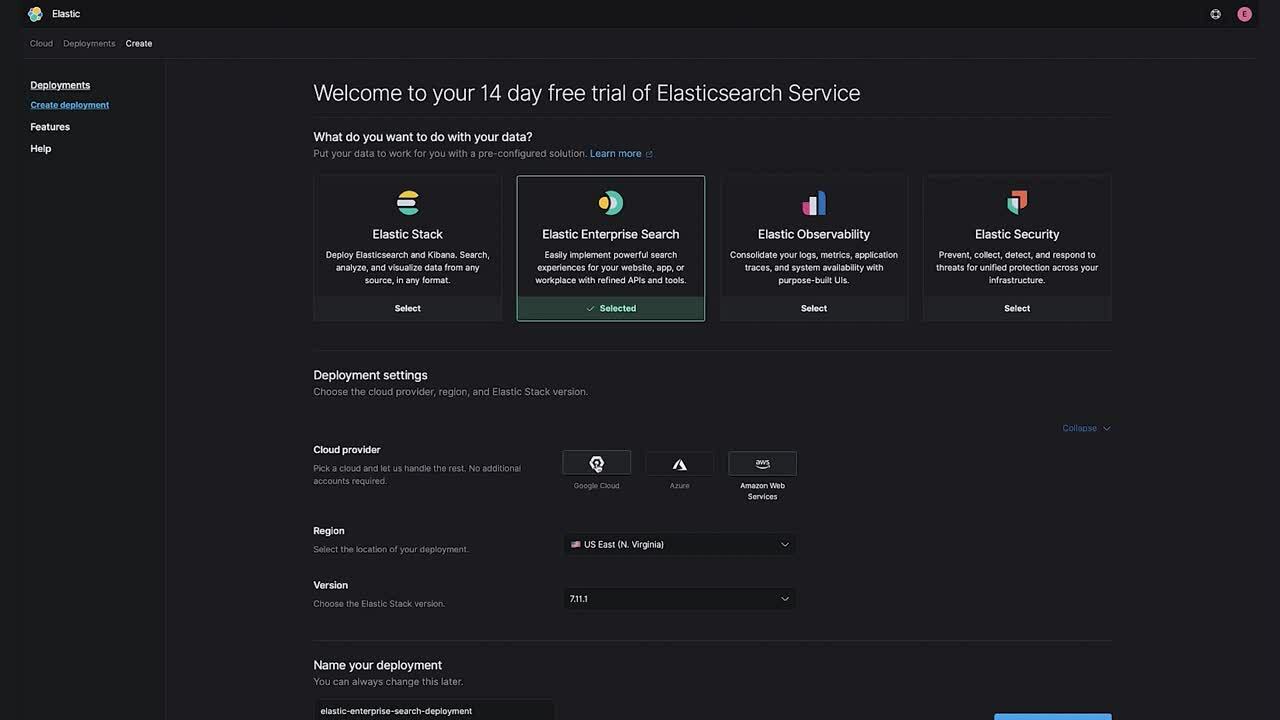
- Select the Enterprise Search option.
- Choose to Expand the settings.
- Choose version
7.12.x. - Choose Create deployment.
- Download the credentials.
Download dataset
- Navigate to https://www.kaggle.com/edgartanaka1/tmdb-movies-an....
- Download the dataset.
- Unzip the data.
Setup App Search
- Once your deployment has been created, choose Open Enterprise Search.
- Select Launch App Search.
- Type the engine name movies
- Choose Continue
Ingest data
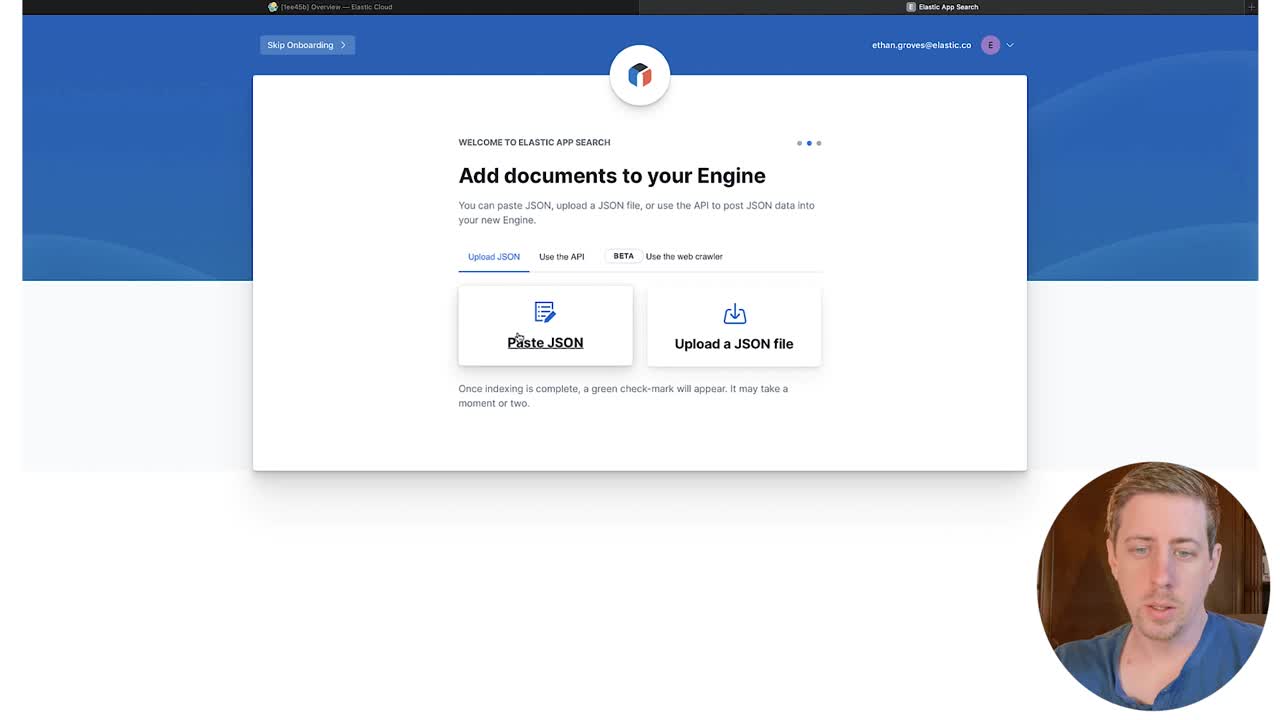
- Select Upload a JSON file.
- Drag and drop one of the movie files from the downloaded dataset.
- Choose Continue.
- Once the data is indexed successfully, choose Visit the Dashboard.
- In the list of engines, choose movies.
- In the sidebar, choose Documents to see the document you indexed.
Configure Schema
- In the sidebar, choose Schema.
- Set the following fields to be of type Number using the drop-down options on the right:
revenuepopularityvote_countbudgetruntimevote_average
- Set the following fields to be of type Date using the drop-down options on the right:
release_date
- Choose Confirm Types
Bulk ingest data
- In the sidebar, choose Credentials.
- Note the following fields as we will use these later:
- API Endpoint
- private-key
- In your command line terminal run:
git clone git@github.com:elastic/tutorials.git- Github Link: https://github.com/elastic/tutorials
- Open
tutorials/app-search/app_search_ingest.pyin your favorite text editor
from elastic_enterprise_search import AppSearch
import glob, os
import json
app_search = AppSearch(
    "app_search_api_endpoint",
    http_auth="api_private_key"
)
response = []
print("Uploading movies to App Search...")
os.chdir("movies_directory")
for file in glob.glob("*.json"):
  with open(file, 'r') as json_file:
    try:
      response = app_search.index_documents(engine_name="movies",documents=json.load(json_file))
      print(".", end='', flush=True)
    except:
      print("Fail!")
      print(response)
      break
- In the python script, replace:
app_search_api_endpointwith the API Endpoint from the credentials tab in your Enterprise Search deploymentapi_private_keywith the private-key from the credentials tab in your Enterprise Search deploymentmovies_directorywith the directory path of the unzipped movies data- Example directory:
"/Users/jsmith/Downloads/archive/movies/movies"
- Example directory:
- In your command line terminal, install the Elastic Enterprise Search Python library
pip3 install elastic-enterprise-search
- Run the python script
python3 ./tutorials/app-search/app_search_ingest.py
Build iOS app
Wonderful! 🎉 You should now be ingesting documents into your App Search instance. To build the iOS app, see part 2 of this blog series.