Agent Builder is available now GA. Get started with an Elastic Cloud Trial, and check out the documentation for Agent Builder here.
Building a Retrieval Augmented Generation (RAG) system locally is possible with components that run entirely on a mid-range laptop. Elasticsearch provides vector database infrastructure, while LocalAI makes it simple to run small, efficient language models without requiring a powerful GPU or external services. By combining these tools, we can enable private, fast, and offline access to company or personal data.
The goal is to build a full RAG system: Embeddings for retrieval and LLM for answers generated locally, while using as few resources as possible without affecting latency and the quality of the answers.
Prerequisites
- Docker
- Python 3.10+
Use case: Personal knowledge assistant
The goal is to unlock insights from local files through a simple assistant. In this example, we'll focus on internal documentation from a CRM migration project, which includes meeting transcripts, progress reports, and planning notes. Everything will run on the same machine; Elasticsearch will handle storage and semantic search, while a local LLM will produce answers and summaries based on the retrieved documents.
Why do this locally?
Deciding to go local and use this stack of tools in particular presents multiple advantages, such as:
- Privacy: Since you are using a local LLM, you have full discretion over the information you pass to it. While some cloud-based LLMs offer enterprise tiers that disable tracking or data retention, this is not guaranteed across all providers or plans.
- Flexibility: Tools like LocalAI offer a wide range of models and make it easy to replace them as needed, whether for evaluating new models, running tests, handling security-related updates, or switching between models to support different types of tasks. On the other hand, using Elasticsearch as the vector database offers integration with many third-party embedding models.
- Cost: With this approach you don’t need to pay for any cloud-based service for embeddings or LLM usage, which makes it more affordable.
- Independence from the internet: Another advantage of a local solution is that you can work completely offline, which also makes it suitable for isolated or air-gaped environments where network access is intentionally limited due to strict security or compliance requirements.
- Speed: Depending on the chosen model and your hardware, this can potentially be faster than a web service.
Setting up the core: Minimal Elasticsearch instance
To install Elasticsearch locally, we will use start-local, which allows you to install Elasticsearch with just one command using Docker under the hood.
Since we will not be using Kibana, we will install only Elasticsearch with the --esonly flag:
If everything goes well, you’ll see a message like this:
NOTE: If you forgot your credentials, you can find them at …/elastic-start-local/.env
You can check if the Elasticsearch instance is running using the command docker ps
Response:
To this Elasticsearch instance, we can send requests, for example:
Response:
This local instance will store our CRM migration notes and reports so they can later be searched semantically.
Adding AI: Choosing the right local models
So, now we will choose two models to make it work:
- Embeddings model: For embeddings, we will use the multilingual model multilingual-e5-small. It is available pre-configured in Elasticsearch but needs to be deployed before use.
- Completion model: For chatting, generating responses, and interacting with the data, we need to choose a model with the best size-to-performance ratio. For that, I prepared the following table comparing some small-sized models:
| Model | Parameters | Size in memory (Approx) |
|---|---|---|
| llama-smoltalk-3.2-1b-instruct | 1B | 500 MB |
| dolphin3.0-qwen2.5-0.5b | 0.5B | 200 MB |
| fastllama-3.2-1b-instruct | 1B | 550 MB |
| smollm2-1.7b-instruct | 1.7B | 1.0 GB |
The final decision depends on your needs and your machine, and for this example we will use the dolphin3.0-qwen2.5-0.5b model because it is a model but with powerful capabilities in a RAG system. It provides the best size-to-parameters ratio in the table. All the other options work well for this use case but by its size, the dolphin3.0-qwen2.5-0.5b is our choice.
The balance of CPU, and memory usage is important because our assistant needs to summarize meetings and reports in a reasonable time using mid range laptop resources.
To download the dolphin3.0-qwen2.5-0.5b, we will use LocalAI, which is an easy-to-use solution to run models locally. You can install LocalAI on your machine, but we will use Docker to isolate the LocalAI service and models. Follow these instructions to install the official LocalAI Docker image.
LocalAI REST API
One of the main features of LocalAI is its ability to serve models through HTTP requests in an OpenAI API-compatible format. This feature will be useful in later steps.
The LocalAI service will be accessible at port 8080, which is where we will send the HTTP requests. Let’s send a request to download the dolphin3.0-qwen2.5-0.5b model:
We can check the download status using the ID generated in the previous step:
The progress field represents the percentage of the current download; we need to wait for it to complete. Once it’s completed, we can create a test to make sure that everything is working well:
See the LLM result here.
Showing the workflow: Project data to answers
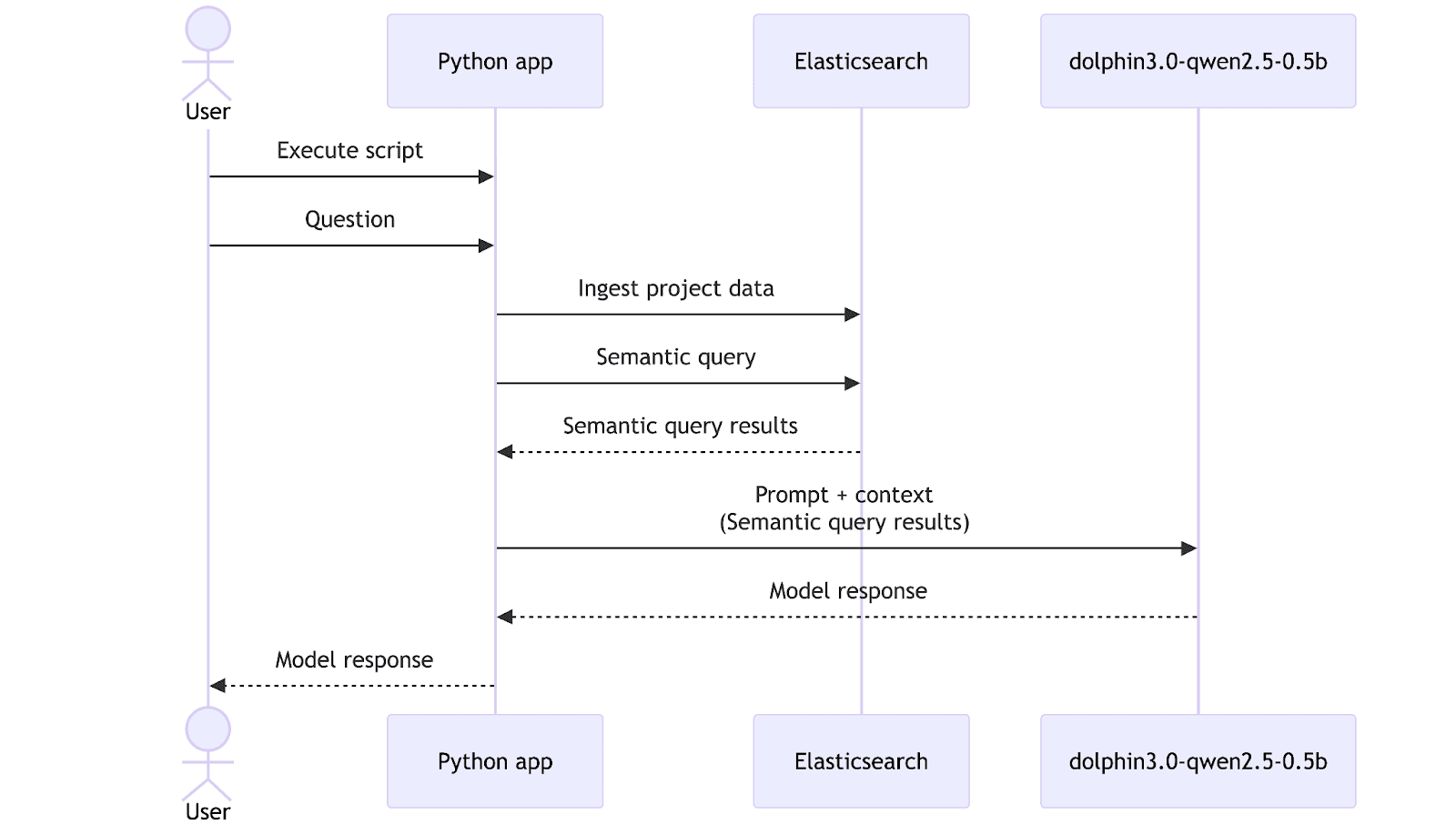
Now that we have an embeddings model and a general-purpose LLM model, it’s time to combine them with Elasticsearch and build a tool that can help us explore our data. For this walkthrough, we prepared a folder with relevant data for our mock CRM-migration project, including reports and meeting transcripts. In a real application, this ingestion step would typically be automated through a deployment pipeline or a background process, but here we will trigger it manually for simplicity.
Data overview
All the dataset is accessible in this GitHub repository.
/CRM migration data
|__
|-- meeting_QA-team_wednesday.txt
|-- meeting_development-team_monday.txt
|-- meeting_management-sync_friday.txt
|-- report_QA-team.txt
|-- report_development-team.txt
To illustrate how it looks, let's test a couple of examples:
meeting_development-team_monday.txt:
Elasticsearch setup
Now we need a data structure and an inference endpoint in Elasticsearch to store and embed the data.
First, let’s create an inference endpoint using the .multilingual-e5-small model:
The response should be this:
This will automatically download the model and create the inference endpoint for our embeddings during ingestion and query time. If you need to install the embeddings model in an air-gapped environment, you can follow these instructions.
Now, let’s create the mappings for the data. We will create 3 fields: file_title to store the file name, file_content to store the file content of each document, and semantic to store the embeddings and plain text content of both fields (file_title and file_content):
Elasticsearch response:
With this setup, each file from the CRM migration project gets indexed and becomes searchable.
Python script
To centralize Elasticsearch, data, and LLMs, we will create a simple Python script to ingest the data, make search requests to Elasticsearch, and send prompts to the LLM. This approach allows us to customize the workflow, change prompts and models, and automate processes:
Let’s create a venv environment to handle the dependencies required to execute the script:
Now we need to install the elasticsearch dependencies to interact with our locally running Elasticsearch instance and requests will be used to handle HTTP requests:
After installation, create a Python file named `script.py` and let's start scripting:
In the code above, we import the necessary packages, set up some relevant variables, and instantiate the Elasticsearch Python client and the OpenAI client to handle AI requests. There’s no need for a real OpenAI API key to make it work;you can use any value there.
Using the bulk API, we created two methods to ingest the data directly from the folder to Elasticsearch index_documents and load_documents. To execute semantic queries, we'll use the semantic_search method:
The query_local_ai function handles the request to LocalAI models.
We will pass the Elasticsearch-retrieved data with a prompt to the query_local_ai function:
Finally, we can see the complete script workflow: first, we ingest the documents using index_documents; then we retrieve Elasticsearch data using semantic_search, and with those results, we send a request to the dolphin3.0-qwen2.5-0.5b model to generate the LLM response with our requirements (including citation generation) by calling the query_local_ai function. The latency and tokens per second will be measured and printed at the end of the script.In this workflow, the query “Can you summarize the performance issues in the API?” serves as the user’s natural language request that guides both the search and the final LLM response.
Run the following command to execute the script:
Response:
See the complete answer here.
The model’s answer is satisfactory: it highlights the key performance issues in a concise way and correctly points out underlying causes, offering a solid basis for further diagnosis.
Latency
As shown in the application results above, we have the following latency:
Adding all times, we can see that the entire flow takes 17 seconds to get a response, producing 9.5 tokens per second.
Hardware usage
The last step is to analyze the resource consumption of the entire environment. We describe it based on the Docker environment configuration shown in the following screenshot:
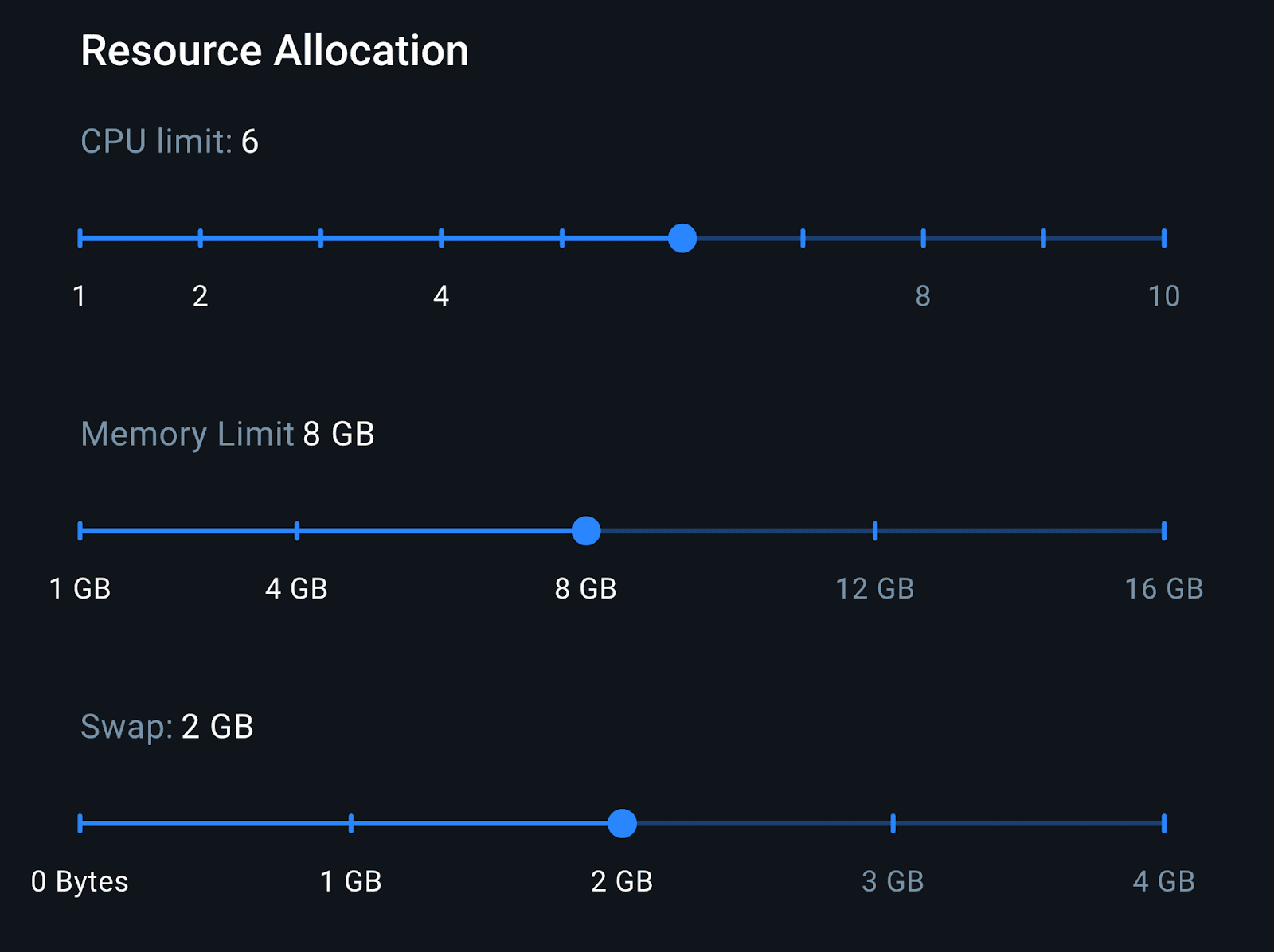
With 8GB of RAM, we have enough memory to run both the LocalAI container and the Elasticsearch container. This configuration is representative of a mid-range laptop setup, which helps us better approximate realistic inference performance.
Resources consumption
Using the Docker Live Charts extension, we can see the resource consumption of both containers working together while generating responses:
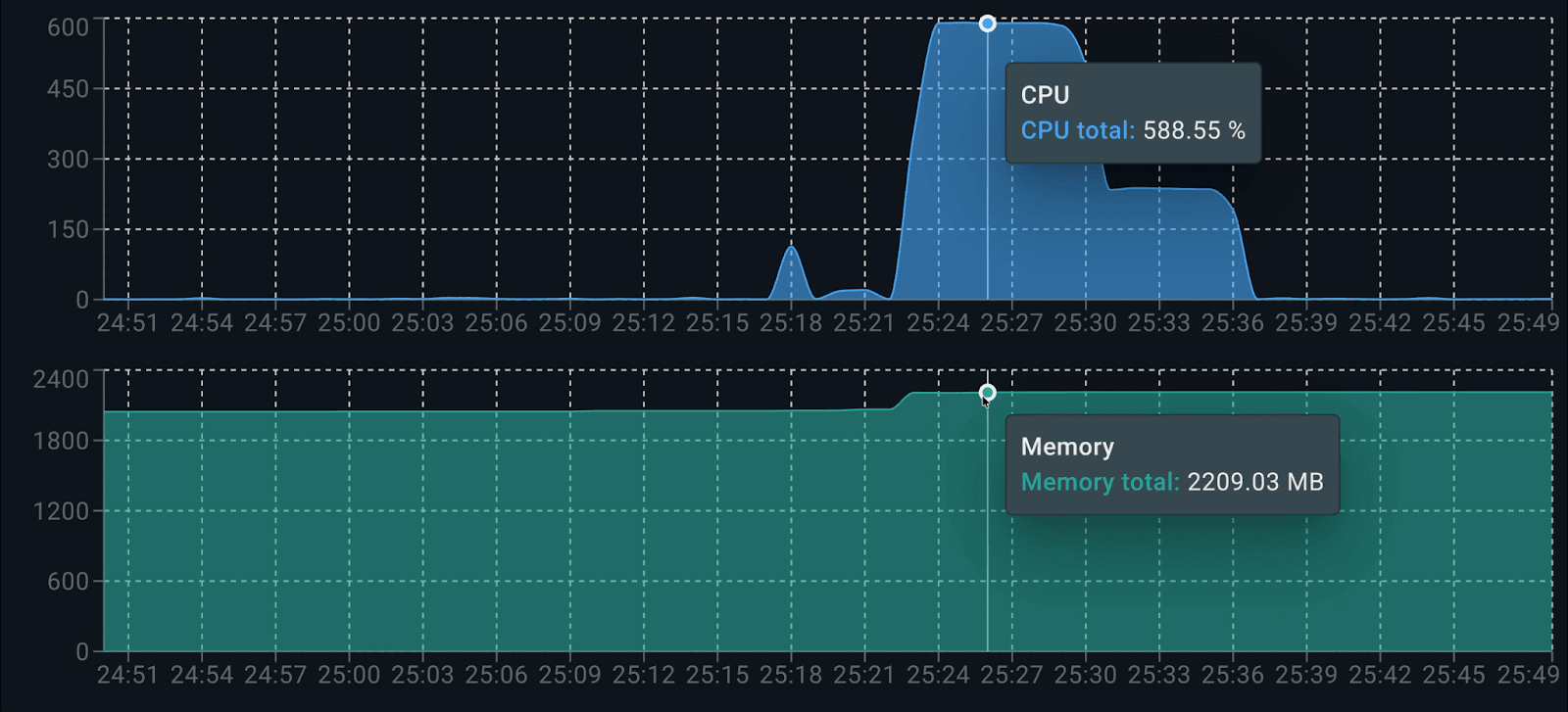
Consumption per container is as follows:
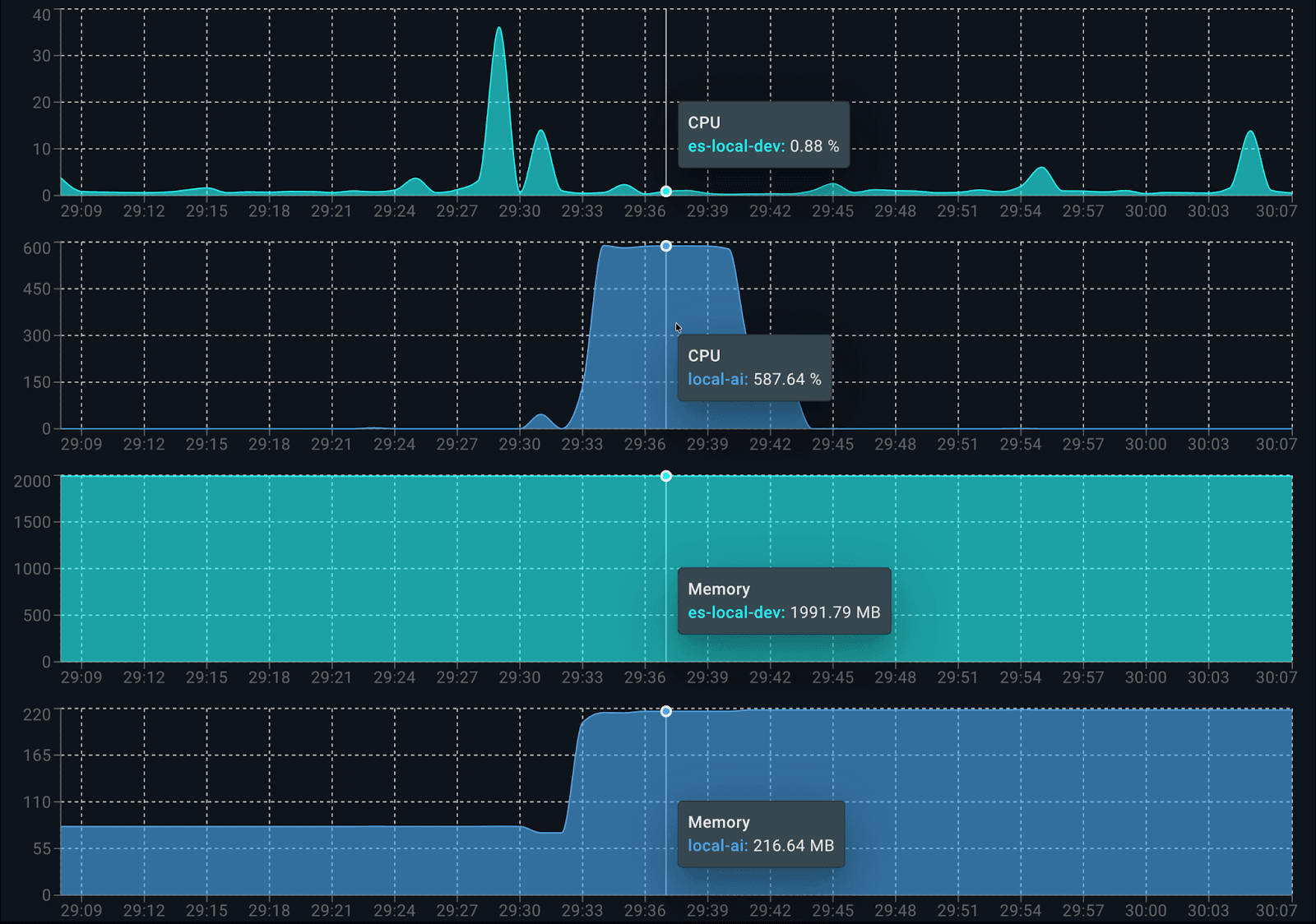
When it starts running, Elasticsearch uses about 0.5 cores for indexing data. On the LocalAI side, dolphin3.0-qwen2.5-0.5b consumes 100% of the 6 available cores when producing the answer. When analyzing memory consumption, it uses approximately 2.2GB in total: 1.9 GB for Elasticsearch and 200 MB for LocalAI (client and model).
Alternative model with higher resource requirements: smollm2-1.7b-instruct
To see the flexibility of this approach, let's change the model by just switching the variable ai_model to ai_model = "smollm2-1.7b-instruct" in code. This model requires significantly more memory due to its larger parameter count, which impacts the tokens-per-second rate and increases the overall latency when generating a response.
As expected, being a heavier model, smollm2-1.7b-instruct produces fewer tokens per second (4.8) for the same question and takes significantly more time (around 30 seconds longer).
The response looks good and detailed. It’s similar to the one generated by the dolphin3.0-qwen2.5-0.5b model but takes longer to generate and consumes more resources, as this model uses approximately 1 GB of memory.
Alternative balance model: llama-smoltalk-3.2-1b-instruct
Now let’s try again by changing ai_model to llama-smoltalk-3.2-1b-instruct.
Analyzing the results, llama-smoltalk-3.2-1b-instruct delivers responses similar to the other models, varying slightly in format and extension. However, this comes at a higher cost compared to the lighter model (about 5 seconds slower and 4 tokens fewer per second.) It also consumes more memory than the dolphin3.0-qwen2.5-0.5b model (around 500 MB more in total). This makes it reliable for accurate summarization tasks but less efficient for fast or interactive scenarios.
Table comparison
To get a better view of the model’s consumption, let’s include a table comparing the results:
| Model | Memory Usage | Latency | Tokens/s |
|---|---|---|---|
| dolphin3.0-qwen2.5-0.5b | ~200 MB | 16,044 ms | 9.5 tokens/s |
| smollm2-1.7b-instruct | ~1 GB | 47,561 ms | 4.8 tokens/s |
| llama-smoltalk-3.2-1b-instruct | ~700 MB | 21,019 ms | 5.8 tokens/s |
Conclusion
Combining e5-small for embeddings and dolphin3.0-qwen2.5-0.5b for completions, we could set up an efficient and fully functional RAG application on a mid-end laptop, with all data kept private. As we saw in the latency section from the first test we ran using the dolphin model, the part of the flow that takes the longest is the LLM inference step (16 s), while Elasticsearch vector retrieval was fast (81 ms).
dolphin3.0-qwen2.5-0.5b was the best candidate as a LLM to generate answers. Other models like llama-smoltalk-3.2-1b-instruct are indeed fast and reliable, but they tend to be heavier models. They require more resources, producing fewer tokens per second in exchange for slightly better quality in the responses.
相关内容
2026年7月20日
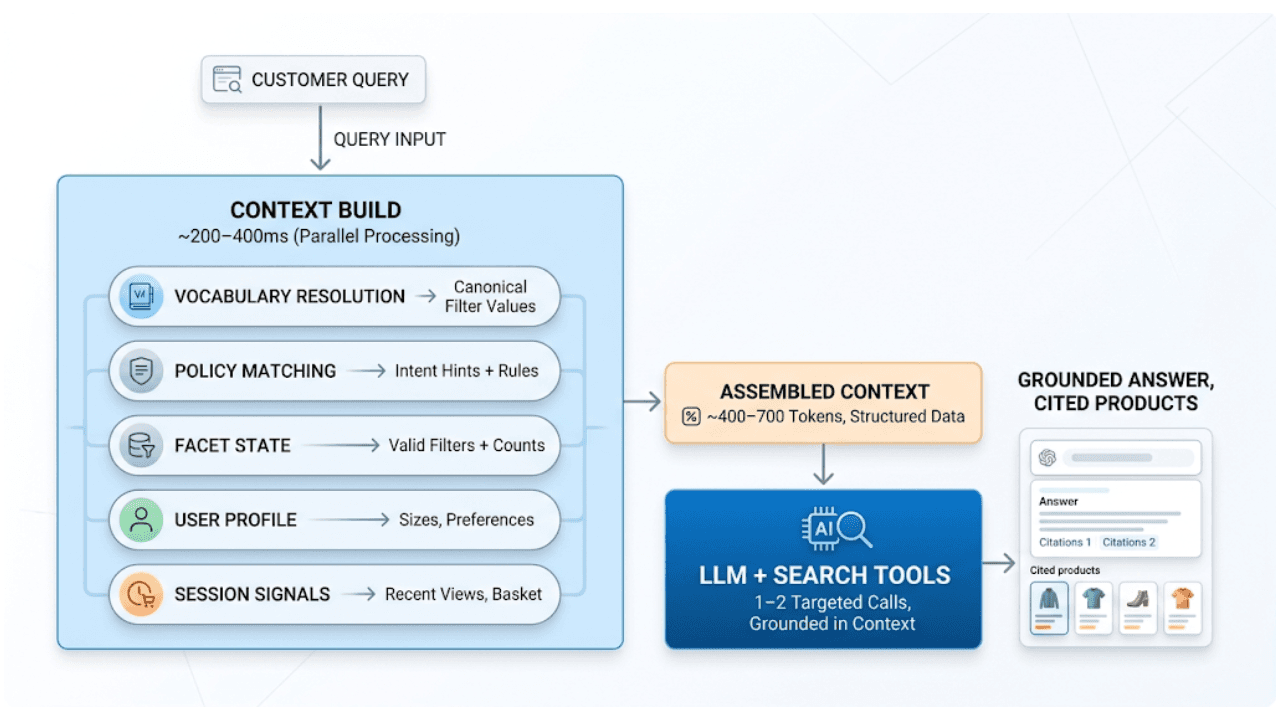
AI shopping agents: Why context comes before the query
AI shopping agents that guess at your vocabulary make expensive mistakes. Pre-computed catalog context stops the guessing before the first tool call.
2026年6月30日
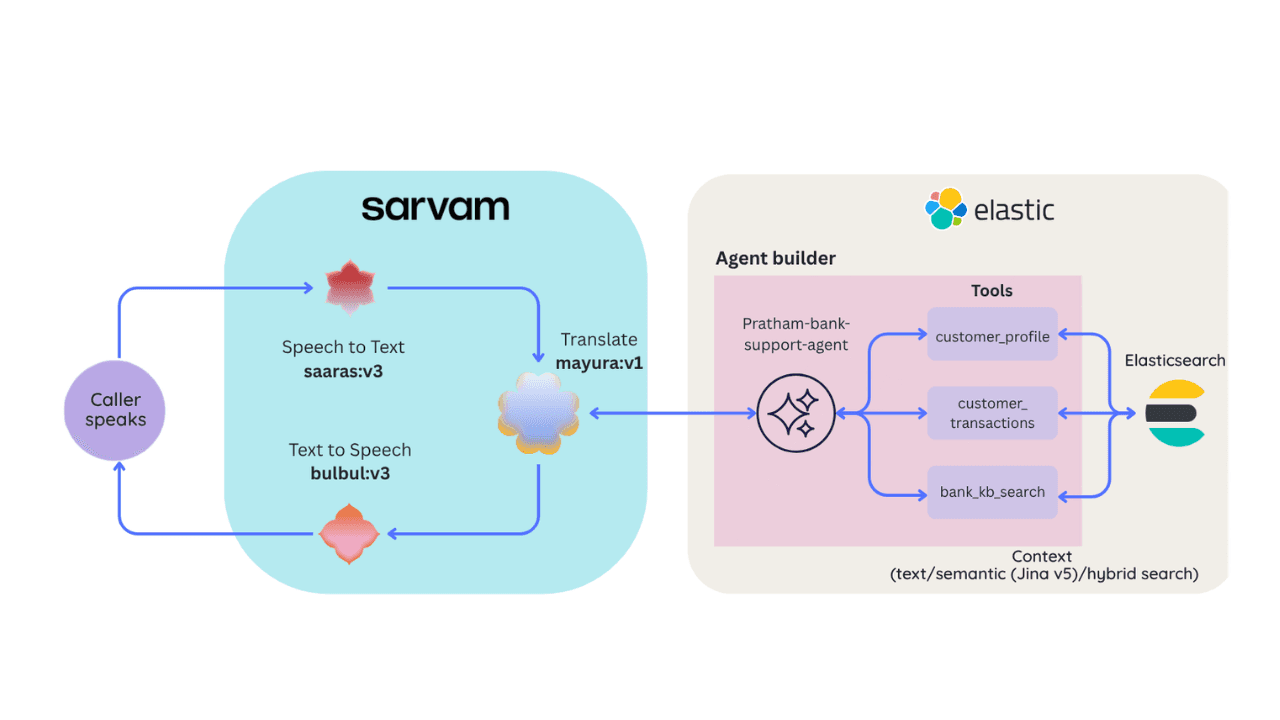
Building a multilingual voice agent with Elastic Agent Builder & Sarvam AI
A working demo combining Sarvam AI speech with Elastic Agent Builder: identity verification, per-customer ES|QL queries, and mid-call language switching across 22 Indian languages without multilingual indices.
2026年7月24日
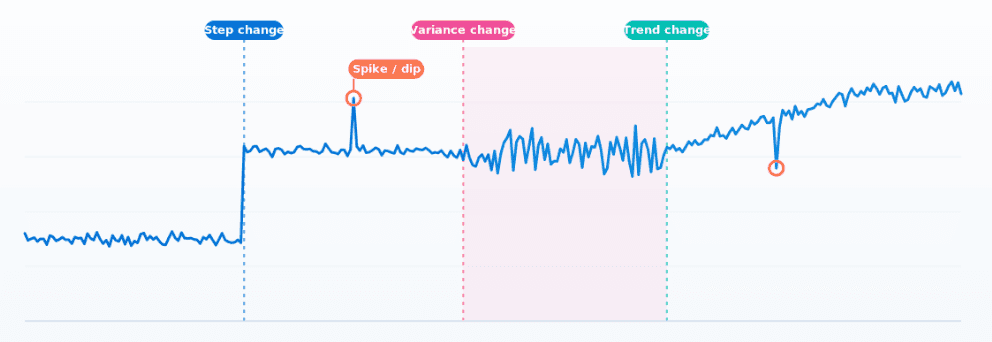
How Elasticsearch detects multiple change points in time series with 0.99 recall
ES|QL's CHANGE_POINT command finds structural shifts, variance changes and spikes in any metric in ~1ms, without tuning anything per series.
2026年6月26日
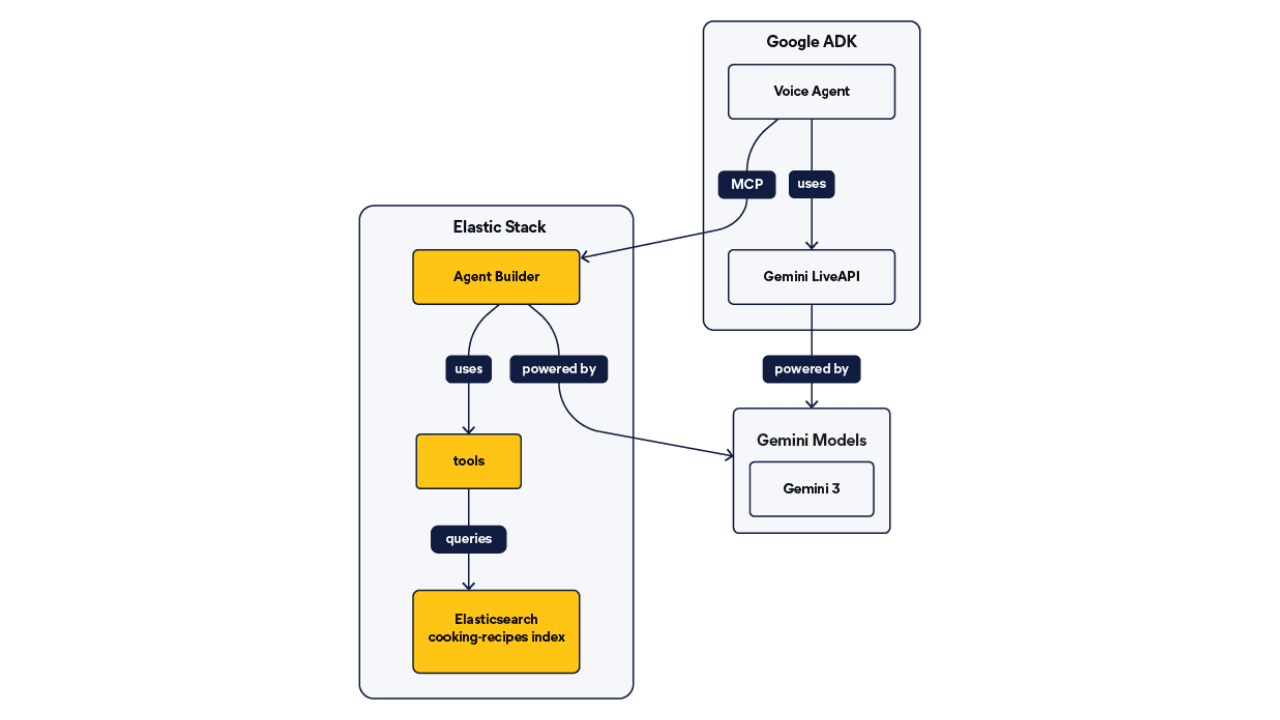
Talk to your Elasticsearch data: building a real-time voice agent with Google ADK and MCP in 3 components
Wire Google ADK's real-time voice streaming to your Elasticsearch data via Agent Builder's built-in MCP server; no custom integration code required.
2026年6月22日
Your data analyst doesn't need SQL: wiring Elastic Agent Builder to AWS AgentCore for natural-language Elasticsearch queries
Wire plain-English questions to your Elasticsearch data using Elastic Agent Builder MCP, AWS Bedrock AgentCore and the Strands SDK. Python code included.