WARNING: Version 5.6 of the Elastic Stack has passed its EOL date.
This documentation is no longer being maintained and may be removed. If you are running this version, we strongly advise you to upgrade. For the latest information, see the current release documentation.
Monitoring Elasticsearch
editMonitoring Elasticsearch
editBy default, X-Pack monitoring agents on Elasticsearch index data into the cluster where they’re running. In production, you should send data to a separate monitoring cluster so that historical monitoring data is available even if the nodes you are monitoring are not. Using a dedicated monitoring cluster also enables you to monitor multiple clusters from a central location.
To store monitoring data in a separate cluster:
-
Set up the Elasticsearch cluster you want to use for monitoring, install X-Pack, and start Elasticsearch. For example, you might set up a two host cluster with the nodes
es-mon-1andes-mon-2.To monitor an Elasticsearch 5.x cluster, you must run the same or a later version of Elasticsearch 5.x on the monitoring cluster. While installing X-Pack on the monitoring cluster is not absolutely required, it is strongly recommended.
-
Install X-Pack into Kibana.
bin/kibana-plugin install x-pack
-
Configure Kibana to retrieve data from your monitoring cluster by setting the
elasticsearch.urlproperty inkibana.ymlto point to the monitoring cluster.elasticsearch.url: "http://es-mon-1:9200"
-
If X-Pack security is enabled on the monitoring cluster:
-
Configure the
server.sslproperties to encrypt communications between the browser and the Kibana server.server.ssl.key: /path/to/your/server.key server.ssl.cert: /path/to/your/server.crt
-
If SSL/TLS is enabled on the monitoring cluster, specify the trusted CA certificate(s) that will be used to verify the identity of the nodes in the monitoring cluster.
elasticsearch.ssl.ca: "/path/to/ca/file"
For more information about configuring Kibana to connect to a secured cluster, see Kibana and Security.
-
Create a user on the monitoring cluster that has the
remote_monitoring_agentrole. These credentials will be used when data is shipped from the Elasticsearch cluster you are monitoring to your dedicated monitoring cluster. For example, the following request creates aremote_monitoruser that has theremote_monitoring_agentrole:POST /_xpack/security/user/remote_monitor { "password" : "changeme", "roles" : [ "remote_monitoring_agent"], "full_name" : "Internal Agent For Remote Monitoring" }
-
-
Start Kibana by running
bin/kibana. -
Install X-Pack on the Elasticsearch nodes in your production cluster.
bin/elasticsearch-plugin install x-pack
-
Configure each Elasticsearch node in the cluster you are monitoring to send metrics to your monitoring cluster by configuring an HTTP exporter in the
xpack.monitoring.exporterssettings inelasticsearch.yml. -
If SSL/TLS is enabled on the monitoring cluster, specify the trusted CA certificate(s) that will be used to verify the identity of the nodes in the monitoring cluster.
To add a CA certificate to an Elasticsearch node’s trusted certificates, you can specify the location of the PEM encoded certificate with the
certificate_authoritiessetting:xpack.monitoring.exporters: id1: type: http host: ["https://es-mon1:9200", "https://es-mon2:9200"] auth: username: agent-user password: password ssl: certificate_authorities: [ "/path/to/ca.crt" ] id2: type: localAlternatively, you can configure trusted certificates using a truststore (a Java Keystore file that contains the certificates):
xpack.monitoring.exporters: id1: type: http host: ["https://es-mon1:9200", "https://es-mon2:9200"] auth: username: remote_monitor password: changeme ssl: truststore.path: /path/to/file truststore.password: password id2: type: local -
Restart Elasticsearch on the nodes in your production cluster.
You may want to temporarily disable shard allocation before you restart your nodes to avoid unnecessary shard reallocation during the install process.
-
To verify your X-Pack monitoring installation, point your web browser at your Kibana host, and select Monitoring from the side navigation. When security is enabled, to view the monitoring dashboards you must log in to Kibana as a user who has both the
kibana_userandmonitoring_userroles. For example:POST /_xpack/security/user/stack-monitor { "password" : "changeme", "roles" : [ "kibana_user", "monitoring_user" ] }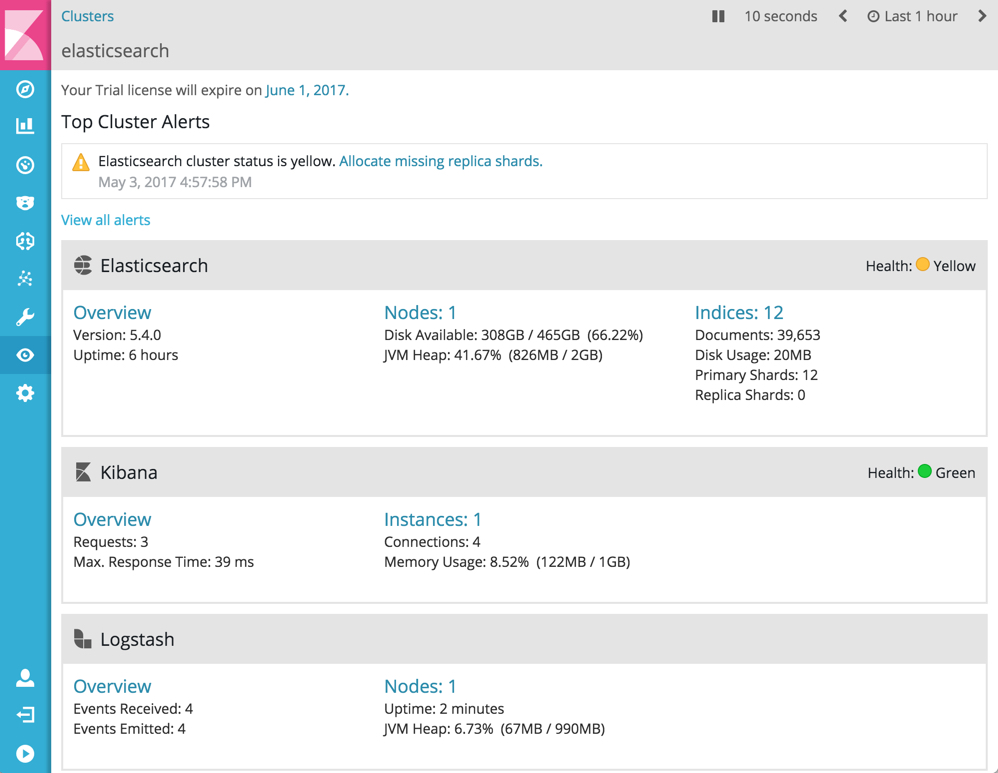
Collecting Data from Particular Indices
editBy default, the monitoring agent collects data from all Elasticsearch indices.
To collect data from particular indices, configure the
xpack.monitoring.collection.indices setting in elasticsearch.yml.
You can specify multiple indices as a comma-separated list or
use an index pattern to match multiple indices:
xpack.monitoring.collection.indices: logstash-*, index1, test2
You can prepend + or - to explicitly include or exclude index
names or patterns. For example, to include all indices that
start with test except test3, you could specify +test*,-test3.
HTTP Exporter
editWhen you configure
an exporter in elasticsearch.yml, the default local exporter is disabled.
The http exporter uses the low-level Elasticsearch REST Client. This allows
the http exporter to send its data to any Elasticsearch cluster it can access
through the network.
The http exporter supports a number of settings that control how it
communicates over HTTP to remote clusters. In most cases, it is not
necessary to explicitly configure these settings. For detailed
descriptions, see Monitoring Settings.
xpack.monitoring.exporters:
  my_local:
    type: local
  my_remote:
    type: http
    host: [ "10.1.2.3", ... ]
    auth:
      username: my_username
      password: changeme
    connection:
      timeout: 6s
      read_timeout: 60s
    ssl: ...
    proxy:
      base_path: /some/base/path
    headers:
      My-Proxy-Header: abc123
      My-Other-Thing: [ def456, ... ]
    index.name.time_format: YYYY-MM
|
A |
|
|
An |
|
|
|
|
|
User authentication for those using X-Pack Security or some other form of user authentication protecting the cluster. |
|
|
See X-Pack monitoring TLS settings for all TLS / SSL settings. If not supplied, the default node-level TLS / SSL settings are used. |
|
|
Optional base path to prefix any outgoing request with in order to work with proxies. |
|
|
Arbitrary key/value pairs to define as headers to send with every request. The array-based key/value format sends one header per value. |
|
|
A mechanism for changing the date suffix used by default. |
Configuring a Tribe Node to Work with Monitoring
editIf you connect to a cluster through a tribe node, and you want to monitor the tribe node, then you will need to install X-Pack on that node as well.
With this configuration, the tribe node is included in the node count displayed in the Monitoring UI, but is not included in the node list because it does not export any data to the monitoring cluster.
To include the tribe node in the monitoring data, enable Monitoring data collection at the tribe level:
node.name: my-tribe-node1

tribe:
  on_conflict: prefer_cluster1
  c1:
    cluster.name: cluster1
    discovery.zen.ping.unicast.hosts: [ "cluster1-node1:9300", "cluster1-node2:9300", "cluster1-node2:9300" ]
    xpack.monitoring.enabled: true
  c2:
    cluster.name: cluster2
    discovery.zen.ping.unicast.hosts: [ "cluster2-node3:9300", "cluster2-node3:9300", "cluster2-node3:9300" ]
    xpack.monitoring:
      enabled: true
      exporters:
        id1:
          type: http
          host: [ "monitoring-cluster:9200" ]
|
Enable data collection from the tribe node using a Local Exporter. |
|
|
Enable data collection from the tribe node using an HTTP Exporter. |
When you enable data collection from the tribe node, it is included in both the node count and node list.