Swimlane connector and action
editSwimlane connector and action
editThe Swimlane connector uses the Swimlane REST API to create Swimlane records.
Create connectors in Kibana
editYou can create connectors in Stack Management > Connectors or as needed when you’re creating a rule. For example:
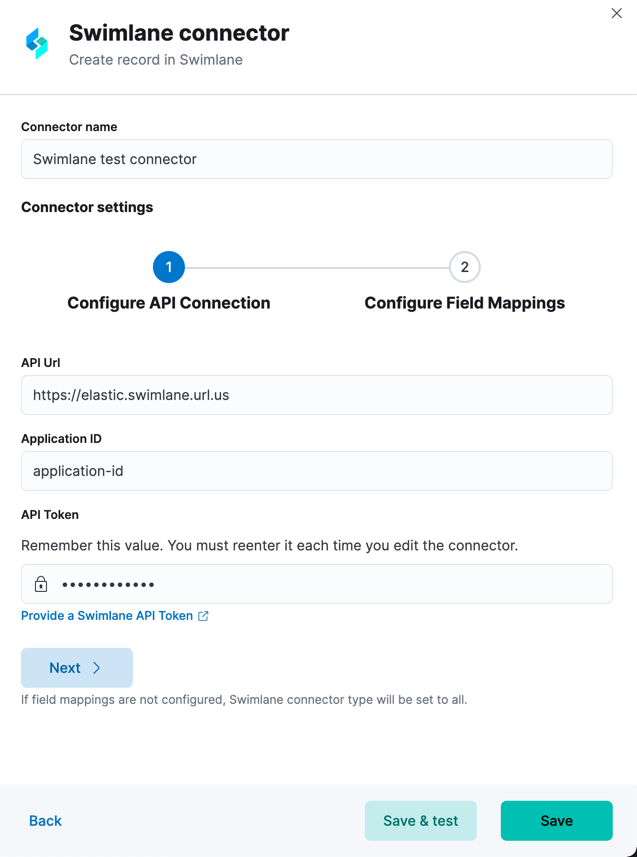
Connector configuration
editSwimlane connectors have the following configuration properties:
- Name
- The name of the connector.
- URL
- Swimlane instance URL.
- Application ID
- Swimlane application ID.
- API token
- Swimlane API authentication token for HTTP Basic authentication.
Create preconfigured connectors
editIf you are running Kibana on-prem, you can define connectors by
adding xpack.actions.preconfigured settings to your kibana.yml file.
For example:
xpack.actions.preconfigured:
  my-swimlane:
    name: preconfigured-swimlane-connector-type
    actionTypeId: .swimlane
    config:
      apiUrl: https://elastic.swimlaneurl.us
      appId: app-id
      mappings:
        alertIdConfig:
          fieldType: text
          id: agp4s
          key: alert-id
          name: Alert ID
        caseIdConfig:
          fieldType: text
          id: ae1mi
          key: case-id
          name: Case ID
        caseNameConfig:
          fieldType: text
          id: anxnr
          key: case-name
          name: Case Name
        commentsConfig:
          fieldType: comments
          id: au18d
          key: comments
          name: Comments
        descriptionConfig:
          fieldType: text
          id: ae1gd
          key: description
          name: Description
        ruleNameConfig:
          fieldType: text
          id: avfsl
          key: rule-name
          name: Rule Name
        severityConfig:
          fieldType: text
          id: a71ik
          key: severity
          name: severity
    secrets:
      apiToken: tokenkeystorevalue
Config defines information for the connector type.
-
apiUrl - An address that corresponds to URL.
-
appId - A key that corresponds to Application ID.
Secrets defines sensitive information for the connector type.
-
apiToken - A string that corresponds to API Token. Should be stored in the Kibana keystore.
Test connectors
editYou can test connectors with the run connector API or as you’re creating or editing the connector in Kibana. For example:
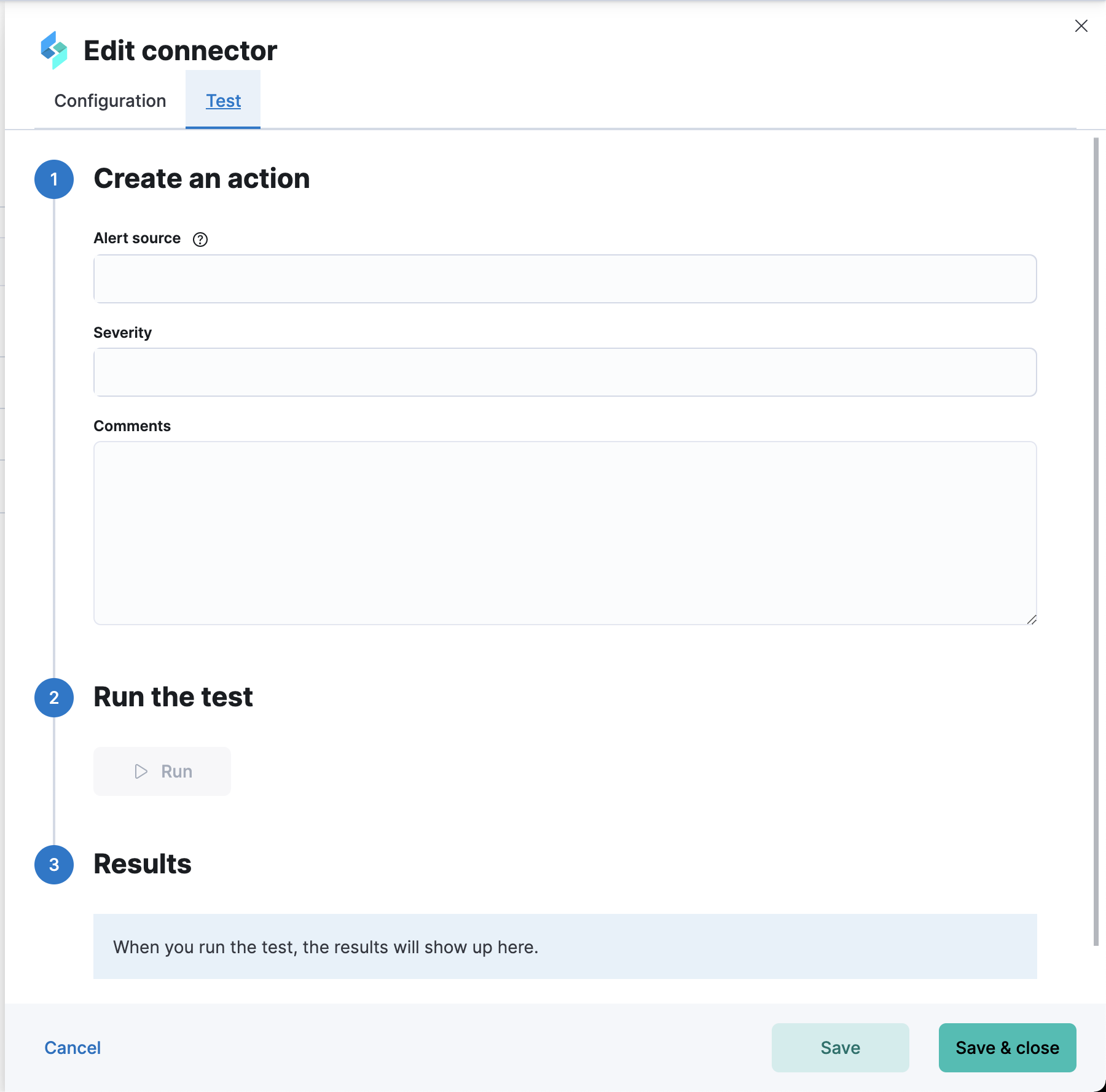
Swimlane actions have the following configuration properties.
- Comments
- Additional information for the client, such as how to troubleshoot the issue.
- Severity
- The severity of the incident.
Alert ID and Rule Name are filled automatically. Specifically, Alert ID is set to {{alert.id}} and Rule Name to {{rule.name}}.